

Overview
With SSE transport, you receive updates and responses from Elitea agents as they happen, making your workflows more interactive and efficient. Whether you’re using Visual Studio Code or another MCP client, this guide will walk you through connecting and making the most of Elitea’s MCP Server capabilities.What is the MCP Protocol?
The Model Context Protocol (MCP) is an open standard designed to enable seamless communication between AI-powered tools, agents, and client applications. By following the MCP protocol, different systems can exchange context, tasks, and results in a consistent and interoperable way. MCP is widely adopted in the AI ecosystem, making it easier to integrate various tools and platforms—like Elitea—with your favorite development environments and assistants. To learn more about the technical details and capabilities of MCP, visit the official documentation: MCP Protocol.Prerequisites
Before you begin, ensure you have the following:-
MCP Server Endpoint
Your project’s MCP Server URL in the format:Find your endpoint in Elitea → Settings → AI Configuration. -
Authentication Token
A personal access token from Elitea → Settings → Personal Tokens. Copy and store it securely as it will only be shown once. -
VS Code Requirements
- VS Code version 1.99 or later
chat.mcp.enabledsetting turned on (enabled by default)- GitHub Copilot subscription with Agent mode enabled
Authorization: Bearer [TOKEN]) can connect to Elitea’s SSE MCP Server. VS Code is currently the primary supported client.Connect to ELITEA MCP Server
You can add and configure an Elitea MCP Server in VS Code using either Workspace or User settings. This flexibility allows you to share configurations with your team or keep them global for all your projects.Step-by-Step Setup
- Open the Copilot Chat panel in VS Code.
- In Copilot Chat, select Agent mode.
-
Click the Tools icon.

-
Add the MCP server:
- Click + Add MCP Server icon.
- Select HTTP (Server Sent Events).
- Enter your Server URL (e.g.,
https://next.elitea.ai/app/PROJECT_ID/mcp).
- Enter a Server ID (use the default generated one or provide a descriptive name).
-
Choose where to save the configuration:
- Workspace Settings (shared with your team, local to the project)
- User Settings (applies globally to all VS Code workspaces)
Workspace Settings
If you choose Workspace Settings, VS Code will create a.vscode/mcp.json file in your project.
This MCP server will only be available within this workspace.
-
Open
.vscode/mcp.json
Navigate to the file in your workspace and open it. -
Add Your Token
Add the"headers"section to your server configuration exactly as shown below. Make sure to keep the wordBearer(with a space after it) and replace[Your Token]with your actual authentication token. Do not removeBearer—it is required for authorization to work correctly. -
Save and Start
Save the file, then click the Start button in the json file to activate the server.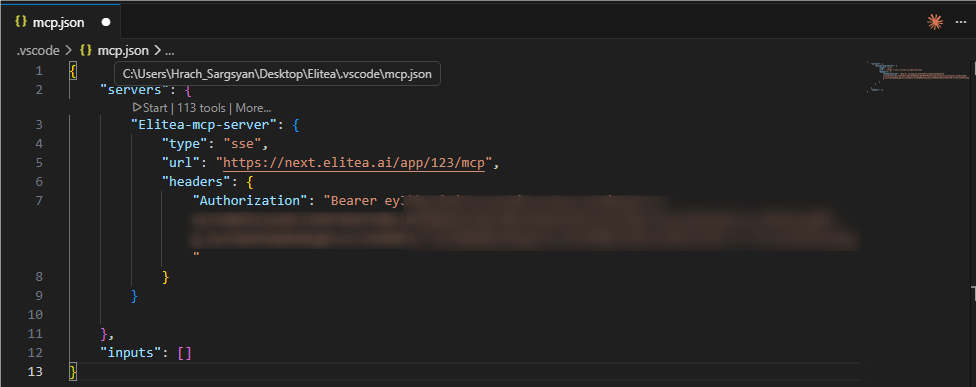
"type": "sse" to your configuration file, as shown below:User Settings
If you choose User Settings, VS Code will create a globalmcp.json file in your user configuration directory (%APPDATA%\Code\User\mcp.json on Windows).
This MCP server will be available globally for all your projects and workspaces in VS Code.
-
Open Global
mcp.json
Navigate to your globalmcp.jsonfile in VS Code (typically located at%APPDATA%\Code\User\mcp.json). -
Add Your Token
Add the"headers"section to your server configuration exactly as shown below. Make sure to keep the wordBearer(with a space after it) and replace[Your Token]with your actual authentication token. Do not removeBearer—it is required for authorization to work correctly. -
Save and Start
Save the file, then click the Start button in the mcp.json file to activate the server.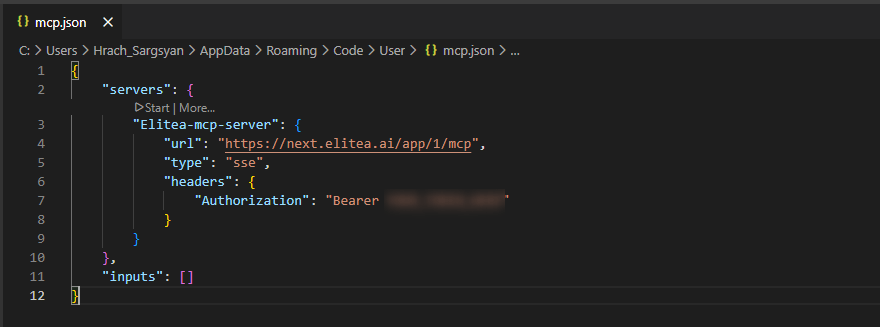
"type": "sse" to your configuration file, as shown below:Using Elitea Agents as MCP Tools
To use Elitea agents, pipelines, and toolkit tools in VS Code via MCP, they must be made available through MCP in Elitea.
Note: If you add or update agents/pipelines with the mcp tag, or enable toolkit tools for MCP after starting your MCP server, restart the server to sync and make them available as tools.
Tagging Agents and Pipelines
- In the Elitea web interface, tag your agents or pipelines with
mcp.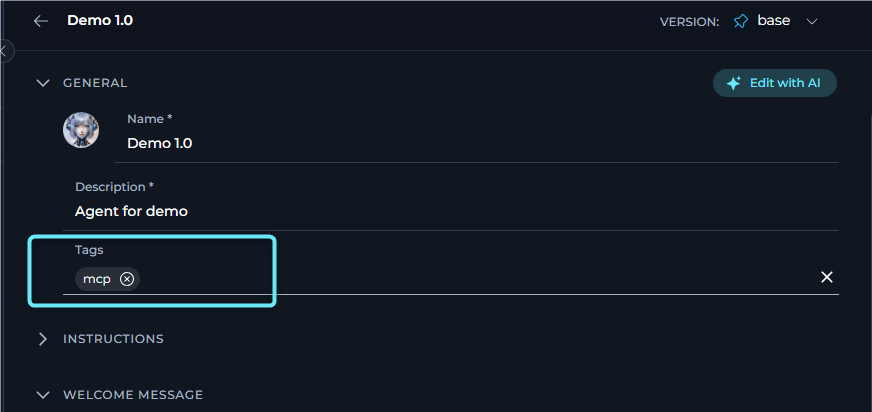
- Only tagged agents and pipelines will be synced and available as tools in VS Code.
- Only the “base” version of each agent or pipeline tagged with
mcpwill be pulled and used. If you have multiple versions of the same agent/pipeline, ensure the version you want to use is the “base”. - If you have several agents with the same name, only one will be fetched and shown in VS Code. Please consider renaming your agents with unique names if you need them all to be fetched and used.
Making Toolkit Tools Available by MCP
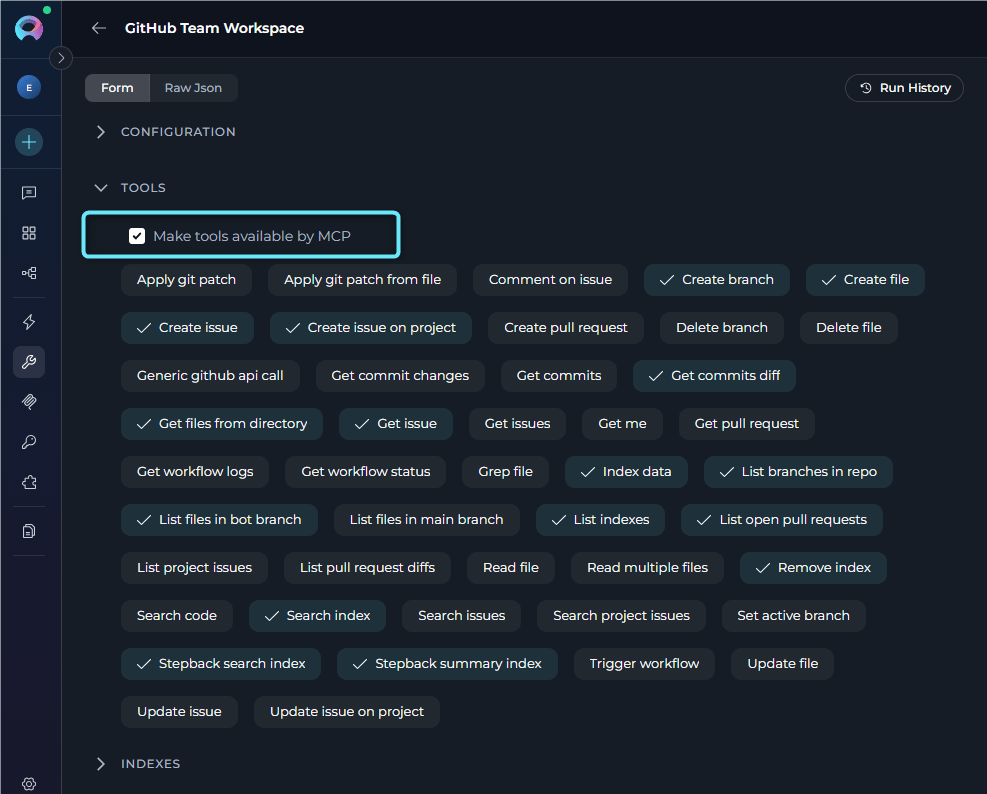
Besides agents and pipelines, you can also expose selected toolkit tools through the MCP interface.- When creating or editing a toolkit in Elitea, navigate to the TOOLS section.
-
Select the Make tools available by MCP checkbox to enable MCP access for the selected tools.
Using MCP Tools in Agent Mode
Once your MCP server is connected and your agents, pipelines, and toolkit tools are made available:-
Open GitHub Copilot Chat
Open the Copilot Chat panel in VS Code. -
Switch to Agent Mode
In the chat mode selector, choose Agent mode. -
Select Tools
Click the Select Tools icon in the chat interface. -
Choose Your Tools
- All synced tools (tagged with
mcp) will appear in the list. - By default, all are selected. You can search, select, or deselect tools as needed.
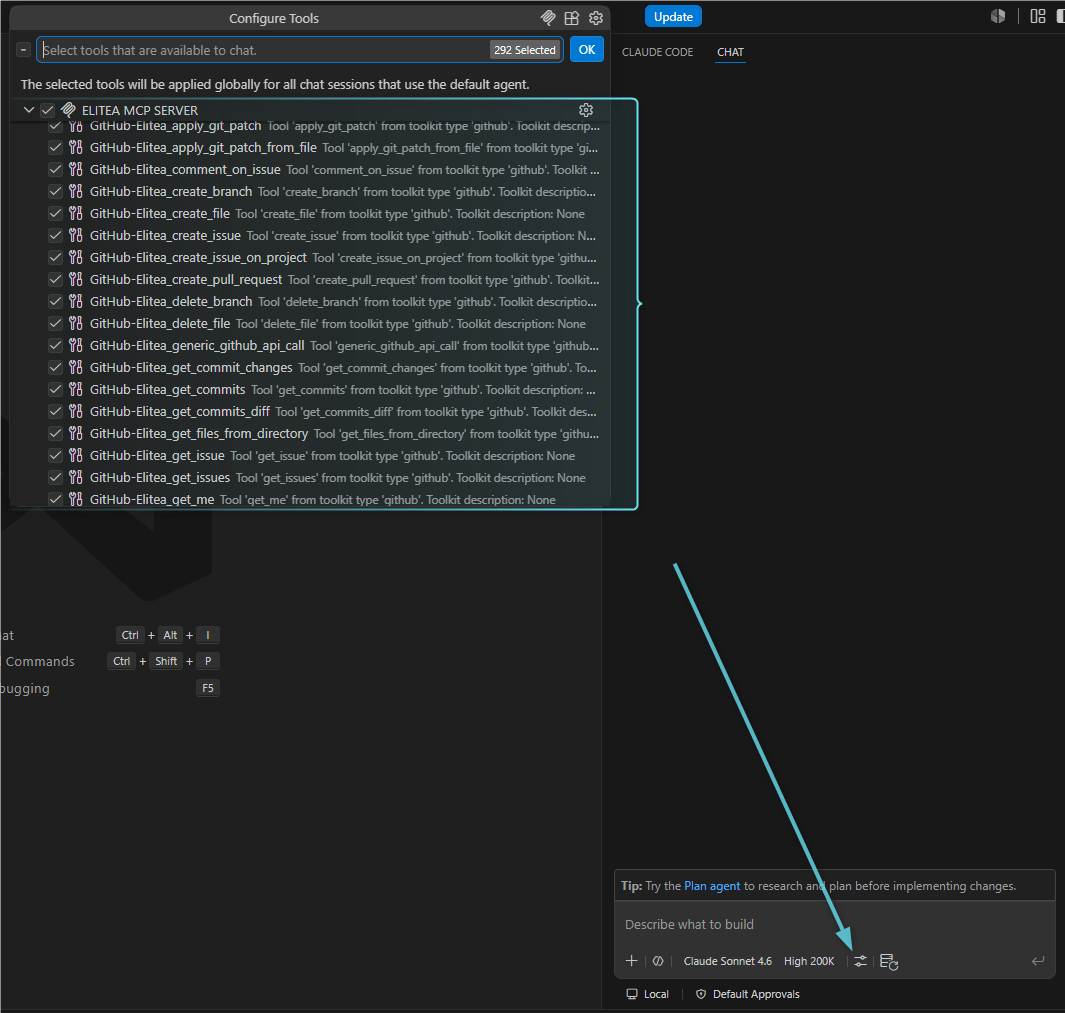
- All synced tools (tagged with
-
Reference Tools in Chat
- In the chat input, write your instructions. You can reference a tool directly by typing
#followed by the tool name (e.g.,#my_agent). - Copilot will automatically suggest matching tools as you type.
- Copilot can also intelligently select and invoke appropriate tools based on your request.
- In the chat input, write your instructions. You can reference a tool directly by typing
-
Confirm and Execute the Tool
- When Copilot proposes to use a tool, it will show the tool call with parameters.
- You’ll be asked to confirm the tool execution for security.
- Click Allow to proceed with running the tool.
-
Configure Auto-Confirm (Optional)
- Use the Allow button dropdown to configure auto-confirm preferences if desired.
- Options include: current session only, this workspace, or always auto-confirm.
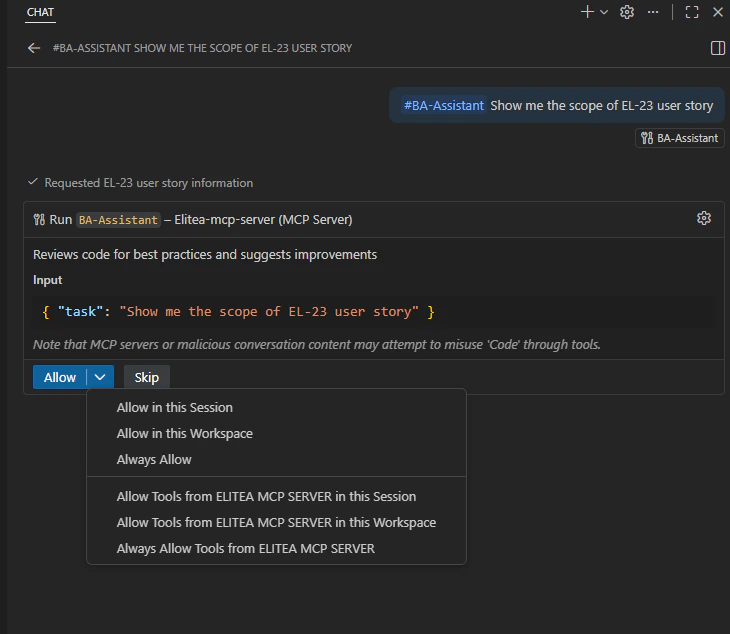
-
Review Output
- After execution, review the tool’s output in the chat.
- Use the results to continue your workflow or refine your request.
Use Cases
Here are practical examples demonstrating how to use Elitea MCP tools in your daily workflow:Enhancing Jira User Stories with BA Assistant Agent
Enhancing Jira User Stories with BA Assistant Agent
-
Select the BA Assistant Tool
- Open GitHub Copilot Chat in Agent mode
- Click Select Tools and ensure BA Assistant is selected from your MCP server
-
Request Enhancement
In the chat, reference the tool and provide your instruction: -
Review and Confirm
- Copilot will propose using the BA Assistant tool to retrieve and enhance the user story
- Click Allow to confirm the tool execution
- The agent will fetch the Jira ticket, analyze it, and present enhanced acceptance criteria
-
Save Results
- Copilot will offer to save the enhanced user story as a file (e.g.,
PLAN-3012_enhanced.md) - Confirm to save it to your workspace
- Copilot will offer to save the enhanced user story as a file (e.g.,
Analyzing Confluence Documentation with Content Analyzer
Analyzing Confluence Documentation with Content Analyzer
-
Select the Content Analyzer Tool
- Open GitHub Copilot Chat in Agent mode
- Click Select Tools and choose Content Analyzer from your Elitea MCP server
-
Request Analysis
In the chat, provide your instruction: -
Confirm and Execute
- Review the tool call parameters
- Click Allow to run the analysis
- The tool will fetch the Confluence page and extract structured information
-
Use Results
- Review the generated summary table
- Ask Copilot to save it as a markdown file or incorporate it into your documentation
Running Test Cases with QTest Integration
Running Test Cases with QTest Integration
-
Select QTest Tools
- Open GitHub Copilot Chat in Agent mode
- Click Select Tools and enable QTest toolkit tools from your MCP server
-
Retrieve Test Case
In the chat, request test case information: -
Review and Update
- Copilot will show the test case details including steps, expected results, and current status
- Click Allow to confirm
- Request an update if needed:
-
Confirm Changes
- Review the proposed update
- Click Allow to apply changes to QTest
- Verify the update was successful
Troubleshooting
No Agents or Pipelines Are Shown
No Agents or Pipelines Are Shown
- Check MCP Tag: Ensure your agents and pipelines in Elitea are tagged with
mcp. Only tagged items will sync and appear as tools in VS Code. - Check Toolkit MCP Checkbox: For toolkit tools, verify that the “Make tools available by MCP” checkbox is enabled in the toolkit’s TOOLS section.
- Restart the Server: If you add or update tags or enable MCP for toolkit tools after starting the MCP server, restart the server to sync the changes:
- In VS Code, go to the MCP server list
- Click the Stop button for your Elitea MCP server
- Click the Start button to restart it
- Scope of MCP Server: Verify whether your MCP server is configured for the correct scope (User or Workspace). Sometimes, tools may not appear if the configuration is not in the expected location.
- Check Server Status: Ensure the MCP server shows as “Running” in VS Code. If it shows an error status, check the server logs for details.
Token Authentication Issues
Token Authentication Issues
- Correct Token: Double-check that you have copied and pasted the correct authentication token into your configuration. Tokens are case-sensitive and should not have extra spaces.
- Token Expiry: Ensure your token has not expired. Check the token’s expiration date in Elitea Settings under Personal Tokens.
- Token Placement: Verify the token is added under the
"headers"section in your MCP server configuration with the exact format: - Bearer Prefix: Ensure the word “Bearer” (with a capital B and a space after it) appears before your token. Do not include extra colons or quotes around “Bearer”.
- Generate New Token: If the issue persists, generate a new token in Elitea and update your configuration.
VS Code MCP Server Connection Errors
VS Code MCP Server Connection Errors
-
Check Error Indicator: If VS Code encounters an issue with an MCP server, an error indicator will appear in the Chat view.
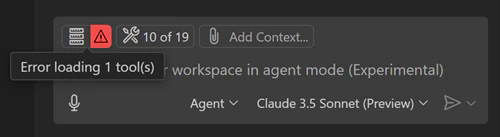
-
View Server Logs:
- Select the error notification in the Chat view
- Choose Show Output to view detailed server logs
- Look for specific error messages that indicate the root cause
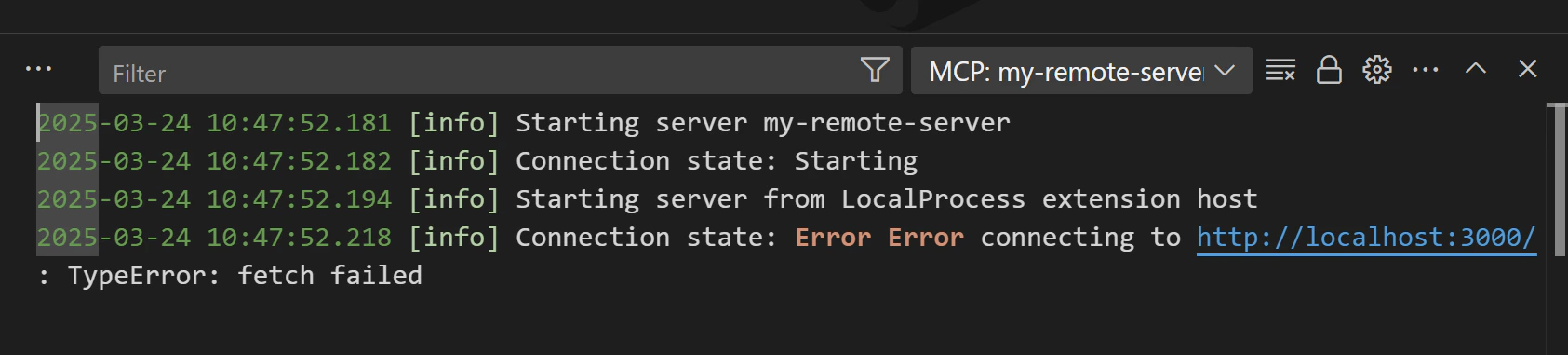
-
Command Palette Access: Alternatively, run
MCP: List Serversfrom the Command Palette, select your Elitea server, and choose Show Output for troubleshooting details. -
Verify Server URL: Ensure your server URL is correctly formatted:
- Should be:
https://your-elitea-server.com/app/PROJECT_ID/mcp - Should NOT include extra paths or trailing slashes
- Should be:
-
Check VS Code Version: Verify you’re using VS Code 1.99 or later with
chat.mcp.enabledsetting turned on.
Configuration File Issues
Configuration File Issues
-
Validate JSON Syntax: Ensure your
mcp.jsonfile contains valid JSON. Common issues include:- Missing commas between properties
- Extra commas after the last property
- Mismatched quotes or brackets
- Incorrect escape characters
-
Check File Location:
- Workspace:
.vscode/mcp.jsonin your project root - User/Global:
%APPDATA%\Code\User\mcp.json(Windows) or~/.config/Code/User/mcp.json(Linux/Mac)
- Workspace:
-
Verify Type Property: For VS Code 1.100.1 or higher, ensure you have
"type": "sse"in your configuration: - Reload VS Code: After making configuration changes, reload VS Code window (Command Palette → “Developer: Reload Window”).
Network and Connectivity Issues
Network and Connectivity Issues
- Check Internet Connection: Ensure your internet connection is stable and active.
- Firewall and Proxy Settings:
- Verify that your firewall is not blocking the MCP server URL
- If behind a corporate proxy, ensure VS Code proxy settings are configured correctly
- Check that SSE (Server-Sent Events) connections are allowed through your firewall
- VPN Considerations: If using a VPN, try connecting with and without it to identify if the VPN is causing issues.
- Test Server Accessibility: Open the MCP server URL in a web browser to verify it’s accessible from your network.
- SSL/TLS Issues: Ensure your system trusts the SSL certificate of your Elitea server. Self-signed certificates may cause connection failures.
Tools Not Executing or Hanging
Tools Not Executing or Hanging
- Check Tool Selection: Ensure the tool is selected (checked) in the Select Tools menu before trying to use it.
- Verify Agent Mode: Confirm you’re in Agent mode in GitHub Copilot Chat. MCP tools only work in Agent mode.
- Review Tool Parameters: Some tools may hang if required parameters are missing or invalid. Check the tool call preview before clicking Allow.
- Server Timeout: If tools consistently timeout, check the Elitea server logs for performance issues or rate limiting.
- Restart Server and VS Code: Try restarting both the MCP server and VS Code completely.
Multiple Servers Conflict
Multiple Servers Conflict
- Verify Active Server: Use
MCP: List Serversfrom Command Palette to see all configured servers and their status. - Check Server Names: Ensure each MCP server has a unique name/ID to avoid conflicts.
- Scope Conflicts: If you have the same server configured in both User and Workspace settings, the Workspace setting takes precedence.
- Disable Unused Servers: Stop or remove MCP servers you’re not currently using to simplify troubleshooting.
Support Contact
If you encounter issues not covered in this guide or need additional assistance with MCP Server integration, please refer to Contact Support for detailed information on how to reach the ELITEA Support Team. Email: SupportAlita@epam.comFAQ
What is the difference between Workspace and User MCP server configuration?
What is the difference between Workspace and User MCP server configuration?
.vscode/mcp.json) is project-specific and can be shared with your team via version control. It only works when you open that specific workspace.User/Global configuration (%APPDATA%\Code\User\mcp.json) applies to all VS Code workspaces on your machine and is not shared with others. It’s ideal for personal tokens and servers you use across multiple projects.Which should I use?- Use Workspace if you want team members to have the same MCP servers configured (they’ll need to add their own tokens)
- Use User for personal MCP servers or when working across multiple projects with the same Elitea instance
Can I use the same Elitea token for both Workspace and User configurations?
Can I use the same Elitea token for both Workspace and User configurations?
- Store the token in Secrets in Elitea
- Use different tokens for different environments (development vs. production)
- Regularly rotate tokens and update configurations accordingly
How do I know which version of my agent/pipeline will be used via MCP?
How do I know which version of my agent/pipeline will be used via MCP?
mcp will be pulled and used in VS Code. If you have multiple versions:- Ensure the version you want to use is marked as “latest” in Elitea
- If you have multiple agents/pipelines with the same name, only one will be fetched
- Consider renaming agents with unique names if you need multiple versions accessible via MCP
Can I use MCP tools outside of Agent mode?
Can I use MCP tools outside of Agent mode?
# followed by the tool name, but the actual execution requires Agent mode.Why do I need to restart the MCP server after tagging new agents?
Why do I need to restart the MCP server after tagging new agents?
mcp) to agents/pipelines or enable toolkit tools for MCP, the server needs to be restarted to:- Re-scan the Elitea project for MCP-tagged items
- Refresh its internal tool registry
- Make newly tagged items available in VS Code’s tool list
What's the difference between agents, pipelines, and toolkit tools in MCP?
What's the difference between agents, pipelines, and toolkit tools in MCP?
How many MCP servers can I configure in VS Code?
How many MCP servers can I configure in VS Code?
Do I need GitHub Copilot subscription to use Elitea MCP Server?
Do I need GitHub Copilot subscription to use Elitea MCP Server?
Can I control which toolkit tools are exposed via MCP?
Can I control which toolkit tools are exposed via MCP?
- Limit exposure of sensitive operations
- Keep the MCP tool list focused and manageable
- Follow the principle of least privilege
What should I do if my token expires?
What should I do if my token expires?
- Go to Elitea → Settings → Personal Tokens
- Generate a new token with an appropriate expiration date
- Update your
mcp.jsonfile with the new token in the"Authorization": "Bearer NEW_TOKEN"field - Save the file
- Restart the MCP server in VS Code