

Introduction
Purpose and Overview
Power Automate integration enables bidirectional communication: Inbound Triggers (Microsoft 365 → ELITEA):- React to Teams Messages: Automatically process incoming Teams messages using ELITEA AI agents
- Process Emails: Route incoming emails to ELITEA agents for intelligent processing
- Scheduled Processing: Periodically check for mentions or specific conditions
- Reply to Teams: Send messages back to Teams channels or chats
- Send Emails: Compose and send emails via Outlook
- Reply to Emails: Respond to email threads programmatically
This guide covers two patterns:
- Power Automate triggering ELITEA - Flows that send data to ELITEA agents
- ELITEA triggering Power Automate - Agents using OpenAPI tools to invoke Power Automate HTTP endpoints
Key Terms
Prerequisites
Before you begin, ensure you have:- Access to Microsoft Power Automate (Premium license recommended for HTTP triggers)
- An ELITEA account with a configured agent
- ELITEA Personal Access Token (PAT) for API authentication
- The following ELITEA identifiers:
- Project ID: Found in Settings → Configuration
- Agent ID: The ID of your configured agent
- Agent Version ID: The specific version of your agent to use
- Toolkit ID: (Optional) For attachment storage configuration
ELITEA API Overview
Power Automate communicates with ELITEA through the following API endpoints:Core Endpoints
Base URLs
Authentication
All API requests require a Bearer token in the Authorization header:Part 1: Power Automate → ELITEA (Inbound Triggers)
This section covers flows that send data from Microsoft 365 to ELITEA agents.Setup and Configuration
Step 1: Prepare ELITEA Agent
- Navigate to Agents in your ELITEA project
- Create or select an existing agent for your automation
- Configure the agent with appropriate instructions for handling automated requests
- Note the following values:
-
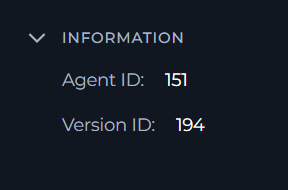
Agent ID and Agent Version ID: Visible in the Information section of the agent details page
-
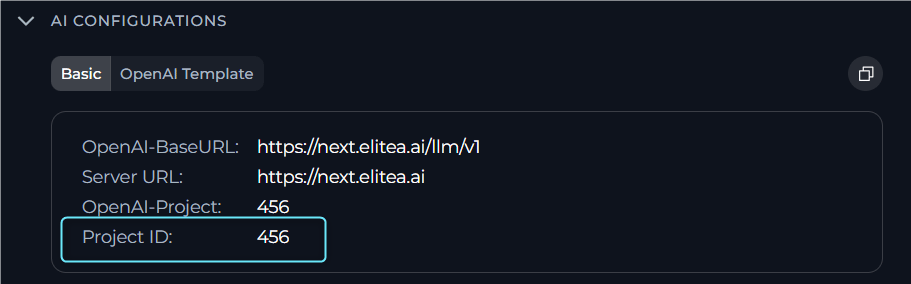
Project ID: Located in Settings → General
-
Agent ID and Agent Version ID: Visible in the Information section of the agent details page
Step 2: Generate Personal Access Token
- Go to Settings → Personal Access Tokens
- Click Create Token
- Provide a descriptive name (e.g., “Power Automate Integration”)
- Copy and securely store the generated token
Scenario 1: React to Teams Messages
This flow automatically responds to Teams chat messages using an ELITEA agent.Flow Overview
Step-by-Step Configuration
1. Create the Flow
- Navigate to make.powerautomate.com
- Click Create → Automated cloud flow
- Name: “React on Teams message trigger”
- Trigger: When a new chat message is added (Microsoft Teams)
2. Initialize Variables
Add the following Initialize variable actions in sequence:3. Process Messages
Add For each action ontriggerOutputs()?['body/value']:
Get Message Details:
4. Detect Chat Type
Teams has three chat types that require different handling:
Get Chat Details:
5. Detect @Mentions
For group and meeting chats, check if the bot was mentioned using thementions array from the message details.
The Graph API returns a
mentions array containing each @mention in the message:YOUR_BOT_USER_ID with your bot’s actual user ID (e.g., d346094f-19d8-48e7-b53e-fd7909afff91).
Alternative (check by display name):
6. Detect Reply and Forwarded Messages
Optionally detect if a message is a reply or forwarded content: Compose_isReply:7. Filter Messages (Main Condition)
Combine all checks into a single condition to determine if the message should be processed: Condition Expression (Advanced Mode):- Always processes 1:1 chat messages
- Only processes group/meeting chat messages when the bot is @mentioned
- Filters out bot’s own messages (prevents infinite loops)
- Filters out system events (member added/removed, etc.)
8. Send Acknowledgment
9. Build Chat History
Use a Loop on recent messages to build context:10. Check/Create Conversation
Check Existing:- Get conversation details
- Filter for agent participant
- Extract participant ID
- Create conversation
- Configure attachment storage
- Add agent as participant
11. Handle Screenshots and Attachments
Screenshots pasted into Teams messages are stored as “hosted contents”. Process them as follows: List Hosted Contents:12. Send Message to Agent
Compose User Input with Context: Include message context (reply/forward indicators) and chat history:Complete Flow Structure
Scenario 2: Process Incoming Emails
This flow processes emails sent to a monitored mailbox and routes them to ELITEA agents.Flow Overview
Two Approaches
Option A: Email Trigger (Real-time)
Trigger: When a new email arrives (V3)- To: Your monitored mailbox (e.g.,
SupportAlita@epam.com) - Processes emails as they arrive
Option B: Scheduled Check (Polling)
Trigger: Recurrence (e.g., every 1 minute)- Get emails (V3): Fetch unread emails with specific criteria
- Filter: Check for @mentions or keywords
- Useful for more controlled processing
Key Configuration
Email Metadata Composition
Reply Instructions
Include the message ID so the agent can reply:Conversation Persistence with SharePoint
Use a SharePoint list to map email conversations to ELITEA conversations:Part 2: ELITEA → Power Automate (Outbound Actions)
This section covers HTTP-triggered flows that ELITEA agents can invoke using OpenAPI tools.Creating HTTP-Triggered Flows
HTTP triggers create webhook endpoints that ELITEA agents can call.HTTP Request triggers require a Power Automate Premium license.
Scenario 3: Reply to Teams Channel
Allows ELITEA agents to post replies in Teams channels.Flow Configuration
Trigger: When an HTTP request is received Request Body Schema:
Response:
Scenario 4: Reply to Teams Chat
Allows ELITEA agents to send messages to Teams 1:1 or group chats.Flow Configuration
Trigger: When an HTTP request is received Request Body Schema:Scenario 5: Send Email
Allows ELITEA agents to compose and send new emails.Flow Configuration
Trigger: When an HTTP request is received Request Body Schema:Scenario 6: Reply to Email
Allows ELITEA agents to reply to existing email threads.Flow Configuration
Trigger: When an HTTP request is received Request Body Schema:Configuring OpenAPI Tools in ELITEA
To enable ELITEA agents to call Power Automate flows, create an OpenAPI tool specification.Example: Reply to Email OpenAPI Spec
Agent Instructions for OpenAPI Tools
Include clear guidance in your agent instructions:Handling Attachments
Power Automate flows can upload attachments to ELITEA conversations for agent processing.Step 1: Configure Attachment Storage
Before uploading, the conversation needs a storage toolkit participant, and the conversation must be updated to point at it: 1. Add the storage toolkit as a participant:The
toolkit_id refers to a storage toolkit configured in your ELITEA project (e.g., Artifacts toolkit). participant_id is the ID returned when that toolkit was added as a participant in step 1.Step 2: Upload Attachment
Power Automate Format:- Method: POST
-
URL:
https://next.elitea.ai/api/v2/elitea_core/attachments/prompt_lib/{{PROJECT_ID}}/{{CONVERSATION_ID}} -
Headers:
Authorization:Bearer {{YOUR_PAT}}
-
Body: Select
form-data
Step 3: Include in Message
Reference uploaded attachments in your message:Processing Attachments from Different Sources
Teams Hosted Content (Images)
Email Attachments
Error Handling Pattern
All HTTP-triggered flows should implement proper error handling:Complete Flow Examples
Example 1: Teams Bot Flow Structure
The enhanced condition ensures:
- 1:1 chats: All messages processed
- Group chats: Only @mentioned messages processed
- Meeting chats: Only @mentioned messages processed
Example 2: Email Processing Flow Structure
Example 3: HTTP Reply Flow Structure
Verification
After setting up your flows:Test Inbound Flows (Power Automate → ELITEA)
-
Trigger the Flow:
- For Teams: Send a message to the monitored chat
- For Email: Send an email to the monitored mailbox
- Use the Test button in Power Automate for manual testing
-
Check ELITEA:
- Navigate to your ELITEA Chat
- Verify the conversation was created
- Confirm the agent received and processed the message
-
Review Flow History:
- Check the flow run history for any errors
- Examine HTTP response bodies for debugging
Test Outbound Flows (ELITEA → Power Automate)
-
Get the HTTP Trigger URL:
- Open your flow
- Copy the HTTP POST URL from the trigger
-
Test with curl or Postman:
-
Configure ELITEA Agent:
- Add the OpenAPI tool to your agent
- Test the agent with appropriate prompts
Troubleshooting
Common Issues
Debug Tips
- Use Run after settings to handle failures gracefully
- Add error handling with Scope and Try-Catch patterns
- Check Power Automate run history for detailed error messages
- Use the Peek code feature to see raw JSON of actions
- Test HTTP requests independently using Postman
Preventing Infinite Loops
For Teams integrations, always check:- The message sender is not the bot account
- The message type is “message” (not system events)
- The eventDetail is null (not member added/removed events)
- For group/meeting chats: the bot is @mentioned
- Always processes 1:1 chat messages
- Only processes group/meeting messages when @mentioned
- Filters out all system events and bot’s own messages
Detecting @Mentions Reliably
Use thementions array from the message details rather than parsing HTML content:
By Bot User ID (most reliable):
Security Best Practices
-
Store Credentials Securely:
- Use Power Automate’s Connections for Microsoft 365 authentication
- Store ELITEA PATs securely (consider Azure Key Vault for production)
- Never hardcode tokens in flow definitions
-
Limit Permissions:
- Create dedicated service accounts for automation
- Use least-privilege principles for API tokens
- Restrict flow access to authorized users
-
Monitor and Audit:
- Review flow run history regularly
- Set up alerts for failed runs
- Enable logging for security-sensitive operations
-
Validate Inputs:
- Sanitize user inputs before processing
- Validate message sources
- Implement rate limiting for HTTP triggers