

Introduction
The Inventory application within ELITEA is an AI-powered knowledge graph engine that ingests source code repositories (GitHub, GitLab, Bitbucket, ADO Repos) and builds structured knowledge graphs by extracting entities — classes, functions, services, APIs, data models, and more — along with the relationships between them. With Inventory, your ELITEA Agents can search code entities by name or concept, analyze upstream and downstream dependencies, retrieve source code, and explore architectural patterns across multiple repositories in a single unified graph.Knowledge Graph Construction
Multi-Source Ingestion
Entity Search & Retrieval
Impact Analysis
Incremental Updates
Built-in Chat Interface
Prerequisites
Source Code Toolkit
LLM Configuration
Embedding Model
K8sIngestionJobManager. This provides improved isolation and reliability for ingestion tasks. Deployment dependencies and requirements are clearly defined — consult your platform administrator to ensure the correct environment variables and artifact bucket access are configured before use.System Integration with ELITEA
Inventory integrates with ELITEA as an Application accessible through the Apps menu. It provides a knowledge graph engine with a built-in user interface for managing ingestion, exploring graph content, and querying the knowledge base through an AI chat interface.Request Inventory Application Access
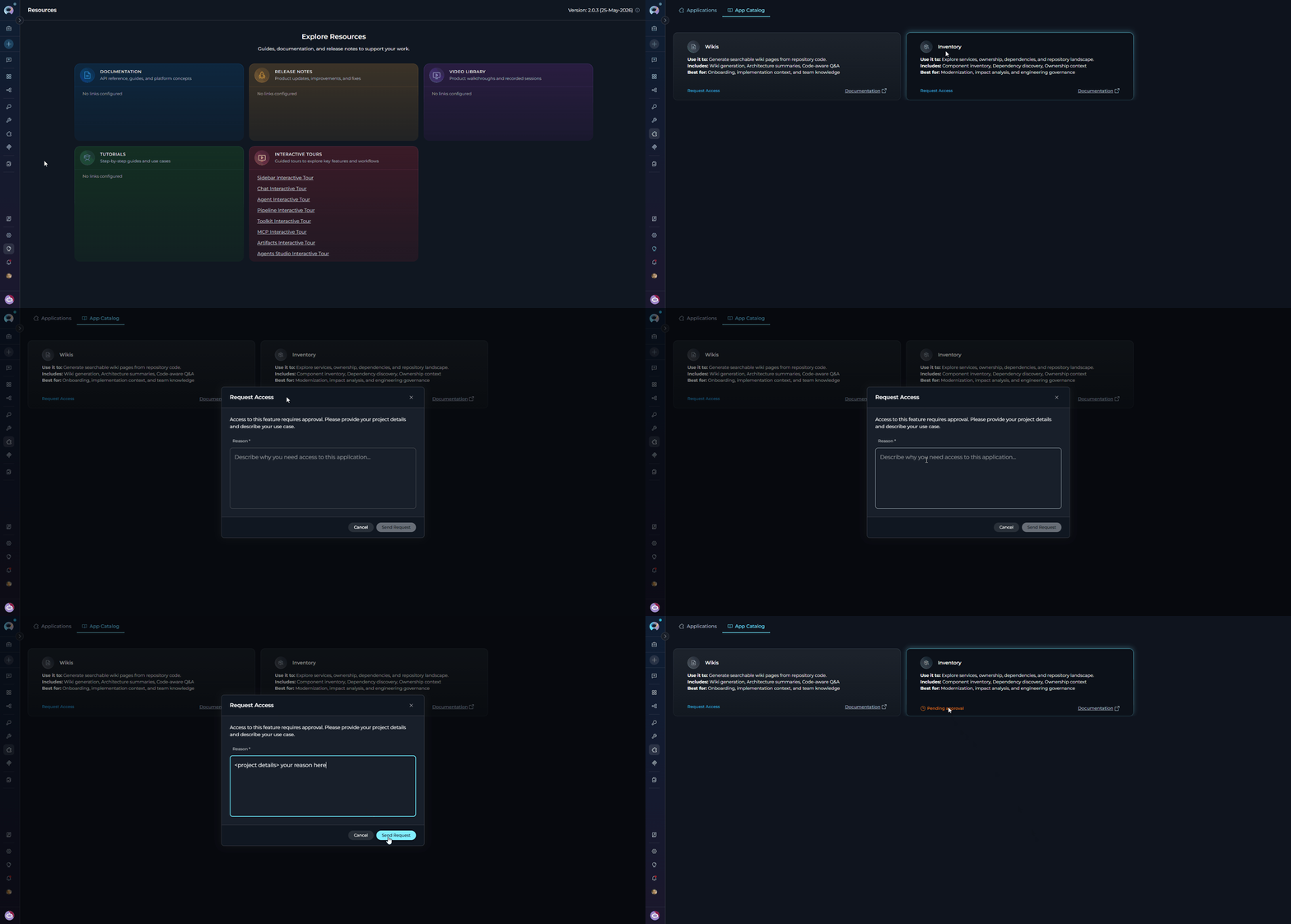
If the Inventory application is not yet enabled for your project, the App Catalog card shows a Request Access button instead of Configure. Submit a request to have it enabled by your administrator.- Navigate to Apps: Open the sidebar and select Apps.
- Open the App Catalog tab: Select the App Catalog tab to browse available applications.
- Locate the Inventory card: Find the Inventory card in the catalog.
- Click Request Access: Click the Request Access button on the Inventory card.
- Provide a reason: In the request modal, enter a description of why you need access to the Inventory application.
- Submit the request: Click Submit to send the request to your administrator.
- Await approval: Once approved, the card updates and the Configure button becomes available.
-
Proceed with configuration: Follow the steps in Create Inventory Application to set up the application.
Create Inventory Application
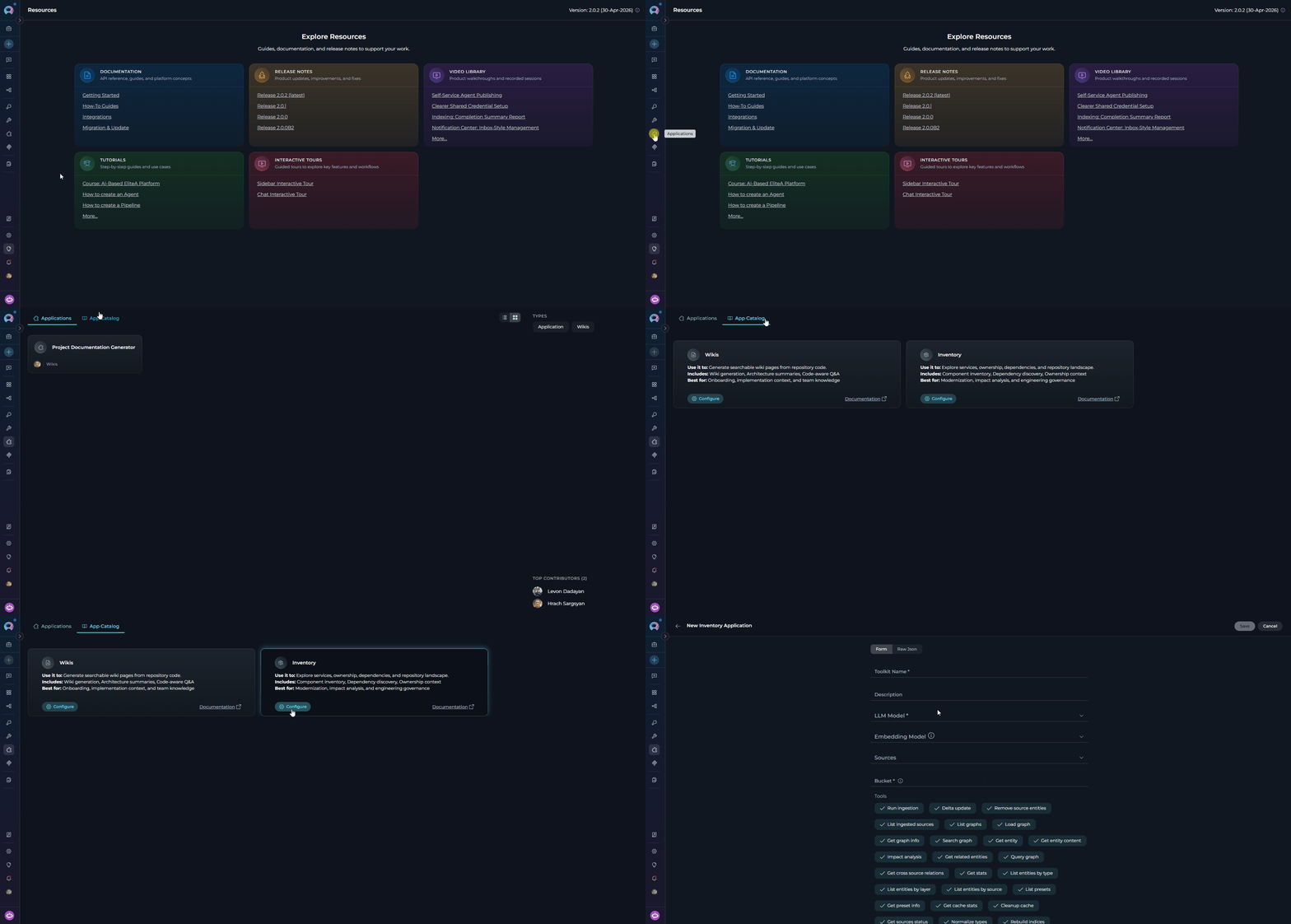
- Navigate to Apps: Open the sidebar and select Apps.
- Open the App Catalog tab: Select the App Catalog tab to browse available applications.
- Locate the Inventory card: Find the Inventory card in the catalog.
-
Start configuration: Click the Configure button on the Inventory card. This opens the application configuration form.
-
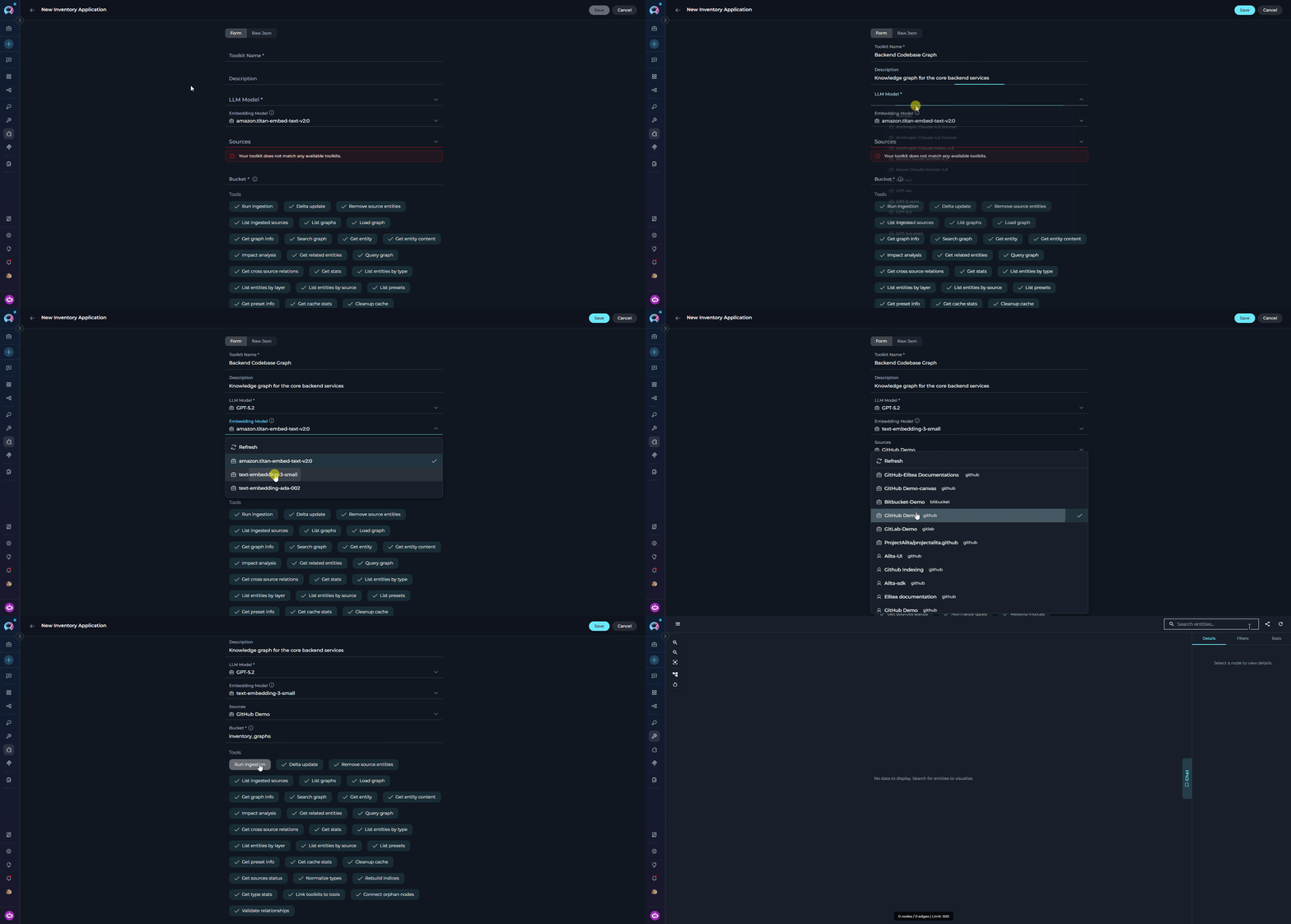
Configure Application Settings:
-
Save Application: Click Save to create the application.
- Source ingestion management
- Knowledge graph exploration and entity browsing
- Ingestion status monitoring per source
- Built-in AI chat for querying the knowledge graph
Available Tools
The Inventory application toolkit provides the following tools:Applications Tab
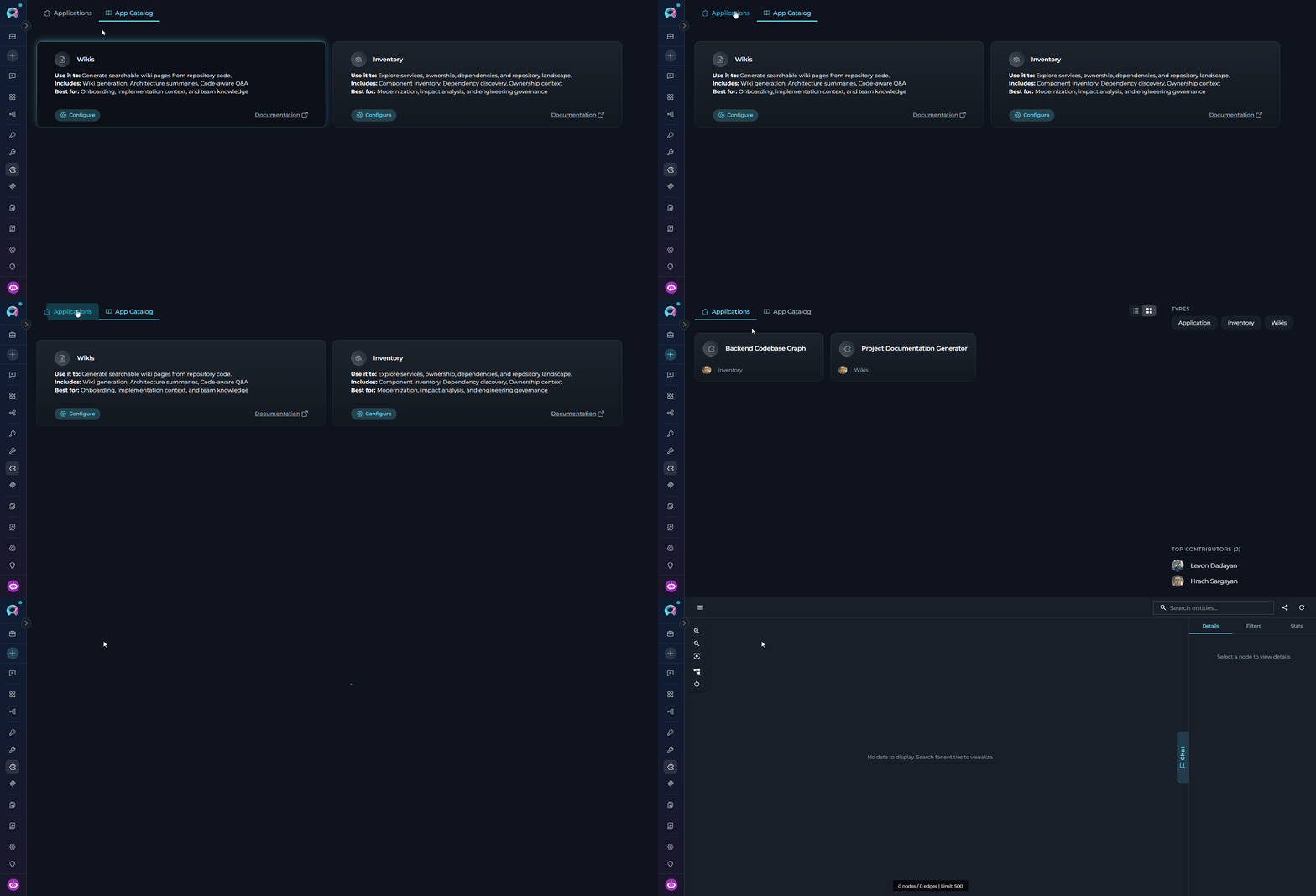
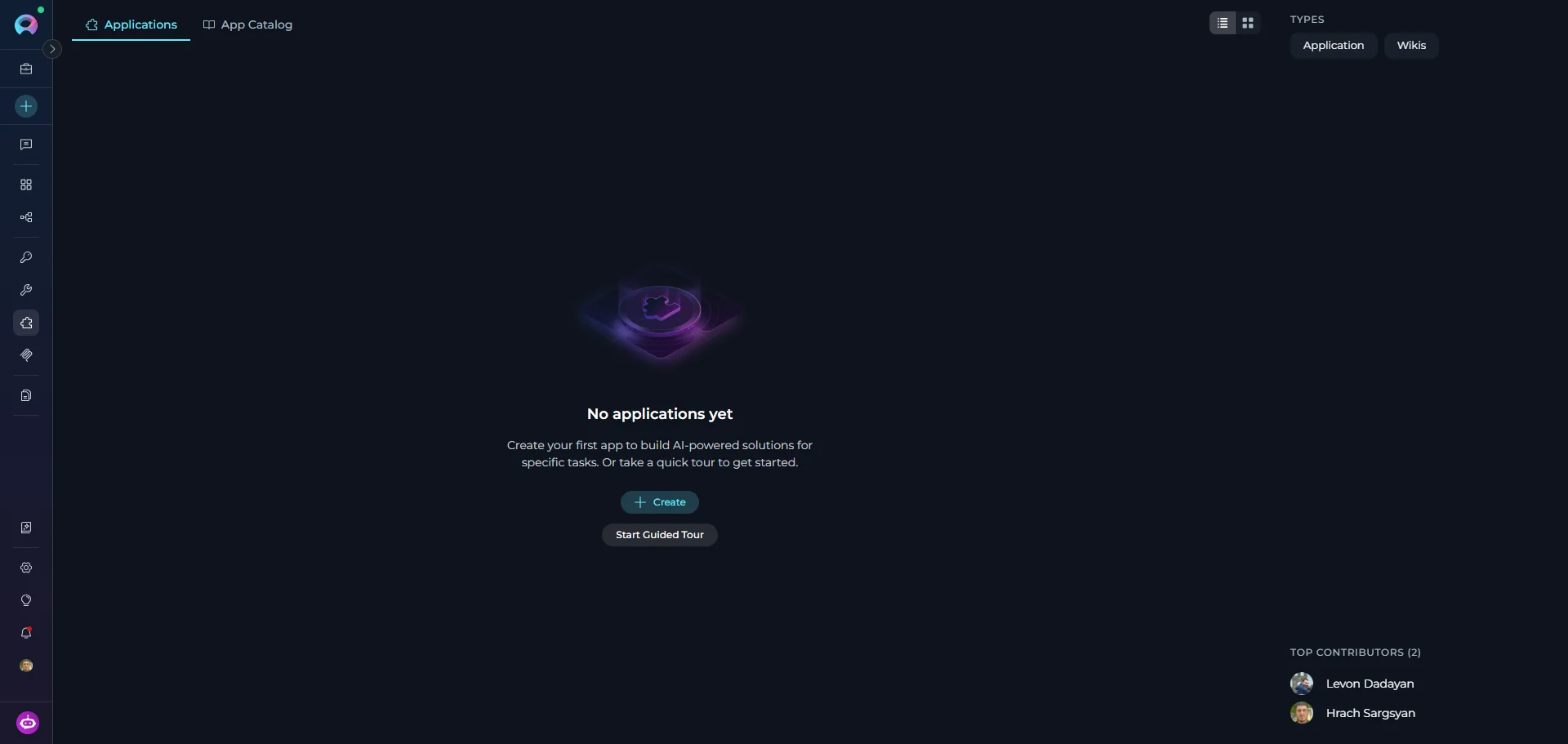
All created Inventory applications are listed in the Applications tab of the Apps menu. Each card displays the application name and description. To open an Inventory application:- Navigate to the Apps menu in the sidebar and select the Applications tab.
- Click on your Inventory application card.
-
The Inventory interface opens. Here you can manage data sources, monitor ingestion status, explore the knowledge graph, and access the AI chat.
Working with the Inventory Application
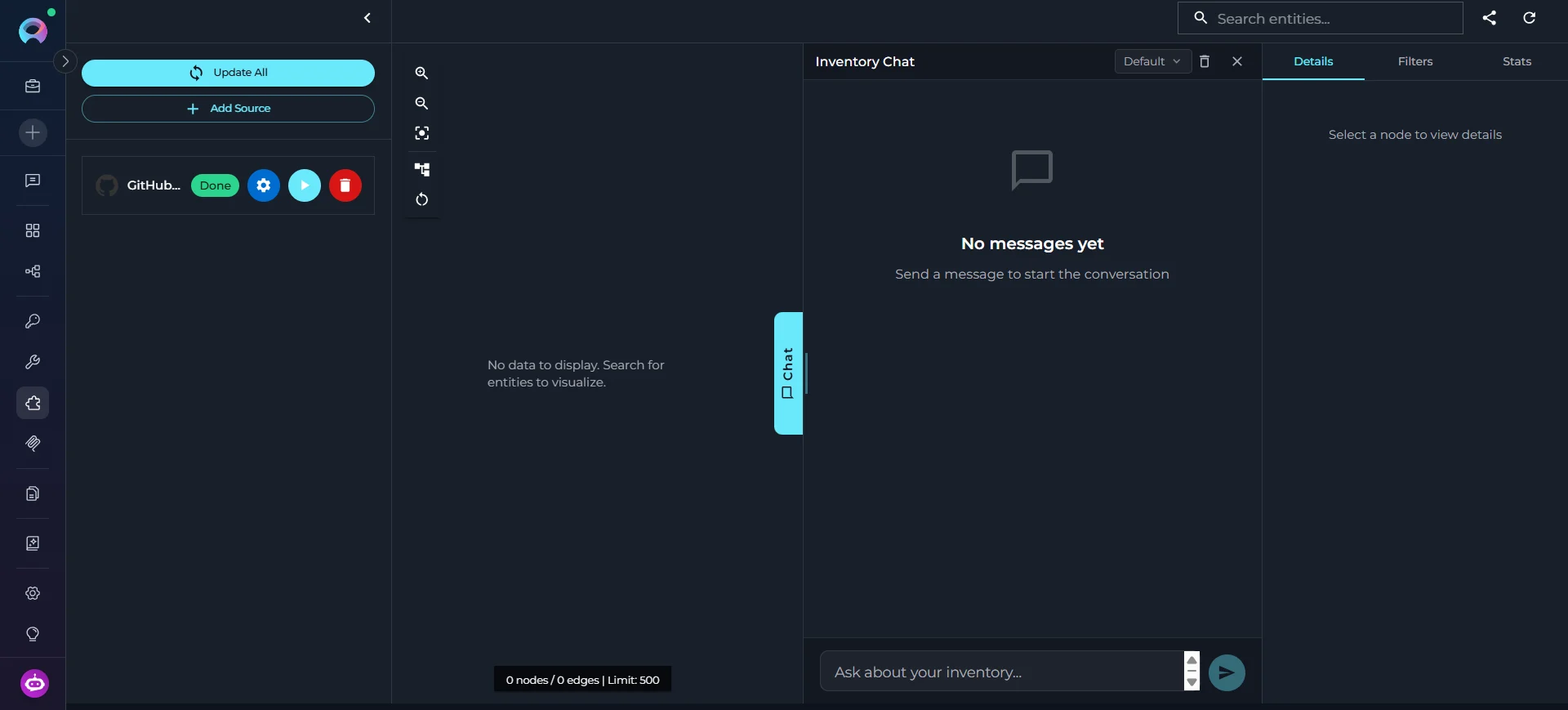
The Inventory interface is organized into several areas:- Sources Panel: Manage data sources and monitor per-source ingestion status
- Graph Explorer: Browse entities, view relationships, and inspect source citations
-
Chat Interface: AI-powered chat for natural language knowledge graph queries
Adding Sources
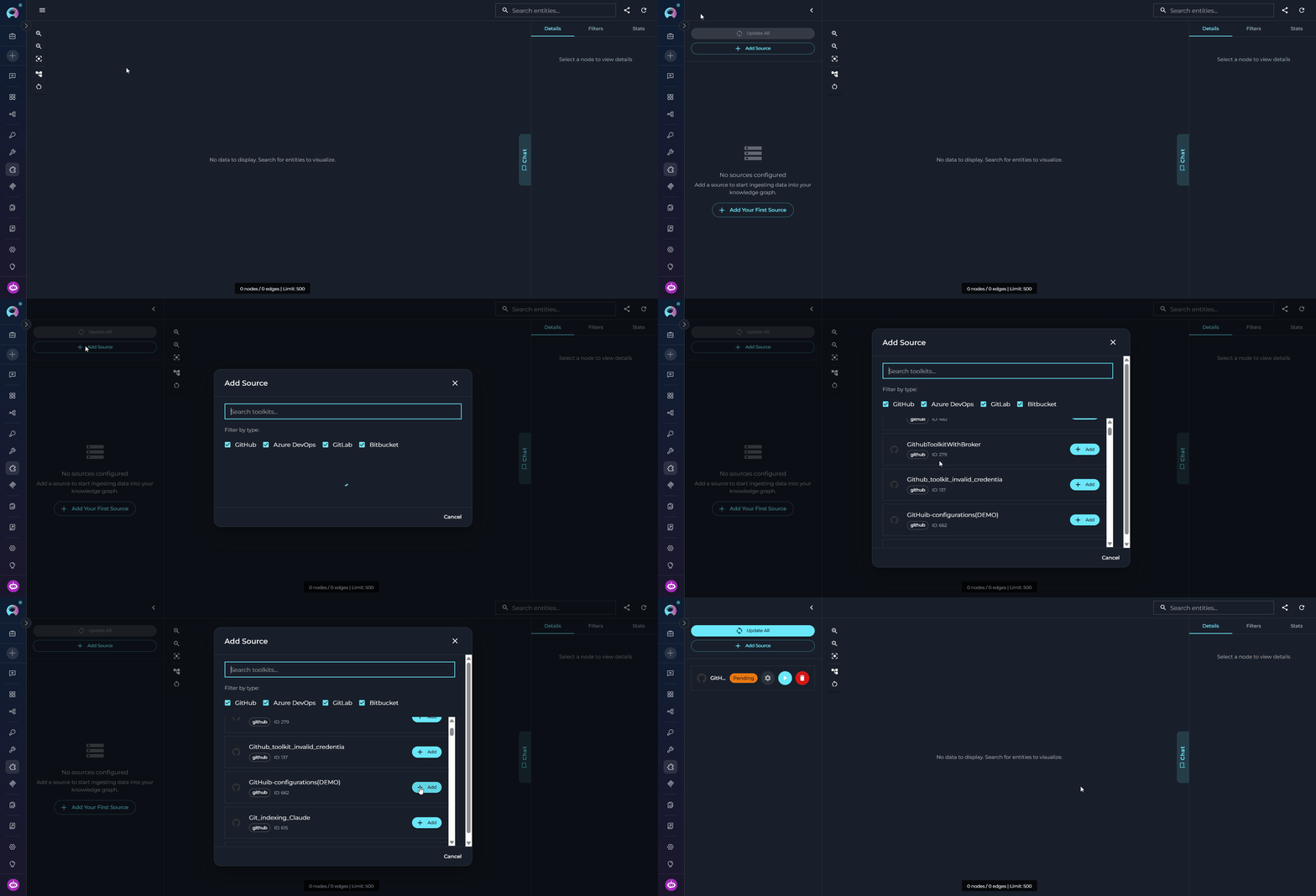
Before running ingestion, add one or more source toolkits to the Inventory application. Sources are the code repositories the knowledge graph will be built from. To add a source:- Open the Inventory application from the Applications tab.
- In the Sources panel, click Add Source.
- Select a source toolkit from the dropdown (GitHub, GitLab, Bitbucket, or ADO Repos).
-
Click Save to add the source.
Per-Source Settings
- Branch — Target branch to ingest. Uses the toolkit default if not specified.
-
File Patterns — Comma-separated glob patterns to include (e.g.,
**/*.py,**/*.js). -
Exclude Patterns — Comma-separated patterns to exclude (e.g.,
**/test/**,**/vendor/**). -
Preset — Language preset to apply (e.g.,
python,typescript,java) — automatically sets sensible include/exclude patterns.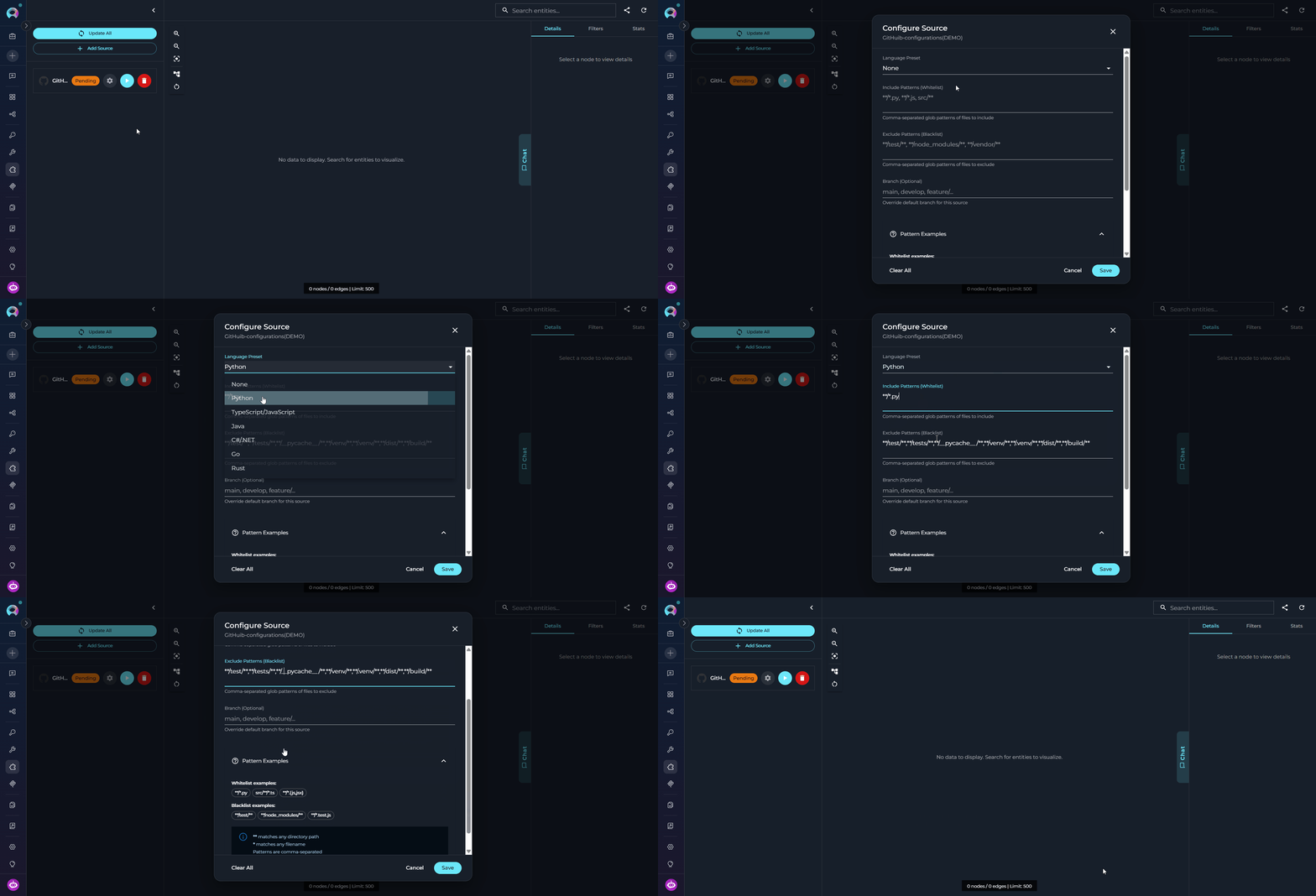
list_presets to see available presets and get_preset_info to inspect the patterns for a specific preset before applying it.Running Ingestion
Once sources are configured, run ingestion to build the knowledge graph.- In the Sources panel, locate the source you want to ingest.
-
Check the source status indicator — a
pendingorerrorstatus means the source has not been successfully ingested. - Click the Run Ingestion button next to the source.
-
Ingestion runs asynchronously in the background. Monitor progress in the status indicator.
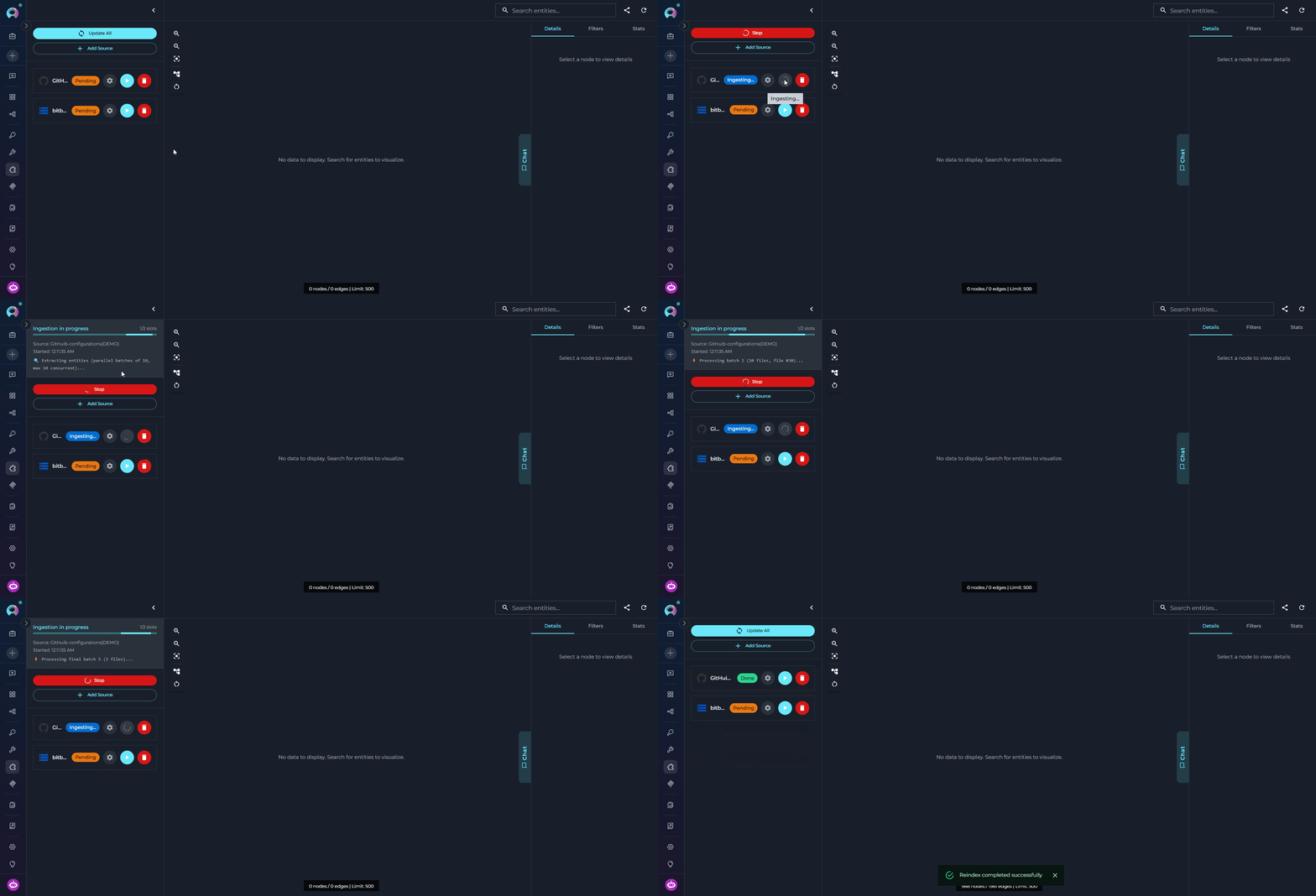
Use the Chat Interface
The Inventory application includes a built-in AI chat interface that lets you explore the knowledge graph using natural language — no need to write tool calls or structured queries manually. The chat agent orchestrates graph search, entity inspection, dependency tracing, and source code retrieval behind the scenes and streams its reasoning steps in real time. Purpose: Use the chat to answer questions about your codebase that would otherwise require multiple tool calls — “What does this service depend on?”, “Which classes implement this interface?”, “Find all API endpoints in the auth module.” The agent picks the right tools automatically and builds the answer from graph data.Opening the Chat
- Open the Inventory application from the Applications tab.
- Click the vertical Chat tab on the right edge of the graph canvas.
-
The chat panel slides open. It is resizable — drag the left edge to adjust the width.
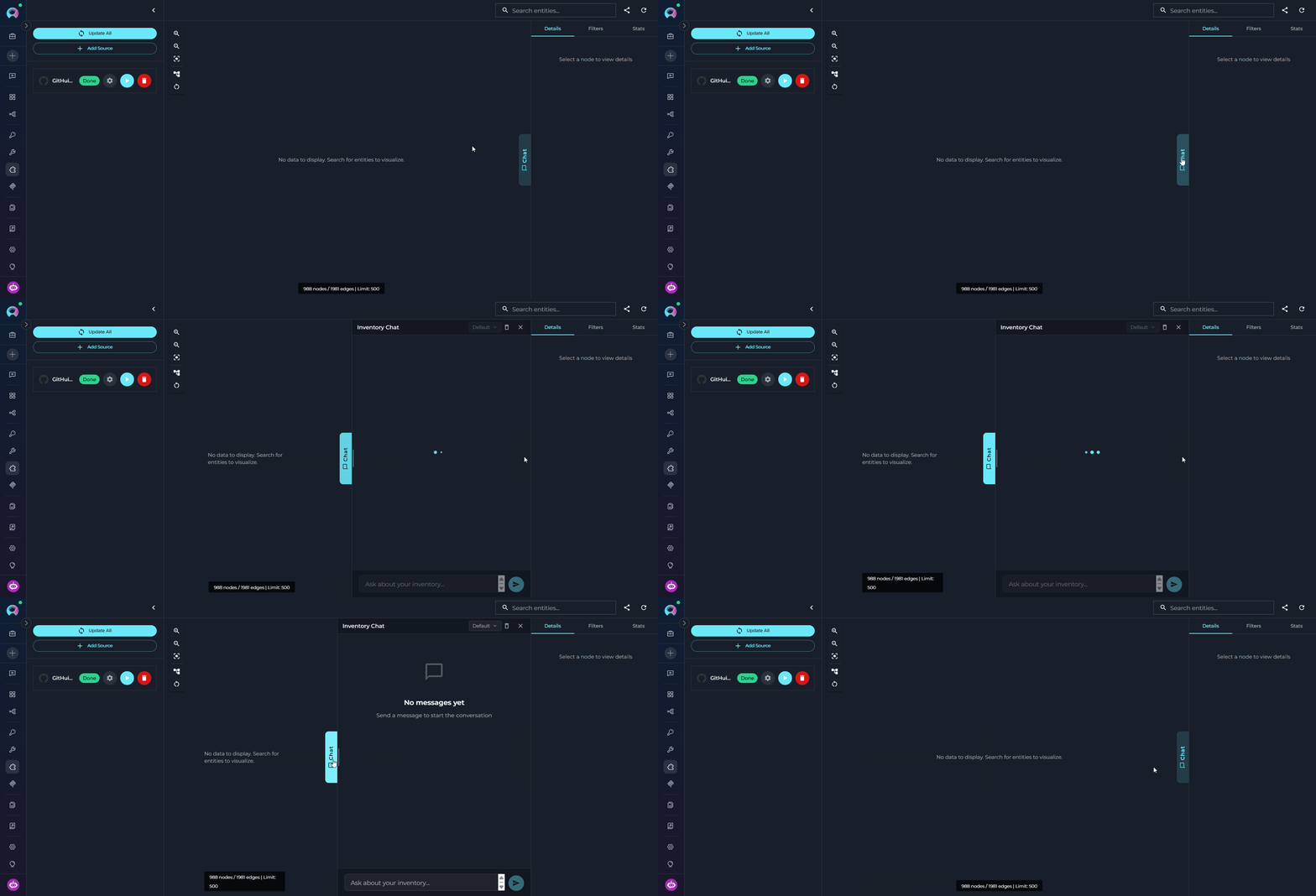
How the Chat Works
Select the LLM Model
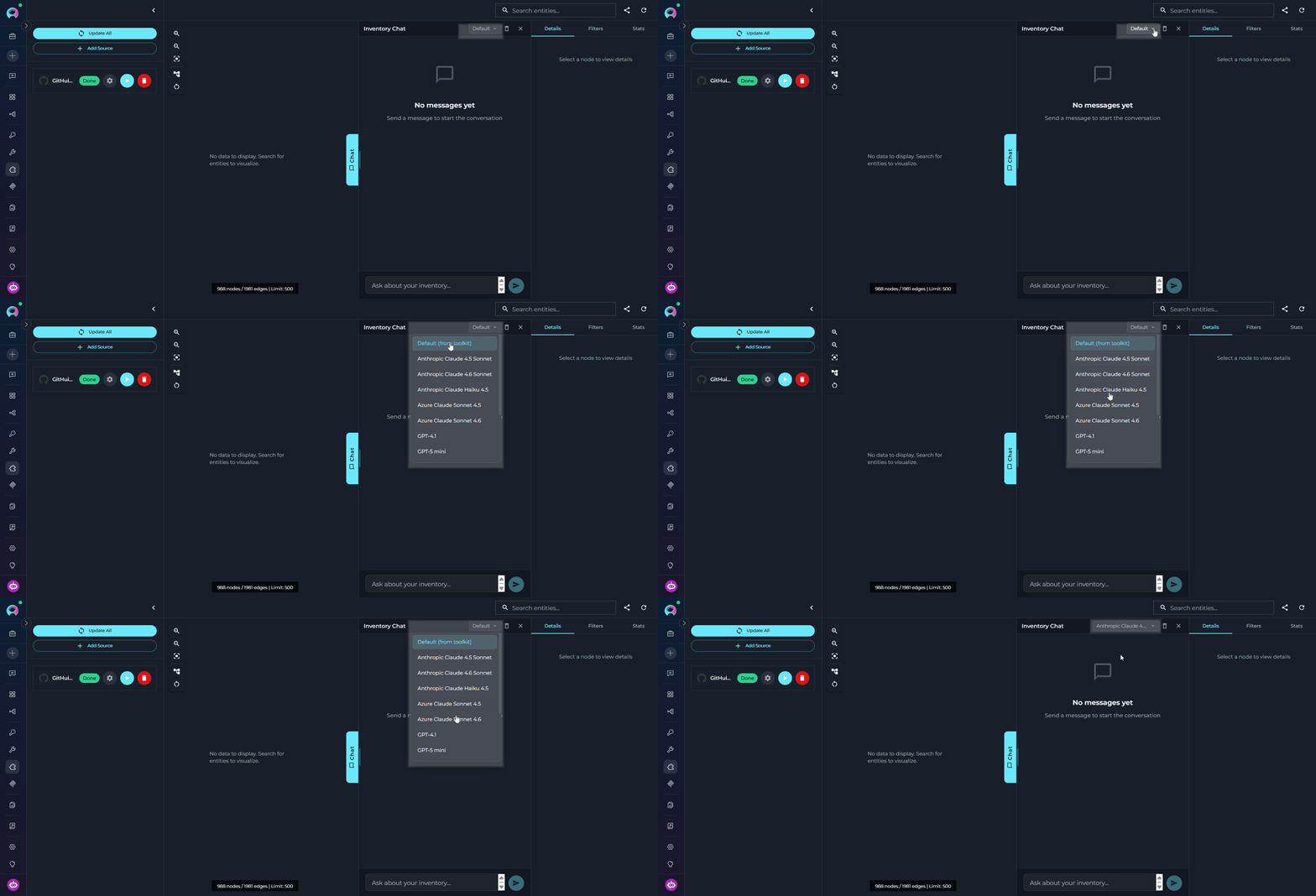
Type Your Query and Send
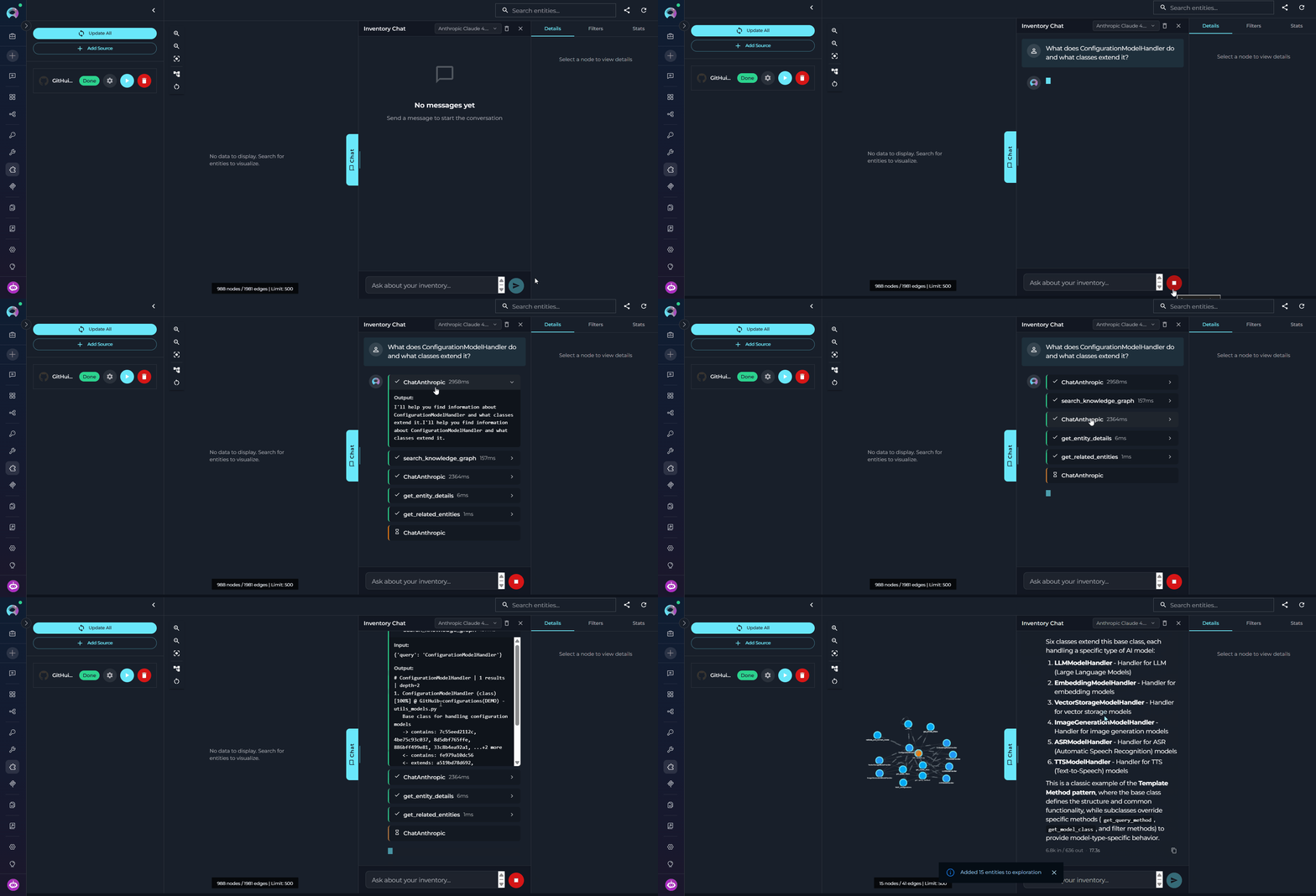
- “What does
ConfigurationModelHandlerdo and what classes extend it?” - “List all API endpoints defined in
api/v1/.” - “If I change
create_configuration, what else would be affected?”
Review the Tools Executed
search_graph— find entities by name tokens or semantic similarityget_related_entities— explore connections between found entitiesquery_graph— apply structured filters (by type, layer, or file pattern)- Source toolkit fallback — code search against the repository when the graph lacks the content
Read the Response
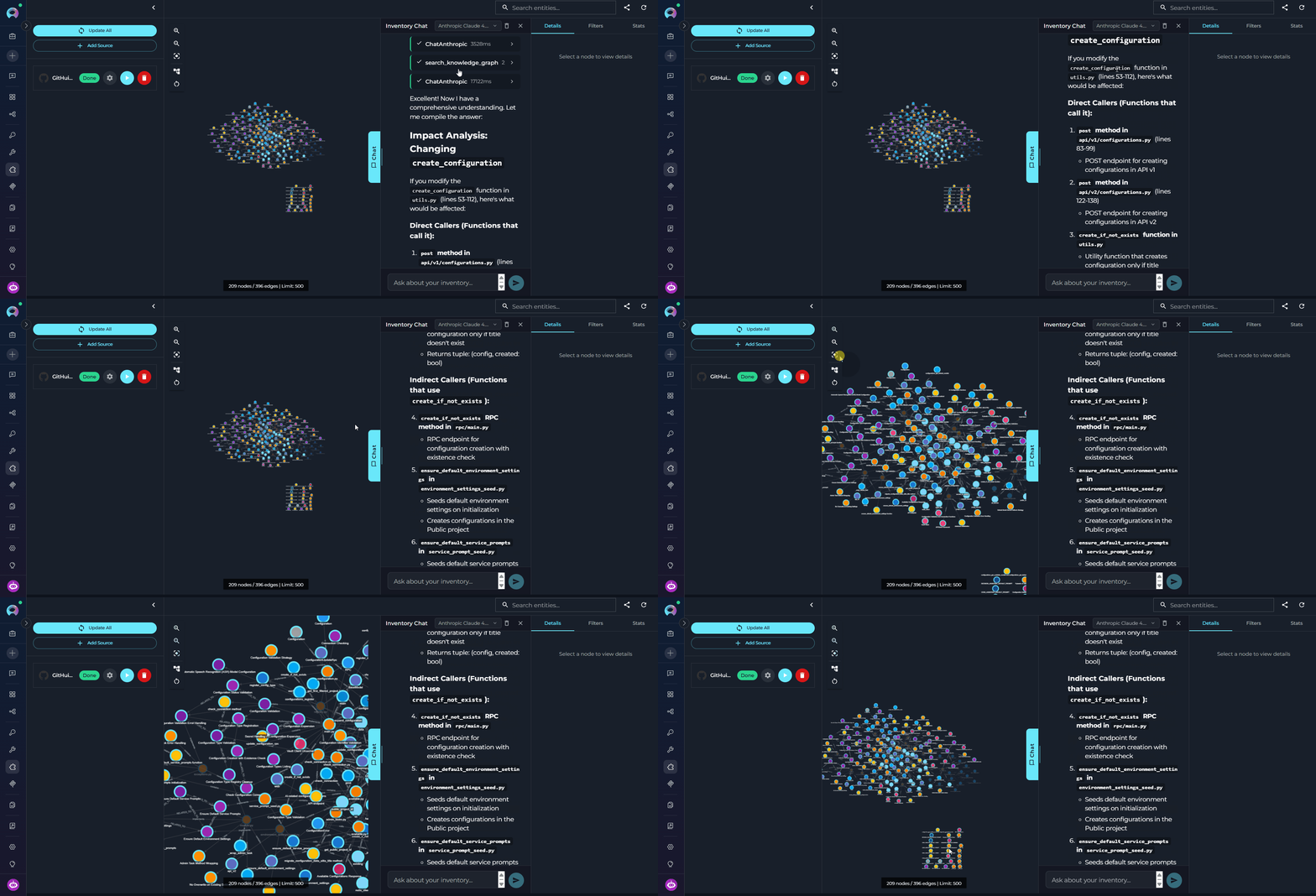
Graph Canvas
The graph canvas is an interactive visualization of the knowledge graph that runs alongside the chat. Its purpose is to give you a spatial, visual understanding of how entities relate to each other — complementing the text-based chat responses with a navigable map of the codebase. How it updates: Every entity the agent touches during a conversation — whether retrieved, searched, or referenced — is automatically merged into the canvas. The graph grows organically as you ask questions: new nodes and edges appear after each response without any manual action. Entities returned by the most recent response are highlighted so you can immediately see what changed. Nodes on the canvas may be connected — linked to other nodes by visible edges representing relations — or unconnected — entities returned by the chat that have no direct relation to other currently visible nodes. Unconnected nodes may gain edges as the conversation continues and more related entities are added to the canvas.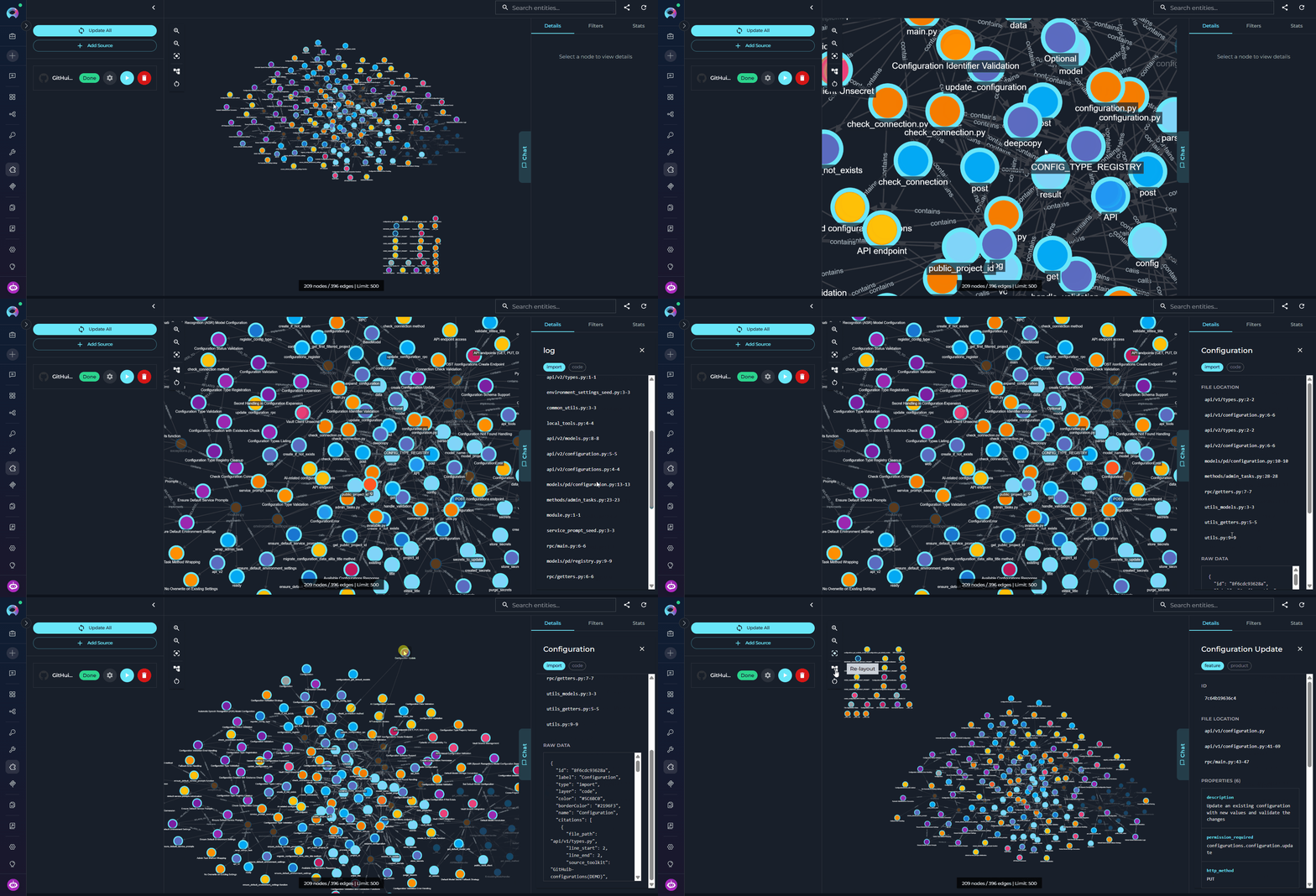
- Pan and zoom freely to navigate large graphs and use the minimap to orient yourself.
- Fit to View — resets the viewport to fit all currently visible nodes within the canvas area. Use this after new entities are added to bring the full graph back into view.
- Re-layout — re-runs the automatic layout algorithm to redistribute nodes and edges evenly. Useful when the canvas becomes cluttered after many entities are added through conversation.
- Clear — removes all nodes and edges from the canvas, giving you a clean slate. The underlying knowledge graph is not affected — entities can be re-added by continuing the conversation.
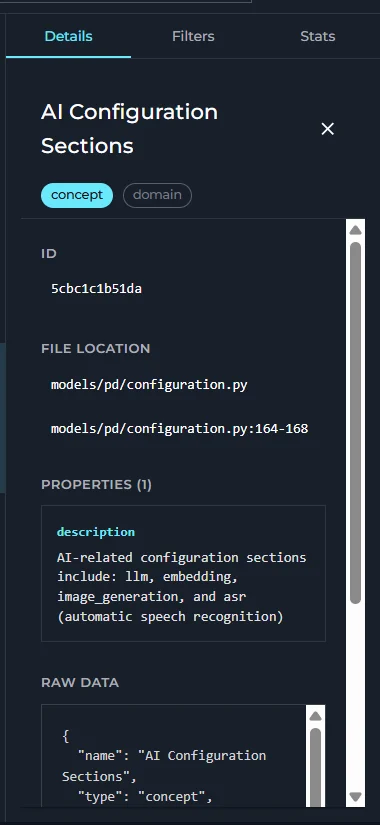
- Click any node to select it and open its details in the right panel.
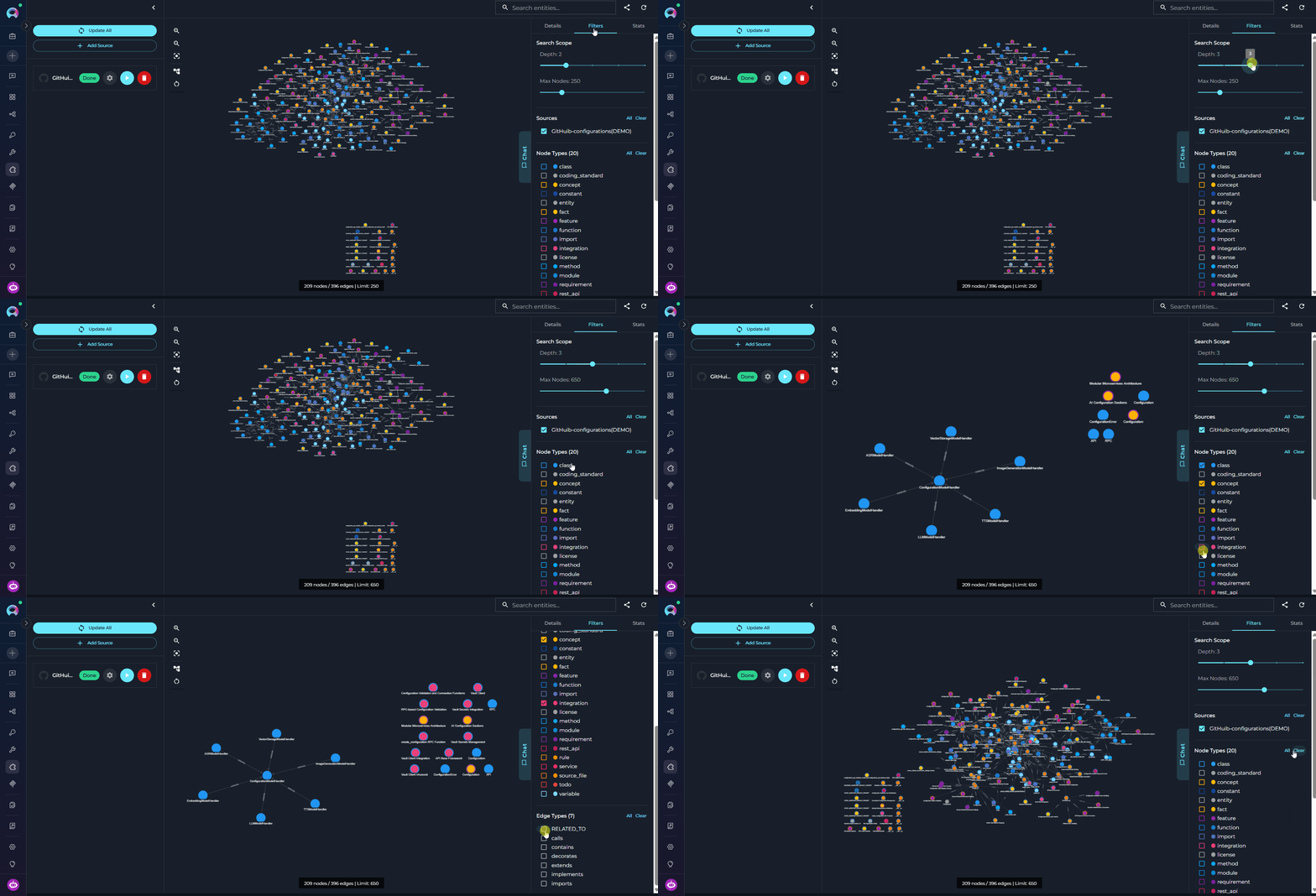
- Use the right panel tabs — Details, Filters, and Stats — to inspect entities, control what is shown, and review graph statistics.
- Details
- Filters
- Stats
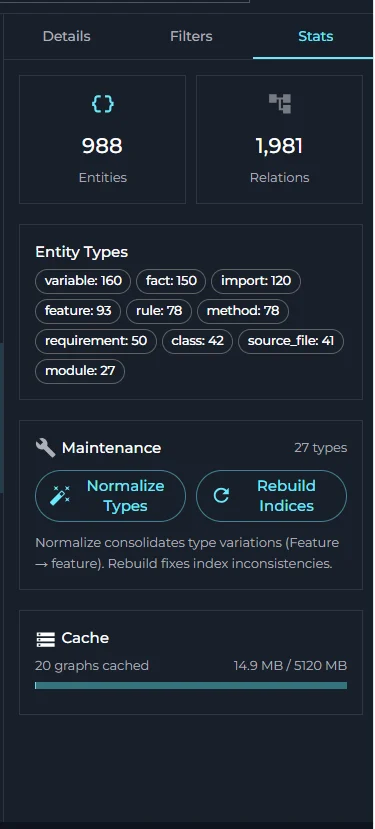
Integrating Inventory into Agents, Chats, and Pipelines
To give an ELITEA Agent, Chat, or Pipeline access to the knowledge graph, you need an Inventory Search toolkit — a separate, lightweight read-only toolkit that connects to an existing Inventory application. The flow is: Create Inventory Application (Apps menu) → Ingest Data → Create Inventory Search Toolkit (Toolkits menu) → Add Toolkit to Agent / Chat / PipelineStep 1: Create the Inventory Search Toolkit
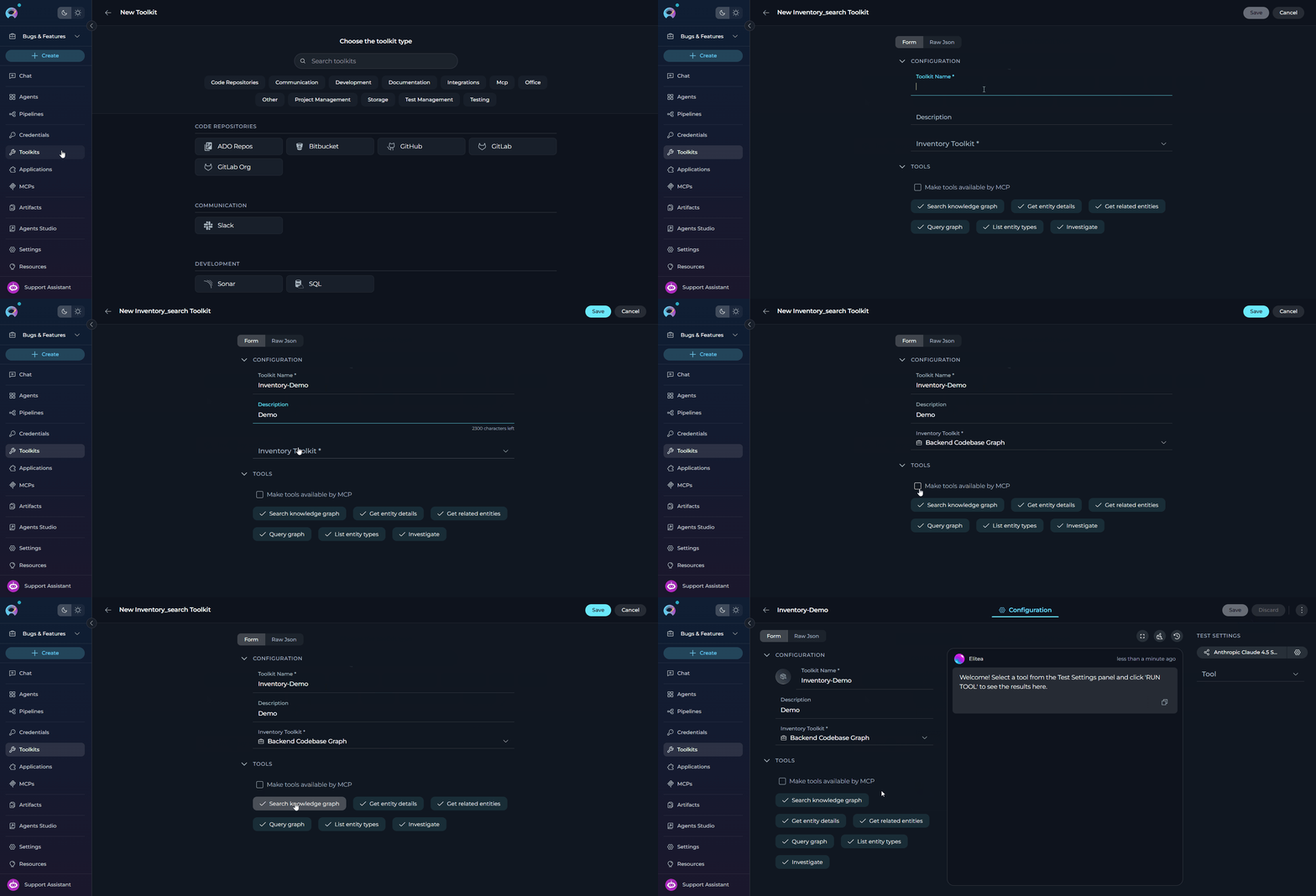
Navigate to Toolkits
Create a New Toolkit
+ Create Toolkit. The toolkit type selector opens showing all available toolkit types.Select Inventory Search
Configure the Toolkit
Save the Toolkit
Step 2: Add the Toolkit to an Agent, Chat, or Pipeline
Navigate to the Target Menu
Create or Open an Item
+ Create to create a new agent, chat, or pipeline, or click an existing item’s name to open its configuration.Add the Inventory Search Toolkit
- Scroll to the Toolkits section of the configuration.
-
Click the
+ Toolkitbutton. - In the dropdown, select the Inventory Search toolkit you just created.
-
The toolkit is added with all its tools enabled.
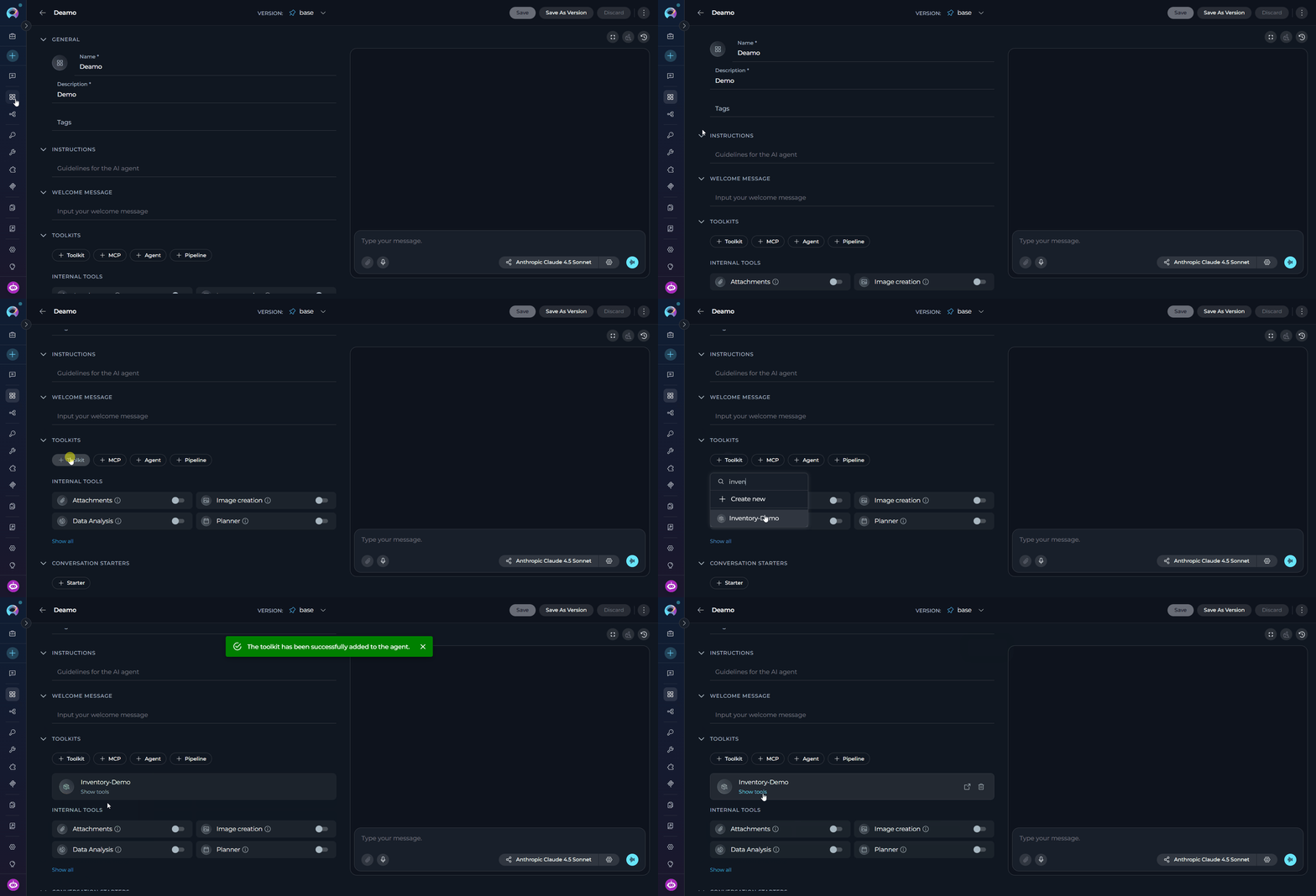
Write Instructions (Agents only)
Save
Example Conversation Starters
Best Practices
Ingestion Strategy
Ingestion Strategy
- Use Language Presets: Apply a language preset (
python,typescript,java, etc.) when ingesting language-specific repositories — presets include sensible include/exclude patterns that keep the graph focused on meaningful source files - Start with a Subset: For large repositories, use
file_patternsto ingest a meaningful subset first (e.g.,src/**/*.py) and verify quality before ingesting the full codebase - Prefer Incremental Over Full Rebuild: Incremental updates track each file’s content hash and skip unchanged files automatically — only modified files are re-processed. Reserve
full_rebuild=Truefor cases where the graph has become inconsistent or entity types have changed significantly - Use Delta Updates for Small Changes: After merging a small pull request, use
delta_updatewith the changed file paths instead of re-ingesting the entire repository - Exclude Test and Vendor Files: Exclude
**/test/**,**/tests/**, and**/vendor/**patterns unless you specifically need test entities in the graph — they add noise and increase ingestion time - Ingestion Is Resumable: If ingestion is interrupted (server restart, timeout, manual stop), it automatically resumes from the last saved checkpoint on the next run — no data is lost and already-processed files are not re-processed. To force a completely fresh start, run
run_ingestionwithfull_rebuild=True
Graph Management
Graph Management
- Monitor Source Status: Check
get_sources_statusafter triggering ingestion — it shows per-source status (pending,in_progress,completed,error) and entity counts - Use
get_graph_infoBefore Querying: Callget_graph_infoto confirm the graph is loaded and review what sources and entity counts are available before performing search operations - Semantic Search Uses a Fixed Local Embedding Model: Entity embeddings are generated using a pinned local model (
all-MiniLM-L6-v2) that is the same across all Inventory deployments — this ensures consistent vector dimensions between ingestion and retrieval without any user configuration - Clean Up Stale Graphs: Periodically remove graphs from sources that are no longer relevant using
remove_source_entities— stale entities reduce search relevance - Share One App Across Agents: When multiple agents need to query the same codebase, point them all to the same Inventory application — the knowledge graph is shared and there is no need to create separate applications per agent
- Explore Community Clusters: For large graphs, Inventory automatically detects structural communities (clusters of related entities) after ingestion — use
list_communitiesin the chat to get a high-level architectural overview, thensearch_within_communityto search within a specific cluster
Search and Query
Search and Query
- Use Token Matching for Known Names:
search_knowledge_graphexcels at finding entities whose names partially match query tokens — use it first when you know the class or function name - Use Semantic Search for Concepts: When the graph has embeddings, the
semantic_searchtool finds entities by meaning rather than exact name (e.g., “authentication logic”, “database connection handling”) — it is selected automatically when your query is conceptual rather than name-based - Filter by Layer to Reduce Noise: The
layerfilter insearch_knowledge_graphandquery_graphsignificantly narrows results — usecodefor classes/functions,servicefor APIs/endpoints, anddatafor models/schemas - Follow Entity References in Results: Entity references in search results use the format
Name (type)orName (type) @ source - path— copy these references exactly when callingget_entity_details,impact_analysis, orget_related_entities - Use
query_graphfor Precise Filters: Whensearch_knowledge_graphreturns too many results, switch toquery_graphwith structured filters liketype:class layer:service file:src/api/**for precision - Use
query_patternfor Multi-Hop Traversal: For structural path queries (e.g., “what does ClassName call through 3 hops”), use the Cypher-likequery_patternsyntax:(ClassName)-[:calls*1..3]->(?). Callget_pattern_vocabularyfirst to discover the available relation types and entity types in the graph. Multi-segment chains are also supported:(A)-[:calls]->(B)-[:imports]->(C)
Troubleshooting
Ingestion Fails
Ingestion Fails
- Source toolkit authentication invalid or expired
- Repository or branch not found
- Repository has no files matching the configured file patterns
- LLM API errors or rate limit hit during entity extraction
- Storage bucket does not exist or the service lacks write permissions
- Verify the source toolkit is properly configured and authenticated in the Toolkits menu
- Confirm the repository exists and the configured branch is correct
- Check that the file patterns (whitelist/blacklist) are not excluding all files — use
list_presetsandget_preset_infoto review preset patterns - Check
get_sources_statusfor the specific error message associated with the failed source - Verify the
bucketparameter refers to an existing, writable storage bucket - Check LLM API quota and ensure the configured model is accessible
Ingestion Is Slow
Ingestion Is Slow
- Large repository with many files being fetched and processed
- LLM extraction is slow for large or complex source files
- File patterns include non-source files (configuration, generated code, test fixtures)
- Apply a language preset to automatically exclude dependency, build output, and test directories
- Use
file_patternsto limit ingestion to specific directories (e.g.,src/**/*.pyinstead of**/*.py) - Exclude vendor, dependency, and generated directories explicitly with
exclude_patterns(e.g.,**/node_modules/**,**/dist/**) - Use
delta_updatefor routine updates instead of re-running full ingestion
Search Returns No Results
Search Returns No Results
- Ingestion has not been run or has not completed for the relevant source
- Search query uses terminology different from entity names in the graph
- Entity type or layer filter is too restrictive
- Graph is empty or the wrong graph is loaded
- Check
get_sources_statusto confirm ingestion has completed (status: completed) for the relevant source - Use
get_statsto verify entity counts — a zero count indicates the graph is empty or ingestion failed - Remove or relax the
entity_typeandlayerfilters and search with a broader query first - Use
get_graph_infoto confirm the correct graph is loaded - Try different query tokens — use partial names or broader terms (e.g.,
"auth"instead of"AuthenticationHandler")
Semantic Search Fails or Returns Poor Results
Semantic Search Fails or Returns Poor Results
- Embeddings were not generated during ingestion — this can happen if the
langchain_communitypackage orsentence-transformersmodel was unavailable on the server - Semantic search query is too narrow or uses domain-specific jargon not present in the codebase
- The graph is very small — semantic search requires a minimum number of entities to return meaningful similarity results
- Check
get_statsfor anembeddings_countfield — if zero or absent, embeddings were not generated; contact your administrator to re-run ingestion with the embedding model available - Fall back to token-based
search_knowledge_graphif semantic search returns poor results — token matching does not depend on embeddings and works regardless - Broaden or rephrase the semantic query using more general terms (e.g., “user login” instead of “JWT PKCE flow validation”)
- Confirm the
semantic_searchtool is available in the chat — it only appears in the agent’s tool list when embeddings exist in the graph
Impact Analysis Returns Unexpected Results
Impact Analysis Returns Unexpected Results
- Entity reference format is incorrect — must match the format from search results
- Graph is partially ingested — not all sources that reference the entity have been ingested
max_depthis too low to traverse the full dependency chain- Relations were not extracted for the entity during ingestion
- Copy entity references exactly from
search_graphorget_entityresults — use the formatName (type)orName (type) @ source - path - Ensure all relevant sources are fully ingested before running impact analysis
- Increase
max_depth(default: 3) if you need to trace deeper dependency chains - Use
get_entitywithinclude_relations=Trueto verify that the entity has extracted relations before running impact analysis
Graph Cache Issues
Graph Cache Issues
- Local graph cache is full or contains stale graphs
- Cache size limits (
max_cache_size_gb: 5.0,max_graphs: 50) have been reached - Graphs older than
max_age_days: 2are being evicted automatically
- Use
get_cache_statsto review current cache usage and per-graph details - Use
cleanup_cacheto force cleanup of stale graphs (normally runs automatically every hour) - Contact your administrator if the cache limits need to be increased for your environment
Chat Interface Gives Incomplete or Wrong Answers
Chat Interface Gives Incomplete or Wrong Answers
- Knowledge graph is stale — repository has changed since last ingestion
- The queried entity type or concept was not extracted during ingestion (e.g., due to restrictive file patterns)
- Chat session exceeded the 30-minute timeout and was automatically cancelled
- Chat context is limited to the last 10 messages — earlier context from a long conversation is no longer visible to the agent
- Re-run ingestion to refresh the graph with the latest repository state
- Check
get_statsto verify that the entity type you are asking about has entries in the graph - For complex multi-step questions, break them into smaller focused questions
- If the session was cancelled due to timeout, start a new chat session
- Start a new chat session for each independent topic — context from more than 10 messages ago is not included in the agent’s context window
- Use
search_knowledge_graphorquery_graphdirectly to verify what is in the graph before expecting the chat to find it
LLM Configuration Issues
LLM Configuration Issues
- LLM model not accessible or API key expired
- Insufficient context window for extracting entities from large source files
- LLM rate limits reached during parallel entity extraction
- Verify the LLM model is properly configured and the API key is valid in the ELITEA configuration
- Check that API key quotas have not been exceeded
- If extraction fails on large files, consider using file patterns to split ingestion into smaller batches
- Check the ingestion logs — LLM extraction failures are per-file and non-fatal; the pipeline continues and reports failed files in the result
FAQ
What is a knowledge graph and how is it different from a vector index?
What is a knowledge graph and how is it different from a vector index?
How long does ingestion take?
How long does ingestion take?
- Small repositories (< 100 files): 1–3 minutes
- Medium repositories (100–1,000 files): 3–10 minutes
- Large repositories (> 1,000 files): 10–30+ minutes
get_sources_status during ingestion.Can I add multiple source repositories to a single Inventory application?
Can I add multiple source repositories to a single Inventory application?
get_cross_source_relations to explore links between entities from different sources.What is the difference between run_ingestion and delta_update?
What is the difference between run_ingestion and delta_update?
run_ingestion processes the entire source toolkit: it fetches all files matching the configured patterns and rebuilds the relevant portion of the graph (or the full graph if full_rebuild=True). delta_update processes only the specific file paths you provide — it is faster and less resource-intensive but requires you to know exactly which files changed. Use delta_update for targeted refreshes after small code changes, and run_ingestion for broader updates.What entity types does Inventory extract?
What entity types does Inventory extract?
- Code layer: classes, functions, methods, modules, interfaces, constants — extracted using AST-based parsing (no LLM required)
- Service layer: APIs, endpoints, services, RPCs
- Data layer: data models, schemas, tables, columns
- Product layer: features, UI flows, screens
- Domain layer: business objects, rules, glossary terms
- Documentation layer: documentation pages, README content
- Configuration layer: configuration files, environment settings
- Testing layer: test cases, test suites
- Structure layer: file container nodes (
source_file,document_file,config_file) — one per ingested file - Knowledge layer: semantic facts extracted from code and documentation, including:
- From code:
algorithm(design patterns, complexity),behavior(what the code does, side effects),validation(input checks, guards),dependency(external service calls, API usage),error_handling(retry strategies, fallback logic) - From docs:
decision(architectural decisions),definition(term definitions),requirement,date,contact(ownership information)
- From code:
Can the embedding model affect semantic search results?
Can the embedding model affect semantic search results?
all-MiniLM-L6-v2) for generating entity vectors during ingestion. This model is the same across all Inventory deployments and does not depend on user configuration — it ensures that ingestion-time and query-time vectors are always in the same vector space.The LLM model configured in the application is used for entity extraction (understanding code semantics), not for embedding generation. Changing the LLM model does not affect vector search.If your deployment uses a custom or alternative embedding model (administrator-configured), changing it after ingestion will invalidate stored vectors and break semantic search. In that case, delete the existing graph and re-run full ingestion with the new model in place.Can multiple agents use the same Inventory application?
Can multiple agents use the same Inventory application?
run_ingestion, delta_update) are async and concurrent invocations from different agents will each be tracked independently, but simultaneous full ingestion of the same source may cause conflicts — avoid running multiple full ingestions for the same source at the same time.What happens if ingestion is run in K8s Jobs mode?
What happens if ingestion is run in K8s Jobs mode?
INVENTORY_JOBS_ENABLED environment variable is set to true, the run_ingestion tool delegates processing to Kubernetes Jobs instead of in-process subprocesses. This is the recommended mode for production deployments as it isolates ingestion workloads and scales independently. The behavior from the user perspective is identical — ingestion is still async and status is tracked through get_sources_status. Contact your administrator to enable or configure K8s Jobs mode.How is the knowledge graph stored?
How is the knowledge graph stored?
/data/graphs (configurable) with a maximum cache size of 5 GB and up to 50 cached graphs. Graphs not accessed within 2 days are automatically evicted from the local cache (they remain in the storage bucket and can be reloaded). Use get_cache_stats to monitor local cache usage.Does the chat support graph pattern queries and multi-hop traversal?
Does the chat support graph pattern queries and multi-hop traversal?
query_pattern tool. Patterns follow this syntax:(UserService)-[:calls*1..3]->(?)— find everything UserService calls within 3 hops(?:class)-[:extends]->(BaseService)— find all classes that extend BaseService(Controller)-[:*1..5]->(DB_URL)— any path from Controller to DB_URL in up to 5 hops
get_pattern_vocabulary — this lists all entity types and relation types currently in your graph so you can compose valid patterns. The chat agent selects query_pattern automatically for traversal-style questions like “what does X depend on through N levels” or “trace the call chain from A to B”.- Artifacts Menu — Managing storage buckets used by Inventory
- Agents Menu — Using Inventory tools in agents
- GitHub Toolkit — Setting up GitHub source access
- GitLab Toolkit — Setting up GitLab source access
- Wikis Application — AI-powered documentation generation from code repositories