

Overview
ADO Wiki indexing turns your Azure DevOps wiki content into a searchable knowledge base inside ELITEA. You can index wiki pages—including project wikis and code wikis—with their hierarchical path structure, optionally describe embedded images with an LLM and optionally index referenced attachments as their own searchable documents.Knowledge Search
Find documentation, procedures and technical guidance across wiki pages using natural-language queries.
Context-Aware Chat
Get AI-generated answers from your wiki content with citations to specific pages.
Faster Onboarding
Help new team members learn processes and standards from existing wiki documentation.
Documentation Audits
Identify gaps, overlap and outdated information in your wiki documentation.
Prerequisites
Before indexing ADO Wiki data, ensure you have:- ADO Credential: An Azure DevOps personal access token configured as an ADO credential in ELITEA
- Vector Storage: PgVector selected in Settings → AI Providers
- Embedding Model: Selected in Settings → AI Providers
- ADO Wiki Toolkit: Configured with your Azure DevOps project details and credential, with the Index Data tool enabled
Your ADO personal access token must have
- Wiki → Read scope to index wiki content. Use Wiki → Read & write instead if the toolkit also modifies pages.
- Access to the specific project and wikis you want to index.
Set Up the ADO Wiki Toolkit
- Generate a Personal Access Token in your Azure DevOps account (User Settings → Personal Access Tokens → + New Token) with Wiki scope
- Create a Credential in ELITEA: Go to Credentials → + Create → Ado, enter the Organization Url and Token, then save
- Create the Toolkit: Go to Toolkits & Indexes → + Create → Azure Wiki (ADO Wiki)
- Enable Required Tools: Select
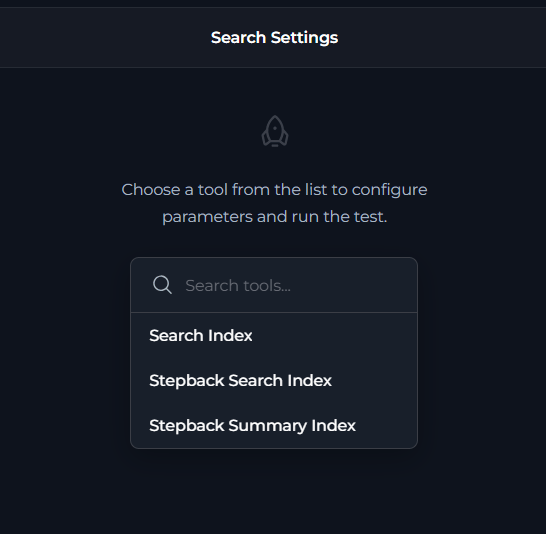
Index Data,List Indexes,Search Index,Stepback Search Index,Stepback Summary IndexandRemove Index
For complete credential and toolkit setup details, see:
Index ADO Wiki Data
The following sections describe how to create, verify, reindex, schedule and delete an ADO Wiki index.Access the Interface
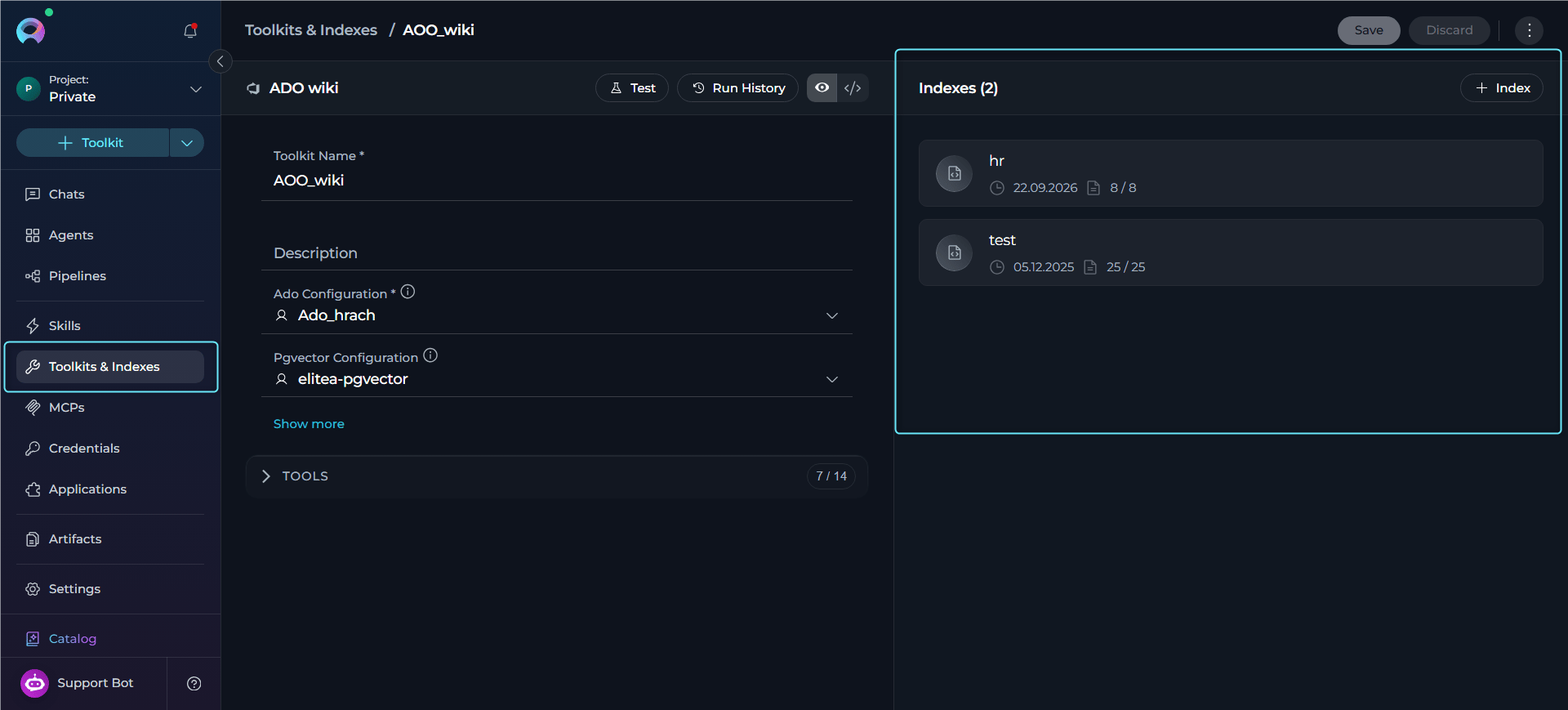
- Go to Toolkits & Indexes in the main navigation.
- Select your configured ADO Wiki toolkit to open its detail page.
-
The toolkit detail page shows a two-panel layout: the left panel has the toolkit configuration form, and the right panel has the Indexes section listing indexes for this toolkit.
Create a New Index
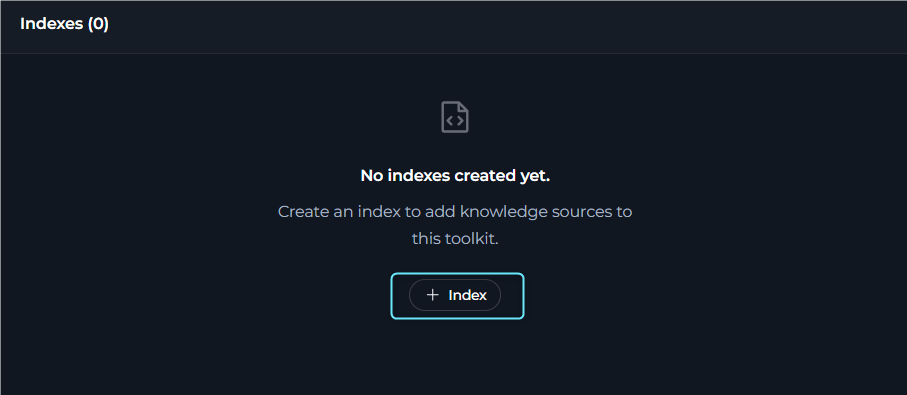
- In the Indexes section, select + Index.
- A dedicated Create Index page opens with the Index Data configuration form.
-
Enter the required and optional values for your ADO Wiki index.
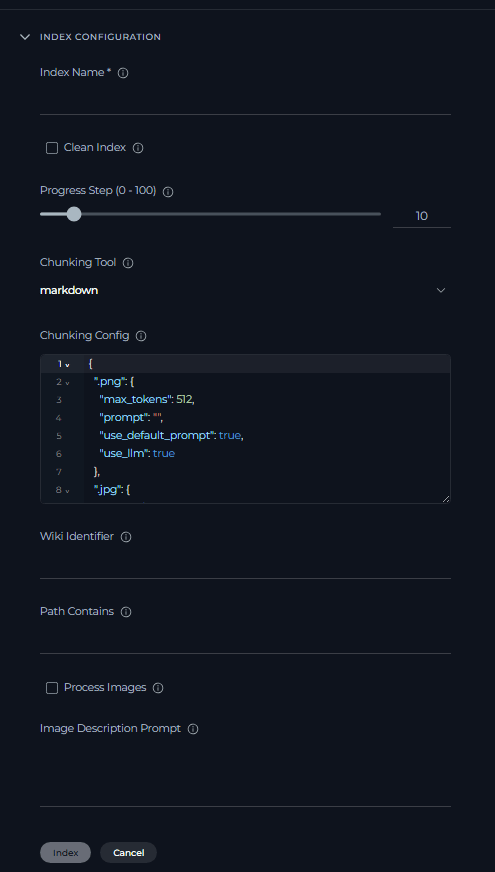
- Select Index to start indexing.
- The page navigates to the dedicated index detail page, which opens on the Activity tab and shows live progress updates.
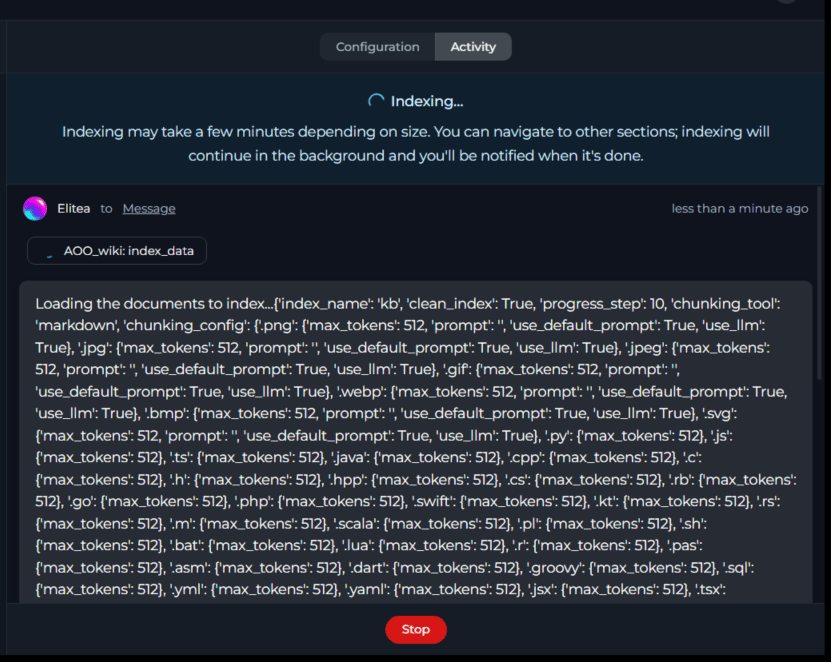
- When indexing completes, the index enters Completed or Partially Indexed state and becomes available for search, scheduling, reindexing and history review.
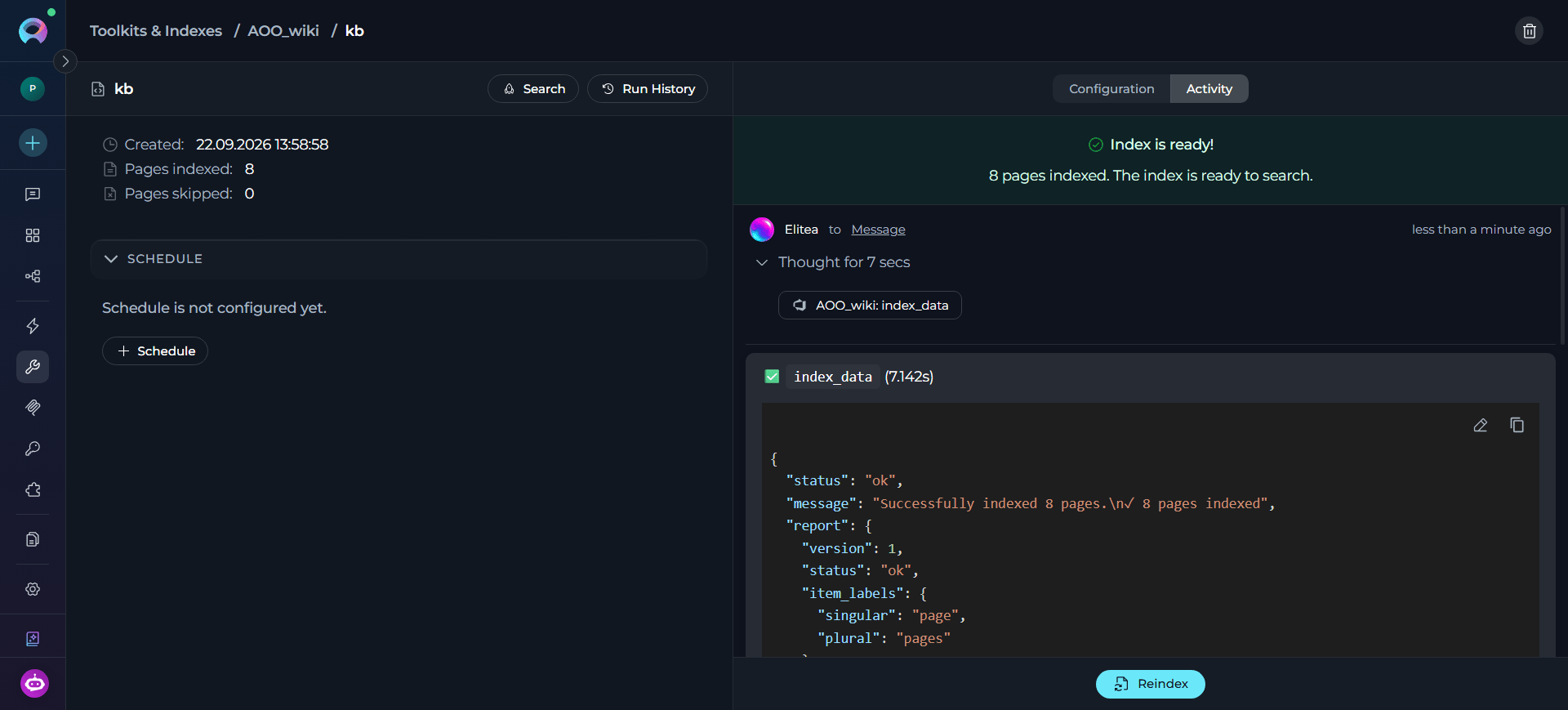
Verify Index Creation
Once indexing completes:- The Configuration tab shows the saved index parameters (all editable except Index Name).
-
The General section shows the created date and the Files indexed / Files skipped counts.
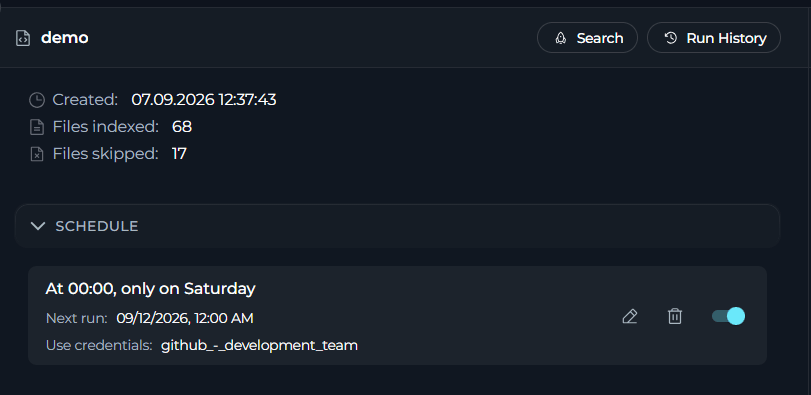
-
The Indexes section shows an index card with the index name, created date, file counts and status icon. Hover over a card to reveal quick actions: Open, Reindex, Delete.

Reindex an Index
Use Reindex on the index detail page to refresh the index with the latest wiki content.- Open the Configuration tab and adjust any fields if needed (all fields are editable except Index Name).
- Select Reindex (shown as Save & Reindex if changes are pending) and confirm.
ADO Wiki Reindex Behavior
- Pages are deduplicated by hashing the raw page markdown, so re-running indexing does not re-embed unchanged pages—including when only Process Images output would differ, since that hash is computed before image descriptions are generated.
- If you change Include Attachments, Include Extensions or Skip Extensions between runs, affected pages are automatically reprocessed even though their page content hash is unchanged, because the toolkit also compares the expected set of attachment documents for each page.
- If an attachment fails to download after retries, its parent page is automatically marked for reprocessing on the next reindex, so the failed attachment is retried rather than silently skipped forever.
- Pages removed from the source wiki are not automatically removed from the index during reindexing.
Schedule Reindexing
Use the Schedule section on the index detail page to automate reindexing on a cron schedule. Scheduling is available only for indexes in Completed or Partially Indexed state.Scheduled reindexing applies the Wiki Identifier fallback the same way as a manual reindex: if the field is left empty, each scheduled run resolves it from the toolkit’s current Default Wiki Identifier at run time, with no need to specify it in the schedule itself. If you update the Default Wiki Identifier on the toolkit later, subsequent scheduled runs pick up the new value automatically.
Delete an Index
Open the index, select Delete, and enter the index name to confirm. Deleting an index permanently removes its indexed data, run history, and schedule configuration. The Delete action is only available when the Remove Index tool is enabled for the toolkit.Use Search Tools
Once your ADO Wiki index is Completed or Partially Indexed, open its index detail page and select Search to run any of the search tools enabled for the toolkit:
For the full parameter reference for each search tool, see Indexing Tools.
Use Indexed Data in Conversations & Agents
Your ADO Wiki toolkit can be used in two main contexts:- In Conversations: Add the toolkit as a participant to ask questions and search your indexed wiki data
- In Agents: Include the toolkit when creating AI agents to give them access to your documentation
- Navigate to Toolkits & Indexes → select your ADO Wiki toolkit
- In the Indexes section, select + Index
- Configure parameters:
- Index Name:
docs - Wiki Identifier:
WebApp.wiki(or leave empty to use the toolkit’s default wiki) - Clean Index: ✓ (checked to rebuild the index from the source)
- Path Contains: (leave empty to index all pages)
- Chunking Tool:
markdown
- Index Name:
- Select Index and monitor progress on the Activity tab
- Wait for Completed status
- Navigate to Chat → + Conversation
-
Select the
+icon in the chat input toolbar -
Hover over the Toolkits category and enable your ADO Wiki toolkit
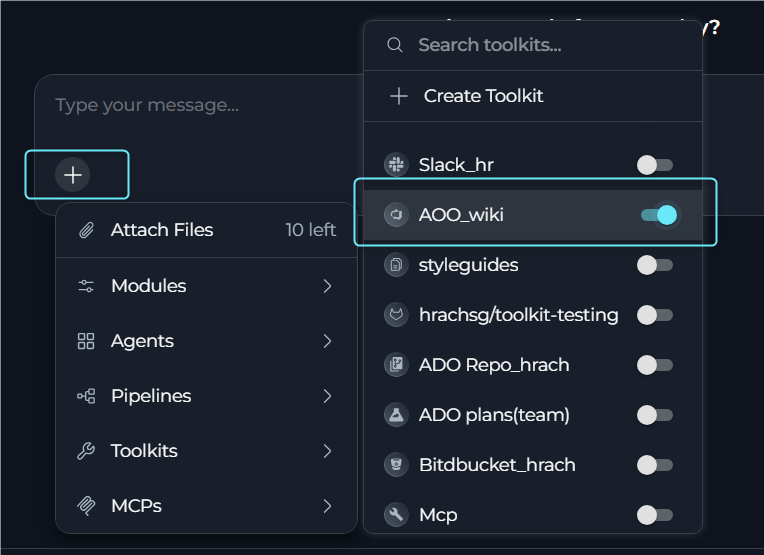
- User Request: “Find all documentation related to microservices deployment and provide a summary of the deployment process from our wiki.”
-
ADO Wiki Toolkit: “Based on your indexed wiki pages, here is a comprehensive summary of microservices deployment:
Deployment Documentation Found:
- CI/CD Pipeline Setup: Complete guide for automated deployment workflows
- Environment Configuration: Development, staging and production environment setup
- Container Deployment: Docker containerization and Kubernetes deployment procedures
- Pre-Deployment: Code review, automated testing, security scanning
- Development: Automatic deployment on code commit
- Staging: Manual approval with integration testing
- Production: Blue-green deployment with rollback capabilities
- User: “What are the authentication mechanisms used across our microservices?”
-
ADO Wiki Toolkit: “According to the indexed documentation, your microservices use a multi-layered authentication approach:
- JWT Tokens: Primary authentication for API calls
- OAuth 2.0: Third-party service integration
- Service-to-Service: Mutual TLS authentication
Troubleshooting
Indexes Section Not Visible
Indexes Section Not Visible
- Verify PgVector and an Embedding Model are configured in Settings → AI Providers.
- Ensure the Index Data tool is enabled in your ADO Wiki toolkit configuration.
- Refresh the page and try again.
Wiki Identifier Not Provided Error
Wiki Identifier Not Provided Error
Problem: Indexing fails with an error such as “Wiki identifier must be provided either as a parameter or configured as default in toolkit settings.”Cause: The Wiki Identifier field was left empty and no Default Wiki Identifier is set in the toolkit configuration.Resolution:
- Set the Wiki Identifier field on the index, or
- Open the toolkit configuration and set Default Wiki Identifier to your wiki name (for example,
ProjectAlpha.wiki)
Connection or Authentication Failures
Connection or Authentication Failures
- Verify the ADO personal access token has Wiki: Read (or Read & write) scope and has not expired.
- Check the Project field and the credential’s Organization Url for typos.
- Confirm you have access to the specified project and wiki.
Index Creation Failed or Stuck In Progress
Index Creation Failed or Stuck In Progress
- Verify the wiki exists and contains pages matching your Path Contains filter (if set).
- Check for very large pages or a large number of attachments that might extend processing time.
- Verify PgVector and the embedding model are reachable.
Attachments Not Searchable
Attachments Not Searchable
- Verify Include Attachments was enabled when the index was created or last reindexed.
- Check Include Extensions / Skip Extensions—an attachment excluded by either filter is not indexed.
- Attachment downloads are retried automatically; a persistently failing attachment marks its parent page for reprocessing on the next reindex rather than failing silently.
No Search Results Returned
No Search Results Returned
- Verify the index status is Completed or Partially Indexed.
- Lower the Cut Off score (for example, from
0.5to0.35). - Increase Search Top.
- Try Stepback Search Index for complex, multi-part questions.
- Confirm the Index Name used in the search tool matches the index you created.
Vector Database or Embedding Model Errors
Vector Database or Embedding Model Errors
- Ensure PgVector is configured correctly in Settings → AI Providers.
- Verify an embedding model is selected and available.
- Confirm the vector database is reachable.
Related Documentation
- Indexing Overview—Complete guide to indexing in ELITEA and its capabilities
- Indexing Tools—Detailed reference for all indexing tools and parameters
- Create & Use Indexes—Full walkthrough of the Indexes interface, reindexing, history and search