

Introduction
This guide provides step-by-step instructions for integrating and using the Azure DevOps Wiki (ADO Wiki) toolkit within ELITEA. It covers everything from setting up your Azure DevOps Personal Access Token to configuring the toolkit and using it within your Agents, Pipelines, and Chat conversations. Azure Wiki (ADO Wiki) Azure Wiki is a collaborative documentation service for creating and managing project documentation, knowledge bases, release notes, and meeting minutes. It provides a version-controlled repository for team documentation directly within your Azure DevOps organization. Integrating Azure DevOps Wiki with ELITEA enables your Agents, Pipelines, and Chat conversations to intelligently interact with wiki pages — automating documentation creation, updates, and retrieval as part of AI-driven workflows.Toolkit’s Account Setup and Configuration
Account Setup
Create an Azure DevOps account and organization to access the Wiki service.- Visit Azure DevOps: Navigate to https://dev.azure.com/
- Start Free or Sign In: Click “Start free” to create a new organization, or “Sign in to Azure DevOps” for existing accounts
- Create Organization: Follow prompts to set up your organization (provide name, select hosting region, optionally link to Azure account)
- Verify Email: Confirm your email address if prompted by clicking the verification link
- Enable Basic Subscription: Verify Basic subscription is enabled (typically enabled by default for new organizations)
- Add Users (Optional): Navigate to
https://dev.azure.com/{YourOrganizationName}/_settings/users, click “Add users”, enter user details, select “Basic” access level, and click “Add”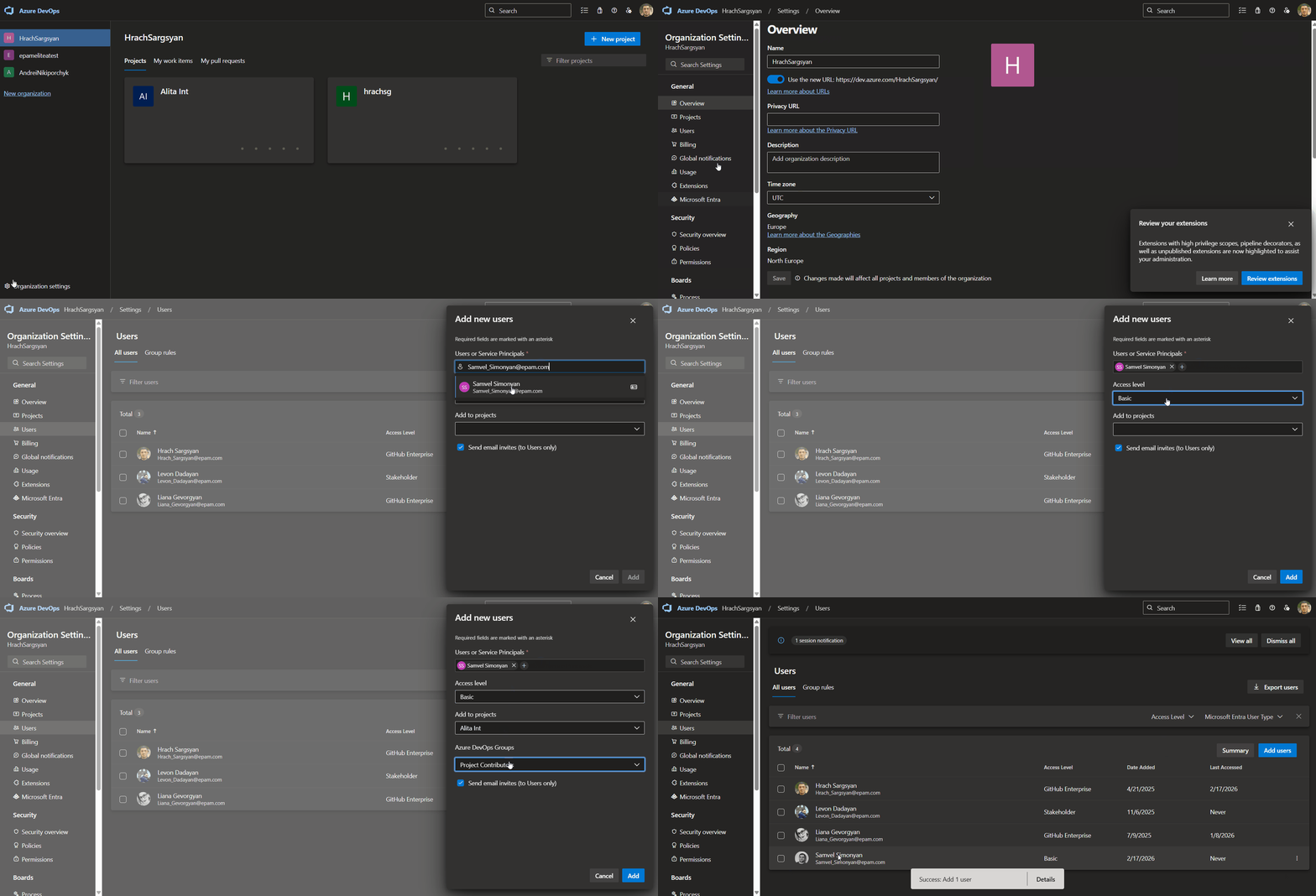
- Verify Access: Confirm “Wiki” appears in the left sidebar of your project
Generate a Personal Access Token (PAT)
For secure integration with ELITEA, use an Azure DevOps Personal Access Token (PAT).-
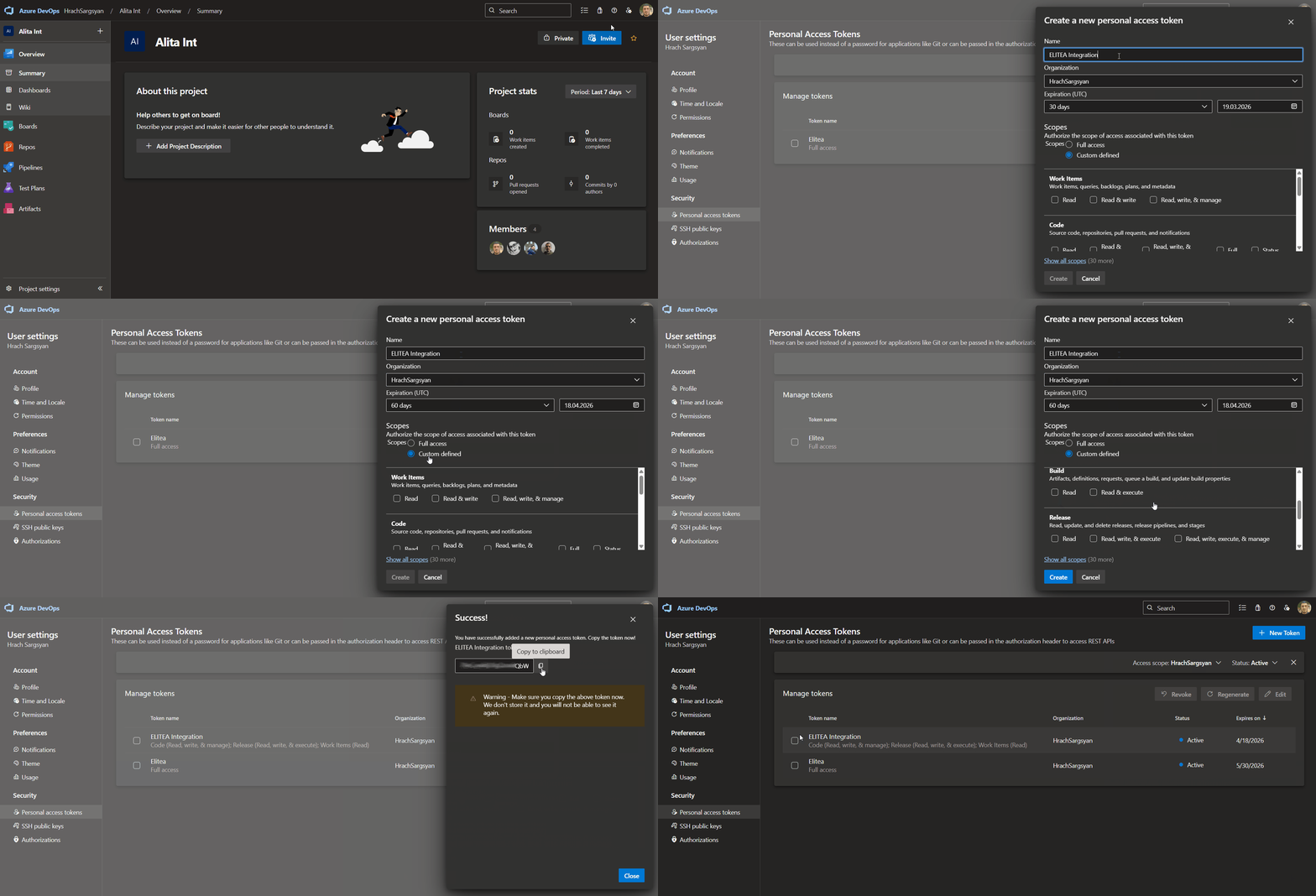
Log in to Azure DevOps: Navigate to
https://dev.azure.com/and log in. - Access User Settings: Click the User settings icon (top right) → select “Personal access tokens”.
- Generate New Token: Click ”+ New Token”.
-
Configure Token Details:
- Name: Enter a descriptive label (e.g., “ELITEA Wiki Integration”)
- Organization: Select your organization
- Expiration: Set an expiration date
- Scopes: Select Custom defined, then enable:
- Wiki → Read & write (or Read if the agent only reads wiki content)
- Create Token: Click “Create”.
-
Copy and Store Token: Copy the token immediately and store it securely in a password manager or ELITEA’s Secrets feature.
System Integration with ELITEA
To integrate Azure DevOps Wiki with ELITEA, follow this three-step process: Create Credentials → Create Toolkit → Use in Agents.Step 1: Create Azure DevOps Credentials
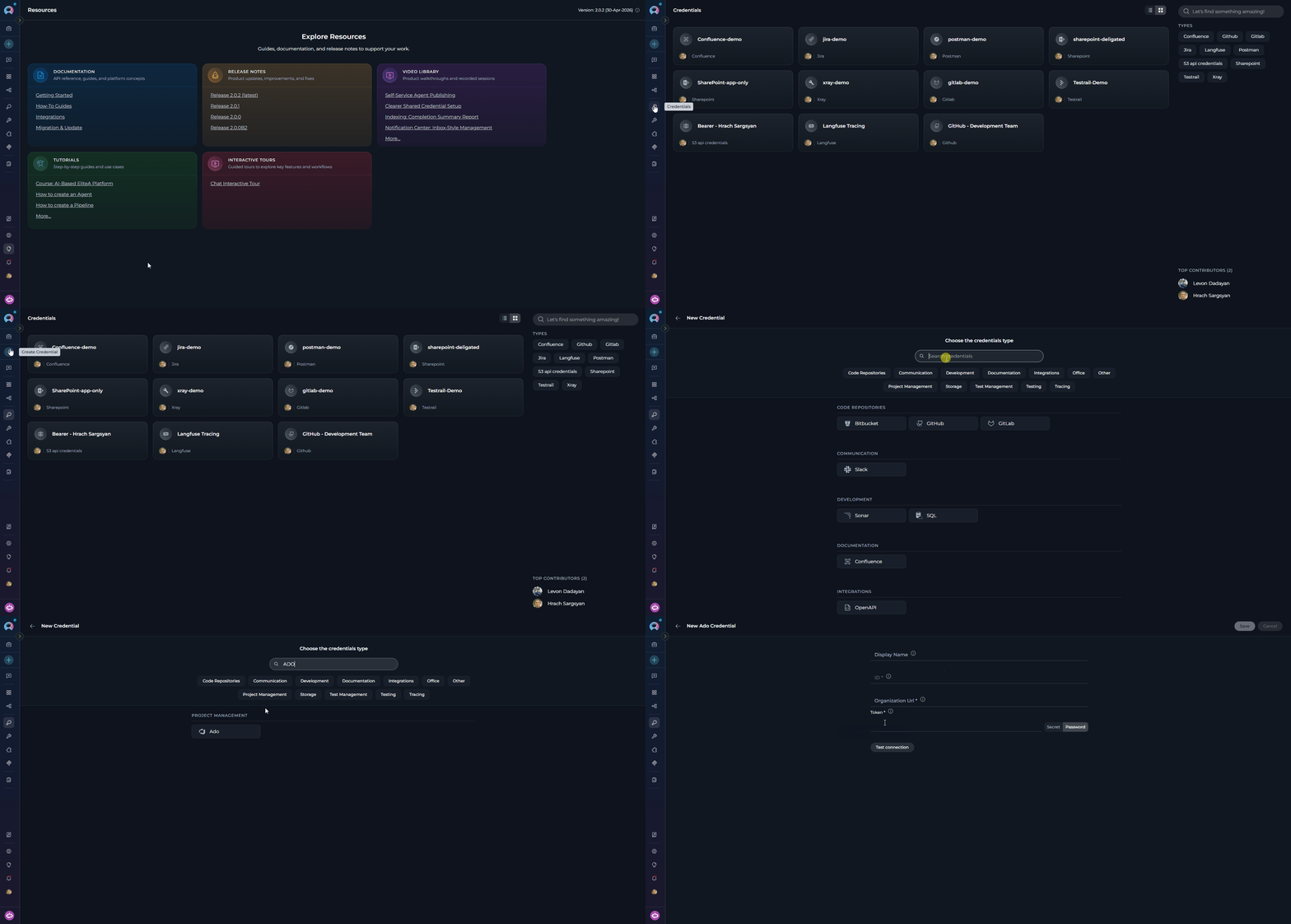
- Navigate to Credentials Menu: Open the sidebar and select Credentials.
-
Create New Credential: Click the
+ Createbutton. -
Select Azure DevOps: Choose Ado as the credential type.
-
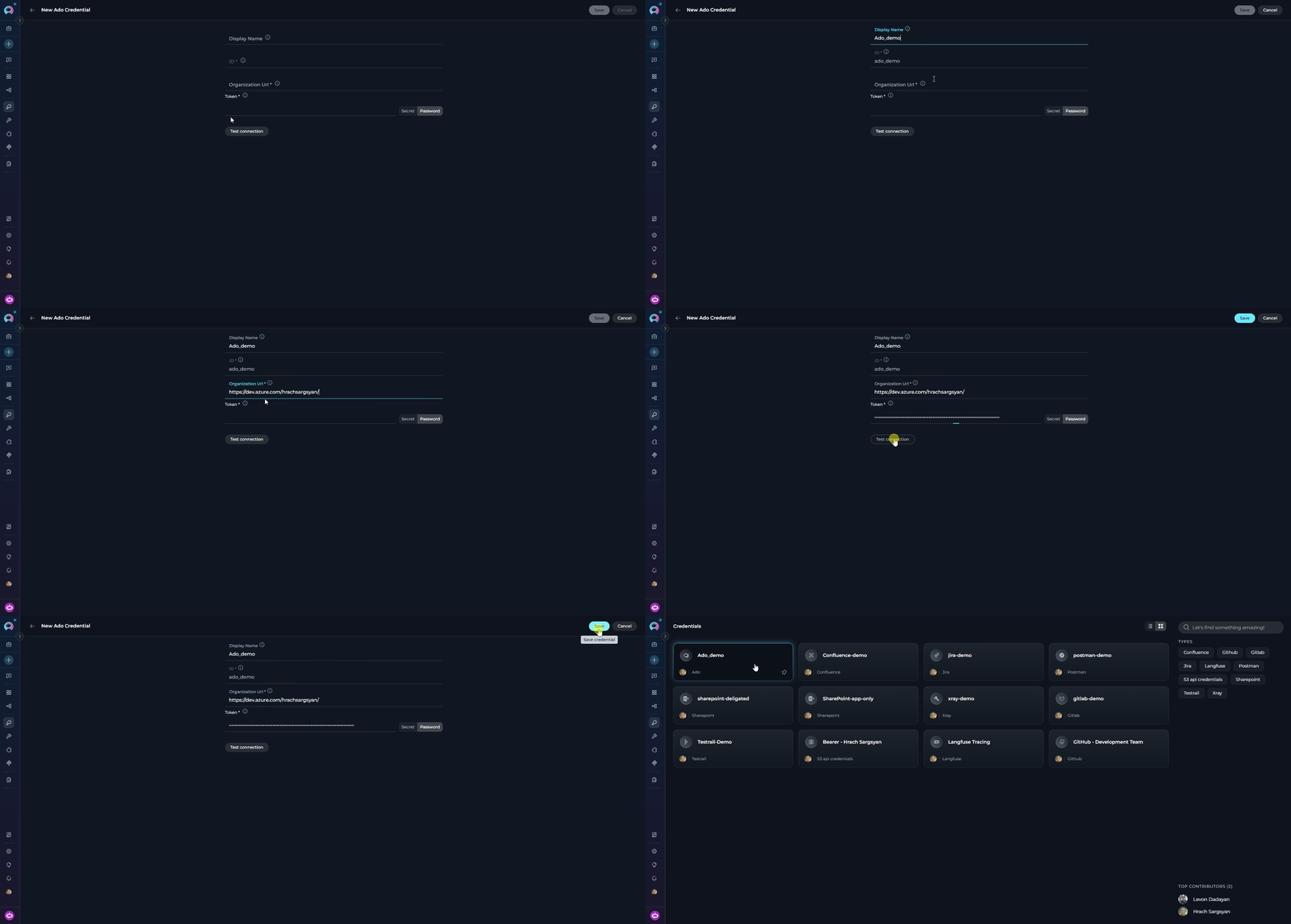
Configure Credential Details:
- Test Connection: Click Test Connection to verify credentials.
-
Save Credential: Click Save.
Step 2: Create the Azure DevOps Wiki Toolkit
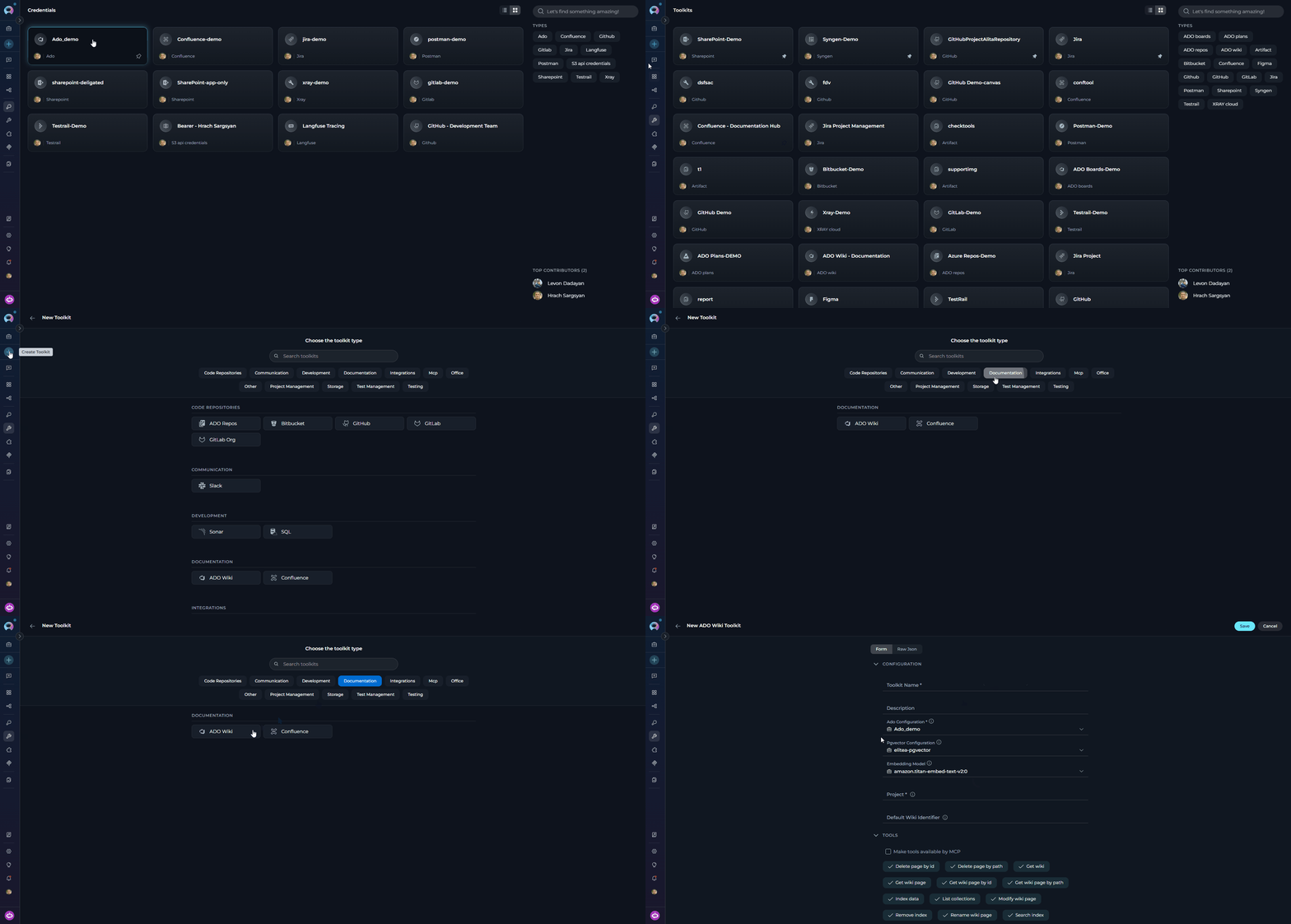
- Navigate to Toolkits Menu: Open the sidebar and select Toolkits.
-
Create New Toolkit: Click the
+ Createbutton. -
Select Azure Wiki: Choose Azure Wiki (ADO Wiki) from the available toolkit types.
-
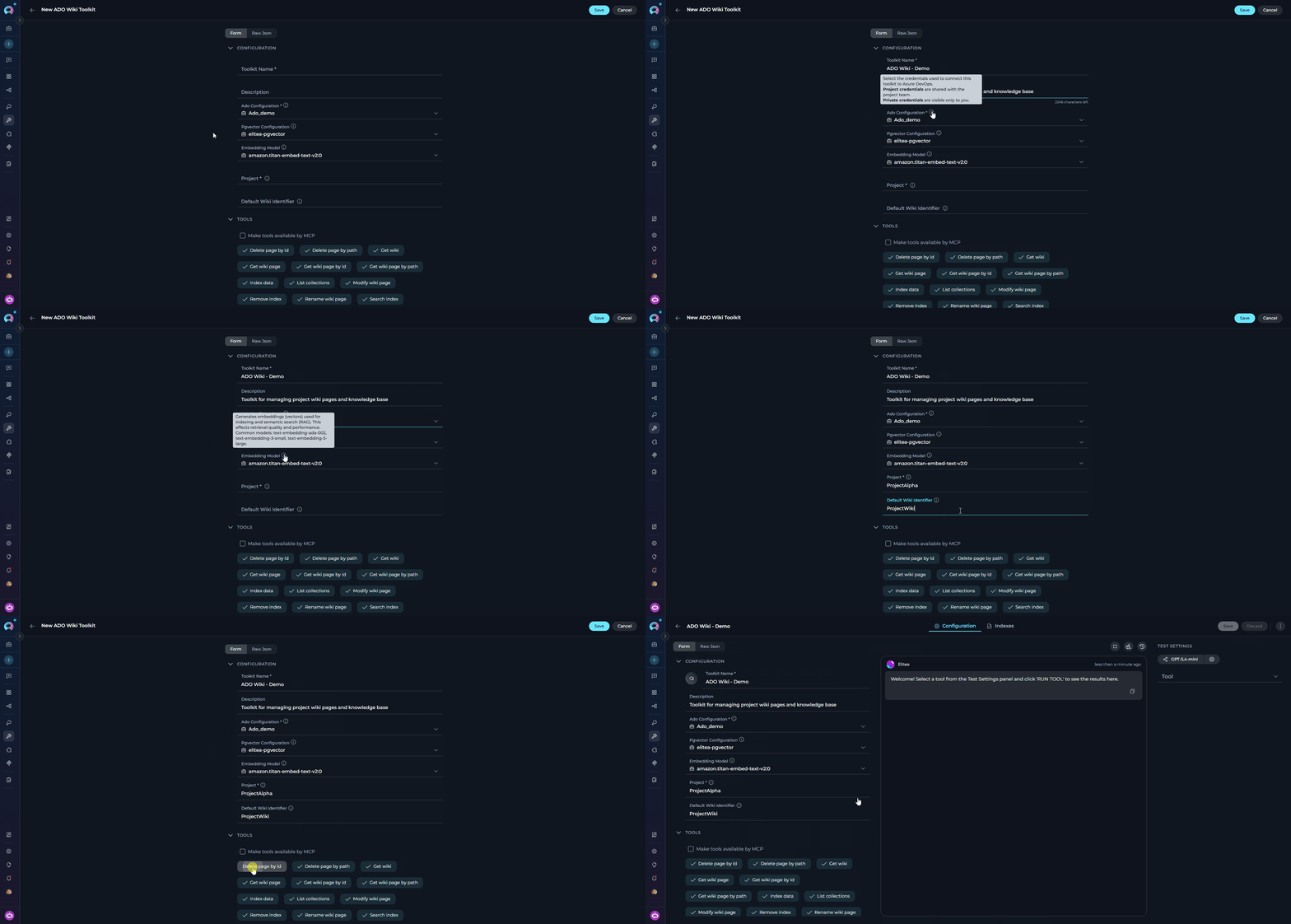
Configure Toolkit Settings:
-
Enable Desired Tools: Select the checkboxes next to the specific wiki tools you want to enable. Enable only the tools your agents will actually use.
- Make Tools Available by MCP — (optional) Make selected tools accessible through external MCP clients.
- Save Toolkit: Click Save.
Available Wiki Tools
- Get wiki page, Get wiki page by path, and Get wiki page by id support
process_images=Trueto replace embedded image references with textual descriptions generated by the configured LLM. - Image descriptions are cached inside the toolkit runtime, so repeated processing of the same image during a session avoids unnecessary duplicate vision-model calls.
- For wiki pages, only real image attachments are processed as images. Non-image files referenced under
/.attachments/are left untouched in page content and can be handled through indexing attachment support.
- process_images — injects image descriptions directly into the indexed wiki page content.
- include_attachments — indexes each referenced
/.attachments/file as its own dependent document.
include_attachments is enabled, you can further control which files are indexed with include_extensions and skip_extensions patterns.Testing Toolkit Tools
After configuring the toolkit, test individual tools from the Toolkit detail page using the Test Settings panel:- Select LLM Model from the model dropdown
- Select a Tool from the available wiki tools
- Provide Input — enter required parameters or test queries
- Run the Test and review the response
Step 3: Add the Wiki Toolkit to Your Workflows
In Agents
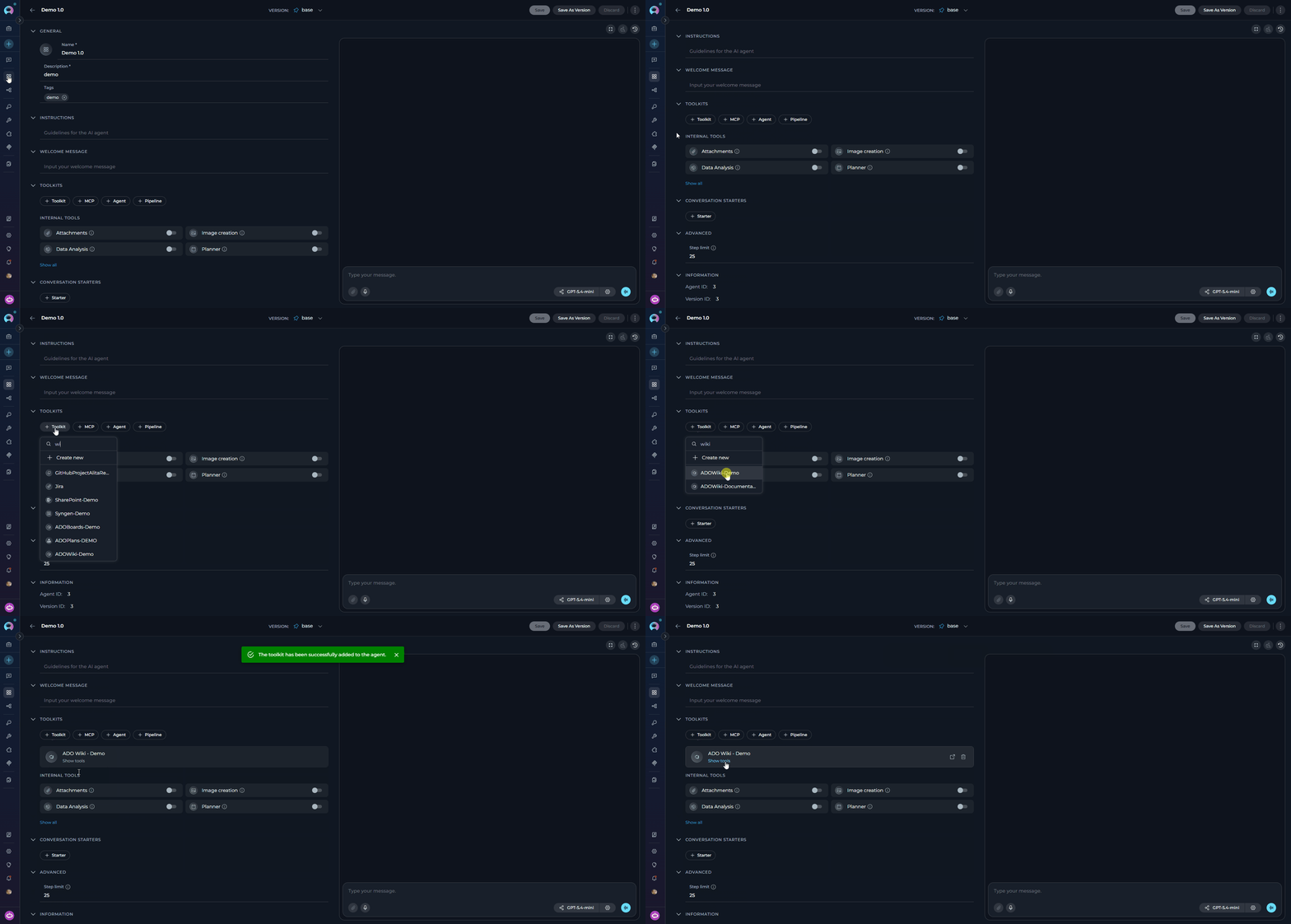
- Navigate to Agents: Open the sidebar and select Agents.
- Create or Edit Agent: Create a new agent or select an existing one.
- Add the Toolkit: In the TOOLKITS section, click “+Toolkit” and select your ADO Wiki toolkit.
In Pipelines
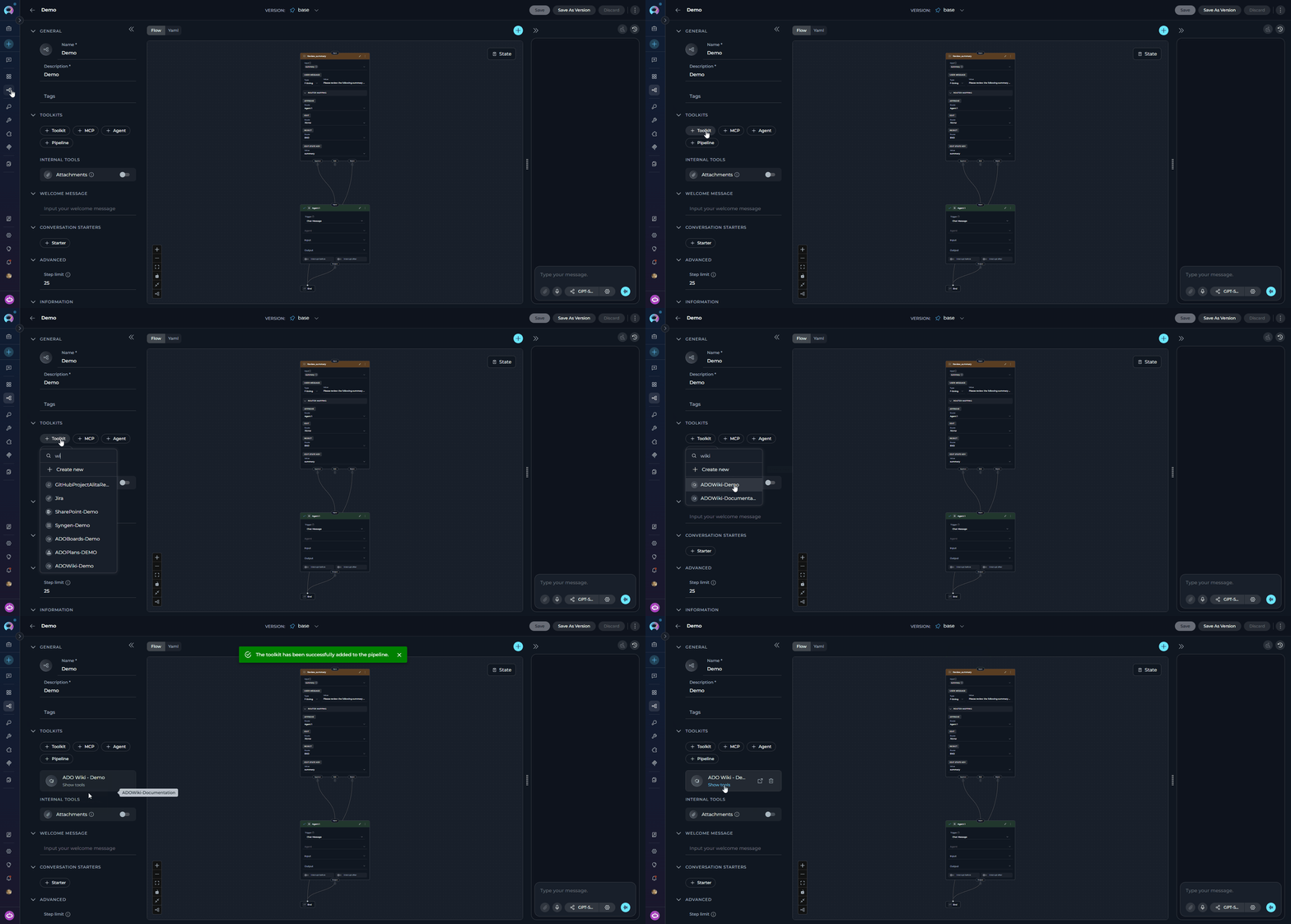
- Navigate to Pipelines: Open the sidebar and select Pipelines.
- Create or Edit Pipeline: Create a new pipeline or select an existing one.
- Add the Toolkit: In the TOOLKITS section, click “+Toolkit” and select your ADO Wiki toolkit.
In Chat
- Navigate to Chat: Open the sidebar and select Chat.
- Start New Conversation: Click +Create or open an existing conversation.
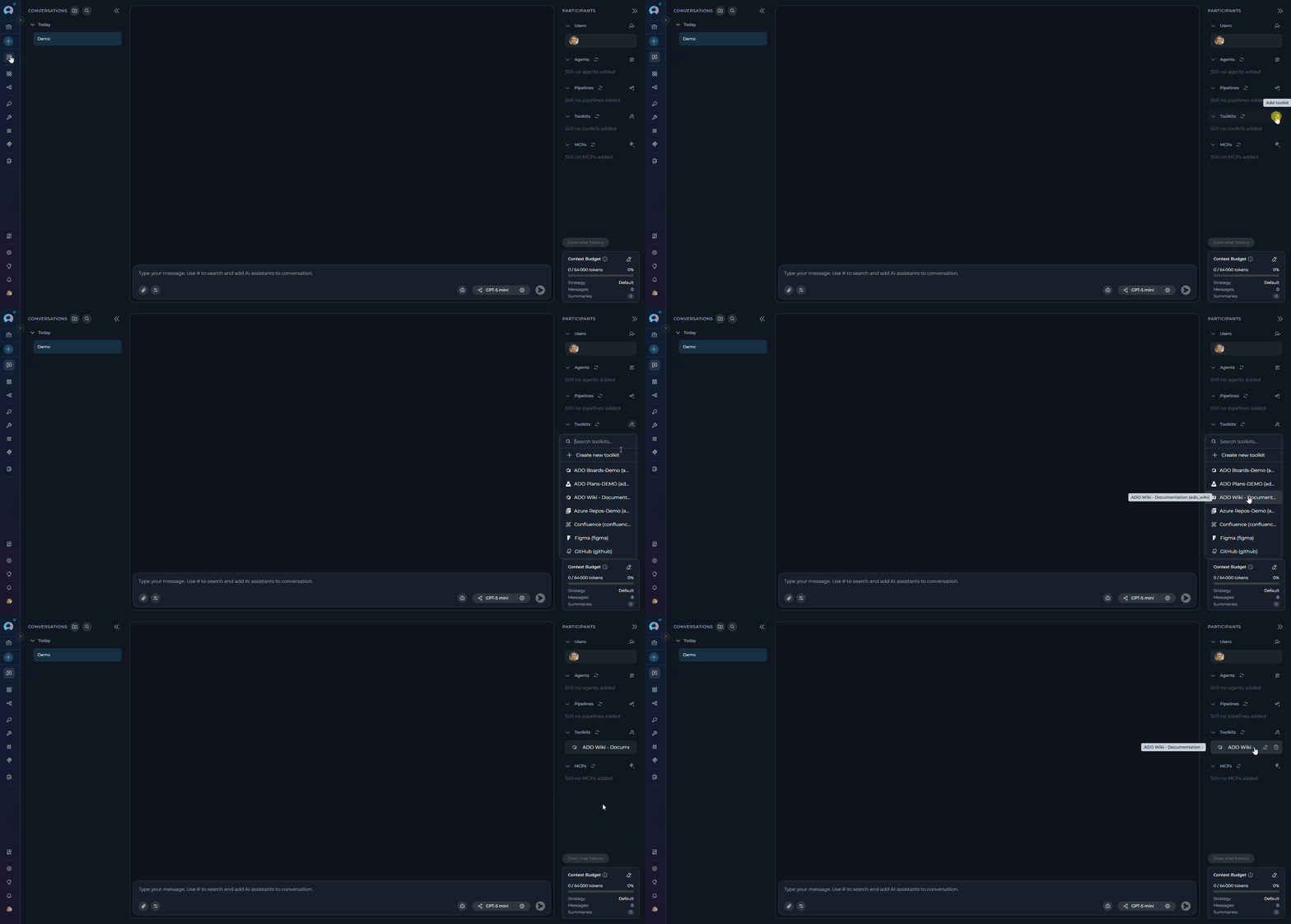
- Add the Toolkit: In the Participants section, click to add a toolkit and select your ADO Wiki toolkit.
- “Show me the latest release notes from the project wiki.”
- “Update the Team Meetings page with today’s meeting notes.”
- “What does the Getting Started wiki page say?”
Instructions and Prompts for Using the ADO Wiki Toolkit
When crafting instructions for agents using the ADO Wiki toolkit, clarity and precision are essential. Break down tasks into simple, actionable steps and explicitly define all parameters. Effective instructions are:- Direct and Action-Oriented: Use strong action verbs (e.g., “Use the ‘get_wiki_page_by_path’ tool…”, “Update the wiki page using ‘modify_wiki_page’…”)
- Parameter-Centric: Specify each required parameter and how the agent should obtain its value
- Step-by-Step Structured: Use numbered steps for complex workflows
Chat Usage Examples
Get Wiki Page by Path
Get Wiki Page by Path
Get Wiki Page with Image Descriptions
Get Wiki Page with Image Descriptions
Modify Wiki Page
Modify Wiki Page
Best Practices
Test Integration Thoroughly
Test Integration Thoroughly
Monitor Agent Performance
Monitor Agent Performance
Follow Security Best Practices
Follow Security Best Practices
- Use Personal Access Tokens instead of your main account password
- Grant only the minimum necessary scopes (Wiki: Read or Read & write)
- Store PATs using ELITEA’s Secrets Management feature
Provide Clear Instructions
Provide Clear Instructions
Start with Simple Use Cases
Start with Simple Use Cases
Automated Retrieval of Release Notes
Automated Retrieval of Release Notes
- Scenario: An agent automatically retrieves the latest release notes from the project wiki during support interactions.
- Tools Used:
get_wiki_page_by_path - Example Instruction: “Use ‘get_wiki_page_by_path’ to read the wiki page at ‘/Release Notes/Latest Release’ and display it to the user.”
- Benefit: Provides agents with immediate access to current release information, improving support efficiency.
Index Wiki Attachments for Search
Index Wiki Attachments for Search
- Scenario: Teams store diagrams, PDFs, and supporting files in wiki page attachments and want them searchable through ELITEA indexing.
- Tools Used:
index_data - Example Instruction: “Use ‘index_data’ with include_attachments enabled so attached wiki files are indexed as dependent documents, and enable process_images if embedded diagrams should also be described in page content.”
- Benefit: Makes both wiki text and attached supporting files discoverable through semantic search.
Dynamic Content Creation for Project Dashboards
Dynamic Content Creation for Project Dashboards
- Scenario: Agents dynamically generate wiki content by aggregating data from other ELITEA workflows.
- Tools Used:
modify_wiki_page - Example Instruction: “Use ‘modify_wiki_page’ to update the ‘Project Dashboard’ wiki page with the latest build status and test results.”
- Benefit: Keeps dashboards current automatically without manual updates.
Automated Wiki Cleanup
Automated Wiki Cleanup
- Scenario: Automatically delete outdated meeting minutes or temporary documentation after a set period.
- Tools Used:
delete_wiki_page_by_path - Example Instruction: “Use ‘delete_wiki_page_by_path’ to delete pages in ‘/Meeting Minutes/Archive’ that are older than 90 days.”
- Benefit: Keeps the project wiki organized and easy to navigate.
Troubleshooting
Connection Issues
Connection Issues
- Verify the organization URL is correct (e.g.,
https://dev.azure.com/YourOrganizationName) - Check that your PAT is accurate and not expired
- Regenerate the PAT if needed and update your ELITEA credential
- Verify network connectivity and firewall settings
Incorrect Organization or Project Names
Incorrect Organization or Project Names
- Verify the organization name matches your Azure DevOps URL exactly
- Confirm the project name is correct (case-sensitive)
- Ensure the URL format is:
https://dev.azure.com/YourOrganizationName
Wiki Access Issues
Wiki Access Issues
- Confirm the wiki page exists at the specified path
- Verify the PAT has appropriate wiki scopes
- Ensure the Wiki service is enabled for the project (Project Settings → Services)
- Check that paths use the correct hierarchical format (e.g.,
/Folder/PageName)
Indexing and Search Tool Errors
Indexing and Search Tool Errors
- Verify PgVector is properly configured in toolkit settings
- Confirm an embedding model is selected
- Ensure the index was created successfully before searching
- Verify there is data available to index
- If you expect attached wiki files to be searchable, verify
include_attachmentswas enabled during indexing
Wiki Identifier Not Provided Error
Wiki Identifier Not Provided Error
wiki_identified parameter and no Default Wiki Identifier is set in the toolkit configuration.Resolution:- Open the toolkit settings and set the Default Wiki Identifier field to your wiki name (e.g.,
ProjectAlpha.wikifor the project wiki, or the custom name you assigned when creating a code wiki) - Alternatively, instruct the agent to always pass the
wiki_identifiedparameter explicitly in each tool call
Support Contact
FAQ
Can I use my regular Azure DevOps password instead of a Personal Access Token?
Can I use my regular Azure DevOps password instead of a Personal Access Token?
What scopes should I grant to the PAT for Wiki?
What scopes should I grant to the PAT for Wiki?
What is the correct format for the Azure DevOps Organization URL?
What is the correct format for the Azure DevOps Organization URL?
https://dev.azure.com/YourOrganizationName — replace YourOrganizationName with your actual organization name. Do not include the project name in the URL.Can I use the same credential for multiple ADO toolkits?
Can I use the same credential for multiple ADO toolkits?
How do I find my Azure DevOps organization and project names?
How do I find my Azure DevOps organization and project names?
https://dev.azure.com/YourOrgName). Project names are listed in the Azure DevOps interface under your organization.Why am I getting 'Permission Denied' errors even with a valid token?
Why am I getting 'Permission Denied' errors even with a valid token?
vso.wiki_write scope for write operations. Also ensure your Azure DevOps account has project-level permissions — having a valid token does not automatically grant project access.What value should I use for the Default Wiki Identifier field?
What value should I use for the Default Wiki Identifier field?
{ProjectName}.wiki (e.g., ProjectAlpha.wiki). For code wikis, use the name you assigned during creation.To find the correct value: in Azure DevOps, navigate to Overview → Wiki and check the name in the URL or the wiki title bar.What happens when I try to create a wiki page that does not exist?
What happens when I try to create a wiki page that does not exist?
modify_wiki_page tool handles missing pages gracefully:- If the page does not exist at the given path, it is created automatically
- If the wiki itself does not exist under the given name, the toolkit creates a new wiki first, then creates the page
modify_wiki_page for both creating new pages and updating existing ones without separate setup steps.What branch name should I use when modifying or renaming wiki pages?
What branch name should I use when modifying or renaming wiki pages?
wikiMaster. Use this value for the version_identifier parameter in modify_wiki_page and rename_wiki_page calls unless your wiki uses a custom branch.If an invalid version identifier is provided to rename_wiki_page, the toolkit automatically retries the operation without the version constraint.Can the agent describe images embedded in wiki pages?
Can the agent describe images embedded in wiki pages?
process_images=False when calling get_wiki_page_by_path, get_wiki_page_by_id, or get_wiki_page.How do I retrieve a full wiki page hierarchy including all sub-pages?
How do I retrieve a full wiki page hierarchy including all sub-pages?
get_wiki_page tool with recursion_level set to your desired depth:recursion_level='full'.Do I need PgVector configuration for all wiki tools?
Do I need PgVector configuration for all wiki tools?
How do image descriptions work for wiki pages?
How do image descriptions work for wiki pages?
process_images=True, the toolkit analyzes embedded images in wiki page content and replaces the image reference with a textual description generated by the configured LLM. Repeated processing of the same image during a session uses the toolkit’s image-description cache to avoid duplicate analysis.Can attached wiki files be indexed separately from the page content?
Can attached wiki files be indexed separately from the page content?
include_attachments to index each referenced /.attachments/ file as its own dependent document. You can also use include_extensions and skip_extensions to control which attachment file types are included.What's the difference between 'get_wiki_page_by_path' and 'get_wiki_page_by_id'?
What's the difference between 'get_wiki_page_by_path' and 'get_wiki_page_by_id'?
- get_wiki_page_by_path: Uses the hierarchical path (e.g.,
/Release Notes/Latest). More intuitive and user-friendly. - get_wiki_page_by_id: Uses the unique numeric ID of the wiki page. More precise but requires knowing the ID in advance.
How do I update my PAT when it expires?
How do I update my PAT when it expires?
- Generate a new PAT in Azure DevOps
- Navigate to Credentials in ELITEA
- Edit your Azure DevOps credential and update the Token field
- Save the credential — all toolkits using it will automatically use the new token
- Agent Menu — Complete reference for agent management
- Create and Edit Agents from Canvas — Quickly create agents from chat canvas
- Indexing Overview — Understanding ELITEA’s indexing capabilities
- Index ADO Wiki Data — Detailed instructions for indexing Azure DevOps Wiki data
- Azure Repos (ADO Repos) Toolkit Integration Guide — Integrate Azure Repos for version control
- Azure DevOps Documentation — Official Microsoft documentation
- Azure Wiki Documentation — Creating and managing project wikis
- Personal Access Tokens Guide — Best practices for PAT management