

Introduction
This guide is your definitive resource for integrating and utilizing the Syngen Toolkit within ELITEA. It provides a comprehensive, step-by-step walkthrough — from uploading your training data to configuring the toolkit in ELITEA and effectively using it within your Agents, Pipelines, and Chat. By following this guide, you will unlock AI-driven synthetic tabular data generation capabilities directly within the ELITEA platform, enabling you to create realistic, privacy-preserving datasets without exposing real production data. This integration empowers you to leverage AI-driven automation to generate high-quality synthetic data as part of your development, testing, and machine-learning workflows. Brief Overview of the Syngen Toolkit The Syngen Toolkit brings powerful unsupervised synthetic data generation to ELITEA. It uncovers the patterns, trends, and correlations hidden within any tabular dataset you provide and reproduces them in a fully synthetic form — meaning the generated data is statistically similar to your source data but contains no real records. The result is a referentially intact dataset that can replace production data exports in less protected environments, eliminating the need for manual data classification or obfuscation. Key capabilities include:- Model Training: Learn the statistical structure of any source tabular dataset and produce a reusable trained model, stored as an artifact in your designated ELITEA Artifacts bucket.
- Synthetic Data Generation: Use a previously trained model to generate any desired number of synthetic rows, with optional reproducibility via a random seed.
- Model Inspection: List all trained models registered in the bucket, including column metadata, training settings, and creation timestamps.
- Broad Data Type Support: Floats, integers, datetime, text, categorical, and binary columns are all handled automatically through dedicated per-column-type neural modules.
- Artifact-Backed Storage: All trained model archives and generated CSV outputs are persisted in your ELITEA Artifacts bucket, making them shareable and reusable across agents and pipeline runs.
- Generating safe, privacy-preserving test data for QA and staging environments.
- Augmenting small datasets for machine learning model development.
- Producing synthetic datasets for demos, prototyping, and load testing.
- Replacing production data exports with statistically equivalent synthetic versions.
System Integration with ELITEA
Unlike most ELITEA toolkits, the Syngen Toolkit does not require external API credentials or a separate credential creation step. Authentication is handled entirely within the platform — the toolkit uses your current ELITEA session to connect to the platform’s own Artifacts storage. The integration is a straightforward three-step process: Upload Training Data → Create Toolkit → Use in Agents, Pipelines, or Chat.Step 1: Upload Your Training Data to an Artifacts Bucket
Before creating the toolkit, your source data file must be available in an ELITEA Artifacts bucket.- Navigate to Artifacts: Open the sidebar and select Artifacts.
-
Create or select a bucket: Either create a new bucket (for example,
syngen-data) or use an existing one. Note the exact bucket name — you will need it when configuring the toolkit. -
Upload your training file: Upload your source CSV or Avro file to the bucket. Note the exact file name (for example,
customers.csv).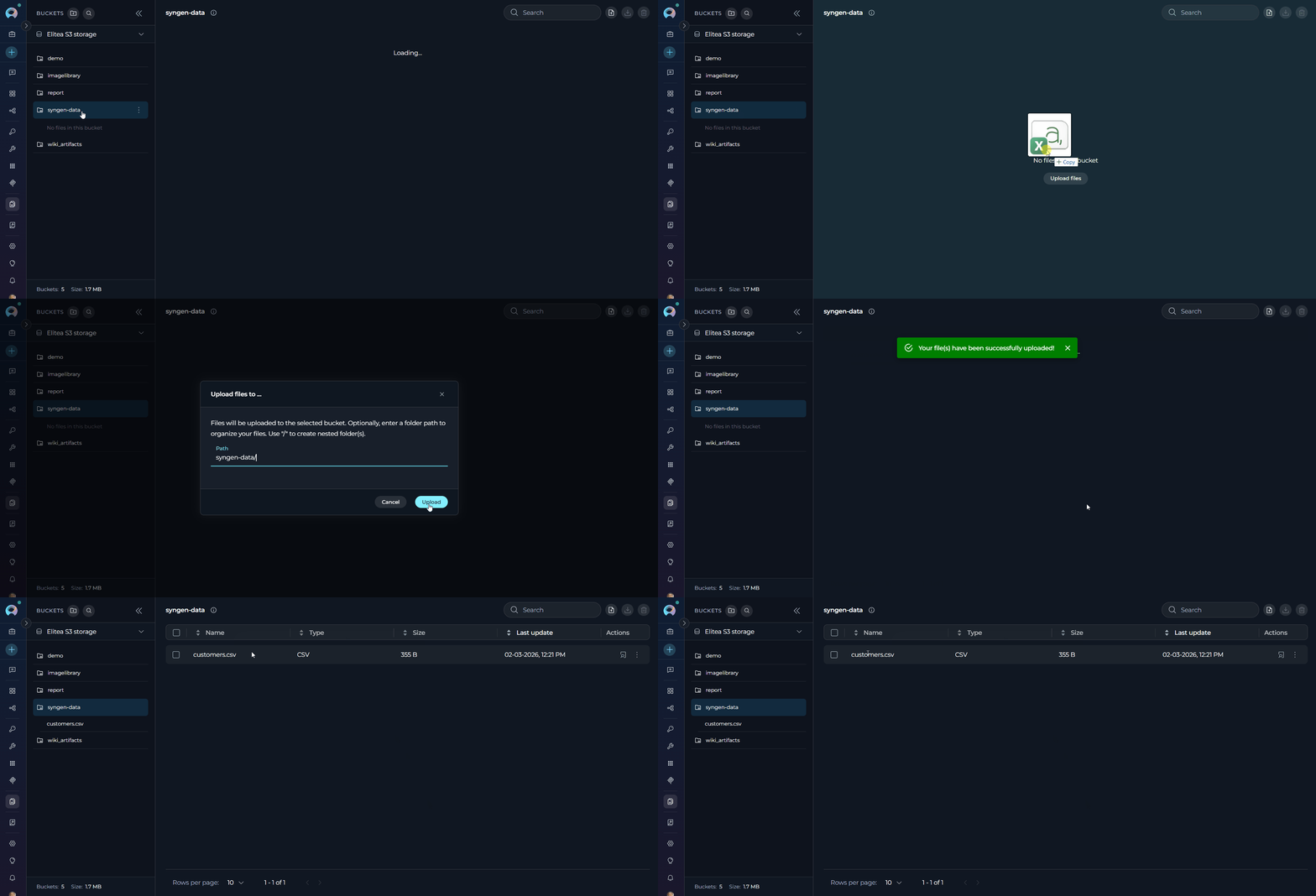
Step 2: Create the Syngen Toolkit
Once your training data is uploaded to the Artifacts bucket, create the Syngen Toolkit:- Navigate to Toolkits Menu: Open the sidebar and select Toolkits.
-
Create New Toolkit: Click the
+ Createbutton. - Select Syngen: Choose SyngenToolkit from the list of available toolkit types.
-
Configure Toolkit Settings:
-
Enable Desired Tools: In the “Tools” section, select the checkboxes next to the specific Syngen tools you want to enable. Enable only the tools your agents will actually use
- Make Tools Available by MCP - (optional checkbox) Enable this option to make the selected tools accessible through external MCP clients
-
Save Toolkit: Click Save to create the toolkit
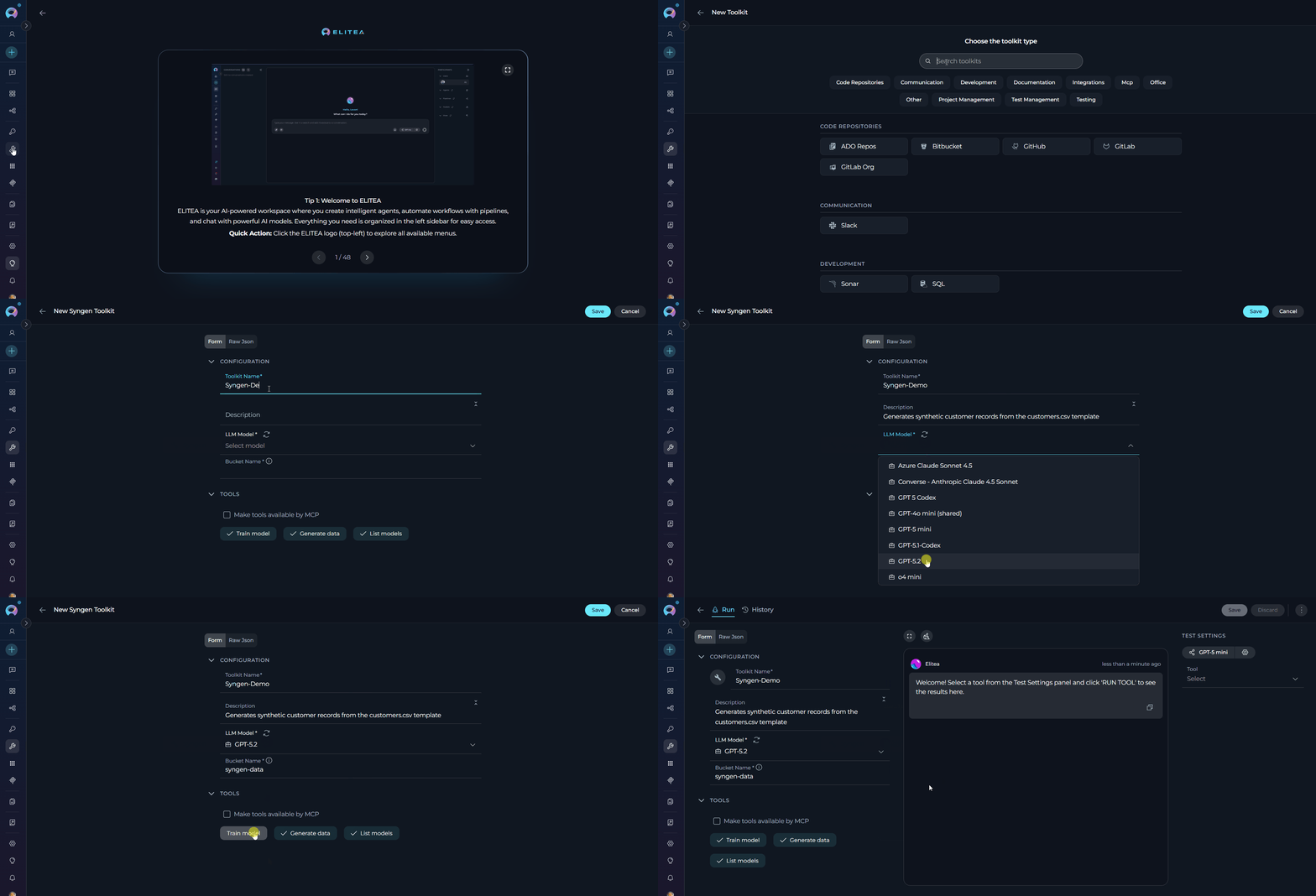
Available Tools:
The Syngen Toolkit provides the following three tools:Tool Parameters
Train modelCustomer_Model becomes customer-model). The toolkit handles this automatically when packaging and retrieving models. However, always use the exact name you specified in model_name when calling generate_data — the toolkit resolves the normalized form for you.Testing Toolkit Tools
After configuring your Syngen Toolkit, you can test individual tools directly from the Toolkit detail page using the Test Settings panel. General Testing Steps:- Select LLM Model: Choose a Large Language Model from the model dropdown in the Test Settings panel.
- Configure Model Settings: Adjust model parameters (Creativity, Max Completion Tokens, etc.) as needed.
- Select a Tool: Choose
train_model,generate_data, orlist_modelsfrom the available tools list. - Provide Input: Enter the required parameters (for example,
model_nameandtraining_file_name). - Run the Test: Execute the tool and wait for the response.
- Review the Response: Analyse the output to verify the tool is working correctly.
Step 3: Add the Syngen Toolkit to Your Workflows
Once the toolkit is saved, you can add it to your agents, pipelines, or chat conversations.In Agents:
- Navigate to Agents: Open the sidebar and select Agents.
- Create or Edit Agent: Either create a new agent or select an existing agent to edit.
-
Add Syngen Toolkit:
- In the “TOOLKITS” section of the agent configuration, click the “+Toolkit” icon.
- Select your configured Syngen toolkit from the dropdown list.
- The toolkit will be added to your agent with the previously enabled tools available.
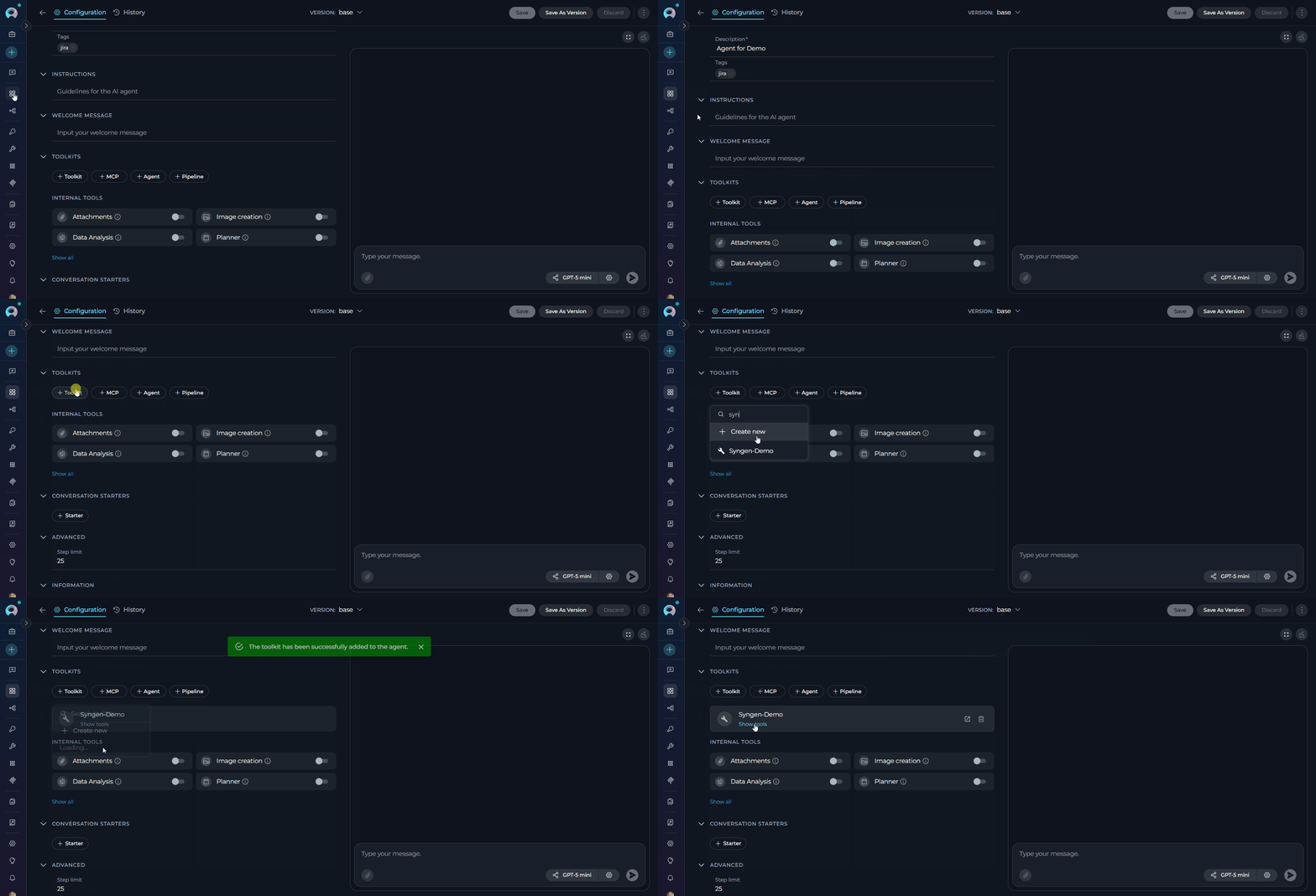
In Pipelines:
- Navigate to Pipelines: Open the sidebar and select Pipelines.
- Create or Edit Pipeline: Either create a new pipeline or select an existing pipeline to edit.
-
Add Syngen Toolkit:
- In the “TOOLKITS” section of the pipeline configuration, click the “+Toolkit” icon.
- Select your configured Syngen toolkit from the dropdown list.
- The toolkit will be added to your pipeline with the previously enabled tools available.
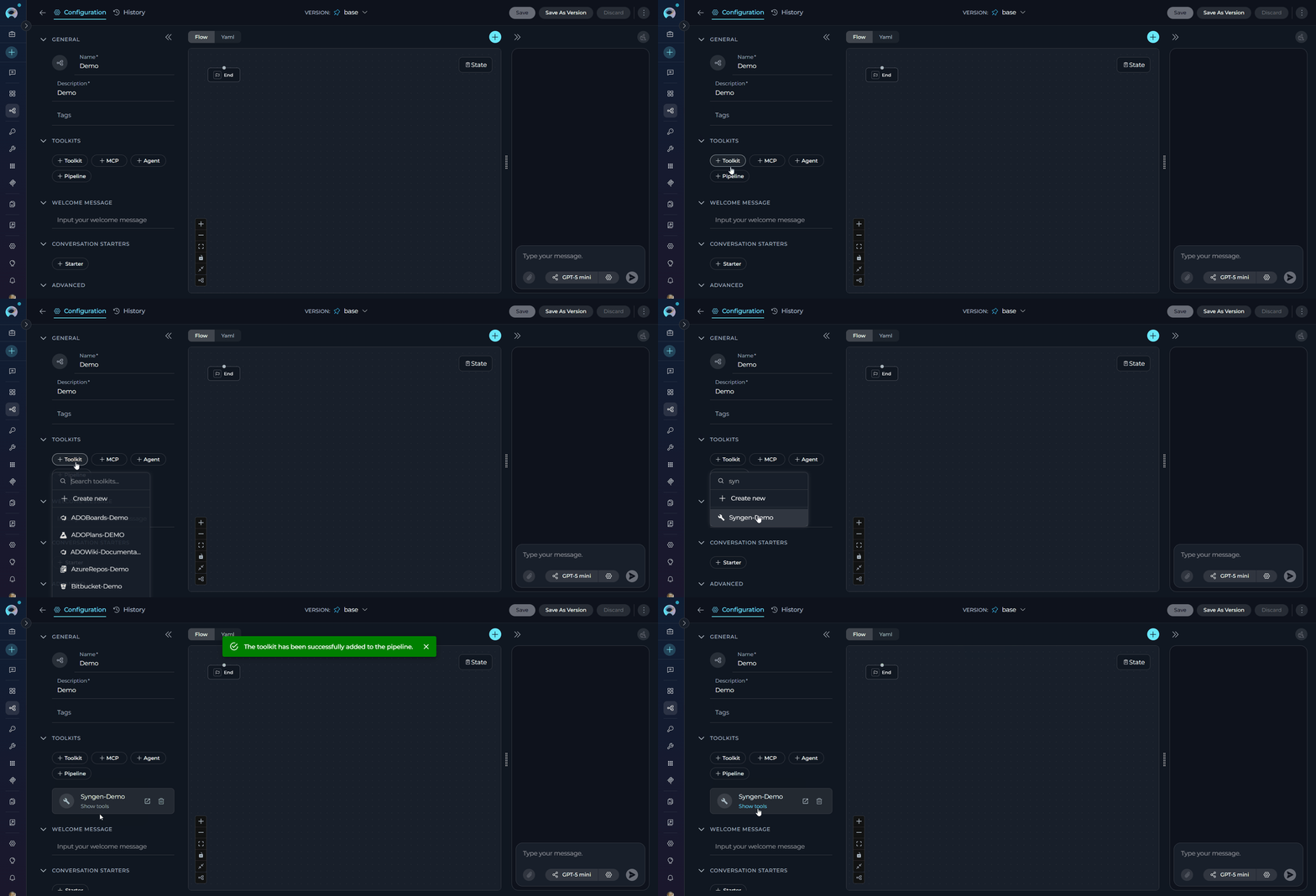
In Chat:
- Navigate to Chat: Open the sidebar and select Chat.
-
Start New Conversation: Click
+Createor open an existing conversation. -
Add Toolkit to Conversation:
- In the chat Participants section, look for the Toolkits element.
- Click the “Add Tools” icon to open the tools selection dropdown.
- Select your configured Syngen toolkit from the dropdown list.
- The toolkit will be added to your conversation with all previously enabled tools available.
-
Use Toolkit in Chat: You can now request synthetic data generation directly by prompting the AI.
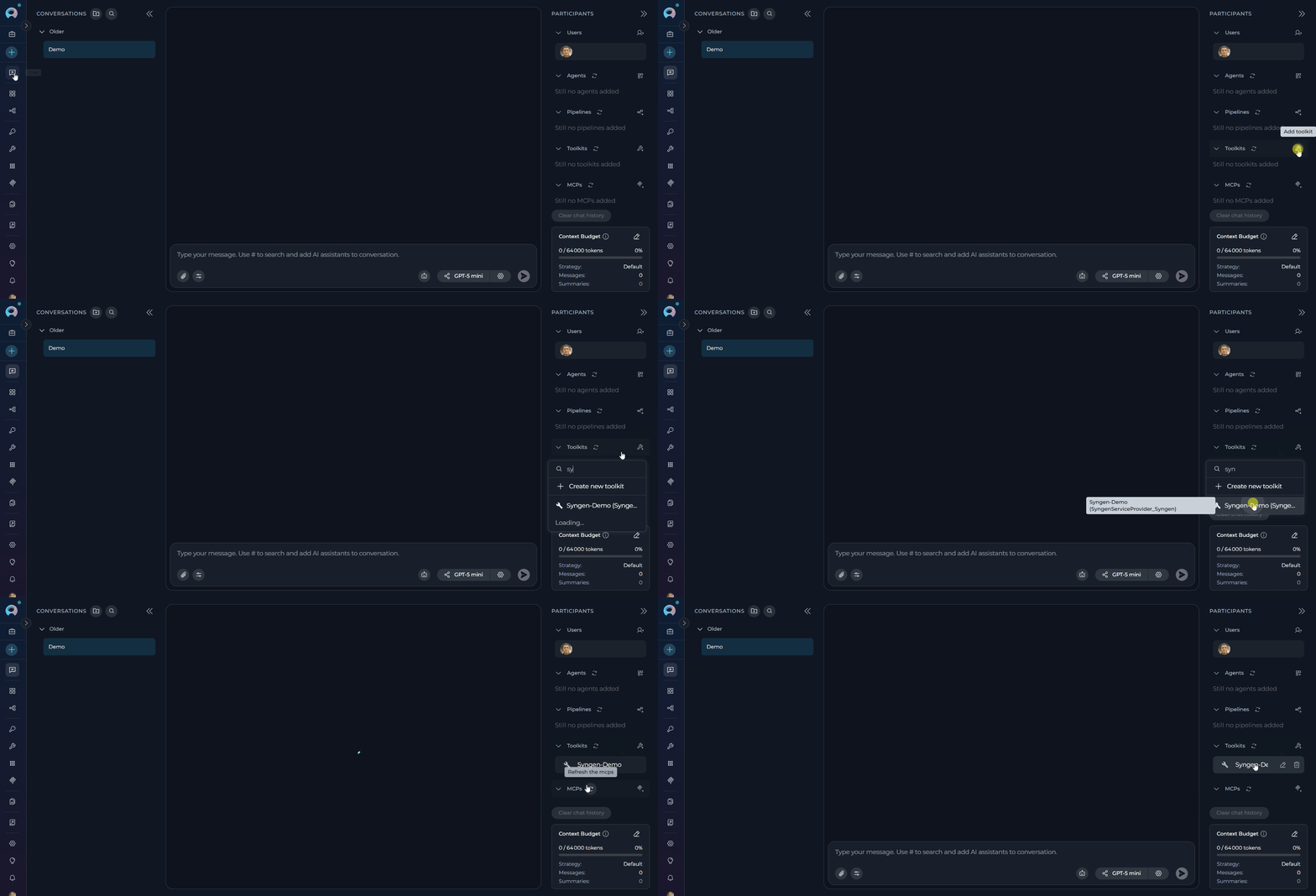
- “Train a model called
customer_modelusingcustomers.csvwith 20 epochs.” - “Generate 500 rows of synthetic customer data using
customer_model.” - “List all trained models available in the bucket.”
- “Generate a reproducible dataset of 200 rows using
customer_modelwith random seed 42.”
Instructions and Prompts for Using the Syngen Toolkit
To effectively instruct your ELITEA Agent to use the Syngen Toolkit, provide clear and precise instructions within the Agent’s “Instructions” field. These guide the Agent on when and how to invoke the available Syngen tools.Instruction Creation for Agents
When crafting instructions for the Syngen Toolkit, clarity and parameter precision are essential. All three tools run as background operations, so instructions should account for the fact that results may take a moment to appear while the model trains or generates data.- Direct and Action-Oriented: Use strong action verbs. For example, “Use the
train_modeltool…”, “Generate synthetic data using…”, “List all available models…”. - Parameter-Centric: Clearly enumerate each required and optional parameter, specifying whether values come from user input, fixed configuration, or a prior step’s output.
- Step-by-Step Structure: For multi-step workflows (for example, train then generate), number the steps explicitly.
- Add Conversation Starters: Include example prompts that users can use to trigger each workflow.
- State the Goal: Describe the objective. For example, “Goal: Train a synthetic data model on the uploaded customer dataset.”
- Specify the Tool: Identify the exact tool. For example, “Tool: Use the
train_modeltool.” - Define Parameters: List all parameters with their values or sources.
- Describe Expected Outcome: State what a successful result looks like. For example, “Outcome: A trained model artifact will be saved to the bucket and a confirmation message returned.”
- Add Conversation Starters: Include example prompts. For example, “Conversation Starters: ‘Train a model on my data file.’, ‘Generate 500 synthetic rows.’”
Real-World Usage Examples
The following examples demonstrate how to interact with the Syngen Toolkit in ELITEA Chat and Agents. Each example shows a realistic user request and the corresponding agent response.train_model — Train a Synthetic Data Model
train_model — Train a Synthetic Data Model
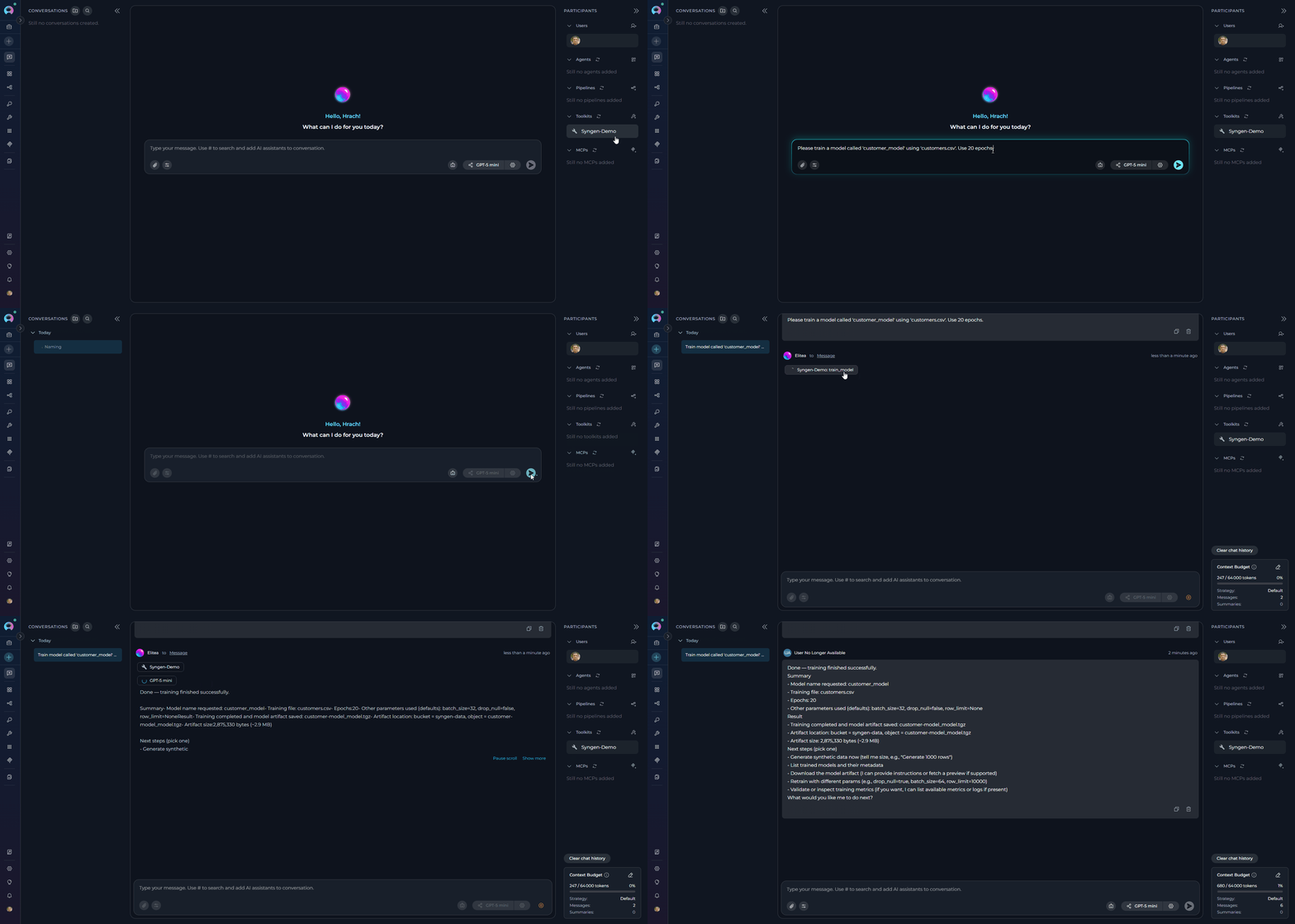
generate_data — Generate Synthetic Rows
generate_data — Generate Synthetic Rows
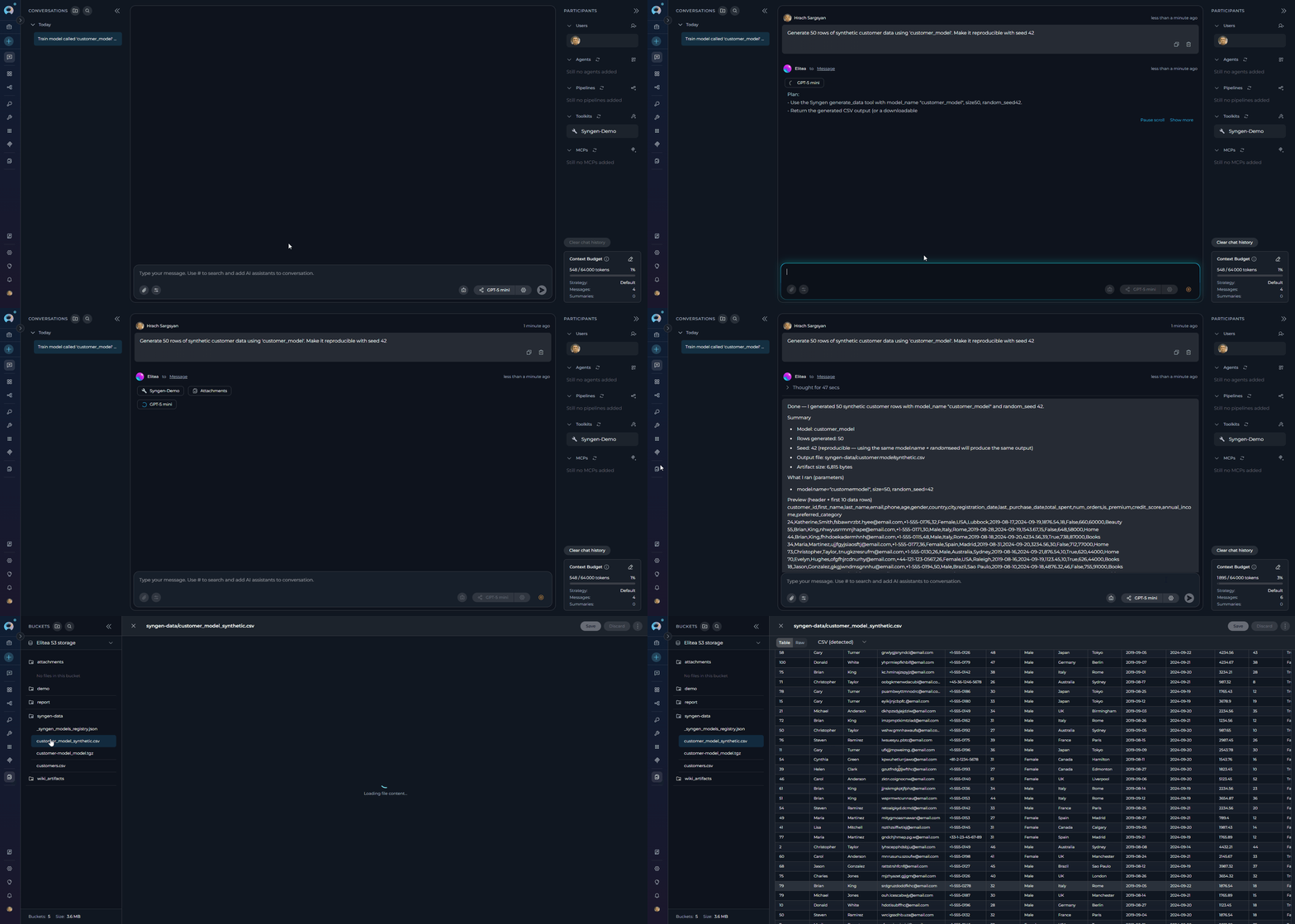
list_models — Inspect Available Models
list_models — Inspect Available Models
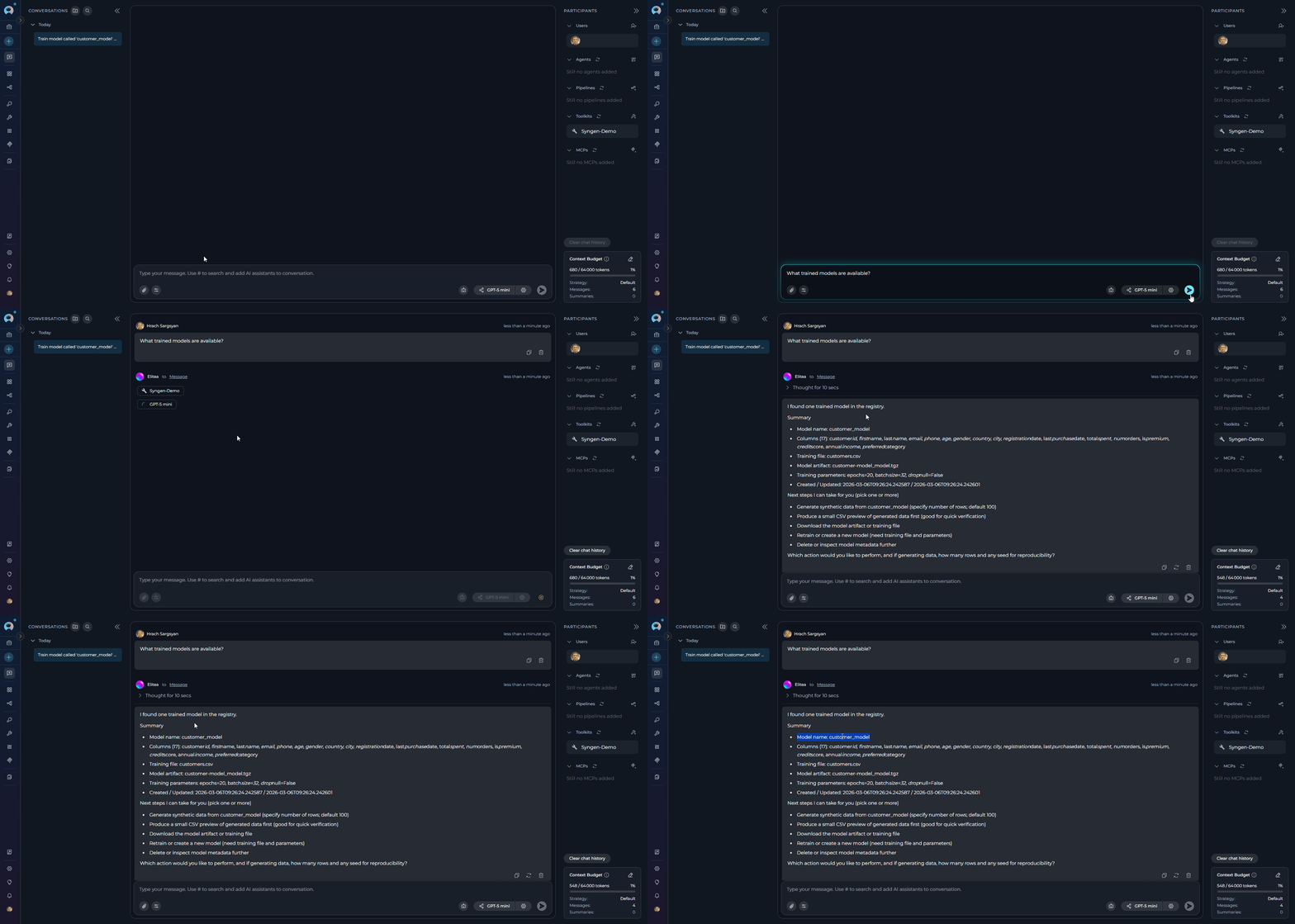
- Single table per model: Each training run learns from a single table. Multi-table or relational training is not supported through the toolkit.
- Large dataset training time: Training on large datasets can be time-consuming. Use the Row limit parameter to cap the number of rows when testing or prototyping.
- Parallel generation not supported: The
generate_datatool always runs in single-thread (non-parallel) mode. A parallel execution option is not available in the current release.
Troubleshooting
Toolkit Type Not Visible When Creating a Toolkit
Toolkit Type Not Visible When Creating a Toolkit
+ Create.Troubleshooting Steps:- Verify the feature is enabled: The Syngen Toolkit must be enabled on your ELITEA platform. If the option does not appear, contact your platform administrator to confirm it has been activated.
- Refresh the browser: After a new toolkit type becomes available, a browser refresh may be required to load the updated list.
Training Fails — Training File Not Found
Training Fails — Training File Not Found
train_model tool returns an error indicating the training file could not be found or downloaded.Troubleshooting Steps:- Verify the file exists in the bucket: Navigate to Artifacts → your bucket and confirm the training file is present with the exact file name you specified.
- Check the bucket name: Ensure the Bucket name in the toolkit configuration exactly matches the bucket name in Artifacts.
- Check the file name spelling: The file name is case-sensitive. Ensure it exactly matches the file name in the bucket, including the file extension.
- Verify bucket scope: Confirm the bucket belongs to the same ELITEA project as the toolkit.
Training Fails — Processing Error
Training Fails — Processing Error
- Reduce dataset size: Use the Row limit parameter to restrict training to the first N rows of your file, or lower the Batch size to decrease memory consumption. Large datasets or large batch sizes can trigger an
out_of_memoryerror. - Check data format validity: Ensure the training file is a valid, UTF-8 encoded file of a supported format (CSV or Avro) and is not corrupted or empty. Invalid or unparseable data produces an
invalid_inputerror. - Review the error message: The error response includes a human-readable description, an
error_categoryfield (such astraining_failed,out_of_memory,invalid_input, orruntime_error), and a full stack trace to help pinpoint the root cause. - Check for slugified name conflicts: Model names are normalized to lowercase with underscores converted to hyphens (
my_model→my-model). If two model names slugify to the same string, the second training run will overwrite the first. Use distinct model names to avoid this.
Generation Fails — Model Not Found
Generation Fails — Model Not Found
generate_data tool returns an error indicating the model could not be found.Troubleshooting Steps:- Verify the model was trained successfully: Run
list_modelsto confirm the model appears in the registry. If it does not, re-runtrain_model. - Check the model name spelling: The model name in
generate_datamust exactly match the name used during training (case-sensitive, before normalization). - Check the bucket: Confirm the model archive file (
{model_name}_model.tgz) exists in the Artifacts bucket. - Check for a partial training run: If a previous training run was cancelled or interrupted before the upload step, the model archive may not have been saved. Re-run
train_modelto produce a complete model.
list_models Returns 'No trained models found'
list_models Returns 'No trained models found'
list_models returns a message saying no trained models were found, even though models have been trained.Troubleshooting Steps:- Check the bucket name: Verify the Bucket name in the toolkit configuration is correct and refers to the same bucket where training was run.
- Verify the registry file exists: Navigate to Artifacts → your bucket and look for
_syngen_models_registry.json. If it does not exist, no training job has completed successfully in this bucket yet. - Check for a registry update failure: If training completed but the registry was not updated (for example, due to a network interruption during upload), the model archive will exist in the bucket but will not appear in the list. Re-running training will regenerate the registry entry. The toolkit retries the registry update up to three times automatically, but a persistent failure may still leave it incomplete.
Training Progress Appears to Stall or Show No Updates
Training Progress Appears to Stall or Show No Updates
- This is expected behavior: The toolkit batches all training output at one-second intervals. If an epoch completes in under one second, its output may be grouped with the next batch. Short pauses between updates are normal.
- Progress bars are intentionally hidden: Numerical progress bars produced by the training process (tqdm-style
it/scounters) are automatically filtered from the output to reduce noise. Only epoch-level loss values are surfaced, in the formatTraining epoch N, loss: X.XXXX. - Verify the process is still active: If there is no output for more than a few minutes, the training job may have silently failed. Check the error response or contact your platform administrator if the job does not complete.
Support Contact
If you encounter issues not covered in this guide or need additional assistance with Syngen Toolkit integration, please refer to Contact Support for detailed information on how to reach the ELITEA Support Team.FAQ
Do I need to create separate API credentials for the Syngen Toolkit?
Do I need to create separate API credentials for the Syngen Toolkit?
Why do all Syngen tools run in the background?
Why do all Syngen tools run in the background?
Can I cancel a running training or generation job?
Can I cancel a running training or generation job?
train_model to get a complete model.What file formats can I use as training data?
What file formats can I use as training data?
Why do some training epochs not appear in the progress output?
Why do some training epochs not appear in the progress output?
it/s counters) are silently filtered to keep the output readable. Only epoch-level loss values are shown, in the format Training epoch N, loss: X.XXXX.Can I reuse a trained model across multiple agents?
Can I reuse a trained model across multiple agents?
How do I generate reproducible synthetic data?
How do I generate reproducible synthetic data?
generate_data, set the random_seed parameter to any whole number (0 or greater). Using the same seed with the same model and the same size setting will always produce the same output, making your results fully reproducible.What happens to temporary files during training and generation?
What happens to temporary files during training and generation?
Is my original training data stored anywhere?
Is my original training data stored anywhere?
Can I train on very large datasets?
Can I train on very large datasets?
- Create and Edit Agents from Canvas - Learn how to quickly create and edit agents directly from chat canvas.
- Create and Edit Toolkits from Canvas - Discover how to create and configure toolkits directly from the chat interface.
- Create and Edit Pipelines from Canvas - Guide to building and modifying pipelines from chat canvas.