

Indexing operations are performed through the Indexes interface within Toolkit Configuration. This interface provides comprehensive index management with visual status indicators, real-time progress monitoring, and integrated search capabilities. For detailed information, see How to create and use indexes.
- GitHub - Git repository hosting and DevOps platform
- Azure DevOps Repos - Microsoft’s Git repository hosting
- Bitbucket - Atlassian’s Git and Mercurial repository management
- GitLab - DevOps platform with integrated Git repository management
- Other Git-based platforms - Any Git repository accessible via standard protocols
Overview
Repository indexing allows you to create searchable indexes from various repository resources:- Repository Content: Code files, documentation, configuration files, and project assets
- Issues & Discussions: Bug reports, feature requests, support tickets, and community discussions
- Pull Requests: Code reviews, change proposals, and development conversations
- Project Workflows: GitHub Actions logs, workflow configurations, and CI/CD data
- Organization Data: Team repositories, project structures, and collaborative content
- Semantic Search: Find code patterns, documentation, or discussions using natural language queries
- Context-Aware Chat: Get AI-generated answers from your repository content with citations
- Cross-Repository Discovery: Search across multiple repositories and project resources
- Development Insights: Analyze issues, PRs, and workflows for project intelligence
- Knowledge Extraction: Transform repository content into searchable organizational knowledge
- Onboarding new team members by allowing them to ask questions about the codebase and processes
- Finding specific implementations, bug fixes, or feature discussions across repositories
- Generating documentation or explanations from existing code and project discussions
- Code review assistance and impact analysis using historical PR data
- Support ticket resolution using indexed issue discussions and solutions
GitHub Example Walkthrough
The following sections demonstrate the complete indexing workflow using GitHub as the example repository platform. This includes:
- Creating GitHub credentials
- Configuring GitHub toolkit
- Indexing GitHub repository data
- Searching and using the indexed content
Prerequisites
Before indexing GitHub data, ensure you have:- GitHub Credential: A Personal Access Token or GitHub App credentials configured in ELITEA
- Vector Storage: PgVector selected in Settings → AI Configuration
- Embedding Model: Selected in AI Configuration (defaults available) → AI Configuration
- GitHub Toolkit: Configured with your repository details, credentials, and Index Data tool enabled
Required Permissions
Your GitHub credential needs these minimum scopes based on what you want to index: For Repository Content:repoorpublic_repo(for public repositories)repo:status(for commit status access)
repo(includes issue access)read:org(for organization-level content)
actions:read(for workflow data)repo(for repository-level workflows)
Step-by-Step: Creating a GitHub Credential
- Generate GitHub Personal Access Token in GitHub with required scopes (
repo,public_repo,repo:status, etc.) - Create Credential in ELITEA: Navigate to Credentials → + Create → GitHub → enter token and save
For complete credential setup steps including token generation and security best practices, see:
- Create a Credential
- GitHub Credential Setup
- GitHub Toolkit Guide (Token generation section)
Step-by-Step: Configure GitHub Toolkit
- Create Toolkit: Navigate to Toolkits → + Create → GitHub
- Configure Settings: Set repository (
owner/repo-name), branches, and assign your GitHub credential - Enable Required Tools: Select
index_datatool (required for indexing functionality) and optionallysearch_index,stepback_search_index,stepback_summary_index, andremove_indextools - Save Configuration
Tool Overview:
- Index_data: Creates searchable indexes from GitHub repository content (files, documentation, code) - Required for indexing
- Search_index: Performs semantic search across indexed content using natural language queries
- Stepback_search_index: Advanced search that breaks down complex questions into simpler parts for better results
- Stepback_summary_index: Generates summaries and insights from search results across indexed content
- Remove_index: Deletes existing collections/indexes when you need to clean up or start fresh
For complete toolkit configuration including PgVector setup and embedding models, see:
Step-by-Step: Index GitHub Data
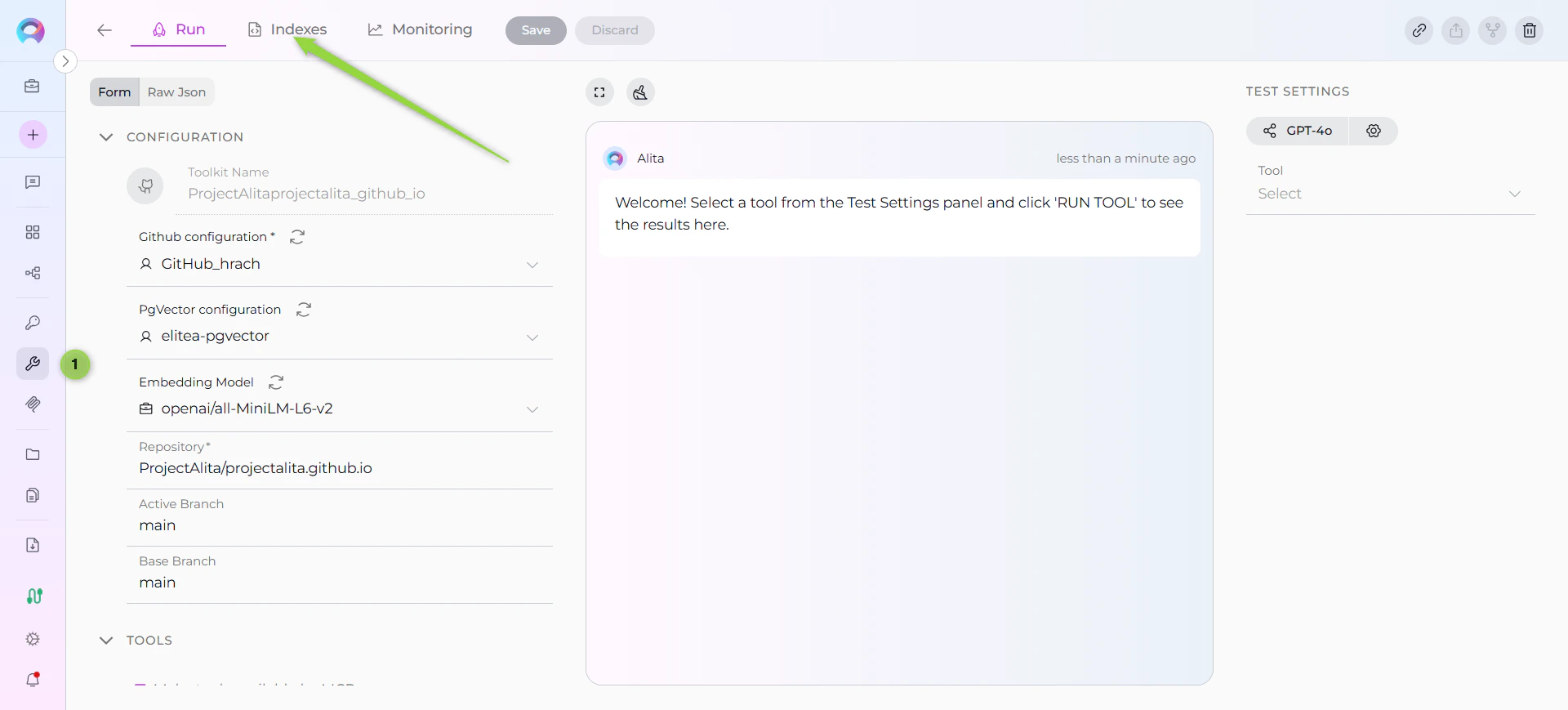
Step 1: Access the Interface
- Navigate to Toolkits: Go to Toolkits in the main navigation
- Select Your GitHub Toolkit: Choose your configured GitHub toolkit from the list
- Open Indexes Tab: Click on the Indexes tab in the toolkit detail view
- PgVector and Embedding Model are configured in Settings → AI Configuration
- The Index Data tool is enabled in your toolkit configuration
Step 2: Create a New Index
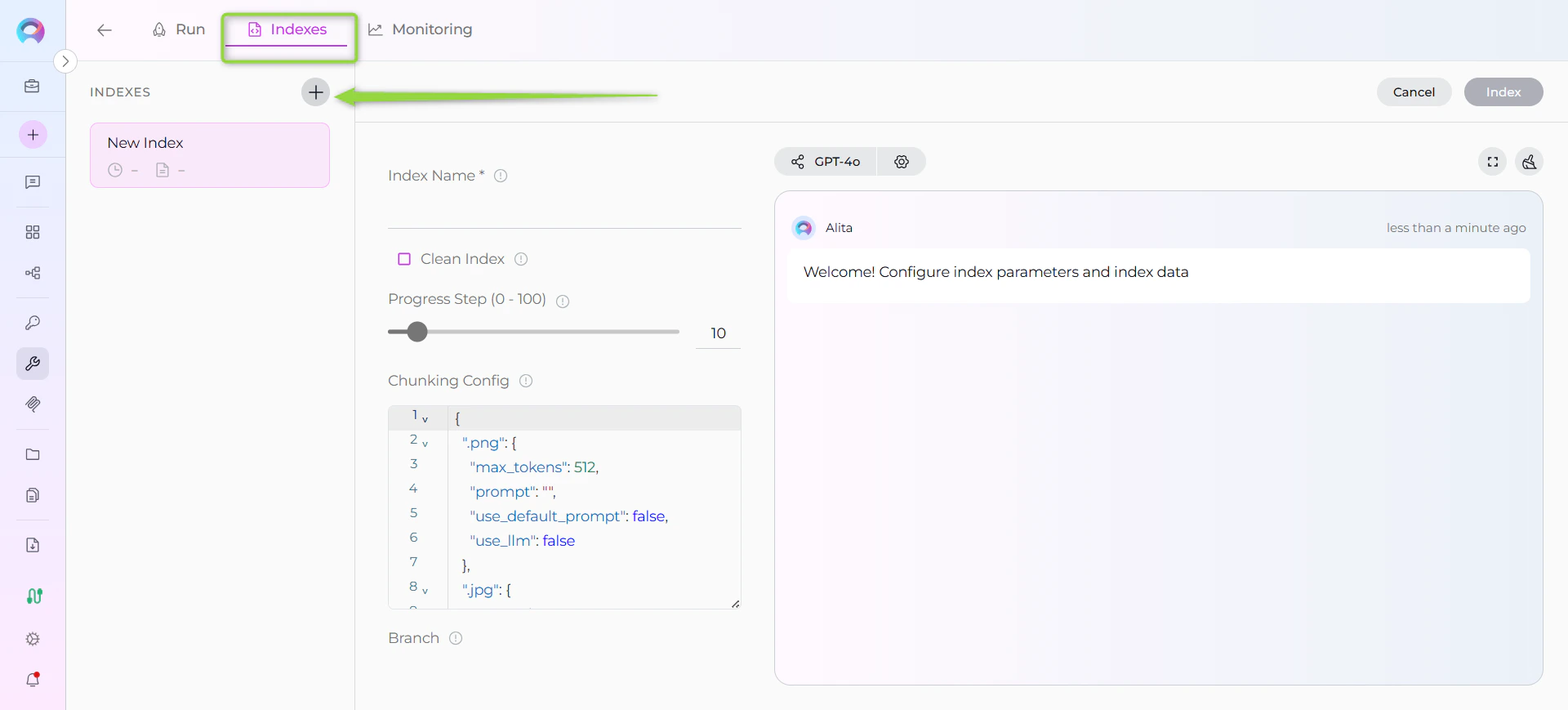
- Click Create New Index: In the Indexes sidebar, click the + Create New Index button
- New Index Form: The center panel displays the new index creation form
Step 3: Configure Index Parameters
Fill in the required and optional parameters for your GitHub repository: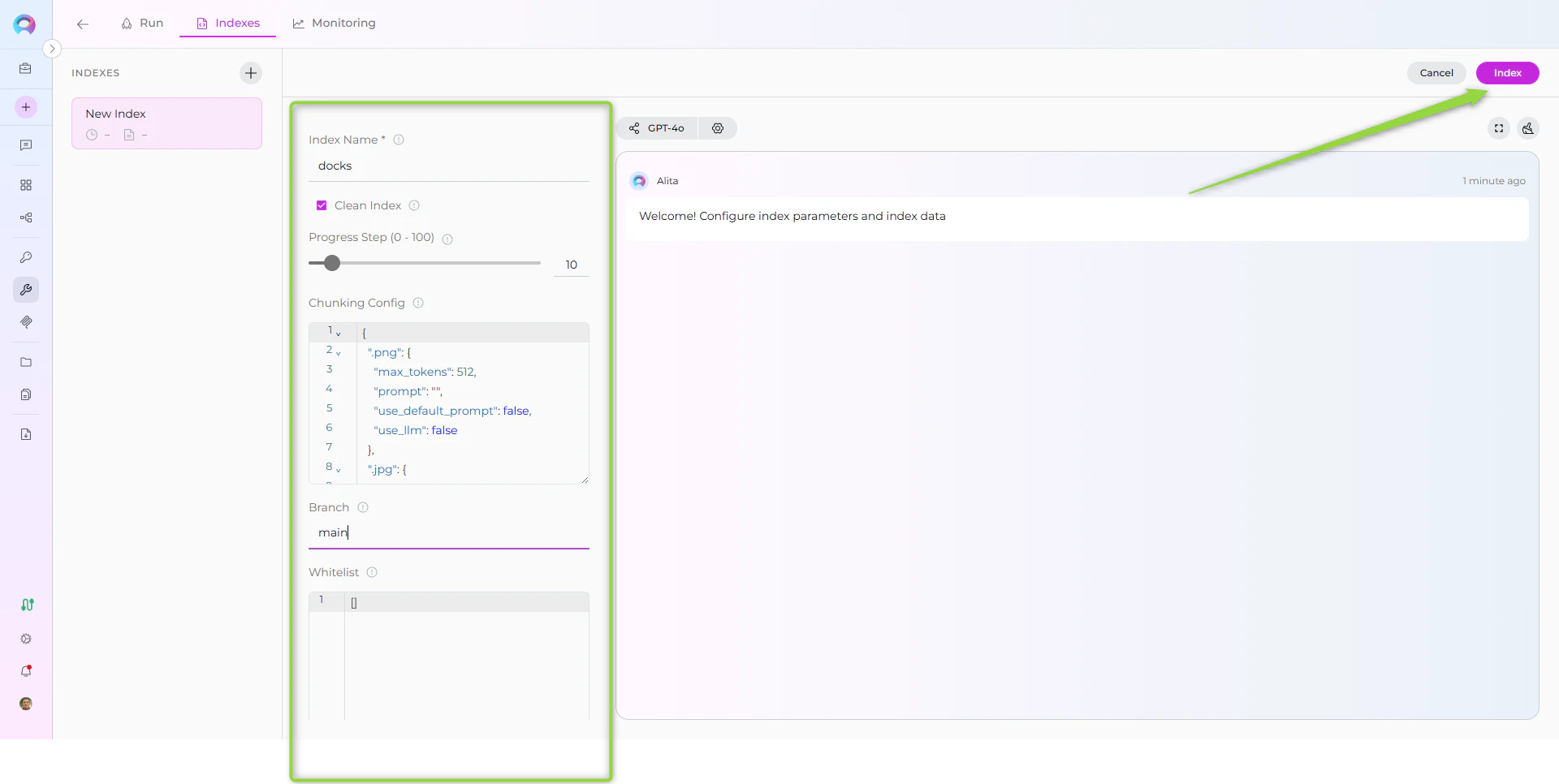
Step 4: Start Indexing
- Form Validation: The Index button remains inactive until all required fields are filled
- Review Configuration: Verify all parameters are correct
- Click Index Button: Start the indexing process
- Monitor Progress: Watch real-time updates with visual indicators:
- 🔄 In Progress: Indexing is currently running
- ✅ Completed: All items indexed successfully
- ⚠️ Partially Indexed: Indexing finished but some files were skipped (unsupported extension, empty content, or errors). The index is fully usable for search and scheduling — review the skipped-file breakdown in the chat panel.
- ❌ Failed: Indexing encountered an error
Step 5: Verify Index Creation
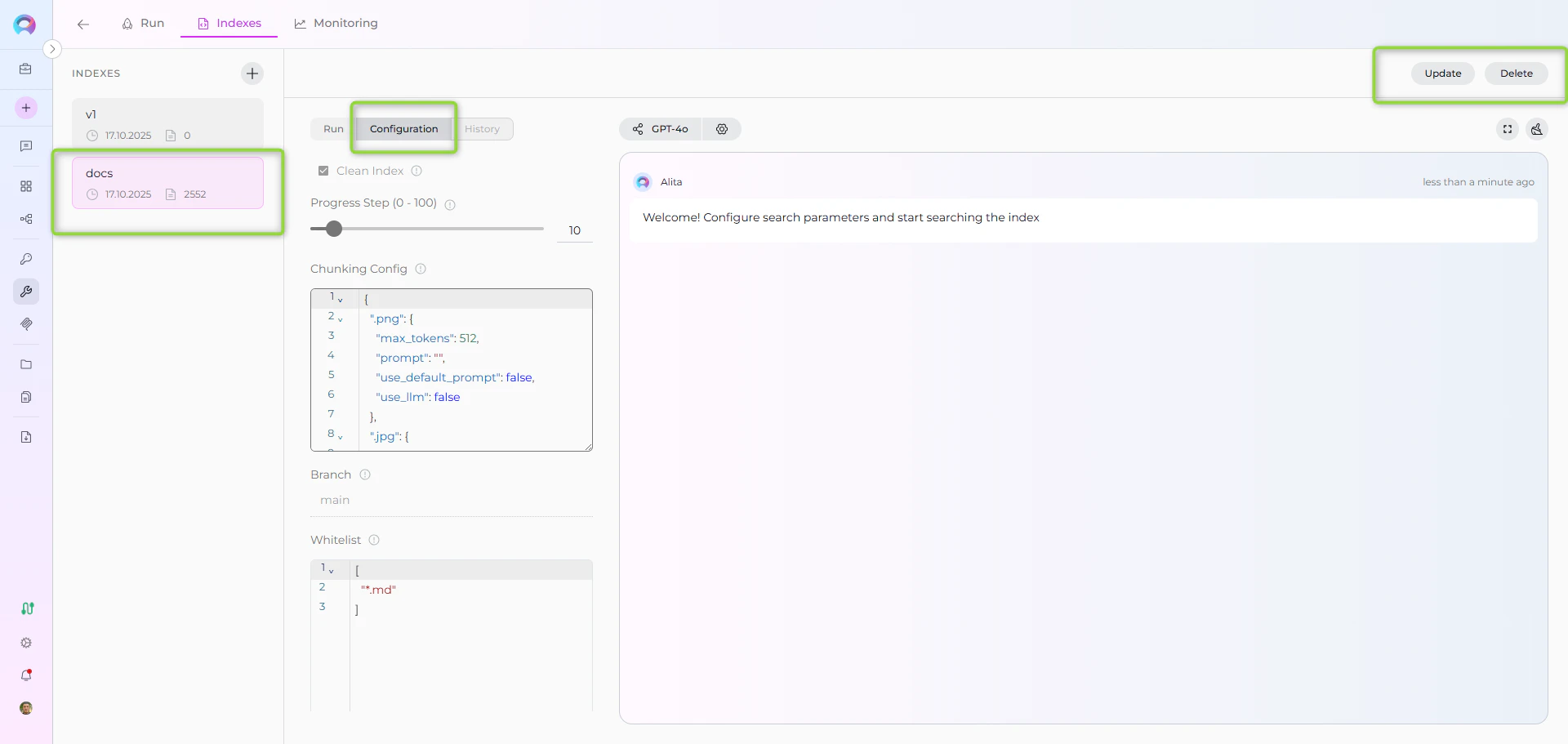
Once indexing completes:- Check Index Status: Verify the index shows ✅ Completed status in the sidebar
- Review Index Information: Click on your index to see:
- Document Count: Number of indexed files
- Last Updated: Timestamp of indexing completion
- Index Name: Your specified collection suffix
Using Search Tools with Indexed Data
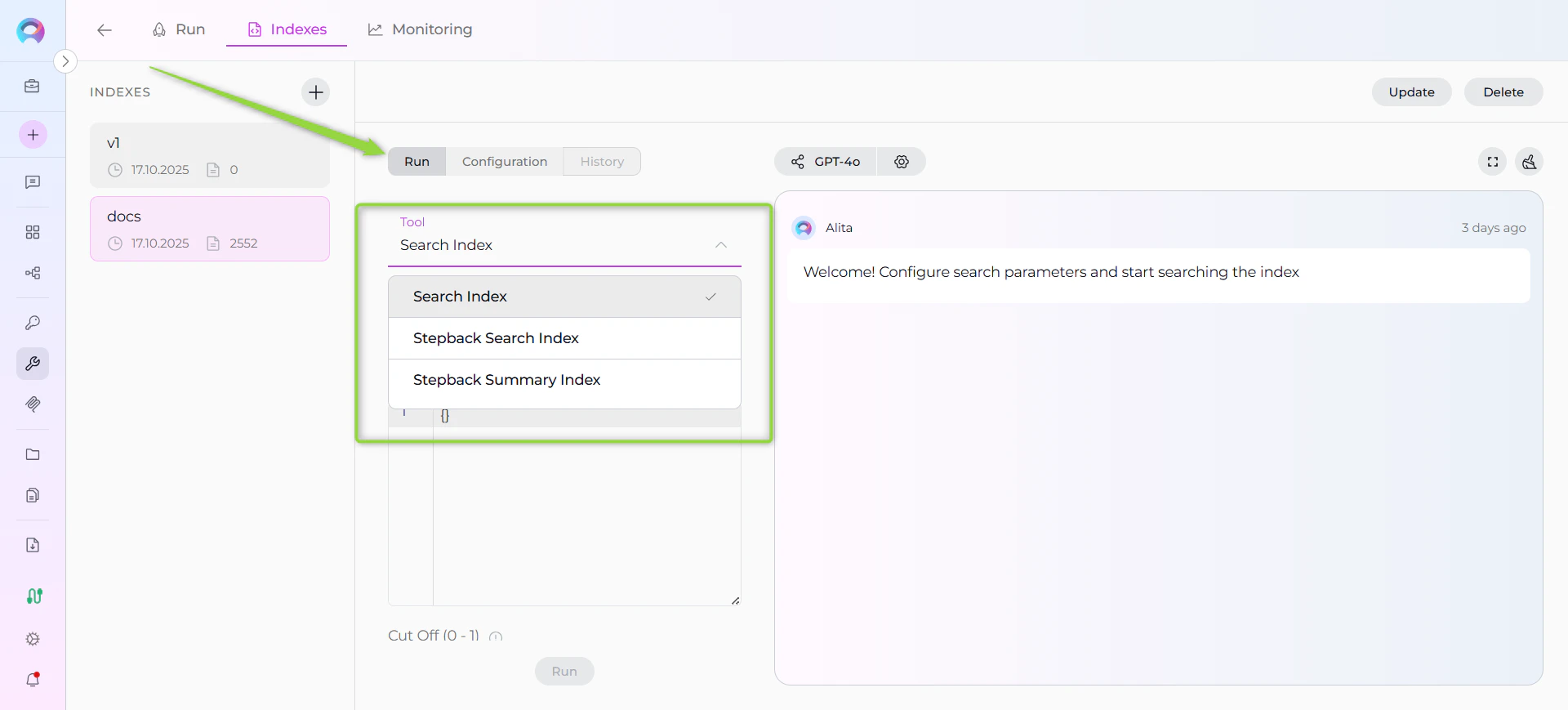
Once your GitHub data is indexed, you can search and interact with it directly through the interface:Accessing Search Functionality
- Select Your Index: Click on your completed index from the sidebar
- Navigate to Run Tab: Click the Run tab in the center panel
- Choose Search Tool: Select from available search tools in the dropdown:
- Search Index: Basic semantic search across indexed content
- Stepback Search Index: Advanced search that breaks down complex questions
- Stepback Summary Index: Search with automatic summarization of results
Running a Search
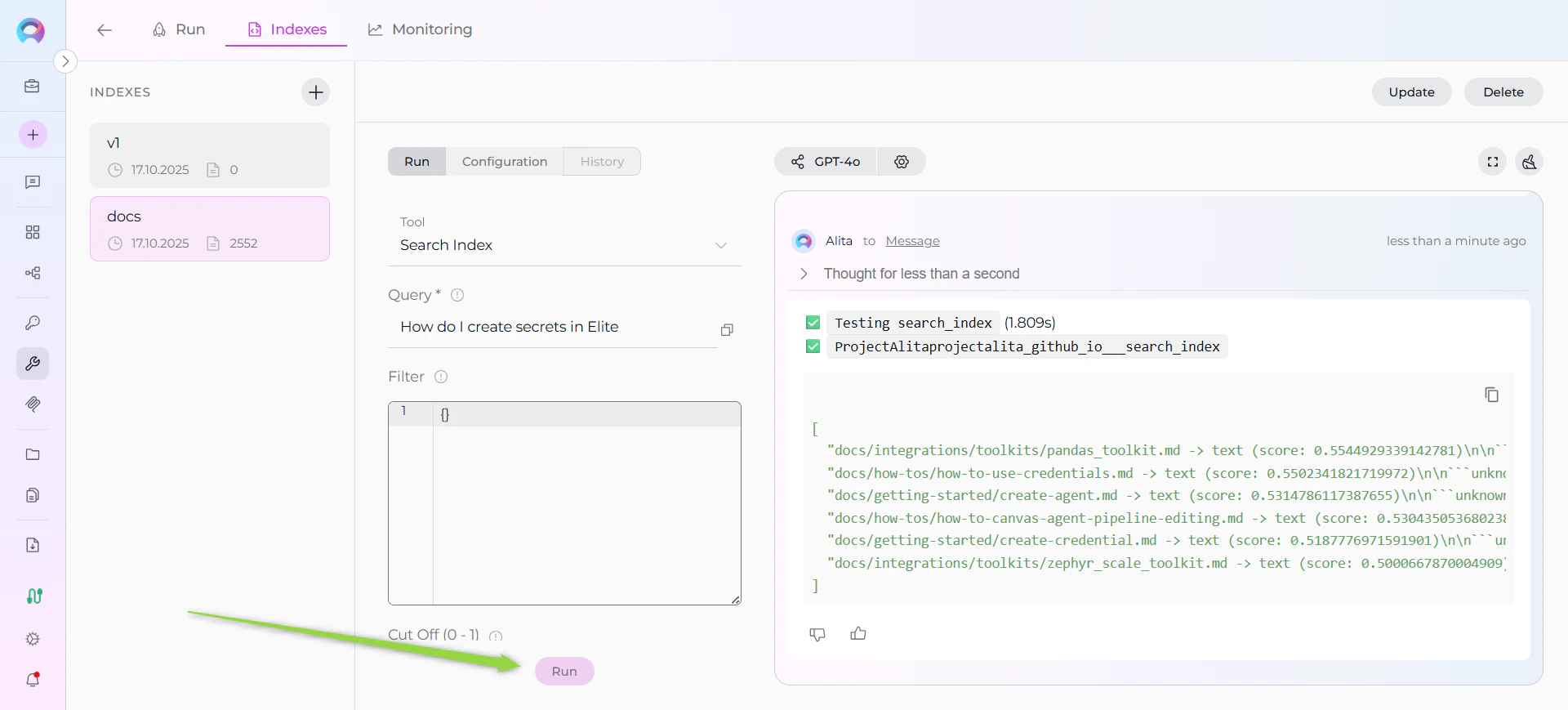
- Enter Your Query: Type your search query (e.g., “How to configure GitHub credentials?”)
- Configure Parameters: Adjust optional settings like filters and model configuration
- Click Run: Execute the search
- View Results: Results appear in the integrated chat interface on the right panel
Using Indexed Data in Conversations and Agents
Once your GitHub data is indexed, you can use the toolkit to search and interact with your content in multiple ways:Using Toolkit in Conversations and Agents
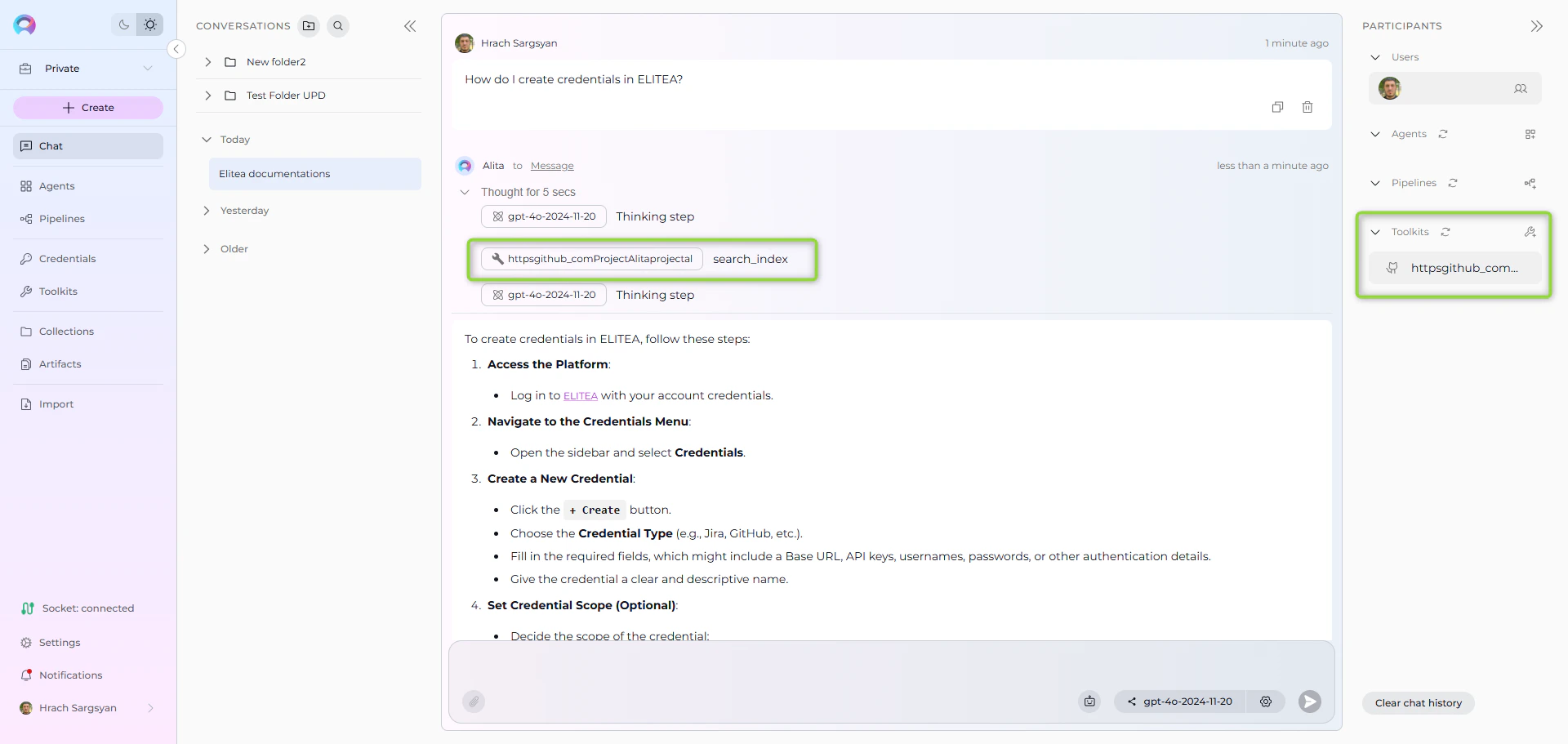
Your GitHub toolkit can be used in two main contexts:- In Conversations: Add the toolkit as a participant to ask questions and search your indexed GitHub data
- In Agents: Include the toolkit when creating AI agents to give them access to your GitHub knowledge base
- Start a New Conversation or Create an Agent
- Add Toolkit as Participant: Select your GitHub toolkit from the available toolkits
- Ask Natural Language Questions: The toolkit will automatically search your indexed data and provide relevant answers with citations
Real-Life Example Workflow
Let’s walk through a complete example of indexing and using the ELITEA documentation repository: Step 1: Setup GitHub Toolkit for projectalita.github.io Configure GitHub Toolkit with:- Repository:
projectalita/projectalita.github.io - Branch:
main(leave empty for default) - Credential: Your GitHub Personal Access Token
- Tools enabled:
index_data(required),search_index,stepback_search_index,stepback_summary_index,remove_index
- Navigate to Toolkits → Select your GitHub toolkit → Click Indexes tab
- Click + Create New Index button
- Configure indexing parameters:
- Index Name (Collection Suffix):
docs - Branch: (empty - uses main branch)
- Whitelist:
["*.md"] - Blacklist:
["*.png"] - Clean Index: ✓ (checked)
- Index Name (Collection Suffix):
- Click Index button to start indexing
- Monitor progress with visual indicators (🔄 In Progress → ✅ Completed)
- ✅ Completed status
- Document count showing number of indexed markdown files
- Collection name:
projectalita_projectalita_github_io_docs
- Select your completed index from the sidebar
- Click the Run tab in the center panel
- Choose Search Index from the tool dropdown
- Enter a test query: “How do I create credentials in ELITEA?”
- Click Run and review results in the chat interface
- Navigate to Conversations → + New Conversation
- In the participants section, click + to add your GitHub toolkit
- Start asking questions about your indexed content
- Navigate to Credentials → + Create
- Select the credential type (GitHub, Jira, etc.)
- Enter the required authentication details…”
Troubleshooting & Tips
Common Errors and Solutions
Troubleshooting & Tips
Common Issues and Solutions
“Indexing interface not visible” or “Tab disabled”:- Verify PgVector and Embedding Model are configured in Settings → AI Configuration
- Ensure the Index Data tool is enabled in your GitHub toolkit configuration
- Check that your toolkit supports indexing (GitHub is supported)
- Refresh the browser page and retry
- Verify all project-level prerequisites are met (PgVector and Embedding Model)
- Check that you have proper permissions for the toolkit
- Ensure the toolkit is properly saved with credentials
- Verify your GitHub credential has the correct token
- Ensure the repository name format is
owner/repository - Check that your token has appropriate permissions for the repository
- Check your whitelist/blacklist patterns aren’t too restrictive
- Verify the repository has files matching your whitelist
- Try indexing with broader patterns first, then add restrictions
- Monitor the progress indicators for specific error messages
- Verify the index shows ✅ Completed status
- Check that your search query matches the type of content indexed
- Try broader search terms or different search tools (Stepback Search, Stepback Summary)
- Ensure the indexed content contains relevant information
Performance and Scope Considerations
Performance and Scope Considerations
For Large Repositories:- Use specific whitelist patterns:
["docs/*.md", "src/*.py"] - Exclude binary files:
["*.png", "*.jpg", "*.zip", "*.exe"] - Consider indexing specific directories:
["docs/*", "README.md"] - Monitor the progress indicators and document count during indexing
- Use natural language queries rather than exact keyword matches
- Try different search tools for complex questions (Stepback Search, Stepback Summary)
- Leverage the integrated chat interface for follow-up questions
- Create separate indexes for different content types (docs vs code vs configs)
- Use descriptive collection suffixes (
docs,code,main,v1) - Enable the Clean Index option when re-indexing to ensure fresh data
- Monitor index status regularly through the visual indicators
- Use the Update button for incremental updates when repository content changes
- Delete unused indexes using the Delete button to free up resources
Content-Specific Indexing Tips
For Documentation:- Index README files, wiki content, and inline code documentation
- Include changelog and release notes for version-specific information
- Use whitelist patterns like
["*.md", "docs/**", "README*"]
- Include source code files with patterns like
["*.py", "*.js", "*.java"] - Consider excluding test files if focusing on production code
- Include configuration files for deployment and setup guidance
- Index deployment configs, CI/CD pipelines, and environment settings
- Be careful to exclude sensitive data (secrets, keys, credentials)
- Use patterns like
["*.yml", "*.yaml", "*.json", "*.toml"]
References
For additional information and detailed setup instructions, see:
- Indexing Overview - General indexing concepts and features
- How to create and use indexes - Comprehensive guide for indexing functionality
- Create a Credential - Step-by-step credential creation guide
- How to Use Credentials - Credential management and GitHub setup
- Toolkits Menu - Toolkit configuration and management
- GitHub Toolkit Integration Guide - Complete GitHub toolkit reference
- AI Configuration - Vector storage and embedding model setup
- Chat Menu - Creating conversations and adding toolkit participants