Migration Guide: Existing OpenAPI Toolkits to v2.0.0 B2
Starting with release 2.0.0 B2, the OpenAPI toolkit now requires explicit credential configuration for all toolkits. Previously configured toolkits must be upda
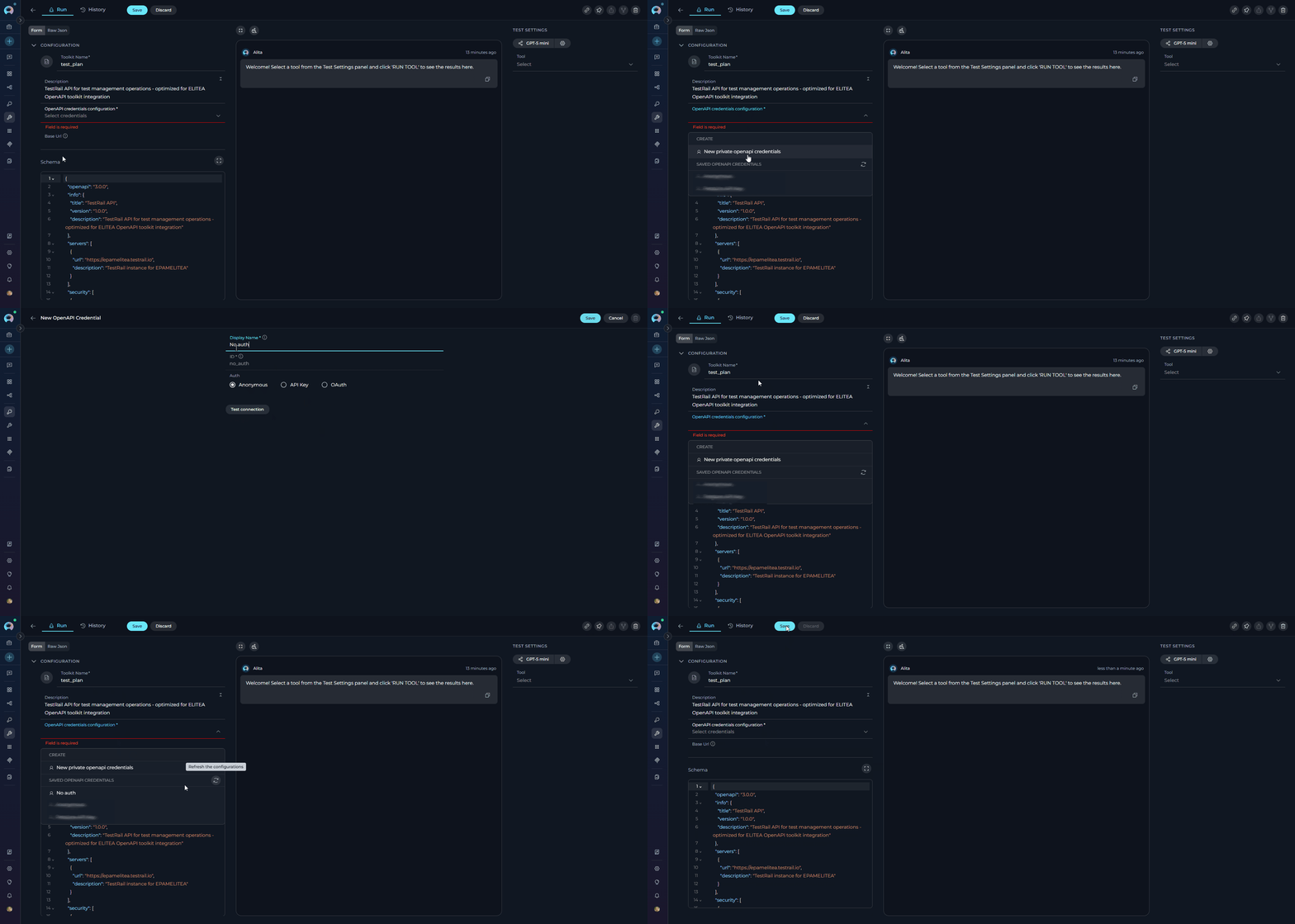
Starting with release 2.0.0 B2, the OpenAPI toolkit now requires explicit credential configuration for all toolkits. Previously configured toolkits must be updated to include credential selection.
This guide provides step-by-step instructions for migrating existing OpenAPI toolkits to ELITEA version 2.0.0 B2. This release introduces mandatory credential configuration for all OpenAPI toolkits.
{"docsConfig":{"theme":"mint","$schema":"https://mintlify.com/docs.json","name":"ELITEA Documentation","colors":{"primary":"#C428DD","light":"#6AE8FA","dark":"#A020D0"},"logo":{"light":"https://mintcdn.com/epam-a74ef051/4bC9rHxY9gaCXsks/img/elitea-logo-light.svg?fit=max\u0026auto=format\u0026n=4bC9rHxY9gaCXsks\u0026q=85\u0026s=43ff3b58a346ca6df63da85d614da271","dark":"https://mintcdn.com/epam-a74ef051/4bC9rHxY9gaCXsks/img/elitea-logo-dark.svg?fit=max\u0026auto=format\u0026n=4bC9rHxY9gaCXsks\u0026q=85\u0026s=7cab401c07768c56a3b2dc0d1af6b1ea","href":"https://elitea.ai"},"favicon":"https://mintcdn.com/epam-a74ef051/VKtVArTAzdlvF0zO/img/favicon.ico?fit=max\u0026auto=format\u0026n=VKtVArTAzdlvF0zO\u0026q=85\u0026s=9694338e3d1b62635b13e3440ed7d505","appearance":{"default":"system"},"background":{"color":{"light":"#FDFDFD","dark":"#0E131D"}},"navbar":{"links":[{"href":"https://next.elitea.ai/shared/swagger/","label":"API Documentation"}],"primary":{"type":"button","label":"ELITEA Platform","href":"https://next.elitea.ai"}},"fonts":{"family":"Inter"},"styling":{"eyebrows":"breadcrumbs","latex":true},"navigation":{"pages":[]}},"deployment":{"deploymentMetadataValue":{"subdomain":"epam-a74ef051","hasAudioNarration":false,"actualSubdomain":"epam-a74ef051","customDomains":["docs.elitea.ai"],"gitSource":{"type":"github","owner":"eliteaai","repo":"elitea.github.io","deployBranch":"mintlify","contentDirectory":"docs","isPrivate":true,"mountPath":"","label":""},"chroma":{"liveDeploymentHistoryId":"6adb7616146446953a9e8197","collectionId":"f94ae70d-57ae-4b23-beab-f6cfb9645a99","schemaVersion":"v3","latestBuiltDeploymentHistoryId":"6adb7616146446953a9e8197"},"entitlements":{},"buildId":"6adb7616146446953a9e8197","clientVersion":"0.0.3966","searchFilterCounts":[{"language":"default","tag":"How-To Guides","count":72},{"language":"default","tag":"Integrations","count":50},{"language":"default","tag":"Home","count":39},{"language":"default","tag":"Toolkits","count":36},{"language":"default","tag":"Support","count":33},{"language":"default","tag":"Platform Overview","count":27},{"language":"default","tag":"Chats","count":24},{"language":"default","tag":"Agents, Pipelines \u0026 Skills","count":23},{"language":"default","tag":"Release Notes","count":22},{"language":"default","tag":"Older Releases","count":19}]},"assistantConfig":{"enableAskAiButton":false,"enableStarterQuestions":false,"enableContextualStarterQuestions":false,"enableAskAiSearchBar":true},"hasChatPermissions":false,"hasWebMcpPermissions":false,"toggles":[{"name":"kill-isr","enabled":true,"variant":{"name":"disabled","enabled":false,"feature_enabled":true},"impressionData":false},{"name":"agent-mintlify-slack","enabled":true,"variant":{"name":"disabled","enabled":false,"feature_enabled":true},"impressionData":false},{"name":"editor-v7-file-tree","enabled":true,"variant":{"name":"disabled","enabled":false,"feature_enabled":true},"impressionData":false},{"name":"agent-integrations-settings","enabled":true,"variant":{"name":"disabled","enabled":false,"feature_enabled":true},"impressionData":false},{"name":"automations-pr-grouping","enabled":true,"variant":{"name":"disabled","enabled":false,"feature_enabled":true},"impressionData":false},{"name":"custom-prefix","enabled":true,"variant":{"name":"disabled","enabled":false,"feature_enabled":true},"impressionData":false},{"name":"analytics-v7","enabled":true,"variant":{"name":"disabled","enabled":false,"feature_enabled":true},"impressionData":false},{"name":"user-flows-analytics","enabled":true,"variant":{"name":"disabled","enabled":false,"feature_enabled":true},"impressionData":false},{"name":"no-publish-flow","enabled":true,"variant":{"name":"disabled","enabled":false,"feature_enabled":true},"impressionData":false},{"name":"workos-onboarding","enabled":true,"variant":{"name":"disabled","enabled":false,"feature_enabled":true},"impressionData":false},{"name":"llms-txt-v2","enabled":true,"variant":{"name":"disabled","enabled":false,"feature_enabled":true},"impressionData":false},{"name":"pause-universal-search-reconcile","enabled":true,"variant":{"name":"disabled","enabled":false,"feature_enabled":true},"impressionData":false},{"name":"snapshot-serving-live","enabled":true,"variant":{"name":"disabled","enabled":false,"feature_enabled":true},"impressionData":false},{"name":"stripTemperatureMiddleware","enabled":true,"variant":{"name":"disabled","enabled":false,"feature_enabled":true},"impressionData":false},{"name":"per-site-search-delta","enabled":true,"variant":{"name":"disabled","enabled":false,"feature_enabled":true},"impressionData":false},{"name":"support-platform-pylon-zendesk","enabled":true,"variant":{"name":"disabled","enabled":false,"feature_enabled":true},"impressionData":false},{"name":"snapshot-serving","enabled":true,"variant":{"name":"disabled","enabled":false,"feature_enabled":true},"impressionData":false},{"name":"instant-rollback","enabled":true,"variant":{"name":"disabled","enabled":false,"feature_enabled":true},"impressionData":false},{"name":"granular-notifications-server","enabled":true,"variant":{"name":"disabled","enabled":false,"feature_enabled":true},"impressionData":false},{"name":"granular-notifications","enabled":true,"variant":{"name":"disabled","enabled":false,"feature_enabled":true},"impressionData":false},{"name":"editor-private-page-search","enabled":true,"variant":{"name":"disabled","enabled":false,"feature_enabled":true},"impressionData":false},{"name":"automations-fable","enabled":true,"variant":{"name":"disabled","enabled":false,"feature_enabled":true},"impressionData":false},{"name":"fixed-ai-action-pricing","enabled":true,"variant":{"name":"disabled","enabled":false,"feature_enabled":true},"impressionData":false},{"name":"automation-resolve-merge-conflict","enabled":true,"variant":{"name":"disabled","enabled":false,"feature_enabled":true},"impressionData":false},{"name":"scoped-publishing","enabled":true,"variant":{"name":"disabled","enabled":false,"feature_enabled":true},"impressionData":false},{"name":"mintql","enabled":true,"variant":{"name":"disabled","enabled":false,"feature_enabled":true},"impressionData":false},{"name":"page-level-analytics","enabled":true,"variant":{"name":"disabled","enabled":false,"feature_enabled":true},"impressionData":false},{"name":"editor-version-history-v2","enabled":true,"variant":{"name":"disabled","enabled":false,"feature_enabled":true},"impressionData":false},{"name":"editor-nav-generations","enabled":true,"variant":{"name":"disabled","enabled":false,"feature_enabled":true},"impressionData":false},{"name":"billing-page-v2","enabled":true,"variant":{"name":"disabled","enabled":false,"feature_enabled":true},"impressionData":false},{"name":"workspace-projects","enabled":true,"variant":{"name":"disabled","enabled":false,"feature_enabled":true},"impressionData":false},{"name":"assistant-v5","enabled":true,"variant":{"name":"disabled","enabled":false,"feature_enabled":true},"impressionData":false},{"name":"byok-sep-25","enabled":true,"variant":{"name":"disabled","enabled":false,"feature_enabled":true},"impressionData":false},{"name":"fork-pr-previews","enabled":true,"variant":{"name":"disabled","enabled":false,"feature_enabled":true},"impressionData":false},{"name":"revalidation-jwt","enabled":true,"variant":{"name":"disabled","enabled":false,"feature_enabled":true},"impressionData":false},{"name":"vite-origin","enabled":true,"variant":{"name":"disabled","enabled":false,"feature_enabled":true},"impressionData":false},{"name":"editor-agent-model-picker","enabled":true,"variant":{"name":"disabled","enabled":false,"feature_enabled":true},"impressionData":false},{"name":"billing-updated-9-15","enabled":true,"variant":{"name":"disabled","enabled":false,"feature_enabled":true},"impressionData":false},{"name":"hobby-abuse-scan","enabled":true,"variant":{"name":"disabled","enabled":false,"feature_enabled":true},"impressionData":false},{"name":"dashboard-inbox","enabled":true,"variant":{"name":"disabled","enabled":false,"feature_enabled":true},"impressionData":false}],"isAtlas":false,"googleFontsInlined":false},"customCss":[{"filePath":"custom.css","content":":root{--primary-dark:196 40 221;--primary-light:106 232 250}.dark aside,[data-theme=dark] aside{background-color:rgb(10 15 22/.7)!important}.dark body>div>header,.dark body>header,[data-theme=dark] body>div>header,[data-theme=dark] body>header{background-color:rgb(10 15 22/.85)!important;backdrop-filter:blur(8px);-webkit-backdrop-filter:blur(8px)}pre{border-radius:8px!important}.dark pre,[data-theme=dark] pre{background-color:rgb(8 11 18)!important;border:1px solid rgb(29 37 55/.7)!important}:not(pre)>code{color:#a020d0!important;border-radius:4px}.dark :not(pre)>code,[data-theme=dark] :not(pre)>code{color:#6ae8fa!important;background-color:rgb(19 24 32/.8)!important}header a img,nav a img{height:36px!important;width:auto!important;max-height:none!important}::-webkit-scrollbar{width:5px;height:5px}::-webkit-scrollbar-track{background:0 0}::-webkit-scrollbar-thumb{background:rgba(128,128,160,.25);border-radius:3px}::-webkit-scrollbar-thumb:hover{background:rgba(128,128,160,.45)}"}],"page":{"pagePath":"migration/v2.0.1/openapi-toolkit-migration","slug":"/migration/v2.0.1/openapi-toolkit-migration","pageMetadata":{"title":"Migration Guide: Existing OpenAPI Toolkits to v2.0.0 B2","description":"Starting with release 2.0.0 B2, the OpenAPI toolkit now requires explicit credential configuration for all toolkits. Previously configured toolkits must be upda","href":"/migration/v2.0.1/openapi-toolkit-migration"},"description":{"compiledSource":"\"use strict\";\nconst {jsx: _jsx} = arguments[0];\nconst {useMDXComponents: _provideComponents} = arguments[0];\nfunction _createMdxContent(props) {\n const _components = {\n p: \"p\",\n ..._provideComponents(),\n ...props.components\n };\n return _jsx(_components.p, {\n children: \"Starting with release 2.0.0 B2, the OpenAPI toolkit now requires explicit credential configuration for all toolkits. Previously configured toolkits must be upda\"\n });\n}\nfunction MDXContent(props = {}) {\n const {wrapper: MDXLayout} = {\n ..._provideComponents(),\n ...props.components\n };\n return MDXLayout ? _jsx(MDXLayout, {\n ...props,\n children: _jsx(_createMdxContent, {\n ...props\n })\n }) : _createMdxContent(props);\n}\nreturn {\n default: MDXContent\n};\n","frontmatter":{},"scope":{}},"pageType":"default","mdx":{"mdxSource":{"compiledSource":"\"use strict\";const{Fragment:_Fragment,jsx:_jsx,jsxs:_jsxs}=arguments[0];const{useMDXComponents:_provideComponents}=arguments[0];function _createMdxContent(props){const _components={a:`a`,li:`li`,ol:`ol`,p:`p`,strong:`strong`,ul:`ul`,..._provideComponents(),...props.components},{Heading,Info,OptimizedImage,Warning}=_components;if(!Heading)_missingMdxReference(`Heading`,true);if(!Info)_missingMdxReference(`Info`,true);if(!OptimizedImage)_missingMdxReference(`OptimizedImage`,true);if(!Warning)_missingMdxReference(`Warning`,true);return _jsxs(_Fragment,{children:[_jsx(Warning,{title:`Action Required`,children:_jsx(_components.p,{children:`Starting with release 2.0.0 B2, the OpenAPI toolkit now requires explicit credential configuration for all toolkits. Previously configured toolkits must be updated to include credential selection.`})}),`\n`,_jsx(Heading,{level:`2`,id:`overview`,children:`Overview`}),`\n`,_jsx(_components.p,{children:`This guide provides step-by-step instructions for migrating existing OpenAPI toolkits to ELITEA version 2.0.0 B2. This release introduces mandatory credential configuration for all OpenAPI toolkits.`}),`\n`,_jsx(Heading,{level:`2`,id:`breaking-changes`,children:`Breaking Changes`}),`\n`,_jsx(_components.p,{children:_jsx(_components.strong,{children:`OpenAPI Toolkit: Required Credentials Configuration`})}),`\n`,_jsxs(_components.p,{children:[_jsx(_components.strong,{children:`Affected Users:`}),` All users with existing OpenAPI toolkits`]}),`\n`,_jsx(_components.p,{children:_jsx(_components.strong,{children:`What You Need to Do:`})}),`\n`,_jsx(Heading,{level:`3`,id:`step-1-update-existing-openapi-toolkits`,children:`Step 1: Update Existing OpenAPI Toolkits`}),`\n`,_jsxs(_components.ol,{children:[`\n`,_jsxs(_components.li,{children:[`\n`,_jsxs(_components.p,{children:[_jsx(_components.strong,{children:`Navigate to Toolkits:`}),` Open the sidebar and select `,_jsx(_components.strong,{children:`Toolkits`})]}),`\n`]}),`\n`,_jsxs(_components.li,{children:[`\n`,_jsxs(_components.p,{children:[_jsx(_components.strong,{children:`Open Toolkit:`}),` Click on your existing OpenAPI toolkit - you will see the `,_jsx(_components.strong,{children:`OpenAPI credentials configuration`}),` field highlighted`]}),`\n`]}),`\n`,_jsxs(_components.li,{children:[`\n`,_jsxs(_components.p,{children:[_jsx(_components.strong,{children:`Access Credential Dropdown:`}),` Click on the `,_jsx(_components.strong,{children:`OpenAPI credentials configuration`}),` field`]}),`\n`]}),`\n`,_jsxs(_components.li,{children:[`\n`,_jsxs(_components.p,{children:[_jsx(_components.strong,{children:`Create New Credential:`}),` Click `,_jsx(_components.strong,{children:`New OpenAPI credentials`}),` from the dropdown`]}),`\n`,_jsxs(_components.ul,{children:[`\n`,_jsx(_components.li,{children:`You will be navigated to the credential creation page`}),`\n`,_jsxs(_components.li,{children:[_jsx(_components.strong,{children:`Select Type:`}),` OpenAPI Configuration is pre-selected`]}),`\n`,_jsxs(_components.li,{children:[_jsx(_components.strong,{children:`Configure Authentication:`}),` Select the appropriate authentication method:`,`\n`,_jsxs(_components.ul,{children:[`\n`,_jsxs(_components.li,{children:[_jsx(_components.strong,{children:`For APIs with authentication:`}),` Choose either:`,`\n`,_jsxs(_components.ul,{children:[`\n`,_jsxs(_components.li,{children:[_jsx(_components.strong,{children:`API Key Authentication`}),` (Bearer, Basic, or Custom header)`]}),`\n`,_jsxs(_components.li,{children:[_jsx(_components.strong,{children:`OAuth 2.0 Authentication`}),` (OAuth flows)`]}),`\n`]}),`\n`]}),`\n`]}),`\n`]}),`\n`,_jsxs(_components.li,{children:[_jsx(_components.strong,{children:`For public APIs without authentication:`}),` Select `,_jsx(_components.strong,{children:`Anonymous`})]}),`\n`,_jsxs(_components.li,{children:[_jsx(_components.strong,{children:`Fill Required Fields:`}),` Complete the authentication configuration based on your selected method`]}),`\n`,_jsxs(_components.li,{children:[_jsx(_components.strong,{children:`Save Credential:`}),` Click `,_jsx(_components.strong,{children:`Save`}),` to create the credential`]}),`\n`,_jsxs(_components.li,{children:[`For detailed authentication configuration instructions, see the `,_jsx(_components.a,{href:`/integrations/toolkits/openapi_toolkit#authentication-methods-reference`,children:`OpenAPI Toolkit Guide - Authentication Methods`})]}),`\n`]}),`\n`]}),`\n`,_jsxs(_components.li,{children:[`\n`,_jsxs(_components.p,{children:[_jsx(_components.strong,{children:`Navigate Back:`}),` Return to the Toolkit detail page`]}),`\n`]}),`\n`,_jsxs(_components.li,{children:[`\n`,_jsxs(_components.p,{children:[_jsx(_components.strong,{children:`Refresh Credentials:`}),` Click the `,_jsx(_components.strong,{children:`refresh icon`}),` in the `,_jsx(_components.strong,{children:`OpenAPI credentials configuration`}),` dropdown to load your newly created credential`]}),`\n`]}),`\n`,_jsxs(_components.li,{children:[`\n`,_jsxs(_components.p,{children:[_jsx(_components.strong,{children:`Select Credential:`}),` Choose your credential from the dropdown`]}),`\n`]}),`\n`,_jsxs(_components.li,{children:[`\n`,_jsxs(_components.p,{children:[_jsx(_components.strong,{children:`Save Toolkit:`}),` Click `,_jsx(_components.strong,{children:`Save`}),` to update the toolkit`]}),`\n`]}),`\n`]}),`\n`,_jsx(OptimizedImage,{src:`https://mintcdn.com/epam-a74ef051/17A86izaGCzTjYjh/img/migration/v2.0.1/openapi-toolkit/openapi-select-credential.gif?s=36bfed999153185684169855361f313c`,alt:`Cerdential create`,\"data-og-width\":`1913`,width:`1913`,\"data-og-height\":`911`,height:`911`,\"data-path\":`img/migration/v2.0.1/openapi-toolkit/openapi-select-credential.gif`,\"data-optimize\":`true`,\"data-opv\":`3`}),`\n`,_jsx(Info,{title:`Important Notes`,children:_jsxs(_components.ul,{children:[`\n`,_jsx(_components.li,{children:`Existing OpenAPI toolkits will not function until credentials are configured`}),`\n`,_jsxs(_components.li,{children:[`If your API does not require authentication, you must still create and select an `,_jsx(_components.strong,{children:`Anonymous credential`})]}),`\n`,_jsx(_components.li,{children:`If you already have credentials created, skip step 4 and directly select your credential from the dropdown`}),`\n`,_jsx(_components.li,{children:`You can reuse the same credential across multiple toolkits that access the same API`}),`\n`]})}),`\n`,_jsx(Heading,{level:`3`,id:`step-2-verify-toolkit-functionality`,children:`Step 2: Verify Toolkit Functionality`}),`\n`,_jsx(_components.p,{children:`After updating your toolkits, verify they are working correctly:`}),`\n`,_jsxs(_components.ol,{children:[`\n`,_jsxs(_components.li,{children:[_jsx(_components.strong,{children:`Open Toolkit Detail Page:`}),` Navigate to your updated toolkit`]}),`\n`,_jsxs(_components.li,{children:[_jsx(_components.strong,{children:`Access TOOLS Section:`}),` View the list of available tools`]}),`\n`,_jsxs(_components.li,{children:[_jsx(_components.strong,{children:`Test a Tool:`}),` Select any tool and use the `,_jsx(_components.strong,{children:`TEST SETTINGS`}),` panel to execute a test request`]}),`\n`,_jsxs(_components.li,{children:[_jsx(_components.strong,{children:`Check Response:`}),` Verify that authentication is working and you receive expected responses`]}),`\n`]}),`\n`,_jsx(_components.p,{children:`If you encounter authentication errors, review your credential configuration and ensure all required fields are correctly set.`}),`\n`,_jsx(Heading,{level:`2`,id:`need-help`,children:`Need Help?`}),`\n`,_jsx(_components.p,{children:`If you experience issues during migration or have questions about the new credential requirements:`}),`\n`,_jsxs(_components.ul,{children:[`\n`,_jsxs(_components.li,{children:[`Review the complete `,_jsx(_components.a,{href:`/integrations/toolkits/openapi_toolkit`,children:`OpenAPI Toolkit Integration Guide`})]}),`\n`,_jsxs(_components.li,{children:[`Check the `,_jsx(_components.a,{href:`/integrations/toolkits/openapi_toolkit#troubleshooting`,children:`Troubleshooting section`}),` for common issues`]}),`\n`,_jsxs(_components.li,{children:[`Contact `,_jsx(_components.a,{href:`/support/contact-support`,children:`ELITEA Support`}),` for assistance`]}),`\n`]}),`\n`,_jsx(Info,{title:`Related Documentation`,children:_jsxs(_components.ul,{children:[`\n`,_jsx(_components.li,{children:_jsx(_components.a,{href:`/menus/credentials`,children:`Credentials Management`})}),`\n`,_jsx(_components.li,{children:_jsx(_components.a,{href:`/menus/settings/secrets`,children:`Secrets Configuration`})}),`\n`]})})]})}function MDXContent(props={}){const{wrapper:MDXLayout}={..._provideComponents(),...props.components};return MDXLayout?_jsx(MDXLayout,{...props,children:_jsx(_createMdxContent,{...props})}):_createMdxContent(props)}return{default:MDXContent};function _missingMdxReference(id,component){throw new Error(`Expected `+(component?`component`:`object`)+\" `\"+id+\"` to be defined: you likely forgot to import, pass, or provide it.\")}","frontmatter":{},"scope":{"config":{},"pageMetadata":{"title":"Migration Guide: Existing OpenAPI Toolkits to v2.0.0 B2","description":"Starting with release 2.0.0 B2, the OpenAPI toolkit now requires explicit credential configuration for all toolkits. Previously configured toolkits must be upda","href":"/migration/v2.0.1/openapi-toolkit-migration"}}},"mdxSourceWithNoJs":null},"mdxExtracts":{"tableOfContents":[{"title":"Overview","slug":"overview","depth":2,"children":[]},{"title":"Breaking Changes","slug":"breaking-changes","depth":2,"children":[{"title":"Step 1: Update Existing OpenAPI Toolkits","slug":"step-1-update-existing-openapi-toolkits","depth":3,"children":[]},{"title":"Step 2: Verify Toolkit Functionality","slug":"step-2-verify-toolkit-functionality","depth":3,"children":[]}]},{"title":"Need Help?","slug":"need-help","depth":2,"children":[]}],"codeExamples":{}},"jsLinks":[],"subdomain":"epam-a74ef051","siteName":"ELITEA Documentation","title":"Migration Guide: Existing OpenAPI Toolkits to v2.0.0 B2 - ELITEA Documentation","navMaps":{"firstHrefInVersion":{},"firstHrefInLanguage":{}},"lastModified":"2026-04-09T18:33:18.461Z","originalFileLocation":"migration/v2.0.1/openapi-toolkit-migration.mdx"},"headHtml":"\u003cscript data-mint-head>(function(){var d=document.documentElement,p=null;if(!p){try{p=localStorage.getItem(\"isDarkMode\")}catch(e){}if(p==='true')p='dark';else if(p==='false')p='light';if(p!=='light'\u0026\u0026p!=='dark'\u0026\u0026p!=='system')p=\"system\"}var r=p==='system'?(matchMedia(\"(prefers-color-scheme: dark)\").matches?'dark':'light'):p;d.classList.remove(r==='dark'?'light':'dark');d.classList.add(r);d.setAttribute(\"data-theme-preference\",p)})();\u003c/script>\u003cmeta data-mint-head name=\"description\" content=\"Starting with release 2.0.0 B2, the OpenAPI toolkit now requires explicit credential configuration for all toolkits. Previously configured toolkits must be upda\">\u003cmeta data-mint-head name=\"application-name\" content=\"ELITEA Documentation\">\u003cmeta data-mint-head name=\"generator\" content=\"Mintlify\">\u003clink data-mint-head rel=\"icon\" type=\"image/png\" sizes=\"192x192\" href=\"/mintlify-assets/_mintlify/favicons/epam-a74ef051/9cx2gAuVNYjPwKtY/_generated/favicon/android-chrome-192x192.png\" media=\"(prefers-color-scheme: light)\">\u003clink data-mint-head rel=\"apple-touch-icon\" type=\"image/png\" sizes=\"180x180\" href=\"/mintlify-assets/_mintlify/favicons/epam-a74ef051/9cx2gAuVNYjPwKtY/_generated/favicon/apple-touch-icon.png\">\u003clink data-mint-head rel=\"icon\" type=\"image/png\" sizes=\"16x16\" href=\"/mintlify-assets/_mintlify/favicons/epam-a74ef051/9cx2gAuVNYjPwKtY/_generated/favicon/favicon-16x16.png\" media=\"(prefers-color-scheme: light)\">\u003clink data-mint-head rel=\"icon\" type=\"image/png\" sizes=\"32x32\" href=\"/mintlify-assets/_mintlify/favicons/epam-a74ef051/9cx2gAuVNYjPwKtY/_generated/favicon/favicon-32x32.png\" media=\"(prefers-color-scheme: light)\">\u003clink data-mint-head rel=\"shortcut icon\" type=\"image/x-icon\" href=\"/mintlify-assets/_mintlify/favicons/epam-a74ef051/9cx2gAuVNYjPwKtY/_generated/favicon/favicon.ico\" media=\"(prefers-color-scheme: light)\">\u003clink data-mint-head rel=\"icon\" type=\"image/png\" sizes=\"192x192\" href=\"/mintlify-assets/_mintlify/favicons/epam-a74ef051/9cx2gAuVNYjPwKtY/_generated/favicon-dark/android-chrome-192x192.png\" media=\"(prefers-color-scheme: dark)\">\u003clink data-mint-head rel=\"icon\" type=\"image/png\" sizes=\"16x16\" href=\"/mintlify-assets/_mintlify/favicons/epam-a74ef051/9cx2gAuVNYjPwKtY/_generated/favicon-dark/favicon-16x16.png\" media=\"(prefers-color-scheme: dark)\">\u003clink data-mint-head rel=\"icon\" type=\"image/png\" sizes=\"32x32\" href=\"/mintlify-assets/_mintlify/favicons/epam-a74ef051/9cx2gAuVNYjPwKtY/_generated/favicon-dark/favicon-32x32.png\" media=\"(prefers-color-scheme: dark)\">\u003clink data-mint-head rel=\"shortcut icon\" type=\"image/x-icon\" href=\"/mintlify-assets/_mintlify/favicons/epam-a74ef051/9cx2gAuVNYjPwKtY/_generated/favicon-dark/favicon.ico\" media=\"(prefers-color-scheme: dark)\">\u003cmeta data-mint-head property=\"og:title\" content=\"Migration Guide: Existing OpenAPI Toolkits to v2.0.0 B2 - ELITEA Documentation\">\u003cmeta data-mint-head property=\"og:description\" content=\"Starting with release 2.0.0 B2, the OpenAPI toolkit now requires explicit credential configuration for all toolkits. Previously configured toolkits must be upda\">\u003cmeta data-mint-head property=\"og:site_name\" content=\"ELITEA Documentation\">\u003cmeta data-mint-head property=\"og:url\" content=\"https://docs.elitea.ai/migration/v2.0.1/openapi-toolkit-migration\">\u003cmeta data-mint-head property=\"og:type\" content=\"website\">\u003cmeta data-mint-head property=\"og:image\" content=\"https://epam-a74ef051.mintlify.app/_mintlify/api/og/v2?division=Upgrading+to+v2.0.1\u0026amp;title=Migration+Guide%3A+Existing+OpenAPI+Toolkits+to+v2.0.0+B2\u0026amp;description=Starting+with+release+2.0.0+B2%2C+the+OpenAPI+toolkit+now+requires+explicit+credential+configuration+for+all+toolkits.+Previously+configured+toolkits+must+be+upda\u0026amp;theme=736e9868a8934c45ae21c9f5\u0026amp;signature=81fc8964786bf45c3df4e60faa707f1d392d274184cdecffa782730a33f5fa08\">\u003cmeta data-mint-head property=\"og:image:width\" content=\"1200\">\u003cmeta data-mint-head property=\"og:image:height\" content=\"630\">\u003cmeta data-mint-head name=\"twitter:card\" content=\"summary_large_image\">\u003cmeta data-mint-head name=\"twitter:title\" content=\"Migration Guide: Existing OpenAPI Toolkits to v2.0.0 B2 - ELITEA Documentation\">\u003cmeta data-mint-head name=\"twitter:description\" content=\"Starting with release 2.0.0 B2, the OpenAPI toolkit now requires explicit credential configuration for all toolkits. Previously configured toolkits must be upda\">\u003cmeta data-mint-head name=\"twitter:image\" content=\"https://epam-a74ef051.mintlify.app/_mintlify/api/og/v2?division=Upgrading+to+v2.0.1\u0026amp;title=Migration+Guide%3A+Existing+OpenAPI+Toolkits+to+v2.0.0+B2\u0026amp;description=Starting+with+release+2.0.0+B2%2C+the+OpenAPI+toolkit+now+requires+explicit+credential+configuration+for+all+toolkits.+Previously+configured+toolkits+must+be+upda\u0026amp;theme=736e9868a8934c45ae21c9f5\u0026amp;signature=81fc8964786bf45c3df4e60faa707f1d392d274184cdecffa782730a33f5fa08\">\u003cmeta data-mint-head name=\"twitter:image:width\" content=\"1200\">\u003cmeta data-mint-head name=\"twitter:image:height\" content=\"630\">\u003cmeta data-mint-head name=\"msapplication-config\" content=\"/mintlify-assets/_mintlify/favicons/epam-a74ef051/9cx2gAuVNYjPwKtY/_generated/favicon/browserconfig.xml\">\u003cmeta data-mint-head name=\"apple-mobile-web-app-title\" content=\"ELITEA Documentation\">\u003cmeta data-mint-head name=\"msapplication-TileColor\" content=\"#C428DD\">\u003clink data-mint-head rel=\"canonical\" href=\"https://docs.elitea.ai/migration/v2.0.1/openapi-toolkit-migration\">\u003clink data-mint-head rel=\"alternate\" type=\"application/xml\" href=\"/sitemap.xml\">\u003clink data-mint-head rel=\"alternate\" type=\"text/markdown\" href=\"/migration/v2.0.1/openapi-toolkit-migration.md\">\u003cscript data-mint-head type=\"application/ld+json\">{\"@context\":\"https://schema.org\",\"@graph\":[{\"@type\":\"Organization\",\"@id\":\"https://docs.elitea.ai/#organization\",\"name\":\"ELITEA Documentation\",\"url\":\"https://docs.elitea.ai\",\"logo\":{\"@type\":\"ImageObject\",\"url\":\"https://mintcdn.com/epam-a74ef051/4bC9rHxY9gaCXsks/img/elitea-logo-light.svg?fit=max\u0026auto=format\u0026n=4bC9rHxY9gaCXsks\u0026q=85\u0026s=43ff3b58a346ca6df63da85d614da271\"}},{\"@type\":\"WebSite\",\"@id\":\"https://docs.elitea.ai#website\",\"name\":\"ELITEA Documentation\",\"url\":\"https://docs.elitea.ai\",\"publisher\":{\"@id\":\"https://docs.elitea.ai/#organization\"}},{\"@type\":\"WebPage\",\"@id\":\"https://docs.elitea.ai/migration/v2.0.1/openapi-toolkit-migration#webpage\",\"url\":\"https://docs.elitea.ai/migration/v2.0.1/openapi-toolkit-migration\",\"name\":\"Migration Guide: Existing OpenAPI Toolkits to v2.0.0 B2\",\"description\":\"Starting with release 2.0.0 B2, the OpenAPI toolkit now requires explicit credential configuration for all toolkits. Previously configured toolkits must be upda\",\"dateModified\":\"2026-04-09T18:33:18.461Z\",\"isPartOf\":{\"@id\":\"https://docs.elitea.ai#website\"},\"breadcrumb\":{\"@id\":\"https://docs.elitea.ai/migration/v2.0.1/openapi-toolkit-migration#breadcrumb\"}},{\"@type\":\"BreadcrumbList\",\"@id\":\"https://docs.elitea.ai/migration/v2.0.1/openapi-toolkit-migration#breadcrumb\",\"itemListElement\":[{\"@type\":\"ListItem\",\"position\":1,\"name\":\"Migration \u0026 Upgrade\",\"item\":\"https://docs.elitea.ai/migration/v2.0.1/migration-overview\"},{\"@type\":\"ListItem\",\"position\":2,\"name\":\"Upgrading to v2.0.1\",\"item\":\"https://docs.elitea.ai/migration/v2.0.1/migration-overview\"},{\"@type\":\"ListItem\",\"position\":3,\"name\":\"Migration Guide: Existing OpenAPI Toolkits to v2.0.0 B2\",\"item\":\"https://docs.elitea.ai/migration/v2.0.1/openapi-toolkit-migration\"}]},{\"@type\":[\"Article\",\"TechArticle\"],\"@id\":\"https://docs.elitea.ai/migration/v2.0.1/openapi-toolkit-migration#article\",\"headline\":\"Migration Guide: Existing OpenAPI Toolkits to v2.0.0 B2\",\"name\":\"Migration Guide: Existing OpenAPI Toolkits to v2.0.0 B2\",\"description\":\"Starting with release 2.0.0 B2, the OpenAPI toolkit now requires explicit credential configuration for all toolkits. Previously configured toolkits must be upda\",\"url\":\"https://docs.elitea.ai/migration/v2.0.1/openapi-toolkit-migration\",\"mainEntityOfPage\":{\"@id\":\"https://docs.elitea.ai/migration/v2.0.1/openapi-toolkit-migration#webpage\"},\"dateModified\":\"2026-04-09T18:33:18.461Z\",\"publisher\":{\"@id\":\"https://docs.elitea.ai/#organization\"},\"isPartOf\":{\"@id\":\"https://docs.elitea.ai#website\"}}]}\u003c/script>\u003cscript data-mint-head type=\"application/ld+json\">{\"@context\":\"https://schema.org\",\"@type\":\"WebSite\",\"name\":\"ELITEA Documentation\",\"creator\":{\"@type\":\"Organization\",\"name\":\"Mintlify\",\"url\":\"https://mintlify.com\"}}\u003c/script>","siteName":"ELITEA Documentation","nav":{"global":null,"tabs":[{"tab":"Home","icon":"house","pages":[{"title":"Home","href":""}]},{"tab":"Getting Started","icon":"rocket","pages":[{"title":"Getting Started","href":"/getting-started/chat-quick-start"}]},{"tab":"How-To Guides","icon":"book-open","pages":[{"title":"How-To Guides","href":"/how-tos/chat/config-mnmt"}]},{"tab":"Integrations","icon":"plug","pages":[{"title":"Integrations","href":"/integrations/mcp/create-and-use-server-stdio"}]},{"tab":"Release Notes","icon":"newspaper","pages":[{"title":"Release Notes","href":"/release-notes/rn-2-0-7"}]},{"tab":"Support","icon":"life-ring","groups":[{"group":"Help \u0026 Support","icon":"circle-question","pages":[{"title":"Frequently Asked Questions","href":"/support/faqs"},{"title":"Troubleshooting","href":"/support/troubleshooting"},{"title":"How to Request a Project Space","href":"/support/request-a-project"},{"title":"How to Contact ELITEA Support","href":"/support/contact-support"},{"title":"Additional Resources","href":"/support/additional-resources"}]},{"group":"Migration \u0026 Upgrade","icon":"arrow-up-from-bracket","pages":[{"group":"Upgrading to v2.0.1","expanded":false,"pages":[{"title":"Migration Guide: Upgrading to v2.0.0 B2","href":"/migration/v2.0.1/migration-overview"},{"title":"Migrating from Condition Node to Router or Decision Nodes","href":"/migration/v2.0.1/condition-node-migration"},{"title":"Migrating from Function Node to Toolkit/MCP/Agent Nodes","href":"/migration/v2.0.1/function-node-migration"},{"title":"Loop Node Deprecation and Migration Guide","href":"/migration/v2.0.1/loop-node-migration"},{"title":"Migrating from Pipeline Node to Agent Node","href":"/migration/v2.0.1/pipeline-node-migration"},{"title":"Tool Node Deprecation and Migration Guide","href":"/migration/v2.0.1/tool-node-migration"},{"title":"Pipeline Save Button State Change","description":"Starting from version 2.0.1, the Save button in pipeline configuration is now active immediately when you open an existing pipeline for the first time. This cha","href":"/migration/v2.0.1/pipeline-save-button"},{"title":"Migration Guide: Existing OpenAPI Toolkits to v2.0.0 B2","href":"/migration/v2.0.1/openapi-toolkit-migration"},{"title":"Migration Guide: Pandas Toolkit to Data Analysis Internal Tool v2.0.0 B2","description":"Starting with release 2.0.0 B2, existing Pandas toolkits are disabled and no longer functional. Users must migrate to the Data Analysis internal tool available ","href":"/migration/v2.0.1/pandas-toolkit-migration"}]},{"group":"Upgrading to v2.0.0","expanded":false,"pages":[{"title":"Migration Guide: Upgrading to v2.0.0","href":"/migration/v2.0.0/migration-overview"},{"title":"Updating LLM Nodes in Pipelines","href":"/migration/v2.0.0/update-llm-nodes"},{"title":"Pipeline Migration Guide: Updating from Previous Versions","href":"/migration/v2.0.0/update-pipelines"}]},{"group":"Upgrading to v1.7.0","expanded":false,"pages":[{"title":"Migration Guide: Upgrading to v1.7.0","href":"/migration/v1.7.0/migration-overview"},{"title":"Next Environment Quick Start","href":"/migration/v1.7.0/next-quick-start"},{"title":"Migrate Datasources to Indexing","href":"/migration/v1.7.0/migrate-datasources-to-indexing"}]}]},{"group":"Archived Documentation","icon":"box-archive","tag":"Legacy","expanded":false,"pages":[{"title":"AI Configuration","href":"/menus/settings/ai-configuration"},{"sidebarTitle":"Agent Examples ","tag":"Legacy","title":null,"href":"/archive/agents-examples"},{"title":"ELITEA Toolkit Guide: Browser Integration","sidebarTitle":"Browser Toolkit","tag":"Legacy","href":"/archive/browser_toolkit"},{"title":"ELITEA Agent Toolkit Guide: Pandas Integration","sidebarTitle":"Pandas Toolkit","tag":"Legacy","href":"/archive/pandas_toolkit"},{"title":"ADO Wiki, Boards \u0026 Plans","tag":"Legacy","href":"/archive/ado_wiki_plan_board_toolkit"},{"title":"Monitoring","sidebarTitle":"Monitoring","tag":"Legacy","href":"/archive/monitoring"},{"title":"Permission Management","sidebarTitle":"Manage Users \u0026 Roles","tag":"Legacy","href":"/archive/manage-users-and-roles"},{"title":"Prompt Magic Assistant: Your Guide to Effortless Prompt Creation","sidebarTitle":"Prompt Magic Assistant","tag":"Legacy","href":"/archive/prompt-magic-assistant"},{"title":"Interoperability Guide: ELITEA and EPAM AI Dial","tag":"Legacy","sidebarTitle":"ELITEA \u0026 AI Dial","href":"/archive/alita-dial"},{"title":"Pipeline Framework","tag":"Legacy","href":"/archive/pipeline-agent-framework"},{"title":"Iteration Nodes","tag":"Legacy","href":"/how-tos/pipelines/nodes/iteration-nodes"},{"title":"Connect to Elitea MCP Server via STDIO","sidebarTitle":"Elitea MCP Server (STDIO)","tag":"Legacy","href":"/archive/mcp-server-stdio"},{"title":"Connect External MCP Servers with Elitea","sidebarTitle":"Elitea MCP Client (STDIO)","tag":"Legacy","href":"/archive/mcp-client"}]}]}]},"title":"Migration Guide: Existing OpenAPI Toolkits to v2.0.0 B2 - ELITEA Documentation","buildId":"dpl_cadrRc5H9XQiJQbDFN5mcYRs2PAj","deploymentId":"dpl_cadrRc5H9XQiJQbDFN5mcYRs2PAj","dynamics":["a74be98ba7"],"chunks":["zoom-image-lightbox-B0E5HDf_.js","lightbox-handle-r17bVUz3.js"]}