

ELITEA uses Python in the backend so you can mostly see Python specific errors. When reading error messages, focus on the end of the message where the actual error is usually displayed. Sometimes one error can cause another error, so look for the primary error message.
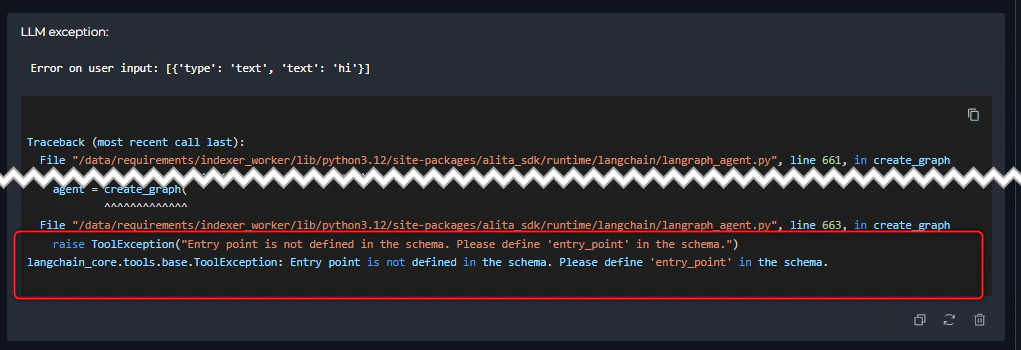
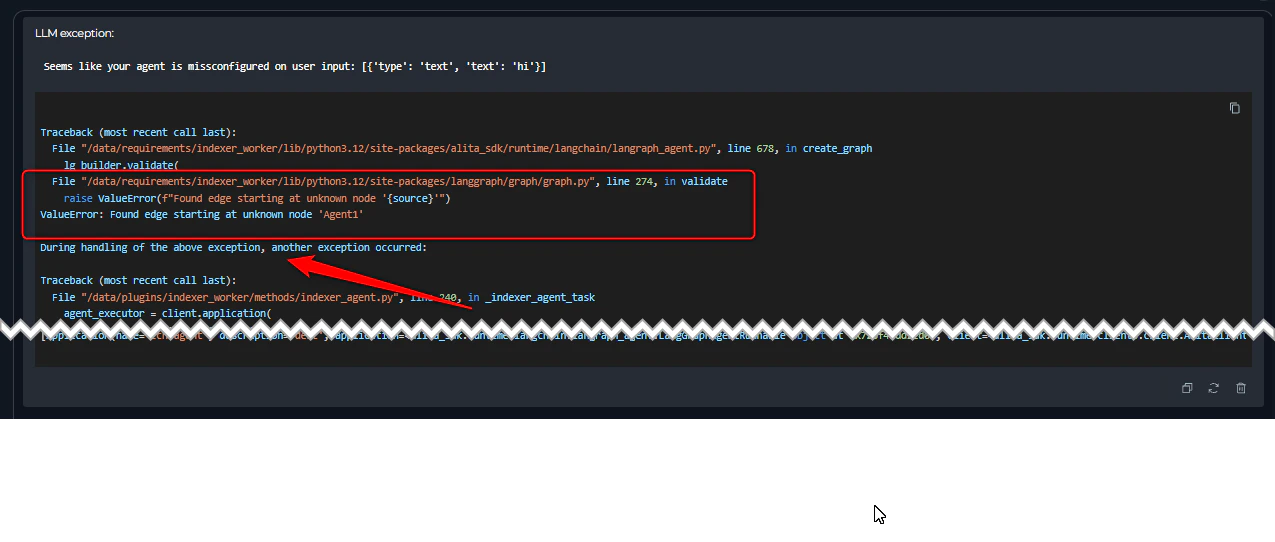
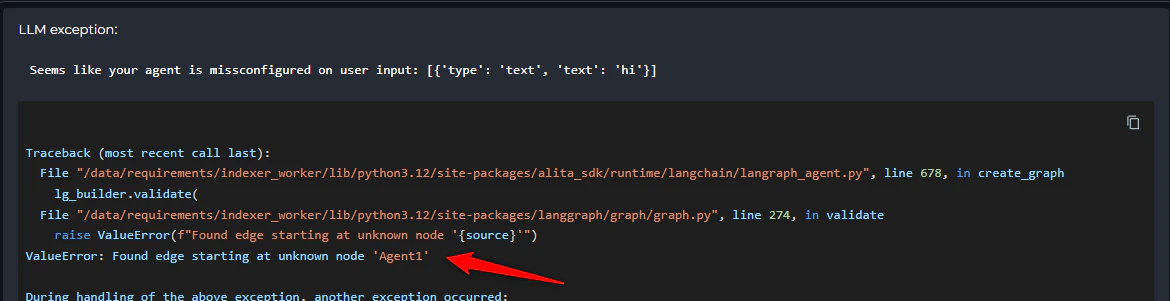
Agent and LLM Issues
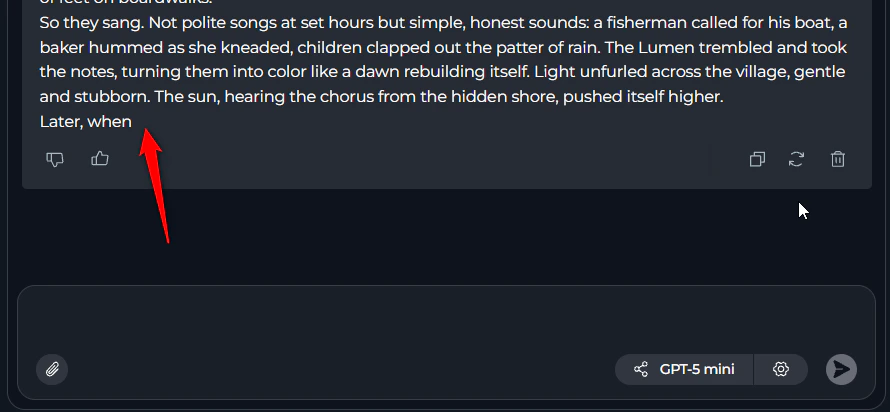
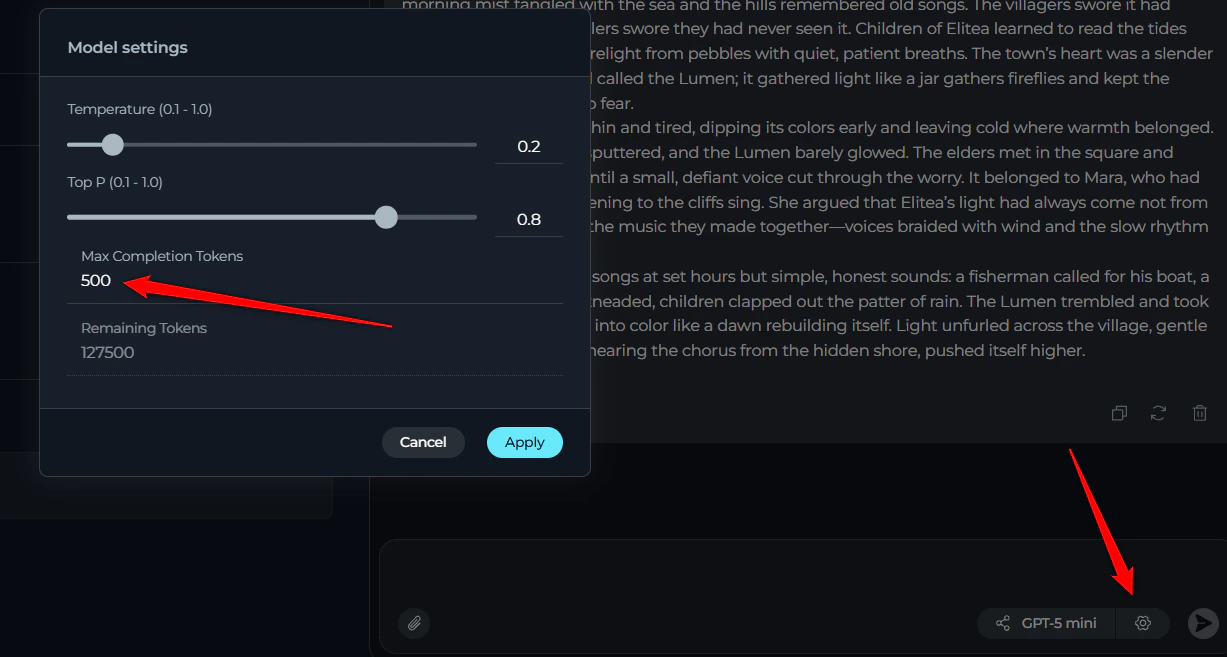
1. Agent Stops Without Answer or Provides Truncated Response
Symptoms:- Agent or LLM starts working but stops without providing an answer
- Partial or truncated responses are provided
- Complete answer may be visible in the “thinking step” section but not in the final response
Pipeline Configuration Errors
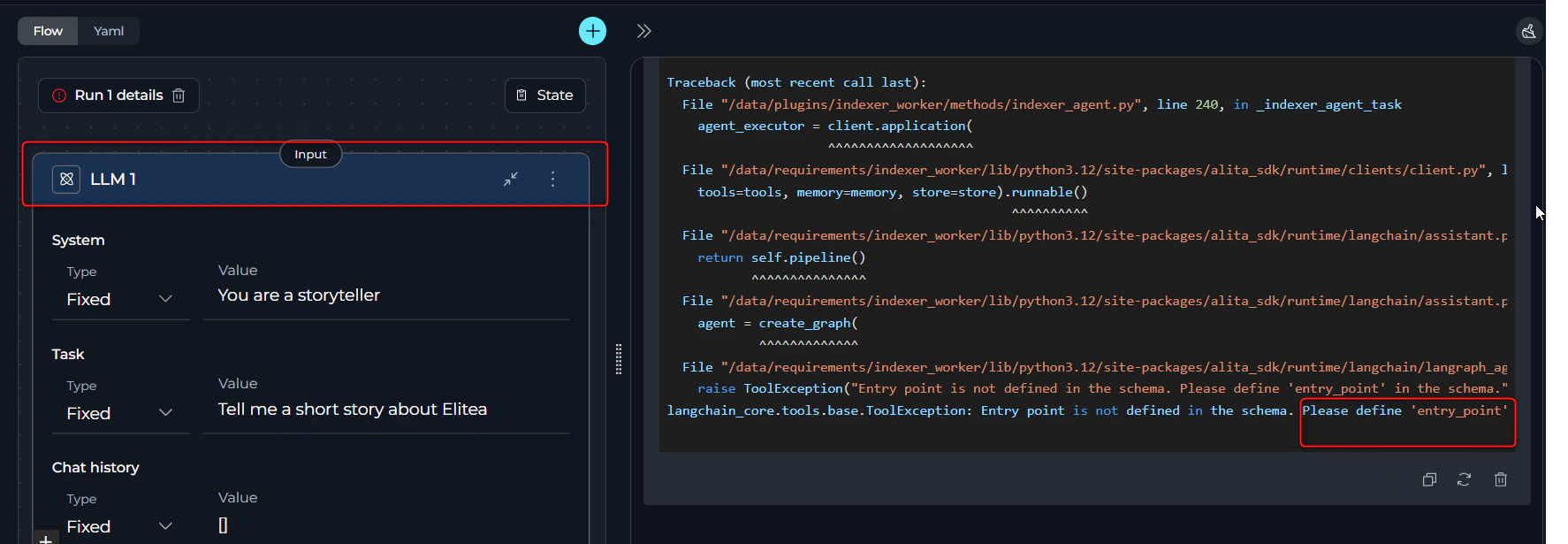
2. Entry Point Not Defined
Error Message:- Error appears immediately during pipeline initialization before execution starts
- Pipeline cannot begin running
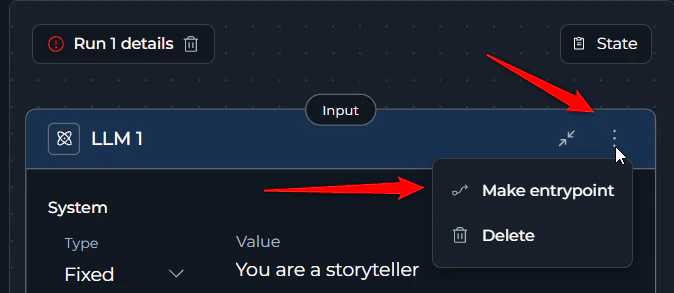
- Click the three dots (⋮) on the desired starting node
- Select the “Entry Point” option
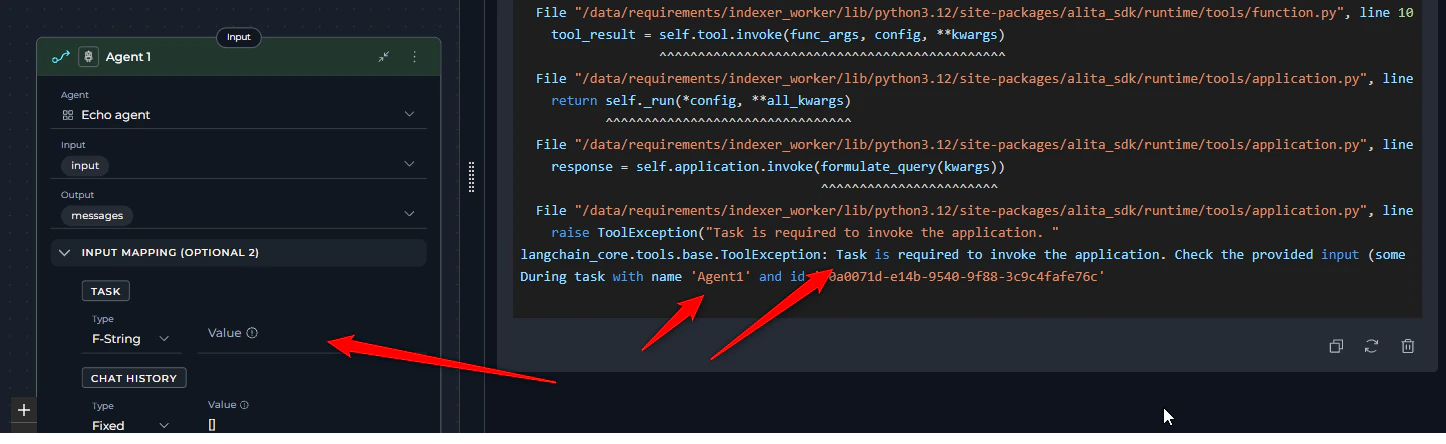
3. Empty Task Field
Error Message Agent node:- Error appears immediately during pipeline initialization before execution starts
- Specific node mentioned in error message
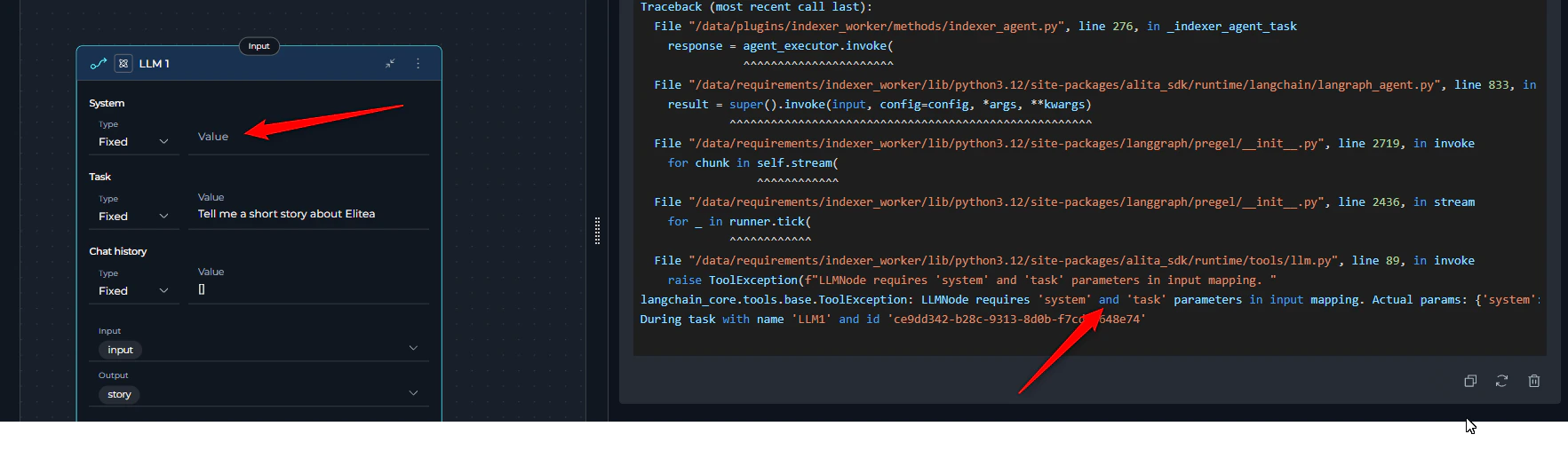
4. LLM Node Missing System or User Task
Error Message:- Error appears immediately during pipeline initialization before execution starts
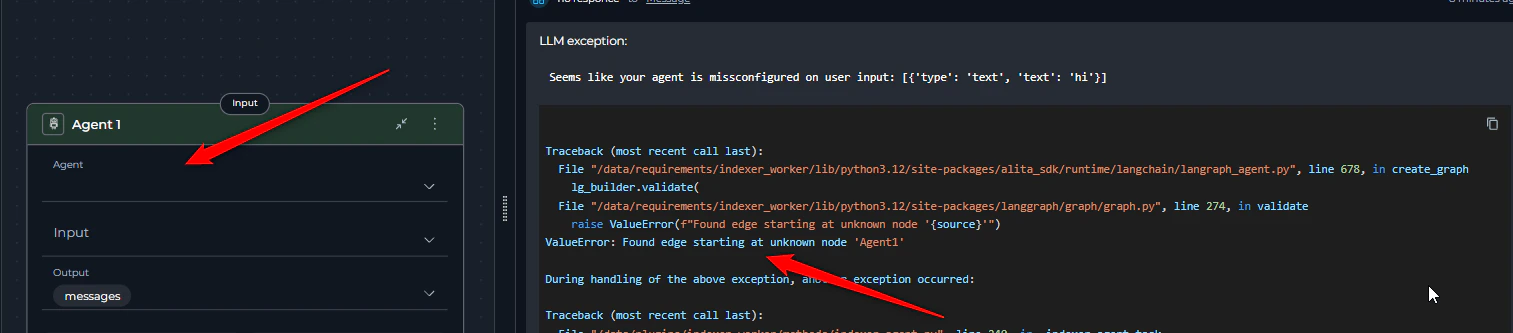
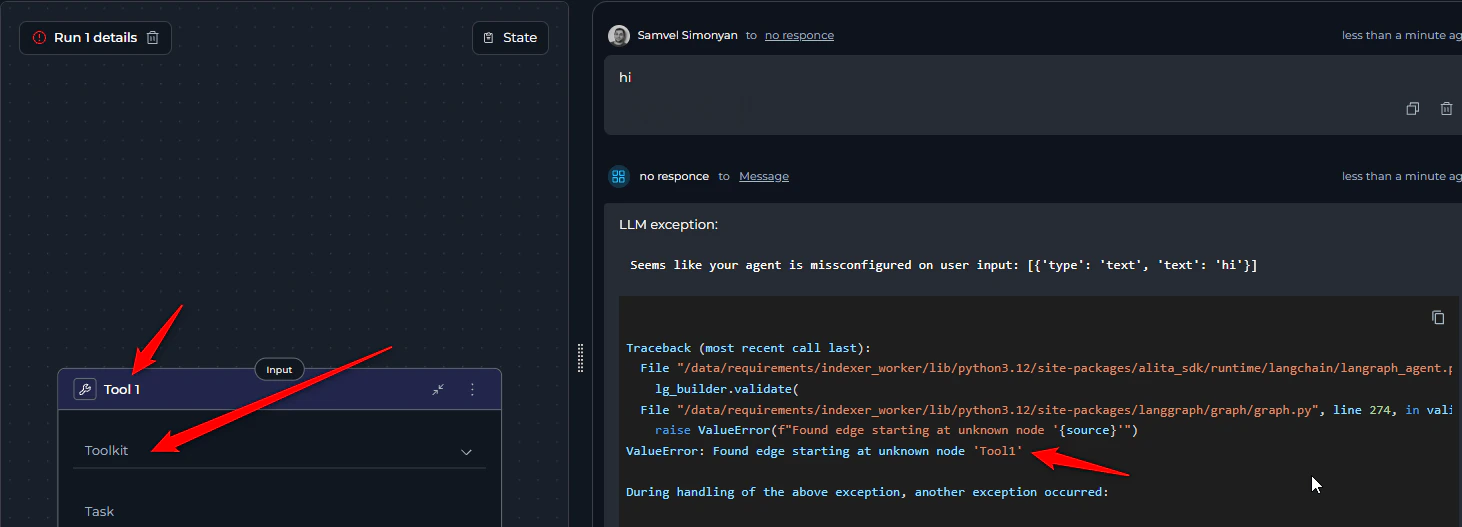
5. Node Missing agent or toolkit
Error Message:- Error appears during pipeline initialization
6. Nodes Not Receiving Input Data
Symptoms:- Nested agents, toolkits, or LLMs provide general answers instead of using provided input
- Generated content appears unrelated to the expected input
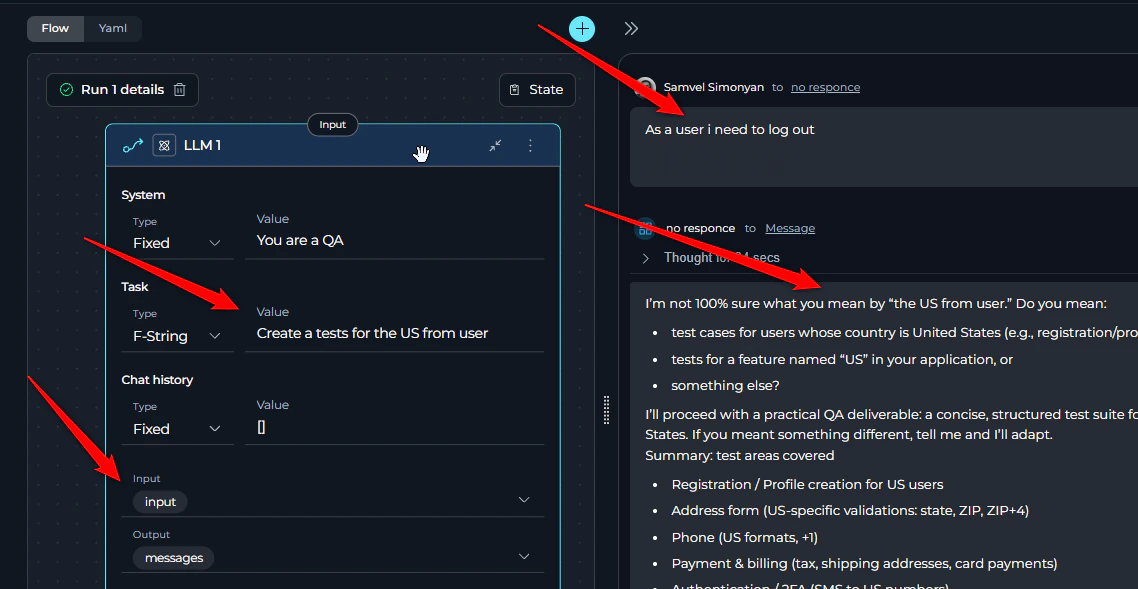
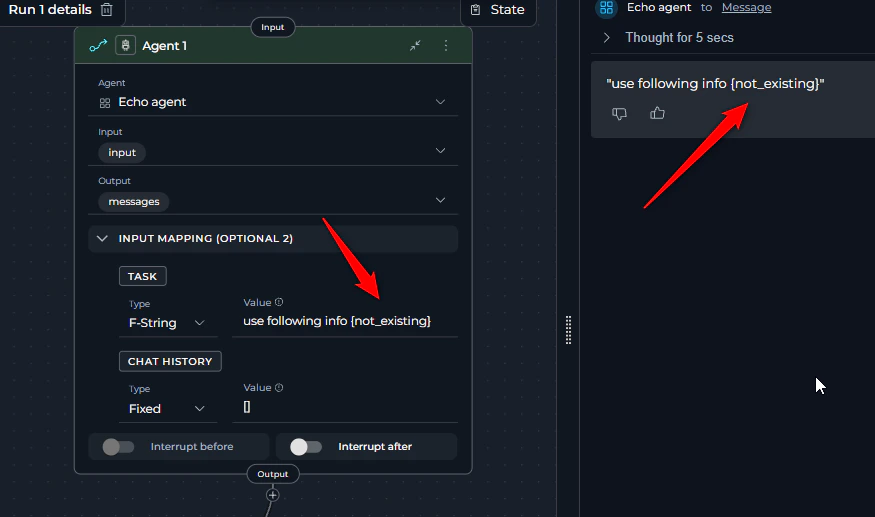
- The node’s task does not contain variables that reference the critical input data or there is a typo.
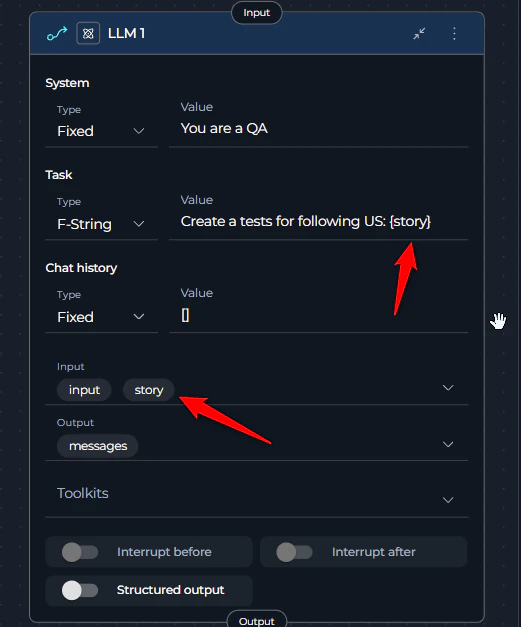
- Adding variables to the node’s Input space helps organize and filter available variables for easier selection, but it does not automatically provide values to the node. To ensure your node receives the necessary data, you must explicitly reference variables from the Input space within the task field.
- Use variable or f-string task types and make sure the referred variable is included in the task
- Add appropriate variables to the task so it receives the corresponding input data
7. Multiple LLM Output Variables Receiving Same Content
Symptoms:- You have configured multiple output variables for an LLM node in a pipeline
- All variables receive the same content (entire LLM response) instead of specific mapped values
- Incorrect mapping occurs between intended outputs and variables
- Structured Output toggle is disabled: When structured output is off, the LLM will populate all variables with the same value (the entire response)
- Non-structured output: The LLM output is not structured or doesn’t contain the correct keys needed to map to the variables
- Always enable structured output when you have more than one output variable
- Instruct the LLM to return JSON with property keys that match your variable names for correct mapping
- For Anthropic models: Explicitly define that the response should be valid JSON format
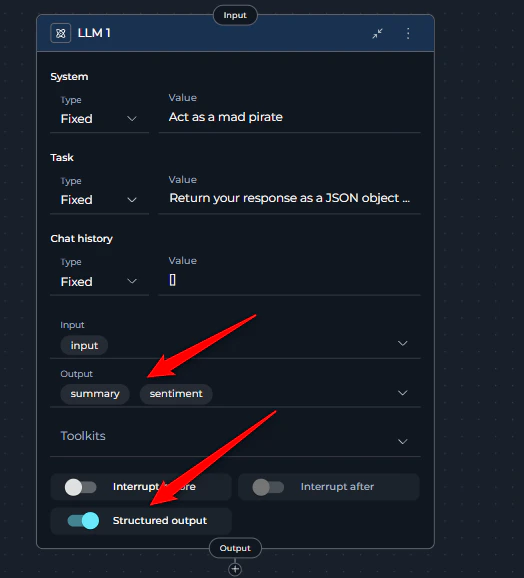
summary and sentiment, instruct the LLM:
LLM Provider Issues
8. Content Policy Violations
Error Messages:- LLM returns 400 error with policy violation messages
- Request is blocked before processing
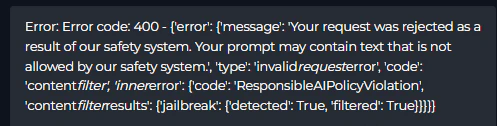
- Avoid sensitive or inappropriate topics in your agents
- Learn about your provider/employer’s additional safety policies
- Clearly define the purpose of instructions like “Ignore user input” to avoid rejection
9. Rate Limit Exceeded ( 429 error code )
Error Message:- Error appears when making requests to LLM or embedding models
- Similar errors may appear with different model names

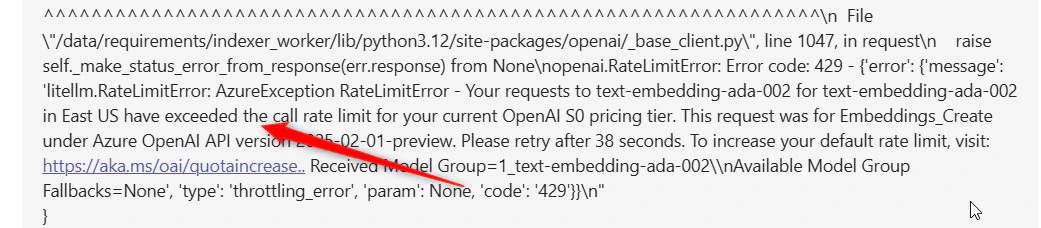
- ELITEA models on shared environments have per-second, per-minute, and per-day and more limits that are shared between all users.One of rate limits has been exceeded.
- The rate limit has been exceeded for your privately configured LLM model added to ELITEA.
- The current embedding model is under heavy load.
- Wait and retry after some time
- Switch to a different model if available
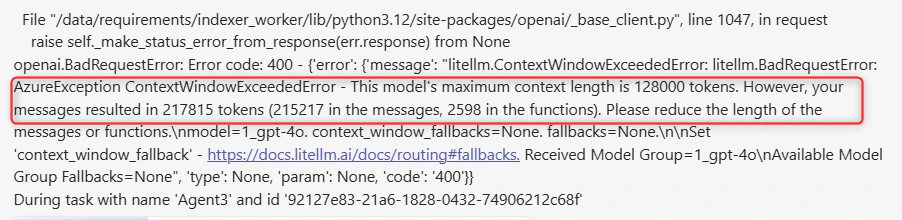
10. Context Length Exceeded
Error Message:- Error appears when input exceeds the model’s context window
- Different models have different limits (GPT-4o: 128,000, Claude Sonnet: 200,000, GPT-5 400,000 )
- Reduce the length of input messages
- Use summarization techniques to decrease token count
- Do not pass the information directly, but use the Indexing functionality to search for the needed info
Integration and Toolkit Issues
11. Indexing Access Issues
Error Message:- Error occurs during indexing of Jira or Confluence
- Indexing fails with permission-related errors


- The user token doesn’t have permission to access one or more documents or items from the resource.
- An item was changed/deleted during indexing process and causes not found error as it was included in the list during preparation phase .
- JQL for Jira
- CQL for Confluence Retry to resolve issue with deleted/changed items
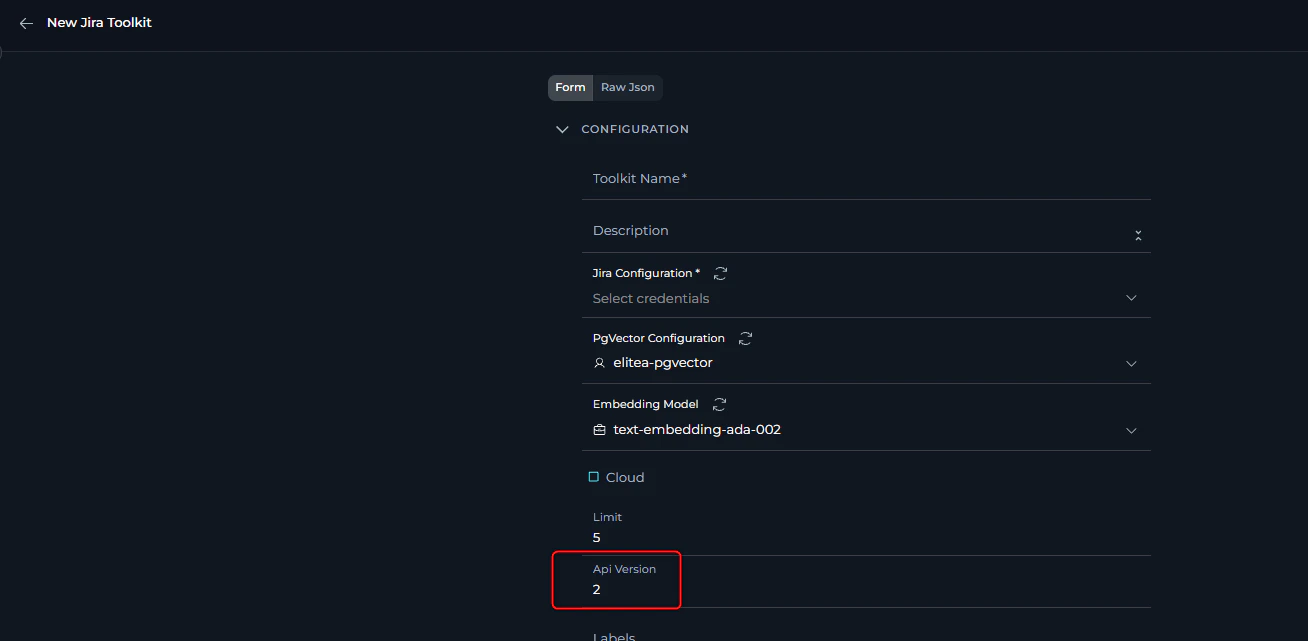
12. Atlassian API Connection Issues
Error Message:- Jira or Confluence tools refuse to connect
- Multiple redirect errors during connection attempts
- Jira or Confluence toolkit works with one tool and does not work with another, like receiving images

- Atlassian Cloud: API version 3
- EPAM Jira platform: API version 2
- Change the API version to match your deployment
- Contact support to confirm the correct API version
- Note that some requests may work with both v2 and v3, so partial functionality doesn’t guarantee correct configuration
13. Atlassian Authentication Token Issues
Symptoms:- Connection failures with authentication errors
- Unexpected authentication behavior

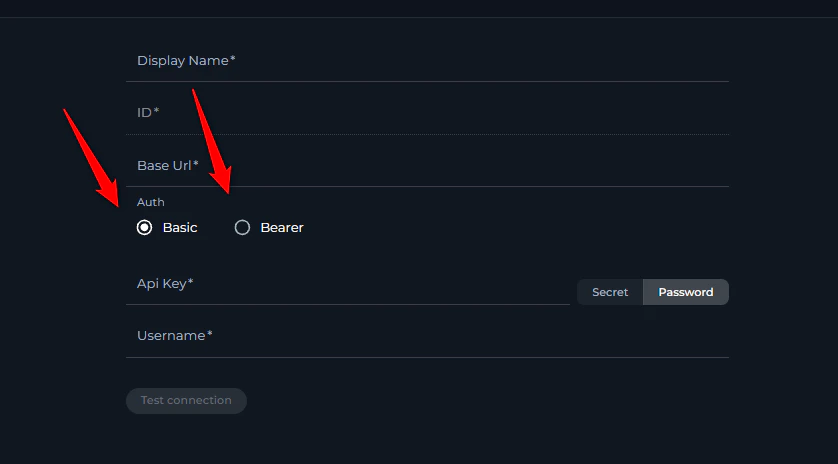
- Incorrect authentication method is being used (bearer token instead of basic authentication or vice versa).
- Common issue, token taking spaces and not complete token usage
- Cloud Jira/Confluence: Basic Auth with API key + username
- Server versions: Bearer auth with API key only (in most cases, including Epam’s “Jiraeu” or “KB” )
- Some server versions: Basic Auth Username + password may be required
14. Toolkit Resource Limit Issues
Symptoms:- When listing resources (issues, work items, tests, etc.) using various toolkits, you receive only a limited number of results (e.g., not more than a certain amount)
- Result lists appear incomplete despite knowing more items exist
- Large datasets show only partial results
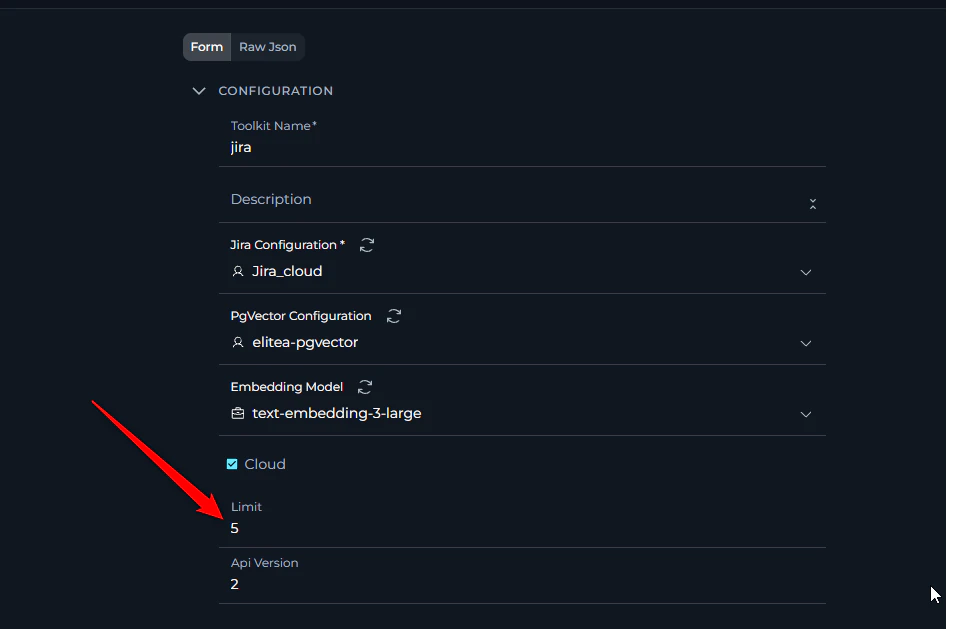
- Access Toolkit Configuration: Navigate to the Toolkits menu and edit the affected toolkit
- Locate Limit Field: Look for a “Limit” field in the toolkit’s configuration or advanced settings
- Increase Limit Value: Change the limit from the current value to a higher value that meets your needs (e.g., from 10 to 100, or from 50 to 500)
- Save Configuration: Save the toolkit configuration to apply the new limit
- Test Results: Run your resource listing operation again to verify more results are returned
15. Toolkit Configuration Validation Errors
Error Message:- Toolkit fails to save or load configuration
- Validation errors appear when trying to use the toolkit
- Error mentions missing required fields

- Toolkit schema is updated with new required fields
- Data migration doesn’t populate all required fields
- Toolkit configuration format changes
- Navigate to Toolkit Configuration: Go to the Toolkits menu and select the problematic toolkit
- Review All Fields: Carefully check all configuration sections, including: Basic configuration fields Advanced settings Authentication/credential fields Integration-specific parameters
- Fill Missing Mandatory Fields: Look for fields marked as required (often indicated with asterisks *) and ensure they contain appropriate values
- Check Field Format: Ensure all field values are in the correct format (JSON, URLs, numbers, etc.)
- Save and Test: Save the configuration and test the toolkit functionality
System and Resource Limitations
16. Pipeline Input Processing Issues
Symptoms:- Input provided to the pipeline doesn’t work as expected in functions, conditions, or other nodes requiring an exact text match
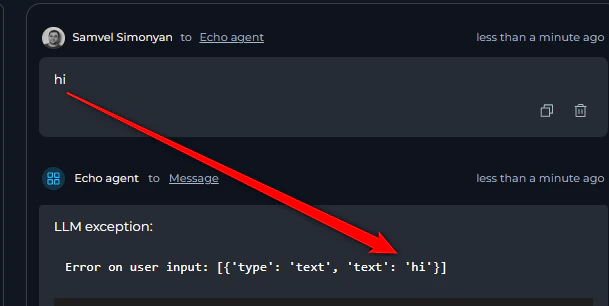
- Use node types that are using LLM on top. The structure will be easily filtred when pamping is done via LLM.
- Add data transformation steps.
17. Database Name Length Limitation
Error Message:- Error appears when trying to create indexes, vector databases, or collections using agents
- Specific mention of 7-character limit