

Overview
Accessing Monitoring
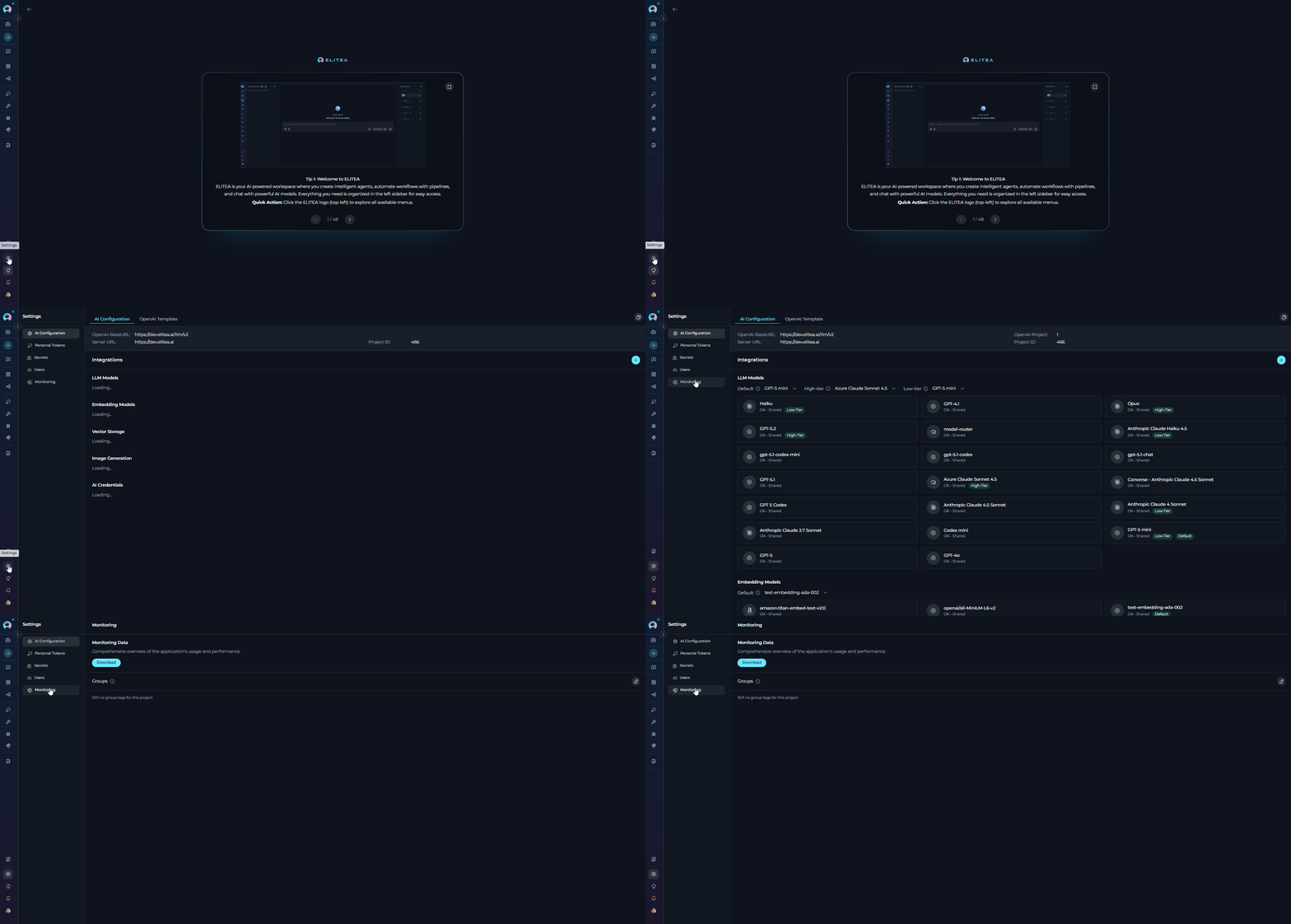
To access the Monitoring section:- Click on the Settings icon in the main navigation sidebar.
- Select Monitoring from the settings menu.
- The Monitoring interface will display with two main sections available:
- Monitoring - Main landing page with project groups management
- Monitoring Data - Detailed analytics dashboard with filters, metrics, and charts
Managing Groups:
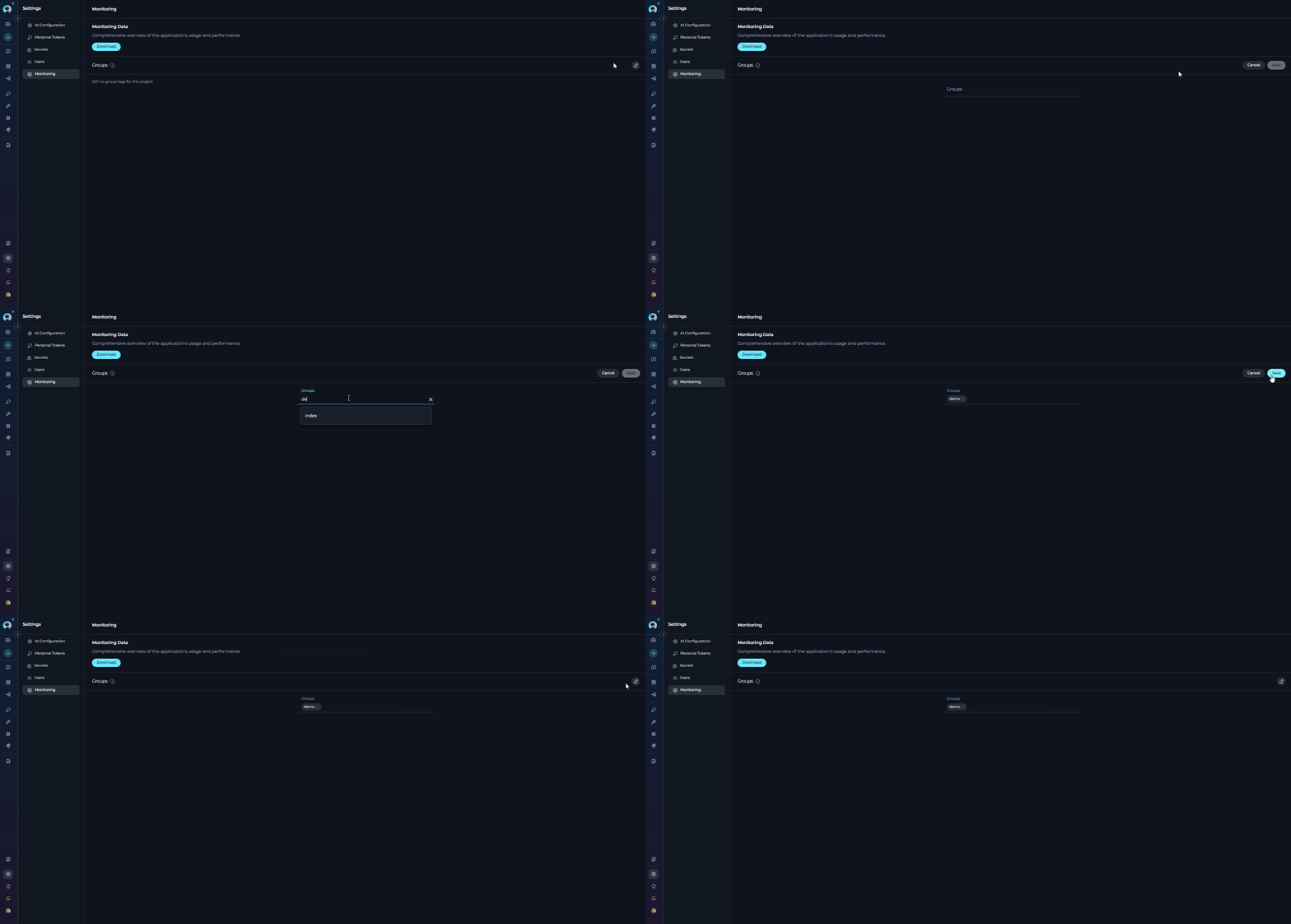
To manage project groups:- Click the Edit icon (pencil icon) on the right side of the Groups header.
- The tag editor will open, allowing you to add or remove group tags.
- Click Save to apply changes or Cancel to discard.
- Portfolio Organization: Group related projects together for unified monitoring and analysis
- Cross-Project Analytics: View aggregated metrics across all projects within a group using the treemap visualization
- Efficient Filtering: Quickly filter monitoring data by selecting a group instead of individual projects
- Hierarchical Navigation: Drill down from group-level insights to individual project details
- Flexible Categorization: Assign projects to multiple groups based on different criteria (e.g., department, product line, environment)
Monitoring Data Dashboard
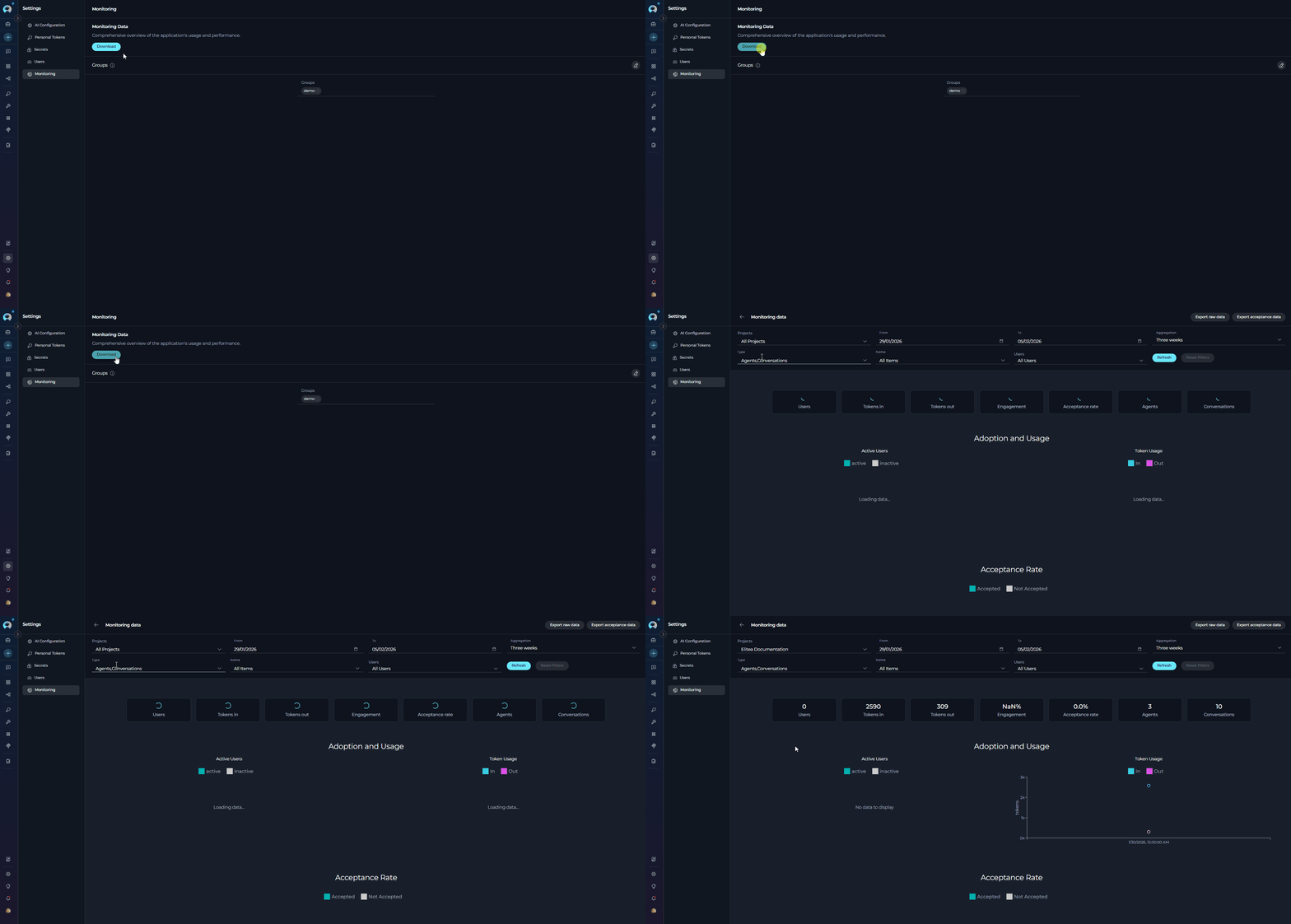
To access the detailed analytics dashboard:- From the Monitoring landing page, click the Download button.
- The Monitoring Data dashboard will display with comprehensive filters, metrics, and charts.
Filter Options
Configure the data displayed using the following filters located at the top of the dashboard:
Key Metrics
Below the filter options, key metrics provide a snapshot of the current monitoring period:
Available Charts
The Monitoring Data dashboard includes several chart sections to visualize different aspects of application usage:Project Treemap
When a project group is selected (or “All Projects”), a treemap visualization displays:- Visual representation of projects within the group
- Hierarchical view showing group and project levels
- Click on group or project elements to drill down into specific data
Adoption and Usage
This section displays two charts side by side:-
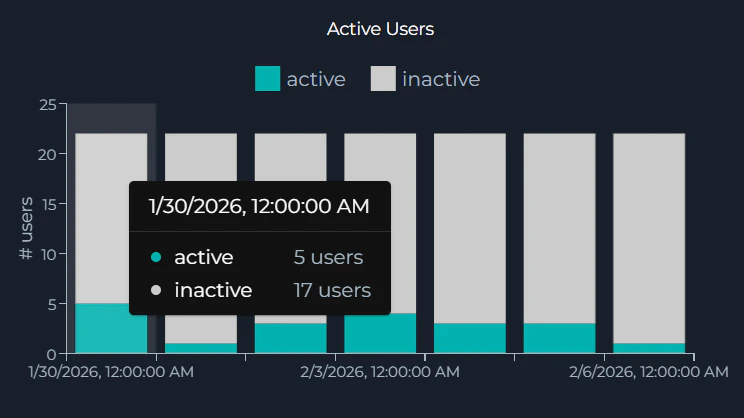
Active Users: Bar chart showing active and inactive users over time
- Stacked bars showing active users and inactive users
- Y-axis: Number of users
- X-axis: Date (formatted based on aggregation period)
-
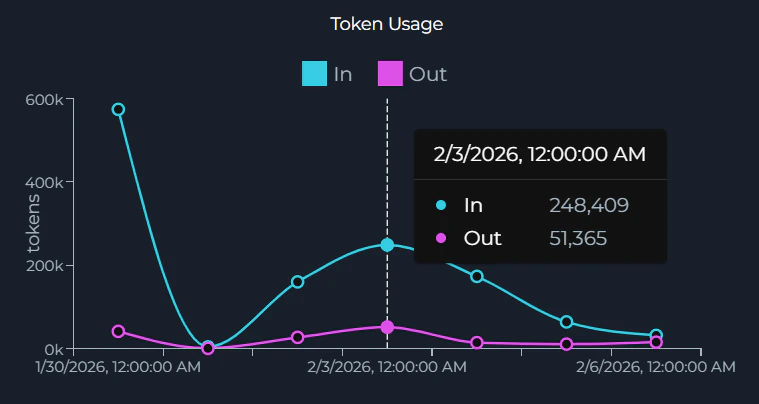
Token Usage: Line chart showing token consumption and generation
- Displays “Tokens in” and “Tokens out” metrics over time
- X-axis: Date (formatted based on aggregation period)
Acceptance Rate
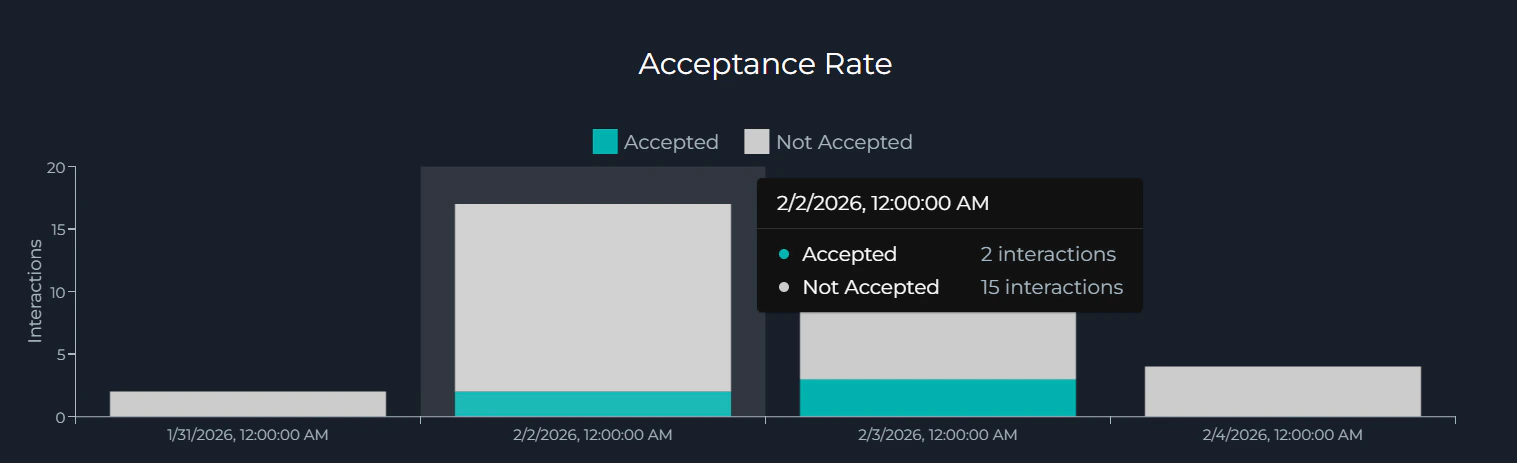
A comprehensive chart showing user acceptance of generated outputs:- Displays accepted vs. not accepted interactions over time
- Helps assess user satisfaction with generated outputs
- Shows trends in output acceptance
Some charts may be hidden based on system configuration. Additional chart sections such as Sentiments (Human Input and LLM Output sentiment analysis), Accuracy (Relevancy, Reliability, and Prompt Scatter quality metrics), and Topics (Topic Prompt and Topic Chart analysis) may be available depending on your system configuration.
Data Export
Two export buttons are located in the top-right corner of the Monitoring Data dashboard:Using Export Features
- Configure your monitoring filters (Projects, Date Range, Type, Name, Users, Aggregation)
- Click Refresh to apply filter settings
- Click either Export raw data or Export acceptance data
- Select your preferred format (JSON, Excel, or CSV)
- The file downloads automatically to your device
Export Raw Data
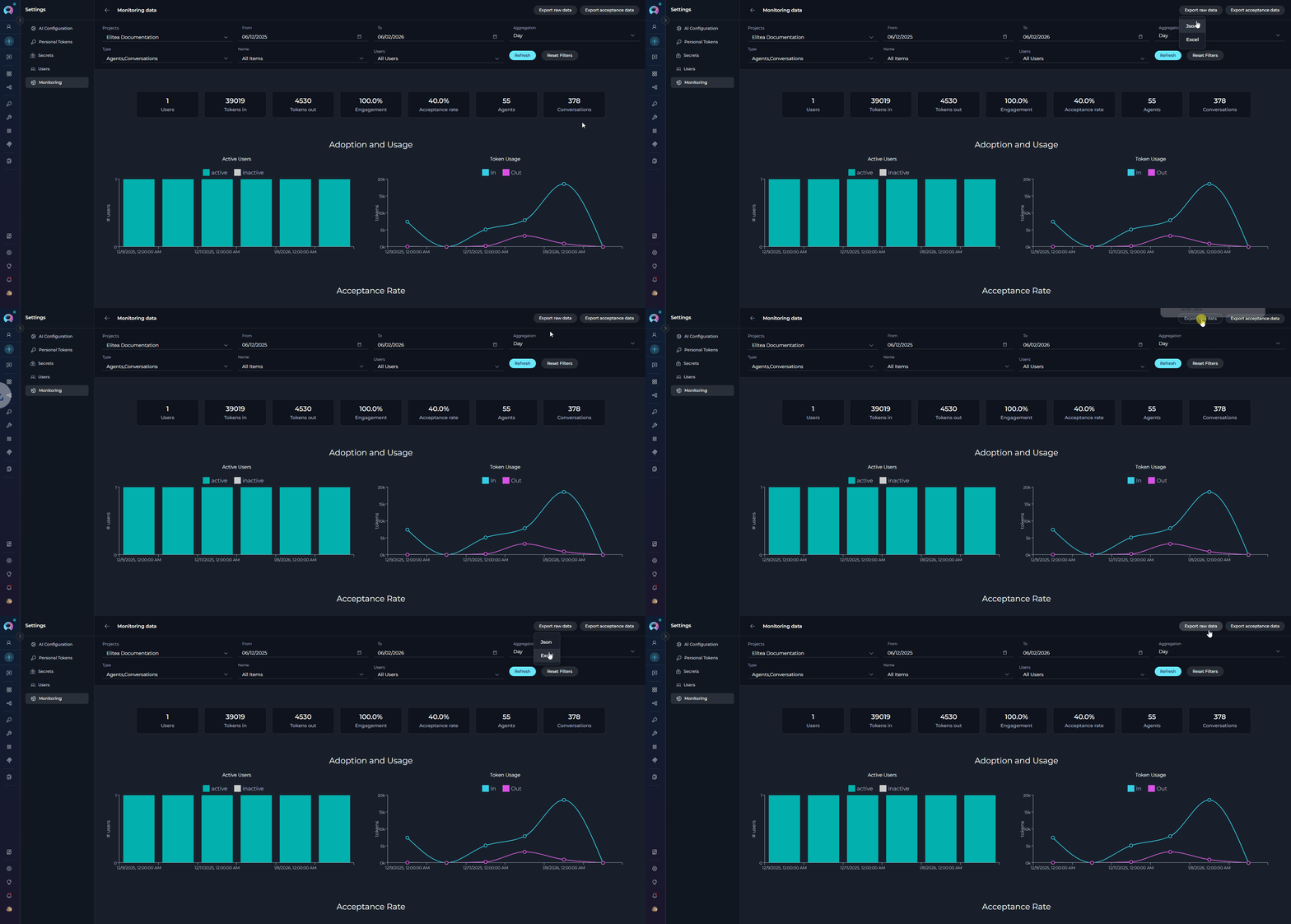
- JSON: Machine-readable format for data processing and integration
- Excel: Spreadsheet format for analysis and reporting
- All metrics data for the selected time period
- User activity information
- Token usage statistics
- Agent and conversation performance data
- Chart data points based on current filters
Export Acceptance Data
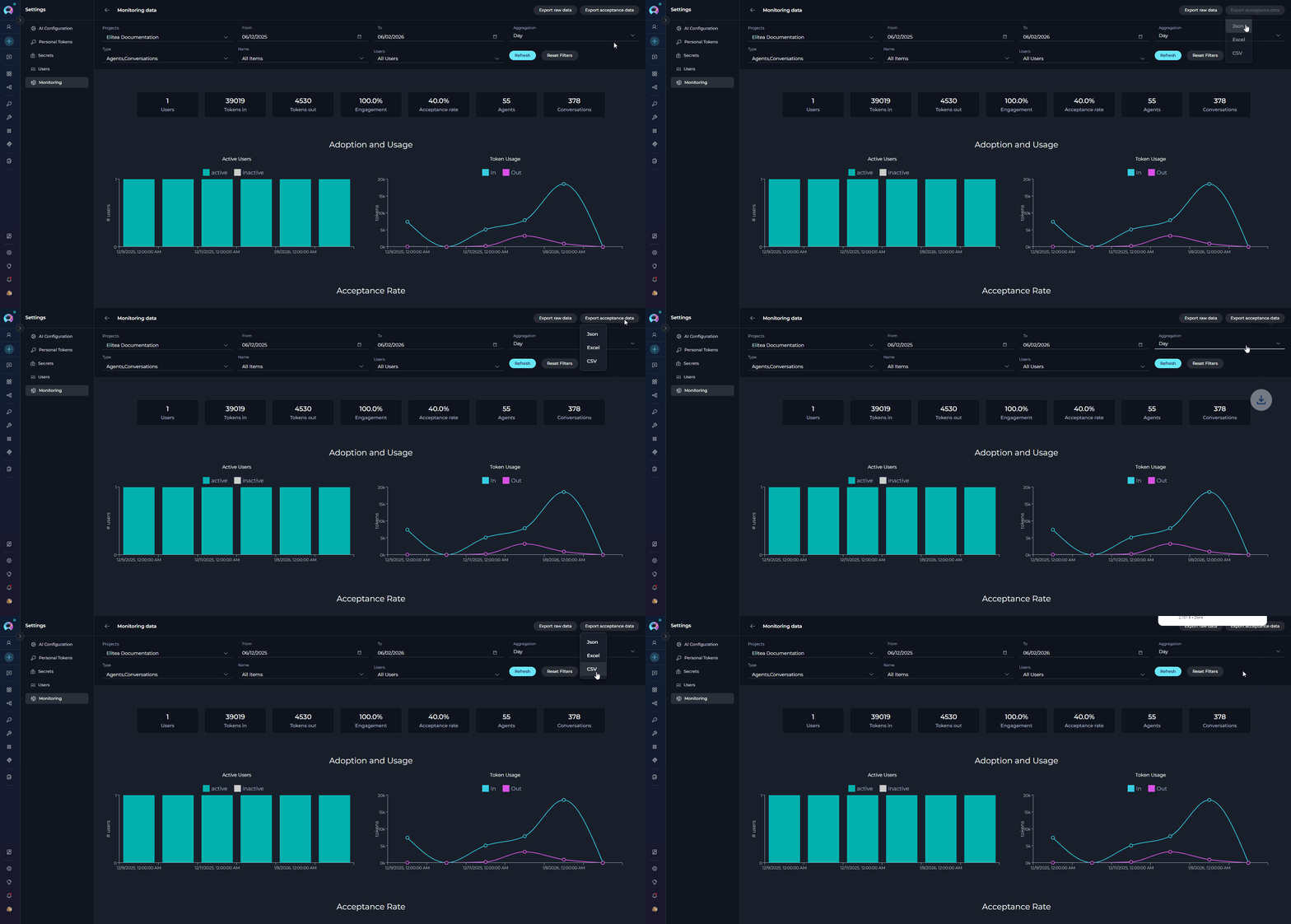
- JSON: Machine-readable format
- Excel: Spreadsheet format
- CSV: Comma-separated values format
- Acceptance rate statistics
- User interaction data (accepted vs. not accepted)
- Acceptance trends over time
- Performance indicators for user satisfaction
Best Practices
Use Project Groups for Portfolio Management
Use Project Groups for Portfolio Management
Organize related projects using group tags to enable portfolio-level monitoring. This allows you to view aggregated metrics across multiple projects and drill down into specific project details using the treemap visualization.
Configure Filters Before Refreshing
Configure Filters Before Refreshing
Set all desired filters (Projects, Date Range, Type, Name, Users, Aggregation) before clicking Refresh to minimize API calls and improve performance. Use Reset Filters to quickly return to default values.
Choose Appropriate Aggregation Periods
Choose Appropriate Aggregation Periods
Select aggregation periods based on your analysis needs:
- Hour: For detailed short-term analysis or debugging
- Day: For weekly or monthly trend analysis
- Week/Two weeks/Three weeks: For quarterly reviews
- Month: For long-term trends and annual reporting
Monitor Acceptance Rate Regularly
Monitor Acceptance Rate Regularly
Track the acceptance rate metric to gauge user satisfaction with generated outputs. A declining acceptance rate may indicate issues with output quality or relevance that require prompt attention.
Export Data for Historical Analysis
Export Data for Historical Analysis
Regularly export monitoring data to build a historical database. This enables long-term trend analysis, compliance reporting, and comparison of performance across different time periods.
Use Sentiment Analysis for Quality Insights
Use Sentiment Analysis for Quality Insights
Review the Sentiments charts to understand user input patterns and LLM output quality. Comparing Human Input sentiment with LLM Output sentiment can reveal opportunities for improving agent responses.
Leverage Session Storage for Workflow Efficiency
Leverage Session Storage for Workflow Efficiency
Your filter preferences are automatically saved in session storage, allowing you to maintain consistent monitoring views when navigating between different sections of the application.