

- Instant Editing: Modify content on the fly, eliminating the need for external tools.
- Version Control: Easily track changes with built-in undo/redo functionality.
- Flexible Exporting: Save or copy your refined content in various formats suitable for documentation, code repositories, or reports.
Content Types
Accessing and Using Canvas
Using Canvas is a simple, three-step process.Prerequisites
- Ensure you have access to an chat with supported participants, such as Agents, Pipelines, or LLM Models.
- The AI participant (Agent, Pipeline, or LLM Model) should generate content in the form of a code block, a Markdown table, or a Mermaid diagram. DOCX files can also be opened directly from Artifacts or chat attachments.
Step 1: Generate Canvas-Compatible Content
Start by asking ELITEA to create something for you. Example Prompts:- “Generate a Python Selenium script to test the login page.” (for Code)
- “Create a Markdown table with test cases for user registration, including columns for Test Case ID, Step, Expected Result, and Status.” (for Tables)
- “Create a Mermaid flowchart for an e-commerce order approval process.” (for Diagrams)
Step 2: Activate Canvas
Once ELITEA generates the content, look for the pencil icon (✏️) in the top-right corner of the content block. This icon indicates that Canvas is available.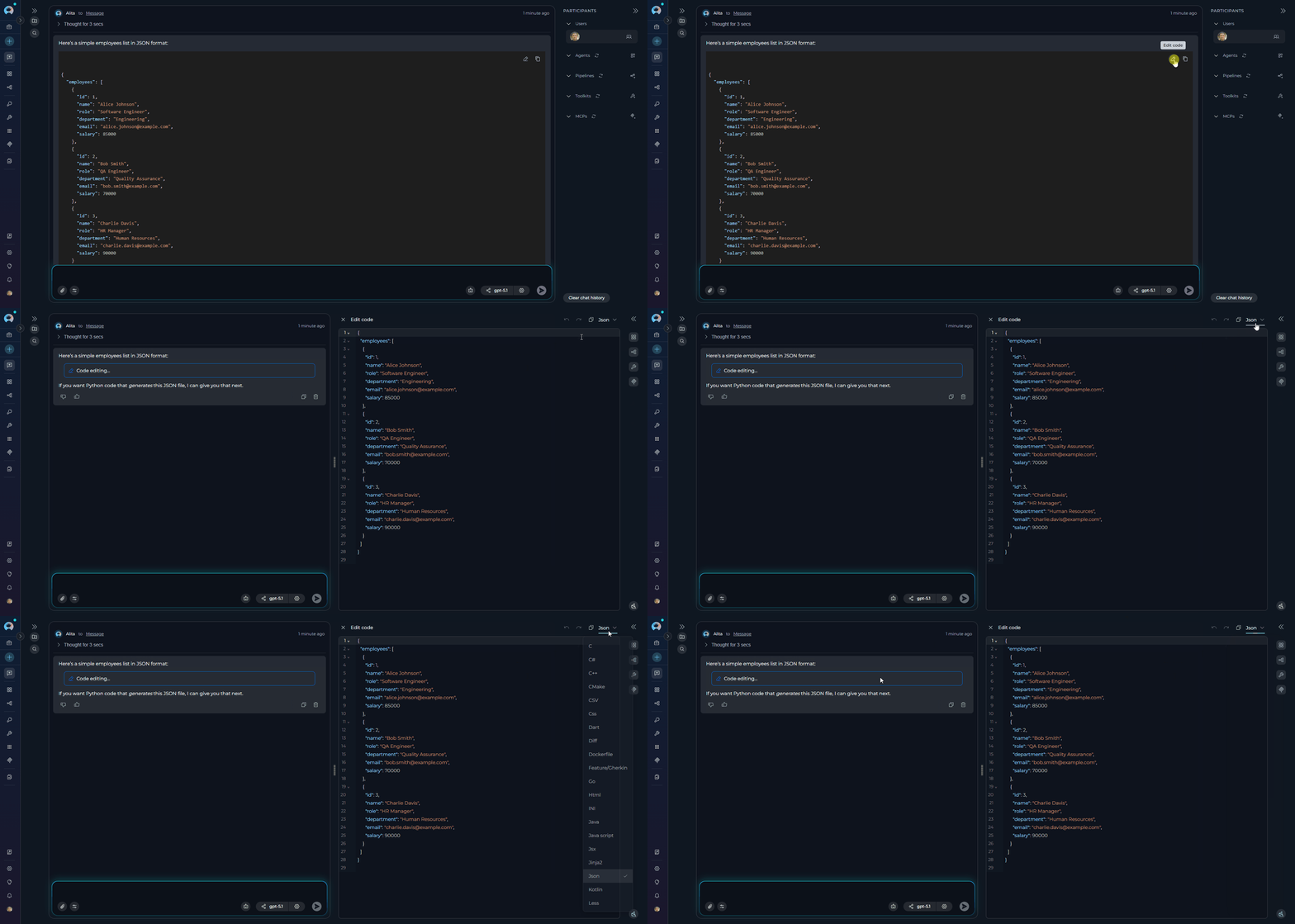
Step 3: Edit Content
Clicking the icon opens the Canvas editor in a modal window. Here, you can directly modify the content.Canvas Interface
All Canvas editors share a set of universal controls: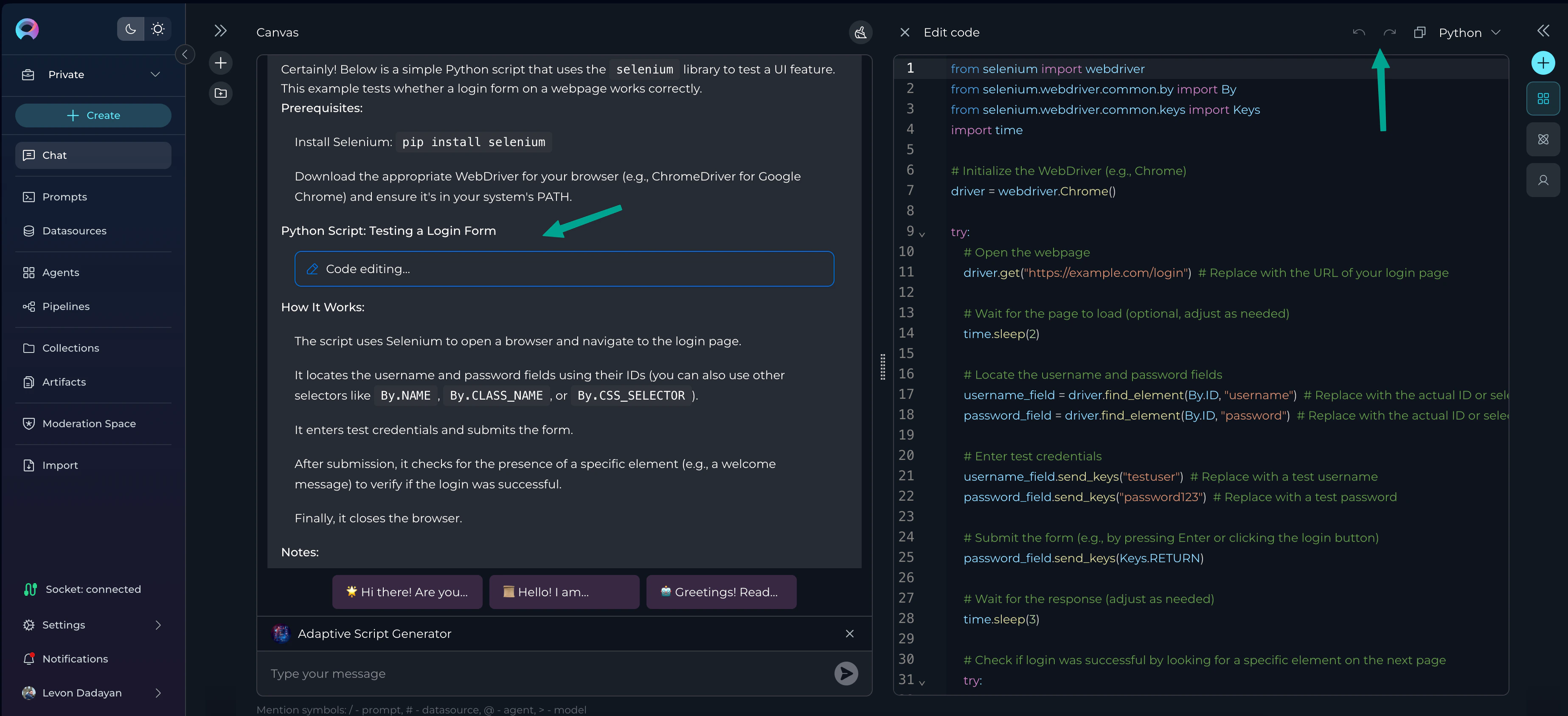
Canvas Editors
Let’s explore the unique features of each editor and see how they apply in real-world situations.Code Editor
Perfect for developers, AQA engineers, and DevOps The Code Editor is a robust environment for refining AI-generated code snippets and scripts. It features syntax highlighting, auto-completion, and error checking to help you write production-ready code. Key Features- Syntax Highlighting: Improves readability for languages like Python, Java, JavaScript, and YAML.
- Find/Replace: Quickly locate and update variables, function names, or other text strings.
- Code Folding: Collapse functions or classes to focus on a specific part of the code.
- Click the Pencil icon ✏️ next to a code block to open the Canvas Code Editor.
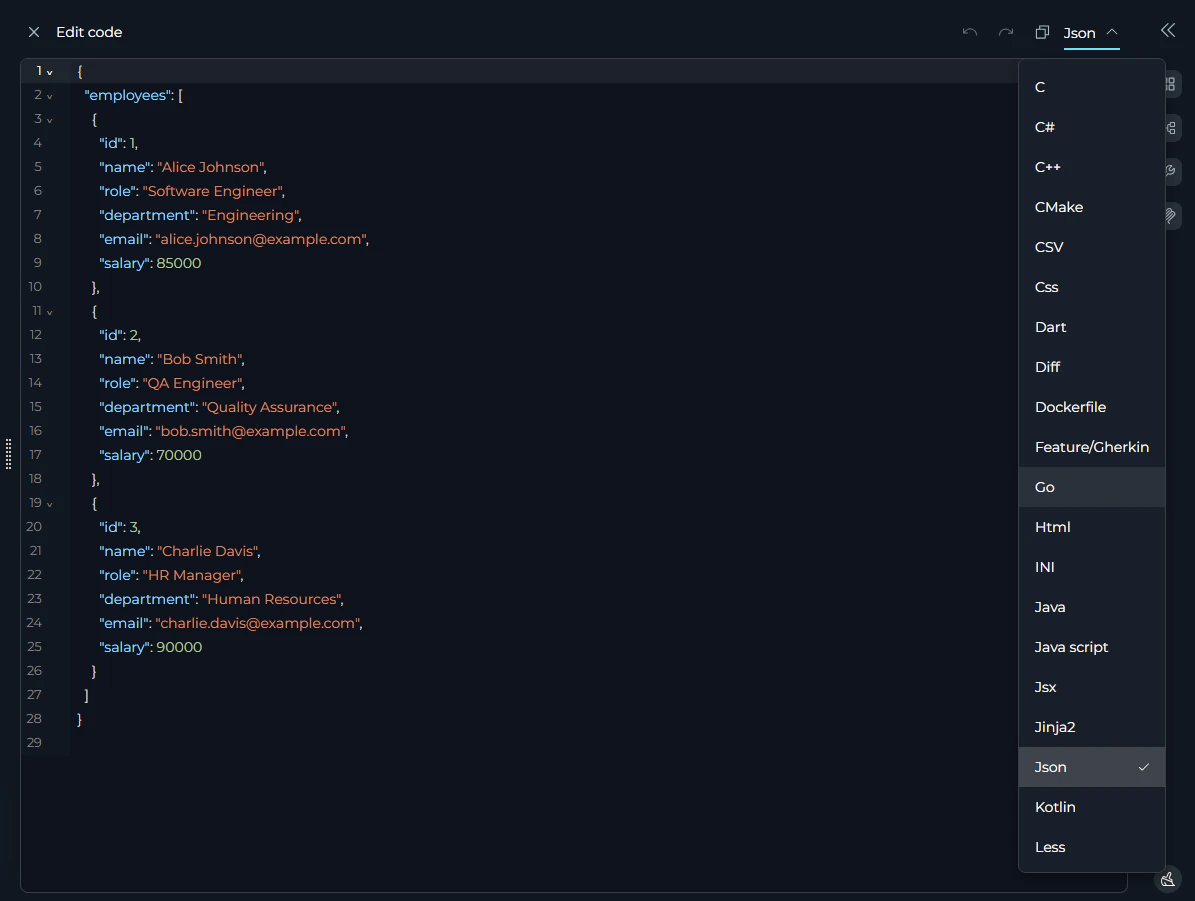
- The editor will display the code, and the currently selected code language will be shown.
- You can directly edit the code within this view.
- Use the following actions:
- Copy to clipboard: Click the copy icon to copy the entire code block.
- Undo/Redo: Click the respective icons to revert or reapply changes.
- Save: Click the X icon to save your changes and close the Canvas editor.
Real-World Example: Refining an AQA Test Script
Real-World Example: Refining an AQA Test Script
- Role: Sarah, an AQA Engineer.
- Goal: Create a reliable Selenium test for a new checkout feature.
- Generate: Sarah asks ELITEA: “Write a Selenium Python script to add an item to the cart and proceed to checkout.”
- Activate Canvas: The AI generates a functional but basic script. Sarah clicks the ✏️ icon to open it in the Code Editor.
- Refine in Canvas:
- She adds explicit waits to handle slow-loading page elements, making the script more stable.
- She uses Find/Replace to change a generic variable name like
buttonto a more descriptive name likeproceed_to_checkout_button. - She adds a
try/exceptblock for error handling, ensuring the test fails gracefully and provides useful logs. - She adds comments to explain complex steps to her teammates.
- Export: Once satisfied, Sarah clicks Export and saves the file as
test_checkout.py, ready to be committed to her team’s automation framework.
Table Editor
Ideal for Business Analysts, QA Analysts, and Project Managers.The Table Editor transforms simple Markdown tables into a powerful, spreadsheet-like interface for organizing and managing structured data. Key Features
- Easy Cell Editing: Click any cell to modify its content.
- Structural Changes: Add or remove rows and columns with a single click.
- Sorting and Filtering: Quickly organize your data to find what you need.
- Import/Export: Export your table to formats like XLSX (Excel) or Markdown.
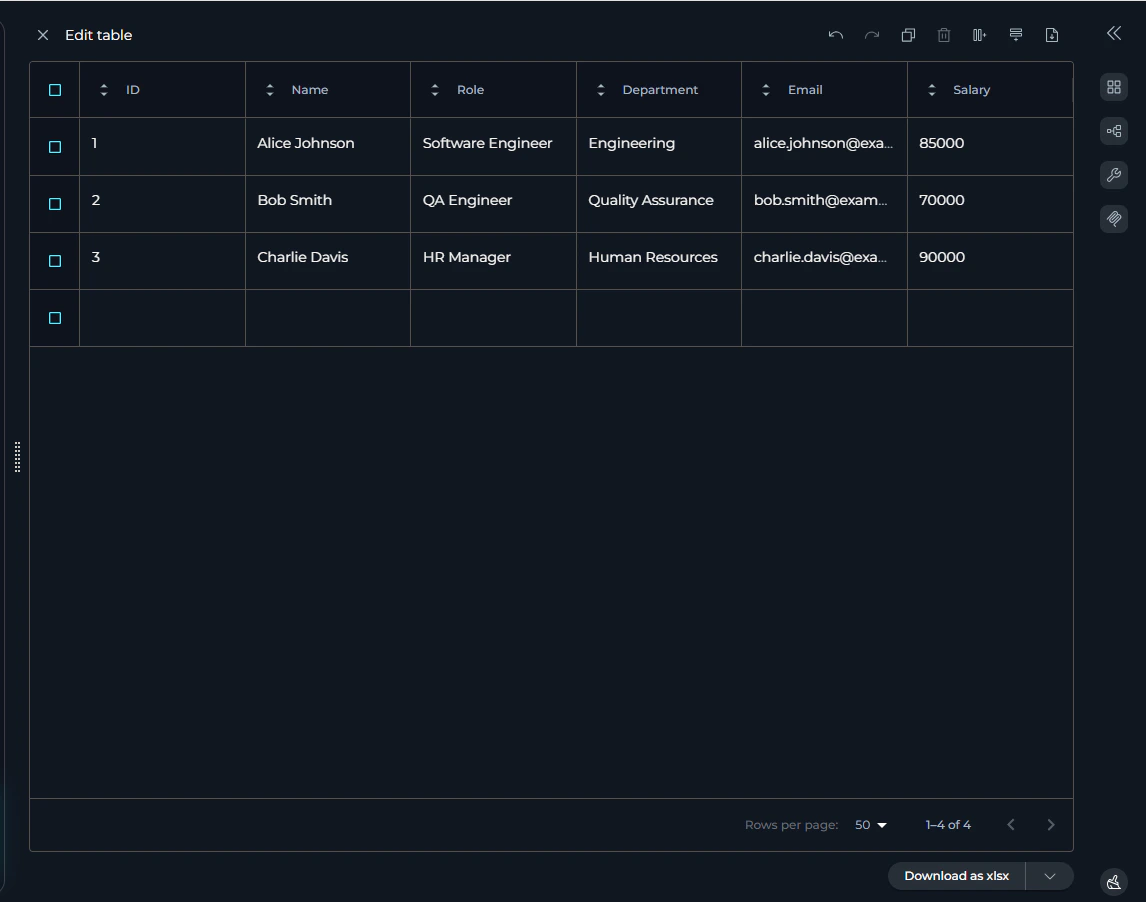
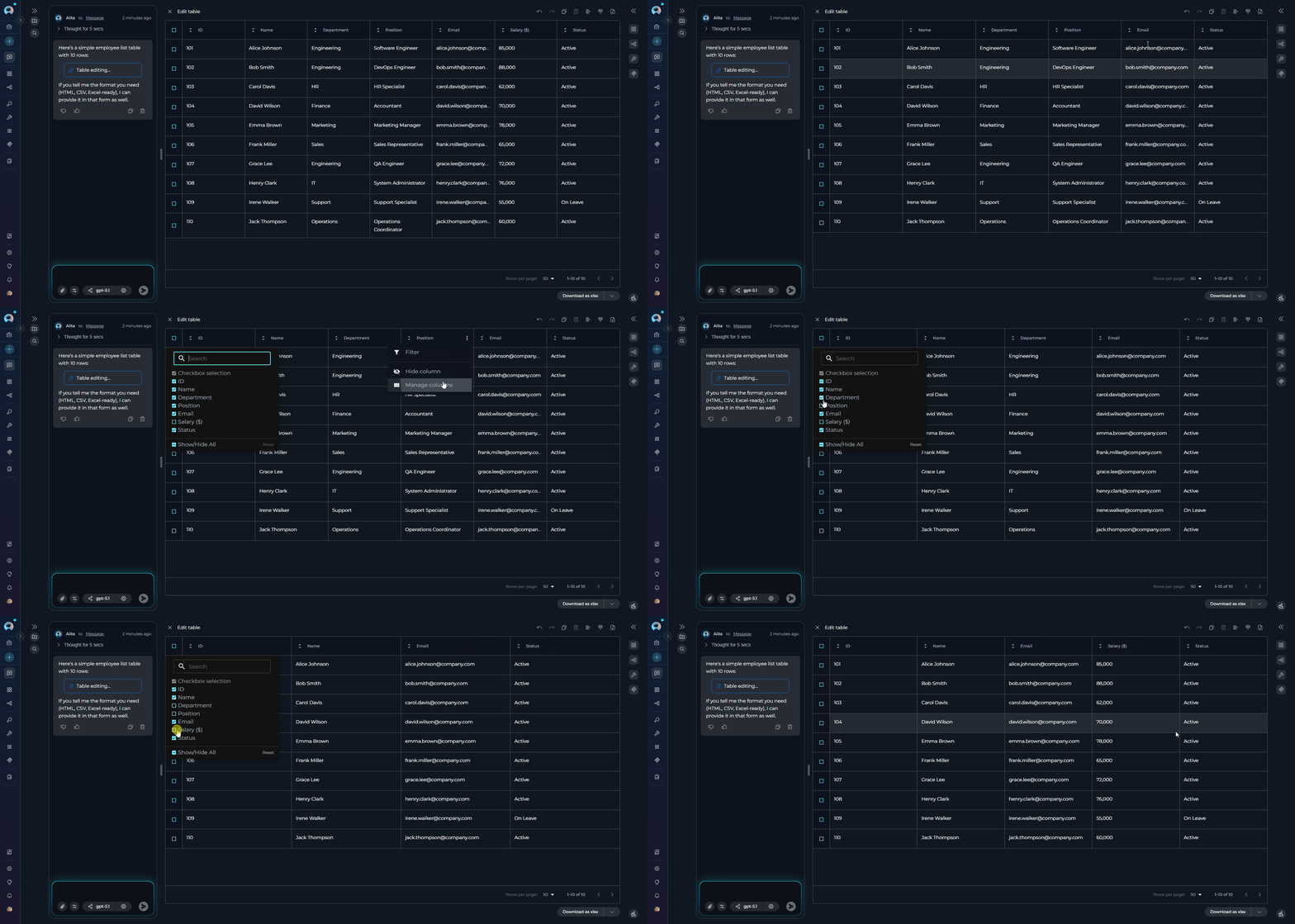
- Click the Pencil icon ✏️ next to a table to open the Canvas Table Editor. Tables are presented in Markdown format within the editor but rendered as interactive tables.
- You can directly edit the table content and structure.
- Use the following actions:
- Manual Editing: Modify text directly in table cells and column headings.
- Delete Rows: Select the checkbox(es) next to the rows you wish to remove, then click the delete row icon.
- Add Columns/Rows: Click the Add column or Add row icons to expand the table.
- Copy to clipboard: Click the copy icon to copy the table data.
- Import CSV: Click the Import table icon to upload data from a CSV file.
- Download as XLSX: Click the Download as xlsx button to save the table data as an Excel file.
- Undo/Redo: Click the respective icons to revert or reapply changes.
- Save: Click the X icon to save your changes and close the Canvas editor.
- Sorting: Click the sorting icons (e.g., ▲▼) next to each column heading to sort the data in ascending or descending order for that column.
- Filtering: Click the … (ellipsis) icon next to a column heading and select the Filter option to apply filters to the data in that column.
- Hiding Columns: Click the … (ellipsis) icon next to a column heading and select the Hide column option to remove the column from view.
- Column Resizing: Drag the column borders to resize columns to your preferred width.
- Cell Editing: Double-click any cell to edit its content directly within the table interface.
Real-World Example: Test Case Documentation
Real-World Example: Test Case Documentation
- Role: David (Business Analyst).
- Goal: Document test cases for a new user profile feature.
- Generate: David asks ELITEA: “Create a test case table for editing a user profile.”
- Activate Canvas: The AI generates a table with columns for ID, Step, and Expected Result. David clicks the ✏️ icon to open the table in Canvas.
- Refine in Canvas:
- David adds a new column called “Requirement ID” and populates it, linking each test case back to the original business requirements.
- He adds another column for “Priority” (High, Medium, Low) to categorize the test cases.
- Using the Sort feature, David organizes the table to display all “High” priority test cases first.
- He reviews the steps and updates the “Expected Result” column to ensure clarity and accuracy.
- Export: Once satisfied, David clicks Export and chooses XLSX. He now has a formatted spreadsheet to share with the testing team and stakeholders.
Mermaid Diagram Editor
A visual tool for Business Analysts, System Architects, and anyone needing to map processes.The Mermaid Diagram Editor allows you to edit the simple text-based syntax of a Mermaid diagram while seeing your changes rendered visually in real-time. Key Features
- Live Preview: The diagram updates instantly as you type.
- Syntax Highlighting & Error Detection: Quickly spots issues in your Mermaid code.
- Multiple Export Options: Save your finished diagram as a PNG, JPG, or SVG image file.
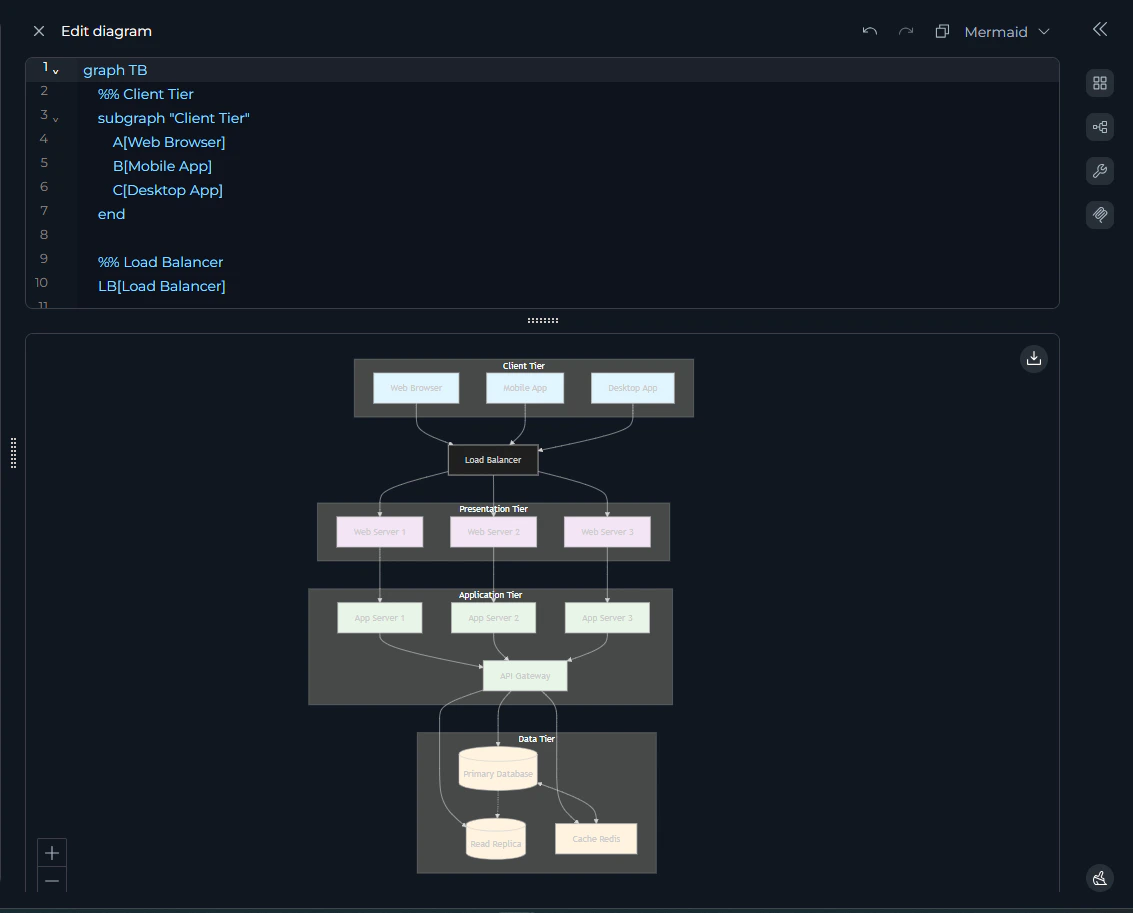
- Click the Pencil icon ✏️ next to a Mermaid diagram to open the Canvas Mermaid Diagram Editor.
- You can directly edit the Mermaid diagram code in the editor view.
- A live Preview of the diagram will be displayed below the editor, updating as you make changes to the code.
- Use the following actions:
- Copy to clipboard: Click the copy icon to copy the Mermaid diagram code.
- Download: Download the rendered diagram in JPG, PNG, or SVG formats using the respective download button.
- Undo/Redo: Click the respective icons to revert or reapply changes.
- Save: Click the X icon to save your changes and close the Canvas editor.
Real-World Example: Visualizing a Business Process
Real-World Example: Visualizing a Business Process
- Role: Tom, a Business Analyst.
- Goal: Create a clear flowchart for a new expense approval workflow to present to stakeholders.
- Generate: Tom asks ELITEA: “Generate a Mermaid flowchart for an employee submitting an expense report that needs manager approval.”
- Activate Canvas: ELITEA provides a simple, linear flowchart. Tom opens it in Canvas.
- Refine in Canvas:
- Using the Live Preview, Tom adds a decision point:
If Amount > $500. - He adds two new paths from this decision: one for “Senior Manager Approval” and another back to the standard “Manager Approval.”
- He adds styling to the “Rejected” end-state node to make it red, highlighting the negative path.
- Using the Live Preview, Tom adds a decision point:
- Export: Happy with the visual, Tom clicks Export and saves the diagram as a PNG, ready to be inserted directly into his PowerPoint presentation.
DOCX Editor
Ideal for Business Analysts, Technical Writers, and anyone working with Word documents.The DOCX Editor provides a full WYSIWYG editing experience for
.docx files stored in Artifacts or attached to chat conversations. You can edit document content directly—no need to download, open in Word, and re-upload.
Key Features
- WYSIWYG Editing: See your document as it will appear—formatted text, headings, lists, and tables rendered in real time.
- Formatting Toolbar: Apply bold, italic, underline, heading styles, lists, and other rich-text formatting.
- Ruler: Adjust indentation and paragraph layout using the document ruler.
- Zoom Control: Zoom in or out to inspect document details or get a full-page view.
- Save as DOCX: Saving overwrites the original
.docxfile, preserving the Word format. - Discard Changes: Reset the editor to the last saved state at any time.
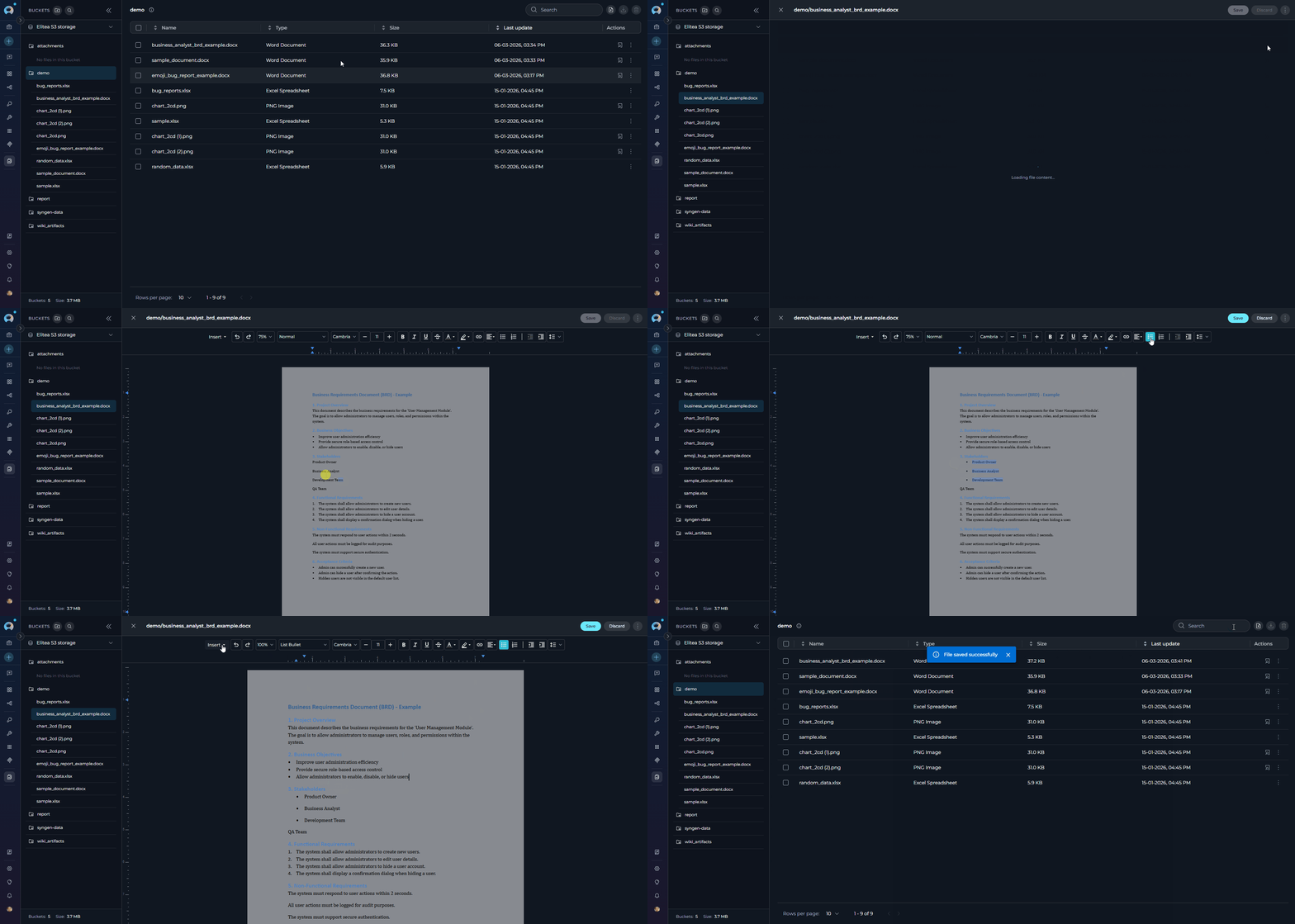
- Navigate to the Artifacts bucket (or open an attachment) containing your
.docxfile. - Click the View/Edit file icon to open the file in the Canvas DOCX Editor.
- Edit the document content directly using the WYSIWYG editor and formatting toolbar.
- Use the Zoom Control to review the full-page layout before saving.
- Click Save — the updated file overwrites the original
.docxin the bucket.
- DOCX files are always edited in WYSIWYG mode. There is no Raw mode or language dropdown.
- The DOCX Editor is only available for
.docxfiles. Legacy.docfiles are not editable. - The Canvas pencil icon (✏️) does not appear for DOCX files in chat — open DOCX files via the View/Edit file icon in Artifacts or chat attachments instead.
Real-World Example: Editing a Requirements Document
Real-World Example: Editing a Requirements Document
- Role: Emma, a Business Analyst.
- Goal: Update a requirements specification stored in Artifacts without leaving ELITEA.
- Open: Emma navigates to the Artifacts bucket containing
requirements_v2.docxand clicks the View/Edit file icon to open it in Canvas. - Edit in Canvas:
- She uses the formatting toolbar to update section headings and fix bullet list formatting.
- She adds a new acceptance criteria section directly in the WYSIWYG editor.
- She uses the zoom control to review the full-page layout before saving.
- Save: Emma clicks Save — the updated file overwrites the original
.docxin the bucket. - Result: The refreshed specification is immediately available to all team members with bucket access, without any download/upload cycle.
- No need to download, edit in Microsoft Word, and re-upload
- Changes are immediately visible to all team members with bucket access
- Preserves native Word formatting and structure
Tips and Best Practices
- Start with a Clear Prompt: The better your initial prompt, the less refinement you’ll need. Be specific about formats and requirements.
- Save Often: Use the Save button regularly to ensure all changes are captured.
- Use for Configuration Files: The Code Editor is excellent for generating and refining YAML or JSON configuration files for CI/CD pipelines or application settings.
- Follow Team Standards: Use Canvas to enforce your team’s coding and documentation conventions before exporting.
Troubleshooting
Q: The Canvas pencil icon (✏️) isn’t appearing.A: Ensure the AI-generated content is a properly formatted code block, Markdown table, or Mermaid diagram. If the format is incorrect, try re-phrasing your prompt to be more specific (e.g., “format the output as a Markdown table”). Q: The editor is slow or unresponsive.
A: This can happen with extremely large blocks of code or tables. Try breaking your request into smaller chunks. Also, check your internet connection and consider clearing your browser cache. Q: I’m having trouble exporting my content.
A: Check that the file format you’re trying to export to is supported for that editor. If an issue persists, try a different web browser or contact support.