

Overview
Version 2.0.0 introduces an enhanced LLM node structure in pipelines with separate System and Task fields, replacing the previous single Prompt field. This change provides better control over AI behavior and more explicit separation of concerns.What’s New in v2.0.0
- Enhanced LLM Nodes: New structure with dedicated System and Task fields
- Improved Prompt Engineering: Better separation of system instructions and user tasks
- MCP Server Support: Integrated Model Context Protocol for extended capabilities
- Enhanced Chat Features: Advanced conversation management and canvas improvements
Breaking Changes
LLM Node Structure Change (REQUIRED)
What changed:- Old format: Single Prompt field
- New format: Separate System and Task fields
- Existing LLM nodes will show configuration errors
- Pipelines may fail to execute
- Manual update required for each affected node
Migration Guides
1. Update LLM Nodes in Pipelines (REQUIRED)
This is the primary migration task for v2.0.0: Update LLM Nodes in Pipelines This essential guide covers:- Visual comparison of old vs new LLM node formats
- Symptoms of outdated nodes
- Step-by-step update instructions
- How to migrate your old prompt content
- Tips for using variables in the new format
2. Configure and Use MCP Servers (Optional)
Take advantage of the new Model Context Protocol support: MCP Client (Connect External Tools to Elitea): MCP Server (Use Elitea Agents in VS Code): These quick start guides include:- Installing and configuring the Elitea MCP Client
- Setting up MCP servers (example: Playwright)
- Creating MCPs in the ELITEA UI
- Using MCP tools in conversations
- Testing and troubleshooting
Migration Process
Follow these steps to migrate to v2.0.0:Step 1: Review Release Notes
Read the v2.0.0 release notes to understand all changes in v2.0.0.Step 2: Identify Affected Pipelines
- Open the Pipelines menu
- Look for pipelines created before v2.0.0
- Note which ones contain LLM nodes
- Prioritize business-critical pipelines
Step 3: Update LLM Nodes
For each pipeline with LLM nodes:- Open the pipeline in edit mode
- Go to Configuration → Flow tab
- Click on each LLM node
- Migrate the content:
- Move system-level instructions to the System field
- Move specific tasks/queries to the Task field
- Leave Chat History empty (unless needed)
- Save the node configuration
- Save the pipeline
Step 4: Test Your Pipelines
After updating each pipeline:- Run a test execution
- Verify the output matches expectations
- Check that all LLM nodes respond correctly
- Test any variable references
Step 5: Optional Enhancements
Consider these optional improvements:Set Up MCP Servers
Extend your agents and pipelines with Model Context Protocol:- Install the Elitea MCP Client
- Bootstrap and configure MCP servers
- Create MCP entries in ELITEA
- Assign MCPs to agents or use in conversations
Review New Features
Explore new capabilities introduced in v2.0.0:- Enhanced chat and canvas features
- Improved conversation management
- Advanced MCP integration options
Key Differences from v1.7.x
LLM Node Structure
Migration Example
Old Format (v1.7.x):Troubleshooting
Issue: Pipeline fails to load
Solution:- Check for LLM nodes with configuration errors
- Update all LLM nodes to the new format
- Save and reload the pipeline
Issue: LLM node shows “configuration issues”
Solution:- Open the node configuration panel
- Ensure both System and Task fields are filled
- Click Save in the panel
- Save the pipeline
Issue: Can’t find old prompt content
Solution:- Go to pipeline Configuration → YAML tab
- Look for your LLM node in the YAML structure
- Find the old prompt content
- Copy and split it between System and Task fields
Issue: Variables not working in new fields
Solution:- Click the variable icon next to the System or Task field
- Select from available pipeline variables
- Variables work the same way in both fields
Issue: Duplicate toolkits after migration
Symptoms:- Multiple identical or similar toolkits appear after migration from v1.6 to v1.7/2.0
- Toolkits are duplicated for every application version and every application instance
- Agents using the same toolkit show different tool sets despite being configured with the same toolkit
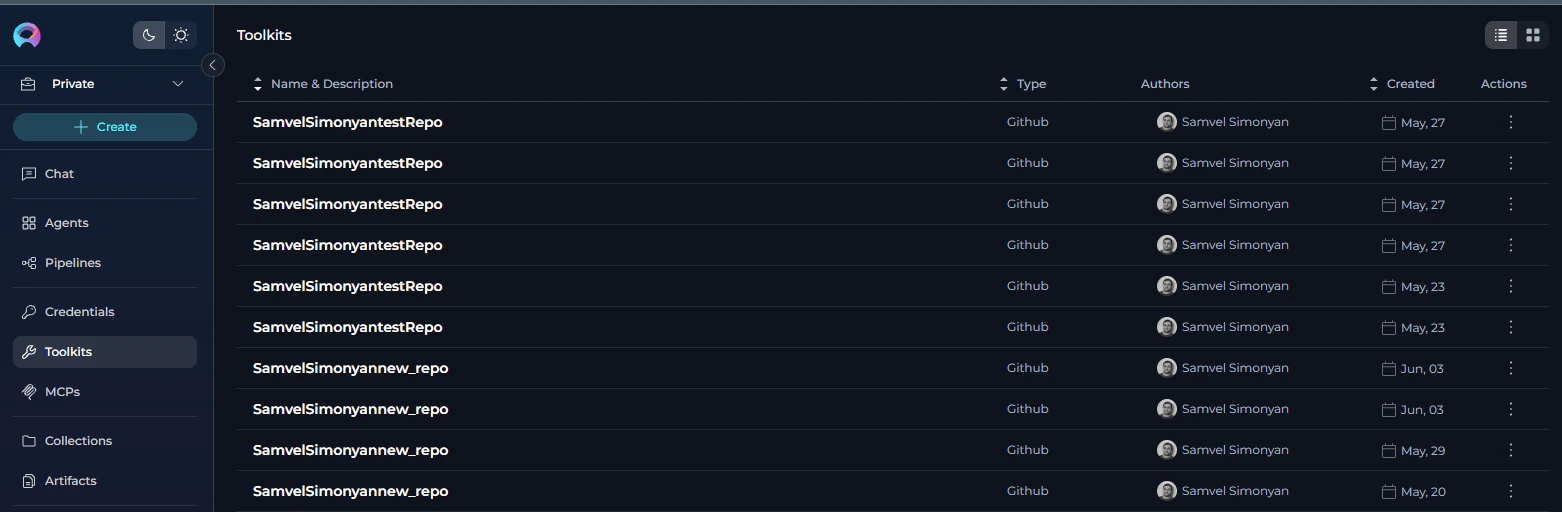
- Delete excessive toolkits: Review your toolkits list and remove duplicates, keeping only one instance of each unique toolkit
- Reuse tools in agents: For agents using the same toolkit that show different tool sets, you can filter (deselect) specific tools within each agent to create consistent tool sets
- Recreate problematic toolkits: For some toolkits where credential selection doesn’t help resolve configuration issues, it’s easier to delete the toolkit completely and create a new one rather than troubleshooting and fixing the existing configuration.
Rollback Considerations
Getting Help
If you encounter issues during the upgrade:- Migration Guide: Update LLM Nodes in Pipelines
- FAQs: Frequently Asked Questions
- Contact Support: Email SupportAlita@epam.com
- Pipeline name and project
- Screenshot of the LLM node configuration
- Error messages (if any)
- Expected vs actual behavior
Related Documentation
- Release Notes - 2.0.0
- Pipelines Menu Guide
- Connect External Tools to Elitea with MCP (Client)
- Setting Up MCP Server (Use Elitea in VS Code)
- MCPs Menu Guide
- MCP Client Integration
Next Step: Start with the Update LLM Nodes in Pipelines guide to migrate your pipelines.