- Multi-user Editing: Multiple team members can edit the same canvas content at the same time
- User Indicators: See who else is currently editing the content with user avatars and names
- Live Updates: Changes made by other users appear in real-time
- Edit Conflicts: The system manages edit conflicts automatically to ensure data integrity
Available Editors
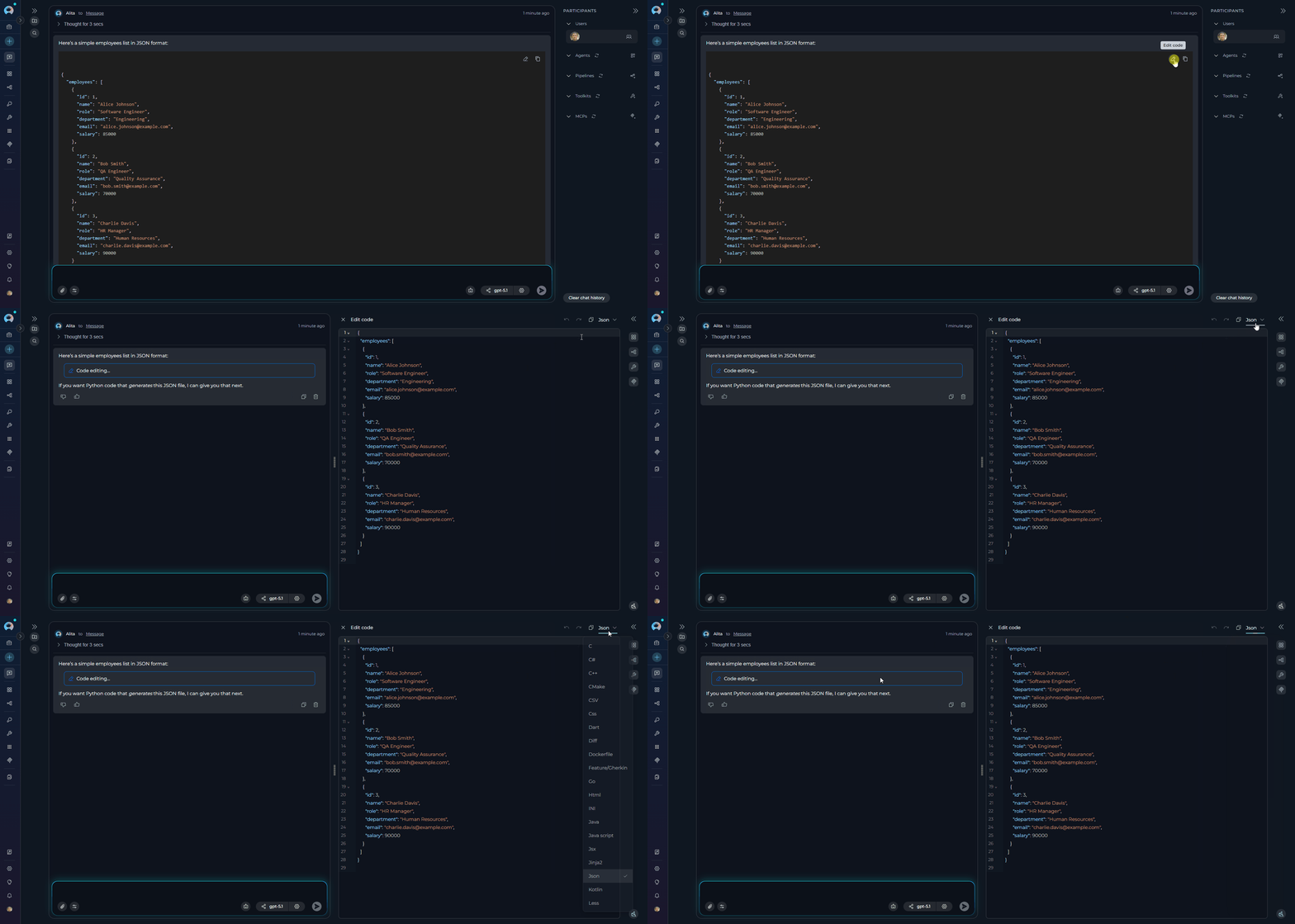
Code Editor
Edit code with syntax highlighting, find/replace, and code folding. Export as
.py, .js, .java, and more.Table Editor
Modify tables with spreadsheet-like functionality. Add/remove rows and columns, sort, filter, and export to XLSX or Markdown.
Diagram Editor
Edit Mermaid diagrams with live preview and syntax highlighting. Export as PNG, JPG, or SVG.
DOCX Editor
Edit
.docx files from Artifacts in a full WYSIWYG interface — formatting toolbar, ruler, zoom control, save directly to the Artifact bucket.The pencil icon (✏️) does not appear for DOCX files in chat. Open DOCX files via the View/Edit file icon in Artifacts or chat attachments instead.
How to Use Canvas
- Ask ELITEA to generate code, a table, or a Mermaid diagram.
- When ELITEA generates the content, look for the pencil icon (✏️) in the top-right corner of the content block.
- Click the icon to open the Canvas editor in a modal window.
- Make your edits using the available tools:
- Copy: Copy content to clipboard
- Undo/Redo: Revert or reapply actions
- Save: Save your changes
- Export: Download in various formats
- Click Save to preserve your changes in the conversation or Export to download files.