

Analytics access requires the
models.monitoring.tracing.view permission, which is granted by default to every project role (admin, editor, viewer). In practice, this means every project member can view Analytics unless your project uses custom roles that remove this permission. You must be added as a member of the project to view its analytics data.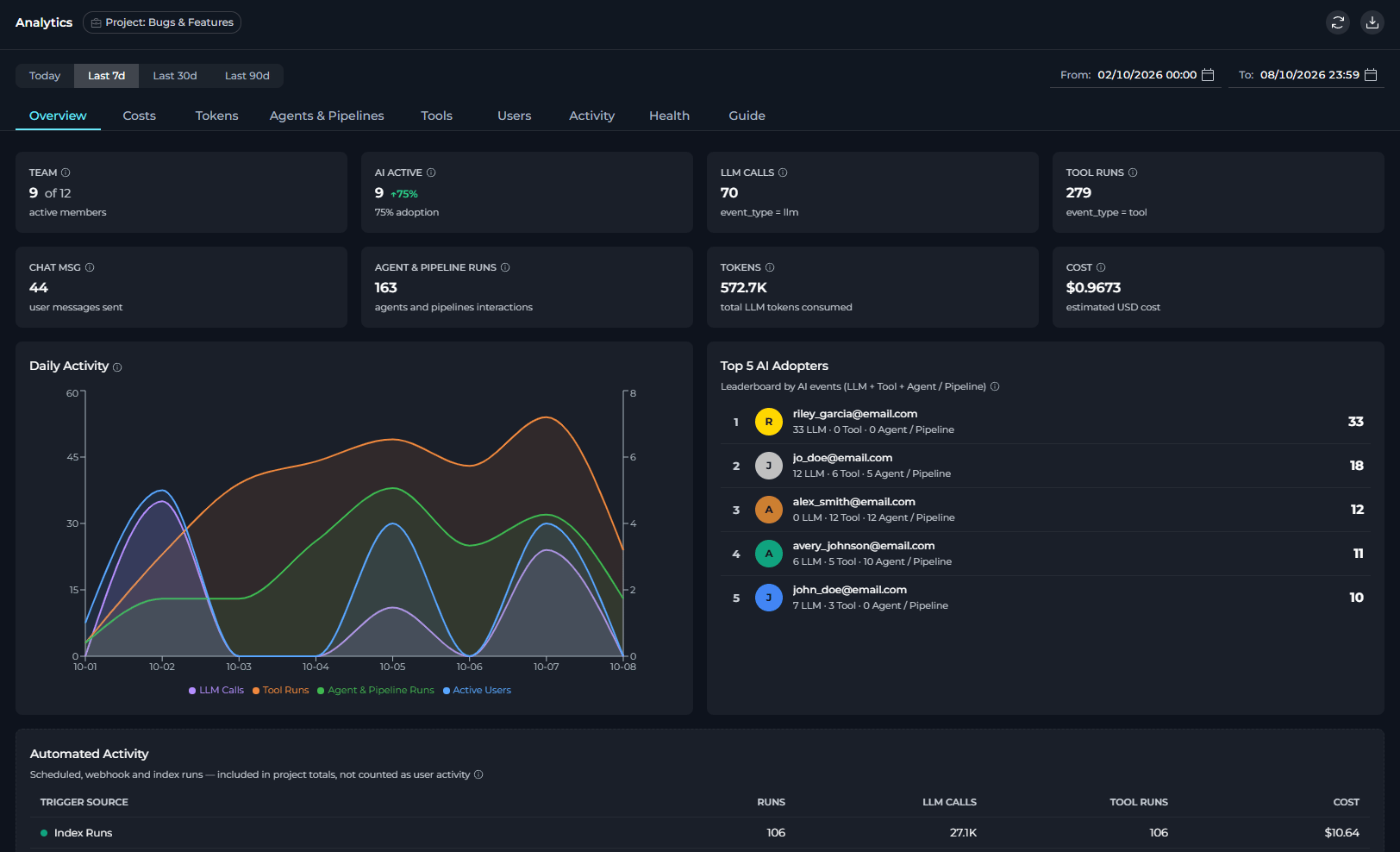
- Page header displays the name of the current project, along with Refresh and Export to Excel buttons on the right.
- Refresh button manually refreshes analytics data, updating the currently active tab with the latest data from the API.
- Export to Excel button downloads a comprehensive Excel workbook containing all analytics data (Overview, Costs, Tokens, Agents & Pipelines, Tools, Users, Activity, and Health) for the selected date range. The export includes metadata about the project, date range, and timezone.
- Date filter bar contains the four quick-preset buttons (Today, Last 7d, Last 30d, Last 90d) on the left and the From / To datetime pickers on the right.
- Tabs: Nine tabs to switch between different analytics views (Overview, Costs, Tokens, Agents & Pipelines, Tools, Users, Activity, Health, and Guide).
- Content area: The main scrollable panel that renders KPI cards, charts, and tables for the active tab.
All metrics and charts show data only for the currently selected project. To view analytics for a different project, switch projects using the project switcher before opening Analytics.
Overview
Project-wide KPI cards, activity trends, top adopters, and model usage.
Costs
Estimated LLM spend and cost breakdowns by model, user, and agent.
Tokens
Token usage breakdown including cache tokens, by model, user, and agent.
Agents & Pipelines
Usage, latency, errors, and activity trends for agents and pipelines.
Tools
Tool popularity, reliability, latency, and detailed usage by user and agent.
Users
Per-user activity, AI adoption, model usage, tool usage, and agent usage.
Activity
Active user trends by role, with adjustable time granularity.
Health
Request volume, error rates, and latency by event type.
Guide
Guides to metrics, charts, calculations, and data sources.
Date Range Controls
You can control the time window applied to all tabs using the filter bar at the top of the page. Quick Presets Use four preset buttons to set the date range with a single click:
Custom Date/Time Pickers
Use the From and To datetime pickers for precise time windows:
- From sets the start of the analysis period. Cannot be set later than To.
- To sets the end of the analysis period. Cannot be set earlier than From.
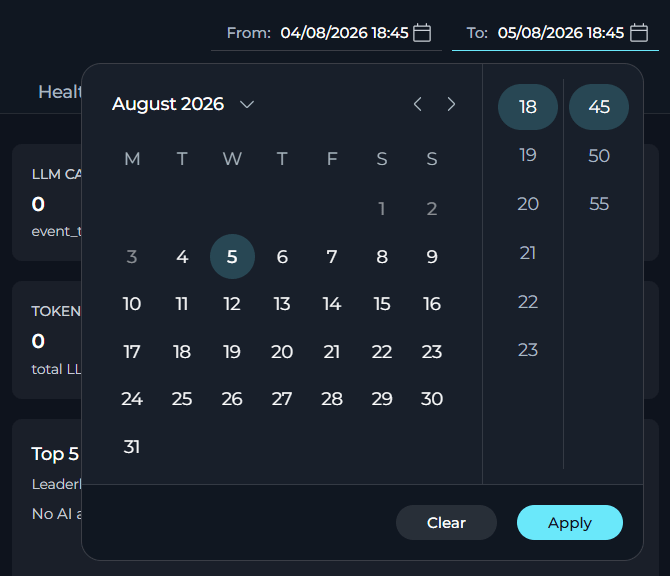
The page loads with Today pre-selected. Re-selecting a preset button instantly refreshes all tab data for that window without any additional action.
Overview
Overview displays project-wide KPI cards and summary charts for the selected date range.KPI Cards
KPI cards show the most important metrics for the selected date range.
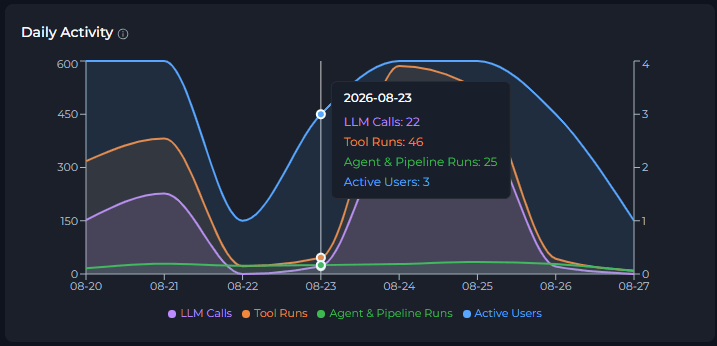
Daily Activity
A multi-series area chart showing AI usage trends over time:- LLM Calls (purple): AI model invocations per day.
- Tool Runs (orange): Tool executions per day.
- Agent & Pipeline Runs (green): Agent and pipeline interactions per day.
- Active Users (blue, Team Projects only): unique active users per day.
Top 5 AI Adopters
A leaderboard table that shows five users with the most combined AI events (LLM + Tool + Agent). Each row displays:- Rank and color-coded avatar (gold/silver/bronze for top 3).
- User email.
- Per-type breakdown:
N LLM · N Tool · N Agent. - Total AI events score.
Automated Activity
A table breaking down runs that were not triggered directly by a person — scheduled pipelines, webhook triggers, and index runs. These are included in the tab’s raw totals, but not counted as user activity for TEAM, AI ACTIVE, the adoption rate, the Top 5 AI Adopters leaderboard, or the Users and Activity tabs.
A Total row is shown when more than one trigger source has activity. This table is hidden entirely if there is no automated activity in the selected date range.
Model Usage Breakdown
A ranked table of AI models used in the selected date range.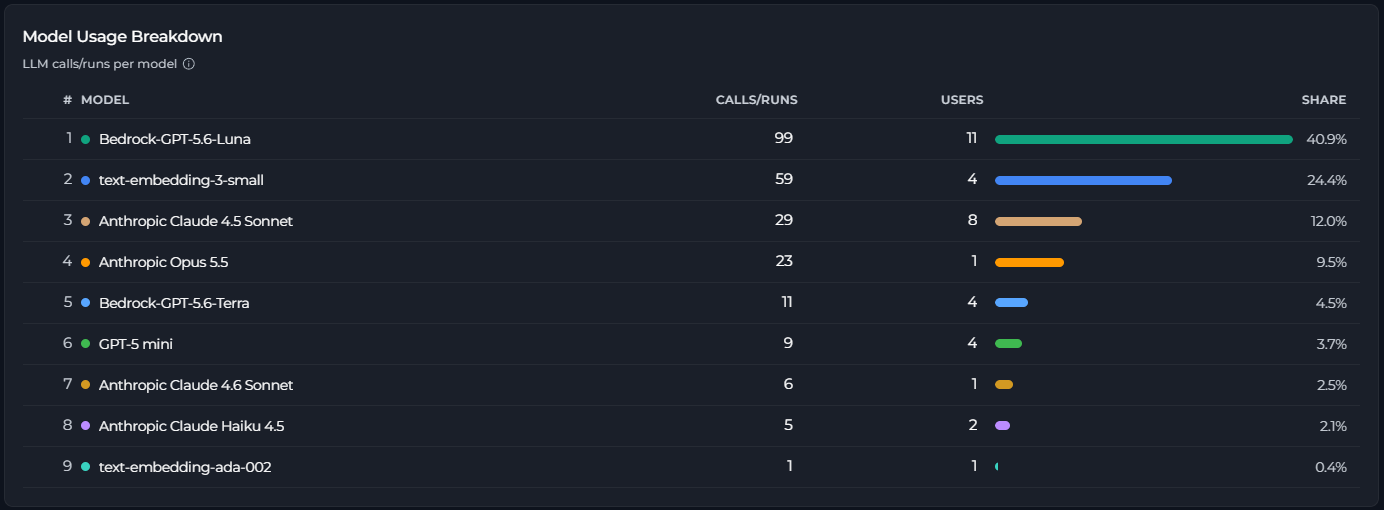
This table is hidden entirely if no model usage is recorded for the selected date range.
Costs
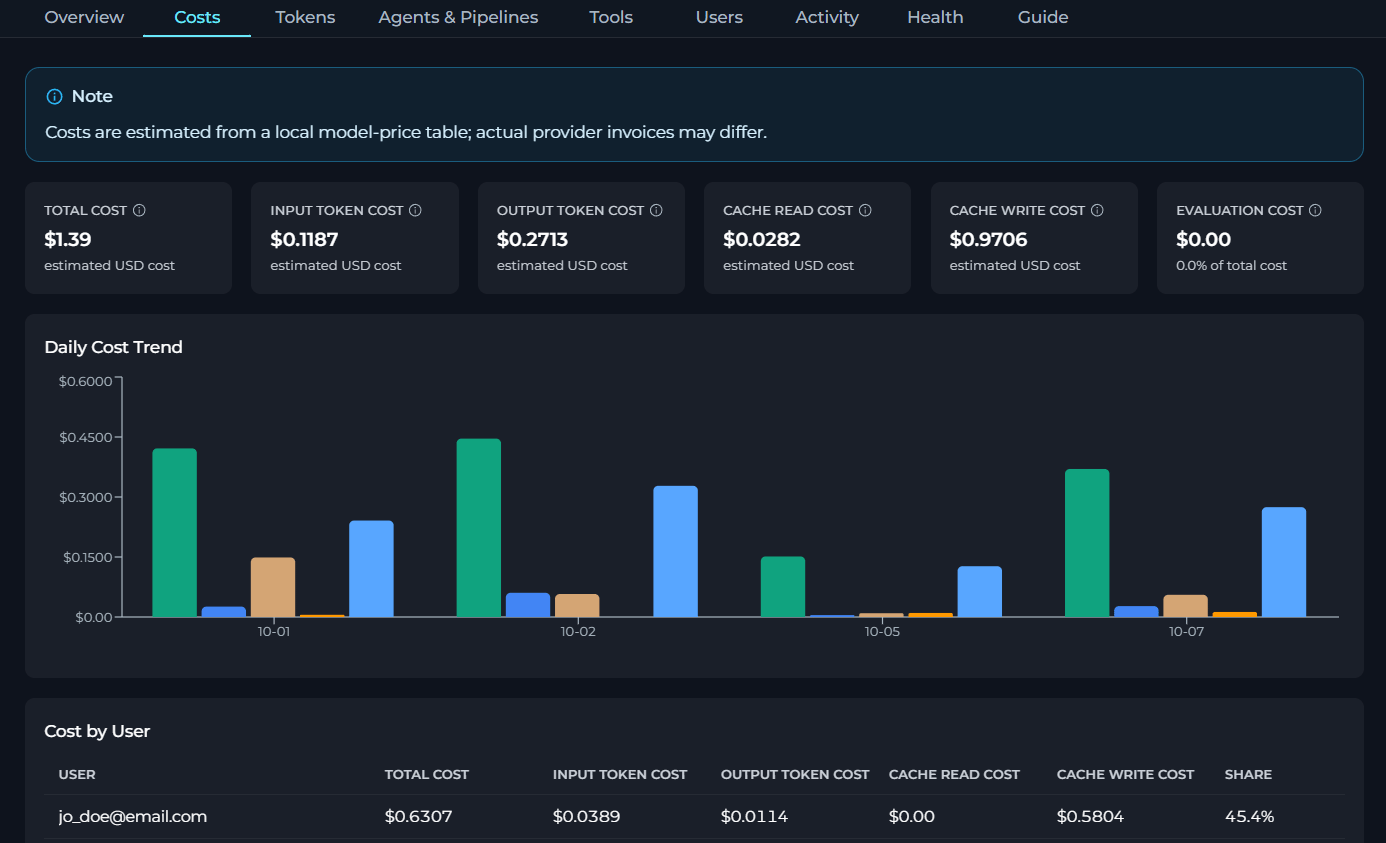
Costs shows estimated LLM spend for the selected date range.ELITEA calculates cost values from a local model-price table. Actual provider invoices may differ.
KPI Cards
Six KPI cards appear at the top of Costs:
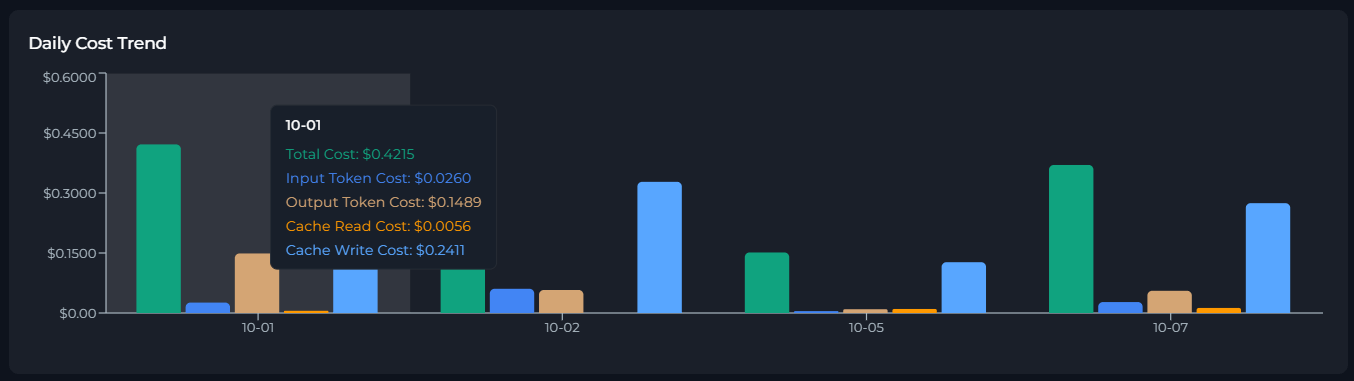
Daily Cost Trend
A grouped bar chart showing estimated daily cost, broken down into five series: Total Cost, Input Token Cost, Output Token Cost, Cache Read Cost, and Cache Write Cost.- The X axis shows the date.
- The Y axis shows estimated cost.
Cost by User
Ranks users by estimated total cost.
If no user cost data is available for the selected date range, ELITEA shows an empty-state message.
Cost by Model
Ranks models by estimated total cost.
If no model cost data is available for the selected date range, ELITEA shows an empty-state message.
Cost by Agent & Pipeline
Ranks agents and pipelines by estimated total cost. Evaluation runs are excluded here and shown separately in Cost by Evaluation.
If no agent or pipeline cost data is available for the selected date range, ELITEA shows an empty-state message.
Cost by Evaluation
Ranks evaluation runs by estimated cost, grouped by the evaluated agent or pipeline version. This cost is already included in the EVALUATION COST KPI card and in Total Cost, not additional to it.
If no evaluation cost data is available for the selected date range, ELITEA shows an empty-state message.
Tokens
Tokens provides detailed token usage analytics for the selected date range, including cache token tracking.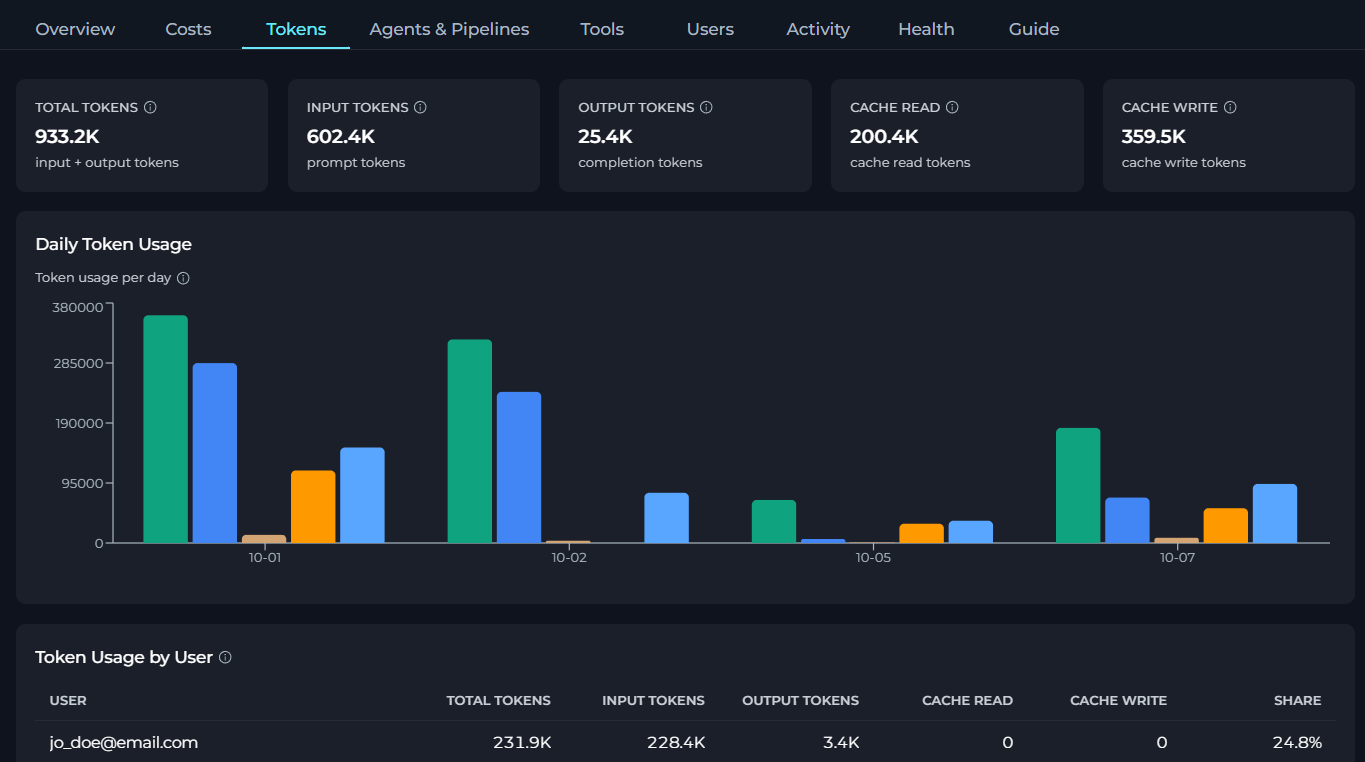
Cache read and cache write tokens are tracked separately for models that support prompt caching (e.g., Claude models). Cache tokens help reduce costs by reusing previously processed prompts.
KPI Cards
Five KPI cards appear at the top of Tokens.
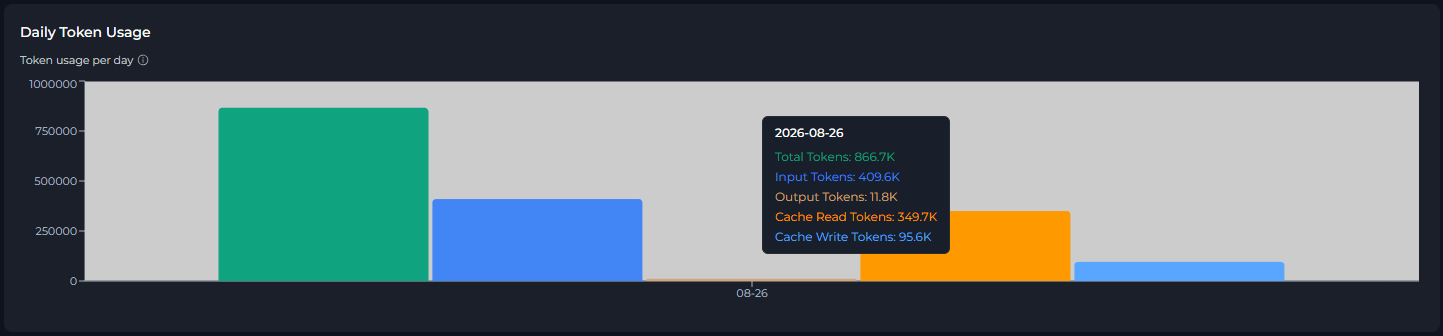
Daily Token Usage
A multi-bar chart showing daily total, input, and output token usage for LLM requests in the selected date range:- Total Tokens (primary bar): combined token usage per day
- Input Tokens (second bar): prompt tokens per day
- Output Tokens (third bar): completion tokens per day
- Cache Read Tokens (fourth bar): cached tokens read per day
- Cache Write Tokens (fifth bar): tokens written to cache per day
Token Usage by User
Shows token usage attributed to each project user during the selected date range.
If no user token data is available for the selected date range, ELITEA shows an empty-state message.
Token Usage by Model
Shows token usage for each AI model used in the selected date range.
If no model token data is available for the selected date range, ELITEA shows an empty-state message.
Token Usage by Agent & Pipeline
Shows token usage attributed to Agents and Pipelines during the selected date range.
If no agent or pipeline token data is available for the selected date range, ELITEA shows an empty-state message.
Agents & Pipelines
Agents & Pipelines show how individual agents and pipelines are used within the project.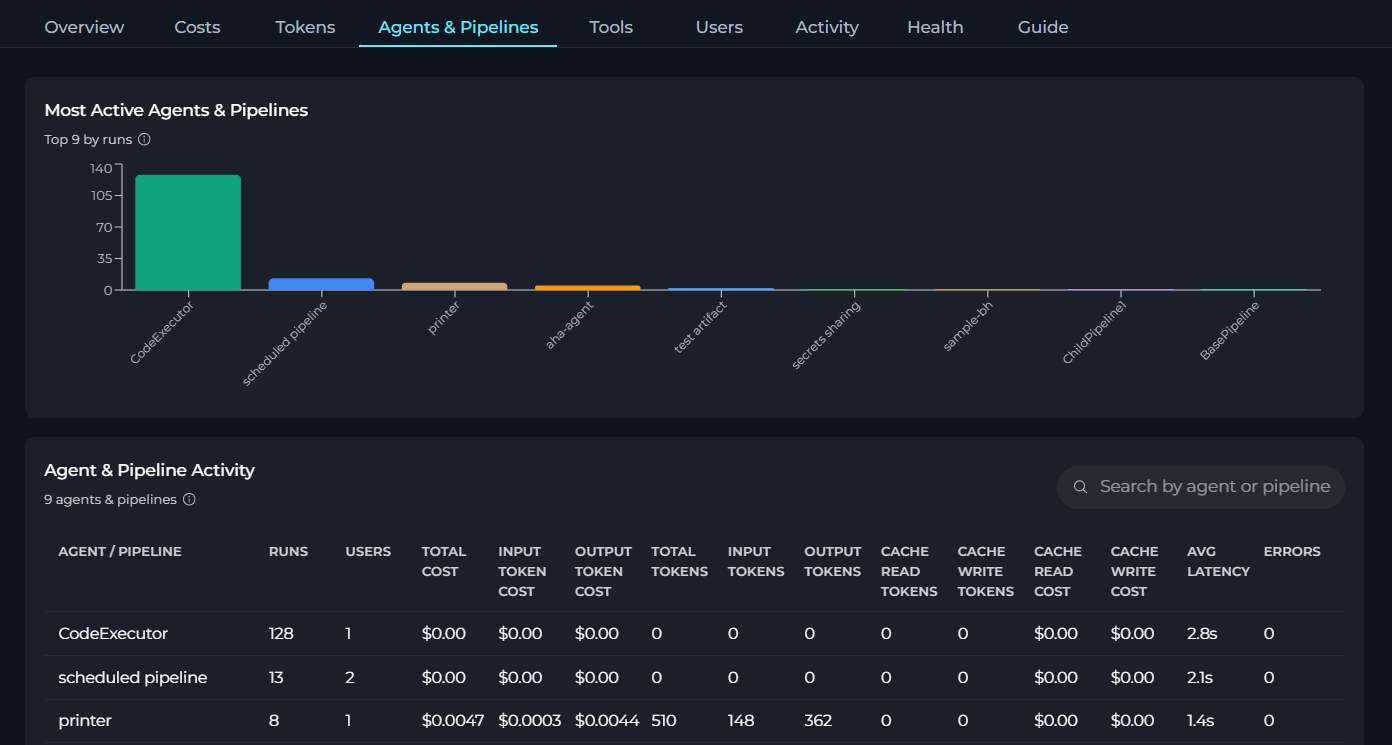
Most Active Agents
A bar chart showing the top 20 agents ranked by total event count. Each bar is color-coded and labeled with the agent name.
Activity
A paginated, searchable table listing all agents and pipelines in the project:
Use the search box (top-right of the table) to filter agents and pipelines by name. Page size can be set to 10, 20, or 50 rows per page.
Agent & Pipeline Details View
Click any agent or pipeline row to open a drill-down view for that entity.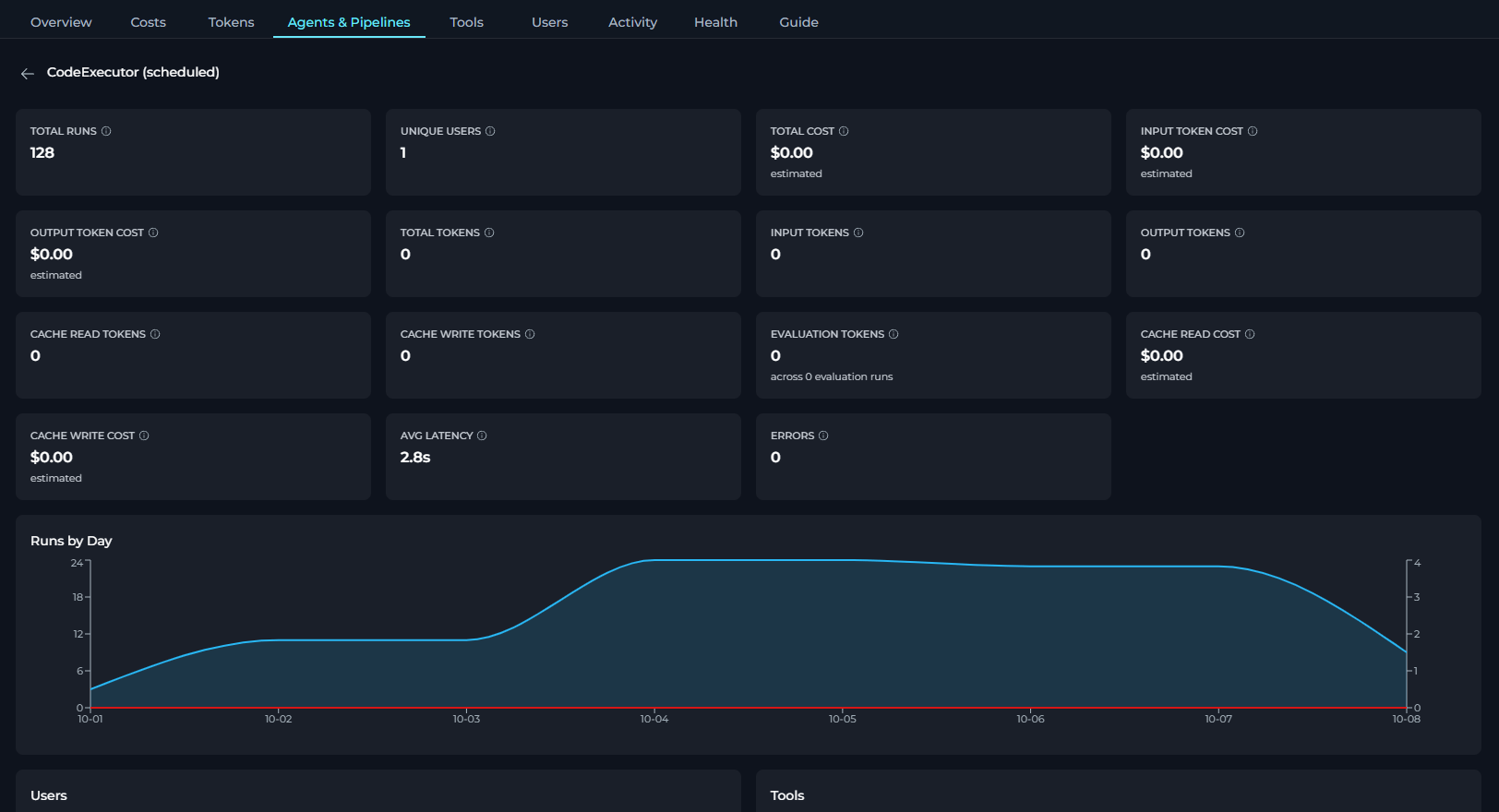
- Header: entity name with a back arrow to return to the full list.
- KPI Cards
- Runs by Day: an area chart with two series — Runs and Errors — plotted per day for this agent or pipeline. Hidden if there is no daily usage data.
- Users: lists each user who ran this agent or pipeline, with per-user Runs, Avg Latency (the mean duration of that user’s runs with this agent or pipeline), and Errors. Shows “No runs recorded” if empty.
- Tools: lists each tool called by this agent or pipeline, with its Calls count. Shows “No tool data” if empty.
To return to the Agents & Pipelines list, click the back arrow in the header.
Tools
Tools show usage patterns for individual tools executed by agents or users.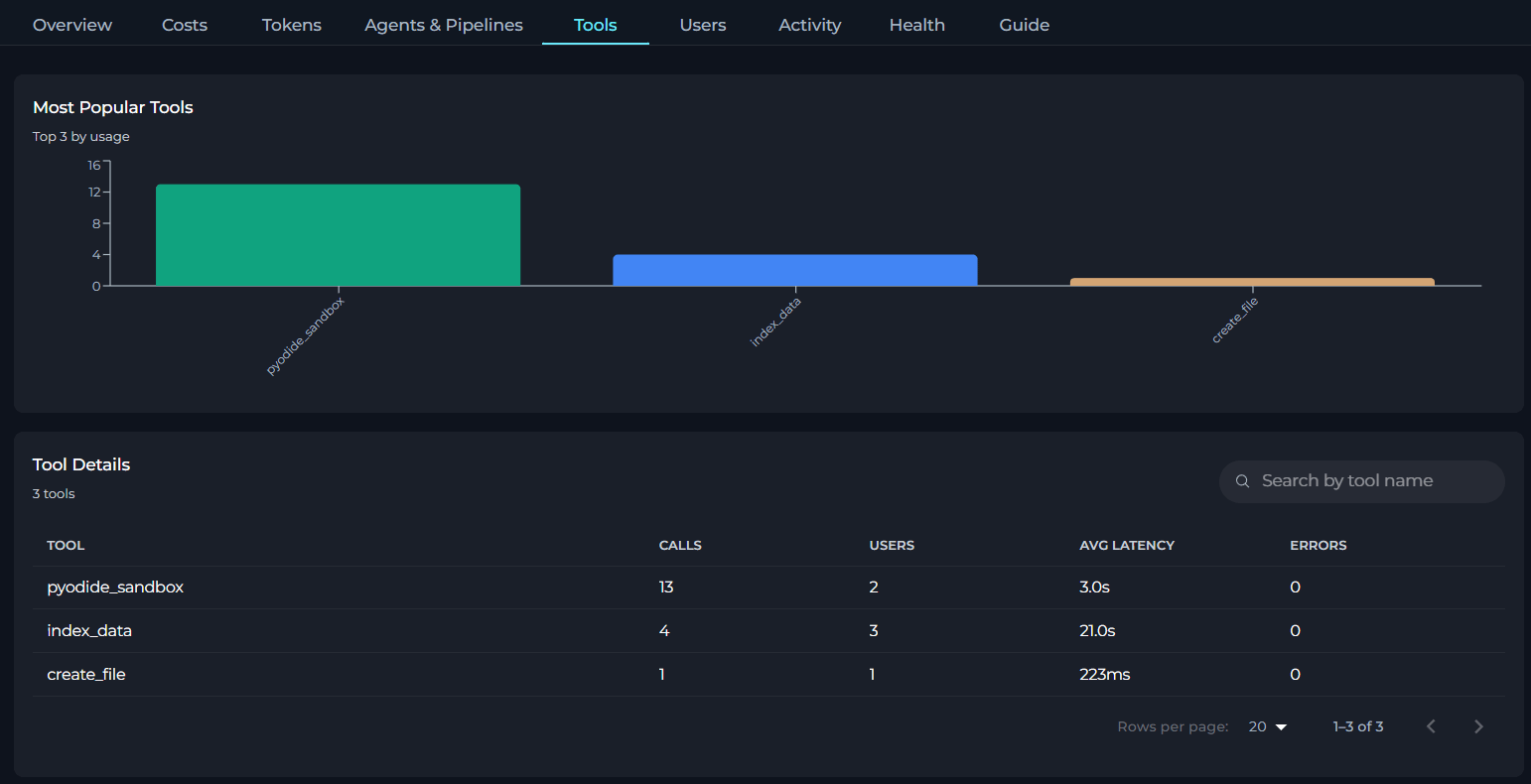
Most Popular Tools
A bar chart showing the top 20 tools ranked by number of calls. Tool names on the X axis, call count on the Y axis.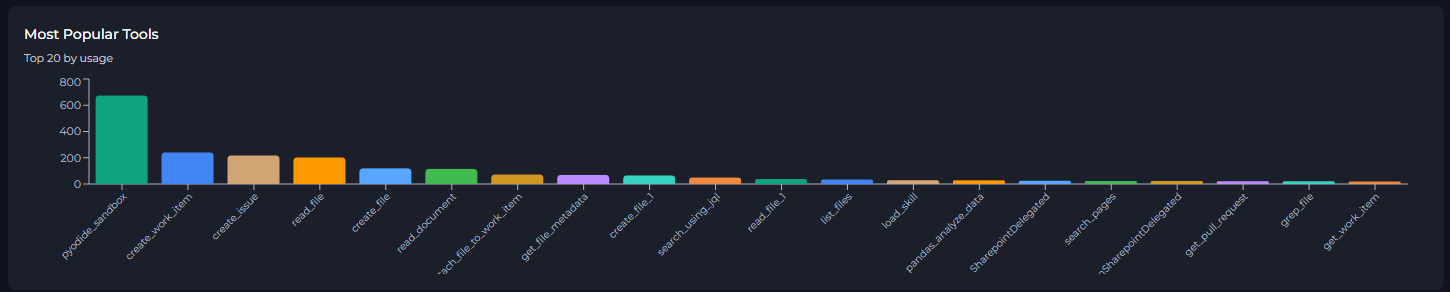
Tool Details
A paginated, searchable table listing all tools used in the project:
Use the search box to filter tools by name. Page size options: 10, 20, or 50.
Tool Details View
Click any tool row to open a drill-down view for that tool.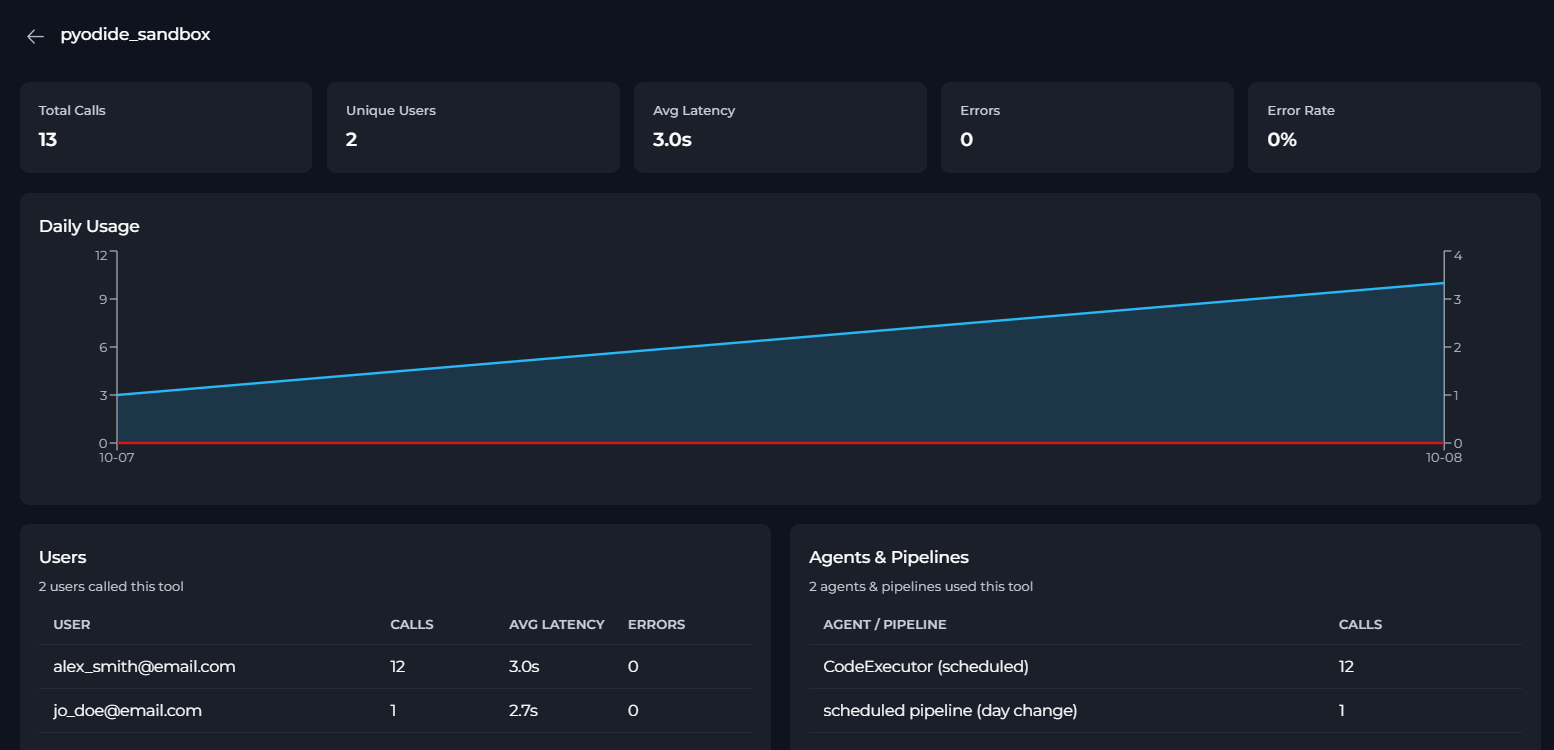
- Header: tool name with a back arrow to return to the full list.
- KPI Cards
- Daily Usage: an area chart with two series — Calls and Errors — plotted per day for this tool. Hidden if there is no daily usage data.
- Users: lists each user who called this tool, with per-user Calls, Avg Latency (the mean duration of that user’s calls to this tool), and Errors. Shows “No user data” if empty.
- Agents & Pipelines: lists each agent or pipeline that called this tool, with its Calls count. Shows “No agent data” if empty.
To return to the Tools list, click the back arrow in the header.
Users
Users provides per-person analysis of platform activity.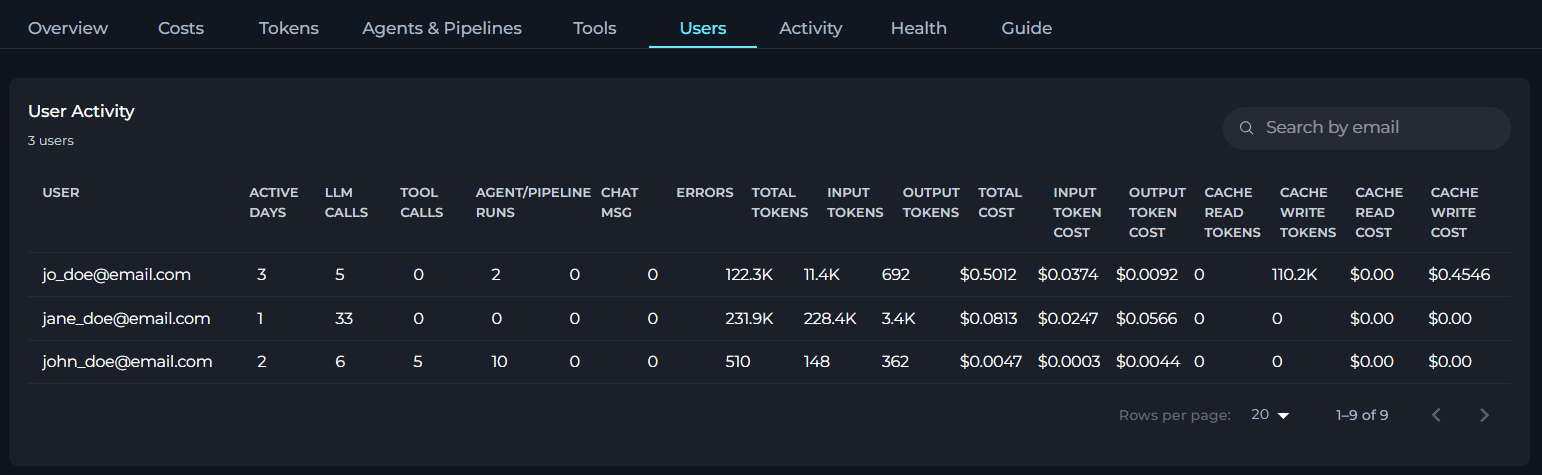
User Activity
A paginated, searchable table listing all users active in the project during the selected period:
Use the search box to filter by email address. Page size options: 10, 20, or 50. Rows are sorted alphabetically by user email; the sort order cannot be changed.
User Details View
Click any user row to open a drill-down view for that user.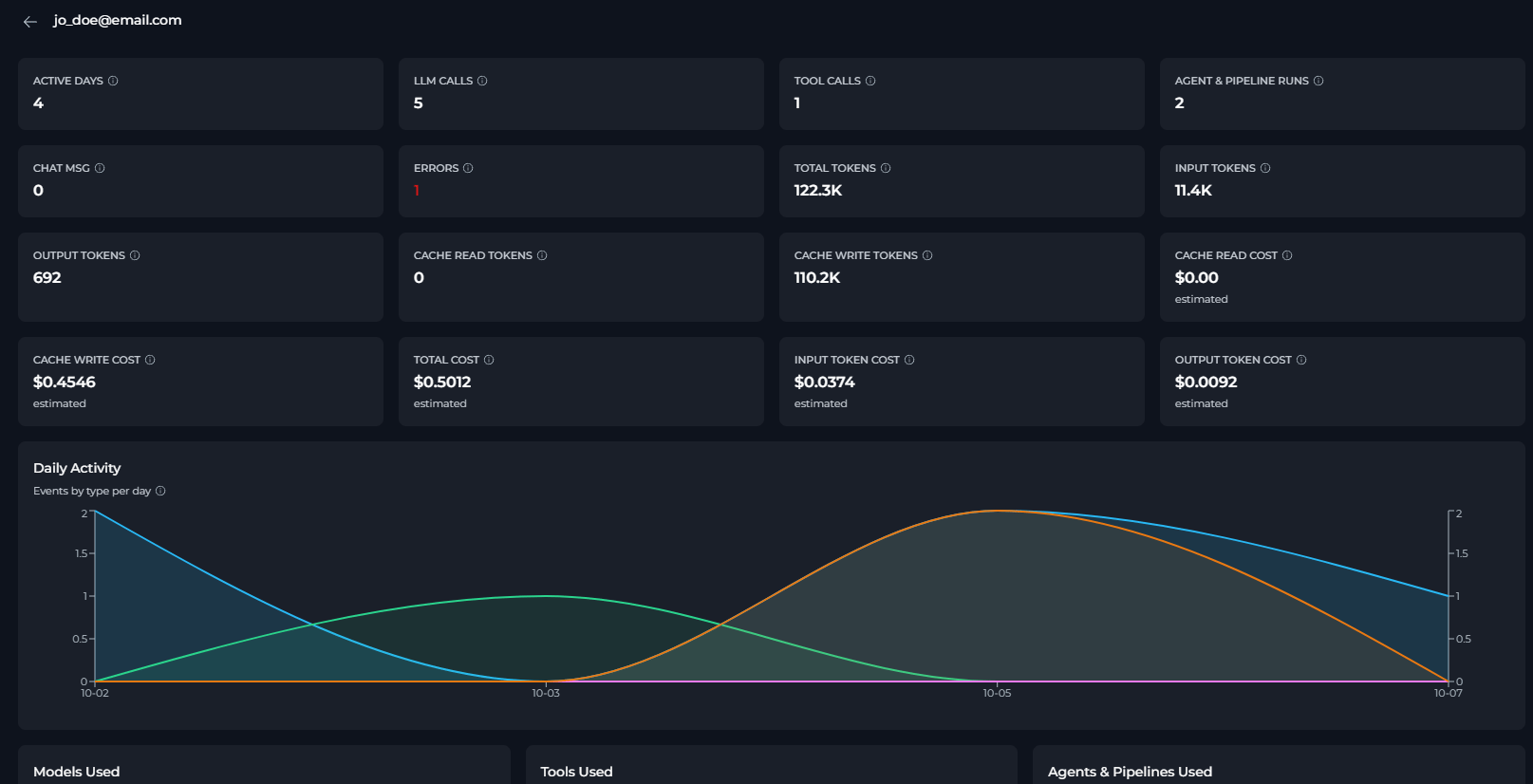
- Header: user email with a back arrow to return to the full list.
- KPI Cards
- Daily Activity: an area chart with four series — LLM, Tool, Chat Msg, and Agent — plotted per day for this user. Hidden if there is no daily activity data.
- Models Used: lists each AI model this user queried, with its Calls count. Shows “No model usage” if empty.
- Tools Used: lists each tool this user triggered, with its Calls count. Shows “No tool usage” if empty.
- Agents & Pipelines Used: lists each agent or pipeline this user interacted with, with its Runs count. Shows “No agent or pipeline activity” if empty.
To return to the Users list, click the back arrow in the header.
Activity
Activity shows how many distinct people are active on the project over time, and how many of them are actually using AI rather than just browsing.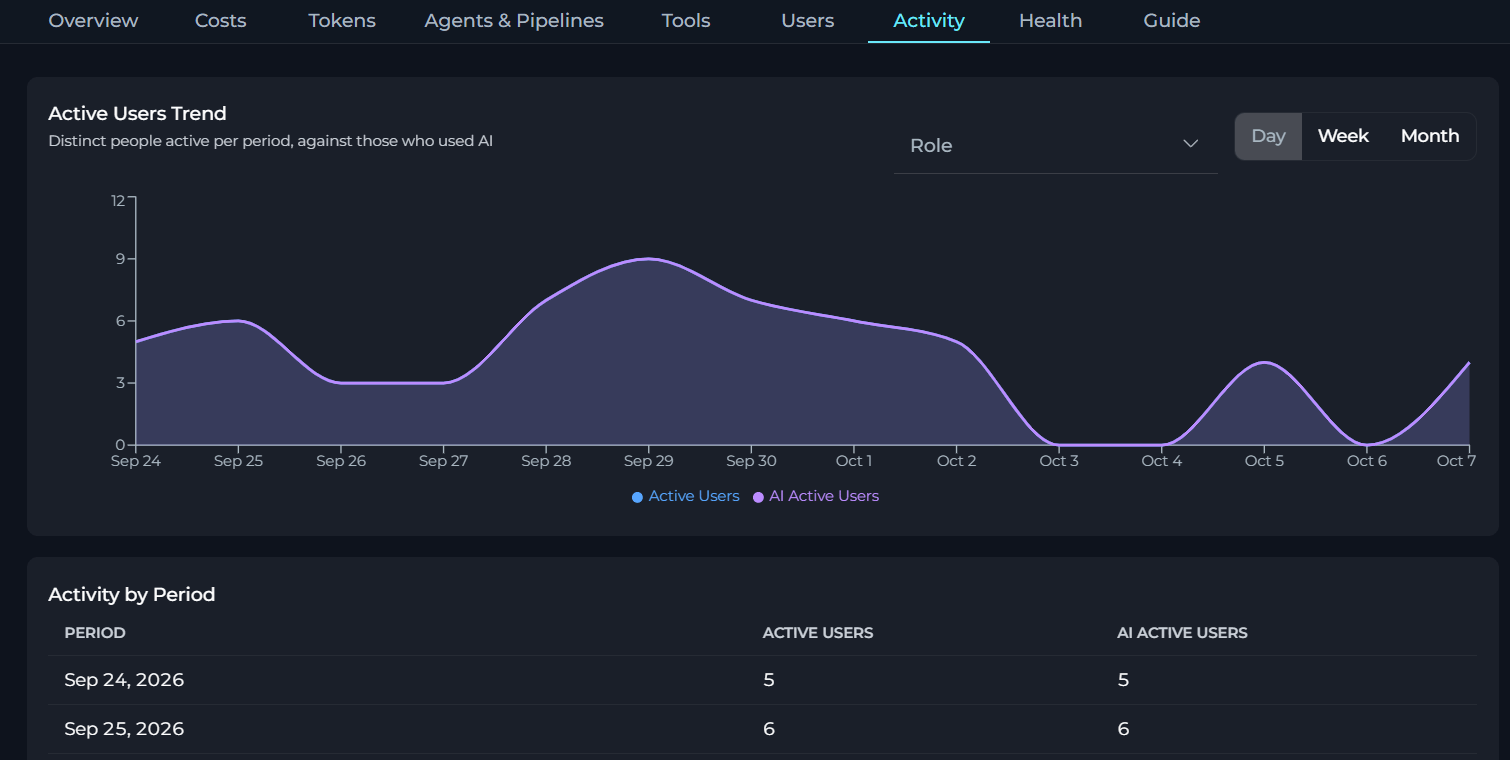
Active Users Trend
An area chart with two series:- Active Users: everyone with any recorded event in the period. Not shown for Personal Projects, which have a single member.
- AI Active Users: the subset of Active Users who triggered at least one LLM or tool call in the period.
- Role: restricts the trend to members holding one or more selected project roles — basic (admin, editor, viewer) or custom. Leave it empty to include everyone. Not shown for personal projects.
- Granularity: switches the bucket size between Day, Week, and Month. Weeks start on Monday and months on the 1st; a partial bucket at either end of the date range is shown as-is rather than padded out.
If no activity matches the selected date range and filters, ELITEA shows an empty-state message instead of the chart.
Activity by Period
A table listing the same data as the chart, one row per period:
This table only appears when there is at least one period of data to show.
Health
Health provides system reliability metrics, helping you identify error patterns and latency issues.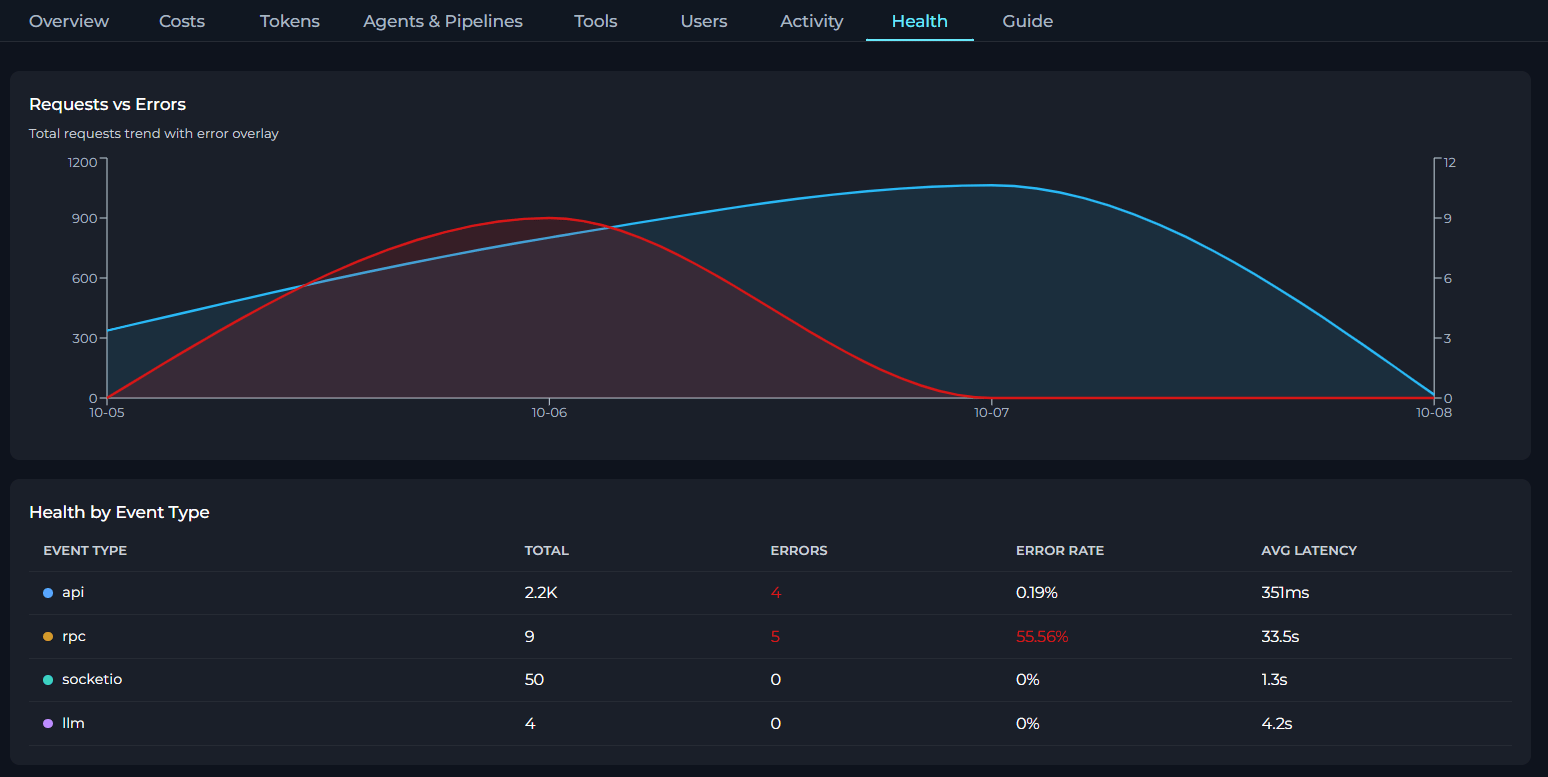
If no health data is available for the selected date range, ELITEA shows an empty-state message instead of Health’s content.
Requests vs Errors
A dual-series area chart showing:- Total Requests (blue): all events per day.
- Errors (red): events that resulted in an error per day.
Health by Event Type
A breakdown table showing reliability per event type:
Event types tracked:
High latency on
llm events is normal (model inference takes time). Elevated latency on api or rpc calls may indicate infrastructure or configuration issues worth investigating.Guide
Guide is a built-in metric glossary embedded directly in Analytics. It explains general concepts as well as every KPI, chart, and table column and can include:- Description: What the metric represents in plain language.
- Calculation: The exact formula used to compute the value.
- Data source: Which event types or platform actions contribute to the metric.
Limitations
Practical Examples
Measuring AI Adoption Across Your Team
Measuring AI Adoption Across Your Team
- Open Settings → Analytics.
- Select the Last 30d preset.
- On the Overview tab, read the TEAM and AI ACTIVE KPI cards.
- The Adoption Rate badge (e.g.,
↑ 72%) tells you what proportion of your registered team members actively used AI features in the past 30 days. - Scroll to the Top 5 AI Adopters leaderboard to identify your most active members — click any name to drill into their individual activity in the Users tab.
Identifying Underused or Overloaded Agents
Identifying Underused or Overloaded Agents
- Open the Agents & Pipelines tab.
- Use the Most Active Agents bar chart to quickly see which agents receive the most traffic.
- In the Activity table, sort mentally by the Runs column (highest first by default) to find heavily used agents.
- Click any agent to open its detail view and check Avg Latency and Error Rate. A high error rate (> 5%) highlights agents that may need debugging or configuration review.
- Agents with zero events in the selected period may be deprecated or not yet discovered by your team.
Auditing Tool Usage and Reliability
Auditing Tool Usage and Reliability
- Open the Tools tab.
- The Most Popular Tools chart gives an at-a-glance view of which integrations are relied upon most.
- In the Tool Details table, look for tools with a non-zero Errors count (displayed in red).
- Click a tool with errors to open its detail view: the Daily Usage chart reveals when errors spiked, and the Users sub-table shows which users encountered them.
- Cross-reference with the Health tab to check the system-wide error rate for the
toolevent type during the same period.
Reviewing an Individual User's Activity
Reviewing an Individual User's Activity
- Open the Users tab.
- Use the search box to filter by the user’s email address.
- Click the user’s row to open their detail view.
- Review the Daily Activity area chart to see on which days they were most active and which event types dominate.
- The Models Used, Tools Used, and Agents & Pipelines Used lists show exactly which platform resources this user engaged with — useful for onboarding support or license reviews.
Investigating an Error Spike
Investigating an Error Spike
- Open the Health tab.
- In the Requests vs Errors chart, identify the date range of the error spike.
- In the Health by Event Type table, find the row with the highest Error Rate (values > 5% are highlighted in red).
- Note the event type (e.g.,
llmortool) and navigate to the corresponding tab (Agents or Tools) to identify which specific agent or tool was responsible. - Narrow the date range using the From/To pickers to focus on the spike period, then re-examine the relevant tab.
Monitoring Token Usage and Optimizing Costs
Monitoring Token Usage and Optimizing Costs
- Open the Tokens tab to get a complete view of token consumption.
- Review the Daily Token Usage chart to identify days with unusually high token consumption.
- Check the Token Usage by Model table to see which AI models are consuming the most tokens. Models with high output tokens may indicate verbose responses that could be optimized.
- In the Token Usage by Agent & Pipeline table, identify agents with disproportionately high token usage relative to their value.
- Look at CACHE READ and CACHE WRITE KPI cards — high cache read percentages indicate good prompt caching efficiency, which reduces costs for supported models (e.g., Claude).
- Cross-reference with the Costs tab to understand the financial impact of token usage patterns.
Evaluating Prompt Caching Effectiveness
Evaluating Prompt Caching Effectiveness
- Open the Tokens tab and note the CACHE READ and CACHE WRITE values.
- Calculate cache hit ratio: divide CACHE READ tokens by (CACHE READ + INPUT tokens) × 100%.
- Review Token Usage by Agent & Pipeline to identify which agents benefit most from caching.
- Agents with high cache read tokens are efficiently reusing prompts, reducing costs by up to 90% for cached portions.
- Agents with low or zero cache tokens may benefit from prompt restructuring to enable caching — place static instructions at the beginning of prompts.
- Use Daily Token Usage to track how caching efficiency changes over time after prompt optimizations.
Best Practices
Start with a Meaningful Date Range
Start with a Meaningful Date Range
Before reading any metrics, set the date range that matches your analysis goal. Use Last 7d for recent activity reviews, Last 30d for monthly reporting, and custom pickers for audit periods tied to specific events or releases.
Use the Guide Tab Before Drawing Conclusions
Use the Guide Tab Before Drawing Conclusions
Open the Guide tab to review exact metric definitions and calculation formulas. Metrics like TEAM (active users vs. total ever seen) and AI ACTIVE (LLM/Tool/Agent users only) have specific scopes that affect interpretation.
Combine Overview and Users Tabs for Adoption Analysis
Combine Overview and Users Tabs for Adoption Analysis
Use the Overview tab to get the aggregate adoption picture, then drill down via the Top 5 AI Adopters leaderboard or the Users tab to identify specific individuals for coaching or recognition.
Monitor Health Regularly
Monitor Health Regularly
Review the Health tab after deployments or integrations changes. A sudden increase in
llm or tool error rates often signals a misconfigured AI model or a broken external service credential.Cross-Reference Agents and Tools Tabs
Cross-Reference Agents and Tools Tabs
When an agent shows high errors in the Agents tab, open its detail view and check the Tools sub-table. Then visit the Tools tab, click the problematic tool, and check which other agents also rely on it — helping you assess the blast radius of a broken integration.
Use Tokens Tab to Optimize AI Costs
Use Tokens Tab to Optimize AI Costs
The Tokens tab is your primary tool for cost optimization. Start by identifying the biggest token consumers in the Token Usage by Model and Token Usage by Agent & Pipeline tables. Focus optimization efforts on the top 20% of consumers, which typically account for 80% of total usage. For models supporting prompt caching (like Claude), monitor cache read tokens — a healthy cache hit rate can reduce costs by 50-90% on repeated prompts. If cache tokens are low, restructure prompts to place static instructions at the beginning, enabling the provider’s caching system to work effectively.
Track Token Trends After Prompt Changes
Track Token Trends After Prompt Changes
Whenever you modify agent prompts or system instructions, use the Tokens tab to measure the impact. Set a custom date range spanning one week before and one week after the change. Compare Daily Token Usage patterns to see if input tokens decreased (more concise prompts) or if output tokens changed (different response length). Review Token Usage by Agent & Pipeline to isolate the impact to specific agents. This data-driven approach helps validate that prompt engineering efforts are actually reducing token consumption and costs.
Monitor Per-User Token Consumption for Fair Usage Policies
Monitor Per-User Token Consumption for Fair Usage Policies
If your organization has fair usage policies or user quotas, use the Token Usage by User table in the Tokens tab to monitor individual consumption. The table is sorted by TOTAL TOKENS (highest first), so outliers appear at the top. Click through to the Users tab for detailed daily activity patterns. High token users may be running inefficient workflows, testing extensively, or legitimately processing large volumes. Combine token data with the Costs tab to understand the financial impact per user, helping inform capacity planning and budget allocation decisions.