

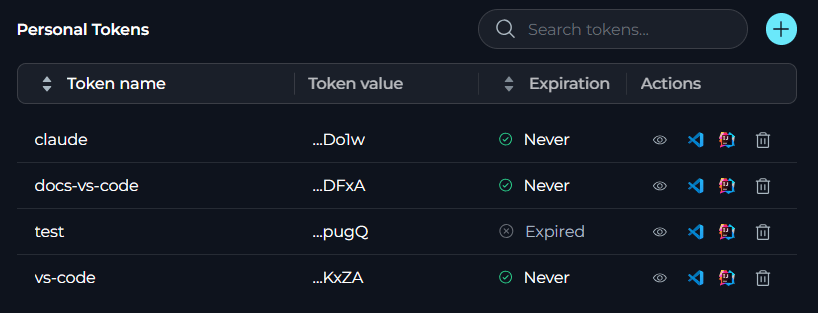
- Search Field to filter tokens by name
- + button to generate new personal tokens
- Tokens table that displays all tokens and allows editing and deleting them
- Pagination controls to navigate through tokens lists (supports 5, 10, 50, or 100 tokens per page)
- Action icons to preview settings, Download VSCode settings, Download JetBrains settings, and Delete options
- Token name: The identifier for the token
- Token value: Last 4 characters of the token (e.g., “…ab12”)
- Expiration: Status indicator showing:
- ✓ Green icon with “in X days” for tokens expiring in more than 7 days
- ⚠ Warning icon with “in X days” for tokens expiring within 7 days
- ✓ Green icon with “Never” for tokens without expiration
- ✗ Gray icon with “Expired” for expired tokens
- Actions: Icons for preview, downloads, and delete operations
Generate a Personal Token
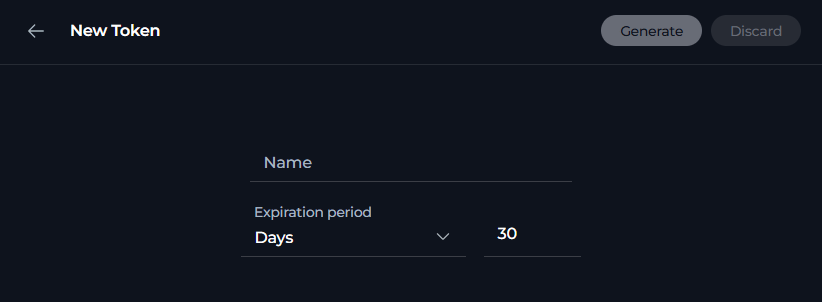
To generate a new personal token:- Select + in the top-right corner of Personal Tokens.
- Fill the form with these details:
- Name field: Enter a descriptive name for the token
- Expiration period dropdown: Select from Never, Days, Weeks, Hours, or Minutes
- Value field: Enter the number of expiration units (appears when not “Never”)
- Select Generate to create the token.
- Review the token details in the confirmation dialog, including the token name, expiration, and the full token value.
- Select Copy to copy the token to your clipboard.
- Close the dialog to return to the tokens list.
Manage Personal Tokens
Preview Settings
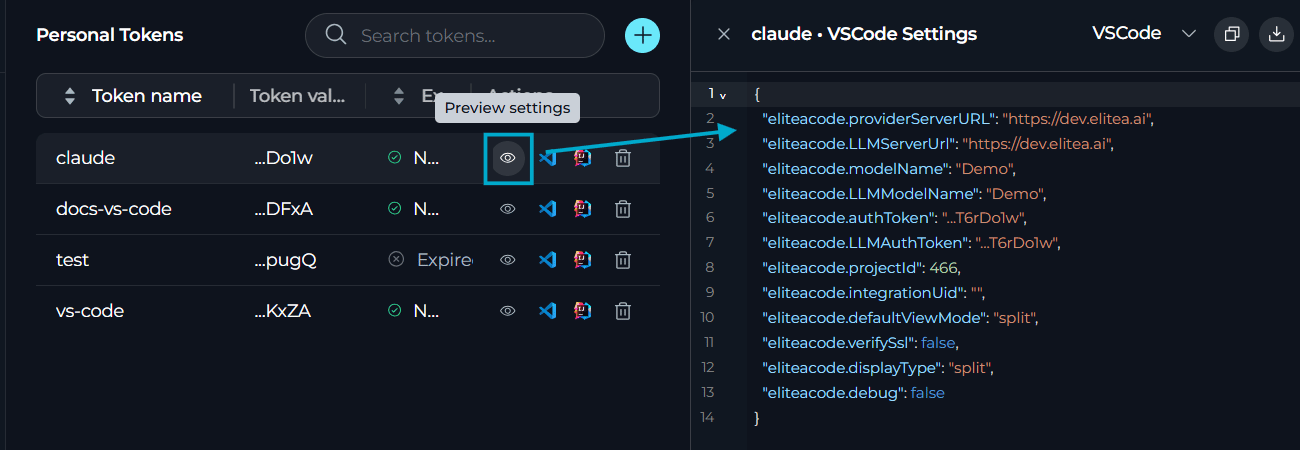
To preview IDE settings for a token:- Select the 👁 (eye) icon.
- A preview panel will open on the right side showing the IDE configuration for the selected token.
- Use the dropdown selector to switch between VSCode and JetBrains IDE settings.
- From the preview panel, you can:
- Copy: Click the copy button to copy the settings to your clipboard
- Download: Click the download button to save the settings file
- Click the close button to hide the preview panel.
Download IDE Settings
For VSCode:- Select the VSCode icon.
-
A
settings.jsonfile will be downloaded with pre-configured settings including:
- Select the JetBrains icon.
-
An
alita.xmlfile will be downloaded with pre-configured settings.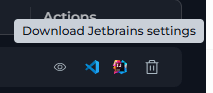
IDE settings download icons are only available when a model configuration is selected and you are not in the Public project.
Delete Tokens
To remove a token:- Select the 🗑 (delete) icon.
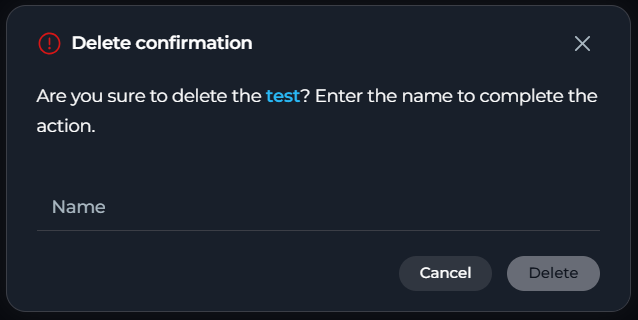
- A confirmation dialog will appear asking you to confirm the deletion.
- Type the token name to confirm deletion.
- Click Delete to permanently remove the token.
Best Practices
Use Descriptive Token Names
Use Descriptive Token Names
Name your tokens based on their purpose and environment. Examples: “VSCode-MacBook-Dev”, “JetBrains-Windows-Prod”, “API-Testing-Temp”
Set Appropriate Expiration Periods
Set Appropriate Expiration Periods
- Use “Never” only for personal development environments
- Set 30-90 days expiration for production tokens
- Use short expiration (hours/minutes) for testing and temporary access
Monitor Token Expiration
Monitor Token Expiration
Regularly check tokens with warning icons (⚠) indicating expiration within 7 days. Generate replacement tokens before expiration to avoid service interruptions.
Rotate Tokens Regularly
Rotate Tokens Regularly
Even for tokens set to “Never” expire, consider rotating them periodically (every 3-6 months) for enhanced security.
Delete Unused Tokens
Delete Unused Tokens
Remove tokens that are no longer in use to minimize security risks. Before deletion, verify the token is not actively used by any IDE or application.