

General
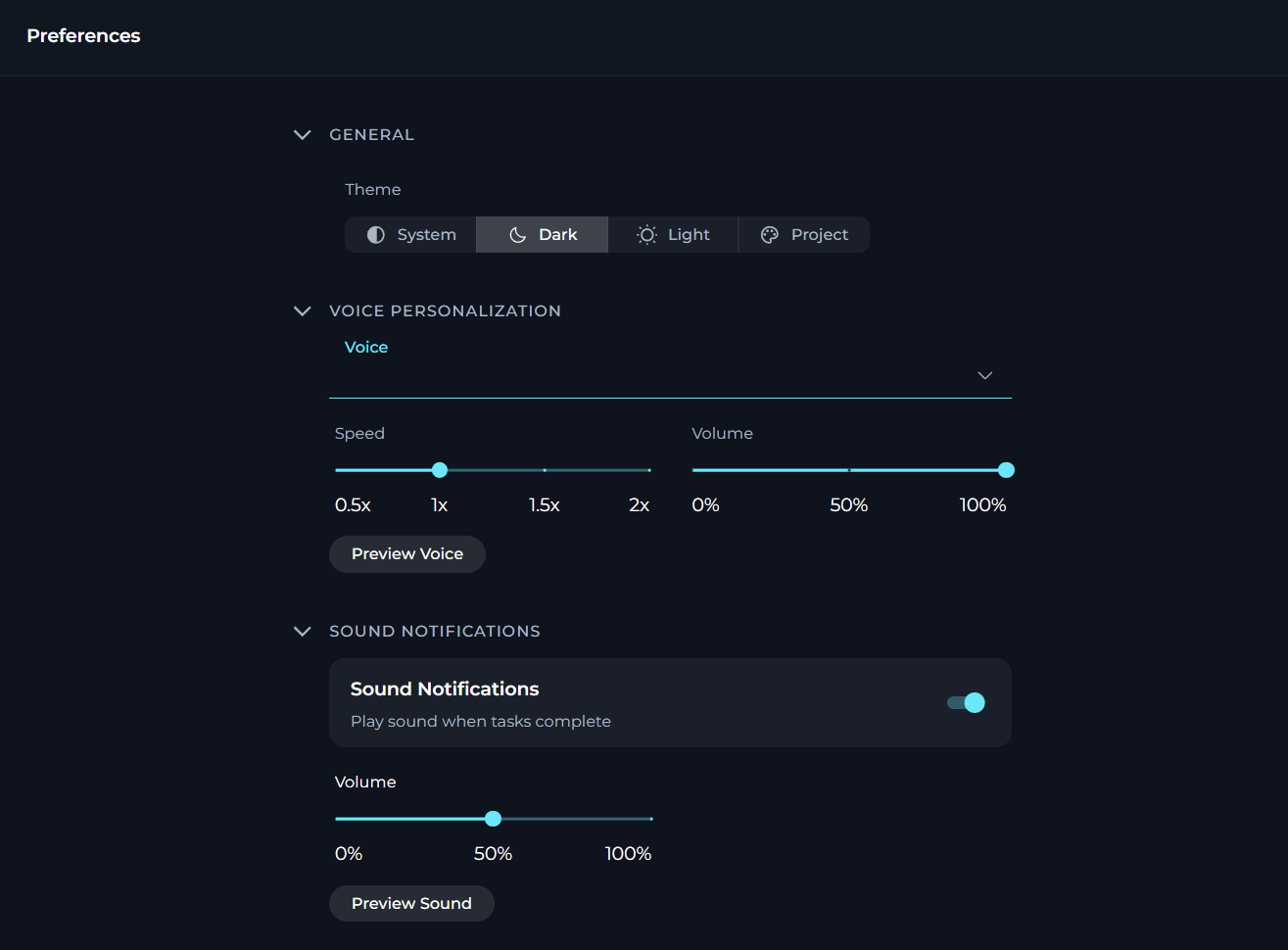
Review the general preferences like user theme.
Voice Personalisation
Set your default text-to-speech playback preferences.
Sound Notifications
Control whether ELITEA plays a completion sound when tasks finish.
General
In General, you can see the settings that control your personal preferences for the ELITEA’s look and feel.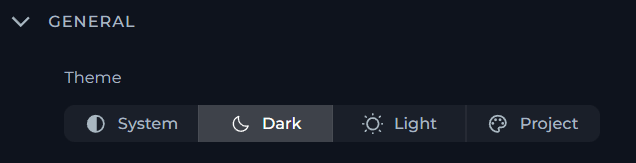
- Dark (default)
- System: ELITEA follows your operating system’s theme settings
- Light
- Project: ELITEA uses the custom theme configured by your project administrator. Shown only if your project has a custom theme configured.
Voice Personalization
In Voice Personalization, you can define your default text-to-speech playback preferences.
- If a server-side TTS model is configured and reachable, the Voice dropdown shows the voices provided by that model.
- If no server-side TTS model is configured or reachable, ELITEA falls back to browser voices.
- Browser voices that are not local are marked as online in the dropdown.
- If a server-side TTS model is configured but returns no voices, the Voice dropdown is hidden instead of falling back to browser voices.
Voice
Voice
- Type: Dropdown
- Default: Default voice
- Range / Options: Model-provided voices or browser voices
- Description: Selects the default voice used for text-to-speech playback
Speed
Speed
- Type: Slider
- Default: 1.0×
- Range / Options: 0.5× - 2.0×
- Description: Controls playback rate
Volume
Volume
- Type: Slider
- Default: 100%
- Range / Options: 0% - 100%
- Description: Controls playback loudness
Preview Voice
Preview Voice
- Type: Button
- Description: Plays a short sample sentence using the current settings
Sound Notifications
In Sound Notifications, you can control whether ELITEA plays a sound when a task finishes or fails, along with the default notification volume.
ELITEA plays these sounds automatically only while the browser tab is inactive or unfocused — switch back to the tab and you won’t hear them. Preview Sound always plays, regardless of tab focus.
Play sound when tasks complete
Play sound when tasks complete
- Type: Toggle
- Default: ON
- Range / Options: ON / OFF
- Description: Enables or disables both completion and failure sounds
Volume
Volume
- Type: Slider
- Default: 50%
- Range / Options: 0% - 100%
- Description: Controls notification sound volume
Preview Sound
Preview Sound
- Type: Button
- Description: Plays the current completion sound using the selected volume
The Volume slider and Preview Sound button are shown only when Play sound when tasks complete is enabled.