

Real-time delivery
Notifications arrive instantly through a live socket connection, and the sidebar button shows a dot when unread items are waiting.
Quick panel access
Open the Notifications sidebar button to review up to 5 unread notifications without leaving the current page.
Full table view
Use Notifications Center to browse all notifications with search, sorting, pagination, and bulk actions.
Actionable links
Notification messages can link directly to the related conversation, message, index, bucket, agent version, or Settings page.
Read and unread state
Each notification keeps its own read state, which is reflected visually and can be updated individually or in bulk.
Bulk operations
Select multiple notifications to mark them as read, mark them as unread, or delete them in one action.
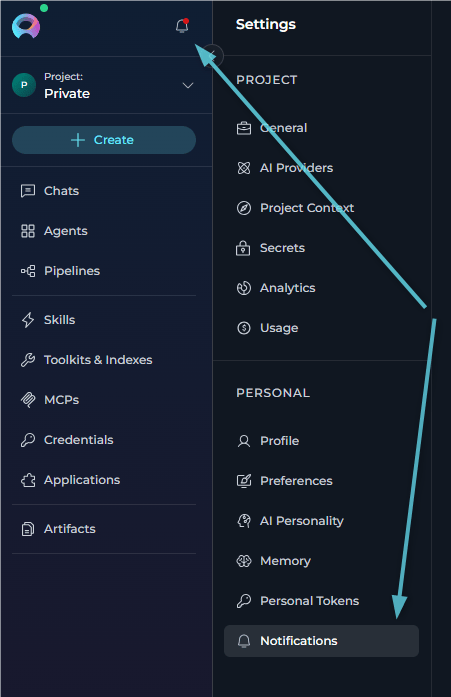
- Quick notifications popover — Opened from the Notifications button in the left sidebar. This view shows unread notifications only.
-
Notifications Center — Opened from Settings → Notifications or by clicking View all in the popover. This view shows both read and unread notifications.
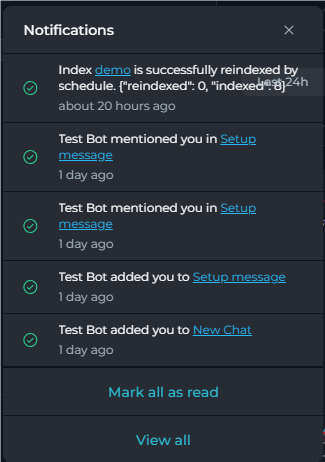
Quick Notifications Popover
The quick popover is designed for fast triage without leaving the current page.- Location — Click the Notifications bell button in the left sidebar.
- Content — The popover shows unread notifications only.
- Visible item count — Up to 5 unread notifications are shown at a time.
- Header — The popover header is labeled Notifications and includes a close button.
- Per-item action — Hover a notification to reveal Mark as read or Mark as unread.
- Footer actions — If unread notifications are present, the popover shows Mark all as read and View all.
-
Empty state — If there are no unread notifications, the popover displays No new notifications right now.
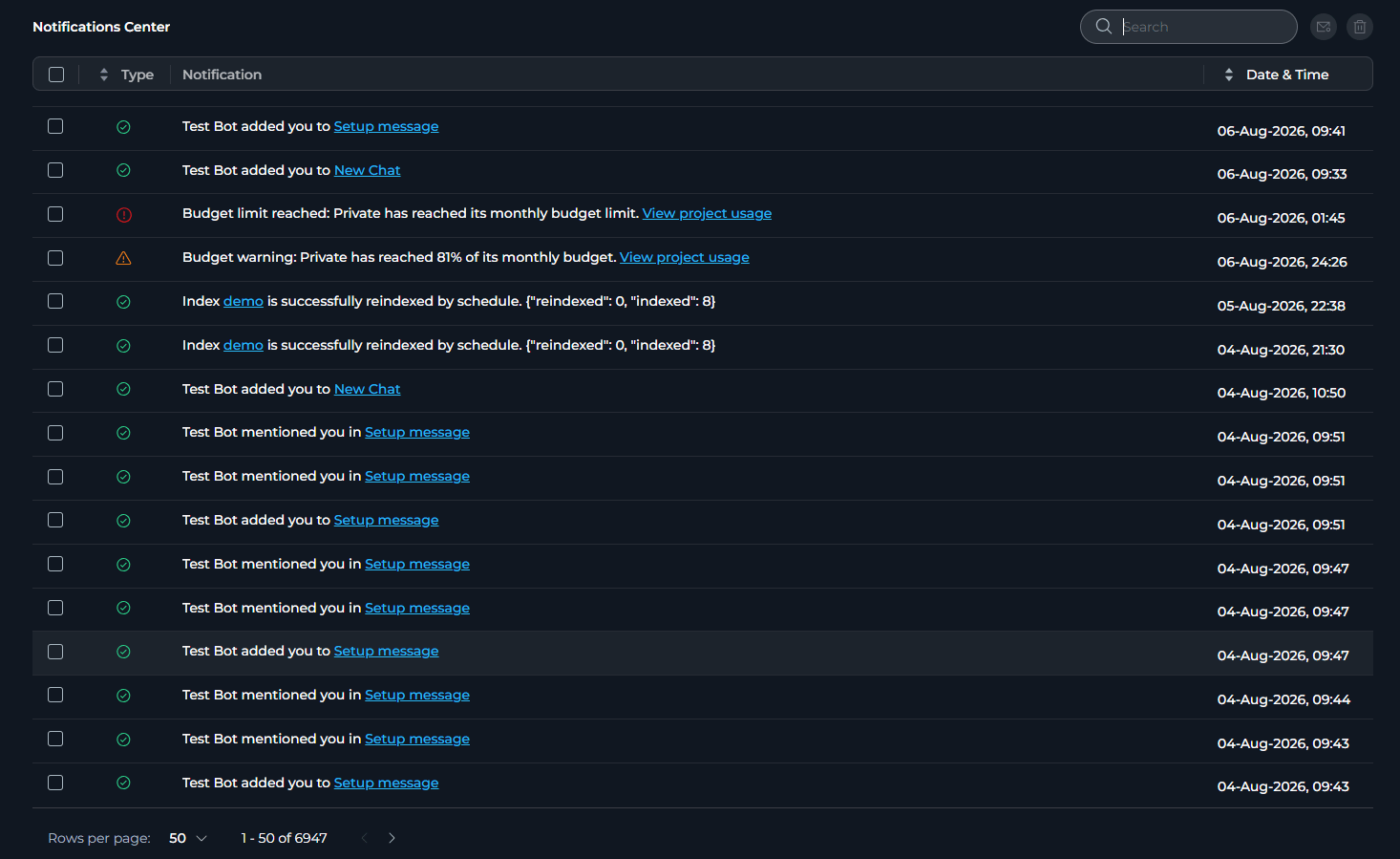
Notifications Center
The full page is labeled Notifications Center in the toolbar and supports:- Search — Use the Search field to filter notifications by message text. Search is performed server-side.
- Sort — Sort by Type or Date & Time. Clicking a sortable column toggles ascending and descending order.
- Columns — The table includes Type, Notification, and Date & Time columns.
- Bulk actions — Select one or more rows using the checkboxes, then use the toolbar buttons to Mark selected as read, Mark selected as unread, or Delete selected notifications. The header checkbox selects all entries on the current page.
- Pagination — The page supports 5, 10, 50, and 100 rows per page.
-
Empty state — If no notifications match the current view, the table displays No notifications.
Notification Types
Each notification is identified by its event type and carries an icon indicating its category.Embedded Navigation Links
Several notification types include a clickable link that takes you directly to the relevant area of ELITEA:The quick notifications popover shows only unread notifications and does not automatically mark them as read when the popover is opened. Opening a notification link also does not automatically change its read state. Use the hover action Mark as read, the popover action Mark all as read, or the table actions in Notifications Center to change read state.
Best Practices
Keeping the Notification List Manageable
Keeping the Notification List Manageable
- Periodically review notifications and delete entries that are no longer relevant.
- Use the Select all header checkbox followed by Delete selected notifications to clear the current page at once.
- Use the Search bar to locate a specific event type or entity by keyword before performing bulk actions.
Acting on Personal Access Token Warnings
Acting on Personal Access Token Warnings
- A Personal access token expiring notification means the token will stop working within 24 hours. Open the link in the notification to go directly to Settings → Tokens, then delete and recreate the token before it expires.
Acting on Index and Bucket Notifications
Acting on Index and Bucket Notifications
- An Index data changed notification with a red error icon indicates the indexing operation failed. Click the index name link in the notification to open the index detail page and investigate.
- A successful Index data changed notification can indicate either index creation or reindexing.
- A Bucket expiration warning means file deletion begins within 24 hours. Click the bucket link to open Artifacts filtered to that bucket, then review and back up any files you need to retain.
Acting on Budget Threshold and Limit Notifications
Acting on Budget Threshold and Limit Notifications
- A Project budget threshold reached notification warns that the selected project’s monthly shared-model budget is close to its limit. Use View project usage to open Settings → Usage for that project.
- A Project budget limit reached notification means the project’s monthly shared-model budget has been exhausted. Review the project usage page and wait for the billing period reset or increase the budget if your role allows it.
- A Member budget threshold reached notification warns that your own monthly usage in the selected project is close to its limit. Use View my usage to open the personal usage scope directly.
- A Member budget limit reached notification means your own monthly usage limit in that project has been reached. Open View my usage to review your consumption and current budget state.
Managing Read and Unread State
Managing Read and Unread State
- The dot on the Notifications sidebar button disappears once there are no remaining unread notifications.
- In the quick popover, hover an item to use Mark as read or Mark as unread for that single notification.
- In the quick popover, use Mark all as read to clear all unread notifications for your account.
- In Notifications Center, select notifications and click Mark selected as read or Mark selected as unread to update them in bulk.