

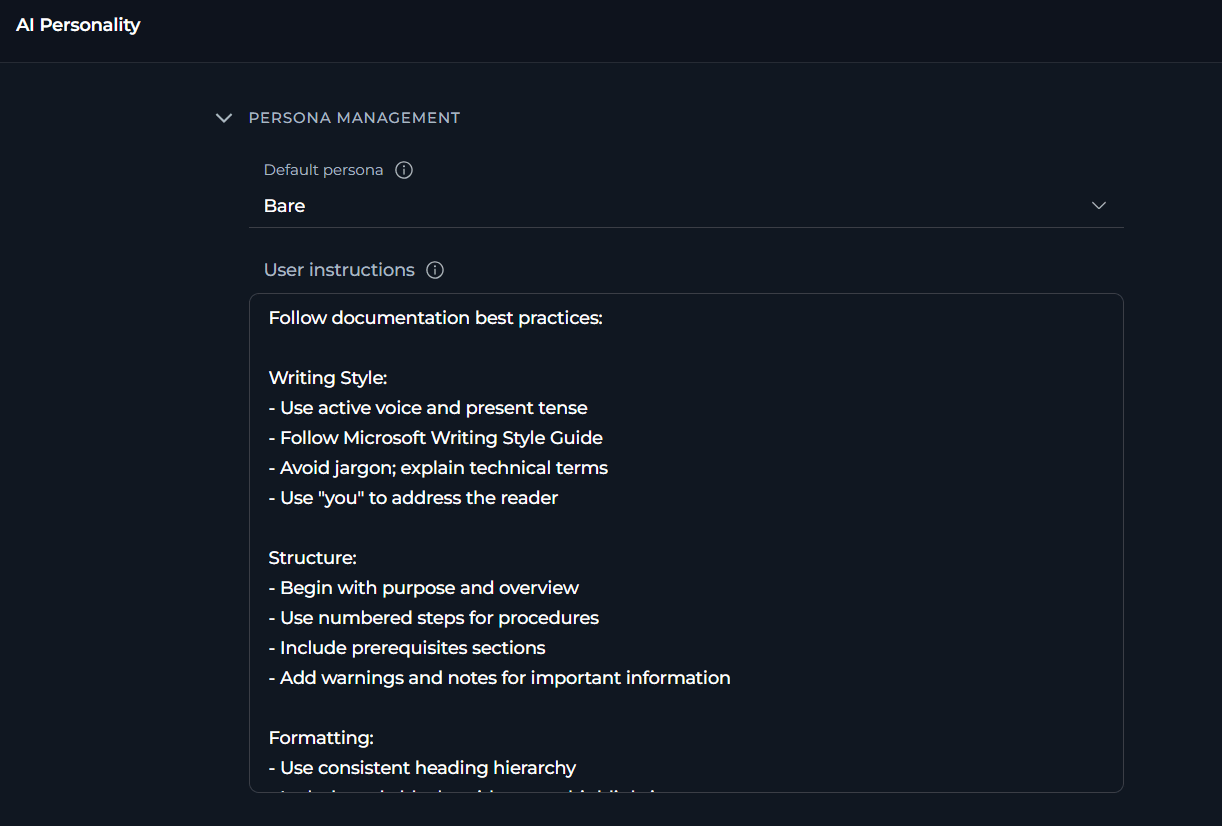
Default Personality
Default Personality sets the communication style and approach that the AI assistant will use by default in all new chats and sessions. Available Default Personas
To change the default persona, select the desired option from the dropdown.
User Instructions
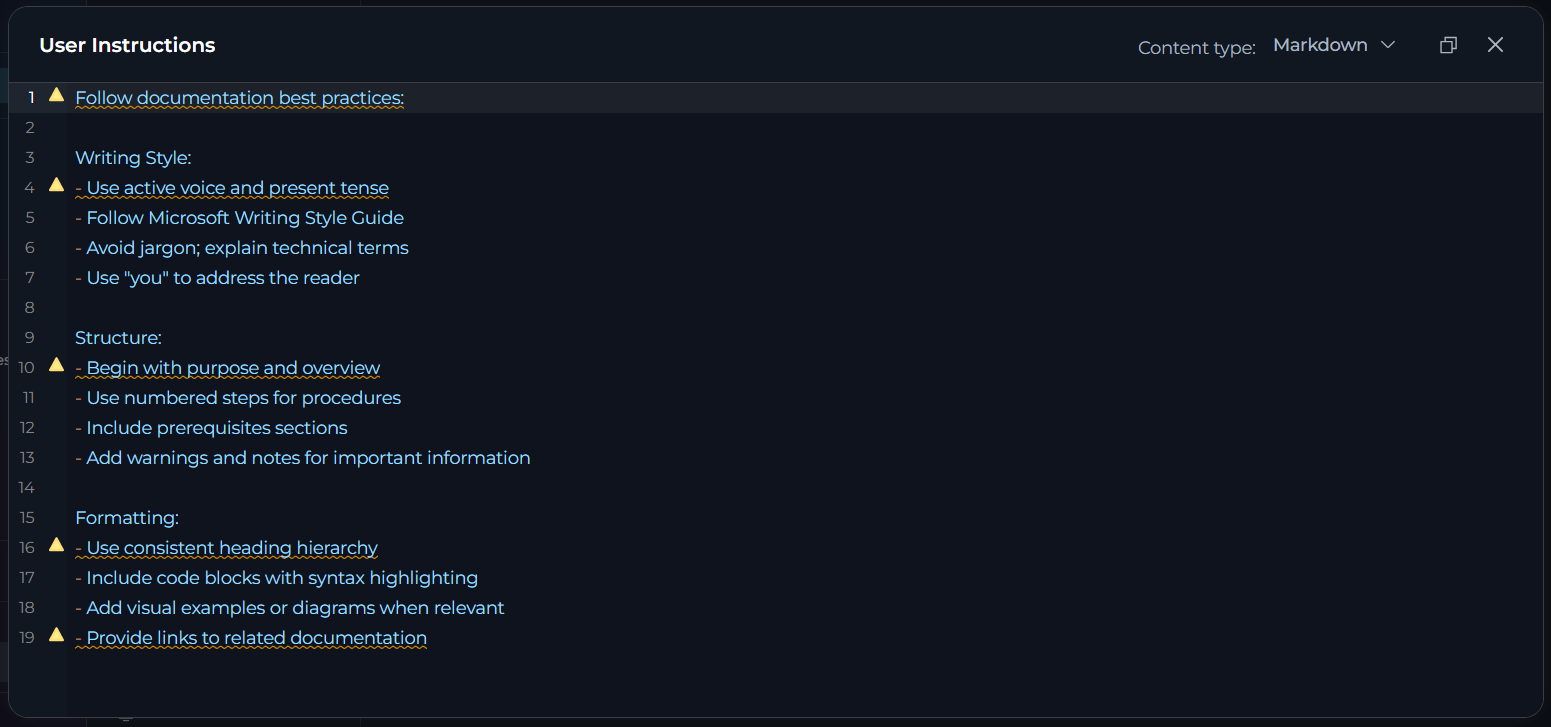
User Instructions provide custom guidelines that automatically apply to all new conversations. Here you can define specific requirements, preferences, or constraints that your AI assistants should follow in every interaction. To change the default user instructions, select Full Screen View:
Software Developer
Software Developer
QA Engineer
QA Engineer
Technical Writer
Technical Writer
How Settings Apply
All settings automatically apply to every new conversation you create in Chat, Agents, and Pipelines. Settings persist across sessions and devices. Limitations:- Only affects new conversations: Existing conversations retain their original settings
- Personal settings: Does not apply to conversations created by other users or shared conversations
- Agent/Pipeline configs: Agent and Pipeline definitions have their own independent settings
Best Practices
General ApproachStart with defaults, then customize
Start with defaults, then customize
- Test default settings first: Generic persona, no custom instructions
- Monitor conversation quality: Are responses in the style you need?
- Adjust one at a time: Change persona or add instructions first
- Document what works:
- Keep notes on effective configurations
- Track which settings work for which types of tasks
Balance quality, cost, and performance
Balance quality, cost, and performance
Quality-focused configuration
- Persona: Match your work style
- Instructions: Detailed, specific requirements
- Persona: Generic (works for most cases)
- Instructions: Brief, essential points only
- Persona: Choose based on primary use case
- Instructions: 3-7 key requirements
Align with your primary use cases
Align with your primary use cases
- Single role: Choose the persona that best matches your main work function
- Multiple roles: Select the persona you use most frequently
- Team accounts: If shared, choose Generic for balanced, versatile interactions
- No preference: Use None to keep the AI’s raw default behavior without any style overlay
- Experimentation: Try different personas over a few days to find what works best
Consider your team's communication style
Consider your team's communication style
- Formal environments: Generic or QA for professional, technical communication
- Creative teams: Quirky for innovative, out-of-the-box thinking
- Technical teams: Nerdy for deep, detailed technical discussions
- Critical review: Cynical for thorough, skeptical analysis
Override persona, where needed
Override persona, where needed
- Individual conversations can have different settings if needed
- No need to frequently change your default unless your work focus shifts
Be specific and actionable
Be specific and actionable
Good examples:
- ✔️ “Always include code examples in Python with type hints”
- ✔️ “Structure responses with a summary paragraph first, then details”
- ✔️ “Check for security vulnerabilities in all code suggestions”
- ✘ “Be helpful” (too generic, no clear action)
- ✘ “Give good answers” (subjective, no specific guidance)
- ✘ “Make things clear” (ambiguous, means different things to different people)
Keep instructions focused
Keep instructions focused
- Prioritize: Include only the most important requirements
- Length: Aim for 3-7 key points (typically 100-300 words)
- Clarity: Use clear, direct language without ambiguity
- Relevance: Focus on instructions that apply broadly to your work
- Confuse the AI with conflicting requirements
- Reduce response quality due to complexity
- Make it harder to maintain and update over time
Use consistent terminology
Use consistent terminology
- Standards: Reference specific frameworks, style guides, or methodologies
- Example: “Follow PEP 8 for Python code” instead of “use good Python style”
- Technical Terms: Use precise technical vocabulary
- Example: “Use async/await pattern” instead of “make it asynchronous”
- Format: Specify exact formats
- Example: “Use ISO 8601 date format (YYYY-MM-DD)” instead of “use standard dates”
- Examples: Include brief examples for complex requirements
Structure your instructions logically
Structure your instructions logically
Organize instructions by category for better clarity:
Review and update regularly
Review and update regularly
- Monthly review: Check if instructions still match your current needs
- Project changes: Update when starting new types of projects or roles
- Team feedback: Adjust based on conversation quality and outcomes
- Refinement: Simplify or clarify instructions that aren’t working well
- Version control: Keep notes on what changes you make and why
Test incrementally
Test incrementally
- Start simple: Begin with selecting a persona, no custom instructions
- Add instructions gradually: Add one instruction at a time
- Evaluate each: Use the new settings in several conversations before adding more
- Document: Keep notes on what works well and what doesn’t
- Iterate: Refine based on actual conversation outcomes
Create test conversations
Create test conversations
- Test persona: Create a new conversation and ask open-ended questions to see the persona in action
- Test instructions: Ask the AI to perform tasks that should trigger your custom instructions
- Compare responses: Try same question with different personality settings to see differences
- Edge cases: Test with requests that might conflict with your instructions
Troubleshooting
Settings do not apply to new conversations
Settings do not apply to new conversations
Symptoms:
- New conversations don’t reflect configured persona
- Default instructions not being followed in new conversations
- AI behavior seems unchanged after making changes
- Persona dropdown: saves immediately when you select a new option
- Instructions: save when you tab out of the field
- Check whether a “Settings saved successfully” toast appeared after each change — if not, the save may not have triggered
- Check whether a “Failed to save settings” error appeared — indicates a network or server issue
- Verify you are testing in a brand new conversation — existing conversations retain their original settings
- For numeric fields, verify the values are within the allowed ranges
- Confirm settings are visible when reopening AI Personality after the save notification appeared
- Re-enter any field value and click outside to trigger auto-save again
- Refresh the page and re-apply any changes that weren’t confirmed with a toast
- Create a brand new conversation (do not continue an existing one) to test the new settings
- Clear browser cache if the page is loading stale data: Ctrl+Shift+Delete (Windows) or Cmd+Shift+Delete (Mac)
AI does not follow the default instructions
AI does not follow the default instructions
Symptoms:
- AI responses don’t follow specified guidelines
- Instructions appear to be partially followed or ignored
- Inconsistent behavior across different conversations
- Instructions are too complex: Conflicting or contradictory requirements
- Instructions are too vague: Ambiguous guidelines that AI can’t interpret clearly
- Model limitations: Some instructions may be beyond model’s current capabilities
- User messages override: Your questions contradict default instructions
-
Simplify instructions:
- Reduce to 3-5 key points
- Make each instruction specific and actionable
- Remove any conflicting requirements
- Test with minimal instructions first, then add complexity
-
Clarify requirements:
- Replace vague terms (“good”, “clear”, “helpful”) with specific examples
- Use concrete technical terminology
- Provide examples of desired behavior in the instructions themselves
-
Check for conflicts:
- Review instructions for contradictions
- Ensure persona choice aligns with instruction style
- Test with Generic to isolate instruction issues
-
Test incrementally:
- Start with one instruction, verify it works in a new conversation
- Add instructions one at a time
- Identify which instruction causes problems
- Refine problematic instruction before adding more
The change of persona has no effect on the new responses
The change of persona has no effect on the new responses
Symptoms:
- All personas seem to behave the same way
- Communication style doesn’t match selected persona
- Can’t tell the difference between Generic and other personas
- Personality differences are subtle and contextual
- Some tasks (e.g., simple data retrieval, calculations) don’t show personality variation
- Personality affects tone, approach, and detail level, not factual accuracy
- Persona affects: Tone of voice, level of technical detail, approach to problem-solving, communication style, enthusiasm level
- Persona doesn’t affect: Factual accuracy, basic task completion, data retrieval, calculations
- Most visible in: Complex explanations, recommendations, creative tasks, problem-solving approaches, code reviews
- Ask open-ended questions: “How should I approach optimizing this code?” or “What are the trade-offs?”
- Request analysis: “Analyze this architecture” or “Review this design”
- Compare side-by-side: Create conversations with different personalities, ask the same complex question
- Use creative tasks: Brainstorming, problem-solving, or design discussions show personality most clearly
I get an error Failed to save settings
I get an error Failed to save settings
Symptoms:
- A red “Failed to save settings” toast notification appears after making a change
- The change was made successfully in the UI but was not persisted
- Network connectivity issues
- Session timeout (logged out)
- Server error or maintenance
- Browser issues or extensions blocking the request
- Check network: Ensure stable internet connection
- Refresh page: Reload page and re-apply the change (Ctrl+R or Cmd+R)
- Check login: Verify you’re still logged in — re-authenticate if needed
- Try different browser: Test in incognito/private mode or different browser
- Clear cache: Clear browser cache and cookies
- Check console: Open browser developer tools (F12) → Console tab to see any error messages
- Contact support: If the issue persists, contact your administrator with error details from the console