

Overview
Zephyr indexing allows you to create searchable indexes from your Zephyr test management content across three Zephyr products:- Zephyr Scale (formerly Zephyr for Jira): Cloud-based test management for Jira Cloud
- Zephyr Enterprise: Enterprise-level test management solution
- Zephyr Essential: Essential test management capabilities for Jira Cloud
What you can index:
- Test Cases: Detailed test procedures with manual test steps including actions, data, and expected results
- Test Steps: Individual step-by-step instructions for test execution
- Test Metadata: Test keys, summaries, descriptions, test types, priorities, statuses, and custom fields
- Folder Structure: Test case organization and hierarchy across folders
- Test Scripts: Automated test scripts and procedures (Zephyr Essential)
- Custom Fields: Project-specific custom field data for specialized tracking
- Semantic Search: Find test cases and procedures across projects using natural language queries
- Context-Aware Chat: Get AI-generated answers from your test documentation with citations to specific test cases
- Cross-Project Discovery: Search across multiple Zephyr projects, folders, and test types
- Test Analysis: Analyze testing patterns, coverage, and procedures for quality improvement
- Knowledge Extraction: Transform test documentation into searchable organizational knowledge
- Test Reuse: Find similar test cases to avoid duplication and ensure consistency
- Finding similar test cases across projects to avoid duplication and ensure consistency
- Onboarding new QA team members by allowing them to ask questions about testing procedures and standards
- Analyzing test coverage gaps and identifying areas needing additional test cases
- Support teams searching for existing test procedures when investigating issues
- Test managers extracting insights from test documentation for reporting and process improvement
- Searching for test cases by folder path or folder name for organized test discovery
Prerequisites
Before indexing Zephyr data, ensure you have:- Zephyr Credential: Appropriate Zephyr credentials configured in ELITEA (credentials vary by Zephyr product)
- Vector Storage: PgVector selected in Settings → AI Configuration
- Embedding Model: Selected in AI Configuration (defaults available) → AI Configuration
- Zephyr Toolkit: Configured with your Zephyr instance details and credentials
Zephyr Product Authentication
Different Zephyr products require different authentication methods: Zephyr Scale (Cloud):- Token: API token from Zephyr Scale settings
- Username & Password: Jira Cloud credentials
- Cookies: Session cookies for authentication
- Token: API token generated in Zephyr Enterprise
- Token: API token from Zephyr Essential
Required Permissions
Your Zephyr credential needs appropriate permissions based on what you want to index: For Content Access:- Read access to Zephyr projects and test cases
- Permission to view the specific projects you want to index
- Access to folder structures and test hierarchies
- Access to view test steps and test scripts
- Permission to view custom fields and metadata
- Access to both active and archived test cases (based on your requirements)
Step-by-Step: Creating Zephyr Credentials
Zephyr Scale Credential
- Generate Zephyr Scale API Token in your Zephyr Scale settings
- Create Credential in ELITEA: Navigate to Credentials → + Create → Zephyr Scale → enter details and save
Zephyr Enterprise Credential
- Generate API Token in your Zephyr Enterprise instance
- Create Credential in ELITEA: Navigate to Credentials → + Create → Zephyr Enterprise → enter details and save
Zephyr Essential Credential
- Generate API Token in Zephyr Essential settings
- Create Credential in ELITEA: Navigate to Credentials → + Create → Zephyr Essential → enter details and save
For complete credential setup steps including API token generation and security best practices, see:
Step-by-Step: Configure Zephyr Toolkit
Zephyr Scale Toolkit
- Create Toolkit: Navigate to Toolkits → + Create → Zephyr Scale
- Configure Settings: Set Zephyr Scale base URL and assign your Zephyr Scale credential
- Enable Tools: Select
Index Data,List Collections,Search Index,Stepback Search Index,Stepback Summary Index, andRemove Indextools - Save Configuration
Zephyr Enterprise Toolkit
- Create Toolkit: Navigate to Toolkits → + Create → Zephyr Enterprise
- Configure Settings: Set Zephyr Enterprise base URL and assign your Zephyr Enterprise credential
- Enable Tools: Select
Index Data,List Collections,Search Index,Stepback Search Index,Stepback Summary Index, andRemove Indextools - Save Configuration
Zephyr Essential Toolkit
- Create Toolkit: Navigate to Toolkits → + Create → Zephyr Essential
- Configure Settings: Set Zephyr Essential base URL (or use default) and assign your Zephyr Essential credential
- Enable Tools: Select
Index Data,List Collections,Search Index,Stepback Search Index,Stepback Summary Index, andRemove Indextools - Save Configuration
Tool Overview
All Zephyr toolkits share these common indexing tools:- Index Data: Creates searchable indexes from Zephyr test cases and documentation
- List Collections: Lists all available collections/indexes to verify what’s been indexed
- Search Index: Performs semantic search across indexed content using natural language queries
- Stepback Search Index: Advanced search that breaks down complex questions into simpler parts for better results
- Stepback Summary Index: Generates summaries and insights from search results across indexed content
- Remove Index: Deletes existing collections/indexes when you need to clean up or start fresh
Step-by-Step: Index Zephyr Data
All indexing operations are performed via the Indexes Tab Interface. This dedicated interface provides comprehensive index management with visual status indicators, real-time progress monitoring, and integrated search capabilities.
Step 1: Access the Interface
- Navigate to Toolkits: Go to Toolkits in the main navigation
- Select Your Zephyr Toolkit: Choose your configured Zephyr toolkit (Scale, Enterprise, or Essential) from the list
- Open Indexes Tab: Click on the Indexes tab in the toolkit detail view
- PgVector and Embedding Model are configured in Settings → AI Configuration
- The Index Data tool is enabled in your toolkit configuration
Step 2: Create a New Index
- Click Create New Index: In the Indexes sidebar, click the + Create New Index button
- New Index Form: The center panel displays the new index creation form
Step 3: Configure Index Parameters
Fill in the required and optional parameters based on your Zephyr product:Common Parameters (All Zephyr Products)
Zephyr Scale Specific Parameters
Zephyr Enterprise Specific Parameters
Zephyr Essential Specific Parameters
Zephyr Essential indexes all test cases automatically without additional query parameters. Only common parameters are needed.- Zephyr Scale uses JQL-like syntax
- Zephyr Enterprise uses ZQL (Zephyr Query Language)
- Zephyr Essential indexes all accessible test cases
Zephyr Scale JQL Query Examples
Standard JQL-like query syntax for filtering Zephyr Scale test cases:Zephyr Enterprise ZQL Query Examples
ZQL (Zephyr Query Language) syntax for filtering Zephyr Enterprise test cases: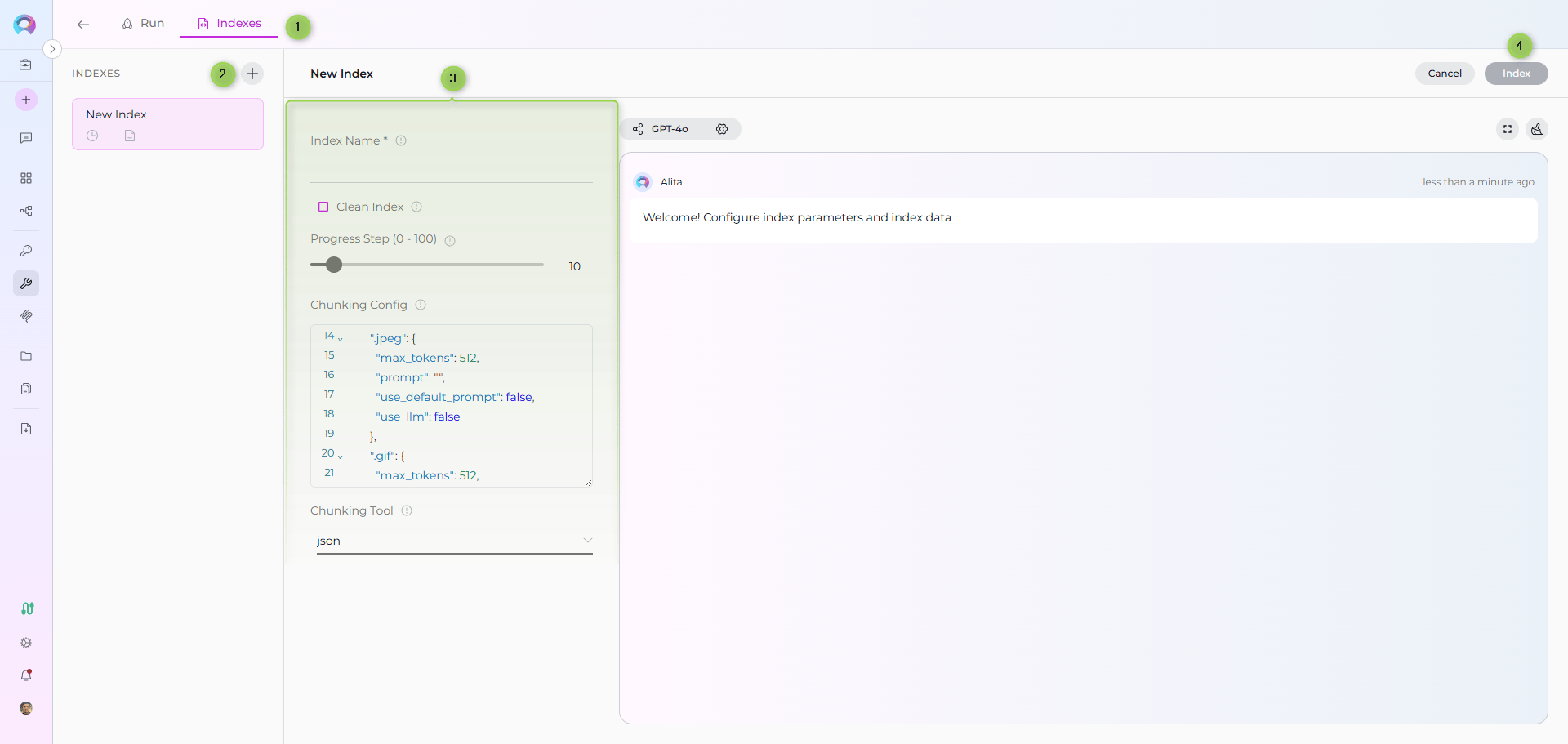
Step 4: Start Indexing
- Form Validation: The Index button remains inactive until all required fields are filled
- Review Configuration: Verify all parameters are correct
- Click Index Button: Start the indexing process
- Monitor Progress: Watch real-time updates with visual indicators:
- 🔄 In Progress: Indexing is currently running
- ✅ Completed: All items indexed successfully
- ⚠️ Partially Indexed: Indexing finished but some files were skipped (unsupported extension, empty content, or errors). The index is fully usable for search and scheduling — review the skipped-file breakdown in the chat panel.
- ❌ Failed: Indexing encountered an error
For quick testing and validation, you can also use the Test Settings panel on the right side of the toolkit detail page. Select a model, choose the Index Data tool from the dropdown, configure parameters, and click Run Tool. However, the Indexes Tab Interface is the recommended approach for comprehensive index management.
Step 5: Verify Index Creation
After indexing completes, verify the index was created successfully:- Check Index Status: Visual indicators show completion status
- Review Index Details: Click on the created index to see metadata and document count
- Test Search: Use the Run tab to test search functionality with sample queries

Step 6: Search Your Indexed Data
Direct Search via Indexes Tab:- Access Indexes Tab: Navigate to your Zephyr toolkit → Indexes tab
- Select Index: Click on your created index from the sidebar
- Open Run Tab: Click the Run tab in the center panel
- Choose Search Tool: Select from available search tools:
- Search Index: Basic semantic search
- Stepback Search Index: Advanced search with question breakdown
- Stepback Summary Index: Summarized insights from search results
- Enter Query: Type your natural language question
- View Results: See responses with citations to specific test cases

Real-Life Examples
Example 1: Zephyr Scale - Calculator Project
Scenario: You have comprehensive test documentation in Zephyr Scale for a calculator application organized in folders. You want to make all test cases searchable for team collaboration. Indexing Steps:-
Configure Zephyr Scale Toolkit:
- Base URL:
https://api.zephyrscale.smartbear.com/v2 - Token: Generated from Zephyr Scale API Access Tokens
- Base URL:
-
Index All Tests in Folder:
- Project Key:
CALC - JQL:
folder = "Calculator Tests" AND includeSubfolders = true - Collection suffix:
calctests - Progress Step:
10 - Clean Index: ✓
- Chunking Tool:
json
- Project Key:
-
Index Smoke Tests Only:
- Project Key:
CALC - JQL:
label in ("Smoke", "Critical") AND orderBy = "name" - Collection suffix:
smoke
- Project Key:
-
Verify indexing:
- Use “List Collections” tool to confirm collections exist
- Expected collections:
calctests,smoke
- “Find all test cases for addition functionality”
- “What are the steps to test division by zero?”
- “Show me test cases in the Login Tests folder”
Example 2: Zephyr Enterprise - E-commerce Platform
Scenario: You have a large test repository in Zephyr Enterprise for an e-commerce platform and need to index specific folders for regression testing. Indexing Steps:-
Configure Zephyr Enterprise Toolkit:
- Base URL:
https://zephyr.company.com - Token: Generated from Zephyr Enterprise API Keys
- Base URL:
-
Index Regression Tests:
- ZQL:
folder="Regression" AND automated=false - Collection suffix:
regress - Progress Step:
10 - Clean Index: ✓
- Chunking Tool:
json
- ZQL:
-
Index High Priority Tests:
- ZQL:
priority="High" AND tag="Critical" - Collection suffix:
critical
- ZQL:
-
Verify indexing:
- Use “List Collections” tool to confirm collections exist
- Expected collections:
regress,critical
- “Find test cases for checkout functionality”
- “What high priority tests exist for payment processing?”
- “Show me all regression tests for user authentication”
Example 3: Zephyr Essential - Mobile App Testing
Scenario: You use Zephyr Essential for mobile app testing and want to index all test cases for AI-powered search. Indexing Steps:-
Configure Zephyr Essential Toolkit:
- Base URL:
https://prod-api.zephyr4jiracloud.com/v2(default) - Token: Generated from Zephyr Essential
- Base URL:
-
Index All Test Cases:
- Collection suffix:
mobile - Progress Step:
10 - Clean Index: ✓
- Chunking Tool:
json
- Collection suffix:
-
Verify indexing:
- Use “List Collections” tool to confirm collection exists
- Expected collection:
mobile
- “Find all test cases for iOS app”
- “What are the test steps for user registration?”
- “Show me test cases with screenshots”
Search and Chat with Indexed Data
Once your Zephyr data is indexed, you can use it in multiple ways:Using Toolkit in Conversations and Agents
Your Zephyr toolkit can be used in two main contexts:- In Conversations: Add the toolkit as a participant to ask questions and search your indexed Zephyr data
- In Agents: Include the toolkit when creating AI agents to give them access to your Zephyr test data
- Start a New Conversation or Create an Agent
- Add Toolkit as Participant: Select your Zephyr toolkit from the available toolkits
- Ask Natural Language Questions: The toolkit will automatically search your indexed data and provide relevant answers with citations
Real-Life Example Workflow
Step 1: Setup Zephyr Toolkit Configure your Zephyr toolkit (Scale, Enterprise, or Essential) with appropriate credentials. Step 2: Use in Conversations Add toolkit to a conversation and start asking questions:- Navigate to Conversations → + New Conversation
- In the participants section click + to add Toolkit
- Select your Zephyr toolkit from the available toolkits list
“Index all test cases from project CALC in folder ‘Authentication’ with suffix ‘auth’. Include subfolders and clean any existing index first.”Step 4: Verify Index Creation User Request in Chat:
“List my collections”Step 5: Start asking questions about your indexed content User: “What are the test steps for verifying login functionality?” Zephyr Toolkit: “Based on your indexed test data, here are the test steps for login verification:
-
CALC-T123: Basic Login Test
- Step 1: Navigate to login page
- Step 2: Enter valid username
- Step 3: Enter valid password
- Step 4: Click login button
- Expected Result: User is logged in and redirected to dashboard
-
CALC-T156: Invalid Credentials Test
- Step 1: Navigate to login page
- Step 2: Enter invalid username
- Step 3: Enter invalid password
- Step 4: Click login button
- Expected Result: Error message is displayed
Metadata and Search Fields
Zephyr Scale Metadata Fields
Each indexed Zephyr Scale test case includes metadata fields that enable rich searching:Zephyr Enterprise Metadata Fields
Each indexed Zephyr Enterprise test case includes metadata fields:Zephyr Essential Metadata Fields
Each indexed Zephyr Essential test case includes metadata fields:
These metadata fields are searchable and used for filtering and citation in search results.
Troubleshooting
Common Issues and Solutions
Issue: “Unable to authenticate with Zephyr”- Cause: Invalid or expired API token/credentials
- Solution: Regenerate API token in your Zephyr instance and update your ELITEA credential configuration
- Cause: JQL/ZQL query returns no results or query syntax is incorrect
- Solution:
- Verify your query syntax matches the Zephyr product (JQL for Scale, ZQL for Enterprise)
- Test the query directly in Zephyr interface first
- Check that project key, folder names, or filters are correct
- Cause: Missing permissions or test case structure issues
- Solution:
- Verify your credentials have read access to test cases and steps
- Check that test cases have proper structure (steps, metadata)
- Review Zephyr API logs for specific error details
- Cause: Empty or malformed test case content
- Solution:
- Try using
chunking_tool=""instead ofjson - Verify test cases have content (steps, descriptions)
- Filter out empty test cases in your query
- Try using
- Cause: Large number of test cases or complex folder structures
- Solution:
- Use more specific queries to limit the number of test cases
- Increase
progress_stepfor less frequent updates (e.g., 20) - Index folders separately for better control
- Cause: Search Cut Off score is too high, filtering out potentially relevant results
- Solution: Adjust the Cut Off score in your search tool configuration. Lower values (e.g., 0.3-0.5) return more results, higher values (e.g., 0.7-0.9) return only highly relevant matches. Start with a lower cutoff and gradually increase if too many irrelevant results appear.
- Cause:
includeSubfoldersnot set or folder path incorrect - Solution:
- Use
includeSubfolders = truein JQL query - Verify folder path with exact names (case-sensitive)
- Use
folderPathfor full path orfolderfor folder name only
- Use
Best Practices
Indexing Strategy
- Start Small: Begin with a single project or folder to validate configuration
- Filter Wisely: Use queries to index only relevant test cases (active tests, specific folders, labels)
- Clean Indexes: Enable
clean_indexwhen re-indexing to avoid duplicates - Monitor Progress: Use appropriate
progress_stepvalues (5-20) for visibility
Query Optimization
For Zephyr Scale:- Use
folderfor simple folder matching - Use
folderPathfor exact hierarchical paths - Combine filters with
ANDfor precise results - Use
orderByto control result ordering
- Use ZQL syntax exactly as documented
- Escape string values with quotes
- Combine multiple conditions with
AND - Test ZQL queries in Zephyr Enterprise UI first
- No query needed - indexes all accessible test cases
- Use search filters after indexing for specific results
Collection Naming
- Use Descriptive Suffixes: Choose meaningful 7-character suffixes (
auth,regress,smoke,mobile) - Separate by Purpose: Create different indexes for different folders, projects, or test types
- Document Conventions: Maintain a naming convention guide for your team
Folder Organization
- Leverage Folder Hierarchy: Use folder paths to organize test cases logically
- Include Subfolders: Use
includeSubfolders = trueto capture complete test suites - Exact vs Partial Matching: Use
exactFolderMatchwhen you need precise folder targeting
Additional Resources
- Indexing Overview - Comprehensive guide to ELITEA indexing
- Indexing Tools Reference - Complete toolkit settings and parameters
- Using the Indexes Tab Interface - Detailed interface guide
- Toolkits Menu - General toolkit management
- Create a Credential - Credential setup guide
- Credentials and Toolkits Guide - Product-specific credential configuration