

Overview
The Personalization page in your user profile includes the following main configuration sections:- General: Allows setting the default AI personality and providing default user instructions
- Default Context Management: Allows managing conversation memory and token usage for new conversations
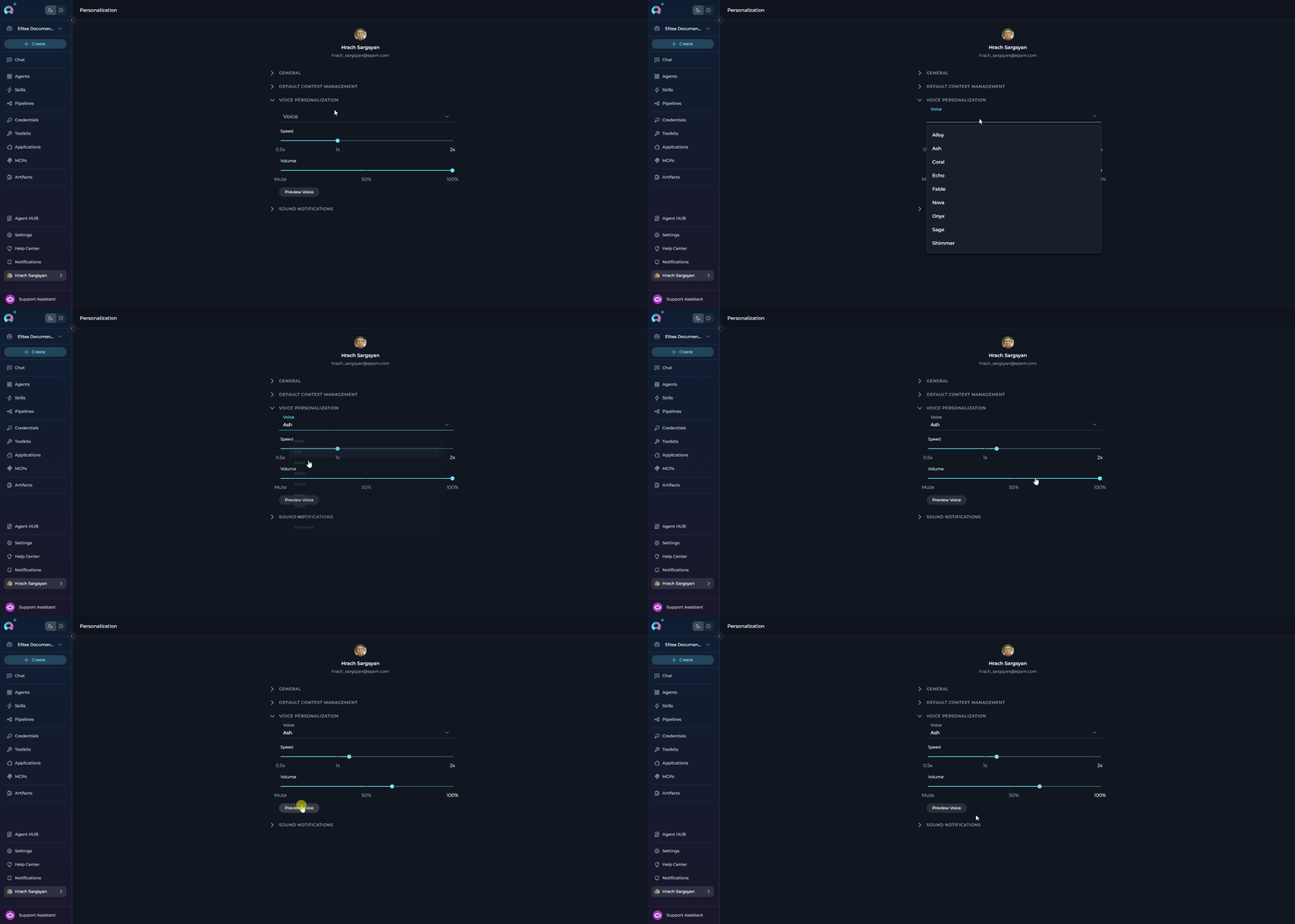
- Voice Personalization: Allows configuring default text-to-speech voice, speed, and volume preferences
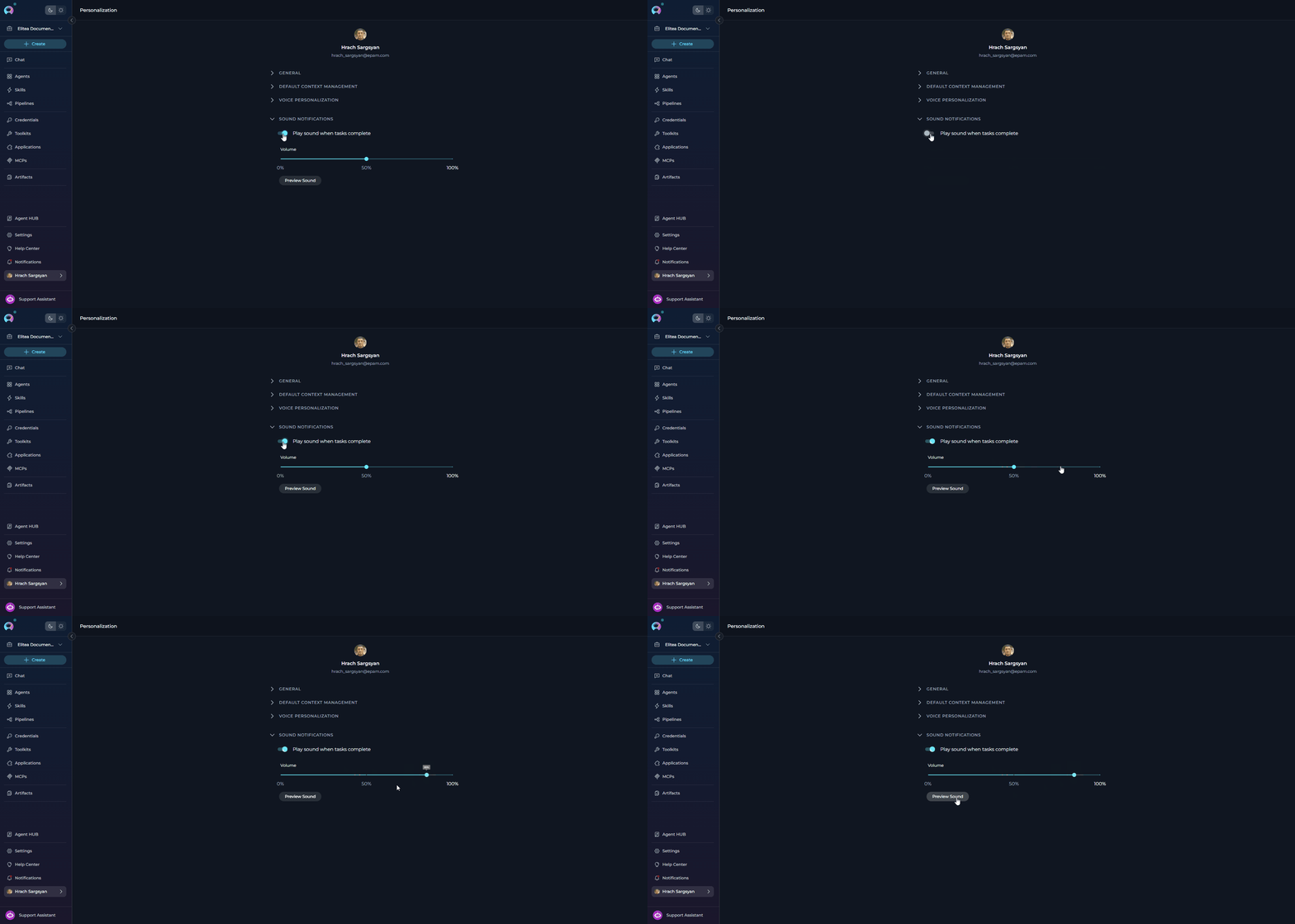
- Sound Notifications: Allows configuring completion sounds and notification volume
- Comprehensive control: You manage AI behavior, memory, and summarization in one place
- Automatic application: Settings apply to all new conversations automatically
- Consistency: You maintain uniform AI behavior across all projects and conversations
- Efficiency: You do not need repeating the setup. Configure once, use everywhere
- Optimization: You can balance conversation quality with token usage and costs
Accessing Personalization
You can get to the Personalization page from your your user profile:- Click your avatar at the bottom of the sidebar
- Select Personalization in the menu
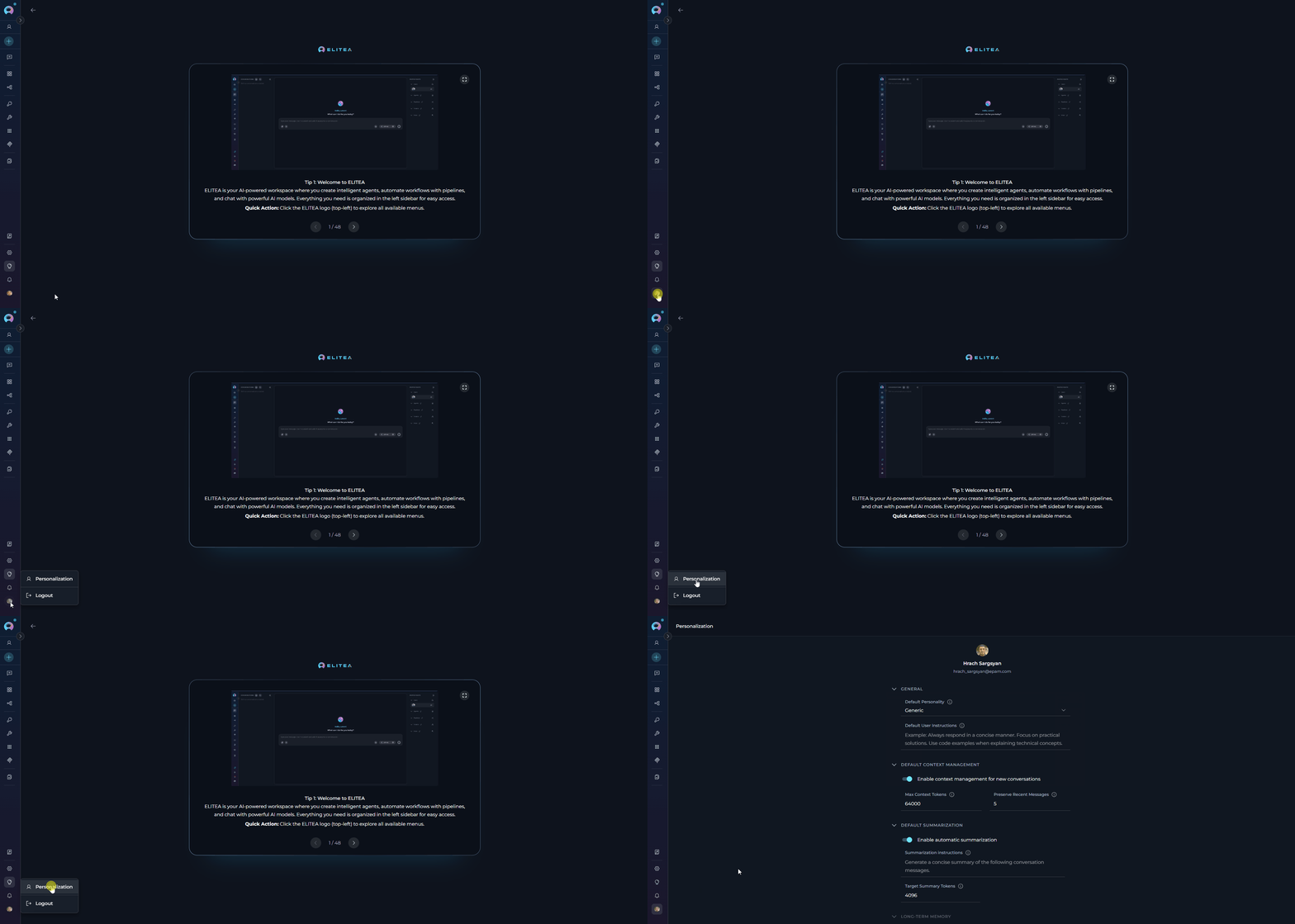
Settings Overview
The Personalization page includes the following sections:GENERAL
In the General section, you can select the default personality and provide your default user instructions.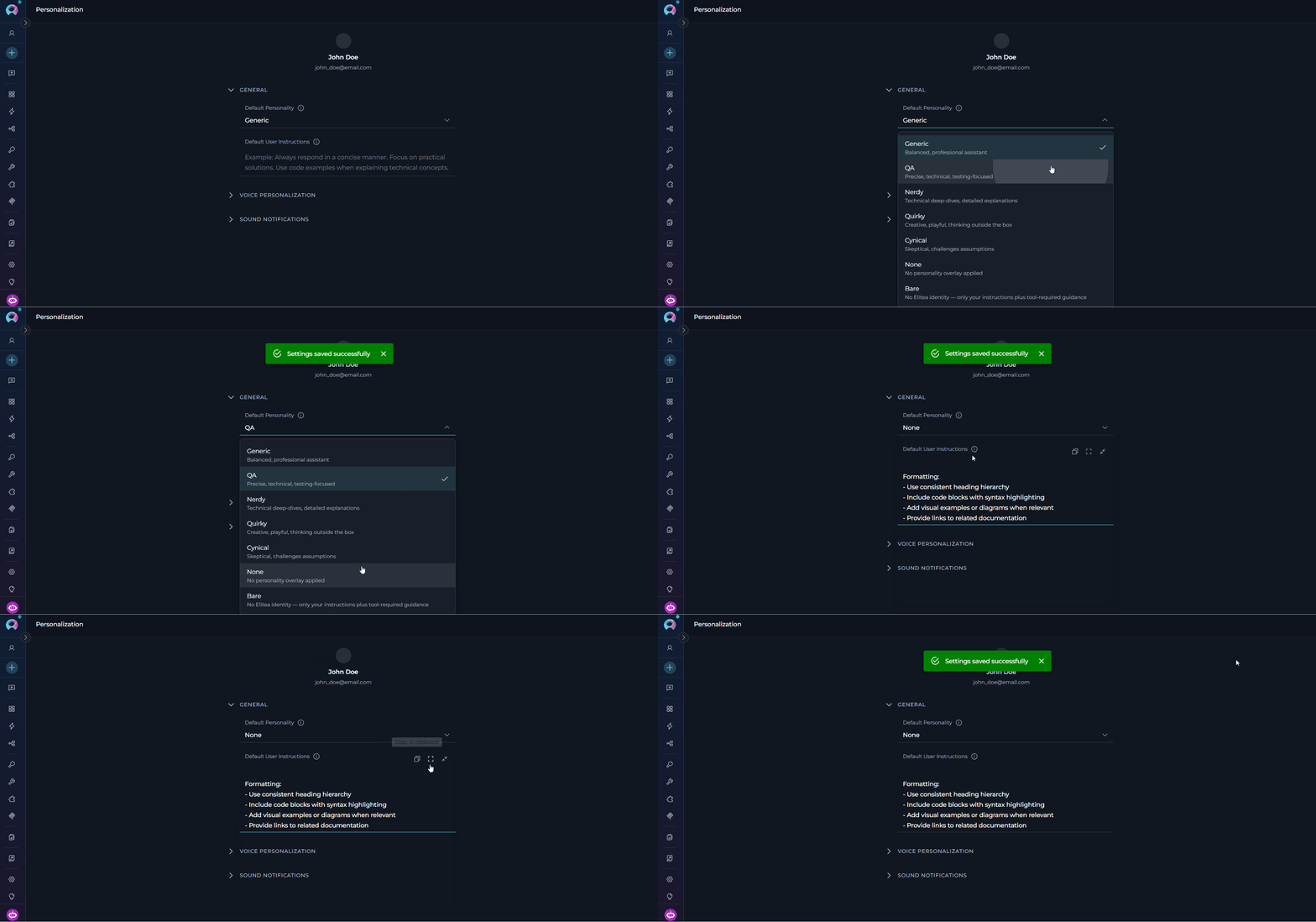
Default Personality
Sets the communication style and approach that the AI assistant will use by default in all new conversations. Available Default PersonalitiesDefault User Instructions
Provides custom guidelines that automatically apply to all new conversations. Here you can define specific requirements, preferences, or constraints that your AI assistants should follow in every interaction. Example Instructions by RoleSoftware Developer
Software Developer
QA Engineer
QA Engineer
Technical Writer
Technical Writer
DEFAULT CONTEXT MANAGEMENT
In the Default Context Management section, you can set how conversation history is managed in all new conversations.- Quality: More context helps AI provide relevant, coherent responses
- Cost: Token usage directly affects API costs
- Performance: Excessive context can slow response times
- Limits: AI models have maximum token limits (context windows)
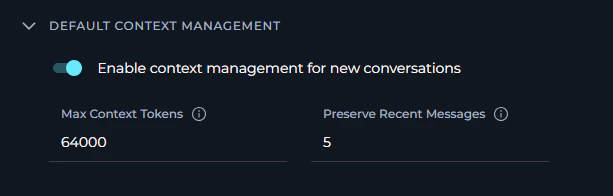
Configuration Parameters
Enable Context Management Toggle to enable or disable automatic context management for new conversations. When enabled:
- Context is automatically managed based on Max Context Tokens setting
- System preserves recent messages as specified
- Older messages are automatically summarized or removed when token limit is approached
- Conversation continuity is maintained efficiently
- All conversation history is sent with each request (until model limit reached)
- No automatic context optimization occurs
- May hit model token limits in longer conversations
- Higher token costs and potential performance issues
Max Context Tokens Specifies the maximum number of tokens to use for conversation context in each AI request.
- Basic unit of text that AI models process
- Approximately: 1 token ≈ 4 characters or ≈ 0.75 words in English
- Example: “Hello, how are you?” ≈ 5-6 tokens
- Both input (context) and output (response) count toward model limits
Consider your model
Consider your model
- gpt-4.1: 128,000 tokens
- GPT-4: 8,192 tokens (standard) or 32,768 tokens (32k version)
- GPT-3.5 Turbo: 16,385 tokens
- System instructions and prompts (your default instructions count here)
- AI’s response generation
- Safety margins to prevent hitting hard limits
Balance quality vs cost
Balance quality vs cost
-
Higher values (100,000+):
- ✔️ Better context retention for very long conversations
- ✔️ AI can refer to the information from much earlier in conversation
- ✘ Higher token costs per request
- ✘ Slower response times
-
Medium values (10,000-64,000):
- ✔️ Good balance of quality and cost (recommended)
- ✔️ Suitable for most use cases
- ✔️ Efficient performance
-
Lower values (1,000-10,000):
- ✔️ Minimal token costs
- ✔️ Faster responses
- ✘ May lose context in longer conversations
- ✘ AI may “forget” earlier discussion points
Adjust to your use cases
Adjust to your use cases
- Short Q&A sessions: 10,000-20,000 tokens (quick questions, brief interactions)
- Standard development: 30,000-64,000 tokens (typical coding, documentation tasks)
- Long technical discussions: 64,000-128,000 tokens (complex debugging, architecture reviews)
- Extensive analysis: 100,000+ tokens (large codebase reviews, comprehensive research)
Preserve Recent Messages Specifies the minimum number of recent conversation messages to always keep in context, regardless of token limits.
- Priority protection: These messages are never removed or summarized, even if total tokens exceed Max Context Tokens
- Recent context: Ensures AI always has immediate conversation context
- Continuity: Maintains coherent responses even when older context is summarized
- Count method: Each user message and corresponding AI response counts as 2 messages
Consider your conversation style
Consider your conversation style
-
Quick Q&A (1-3 messages):
- Each question is independent
- Minimal context dependency
- Lower value sufficient
-
Iterative development (5-10 messages):
- Building on previous responses
- Code refinements and iterations
- Medium value recommended (default 5 works well)
-
Complex problem-solving (10-20 messages):
- Multi-step troubleshooting
- Extended debugging sessions
- Higher value ensures continuity
Balance with your token limits
Balance with your token limits
- Recent messages are always kept, even if they exceed Max Context Tokens
- If 5 recent messages contain 70,000 tokens but Max Context Tokens = 64,000:
- All 5 recent messages are still preserved
- Only older messages beyond these 5 are subject to token limits
- Set this value carefully to avoid unintentionally high token usage
Test and monitor
Test and monitor
- Start with default (5) and monitor conversation quality
- Increase if AI loses track of recent discussion points
- Decrease if token costs are too high and conversations are short
- Monitor: Check how often you need to re-explain recent context
DEFAULT SUMMARIZATION
In the Default Summarization section, you can configure automatic conversation summarization for new conversations. When enabled, ELITEA will automatically condense long conversations to maintain context while reducing token usage.- Detects when the conversation length reaches a threshold
- Generates a concise summary of older messages
- Replaces older messages with the summary
- Preserves recent messages (as specified in Context Management)
- Maintains conversation continuity while reducing tokens
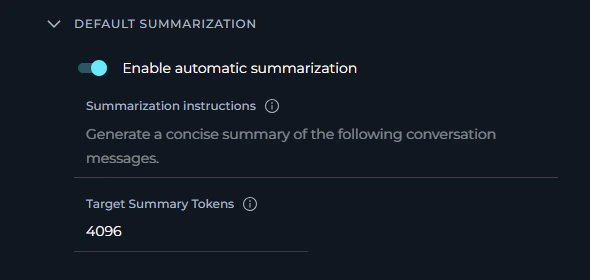
Configuration Parameters
Enable Automatic Summarization When enabled:
- System monitors conversation length continuously
- Automatically triggers summarization when threshold is reached
- Older messages are condensed into a summary
- Recent messages remain untouched
- Token usage is optimized for long conversations
- No automatic summarization occurs
- Full conversation history is maintained (subject to Context Management limits)
- May hit token limits faster in extended conversations
- Manual context management may be required
Summarization Instructions Custom instructions that guide how conversation summaries are generated. The default instructions are:
Technical discussions
Technical discussions
Problem-solving sessions
Problem-solving sessions
Target Summary Tokens Specifies the target length (in tokens) for generated conversation summaries. Here are some token references:
- 256 tokens: ~192 words - short paragraph summary
- 1024 tokens: ~768 words - moderate detail summary
- 4096 tokens (default): ~3072 words - comprehensive summary
- Messages 1-20: 45,000 tokens
- Summary of messages 1-15: ~4,096 tokens (Target Summary Tokens)
- Original messages 16-20: 15,000 tokens (preserved recent messages)
- Total Context: ~19,096 tokens (reduced from 45,000)
Brief summaries (100-512 tokens)
Brief summaries (100-512 tokens)
- Conversations are highly repetitive
- Maximum token savings needed
- Simple Q&A that doesn’t require much context
- ✔️ Maximum token reduction
- ✔️ Lowest summarization costs
- ✔️ Fastest summary generation
- ✘ May lose important details
- ✘ AI may need clarification more often
Moderate summaries (512-2048 tokens)
Moderate summaries (512-2048 tokens)
- Balance detail retention with token savings
- Standard technical discussions
- General-purpose conversations
- ✔️ Good balance of detail and conciseness
- ✔️ Preserves key points and decisions
- ✔️ Reasonable token costs
- ✔️ Suitable for most use cases
Comprehensive summaries (2048-4096 tokens - default)
Comprehensive summaries (2048-4096 tokens - default)
- Complex technical discussions
- Multi-topic conversations
- Conversations with critical context that must be preserved
- Detailed problem-solving sessions
- ✔️ Maximum details are preserved (default)
- ✔️ Rich context for AI to reference
- ✔️ Better continuity across long conversations
- ✘ Higher summarization costs
- ✘ Summaries themselves consume significant tokens
VOICE PERSONALIZATION
The Voice Personalization section lets you define your default text-to-speech playback preferences. These settings are stored in your browser and are used whenever ELITEA reads responses aloud.- If a server-side TTS model is configured, the Voice dropdown shows the voices provided by that model.
- If no server-side TTS model is available, ELITEA falls back to browser voices.
- Browser voices that are not local are marked as online in the dropdown.
Configuration Parameters
SOUND NOTIFICATIONS
The Sound Notifications section controls whether ELITEA plays a completion sound when tasks finish, along with the default notification volume.Configuration Parameters
How the Settings Work Together
-
GENERAL (Foundation):
- Personality: “Nerdy” - Technical deep-dives
- Instructions: “Use TypeScript, include unit tests, explain trade-offs”
- Result: AI uses technical language and provides detailed code examples
-
DEFAULT CONTEXT MANAGEMENT (Efficiency):
- Max Context Tokens: 64,000
- Preserve Recent Messages: 5
- Result: AI can reference extensive history (up to 64K tokens) while always keeping last 5 exchanges
-
DEFAULT SUMMARIZATION (Optimization):
- Enabled: Yes
- Target Tokens: 4,096
- Result: When the context approaches the token limit, older messages are automatically condensed into a 4K token summary
- AI maintains technical, detailed communication style throughout (General settings)
- Conversation can continue indefinitely without hitting token limits (Context Management + Summarization)
- Recent context always available for coherent responses (Preserve Recent Messages)
- Token costs optimized by automatic summarization of older content
- Consistent quality even in very long debugging or development sessions
How Settings Apply
Best Practices
Configuring All Three Sections TogetherStart with defaults, then customize
Start with defaults, then customize
-
Test Default Settings First:
- General: Generic personality, no custom instructions
- Context Management: Enabled, 64,000 tokens, 5 preserved messages
- Summarization: Enabled, 4,096 target tokens
-
Monitor Conversation Quality:
- Are responses in the style you need?
- Do you hit token limits?
- Does summarization maintain enough detail?
-
Adjust One Section at a Time:
- Change personality or add instructions first
- Adjust context limits if needed
- Fine-tune summarization last
-
Document What Works:
- Keep notes on effective configurations
- Track which settings work for which types of tasks
Understand section dependencies
Understand section dependencies
- Disabling Context Management also disables the Max Context Tokens and Preserve Recent Messages inputs — they become grayed out and uneditable
- Summarization is only active when Context Management is enabled — if you disable context management, summarization settings are also inactive even if the toggle is on
- General settings are always independent — personality and instructions apply regardless of context management state
Consider your conversation patterns
Consider your conversation patterns
- Focus on General settings (personality + instructions most important)
- Context Management: Lower token limits (20,000-30,000) to save costs
- Summarization: Can disable or leave at defaults for short conversations
- All three sections important
- Context Management: Standard limits (40,000-64,000)
- Summarization: Default settings work well
- Context Management: Higher limits (64,000-128,000)
- Summarization: Critical for cost control
Balance quality, cost, and performance
Balance quality, cost, and performance
Align with your primary use cases
Align with your primary use cases
- Single Role: Choose the personality that best matches your main work function
- Multiple Roles: Select the personality you use most frequently
- Team Accounts: If shared, choose Generic for balanced, versatile interactions
- No Preference: Use None to keep the AI’s raw default behavior without any style overlay
- Experimentation: Try different personalities over a few days to find what works best
Consider your team's communication style
Consider your team's communication style
- Formal Environments: Generic or QA for professional, technical communication
- Creative Teams: Quirky for innovative, out-of-the-box thinking
- Technical Teams: Nerdy for deep, detailed technical discussions
- Critical Review: Cynical for thorough, skeptical analysis
Override personality, where needed
Override personality, where needed
- Personalization sets the default for all new conversations
- Individual conversations can have different settings if needed
- No need to frequently change your default unless your work focus shifts
Writing Effective Default Instructions
Be specific and actionable
Be specific and actionable
- ✔️ “Always include code examples in Python with type hints”
- ✔️ “Structure responses with a summary paragraph first, then details”
- ✔️ “Check for security vulnerabilities in all code suggestions”
- ✘ “Be helpful” (too generic, no clear action)
- ✘ “Give good answers” (subjective, no specific guidance)
- ✘ “Make things clear” (ambiguous, means different things to different people)
Keep instructions focused
Keep instructions focused
- Prioritize: Include only the most important requirements
- Length: Aim for 3-7 key points (typically 100-300 words)
- Clarity: Use clear, direct language without ambiguity
- Relevance: Focus on instructions that apply broadly to your work
- Confuse the AI with conflicting requirements
- Reduce response quality due to complexity
- Make it harder to maintain and update over time
Use consistent terminology
Use consistent terminology
- Standards: Reference specific frameworks, style guides, or methodologies
- Example: “Follow PEP 8 for Python code” instead of “use good Python style”
- Technical Terms: Use precise technical vocabulary
- Example: “Use async/await pattern” instead of “make it asynchronous”
- Format: Specify exact formats
- Example: “Use ISO 8601 date format (YYYY-MM-DD)” instead of “use standard dates”
- Examples: Include brief examples for complex requirements
Structure your instructions logically
Structure your instructions logically
Review and update regularly
Review and update regularly
- Monthly Review: Check if instructions still match your current needs
- Project Changes: Update when starting new types of projects or roles
- Team Feedback: Adjust based on conversation quality and outcomes
- Refinement: Simplify or clarify instructions that aren’t working well
- Version Control: Keep notes on what changes you make and why
Testing Your Personalization Settings
Test incrementally
Test incrementally
- Start Simple: Begin with just personality selection, no custom instructions
- Add Instructions Gradually: Add one instruction at a time
- Evaluate Each: Use the new settings in several conversations before adding more
- Document: Keep notes on what works well and what doesn’t
- Iterate: Refine based on actual conversation outcomes
Create test conversations
Create test conversations
- Test Personality: Create a new conversation and ask open-ended questions to see personality in action
- Test Instructions: Ask the AI to perform tasks that should trigger your custom instructions
- Compare Responses: Try same question with different personality settings to see differences
- Edge Cases: Test with requests that might conflict with your instructions
Troubleshooting
Settings do not apply to new conversations
Settings do not apply to new conversations
- New conversations don’t reflect configured personality
- Default instructions not being followed in new conversations
- AI behavior seems unchanged after making changes
- Personality dropdown: saves immediately when you select a new option
- Text fields: save when you click/tab out of the field
- Numeric fields: save on blur, but only if the entered value is within the valid range
- Toggles: save immediately on toggle
- Check whether a “Settings saved successfully” toast appeared after each change — if not, the save may not have triggered
- Check whether a “Failed to save settings” error appeared — indicates a network or server issue
- Verify you are testing in a brand new conversation — existing conversations retain their original settings
- For numeric fields, verify the values are within the allowed ranges (see Configuration Parameters tables)
- Confirm settings are visible when reopening the Personalization page after the save notification appeared
- Re-enter any field value and click outside to trigger auto-save again
- Refresh the page and re-apply any changes that weren’t confirmed with a toast
- Create a brand new conversation (do not continue an existing one) to test the new settings
- Clear browser cache if the page is loading stale data: Ctrl+Shift+Delete (Windows) or Cmd+Shift+Delete (Mac)
Numeric fields are not saved (silent failure)
Numeric fields are not saved (silent failure)
- You type a new value for Max Context Tokens, Preserve Recent Messages, or Target Summary Tokens
- No “Settings saved successfully” toast appears after clicking away
- The field may show a red validation error message
- Look for a red error message directly below the field
- Correct the value to be within the valid range
- Click outside the field — the save will trigger automatically once the value is valid
- Wait for the “Settings saved successfully” confirmation toast
Context management fields are grayed out
Context management fields are grayed out
- Max Context Tokens and Preserve Recent Messages fields appear grayed out and cannot be edited
- Summarization settings appear inactive
- Scroll up to the Default Context Management accordion
- Enable the “Enable context management for new conversations” toggle
- The grayed-out fields will become editable immediately
- The toggle saves automatically — no further action needed
AI does not follow the default instructions
AI does not follow the default instructions
- AI responses don’t follow specified guidelines
- Instructions appear to be partially followed or ignored
- Inconsistent behavior across different conversations
- Instructions Too Complex: Conflicting or contradictory requirements
- Instructions Too Vague: Ambiguous guidelines that AI can’t interpret clearly
- Model Limitations: Some instructions may be beyond model’s current capabilities
- User Messages Override: Your questions contradict default instructions
-
Simplify Instructions:
- Reduce to 3-5 key points
- Make each instruction specific and actionable
- Remove any conflicting requirements
- Test with minimal instructions first, then add complexity
-
Clarify Requirements:
- Replace vague terms (“good”, “clear”, “helpful”) with specific examples
- Use concrete technical terminology
- Provide examples of desired behavior in the instructions themselves
-
Check for Conflicts:
- Review instructions for contradictions
- Ensure personality choice aligns with instruction style
- Test with Generic personality to isolate instruction issues
-
Test Incrementally:
- Start with one instruction, verify it works in a new conversation
- Add instructions one at a time
- Identify which instruction causes problems
- Refine problematic instruction before adding more
The change of personality has no effect on the new responses
The change of personality has no effect on the new responses
- All personalities seem to behave the same way
- Communication style doesn’t match selected personality
- Can’t tell the difference between Generic and other personalities
- Personality differences are subtle and contextual
- Some tasks (e.g., simple data retrieval, calculations) don’t show personality variation
- Personality affects tone, approach, and detail level, not factual accuracy
- Personality Affects: Tone of voice, level of technical detail, approach to problem-solving, communication style, enthusiasm level
- Personality Doesn’t Affect: Factual accuracy, basic task completion, data retrieval, calculations
- Most Visible In: Complex explanations, recommendations, creative tasks, problem-solving approaches, code reviews
- Ask Open-Ended Questions: “How should I approach optimizing this code?” or “What are the trade-offs?”
- Request Analysis: “Analyze this architecture” or “Review this design”
- Compare Side-by-Side: Create conversations with different personalities, ask the same complex question
- Use Creative Tasks: Brainstorming, problem-solving, or design discussions show personality most clearly
I get an error *Failed to save settings*
I get an error *Failed to save settings*
- A red “Failed to save settings” toast notification appears after making a change
- The change was made successfully in the UI but was not persisted
- Network connectivity issues
- Session timeout (logged out)
- Server error or maintenance
- Browser issues or extensions blocking the request
- Check Network: Ensure stable internet connection
- Refresh Page: Reload page and re-apply the change (Ctrl+R or Cmd+R)
- Check Login: Verify you’re still logged in — re-authenticate if needed
- Try Different Browser: Test in incognito/private mode or different browser
- Clear Cache: Clear browser cache and cookies
- Check Console: Open browser developer tools (F12) → Console tab to see any error messages
- Contact Support: If the issue persists, contact your administrator with error details from the console
- Context Management - Manage conversation memory and token usage
- Chat Functionality - Using chat features and conversations
- Creating Agents - Configure agents with custom instructions