

Overview
User collaboration features are only available in team projects, not in your private/personal project workspace.
Add Teammates to a Conversation
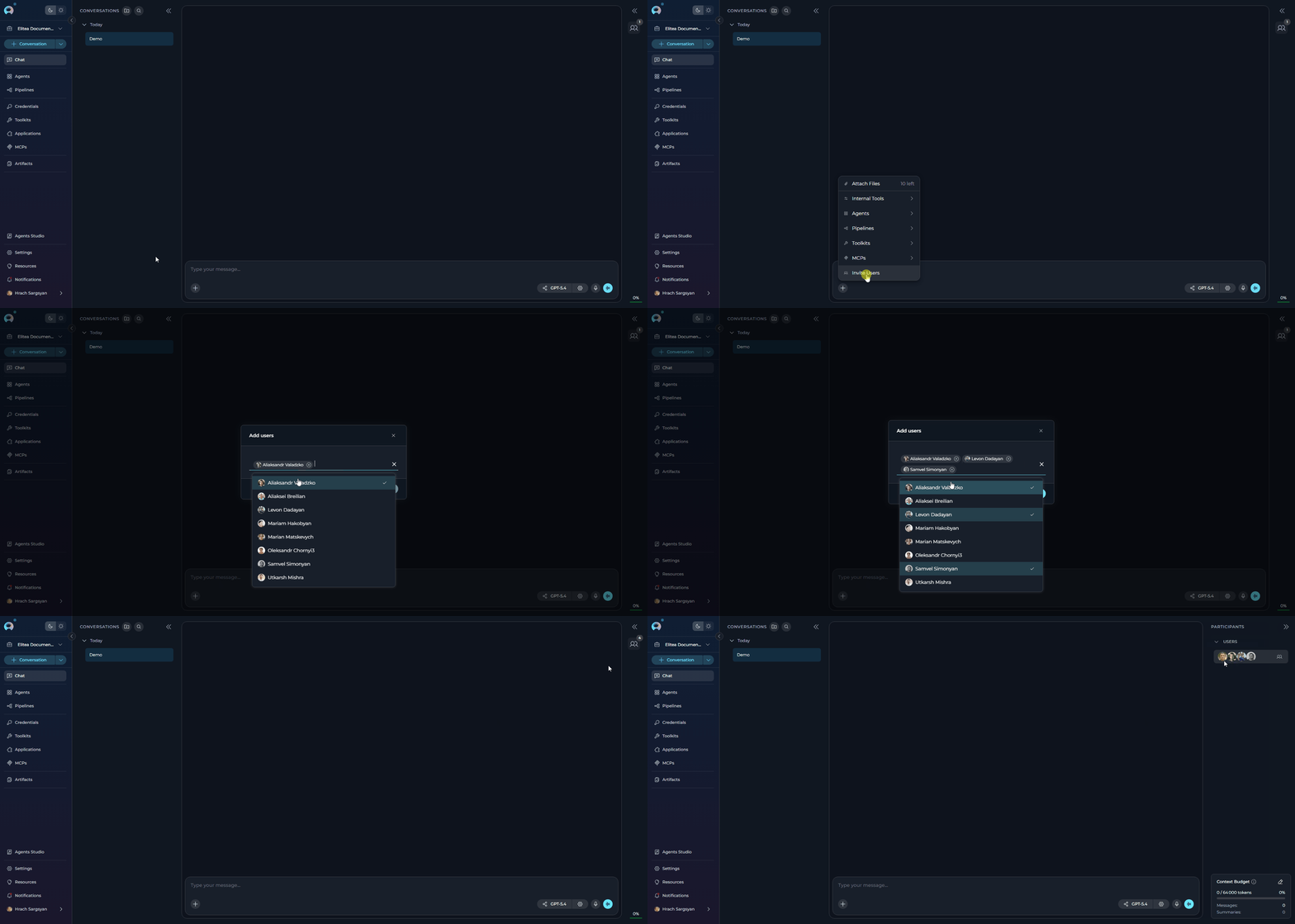
To add users to your conversation:- Open your conversation in ELITEA Chat.
- In the chat input toolbar, click the
+icon. - Select Invite Users from the popup menu.
- The Add users modal will appear with a searchable list of team members.
- Use the search to find teammates by name.
- Select one or more users from the list. Scroll down to load more results.
- Click Add to confirm.
When you add users to a conversation, they will automatically receive a notification informing them that they have been added. This ensures all participants are aware of their inclusion in the conversation.
View Participants
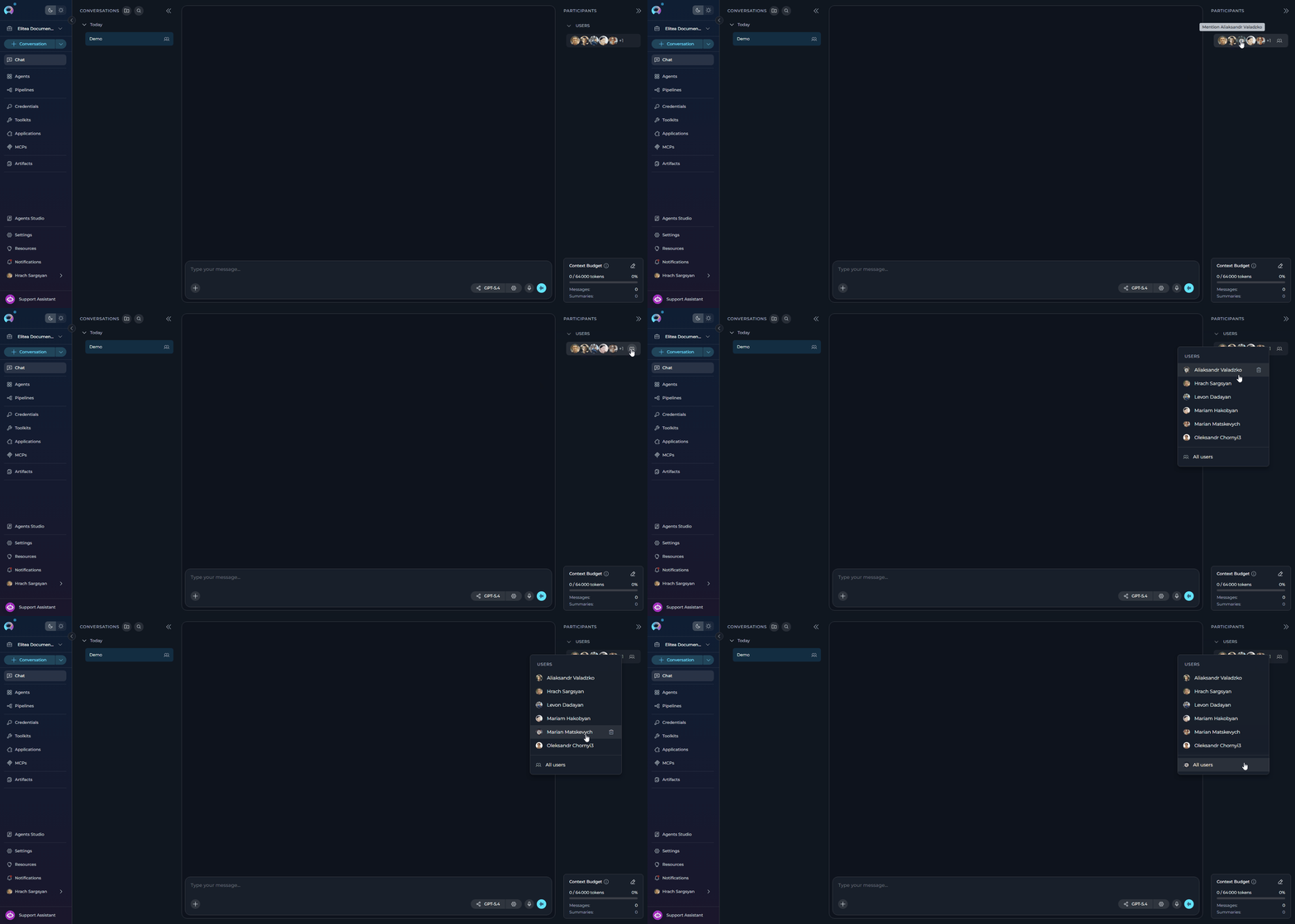
All conversation participants are visible in the PARTICIPANTS panel on the right side of the chat interface:- Users Section: Shows human teammates as circular avatars
- Visual Display: When multiple users are present, their avatars are displayed in a row
- Participant Count: If there are more users than can fit in the display, a count indicator (e.g., “+3”) shows additional participants
- Users Dropdown: Hover over the Users section to reveal the users icon, then click it to see the complete list of all conversation participants
-
Sorted List: Users appear in alphabetical order by name in the dropdown menu
Mention Users
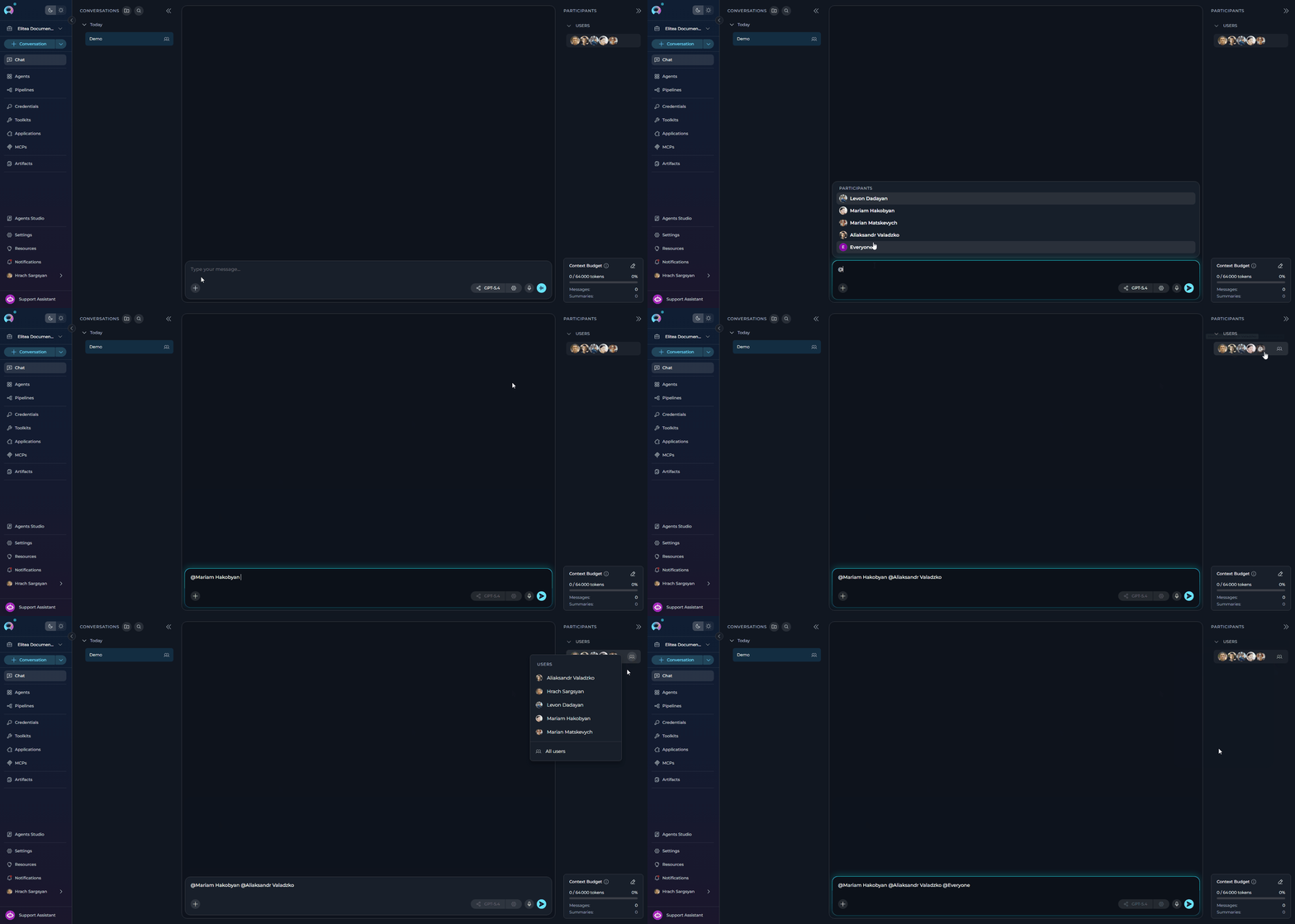
Mentioning teammates directs messages to them and highlights their name in the conversation for better visibility. How to Mention a Specific User: Method 1: Using the Participants Panel- In the PARTICIPANTS panel, hover over the Users section to reveal the users icon.
- Click the users icon to open the users dropdown.
- Hover over the user’s name you want to mention — an @ symbol overlay appears.
- Click the user’s name (or the @ overlay) to insert the mention into your message.
- In the chat input field, type @
- A suggestion list appears showing all users in the conversation
- Select the user you want to mention from the list (or continue typing their name to filter)
- The mention is inserted into your message
- In the PARTICIPANTS panel, hover over the Users section to reveal the users icon.
- Click the users icon to open the users dropdown.
- Select “All users” from the dropdown (appears at the bottom after the divider, only shown when there are 2 or more users).
- The
@Everyonemention is inserted into your message. - Complete your message and send.
Remove a User from Conversation
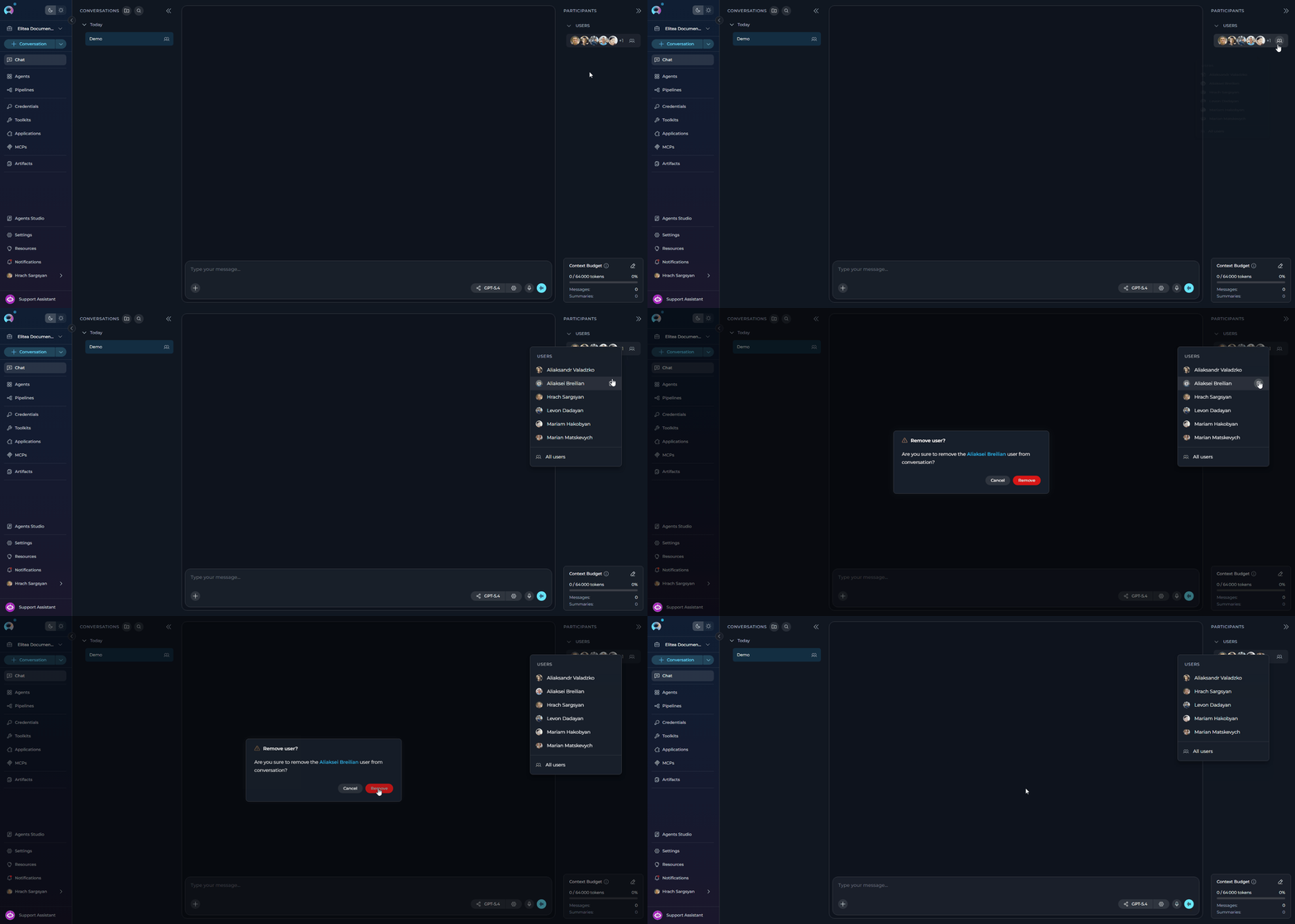
To remove a user from the conversation:- In the PARTICIPANTS panel, hover over the Users section to reveal the users icon.
- Click the users icon to open the dropdown.
- Hover over the user’s name — a Delete icon appears on the right.
- Click the Delete icon.
- In the confirmation dialog (“Remove user? Are you sure to remove the [name] user from conversation?”), click Remove to confirm.
Best Practices
Adding and Managing Users
Adding and Managing Users
- Use Search: In the Add users modal, use the search bar to quickly find teammates by name in large teams
- Multiple Users: You can add multiple users at once from the Add users modal for team-wide conversations
- User Management: Remove users who no longer need access to keep conversations focused and secure
Using Mentions Effectively
Using Mentions Effectively
- Strategic Mentions: Use @mentions to get specific users’ attention on important updates or questions
- Mention Everyone Sparingly: Use
@Everyoneonly for critical announcements to avoid notification fatigue
Human-AI Collaboration
Human-AI Collaboration
- Collaboration: Combine user mentions with AI participants (agents, pipelines) for powerful human-AI collaboration
- Teamwork: Use conversations to enable seamless collaboration between human teammates and AI assistants
Troubleshooting
Cannot see 'Add users' option
Cannot see 'Add users' option
- Verify you’re in a team project (not your personal/private project)
- User collaboration features are disabled in private workspaces
User not appearing in search results
User not appearing in search results
- Ensure the user is a member of your project/team
- Check if the user has been filtered by existing participants (already added users don’t appear in search)
- Scroll down in the user list - there may be more results below
Cannot remove a user
Cannot remove a user
- You cannot remove yourself from the conversation
- Only users who were added to the conversation can be removed
- The conversation creator and project members with appropriate permissions can remove users
Mentions not working
Mentions not working
- Ensure you’re typing @ followed by the username
- Select the user from the dropdown menu that appears
- Verify the user is still a participant in the conversation
- ELITEA Chat Documentation - Complete chat interface guide
- How to Use Chat Functionality - Chat features and capabilities
- Understanding Participants - Learn about all participant types (agents, pipelines, toolkits, users)