

What are Toolkits?
Toolkits connect ELITEA to external services, enabling you to:- Fetch data from project management tools
- Search documentation
- Analyze code repositories
- Read design files
- Manage test cases
- Store and retrieve files
Before You Begin
Jira Toolkit
Connect to Jira for issue tracking, project management, and agile workflows.- Jira Base URL (e.g.,
https://yourcompany.atlassian.net) - Authentication (choose one):
- Basic Auth: Username + API Key(server)
- Bearer Token: Personal Access Token(cloud)
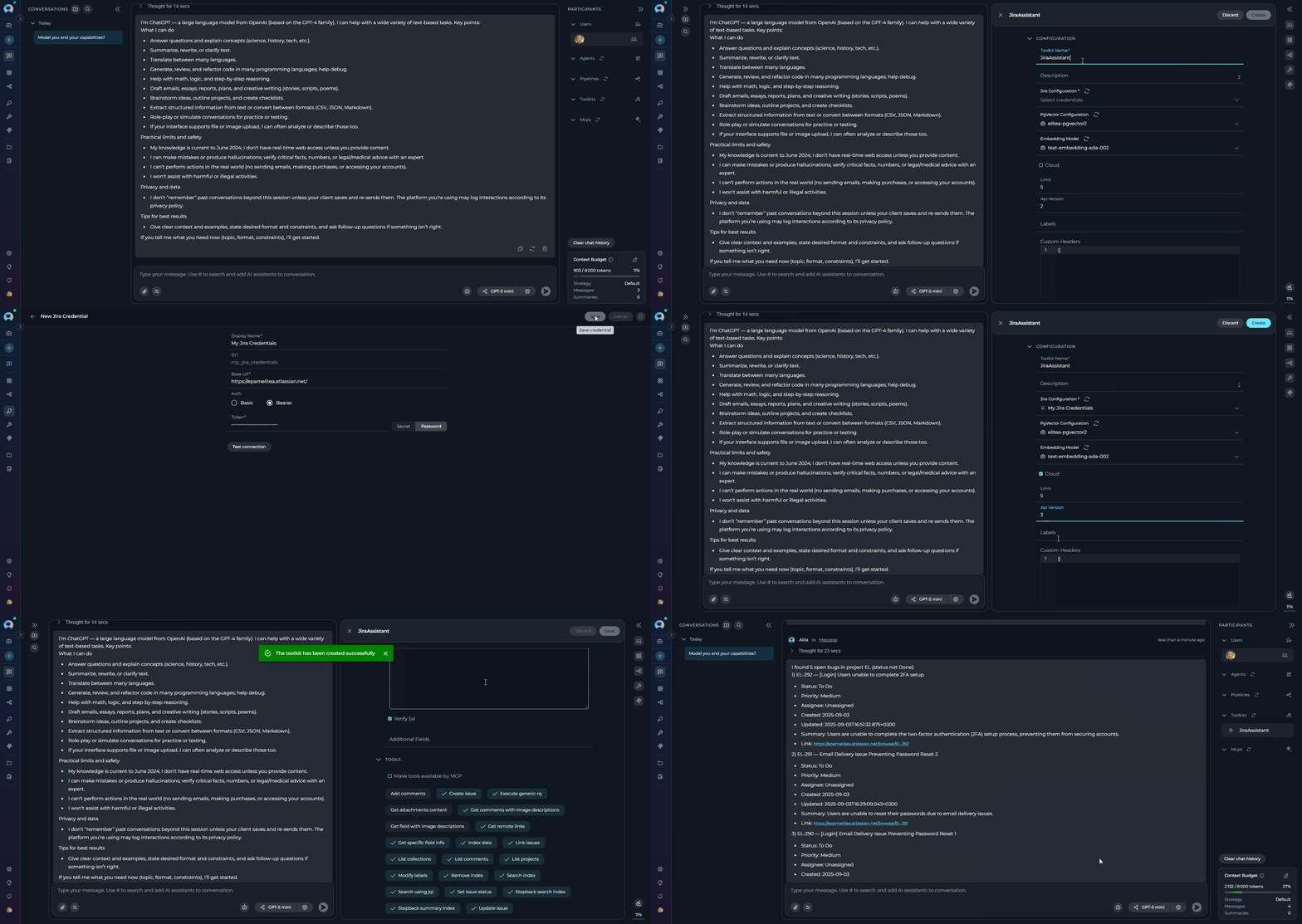
- Access Chat: Click Chat in the left sidebar
-
Create a Toolkit from Chat:
- In the PARTICIPANTS panel on the right, find toolkits
- Click the + Add toolkit icon
- Click + Create new Toolkit
- Select Jira as the toolkit type
- Enter a name (e.g.,
MyJiraToolkit)
-
Create Credentials:
- In the CONFIGURATION section, click the credentials dropdown
- Select + New credentials (or + New private credentials)
- You’ll be redirected to the Create Credentials page
- Select Jira as the credential type
- Give it a name like
My Jira Credentials - Fill in:
- Base URL: Your Jira instance URL
- For Basic Auth: Username + API Key
- For Bearer Token: Token only
- Click Save
-
Complete Toolkit Configuration:
- Return to the toolkit canvas (or refresh if needed)
- Click the refresh icon next to the Jira configuration field
- Select your newly created credential from the dropdown
- Select an Embedding Model (e.g.,
text-embedding-3-small) - Choose a Vector Store (PostgreSQL with pgvector extension)
- Enable the tools you need (e.g., Search using JQL, Create issue)
- Click Create
- Close the Canvas interface
-
Use it:
- Type:
Find all open bugs in project ABC - The toolkit will search Jira and return results
- Type:
Confluence Toolkit
Connect to Confluence for documentation search and knowledge base access.- Confluence Base URL (e.g.,
https://yourcompany.atlassian.net/wiki) - Authentication (choose one):
- Basic Auth: Username + API Key(server)
- Bearer Token: Personal Access Token(cloud)
- Access Chat: Click Chat in the left sidebar
-
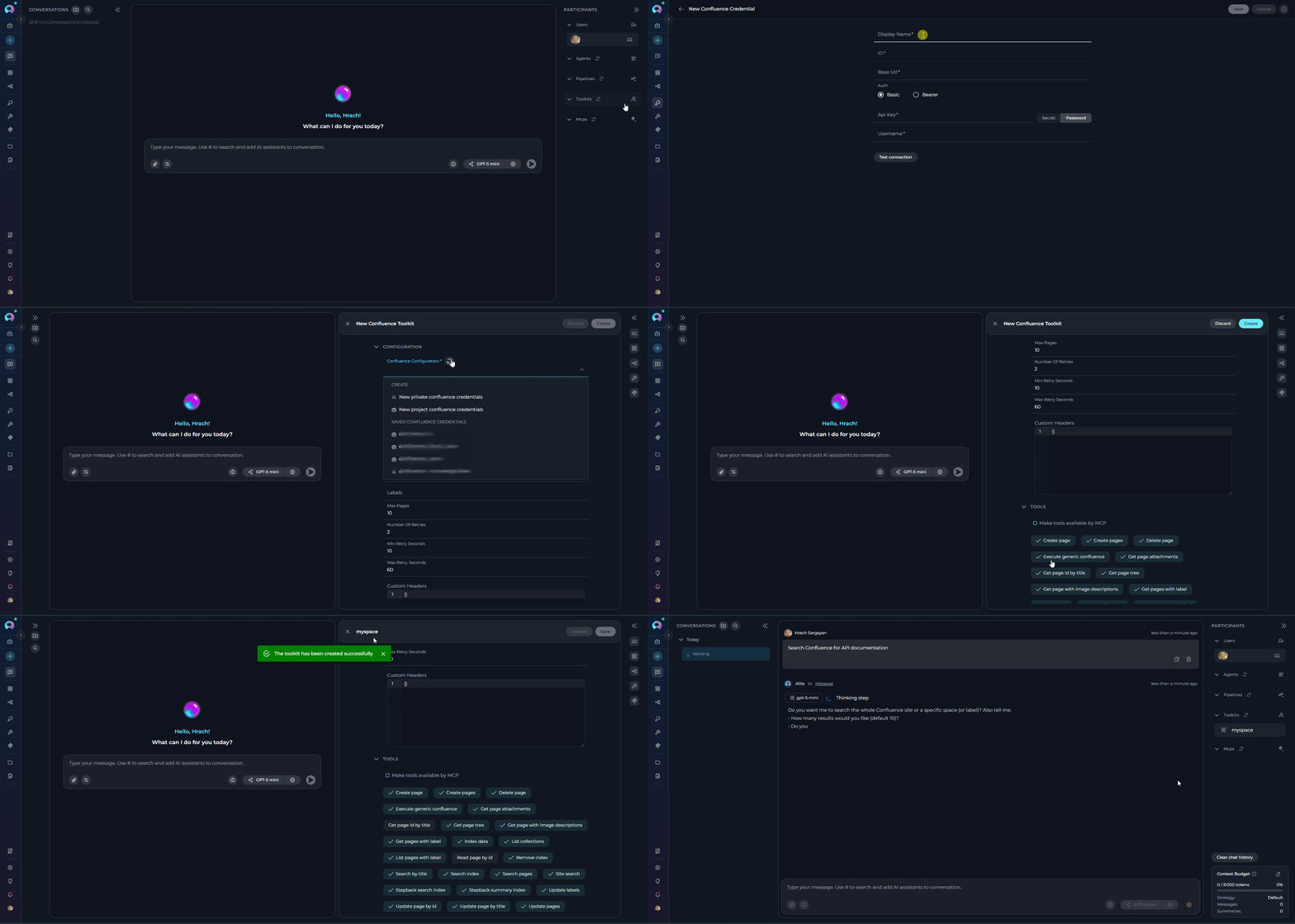
Create a Toolkit from Chat:
- In PARTICIPANTS panel, click + Add toolkit
- Click + Create new Toolkit
- Select Confluence
-
Create Credentials:
- Click credentials dropdown → + New credentials
- Select Confluence as credential type
- Name it (e.g.,
My Confluence Credentials) - Fill in:
- Base URL: Your Confluence instance URL
- For Basic Auth: Username + API Key
- For Bearer Token: Token only
- Click Save
-
Complete Toolkit Configuration:
- Return to toolkit canvas
- Refresh and select your credential
- Specify a Confluence space to limit searches-the toolkit will be automatically named with this space name
- Select an Embedding Model (e.g.,
text-embedding-3-small) - Choose a Vector Store (PostgreSQL with pgvector extension)
- Enable the tools you need (e.g., Read page by id, Update page by title)
- Click Create
-
Use it:
- Type:
Search Confluence for API documentation - The toolkit will search and return relevant pages
- Type:
GitHub Toolkit
Connect to GitHub repositories for code analysis, issue management, and pull request operations.- Base URL (default:
https://api.github.com, or your GitHub Enterprise URL) - Authentication (choose one):
- Access Token: Personal Access Token (recommended)
- Username + Password: Basic authentication
- App Private Key: GitHub App ID + Private Key
- Anonymous: No authentication (public repositories only)
- Access Chat: Click Chat in the left sidebar
-
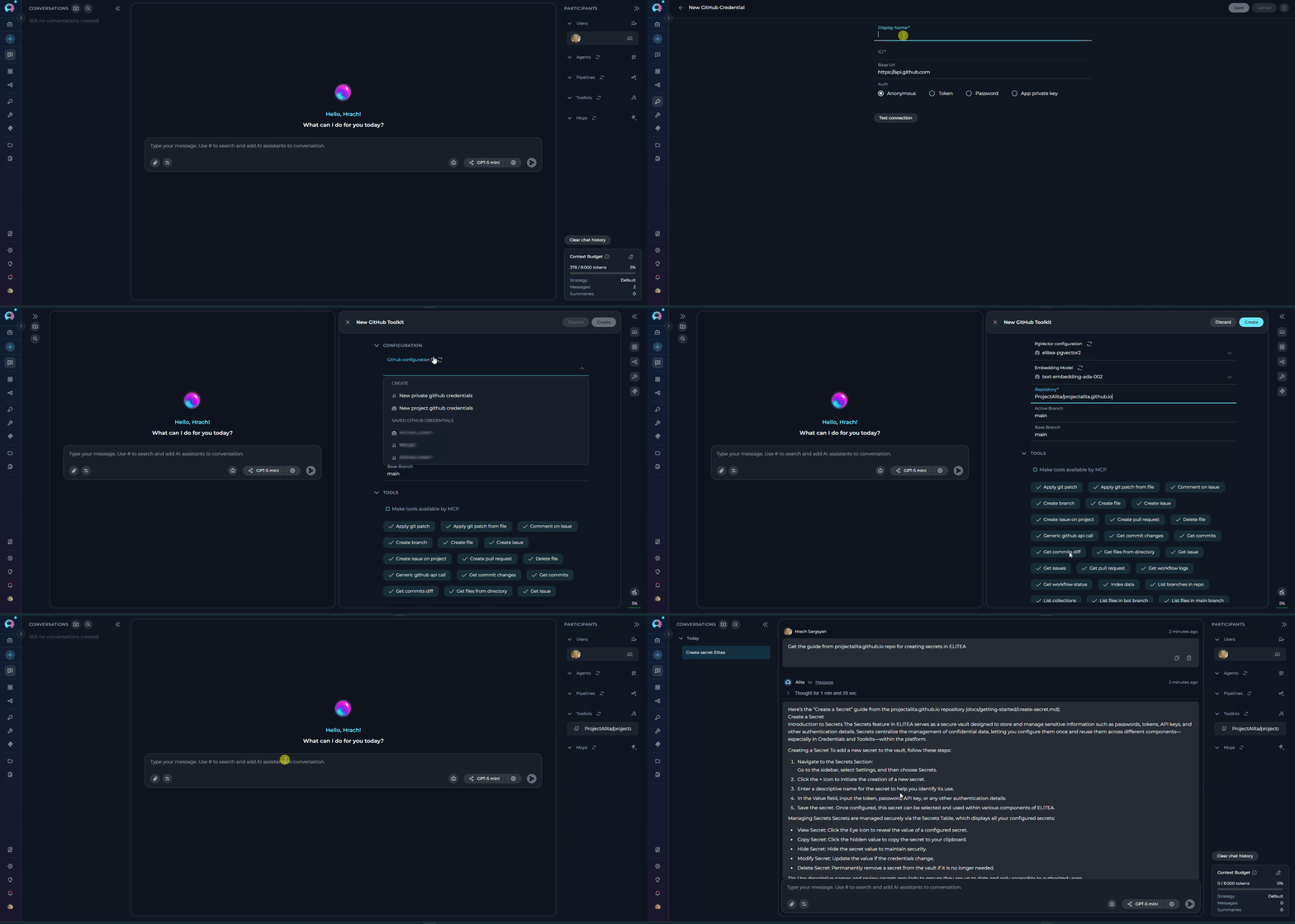
Create a Toolkit from Chat:
- In PARTICIPANTS panel, click + Add toolkit
- Click + Create new Toolkit
- Select GitHub
-
Create Credentials (optional for public repos):
- Click credentials dropdown → + New credentials
- Select GitHub as credential type
- Name it (e.g.,
My GitHub Credentials) - Fill in (choose one method):
- Token: Access Token only
- Password: Username + Password
- App Private Key: App ID + Private Key
- Click Save
-
Complete Toolkit Configuration:
- Return to toolkit canvas
- Refresh and select your credential (or leave empty for public access)
- Configure:
- Project: Organization or username
- Repository: Repository name(e.g.,
ProjectAlita/projectalita.github.io) - Branch: Default branch (e.g.,
main)
- Select an Embedding Model (e.g.,
text-embedding-3-small) - Choose a Vector Store (PostgreSQL with pgvector extension)
- Enable the tools you need (e.g., Read file, List pull request diffs)
- Click Create
-
Use it:
- Type:
Get the guide from projectalita.github.io repo for creating secrets in ELITEA - The toolkit will fetch and display the secret creation documentation
- Type:
Figma Toolkit
Connect to Figma for design file access and collaboration.- Figma Token: Personal Access Token from Figma account settings
- Access Chat: Click Chat in the left sidebar
-
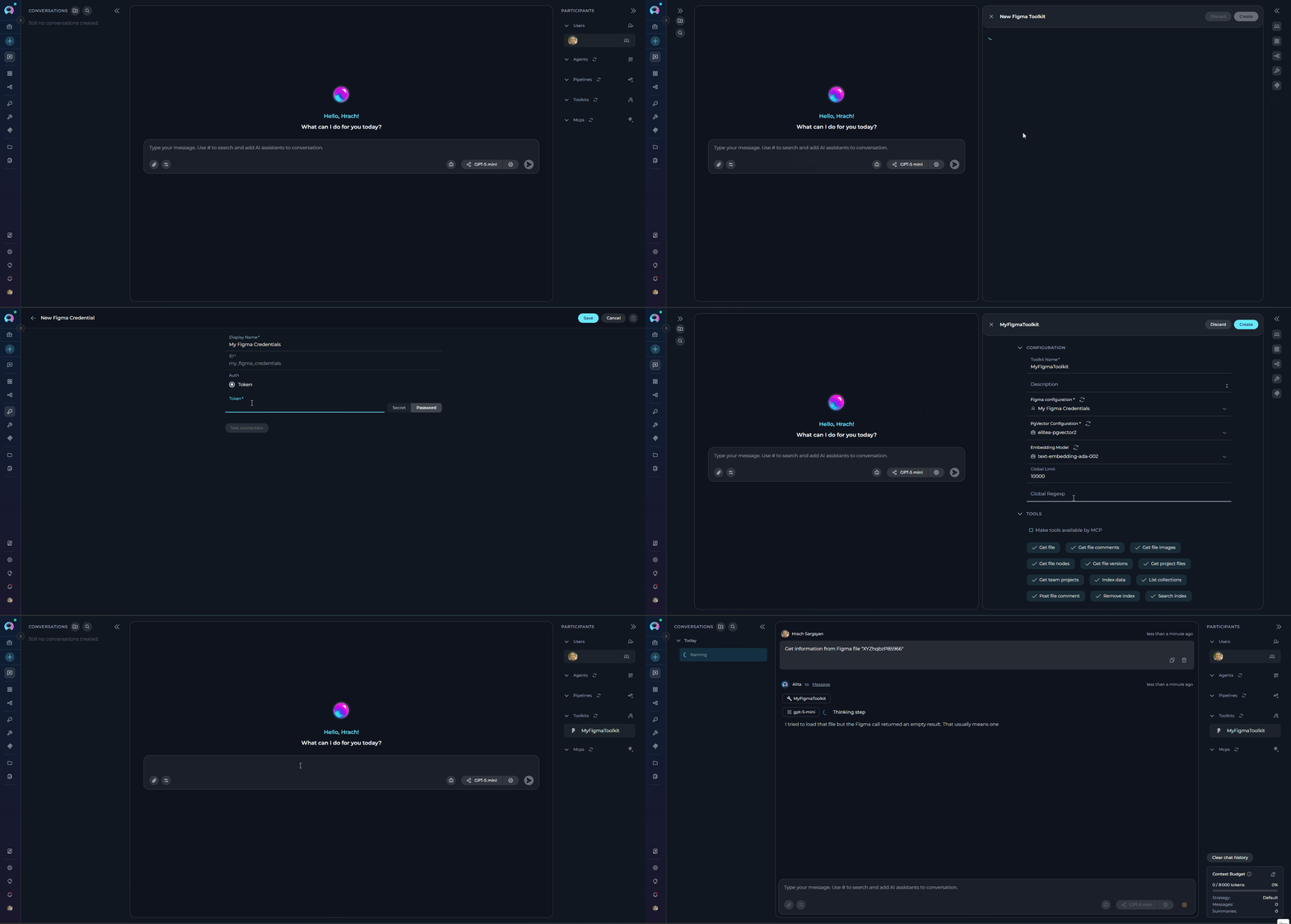
Create a Toolkit from Chat:
- In PARTICIPANTS panel, click + Add toolkit
- Click + Create new Toolkit
- Select Figma
- Enter a name (e.g.,
MyFigmaToolkit)
-
Create Credentials:
- Click credentials dropdown → + New credentials
- Select Figma as credential type
- Name it (e.g.,
My Figma Credentials) - Fill in:
- Token: Your Figma Personal Access Token
- Click Save
-
Complete Toolkit Configuration:
- Return to toolkit canvas
- Refresh and select your credential
- Select an Embedding Model (e.g.,
text-embedding-3-small) - Choose a Vector Store (PostgreSQL with pgvector extension)
- Enable tools for accessing Figma files(e.g. Get file, Get project files)
- Click Create
-
Use it:
- Type:
Get information from Figma file XYZ - The toolkit will access Figma and retrieve file data
- Type:
- Go to Figma account settings
- Navigate to Personal Access Tokens
- Click Generate new token
- Copy the token immediately (it won’t be shown again)
TestRail Toolkit
Connect to TestRail for test case management and test execution tracking.- TestRail URL (e.g.,
https://yourcompany.testrail.io) - Email: Your TestRail account email
- Password: Your TestRail password or API key
- Access Chat: Click Chat in the left sidebar
-
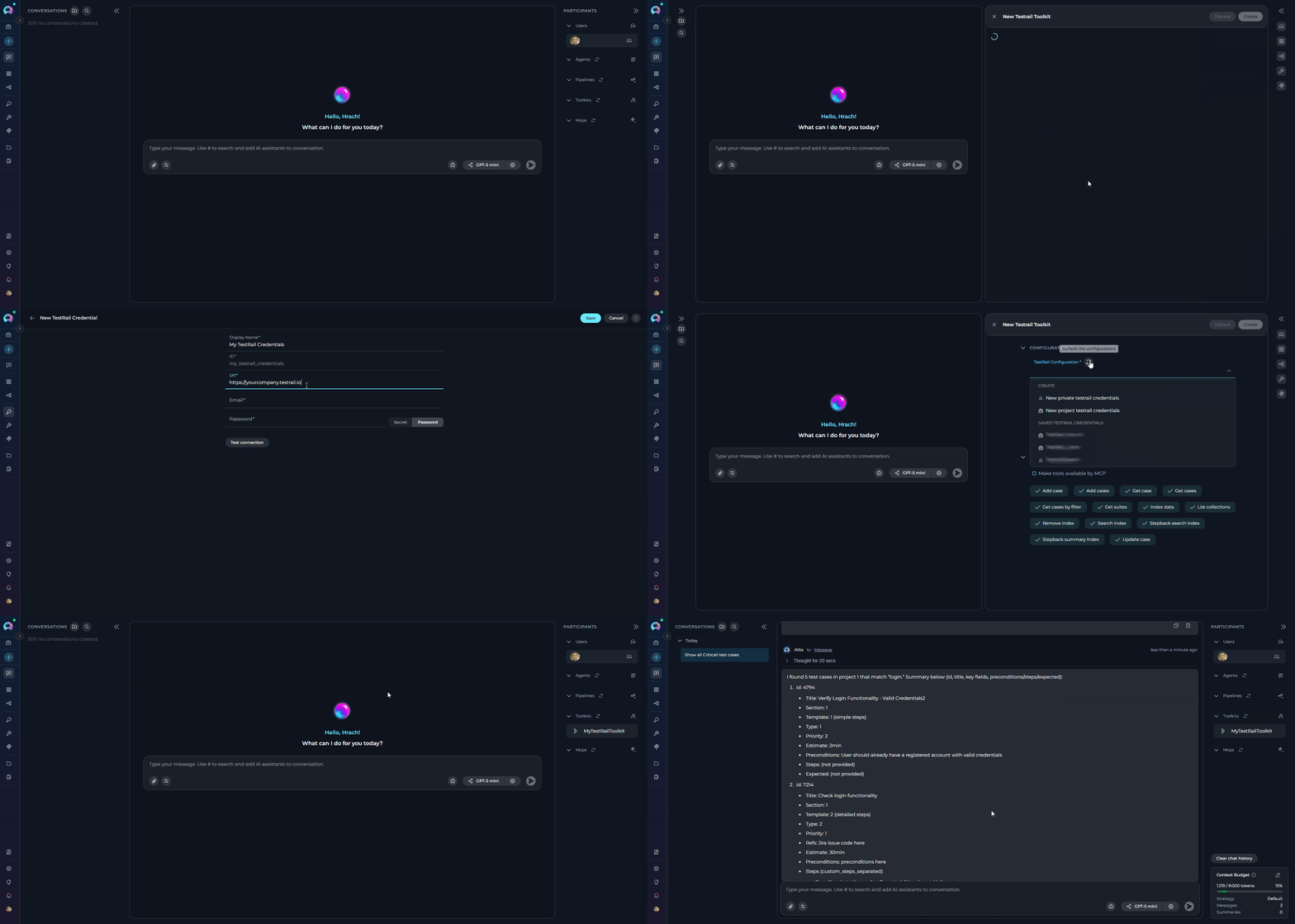
Create a Toolkit from Chat:
- In PARTICIPANTS panel, click + Add toolkit
- Click + Create new Toolkit
- Select TestRail
-
Create Credentials:
- Click credentials dropdown → + New credentials
- Select TestRail as credential type
- Name it (e.g.,
My TestRail Credentials) - Fill in:
- URL: Your TestRail instance URL (e.g.,
https://yourcompany.testrail.io) - Email: Your account email (e.g.,
user@company.com) - Password: Your password or API key
- URL: Your TestRail instance URL (e.g.,
- Click Save
-
Complete Toolkit Configuration:
- Return to toolkit canvas
- Refresh and select your credential
- Enter a name (e.g.,
MyTestRailToolkit) - Select an Embedding Model (e.g.,
text-embedding-3-small) - Choose a Vector Store (PostgreSQL with pgvector extension)
- Enable the tools you need (e.g., Get cases, Add case)
- Click Create
-
Use it:
- Type:
Show me all test cases related to log-in functionality from project with id 1 - The toolkit will fetch and display test case information
- Type:
Artifact Toolkit
Create storage buckets for file attachments in chat conversations.- Bucket Name: A unique identifier (lowercase letters, numbers, hyphens only)
The Artifact Toolkit is essential for:
- Enabling file attachments in chat
- Storing uploaded images and documents
- Managing conversation artifacts
- File retention and organization
- Access Chat: Click Chat in the left sidebar
-
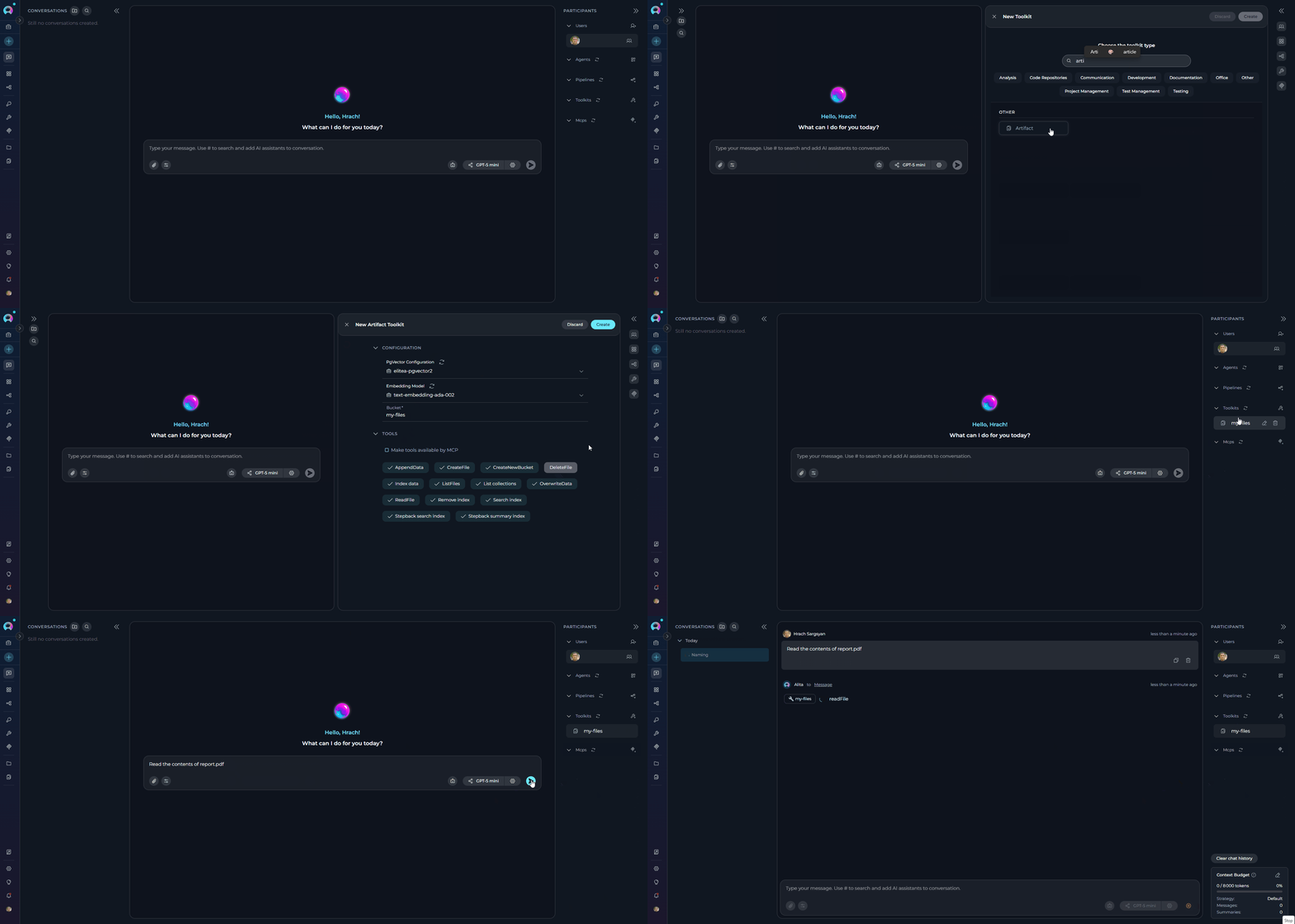
Create a Toolkit:
- In PARTICIPANTS panel, click + Add toolkit
- Click + Create new Toolkit
- Select Artifact
- Enter a name that matches your bucket name
-
Configure Bucket:
- Bucket: Enter a unique name (lowercase, alphanumeric, hyphens)
- ✔️ Valid:
my-files,project-2024,team-assets - ✘ Invalid:
My Files,project_2024,Team@Assets
- ✔️ Valid:
- Select an Embedding Model (e.g.,
text-embedding-3-small) - Choose a Vector Store (PostgreSQL with pgvector extension)
- Enable the tools you need (e.g., CreateFile, ListFiles)
- Click Create
- Bucket: Enter a unique name (lowercase, alphanumeric, hyphens)
-
Use it:
- Files uploaded via chat are stored in this bucket
- Agents can read, create, and manage files programmatically
- Example:
List all files in my artifact bucketorRead the contents of report.pdf
Troubleshooting
Authentication Errors (401/403)- Verify credentials are correct
- Check API token hasn’t expired
- Ensure user has required permissions
- For Atlassian tools, verify correct authentication method
- Verify base URL is correct** (must include
http://orhttps://) - Check firewall/proxy settings
- Test connection from browser first
- Ensure service is accessible from your network
- Click refresh icon next to credential selector
- Verify toolkit was created successfully
- Check project permissions
- Reload the page
- Check the “Limit” field in toolkit configuration
- Verify search parameters are correct
- Ensure you have access to the requested data
- Check service-specific query syntax (e.g., JQL for Jira)
- Toolkits Menu: Manage and view all your toolkits
- Credential Configuration Guide: Advanced configuration options
- AI Configuration: Configure PgVector, embedding models, and LLM settings
- Chat Menu: Explore all chat features in detail
- Create Secrets: Securely store sensitive data