

Request an EPAM AI DIAL API Key
- Open EPAM AI DIAL: https://chat.lab.epam.com.
-
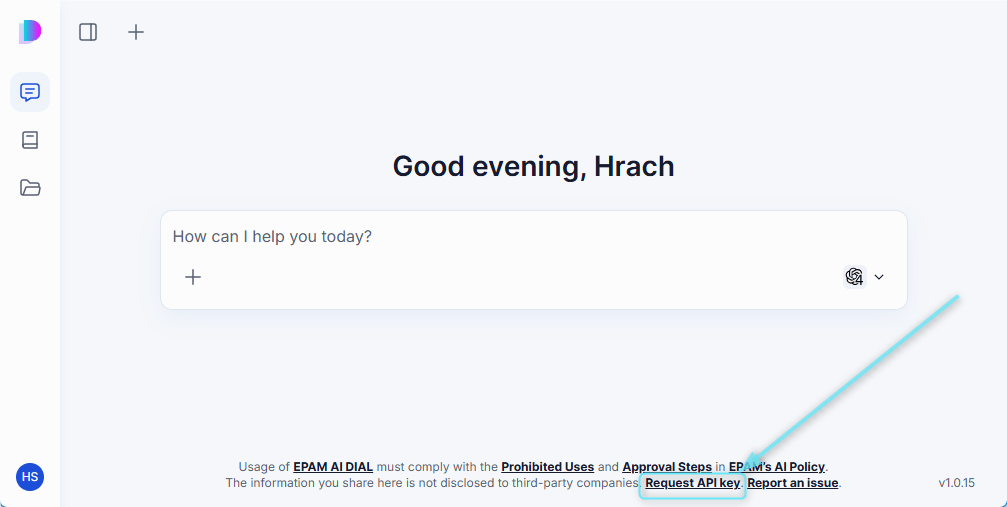
Click “Request API key” at the bottom, or go directly: Request API Key.
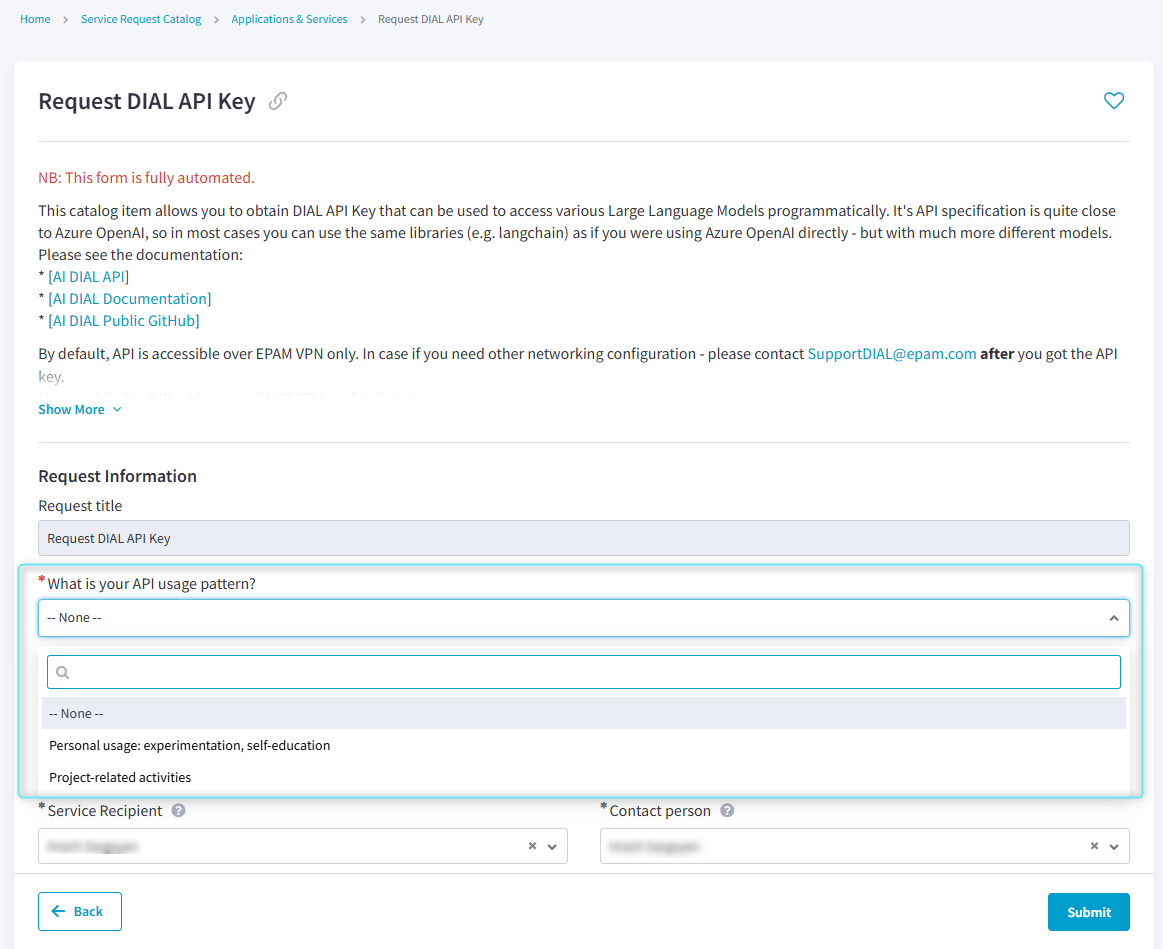
- Fill in the required details to open a support request.
-
Wait for the confirmation email with your API key and usage details.
Configure DIAL Credentials & Models
Once you have your EPAM AI DIAL API key, register it in ELITEA in two steps:- Save the key as an AI Credential so ELITEA can authenticate with DIAL. You only need to do this once: a single credential covers every model family DIAL offers—GPT, Claude, Gemini and others—so there is no need to create a separate credential per model.
- Add one or more LLM Models that reference that credential. This makes the specific models your key is entitled to available for use in Chat, Agents and Pipelines.
Not every DIAL model is available for every API key. Before adding a model, check that your key has access to it—see Check Model Access and Limits in DIAL below.
Configure the DIAL Credential
- Log in to the Next environment: https://next.elitea.ai.
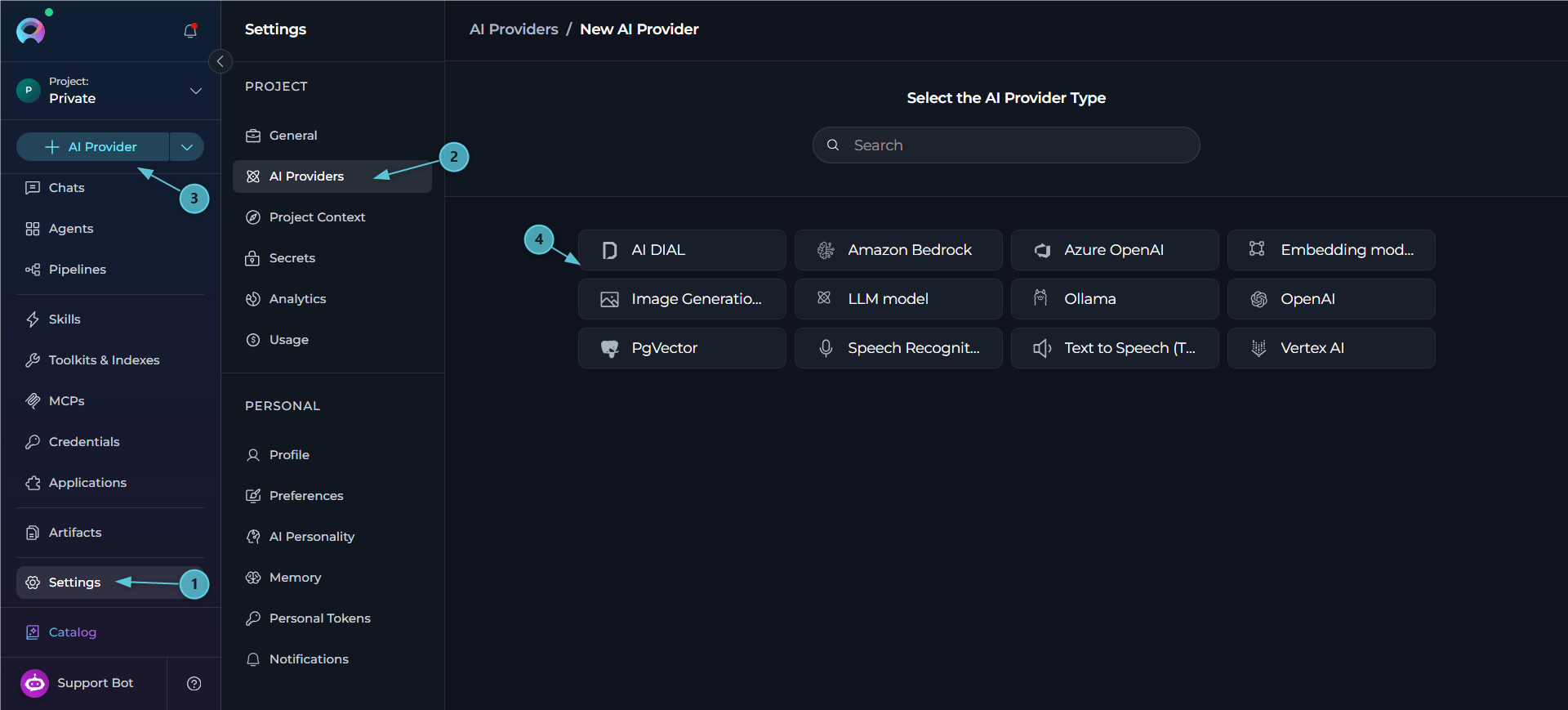
- Go to Settings → AI Providers to view existing credentials, or create one directly from any page.
- Click the + AI Providers button in the sidebar.
-
In the type selector, select credential type: “AI DIAL”.
-
Fill the fields:
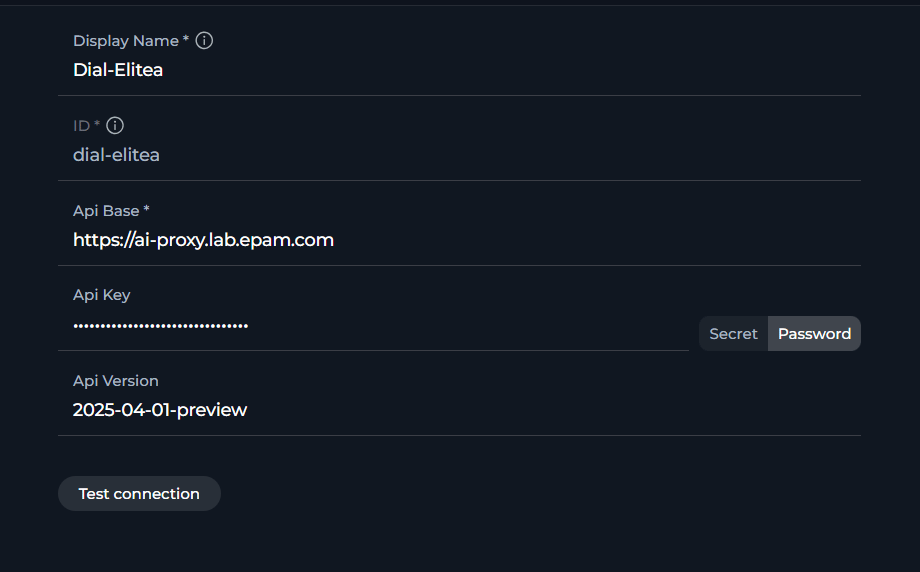
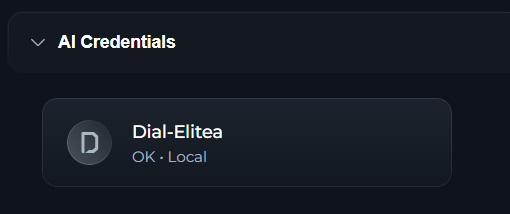
- Click Save. The DIAL credential is created and appears under AI Credentials in AI Providers as available to use.
Configure LLM Models
After creating the DIAL credential, add each LLM model that your key can access.- Log in to the Next environment: https://next.elitea.ai.
- Go to Settings → AI Providers to view existing credentials, or create one directly from any page.
- Click the + AI Providers button in the sidebar to create a new AI provider.
-
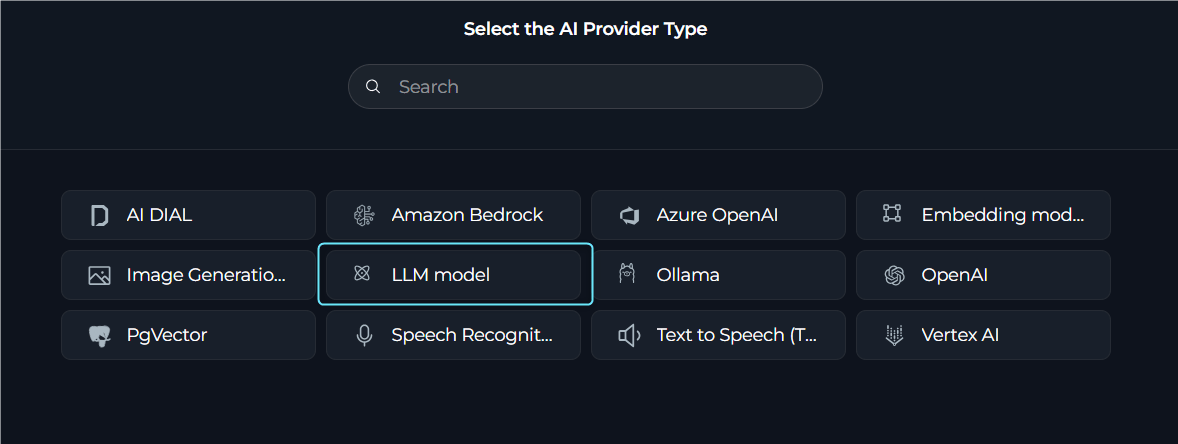
In the type selector, select credential type: “LLM Model”.
-
Fill the fields:
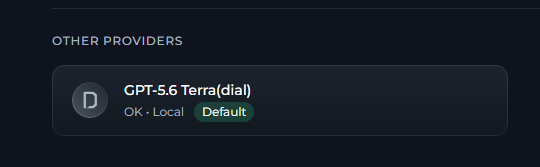
- Click Save. The model appears in the model selector across Chat, Agents and Pipelines.
Choose the API Protocol by Model Family
Reasoning
- Use the base model and turn on Reasoning in ELITEA. Do not add DIAL’s
-reasoning,-with-thinkingor-without-thinkingvariants as separate models. - Reasoning can be turned on or off for any model on its correct API protocol.
- GPT-4, GPT-4o and GPT-4.1 do not support reasoning, and ELITEA hides or blocks enabling it for these models.
Embedding and Image Generation Models
Create an Embedding Model the same way, using the DIAL deployment ID as the Model Name and the DIAL credential. Image generation models follow the same process as other models. See Embedding Models and Image Generation for the general steps.Migrate Existing DIAL Models
Models created before the API protocol field existed show Azure OpenAI by default. Plain chat keeps working on Azure OpenAI, but reasoning does not. Open each GPT model and switch its API protocol to OpenAI, and each Claude model to Anthropic. Changes take effect immediately—no LiteLLM sync needed.Check Model Access and Limits in DIAL
DIAL has an endpoint that returns the limits for one deployment for your API key:https://ai-proxy.lab.epam.com/v1/deployments/claude-sonnet-5@default/limits
The response shows the per-minute and per-day token limits and how much has been used. If the call fails for a deployment, your key probably does not have access to that model.
Troubleshooting
Empty Answer with No Error
Empty Answer with No Error
Check two things:
- Is the API protocol right for the model family? A wrong protocol gives this symptom—for example, Claude on Azure OpenAI fails even with reasoning off.
- Is the deployment still supported? Some older deployments may no longer work.
Rate Limit Reached (429)
Rate Limit Reached (429)
DIAL limits how many tokens each key can use per minute and per day, and the limits differ by model. When a limit is reached, the chat shows an error like this:Wait for the limit to reset—the next minute, or the next day for the daily limit—or switch to another model. To see your current limits and usage, see Check Model Access and Limits in DIAL below.
Max Output Tokens Set Too High (400)
Max Output Tokens Set Too High (400)
If Max output tokens is higher than the model allows, every request fails with an error like this:Set Max output tokens to a value no higher than the maximum named in the message (here,
128000), then save.Error After Updating an Existing LLM Model
Error After Updating an Existing LLM Model
If you receive an error (for example
400, 401 or 403) when using an LLM model with AI DIAL credentials after updating an existing LLM model:- Delete the LLM model you updated.
- Create a new LLM model with a Display Name different from the deleted one, using the same configuration.
Notes & Limits
- EPAM AI DIAL enforces its own per-model and per-key limits. Use Check Model Access and Limits in DIAL above, or the Available Models and Rate Limits catalog, to plan accordingly.
- If a model is not visible in the model selector, double-check that the Model Name field matches the exact DIAL deployment ID and that your key is entitled to that model.
- In Settings → AI Providers, each credential and model shows a status of OK or In Progress, along with its scope (Shared or Local). If your DIAL credential does not show OK, use Test connection (or the batch check) to confirm the API Base, API key and API version before creating models against it.
- For troubleshooting or blocked usage, switch to your dedicated key (avoid the shared Next models) and re-verify the credential and its models in AI Providers.