> ## Documentation Index
> Fetch the complete documentation index at: https://docs.elitea.ai/llms.txt
> Use this file to discover all available pages before exploring further.
# Updating LLM Nodes in Pipelines
> The LLM node structure has been updated with a new configuration format. If you have existing pipelines created before this change, you'll need to manually upda
## Overview
**What changed:**
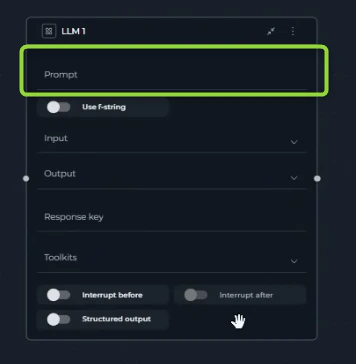
* Old LLM nodes used a single **Prompt** field
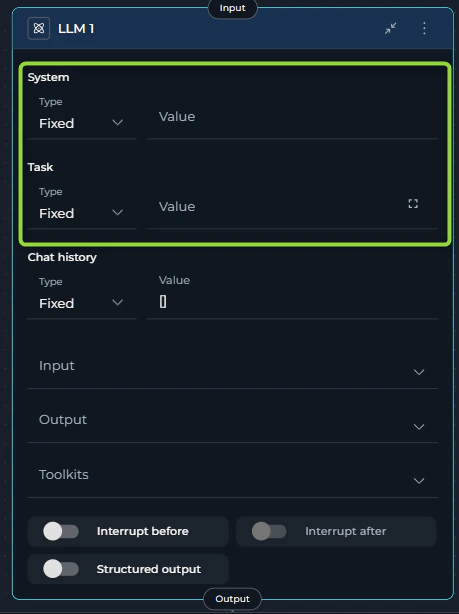
* New LLM nodes require separate **System** and **Task** fields
* The UI has been redesigned with dedicated sections for each parameter
**What you need to do:**
* Open your pipeline and manually update each LLM node to the new format
* Add values for the new required fields: **System** and **Task**
* Save your pipeline after updating
## Visual Comparison
### Old LLM Node (No longer supported)
The previous LLM node configuration had a simpler structure with just a Prompt field:
 ### New LLM Node (Current format)
The updated LLM node now requires System and Task fields:
### New LLM Node (Current format)
The updated LLM node now requires System and Task fields:
 ## Symptoms
If you have an existing pipeline with LLM nodes created before this update, you may experience:
* Pipeline fails to load or execute
* LLM node shows configuration issues
* Errors when trying to run the pipeline
## Solution
Follow these steps to update your LLM nodes manually:
### Step 1: Open Your Pipeline
1. Navigate to **[Pipelines](../../menus/pipelines)** in the main menu
2. Find and click on the pipeline that's experiencing issues
3. Click the **Configuration** tab
4. Select the **Flow** tab to view the pipeline flow diagram
### Step 2: Update the LLM Node
1. Click on the **LLM node** in the flow diagram to open its configuration panel
2. You'll see three input fields:
* **System**: Enter your system prompt (instructions for the AI's behavior and role)
* **Task**: Enter the specific task or user query
* **Chat History**: Optional conversation history (can be left empty)
3. Fill in the required fields:
* **System**: Add the system-level instructions (e.g., "You are a helpful assistant that...")
* **Task**: Add the user task or prompt (e.g., "Analyze the provided code and suggest improvements")
4. Click **Save** in the configuration panel
### Step 3: Test the Pipeline
Run your pipeline to verify the LLM node works correctly with the new configuration.
## Tips
If you need to retrieve your old prompt content:
* In the pipeline **Configuration** tab, switch to the **YAML** tab
* Look for your LLM node in the YAML structure
* Find the old prompt content to help you fill in the new **System** and **Task** fields
If your old LLM node had a single prompt, you can split it:
* Move system-level instructions to the **System** field
* Move the specific task/query to the **Task** field
You can still use variables in these fields by clicking the variable icon next to each input field and selecting from your pipeline variables.
## Symptoms
If you have an existing pipeline with LLM nodes created before this update, you may experience:
* Pipeline fails to load or execute
* LLM node shows configuration issues
* Errors when trying to run the pipeline
## Solution
Follow these steps to update your LLM nodes manually:
### Step 1: Open Your Pipeline
1. Navigate to **[Pipelines](../../menus/pipelines)** in the main menu
2. Find and click on the pipeline that's experiencing issues
3. Click the **Configuration** tab
4. Select the **Flow** tab to view the pipeline flow diagram
### Step 2: Update the LLM Node
1. Click on the **LLM node** in the flow diagram to open its configuration panel
2. You'll see three input fields:
* **System**: Enter your system prompt (instructions for the AI's behavior and role)
* **Task**: Enter the specific task or user query
* **Chat History**: Optional conversation history (can be left empty)
3. Fill in the required fields:
* **System**: Add the system-level instructions (e.g., "You are a helpful assistant that...")
* **Task**: Add the user task or prompt (e.g., "Analyze the provided code and suggest improvements")
4. Click **Save** in the configuration panel
### Step 3: Test the Pipeline
Run your pipeline to verify the LLM node works correctly with the new configuration.
## Tips
If you need to retrieve your old prompt content:
* In the pipeline **Configuration** tab, switch to the **YAML** tab
* Look for your LLM node in the YAML structure
* Find the old prompt content to help you fill in the new **System** and **Task** fields
If your old LLM node had a single prompt, you can split it:
* Move system-level instructions to the **System** field
* Move the specific task/query to the **Task** field
You can still use variables in these fields by clicking the variable icon next to each input field and selecting from your pipeline variables.