> ## Documentation Index
> Fetch the complete documentation index at: https://docs.elitea.ai/llms.txt
> Use this file to discover all available pages before exploring further.
# Migration Guide: Upgrading to v2.0.0
> This guide helps you upgrade from v1.7.x to ELITEA v2.0.0, focusing on the critical LLM node updates required for existing pipelines.
## Overview
Version 2.0.0 introduces an enhanced LLM node structure in pipelines with separate **System** and **Task** fields, replacing the previous single **Prompt** field. This change provides better control over AI behavior and more explicit separation of concerns.
## What's New in v2.0.0
* **Enhanced LLM Nodes**: New structure with dedicated System and Task fields
* **Improved Prompt Engineering**: Better separation of system instructions and user tasks
* **MCP Server Support**: Integrated Model Context Protocol for extended capabilities
* **Enhanced Chat Features**: Advanced conversation management and canvas improvements
## Breaking Changes
### LLM Node Structure Change (REQUIRED)
If you have existing pipelines created before v2.0.0, you **must** manually update each LLM node to the new format. Pipelines with old LLM nodes may fail to load or execute.
**What changed:**
* Old format: Single **Prompt** field
* New format: Separate **System** and **Task** fields
**Impact:**
* Existing LLM nodes will show configuration errors
* Pipelines may fail to execute
* Manual update required for each affected node
## Migration Guides
### 1. Update LLM Nodes in Pipelines (REQUIRED)
This is the primary migration task for v2.0.0:
**[Update LLM Nodes in Pipelines](./update-llm-nodes)**
This essential guide covers:
* Visual comparison of old vs new LLM node formats
* Symptoms of outdated nodes
* Step-by-step update instructions
* How to migrate your old prompt content
* Tips for using variables in the new format
### 2. Configure and Use MCP Servers (Optional)
Take advantage of the new Model Context Protocol support:
**MCP Client (Connect External Tools to Elitea):**
* [Connect External Tools to Elitea with MCP](../../integrations/mcp/create-and-use-client-stdio)
**MCP Server (Use Elitea Agents in VS Code):**
* [Setting Up Your First MCP Server](../../integrations/mcp/create-and-use-server-stdio)
These quick start guides include:
* Installing and configuring the Elitea MCP Client
* Setting up MCP servers (example: Playwright)
* Creating MCPs in the ELITEA UI
* Using MCP tools in conversations
* Testing and troubleshooting
## Migration Process
Follow these steps to migrate to v2.0.0:
### Step 1: Review Release Notes
Read the [v2.0.0 release notes](../../release-notes/archived/rn-2-0-0) to understand all changes in v2.0.0.
### Step 2: Identify Affected Pipelines
1. Open the **Pipelines** menu
2. Look for pipelines created before v2.0.0
3. Note which ones contain LLM nodes
4. Prioritize business-critical pipelines
### Step 3: Update LLM Nodes
For each pipeline with LLM nodes:
1. Open the pipeline in edit mode
2. Go to **Configuration** → **Flow** tab
3. Click on each LLM node
4. Migrate the content:
* Move system-level instructions to the **System** field
* Move specific tasks/queries to the **Task** field
* Leave **Chat History** empty (unless needed)
5. Save the node configuration
6. Save the pipeline
**Detailed instructions:** [Update LLM Nodes in Pipelines](./update-llm-nodes)
### Step 4: Test Your Pipelines
After updating each pipeline:
1. Run a test execution
2. Verify the output matches expectations
3. Check that all LLM nodes respond correctly
4. Test any variable references
### Step 5: Optional Enhancements
Consider these optional improvements:
#### Set Up MCP Servers
Extend your agents and pipelines with Model Context Protocol:
1. Install the Elitea MCP Client
2. Bootstrap and configure MCP servers
3. Create MCP entries in ELITEA
4. Assign MCPs to agents or use in conversations
See:
* [MCP Client Guide (External Tools → Elitea)](../../integrations/mcp/create-and-use-client-stdio)
* [MCP Server Guide (Elitea Agents → VS Code)](../../integrations/mcp/create-and-use-server-stdio)
#### Review New Features
Explore new capabilities introduced in v2.0.0:
* Enhanced chat and canvas features
* Improved conversation management
* Advanced MCP integration options
## Key Differences from v1.7.x
### LLM Node Structure
| **v1.7.x (Old)** | **v2.0.0 (New)** |
| ----------------------------- | ---------------------------------------- |
| Single **Prompt** field | Separate **System** and **Task** fields |
| Mixed system and user content | Clear separation of concerns |
| Less explicit role definition | Explicit system behavior configuration |
| Basic variable support | Enhanced variable support in both fields |
### Migration Example
**Old Format (v1.7.x):**
```
Prompt: "You are a helpful code reviewer. Analyze the following code and suggest improvements: {code_input}"
```
**New Format (v2.0.0):**
```
System: "You are a helpful code reviewer that provides constructive feedback."
Task: "Analyze the following code and suggest improvements: {code_input}"
```
## Troubleshooting
### Issue: Pipeline fails to load
**Solution:**
1. Check for LLM nodes with configuration errors
2. Update all LLM nodes to the new format
3. Save and reload the pipeline
### Issue: LLM node shows "configuration issues"
**Solution:**
1. Open the node configuration panel
2. Ensure both **System** and **Task** fields are filled
3. Click **Save** in the panel
4. Save the pipeline
### Issue: Can't find old prompt content
**Solution:**
1. Go to pipeline **Configuration** → **YAML** tab
2. Look for your LLM node in the YAML structure
3. Find the old prompt content
4. Copy and split it between System and Task fields
### Issue: Variables not working in new fields
**Solution:**
1. Click the variable icon next to the System or Task field
2. Select from available pipeline variables
3. Variables work the same way in both fields
### Issue: Duplicate toolkits after migration
**Symptoms:**
* Multiple identical or similar toolkits appear after migration from v1.6 to v1.7/2.0
* Toolkits are duplicated for every application version and every application instance
* Agents using the same toolkit show different tool sets despite being configured with the same toolkit
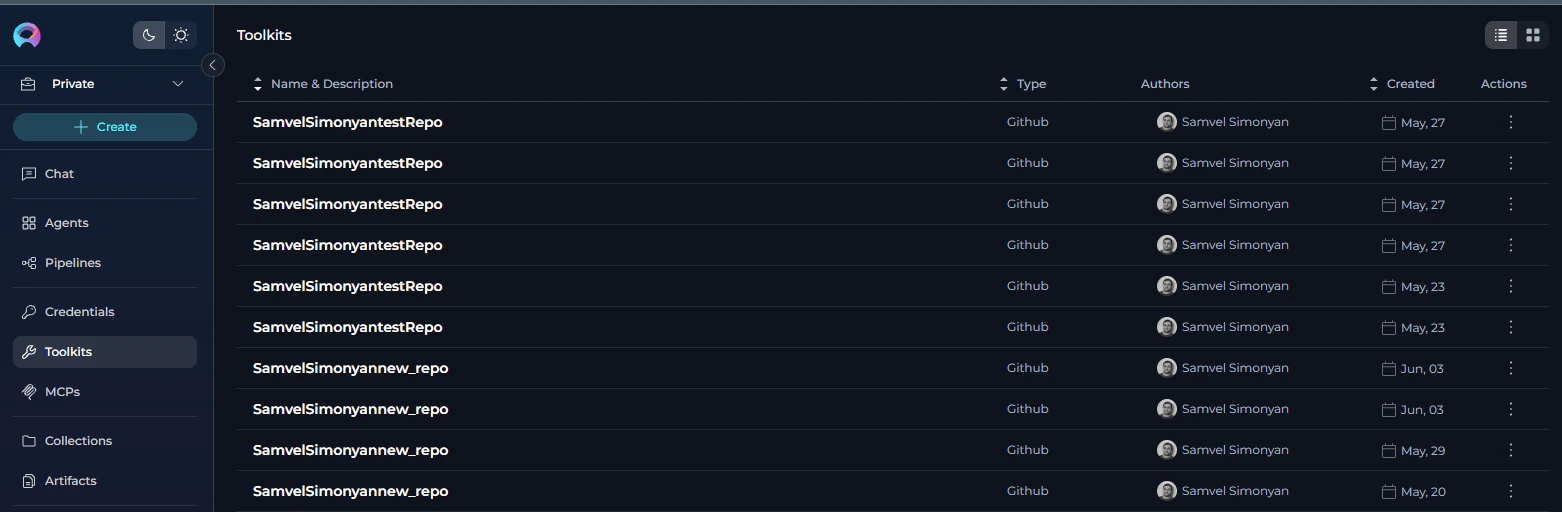 **Cause:**
During automatic data migration from v1.6 to v1.7 or v2.0, the migration process creates duplicate toolkits for each application version and application instance, even when they contain identical functionality.
**Solution:**
1. **Delete excessive toolkits**: Review your toolkits list and remove duplicates, keeping only one instance of each unique toolkit
2. **Reuse tools in agents**: For agents using the same toolkit that show different tool sets, you can filter (deselect) specific tools within each agent to create consistent tool sets
3. **Recreate problematic toolkits**: For some toolkits where credential selection doesn't help resolve configuration issues, it's easier to delete the toolkit completely and create a new one rather than troubleshooting and fixing the existing configuration.
After migration, audit your toolkits list and consolidate duplicates early to avoid confusion when configuring agents and pipelines.
## Rollback Considerations
Once you update LLM nodes to the new format, there is no automatic way to revert to the old structure. Ensure you:
* Test thoroughly in a non-production environment first
* Document your old configurations before updating
* Keep backups of critical pipeline definitions
## Getting Help
If you encounter issues during the upgrade:
* **Migration Guide**: [Update LLM Nodes in Pipelines](./update-llm-nodes)
* **FAQs**: [Frequently Asked Questions](../../support/faqs)
* **Contact Support**: Email [SupportAlita@epam.com](mailto:SupportAlita@epam.com)
When contacting support, include:
* Pipeline name and project
* Screenshot of the LLM node configuration
* Error messages (if any)
* Expected vs actual behavior
## Related Documentation
* [Release Notes - 2.0.0](../../release-notes/archived/rn-2-0-0)
* [Pipelines Menu Guide](../../menus/pipelines)
* [Connect External Tools to Elitea with MCP (Client)](../../integrations/mcp/create-and-use-client-stdio)
* [Setting Up MCP Server (Use Elitea in VS Code)](../../integrations/mcp/create-and-use-server-stdio)
* [MCPs Menu Guide](../../menus/mcps)
* [MCP Client Integration](../../integrations/mcp/create-and-use-client-stdio.mdx)
***
**Next Step:** Start with the [Update LLM Nodes in Pipelines](./update-llm-nodes) guide to migrate your pipelines.
**Cause:**
During automatic data migration from v1.6 to v1.7 or v2.0, the migration process creates duplicate toolkits for each application version and application instance, even when they contain identical functionality.
**Solution:**
1. **Delete excessive toolkits**: Review your toolkits list and remove duplicates, keeping only one instance of each unique toolkit
2. **Reuse tools in agents**: For agents using the same toolkit that show different tool sets, you can filter (deselect) specific tools within each agent to create consistent tool sets
3. **Recreate problematic toolkits**: For some toolkits where credential selection doesn't help resolve configuration issues, it's easier to delete the toolkit completely and create a new one rather than troubleshooting and fixing the existing configuration.
After migration, audit your toolkits list and consolidate duplicates early to avoid confusion when configuring agents and pipelines.
## Rollback Considerations
Once you update LLM nodes to the new format, there is no automatic way to revert to the old structure. Ensure you:
* Test thoroughly in a non-production environment first
* Document your old configurations before updating
* Keep backups of critical pipeline definitions
## Getting Help
If you encounter issues during the upgrade:
* **Migration Guide**: [Update LLM Nodes in Pipelines](./update-llm-nodes)
* **FAQs**: [Frequently Asked Questions](../../support/faqs)
* **Contact Support**: Email [SupportAlita@epam.com](mailto:SupportAlita@epam.com)
When contacting support, include:
* Pipeline name and project
* Screenshot of the LLM node configuration
* Error messages (if any)
* Expected vs actual behavior
## Related Documentation
* [Release Notes - 2.0.0](../../release-notes/archived/rn-2-0-0)
* [Pipelines Menu Guide](../../menus/pipelines)
* [Connect External Tools to Elitea with MCP (Client)](../../integrations/mcp/create-and-use-client-stdio)
* [Setting Up MCP Server (Use Elitea in VS Code)](../../integrations/mcp/create-and-use-server-stdio)
* [MCPs Menu Guide](../../menus/mcps)
* [MCP Client Integration](../../integrations/mcp/create-and-use-client-stdio.mdx)
***
**Next Step:** Start with the [Update LLM Nodes in Pipelines](./update-llm-nodes) guide to migrate your pipelines.