> ## Documentation Index
> Fetch the complete documentation index at: https://docs.elitea.ai/llms.txt
> Use this file to discover all available pages before exploring further.
# Skills
> Skills are reusable, Markdown-based instruction sets that you attach to agents, giving them focused, named capabilities that can be invoked on demand during a conversation.
## Overview
A **Skill** is a focused, reusable instruction set that gives an agent a named capability — written once in Markdown and shared across as many agents as you need. Instead of duplicating instructions or hardwiring behavior into every agent separately, you define the logic in a Skill, attach it where needed, and invoke it on demand during any conversation.
Write once, attach to many agents. Updates to a Skill apply everywhere it is used.
Invoke any attached Skill mid-conversation by typing `~skill-name` in the chat composer.
Maintain multiple named versions alongside the always-present `base`, so you can iterate without breaking existing agents.
**Typical use cases**
| Use case | Example |
| -------------------------- | -------------------------------------------------------------------------------- |
| Shared reasoning templates | A "write unit tests" or "summarize findings" instruction used by multiple agents |
| Persona or tone guidance | A "formal-communication" Skill injected when the agent sends external messages |
| Domain-specific procedures | A step-by-step QA checklist or release-note writing guide |
| Modular agent construction | Build a large agent from small, independently tested Skills |
***
## Accessing Skills
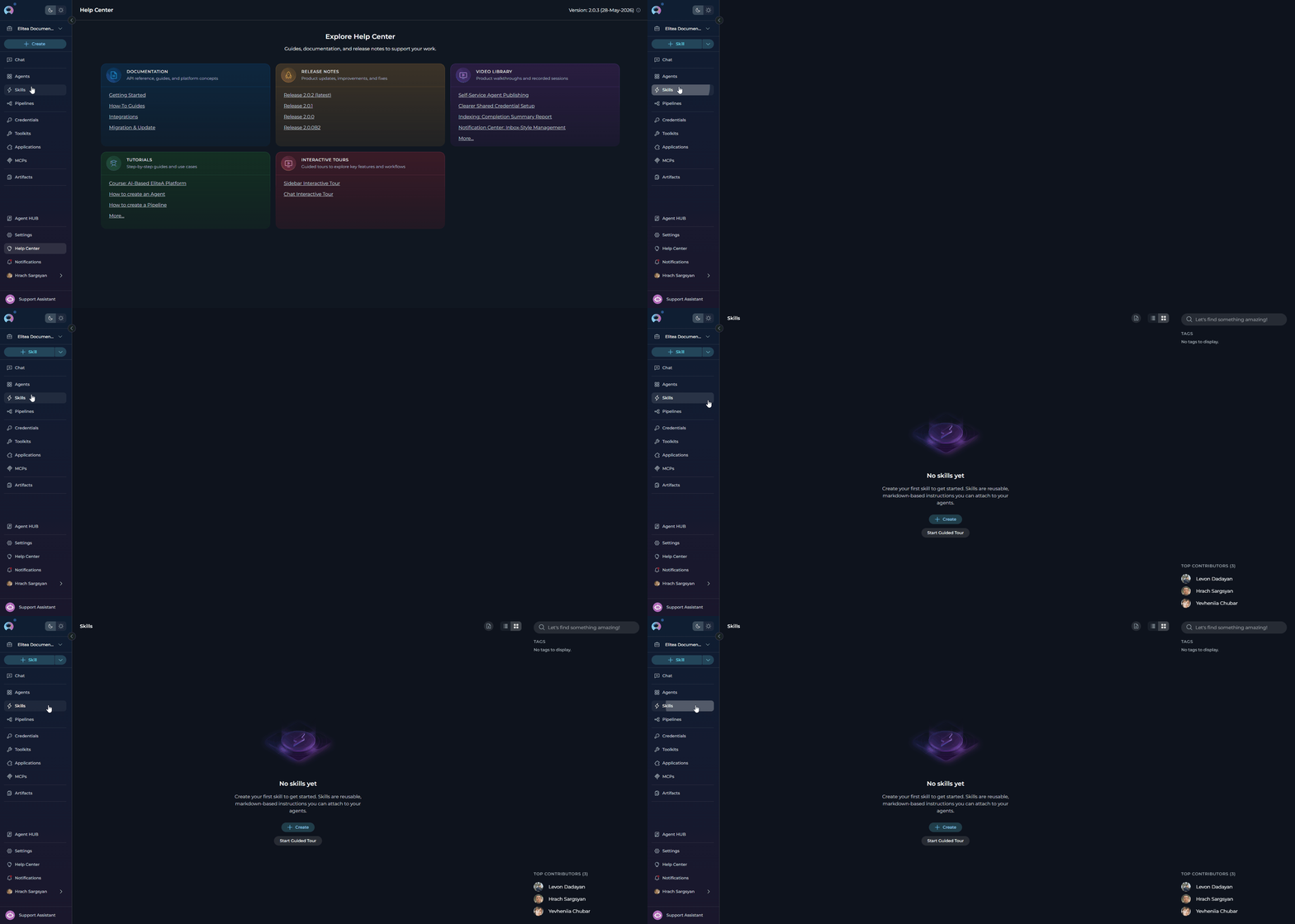
Skills are only available inside **team (non-public) projects**. The **Skills** menu item is hidden when the Public project is selected. Switch to a team or personal project to see it.
To open the Skills area:
1. Select the correct project from the **project switcher** at the top of the left sidebar.
2. Click **Skills** in the main navigation sidebar.
The **Skills** page opens, showing the **Skills** tab — a scrollable list (or card grid) of all Skills in the current project.
 ***
## Creating a Skill
You can create a Skill from the Skills page or directly from the agent editor.
### From the Skills page
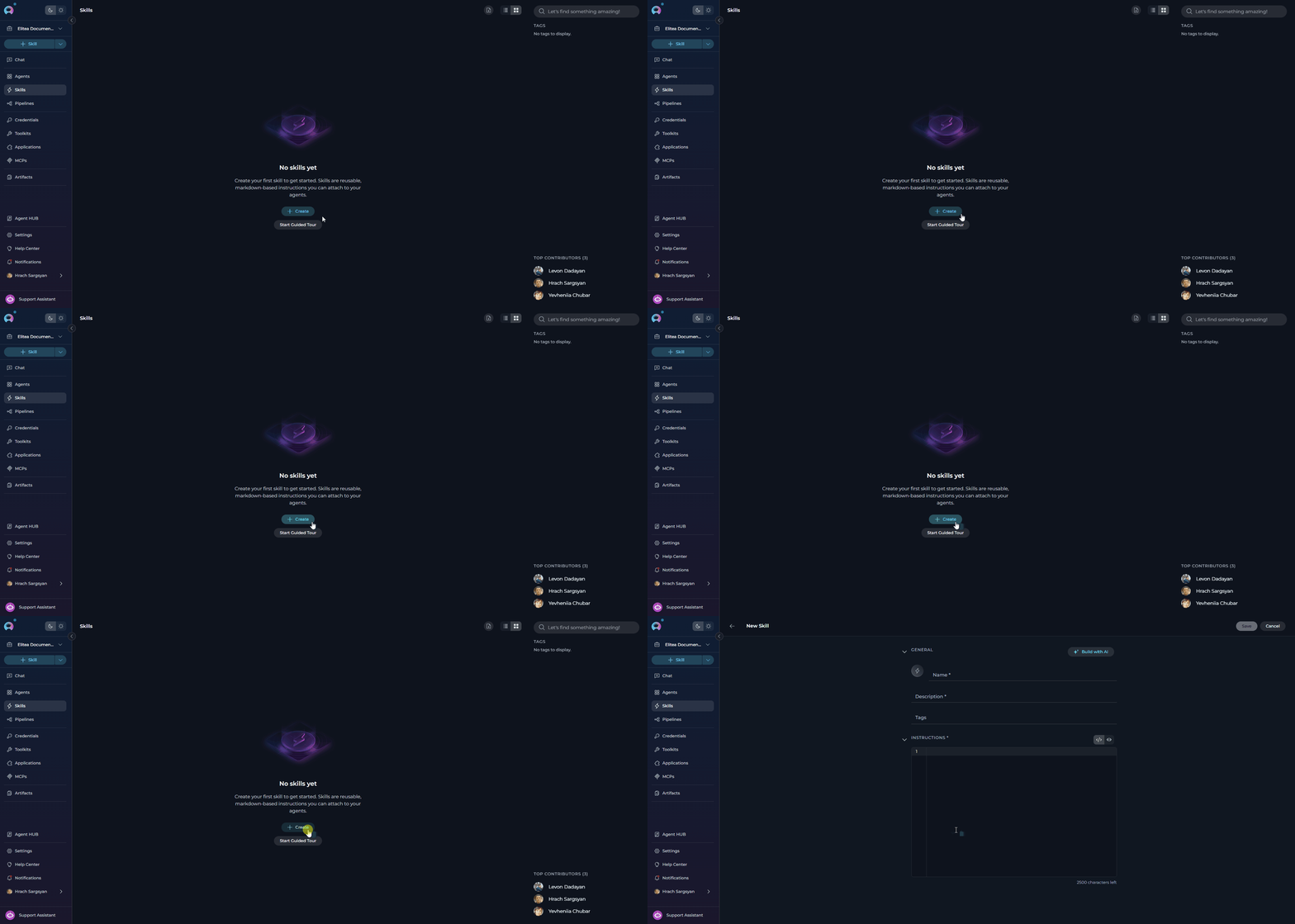
1. Click the **`+` (Create)** button in the top section of the left sidebar, or navigate to the Skills page and click **Create** in the empty state (if no Skills exist yet) to open the skill creation form.
* Alternatively, use the global **`+` Create** button in the sidebar and select **Skill** from the dropdown.
The **New Skill** form opens with two accordion sections: **General** and **Instructions**
***
## Creating a Skill
You can create a Skill from the Skills page or directly from the agent editor.
### From the Skills page
1. Click the **`+` (Create)** button in the top section of the left sidebar, or navigate to the Skills page and click **Create** in the empty state (if no Skills exist yet) to open the skill creation form.
* Alternatively, use the global **`+` Create** button in the sidebar and select **Skill** from the dropdown.
The **New Skill** form opens with two accordion sections: **General** and **Instructions**
 2. In the **General** section, fill in the following fields:
| Field | Required | Example |
| --------------- | -------- | ------------------------------------------------------------ |
| **Name** | Yes | `code-reviewer` |
| **Description** | Yes | `Reviews code for quality issues and suggests improvements.` |
| **Tags** | No | `qa`, `review` |
Name must use lowercase letters, digits, and hyphens only; no leading/trailing hyphens; max 64 characters; cannot contain `claude` or `anthropic`.
3. In the **Instructions** section, type your skill instructions in the Markdown/CodeMirror editor.
* Use the toggle button group in the section header to switch between **Edit mode** (raw Markdown) and **Preview mode** (rendered output).
* A character counter at the bottom of the editor shows remaining characters. The maximum is **2,500 characters**.
**Example instructions:**
```
## Code Review
When reviewing code, always:
- Check for security vulnerabilities (SQL injection, XSS, hardcoded secrets).
- Flag functions longer than 40 lines and suggest splitting them.
- Verify that all public methods have meaningful names and are documented.
- Confirm error handling is present for all external calls.
Format your response as:
1. **Summary** — one sentence verdict.
2. **Issues** — bulleted list with file and line references.
3. **Suggestions** — concrete fix for each issue.
```
4. Click **Save** in the tab bar at the top of the page.
2. In the **General** section, fill in the following fields:
| Field | Required | Example |
| --------------- | -------- | ------------------------------------------------------------ |
| **Name** | Yes | `code-reviewer` |
| **Description** | Yes | `Reviews code for quality issues and suggests improvements.` |
| **Tags** | No | `qa`, `review` |
Name must use lowercase letters, digits, and hyphens only; no leading/trailing hyphens; max 64 characters; cannot contain `claude` or `anthropic`.
3. In the **Instructions** section, type your skill instructions in the Markdown/CodeMirror editor.
* Use the toggle button group in the section header to switch between **Edit mode** (raw Markdown) and **Preview mode** (rendered output).
* A character counter at the bottom of the editor shows remaining characters. The maximum is **2,500 characters**.
**Example instructions:**
```
## Code Review
When reviewing code, always:
- Check for security vulnerabilities (SQL injection, XSS, hardcoded secrets).
- Flag functions longer than 40 lines and suggest splitting them.
- Verify that all public methods have meaningful names and are documented.
- Confirm error handling is present for all external calls.
Format your response as:
1. **Summary** — one sentence verdict.
2. **Issues** — bulleted list with file and line references.
3. **Suggestions** — concrete fix for each issue.
```
4. Click **Save** in the tab bar at the top of the page.
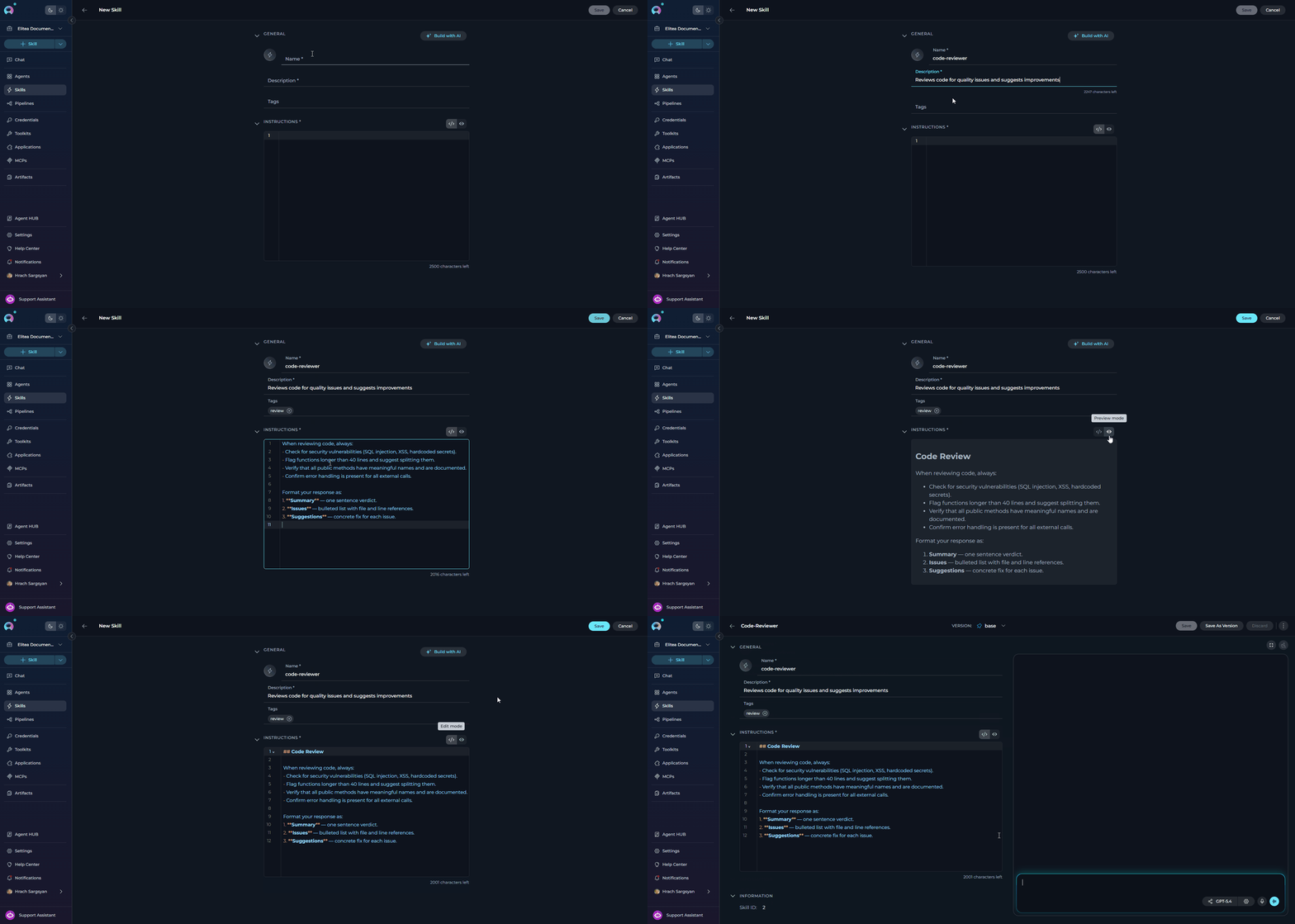 After clicking **Save**, the Skill configuration page will open, showing the Skill's name in the tab bar and the **General** and **Instructions \*** sections in the left panel. The right panel contains a **test chat panel** where you can interact with the Skill directly to verify its behavior.
### AI-Assisted Generation
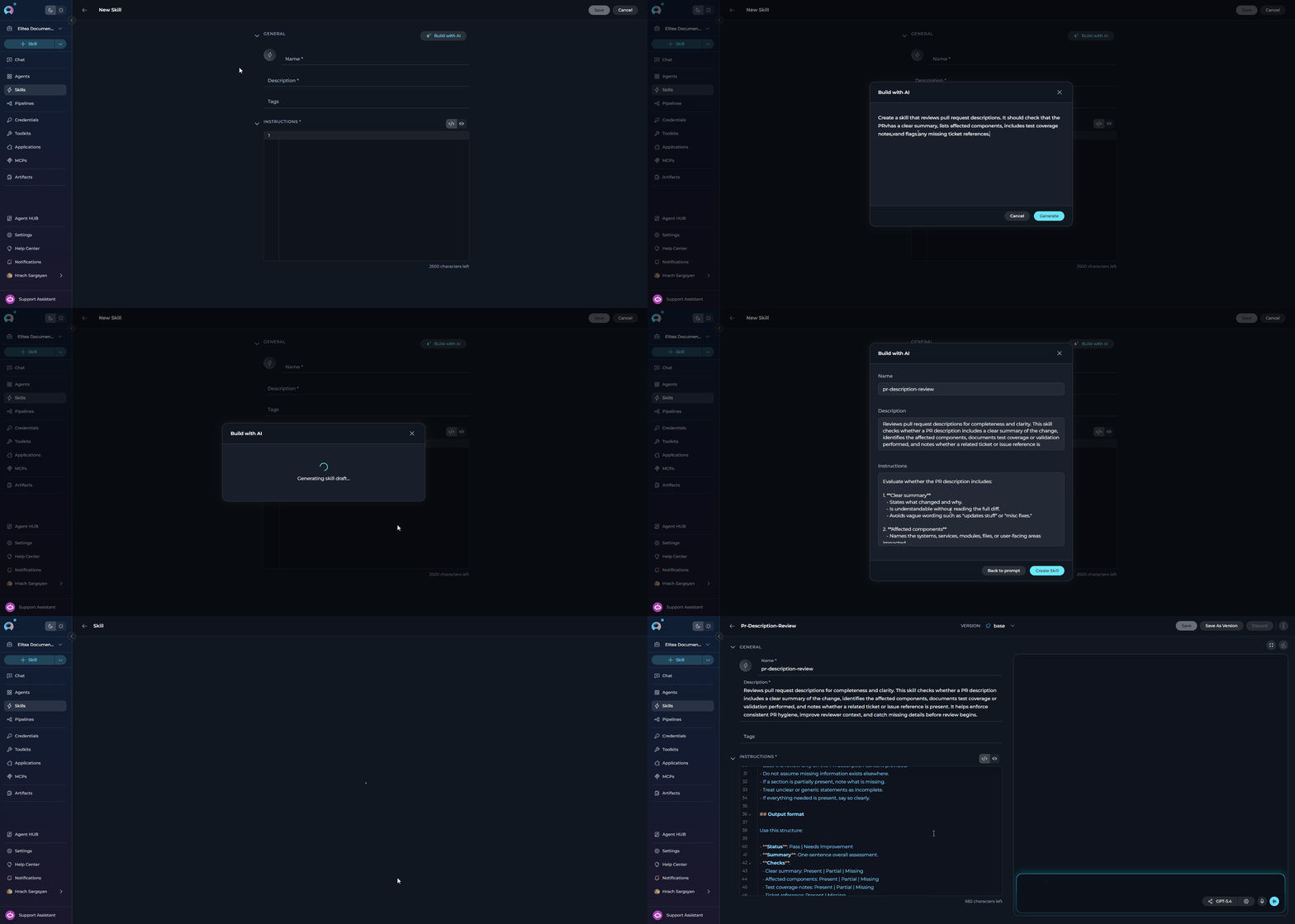
Instead of filling in the form manually, click the **Generate with AI** button in the **General** section header to open the **Generate skill** modal.
1. Describe what you want the Skill to do in the input field.
**Example prompt:**
```
Create a skill that reviews pull request descriptions. It should check that the PR
has a clear summary, lists affected components, includes test coverage notes,
and flags any missing ticket references.
```
2. Elitea drafts a **Name**, **Description**, and **Instructions** for you.
3. Review and edit the draft in the modal.
4. Click **Approve** to apply it to the form, then click **Save**.
After clicking **Save**, the Skill configuration page will open, showing the Skill's name in the tab bar and the **General** and **Instructions \*** sections in the left panel. The right panel contains a **test chat panel** where you can interact with the Skill directly to verify its behavior.
### AI-Assisted Generation
Instead of filling in the form manually, click the **Generate with AI** button in the **General** section header to open the **Generate skill** modal.
1. Describe what you want the Skill to do in the input field.
**Example prompt:**
```
Create a skill that reviews pull request descriptions. It should check that the PR
has a clear summary, lists affected components, includes test coverage notes,
and flags any missing ticket references.
```
2. Elitea drafts a **Name**, **Description**, and **Instructions** for you.
3. Review and edit the draft in the modal.
4. Click **Approve** to apply it to the form, then click **Save**.
 ***
## Executing a Skill
After saving a Skill, the **right panel** of the Skill editor contains a **test chat panel** — a stateless, ephemeral chat that lets you interact with the Skill directly without creating a persisted conversation. Use it to verify instructions before attaching the Skill to any agent.
Test conversations are ephemeral — they are not saved and disappear when you navigate away or clear the chat.
### Selecting the LLM Model and Settings
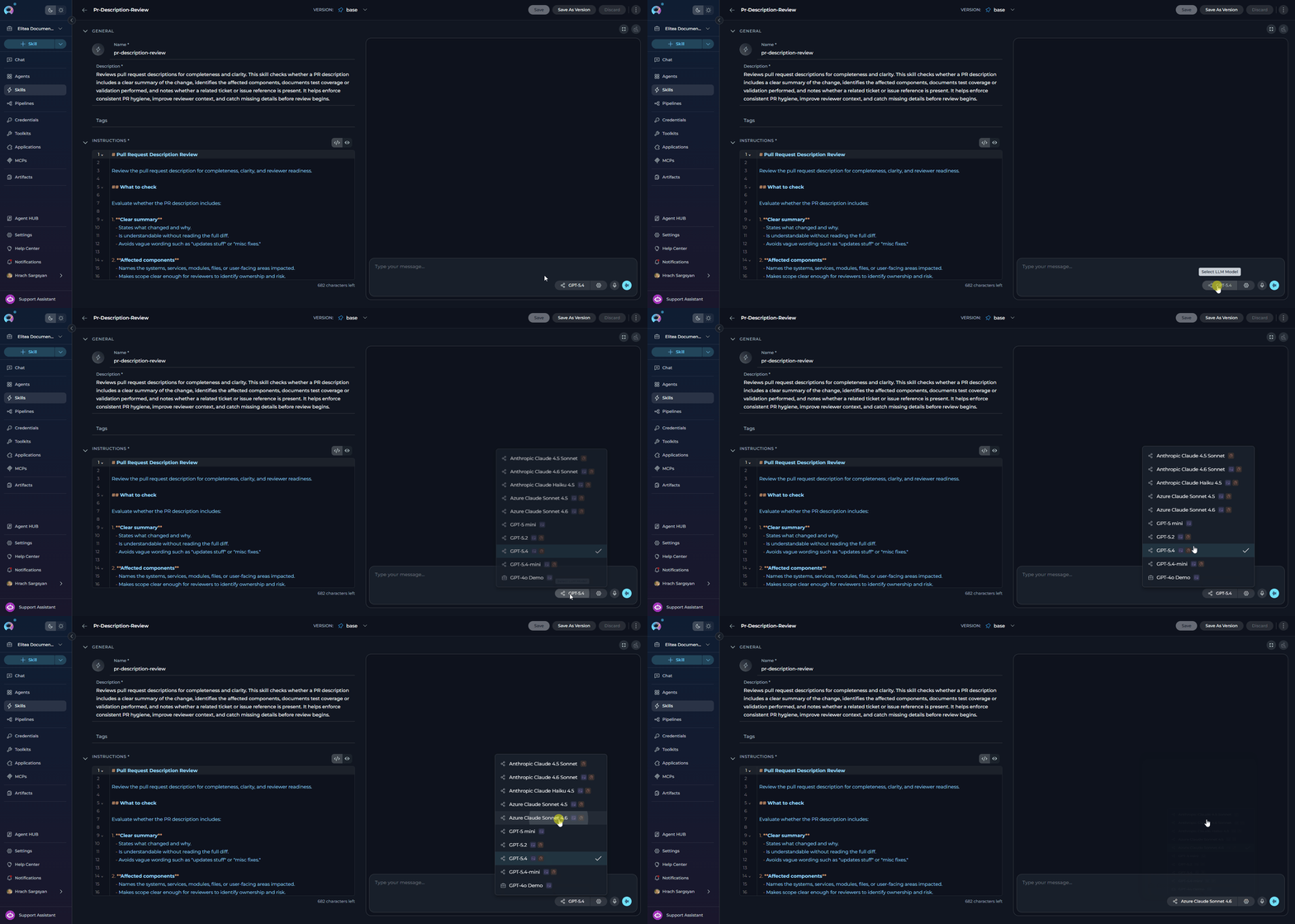
Before sending a message, you can choose which AI model processes the Skill and optionally fine-tune its parameters.
1. Click the **model chip** in the chat input bar to open the model selector dropdown.
2. Choose the desired model from the list (e.g., `gpt-4o`, `gpt-5.1`).
3. Click the **Model Settings** icon (⚙️) next to the model chip to adjust generation parameters.
***
## Executing a Skill
After saving a Skill, the **right panel** of the Skill editor contains a **test chat panel** — a stateless, ephemeral chat that lets you interact with the Skill directly without creating a persisted conversation. Use it to verify instructions before attaching the Skill to any agent.
Test conversations are ephemeral — they are not saved and disappear when you navigate away or clear the chat.
### Selecting the LLM Model and Settings
Before sending a message, you can choose which AI model processes the Skill and optionally fine-tune its parameters.
1. Click the **model chip** in the chat input bar to open the model selector dropdown.
2. Choose the desired model from the list (e.g., `gpt-4o`, `gpt-5.1`).
3. Click the **Model Settings** icon (⚙️) next to the model chip to adjust generation parameters.
 | Parameter | Description |
| ------------- | ----------------------------------------------------------- |
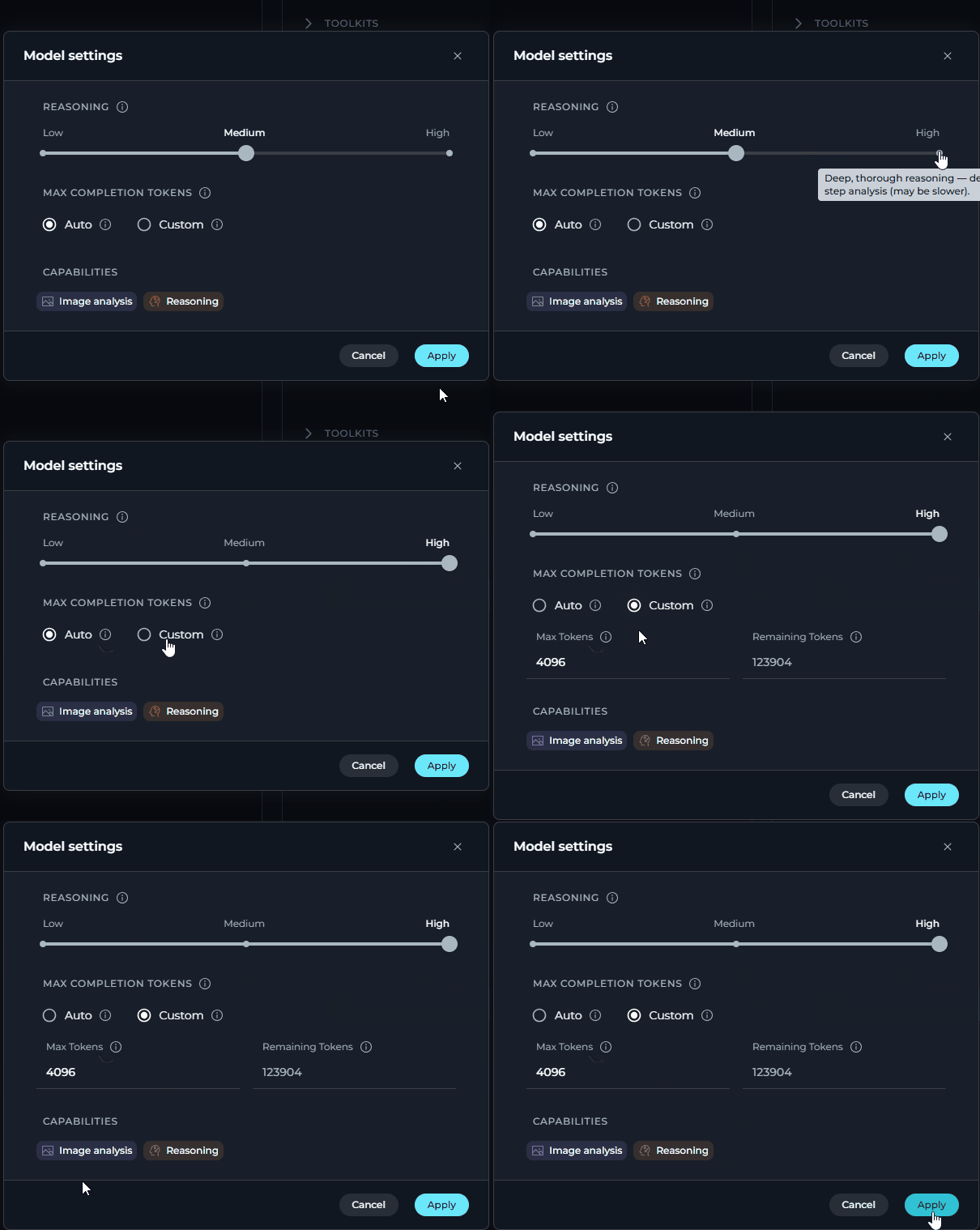
| **Reasoning** | Controls the depth of logical thinking and problem-solving. |
| Level | Behavior |
| ---------------------------------------------------------------------------------------------------------------------------------------------------------------------------------------------------------------------------------------------------------------------------------------------------------------------------------------------- | --------------------------------------------------------------------------------------- |
| **Low** | Fast, surface-level reasoning with concise answers and minimal steps |
| **Medium** | Balanced reasoning with clear explanations and moderate multi-step thinking *(default)* |
| **High** | Deep, thorough reasoning with detailed step-by-step analysis (may be slower) |
|
| Parameter | Description |
| ------------- | ----------------------------------------------------------- |
| **Reasoning** | Controls the depth of logical thinking and problem-solving. |
| Level | Behavior |
| ---------------------------------------------------------------------------------------------------------------------------------------------------------------------------------------------------------------------------------------------------------------------------------------------------------------------------------------------- | --------------------------------------------------------------------------------------- |
| **Low** | Fast, surface-level reasoning with concise answers and minimal steps |
| **Medium** | Balanced reasoning with clear explanations and moderate multi-step thinking *(default)* |
| **High** | Deep, thorough reasoning with detailed step-by-step analysis (may be slower) |
|  | |
| Parameter | Description |
| -------------- | -------------------------------------------------------------------------------------------------------------------------------------------- |
| **Creativity** | Controls response randomness. Lower values produce focused, deterministic outputs; higher values produce more varied and creative responses. |
| Level | Behavior |
| ------------------------------------------------------------------------------------------------------------------------------------------------------------------------------------------------------------------------------------------------------------------------------------------------------------------------------------------- | ------------------------------------------------- |
| **1** | Highly focused and deterministic outputs |
| **2** | Mostly focused with slight variation |
| **3** | Balanced between focus and creativity *(default)* |
| **4** | More varied and creative responses |
| **5** | Maximum creativity and diversity |
|
| |
| Parameter | Description |
| -------------- | -------------------------------------------------------------------------------------------------------------------------------------------- |
| **Creativity** | Controls response randomness. Lower values produce focused, deterministic outputs; higher values produce more varied and creative responses. |
| Level | Behavior |
| ------------------------------------------------------------------------------------------------------------------------------------------------------------------------------------------------------------------------------------------------------------------------------------------------------------------------------------------- | ------------------------------------------------- |
| **1** | Highly focused and deterministic outputs |
| **2** | Mostly focused with slight variation |
| **3** | Balanced between focus and creativity *(default)* |
| **4** | More varied and creative responses |
| **5** | Maximum creativity and diversity |
| 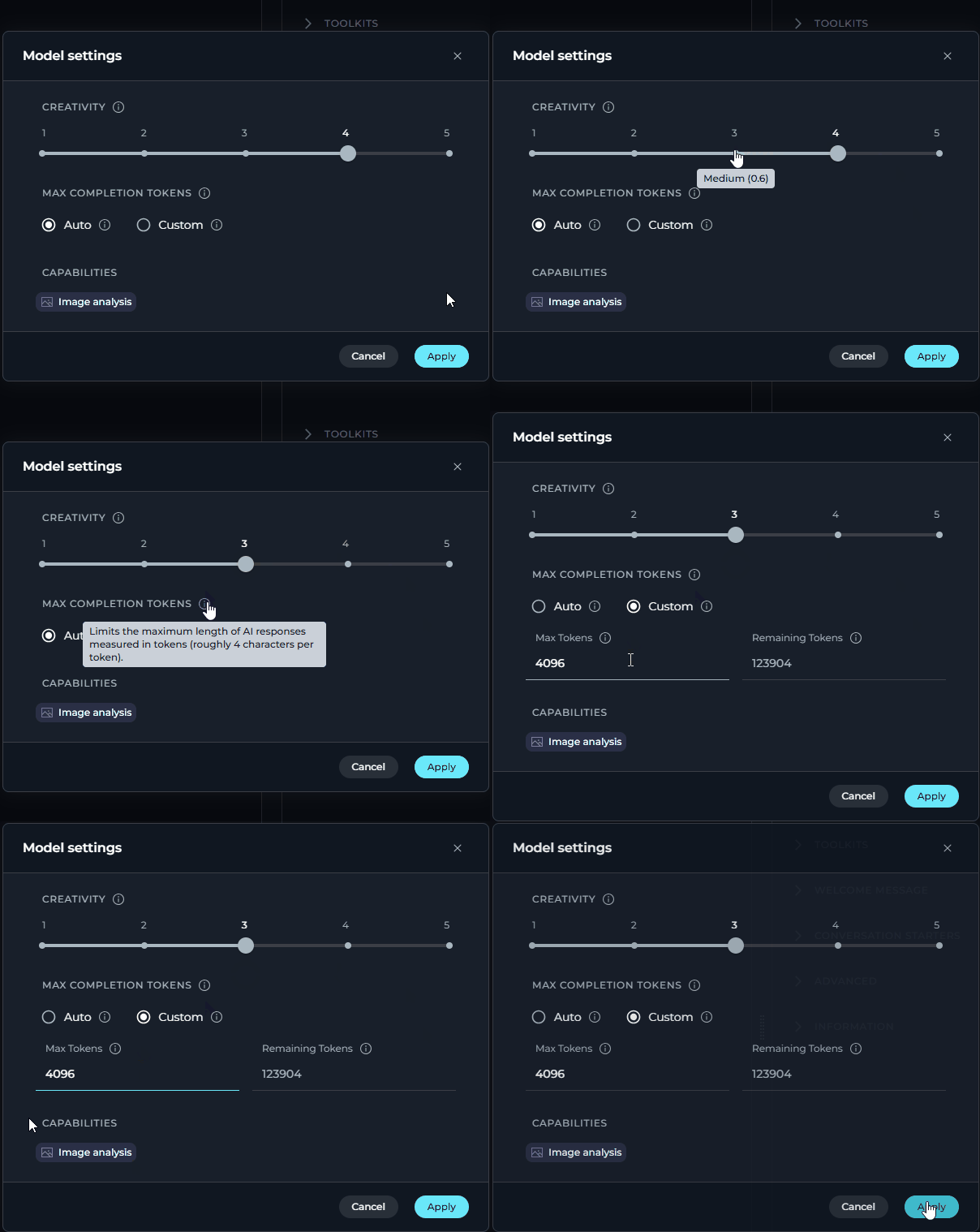 | |
**Max Completion Tokens** *(All Models)*
| Option | Description |
| ---------- | ----------------------------------------------------- |
| **Auto** | System sets the token limit automatically *(default)* |
| **Custom** | Manually enter a specific token limit for responses |
### Voice Capabilities
The Skill test chat panel supports the same voice features as the agent chat interface.
Dictate prompts into the chat input field. Transcribed text is inserted at the cursor in real time.
Have Skill responses read aloud. Pause and resume playback from a mini-player pill in the input area.
Hands-free voice loop. ELITEA records, sends, speaks the response, and listens again — automatically.
**Voice Input**
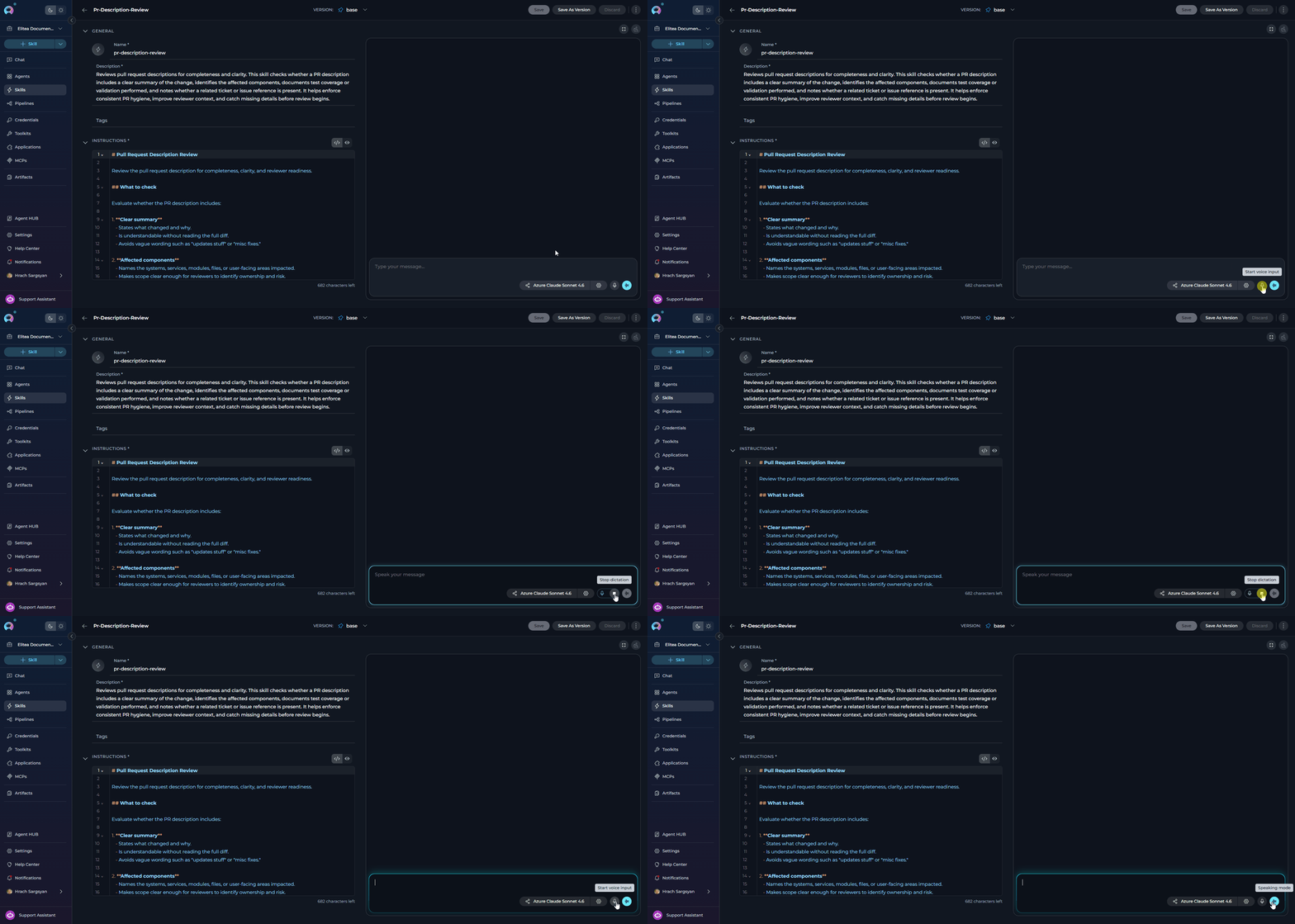
Click the **microphone** icon in the message input toolbar to start recording. Speak your prompt — a live transcript appears in the input field as you talk. Click **Stop** (■) to finish; the final transcript is committed to the input field.
Voice Input uses a server-side ASR model if configured in **Settings → AI Configuration**, or falls back to the browser's built-in Web Speech API. If neither is available, the microphone icon is hidden.
**Text-to-Speech**
A **Read out** button (megaphone icon) appears in the action bar below each Skill response. Click it to start playback — the text is highlighted as it is read. A playback pill in the input area provides **Pause** and **Resume** controls.
When a TTS model is configured in **Settings → AI Configuration**, ELITEA uses it for audio generation. Otherwise, playback falls back to the browser's built-in SpeechSynthesis API.
**Speaking Mode**
**Speaking Mode** is a continuous, hands-free voice loop. Leave the input field empty, then click the **voicewave** icon (shown in place of the Send button) to activate it. ELITEA records your speech, sends your prompt after 3 seconds of silence, plays back the response, and then starts listening again. Click **✕** in the voicewave pill to exit.
##
| |
**Max Completion Tokens** *(All Models)*
| Option | Description |
| ---------- | ----------------------------------------------------- |
| **Auto** | System sets the token limit automatically *(default)* |
| **Custom** | Manually enter a specific token limit for responses |
### Voice Capabilities
The Skill test chat panel supports the same voice features as the agent chat interface.
Dictate prompts into the chat input field. Transcribed text is inserted at the cursor in real time.
Have Skill responses read aloud. Pause and resume playback from a mini-player pill in the input area.
Hands-free voice loop. ELITEA records, sends, speaks the response, and listens again — automatically.
**Voice Input**
Click the **microphone** icon in the message input toolbar to start recording. Speak your prompt — a live transcript appears in the input field as you talk. Click **Stop** (■) to finish; the final transcript is committed to the input field.
Voice Input uses a server-side ASR model if configured in **Settings → AI Configuration**, or falls back to the browser's built-in Web Speech API. If neither is available, the microphone icon is hidden.
**Text-to-Speech**
A **Read out** button (megaphone icon) appears in the action bar below each Skill response. Click it to start playback — the text is highlighted as it is read. A playback pill in the input area provides **Pause** and **Resume** controls.
When a TTS model is configured in **Settings → AI Configuration**, ELITEA uses it for audio generation. Otherwise, playback falls back to the browser's built-in SpeechSynthesis API.
**Speaking Mode**
**Speaking Mode** is a continuous, hands-free voice loop. Leave the input field empty, then click the **voicewave** icon (shown in place of the Send button) to activate it. ELITEA records your speech, sends your prompt after 3 seconds of silence, plays back the response, and then starts listening again. Click **✕** in the voicewave pill to exit.
##  ## Versioning a Skill
Skills support multiple named versions in addition to the always-present `base` version.
**To create a new version:**
1. Open the Skill editor and make your changes.
2. Click **Save As Version** in the tab bar.
3. The **Create version** dialog appears. Enter a unique version name in the input field.
* The name `base` is reserved and cannot be used.
* Duplicate names within the same Skill are rejected with an error toast.
4. Click **Save** in the dialog to confirm.
5. The page navigates to the new version automatically.
## Versioning a Skill
Skills support multiple named versions in addition to the always-present `base` version.
**To create a new version:**
1. Open the Skill editor and make your changes.
2. Click **Save As Version** in the tab bar.
3. The **Create version** dialog appears. Enter a unique version name in the input field.
* The name `base` is reserved and cannot be used.
* Duplicate names within the same Skill are rejected with an error toast.
4. Click **Save** in the dialog to confirm.
5. The page navigates to the new version automatically.
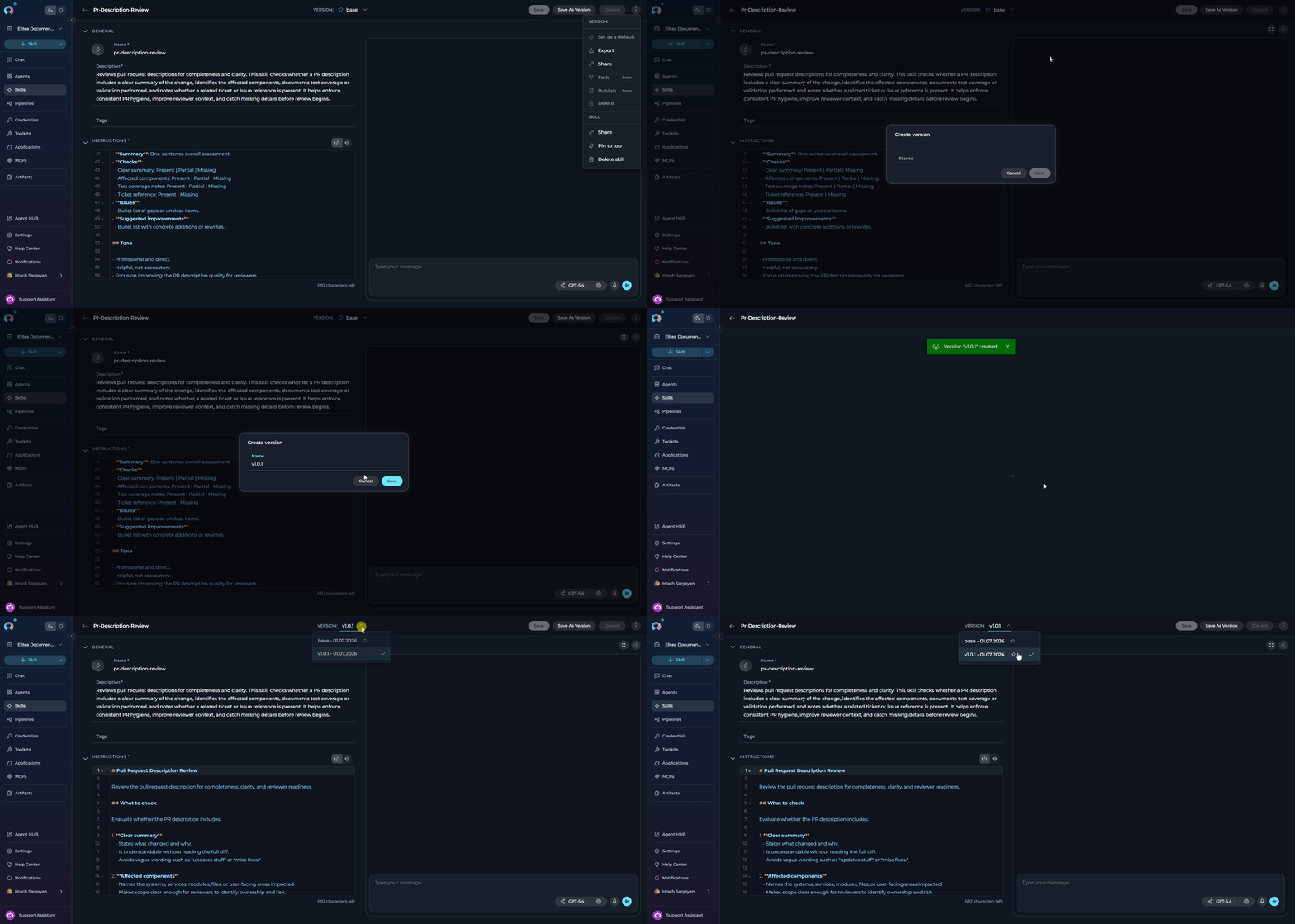 Use the version selector in the tab bar of the Skill editor. It lists all saved versions with the default version shown first. Non-default versions are sorted by creation date (newest first). The `base` version appears last unless it is currently set as the default.
**To set the default version:**
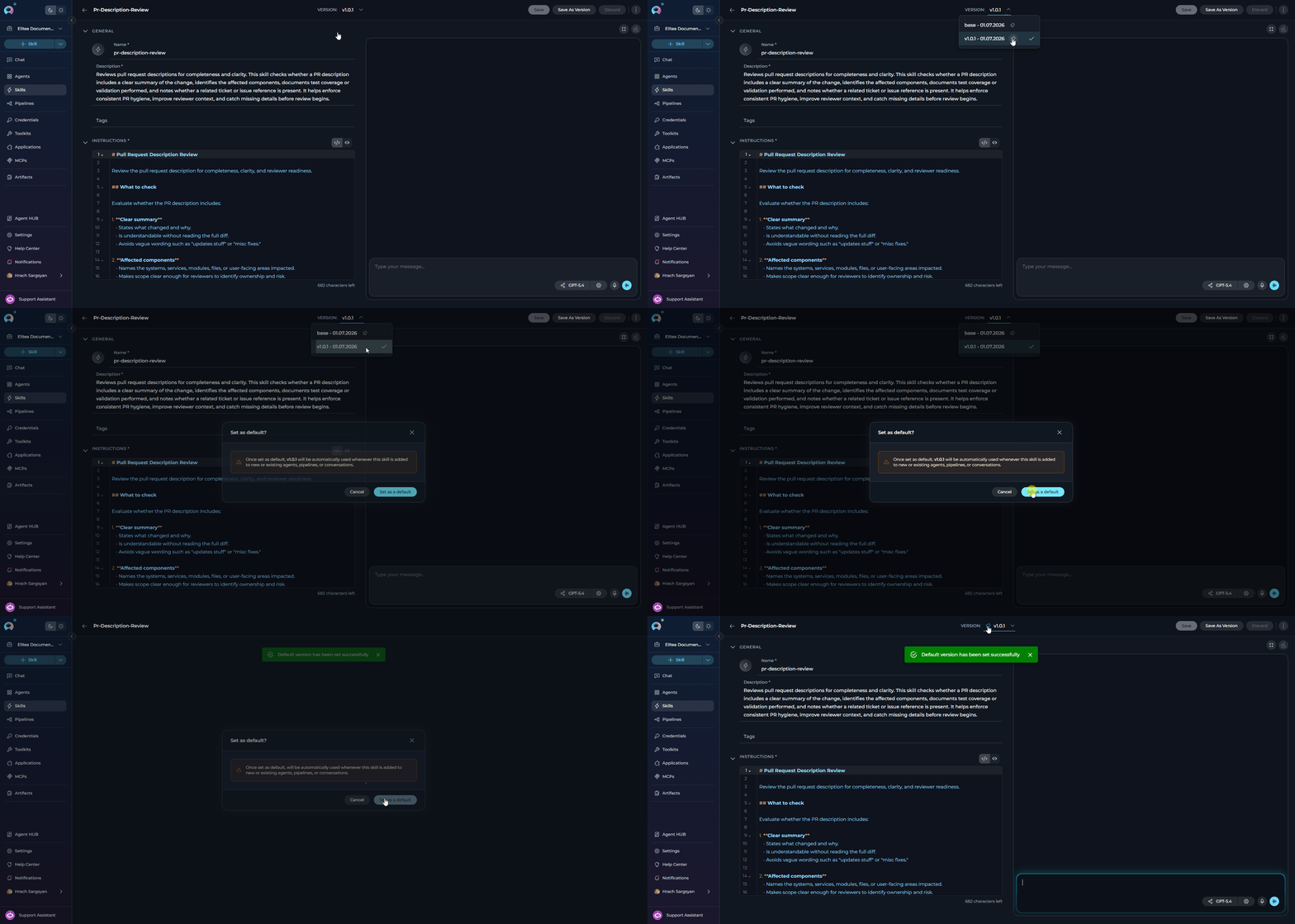
1. Open the Skill editor and navigate to the version you want to set as default.
2. Click the **⋮ overflow menu** (top-right corner of the tab bar) to open the controls menu.
3. Select **Set as a default** under the **VERSION** section.
* This option is disabled if the selected version is already the default.
Use the version selector in the tab bar of the Skill editor. It lists all saved versions with the default version shown first. Non-default versions are sorted by creation date (newest first). The `base` version appears last unless it is currently set as the default.
**To set the default version:**
1. Open the Skill editor and navigate to the version you want to set as default.
2. Click the **⋮ overflow menu** (top-right corner of the tab bar) to open the controls menu.
3. Select **Set as a default** under the **VERSION** section.
* This option is disabled if the selected version is already the default.
 The overflow menu also provides **Share** (copy a link to the current version) and **Share** under the **SKILL** section (copy a link to the skill).
**To delete a version:**
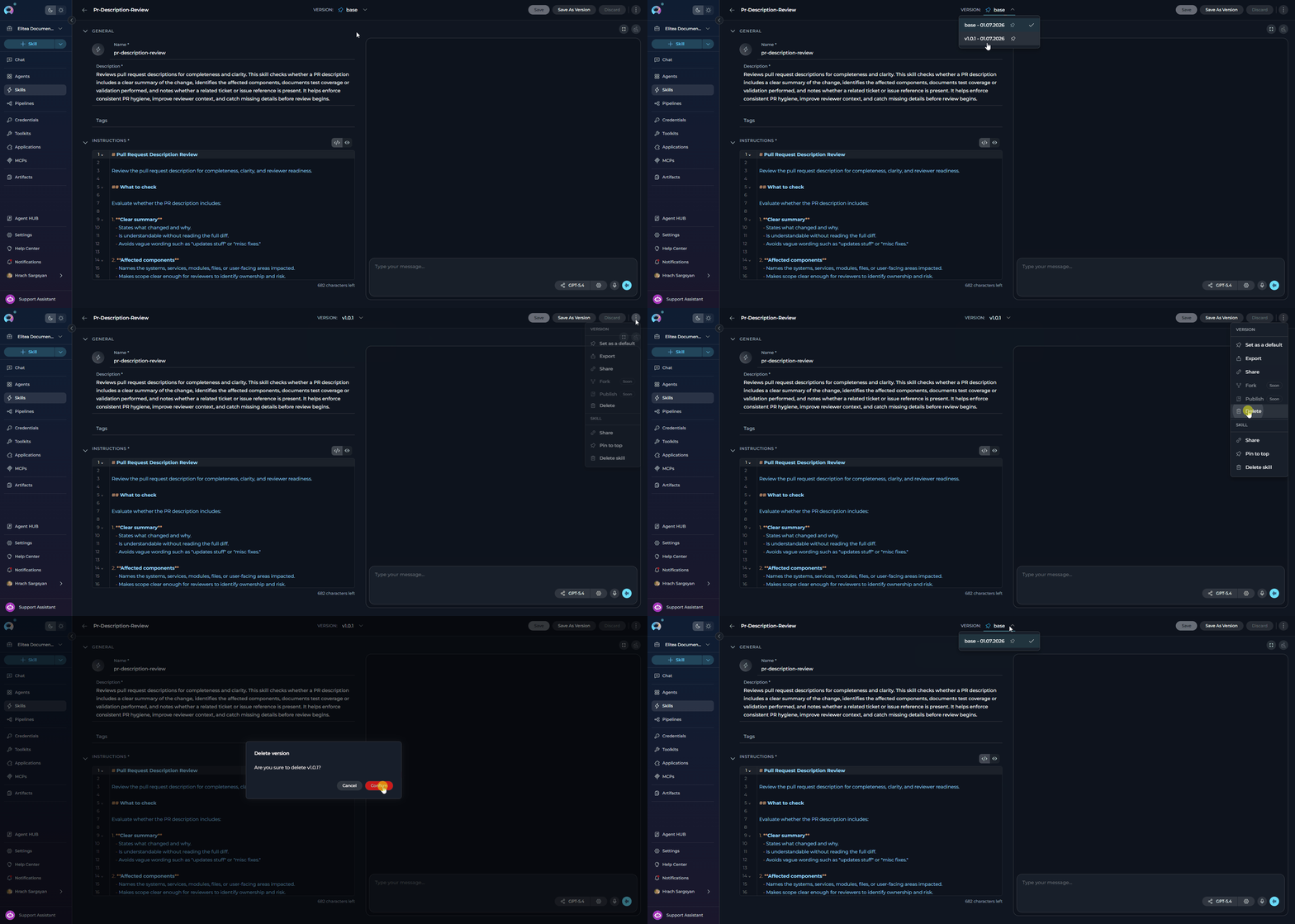
1. Navigate to the version you want to delete.
2. Open the **⋮ overflow menu** and select **Delete** under the **VERSION** section.
3. Confirm deletion in the confirmation dialog.
* You cannot delete the default version or the `base` version.
The overflow menu also provides **Share** (copy a link to the current version) and **Share** under the **SKILL** section (copy a link to the skill).
**To delete a version:**
1. Navigate to the version you want to delete.
2. Open the **⋮ overflow menu** and select **Delete** under the **VERSION** section.
3. Confirm deletion in the confirmation dialog.
* You cannot delete the default version or the `base` version.
 ***
## Exporting and Importing Skills
**Exporting a Skill**
1. Open the Skill and navigate to the version you want to export.
2. Click the **⋮** overflow menu in the tab bar.
3. Under the **VERSION** section, select **Export**.
4. A `.json` file for the current version is downloaded to your machine.
***
## Exporting and Importing Skills
**Exporting a Skill**
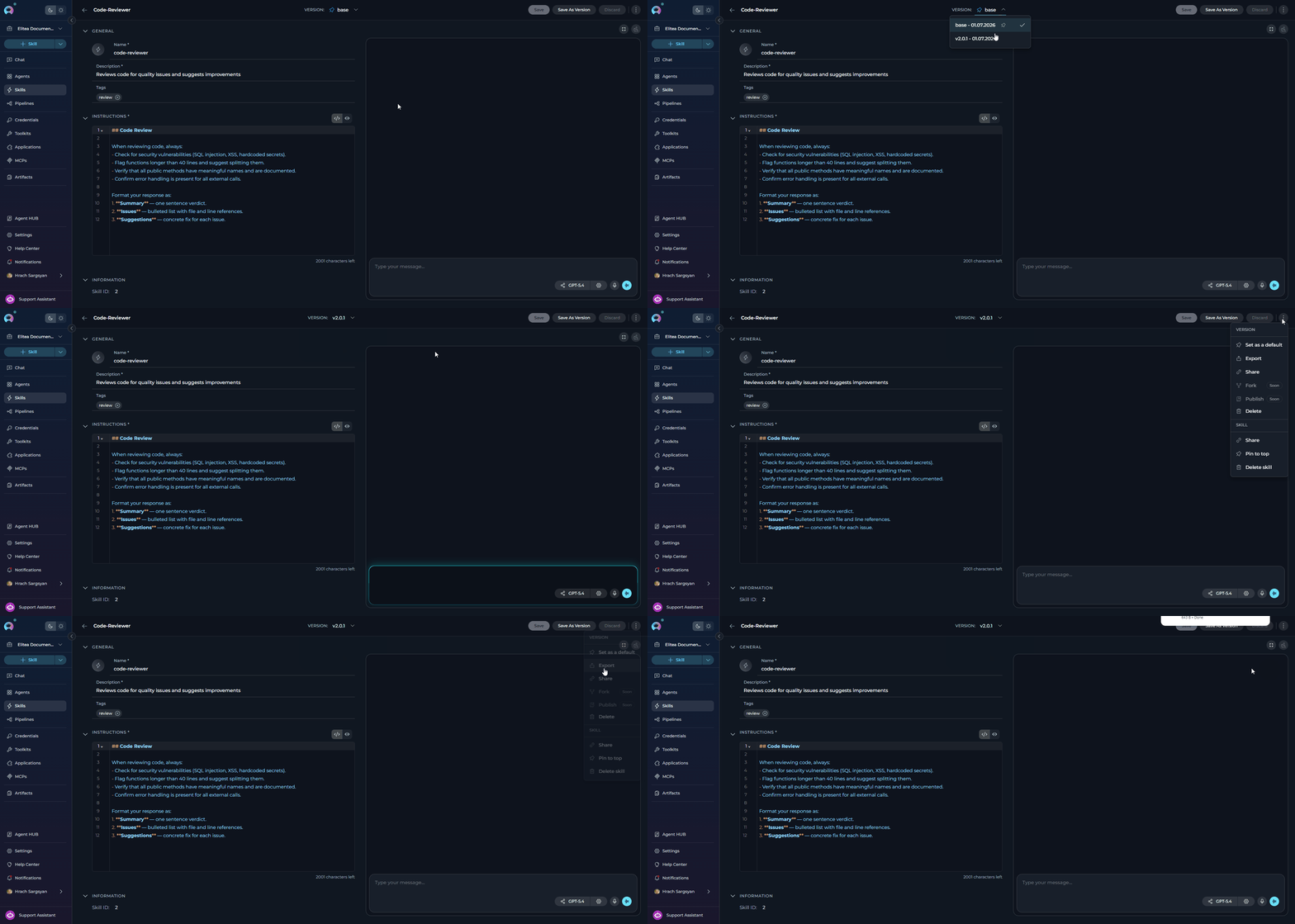
1. Open the Skill and navigate to the version you want to export.
2. Click the **⋮** overflow menu in the tab bar.
3. Under the **VERSION** section, select **Export**.
4. A `.json` file for the current version is downloaded to your machine.
 **Importing a Skill**
1. On the **Skills** page, click the **Import** icon button in the top toolbar.
2. A file picker opens. Select the `.json` export file from your machine.
3. The **Import parameters** dialog appears, showing:
* **PROJECT** — a project selector (defaults to the currently selected project). Change it to import the Skill into a different project.
* **MAIN ENTITY** — a preview card showing the Skill name, type, description, and instructions from the file.
4. Click **Import** to create the Skill, or **Cancel** to abort.
**Importing a Skill**
1. On the **Skills** page, click the **Import** icon button in the top toolbar.
2. A file picker opens. Select the `.json` export file from your machine.
3. The **Import parameters** dialog appears, showing:
* **PROJECT** — a project selector (defaults to the currently selected project). Change it to import the Skill into a different project.
* **MAIN ENTITY** — a preview card showing the Skill name, type, description, and instructions from the file.
4. Click **Import** to create the Skill, or **Cancel** to abort.
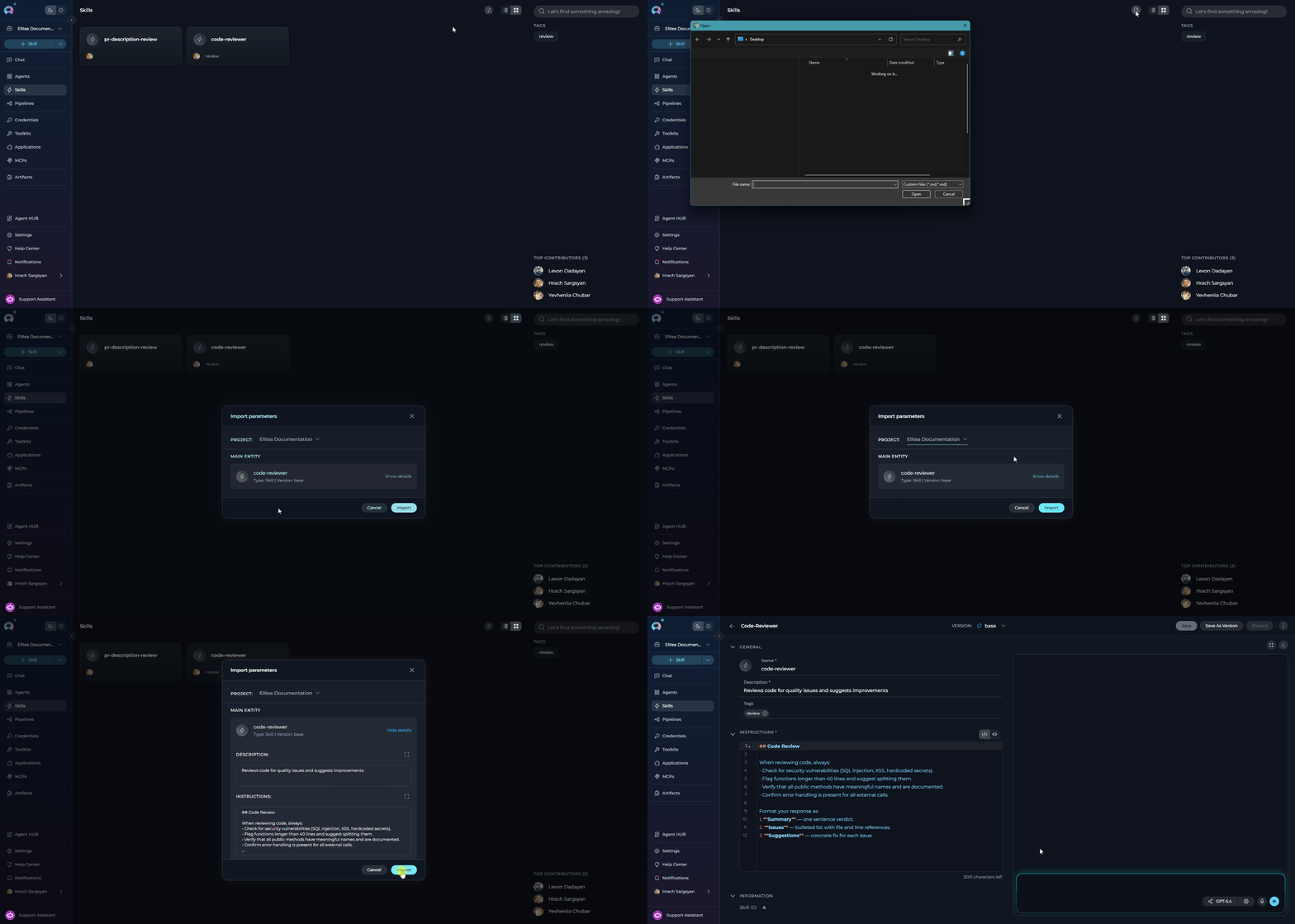 Imported Skills are always created with the `base` version, regardless of the version stored in the export file.
***
## Attaching a Skill to an Agent
Skills are attached at the **agent version** level, not to the agent as a whole. You must save the agent before Skills can be attached.
A maximum of **5 Skills** can be attached to a single agent version. The counter in the Skills section shows how many are currently attached (e.g., `2/5 skills added`).
1. Open the agent you want to configure (**Agents** → click the agent name).
2. In the agent configuration form, scroll to the **Skills** accordion section (below the Instructions and Toolkits sections).
3. Click the **`+ Skill`** button to open the skill picker dropdown.
* The button is disabled and shows a tooltip if the agent has not been saved yet (`Save the agent first, then add skills`) or if the 5-Skill limit has been reached (`Maximum number of skills reached`).
4. Search for the Skill by name in the **Search skills…** field, or browse the list.
5. Click a Skill to attach it. It attaches immediately using the Skill's `base` version.
* Skills already attached to the agent version are excluded from the list to prevent duplicates.
Imported Skills are always created with the `base` version, regardless of the version stored in the export file.
***
## Attaching a Skill to an Agent
Skills are attached at the **agent version** level, not to the agent as a whole. You must save the agent before Skills can be attached.
A maximum of **5 Skills** can be attached to a single agent version. The counter in the Skills section shows how many are currently attached (e.g., `2/5 skills added`).
1. Open the agent you want to configure (**Agents** → click the agent name).
2. In the agent configuration form, scroll to the **Skills** accordion section (below the Instructions and Toolkits sections).
3. Click the **`+ Skill`** button to open the skill picker dropdown.
* The button is disabled and shows a tooltip if the agent has not been saved yet (`Save the agent first, then add skills`) or if the 5-Skill limit has been reached (`Maximum number of skills reached`).
4. Search for the Skill by name in the **Search skills…** field, or browse the list.
5. Click a Skill to attach it. It attaches immediately using the Skill's `base` version.
* Skills already attached to the agent version are excluded from the list to prevent duplicates.
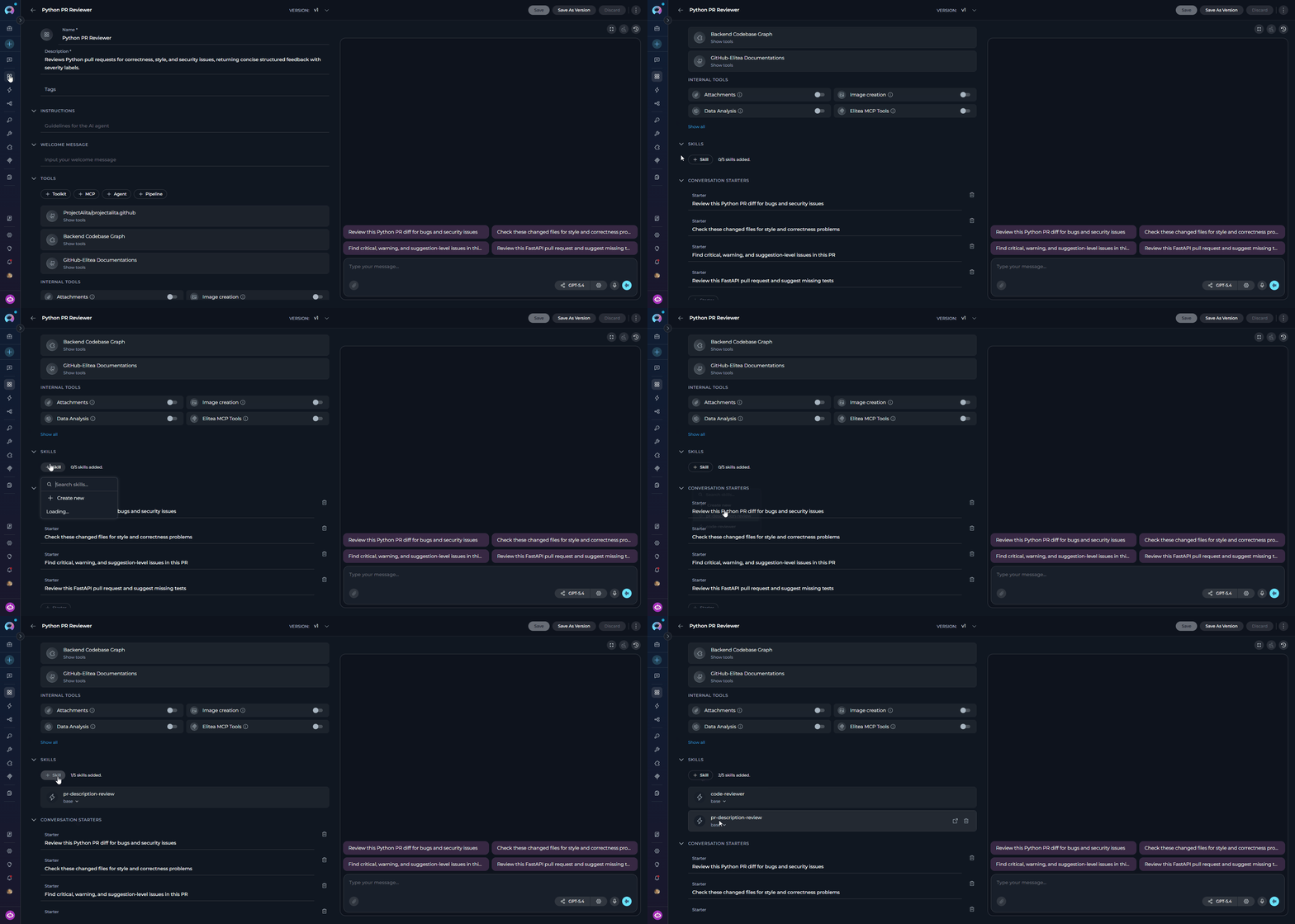 **To create a new Skill from the agent editor:**
1. Click **`+ Skill`** in the Skills accordion.
2. Click **Create new** at the bottom of the picker dropdown.
3. You are taken to the Skill creation form.
***
**Changing the Attached Version**
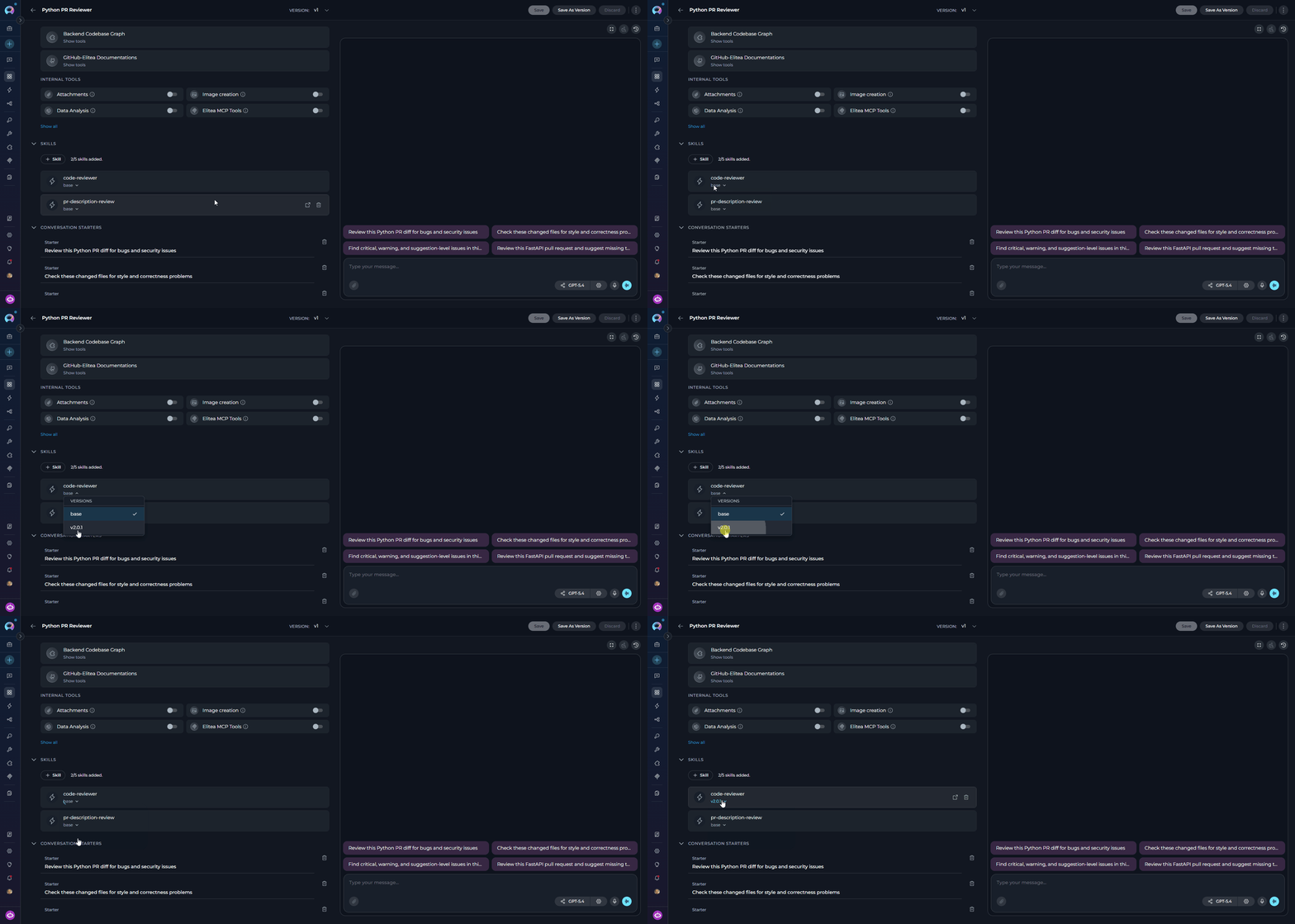
Each attached Skill card shows the currently active version name below the Skill's name. To change which version the agent uses:
1. On the Skill card inside the agent's **Skills** section, click the version name (e.g., `base`).
2. A **Versions** dropdown appears, listing all available versions.
3. Click the desired version. The attachment is updated automatically (the old version is detached and the new version is re-attached).
4. The selected version is highlighted with a check mark.
**To create a new Skill from the agent editor:**
1. Click **`+ Skill`** in the Skills accordion.
2. Click **Create new** at the bottom of the picker dropdown.
3. You are taken to the Skill creation form.
***
**Changing the Attached Version**
Each attached Skill card shows the currently active version name below the Skill's name. To change which version the agent uses:
1. On the Skill card inside the agent's **Skills** section, click the version name (e.g., `base`).
2. A **Versions** dropdown appears, listing all available versions.
3. Click the desired version. The attachment is updated automatically (the old version is detached and the new version is re-attached).
4. The selected version is highlighted with a check mark.
 ***
## Using Skills in Chat (Skill Mention)
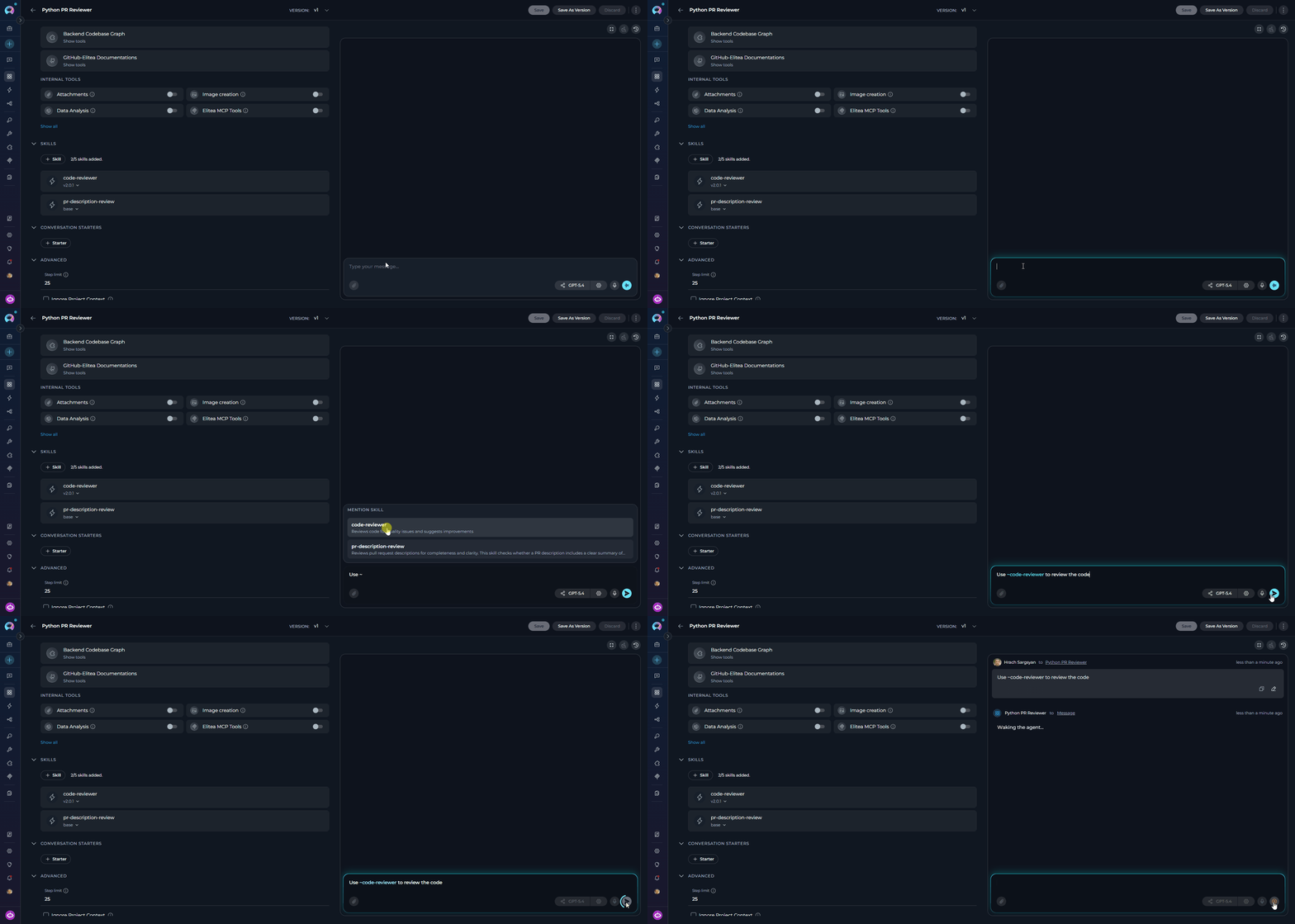
When an agent has one or more Skills attached, users can invoke a Skill explicitly during a chat conversation by typing `~` (tilde) followed by the Skill name in the chat composer.
1. In a chat conversation with an agent that has Skills attached, type `~` in the message input.
2. A **Mention skill** dropdown appears above the input, listing all Skills attached to that agent.
* If no Skills are attached, the dropdown shows: *"No skills attached to this agent"*.
3. Type additional characters to filter the list, or use the arrow keys to highlight a Skill.
4. Press **Enter** or click the Skill name to insert it as a mention token in your message.
5. Send the message. The agent receives and executes that Skill's instructions for this turn.
***
## Using Skills in Chat (Skill Mention)
When an agent has one or more Skills attached, users can invoke a Skill explicitly during a chat conversation by typing `~` (tilde) followed by the Skill name in the chat composer.
1. In a chat conversation with an agent that has Skills attached, type `~` in the message input.
2. A **Mention skill** dropdown appears above the input, listing all Skills attached to that agent.
* If no Skills are attached, the dropdown shows: *"No skills attached to this agent"*.
3. Type additional characters to filter the list, or use the arrow keys to highlight a Skill.
4. Press **Enter** or click the Skill name to insert it as a mention token in your message.
5. Send the message. The agent receives and executes that Skill's instructions for this turn.
 ***
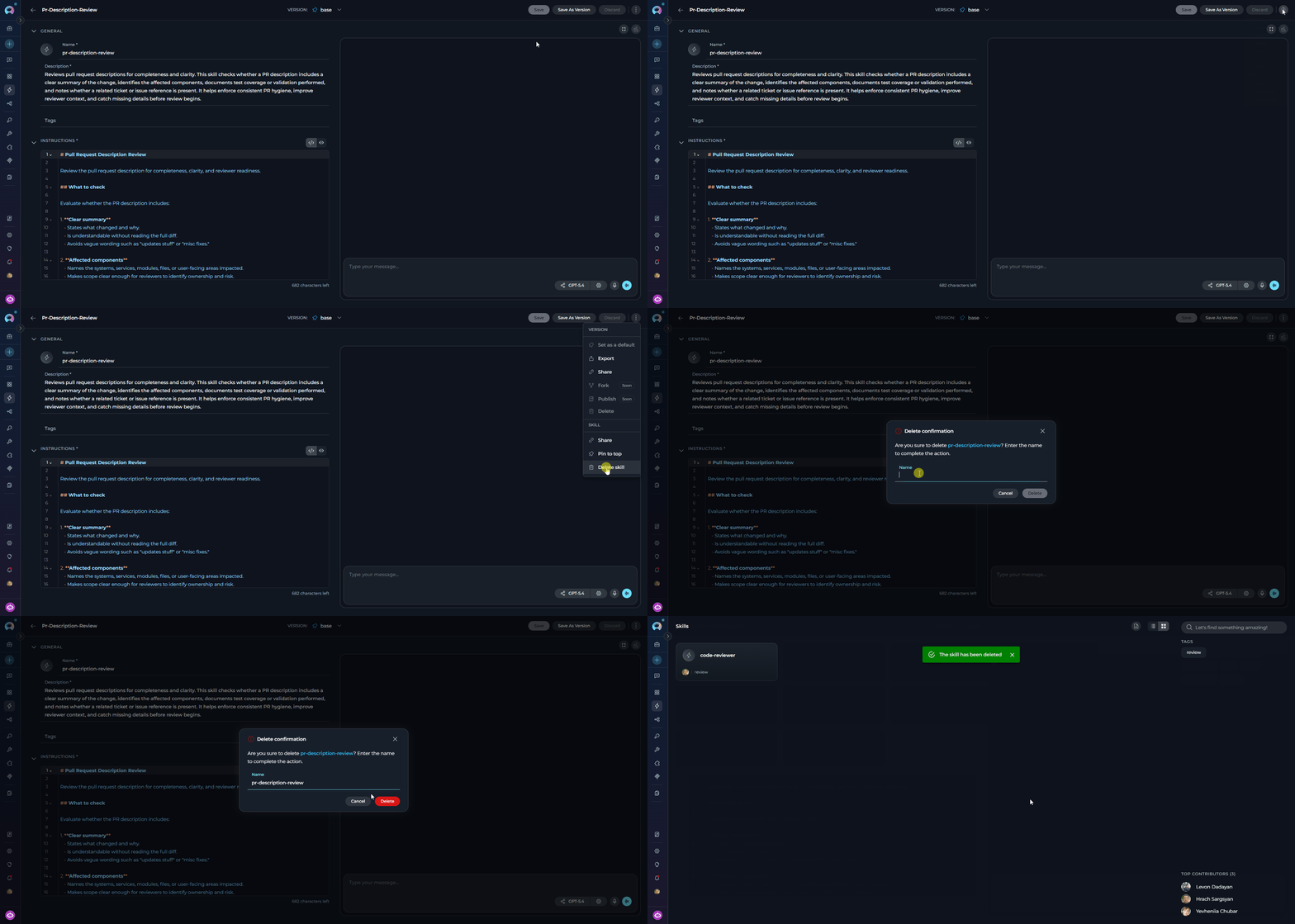
## Deleting a Skill
Deleting a Skill removes it from all agents it is attached to. This action cannot be undone.
1. Open the **⋮ menu** in the editor tab bar.
2. Under the **SKILL** section, select **Delete skill**.
3. Type the Skill name to confirm, then click **Delete**.
***
## Deleting a Skill
Deleting a Skill removes it from all agents it is attached to. This action cannot be undone.
1. Open the **⋮ menu** in the editor tab bar.
2. Under the **SKILL** section, select **Delete skill**.
3. Type the Skill name to confirm, then click **Delete**.
 ***
## Troubleshooting
The Skills menu item is hidden when the **Public project** is selected. Open the project switcher at the top of the sidebar and select a team or personal project. If the item is still missing, contact your platform administrator to verify you have the required permissions.
The **Save** button requires all of the following:
* **Name** is non-empty and matches the allowed pattern (lowercase letters, digits, hyphens; no leading/trailing hyphens; no `claude` or `anthropic`).
* **Description** is non-empty.
* **Instructions** are non-empty.
* At least one field has been changed since the last save.
* None of the three fields exceed their character limits.
Check the character counters next to each field and the validation error messages below the inputs.
Two conditions disable the button:
* **Agent not yet saved** — save the agent first. The tooltip reads *"Save the agent first, then add skills"*.
* **Limit reached** — the agent version already has 5 Skills attached. Remove one before adding another. The tooltip reads *"Maximum number of skills reached"*.
The banner *"The attached skill version no longer exists. Select a valid version or remove this skill."* means the specific named version attached to this agent has been deleted from the Skill. Either select a different version from the version dropdown on the card, or remove the Skill and re-attach it.
The `~` trigger only shows the dropdown if the agent in the current conversation has at least one Skill attached. Check the agent's **Skills** section in the agent editor. If no Skills are listed, attach one and save the agent, then start a new conversation.
Each version name within a Skill must be unique. Choose a different name. Also note that the name `base` is reserved and cannot be used as a custom version name.
* Only `.json` files exported from Elitea are accepted.
* Ensure the target project is selected correctly in the **Import parameters** dialog.
* If the Skill name in the file contains uppercase letters, spaces, or invalid characters, the import will be rejected. Edit the file or re-export from a corrected Skill.
***
* **[Agents](./agents)** — Configure agents and attach Skills, Toolkits, and MCPs
* **[Project Context](./settings/project-context)** — Define shared background context injected into every AI interaction
* **[Entity Versioning](../how-tos/agents-pipelines/entity-versioning)** — Version management patterns for agents, pipelines, and Skills
* **[Export and Import](../how-tos/agents-pipelines/import-export)** — Exporting and importing Elitea entities
***
## Troubleshooting
The Skills menu item is hidden when the **Public project** is selected. Open the project switcher at the top of the sidebar and select a team or personal project. If the item is still missing, contact your platform administrator to verify you have the required permissions.
The **Save** button requires all of the following:
* **Name** is non-empty and matches the allowed pattern (lowercase letters, digits, hyphens; no leading/trailing hyphens; no `claude` or `anthropic`).
* **Description** is non-empty.
* **Instructions** are non-empty.
* At least one field has been changed since the last save.
* None of the three fields exceed their character limits.
Check the character counters next to each field and the validation error messages below the inputs.
Two conditions disable the button:
* **Agent not yet saved** — save the agent first. The tooltip reads *"Save the agent first, then add skills"*.
* **Limit reached** — the agent version already has 5 Skills attached. Remove one before adding another. The tooltip reads *"Maximum number of skills reached"*.
The banner *"The attached skill version no longer exists. Select a valid version or remove this skill."* means the specific named version attached to this agent has been deleted from the Skill. Either select a different version from the version dropdown on the card, or remove the Skill and re-attach it.
The `~` trigger only shows the dropdown if the agent in the current conversation has at least one Skill attached. Check the agent's **Skills** section in the agent editor. If no Skills are listed, attach one and save the agent, then start a new conversation.
Each version name within a Skill must be unique. Choose a different name. Also note that the name `base` is reserved and cannot be used as a custom version name.
* Only `.json` files exported from Elitea are accepted.
* Ensure the target project is selected correctly in the **Import parameters** dialog.
* If the Skill name in the file contains uppercase letters, spaces, or invalid characters, the import will be rejected. Edit the file or re-export from a corrected Skill.
***
* **[Agents](./agents)** — Configure agents and attach Skills, Toolkits, and MCPs
* **[Project Context](./settings/project-context)** — Define shared background context injected into every AI interaction
* **[Entity Versioning](../how-tos/agents-pipelines/entity-versioning)** — Version management patterns for agents, pipelines, and Skills
* **[Export and Import](../how-tos/agents-pipelines/import-export)** — Exporting and importing Elitea entities