> ## Documentation Index
> Fetch the complete documentation index at: https://docs.elitea.ai/llms.txt
> Use this file to discover all available pages before exploring further.
# Personal Tokens
> The Personal Tokens section allows you to create and manage personal access tokens for API access and IDE integrations. These tokens enable secure communication
## Overview
## Navigating to Personal Tokens
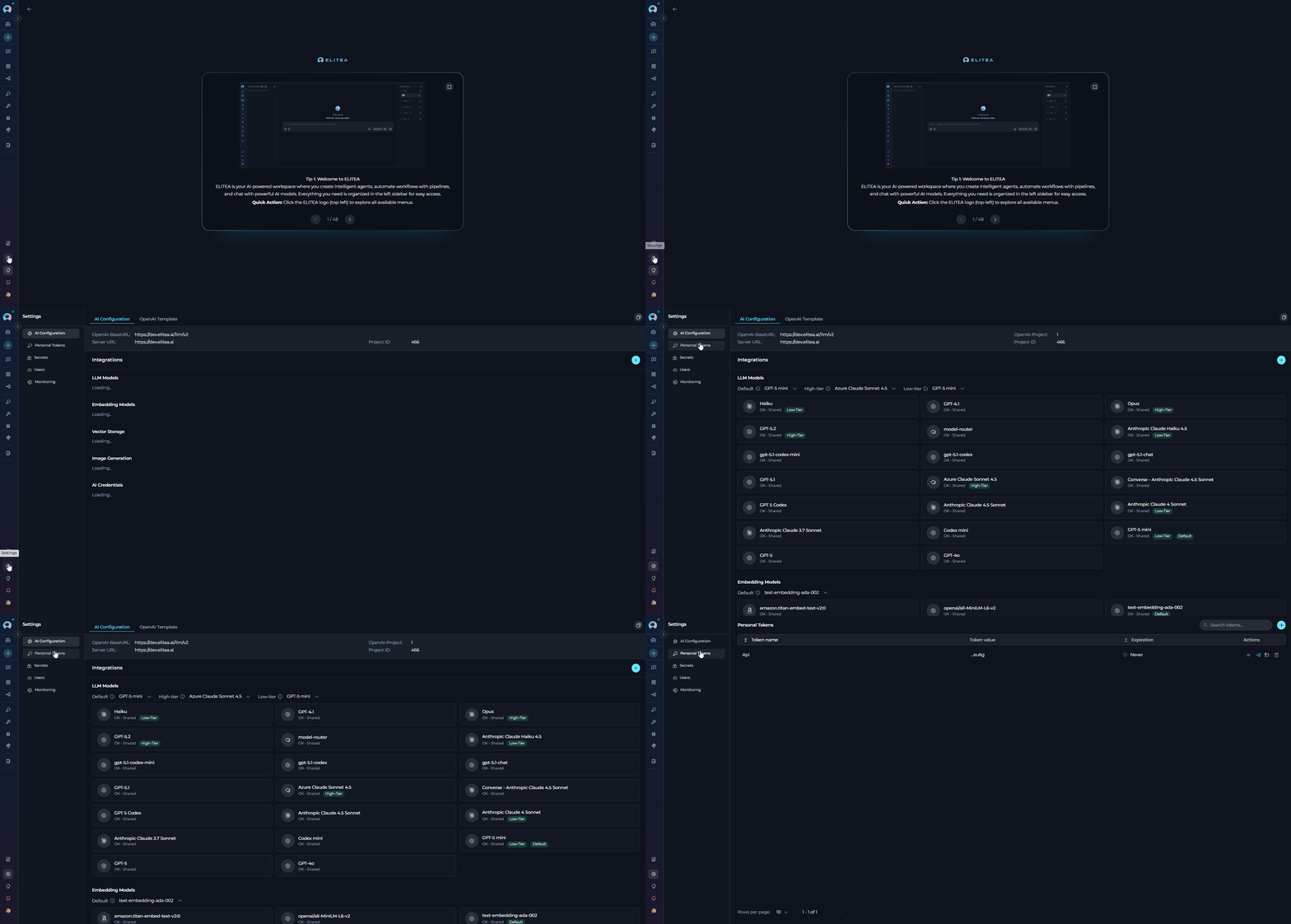
To access the Personal Tokens section:
1. Click on the **Settings** icon in the main navigation sidebar.
2. Select **Personal Tokens** (or **Tokens**) from the settings menu.
3. The Personal Tokens management interface will display.
## Main Components
The Personal Tokens section includes:
* **Search Field**: Filter tokens by name using "Search tokens..." placeholder
* **+ Button**: Generate new personal tokens
* **Tokens Table**: Displays all tokens with columns for Token name, Token value, Expiration, and Actions
* **Pagination Controls**: Navigate through tokens lists (supports 5, 10, 50, or 100 tokens per page)
* **Action Icons**: Preview settings, Download VSCode settings, Download JetBrains settings, and Delete options
## Tokens Table
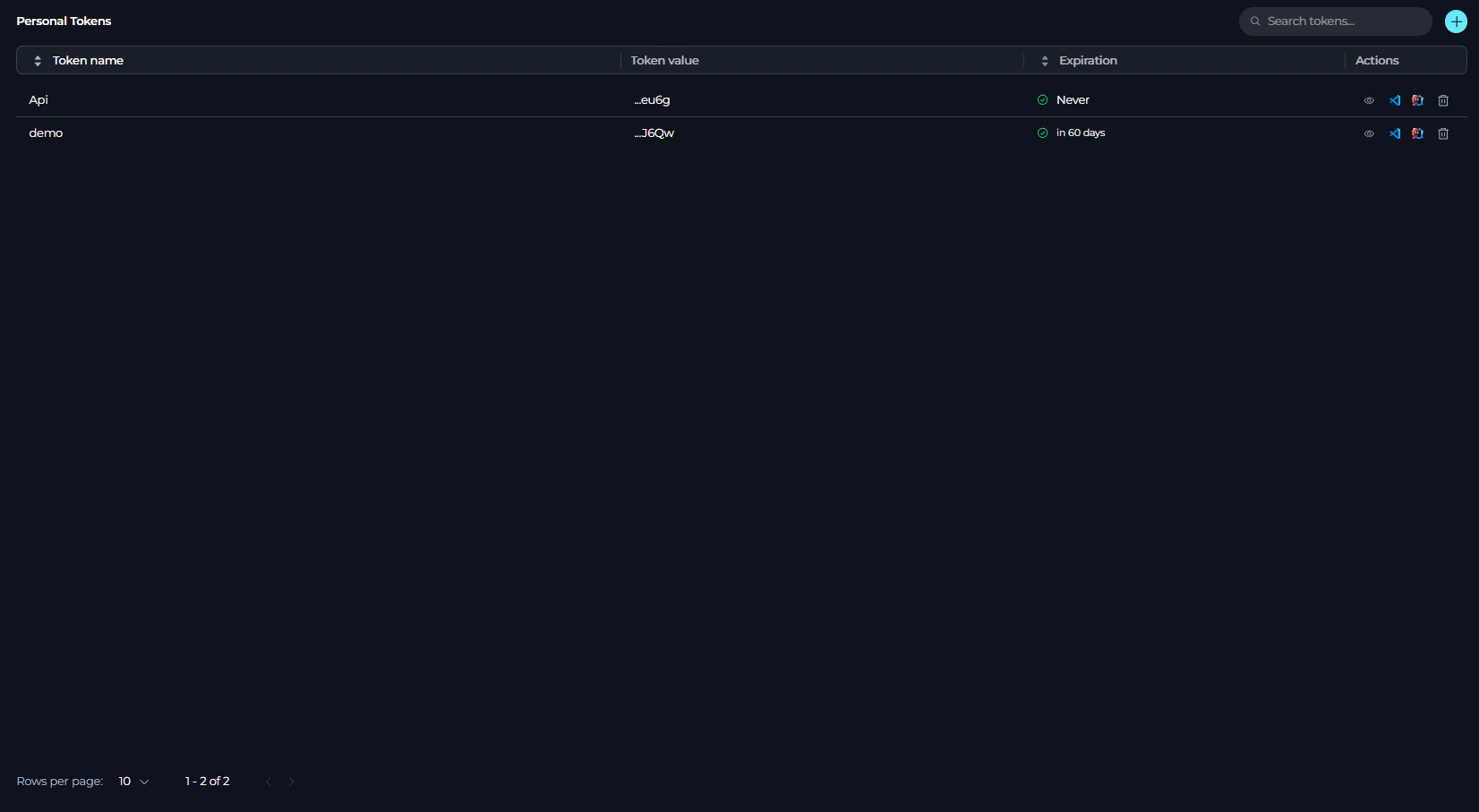
The tokens table displays the following information:
* **Token name**: The identifier for the token
* **Token value**: Last 4 characters of the token (e.g., "...ab12")
* **Expiration**: Status indicator showing:
* ✓ Green icon with "in X days" for tokens expiring in more than 7 days
* ⚠ Warning icon with "in X days" for tokens expiring within 7 days
* ✓ Green icon with "Never" for tokens without expiration
* ✗ Gray icon with "Expired" for expired tokens
* **Actions**: Icons for preview, downloads, and delete operations
The tokens table supports:
* **Sorting**: Click the "Token name" or "Expiration" column headers to sort
* **Pagination**: Change the number of tokens displayed per page (5, 10, 50, or 100)
* **Search**: Filter tokens by name in real-time
## Creating a Personal Token
To generate a new personal token:
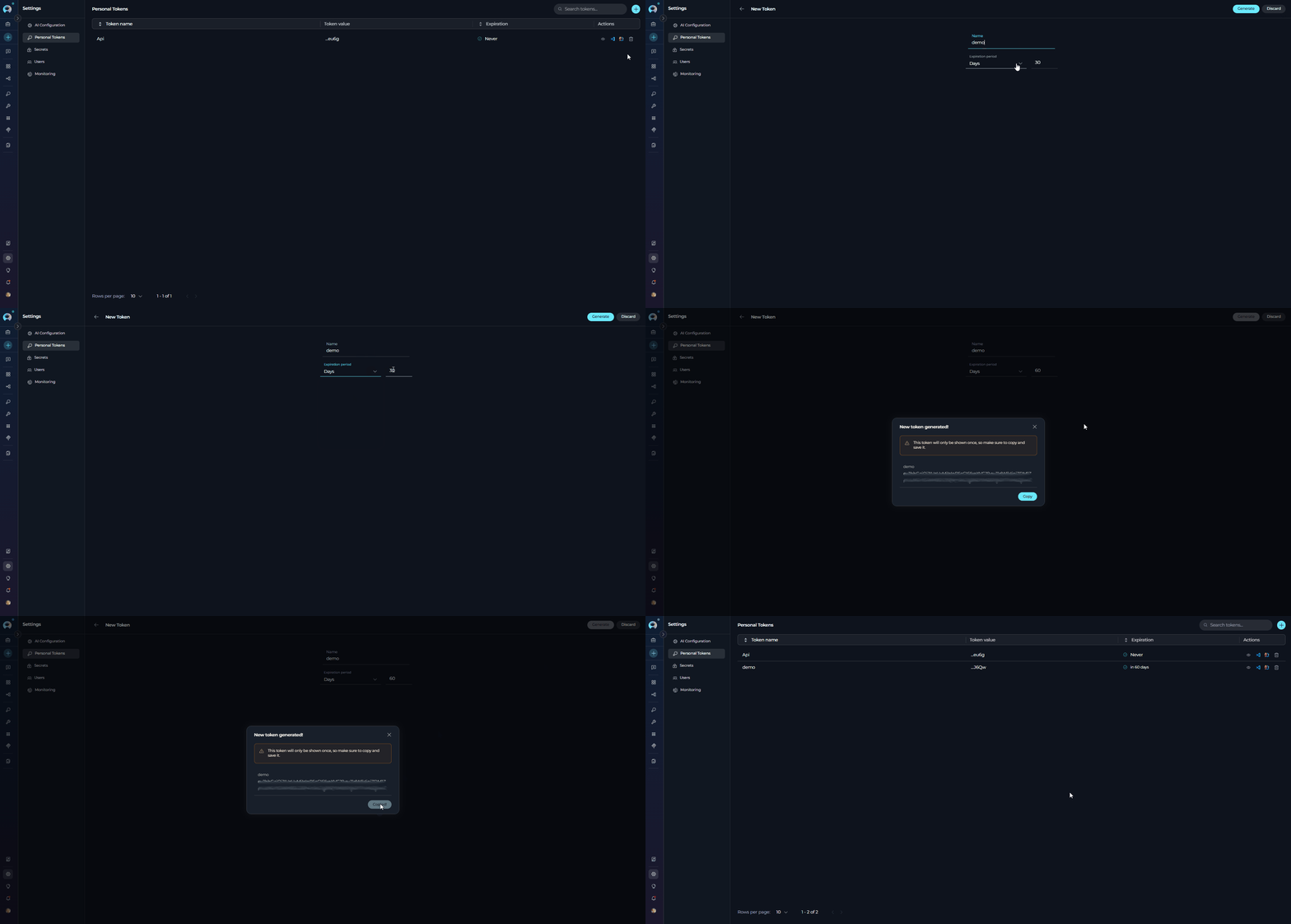
1. Click the **+** button in the top-right corner of the Personal Tokens section.
2. The "New Token" creation page will open with a form containing:
* **Name** field: Enter a descriptive name for the token
* **Expiration period** dropdown: Select from Never, Days, Weeks, Hours, or Minutes
* **Value** field: Enter the number of expiration units (appears when not "Never")
3. Click the **Generate** button to create the token.
* A dialog titled will appear with:
* The full token value (displayed once)
4. Click the **Copy** button to copy the token to your clipboard.
5. Close the dialog to return to the tokens list.
* The generated token is displayed **only once**. You cannot view the full token value again after closing the dialog. Make sure to copy and securely store it before closing.
* Token names must be unique Choose descriptive names that identify the token's purpose (e.g., "VSCode-Development", "JetBrains-Production")
You can set token expiration using the following measures:
| Expiration Measure | Description | Use Case |
| ------------------ | ----------------------------------------------- | ------------------------------------------------ |
| **Never** | Token does not expire | Recommended only for development environments |
| **Days** | Token expires after specified number of days | Default: 30 days. Suitable for production tokens |
| **Weeks** | Token expires after specified number of weeks | Medium-term access tokens |
| **Hours** | Token expires after specified number of hours | Short-term or temporary access |
| **Minutes** | Token expires after specified number of minutes | Testing and validation purposes |
## Managing Personal Tokens
Use the search field at the top to filter tokens by name. The search is case-insensitive and filters results in real-time as you type.
### Preview Settings
To preview IDE settings for a token:
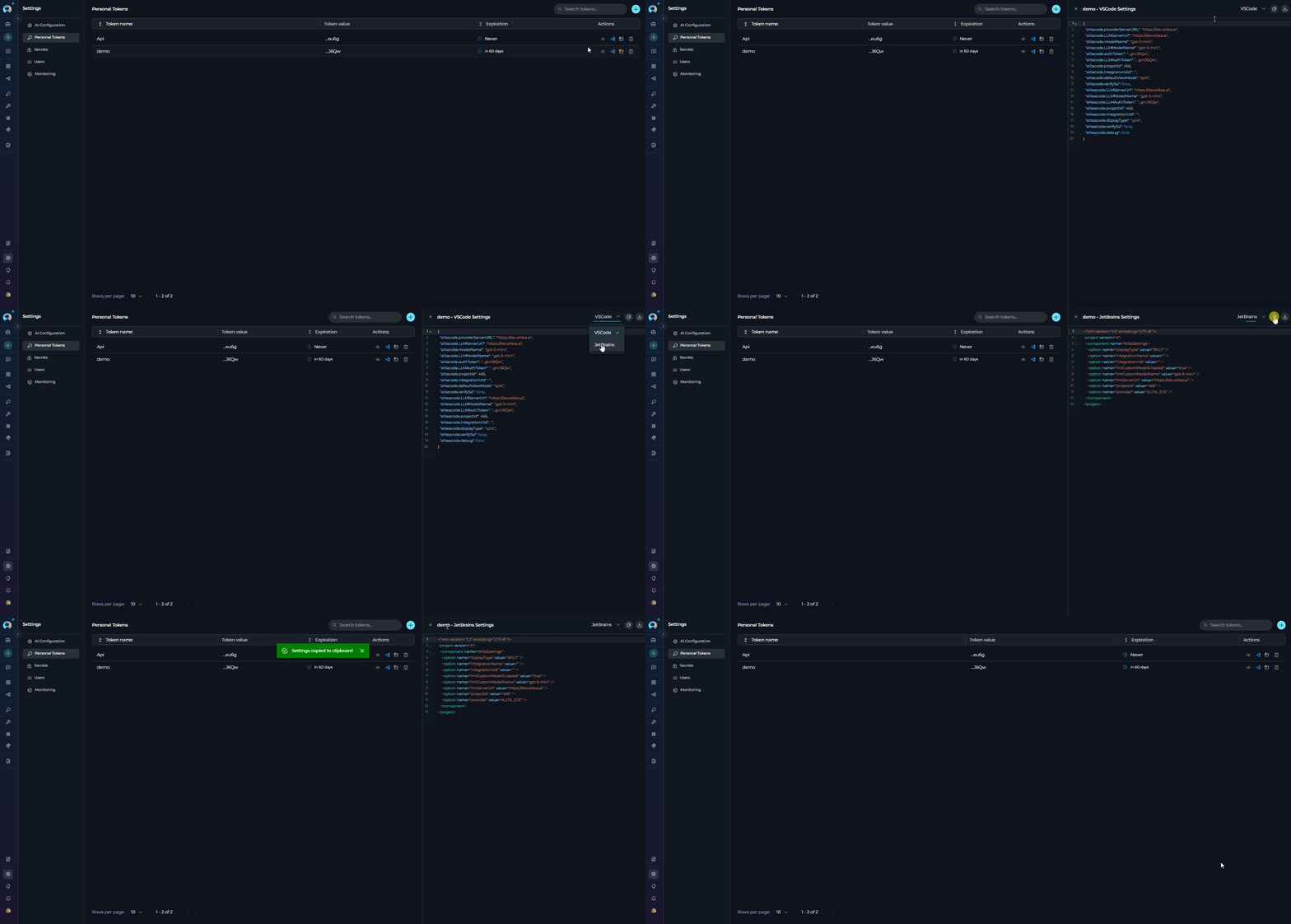
1. Click the **👁** (eye) icon in the Actions column.
2. A preview panel will open on the right side showing the IDE configuration for the selected token.
3. Use the dropdown selector to switch between **VSCode** and **JetBrains** IDE settings.
4. From the preview panel, you can:
* **Copy**: Click the copy button to copy the settings to your clipboard
* **Download**: Click the download button to save the settings file
5. Click the close button to hide the preview panel.
### Downloading IDE Settings
**For VSCode:**
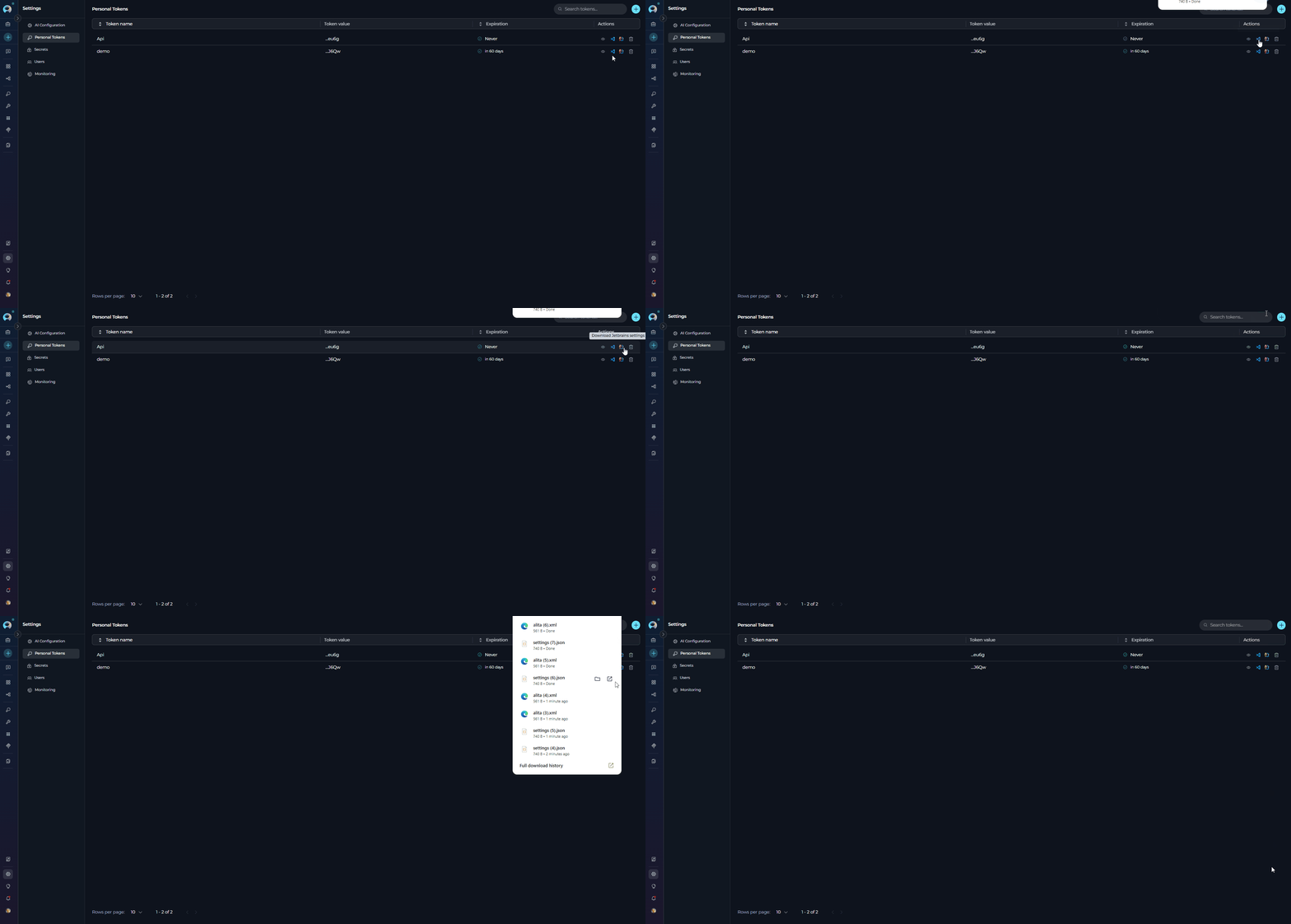
1. Click the **VSCode** icon in the Actions column.
2. A `settings.json` file will be downloaded with pre-configured settings including:
```json theme={null}
{
"alitacode.providerServerURL": "https://next.elitea.ai",
"alitacode.LLMServerUrl": "https://next.elitea.ai",
"alitacode.modelName": "gpt-5-mini",
"alitacode.LLMModelName": "gpt-5-mini",
"alitacode.authToken": "...gnrJ6Qw",
"alitacode.LLMAuthToken": "...gnrJ6Qw",
"alitacode.projectId": 123,
"alitacode.integrationUid": "",
"alitacode.defaultViewMode": "split",
"alitacode.verifySsl": false,
"eliteacode.LLMServerUrl": "https://next.elitea.ai",
"eliteacode.LLMModelName": "gpt-5-mini",
"eliteacode.LLMAuthToken": "...gnrJ6Qw",
"eliteacode.projectId": 123,
"eliteacode.integrationUid": "",
"eliteacode.displayType": "split",
"eliteacode.verifySsl": false,
"eliteacode.debug": false
}
```
**For JetBrains IDEs:**
1. Click the **JetBrains** icon in the Actions column.
2. An `alita.xml` file will be downloaded with pre-configured settings.
```xml theme={null}
```
IDE settings download icons are only available when a model configuration is selected and you are not in the Public project.
### Deleting Tokens
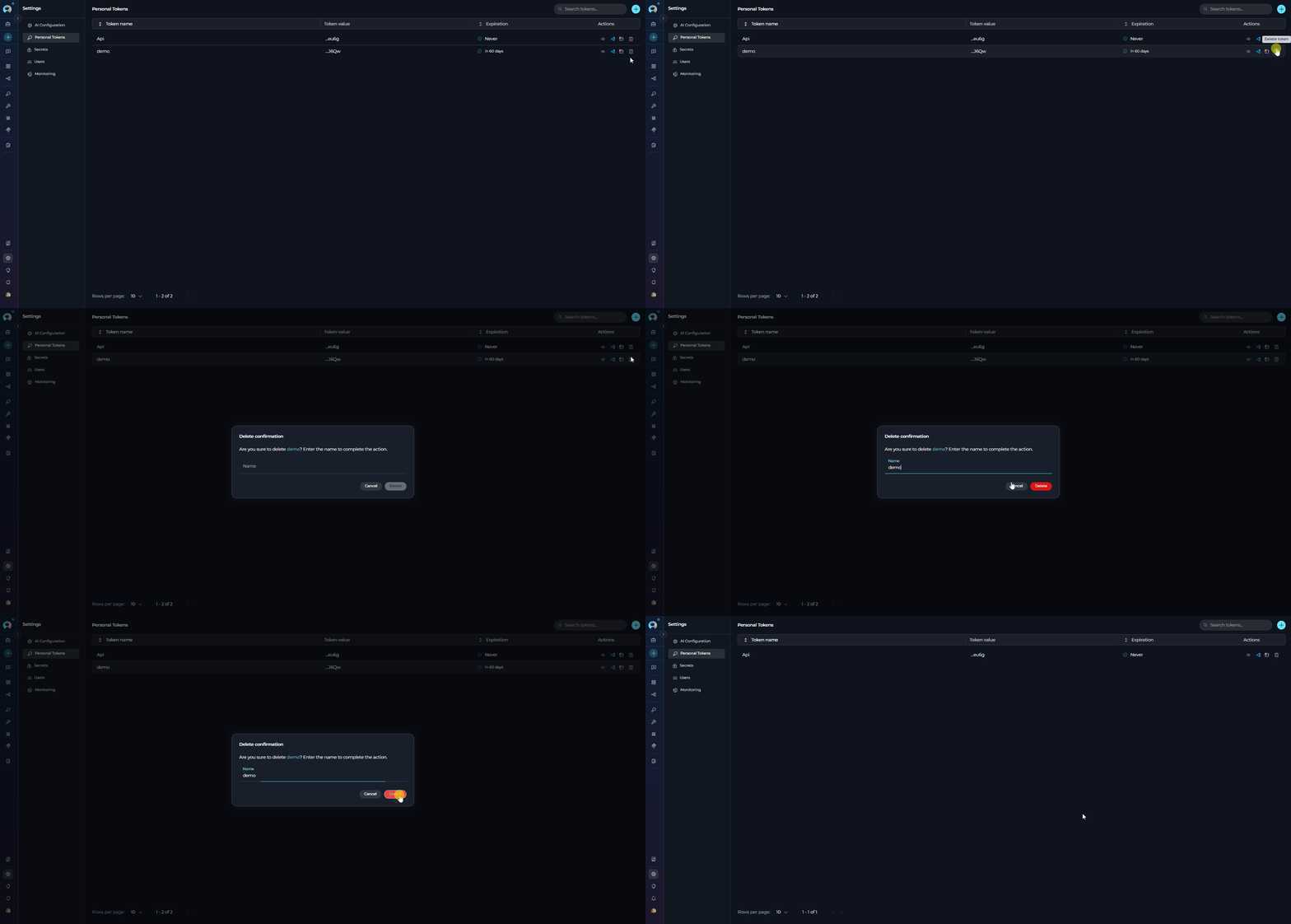
To remove a token:
1. Click the **🗑** (delete) icon in the Actions column.
2. A confirmation dialog will appear asking you to confirm the deletion.
3. Type the token name to confirm deletion.
4. Click **Delete** to permanently remove the token.
Deleting a token is permanent and cannot be undone. Any applications or IDEs using this token will lose access immediately. Ensure the token is no longer in use before deletion.
## Best Practices
Name your tokens based on their purpose and environment. Examples: "VSCode-MacBook-Dev", "JetBrains-Windows-Prod", "API-Testing-Temp"
* Use "Never" only for personal development environments
* Set 30-90 days expiration for production tokens
* Use short expiration (hours/minutes) for testing and temporary access
Regularly check tokens with warning icons (⚠) indicating expiration within 7 days. Generate replacement tokens before expiration to avoid service interruptions.
Even for tokens set to "Never" expire, consider rotating them periodically (every 3-6 months) for enhanced security.
Remove tokens that are no longer in use to minimize security risks. Before deletion, verify the token is not actively used by any IDE or application.
 ## Main Components
The Personal Tokens section includes:
* **Search Field**: Filter tokens by name using "Search tokens..." placeholder
* **+ Button**: Generate new personal tokens
* **Tokens Table**: Displays all tokens with columns for Token name, Token value, Expiration, and Actions
* **Pagination Controls**: Navigate through tokens lists (supports 5, 10, 50, or 100 tokens per page)
* **Action Icons**: Preview settings, Download VSCode settings, Download JetBrains settings, and Delete options
## Tokens Table
## Main Components
The Personal Tokens section includes:
* **Search Field**: Filter tokens by name using "Search tokens..." placeholder
* **+ Button**: Generate new personal tokens
* **Tokens Table**: Displays all tokens with columns for Token name, Token value, Expiration, and Actions
* **Pagination Controls**: Navigate through tokens lists (supports 5, 10, 50, or 100 tokens per page)
* **Action Icons**: Preview settings, Download VSCode settings, Download JetBrains settings, and Delete options
## Tokens Table
 The tokens table displays the following information:
* **Token name**: The identifier for the token
* **Token value**: Last 4 characters of the token (e.g., "...ab12")
* **Expiration**: Status indicator showing:
* ✓ Green icon with "in X days" for tokens expiring in more than 7 days
* ⚠ Warning icon with "in X days" for tokens expiring within 7 days
* ✓ Green icon with "Never" for tokens without expiration
* ✗ Gray icon with "Expired" for expired tokens
* **Actions**: Icons for preview, downloads, and delete operations
The tokens table displays the following information:
* **Token name**: The identifier for the token
* **Token value**: Last 4 characters of the token (e.g., "...ab12")
* **Expiration**: Status indicator showing:
* ✓ Green icon with "in X days" for tokens expiring in more than 7 days
* ⚠ Warning icon with "in X days" for tokens expiring within 7 days
* ✓ Green icon with "Never" for tokens without expiration
* ✗ Gray icon with "Expired" for expired tokens
* **Actions**: Icons for preview, downloads, and delete operations
 ### Downloading IDE Settings
 **For VSCode:**
1. Click the **VSCode** icon in the Actions column.
2. A `settings.json` file will be downloaded with pre-configured settings including:
**For VSCode:**
1. Click the **VSCode** icon in the Actions column.
2. A `settings.json` file will be downloaded with pre-configured settings including: