> ## Documentation Index
> Fetch the complete documentation index at: https://docs.elitea.ai/llms.txt
> Use this file to discover all available pages before exploring further.
# Personalization
> In *Personalization*, you can configure how the AI assistant interacts with you across all new conversations. This page contains settings for customizing AI personality, default summarization, voice personalization, and sound notifications.
## Overview
The *Personalization* page in your user profile includes the following main configuration sections:
1. **General**: Allows setting the default AI personality and providing default user instructions
2. **Default Context Management**: Allows managing conversation memory and token usage for new conversations
3. **Voice Personalization**: Allows configuring default text-to-speech voice, speed, and volume preferences
4. **Sound Notifications**: Allows configuring completion sounds and notification volume
These settings automatically apply to every new conversation you create in Chat, Agents, and Pipelines, ensuring consistent behavior and optimal performance without manual configuration each time.
* **Comprehensive control**: You manage AI behavior, memory, and summarization in one place
* **Automatic application**: Settings apply to all new conversations automatically
* **Consistency**: You maintain uniform AI behavior across all projects and conversations
* **Efficiency**: You do not need repeating the setup. Configure once, use everywhere
* **Optimization**: You can balance conversation quality with token usage and costs
***
## Accessing Personalization
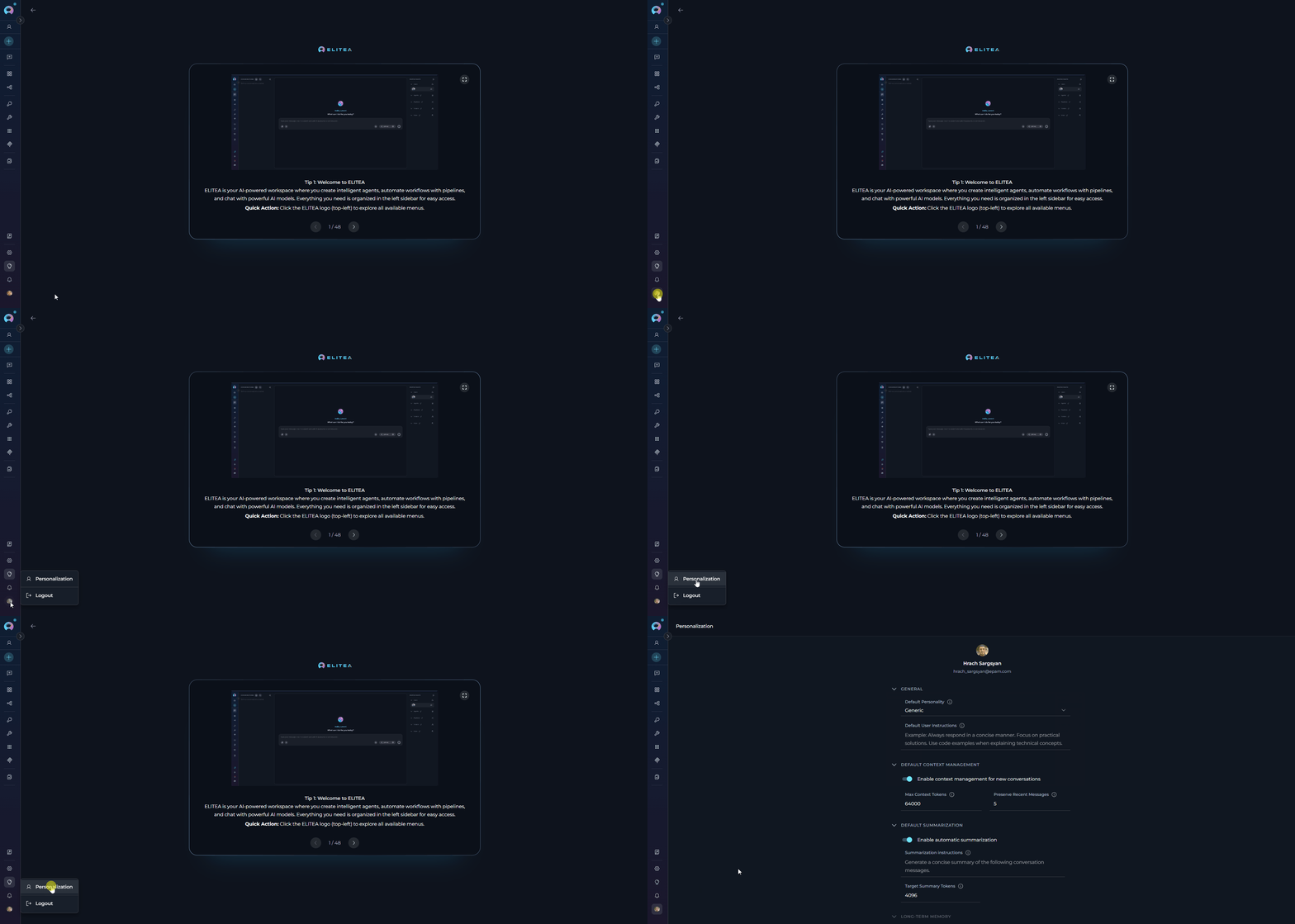
You can get to the *Personalization* page from your your user profile:
1. Click your **avatar** at the bottom of the sidebar
2. Select *Personalization* in the menu
 ***
## Settings Overview
The *Personalization* page includes the following sections:
| Section | Purpose | Key Settings | When Applied | Can Change Mid-Conversation | Available |
| ------------------------------ | ------------------------------------------ | -------------------------------------------------------------------------------------- | ------------------------------------------- | ---------------------------------- | -------------- |
| **General** | Define AI personality and behavior | Default Personality, Default User Instructions | At conversation creation | ✘ No | ✔️ |
| **Default Context Management** | Manage conversation memory and token usage | Enable Toggle, Max Context Tokens, Preserve Recent Messages | Throughout conversation lifecycle | ✔️ Yes (via Context Budget widget) | ✔️ |
| **Default Summarization** | Automatically condense long conversations | Enable Toggle, Summarization Instructions, Target Summary Tokens, Summary LLM Settings | During conversation when thresholds reached | ✔️ Yes (via Context Budget widget) | ✔️ |
| **Long-term Memory** | Future cross-conversation memory controls | — | — | — | 🔜 Coming Soon |
| **Voice Personalization** | Configure default TTS playback preferences | Voice, Speed, Volume, Preview Voice | Whenever text-to-speech is used | ✔️ Yes | ✔️ |
| **Sound Notifications** | Configure completion sound behavior | Enable Toggle, Volume, Preview Sound | When task completion sounds are triggered | ✔️ Yes | ✔️ |
Long-term memory capabilities are currently in development and not yet available.
***
### GENERAL
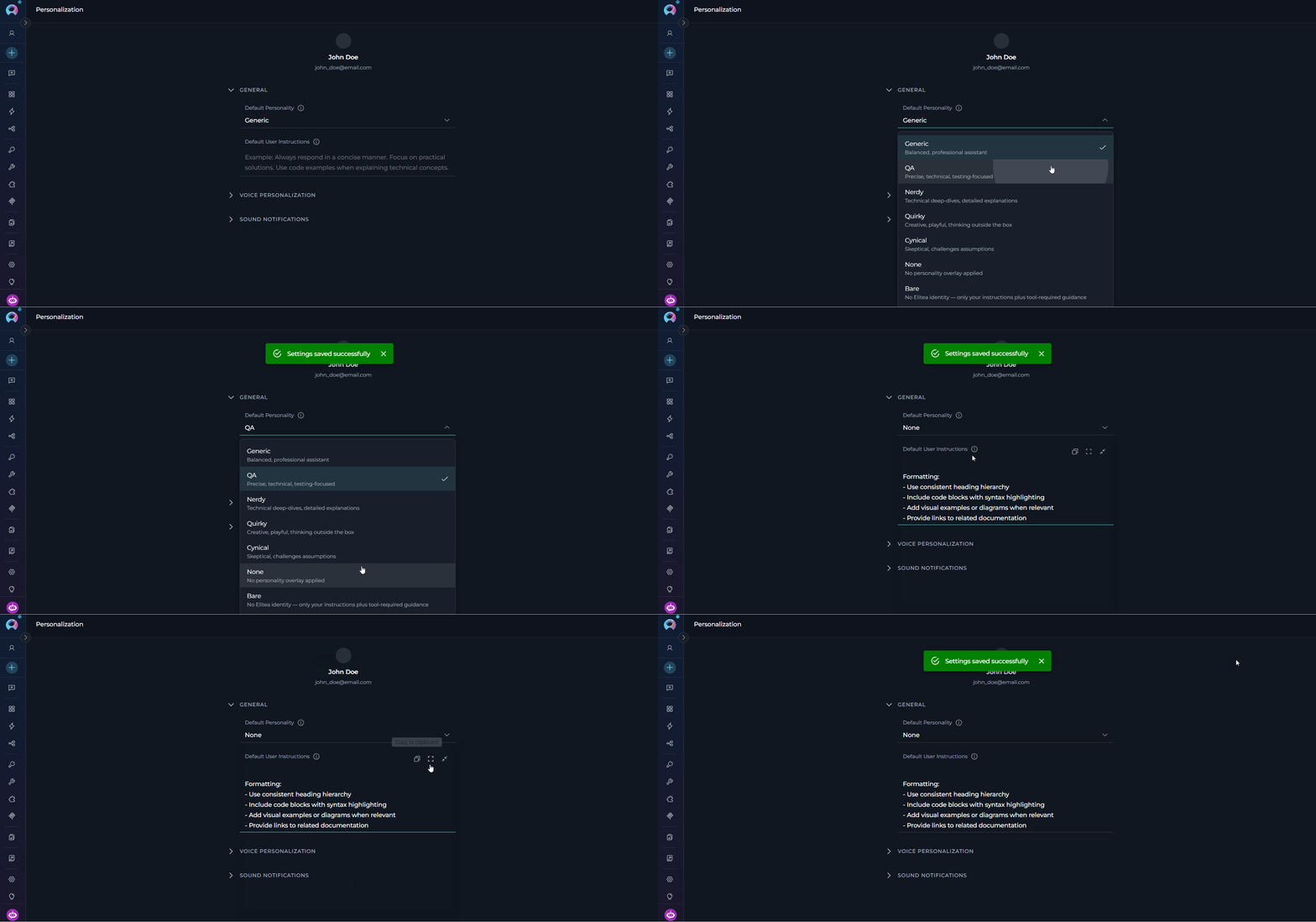
In the *General* section, you can select the default personality and provide your default user instructions.
***
## Settings Overview
The *Personalization* page includes the following sections:
| Section | Purpose | Key Settings | When Applied | Can Change Mid-Conversation | Available |
| ------------------------------ | ------------------------------------------ | -------------------------------------------------------------------------------------- | ------------------------------------------- | ---------------------------------- | -------------- |
| **General** | Define AI personality and behavior | Default Personality, Default User Instructions | At conversation creation | ✘ No | ✔️ |
| **Default Context Management** | Manage conversation memory and token usage | Enable Toggle, Max Context Tokens, Preserve Recent Messages | Throughout conversation lifecycle | ✔️ Yes (via Context Budget widget) | ✔️ |
| **Default Summarization** | Automatically condense long conversations | Enable Toggle, Summarization Instructions, Target Summary Tokens, Summary LLM Settings | During conversation when thresholds reached | ✔️ Yes (via Context Budget widget) | ✔️ |
| **Long-term Memory** | Future cross-conversation memory controls | — | — | — | 🔜 Coming Soon |
| **Voice Personalization** | Configure default TTS playback preferences | Voice, Speed, Volume, Preview Voice | Whenever text-to-speech is used | ✔️ Yes | ✔️ |
| **Sound Notifications** | Configure completion sound behavior | Enable Toggle, Volume, Preview Sound | When task completion sounds are triggered | ✔️ Yes | ✔️ |
Long-term memory capabilities are currently in development and not yet available.
***
### GENERAL
In the *General* section, you can select the default personality and provide your default user instructions.
 ***
#### Default Personality
Sets the communication style and approach that the AI assistant will use by default in all new conversations.
**Available Default Personalities**
| Personality | Communication Style | Best For |
| ----------- | -------------------------------------------------------------------------------- | ----------------------------------------------------------------------------------------- |
| **Generic** | Balanced, professional assistant | General-purpose tasks, standard workflows, versatile applications |
| **QA** | Precise, technical, testing-focused | Quality assurance tasks, testing workflows, technical validation |
| **Nerdy** | Technical deep-dives, detailed explanations | Complex technical topics, learning new concepts, in-depth analysis |
| **Quirky** | Creative, playful, thinking outside the box | Brainstorming sessions, creative problem-solving, innovative approaches |
| **Cynical** | Skeptical, challenges assumptions | Critical analysis, risk assessment, design reviews |
| **None** | No personality overlay applied to the default ELITEA-authored system personality | When you prefer the default ELITEA behavior without additional personality customizations |
| **Bare** | No ELITEA identity — only your instructions and tool-required instructions | When you want AI to operate strictly based on your instructions |
Consider your primary use cases when selecting a personality:
* **Development teams**: *QA* or *Nerdy* for technical precision
* **Creative projects**: *Quirky* for innovative thinking
* **Business analysis**: *Cynical* for critical evaluation
* **General use**: *Generic* for balanced, versatile assistance
* **No preference**: *None* to use the default ELITEA behavior
***
#### Default User Instructions
Provides custom guidelines that automatically apply to all new conversations. Here you can define specific requirements, preferences, or constraints that your AI assistants should follow in every interaction.
* **Communication preferences**: Response format, level of detail, tone
* **Technical requirements**: Programming languages, frameworks, coding standards
* **Workflow guidelines**: Step-by-step approaches, validation requirements
* **Domain knowledge**: Industry-specific terminology, company standards
* **Output format**: How results should be presented or structured
**Example Instructions by Role**
```
Follow these guidelines in all responses:
Code Standards:
- Use TypeScript with strict mode enabled
- Follow functional programming principles
- Include JSDoc comments for all functions
- Add error handling with typed error objects
Testing:
- Suggest unit tests using Jest
- Include edge case scenarios
- Provide test data examples
Best Practices:
- Consider performance implications
- Suggest async/await over callbacks
- Recommend clean code patterns
- Flag potential security issues
```
```
Apply testing best practices to all responses:
Test Coverage:
- Identify positive and negative test cases
- Consider edge cases and boundary conditions
- Include security testing considerations
Documentation:
- Provide clear, reproducible test steps
- Include expected vs actual results format
- Reference relevant testing standards (ISO 29119)
Test Design:
- Use BDD format (Given-When-Then) for test cases
- Organize tests by priority (critical, high, medium, low)
- Consider automation potential
```
```
Follow documentation best practices:
Writing Style:
- Use active voice and present tense
- Follow Microsoft Writing Style Guide
- Avoid jargon; explain technical terms
- Use "you" to address the reader
Structure:
- Begin with purpose and overview
- Use numbered steps for procedures
- Include prerequisites sections
- Add warnings and notes for important information
Formatting:
- Use consistent heading hierarchy
- Include code blocks with syntax highlighting
- Add visual examples or diagrams when relevant
- Provide links to related documentation
```
***
### DEFAULT CONTEXT MANAGEMENT
In the *Default Context Management* section, you can set how conversation history is managed in all new conversations.
Context management determines how much conversation history is retained and passed to the AI model in each request. Managing context effectively balances:
* **Quality**: More context helps AI provide relevant, coherent responses
* **Cost**: Token usage directly affects API costs
* **Performance**: Excessive context can slow response times
* **Limits**: AI models have maximum token limits (context windows)
***
#### Default Personality
Sets the communication style and approach that the AI assistant will use by default in all new conversations.
**Available Default Personalities**
| Personality | Communication Style | Best For |
| ----------- | -------------------------------------------------------------------------------- | ----------------------------------------------------------------------------------------- |
| **Generic** | Balanced, professional assistant | General-purpose tasks, standard workflows, versatile applications |
| **QA** | Precise, technical, testing-focused | Quality assurance tasks, testing workflows, technical validation |
| **Nerdy** | Technical deep-dives, detailed explanations | Complex technical topics, learning new concepts, in-depth analysis |
| **Quirky** | Creative, playful, thinking outside the box | Brainstorming sessions, creative problem-solving, innovative approaches |
| **Cynical** | Skeptical, challenges assumptions | Critical analysis, risk assessment, design reviews |
| **None** | No personality overlay applied to the default ELITEA-authored system personality | When you prefer the default ELITEA behavior without additional personality customizations |
| **Bare** | No ELITEA identity — only your instructions and tool-required instructions | When you want AI to operate strictly based on your instructions |
Consider your primary use cases when selecting a personality:
* **Development teams**: *QA* or *Nerdy* for technical precision
* **Creative projects**: *Quirky* for innovative thinking
* **Business analysis**: *Cynical* for critical evaluation
* **General use**: *Generic* for balanced, versatile assistance
* **No preference**: *None* to use the default ELITEA behavior
***
#### Default User Instructions
Provides custom guidelines that automatically apply to all new conversations. Here you can define specific requirements, preferences, or constraints that your AI assistants should follow in every interaction.
* **Communication preferences**: Response format, level of detail, tone
* **Technical requirements**: Programming languages, frameworks, coding standards
* **Workflow guidelines**: Step-by-step approaches, validation requirements
* **Domain knowledge**: Industry-specific terminology, company standards
* **Output format**: How results should be presented or structured
**Example Instructions by Role**
```
Follow these guidelines in all responses:
Code Standards:
- Use TypeScript with strict mode enabled
- Follow functional programming principles
- Include JSDoc comments for all functions
- Add error handling with typed error objects
Testing:
- Suggest unit tests using Jest
- Include edge case scenarios
- Provide test data examples
Best Practices:
- Consider performance implications
- Suggest async/await over callbacks
- Recommend clean code patterns
- Flag potential security issues
```
```
Apply testing best practices to all responses:
Test Coverage:
- Identify positive and negative test cases
- Consider edge cases and boundary conditions
- Include security testing considerations
Documentation:
- Provide clear, reproducible test steps
- Include expected vs actual results format
- Reference relevant testing standards (ISO 29119)
Test Design:
- Use BDD format (Given-When-Then) for test cases
- Organize tests by priority (critical, high, medium, low)
- Consider automation potential
```
```
Follow documentation best practices:
Writing Style:
- Use active voice and present tense
- Follow Microsoft Writing Style Guide
- Avoid jargon; explain technical terms
- Use "you" to address the reader
Structure:
- Begin with purpose and overview
- Use numbered steps for procedures
- Include prerequisites sections
- Add warnings and notes for important information
Formatting:
- Use consistent heading hierarchy
- Include code blocks with syntax highlighting
- Add visual examples or diagrams when relevant
- Provide links to related documentation
```
***
### DEFAULT CONTEXT MANAGEMENT
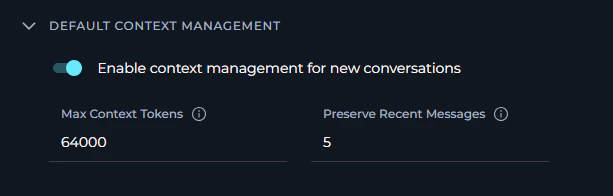
In the *Default Context Management* section, you can set how conversation history is managed in all new conversations.
Context management determines how much conversation history is retained and passed to the AI model in each request. Managing context effectively balances:
* **Quality**: More context helps AI provide relevant, coherent responses
* **Cost**: Token usage directly affects API costs
* **Performance**: Excessive context can slow response times
* **Limits**: AI models have maximum token limits (context windows)
 #### Configuration Parameters
| Parameter | Type | Default | Range | Description |
| --------------------------------------------------- | ------ | ------- | --------------- | -------------------------------------------------- |
| **Enable context management for new conversations** | Toggle | ON | ON/OFF | Activates automatic context management |
| **Max Context Tokens** | Number | 64000 | 1000 - 10000000 | Maximum tokens allocated for conversation history |
| **Preserve Recent Messages** | Number | 5 | 1 - 99 | Minimum recent messages always retained in context |
***
**Enable Context Management**
Toggle to enable or disable automatic context management for new conversations.
**When enabled:**
* Context is automatically managed based on Max Context Tokens setting
* System preserves recent messages as specified
* Older messages are automatically summarized or removed when token limit is approached
* Conversation continuity is maintained efficiently
**When disabled:**
* All conversation history is sent with each request (until model limit reached)
* No automatic context optimization occurs
* May hit model token limits in longer conversations
* Higher token costs and potential performance issues
Keep context management **enabled** (default) for optimal performance and cost efficiency, especially for longer conversations.
***
**Max Context Tokens**
Specifies the maximum number of tokens to use for conversation context in each AI request.
* Basic unit of text that AI models process
* Approximately: 1 token ≈ 4 characters or ≈ 0.75 words in English
* Example: "Hello, how are you?" ≈ 5-6 tokens
* Both input (context) and output (response) count toward model limits
**To choose the correct value**
Different AI models have different context windows:
* **gpt-4.1**: 128,000 tokens
* **GPT-4**: 8,192 tokens (standard) or 32,768 tokens (32k version)
* **GPT-3.5 Turbo**: 16,385 tokens
Set *Max Context Tokens* to **50-75% of your model's limit** to leave room for:
* System instructions and prompts (your default instructions count here)
* AI's response generation
* Safety margins to prevent hitting hard limits
* **Higher values (100,000+)**:
* ✔️ Better context retention for very long conversations
* ✔️ AI can refer to the information from much earlier in conversation
* ✘ Higher token costs per request
* ✘ Slower response times
* **Medium values (10,000-64,000)**:
* ✔️ Good balance of quality and cost (recommended)
* ✔️ Suitable for most use cases
* ✔️ Efficient performance
* **Lower values (1,000-10,000)**:
* ✔️ Minimal token costs
* ✔️ Faster responses
* ✘ May lose context in longer conversations
* ✘ AI may "forget" earlier discussion points
* **Short Q\&A sessions**: 10,000-20,000 tokens (quick questions, brief interactions)
* **Standard development**: 30,000-64,000 tokens (typical coding, documentation tasks)
* **Long technical discussions**: 64,000-128,000 tokens (complex debugging, architecture reviews)
* **Extensive analysis**: 100,000+ tokens (large codebase reviews, comprehensive research)
***
**Preserve Recent Messages**
Specifies the minimum number of recent conversation messages to always keep in context, regardless of token limits.
1. **Priority protection**: These messages are never removed or summarized, even if total tokens exceed Max Context Tokens
2. **Recent context**: Ensures AI always has immediate conversation context
3. **Continuity**: Maintains coherent responses even when older context is summarized
4. **Count method**: Each user message and corresponding AI response counts as 2 messages
**To choose the correct value**
* **Quick Q\&A (1-3 messages)**:
* Each question is independent
* Minimal context dependency
* Lower value sufficient
* **Iterative development (5-10 messages)**:
* Building on previous responses
* Code refinements and iterations
* Medium value recommended (default 5 works well)
* **Complex problem-solving (10-20 messages)**:
* Multi-step troubleshooting
* Extended debugging sessions
* Higher value ensures continuity
* Recent messages are **always** kept, even if they exceed Max Context Tokens
* If 5 recent messages contain 70,000 tokens but Max Context Tokens = 64,000:
* All 5 recent messages are still preserved
* Only older messages beyond these 5 are subject to token limits
* Set this value carefully to avoid unintentionally high token usage
* **Start with default (5)** and monitor conversation quality
* **Increase if** AI loses track of recent discussion points
* **Decrease if** token costs are too high and conversations are short
* **Monitor**: Check how often you need to re-explain recent context
***
### DEFAULT SUMMARIZATION
In the *Default Summarization* section, you can configure automatic conversation summarization for new conversations. When enabled, ELITEA will automatically condense long conversations to maintain context while reducing token usage.
Summarization is only active when **Context Management is enabled**. If the **Enable context management for new conversations** toggle is off, summarization settings are inactive even if the summarization toggle is on. To use summarization, make sure context management is enabled first.
As conversations grow longer, they consume more tokens and approach model limits. Automatic summarization:
* **Detects** when the conversation length reaches a threshold
* **Generates** a concise summary of older messages
* **Replaces** older messages with the summary
* **Preserves** recent messages (as specified in Context Management)
* **Maintains** conversation continuity while reducing tokens
#### Configuration Parameters
| Parameter | Type | Default | Range | Description |
| --------------------------------------------------- | ------ | ------- | --------------- | -------------------------------------------------- |
| **Enable context management for new conversations** | Toggle | ON | ON/OFF | Activates automatic context management |
| **Max Context Tokens** | Number | 64000 | 1000 - 10000000 | Maximum tokens allocated for conversation history |
| **Preserve Recent Messages** | Number | 5 | 1 - 99 | Minimum recent messages always retained in context |
***
**Enable Context Management**
Toggle to enable or disable automatic context management for new conversations.
**When enabled:**
* Context is automatically managed based on Max Context Tokens setting
* System preserves recent messages as specified
* Older messages are automatically summarized or removed when token limit is approached
* Conversation continuity is maintained efficiently
**When disabled:**
* All conversation history is sent with each request (until model limit reached)
* No automatic context optimization occurs
* May hit model token limits in longer conversations
* Higher token costs and potential performance issues
Keep context management **enabled** (default) for optimal performance and cost efficiency, especially for longer conversations.
***
**Max Context Tokens**
Specifies the maximum number of tokens to use for conversation context in each AI request.
* Basic unit of text that AI models process
* Approximately: 1 token ≈ 4 characters or ≈ 0.75 words in English
* Example: "Hello, how are you?" ≈ 5-6 tokens
* Both input (context) and output (response) count toward model limits
**To choose the correct value**
Different AI models have different context windows:
* **gpt-4.1**: 128,000 tokens
* **GPT-4**: 8,192 tokens (standard) or 32,768 tokens (32k version)
* **GPT-3.5 Turbo**: 16,385 tokens
Set *Max Context Tokens* to **50-75% of your model's limit** to leave room for:
* System instructions and prompts (your default instructions count here)
* AI's response generation
* Safety margins to prevent hitting hard limits
* **Higher values (100,000+)**:
* ✔️ Better context retention for very long conversations
* ✔️ AI can refer to the information from much earlier in conversation
* ✘ Higher token costs per request
* ✘ Slower response times
* **Medium values (10,000-64,000)**:
* ✔️ Good balance of quality and cost (recommended)
* ✔️ Suitable for most use cases
* ✔️ Efficient performance
* **Lower values (1,000-10,000)**:
* ✔️ Minimal token costs
* ✔️ Faster responses
* ✘ May lose context in longer conversations
* ✘ AI may "forget" earlier discussion points
* **Short Q\&A sessions**: 10,000-20,000 tokens (quick questions, brief interactions)
* **Standard development**: 30,000-64,000 tokens (typical coding, documentation tasks)
* **Long technical discussions**: 64,000-128,000 tokens (complex debugging, architecture reviews)
* **Extensive analysis**: 100,000+ tokens (large codebase reviews, comprehensive research)
***
**Preserve Recent Messages**
Specifies the minimum number of recent conversation messages to always keep in context, regardless of token limits.
1. **Priority protection**: These messages are never removed or summarized, even if total tokens exceed Max Context Tokens
2. **Recent context**: Ensures AI always has immediate conversation context
3. **Continuity**: Maintains coherent responses even when older context is summarized
4. **Count method**: Each user message and corresponding AI response counts as 2 messages
**To choose the correct value**
* **Quick Q\&A (1-3 messages)**:
* Each question is independent
* Minimal context dependency
* Lower value sufficient
* **Iterative development (5-10 messages)**:
* Building on previous responses
* Code refinements and iterations
* Medium value recommended (default 5 works well)
* **Complex problem-solving (10-20 messages)**:
* Multi-step troubleshooting
* Extended debugging sessions
* Higher value ensures continuity
* Recent messages are **always** kept, even if they exceed Max Context Tokens
* If 5 recent messages contain 70,000 tokens but Max Context Tokens = 64,000:
* All 5 recent messages are still preserved
* Only older messages beyond these 5 are subject to token limits
* Set this value carefully to avoid unintentionally high token usage
* **Start with default (5)** and monitor conversation quality
* **Increase if** AI loses track of recent discussion points
* **Decrease if** token costs are too high and conversations are short
* **Monitor**: Check how often you need to re-explain recent context
***
### DEFAULT SUMMARIZATION
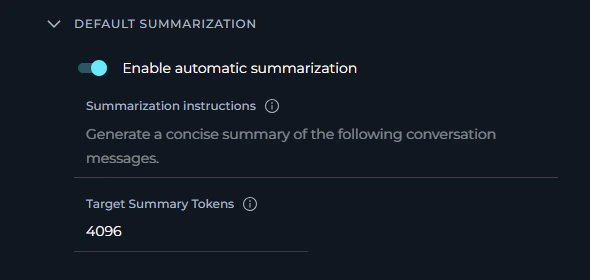
In the *Default Summarization* section, you can configure automatic conversation summarization for new conversations. When enabled, ELITEA will automatically condense long conversations to maintain context while reducing token usage.
Summarization is only active when **Context Management is enabled**. If the **Enable context management for new conversations** toggle is off, summarization settings are inactive even if the summarization toggle is on. To use summarization, make sure context management is enabled first.
As conversations grow longer, they consume more tokens and approach model limits. Automatic summarization:
* **Detects** when the conversation length reaches a threshold
* **Generates** a concise summary of older messages
* **Replaces** older messages with the summary
* **Preserves** recent messages (as specified in Context Management)
* **Maintains** conversation continuity while reducing tokens
 #### Configuration Parameters
| Parameter | Type | Default | Range/Options | Description |
| ---------------------------------- | -------------- | -------------------------------------------------------------------- | ------------- | ---------------------------------------------- |
| **Enable automatic summarization** | Toggle | ON | ON/OFF | Activates automatic conversation summarization |
| **Summarization instructions** | Multiline text | "Generate a concise summary of the following conversation messages." | - | Custom instructions for summary generation |
| **Target Summary Tokens** | Number | 4,096 | 100 - 4,096 | Target token count for generated summaries |
***
**Enable Automatic Summarization**
**When enabled:**
* System monitors conversation length continuously
* Automatically triggers summarization when threshold is reached
* Older messages are condensed into a summary
* Recent messages remain untouched
* Token usage is optimized for long conversations
**When disabled:**
* No automatic summarization occurs
* Full conversation history is maintained (subject to Context Management limits)
* May hit token limits faster in extended conversations
* Manual context management may be required
Keep summarization **enabled** (default) for conversations that may become lengthy, especially for:
* Extended debugging or troubleshooting sessions
* Iterative development work
* Multi-topic discussions
* Long-running analysis or research tasks
***
**Summarization Instructions**
Custom instructions that guide how conversation summaries are generated.
The default instructions are:
```
Generate a concise summary of the following conversation messages.
```
* **Summary style**: Bullet points vs paragraphs, technical vs conversational
* **Focus areas**: What information to prioritize in summaries
* **Format requirements**: Structure, length constraints, organization
* **Preservation rules**: Critical information that must never be omitted
* **Context needs**: How much detail to retain for continuity
**Example Custom Instructions**
```
Create a structured summary of the conversation:
Format:
- Use bullet points for key discussion topics
- Preserve all code snippets and technical commands
- Include decisions made and their rationale
- List any unresolved questions or action items
Content:
- Focus on technical details, not social pleasantries
- Maintain exact terminology and technical terms
- Preserve version numbers, file paths, and configurations
```
```
Summarize the troubleshooting conversation:
1. Problem Statement: Brief description of the original issue
2. Steps Attempted: List of solutions tried and their outcomes
3. Current Status: Where we are now in the debugging process
4. Next Actions: What to try next
Keep all error messages and diagnostic output verbatim.
```
***
**Target Summary Tokens**
Specifies the target length (in tokens) for generated conversation summaries.
Here are some token references:
* **256 tokens**: \~192 words - short paragraph summary
* **1024 tokens**: \~768 words - moderate detail summary
* **4096 tokens (default)**: \~3072 words - comprehensive summary
**Original conversation:**
* Messages 1-20: 45,000 tokens
**After summarization:**
* Summary of messages 1-15: \~4,096 tokens (Target Summary Tokens)
* Original messages 16-20: 15,000 tokens (preserved recent messages)
**Result:**
* Total Context: \~19,096 tokens (reduced from 45,000)
**To choose the correct value**
**When to Use:**
* Conversations are highly repetitive
* Maximum token savings needed
* Simple Q\&A that doesn't require much context
**Effects:**
* ✔️ Maximum token reduction
* ✔️ Lowest summarization costs
* ✔️ Fastest summary generation
* ✘ May lose important details
* ✘ AI may need clarification more often
**When to Use:**
* Balance detail retention with token savings
* Standard technical discussions
* General-purpose conversations
**Effects:**
* ✔️ Good balance of detail and conciseness
* ✔️ Preserves key points and decisions
* ✔️ Reasonable token costs
* ✔️ Suitable for most use cases
**When to Use:**
* Complex technical discussions
* Multi-topic conversations
* Conversations with critical context that must be preserved
* Detailed problem-solving sessions
**Effects:**
* ✔️ Maximum details are preserved (default)
* ✔️ Rich context for AI to reference
* ✔️ Better continuity across long conversations
* ✘ Higher summarization costs
* ✘ Summaries themselves consume significant tokens
***
In the Personalization interface, **Default Summarization** and **Long-term Memory** appear as nested accordions inside **Default Context Management**, not as separate top-level page sections.
### VOICE PERSONALIZATION
The **Voice Personalization** section lets you define your default text-to-speech playback preferences. These settings are stored in your browser and are used whenever ELITEA reads responses aloud.
* If a server-side TTS model is configured, the **Voice** dropdown shows the voices provided by that model.
* If no server-side TTS model is available, ELITEA falls back to browser voices.
* Browser voices that are not local are marked as **online** in the dropdown.
#### Configuration Parameters
| Parameter | Type | Default | Range / Options | Description |
| ----------------- | -------- | ------------- | --------------------------------------- | ---------------------------------------------------------- |
| **Voice** | Dropdown | Default voice | Model-provided voices or browser voices | Selects the default voice used for text-to-speech playback |
| **Speed** | Slider | 1.0× | 0.5× - 2.0× | Controls playback rate |
| **Volume** | Slider | 100% | 0% - 100% | Controls playback loudness |
| **Preview Voice** | Button | — | — | Plays a short sample sentence using the current settings |
#### Configuration Parameters
| Parameter | Type | Default | Range/Options | Description |
| ---------------------------------- | -------------- | -------------------------------------------------------------------- | ------------- | ---------------------------------------------- |
| **Enable automatic summarization** | Toggle | ON | ON/OFF | Activates automatic conversation summarization |
| **Summarization instructions** | Multiline text | "Generate a concise summary of the following conversation messages." | - | Custom instructions for summary generation |
| **Target Summary Tokens** | Number | 4,096 | 100 - 4,096 | Target token count for generated summaries |
***
**Enable Automatic Summarization**
**When enabled:**
* System monitors conversation length continuously
* Automatically triggers summarization when threshold is reached
* Older messages are condensed into a summary
* Recent messages remain untouched
* Token usage is optimized for long conversations
**When disabled:**
* No automatic summarization occurs
* Full conversation history is maintained (subject to Context Management limits)
* May hit token limits faster in extended conversations
* Manual context management may be required
Keep summarization **enabled** (default) for conversations that may become lengthy, especially for:
* Extended debugging or troubleshooting sessions
* Iterative development work
* Multi-topic discussions
* Long-running analysis or research tasks
***
**Summarization Instructions**
Custom instructions that guide how conversation summaries are generated.
The default instructions are:
```
Generate a concise summary of the following conversation messages.
```
* **Summary style**: Bullet points vs paragraphs, technical vs conversational
* **Focus areas**: What information to prioritize in summaries
* **Format requirements**: Structure, length constraints, organization
* **Preservation rules**: Critical information that must never be omitted
* **Context needs**: How much detail to retain for continuity
**Example Custom Instructions**
```
Create a structured summary of the conversation:
Format:
- Use bullet points for key discussion topics
- Preserve all code snippets and technical commands
- Include decisions made and their rationale
- List any unresolved questions or action items
Content:
- Focus on technical details, not social pleasantries
- Maintain exact terminology and technical terms
- Preserve version numbers, file paths, and configurations
```
```
Summarize the troubleshooting conversation:
1. Problem Statement: Brief description of the original issue
2. Steps Attempted: List of solutions tried and their outcomes
3. Current Status: Where we are now in the debugging process
4. Next Actions: What to try next
Keep all error messages and diagnostic output verbatim.
```
***
**Target Summary Tokens**
Specifies the target length (in tokens) for generated conversation summaries.
Here are some token references:
* **256 tokens**: \~192 words - short paragraph summary
* **1024 tokens**: \~768 words - moderate detail summary
* **4096 tokens (default)**: \~3072 words - comprehensive summary
**Original conversation:**
* Messages 1-20: 45,000 tokens
**After summarization:**
* Summary of messages 1-15: \~4,096 tokens (Target Summary Tokens)
* Original messages 16-20: 15,000 tokens (preserved recent messages)
**Result:**
* Total Context: \~19,096 tokens (reduced from 45,000)
**To choose the correct value**
**When to Use:**
* Conversations are highly repetitive
* Maximum token savings needed
* Simple Q\&A that doesn't require much context
**Effects:**
* ✔️ Maximum token reduction
* ✔️ Lowest summarization costs
* ✔️ Fastest summary generation
* ✘ May lose important details
* ✘ AI may need clarification more often
**When to Use:**
* Balance detail retention with token savings
* Standard technical discussions
* General-purpose conversations
**Effects:**
* ✔️ Good balance of detail and conciseness
* ✔️ Preserves key points and decisions
* ✔️ Reasonable token costs
* ✔️ Suitable for most use cases
**When to Use:**
* Complex technical discussions
* Multi-topic conversations
* Conversations with critical context that must be preserved
* Detailed problem-solving sessions
**Effects:**
* ✔️ Maximum details are preserved (default)
* ✔️ Rich context for AI to reference
* ✔️ Better continuity across long conversations
* ✘ Higher summarization costs
* ✘ Summaries themselves consume significant tokens
***
In the Personalization interface, **Default Summarization** and **Long-term Memory** appear as nested accordions inside **Default Context Management**, not as separate top-level page sections.
### VOICE PERSONALIZATION
The **Voice Personalization** section lets you define your default text-to-speech playback preferences. These settings are stored in your browser and are used whenever ELITEA reads responses aloud.
* If a server-side TTS model is configured, the **Voice** dropdown shows the voices provided by that model.
* If no server-side TTS model is available, ELITEA falls back to browser voices.
* Browser voices that are not local are marked as **online** in the dropdown.
#### Configuration Parameters
| Parameter | Type | Default | Range / Options | Description |
| ----------------- | -------- | ------------- | --------------------------------------- | ---------------------------------------------------------- |
| **Voice** | Dropdown | Default voice | Model-provided voices or browser voices | Selects the default voice used for text-to-speech playback |
| **Speed** | Slider | 1.0× | 0.5× - 2.0× | Controls playback rate |
| **Volume** | Slider | 100% | 0% - 100% | Controls playback loudness |
| **Preview Voice** | Button | — | — | Plays a short sample sentence using the current settings |
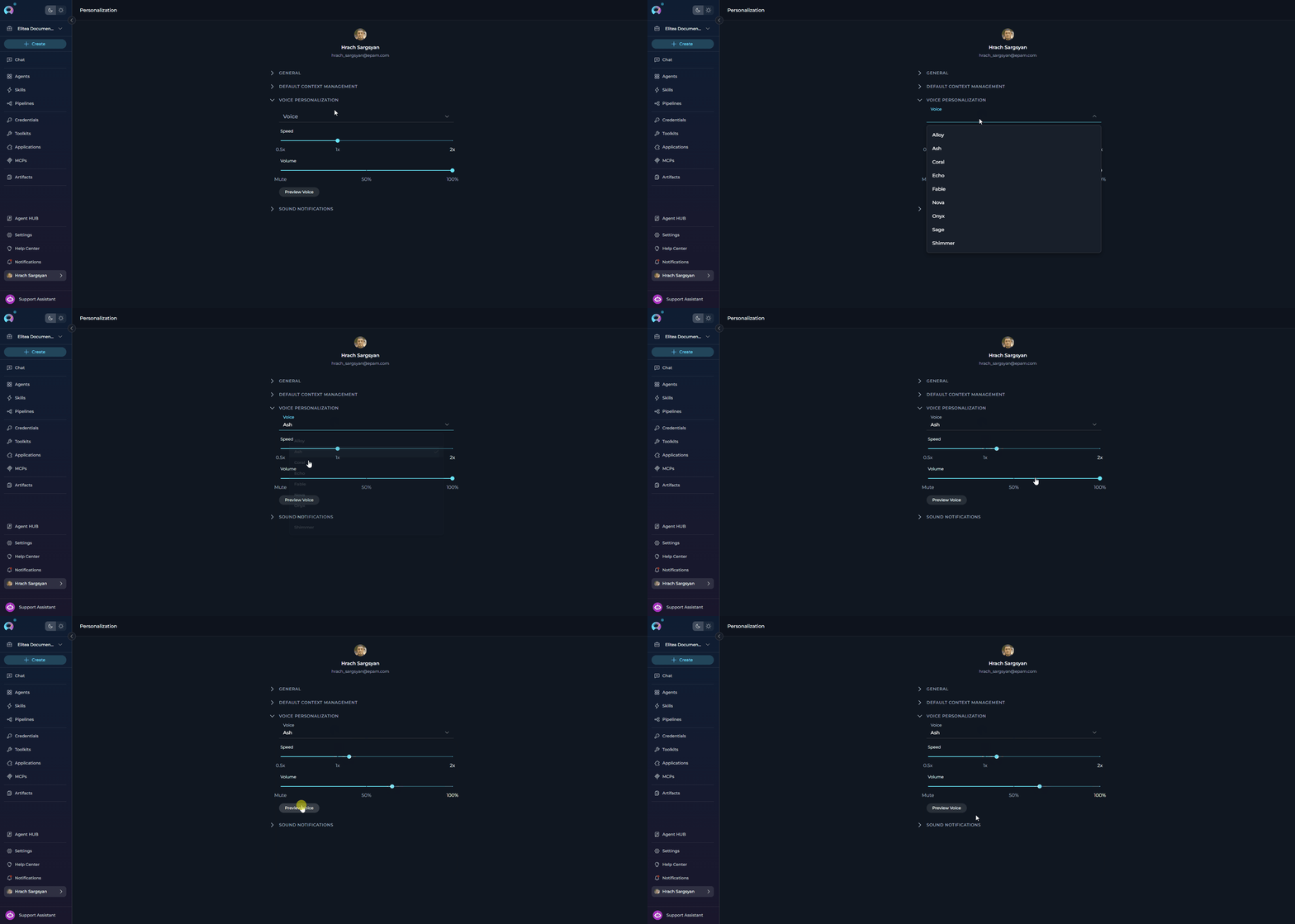 Use **Preview Voice** to test the selected voice, speed, and volume combination before relying on it in conversations.
***
### SOUND NOTIFICATIONS
The **Sound Notifications** section controls whether ELITEA plays a completion sound when tasks finish, along with the default notification volume.
#### Configuration Parameters
| Parameter | Type | Default | Range / Options | Description |
| ---------------------------------- | ------ | ------- | --------------- | ------------------------------------------------------------ |
| **Play sound when tasks complete** | Toggle | ON | ON / OFF | Enables or disables completion sounds |
| **Volume** | Slider | 50% | 0% - 100% | Controls notification sound volume |
| **Preview Sound** | Button | — | — | Plays the current completion sound using the selected volume |
Use **Preview Voice** to test the selected voice, speed, and volume combination before relying on it in conversations.
***
### SOUND NOTIFICATIONS
The **Sound Notifications** section controls whether ELITEA plays a completion sound when tasks finish, along with the default notification volume.
#### Configuration Parameters
| Parameter | Type | Default | Range / Options | Description |
| ---------------------------------- | ------ | ------- | --------------- | ------------------------------------------------------------ |
| **Play sound when tasks complete** | Toggle | ON | ON / OFF | Enables or disables completion sounds |
| **Volume** | Slider | 50% | 0% - 100% | Controls notification sound volume |
| **Preview Sound** | Button | — | — | Plays the current completion sound using the selected volume |
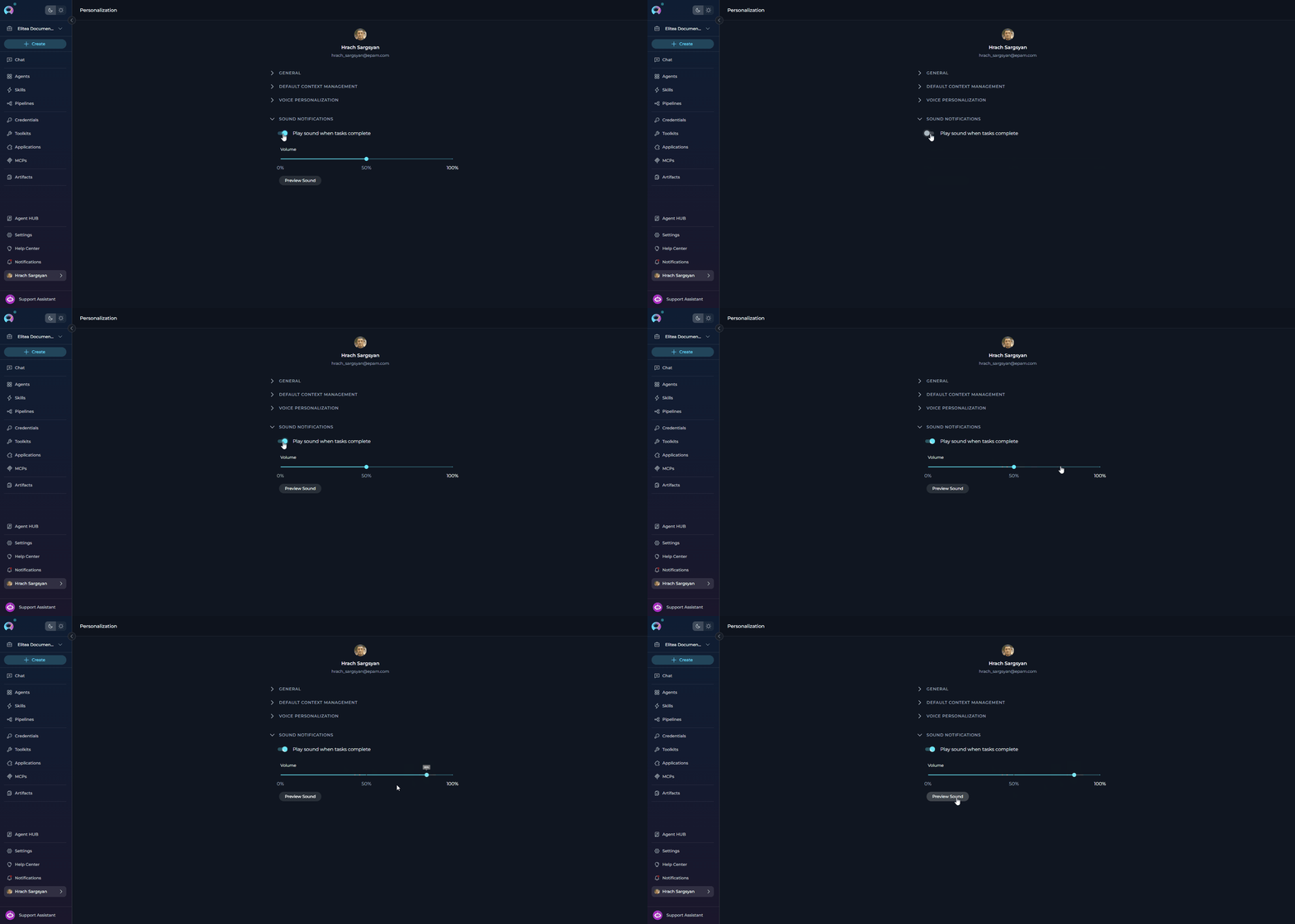 The **Volume** slider and **Preview Sound** button are shown only when **Play sound when tasks complete** is enabled.
***
### How the Settings Work Together
Example scenario: Long development session
1. **GENERAL** (Foundation):
* Personality: "Nerdy" - Technical deep-dives
* Instructions: "Use TypeScript, include unit tests, explain trade-offs"
* Result: AI uses technical language and provides detailed code examples
2. **DEFAULT CONTEXT MANAGEMENT** (Efficiency):
* Max Context Tokens: 64,000
* Preserve Recent Messages: 5
* Result: AI can reference extensive history (up to 64K tokens) while always keeping last 5 exchanges
3. **DEFAULT SUMMARIZATION** (Optimization):
* Enabled: Yes
* Target Tokens: 4,096
* Result: When the context approaches the token limit, older messages are automatically condensed into a 4K token summary
**Combined effect**:
* AI maintains technical, detailed communication style throughout (General settings)
* Conversation can continue indefinitely without hitting token limits (Context Management + Summarization)
* Recent context always available for coherent responses (Preserve Recent Messages)
* Token costs optimized by automatic summarization of older content
* Consistent quality even in very long debugging or development sessions
***
## How Settings Apply
All settings automatically apply to every **new** conversation you create in Chat, Agents, and Pipelines. Settings are stored in your user profile and persist across sessions and devices.
**Limitations:**
* **Only affects new conversations**: Existing conversations retain their original settings
* **Personal settings**: Does not apply to conversations created by other users or shared conversations
* **Agent/Pipeline configs**: Agent and Pipeline definitions have their own independent settings
* **Mid-conversation adjustments**: Context Management and Summarization can be changed during conversations using the Context Budget widget
***
## Best Practices
**Configuring All Three Sections Together**
1. **Test Default Settings First**:
* General: Generic personality, no custom instructions
* Context Management: Enabled, 64,000 tokens, 5 preserved messages
* Summarization: Enabled, 4,096 target tokens
2. **Monitor Conversation Quality**:
* Are responses in the style you need?
* Do you hit token limits?
* Does summarization maintain enough detail?
3. **Adjust One Section at a Time**:
* Change personality or add instructions first
* Adjust context limits if needed
* Fine-tune summarization last
4. **Document What Works**:
* Keep notes on effective configurations
* Track which settings work for which types of tasks
The three active sections interact with each other:
* **Disabling Context Management** also disables the Max Context Tokens and Preserve Recent Messages inputs — they become grayed out and uneditable
* **Summarization is only active when Context Management is enabled** — if you disable context management, summarization settings are also inactive even if the toggle is on
* **General settings are always independent** — personality and instructions apply regardless of context management state
Therefore, if you want summarization, you must keep context management enabled.
**For short conversations (\< 20 messages):**
* Focus on General settings (personality + instructions most important)
* Context Management: Lower token limits (20,000-30,000) to save costs
* Summarization: Can disable or leave at defaults for short conversations
**For medium conversations (20-50 messages):**
* All three sections important
* Context Management: Standard limits (40,000-64,000)
* Summarization: Default settings work well
**For long conversations (50+ messages):**
* Context Management: Higher limits (64,000-128,000)
* Summarization: Critical for cost control
**Quality-Focused Configuration**
```
General:
- Personality: Match your work style
- Instructions: Detailed, specific requirements
Context Management:
- Max Tokens: 100,000+ (high limit)
- Preserve Messages: 10-15 (more recent context)
Summarization:
- Target Tokens: 4,096 (comprehensive summaries)
Result: Maximum context retention, best AI responses, higher costs
```
**Cost-Focused Configuration**
```
General:
- Personality: Generic (works for most cases)
- Instructions: Brief, essential points only
Context Management:
- Max Tokens: 20,000 (lower limit)
- Preserve Messages: 3-5 (minimal recent context)
Summarization:
- Target Tokens: 1,024 (concise summaries)
Result: Minimal token usage, lower costs, may need more clarifications
```
**Balanced Configuration (Recommended)**
```
General:
- Personality: Choose based on primary use case
- Instructions: 3-7 key requirements
Context Management:
- Max Tokens: 64,000 (default)
- Preserve Messages: 5 (default)
Summarization:
- Target Tokens: 4,096 (default)
Result: Good quality, reasonable costs, works for most scenarios
```
**Choosing Default Personality**
* **Single Role**: Choose the personality that best matches your main work function
* **Multiple Roles**: Select the personality you use most frequently
* **Team Accounts**: If shared, choose Generic for balanced, versatile interactions
* **No Preference**: Use **None** to keep the AI's raw default behavior without any style overlay
* **Experimentation**: Try different personalities over a few days to find what works best
* **Formal Environments**: Generic or QA for professional, technical communication
* **Creative Teams**: Quirky for innovative, out-of-the-box thinking
* **Technical Teams**: Nerdy for deep, detailed technical discussions
* **Critical Review**: Cynical for thorough, skeptical analysis
* Personalization sets the default for all new conversations
* Individual conversations can have different settings if needed
* No need to frequently change your default unless your work focus shifts
***
**Writing Effective Default Instructions**
**Good examples:**
* ✔️ "Always include code examples in Python with type hints"
* ✔️ "Structure responses with a summary paragraph first, then details"
* ✔️ "Check for security vulnerabilities in all code suggestions"
**Avoid vague instructions:**
* ✘ "Be helpful" (too generic, no clear action)
* ✘ "Give good answers" (subjective, no specific guidance)
* ✘ "Make things clear" (ambiguous, means different things to different people)
* **Prioritize**: Include only the most important requirements
* **Length**: Aim for 3-7 key points (typically 100-300 words)
* **Clarity**: Use clear, direct language without ambiguity
* **Relevance**: Focus on instructions that apply broadly to your work
**Too many instructions can:**
* Confuse the AI with conflicting requirements
* Reduce response quality due to complexity
* Make it harder to maintain and update over time
* **Standards**: Reference specific frameworks, style guides, or methodologies
* Example: "Follow PEP 8 for Python code" instead of "use good Python style"
* **Technical Terms**: Use precise technical vocabulary
* Example: "Use async/await pattern" instead of "make it asynchronous"
* **Format**: Specify exact formats
* Example: "Use ISO 8601 date format (YYYY-MM-DD)" instead of "use standard dates"
* **Examples**: Include brief examples for complex requirements
Organize instructions by category for better clarity:
```
Communication Style:
- Use clear, concise language
- Include executive summaries for complex topics
Technical Requirements:
- Follow PEP 8 for Python code
- Include unit test examples
Output Format:
- Structure responses with numbered steps
- Use markdown formatting for code blocks
```
* **Monthly Review**: Check if instructions still match your current needs
* **Project Changes**: Update when starting new types of projects or roles
* **Team Feedback**: Adjust based on conversation quality and outcomes
* **Refinement**: Simplify or clarify instructions that aren't working well
* **Version Control**: Keep notes on what changes you make and why
***
**Testing Your Personalization Settings**
* **Start Simple**: Begin with just personality selection, no custom instructions
* **Add Instructions Gradually**: Add one instruction at a time
* **Evaluate Each**: Use the new settings in several conversations before adding more
* **Document**: Keep notes on what works well and what doesn't
* **Iterate**: Refine based on actual conversation outcomes
* **Test Personality**: Create a new conversation and ask open-ended questions to see personality in action
* **Test Instructions**: Ask the AI to perform tasks that should trigger your custom instructions
* **Compare Responses**: Try same question with different personality settings to see differences
* **Edge Cases**: Test with requests that might conflict with your instructions
***
## Troubleshooting
**Symptoms:**
* New conversations don't reflect configured personality
* Default instructions not being followed in new conversations
* AI behavior seems unchanged after making changes
**How Saving Works:**
Settings auto-save — there is no Save button to click. Each change type saves differently:
* **Personality dropdown**: saves immediately when you select a new option
* **Text fields**: save when you click/tab out of the field
* **Numeric fields**: save on blur, but only if the entered value is within the valid range
* **Toggles**: save immediately on toggle
Watch for the **"Settings saved successfully"** toast notification to confirm each save occurred.
**Diagnosis:**
1. Check whether a **"Settings saved successfully"** toast appeared after each change — if not, the save may not have triggered
2. Check whether a **"Failed to save settings"** error appeared — indicates a network or server issue
3. Verify you are testing in a **brand new** conversation — existing conversations retain their original settings
4. For numeric fields, verify the values are within the allowed ranges (see Configuration Parameters tables)
5. Confirm settings are visible when reopening the Personalization page after the save notification appeared
**Resolution:**
1. Re-enter any field value and click outside to trigger auto-save again
2. Refresh the page and re-apply any changes that weren't confirmed with a toast
3. Create a brand new conversation (do not continue an existing one) to test the new settings
4. Clear browser cache if the page is loading stale data: Ctrl+Shift+Delete (Windows) or Cmd+Shift+Delete (Mac)
**Symptoms:**
* You type a new value for Max Context Tokens, Preserve Recent Messages, or Target Summary Tokens
* No "Settings saved successfully" toast appears after clicking away
* The field may show a red validation error message
**Cause:**
Auto-save is blocked when a field value fails validation. The form will not save until all fields contain valid values.
**Valid Ranges:**
| Field | Min | Max |
| ------------------------ | ----- | ---------- |
| Max Context Tokens | 1,000 | 10,000,000 |
| Preserve Recent Messages | 1 | 99 |
| Target Summary Tokens | 100 | 4,096 |
**Resolution:**
1. Look for a red error message directly below the field
2. Correct the value to be within the valid range
3. Click outside the field — the save will trigger automatically once the value is valid
4. Wait for the **"Settings saved successfully"** confirmation toast
**Symptoms:**
* Max Context Tokens and Preserve Recent Messages fields appear grayed out and cannot be edited
* Summarization settings appear inactive
**Cause:**
The **Enable context management for new conversations** toggle is turned off. When context management is disabled, the token and message fields are intentionally disabled because they have no effect without context management active.
Additionally, summarization is only active when context management is enabled — disabling context management also deactivates summarization even if its toggle is on.
**Resolution:**
1. Scroll up to the **Default Context Management** accordion
2. Enable the **"Enable context management for new conversations"** toggle
3. The grayed-out fields will become editable immediately
4. The toggle saves automatically — no further action needed
**Symptoms:**
* AI responses don't follow specified guidelines
* Instructions appear to be partially followed or ignored
* Inconsistent behavior across different conversations
**Possible Causes:**
1. **Instructions Too Complex**: Conflicting or contradictory requirements
2. **Instructions Too Vague**: Ambiguous guidelines that AI can't interpret clearly
3. **Model Limitations**: Some instructions may be beyond model's current capabilities
4. **User Messages Override**: Your questions contradict default instructions
**Resolution:**
1. **Simplify Instructions**:
* Reduce to 3-5 key points
* Make each instruction specific and actionable
* Remove any conflicting requirements
* Test with minimal instructions first, then add complexity
2. **Clarify Requirements**:
* Replace vague terms ("good", "clear", "helpful") with specific examples
* Use concrete technical terminology
* Provide examples of desired behavior in the instructions themselves
3. **Check for Conflicts**:
* Review instructions for contradictions
* Ensure personality choice aligns with instruction style
* Test with Generic personality to isolate instruction issues
4. **Test Incrementally**:
* Start with one instruction, verify it works in a new conversation
* Add instructions one at a time
* Identify which instruction causes problems
* Refine problematic instruction before adding more
**Symptoms:**
* All personalities seem to behave the same way
* Communication style doesn't match selected personality
* Can't tell the difference between Generic and other personalities
**Explanation:**
* Personality differences are subtle and contextual
* Some tasks (e.g., simple data retrieval, calculations) don't show personality variation
* Personality affects tone, approach, and detail level, not factual accuracy
**Understanding:**
* **Personality Affects**: Tone of voice, level of technical detail, approach to problem-solving, communication style, enthusiasm level
* **Personality Doesn't Affect**: Factual accuracy, basic task completion, data retrieval, calculations
* **Most Visible In**: Complex explanations, recommendations, creative tasks, problem-solving approaches, code reviews
**To See Personality Differences:**
1. **Ask Open-Ended Questions**: "How should I approach optimizing this code?" or "What are the trade-offs?"
2. **Request Analysis**: "Analyze this architecture" or "Review this design"
3. **Compare Side-by-Side**: Create conversations with different personalities, ask the same complex question
4. **Use Creative Tasks**: Brainstorming, problem-solving, or design discussions show personality most clearly
**Symptoms:**
* A red **"Failed to save settings"** toast notification appears after making a change
* The change was made successfully in the UI but was not persisted
**Possible Causes:**
1. Network connectivity issues
2. Session timeout (logged out)
3. Server error or maintenance
4. Browser issues or extensions blocking the request
**Resolution:**
1. **Check Network**: Ensure stable internet connection
2. **Refresh Page**: Reload page and re-apply the change (Ctrl+R or Cmd+R)
3. **Check Login**: Verify you're still logged in — re-authenticate if needed
4. **Try Different Browser**: Test in incognito/private mode or different browser
5. **Clear Cache**: Clear browser cache and cookies
6. **Check Console**: Open browser developer tools (F12) → Console tab to see any error messages
7. **Contact Support**: If the issue persists, contact your administrator with error details from the console
***
* **[Context Management](../../how-tos/chat-conversations/context-management)** - Manage conversation memory and token usage
* **[Chat Functionality](../../how-tos/chat-conversations/how-to-use-chat-functionality)** - Using chat features and conversations
* **[Creating Agents](../../how-tos/chat-conversations/how-to-create-and-edit-agents-from-canvas)** - Configure agents with custom instructions
The **Volume** slider and **Preview Sound** button are shown only when **Play sound when tasks complete** is enabled.
***
### How the Settings Work Together
Example scenario: Long development session
1. **GENERAL** (Foundation):
* Personality: "Nerdy" - Technical deep-dives
* Instructions: "Use TypeScript, include unit tests, explain trade-offs"
* Result: AI uses technical language and provides detailed code examples
2. **DEFAULT CONTEXT MANAGEMENT** (Efficiency):
* Max Context Tokens: 64,000
* Preserve Recent Messages: 5
* Result: AI can reference extensive history (up to 64K tokens) while always keeping last 5 exchanges
3. **DEFAULT SUMMARIZATION** (Optimization):
* Enabled: Yes
* Target Tokens: 4,096
* Result: When the context approaches the token limit, older messages are automatically condensed into a 4K token summary
**Combined effect**:
* AI maintains technical, detailed communication style throughout (General settings)
* Conversation can continue indefinitely without hitting token limits (Context Management + Summarization)
* Recent context always available for coherent responses (Preserve Recent Messages)
* Token costs optimized by automatic summarization of older content
* Consistent quality even in very long debugging or development sessions
***
## How Settings Apply
All settings automatically apply to every **new** conversation you create in Chat, Agents, and Pipelines. Settings are stored in your user profile and persist across sessions and devices.
**Limitations:**
* **Only affects new conversations**: Existing conversations retain their original settings
* **Personal settings**: Does not apply to conversations created by other users or shared conversations
* **Agent/Pipeline configs**: Agent and Pipeline definitions have their own independent settings
* **Mid-conversation adjustments**: Context Management and Summarization can be changed during conversations using the Context Budget widget
***
## Best Practices
**Configuring All Three Sections Together**
1. **Test Default Settings First**:
* General: Generic personality, no custom instructions
* Context Management: Enabled, 64,000 tokens, 5 preserved messages
* Summarization: Enabled, 4,096 target tokens
2. **Monitor Conversation Quality**:
* Are responses in the style you need?
* Do you hit token limits?
* Does summarization maintain enough detail?
3. **Adjust One Section at a Time**:
* Change personality or add instructions first
* Adjust context limits if needed
* Fine-tune summarization last
4. **Document What Works**:
* Keep notes on effective configurations
* Track which settings work for which types of tasks
The three active sections interact with each other:
* **Disabling Context Management** also disables the Max Context Tokens and Preserve Recent Messages inputs — they become grayed out and uneditable
* **Summarization is only active when Context Management is enabled** — if you disable context management, summarization settings are also inactive even if the toggle is on
* **General settings are always independent** — personality and instructions apply regardless of context management state
Therefore, if you want summarization, you must keep context management enabled.
**For short conversations (\< 20 messages):**
* Focus on General settings (personality + instructions most important)
* Context Management: Lower token limits (20,000-30,000) to save costs
* Summarization: Can disable or leave at defaults for short conversations
**For medium conversations (20-50 messages):**
* All three sections important
* Context Management: Standard limits (40,000-64,000)
* Summarization: Default settings work well
**For long conversations (50+ messages):**
* Context Management: Higher limits (64,000-128,000)
* Summarization: Critical for cost control
**Quality-Focused Configuration**
```
General:
- Personality: Match your work style
- Instructions: Detailed, specific requirements
Context Management:
- Max Tokens: 100,000+ (high limit)
- Preserve Messages: 10-15 (more recent context)
Summarization:
- Target Tokens: 4,096 (comprehensive summaries)
Result: Maximum context retention, best AI responses, higher costs
```
**Cost-Focused Configuration**
```
General:
- Personality: Generic (works for most cases)
- Instructions: Brief, essential points only
Context Management:
- Max Tokens: 20,000 (lower limit)
- Preserve Messages: 3-5 (minimal recent context)
Summarization:
- Target Tokens: 1,024 (concise summaries)
Result: Minimal token usage, lower costs, may need more clarifications
```
**Balanced Configuration (Recommended)**
```
General:
- Personality: Choose based on primary use case
- Instructions: 3-7 key requirements
Context Management:
- Max Tokens: 64,000 (default)
- Preserve Messages: 5 (default)
Summarization:
- Target Tokens: 4,096 (default)
Result: Good quality, reasonable costs, works for most scenarios
```
**Choosing Default Personality**
* **Single Role**: Choose the personality that best matches your main work function
* **Multiple Roles**: Select the personality you use most frequently
* **Team Accounts**: If shared, choose Generic for balanced, versatile interactions
* **No Preference**: Use **None** to keep the AI's raw default behavior without any style overlay
* **Experimentation**: Try different personalities over a few days to find what works best
* **Formal Environments**: Generic or QA for professional, technical communication
* **Creative Teams**: Quirky for innovative, out-of-the-box thinking
* **Technical Teams**: Nerdy for deep, detailed technical discussions
* **Critical Review**: Cynical for thorough, skeptical analysis
* Personalization sets the default for all new conversations
* Individual conversations can have different settings if needed
* No need to frequently change your default unless your work focus shifts
***
**Writing Effective Default Instructions**
**Good examples:**
* ✔️ "Always include code examples in Python with type hints"
* ✔️ "Structure responses with a summary paragraph first, then details"
* ✔️ "Check for security vulnerabilities in all code suggestions"
**Avoid vague instructions:**
* ✘ "Be helpful" (too generic, no clear action)
* ✘ "Give good answers" (subjective, no specific guidance)
* ✘ "Make things clear" (ambiguous, means different things to different people)
* **Prioritize**: Include only the most important requirements
* **Length**: Aim for 3-7 key points (typically 100-300 words)
* **Clarity**: Use clear, direct language without ambiguity
* **Relevance**: Focus on instructions that apply broadly to your work
**Too many instructions can:**
* Confuse the AI with conflicting requirements
* Reduce response quality due to complexity
* Make it harder to maintain and update over time
* **Standards**: Reference specific frameworks, style guides, or methodologies
* Example: "Follow PEP 8 for Python code" instead of "use good Python style"
* **Technical Terms**: Use precise technical vocabulary
* Example: "Use async/await pattern" instead of "make it asynchronous"
* **Format**: Specify exact formats
* Example: "Use ISO 8601 date format (YYYY-MM-DD)" instead of "use standard dates"
* **Examples**: Include brief examples for complex requirements
Organize instructions by category for better clarity:
```
Communication Style:
- Use clear, concise language
- Include executive summaries for complex topics
Technical Requirements:
- Follow PEP 8 for Python code
- Include unit test examples
Output Format:
- Structure responses with numbered steps
- Use markdown formatting for code blocks
```
* **Monthly Review**: Check if instructions still match your current needs
* **Project Changes**: Update when starting new types of projects or roles
* **Team Feedback**: Adjust based on conversation quality and outcomes
* **Refinement**: Simplify or clarify instructions that aren't working well
* **Version Control**: Keep notes on what changes you make and why
***
**Testing Your Personalization Settings**
* **Start Simple**: Begin with just personality selection, no custom instructions
* **Add Instructions Gradually**: Add one instruction at a time
* **Evaluate Each**: Use the new settings in several conversations before adding more
* **Document**: Keep notes on what works well and what doesn't
* **Iterate**: Refine based on actual conversation outcomes
* **Test Personality**: Create a new conversation and ask open-ended questions to see personality in action
* **Test Instructions**: Ask the AI to perform tasks that should trigger your custom instructions
* **Compare Responses**: Try same question with different personality settings to see differences
* **Edge Cases**: Test with requests that might conflict with your instructions
***
## Troubleshooting
**Symptoms:**
* New conversations don't reflect configured personality
* Default instructions not being followed in new conversations
* AI behavior seems unchanged after making changes
**How Saving Works:**
Settings auto-save — there is no Save button to click. Each change type saves differently:
* **Personality dropdown**: saves immediately when you select a new option
* **Text fields**: save when you click/tab out of the field
* **Numeric fields**: save on blur, but only if the entered value is within the valid range
* **Toggles**: save immediately on toggle
Watch for the **"Settings saved successfully"** toast notification to confirm each save occurred.
**Diagnosis:**
1. Check whether a **"Settings saved successfully"** toast appeared after each change — if not, the save may not have triggered
2. Check whether a **"Failed to save settings"** error appeared — indicates a network or server issue
3. Verify you are testing in a **brand new** conversation — existing conversations retain their original settings
4. For numeric fields, verify the values are within the allowed ranges (see Configuration Parameters tables)
5. Confirm settings are visible when reopening the Personalization page after the save notification appeared
**Resolution:**
1. Re-enter any field value and click outside to trigger auto-save again
2. Refresh the page and re-apply any changes that weren't confirmed with a toast
3. Create a brand new conversation (do not continue an existing one) to test the new settings
4. Clear browser cache if the page is loading stale data: Ctrl+Shift+Delete (Windows) or Cmd+Shift+Delete (Mac)
**Symptoms:**
* You type a new value for Max Context Tokens, Preserve Recent Messages, or Target Summary Tokens
* No "Settings saved successfully" toast appears after clicking away
* The field may show a red validation error message
**Cause:**
Auto-save is blocked when a field value fails validation. The form will not save until all fields contain valid values.
**Valid Ranges:**
| Field | Min | Max |
| ------------------------ | ----- | ---------- |
| Max Context Tokens | 1,000 | 10,000,000 |
| Preserve Recent Messages | 1 | 99 |
| Target Summary Tokens | 100 | 4,096 |
**Resolution:**
1. Look for a red error message directly below the field
2. Correct the value to be within the valid range
3. Click outside the field — the save will trigger automatically once the value is valid
4. Wait for the **"Settings saved successfully"** confirmation toast
**Symptoms:**
* Max Context Tokens and Preserve Recent Messages fields appear grayed out and cannot be edited
* Summarization settings appear inactive
**Cause:**
The **Enable context management for new conversations** toggle is turned off. When context management is disabled, the token and message fields are intentionally disabled because they have no effect without context management active.
Additionally, summarization is only active when context management is enabled — disabling context management also deactivates summarization even if its toggle is on.
**Resolution:**
1. Scroll up to the **Default Context Management** accordion
2. Enable the **"Enable context management for new conversations"** toggle
3. The grayed-out fields will become editable immediately
4. The toggle saves automatically — no further action needed
**Symptoms:**
* AI responses don't follow specified guidelines
* Instructions appear to be partially followed or ignored
* Inconsistent behavior across different conversations
**Possible Causes:**
1. **Instructions Too Complex**: Conflicting or contradictory requirements
2. **Instructions Too Vague**: Ambiguous guidelines that AI can't interpret clearly
3. **Model Limitations**: Some instructions may be beyond model's current capabilities
4. **User Messages Override**: Your questions contradict default instructions
**Resolution:**
1. **Simplify Instructions**:
* Reduce to 3-5 key points
* Make each instruction specific and actionable
* Remove any conflicting requirements
* Test with minimal instructions first, then add complexity
2. **Clarify Requirements**:
* Replace vague terms ("good", "clear", "helpful") with specific examples
* Use concrete technical terminology
* Provide examples of desired behavior in the instructions themselves
3. **Check for Conflicts**:
* Review instructions for contradictions
* Ensure personality choice aligns with instruction style
* Test with Generic personality to isolate instruction issues
4. **Test Incrementally**:
* Start with one instruction, verify it works in a new conversation
* Add instructions one at a time
* Identify which instruction causes problems
* Refine problematic instruction before adding more
**Symptoms:**
* All personalities seem to behave the same way
* Communication style doesn't match selected personality
* Can't tell the difference between Generic and other personalities
**Explanation:**
* Personality differences are subtle and contextual
* Some tasks (e.g., simple data retrieval, calculations) don't show personality variation
* Personality affects tone, approach, and detail level, not factual accuracy
**Understanding:**
* **Personality Affects**: Tone of voice, level of technical detail, approach to problem-solving, communication style, enthusiasm level
* **Personality Doesn't Affect**: Factual accuracy, basic task completion, data retrieval, calculations
* **Most Visible In**: Complex explanations, recommendations, creative tasks, problem-solving approaches, code reviews
**To See Personality Differences:**
1. **Ask Open-Ended Questions**: "How should I approach optimizing this code?" or "What are the trade-offs?"
2. **Request Analysis**: "Analyze this architecture" or "Review this design"
3. **Compare Side-by-Side**: Create conversations with different personalities, ask the same complex question
4. **Use Creative Tasks**: Brainstorming, problem-solving, or design discussions show personality most clearly
**Symptoms:**
* A red **"Failed to save settings"** toast notification appears after making a change
* The change was made successfully in the UI but was not persisted
**Possible Causes:**
1. Network connectivity issues
2. Session timeout (logged out)
3. Server error or maintenance
4. Browser issues or extensions blocking the request
**Resolution:**
1. **Check Network**: Ensure stable internet connection
2. **Refresh Page**: Reload page and re-apply the change (Ctrl+R or Cmd+R)
3. **Check Login**: Verify you're still logged in — re-authenticate if needed
4. **Try Different Browser**: Test in incognito/private mode or different browser
5. **Clear Cache**: Clear browser cache and cookies
6. **Check Console**: Open browser developer tools (F12) → Console tab to see any error messages
7. **Contact Support**: If the issue persists, contact your administrator with error details from the console
***
* **[Context Management](../../how-tos/chat-conversations/context-management)** - Manage conversation memory and token usage
* **[Chat Functionality](../../how-tos/chat-conversations/how-to-use-chat-functionality)** - Using chat features and conversations
* **[Creating Agents](../../how-tos/chat-conversations/how-to-create-and-edit-agents-from-canvas)** - Configure agents with custom instructions