> ## Documentation Index
> Fetch the complete documentation index at: https://docs.elitea.ai/llms.txt
> Use this file to discover all available pages before exploring further.
# Notification Center
> ELITEA delivers real-time notifications to keep you informed about platform events. The Notification Center gives you a single place to view, manage, and act on all your notifications.
## Introduction
The Notification Center supports:
* **Real-time delivery** — Notifications arrive instantly via a live socket connection; a dot indicator on the sidebar button signals new unread items
* **Quick panel access** — A popover panel lets you review new notifications without leaving your current page
* **Full table view** — The dedicated Notification Center page lists all notifications with search, sorting, and bulk management tools
* **Actionable links** — Notification messages include direct links to the relevant entity (agent version, index, bucket, conversation, Settings page, etc.)
* **Read/unread tracking** — Each notification carries a read state that is visually reflected and can be changed individually or in bulk
* **Bulk operations** — Select multiple entries to mark them as read, mark them as unread, or delete them in a single action
***
## Accessing Notifications
Click the **Notifications** button in the left sidebar to open the quick notification panel. A colored dot on the button signals unread notifications are waiting.
The panel shows only **unread** notifications; scrolling loads more. Each entry displays an icon, message text, and a relative timestamp (e.g., *"5 minutes ago"*). Clicking an embedded link navigates to the relevant page. When empty, the panel shows **"No notifications right now"**.
Click **View all** at the bottom to open the full Notification Center page. To close the panel, click the close button or anywhere outside it.
***
## Notification Center Page
The Notification Center page provides a full table view of all your notifications — read and unread — together with search, sorting, and bulk-action controls. Open it by clicking **View all** at the bottom of the quick notification panel.
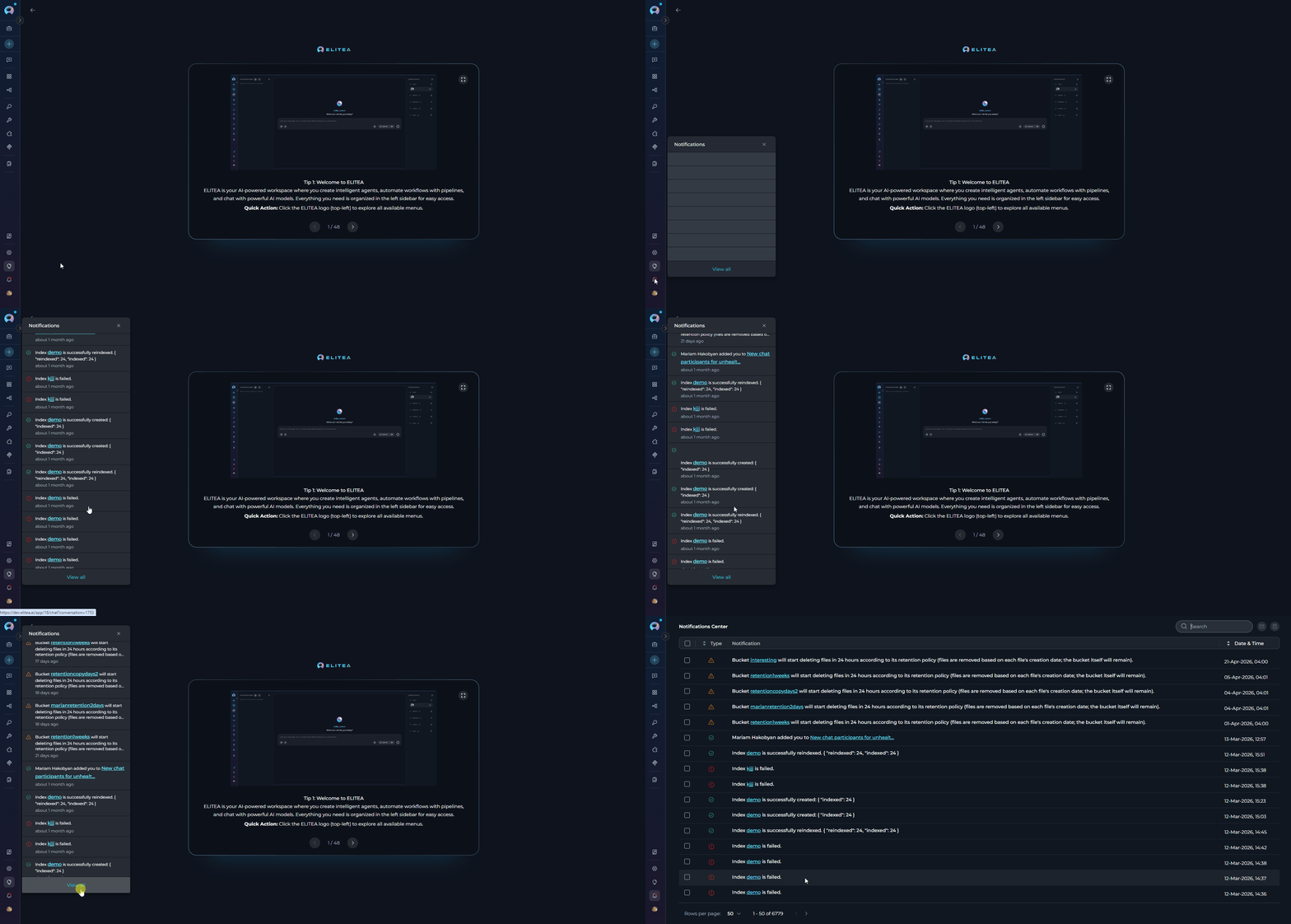 The page includes:
* **Search** — Filter notifications by keyword (event type or associated entity). The list updates automatically as you type.
* **Sort** — Click the **Date & Time** column header to toggle ascending/descending order.
* **Bulk actions** — Select one or more rows using the checkboxes, then use the toolbar buttons to **mark selected as read/unread** or **delete selected notifications**. The header checkbox selects all entries on the current page.
***
## Notification Types
Each notification is identified by its event type and carries an icon indicating its category.
| Event | Icon | Message displayed in the UI |
| ---------------------------------- | --------------- | ------------------------------------------------------------------------------------------------------------------------------------------------------------------------------- |
| **Moderator approved version** | Green checkmark | *\[Entity name] is published.* |
| **Moderator rejected version** | Red × | *\[Entity name] is rejected.* |
| **Author approval** | Green checkmark | *\[Entity name] is approved by \[moderator] for publishing.* |
| **Author reject** | Red × | *\[Entity name] is rejected by \[moderator].* |
| **Agent unpublished** | Red × | *Unpublished agent version id: \[version id] from project id: \[project id]. \[Reason if provided]* |
| **User added to conversation** | Green checkmark | *\[username] added \[other user] to \[conversation name].* |
| **Project created** | Green checkmark | *Project was successfully created* |
| **Index data changed (success)** | Green checkmark | *Index \[name] is successfully created/reindexed.* |
| **Index data changed (failed)** | Red error | *Index \[name] is failed.* |
| **Bucket expiration warning** | Yellow warning | *Bucket \[name] will start deleting files in 24 hours according to its retention policy (files are removed based on each file's creation date; the bucket itself will remain).* |
| **Personal access token expiring** | Yellow warning | *Your personal access token \[name] will expire in 24 hours. After expiration, it will no longer work. You can delete and recreate a new token if needed.* |
### Embedded Navigation Links
Several notification types include a clickable link that takes you directly to the relevant area of ELITEA:
| Event | Link destination |
| ---------------------------------- | --------------------------------------------------------- |
| **Personal access token expiring** | Settings → Tokens tab (new tab) |
| **User added to conversation** | Chat (current tab, opens the specific conversation) |
| **Index data changed** | Toolkit detail → Indexes tab (current tab or new tab) |
| **Bucket expiration warning** | Artifacts page, filtered to the specific bucket (new tab) |
The quick notification panel shows only **unread** notifications and does not automatically mark them as read when the panel is opened. Navigating to the full Notification Center page marks all currently visible notifications as read. Use **Mark selected as unread** to restore the unread state on any entry.
***
## Best Practices
* Periodically review notifications and delete entries that are no longer relevant.
* Use the **Select all** header checkbox followed by **Delete selected notifications** to clear an entire page at once.
* Use the **Search** bar to locate a specific event type or entity by keyword before performing bulk actions.
* A **Personal access token expiring** notification means the token will stop working within 24 hours. Delete and recreate the token from the Settings → Tokens page before it expires.
* An **Index data changed** notification with a red error icon indicates the indexing operation failed. Click the index name link in the notification to open the index detail page and investigate.
* A **Bucket expiration warning** means file deletion begins within 24 hours. Click the bucket link to review and back up any files you need to retain.
* The dot on the **Notifications** sidebar button disappears once there are no remaining unread notifications.
* To mark a batch of notifications as read without deleting them, select them and click the **Mark selected as read** button.
* To re-flag a notification for follow-up, select it and click **Mark selected as unread** to restore the unread indicator.
The page includes:
* **Search** — Filter notifications by keyword (event type or associated entity). The list updates automatically as you type.
* **Sort** — Click the **Date & Time** column header to toggle ascending/descending order.
* **Bulk actions** — Select one or more rows using the checkboxes, then use the toolbar buttons to **mark selected as read/unread** or **delete selected notifications**. The header checkbox selects all entries on the current page.
***
## Notification Types
Each notification is identified by its event type and carries an icon indicating its category.
| Event | Icon | Message displayed in the UI |
| ---------------------------------- | --------------- | ------------------------------------------------------------------------------------------------------------------------------------------------------------------------------- |
| **Moderator approved version** | Green checkmark | *\[Entity name] is published.* |
| **Moderator rejected version** | Red × | *\[Entity name] is rejected.* |
| **Author approval** | Green checkmark | *\[Entity name] is approved by \[moderator] for publishing.* |
| **Author reject** | Red × | *\[Entity name] is rejected by \[moderator].* |
| **Agent unpublished** | Red × | *Unpublished agent version id: \[version id] from project id: \[project id]. \[Reason if provided]* |
| **User added to conversation** | Green checkmark | *\[username] added \[other user] to \[conversation name].* |
| **Project created** | Green checkmark | *Project was successfully created* |
| **Index data changed (success)** | Green checkmark | *Index \[name] is successfully created/reindexed.* |
| **Index data changed (failed)** | Red error | *Index \[name] is failed.* |
| **Bucket expiration warning** | Yellow warning | *Bucket \[name] will start deleting files in 24 hours according to its retention policy (files are removed based on each file's creation date; the bucket itself will remain).* |
| **Personal access token expiring** | Yellow warning | *Your personal access token \[name] will expire in 24 hours. After expiration, it will no longer work. You can delete and recreate a new token if needed.* |
### Embedded Navigation Links
Several notification types include a clickable link that takes you directly to the relevant area of ELITEA:
| Event | Link destination |
| ---------------------------------- | --------------------------------------------------------- |
| **Personal access token expiring** | Settings → Tokens tab (new tab) |
| **User added to conversation** | Chat (current tab, opens the specific conversation) |
| **Index data changed** | Toolkit detail → Indexes tab (current tab or new tab) |
| **Bucket expiration warning** | Artifacts page, filtered to the specific bucket (new tab) |
The quick notification panel shows only **unread** notifications and does not automatically mark them as read when the panel is opened. Navigating to the full Notification Center page marks all currently visible notifications as read. Use **Mark selected as unread** to restore the unread state on any entry.
***
## Best Practices
* Periodically review notifications and delete entries that are no longer relevant.
* Use the **Select all** header checkbox followed by **Delete selected notifications** to clear an entire page at once.
* Use the **Search** bar to locate a specific event type or entity by keyword before performing bulk actions.
* A **Personal access token expiring** notification means the token will stop working within 24 hours. Delete and recreate the token from the Settings → Tokens page before it expires.
* An **Index data changed** notification with a red error icon indicates the indexing operation failed. Click the index name link in the notification to open the index detail page and investigate.
* A **Bucket expiration warning** means file deletion begins within 24 hours. Click the bucket link to review and back up any files you need to retain.
* The dot on the **Notifications** sidebar button disappears once there are no remaining unread notifications.
* To mark a batch of notifications as read without deleting them, select them and click the **Mark selected as read** button.
* To re-flag a notification for follow-up, select it and click **Mark selected as unread** to restore the unread indicator.