> ## Documentation Index
> Fetch the complete documentation index at: https://docs.elitea.ai/llms.txt
> Use this file to discover all available pages before exploring further.
# Agent HUB
> Agent HUB is a dedicated shared library menu in ELITEA that provides centralized access to community-published agents.
## Overview
Agent HUB is a shared library that includes all published agents from the ELITEA community. Each agent is a pre-configured AI assistant designed for specific tasks, complete with custom instructions, conversation starters, and optimized settings.
Agent HUB is available across all projects and provides a centralized view of all published agents, regardless of which project you're currently viewing.
Browse and use community-published agents without building anything from scratch.
Leverage expertise from the ELITEA community — agents are created and shared by real users.
All agents undergo moderation review before getting to Agent HUB.
Find agents through real-time search, category filters, and trending sections.
Add agents directly to any conversation with one click — no extra configuration needed.
Integrate specialized agents into daily workflows for code review, documentation, testing, and more.
**Agent HUB vs. Agents**
| Feature | Agent HUB | Agents |
| ---------------- | -------------------------------------- | ---------------------------- |
| **Purpose** | Discover and use community agents | Manage your personal agents |
| **Content** | Published agents from all users | Only agents you have created |
| **Access Level** | Read-only with temporary modifications | Full edit capabilities |
***
## How to Get to Agent HUB
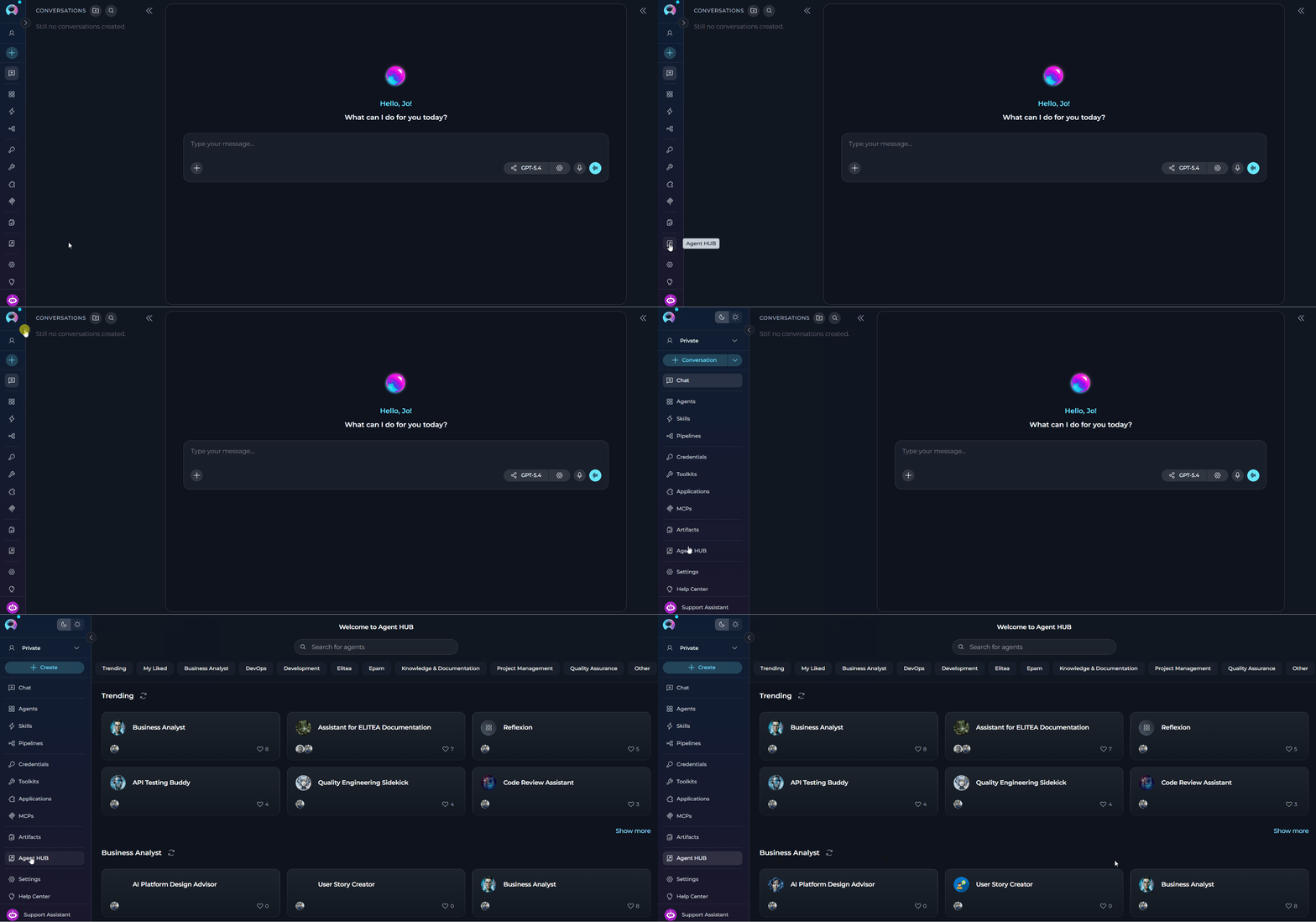
Agent HUB is located in the ELITEA sidebar:
1. Open ELITEA and ensure you're logged in
2. Look for *Agent HUB* in the sidebar
3. Click it to open Agent HUB
 ***
## Agents in Agent HUB
Published agents are displayed as cards in a responsive grid layout, grouped by their assigned categories. Each card provides key agent information:
* agent's display name
* profile image of the agent's creator
* number of likes the agent has received
In the agent card, you can
* Click the card to open the agent's full information
* Like (or unlike) the agent
***
## Agents in Agent HUB
Published agents are displayed as cards in a responsive grid layout, grouped by their assigned categories. Each card provides key agent information:
* agent's display name
* profile image of the agent's creator
* number of likes the agent has received
In the agent card, you can
* Click the card to open the agent's full information
* Like (or unlike) the agent
 ***
## How to Browse and Search Agents
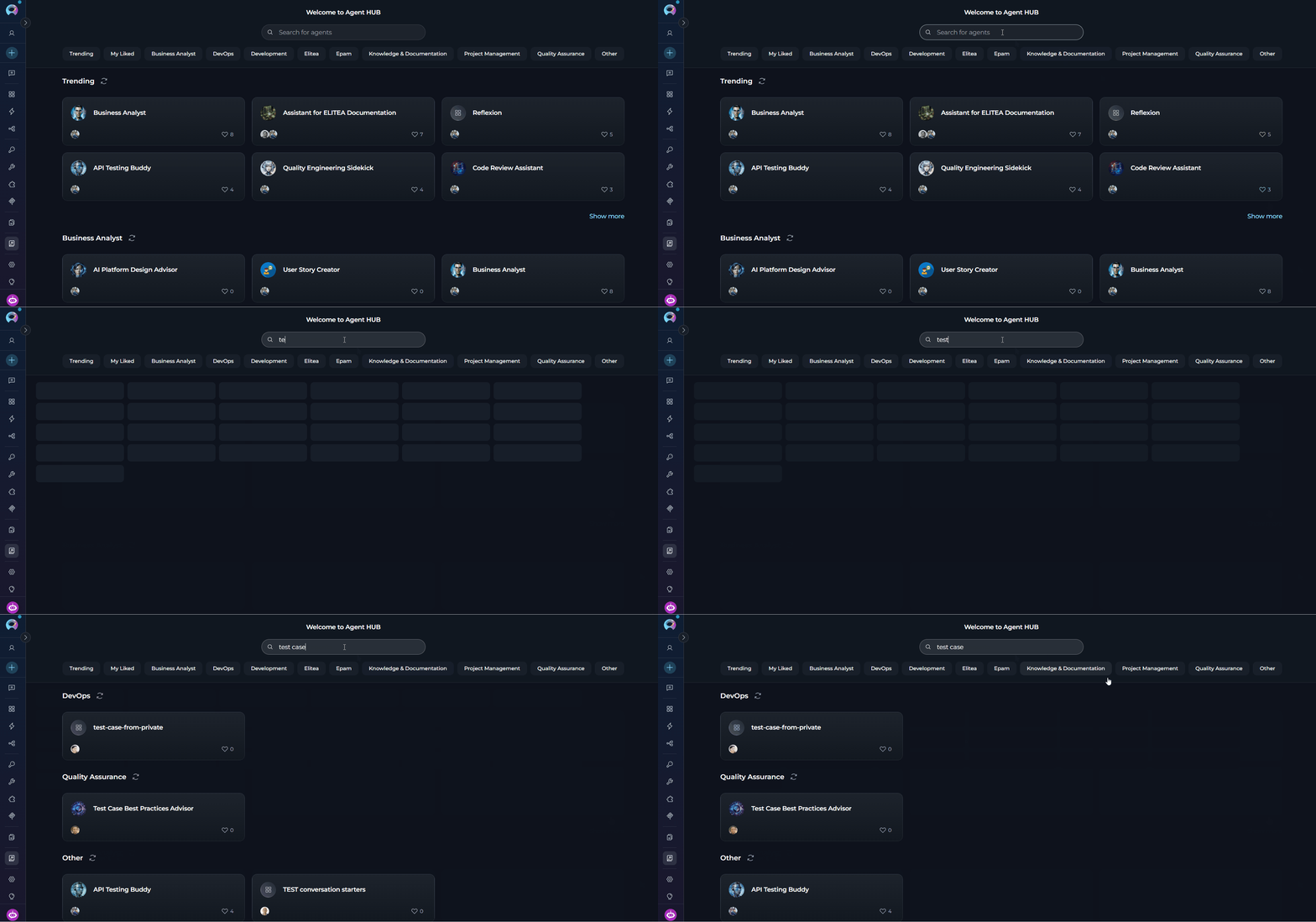
At the top of Agent HUB, you'll find a **Search field** that allows searching across published agents.
You can search by the agent's **name** and **description**. The search results update in real-time as you type. You can clear the search field to reset the search.
**Search by Name**
To search for an agent by name:
1. Click in the search field at the top of Agent HUB
2. Type keywords related to the agent you're looking for
Results will filter automatically as you type.
***
## How to Browse and Search Agents
At the top of Agent HUB, you'll find a **Search field** that allows searching across published agents.
You can search by the agent's **name** and **description**. The search results update in real-time as you type. You can clear the search field to reset the search.
**Search by Name**
To search for an agent by name:
1. Click in the search field at the top of Agent HUB
2. Type keywords related to the agent you're looking for
Results will filter automatically as you type.
 **Filter by Category**
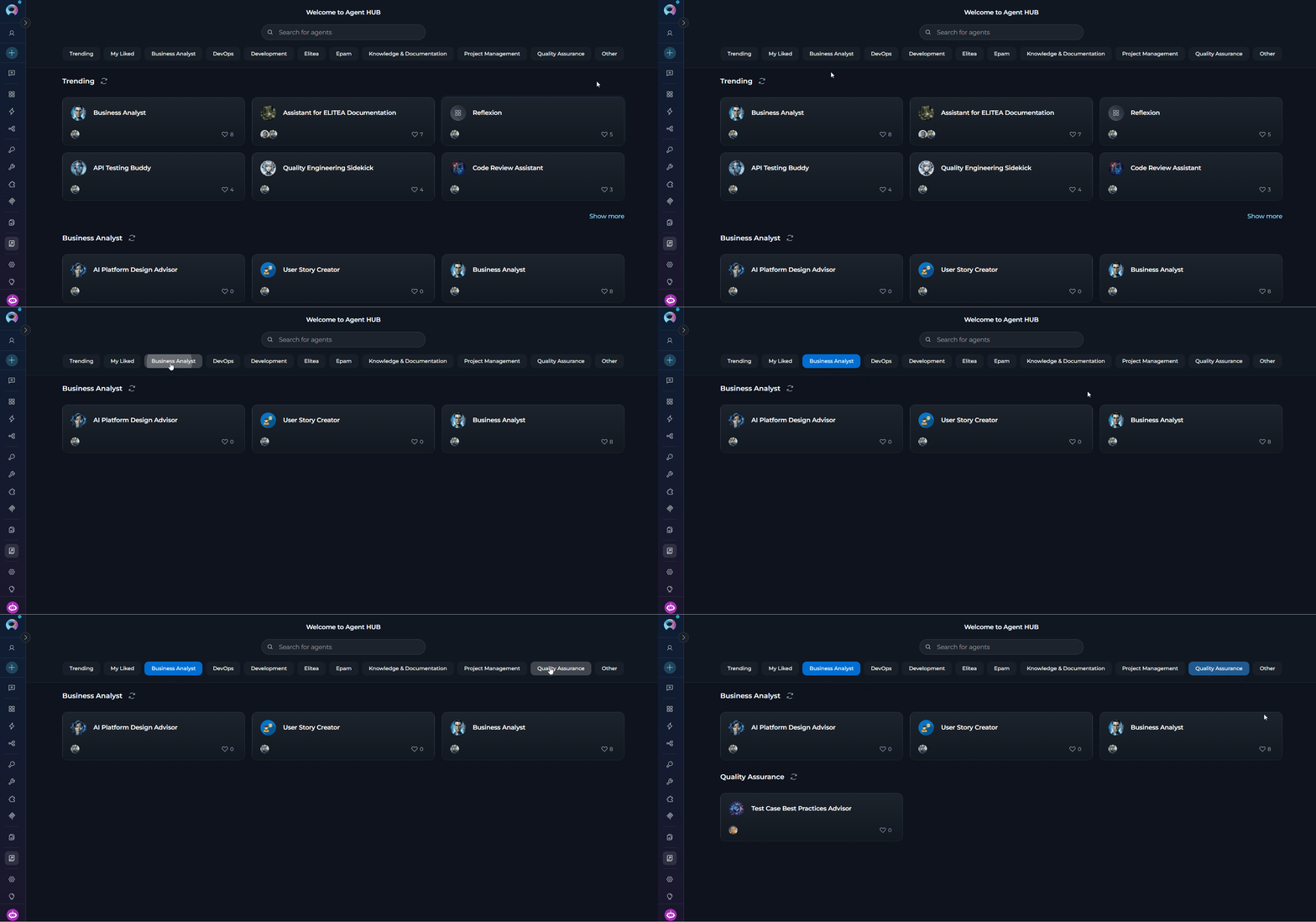
Below the search field, there are **category filters** that help you browse agents by their assigned categories:
| Category | Description |
| ----------------------------- | ----------------------------------------------------------------------------- |
| **Trending** | Agents with the most likes from the community |
| **My Liked** | Agents you have personally liked |
| **Business Analyst** | Agents designed for business analysis tasks |
| **DevOps** | Agents designed for DevOps tasks |
| **Development** | Agents focused on software development and coding |
| **Elitea** | Platform-specific agents for ELITEA workflows |
| **Epam** | Agents designed for EPAM workflows |
| **Knowledge & Documentation** | Agents specialized in creating and managing documentation and knowledge bases |
| **Project Management** | Agents for project planning, execution, and management |
| **Quality Assurance** | Agents for test planning, execution, and quality assurance |
| **Other** | Miscellaneous agents that don't fit in specific categories |
To filter agents by category,
1. Click the category button (multiple filters can be applied simultaneously)
2. Active category is highlighted
3. Agent cards update automatically based on selected filters
**Filter by Category**
Below the search field, there are **category filters** that help you browse agents by their assigned categories:
| Category | Description |
| ----------------------------- | ----------------------------------------------------------------------------- |
| **Trending** | Agents with the most likes from the community |
| **My Liked** | Agents you have personally liked |
| **Business Analyst** | Agents designed for business analysis tasks |
| **DevOps** | Agents designed for DevOps tasks |
| **Development** | Agents focused on software development and coding |
| **Elitea** | Platform-specific agents for ELITEA workflows |
| **Epam** | Agents designed for EPAM workflows |
| **Knowledge & Documentation** | Agents specialized in creating and managing documentation and knowledge bases |
| **Project Management** | Agents for project planning, execution, and management |
| **Quality Assurance** | Agents for test planning, execution, and quality assurance |
| **Other** | Miscellaneous agents that don't fit in specific categories |
To filter agents by category,
1. Click the category button (multiple filters can be applied simultaneously)
2. Active category is highlighted
3. Agent cards update automatically based on selected filters
 ***
## How to View Agent Details
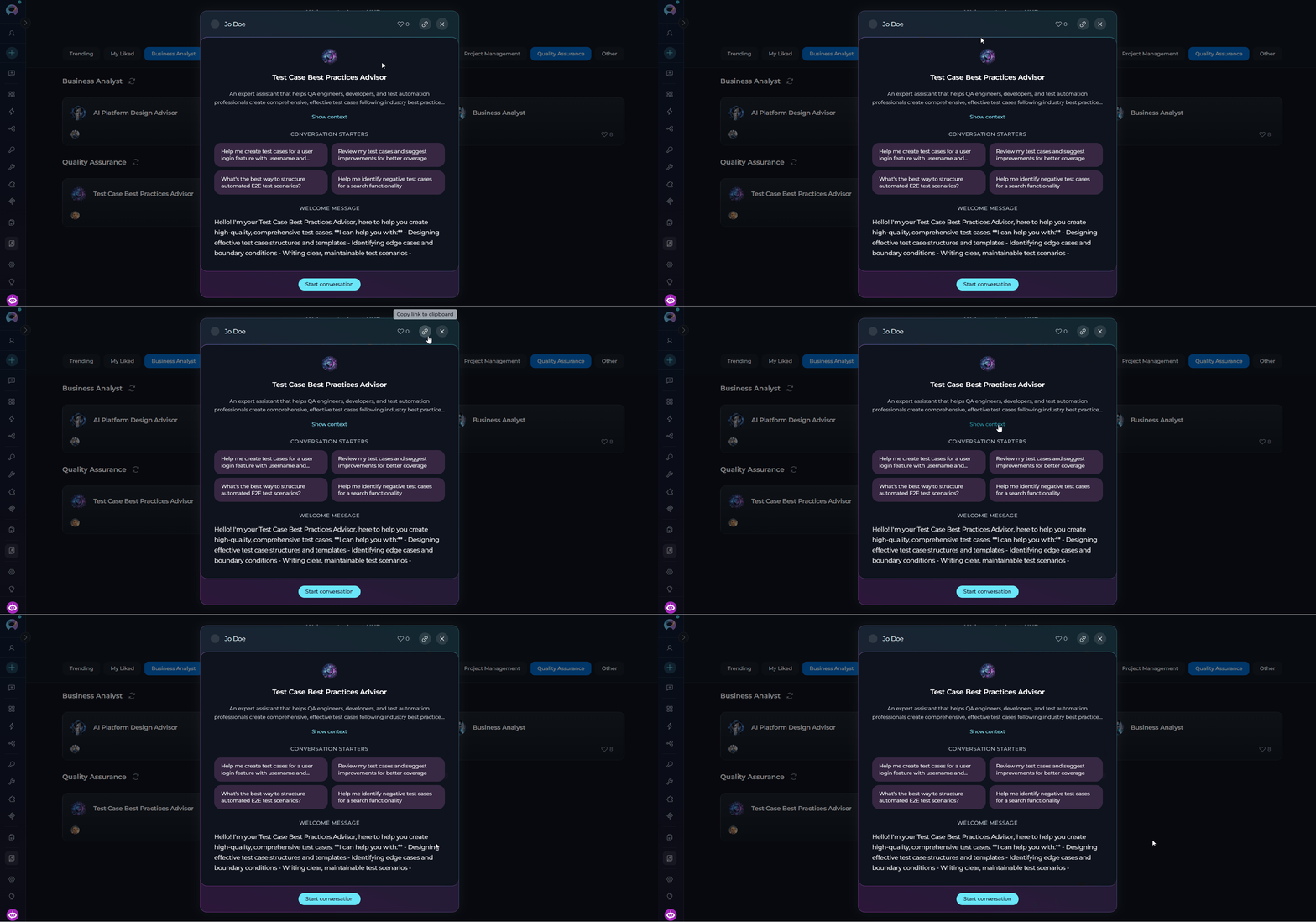
When you click on any agent card, a **pop-up modal** opens that displays all the information about the agent:
* **Creator:** Details about who created the agent
* **Like button:** Option to like/unlike the agent
* **Copy link to clipboard button:** Option to copy the agent's link to the clipboard
* **Name:** Full name of the agent
* **Description:** Detailed explanation of the agent's purpose and capabilities
* **Show context button:** Click to open a read-only modal displaying the agent's full instructions and configuration details. You can read and copy the instructions but cannot modify them
* **Conversation starters:** Pre-defined prompts to help users get started
* **Welcome message:** The greeting users see when starting a conversation
* **Start conversation button:** Primary action to begin using the agent
***
## How to View Agent Details
When you click on any agent card, a **pop-up modal** opens that displays all the information about the agent:
* **Creator:** Details about who created the agent
* **Like button:** Option to like/unlike the agent
* **Copy link to clipboard button:** Option to copy the agent's link to the clipboard
* **Name:** Full name of the agent
* **Description:** Detailed explanation of the agent's purpose and capabilities
* **Show context button:** Click to open a read-only modal displaying the agent's full instructions and configuration details. You can read and copy the instructions but cannot modify them
* **Conversation starters:** Pre-defined prompts to help users get started
* **Welcome message:** The greeting users see when starting a conversation
* **Start conversation button:** Primary action to begin using the agent
 ***
## How to Start a Conversation with an Agent
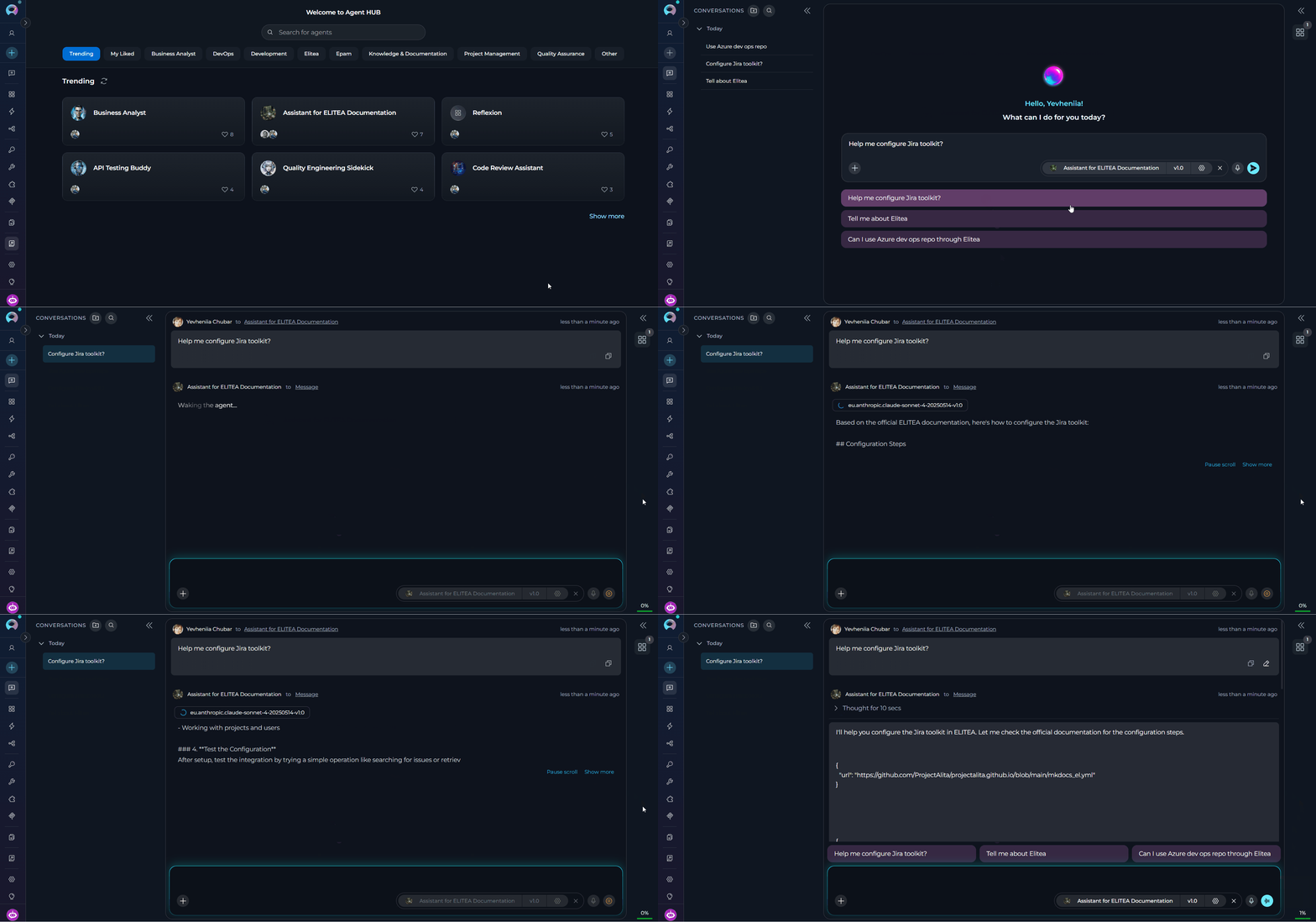
You can start a conversation with an agent in two ways:
1. With the **Start Conversation** button: Creates a new conversation and displays conversation starters
2. With a **Conversation Starter**: Creates a new conversation and pre-fills the starter text in the chat input field
After you start a conversation:
1. You're automatically redirected to the Chat menu
2. A fresh conversation is created specifically for this agent
3. The agent is added to the Participants list
4. The agent is set as the active participant
5. Pre-defined prompts appear to guide your interaction (or if you clicked a starter, it's pre-filled in the input field)
6. You can immediately start sending messages
Once the conversation is created, you can:
* **Use conversation starters:** Click any starter to send that prompt immediately
* **Type a custom message:** Enter your own message in the input box
* **Modify the model settings:** Adjust LLM model and model parameters
##
***
## How to Start a Conversation with an Agent
You can start a conversation with an agent in two ways:
1. With the **Start Conversation** button: Creates a new conversation and displays conversation starters
2. With a **Conversation Starter**: Creates a new conversation and pre-fills the starter text in the chat input field
After you start a conversation:
1. You're automatically redirected to the Chat menu
2. A fresh conversation is created specifically for this agent
3. The agent is added to the Participants list
4. The agent is set as the active participant
5. Pre-defined prompts appear to guide your interaction (or if you clicked a starter, it's pre-filled in the input field)
6. You can immediately start sending messages
Once the conversation is created, you can:
* **Use conversation starters:** Click any starter to send that prompt immediately
* **Type a custom message:** Enter your own message in the input box
* **Modify the model settings:** Adjust LLM model and model parameters
##  ## Modification Restrictions
When using a published agent in a conversation, you have **limited modification capabilities** to maintain the integrity of the published agent:
**What You Can Modify**
* **Variable values:** Provide or modify values for variables defined in the agent
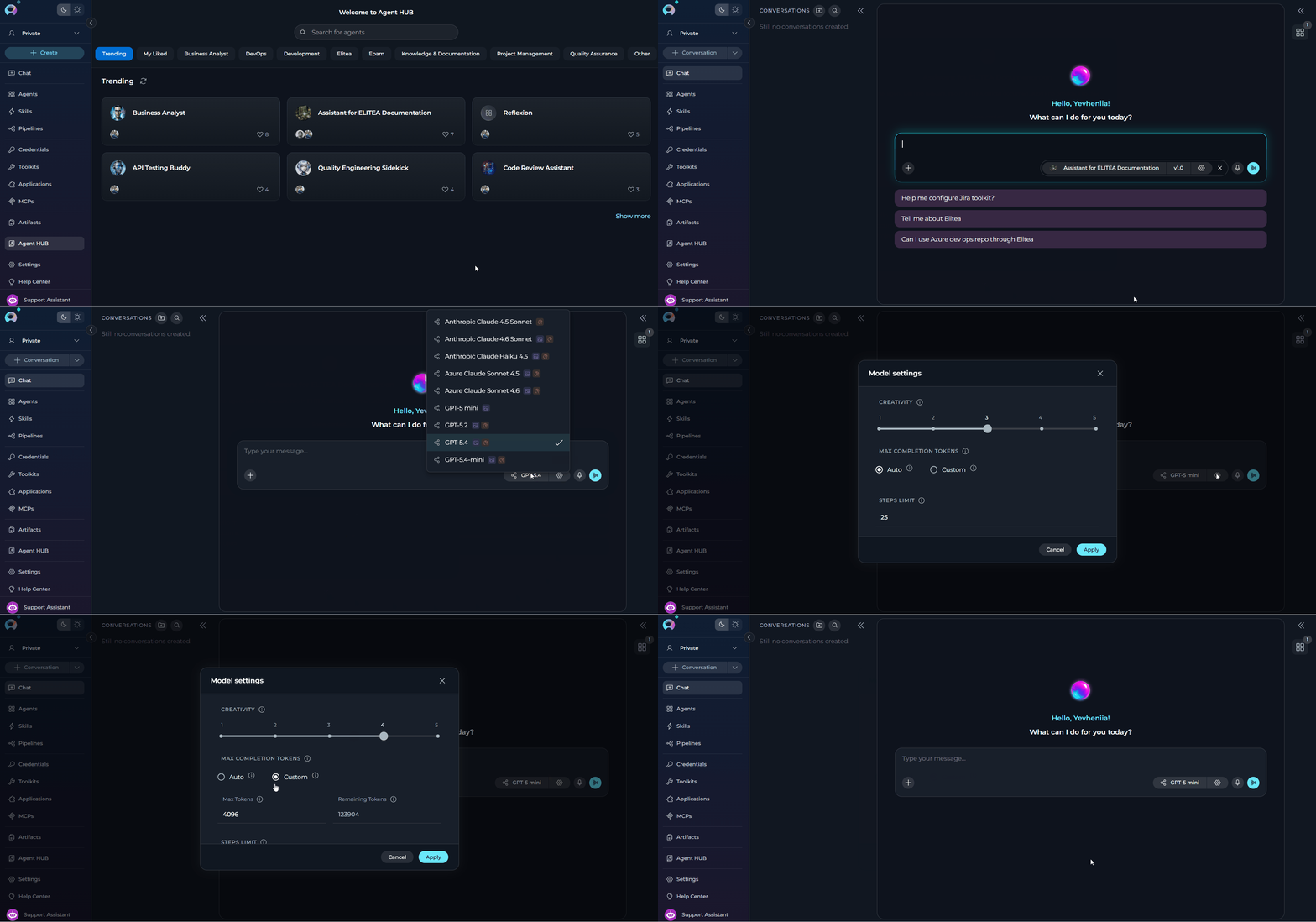
* **LLM Model:** Change which AI model the agent uses. Icons near the model name indicate its supported capabilities:
| Capability | What it means |
| ------------------ | ----------------------------------------------------------------------------------------------------------------- |
| **Image analysis** | The model can analyze and interpret images alongside text input |
| **Reasoning** | The model uses extended reasoning steps; exposes **Reasoning Effort** in Model settings instead of **Creativity** |
* **Model settings:**
| Parameter | Shown when | Description |
| ------------------------- | ---------------------------------------------- | ------------------------------------------------------------------------------------------------------------------------------------------------------------------------------------------------------------------ |
| **Creativity** | Standard models | A 5-level discrete slider (Low → Mid-Low → Medium → Mid-High → High) controlling response randomness. Lower values produce focused, deterministic outputs; higher values produce more diverse, creative responses. |
| **Reasoning Effort** | Reasoning-capable models (replaces Creativity) | A 3-level slider: **Low** (fast, surface-level), **Medium** (balanced), **High** (deep step-by-step analysis, slower). |
| **Max Completion Tokens** | Always | Limits the maximum length of AI responses. Toggle between **Auto** (model-managed) and **Custom** (enter a specific token count, default 4096). |
| **Steps Limit** | Always (in conversation context) | Maximum number of tool-call steps before the execution loop ends (default 25). |
**How to Modify**
1. With the agent active in a conversation, click the *Settings* icon at the bottom of the chat
2. The **Model settings** dialog opens — adjust the parameters as needed
3. Click **Apply** to save your changes, or **Cancel** to discard. Use **Reset to defaults** to restore the agent's original settings
4. Changes apply only to this conversation — they do not affect the published agent
## Modification Restrictions
When using a published agent in a conversation, you have **limited modification capabilities** to maintain the integrity of the published agent:
**What You Can Modify**
* **Variable values:** Provide or modify values for variables defined in the agent
* **LLM Model:** Change which AI model the agent uses. Icons near the model name indicate its supported capabilities:
| Capability | What it means |
| ------------------ | ----------------------------------------------------------------------------------------------------------------- |
| **Image analysis** | The model can analyze and interpret images alongside text input |
| **Reasoning** | The model uses extended reasoning steps; exposes **Reasoning Effort** in Model settings instead of **Creativity** |
* **Model settings:**
| Parameter | Shown when | Description |
| ------------------------- | ---------------------------------------------- | ------------------------------------------------------------------------------------------------------------------------------------------------------------------------------------------------------------------ |
| **Creativity** | Standard models | A 5-level discrete slider (Low → Mid-Low → Medium → Mid-High → High) controlling response randomness. Lower values produce focused, deterministic outputs; higher values produce more diverse, creative responses. |
| **Reasoning Effort** | Reasoning-capable models (replaces Creativity) | A 3-level slider: **Low** (fast, surface-level), **Medium** (balanced), **High** (deep step-by-step analysis, slower). |
| **Max Completion Tokens** | Always | Limits the maximum length of AI responses. Toggle between **Auto** (model-managed) and **Custom** (enter a specific token count, default 4096). |
| **Steps Limit** | Always (in conversation context) | Maximum number of tool-call steps before the execution loop ends (default 25). |
**How to Modify**
1. With the agent active in a conversation, click the *Settings* icon at the bottom of the chat
2. The **Model settings** dialog opens — adjust the parameters as needed
3. Click **Apply** to save your changes, or **Cancel** to discard. Use **Reset to defaults** to restore the agent's original settings
4. Changes apply only to this conversation — they do not affect the published agent
 **What You Cannot Modify**
These agent properties are **read-only** to preserve the published agent's design and functionality:
* Agent name
* Instructions (core behavior and task guidelines are locked)
* Welcome message
* Conversation starters
* Toolkits (toolkits are locked as a part of the published agent)
* Variable definitions (cannot add or remove variables but can modify their values)
All modifications you make (LLM model, settings, variable values) apply **only to your current conversation**. They do not affect the original published agent or how other users experience it. If you want to create your own version with full editing capabilities, you'll need to create a new agent.
You can also add published agents directly from the Chat interface. See **[How to Use Public Agents from Chat](../how-tos/chat-conversations/use-public-items-from-chat)** for detailed instructions on using the # search or the Participants panel to add agents.
***
## Agent Powers and Limitations
When using published agents from Agent HUB, keep these considerations in mind:
Published agents work instantly in conversations — no setup required.
Agents are designed for specific tasks and domains, delivering focused results.
Pre-written prompts help you get started quickly without crafting your own input.
Agents come with tested configurations tuned for their intended use case.
Popular agents have been used and validated by the broader ELITEA community.
You cannot modify instructions or core settings of the published agent.
Some agents may require specific toolkits you need to configure before running the agent.
The agent may be optimized for specific models; switching models may affect quality.
You always see the current published version — you have no access to version history.
The original creator controls when and how the published version is updated.
Any ELITEA user can browse, search, and use all published agents.
You cannot publish agents directly from Agent HUB.
Your conversations with published agents are private. Other users cannot access them.
Published agents follow ELITEA's data privacy policies.
Published agents should not contain credentials or sensitive information.
***
## Troubleshooting
**Problem:** Expected agent doesn't show up in Agent HUB.
| Cause | Solution |
| ----------------------- | ---------------------------------------------------------------------------------------------- |
| **Not published yet** | Only approved agents appear in Agent HUB — ask the creator if they've published the agent |
| **Pending moderation** | Agent may still be under review — wait for moderator approval (creators receive notifications) |
| **Rejected** | Only approved agents appear in Agent HUB |
| **Search/filter issue** | Agent may be filtered out — clear search and reset category filters to view all agents |
**Problem:** Clicking the *Start Conversation* button doesn't work or produces an error.
| Cause | Solution |
| --------------------- | ----------------------------------------------------------------- |
| **Connection issue** | Check the Internet connection and refresh the page |
| **Session expired** | Refresh the page and log in if prompted |
| **Browser cache** | Clear browser cache or try incognito/private browsing mode |
| **Permissions issue** | Contact your administrator to verify your Chat access permissions |
**Problem:** Published agent doesn't perform as described.
| Cause | Solution |
| --------------------------- | --------------------------------------------------------------------------- |
| **Missing variable values** | Check if the agent uses variables and provide required values when prompted |
| **Model compatibility** | Try different LLM models |
| **Incomplete data** | Provide more detailed input or use conversation starters as guidance |
| **Version issue** | Check if the creator has published a newer version, or contact the creator |
**Problem:** Search returns no results even when agents exist.
| Cause | Solution |
| ---------------------- | -------------------------------------------------------------------------------------------------- |
| **Spelling** | Try alternative spellings or broader keywords; search by description keywords or browse categories |
| **Special characters** | Remove special characters and use simple keywords |
***
## Best Practices
1. **Start with Trending:** Browse trending agents to find proven, popular solutions
2. **Use specific keywords:** Search with task-specific terms (e.g., "code review," "documentation")
3. **Check descriptions:** Read full descriptions to understand capabilities and limitations
4. **Review conversation starters:** Starters often reveal the agent's core functionality
5. **Test multiple agents:** Try different agents for the same task to compare approaches
1. **Use conversation starters:** Start with provided prompts to understand agent capabilities
2. **Provide context:** Give agents sufficient context in your messages
3. **Configure required toolkits:** Set up necessary credentials for toolkit-dependent agents
4. **Adjust model settings:** Experiment with different models if results are not optimal
5. **Read welcome messages:** Welcome messages often contain important usage instructions
1. **Study instructions:** Learn how successful agents structure their behavior guidelines
2. **Analyze conversation starters:** See how effective prompts are crafted
3. **Create your own:** Use insights to build your custom agents
4. **Share back:** Once you've created valuable agents, consider publishing them
***
## Guides and References
* **[Agents Menu](./agents)** - Create and manage your personal agents
* **[Chat Menu](./chat)** - Complete guide to chat interface and conversations
* **[How to Use Public Agents from Chat](../how-tos/chat-conversations/use-public-items-from-chat)** - Detailed guide on using published agents in conversations
* **[How to Create and Edit Agents from Canvas](../how-tos/chat-conversations/how-to-create-and-edit-agents-from-canvas)** - Visual agent creation guide
* **[Agent Versioning](../how-tos/agents-pipelines/entity-versioning)** - Understanding agent versions and publishing
***
**What You Cannot Modify**
These agent properties are **read-only** to preserve the published agent's design and functionality:
* Agent name
* Instructions (core behavior and task guidelines are locked)
* Welcome message
* Conversation starters
* Toolkits (toolkits are locked as a part of the published agent)
* Variable definitions (cannot add or remove variables but can modify their values)
All modifications you make (LLM model, settings, variable values) apply **only to your current conversation**. They do not affect the original published agent or how other users experience it. If you want to create your own version with full editing capabilities, you'll need to create a new agent.
You can also add published agents directly from the Chat interface. See **[How to Use Public Agents from Chat](../how-tos/chat-conversations/use-public-items-from-chat)** for detailed instructions on using the # search or the Participants panel to add agents.
***
## Agent Powers and Limitations
When using published agents from Agent HUB, keep these considerations in mind:
Published agents work instantly in conversations — no setup required.
Agents are designed for specific tasks and domains, delivering focused results.
Pre-written prompts help you get started quickly without crafting your own input.
Agents come with tested configurations tuned for their intended use case.
Popular agents have been used and validated by the broader ELITEA community.
You cannot modify instructions or core settings of the published agent.
Some agents may require specific toolkits you need to configure before running the agent.
The agent may be optimized for specific models; switching models may affect quality.
You always see the current published version — you have no access to version history.
The original creator controls when and how the published version is updated.
Any ELITEA user can browse, search, and use all published agents.
You cannot publish agents directly from Agent HUB.
Your conversations with published agents are private. Other users cannot access them.
Published agents follow ELITEA's data privacy policies.
Published agents should not contain credentials or sensitive information.
***
## Troubleshooting
**Problem:** Expected agent doesn't show up in Agent HUB.
| Cause | Solution |
| ----------------------- | ---------------------------------------------------------------------------------------------- |
| **Not published yet** | Only approved agents appear in Agent HUB — ask the creator if they've published the agent |
| **Pending moderation** | Agent may still be under review — wait for moderator approval (creators receive notifications) |
| **Rejected** | Only approved agents appear in Agent HUB |
| **Search/filter issue** | Agent may be filtered out — clear search and reset category filters to view all agents |
**Problem:** Clicking the *Start Conversation* button doesn't work or produces an error.
| Cause | Solution |
| --------------------- | ----------------------------------------------------------------- |
| **Connection issue** | Check the Internet connection and refresh the page |
| **Session expired** | Refresh the page and log in if prompted |
| **Browser cache** | Clear browser cache or try incognito/private browsing mode |
| **Permissions issue** | Contact your administrator to verify your Chat access permissions |
**Problem:** Published agent doesn't perform as described.
| Cause | Solution |
| --------------------------- | --------------------------------------------------------------------------- |
| **Missing variable values** | Check if the agent uses variables and provide required values when prompted |
| **Model compatibility** | Try different LLM models |
| **Incomplete data** | Provide more detailed input or use conversation starters as guidance |
| **Version issue** | Check if the creator has published a newer version, or contact the creator |
**Problem:** Search returns no results even when agents exist.
| Cause | Solution |
| ---------------------- | -------------------------------------------------------------------------------------------------- |
| **Spelling** | Try alternative spellings or broader keywords; search by description keywords or browse categories |
| **Special characters** | Remove special characters and use simple keywords |
***
## Best Practices
1. **Start with Trending:** Browse trending agents to find proven, popular solutions
2. **Use specific keywords:** Search with task-specific terms (e.g., "code review," "documentation")
3. **Check descriptions:** Read full descriptions to understand capabilities and limitations
4. **Review conversation starters:** Starters often reveal the agent's core functionality
5. **Test multiple agents:** Try different agents for the same task to compare approaches
1. **Use conversation starters:** Start with provided prompts to understand agent capabilities
2. **Provide context:** Give agents sufficient context in your messages
3. **Configure required toolkits:** Set up necessary credentials for toolkit-dependent agents
4. **Adjust model settings:** Experiment with different models if results are not optimal
5. **Read welcome messages:** Welcome messages often contain important usage instructions
1. **Study instructions:** Learn how successful agents structure their behavior guidelines
2. **Analyze conversation starters:** See how effective prompts are crafted
3. **Create your own:** Use insights to build your custom agents
4. **Share back:** Once you've created valuable agents, consider publishing them
***
## Guides and References
* **[Agents Menu](./agents)** - Create and manage your personal agents
* **[Chat Menu](./chat)** - Complete guide to chat interface and conversations
* **[How to Use Public Agents from Chat](../how-tos/chat-conversations/use-public-items-from-chat)** - Detailed guide on using published agents in conversations
* **[How to Create and Edit Agents from Canvas](../how-tos/chat-conversations/how-to-create-and-edit-agents-from-canvas)** - Visual agent creation guide
* **[Agent Versioning](../how-tos/agents-pipelines/entity-versioning)** - Understanding agent versions and publishing
***