> ## Documentation Index
> Fetch the complete documentation index at: https://docs.elitea.ai/llms.txt
> Use this file to discover all available pages before exploring further.
# Confluence
> Connect ELITEA to Confluence — create, read, and update pages and spaces to automate documentation workflows.
***
## Introduction
This document is your definitive resource for integrating and utilizing the **Confluence toolkit** within ELITEA. It provides a comprehensive, step-by-step walkthrough, from generating a Confluence API token to configuring the toolkit in ELITEA and effectively using it within your Agents. By following these steps, you will unlock the power of automated knowledge management, streamlined collaboration workflows, and enhanced information access, all directly within the ELITEA platform. This integration empowers you to leverage AI-driven automation to optimize your Confluence-driven workflows using the combined strengths of ELITEA and Confluence.
**Brief Overview of Confluence**
Confluence is Atlassian's powerful collaboration and documentation platform that helps teams create, organize, and share knowledge effectively. It serves as a centralized hub for modern knowledge management, offering features for:
* **Centralized Knowledge Management:** Confluence provides a structured platform for creating, storing, and organizing all types of organizational knowledge, including project documentation, meeting notes, processes, and best practices.
* **Collaborative Content Creation:** Enables real-time collaborative editing of pages, allowing teams to work together simultaneously on documents, plans, and other content, fostering teamwork and co-creation.
* **Organized Spaces and Pages:** Confluence uses a hierarchical structure of Spaces and Pages to organize information logically. Spaces can represent teams, projects, or departments, while Pages within spaces hold specific content, making navigation and information discovery efficient.
* **Rich Content Creation and Formatting:** Confluence provides a powerful editor with various formatting options, templates, and macros, allowing users to create visually appealing and informative pages with diverse content types, including text, images, tables, and multimedia.
* **Advanced Search and Discovery:** Confluence offers robust search functionality with filtering and labeling capabilities, enabling users to quickly find relevant information across all spaces and pages, improving knowledge retrieval and content discoverability.
Integrating Confluence with ELITEA brings these powerful knowledge management capabilities directly into your AI-driven workflows. Your ELITEA Agents can then intelligently interact with your Confluence spaces and pages to automate knowledge-related tasks, enhance documentation processes, and improve information accessibility through intelligent automation, making your knowledge management workflows smarter and more efficient.
## Toolkit's Account Setup and Configuration in Confluence
The credentials you create in this section will be used when creating your Confluence credential in ELITEA (Step 1 of the integration process).
### Account Setup
If you do not yet have a Confluence account, please follow these steps to create one:
1. **Visit Atlassian Website:** Open your web browser and navigate to the official [Atlassian website](https://www.atlassian.com/software/confluence).
2. **Sign Up for Confluence:** Click on the **"Try Confluence free"** or **"Get it free"** button to start the sign-up process.
3. **Create an Atlassian Account:** Follow the prompts to create an Atlassian account. You can sign up using your email address, Google account, or Apple account. For professional use, it's recommended to use your company email address.
4. **Choose a Workspace Name:** During the signup process, you will be asked to choose a workspace name for your Confluence site. Enter a suitable name for your workspace.
5. **Set Up Your Workspace:** Follow the remaining onboarding steps to set up your Confluence workspace, including defining its purpose and inviting team members if needed.
6. **Explore Confluence Features:** Once your workspace is set up, explore the onboarding tips and familiarize yourself with Confluence features, spaces, pages, and navigation.
### Generate an API Token
For secure integration with ELITEA, it is essential to use a Confluence **API token** for authentication. This method is more secure than using your primary Confluence account password directly and allows you to control access permissions.
**Follow these steps to generate an API token in Confluence:**
1. **Log in to Confluence:** Access your Confluence workspace by navigating to your Confluence URL (e.g., `your-workspace.atlassian.net/wiki`) and logging in with your credentials.
2. **Access Account Settings:** Click on your profile avatar in the top right corner of the Confluence interface. From the dropdown menu, select **"Manage account"**.
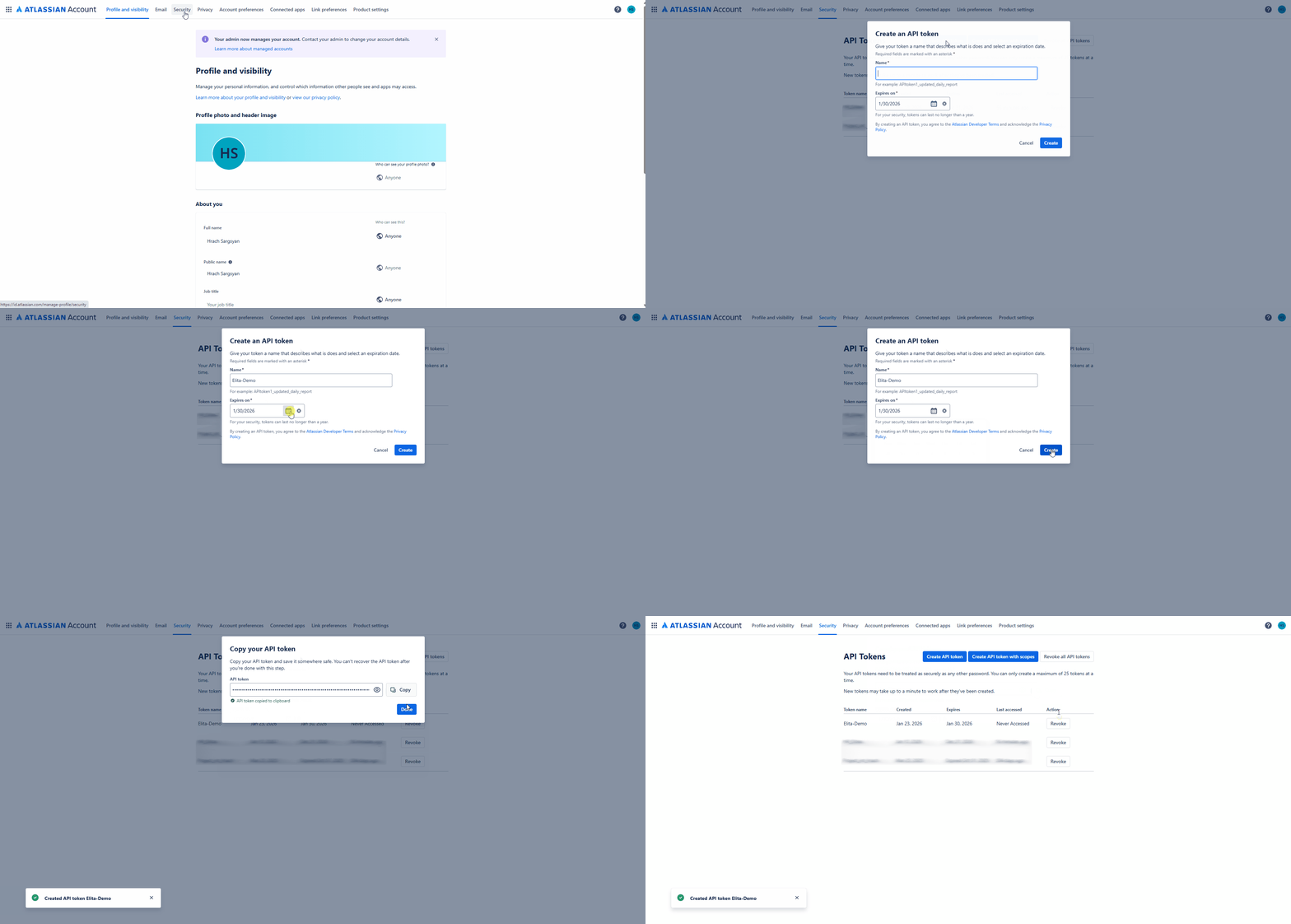
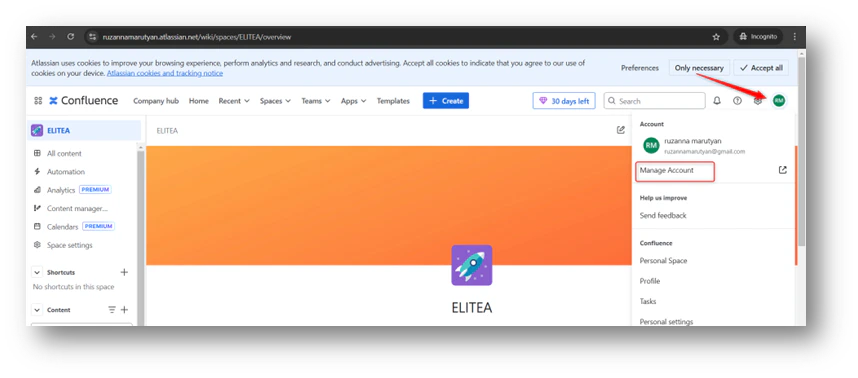 3. **Navigate to Security Settings:** In the Atlassian account settings page, navigate to the **"Security"** section in the left-hand sidebar.
4. **Access API Tokens:** Within the "Security" settings, locate the **"API tokens"** section and click on **"Create and manage API tokens"**.
5. **Create API Token:** On the "API tokens" page, click the **"Create API token"** button.
6. **Name Your Token:** In the "Create API token" dialog, enter a descriptive **Label** for your token, such as "ELITEA Integration Token" or "ELITEA Agent Access." This label will help you identify the purpose of this token later. You can also set an optional expiration date if needed.
7. **Create Token:** Click the **"Create"** button to generate the API token.
8. **Securely Copy and Store Your API Token:** **Immediately copy the generated API token** that is displayed in the pop-up window. **This is the only time you will see the full token value.** Store it securely in a password manager or, preferably, ELITEA's built-in Secrets feature for enhanced security within ELITEA. You will need this API token to configure the Confluence toolkit in ELITEA.
3. **Navigate to Security Settings:** In the Atlassian account settings page, navigate to the **"Security"** section in the left-hand sidebar.
4. **Access API Tokens:** Within the "Security" settings, locate the **"API tokens"** section and click on **"Create and manage API tokens"**.
5. **Create API Token:** On the "API tokens" page, click the **"Create API token"** button.
6. **Name Your Token:** In the "Create API token" dialog, enter a descriptive **Label** for your token, such as "ELITEA Integration Token" or "ELITEA Agent Access." This label will help you identify the purpose of this token later. You can also set an optional expiration date if needed.
7. **Create Token:** Click the **"Create"** button to generate the API token.
8. **Securely Copy and Store Your API Token:** **Immediately copy the generated API token** that is displayed in the pop-up window. **This is the only time you will see the full token value.** Store it securely in a password manager or, preferably, ELITEA's built-in Secrets feature for enhanced security within ELITEA. You will need this API token to configure the Confluence toolkit in ELITEA.
 ***
## System Integration with ELITEA
To integrate Confluence with ELITEA, you need to follow a three-step process: **Create Credentials → Create Toolkit → Use in Agents**. This workflow ensures secure authentication and proper configuration.
### Step 1: Create Confluence Credentials
Before creating a toolkit, you must first create Confluence credentials in ELITEA:
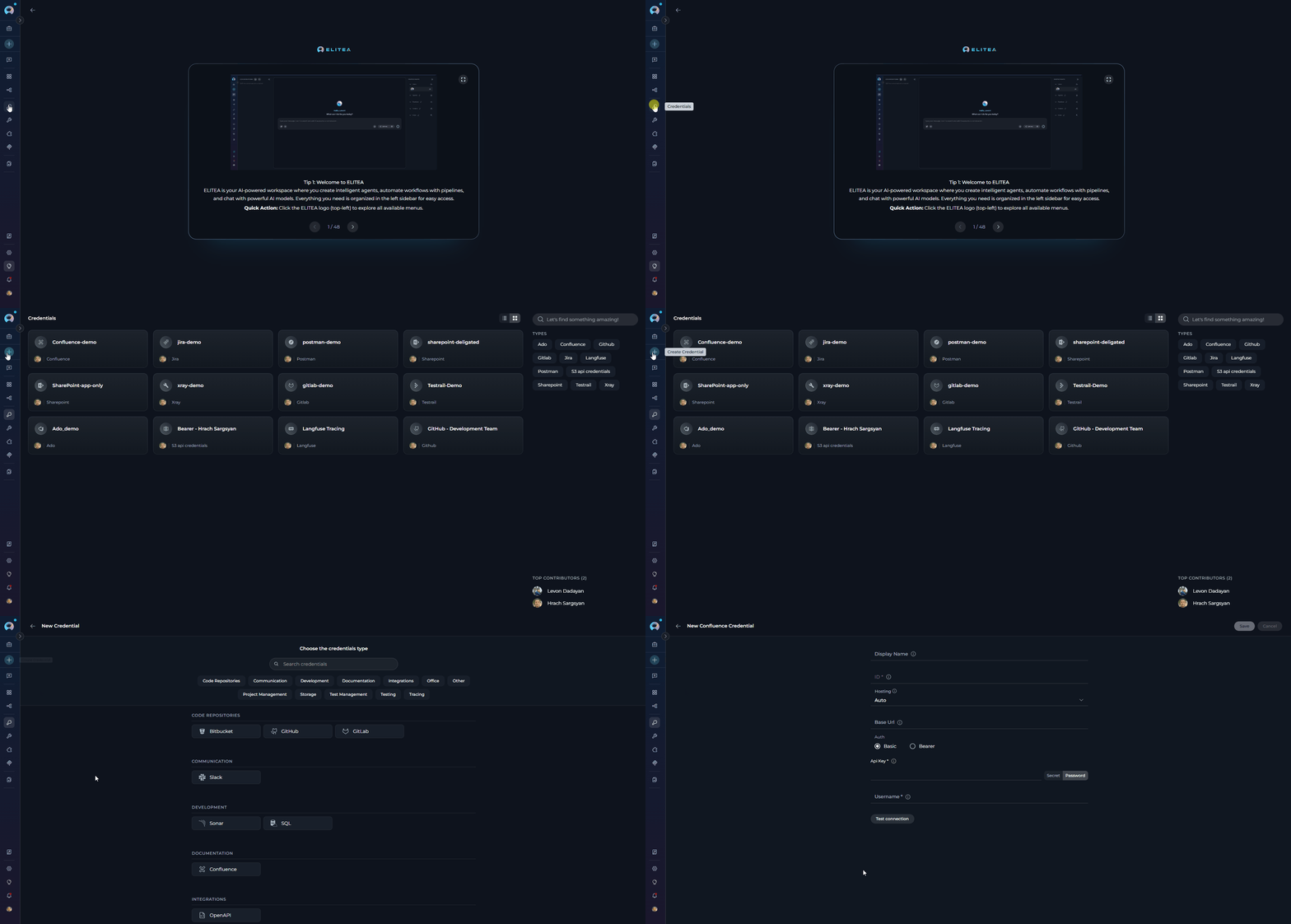
1. **Navigate to Credentials Menu:** Open the sidebar and select **[Credentials](../../menus/credentials)**.
2. **Create New Credential:** Click the **`+ Create`** button.
3. **Select Confluence:** Choose **Confluence** as the credential type.
***
## System Integration with ELITEA
To integrate Confluence with ELITEA, you need to follow a three-step process: **Create Credentials → Create Toolkit → Use in Agents**. This workflow ensures secure authentication and proper configuration.
### Step 1: Create Confluence Credentials
Before creating a toolkit, you must first create Confluence credentials in ELITEA:
1. **Navigate to Credentials Menu:** Open the sidebar and select **[Credentials](../../menus/credentials)**.
2. **Create New Credential:** Click the **`+ Create`** button.
3. **Select Confluence:** Choose **Confluence** as the credential type.
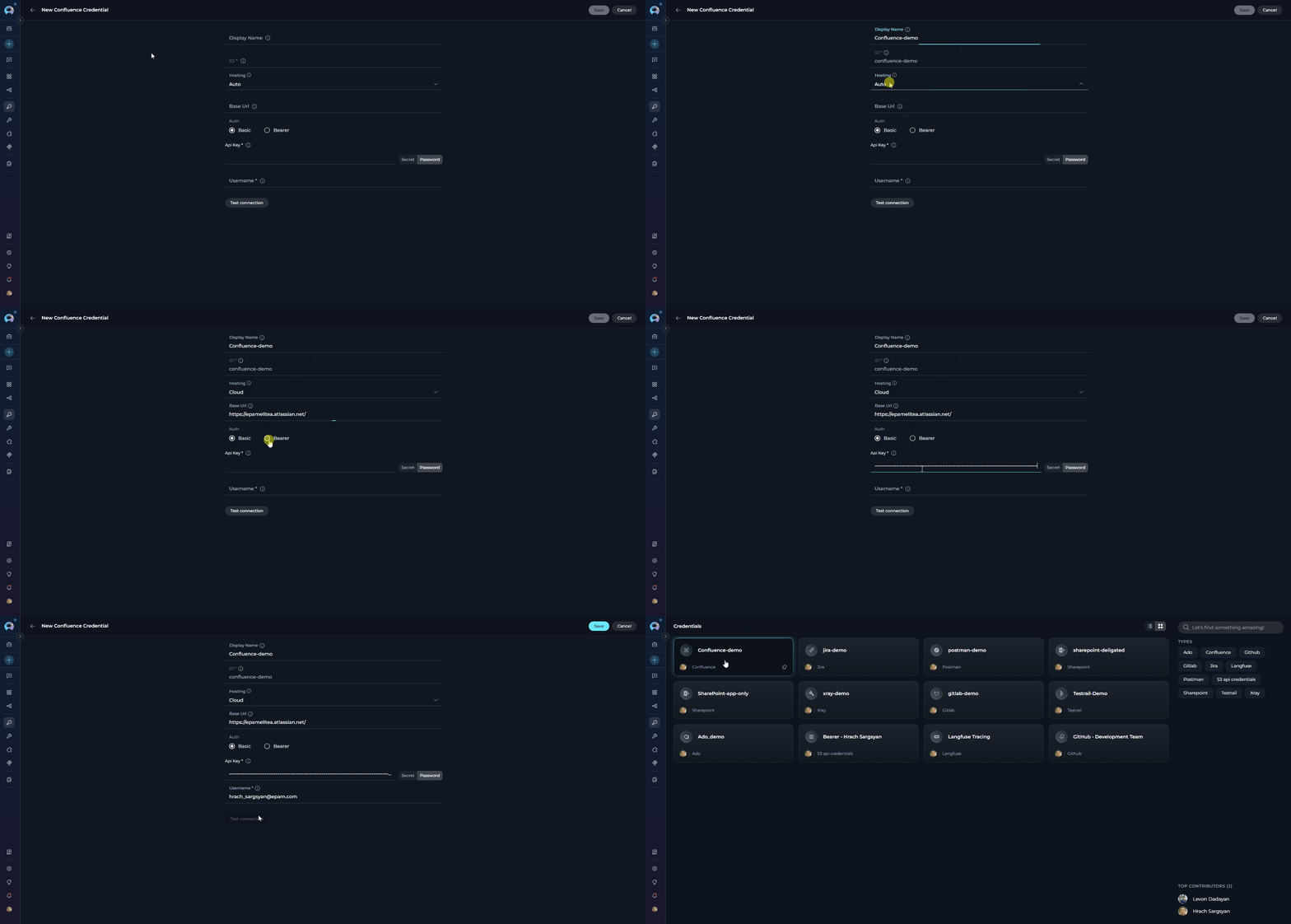
 4. **Configure Credential Details:**
| Field | Required | Description |
| ---------------- | ----------- | ------------------------------------------------------------------------------------------------------------------------------------------------------------------------------------------------------------------------------------ |
| **Display Name** | Required | Descriptive name for this credential (e.g., *"Confluence - Knowledge Base"*) |
| **ID** | Required | Unique identifier for the credential. Auto-populated from the Display Name |
| **Hosting** | Optional | Hosting type of your Confluence instance. **Auto** (default) — detects from the Base URL automatically; **Cloud** — for Atlassian-hosted instances (`*.atlassian.net/wiki`); **Server** — for self-hosted or Data Center deployments |
| **Base URL** | Required | Base URL of your Confluence instance. Cloud example: `https://yourcompany.atlassian.net/wiki` · Server example: `https://confluence.yourcompany.com` |
| **Username** | Basic auth | Your Confluence account email (Cloud) or login username (Server). Not required when using Bearer authentication |
| **API Key** | Basic auth | API Token for Basic authentication. Generate at [Atlassian security settings](https://id.atlassian.com/manage-profile/security/api-tokens) (Cloud) or from Confluence profile → Personal Access Tokens (Server/DC) |
| **Token** | Bearer auth | Personal Access Token (PAT) for Bearer authentication. Generate in Confluence: Profile → Personal Access Tokens |
5. **Test Connection:** Click **Test Connection** to verify that your credentials are valid and ELITEA can successfully connect to Confluence.
6. **Save Credential:** Click **Save** to create the credential. It will be added to the credentials dashboard and available to use in toolkit configurations.
4. **Configure Credential Details:**
| Field | Required | Description |
| ---------------- | ----------- | ------------------------------------------------------------------------------------------------------------------------------------------------------------------------------------------------------------------------------------ |
| **Display Name** | Required | Descriptive name for this credential (e.g., *"Confluence - Knowledge Base"*) |
| **ID** | Required | Unique identifier for the credential. Auto-populated from the Display Name |
| **Hosting** | Optional | Hosting type of your Confluence instance. **Auto** (default) — detects from the Base URL automatically; **Cloud** — for Atlassian-hosted instances (`*.atlassian.net/wiki`); **Server** — for self-hosted or Data Center deployments |
| **Base URL** | Required | Base URL of your Confluence instance. Cloud example: `https://yourcompany.atlassian.net/wiki` · Server example: `https://confluence.yourcompany.com` |
| **Username** | Basic auth | Your Confluence account email (Cloud) or login username (Server). Not required when using Bearer authentication |
| **API Key** | Basic auth | API Token for Basic authentication. Generate at [Atlassian security settings](https://id.atlassian.com/manage-profile/security/api-tokens) (Cloud) or from Confluence profile → Personal Access Tokens (Server/DC) |
| **Token** | Bearer auth | Personal Access Token (PAT) for Bearer authentication. Generate in Confluence: Profile → Personal Access Tokens |
5. **Test Connection:** Click **Test Connection** to verify that your credentials are valid and ELITEA can successfully connect to Confluence.
6. **Save Credential:** Click **Save** to create the credential. It will be added to the credentials dashboard and available to use in toolkit configurations.
 It's highly recommended to use **[Secrets](../../menus/settings/secrets)** for API keys and tokens instead of entering them directly. Create a secret first, then reference it in your credential configuration.
### Step 2: Create Confluence Toolkit
Once your credentials are configured, create the Confluence toolkit:
1. **Navigate to Toolkits Menu:** Open the sidebar and select **[Toolkits](../../menus/toolkits)**.
2. **Create New Toolkit:** Click the **`+ Create`** button.
3. **Select Confluence:** Choose **Confluence** from the list of available toolkit types.
It's highly recommended to use **[Secrets](../../menus/settings/secrets)** for API keys and tokens instead of entering them directly. Create a secret first, then reference it in your credential configuration.
### Step 2: Create Confluence Toolkit
Once your credentials are configured, create the Confluence toolkit:
1. **Navigate to Toolkits Menu:** Open the sidebar and select **[Toolkits](../../menus/toolkits)**.
2. **Create New Toolkit:** Click the **`+ Create`** button.
3. **Select Confluence:** Choose **Confluence** from the list of available toolkit types.
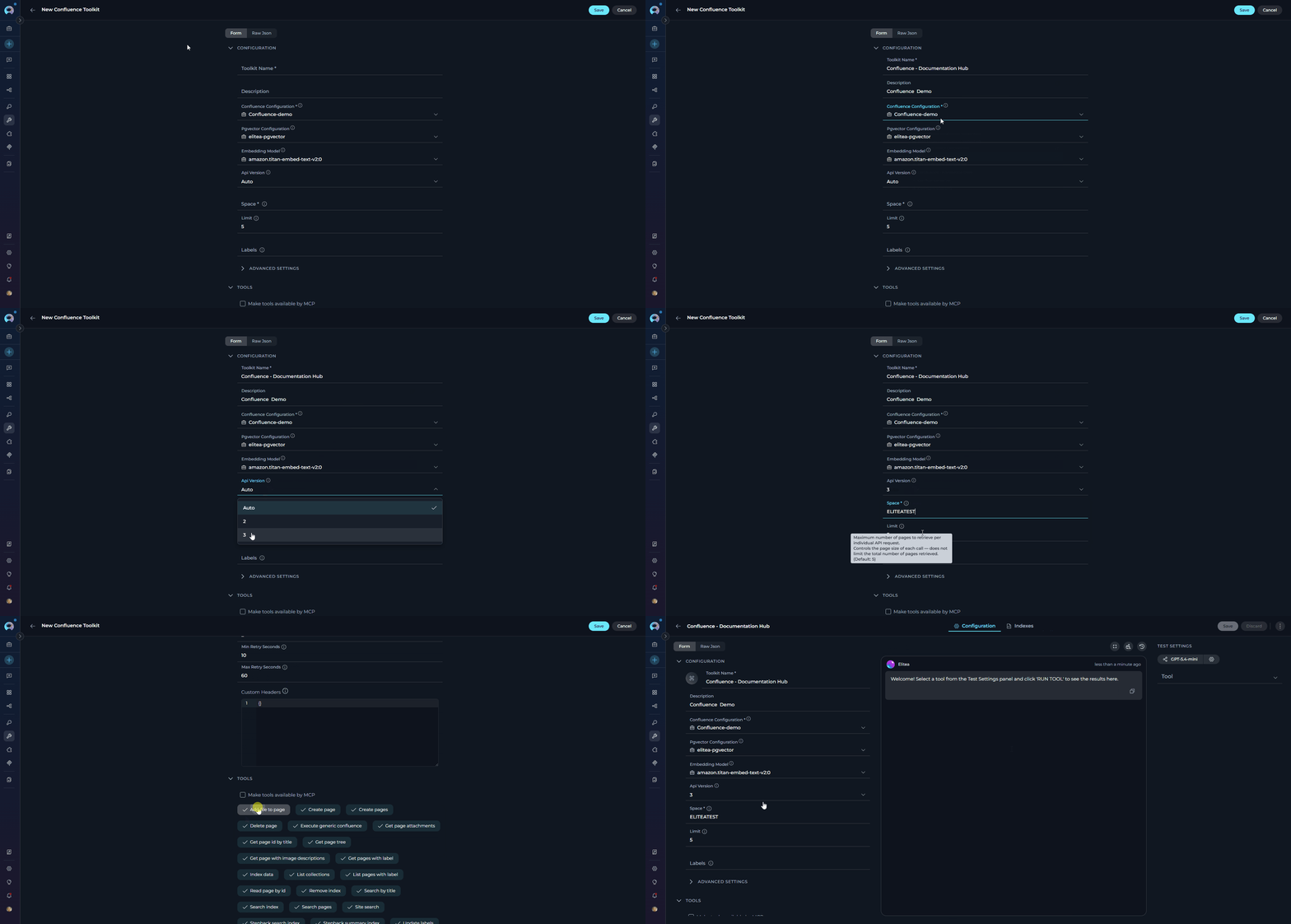
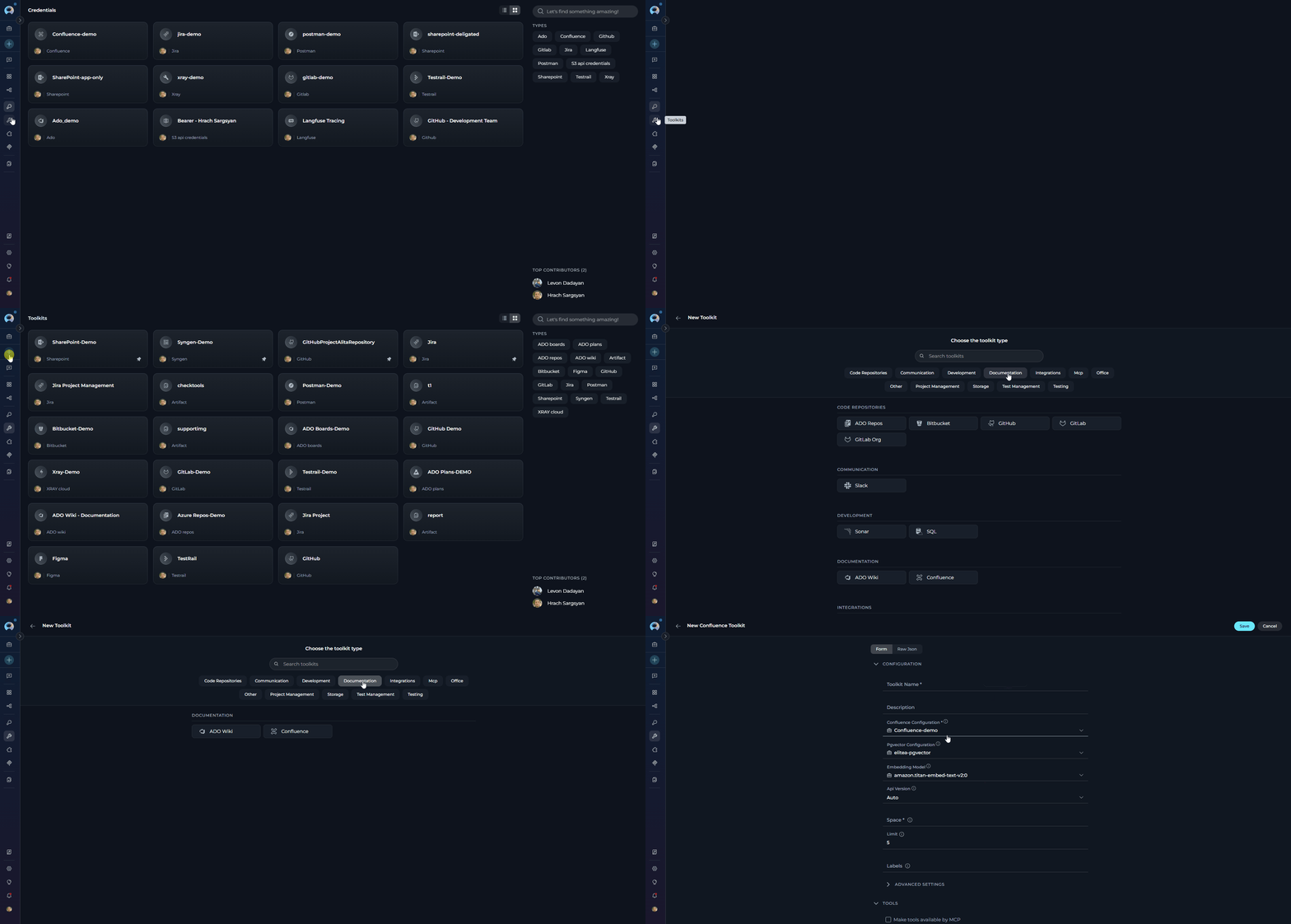 4. **Configure Toolkit Details:**
| Field | Required | Default | Description |
| -------------------------- | -------- | ------- | -------------------------------------------------------------------------------------------------------------------------------------------------------------------------------------------------------------------------------------------------- |
| **Toolkit Name** | Required | — | Descriptive name for the toolkit (e.g., *"Confluence - Documentation Hub"*) |
| **Description** | Optional | — | Brief description of the toolkit's purpose |
| **Credential** | Required | — | Select the Confluence credential created in Step 1 |
| **PgVector Configuration** | Optional | — | PgVector connection for vector database integration and semantic search |
| **Embedding Model** | Optional | — | Embedding model for semantic search capabilities (required when PgVector is configured) |
| **API Version** | Optional | Auto | REST API version. **Auto** selects automatically based on the Hosting setting in the linked credential (Cloud → V3, Server → V2). Set **V3** for Confluence Cloud or **V2** for Confluence Server / Data Center if Auto does not resolve correctly |
| **Space** | Required | — | Space key of the Confluence space to access (e.g., `DOCS`, `TEAM`). Found in space settings or in the URL when viewing the space |
| **Limit** | Optional | 5 | Maximum number of pages retrieved per individual API request. Controls page size per call |
| **Labels** | Optional | — | Filter content retrieval to pages with specific labels, comma-separated (e.g., `meeting-notes,documentation`) |
| ***Advanced Settings*** | | | |
| **Max Pages** | Optional | 10 | Maximum total number of pages to retrieve across all paginated requests. Prevents excessive data retrieval for large spaces |
| **Number of Retries** | Optional | 2 | How many times the toolkit retries a failed API request before reporting an error |
| **Min Retry, sec** | Optional | 10 | Minimum seconds to wait before retrying after a failure (lower bound of retry backoff) |
| **Max Retry, sec** | Optional | 60 | Maximum seconds to wait between retry attempts (upper bound of retry backoff) |
| **Custom Headers** | Optional | — | Additional HTTP headers included with every API request, in JSON format (e.g., `{"X-Custom-Header": "value"}`) |
5. **Enable Desired Tools:** In the **"Tools"** section, select the checkboxes next to the specific Confluence tools you want to enable. **Enable only the tools your agents will actually use** to follow the principle of least privilege.
* **[Make Tools Available by MCP](../mcp/make-tools-available-by-mcp)** - (optional) Enable to expose selected tools to external MCP clients.
6. **Save Toolkit:** Click **Save** to create the toolkit.
4. **Configure Toolkit Details:**
| Field | Required | Default | Description |
| -------------------------- | -------- | ------- | -------------------------------------------------------------------------------------------------------------------------------------------------------------------------------------------------------------------------------------------------- |
| **Toolkit Name** | Required | — | Descriptive name for the toolkit (e.g., *"Confluence - Documentation Hub"*) |
| **Description** | Optional | — | Brief description of the toolkit's purpose |
| **Credential** | Required | — | Select the Confluence credential created in Step 1 |
| **PgVector Configuration** | Optional | — | PgVector connection for vector database integration and semantic search |
| **Embedding Model** | Optional | — | Embedding model for semantic search capabilities (required when PgVector is configured) |
| **API Version** | Optional | Auto | REST API version. **Auto** selects automatically based on the Hosting setting in the linked credential (Cloud → V3, Server → V2). Set **V3** for Confluence Cloud or **V2** for Confluence Server / Data Center if Auto does not resolve correctly |
| **Space** | Required | — | Space key of the Confluence space to access (e.g., `DOCS`, `TEAM`). Found in space settings or in the URL when viewing the space |
| **Limit** | Optional | 5 | Maximum number of pages retrieved per individual API request. Controls page size per call |
| **Labels** | Optional | — | Filter content retrieval to pages with specific labels, comma-separated (e.g., `meeting-notes,documentation`) |
| ***Advanced Settings*** | | | |
| **Max Pages** | Optional | 10 | Maximum total number of pages to retrieve across all paginated requests. Prevents excessive data retrieval for large spaces |
| **Number of Retries** | Optional | 2 | How many times the toolkit retries a failed API request before reporting an error |
| **Min Retry, sec** | Optional | 10 | Minimum seconds to wait before retrying after a failure (lower bound of retry backoff) |
| **Max Retry, sec** | Optional | 60 | Maximum seconds to wait between retry attempts (upper bound of retry backoff) |
| **Custom Headers** | Optional | — | Additional HTTP headers included with every API request, in JSON format (e.g., `{"X-Custom-Header": "value"}`) |
5. **Enable Desired Tools:** In the **"Tools"** section, select the checkboxes next to the specific Confluence tools you want to enable. **Enable only the tools your agents will actually use** to follow the principle of least privilege.
* **[Make Tools Available by MCP](../mcp/make-tools-available-by-mcp)** - (optional) Enable to expose selected tools to external MCP clients.
6. **Save Toolkit:** Click **Save** to create the toolkit.
 #### Available Tools:
The Confluence toolkit provides the following tools for interacting with Confluence spaces and pages, organized by functional categories:
| **Tool Category** | **Tool Name** | **Description** | **Primary Use Case** |
| :-------------------------: | ------------------------------------ | --------------------------------------------------------------- | ---------------------------------------------------------------- |
| **Search & Discovery** | | | |
| | **Site search** | Performs a search across the entire Confluence site | Find content across all spaces and pages based on keywords |
| | **Search by title** | Searches for pages based on their title | Locate specific pages by title within the workspace |
| | **Search pages** | Searches for pages within a specified space based on keywords | Find relevant pages within a specific space or project |
| | **Get page id by title** | Retrieves the page ID using the page title | Get page ID when you only know the page title |
| **Content Access** | | | |
| | **Read page by id** | Retrieves the content of a page using its unique ID | Access specific page content for analysis or processing |
| | **Get pages with label** | Retrieves pages within a space that have a specific label | Access related content organized by labels |
| | **List pages with label** | Lists titles of pages within a space that have a specific label | Get overview of pages categorized by labels |
| | **Get page tree** | Retrieves the hierarchical structure of pages within a space | Understand content organization and page relationships |
| | **Get page attachments** | Retrieves attachments from a specific page | Access files and documents attached to pages |
| | **Get page with image descriptions** | Retrieves page content with image descriptions | Access pages with detailed image information |
| **Content Management** | | | |
| | **Create page** | Creates a new page within a specified space | Generate new documentation, meeting notes, or project pages |
| | **Create pages** | Creates multiple pages within a space in bulk | Efficiently create large sets of related documentation |
| | **Update page by id** | Updates content of a page using its unique ID | Modify specific page content programmatically |
| | **Update page by title** | Updates content of a page using its title | Update pages when you know the title but not the ID |
| | **Update pages** | Updates content of multiple pages in bulk | Efficiently modify large sets of related pages |
| | **Delete page** | Deletes a specific page identified by its ID | Remove outdated or obsolete content |
| | **Add file to page** | Attaches a file to a specific Confluence page | Upload and attach supporting files or screenshots to pages |
| **Organization & Metadata** | | | |
| | **Update labels** | Adds or removes labels from a specific page | Categorize and organize content for better discoverability |
| **Indexing & Search** | | | |
| | **Index data** | Creates searchable indexes of Confluence content | Enable advanced search and discovery across pages |
| | **List collections** | Lists available indexed collections | View and manage indexed data collections |
| | **Remove index** | Removes previously created search indexes | Clean up and manage indexed content |
| | **Search index** | Performs searches across indexed content | Find specific content across indexed pages |
| | **Stepback search index** | Performs advanced contextual searches with broader scope | Execute sophisticated searches with expanded context |
| | **Stepback summary index** | Creates comprehensive summaries of indexed content | Generate intelligent summaries of page information |
| **Advanced Operations** | | | |
| | **Execute generic confluence** | Sends custom HTTP requests to Confluence API | Access any Confluence API endpoint not covered by specific tools |
The **Read page by id** tool now supports an optional per-call `content_format` parameter. Use it when the default rendered page body does not expose the content you need clearly, especially on macro-heavy or specially structured Confluence pages.
Supported values are:
* `view` — standard rendered page body
* `storage` — storage-oriented body representation, often more reliable for structured macros
* `export_view` — export-oriented rendered body
* `editor` — editor representation
* `anonymous` — anonymous export view
* `styled_view` — export-styled HTML with inline CSS
* `atlas_doc_format` — Confluence Cloud ADF JSON for structured downstream processing
If `content_format` is not provided, the tool keeps using the toolkit's configured default behavior.
The tools **Index data**, **List collections**, **Remove index**, **Search index**, **Stepback search index**, and **Stepback summary index** require PgVector configuration and an embedding model. These enable advanced semantic search capabilities across your Confluence spaces and pages.
#### Testing Toolkit Tools
After configuring your Confluence toolkit, you can test individual tools directly from the Toolkit detailed page using the **Test Settings** panel. This allows you to verify that your credentials are working correctly and validate tool functionality before adding the toolkit to your workflows.
**General Testing Steps:**
1. **Select LLM Model:** Choose a Large Language Model from the model dropdown in the Test Settings panel
2. **Configure Model Settings:** Adjust model parameters like Creativity, Max Completion Tokens, and other settings as needed
3. **Select a Tool:** Choose the specific Confluence tool you want to test from the available tools
4. **Provide Input:** Enter any required parameters or test queries for the selected tool
5. **Run the Test:** Execute the tool and wait for the response
6. **Review the Response:** Analyze the output to verify the tool is working correctly and returning expected results
* Verify that Confluence credentials and connection are configured correctly
* Test tool parameters and see actual responses from your Confluence instance
* Debug tool behavior and understand output formats
* Optimize tool settings before integrating with agents or pipelines
> For detailed instructions on how to use the Test Settings panel, see **[How to Test Toolkit Tools](../../how-tos/credentials-toolkits/how-to-test-toolkit-tools)**.
***
### Step 3: Add Confluence Toolkit to Your Workflows
Now you can add the configured Confluence toolkit to your agents, pipelines, or use it directly in chat:
***
#### In Agents:
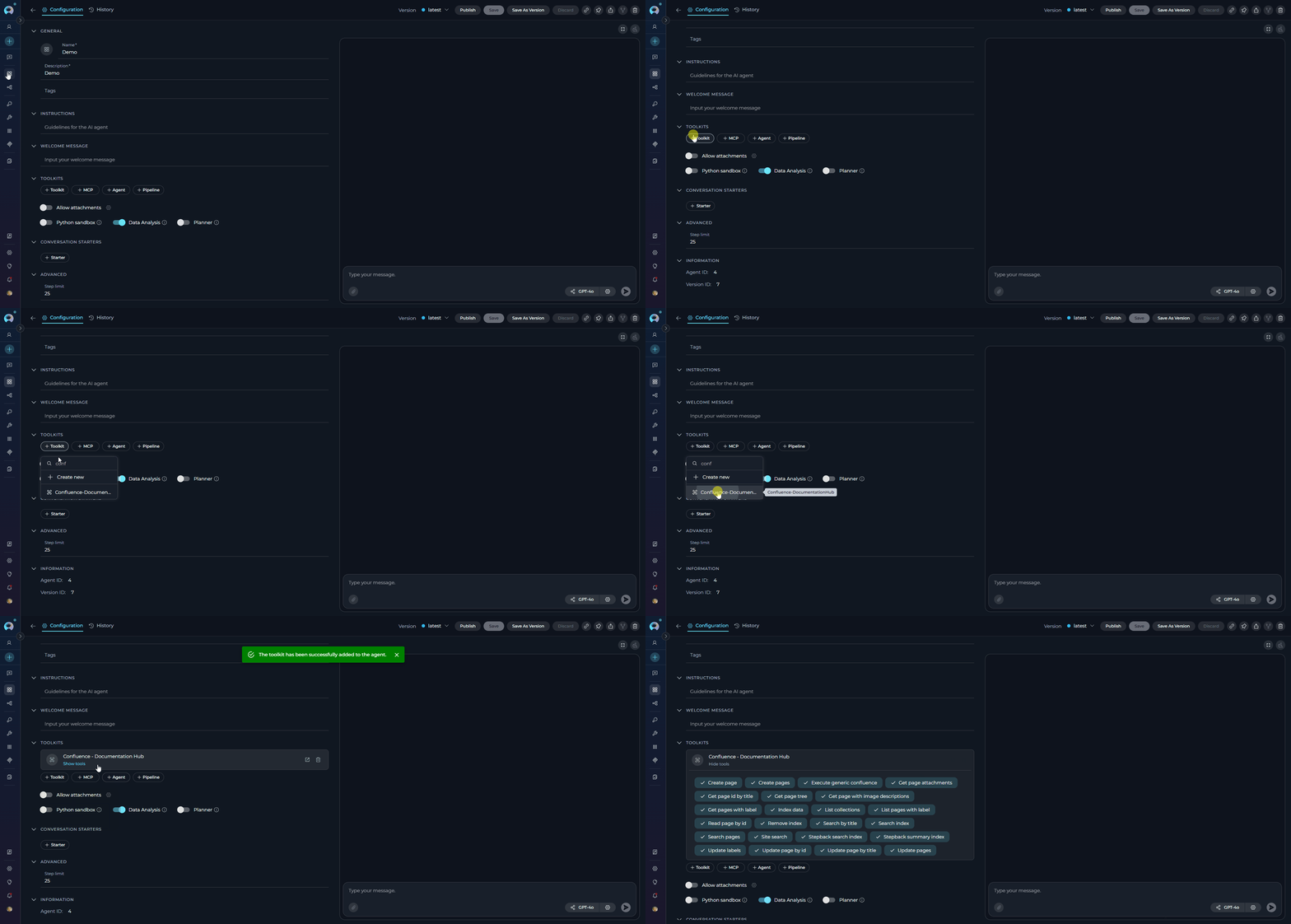
1. **Navigate to Agents:** Open the sidebar and select **[Agents](../../menus/agents)**.
2. **Create or Edit Agent:** Either create a new agent or select an existing agent to edit.
3. **Add Confluence Toolkit:**
* In the **"TOOLKITS"** section of the agent configuration, click the **"+Toolkit"** icon
* Select your configured Confluence toolkit from the dropdown list
* The toolkit will be added to your agent with the previously configured tools enabled
Your agent can now interact with Confluence using the configured toolkit and space.
#### Available Tools:
The Confluence toolkit provides the following tools for interacting with Confluence spaces and pages, organized by functional categories:
| **Tool Category** | **Tool Name** | **Description** | **Primary Use Case** |
| :-------------------------: | ------------------------------------ | --------------------------------------------------------------- | ---------------------------------------------------------------- |
| **Search & Discovery** | | | |
| | **Site search** | Performs a search across the entire Confluence site | Find content across all spaces and pages based on keywords |
| | **Search by title** | Searches for pages based on their title | Locate specific pages by title within the workspace |
| | **Search pages** | Searches for pages within a specified space based on keywords | Find relevant pages within a specific space or project |
| | **Get page id by title** | Retrieves the page ID using the page title | Get page ID when you only know the page title |
| **Content Access** | | | |
| | **Read page by id** | Retrieves the content of a page using its unique ID | Access specific page content for analysis or processing |
| | **Get pages with label** | Retrieves pages within a space that have a specific label | Access related content organized by labels |
| | **List pages with label** | Lists titles of pages within a space that have a specific label | Get overview of pages categorized by labels |
| | **Get page tree** | Retrieves the hierarchical structure of pages within a space | Understand content organization and page relationships |
| | **Get page attachments** | Retrieves attachments from a specific page | Access files and documents attached to pages |
| | **Get page with image descriptions** | Retrieves page content with image descriptions | Access pages with detailed image information |
| **Content Management** | | | |
| | **Create page** | Creates a new page within a specified space | Generate new documentation, meeting notes, or project pages |
| | **Create pages** | Creates multiple pages within a space in bulk | Efficiently create large sets of related documentation |
| | **Update page by id** | Updates content of a page using its unique ID | Modify specific page content programmatically |
| | **Update page by title** | Updates content of a page using its title | Update pages when you know the title but not the ID |
| | **Update pages** | Updates content of multiple pages in bulk | Efficiently modify large sets of related pages |
| | **Delete page** | Deletes a specific page identified by its ID | Remove outdated or obsolete content |
| | **Add file to page** | Attaches a file to a specific Confluence page | Upload and attach supporting files or screenshots to pages |
| **Organization & Metadata** | | | |
| | **Update labels** | Adds or removes labels from a specific page | Categorize and organize content for better discoverability |
| **Indexing & Search** | | | |
| | **Index data** | Creates searchable indexes of Confluence content | Enable advanced search and discovery across pages |
| | **List collections** | Lists available indexed collections | View and manage indexed data collections |
| | **Remove index** | Removes previously created search indexes | Clean up and manage indexed content |
| | **Search index** | Performs searches across indexed content | Find specific content across indexed pages |
| | **Stepback search index** | Performs advanced contextual searches with broader scope | Execute sophisticated searches with expanded context |
| | **Stepback summary index** | Creates comprehensive summaries of indexed content | Generate intelligent summaries of page information |
| **Advanced Operations** | | | |
| | **Execute generic confluence** | Sends custom HTTP requests to Confluence API | Access any Confluence API endpoint not covered by specific tools |
The **Read page by id** tool now supports an optional per-call `content_format` parameter. Use it when the default rendered page body does not expose the content you need clearly, especially on macro-heavy or specially structured Confluence pages.
Supported values are:
* `view` — standard rendered page body
* `storage` — storage-oriented body representation, often more reliable for structured macros
* `export_view` — export-oriented rendered body
* `editor` — editor representation
* `anonymous` — anonymous export view
* `styled_view` — export-styled HTML with inline CSS
* `atlas_doc_format` — Confluence Cloud ADF JSON for structured downstream processing
If `content_format` is not provided, the tool keeps using the toolkit's configured default behavior.
The tools **Index data**, **List collections**, **Remove index**, **Search index**, **Stepback search index**, and **Stepback summary index** require PgVector configuration and an embedding model. These enable advanced semantic search capabilities across your Confluence spaces and pages.
#### Testing Toolkit Tools
After configuring your Confluence toolkit, you can test individual tools directly from the Toolkit detailed page using the **Test Settings** panel. This allows you to verify that your credentials are working correctly and validate tool functionality before adding the toolkit to your workflows.
**General Testing Steps:**
1. **Select LLM Model:** Choose a Large Language Model from the model dropdown in the Test Settings panel
2. **Configure Model Settings:** Adjust model parameters like Creativity, Max Completion Tokens, and other settings as needed
3. **Select a Tool:** Choose the specific Confluence tool you want to test from the available tools
4. **Provide Input:** Enter any required parameters or test queries for the selected tool
5. **Run the Test:** Execute the tool and wait for the response
6. **Review the Response:** Analyze the output to verify the tool is working correctly and returning expected results
* Verify that Confluence credentials and connection are configured correctly
* Test tool parameters and see actual responses from your Confluence instance
* Debug tool behavior and understand output formats
* Optimize tool settings before integrating with agents or pipelines
> For detailed instructions on how to use the Test Settings panel, see **[How to Test Toolkit Tools](../../how-tos/credentials-toolkits/how-to-test-toolkit-tools)**.
***
### Step 3: Add Confluence Toolkit to Your Workflows
Now you can add the configured Confluence toolkit to your agents, pipelines, or use it directly in chat:
***
#### In Agents:
1. **Navigate to Agents:** Open the sidebar and select **[Agents](../../menus/agents)**.
2. **Create or Edit Agent:** Either create a new agent or select an existing agent to edit.
3. **Add Confluence Toolkit:**
* In the **"TOOLKITS"** section of the agent configuration, click the **"+Toolkit"** icon
* Select your configured Confluence toolkit from the dropdown list
* The toolkit will be added to your agent with the previously configured tools enabled
Your agent can now interact with Confluence using the configured toolkit and space.
 ***
#### In Pipelines:
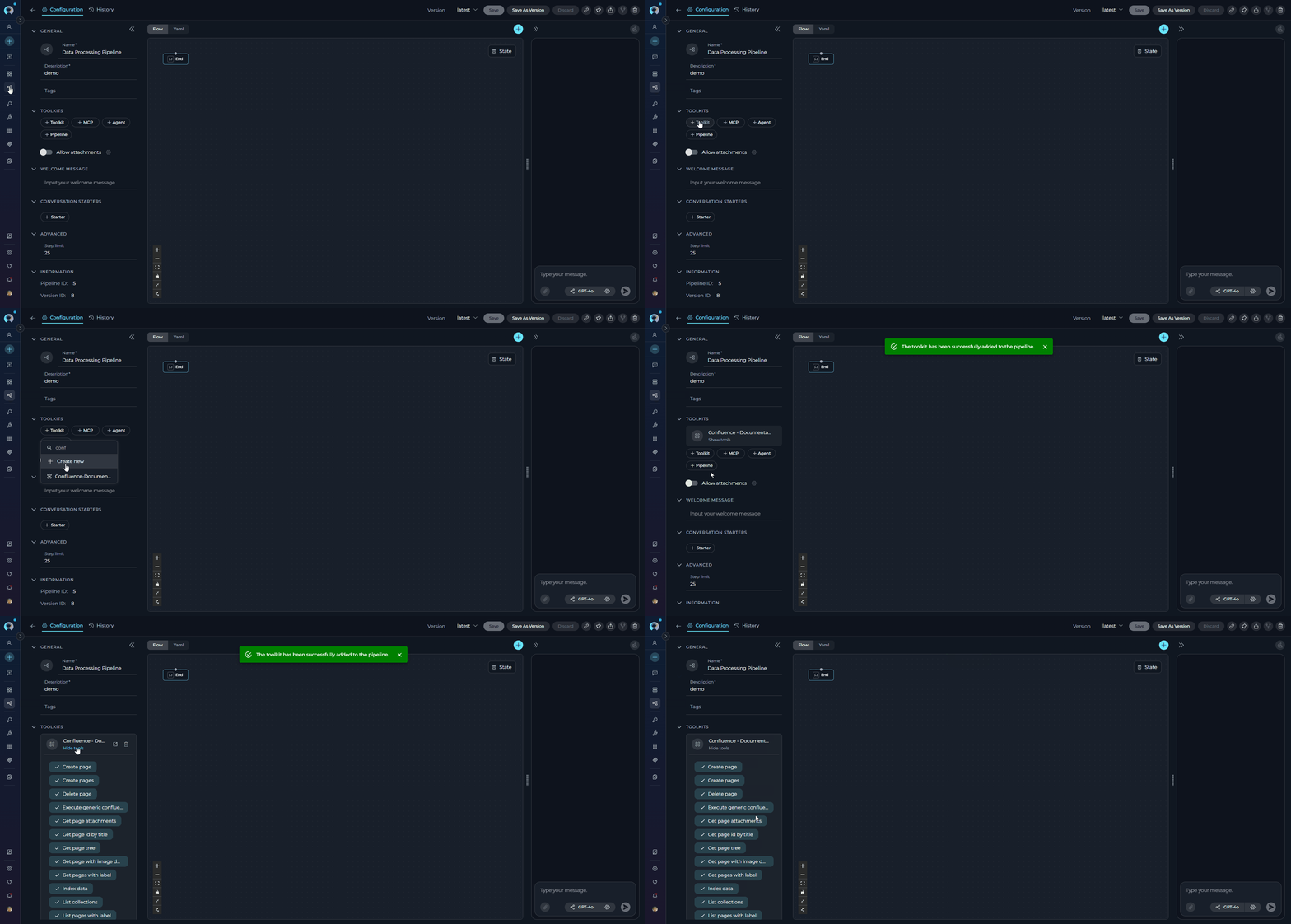
1. **Navigate to Pipelines:** Open the sidebar and select **[Pipelines](../../menus/pipelines)**.
2. **Create or Edit Pipeline:** Either create a new pipeline or select an existing pipeline to edit.
3. **Add Confluence Toolkit:**
* In the **"TOOLKITS"** section of the pipeline configuration, click the **"+Toolkit"** icon
* Select your configured Confluence toolkit from the dropdown list
* The toolkit will be added to your pipeline with the previously configured tools enabled
***
#### In Pipelines:
1. **Navigate to Pipelines:** Open the sidebar and select **[Pipelines](../../menus/pipelines)**.
2. **Create or Edit Pipeline:** Either create a new pipeline or select an existing pipeline to edit.
3. **Add Confluence Toolkit:**
* In the **"TOOLKITS"** section of the pipeline configuration, click the **"+Toolkit"** icon
* Select your configured Confluence toolkit from the dropdown list
* The toolkit will be added to your pipeline with the previously configured tools enabled
 ***
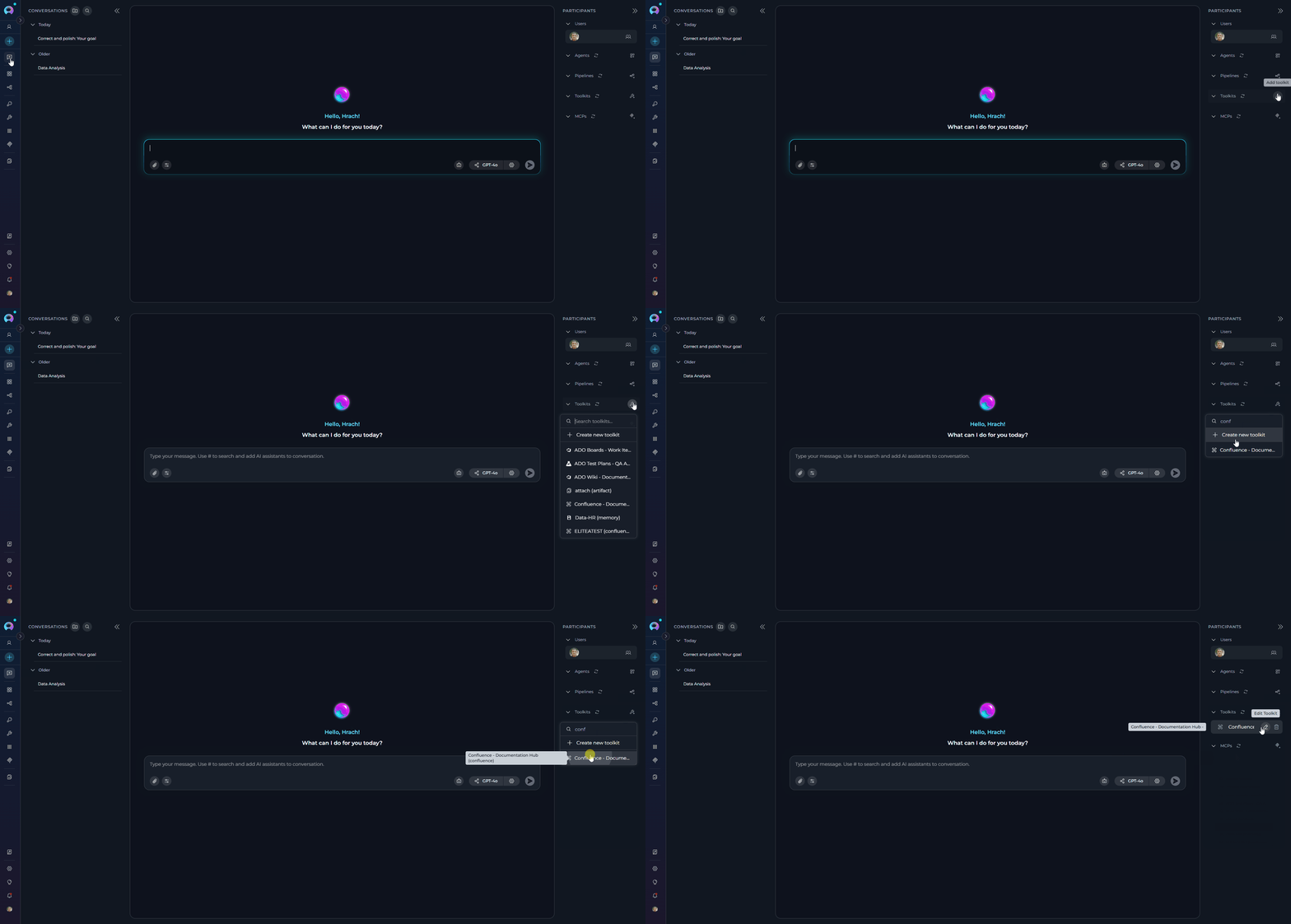
#### In Chat:
1. **Navigate to Chat:** Open the sidebar and select **[Chat](../../menus/chat)**.
2. **Start New Conversation:** Click **+Create** or open an existing conversation.
3. **Add Toolkit to Conversation:**
* In the chat Participants section, look for the **Toolkits** element
* Click the **"Add Tools"** Icon to open the tools selection dropdown
* Select your configured Confluence toolkit from the dropdown list
* The toolkit will be added to your conversation with all previously configured tools enabled
4. **Use Toolkit in Chat:** You can now directly interact with your Confluence spaces and pages by asking questions or requesting actions that will trigger the Confluence toolkit tools.
* "Show me the project documentation from the DOCS space."
* "Create a new meeting notes page for today's standup."
* "Search for pages about the authentication feature."
* "Update the project overview page with latest milestones."
***
#### In Chat:
1. **Navigate to Chat:** Open the sidebar and select **[Chat](../../menus/chat)**.
2. **Start New Conversation:** Click **+Create** or open an existing conversation.
3. **Add Toolkit to Conversation:**
* In the chat Participants section, look for the **Toolkits** element
* Click the **"Add Tools"** Icon to open the tools selection dropdown
* Select your configured Confluence toolkit from the dropdown list
* The toolkit will be added to your conversation with all previously configured tools enabled
4. **Use Toolkit in Chat:** You can now directly interact with your Confluence spaces and pages by asking questions or requesting actions that will trigger the Confluence toolkit tools.
* "Show me the project documentation from the DOCS space."
* "Create a new meeting notes page for today's standup."
* "Search for pages about the authentication feature."
* "Update the project overview page with latest milestones."
 ## Instructions and Prompts for Using the Confluence Toolkit
To effectively instruct your ELITEA Agent to use the Confluence toolkit, you need to provide clear and precise instructions within the Agent's "Instructions" field. These instructions are crucial for guiding the Agent on *when* and *how* to utilize the available Confluence tools to achieve your desired automation goals.
### Instruction Creation for OpenAI Agents
When crafting instructions for the Confluence toolkit, especially for OpenAI-based Agents, clarity and precision are paramount. Break down complex tasks into a sequence of simple, actionable steps. Explicitly define all parameters required for each tool and guide the Agent on how to obtain or determine the values for these parameters. OpenAI Agents respond best to instructions that are:
* **Direct and Action-Oriented:** Employ strong action verbs and clear commands to initiate actions. For example, "Use the 'read\_page\_by\_id' tool...", "Create a page named...", "Search for pages containing...".
* **Parameter-Centric:** Clearly enumerate each parameter required by the tool. For each parameter, specify:
* Its name (exactly as expected by the tool)
* The format or type of value expected
* How the Agent should obtain the value – whether from user input, derived from previous steps in the conversation, retrieved from an external source, or a predefined static value
* **Contextually Rich:** Provide sufficient context so the Agent understands the overarching objective and the specific scenario in which each Confluence tool should be applied within the broader workflow. Explain the desired outcome or goal for each tool invocation.
* **Step-by-Step Structure:** Organize instructions into a numbered or bulleted list of steps for complex workflows. This helps the Agent follow a logical sequence of actions.
* **Add Conversation Starters:** Include example conversation starters that users can use to trigger this functionality. For example, "Conversation Starters: 'Show me the project documentation', 'What's in the meeting notes?', 'Search for information about the new feature'"
When instructing your Agent to use a Confluence toolkit tool, adhere to this structured pattern:
1. **State the Goal:** Begin by clearly stating the objective you want to achieve with this step. For example, "Goal: To retrieve the content of the 'Project Overview' page."
2. **Specify the Tool:** Clearly indicate the specific Confluence tool to be used for this step. For example, "Tool: Use the 'read\_page\_by\_id' tool."
3. **Define Parameters:** Provide a detailed list of all parameters required by the selected tool. For each parameter:
* **Parameter Name:** ``
* **Value or Source:** ``
4. **Describe Expected Outcome (Optional but Recommended):** Briefly describe the expected result or outcome after the tool is successfully executed. For example, "Outcome: The Agent will provide the content of the 'Project Overview' page."
5. **Add Conversation Starters:** Include example conversation starters that users can use to trigger this functionality. For example, "Conversation Starters: 'Show me the project overview', 'What's in the project documentation?', 'Display the project summary'"
**Basic Pattern - Reading a Confluence Page:**
**Content Management Pattern - Creating and Updating Pages:**
```markdown theme={null}
You are a Confluence content manager. Help users create and maintain documentation efficiently.
## Content Creation Workflow
### Creating New Pages
- **Tool**: create_page
- **Parameters**:
- space_key: Target Confluence space (ask if not specified)
- title: Page title (generate from context or ask user)
- body: Page content in Confluence storage format
- parent_id: (Optional) Parent page ID for hierarchy
- **Process**:
1. Confirm space and title with user
2. Generate appropriate content structure (use templates when relevant)
3. Create page with proper formatting
4. Return page URL and ID for future reference
5. Suggest adding relevant labels for organization
- **Best Practices**:
- Use clear, descriptive titles
- Include standard sections (Overview, Details, Resources)
- Add creation date and owner information
- Link to related pages when applicable
### Updating Existing Pages
- **Tools**: update_page_by_id or update_page_by_title
- **Parameters**:
- page_id or title: Target page identifier
- body: New content (preserve existing content if partial update)
- version: Current version number + 1
- **Process**:
1. Read current page content first
2. Merge or replace content as needed
3. Preserve important sections unless explicitly asked to remove
4. Update version number appropriately
5. Confirm successful update with user
- **Safety Guidelines**:
- Always read page before updating to avoid data loss
- Confirm major changes with user before executing
- Preserve page structure and formatting
### Organizing with Labels
- **Tool**: update_labels
- **Parameters**:
- page_id: Target page
- labels: Array of label names to add
- **Process**:
1. Suggest relevant labels based on content
2. Add labels to categorize and improve discoverability
3. Confirm labels were applied successfully
- **Label Strategy**:
- Use consistent naming conventions (lowercase, hyphenated)
- Apply categories: project, team, status, type
- Examples: "project-alpha", "meeting-notes", "archived", "documentation"
## Conversation Starters
- "Create a new meeting notes page for today's standup"
- "Update the project overview with latest milestones"
- "Add labels to page 123456"
- "Create a documentation page about [topic]"
```
### Chat Usage Examples by Tool Category
The following examples demonstrate how to interact with the Confluence toolkit in ELITEA Chat, organized by functional categories. Each example shows the user request and the expected agent behavior.
**Chat Example:**
```
User: "Search for any documentation about the authentication system in our Confluence."
Agent Response: [Agent uses site_search tool]
🔍 **Search Results for "authentication system"**:
**📄 Found 4 relevant pages**:
1. **"User Authentication Guide"** (DOCS space)
- **Summary**: Comprehensive guide covering login processes and security protocols
- **Last Updated**: 3 days ago
- **URL**: https://yourcompany.atlassian.net/wiki/spaces/DOCS/pages/123456
2. **"API Authentication Documentation"** (DEV space)
- **Summary**: Technical documentation for API authentication methods
- **Last Updated**: 1 week ago
- **URL**: https://yourcompany.atlassian.net/wiki/spaces/DEV/pages/789012
Would you like me to read the content of any specific page for more details?
```
**Chat Example:**
```
User: "Can you show me the content of page 123456 from our Confluence?"
Agent Response: [Agent uses read_page_by_id tool]
📄 **Page Content - "Project Alpha Overview"**:
# Project Alpha Overview
## Project Objectives
- Develop a new customer portal with enhanced user experience
- Implement real-time analytics dashboard
- Integrate with existing CRM systems
## Current Status
✅ **Phase 1**: Requirements gathering (Complete)
🔄 **Phase 2**: Design and prototyping (In Progress)
⏳ **Phase 3**: Development (Planned for Q2)
## Team Members
- **Project Manager**: Sarah Johnson
- **Lead Developer**: Mike Chen
- **UX Designer**: Emily Rodriguez
The page was last updated 2 days ago by Sarah Johnson.
```
**Chat Example:**
````
User: "Create a new meeting notes page for today's project standup in the TEAM space."
Agent Response: [Agent uses create_page tool]
✅ **Page Created Successfully!**
**📄 New Page Details**:
- **Title**: "Project Standup - September 10, 2025"
- **Space**: TEAM
- **Page ID**: 987654
- **URL**: https://yourcompany.atlassian.net/wiki/spaces/TEAM/pages/987654
**📝 Initial Content Added**:
```markdown
# Project Standup - September 10, 2025
## Attendees
- [ ] Add attendee names
## Agenda
1. Sprint progress review
2. Blockers and challenges
3. Next sprint planning
4. Action items
## Discussion Notes
(Add notes here during the meeting)
The page is ready for your team to add meeting notes and action items!
````
**Chat Example:**
```
User: "Add the labels 'archived' and 'project-alpha' to page 123456."
Agent Response: [Agent uses update_labels tool]
🏷️ **Labels Updated Successfully!**
**Page 123456** now has the following labels:
- ✅ **archived** (newly added)
- ✅ **project-alpha** (newly added)
- 📋 **documentation** (existing)
- 📋 **meeting-notes** (existing)
```
**Chat Example:**
```
User: "Create a searchable index of all documentation in our DOCS space so we can find information more easily. Set collection suffix 'doc' "
Agent Response: [Agent uses index_data tool]
🔍 **Data Indexing Complete!**
**📊 Indexing Summary**:
- **Space Indexed**: DOCS
- **Pages Processed**: 45 pages
- **Content Types**: Documentation, guides, procedures, meeting notes
- **Index Status**: Successfully created
- **Search Capabilities**: Full-text search, semantic search, content relationships
Your DOCS space content is now fully indexed and searchable! You can use the search tools to find specific information quickly across all documentation.
```
**Chat Example:**
```
User: "Can you get the list of all spaces in our Confluence instance?"
Agent Response: [Agent uses generic_request tool]
🏢 **Confluence Spaces Overview**:
**📊 Total Spaces**: 8
**Active Spaces**:
1. **DOCS** - "Documentation Hub"
- **Type**: Global space
- **Pages**: 45 pages
- **Last Activity**: Today
2. **TEAM** - "Team Collaboration"
- **Type**: Team space
- **Pages**: 23 pages
- **Last Activity**: 2 hours ago
3. **DEV** - "Development Resources"
- **Type**: Project space
- **Pages**: 67 pages
- **Last Activity**: Yesterday
**📈 Activity Summary**: Your Confluence instance shows healthy usage with regular content updates across all active spaces.
```
***
## Troubleshooting
**Problem:** When creating a toolkit, your Confluence credential doesn't appear in the credentials dropdown.
**Troubleshooting Steps:**
1. **Check Credential Scope:** Ensure you're working in the same workspace/project where the credential was created. Private credentials are only visible in your Private workspace, while project credentials are visible within the specific team project.
2. **Verify Credential Creation:** Go to the Credentials menu and confirm that your Confluence credential was successfully saved.
3. **Credential Type Match:** Ensure you selected "Confluence" as the credential type when creating the credential.
**Problem:** ELITEA Agent fails to establish a connection with Confluence, resulting in errors during toolkit execution.
**Troubleshooting Steps:**
1. **Verify Confluence URL:** Ensure that the **Base URL** field in the credential configuration is correctly set to your Confluence instance URL (e.g., `https://yourcompany.atlassian.net/wiki` for Cloud or `https://kb.epam.com/` for Server). Avoid modifying this URL format unless necessary.
2. **Check API Token:** Double-check that the **API Token** you have provided is accurate, has not expired, and is valid for your Confluence account and the target space. Carefully re-enter or copy-paste the token to rule out typos.
3. **Verify Authentication Method:** Review the **authentication method** selected in your credential configuration. Ensure it matches the type of credentials you've provided (Basic for username+API key, Bearer for token).
4. **Network Connectivity:** Confirm that both your ELITEA environment and the Confluence service are connected to the internet and that there are no network connectivity issues, firewalls, or proxies blocking the integration.
**Problem:** Agent execution fails with "Permission Denied" or "Unauthorized" errors when attempting to access or modify Confluence resources, even with a seemingly valid token.
**Troubleshooting Steps:**
1. **Re-verify API Token Validity:** Ensure that the API token is valid and has not been revoked in your Atlassian account settings. Generate a new token if necessary.
2. **Space Access Permissions:** Confirm that the Confluence account associated with the API token has the necessary access permissions to the specified space. Verify that the account can access, view, and modify content in the space you're targeting.
3. **Hosting Option Verification:** Double-check that you have selected the correct **Hosting option** (Cloud or Server) in the toolkit configuration. Using the wrong hosting option can lead to authentication and connection errors.
4. **Space Key Accuracy:** Ensure you're using the correct Space key (not the space name) in your toolkit configuration. Space keys are typically short codes like "DOCS" or "TEAM".
**Problem:** Agent tools fail to operate on the intended space or page, often resulting in "Space not found" or "Page not found" errors.
**Troubleshooting Steps:**
1. **Double-Check Space Key:** Carefully verify that you have entered the correct Confluence Space key in the toolkit configuration. Pay close attention to capitalization and exact spelling. Space keys are typically short codes like "DOCS", "TEAM", or "DEV".
2. **Verify Page Titles and IDs:** Ensure that you are using the correct page titles or page IDs when referencing Confluence pages. Page titles are case-sensitive and must match exactly. When using page IDs, ensure you are using the correct numerical ID for the intended page.
3. **Page Existence:** Confirm that the specified page actually exists in your Confluence space. It's possible the page name is correct but the page was deleted or moved.
**Problem:** The toolkit fails to load or shows configuration errors after creation.
**Troubleshooting Steps:**
1. **Verify Space Key Format:** Ensure the space key follows the correct format: a short alphanumeric code (e.g., "DOCS", "TEAM"). Do not use the full space name or special characters.
2. **Check Hosting Option:** Verify that the hosting option matches your Confluence instance type (Cloud for \*.atlassian.net, Server for self-hosted instances).
3. **Credential Selection:** Ensure you have selected the correct credential from the dropdown in the toolkit configuration.
### Support Contact
If you encounter issues not covered here or need additional assistance with Confluence integration, please refer to **[Contact Support](../../support/contact-support)** for detailed information on how to reach the ELITEA Support Team.
***
## FAQ
**While ELITEA supports password authentication, using a Confluence API token is strongly recommended for security.** API tokens provide a significantly more secure and controlled method for granting access to external applications like ELITEA, without exposing your primary account credentials. You can configure this in the credential's authentication method selection.
Confluence API tokens have a fixed scope and provide access to the Confluence REST API. The specific permissions depend on what your ELITEA Agent will be doing:
* For basic read-only access (e.g., using `read_page_by_id`, `site_search`), standard API access is sufficient.
* For modifications (e.g., `create_page`, `update_page_by_id`), ensure your Confluence account has write permissions to the target spaces.
**Always adhere to the principle of least privilege and grant only the permissions that are strictly necessary for your Agent's intended functionalities.**
The Confluence Space key must be entered as the short alphanumeric code assigned to the space (e.g., "DOCS", "TEAM", "DEV"). Do not use the full space name or special characters. You can find the space key in your Confluence space settings or in the URL when viewing the space.
The new workflow is:
1. Create a Confluence credential with your authentication details
2. Create a Confluence toolkit that uses this credential
3. Add the toolkit to your agents, pipelines, or chat
This provides better security, reusability, and organization compared to configuring authentication directly in agents.
Yes! This is one of the key benefits of the new workflow. Once you create a Confluence credential, you can reuse it across multiple Confluence toolkits, and each toolkit can be used by multiple agents, pipelines, and chat sessions. This promotes better credential management and reduces duplication.
If you are still facing "Permission Denied" errors despite careful configuration, systematically re-examine the following:
* **API Token Validity:** Double-check that the API token is still valid and has not been revoked in your Atlassian account settings.
* **Space Access Verification:** Explicitly verify that the Confluence account associated with the API token has the necessary access rights to the specific target space within Confluence itself. Confirm space membership, permissions, and assigned roles within the Confluence space settings.
* **Hosting Option Match:** Double-check that you have selected the correct "Hosting option" (Cloud or Server) in the toolkit configuration, especially for self-hosted or enterprise Confluence instances.
* **Credential Configuration:** Carefully review the credential configuration in ELITEA, especially the authentication method selection and token/password fields for any hidden typographical errors or accidental whitespace.
If, after meticulously checking all of these points, you still encounter "Permission Denied" errors, please reach out to ELITEA Support with detailed information for further assistance.
This is a known EPAM Confluence behavior and is **not an ELITEA bug**.
**Root cause (confirmed by EPAM Support): floating license management**
* EPAM Confluence licenses are limited and shared across employees.
* If your account is inactive for a period (often \~30 minutes), your license can be automatically reallocated to another active user.
* How quickly this happens can depend on how many other users become active after your last session.
* When this happens, your API token can effectively stop working and the toolkit can start returning **Permission Denied/Unauthorized** errors.
* Logging in via browser reclaims an active license, after which the toolkit typically works again.
**What you can do**
1. **Before running agents/pipelines that use Confluence toolkit**, open a browser and log in to [https://kb.epam.com/](https://kb.epam.com/).
2. For stable automation, **request a dedicated service account** and coordinate with support to assign a **permanent Confluence license** to that account.
Service account request form:
[Managing service accounts](https://support.epam.com/ess?id=sc_cat_item\&sys_id=76f3375797795d10386e3a871153affa\&name=ManagingServiceAccounts\&sysparm_copy_vars=%7B%22u_employee_account_management%22%3A%22%22%2C%22u_Actiontobeperformed%22%3A%22%22%2C%22u_select_item%22%3A%22Service%20account%20management%22%2C%22u_action%22%3A%22Create%20service%20account%22%2C%22u_keyword_order_guide%22%3A%22%7B%5Cr%5Cn%20%20%5C%22contains%5C%22%3A%20%5C%22password%2Cprivileged%20account%2Clegacy%2Cauthentication%2CPIN%2Cservice%20account%5C%22%2C%5Cr%5Cn%20%20%5C%22notContains%5C%22%3A%20%5C%22CyberArk%2Clocal%20admin%5C%22%5Cr%5Cn%7D%22%7D)
**Test Integration Thoroughly:**
* After setting up the Confluence toolkit and incorporating it into your Agents, thoroughly test each tool you intend to use to ensure seamless connectivity, correct authentication, and accurate execution of Confluence actions.
**Monitor Agent Performance:**
* Regularly monitor the performance of Agents utilizing Confluence toolkits. Track metrics such as task completion success rate, execution time, and error rates to identify any potential issues or areas for optimization.
**Follow Security Best Practices:**
* Use API Tokens instead of your main account password for integrations
* Grant only the minimum necessary permissions (principle of least privilege)
* Securely Store Credentials using ELITEA's Secrets Management feature
**Provide Clear Instructions:**
* Craft clear and unambiguous instructions within your ELITEA Agents to guide them in using the Confluence toolkit effectively. Use the prompt examples provided in this documentation as a starting point.
**Start Simple:**
* Begin by implementing Confluence integration for simpler automation tasks, such as retrieving page content or searching spaces, and gradually progress to more complex workflows as you gain experience.
**Leverage Vector Search:**
* Configure PgVector and embedding models to enable advanced semantic search capabilities across your Confluence spaces, making information discovery more intelligent and efficient.
The Confluence toolkit enables a wide range of automation and AI-powered knowledge management scenarios. Here are the most common and impactful use cases:
**1. Intelligent Knowledge Discovery & Q\&A**
* Create AI assistants that answer questions by searching and analyzing Confluence documentation
* Enable natural language queries like "How do we handle customer refunds?" that automatically search spaces and retrieve relevant content
* Build chatbots that provide instant access to onboarding guides, policies, and procedures
**2. Automated Documentation Management**
* Auto-generate meeting notes pages from calendar events or meeting transcripts
* Create standardized documentation pages based on templates (project plans, technical specs, retrospectives)
* Bulk update pages with consistent formatting, headers, or updated information
* Automatically archive or label outdated content based on age or relevance
**3. Content Monitoring & Notifications**
* Set up agents to monitor specific pages or spaces for changes and send notifications
* Track documentation updates and create summaries of changes
* Alert teams when critical documentation is modified or created
**4. Knowledge Base Indexing & Semantic Search**
* Index entire Confluence spaces to enable advanced semantic search capabilities
* Create searchable knowledge bases that understand context and meaning, not just keywords
* Build recommendation systems that suggest related documentation based on user queries
**5. Cross-Platform Integration**
* Sync information between Confluence and other tools (Jira, Slack, GitHub, etc.)
* Create Confluence pages from Jira tickets, GitHub issues, or other data sources
* Update Confluence documentation automatically when external systems change
**6. Compliance & Audit Support**
* Generate compliance reports by extracting and analyzing content from specific spaces
* Create audit trails by tracking page creation, updates, and access patterns
* Ensure documentation standards are met across all spaces
**7. Onboarding & Training Automation**
* Build interactive onboarding assistants that guide new employees through documentation
* Create personalized learning paths based on role or department
* Generate training materials and quizzes from existing documentation
**8. Content Analytics & Insights**
* Analyze documentation gaps by identifying topics with insufficient coverage
* Generate summaries and insights from large documentation sets
* Track content freshness and identify stale or outdated pages
These use cases can be implemented individually or combined to create sophisticated knowledge management workflows that significantly reduce manual effort and improve information accessibility across your organization.
* **[How to Use Chat Functionality](../../how-tos/chat-conversations/how-to-use-chat-functionality)** - *Complete guide to using ELITEA Chat with toolkits for interactive Confluence operations.*
* **[Create and Edit Agents from Canvas](../../how-tos/chat-conversations/how-to-create-and-edit-agents-from-canvas)** - *Learn how to quickly create and edit agents directly from chat canvas for rapid prototyping and workflow automation.*
* **[Create and Edit Toolkits from Canvas](../../how-tos/chat-conversations/how-to-create-and-edit-toolkits-from-canvas)** - *Discover how to create and configure Confluence toolkits directly from chat interface for streamlined workflow setup.*
* **[Create and Edit Pipelines from Canvas](../../how-tos/chat-conversations/how-to-create-and-edit-pipelines-from-canvas)** - *Guide to building and modifying pipelines from chat canvas for automated Confluence workflows.*
* **[Indexing Overview](../../how-tos/indexing/indexing-overview)** - *Comprehensive guide to understanding ELITEA's indexing capabilities and how to leverage them for enhanced search and discovery.*
* **[How to Index Confluence Data](../../how-tos/indexing/index-confluence-data)** - *Complete guide for indexing your Confluence spaces and pages to enable advanced search and AI-powered analysis capabilities.*
* **[Secrets Management](../../menus/settings/secrets)** - *Best practices for securely storing API tokens and sensitive credentials.*
* **[AI Configuration](../../menus/settings/ai-configuration)** - *Essential settings and configurations for optimizing AI performance with integrations.*
* **[Atlassian Account Settings](https://id.atlassian.com/manage-profile/security)** - *Navigate to your Atlassian account settings to manage API tokens and other security configurations.*
* **[Confluence API Tokens](https://id.atlassian.com/manage-profile/security/api-tokens)** - *Directly access the section in Atlassian settings to manage your API tokens for secure integrations.*
* **[Confluence REST API Documentation](https://developer.atlassian.com/cloud/confluence/rest/v1/)** - *Explore the official Confluence API documentation for detailed information on API endpoints, authentication, data structures, and developer guides.*
* **[Atlassian Community](https://community.atlassian.com/t5/Confluence/ct-p/confluence)** - *Access the official Atlassian Community for comprehensive articles, FAQs, best practices, and troubleshooting guides on all aspects of Confluence usage.*
## Instructions and Prompts for Using the Confluence Toolkit
To effectively instruct your ELITEA Agent to use the Confluence toolkit, you need to provide clear and precise instructions within the Agent's "Instructions" field. These instructions are crucial for guiding the Agent on *when* and *how* to utilize the available Confluence tools to achieve your desired automation goals.
### Instruction Creation for OpenAI Agents
When crafting instructions for the Confluence toolkit, especially for OpenAI-based Agents, clarity and precision are paramount. Break down complex tasks into a sequence of simple, actionable steps. Explicitly define all parameters required for each tool and guide the Agent on how to obtain or determine the values for these parameters. OpenAI Agents respond best to instructions that are:
* **Direct and Action-Oriented:** Employ strong action verbs and clear commands to initiate actions. For example, "Use the 'read\_page\_by\_id' tool...", "Create a page named...", "Search for pages containing...".
* **Parameter-Centric:** Clearly enumerate each parameter required by the tool. For each parameter, specify:
* Its name (exactly as expected by the tool)
* The format or type of value expected
* How the Agent should obtain the value – whether from user input, derived from previous steps in the conversation, retrieved from an external source, or a predefined static value
* **Contextually Rich:** Provide sufficient context so the Agent understands the overarching objective and the specific scenario in which each Confluence tool should be applied within the broader workflow. Explain the desired outcome or goal for each tool invocation.
* **Step-by-Step Structure:** Organize instructions into a numbered or bulleted list of steps for complex workflows. This helps the Agent follow a logical sequence of actions.
* **Add Conversation Starters:** Include example conversation starters that users can use to trigger this functionality. For example, "Conversation Starters: 'Show me the project documentation', 'What's in the meeting notes?', 'Search for information about the new feature'"
When instructing your Agent to use a Confluence toolkit tool, adhere to this structured pattern:
1. **State the Goal:** Begin by clearly stating the objective you want to achieve with this step. For example, "Goal: To retrieve the content of the 'Project Overview' page."
2. **Specify the Tool:** Clearly indicate the specific Confluence tool to be used for this step. For example, "Tool: Use the 'read\_page\_by\_id' tool."
3. **Define Parameters:** Provide a detailed list of all parameters required by the selected tool. For each parameter:
* **Parameter Name:** ``
* **Value or Source:** ``
4. **Describe Expected Outcome (Optional but Recommended):** Briefly describe the expected result or outcome after the tool is successfully executed. For example, "Outcome: The Agent will provide the content of the 'Project Overview' page."
5. **Add Conversation Starters:** Include example conversation starters that users can use to trigger this functionality. For example, "Conversation Starters: 'Show me the project overview', 'What's in the project documentation?', 'Display the project summary'"
**Basic Pattern - Reading a Confluence Page:**
**Content Management Pattern - Creating and Updating Pages:**
```markdown theme={null}
You are a Confluence content manager. Help users create and maintain documentation efficiently.
## Content Creation Workflow
### Creating New Pages
- **Tool**: create_page
- **Parameters**:
- space_key: Target Confluence space (ask if not specified)
- title: Page title (generate from context or ask user)
- body: Page content in Confluence storage format
- parent_id: (Optional) Parent page ID for hierarchy
- **Process**:
1. Confirm space and title with user
2. Generate appropriate content structure (use templates when relevant)
3. Create page with proper formatting
4. Return page URL and ID for future reference
5. Suggest adding relevant labels for organization
- **Best Practices**:
- Use clear, descriptive titles
- Include standard sections (Overview, Details, Resources)
- Add creation date and owner information
- Link to related pages when applicable
### Updating Existing Pages
- **Tools**: update_page_by_id or update_page_by_title
- **Parameters**:
- page_id or title: Target page identifier
- body: New content (preserve existing content if partial update)
- version: Current version number + 1
- **Process**:
1. Read current page content first
2. Merge or replace content as needed
3. Preserve important sections unless explicitly asked to remove
4. Update version number appropriately
5. Confirm successful update with user
- **Safety Guidelines**:
- Always read page before updating to avoid data loss
- Confirm major changes with user before executing
- Preserve page structure and formatting
### Organizing with Labels
- **Tool**: update_labels
- **Parameters**:
- page_id: Target page
- labels: Array of label names to add
- **Process**:
1. Suggest relevant labels based on content
2. Add labels to categorize and improve discoverability
3. Confirm labels were applied successfully
- **Label Strategy**:
- Use consistent naming conventions (lowercase, hyphenated)
- Apply categories: project, team, status, type
- Examples: "project-alpha", "meeting-notes", "archived", "documentation"
## Conversation Starters
- "Create a new meeting notes page for today's standup"
- "Update the project overview with latest milestones"
- "Add labels to page 123456"
- "Create a documentation page about [topic]"
```
### Chat Usage Examples by Tool Category
The following examples demonstrate how to interact with the Confluence toolkit in ELITEA Chat, organized by functional categories. Each example shows the user request and the expected agent behavior.
**Chat Example:**
```
User: "Search for any documentation about the authentication system in our Confluence."
Agent Response: [Agent uses site_search tool]
🔍 **Search Results for "authentication system"**:
**📄 Found 4 relevant pages**:
1. **"User Authentication Guide"** (DOCS space)
- **Summary**: Comprehensive guide covering login processes and security protocols
- **Last Updated**: 3 days ago
- **URL**: https://yourcompany.atlassian.net/wiki/spaces/DOCS/pages/123456
2. **"API Authentication Documentation"** (DEV space)
- **Summary**: Technical documentation for API authentication methods
- **Last Updated**: 1 week ago
- **URL**: https://yourcompany.atlassian.net/wiki/spaces/DEV/pages/789012
Would you like me to read the content of any specific page for more details?
```
**Chat Example:**
```
User: "Can you show me the content of page 123456 from our Confluence?"
Agent Response: [Agent uses read_page_by_id tool]
📄 **Page Content - "Project Alpha Overview"**:
# Project Alpha Overview
## Project Objectives
- Develop a new customer portal with enhanced user experience
- Implement real-time analytics dashboard
- Integrate with existing CRM systems
## Current Status
✅ **Phase 1**: Requirements gathering (Complete)
🔄 **Phase 2**: Design and prototyping (In Progress)
⏳ **Phase 3**: Development (Planned for Q2)
## Team Members
- **Project Manager**: Sarah Johnson
- **Lead Developer**: Mike Chen
- **UX Designer**: Emily Rodriguez
The page was last updated 2 days ago by Sarah Johnson.
```
**Chat Example:**
````
User: "Create a new meeting notes page for today's project standup in the TEAM space."
Agent Response: [Agent uses create_page tool]
✅ **Page Created Successfully!**
**📄 New Page Details**:
- **Title**: "Project Standup - September 10, 2025"
- **Space**: TEAM
- **Page ID**: 987654
- **URL**: https://yourcompany.atlassian.net/wiki/spaces/TEAM/pages/987654
**📝 Initial Content Added**:
```markdown
# Project Standup - September 10, 2025
## Attendees
- [ ] Add attendee names
## Agenda
1. Sprint progress review
2. Blockers and challenges
3. Next sprint planning
4. Action items
## Discussion Notes
(Add notes here during the meeting)
The page is ready for your team to add meeting notes and action items!
````
**Chat Example:**
```
User: "Add the labels 'archived' and 'project-alpha' to page 123456."
Agent Response: [Agent uses update_labels tool]
🏷️ **Labels Updated Successfully!**
**Page 123456** now has the following labels:
- ✅ **archived** (newly added)
- ✅ **project-alpha** (newly added)
- 📋 **documentation** (existing)
- 📋 **meeting-notes** (existing)
```
**Chat Example:**
```
User: "Create a searchable index of all documentation in our DOCS space so we can find information more easily. Set collection suffix 'doc' "
Agent Response: [Agent uses index_data tool]
🔍 **Data Indexing Complete!**
**📊 Indexing Summary**:
- **Space Indexed**: DOCS
- **Pages Processed**: 45 pages
- **Content Types**: Documentation, guides, procedures, meeting notes
- **Index Status**: Successfully created
- **Search Capabilities**: Full-text search, semantic search, content relationships
Your DOCS space content is now fully indexed and searchable! You can use the search tools to find specific information quickly across all documentation.
```
**Chat Example:**
```
User: "Can you get the list of all spaces in our Confluence instance?"
Agent Response: [Agent uses generic_request tool]
🏢 **Confluence Spaces Overview**:
**📊 Total Spaces**: 8
**Active Spaces**:
1. **DOCS** - "Documentation Hub"
- **Type**: Global space
- **Pages**: 45 pages
- **Last Activity**: Today
2. **TEAM** - "Team Collaboration"
- **Type**: Team space
- **Pages**: 23 pages
- **Last Activity**: 2 hours ago
3. **DEV** - "Development Resources"
- **Type**: Project space
- **Pages**: 67 pages
- **Last Activity**: Yesterday
**📈 Activity Summary**: Your Confluence instance shows healthy usage with regular content updates across all active spaces.
```
***
## Troubleshooting
**Problem:** When creating a toolkit, your Confluence credential doesn't appear in the credentials dropdown.
**Troubleshooting Steps:**
1. **Check Credential Scope:** Ensure you're working in the same workspace/project where the credential was created. Private credentials are only visible in your Private workspace, while project credentials are visible within the specific team project.
2. **Verify Credential Creation:** Go to the Credentials menu and confirm that your Confluence credential was successfully saved.
3. **Credential Type Match:** Ensure you selected "Confluence" as the credential type when creating the credential.
**Problem:** ELITEA Agent fails to establish a connection with Confluence, resulting in errors during toolkit execution.
**Troubleshooting Steps:**
1. **Verify Confluence URL:** Ensure that the **Base URL** field in the credential configuration is correctly set to your Confluence instance URL (e.g., `https://yourcompany.atlassian.net/wiki` for Cloud or `https://kb.epam.com/` for Server). Avoid modifying this URL format unless necessary.
2. **Check API Token:** Double-check that the **API Token** you have provided is accurate, has not expired, and is valid for your Confluence account and the target space. Carefully re-enter or copy-paste the token to rule out typos.
3. **Verify Authentication Method:** Review the **authentication method** selected in your credential configuration. Ensure it matches the type of credentials you've provided (Basic for username+API key, Bearer for token).
4. **Network Connectivity:** Confirm that both your ELITEA environment and the Confluence service are connected to the internet and that there are no network connectivity issues, firewalls, or proxies blocking the integration.
**Problem:** Agent execution fails with "Permission Denied" or "Unauthorized" errors when attempting to access or modify Confluence resources, even with a seemingly valid token.
**Troubleshooting Steps:**
1. **Re-verify API Token Validity:** Ensure that the API token is valid and has not been revoked in your Atlassian account settings. Generate a new token if necessary.
2. **Space Access Permissions:** Confirm that the Confluence account associated with the API token has the necessary access permissions to the specified space. Verify that the account can access, view, and modify content in the space you're targeting.
3. **Hosting Option Verification:** Double-check that you have selected the correct **Hosting option** (Cloud or Server) in the toolkit configuration. Using the wrong hosting option can lead to authentication and connection errors.
4. **Space Key Accuracy:** Ensure you're using the correct Space key (not the space name) in your toolkit configuration. Space keys are typically short codes like "DOCS" or "TEAM".
**Problem:** Agent tools fail to operate on the intended space or page, often resulting in "Space not found" or "Page not found" errors.
**Troubleshooting Steps:**
1. **Double-Check Space Key:** Carefully verify that you have entered the correct Confluence Space key in the toolkit configuration. Pay close attention to capitalization and exact spelling. Space keys are typically short codes like "DOCS", "TEAM", or "DEV".
2. **Verify Page Titles and IDs:** Ensure that you are using the correct page titles or page IDs when referencing Confluence pages. Page titles are case-sensitive and must match exactly. When using page IDs, ensure you are using the correct numerical ID for the intended page.
3. **Page Existence:** Confirm that the specified page actually exists in your Confluence space. It's possible the page name is correct but the page was deleted or moved.
**Problem:** The toolkit fails to load or shows configuration errors after creation.
**Troubleshooting Steps:**
1. **Verify Space Key Format:** Ensure the space key follows the correct format: a short alphanumeric code (e.g., "DOCS", "TEAM"). Do not use the full space name or special characters.
2. **Check Hosting Option:** Verify that the hosting option matches your Confluence instance type (Cloud for \*.atlassian.net, Server for self-hosted instances).
3. **Credential Selection:** Ensure you have selected the correct credential from the dropdown in the toolkit configuration.
### Support Contact
If you encounter issues not covered here or need additional assistance with Confluence integration, please refer to **[Contact Support](../../support/contact-support)** for detailed information on how to reach the ELITEA Support Team.
***
## FAQ
**While ELITEA supports password authentication, using a Confluence API token is strongly recommended for security.** API tokens provide a significantly more secure and controlled method for granting access to external applications like ELITEA, without exposing your primary account credentials. You can configure this in the credential's authentication method selection.
Confluence API tokens have a fixed scope and provide access to the Confluence REST API. The specific permissions depend on what your ELITEA Agent will be doing:
* For basic read-only access (e.g., using `read_page_by_id`, `site_search`), standard API access is sufficient.
* For modifications (e.g., `create_page`, `update_page_by_id`), ensure your Confluence account has write permissions to the target spaces.
**Always adhere to the principle of least privilege and grant only the permissions that are strictly necessary for your Agent's intended functionalities.**
The Confluence Space key must be entered as the short alphanumeric code assigned to the space (e.g., "DOCS", "TEAM", "DEV"). Do not use the full space name or special characters. You can find the space key in your Confluence space settings or in the URL when viewing the space.
The new workflow is:
1. Create a Confluence credential with your authentication details
2. Create a Confluence toolkit that uses this credential
3. Add the toolkit to your agents, pipelines, or chat
This provides better security, reusability, and organization compared to configuring authentication directly in agents.
Yes! This is one of the key benefits of the new workflow. Once you create a Confluence credential, you can reuse it across multiple Confluence toolkits, and each toolkit can be used by multiple agents, pipelines, and chat sessions. This promotes better credential management and reduces duplication.
If you are still facing "Permission Denied" errors despite careful configuration, systematically re-examine the following:
* **API Token Validity:** Double-check that the API token is still valid and has not been revoked in your Atlassian account settings.
* **Space Access Verification:** Explicitly verify that the Confluence account associated with the API token has the necessary access rights to the specific target space within Confluence itself. Confirm space membership, permissions, and assigned roles within the Confluence space settings.
* **Hosting Option Match:** Double-check that you have selected the correct "Hosting option" (Cloud or Server) in the toolkit configuration, especially for self-hosted or enterprise Confluence instances.
* **Credential Configuration:** Carefully review the credential configuration in ELITEA, especially the authentication method selection and token/password fields for any hidden typographical errors or accidental whitespace.
If, after meticulously checking all of these points, you still encounter "Permission Denied" errors, please reach out to ELITEA Support with detailed information for further assistance.
This is a known EPAM Confluence behavior and is **not an ELITEA bug**.
**Root cause (confirmed by EPAM Support): floating license management**
* EPAM Confluence licenses are limited and shared across employees.
* If your account is inactive for a period (often \~30 minutes), your license can be automatically reallocated to another active user.
* How quickly this happens can depend on how many other users become active after your last session.
* When this happens, your API token can effectively stop working and the toolkit can start returning **Permission Denied/Unauthorized** errors.
* Logging in via browser reclaims an active license, after which the toolkit typically works again.
**What you can do**
1. **Before running agents/pipelines that use Confluence toolkit**, open a browser and log in to [https://kb.epam.com/](https://kb.epam.com/).
2. For stable automation, **request a dedicated service account** and coordinate with support to assign a **permanent Confluence license** to that account.
Service account request form:
[Managing service accounts](https://support.epam.com/ess?id=sc_cat_item\&sys_id=76f3375797795d10386e3a871153affa\&name=ManagingServiceAccounts\&sysparm_copy_vars=%7B%22u_employee_account_management%22%3A%22%22%2C%22u_Actiontobeperformed%22%3A%22%22%2C%22u_select_item%22%3A%22Service%20account%20management%22%2C%22u_action%22%3A%22Create%20service%20account%22%2C%22u_keyword_order_guide%22%3A%22%7B%5Cr%5Cn%20%20%5C%22contains%5C%22%3A%20%5C%22password%2Cprivileged%20account%2Clegacy%2Cauthentication%2CPIN%2Cservice%20account%5C%22%2C%5Cr%5Cn%20%20%5C%22notContains%5C%22%3A%20%5C%22CyberArk%2Clocal%20admin%5C%22%5Cr%5Cn%7D%22%7D)
**Test Integration Thoroughly:**
* After setting up the Confluence toolkit and incorporating it into your Agents, thoroughly test each tool you intend to use to ensure seamless connectivity, correct authentication, and accurate execution of Confluence actions.
**Monitor Agent Performance:**
* Regularly monitor the performance of Agents utilizing Confluence toolkits. Track metrics such as task completion success rate, execution time, and error rates to identify any potential issues or areas for optimization.
**Follow Security Best Practices:**
* Use API Tokens instead of your main account password for integrations
* Grant only the minimum necessary permissions (principle of least privilege)
* Securely Store Credentials using ELITEA's Secrets Management feature
**Provide Clear Instructions:**
* Craft clear and unambiguous instructions within your ELITEA Agents to guide them in using the Confluence toolkit effectively. Use the prompt examples provided in this documentation as a starting point.
**Start Simple:**
* Begin by implementing Confluence integration for simpler automation tasks, such as retrieving page content or searching spaces, and gradually progress to more complex workflows as you gain experience.
**Leverage Vector Search:**
* Configure PgVector and embedding models to enable advanced semantic search capabilities across your Confluence spaces, making information discovery more intelligent and efficient.
The Confluence toolkit enables a wide range of automation and AI-powered knowledge management scenarios. Here are the most common and impactful use cases:
**1. Intelligent Knowledge Discovery & Q\&A**
* Create AI assistants that answer questions by searching and analyzing Confluence documentation
* Enable natural language queries like "How do we handle customer refunds?" that automatically search spaces and retrieve relevant content
* Build chatbots that provide instant access to onboarding guides, policies, and procedures
**2. Automated Documentation Management**
* Auto-generate meeting notes pages from calendar events or meeting transcripts
* Create standardized documentation pages based on templates (project plans, technical specs, retrospectives)
* Bulk update pages with consistent formatting, headers, or updated information
* Automatically archive or label outdated content based on age or relevance
**3. Content Monitoring & Notifications**
* Set up agents to monitor specific pages or spaces for changes and send notifications
* Track documentation updates and create summaries of changes
* Alert teams when critical documentation is modified or created
**4. Knowledge Base Indexing & Semantic Search**
* Index entire Confluence spaces to enable advanced semantic search capabilities
* Create searchable knowledge bases that understand context and meaning, not just keywords
* Build recommendation systems that suggest related documentation based on user queries
**5. Cross-Platform Integration**
* Sync information between Confluence and other tools (Jira, Slack, GitHub, etc.)
* Create Confluence pages from Jira tickets, GitHub issues, or other data sources
* Update Confluence documentation automatically when external systems change
**6. Compliance & Audit Support**
* Generate compliance reports by extracting and analyzing content from specific spaces
* Create audit trails by tracking page creation, updates, and access patterns
* Ensure documentation standards are met across all spaces
**7. Onboarding & Training Automation**
* Build interactive onboarding assistants that guide new employees through documentation
* Create personalized learning paths based on role or department
* Generate training materials and quizzes from existing documentation
**8. Content Analytics & Insights**
* Analyze documentation gaps by identifying topics with insufficient coverage
* Generate summaries and insights from large documentation sets
* Track content freshness and identify stale or outdated pages
These use cases can be implemented individually or combined to create sophisticated knowledge management workflows that significantly reduce manual effort and improve information accessibility across your organization.
* **[How to Use Chat Functionality](../../how-tos/chat-conversations/how-to-use-chat-functionality)** - *Complete guide to using ELITEA Chat with toolkits for interactive Confluence operations.*
* **[Create and Edit Agents from Canvas](../../how-tos/chat-conversations/how-to-create-and-edit-agents-from-canvas)** - *Learn how to quickly create and edit agents directly from chat canvas for rapid prototyping and workflow automation.*
* **[Create and Edit Toolkits from Canvas](../../how-tos/chat-conversations/how-to-create-and-edit-toolkits-from-canvas)** - *Discover how to create and configure Confluence toolkits directly from chat interface for streamlined workflow setup.*
* **[Create and Edit Pipelines from Canvas](../../how-tos/chat-conversations/how-to-create-and-edit-pipelines-from-canvas)** - *Guide to building and modifying pipelines from chat canvas for automated Confluence workflows.*
* **[Indexing Overview](../../how-tos/indexing/indexing-overview)** - *Comprehensive guide to understanding ELITEA's indexing capabilities and how to leverage them for enhanced search and discovery.*
* **[How to Index Confluence Data](../../how-tos/indexing/index-confluence-data)** - *Complete guide for indexing your Confluence spaces and pages to enable advanced search and AI-powered analysis capabilities.*
* **[Secrets Management](../../menus/settings/secrets)** - *Best practices for securely storing API tokens and sensitive credentials.*
* **[AI Configuration](../../menus/settings/ai-configuration)** - *Essential settings and configurations for optimizing AI performance with integrations.*
* **[Atlassian Account Settings](https://id.atlassian.com/manage-profile/security)** - *Navigate to your Atlassian account settings to manage API tokens and other security configurations.*
* **[Confluence API Tokens](https://id.atlassian.com/manage-profile/security/api-tokens)** - *Directly access the section in Atlassian settings to manage your API tokens for secure integrations.*
* **[Confluence REST API Documentation](https://developer.atlassian.com/cloud/confluence/rest/v1/)** - *Explore the official Confluence API documentation for detailed information on API endpoints, authentication, data structures, and developer guides.*
* **[Atlassian Community](https://community.atlassian.com/t5/Confluence/ct-p/confluence)** - *Access the official Atlassian Community for comprehensive articles, FAQs, best practices, and troubleshooting guides on all aspects of Confluence usage.*