> ## Documentation Index
> Fetch the complete documentation index at: https://docs.elitea.ai/llms.txt
> Use this file to discover all available pages before exploring further.
# Connect Remote MCP Servers with Elitea
> Connect HTTP-based remote MCP servers to Elitea using bearer tokens or OAuth so agents can use shared external tools.
## Introduction
**Remote MCP servers** are external services that implement the Model Context Protocol (MCP) and expose tools over HTTP/HTTPS connections. Unlike stdio MCP servers that run as local processes, remote MCP servers:
* Run independently on remote infrastructure
* Are accessed via HTTP/HTTPS APIs
* Support multiple concurrent connections
* Can be shared across teams and organizations
* Require network-based authentication (Bearer tokens, OAuth 2.0)
**What Remote MCP Servers Enable**
Remote MCP integration allows your ELITEA agents to:
* **Access cloud-based services** like GitHub, Figma, Atlassian (Jira/Confluence)
* **Use enterprise tools** deployed on corporate infrastructure
* **Share tool access** across multiple ELITEA projects and teams
* **Scale tool usage** without local resource constraints
* **Centralize authentication** and access control
**Benefits of Remote MCP Integration**
✔️ **Scalability**: No local process management or resource limits\
✔️ **Reliability**: Enterprise-grade hosting and availability\
✔️ **Security**: Centralized credential management and OAuth flows\
✔️ **Collaboration**: Shared access to tools across teams\
✔️ **Maintenance**: Server updates don't require client changes
***
## Remote vs Stdio MCP Servers
**Key Differences**
| Aspect | Remote MCP | Stdio MCP |
| -------------------- | ------------------------------- | -------------------------------------------- |
| **Connection** | HTTP/HTTPS over network | Local process (stdin/stdout) |
| **Transport** | SSE or Streamable HTTP | Standard I/O streams |
| **Location** | Remote server (cloud/on-prem) | Local machine |
| **Authentication** | Bearer tokens, OAuth 2.0 | Environment variables, local config |
| **Scalability** | High (server-managed) | Limited (local resources) |
| **Setup Complexity** | Lower (no local installation) | Higher (requires Node.js, npm, dependencies) |
| **Latency** | Network-dependent | Minimal (local) |
| **Sharing** | Multi-user, multi-project | Single user/machine |
| **Use Case** | Enterprise APIs, cloud services | Local tools, development utilities |
**When to Use Remote MCP**
Choose Remote MCP when you need:
* **Cloud-based integrations** (GitHub, Figma, Atlassian)
* **Enterprise SaaS tools** requiring OAuth authentication
* **Team-wide tool access** shared across multiple users
* **No local installation requirements**
* **Centralized credential management**
**When to Use Stdio MCP**
Choose Stdio MCP when you need:
* **Local development tools** (file system, browser automation)
* **Custom tooling** specific to your machine
* **Minimal network latency** for time-sensitive operations
* **Tools requiring local system access**
***
## Prerequisites
Before configuring Remote MCP servers in ELITEA, ensure you have:
**Required Information**
* ✔️ **Remote MCP Server URL**: The HTTP/HTTPS endpoint for the MCP server
* Example: `https://api.githubcopilot.com/mcp/` or `https://mcp.atlassian.com/v1/sse`
* ✔️ **Authentication Credentials**: Depending on the server:
* Bearer token (API key)
* OAuth 2.0 client credentials (Client ID, Client Secret)
* Custom authentication headers
* ✔️ **ELITEA Project Access**: Permissions to create and configure MCPs in your project
* ✔️ **Network Access**: Ability to reach the remote MCP server (check firewall/proxy settings)
**Access Requirements**
* **ELITEA account** with toolkit creation permissions
* **Network connectivity** to remote MCP endpoints
* **Valid authentication tokens** for the MCP services you want to use
Unlike stdio MCP servers, remote MCPs do **not** require Node.js, npm, or any local dependencies. All you need is network access and valid credentials.
***
## Authentication Methods
Remote MCP servers support multiple authentication mechanisms. Choose the method based on your MCP server's requirements:
### Bearer Token (API Key)
**Most Common**: Simple and straightforward for most APIs.
**Configuration**:
```json theme={null}
{
"headers": {
"Authorization": "Bearer your-api-token-here"
}
}
```
**UI Fields**:
* **URL**: MCP server endpoint (entered in separate field)
* **Headers**: JSON object with Authorization header
**When to use**:
* API key-based services
* Internal corporate MCP servers
* Development and testing environments
***
### OAuth 2.0 Client Credentials
**Enterprise Standard**: Used by GitHub, Atlassian, and most SaaS providers.
**Flow**:
1. Click "Get / Sync tools" in ELITEA MCP configuration
2. If OAuth is required, authorization modal appears
3. User clicks "Authorize" and completes OAuth flow in browser
4. ELITEA stores access token and refresh token
5. Token automatically refreshed when expired
**UI Fields**:
* **URL**: MCP server endpoint (entered in separate field)
* **Client ID**: OAuth application client identifier
* **Client Secret**: OAuth application secret
* **Scopes**: OAuth permission scopes (space-separated or array)
**UI Experience**:
* Initial discovery triggers OAuth flow
* Authorization modal shows OAuth metadata
* One-click authorization
* Automatic token management
* Re-authorization option available
**Supported OAuth Features**:
* ✔️ Authorization Code Flow
* ✔️ PKCE (Proof Key for Code Exchange)
* ✔️ Refresh Tokens
* ✔️ Dynamic Client Registration (DCR)
* ✔️ Automatic token refresh
* ✔️ Multiple MCP server authentication
When registering an OAuth application with a provider (e.g., GitHub), you must set the **redirect URI / callback URL** to ELITEA's OAuth callback path. The exact URL depends on your deployment:
| Deployment Type | Redirect URI |
| ----------------------------------------- | --------------------------------------------------------------------------------------------------------------------------------------------- |
| **ELITEA Cloud** | **Pattern:** `https:///app/mcp-auth-callback`
**Example:** `https://next.elitea.ai/app/mcp-auth-callback` |
| **Self-hosted / standard path** | `https:///mcp-auth-callback` |
| **Self-hosted / sub-path (e.g., `/app`)** | `https:///app/mcp-auth-callback` |
This URL must be added to the **Authorized redirect URIs** (or equivalent field) in your OAuth app settings. A mismatch between this value and the registered redirect URI will cause OAuth authorization to fail.
ELITEA does not display the redirect URI anywhere in its interface. The URL is automatically derived from the domain your ELITEA instance is deployed on. Use the table above to determine the correct value for your deployment.
ELITEA automatically discovers OAuth endpoints using:
* `WWW-Authenticate` header `authorization_uri` parameter
* Resource metadata URLs from `resource_metadata` parameter
* Standard OAuth discovery endpoints (`.well-known/oauth-authorization-server`)
***
### Custom Authentication Headers
**Flexible**: For services with custom authentication schemes.
**Configuration**:
```json theme={null}
{
"headers": {
"X-API-Key": "your-custom-key",
"X-Client-ID": "your-client-id",
"X-Project": "project-name"
}
}
```
**UI Fields**:
* **URL**: MCP server endpoint (entered in separate field)
* **Headers**: JSON object with custom authentication headers
**When to use**:
* Internal tools with proprietary auth
* Multi-header authentication requirements
* Services requiring additional metadata headers
***
## Remote MCP Configuration
### Step-by-Step Setup in ELITEA
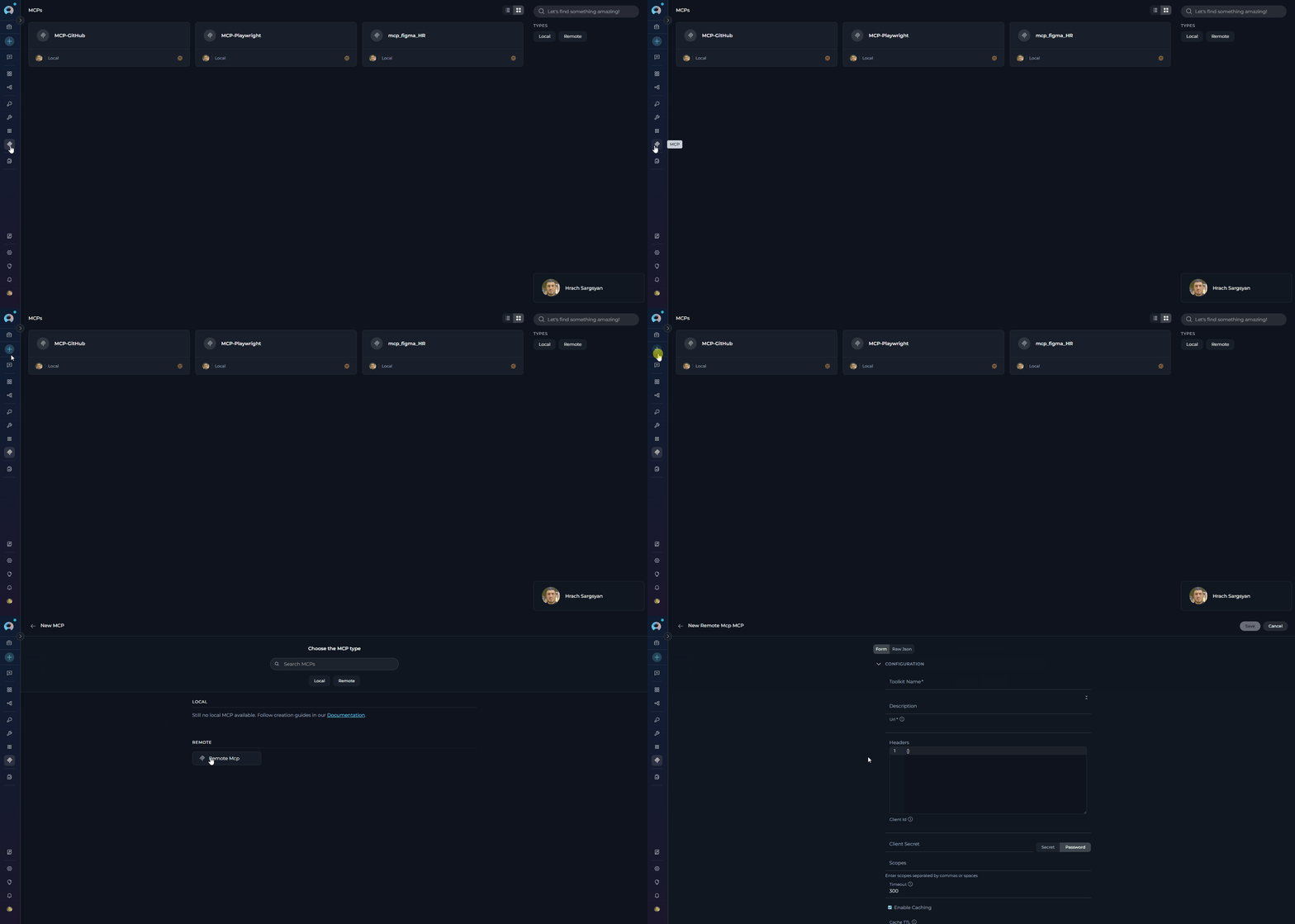
**Step 1**. Create Remote MCP
1. Navigate to **MCPs** in the left sidebar
2. Click **+ Create** button
3. Select **Remote MCP** type from the form
 **Step 2**. Configure Connection Settings
**Name & Description**:
* **Name**: Give your MCP a descriptive name (e.g., "GitHub MCP", "Atlassian Integration")
* **Description**: Optional - describe what this MCP provides
**URL Configuration**:
* **URL** (required): Enter the full HTTP/HTTPS endpoint
* Example: `https://api.githubcopilot.com/mcp/`
* Example: `https://mcp.atlassian.com/v1/sse`
**Headers Configuration**:
* **Headers** (optional): JSON object with authentication headers
* For Bearer token:
```json theme={null}
{
"Authorization": "Bearer ghp_yourGitHubTokenHere"
}
```
* For custom headers:
```json theme={null}
{
"X-API-Key": "your-key",
"X-Custom-Header": "value"
}
```
**Advanced Settings** (optional):
* **Timeout** (optional): Request timeout in seconds (default: 60, range: 1-3600)
* **Enable Caching**: Cache tool schemas for better performance (default: enabled)
* **Cache TTL**: Cache time-to-live in seconds (default: 300, range: 60-3600)
**Step 3**. Discover Tools
1. After entering URL (and headers if needed), click **Get / Sync tools**
2. ELITEA will connect to the remote MCP server
3. If OAuth is required:
* Authorization modal appears
* Click **Authorize**
* Complete OAuth flow in new browser tab
* Return to ELITEA - tools will load automatically
4. Available tools appear in the tools list
**Step 4**. Select Tools (Optional)
* By default, all tools are enabled
* Uncheck specific tools to exclude them
* Use **Selected Tools** field to filter tools by name
**Step 5**. Save Configuration
1. Review your configuration
2. Click **Save**
3. MCP is now available for use in agents, pipelines, and chats
**Step 2**. Configure Connection Settings
**Name & Description**:
* **Name**: Give your MCP a descriptive name (e.g., "GitHub MCP", "Atlassian Integration")
* **Description**: Optional - describe what this MCP provides
**URL Configuration**:
* **URL** (required): Enter the full HTTP/HTTPS endpoint
* Example: `https://api.githubcopilot.com/mcp/`
* Example: `https://mcp.atlassian.com/v1/sse`
**Headers Configuration**:
* **Headers** (optional): JSON object with authentication headers
* For Bearer token:
```json theme={null}
{
"Authorization": "Bearer ghp_yourGitHubTokenHere"
}
```
* For custom headers:
```json theme={null}
{
"X-API-Key": "your-key",
"X-Custom-Header": "value"
}
```
**Advanced Settings** (optional):
* **Timeout** (optional): Request timeout in seconds (default: 60, range: 1-3600)
* **Enable Caching**: Cache tool schemas for better performance (default: enabled)
* **Cache TTL**: Cache time-to-live in seconds (default: 300, range: 60-3600)
**Step 3**. Discover Tools
1. After entering URL (and headers if needed), click **Get / Sync tools**
2. ELITEA will connect to the remote MCP server
3. If OAuth is required:
* Authorization modal appears
* Click **Authorize**
* Complete OAuth flow in new browser tab
* Return to ELITEA - tools will load automatically
4. Available tools appear in the tools list
**Step 4**. Select Tools (Optional)
* By default, all tools are enabled
* Uncheck specific tools to exclude them
* Use **Selected Tools** field to filter tools by name
**Step 5**. Save Configuration
1. Review your configuration
2. Click **Save**
3. MCP is now available for use in agents, pipelines, and chats
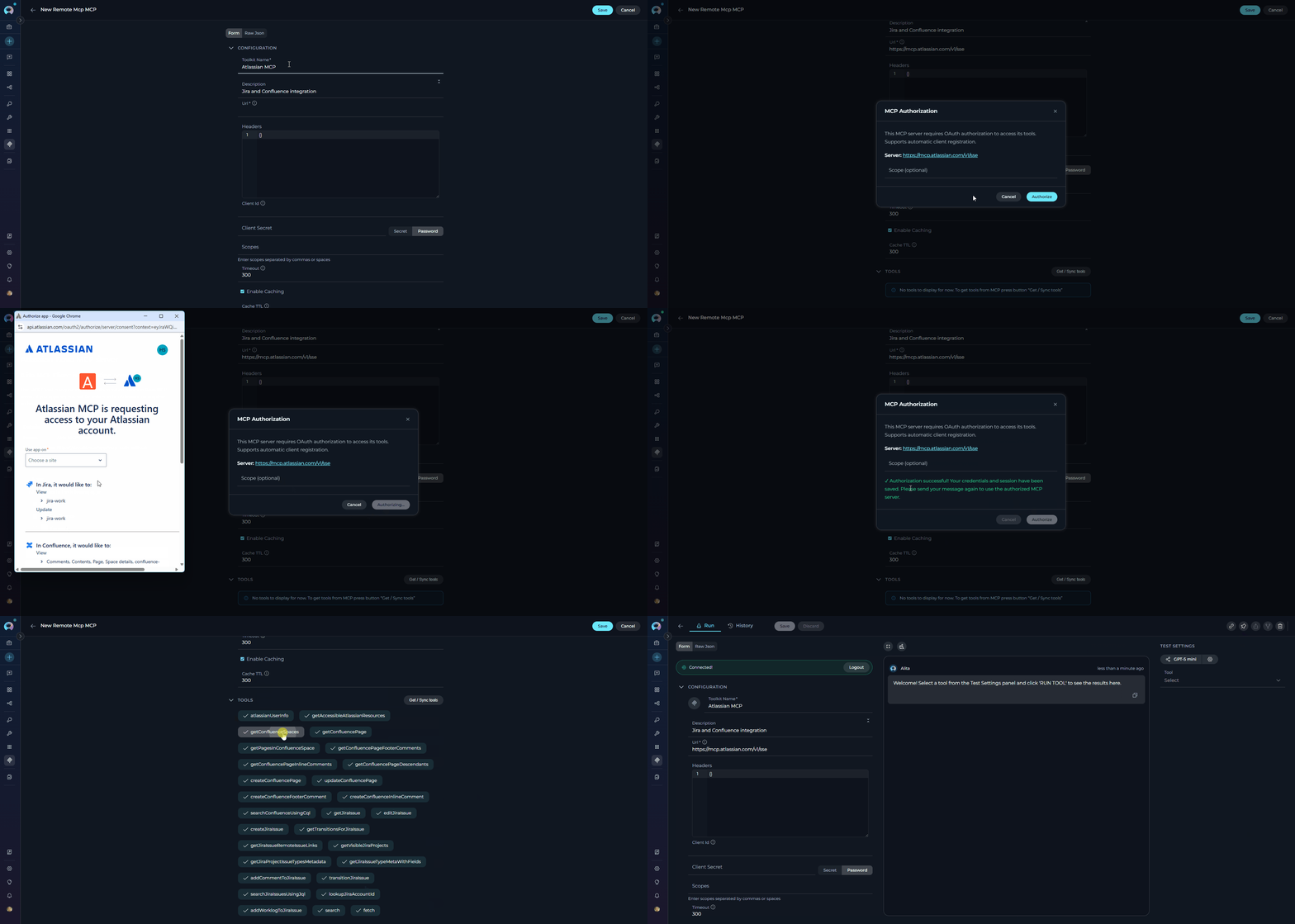 ### Configuration Fields Reference
| Field | Type | Required | Description | Example |
| ------------------ | ----------- | -------- | ---------------------------------- | ----------------------------------------------------------------------- |
| **Name** | String | Yes | Descriptive name for this MCP | "Atlassian MCP" |
| **Description** | String | No | What this MCP provides | "Jira and Confluence integration" |
| **URL** | String | Yes | HTTP/HTTPS endpoint for MCP server | `https://mcp.atlassian.com/v1/sse` |
| **Headers** | JSON Object | No | HTTP headers (auth, custom) | `{"Authorization": "Bearer token", "X-Atlassian-Cloud-Id": "cloud-id"}` |
| **Client ID** | String | No | OAuth 2.0 client identifier | `atlassian-client-id` |
| **Client Secret** | String | No | OAuth 2.0 client secret | `atlassian-client-secret` |
| **Scopes** | Array | No | OAuth 2.0 permission scopes | `["read:jira-work", "write:jira-work"]` |
| **Enable Caching** | Boolean | No | Cache tool schemas | `true` |
| **Cache TTL** | Integer | No | Cache duration (60-3600 seconds) | `300` |
***
## Example 1: GitHub Remote MCP Integration
**Use Case**
Automate GitHub workflows including:
* Repository analysis and code review
* Issue and pull request management
* Automated PR creation and updates
* Code search across repositories
* Branch and commit operations
### Prerequisites
* **GitHub Account** with appropriate permissions
* **Authentication credentials** (choose one):
* **Personal Access Token** for Bearer token authentication, OR
* **GitHub Copilot MCP OAuth credentials** (Client ID and Client Secret) for OAuth flow
* **Repository access** for the tools you want to use
#### Obtaining GitHub Credentials
**Option 1: Personal Access Token (Simpler Setup)**
1. Go to GitHub Settings → Developer settings → [Personal access tokens](https://github.com/settings/tokens)
2. Click **Generate new token** → **Generate new token (classic)**
3. Configure token:
* **Note**: "ELITEA MCP Access"
* **Expiration**: Choose appropriate duration
* **Select scopes**:
* ✔️ `repo` (Full control of private repositories)
* ✔️ `read:org` (Read org and team membership)
* ✔️ `workflow` (Update GitHub Actions workflows)
* ✔️ `read:user` (Read user profile data)
4. Click **Generate token**
5. **Copy the token immediately** - you won't see it again!
**Option 2: GitHub Copilot MCP OAuth (Enterprise/Team Use)**
1. Contact GitHub or your organization's GitHub administrator to obtain:
* **Client ID**: OAuth application client identifier
* **Client Secret**: OAuth application secret
2. Ensure the OAuth app has appropriate scopes (same as above)
3. Confirm the OAuth app's **Authorization callback URL** is set to ELITEA's redirect URI:
```
https:///mcp-auth-callback
```
For example, on the ELITEA cloud instance: `https://next.elitea.ai/mcp-auth-callback`
This value must be registered in the GitHub OAuth App settings under **Authorization callback URL**. If it doesn't match, GitHub will reject the OAuth flow with a redirect URI mismatch error.
If you provide a valid Bearer token in Headers, the system will connect automatically using token authentication. If Headers are empty or invalid, the system will fall back to OAuth flow using Client ID and Client Secret.### Step-by-Step Setup
#### Configure GitHub MCP
**1. Basic Settings**
* **Name**: `GitHub MCP`
* **Description**: `GitHub repository management and automation tools`
**2. Connection Configuration**
* **URL**: `https://api.githubcopilot.com/mcp/`
**3. Advanced Settings**
* **Timeout**: `90` seconds (GitHub operations can be slower)
* **Enable Caching**: ✔️ Enabled
* **Cache TTL**: `600` seconds (10 minutes)
**4. Authentication** (choose one method)
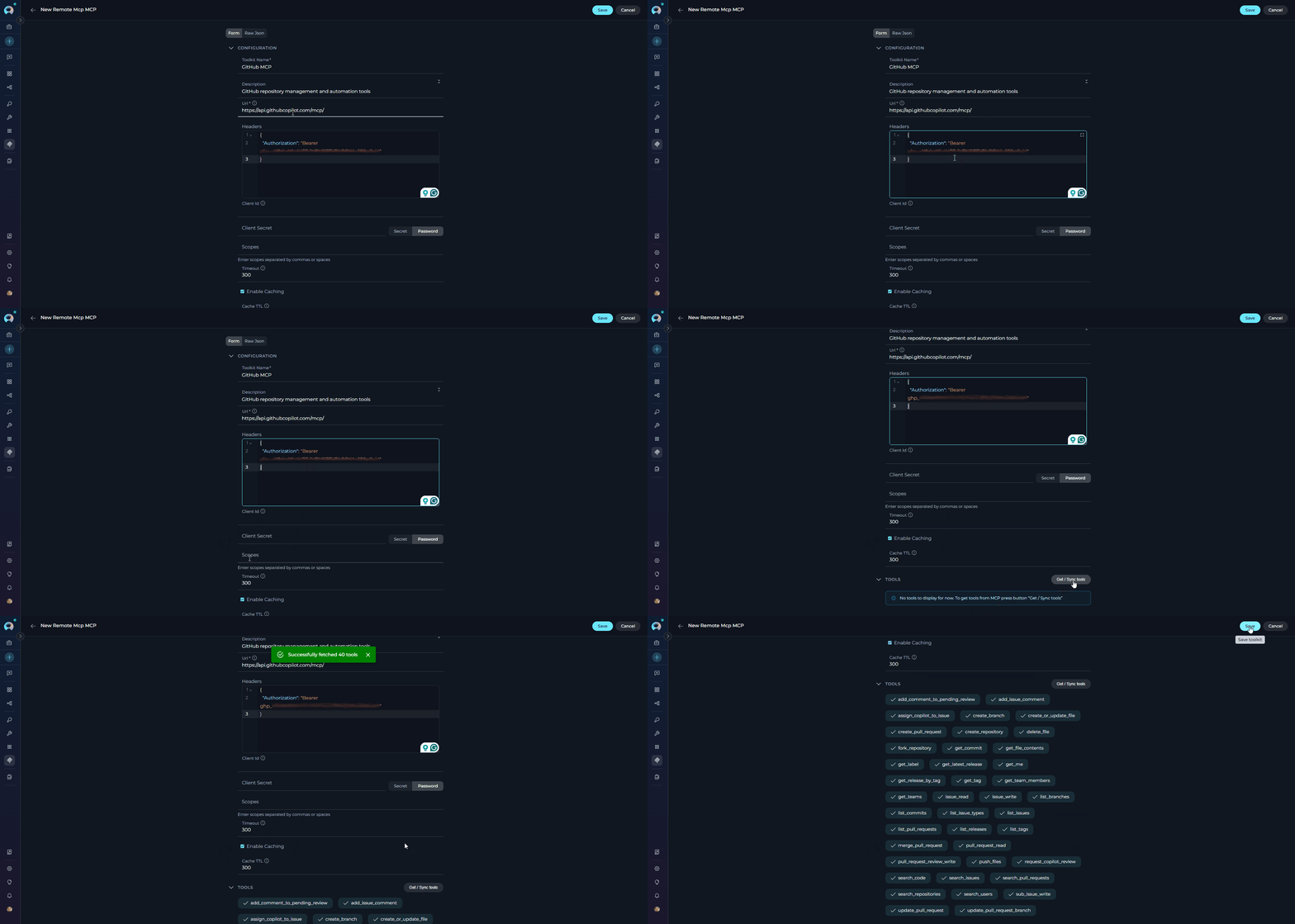
##### Method 1: Bearer Token (recommended for individual use)
**Configuration**:
* **Headers**:
```json theme={null}
{
"Authorization": "Bearer ghp_your_github_token_here"
}
```
* **Client ID**: Leave empty
* **Client Secret**: Leave empty
* **Scopes**: Leave empty
**Test Connection and Discover Tools**:
1. Click **Get / Sync tools** button
2. ELITEA connects directly to GitHub MCP server
3. Tools load immediately if token is valid
4. No additional authorization required
### Configuration Fields Reference
| Field | Type | Required | Description | Example |
| ------------------ | ----------- | -------- | ---------------------------------- | ----------------------------------------------------------------------- |
| **Name** | String | Yes | Descriptive name for this MCP | "Atlassian MCP" |
| **Description** | String | No | What this MCP provides | "Jira and Confluence integration" |
| **URL** | String | Yes | HTTP/HTTPS endpoint for MCP server | `https://mcp.atlassian.com/v1/sse` |
| **Headers** | JSON Object | No | HTTP headers (auth, custom) | `{"Authorization": "Bearer token", "X-Atlassian-Cloud-Id": "cloud-id"}` |
| **Client ID** | String | No | OAuth 2.0 client identifier | `atlassian-client-id` |
| **Client Secret** | String | No | OAuth 2.0 client secret | `atlassian-client-secret` |
| **Scopes** | Array | No | OAuth 2.0 permission scopes | `["read:jira-work", "write:jira-work"]` |
| **Enable Caching** | Boolean | No | Cache tool schemas | `true` |
| **Cache TTL** | Integer | No | Cache duration (60-3600 seconds) | `300` |
***
## Example 1: GitHub Remote MCP Integration
**Use Case**
Automate GitHub workflows including:
* Repository analysis and code review
* Issue and pull request management
* Automated PR creation and updates
* Code search across repositories
* Branch and commit operations
### Prerequisites
* **GitHub Account** with appropriate permissions
* **Authentication credentials** (choose one):
* **Personal Access Token** for Bearer token authentication, OR
* **GitHub Copilot MCP OAuth credentials** (Client ID and Client Secret) for OAuth flow
* **Repository access** for the tools you want to use
#### Obtaining GitHub Credentials
**Option 1: Personal Access Token (Simpler Setup)**
1. Go to GitHub Settings → Developer settings → [Personal access tokens](https://github.com/settings/tokens)
2. Click **Generate new token** → **Generate new token (classic)**
3. Configure token:
* **Note**: "ELITEA MCP Access"
* **Expiration**: Choose appropriate duration
* **Select scopes**:
* ✔️ `repo` (Full control of private repositories)
* ✔️ `read:org` (Read org and team membership)
* ✔️ `workflow` (Update GitHub Actions workflows)
* ✔️ `read:user` (Read user profile data)
4. Click **Generate token**
5. **Copy the token immediately** - you won't see it again!
**Option 2: GitHub Copilot MCP OAuth (Enterprise/Team Use)**
1. Contact GitHub or your organization's GitHub administrator to obtain:
* **Client ID**: OAuth application client identifier
* **Client Secret**: OAuth application secret
2. Ensure the OAuth app has appropriate scopes (same as above)
3. Confirm the OAuth app's **Authorization callback URL** is set to ELITEA's redirect URI:
```
https:///mcp-auth-callback
```
For example, on the ELITEA cloud instance: `https://next.elitea.ai/mcp-auth-callback`
This value must be registered in the GitHub OAuth App settings under **Authorization callback URL**. If it doesn't match, GitHub will reject the OAuth flow with a redirect URI mismatch error.
If you provide a valid Bearer token in Headers, the system will connect automatically using token authentication. If Headers are empty or invalid, the system will fall back to OAuth flow using Client ID and Client Secret.### Step-by-Step Setup
#### Configure GitHub MCP
**1. Basic Settings**
* **Name**: `GitHub MCP`
* **Description**: `GitHub repository management and automation tools`
**2. Connection Configuration**
* **URL**: `https://api.githubcopilot.com/mcp/`
**3. Advanced Settings**
* **Timeout**: `90` seconds (GitHub operations can be slower)
* **Enable Caching**: ✔️ Enabled
* **Cache TTL**: `600` seconds (10 minutes)
**4. Authentication** (choose one method)
##### Method 1: Bearer Token (recommended for individual use)
**Configuration**:
* **Headers**:
```json theme={null}
{
"Authorization": "Bearer ghp_your_github_token_here"
}
```
* **Client ID**: Leave empty
* **Client Secret**: Leave empty
* **Scopes**: Leave empty
**Test Connection and Discover Tools**:
1. Click **Get / Sync tools** button
2. ELITEA connects directly to GitHub MCP server
3. Tools load immediately if token is valid
4. No additional authorization required
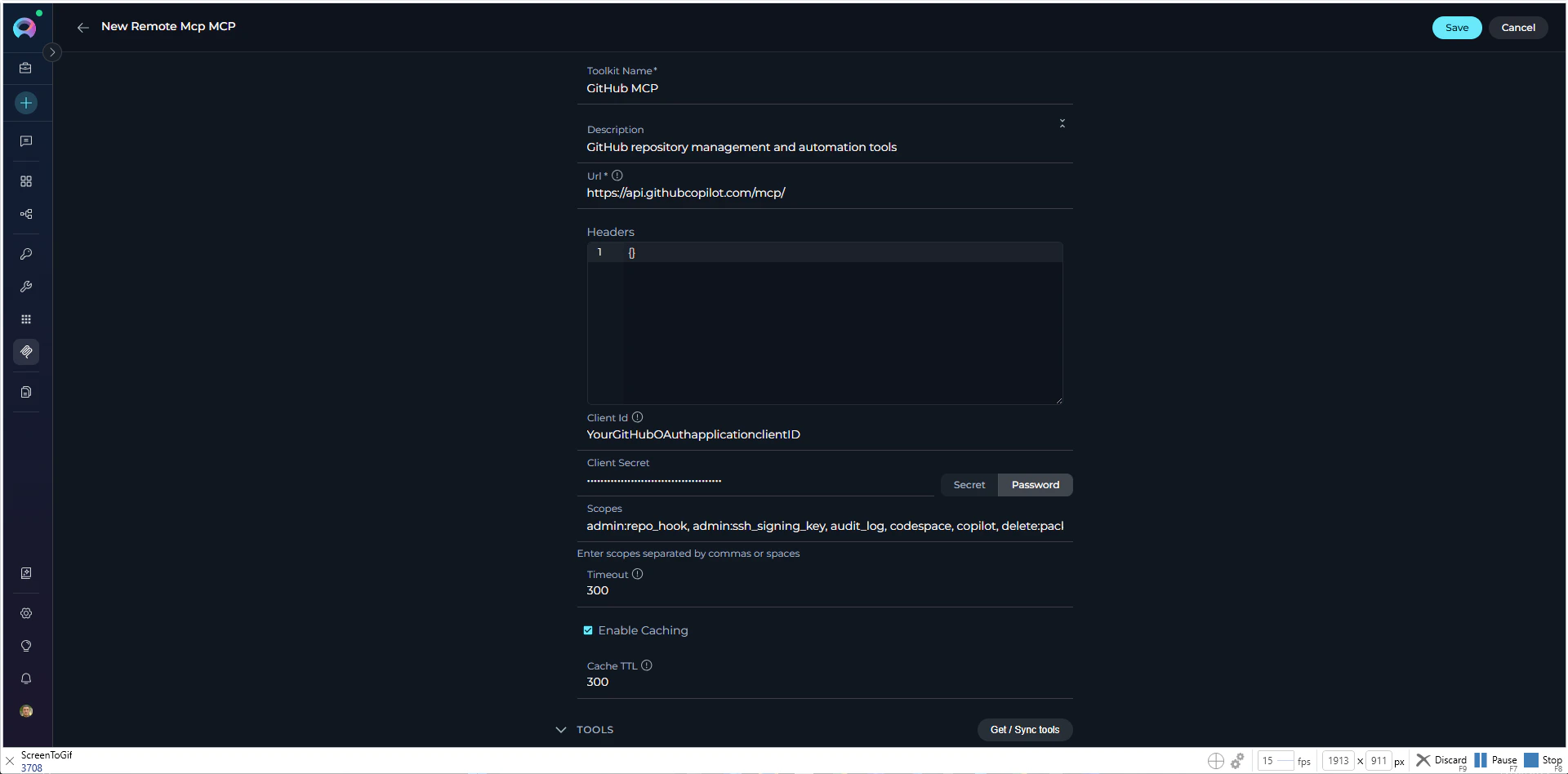
 ##### Method 2: OAuth (recommended for team/enterprise)
**Configuration**:
* **Headers**: `{}` (leave empty)
* **Client ID**: Your GitHub OAuth application client ID
* **Client Secret**: Your GitHub OAuth application client secret
* **Scopes**: Define required OAuth scopes based on your needs:
**e.g.,**
```
admin:repo_hook, admin:ssh_signing_key, audit_log, codespace, copilot, delete:packages, delete_repo, gist, notifications, project, repo, user, workflow, write:discussion, write:network_configurations, write:packages
```
##### Method 2: OAuth (recommended for team/enterprise)
**Configuration**:
* **Headers**: `{}` (leave empty)
* **Client ID**: Your GitHub OAuth application client ID
* **Client Secret**: Your GitHub OAuth application client secret
* **Scopes**: Define required OAuth scopes based on your needs:
**e.g.,**
```
admin:repo_hook, admin:ssh_signing_key, audit_log, codespace, copilot, delete:packages, delete_repo, gist, notifications, project, repo, user, workflow, write:discussion, write:network_configurations, write:packages
```
 Only include scopes your application needs. For basic GitHub MCP operations, `repo`, `workflow`, and `user` are typically sufficient.
**Test Connection and Discover Tools**:
1. Click **Get / Sync tools** button
2. Authorization modal appears automatically where you can provide or modify:
* **Client ID**: OAuth application client identifier
* **Client Secret**: OAuth application secret
* **Scopes**: Required OAuth permission scopes
3. Click **Authorize** to proceed
4. GitHub OAuth page opens in new browser tab
5. Review and approve requested permissions
6. GitHub redirects back to ELITEA
7. Tools load automatically after successful authorization
**5. Review Available GitHub Tools**
Common GitHub MCP tools include:
| Tool Name | Description | Use Case |
| --------------------- | ------------------------------- | ----------------------------- |
| `create_issue` | Create a GitHub issue | Bug reports, feature requests |
| `create_pull_request` | Create a new pull request | Submit code changes |
| `list_repositories` | List accessible repositories | Repository discovery |
| `get_repository` | Get repository details | Repository information |
| `list_pull_requests` | List PRs in a repository | PR review workflows |
| `get_pull_request` | Get PR details | Review specific PR |
| `create_comment` | Add comment to issue/PR | Automated responses |
| `search_code` | Search code across repositories | Code analysis |
| `get_file_contents` | Read file from repository | Code review, analysis |
| `list_commits` | List commits in repository | History tracking |
**6. Save Configuration**
Click **Save** to create the GitHub MCP.
***
## Example 2: Atlassian Remote MCP Integration
**Use Case**
Automate Atlassian workflows including:
* Jira issue tracking and project management
* Sprint planning and board management
* Confluence documentation generation
* Cross-platform reporting (Jira + Confluence)
* Automated ticket creation from incidents
### Prerequisites
* ✔️ **Atlassian Account** with access to Jira and/or Confluence
* ✔️ **Atlassian Cloud site** with Jira, Confluence, and/or Compass
* ✔️ **Site access** to your Atlassian cloud instance
* ✔️ **Product access**: Users need access to Atlassian products they want to integrate
* ✔️ **First-time setup**: The first user to complete OAuth consent flow must have access to all requested products
* ✔️ **Appropriate permissions** for the operations you want to perform
* ✔️ **Modern browser** for completing OAuth 2.1 authorization flow
You don't need to create OAuth applications or obtain credentials in advance. Simply log in with your Atlassian account credentials when prompted during the OAuth flow.
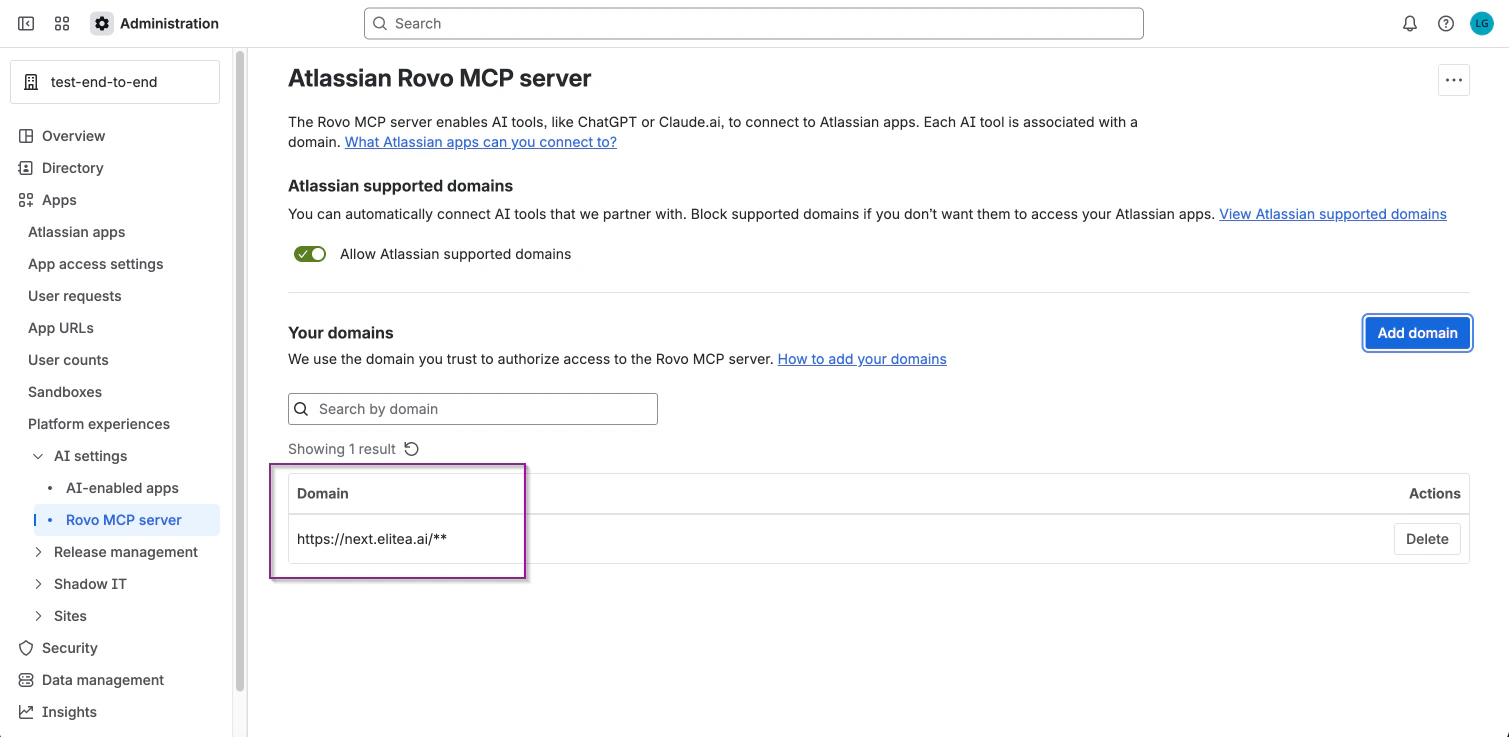
#### Configuring Atlassian Rovo MCP Server Domain Access
Domain configuration is **only required for organization admins** who want to control which AI tools can connect to their Atlassian organization.
**Step 1: Access Rovo MCP Server Settings**
1. Go to [Atlassian Administration](https://admin.atlassian.com/)
2. Select your organization if you have more than one
3. Navigate to **Apps** → **AI settings** → **Rovo MCP server**
**Step 2: Add Custom Domain**
By default, Atlassian-supported domains (ChatGPT, Claude, Google Gemini, etc.) are automatically allowed.
To add your custom domain (e.g., ELITEA):
1. Click **Add domain**
2. Enter your domain with required protocol format: (e.g, `https://next.elitea.ai/**`)
3. Click **Add** to save
**Step 3: (Optional) Block Atlassian-Supported Domains**
If your security policy requires restricting to only custom domains:
1. Deselect **Allow Atlassian supported domains**
2. Only your manually added domains will be allowed
Only include scopes your application needs. For basic GitHub MCP operations, `repo`, `workflow`, and `user` are typically sufficient.
**Test Connection and Discover Tools**:
1. Click **Get / Sync tools** button
2. Authorization modal appears automatically where you can provide or modify:
* **Client ID**: OAuth application client identifier
* **Client Secret**: OAuth application secret
* **Scopes**: Required OAuth permission scopes
3. Click **Authorize** to proceed
4. GitHub OAuth page opens in new browser tab
5. Review and approve requested permissions
6. GitHub redirects back to ELITEA
7. Tools load automatically after successful authorization
**5. Review Available GitHub Tools**
Common GitHub MCP tools include:
| Tool Name | Description | Use Case |
| --------------------- | ------------------------------- | ----------------------------- |
| `create_issue` | Create a GitHub issue | Bug reports, feature requests |
| `create_pull_request` | Create a new pull request | Submit code changes |
| `list_repositories` | List accessible repositories | Repository discovery |
| `get_repository` | Get repository details | Repository information |
| `list_pull_requests` | List PRs in a repository | PR review workflows |
| `get_pull_request` | Get PR details | Review specific PR |
| `create_comment` | Add comment to issue/PR | Automated responses |
| `search_code` | Search code across repositories | Code analysis |
| `get_file_contents` | Read file from repository | Code review, analysis |
| `list_commits` | List commits in repository | History tracking |
**6. Save Configuration**
Click **Save** to create the GitHub MCP.
***
## Example 2: Atlassian Remote MCP Integration
**Use Case**
Automate Atlassian workflows including:
* Jira issue tracking and project management
* Sprint planning and board management
* Confluence documentation generation
* Cross-platform reporting (Jira + Confluence)
* Automated ticket creation from incidents
### Prerequisites
* ✔️ **Atlassian Account** with access to Jira and/or Confluence
* ✔️ **Atlassian Cloud site** with Jira, Confluence, and/or Compass
* ✔️ **Site access** to your Atlassian cloud instance
* ✔️ **Product access**: Users need access to Atlassian products they want to integrate
* ✔️ **First-time setup**: The first user to complete OAuth consent flow must have access to all requested products
* ✔️ **Appropriate permissions** for the operations you want to perform
* ✔️ **Modern browser** for completing OAuth 2.1 authorization flow
You don't need to create OAuth applications or obtain credentials in advance. Simply log in with your Atlassian account credentials when prompted during the OAuth flow.
#### Configuring Atlassian Rovo MCP Server Domain Access
Domain configuration is **only required for organization admins** who want to control which AI tools can connect to their Atlassian organization.
**Step 1: Access Rovo MCP Server Settings**
1. Go to [Atlassian Administration](https://admin.atlassian.com/)
2. Select your organization if you have more than one
3. Navigate to **Apps** → **AI settings** → **Rovo MCP server**
**Step 2: Add Custom Domain**
By default, Atlassian-supported domains (ChatGPT, Claude, Google Gemini, etc.) are automatically allowed.
To add your custom domain (e.g., ELITEA):
1. Click **Add domain**
2. Enter your domain with required protocol format: (e.g, `https://next.elitea.ai/**`)
3. Click **Add** to save
**Step 3: (Optional) Block Atlassian-Supported Domains**
If your security policy requires restricting to only custom domains:
1. Deselect **Allow Atlassian supported domains**
2. Only your manually added domains will be allowed
 * **Role required**: Organization admin
* **Available for**: Atlassian Cloud (Free, Standard, Premium, Enterprise)
### Step-by-Step Setup
**Configure Atlassian MCP**
**1. Basic Settings**
* **Name**: `Atlassian MCP`
* **Description**: `Jira and Confluence integration for project management and documentation`
**2. Connection Configuration**
* **URL**: `https://mcp.atlassian.com/v1/mcp`
!!! info "Atlassian Rovo MCP Endpoint"
The official Atlassian Rovo MCP endpoint is `https://mcp.atlassian.com/v1/mcp` (recommended). The legacy `/sse` endpoint is still supported but Atlassian recommends updating to `/mcp` for new configurations.
**3. Advanced Settings**
* **Timeout**: `120` seconds (Atlassian operations can be slow)
* **Enable Caching**: ✔️ Enabled
* **Cache TTL**: `300` seconds (5 minutes)
**4. Authentication**
**Configuration**:
* **Headers**: `{}` (leave empty)
* **Client ID**: (leave empty)
* **Client Secret**: (leave empty)
* **Scopes**: (leave empty)
**Test Connection and Discover Tools**:
1. Click **Get / Sync tools** button
2. Authorization modal appears automatically
3. Click **Authorize** to proceed
4. Atlassian OAuth page opens in new browser tab
5. Select your site and approve requested permissions
6. Atlassian redirects back to ELITEA
7. Tools load automatically after successful authorization
**5. Review Available Atlassian Tools**
Common Atlassian MCP tools include:
**Jira Tools**:
| Tool Name | Description | Use Case |
| ----------------------- | ------------------------- | --------------------------- |
| `jira_create_issue` | Create new Jira issue | Bug reports, tasks, stories |
| `jira_get_issue` | Get issue details | Issue analysis |
| `jira_update_issue` | Update existing issue | Status changes, assignments |
| `jira_search_issues` | Search with JQL | Finding related issues |
| `jira_get_board` | Get board information | Sprint planning |
| `jira_get_sprint` | Get sprint details | Sprint management |
| `jira_list_projects` | List accessible projects | Project discovery |
| `jira_add_comment` | Add comment to issue | Collaboration |
| `jira_get_transitions` | Get available transitions | Workflow automation |
| `jira_transition_issue` | Change issue status | Workflow progression |
**Confluence Tools**:
| Tool Name | Description | Use Case |
| ------------------------------ | ---------------------- | ------------------------ |
| `confluence_create_page` | Create new page | Documentation generation |
| `confluence_get_page` | Retrieve page content | Reading documentation |
| `confluence_update_page` | Update existing page | Documentation updates |
| `confluence_search_content` | Search Confluence | Finding documentation |
| `confluence_list_spaces` | List Confluence spaces | Space discovery |
| `confluence_get_space` | Get space details | Space information |
| `confluence_create_attachment` | Upload file | Document attachments |
**6. Save Configuration**
Click **Save** to create the Atlassian MCP.
***
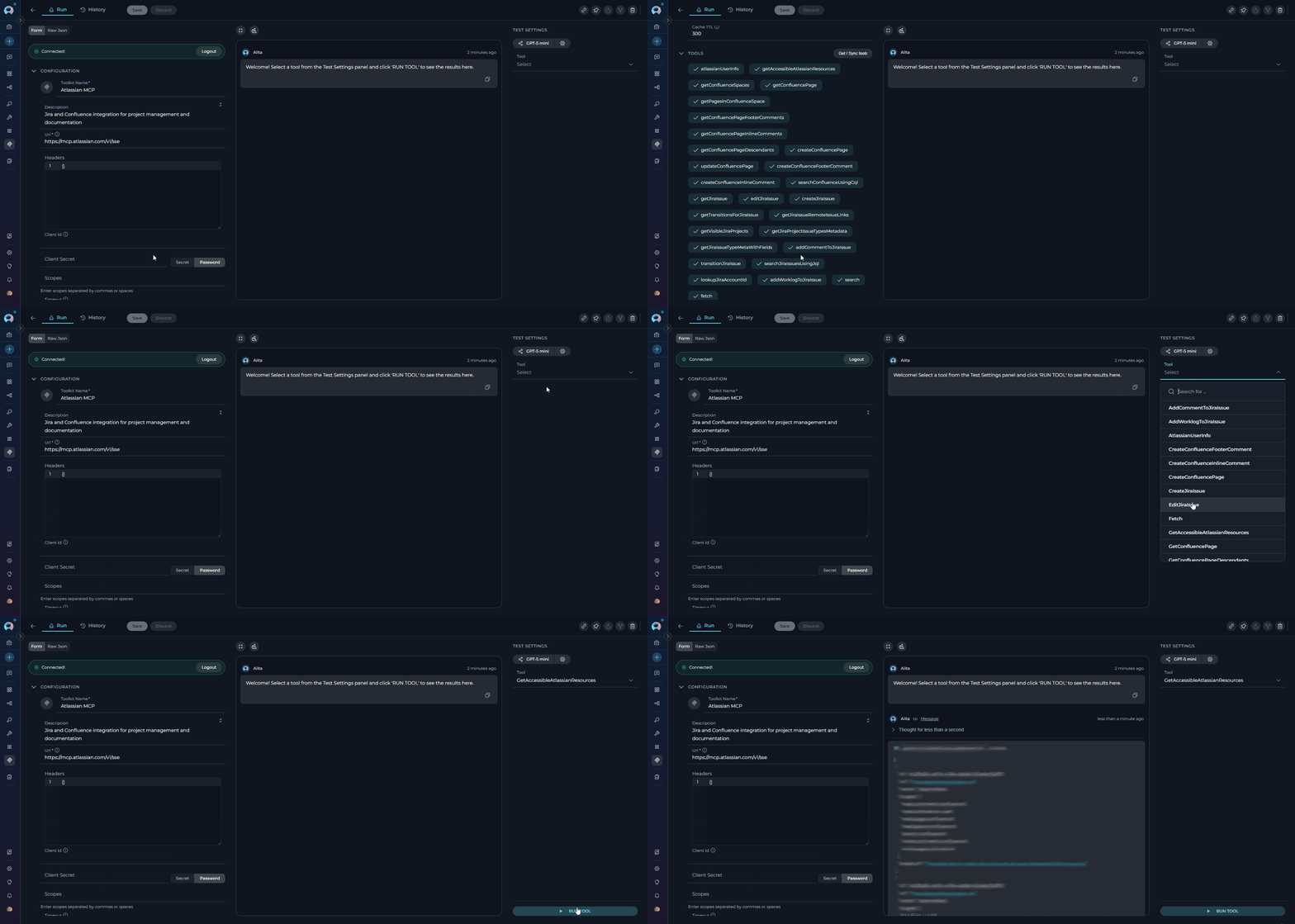
## Testing MCP Tools
After configuring and saving your Remote MCP, you can test individual tools directly in ELITEA to verify they work correctly.
**How to Test MCP Tools**
1. Navigate to **MCPs** → Click on your configured MCP
2. Locate the **TEST SETTINGS** panel displaying all available tools
3. Select a tool from the list to open its parameter form
4. Fill in required parameters (e.g., for `github_create_issue`: repository, title, body)
5. Click **Run** to execute the tool with your configured authentication
6. Review results in the output panel and verify in the target system
* **Role required**: Organization admin
* **Available for**: Atlassian Cloud (Free, Standard, Premium, Enterprise)
### Step-by-Step Setup
**Configure Atlassian MCP**
**1. Basic Settings**
* **Name**: `Atlassian MCP`
* **Description**: `Jira and Confluence integration for project management and documentation`
**2. Connection Configuration**
* **URL**: `https://mcp.atlassian.com/v1/mcp`
!!! info "Atlassian Rovo MCP Endpoint"
The official Atlassian Rovo MCP endpoint is `https://mcp.atlassian.com/v1/mcp` (recommended). The legacy `/sse` endpoint is still supported but Atlassian recommends updating to `/mcp` for new configurations.
**3. Advanced Settings**
* **Timeout**: `120` seconds (Atlassian operations can be slow)
* **Enable Caching**: ✔️ Enabled
* **Cache TTL**: `300` seconds (5 minutes)
**4. Authentication**
**Configuration**:
* **Headers**: `{}` (leave empty)
* **Client ID**: (leave empty)
* **Client Secret**: (leave empty)
* **Scopes**: (leave empty)
**Test Connection and Discover Tools**:
1. Click **Get / Sync tools** button
2. Authorization modal appears automatically
3. Click **Authorize** to proceed
4. Atlassian OAuth page opens in new browser tab
5. Select your site and approve requested permissions
6. Atlassian redirects back to ELITEA
7. Tools load automatically after successful authorization
**5. Review Available Atlassian Tools**
Common Atlassian MCP tools include:
**Jira Tools**:
| Tool Name | Description | Use Case |
| ----------------------- | ------------------------- | --------------------------- |
| `jira_create_issue` | Create new Jira issue | Bug reports, tasks, stories |
| `jira_get_issue` | Get issue details | Issue analysis |
| `jira_update_issue` | Update existing issue | Status changes, assignments |
| `jira_search_issues` | Search with JQL | Finding related issues |
| `jira_get_board` | Get board information | Sprint planning |
| `jira_get_sprint` | Get sprint details | Sprint management |
| `jira_list_projects` | List accessible projects | Project discovery |
| `jira_add_comment` | Add comment to issue | Collaboration |
| `jira_get_transitions` | Get available transitions | Workflow automation |
| `jira_transition_issue` | Change issue status | Workflow progression |
**Confluence Tools**:
| Tool Name | Description | Use Case |
| ------------------------------ | ---------------------- | ------------------------ |
| `confluence_create_page` | Create new page | Documentation generation |
| `confluence_get_page` | Retrieve page content | Reading documentation |
| `confluence_update_page` | Update existing page | Documentation updates |
| `confluence_search_content` | Search Confluence | Finding documentation |
| `confluence_list_spaces` | List Confluence spaces | Space discovery |
| `confluence_get_space` | Get space details | Space information |
| `confluence_create_attachment` | Upload file | Document attachments |
**6. Save Configuration**
Click **Save** to create the Atlassian MCP.
***
## Testing MCP Tools
After configuring and saving your Remote MCP, you can test individual tools directly in ELITEA to verify they work correctly.
**How to Test MCP Tools**
1. Navigate to **MCPs** → Click on your configured MCP
2. Locate the **TEST SETTINGS** panel displaying all available tools
3. Select a tool from the list to open its parameter form
4. Fill in required parameters (e.g., for `github_create_issue`: repository, title, body)
5. Click **Run** to execute the tool with your configured authentication
6. Review results in the output panel and verify in the target system
 * Test with non-production data when possible
* Start with read-only tools (e.g., `list_repositories`, `get_issue`) before testing write operations
* Use the test panel to verify authentication and permissions are working correctly
***
## Use Remote MCP in Agents, Pipelines, and Chat
Once your Remote MCP is created, you can use it in various ELITEA features:
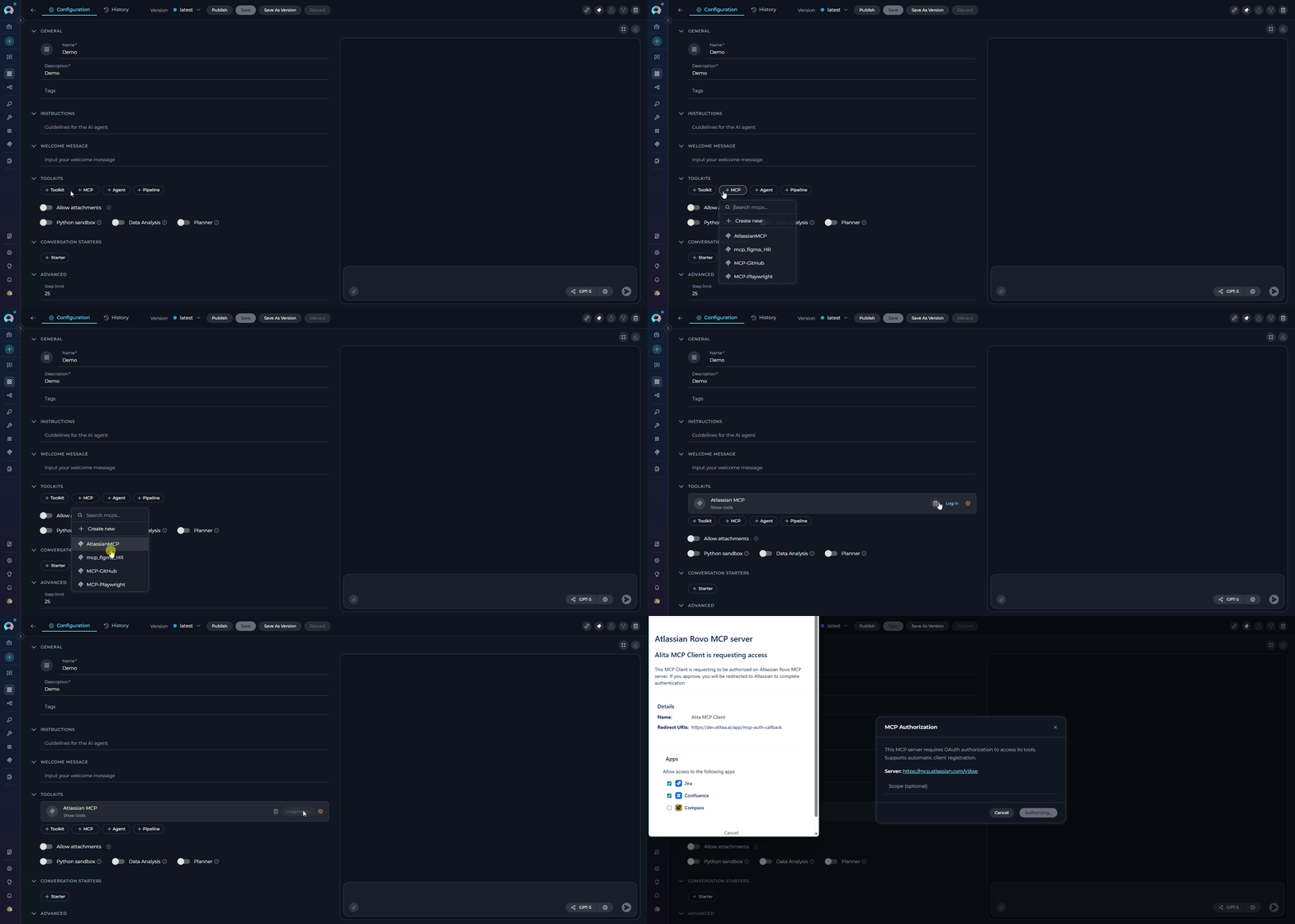
### **In Agents:**
1. **Navigate to Agents:** Open the sidebar and select **[Agents](../../menus/agents)**.
2. **Create or Edit Agent:** Click **`+ Create`** for a new agent or select an existing agent to edit.
3. **Add Remote MCP:**
* In the **"TOOLKITS"** section of the agent configuration, click the **"+MCP"** icon
* Choose your Remote MCP from the list (e.g., "GitHub MCP", "Atlassian MCP")
* The MCP will be added to your agent with all configured tools available
4. **Authorization (if required):**
* If the MCP requires OAuth authentication and you're not already connected, a **Log In** button will appear next to the MCP
* Click **Log In** to open the authorization modal
* Complete the OAuth flow without leaving the agent editor
* Once authorized, the MCP is ready to use
Your agent can now interact with the remote MCP server using the configured tools.
* Test with non-production data when possible
* Start with read-only tools (e.g., `list_repositories`, `get_issue`) before testing write operations
* Use the test panel to verify authentication and permissions are working correctly
***
## Use Remote MCP in Agents, Pipelines, and Chat
Once your Remote MCP is created, you can use it in various ELITEA features:
### **In Agents:**
1. **Navigate to Agents:** Open the sidebar and select **[Agents](../../menus/agents)**.
2. **Create or Edit Agent:** Click **`+ Create`** for a new agent or select an existing agent to edit.
3. **Add Remote MCP:**
* In the **"TOOLKITS"** section of the agent configuration, click the **"+MCP"** icon
* Choose your Remote MCP from the list (e.g., "GitHub MCP", "Atlassian MCP")
* The MCP will be added to your agent with all configured tools available
4. **Authorization (if required):**
* If the MCP requires OAuth authentication and you're not already connected, a **Log In** button will appear next to the MCP
* Click **Log In** to open the authorization modal
* Complete the OAuth flow without leaving the agent editor
* Once authorized, the MCP is ready to use
Your agent can now interact with the remote MCP server using the configured tools.
 ### **In Pipelines:**
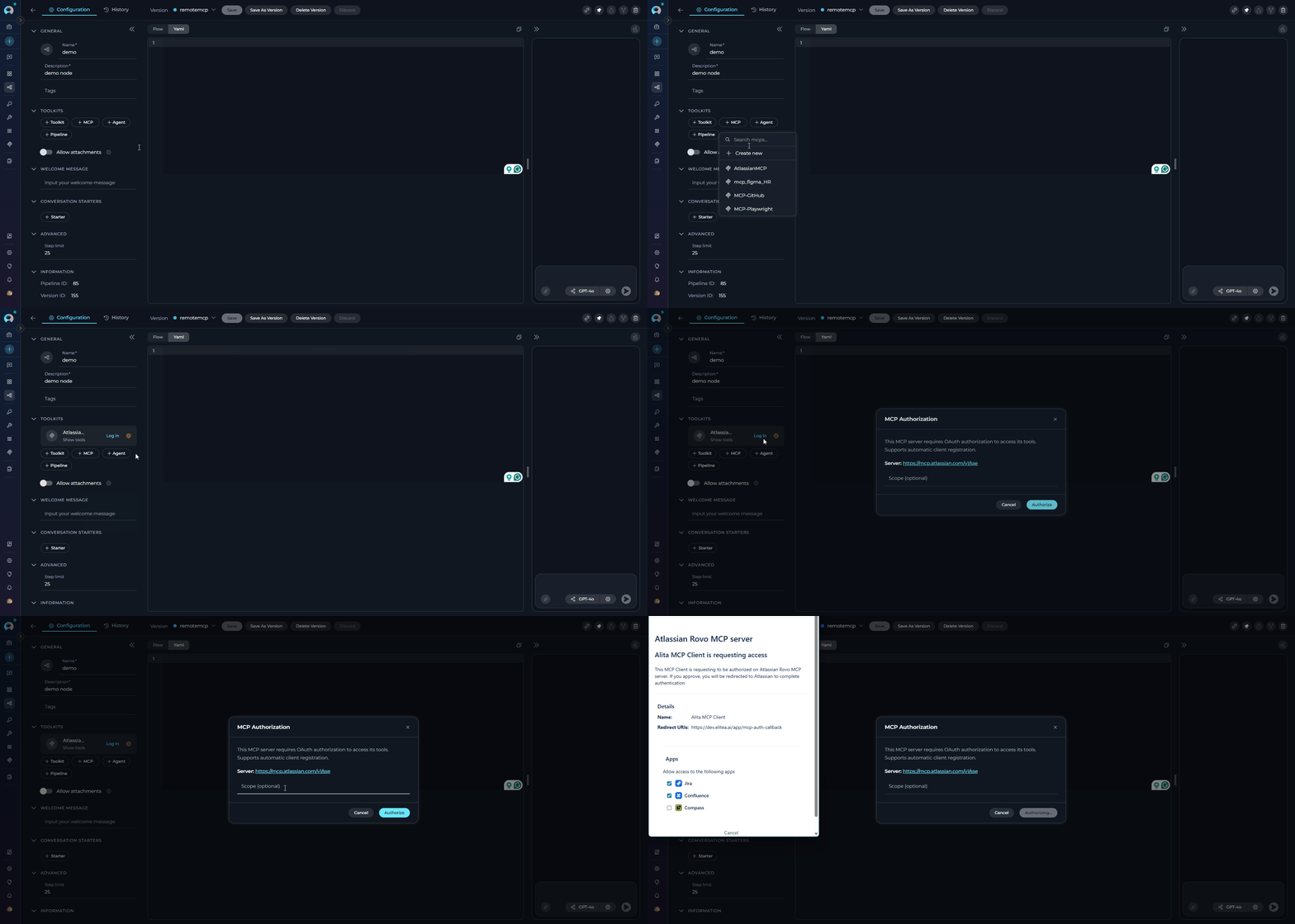
1. **Navigate to Pipelines:** Open the sidebar and select **[Pipelines](../../menus/pipelines)**.
2. **Create or Edit Pipeline:** Either create a new pipeline or select an existing pipeline to edit.
3. **Add Remote MCP:**
* In the **"TOOLKITS"** section of the pipeline configuration, click the **"+MCP"** icon
* Choose your Remote MCP from the list (e.g., "GitHub MCP", "Atlassian MCP")
* The MCP will be added to your pipeline with all configured tools available for use in pipeline nodes
4. **Authorization (if required):**
* If the MCP requires OAuth authentication and you're not already connected, a **Log In** button will appear next to the MCP
* Click **Log In** to open the authorization modal
* Complete the OAuth flow without leaving the pipeline editor
* Once authorized, the MCP is ready to use in pipeline nodes
### **In Pipelines:**
1. **Navigate to Pipelines:** Open the sidebar and select **[Pipelines](../../menus/pipelines)**.
2. **Create or Edit Pipeline:** Either create a new pipeline or select an existing pipeline to edit.
3. **Add Remote MCP:**
* In the **"TOOLKITS"** section of the pipeline configuration, click the **"+MCP"** icon
* Choose your Remote MCP from the list (e.g., "GitHub MCP", "Atlassian MCP")
* The MCP will be added to your pipeline with all configured tools available for use in pipeline nodes
4. **Authorization (if required):**
* If the MCP requires OAuth authentication and you're not already connected, a **Log In** button will appear next to the MCP
* Click **Log In** to open the authorization modal
* Complete the OAuth flow without leaving the pipeline editor
* Once authorized, the MCP is ready to use in pipeline nodes
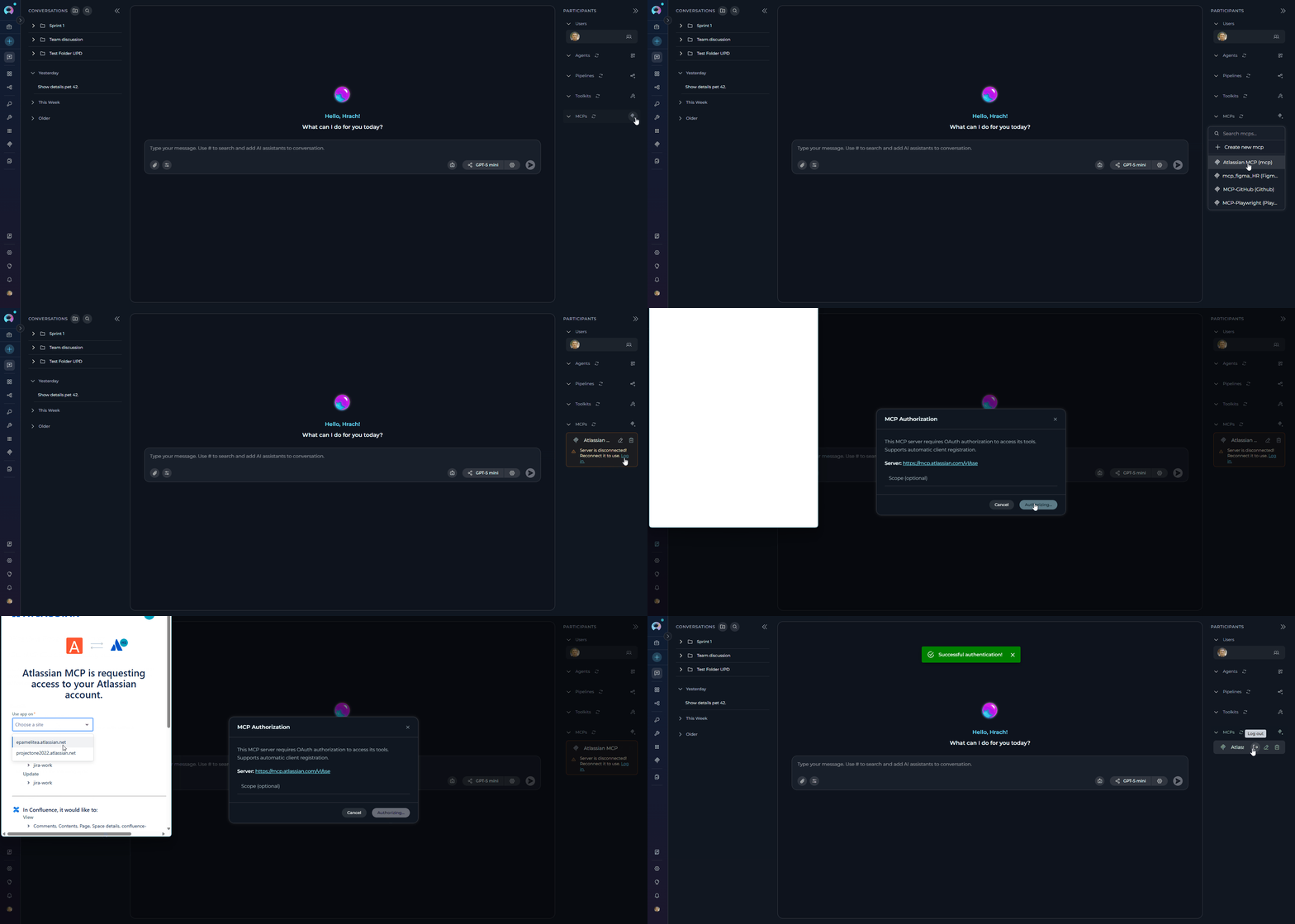
 ### **In Chat:**
1. **Navigate to Chat:** Open the sidebar and select **[Chat](../../menus/chat)**.
2. **Start New Conversation:** Click **+Create** or open an existing conversation.
3. **Add Toolkit to Conversation:**
* In the chat Participants section, look for the **MCP** element
* Click **"+MCP"** to add the MCP
* Choose your Remote MCP from available options (e.g., "GitHub MCP")
* The MCP will be added to your conversation with all tools available
4. **Authorization (if required):**
* If the MCP requires OAuth authentication and you're not already connected, a **Log In** button will appear next to the MCP in the Participants section
* Click **Log In** to open the authorization modal
* Complete the OAuth flow without leaving the chat interface
* Once authorized, the MCP is ready to use in your conversation
5. **Use MCP in Chat:** You can now directly interact with your remote MCP by asking questions or requesting actions that will trigger the MCP tools.
### **In Chat:**
1. **Navigate to Chat:** Open the sidebar and select **[Chat](../../menus/chat)**.
2. **Start New Conversation:** Click **+Create** or open an existing conversation.
3. **Add Toolkit to Conversation:**
* In the chat Participants section, look for the **MCP** element
* Click **"+MCP"** to add the MCP
* Choose your Remote MCP from available options (e.g., "GitHub MCP")
* The MCP will be added to your conversation with all tools available
4. **Authorization (if required):**
* If the MCP requires OAuth authentication and you're not already connected, a **Log In** button will appear next to the MCP in the Participants section
* Click **Log In** to open the authorization modal
* Complete the OAuth flow without leaving the chat interface
* Once authorized, the MCP is ready to use in your conversation
5. **Use MCP in Chat:** You can now directly interact with your remote MCP by asking questions or requesting actions that will trigger the MCP tools.
 ***
## Best Practices
When working with Remote MCP servers, follow these best practices to ensure secure, efficient, and reliable integration:
**Authentication & Credentials:**
* Use OAuth 2.0 when available instead of static API keys
* Store sensitive tokens and credentials securely (never commit to version control)
* Rotate API keys and tokens regularly according to your security policy
* Use the principle of least privilege - request only necessary OAuth scopes
* Monitor token expiration and renewal processes
**Access Control:**
* Limit MCP access to authorized team members only
* Review and audit MCP configurations periodically
* Implement proper logging for security monitoring
**Optimization:**
* Enable caching to reduce redundant API calls
* Set appropriate cache TTL values based on data freshness requirements
* Configure reasonable timeout values (avoid too short or too long timeouts)
* Use tool filtering to expose only necessary operations to agents
**Rate Limiting:**
* Be aware of API rate limits from your MCP provider
* Implement retry logic with exponential backoff for transient failures
* Monitor usage patterns to avoid hitting rate limits
**Error Handling:**
* Test MCP configurations thoroughly before production use
* Use the TEST SETTINGS panel to verify tools work correctly
* Start with read-only operations before enabling write operations
* Monitor MCP connectivity and tool execution success rates
**Documentation:**
* Document OAuth scopes and their purposes for your team
* Maintain clear descriptions for each MCP configuration
* Document agent instructions that reference MCP tools
* Keep track of MCP server endpoints and version changes
**Tool Usage:**
* Provide clear agent instructions that explain available MCP tools
* Include conversation starters to guide users on how to interact with MCP tools
* Implement confirmation steps for destructive operations (delete, update)
* Design agents to handle tool failures gracefully
**Testing:**
* Test agents in non-production environments first
* Verify OAuth flows work correctly for all team members
* Test edge cases and error scenarios
* ✔️ Validate that agent instructions align with available tool capabilities
***
## Troubleshooting
Common issues and solutions when working with Remote MCP servers:
**Problem:** Unable to connect to Remote MCP server
**Possible Causes & Solutions:**
* **Network connectivity issues:**
* Verify you can reach the MCP server URL from your network
* Check firewall rules and proxy settings
* Test with `curl` or browser to confirm endpoint accessibility
* **Invalid URL:**
* Ensure URL starts with `https://` or `http://`
* Verify there are no typos in the endpoint
* Check if the MCP server is running and accessible
* **SSL/TLS certificate issues:**
* Ensure the server has a valid SSL certificate
* Check if your organization uses custom certificates
**Problem:** HTTP 401 (Unauthorized) or 403 (Forbidden) errors
**Possible Causes & Solutions:**
* **Invalid Bearer token:**
* Verify the token is correct and hasn't expired
* Regenerate the token if necessary
* Ensure the token has the required permissions/scopes
* **OAuth authentication issues:**
* Click the **Log In** button to re-authorize
* Check if OAuth app credentials (Client ID, Client Secret) are correct
* Verify callback URL matches ELITEA's OAuth redirect URL
* Ensure requested scopes are approved in the OAuth app settings
* **Expired access token:**
* ELITEA automatically refreshes tokens, but if refresh fails, re-authorize
* Check if refresh token is still valid
* **Incorrect headers:**
* Verify header names and values are correct (case-sensitive)
* Ensure Authorization header format matches API requirements
**Problem:** OAuth authorization fails or gets stuck
**Possible Causes & Solutions:**
* **Popup blocked:**
* Allow popups for ELITEA in your browser settings
* Try authorizing in a different browser
* **Redirect URI mismatch:**
* The redirect URI registered in your OAuth app must exactly match ELITEA's callback URL:
```
https:///mcp-auth-callback
```
Example: `https://next.elitea.ai/mcp-auth-callback`
* Update the **Authorized redirect URIs** (or equivalent field) in your OAuth app settings to this value
* If your ELITEA instance uses a sub-path, include it in the URL (e.g., `https://your-host/app/mcp-auth-callback`)
* Contact your OAuth provider's admin console to update the redirect URI if you do not have access
* **Insufficient scopes:**
* Review the scopes requested vs. scopes configured in OAuth app
* Add missing scopes to the MCP configuration
* Re-authorize after updating scopes
* **Session timeout:**
* Complete the OAuth flow quickly before session expires
* If stuck, close the authorization window and try again
**Problem:** No tools appear after clicking "Get / Sync tools"
**Possible Causes & Solutions:**
* **Authentication required but not provided:**
* Check if authorization modal appeared and complete OAuth flow
* Verify Bearer token is provided in headers if using token auth
* **MCP server response issues:**
* Check server logs if you have access
* Verify the server implements MCP protocol correctly
* Test with a different MCP server to isolate the issue
* **Timeout:**
* Increase timeout value in Advanced Settings
* Check if the MCP server is slow to respond
* **Empty tool list:**
* Verify the MCP server has tools configured
* Check if your account has permissions to access the tools
**Problem:** Tools fail when used in agents, pipelines, or chat
**Possible Causes & Solutions:**
* **Missing required parameters:**
* Review tool documentation to identify required parameters
* Update agent instructions to provide all necessary parameters
* Use TEST SETTINGS panel to identify parameter requirements
* **Invalid parameter values:**
* Check parameter types (string, number, boolean, object)
* Ensure JSON parameters are properly formatted
* Validate parameter values against API requirements
* **Permission errors:**
* Verify OAuth scopes include permissions for the operation
* Check if your account has the necessary permissions in the target system
* Re-authorize with updated scopes if needed
* **Rate limiting:**
* Reduce frequency of API calls
* Implement delays between operations
* Check MCP provider's rate limit documentation
* **Server errors (5xx):**
* Retry the operation after a delay
* Check MCP server status page if available
* Contact MCP provider support if issue persists
**Problem:** `"Your organization admin must authorize access from a domain to this app"` error
**Possible Causes & Solutions:**
* **Domain not allowed by admin:**
* Contact your Atlassian organization admin
* Ask them to add your domain (e.g., `https://next.elitea.ai/**`) in:
* **Atlassian Administration** → **Apps** → **AI settings** → **Rovo MCP server** → **Add domain**
* Admins can check the [domain configuration guide](#configuring-atlassian-rovo-mcp-server-domain-access)
* **Atlassian-supported domains blocked:**
* Check if your admin blocked Atlassian-supported domains
* Admin can verify in **Rovo MCP server settings** if "Allow Atlassian supported domains" is enabled
* If disabled and your domain isn't manually added, connection will fail
**Problem:** Tools show outdated information or changes not reflected
**Possible Causes & Solutions:**
* **Stale cache:**
* Click **Get / Sync tools** to refresh tool schemas
* Reduce Cache TTL value for more frequent updates
* Disable caching temporarily for testing
* **Configuration changes not applied:**
* Save the MCP configuration after making changes
* Refresh the agent/pipeline/chat to pick up new configuration
* Clear browser cache if issues persist
**Problem:** Slow response times or timeouts
**Possible Causes & Solutions:**
* **Network latency:**
* Check your internet connection speed
* Test from a different network location
* Consider geographic proximity to MCP server
* **Timeout too short:**
* Increase timeout value in Advanced Settings
* Balance between performance and reliability
* **Server performance:**
* Check MCP server status and load
* Contact provider if server is consistently slow
* Schedule operations during off-peak hours
* **Too many tools enabled:**
* Use tool filtering to limit exposed operations
* Enable only the tools your agents actually need
***
## FAQ
Frequently asked questions about Remote MCP integration:
Yes, you can add multiple Remote MCPs to a single agent, pipeline, or chat conversation. Each MCP operates independently with its own authentication and tools. This is useful for integrating multiple services (e.g., GitHub + Jira + Confluence) in a single workflow.
Remote MCP servers run on remote infrastructure and are accessed via HTTP/HTTPS, while Stdio MCP servers run as local processes on your machine. Remote MCPs are better for cloud services, team collaboration, and enterprise integrations. Stdio MCPs are better for local tools and development utilities. See the [Remote vs Stdio MCP Servers](#remote-vs-stdio-mcp-servers) section for a detailed comparison.
Not always. Some services like Atlassian allow you to authenticate with your account credentials without pre-creating OAuth apps. For services like GitHub, you can choose between using a Personal Access Token (simpler) or OAuth (better for teams). Check the service provider's documentation for specific requirements.
Yes, Remote MCPs configured in ELITEA can be used by team members who have access to your project. Each team member will need to authenticate individually (either with their own tokens or through OAuth) when they first use the MCP.
Navigate to **MCPs** in the sidebar, select your MCP, click **Edit**, make your changes, and click **Save**. If you update authentication credentials or scopes, you may need to re-authorize by clicking **Get / Sync tools** or the **Log In** button.
ELITEA automatically refreshes OAuth tokens using refresh tokens when they expire. If automatic refresh fails, you'll see a **Log In** button when trying to use the MCP. Simply click it to re-authorize.
Yes, as long as your custom MCP server implements the Model Context Protocol specification and is accessible via HTTP/HTTPS. Configure the URL to point to your server endpoint and provide appropriate authentication headers or OAuth credentials.
Use the **TEST SETTINGS** panel in the MCP details page. Select a tool, provide required parameters, and click **Run**. This allows you to test tools individually before using them in agents or pipelines. See the [Testing MCP Tools](#testing-mcp-tools) section for details.
Check these common issues: (1) Ensure authentication is completed (look for authorization modal), (2) Verify the MCP server URL is correct, (3) Check network connectivity, (4) Increase timeout value if the server is slow, (5) Check server logs if accessible. See [Troubleshooting](#troubleshooting) for more details.
Yes, when configuring your Remote MCP, you can uncheck specific tools to exclude them, or use the **Selected Tools** field to filter tools by name. This is useful for security (limiting destructive operations) and performance (reducing tool selection complexity for the LLM).
No, Remote MCPs require network connectivity to the MCP server. If you need offline functionality, consider using [Stdio MCP servers](./create-and-use-client-stdio) instead.
Enable caching to reduce redundant API calls, implement delays between operations in your agent logic, and monitor usage patterns. If you consistently hit rate limits, contact your MCP provider about increasing your quota or consider upgrading your plan.
Yes, but you'll need to reconfigure the MCP and update agent/pipeline references. Remote MCPs use different connection methods (HTTP vs. stdio).
Request only the scopes your agents need (principle of least privilege). For GitHub, common scopes include `repo`, `workflow`, and `user`. For Atlassian, typical scopes are `read:jira-work`, `write:jira-work`, `read:confluence-content.summary`, and `write:confluence-content`. See the example sections for detailed scope recommendations.
Ensure your Authorization header follows the correct format: `Bearer ` for Bearer tokens, `Basic ` for Basic auth. Header names are case-sensitive. Verify there are no extra spaces or formatting issues in your headers JSON.
***
* [MCP Protocol Specification](https://modelcontextprotocol.io/specification/2025-06-18)
* [Stdio MCP Client Setup](./create-and-use-client-stdio)
* [ELITEA Settings & Configuration](../../menus/settings/ai-configuration)
***
***
## Best Practices
When working with Remote MCP servers, follow these best practices to ensure secure, efficient, and reliable integration:
**Authentication & Credentials:**
* Use OAuth 2.0 when available instead of static API keys
* Store sensitive tokens and credentials securely (never commit to version control)
* Rotate API keys and tokens regularly according to your security policy
* Use the principle of least privilege - request only necessary OAuth scopes
* Monitor token expiration and renewal processes
**Access Control:**
* Limit MCP access to authorized team members only
* Review and audit MCP configurations periodically
* Implement proper logging for security monitoring
**Optimization:**
* Enable caching to reduce redundant API calls
* Set appropriate cache TTL values based on data freshness requirements
* Configure reasonable timeout values (avoid too short or too long timeouts)
* Use tool filtering to expose only necessary operations to agents
**Rate Limiting:**
* Be aware of API rate limits from your MCP provider
* Implement retry logic with exponential backoff for transient failures
* Monitor usage patterns to avoid hitting rate limits
**Error Handling:**
* Test MCP configurations thoroughly before production use
* Use the TEST SETTINGS panel to verify tools work correctly
* Start with read-only operations before enabling write operations
* Monitor MCP connectivity and tool execution success rates
**Documentation:**
* Document OAuth scopes and their purposes for your team
* Maintain clear descriptions for each MCP configuration
* Document agent instructions that reference MCP tools
* Keep track of MCP server endpoints and version changes
**Tool Usage:**
* Provide clear agent instructions that explain available MCP tools
* Include conversation starters to guide users on how to interact with MCP tools
* Implement confirmation steps for destructive operations (delete, update)
* Design agents to handle tool failures gracefully
**Testing:**
* Test agents in non-production environments first
* Verify OAuth flows work correctly for all team members
* Test edge cases and error scenarios
* ✔️ Validate that agent instructions align with available tool capabilities
***
## Troubleshooting
Common issues and solutions when working with Remote MCP servers:
**Problem:** Unable to connect to Remote MCP server
**Possible Causes & Solutions:**
* **Network connectivity issues:**
* Verify you can reach the MCP server URL from your network
* Check firewall rules and proxy settings
* Test with `curl` or browser to confirm endpoint accessibility
* **Invalid URL:**
* Ensure URL starts with `https://` or `http://`
* Verify there are no typos in the endpoint
* Check if the MCP server is running and accessible
* **SSL/TLS certificate issues:**
* Ensure the server has a valid SSL certificate
* Check if your organization uses custom certificates
**Problem:** HTTP 401 (Unauthorized) or 403 (Forbidden) errors
**Possible Causes & Solutions:**
* **Invalid Bearer token:**
* Verify the token is correct and hasn't expired
* Regenerate the token if necessary
* Ensure the token has the required permissions/scopes
* **OAuth authentication issues:**
* Click the **Log In** button to re-authorize
* Check if OAuth app credentials (Client ID, Client Secret) are correct
* Verify callback URL matches ELITEA's OAuth redirect URL
* Ensure requested scopes are approved in the OAuth app settings
* **Expired access token:**
* ELITEA automatically refreshes tokens, but if refresh fails, re-authorize
* Check if refresh token is still valid
* **Incorrect headers:**
* Verify header names and values are correct (case-sensitive)
* Ensure Authorization header format matches API requirements
**Problem:** OAuth authorization fails or gets stuck
**Possible Causes & Solutions:**
* **Popup blocked:**
* Allow popups for ELITEA in your browser settings
* Try authorizing in a different browser
* **Redirect URI mismatch:**
* The redirect URI registered in your OAuth app must exactly match ELITEA's callback URL:
```
https:///mcp-auth-callback
```
Example: `https://next.elitea.ai/mcp-auth-callback`
* Update the **Authorized redirect URIs** (or equivalent field) in your OAuth app settings to this value
* If your ELITEA instance uses a sub-path, include it in the URL (e.g., `https://your-host/app/mcp-auth-callback`)
* Contact your OAuth provider's admin console to update the redirect URI if you do not have access
* **Insufficient scopes:**
* Review the scopes requested vs. scopes configured in OAuth app
* Add missing scopes to the MCP configuration
* Re-authorize after updating scopes
* **Session timeout:**
* Complete the OAuth flow quickly before session expires
* If stuck, close the authorization window and try again
**Problem:** No tools appear after clicking "Get / Sync tools"
**Possible Causes & Solutions:**
* **Authentication required but not provided:**
* Check if authorization modal appeared and complete OAuth flow
* Verify Bearer token is provided in headers if using token auth
* **MCP server response issues:**
* Check server logs if you have access
* Verify the server implements MCP protocol correctly
* Test with a different MCP server to isolate the issue
* **Timeout:**
* Increase timeout value in Advanced Settings
* Check if the MCP server is slow to respond
* **Empty tool list:**
* Verify the MCP server has tools configured
* Check if your account has permissions to access the tools
**Problem:** Tools fail when used in agents, pipelines, or chat
**Possible Causes & Solutions:**
* **Missing required parameters:**
* Review tool documentation to identify required parameters
* Update agent instructions to provide all necessary parameters
* Use TEST SETTINGS panel to identify parameter requirements
* **Invalid parameter values:**
* Check parameter types (string, number, boolean, object)
* Ensure JSON parameters are properly formatted
* Validate parameter values against API requirements
* **Permission errors:**
* Verify OAuth scopes include permissions for the operation
* Check if your account has the necessary permissions in the target system
* Re-authorize with updated scopes if needed
* **Rate limiting:**
* Reduce frequency of API calls
* Implement delays between operations
* Check MCP provider's rate limit documentation
* **Server errors (5xx):**
* Retry the operation after a delay
* Check MCP server status page if available
* Contact MCP provider support if issue persists
**Problem:** `"Your organization admin must authorize access from a domain to this app"` error
**Possible Causes & Solutions:**
* **Domain not allowed by admin:**
* Contact your Atlassian organization admin
* Ask them to add your domain (e.g., `https://next.elitea.ai/**`) in:
* **Atlassian Administration** → **Apps** → **AI settings** → **Rovo MCP server** → **Add domain**
* Admins can check the [domain configuration guide](#configuring-atlassian-rovo-mcp-server-domain-access)
* **Atlassian-supported domains blocked:**
* Check if your admin blocked Atlassian-supported domains
* Admin can verify in **Rovo MCP server settings** if "Allow Atlassian supported domains" is enabled
* If disabled and your domain isn't manually added, connection will fail
**Problem:** Tools show outdated information or changes not reflected
**Possible Causes & Solutions:**
* **Stale cache:**
* Click **Get / Sync tools** to refresh tool schemas
* Reduce Cache TTL value for more frequent updates
* Disable caching temporarily for testing
* **Configuration changes not applied:**
* Save the MCP configuration after making changes
* Refresh the agent/pipeline/chat to pick up new configuration
* Clear browser cache if issues persist
**Problem:** Slow response times or timeouts
**Possible Causes & Solutions:**
* **Network latency:**
* Check your internet connection speed
* Test from a different network location
* Consider geographic proximity to MCP server
* **Timeout too short:**
* Increase timeout value in Advanced Settings
* Balance between performance and reliability
* **Server performance:**
* Check MCP server status and load
* Contact provider if server is consistently slow
* Schedule operations during off-peak hours
* **Too many tools enabled:**
* Use tool filtering to limit exposed operations
* Enable only the tools your agents actually need
***
## FAQ
Frequently asked questions about Remote MCP integration:
Yes, you can add multiple Remote MCPs to a single agent, pipeline, or chat conversation. Each MCP operates independently with its own authentication and tools. This is useful for integrating multiple services (e.g., GitHub + Jira + Confluence) in a single workflow.
Remote MCP servers run on remote infrastructure and are accessed via HTTP/HTTPS, while Stdio MCP servers run as local processes on your machine. Remote MCPs are better for cloud services, team collaboration, and enterprise integrations. Stdio MCPs are better for local tools and development utilities. See the [Remote vs Stdio MCP Servers](#remote-vs-stdio-mcp-servers) section for a detailed comparison.
Not always. Some services like Atlassian allow you to authenticate with your account credentials without pre-creating OAuth apps. For services like GitHub, you can choose between using a Personal Access Token (simpler) or OAuth (better for teams). Check the service provider's documentation for specific requirements.
Yes, Remote MCPs configured in ELITEA can be used by team members who have access to your project. Each team member will need to authenticate individually (either with their own tokens or through OAuth) when they first use the MCP.
Navigate to **MCPs** in the sidebar, select your MCP, click **Edit**, make your changes, and click **Save**. If you update authentication credentials or scopes, you may need to re-authorize by clicking **Get / Sync tools** or the **Log In** button.
ELITEA automatically refreshes OAuth tokens using refresh tokens when they expire. If automatic refresh fails, you'll see a **Log In** button when trying to use the MCP. Simply click it to re-authorize.
Yes, as long as your custom MCP server implements the Model Context Protocol specification and is accessible via HTTP/HTTPS. Configure the URL to point to your server endpoint and provide appropriate authentication headers or OAuth credentials.
Use the **TEST SETTINGS** panel in the MCP details page. Select a tool, provide required parameters, and click **Run**. This allows you to test tools individually before using them in agents or pipelines. See the [Testing MCP Tools](#testing-mcp-tools) section for details.
Check these common issues: (1) Ensure authentication is completed (look for authorization modal), (2) Verify the MCP server URL is correct, (3) Check network connectivity, (4) Increase timeout value if the server is slow, (5) Check server logs if accessible. See [Troubleshooting](#troubleshooting) for more details.
Yes, when configuring your Remote MCP, you can uncheck specific tools to exclude them, or use the **Selected Tools** field to filter tools by name. This is useful for security (limiting destructive operations) and performance (reducing tool selection complexity for the LLM).
No, Remote MCPs require network connectivity to the MCP server. If you need offline functionality, consider using [Stdio MCP servers](./create-and-use-client-stdio) instead.
Enable caching to reduce redundant API calls, implement delays between operations in your agent logic, and monitor usage patterns. If you consistently hit rate limits, contact your MCP provider about increasing your quota or consider upgrading your plan.
Yes, but you'll need to reconfigure the MCP and update agent/pipeline references. Remote MCPs use different connection methods (HTTP vs. stdio).
Request only the scopes your agents need (principle of least privilege). For GitHub, common scopes include `repo`, `workflow`, and `user`. For Atlassian, typical scopes are `read:jira-work`, `write:jira-work`, `read:confluence-content.summary`, and `write:confluence-content`. See the example sections for detailed scope recommendations.
Ensure your Authorization header follows the correct format: `Bearer ` for Bearer tokens, `Basic ` for Basic auth. Header names are case-sensitive. Verify there are no extra spaces or formatting issues in your headers JSON.
***
* [MCP Protocol Specification](https://modelcontextprotocol.io/specification/2025-06-18)
* [Stdio MCP Client Setup](./create-and-use-client-stdio)
* [ELITEA Settings & Configuration](../../menus/settings/ai-configuration)
***