> ## Documentation Index
> Fetch the complete documentation index at: https://docs.elitea.ai/llms.txt
> Use this file to discover all available pages before exploring further.
# Pipeline States
> State is the memory of your pipeline—a structured storage system that holds all information gathered and used during pipeline execution. Think of state as a col
## What is Pipeline State?
Pipeline state represents the current condition of your workflow at any given moment. It stores:
* **User input** from conversations
* **Conversation history** (messages exchanged)
* **Extracted data** from external systems
* **Intermediate results** from processing nodes
* **Configuration values** used across multiple steps
Without state, each node would operate in isolation with no memory of previous steps. State enables your pipeline to maintain context, pass data between nodes, and build complex workflows that accumulate knowledge as they execute.
## Default States
Every pipeline automatically includes two special default states that are **always available**:
### `input` State
**Type**: `str`\
**Purpose**: Holds the **most recent message** from the user
The `input` state represents short-term memory—it always contains the latest user message. When a user types something new, `input` is updated to reflect that new message.
### `messages` State
**Type**: `list[BaseMessage]`\
**Purpose**: Stores the **complete conversation history**
The `messages` state represents long-term memory—it contains the entire conversation between the user and the pipeline, including all user inputs and pipeline responses.
* Use `input` when you only need the current user message
* Use `messages` when you need conversation context or history
* You can use both together: `input: ["input", "messages"]`
## Managing States in Flow Mode
Starting with ELITEA 2.0.0 Beta, pipeline states are managed through an intuitive sidebar interface in Flow mode.
### Accessing the States Sidebar
1. **Open Flow Editor**: Navigate to your pipeline's **Configuration** tab
2. **Click States Button**: Located under the **+** button for adding nodes
3. **States Sidebar Opens**: A resizable panel appears on the right side
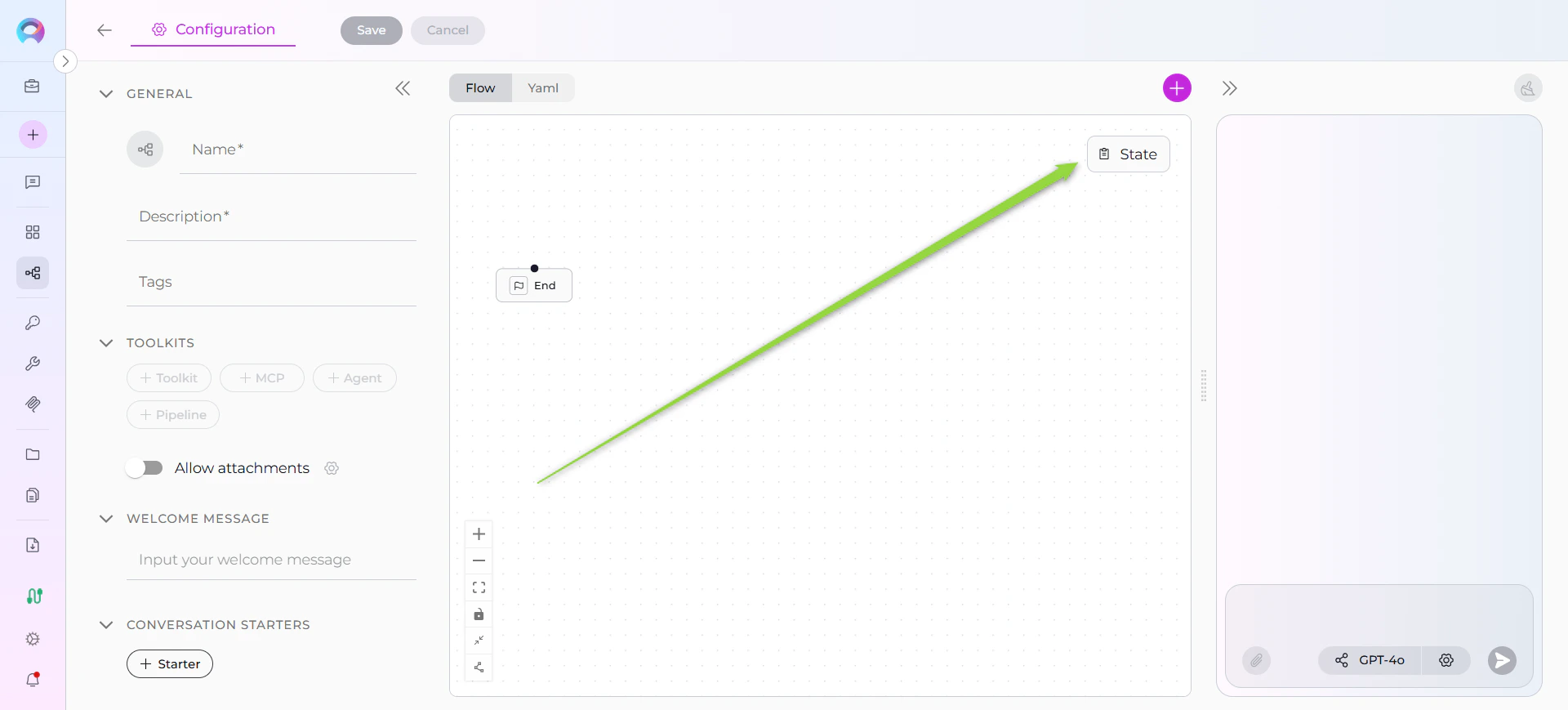 The States button is only visible in Flow mode. In YAML mode, states are defined directly in the YAML configuration.
### Default States Display
When you open the States sidebar, you'll see the two default states:
* **input** - Toggle to activate/deactivate
* **messages** - Toggle to activate/deactivate
The States button is only visible in Flow mode. In YAML mode, states are defined directly in the YAML configuration.
### Default States Display
When you open the States sidebar, you'll see the two default states:
* **input** - Toggle to activate/deactivate
* **messages** - Toggle to activate/deactivate
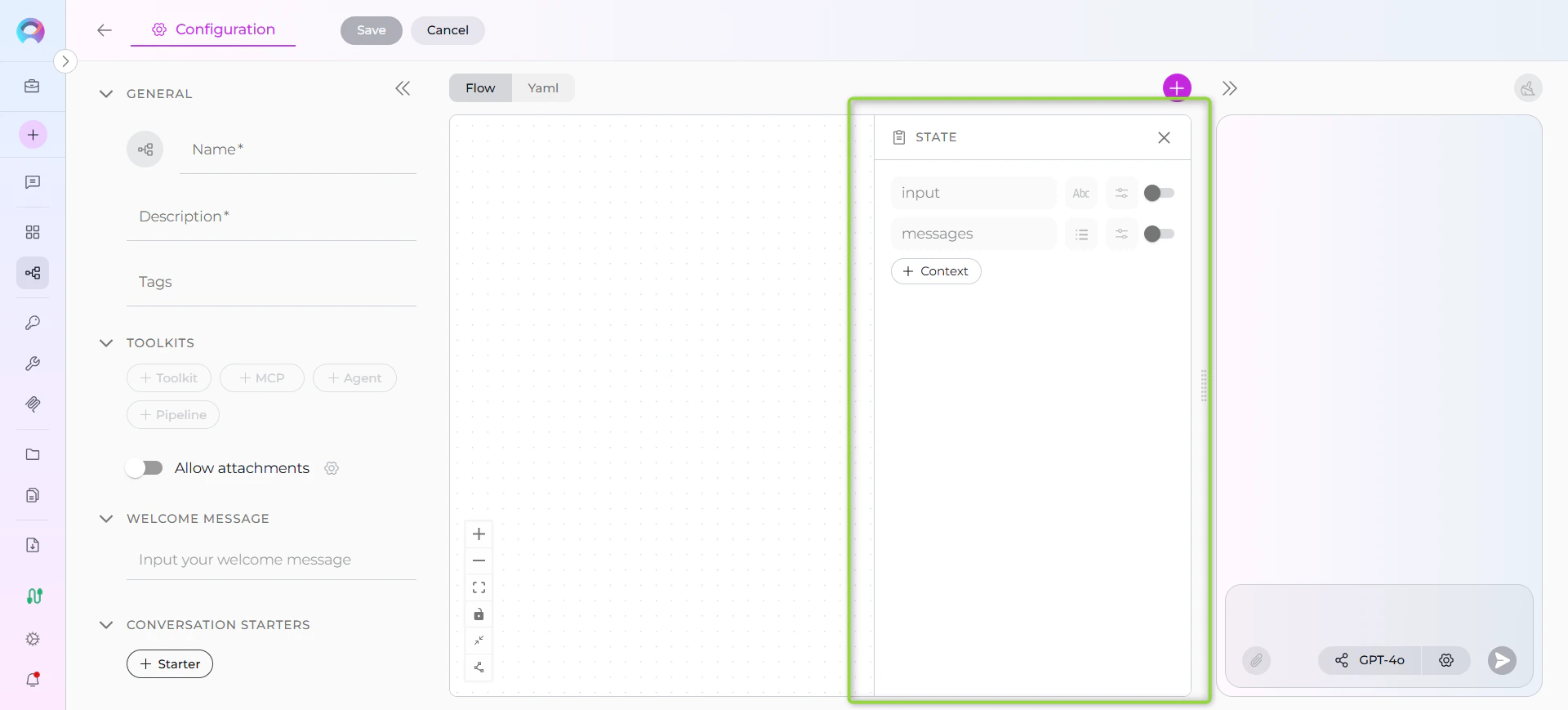 When creating a new pipeline, `input` and `messages` states are **automatically added but disabled**. You must explicitly enable them if your pipeline needs to access user input or conversation history.
### Sidebar Features
**Resizable Panel**
: Drag the left edge of the sidebar to resize it. The sidebar remembers your preferred width for the session.
**Minimum/Maximum Width**
: The sidebar has a minimum width (300px) and maximum width (50% of screen).
**Collapse Icon**
: Click the collapse icon in the top-right corner to close the sidebar.
## Adding Custom States
Custom states allow you to store pipeline-specific data beyond the default `input` and `messages`.
### Creating a New State
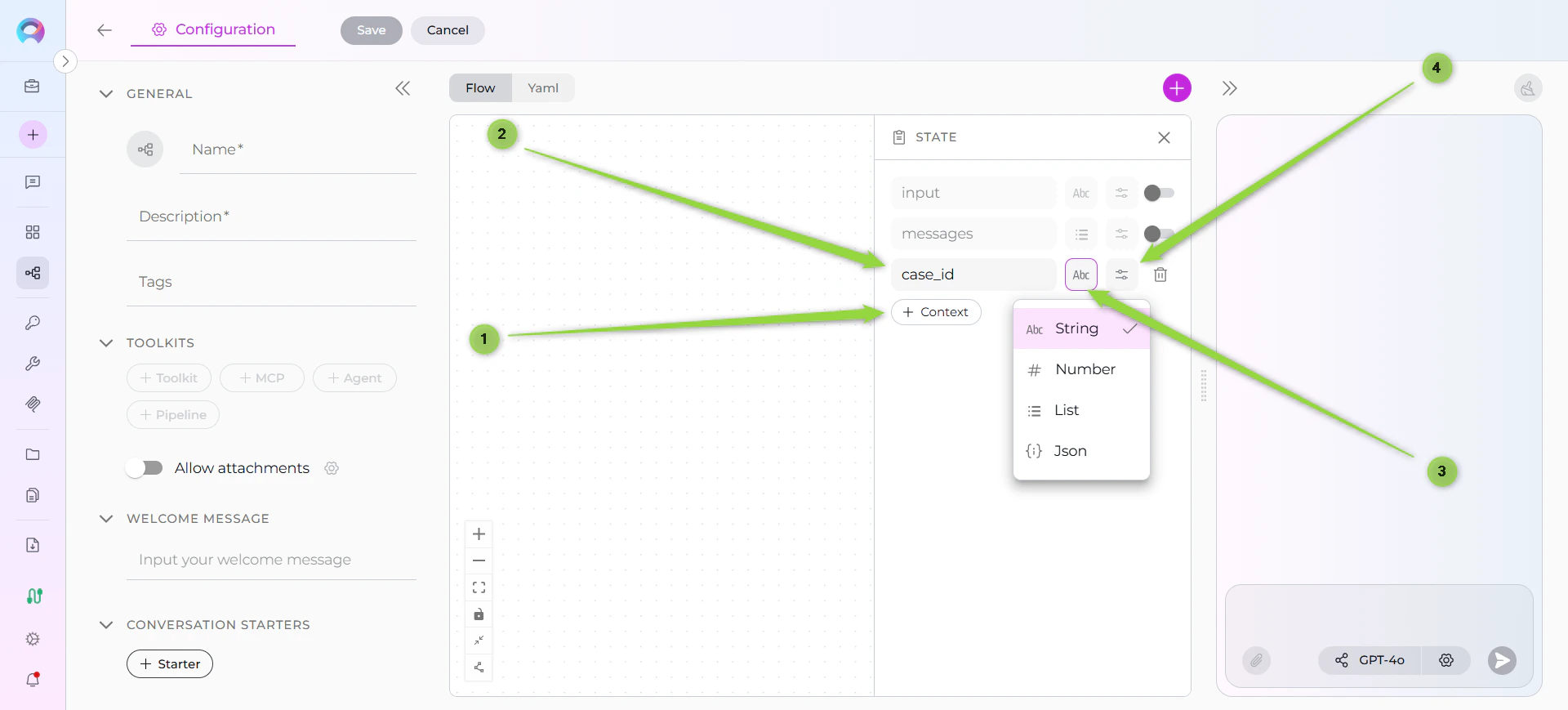
1. **Click + Context Button**: Located in the States sidebar
2. **Fill Out State Form**:
* **State Name** (required): Enter a valid name
* **State Type** (required): Select from dropdown (string, list, JSON, number)
* **Default Value** (optional): Enter initial value in 5-row text area
3. **Auto-Save**: Changes are automatically saved
When creating a new pipeline, `input` and `messages` states are **automatically added but disabled**. You must explicitly enable them if your pipeline needs to access user input or conversation history.
### Sidebar Features
**Resizable Panel**
: Drag the left edge of the sidebar to resize it. The sidebar remembers your preferred width for the session.
**Minimum/Maximum Width**
: The sidebar has a minimum width (300px) and maximum width (50% of screen).
**Collapse Icon**
: Click the collapse icon in the top-right corner to close the sidebar.
## Adding Custom States
Custom states allow you to store pipeline-specific data beyond the default `input` and `messages`.
### Creating a New State
1. **Click + Context Button**: Located in the States sidebar
2. **Fill Out State Form**:
* **State Name** (required): Enter a valid name
* **State Type** (required): Select from dropdown (string, list, JSON, number)
* **Default Value** (optional): Enter initial value in 5-row text area
3. **Auto-Save**: Changes are automatically saved
 ### State Name Validation
State names must follow these rules:
✔️ **Allowed**:
* Letters (a-z, A-Z)
* Numbers (0-9)
* Underscores (\_)
✔️ **Must start with a letter**
✘ **Not allowed**:
* Special characters (!, @, #, \$, %, etc.)
* Spaces
* Hyphens or dashes
- `user_story_title` ✔️
- `jiraProjectId` ✔️
- `epic_id_123` ✔️
- `description` ✔️
* `user-story-title` ✘ (contains hyphens)
* `jira project id` ✘ (contains spaces)
* `123_epic_id` ✘ (starts with number)
* `epic@id` ✘ (contains special character)
Real-time validation provides immediate feedback as you type.
## State Variable Types
ELITEA Pipelines support multiple data types for state variables:
```Yaml theme={null}
nodes: []
state:
jira_project_id:
type: str
value: ''
epic_id:
type: number
value: ''
file_listing:
type: list
value: ''
api_response:
type: dict
value: ''
input:
type: str
messages:
type: list
```
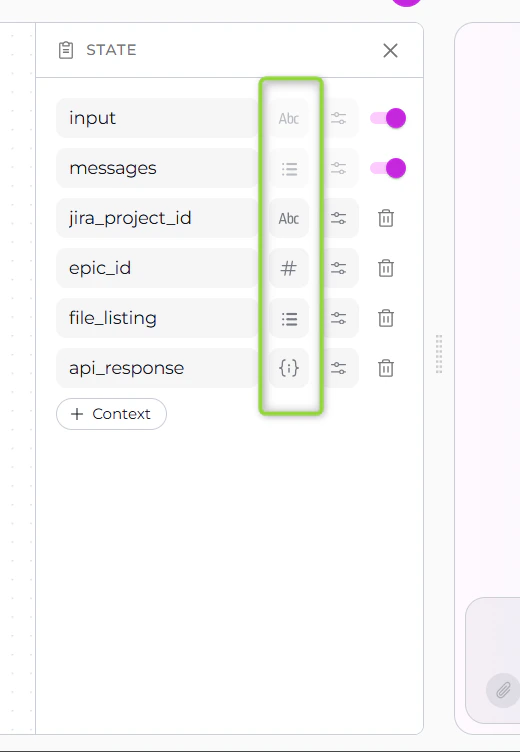
### String (`str`)
**Icon**: 📝 (displayed in sidebar)\
**Purpose**: Store text data\
**Default Value Example**: `"Draft user story"`
**Use Cases:**
* User story titles
* Descriptions
* Status messages
* Extracted text content
### Number (`int`, `float`)
**Icon**: 🔢 (displayed in sidebar)\
**Purpose**: Store numeric data\
**Default Value Example**: `42` or `3.14`
**Use Cases:**
* Counters
* Scores or ratings
* Identifiers
* Calculation results
### List (`list`)
**Icon**: 📋 (displayed in sidebar)\
**Purpose**: Store ordered collections\
**Default Value Example**: `["item1", "item2", "item3"]`
**Use Cases:**
* Multiple results from a search
* Batch processing items
* Conversation history
* File listings
The `messages` state is a special list type that stores `BaseMessage` objects (LangChain message format), not simple strings.
### JSON
**Icon**: {i} (displayed in sidebar)\
**Purpose**: Store key-value pairs and structured data\
**Default Value Example**: `{"key": "value", "status": "active"}`
**Use Cases:**
* Configuration objects
* API responses
* Structured metadata
* Complex data structures
### State Name Validation
State names must follow these rules:
✔️ **Allowed**:
* Letters (a-z, A-Z)
* Numbers (0-9)
* Underscores (\_)
✔️ **Must start with a letter**
✘ **Not allowed**:
* Special characters (!, @, #, \$, %, etc.)
* Spaces
* Hyphens or dashes
- `user_story_title` ✔️
- `jiraProjectId` ✔️
- `epic_id_123` ✔️
- `description` ✔️
* `user-story-title` ✘ (contains hyphens)
* `jira project id` ✘ (contains spaces)
* `123_epic_id` ✘ (starts with number)
* `epic@id` ✘ (contains special character)
Real-time validation provides immediate feedback as you type.
## State Variable Types
ELITEA Pipelines support multiple data types for state variables:
```Yaml theme={null}
nodes: []
state:
jira_project_id:
type: str
value: ''
epic_id:
type: number
value: ''
file_listing:
type: list
value: ''
api_response:
type: dict
value: ''
input:
type: str
messages:
type: list
```
### String (`str`)
**Icon**: 📝 (displayed in sidebar)\
**Purpose**: Store text data\
**Default Value Example**: `"Draft user story"`
**Use Cases:**
* User story titles
* Descriptions
* Status messages
* Extracted text content
### Number (`int`, `float`)
**Icon**: 🔢 (displayed in sidebar)\
**Purpose**: Store numeric data\
**Default Value Example**: `42` or `3.14`
**Use Cases:**
* Counters
* Scores or ratings
* Identifiers
* Calculation results
### List (`list`)
**Icon**: 📋 (displayed in sidebar)\
**Purpose**: Store ordered collections\
**Default Value Example**: `["item1", "item2", "item3"]`
**Use Cases:**
* Multiple results from a search
* Batch processing items
* Conversation history
* File listings
The `messages` state is a special list type that stores `BaseMessage` objects (LangChain message format), not simple strings.
### JSON
**Icon**: {i} (displayed in sidebar)\
**Purpose**: Store key-value pairs and structured data\
**Default Value Example**: `{"key": "value", "status": "active"}`
**Use Cases:**
* Configuration objects
* API responses
* Structured metadata
* Complex data structures
 ## State Initialization
### Default Values
When adding a custom state, you can optionally provide a default value. This value is used when the pipeline starts executing if no other value has been set.
**Default Value Field:**
* 5-row text area for comfortable editing
* Expands when sidebar is resized
* Supports multi-line input for complex values
## State Initialization
### Default Values
When adding a custom state, you can optionally provide a default value. This value is used when the pipeline starts executing if no other value has been set.
**Default Value Field:**
* 5-row text area for comfortable editing
* Expands when sidebar is resized
* Supports multi-line input for complex values
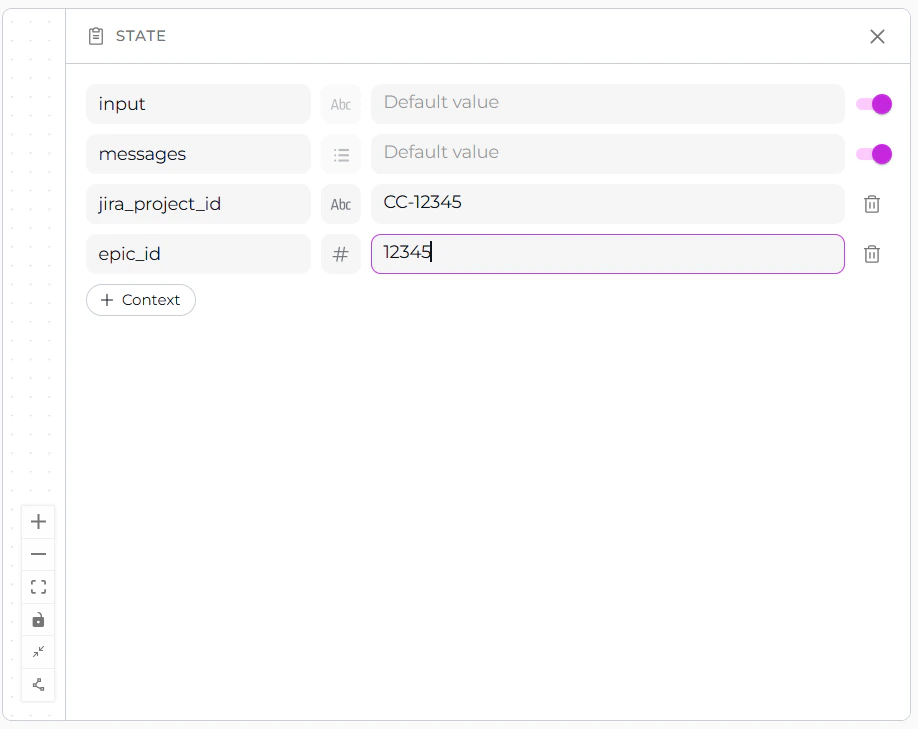 **Examples:**
```yaml theme={null}
nodes: []
state:
jira_project_id:
type: str
value: CC-12345
epic_id:
type: number
value: 12356
input:
type: str
messages:
type: list
```
## State Modification
States can be modified in several ways during pipeline execution:
### 1. Node Output Variables
Nodes can write to state variables using the `output` parameter:
When this node executes, the LLM response will be parsed and the values will be stored in the specified state variables.
[Output](../../img/how-tos/agents-pipelines/pipeline-building-blocks/output-parameter.png)
### 2. State Modifier Node
The State Modifier node allows advanced state manipulation using Jinja2 templates:
```yaml theme={null}
- id: "format_description"
type: "state_modifier"
template: "**Title:** {{us_title}}\n**Description:** {{description}}"
input_variables: ["us_title", "description"]
output_variables: ["formatted_output"]
```
**State Modifier Capabilities:**
* Combine multiple state variables
* Transform data using Jinja2 filters
* Clean or reset state variables
* Format output for specific purposes
### 3. Code Node Updates
Code nodes can update state by returning structured dictionaries:
```yaml theme={null}
- id: "process_data"
type: "code"
code:
type: "fixed"
value: |
# Access state via alita_state
raw_data = alita_state.get('raw_data', [])
# Process data
processed = [item.upper() for item in raw_data]
# Return updates state variables
{"processed_data": processed, "status": "completed"}
output: ["processed_data", "status"]
structured_output: true
```
### 4. Toolkit and MCP Node Results
Toolkit and MCP nodes automatically store results in output variables:
**Toolkit Node Example:**
```yaml theme={null}
- id: "search_confluence"
type: "toolkit"
toolkit_name: "confluence_toolkit"
tool: "search_by_title"
input: ["search_query"]
output: ["search_results"]
input_mapping:
query:
type: "variable"
value: "search_query"
```
**MCP Node Example:**
```yaml theme={null}
- id: "get_file_content"
type: "mcp"
mcp_name: "filesystem_mcp"
tool: "read_file"
input: ["file_path"]
output: ["file_content"]
input_mapping:
path:
type: "variable"
value: "file_path"
```
## Practical Examples
### Example 1: User Story Creation Pipeline
```yaml theme={null}
state:
jira_project_id: str
epic_id: str
us_title: str
description: str
input: str
messages: list
draft_us: str
enhanced_us: str
nodes:
- id: "Gather Info"
type: "llm"
input: ["input", "messages"]
output: ["jira_project_id", "epic_id", "us_title", "description"]
structured_output: true
prompt:
type: "string"
value: "Extract Jira project ID, epic ID, title, and description."
- id: "Generate Draft"
type: "llm"
input: ["jira_project_id", "epic_id", "us_title", "description"]
output: ["draft_us"]
prompt:
type: "fstring"
value: |
Create a user story for project {jira_project_id}, epic {epic_id}.
Title: {us_title}
Description: {description}
```
### Example 2: Data Processing with State
```yaml theme={null}
state:
raw_data: list
processed_data: list
status: str
error_count: int
messages: list
nodes:
- id: "Load Data"
type: "toolkit"
toolkit_name: "data_toolkit"
tool: "fetch_records"
output: ["raw_data"]
input_mapping: {}
- id: "Process Data"
type: "code"
code:
type: "fixed"
value: |
data = alita_state.get('raw_data', [])
processed = []
errors = 0
for item in data:
try:
processed.append(item.strip().upper())
except:
errors += 1
{
"processed_data": processed,
"status": "completed",
"error_count": errors
}
output: ["processed_data", "status", "error_count"]
structured_output: true
```
### Example 3: Conversation Context with Messages
```yaml theme={null}
state:
user_preference: str
messages: list
nodes:
- id: "Capture Preference"
type: "llm"
input: ["input", "messages"]
output: ["user_preference"]
prompt:
type: "string"
value: "Based on the conversation, what is the user's preference?"
- id: "Contextual Response"
type: "llm"
input: ["messages", "user_preference"]
prompt:
type: "fstring"
value: |
Given the conversation history and that the user prefers {user_preference},
provide a personalized response.
```
## Best Practices
### 1. Use Descriptive State Names
✔️ **Good:**
```yaml theme={null}
state:
jira_project_id: str
user_story_title: str
extracted_requirements: list
```
✘ **Avoid:**
```yaml theme={null}
state:
data: str
temp: str
x: list
```
### 2. Choose Appropriate Types
Match state types to the data they'll store:
* **Strings**: Single values, text content
* **Lists**: Collections, multiple items
* **Dictionaries**: Structured data, API responses
* **Numbers**: Counters, IDs, scores
### 3. Initialize Critical States
Provide default values for states that nodes depend on:
```yaml theme={null}
state:
retry_count: int # Will default to 0
status: str # Will default to ""
pending_tasks: list # Will default to []
```
### 4. Keep State Minimal
Only create state variables you actually need. Unnecessary states:
* Increase complexity
* Make debugging harder
* Use more memory
### 5. Use `input` vs `messages` Appropriately
* Use `input` for single-turn interactions
* Use `messages` when context from previous turns matters
* Use both when you need current input AND historical context
### 6. Leverage State Modifier for Complex Transformations
Instead of complex prompt formatting, use State Modifier:
```yaml theme={null}
- id: "format_output"
type: "state_modifier"
template: |
## User Story: {{us_title}}
**Project:** {{jira_project_id}}
**Epic:** {{epic_id}}
### Description
{{description}}
input_variables: ["us_title", "jira_project_id", "epic_id", "description"]
output_variables: ["formatted_story"]
```
### 7. Handle State Errors Gracefully
Always account for missing or invalid state:
```python theme={null}
# In Code nodes
raw_data = alita_state.get('raw_data', []) # Default to empty list
if not raw_data:
return {"error": "No data to process", "status": "failed"}
```
### 8. Monitor State in Development
Use **interruptions** to inspect state at key points:
```yaml theme={null}
interrupt_before:
- "Critical Processing Node"
interrupt_after:
- "Data Extraction Node"
```
When the pipeline pauses, examine state variables to verify data flow.
### 9. Document Complex State Usage
Add comments in YAML or description fields explaining non-obvious state usage:
```yaml theme={null}
state:
# Stores API response from Jira for later processing
jira_response: dict
# Counter for retry logic in error handling
retry_attempts: int
# Accumulated results from loop iterations
batch_results: list
```
### 10. Clean Up Unused State
Use State Modifier to clear state variables when no longer needed:
```yaml theme={null}
- id: "cleanup"
type: "state_modifier"
template: ""
variables_to_clean: ["temp_data", "intermediate_results"]
```
## Common Patterns
### Pattern 1: Iterative Processing with Router
```yaml theme={null}
state:
items: list
current_index: int
accumulated_results: str
nodes:
- id: "Process Item"
type: "code"
code:
type: "fixed"
value: |
items = alita_state.get('items', [])
index = alita_state.get('current_index', 0)
accumulated = alita_state.get('accumulated_results', '')
if index < len(items):
result = f"{accumulated}\nProcessed: {items[index]}"
{"accumulated_results": result, "current_index": index + 1}
else:
{}
output: ["accumulated_results", "current_index"]
structured_output: true
transition: "Check Complete"
- id: "Check Complete"
type: "router"
condition: "current_index < len(items)"
input: ["current_index", "items"]
routes: ["Process Item", "END"]
default_output: "END"
```
### Pattern 2: Conditional State Initialization
```yaml theme={null}
- id: "Initialize State"
type: "code"
code:
type: "fixed"
value: |
existing = alita_state.get('config', {})
if not existing:
{"config": {"mode": "default", "retries": 3}}
else:
{}
structured_output: true
```
### Pattern 3: State-Based Routing
```yaml theme={null}
- id: "Router Node"
type: "router"
condition: "status == 'approved'"
input_variables: ["status"]
routes: ["approved", "rejected"]
default_output: "Review Again"
```
## Troubleshooting
### Issue: State Variable Not Found
**Problem**: Node fails because a state variable doesn't exist
**Solutions:**
1. Verify the state is defined in the `state` section
2. Check that previous nodes populate the state via `output`
3. Provide default values in state initialization
4. Use `alita_state.get('var', default_value)` in Code nodes
### Issue: State Type Mismatch
**Problem**: Node expects a list but receives a string
**Solutions:**
1. Verify state type matches the data being stored
2. Use State Modifier to transform types if needed
3. Check node output configuration
### Issue: Messages Not Persisting
**Problem**: Conversation history is lost between nodes
**Solutions:**
1. Ensure `messages: list` is in the `state` section
2. Activate the `messages` toggle in States sidebar
3. Include `messages` in node `input` parameters
4. Verify nodes return messages in their output
### Issue: Default Values Not Applied
**Problem**: State variable is empty despite setting a default value
**Solutions:**
1. Check that default value syntax matches the state type
2. Verify no nodes are overwriting the state with empty values
3. Use State Modifier to explicitly set values at pipeline start
## Cross-Mode Consistency
State management works identically in:
* **Pipelines Menu**: Create and manage pipelines from the main Pipelines interface
* **Canvas Mode**: Create and manage pipelines directly from conversation canvas
The States sidebar behavior, validation rules, and auto-save functionality remain consistent across both modes.
* **[Nodes Overview](./nodes/overview)** - Learn how different node types read from and write to state
* **[State Modifier Node](./nodes/utility-nodes#state-modifier-node)** - Advanced state manipulation with Jinja2 templates
* **[Connections](./nodes-connectors)** - Understand how data flows between nodes through state
* **[Entry Point](./entry-point)** - Define pipeline starting point and initial state
* **[YAML Configuration](./yaml)** - See complete state definition syntax
* **[Code Node](./nodes/execution-nodes#code-node)** - Access state via `alita_state` in Python code
**Examples:**
```yaml theme={null}
nodes: []
state:
jira_project_id:
type: str
value: CC-12345
epic_id:
type: number
value: 12356
input:
type: str
messages:
type: list
```
## State Modification
States can be modified in several ways during pipeline execution:
### 1. Node Output Variables
Nodes can write to state variables using the `output` parameter:
When this node executes, the LLM response will be parsed and the values will be stored in the specified state variables.
[Output](../../img/how-tos/agents-pipelines/pipeline-building-blocks/output-parameter.png)
### 2. State Modifier Node
The State Modifier node allows advanced state manipulation using Jinja2 templates:
```yaml theme={null}
- id: "format_description"
type: "state_modifier"
template: "**Title:** {{us_title}}\n**Description:** {{description}}"
input_variables: ["us_title", "description"]
output_variables: ["formatted_output"]
```
**State Modifier Capabilities:**
* Combine multiple state variables
* Transform data using Jinja2 filters
* Clean or reset state variables
* Format output for specific purposes
### 3. Code Node Updates
Code nodes can update state by returning structured dictionaries:
```yaml theme={null}
- id: "process_data"
type: "code"
code:
type: "fixed"
value: |
# Access state via alita_state
raw_data = alita_state.get('raw_data', [])
# Process data
processed = [item.upper() for item in raw_data]
# Return updates state variables
{"processed_data": processed, "status": "completed"}
output: ["processed_data", "status"]
structured_output: true
```
### 4. Toolkit and MCP Node Results
Toolkit and MCP nodes automatically store results in output variables:
**Toolkit Node Example:**
```yaml theme={null}
- id: "search_confluence"
type: "toolkit"
toolkit_name: "confluence_toolkit"
tool: "search_by_title"
input: ["search_query"]
output: ["search_results"]
input_mapping:
query:
type: "variable"
value: "search_query"
```
**MCP Node Example:**
```yaml theme={null}
- id: "get_file_content"
type: "mcp"
mcp_name: "filesystem_mcp"
tool: "read_file"
input: ["file_path"]
output: ["file_content"]
input_mapping:
path:
type: "variable"
value: "file_path"
```
## Practical Examples
### Example 1: User Story Creation Pipeline
```yaml theme={null}
state:
jira_project_id: str
epic_id: str
us_title: str
description: str
input: str
messages: list
draft_us: str
enhanced_us: str
nodes:
- id: "Gather Info"
type: "llm"
input: ["input", "messages"]
output: ["jira_project_id", "epic_id", "us_title", "description"]
structured_output: true
prompt:
type: "string"
value: "Extract Jira project ID, epic ID, title, and description."
- id: "Generate Draft"
type: "llm"
input: ["jira_project_id", "epic_id", "us_title", "description"]
output: ["draft_us"]
prompt:
type: "fstring"
value: |
Create a user story for project {jira_project_id}, epic {epic_id}.
Title: {us_title}
Description: {description}
```
### Example 2: Data Processing with State
```yaml theme={null}
state:
raw_data: list
processed_data: list
status: str
error_count: int
messages: list
nodes:
- id: "Load Data"
type: "toolkit"
toolkit_name: "data_toolkit"
tool: "fetch_records"
output: ["raw_data"]
input_mapping: {}
- id: "Process Data"
type: "code"
code:
type: "fixed"
value: |
data = alita_state.get('raw_data', [])
processed = []
errors = 0
for item in data:
try:
processed.append(item.strip().upper())
except:
errors += 1
{
"processed_data": processed,
"status": "completed",
"error_count": errors
}
output: ["processed_data", "status", "error_count"]
structured_output: true
```
### Example 3: Conversation Context with Messages
```yaml theme={null}
state:
user_preference: str
messages: list
nodes:
- id: "Capture Preference"
type: "llm"
input: ["input", "messages"]
output: ["user_preference"]
prompt:
type: "string"
value: "Based on the conversation, what is the user's preference?"
- id: "Contextual Response"
type: "llm"
input: ["messages", "user_preference"]
prompt:
type: "fstring"
value: |
Given the conversation history and that the user prefers {user_preference},
provide a personalized response.
```
## Best Practices
### 1. Use Descriptive State Names
✔️ **Good:**
```yaml theme={null}
state:
jira_project_id: str
user_story_title: str
extracted_requirements: list
```
✘ **Avoid:**
```yaml theme={null}
state:
data: str
temp: str
x: list
```
### 2. Choose Appropriate Types
Match state types to the data they'll store:
* **Strings**: Single values, text content
* **Lists**: Collections, multiple items
* **Dictionaries**: Structured data, API responses
* **Numbers**: Counters, IDs, scores
### 3. Initialize Critical States
Provide default values for states that nodes depend on:
```yaml theme={null}
state:
retry_count: int # Will default to 0
status: str # Will default to ""
pending_tasks: list # Will default to []
```
### 4. Keep State Minimal
Only create state variables you actually need. Unnecessary states:
* Increase complexity
* Make debugging harder
* Use more memory
### 5. Use `input` vs `messages` Appropriately
* Use `input` for single-turn interactions
* Use `messages` when context from previous turns matters
* Use both when you need current input AND historical context
### 6. Leverage State Modifier for Complex Transformations
Instead of complex prompt formatting, use State Modifier:
```yaml theme={null}
- id: "format_output"
type: "state_modifier"
template: |
## User Story: {{us_title}}
**Project:** {{jira_project_id}}
**Epic:** {{epic_id}}
### Description
{{description}}
input_variables: ["us_title", "jira_project_id", "epic_id", "description"]
output_variables: ["formatted_story"]
```
### 7. Handle State Errors Gracefully
Always account for missing or invalid state:
```python theme={null}
# In Code nodes
raw_data = alita_state.get('raw_data', []) # Default to empty list
if not raw_data:
return {"error": "No data to process", "status": "failed"}
```
### 8. Monitor State in Development
Use **interruptions** to inspect state at key points:
```yaml theme={null}
interrupt_before:
- "Critical Processing Node"
interrupt_after:
- "Data Extraction Node"
```
When the pipeline pauses, examine state variables to verify data flow.
### 9. Document Complex State Usage
Add comments in YAML or description fields explaining non-obvious state usage:
```yaml theme={null}
state:
# Stores API response from Jira for later processing
jira_response: dict
# Counter for retry logic in error handling
retry_attempts: int
# Accumulated results from loop iterations
batch_results: list
```
### 10. Clean Up Unused State
Use State Modifier to clear state variables when no longer needed:
```yaml theme={null}
- id: "cleanup"
type: "state_modifier"
template: ""
variables_to_clean: ["temp_data", "intermediate_results"]
```
## Common Patterns
### Pattern 1: Iterative Processing with Router
```yaml theme={null}
state:
items: list
current_index: int
accumulated_results: str
nodes:
- id: "Process Item"
type: "code"
code:
type: "fixed"
value: |
items = alita_state.get('items', [])
index = alita_state.get('current_index', 0)
accumulated = alita_state.get('accumulated_results', '')
if index < len(items):
result = f"{accumulated}\nProcessed: {items[index]}"
{"accumulated_results": result, "current_index": index + 1}
else:
{}
output: ["accumulated_results", "current_index"]
structured_output: true
transition: "Check Complete"
- id: "Check Complete"
type: "router"
condition: "current_index < len(items)"
input: ["current_index", "items"]
routes: ["Process Item", "END"]
default_output: "END"
```
### Pattern 2: Conditional State Initialization
```yaml theme={null}
- id: "Initialize State"
type: "code"
code:
type: "fixed"
value: |
existing = alita_state.get('config', {})
if not existing:
{"config": {"mode": "default", "retries": 3}}
else:
{}
structured_output: true
```
### Pattern 3: State-Based Routing
```yaml theme={null}
- id: "Router Node"
type: "router"
condition: "status == 'approved'"
input_variables: ["status"]
routes: ["approved", "rejected"]
default_output: "Review Again"
```
## Troubleshooting
### Issue: State Variable Not Found
**Problem**: Node fails because a state variable doesn't exist
**Solutions:**
1. Verify the state is defined in the `state` section
2. Check that previous nodes populate the state via `output`
3. Provide default values in state initialization
4. Use `alita_state.get('var', default_value)` in Code nodes
### Issue: State Type Mismatch
**Problem**: Node expects a list but receives a string
**Solutions:**
1. Verify state type matches the data being stored
2. Use State Modifier to transform types if needed
3. Check node output configuration
### Issue: Messages Not Persisting
**Problem**: Conversation history is lost between nodes
**Solutions:**
1. Ensure `messages: list` is in the `state` section
2. Activate the `messages` toggle in States sidebar
3. Include `messages` in node `input` parameters
4. Verify nodes return messages in their output
### Issue: Default Values Not Applied
**Problem**: State variable is empty despite setting a default value
**Solutions:**
1. Check that default value syntax matches the state type
2. Verify no nodes are overwriting the state with empty values
3. Use State Modifier to explicitly set values at pipeline start
## Cross-Mode Consistency
State management works identically in:
* **Pipelines Menu**: Create and manage pipelines from the main Pipelines interface
* **Canvas Mode**: Create and manage pipelines directly from conversation canvas
The States sidebar behavior, validation rules, and auto-save functionality remain consistent across both modes.
* **[Nodes Overview](./nodes/overview)** - Learn how different node types read from and write to state
* **[State Modifier Node](./nodes/utility-nodes#state-modifier-node)** - Advanced state manipulation with Jinja2 templates
* **[Connections](./nodes-connectors)** - Understand how data flows between nodes through state
* **[Entry Point](./entry-point)** - Define pipeline starting point and initial state
* **[YAML Configuration](./yaml)** - See complete state definition syntax
* **[Code Node](./nodes/execution-nodes#code-node)** - Access state via `alita_state` in Python code