> ## Documentation Index
> Fetch the complete documentation index at: https://docs.elitea.ai/llms.txt
> Use this file to discover all available pages before exploring further.
# Schedule Indexing
> Scheduled indexing enables automated, periodic re-indexing of your data sources at configured intervals using cron expressions. This ensures that your indexed d
## Introduction
**Why use scheduled indexing:**
* **Automated data freshness**: Keep indexes up-to-date automatically as source data evolves
* **Reduced manual overhead**: Eliminate the need for manual reindexing operations
* **Consistent synchronization**: Maintain predictable sync schedules across multiple indexes
* **Resource optimization**: Schedule updates during off-peak hours to minimize system impact
* **User-specific schedules**: Each user can configure independent schedules for the same index
***
## Prerequisites
Before configuring scheduled indexing, ensure the following requirements are met:
1. **Successful Index Creation**: An index must be successfully created before scheduling can be enabled
2. **Valid Index State**: The index must be in a valid state (not cancelled or failed)
3. **Indexes Tab Access**: Access to the Indexes Tab interface within Toolkit Configuration
4. **Appropriate Permissions**: User permissions to modify toolkit configurations
5. **ELITEA Personal Access Token**: At least one generated and valid (not expired) ELITEA personal access token is required for scheduled indexing operations
6. **Credentials Configuration** (if required): Some toolkits require credentials for scheduled indexing operations. If your toolkit requires credentials, you must select or create a credential configuration before enabling the schedule
Scheduled indexing requires at least one **valid ELITEA personal access token** to authenticate scheduled operations:
* You must generate an ELITEA personal access token before configuring schedules
* The token must not be expired at the time of scheduled execution
* If all your tokens are expired, scheduled reindexing operations will fail
* To manage your tokens, go to **User Settings** → **[Personal Access Tokens](../../getting-started/create-personal-access-token)**
Scheduling is automatically **disabled** for indexes in the following states:
* **cancelled** - Index creation or reindexing was stopped
* **failed** - Index creation or reindexing encountered an error
To enable scheduling for these indexes, you must first successfully reindex them.
Some toolkits require credentials for scheduled indexing operations. If credentials are required:
* You must configure credentials before enabling the schedule
* The Schedule toggle will show a tooltip: "Set credentials to enable scheduling"
* The gear icon will be clickable to configure both the cron expression and credentials
* The schedule cannot be enabled until valid credentials are selected
* **Credential Scope**: Only credentials matching the project type are available:
* **Private Project**: Only private project credentials can be selected
* **Team Project**: Only team project credentials can be selected
***
## Configuring Scheduled Indexing
### Step 1: Access Index Actions
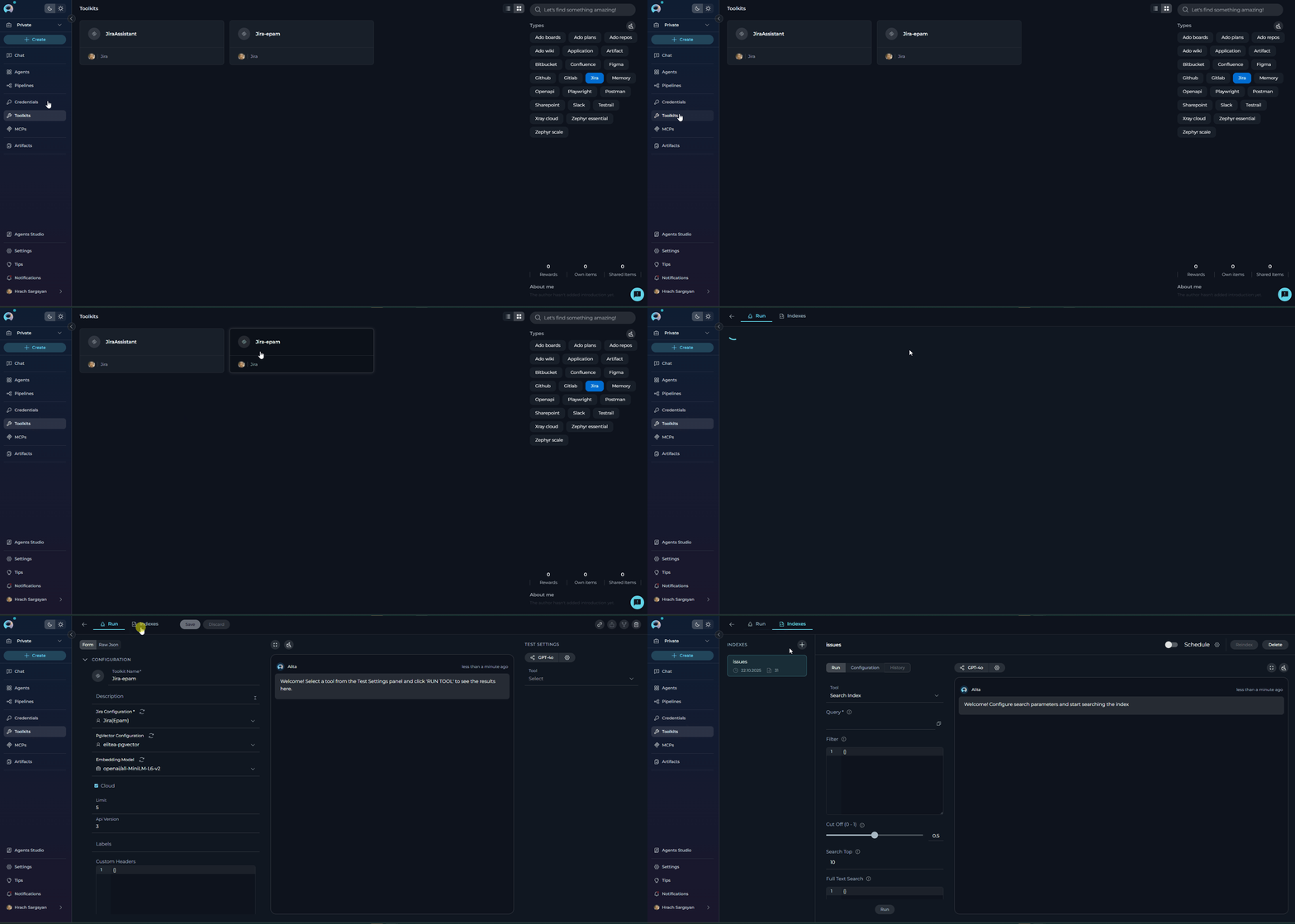
1. **Navigate to Toolkits**: Go to **Toolkits** in the main navigation
2. **Select Your Toolkit**: Choose the toolkit containing the index you want to schedule
3. **Open Indexes Tab**: Click on the **Indexes** tab
4. **Select Index**: Click on an existing index from the sidebar to view its details
5. **Switch to Configuration Tab**: In the index detail view, click on the **Configuration** tab to access the schedule controls
 ### Step 2: Configure Cron Expression
1. **Click the Gear Icon** next to the Schedule label to open the Schedule Settings modal
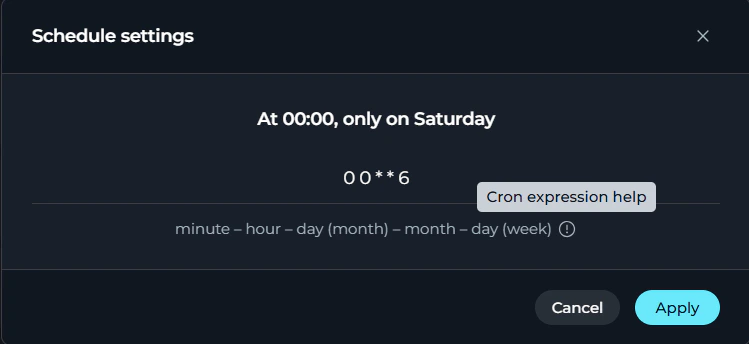
2. **View Current Schedule**: The modal displays the human-readable description of the current cron expression (e.g., "At 00:00, only on Saturday")
3. **Choose Schedule Type**:
* **Default**: Visual cron builder with dropdown menus (beginner-friendly)
* **Advanced**: Manual text input for cron expression (for experienced users)
4. **Configure Schedule**:
**Default Mode** (Visual Builder):
* Use dropdown menus to select:
* Period (e.g., "Every", "Specific")
* Minutes/hours
* Days of week/month
* Months
* The cron expression is built automatically as you make selections
* Human-readable description updates in real-time above the builder
**Advanced Mode** (Manual Entry):
* Enter a cron expression directly in the text field (e.g., `0 2 * * *`)
* Format guide shown below: `minute – hour – day (month) – month – day (week)`
* Click the **info icon** to open [crontab.guru](https://crontab.guru) for help
* Human-readable description updates as you type
5. **Configure Credentials** (if required):
* Some toolkits require credentials for scheduled indexing
* If required, a **credentials dropdown** will appear below the cron configuration
* Select an existing credential configuration or create a new one
* **Available credentials are filtered by project type**:
* If you're in a **Private Project**, only private project credentials are shown
* If you're in a **Team Project**, only team project credentials are shown
6. **Apply Changes**: Click **Apply** button to save
### Step 2: Configure Cron Expression
1. **Click the Gear Icon** next to the Schedule label to open the Schedule Settings modal
2. **View Current Schedule**: The modal displays the human-readable description of the current cron expression (e.g., "At 00:00, only on Saturday")
3. **Choose Schedule Type**:
* **Default**: Visual cron builder with dropdown menus (beginner-friendly)
* **Advanced**: Manual text input for cron expression (for experienced users)
4. **Configure Schedule**:
**Default Mode** (Visual Builder):
* Use dropdown menus to select:
* Period (e.g., "Every", "Specific")
* Minutes/hours
* Days of week/month
* Months
* The cron expression is built automatically as you make selections
* Human-readable description updates in real-time above the builder
**Advanced Mode** (Manual Entry):
* Enter a cron expression directly in the text field (e.g., `0 2 * * *`)
* Format guide shown below: `minute – hour – day (month) – month – day (week)`
* Click the **info icon** to open [crontab.guru](https://crontab.guru) for help
* Human-readable description updates as you type
5. **Configure Credentials** (if required):
* Some toolkits require credentials for scheduled indexing
* If required, a **credentials dropdown** will appear below the cron configuration
* Select an existing credential configuration or create a new one
* **Available credentials are filtered by project type**:
* If you're in a **Private Project**, only private project credentials are shown
* If you're in a **Team Project**, only team project credentials are shown
6. **Apply Changes**: Click **Apply** button to save
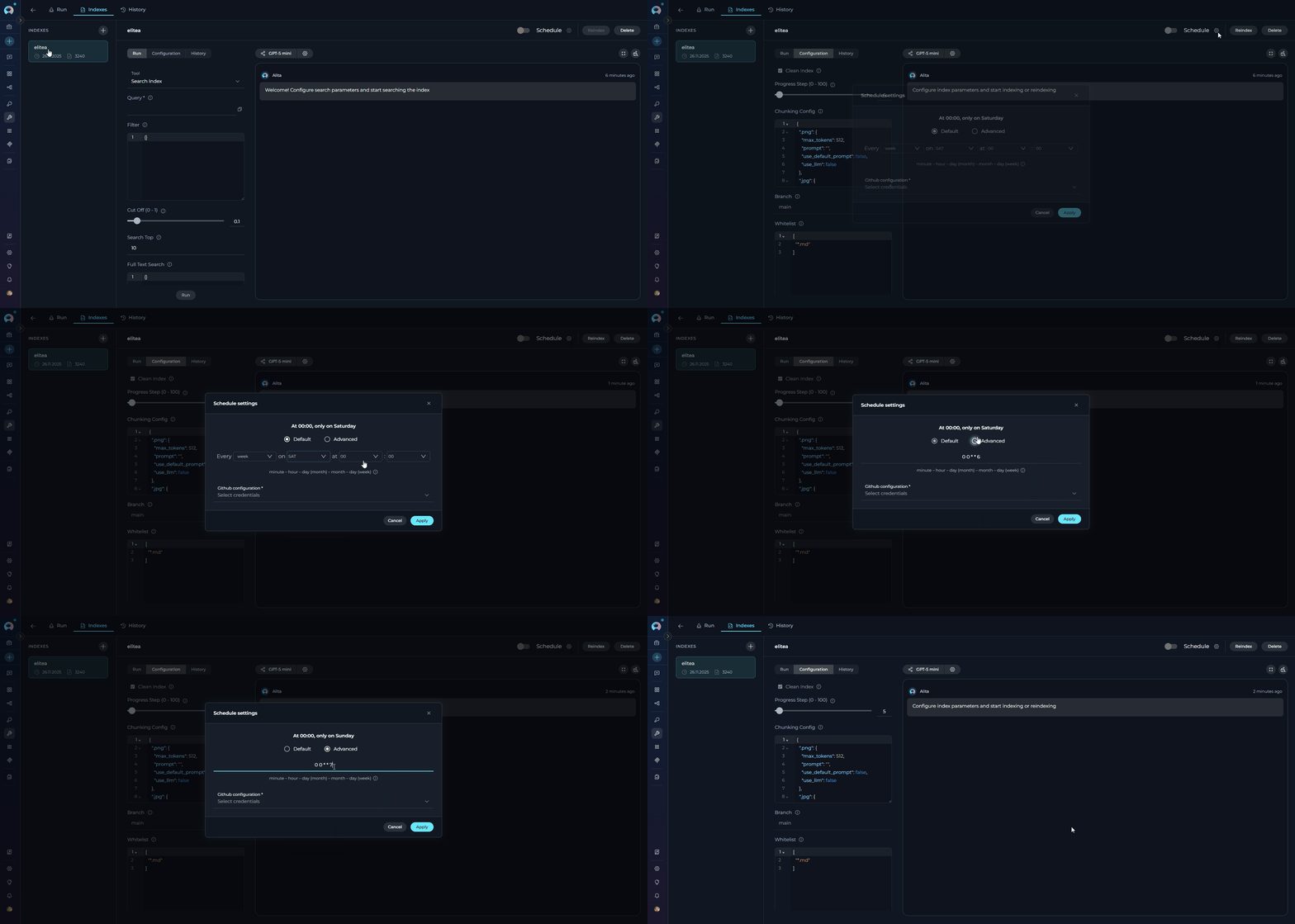 **Schedule Settings Modal Fields:**
| Element | Description | Behavior |
| ----------------------------------------- | -------------------------------------------------- | --------------------------------------------------------------------------------------------------------------------------- |
| **Description Text** | Human-readable schedule explanation at the top | Updates in real-time, turns red if invalid |
| **Schedule Type** | Radio button group: "Default" or "Advanced" | Switches between visual builder and manual entry |
| **Visual Cron Builder** (Default mode) | Interactive dropdown menus for period, time, days | Automatically builds cron expression from selections |
| **Cron Expression Input** (Advanced mode) | Text field for entering 5-field cron expression | Center-aligned, validates on change |
| **Format Guide** (Advanced mode) | `minute – hour – day (month) – month – day (week)` | Static reference below input |
| **Help Icon** (Advanced mode) | Info icon linking to crontab.guru | Opens external cron expression help |
| **Credentials Selector** (conditional) | Dropdown to select credential configuration | Only shown if toolkit requires credentials for scheduling. Available options are filtered by project type (private or team) |
| **Apply Button** | Saves the cron expression and credentials | Disabled when expression is invalid or required credentials missing |
| **Cancel Button** | Closes modal without saving | Always enabled |
**Default Cron Expression:**
When first configured, the schedule defaults to `0 0 * * 6` (Every Saturday at midnight).
**Schedule Type Modes:**
The modal offers two input modes to accommodate different user experience levels:
* **Default Mode**: Visual cron builder
* User-friendly dropdown menus
* Automatically constructs valid cron expressions
* Prevents common syntax errors
* Best for users unfamiliar with cron syntax
* **Advanced Mode**: Manual text input
* Direct cron expression entry
* Full flexibility for complex schedules
* Includes format guide and help link
* Best for experienced users who prefer precise control
Scheduled reindexing operations will appear in the History tab with the label "Reindexed"
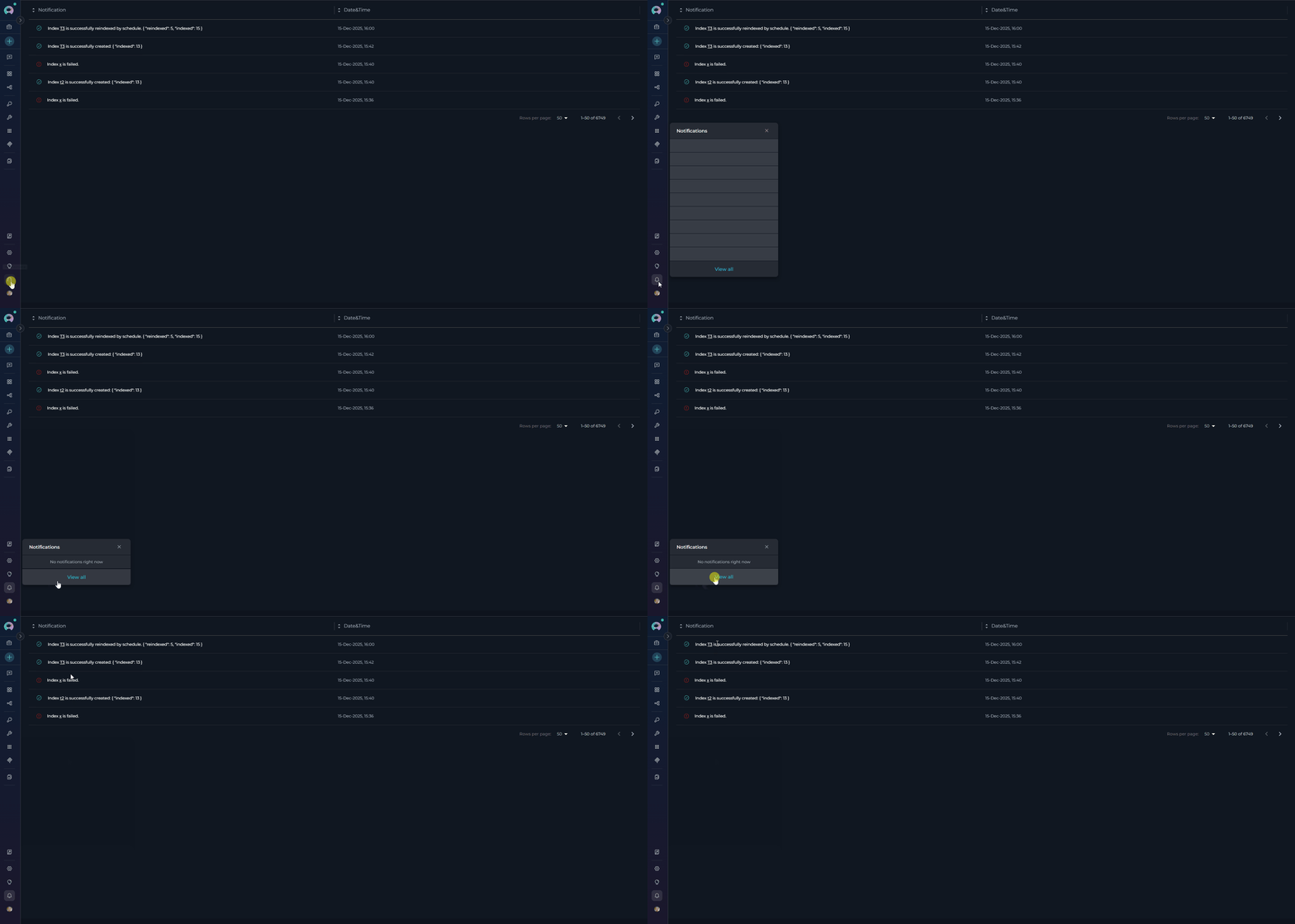
You will receive notifications for all indexing operations (initial indexing, manual reindexing, and scheduled reindexing):
**Successful Operations:**
* **Icon**: Green success checkmark
* **Message Format**:
* Initial indexing: `Index {name} is successfully created: { "indexed": X }`
* Reindex (manual): `Index {name} is successfully reindexed. { "reindexed": X, "indexed": Y }`
* Reindex (scheduled): `Index {name} is successfully reindexed by schedule. { "reindexed": X, "indexed": Y }`
* **Action**: Click the notification to navigate to the index in the Indexes tab
**Failed Operations:**
* **Icon**: Red error icon
* **Message**: `Index {name} is failed.`
* **Note**: This applies to both initial indexing failures and reindexing failures
* **Action**: Click the notification to view the index and check error details in the History tab
**Notification Details:**
* Notifications appear in the notifications panel (bell icon in top navigation)
* Each notification shows the relative time (e.g., "2 minutes ago", "1 hour ago")
* Clicking a notification navigates directly to the specific index in the Indexes tab
* Scheduled operations are clearly marked with "by schedule" text
**Schedule Settings Modal Fields:**
| Element | Description | Behavior |
| ----------------------------------------- | -------------------------------------------------- | --------------------------------------------------------------------------------------------------------------------------- |
| **Description Text** | Human-readable schedule explanation at the top | Updates in real-time, turns red if invalid |
| **Schedule Type** | Radio button group: "Default" or "Advanced" | Switches between visual builder and manual entry |
| **Visual Cron Builder** (Default mode) | Interactive dropdown menus for period, time, days | Automatically builds cron expression from selections |
| **Cron Expression Input** (Advanced mode) | Text field for entering 5-field cron expression | Center-aligned, validates on change |
| **Format Guide** (Advanced mode) | `minute – hour – day (month) – month – day (week)` | Static reference below input |
| **Help Icon** (Advanced mode) | Info icon linking to crontab.guru | Opens external cron expression help |
| **Credentials Selector** (conditional) | Dropdown to select credential configuration | Only shown if toolkit requires credentials for scheduling. Available options are filtered by project type (private or team) |
| **Apply Button** | Saves the cron expression and credentials | Disabled when expression is invalid or required credentials missing |
| **Cancel Button** | Closes modal without saving | Always enabled |
**Default Cron Expression:**
When first configured, the schedule defaults to `0 0 * * 6` (Every Saturday at midnight).
**Schedule Type Modes:**
The modal offers two input modes to accommodate different user experience levels:
* **Default Mode**: Visual cron builder
* User-friendly dropdown menus
* Automatically constructs valid cron expressions
* Prevents common syntax errors
* Best for users unfamiliar with cron syntax
* **Advanced Mode**: Manual text input
* Direct cron expression entry
* Full flexibility for complex schedules
* Includes format guide and help link
* Best for experienced users who prefer precise control
Scheduled reindexing operations will appear in the History tab with the label "Reindexed"
You will receive notifications for all indexing operations (initial indexing, manual reindexing, and scheduled reindexing):
**Successful Operations:**
* **Icon**: Green success checkmark
* **Message Format**:
* Initial indexing: `Index {name} is successfully created: { "indexed": X }`
* Reindex (manual): `Index {name} is successfully reindexed. { "reindexed": X, "indexed": Y }`
* Reindex (scheduled): `Index {name} is successfully reindexed by schedule. { "reindexed": X, "indexed": Y }`
* **Action**: Click the notification to navigate to the index in the Indexes tab
**Failed Operations:**
* **Icon**: Red error icon
* **Message**: `Index {name} is failed.`
* **Note**: This applies to both initial indexing failures and reindexing failures
* **Action**: Click the notification to view the index and check error details in the History tab
**Notification Details:**
* Notifications appear in the notifications panel (bell icon in top navigation)
* Each notification shows the relative time (e.g., "2 minutes ago", "1 hour ago")
* Clicking a notification navigates directly to the specific index in the Indexes tab
* Scheduled operations are clearly marked with "by schedule" text
 ### Step 3: Enable Scheduling
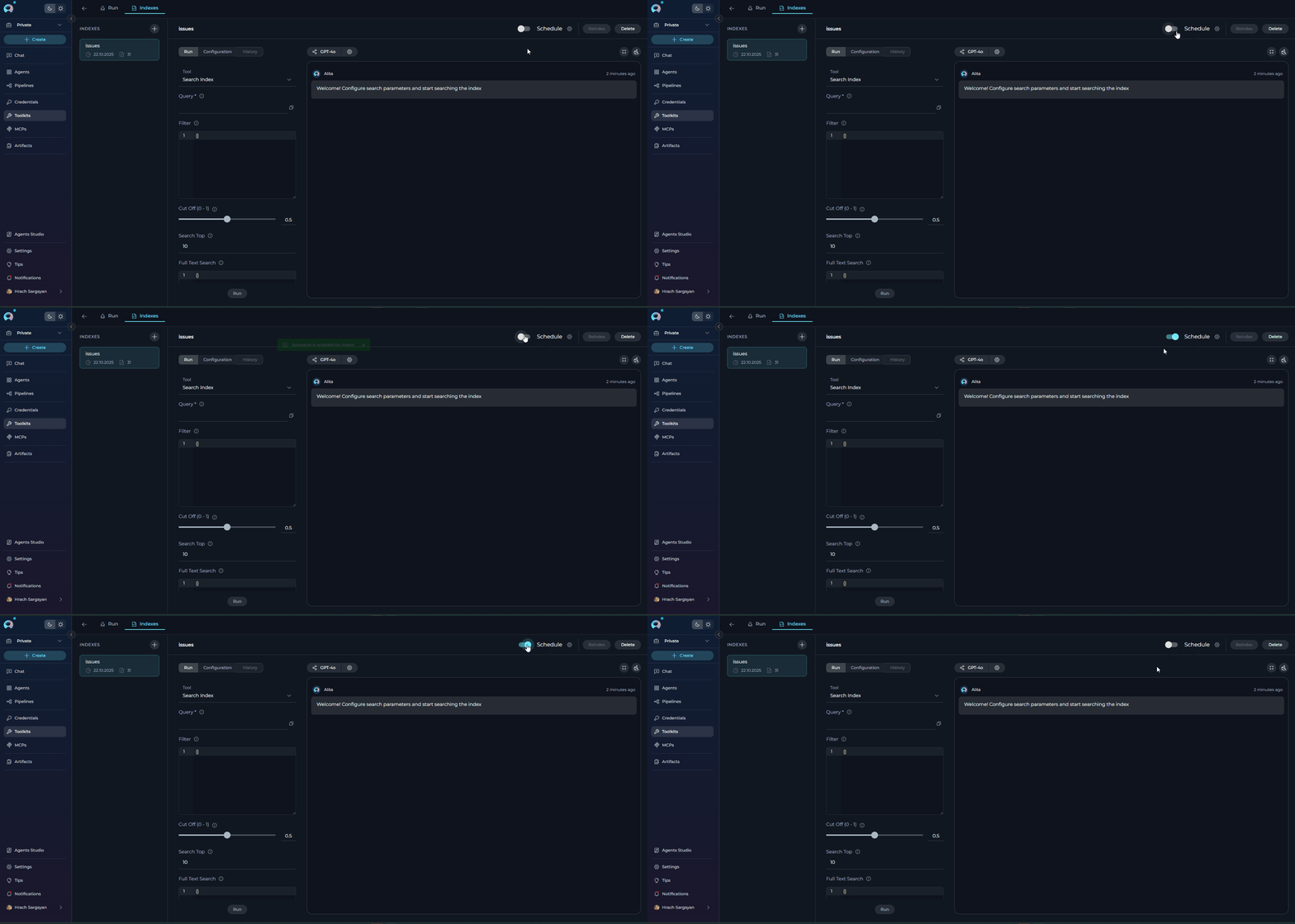
In the index detail view header, locate the **Schedule** controls:
1. **Schedule Toggle Switch**: Located in the index actions area (top right)
2. **Schedule Label**: Text label "Schedule" next to the toggle
3. **Gear Icon**: Settings icon to configure the cron expression
**To enable scheduling:**
1. Click the **toggle switch** to turn it ON (blue)
2. A success notification will appear: "Schedule is enabled for index!"
**To disable scheduling:**
1. Click the **toggle switch** to turn it OFF (gray)
2. A success notification will appear: "Schedule is disabled for index!"
### Step 3: Enable Scheduling
In the index detail view header, locate the **Schedule** controls:
1. **Schedule Toggle Switch**: Located in the index actions area (top right)
2. **Schedule Label**: Text label "Schedule" next to the toggle
3. **Gear Icon**: Settings icon to configure the cron expression
**To enable scheduling:**
1. Click the **toggle switch** to turn it ON (blue)
2. A success notification will appear: "Schedule is enabled for index!"
**To disable scheduling:**
1. Click the **toggle switch** to turn it OFF (gray)
2. A success notification will appear: "Schedule is disabled for index!"
 ***
## Understanding Cron Expressions
Scheduled indexing uses **cron expressions** to define when automatic reindexing should occur. A cron expression consists of five space-separated fields:
```
minute hour day(month) month day(week)
* * * * *
```
### Cron Field Definitions
| Position | Field | Allowed Values | Special Characters |
| -------- | ------------ | ---------------------- | ------------------ |
| 1 | Minute | 0-59 | `*` `,` `-` `/` |
| 2 | Hour | 0-23 | `*` `,` `-` `/` |
| 3 | Day of Month | 1-31 | `*` `,` `-` `/` |
| 4 | Month | 1-12 | `*` `,` `-` `/` |
| 5 | Day of Week | 0-7 (0 and 7 = Sunday) | `*` `,` `-` `/` |
### Special Characters
* **`*`** (asterisk): Matches any value (e.g., `*` in the hour field means "every hour")
* **`,`** (comma): Lists multiple values (e.g., `1,15` in day field means "1st and 15th")
* **`-`** (hyphen): Defines a range (e.g., `9-17` in hour field means "9 AM to 5 PM")
* **`/`** (slash): Specifies step values (e.g., `*/2` in hour field means "every 2 hours")
### Frequency Limitations
While the system currently allows any valid cron expression frequency, it is **strongly recommended** to avoid scheduling reindexing operations more frequently than once per hour to prevent excessive resource usage:
***
## Understanding Cron Expressions
Scheduled indexing uses **cron expressions** to define when automatic reindexing should occur. A cron expression consists of five space-separated fields:
```
minute hour day(month) month day(week)
* * * * *
```
### Cron Field Definitions
| Position | Field | Allowed Values | Special Characters |
| -------- | ------------ | ---------------------- | ------------------ |
| 1 | Minute | 0-59 | `*` `,` `-` `/` |
| 2 | Hour | 0-23 | `*` `,` `-` `/` |
| 3 | Day of Month | 1-31 | `*` `,` `-` `/` |
| 4 | Month | 1-12 | `*` `,` `-` `/` |
| 5 | Day of Week | 0-7 (0 and 7 = Sunday) | `*` `,` `-` `/` |
### Special Characters
* **`*`** (asterisk): Matches any value (e.g., `*` in the hour field means "every hour")
* **`,`** (comma): Lists multiple values (e.g., `1,15` in day field means "1st and 15th")
* **`-`** (hyphen): Defines a range (e.g., `9-17` in hour field means "9 AM to 5 PM")
* **`/`** (slash): Specifies step values (e.g., `*/2` in hour field means "every 2 hours")
### Frequency Limitations
While the system currently allows any valid cron expression frequency, it is **strongly recommended** to avoid scheduling reindexing operations more frequently than once per hour to prevent excessive resource usage:
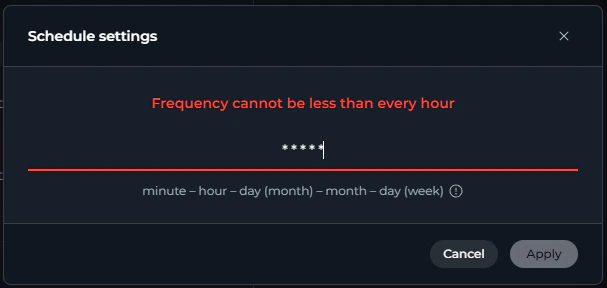 **Not recommended:**
* `* * * * *` - Every minute
* `*/30 * * * *` - Every 30 minutes
* Any pattern triggering more than once per hour
**Recommended minimum:** `0 * * * *` (Every hour at minute 0) or less frequent
A minimum frequency restriction of 1 hour may be enforced in future releases to protect system resources.
***
## Common Schedule Patterns
Here are verified schedule patterns for typical reindexing scenarios:
| Pattern | Cron Expression | Description |
| ------------------ | ------------------ | ------------------------------------------- |
| **Default** | `0 0 * * 6` | Every Saturday at midnight (00:00) |
| **Hourly** | `0 * * * *` | Every hour at minute 0 |
| **Every 2 Hours** | `0 */2 * * *` | Every 2 hours at minute 0 |
| **Every 6 Hours** | `0 */6 * * *` | Every 6 hours at minute 0 |
| **Daily Midnight** | `0 0 * * *` | Every day at midnight (00:00) |
| **Daily 2 AM** | `0 2 * * *` | Every day at 2:00 AM |
| **Weekdays 6 AM** | `0 6 * * 1-5` | Monday through Friday at 6:00 AM |
| **Weekly Sunday** | `0 0 * * 0` | Every Sunday at midnight |
| **Monthly 1st** | `0 0 1 * *` | First day of each month at midnight |
| **Quarterly** | `0 0 1 1,4,7,10 *` | First day of Jan, Apr, Jul, Oct at midnight |
Use [crontab.guru](https://crontab.guru) to validate and understand cron expressions. The system also provides real-time validation and human-readable descriptions when you configure schedules. You can also click the **info icon** in the Schedule Settings modal to quickly access crontab.guru help.
**Not recommended:**
* `* * * * *` - Every minute
* `*/30 * * * *` - Every 30 minutes
* Any pattern triggering more than once per hour
**Recommended minimum:** `0 * * * *` (Every hour at minute 0) or less frequent
A minimum frequency restriction of 1 hour may be enforced in future releases to protect system resources.
***
## Common Schedule Patterns
Here are verified schedule patterns for typical reindexing scenarios:
| Pattern | Cron Expression | Description |
| ------------------ | ------------------ | ------------------------------------------- |
| **Default** | `0 0 * * 6` | Every Saturday at midnight (00:00) |
| **Hourly** | `0 * * * *` | Every hour at minute 0 |
| **Every 2 Hours** | `0 */2 * * *` | Every 2 hours at minute 0 |
| **Every 6 Hours** | `0 */6 * * *` | Every 6 hours at minute 0 |
| **Daily Midnight** | `0 0 * * *` | Every day at midnight (00:00) |
| **Daily 2 AM** | `0 2 * * *` | Every day at 2:00 AM |
| **Weekdays 6 AM** | `0 6 * * 1-5` | Monday through Friday at 6:00 AM |
| **Weekly Sunday** | `0 0 * * 0` | Every Sunday at midnight |
| **Monthly 1st** | `0 0 1 * *` | First day of each month at midnight |
| **Quarterly** | `0 0 1 1,4,7,10 *` | First day of Jan, Apr, Jul, Oct at midnight |
Use [crontab.guru](https://crontab.guru) to validate and understand cron expressions. The system also provides real-time validation and human-readable descriptions when you configure schedules. You can also click the **info icon** in the Schedule Settings modal to quickly access crontab.guru help.
 ***
## Managing Schedules
**Viewing Active Schedules**
Currently, schedule information is stored per user and per index. To view your active schedules:
1. **Navigate to the Index**: Open the index in the Indexes Tab
2. **Check Schedule Toggle**: The toggle state (ON/OFF) indicates if scheduling is active
3. **Open Schedule Settings**: Click the gear icon to view the configured cron expression
Each user can configure their own schedule for the same index. Schedules are stored under the user ID and do not affect other users' schedules for the same index.
**Editing Schedules**
To modify an existing schedule:
1. **Open Schedule Settings**: Click the gear icon next to the Schedule toggle
2. **Update Cron Expression**: Enter the new expression in the modal
3. **Validate and Apply**: Ensure the expression is valid, then click Apply
4. **No notification** is shown for cron expression updates (only for enable/disable)
**Pausing Schedules**
To temporarily pause scheduled reindexing without losing the cron configuration:
1. **Disable the Toggle**: Click the Schedule toggle switch to turn it OFF
2. **Preserve Configuration**: The cron expression is preserved and can be re-enabled later
3. **Success Notification**: "Schedule is disabled for index!" appears
***
## Real-Life Example: Daily GitHub Repository Indexing
This example demonstrates setting up automated daily reindexing for a GitHub repository index to keep code and documentation searches current.
**Scenario**
**Goal**: Keep a GitHub repository index updated daily at 2:00 AM to reflect new commits, pull requests, and documentation changes.
**Index Details:**
* **Toolkit**: GitHub toolkit for `ProjectAlita/projectalita.github.io` repository
* **Index Name**: `docs`
* **Current State**: Successfully created and completed
* **Desired Schedule**: Daily at 2:00 AM (during off-peak hours)
**Step-by-Step Configuration**
**1. Access the Index:**
* Navigate to **Toolkits** → Select **GitHub (ProjectAlita/projectalita.github.io)** toolkit
* Click **Indexes** tab
* Select the **docs** index from the sidebar
**2. Enable Scheduling:**
* Locate the **Schedule** controls in the index actions area (top right)
* Click the **toggle switch** to enable scheduling
* Confirm the success notification: "Schedule is enabled for index!"
**3. Configure Daily 2 AM Schedule:**
1. Click the **gear icon** next to the Schedule label
2. The Schedule Settings modal opens showing the current schedule
3. **Choose configuration method:**
**Option A: Using Default (Visual Builder)**:
* Select **Default** schedule type (if not already selected)
* Use the dropdown menus to configure:
* Period: "Every"
* Hour: "2:00"
* Day: "\*" (every day)
* The cron expression `0 2 * * *` is built automatically
* Verify the description shows: "At 02:00 AM"
**Option B: Using Advanced (Manual Entry)**:
* Select **Advanced** schedule type
* Clear the input and enter: `0 2 * * *`
* Verify the description updates to: "At 02:00 AM"
4. **Click Apply** to save the new schedule
**4. Verify Configuration:**
1. **Toggle State**: Confirmed ON (blue)
2. **Cron Expression**: `0 2 * * *` (verified by reopening settings modal)
3. **Schedule Active**: Automatic reindexing will occur daily at 2:00
**Expected Behavior**
**Daily at 2:00 AM:**
1. The system automatically triggers a reindexing operation for the `docs` index
2. The index state changes to `in_progress` during the operation
3. Progress is tracked and visible in the index interface
4. Upon completion, the index state returns to `completed`
5. A new entry appears in the **History** tab with label "Reindexed" and the timestamp
6. A **notification** is sent:
* **Success**: "Index docs is successfully reindexed by schedule. \{ "reindexed": X, "indexed": Y }"
* **Failure**: "Index docs is failed."
**History Tab Entry:**
```
Event: Reindexed
Date: 25-11-2025, 02:00 AM
```
**Notification Received:**
```
Index docs is successfully reindexed by schedule.
{ "reindexed": 15, "indexed": 120 }
2 minutes ago
```
**Result:**
Your team can now ask questions about the codebase and documentation using the most recent repository content, with automatic updates every day without manual intervention.
***
## Troubleshooting
**Symptom**: The Schedule toggle switch is grayed out and cannot be clicked.
**Causes and Solutions:**
| Cause | Solution |
| -------------------------- | ---------------------------------------------------------------------------- |
| Index state is `cancelled` | Click **Reindex** to restart indexing, then enable schedule |
| Index state is `failed` | Review error logs, fix the issue, reindex successfully, then enable schedule |
| Insufficient permissions | Contact project administrator for toolkit modification permissions |
**Common validation errors and how to fix them:**
| Error Message | Cause | Solution |
| -------------------------------------------------------------------------- | ---------------------------------------------- | -------------------------------------------------------- |
| "Cron expression is required" | Empty or null input | Enter a valid 5-field cron expression |
| "Cron must have exactly 5 parts with space between every part" | Incorrect number of fields | Ensure exactly 5 space-separated fields |
| "Invalid minute (0-59, \*, ranges, lists, steps allowed)" | Minute value out of range or invalid format | Use values 0-59 or valid special characters |
| "Invalid hour (0-23, \*, ranges, lists, steps allowed)" | Hour value out of range or invalid format | Use values 0-23 or valid special characters |
| "Invalid day (1-31, \*, ranges, lists, steps allowed)" | Day value out of range or invalid format | Use values 1-31 or valid special characters |
| "Invalid month (1-12, \*, ranges, lists, steps allowed)" | Month value out of range or invalid format | Use values 1-12 or valid special characters |
| "Invalid weekday (0-7 where 0,7=Sunday, \*, ranges, lists, steps allowed)" | Weekday value out of range or invalid format | Use values 0-7 or valid special characters |
| "Frequency cannot be less than every hour" | Schedule would trigger more than once per hour | Use patterns with minimum 1-hour intervals |
| "Invalid hour step value. Step cannot be 0." | Hour step value is 0 | Use a non-zero step value (e.g., `*/2` instead of `*/0`) |
**Symptom**: Schedule is enabled, but reindexing is not occurring at the configured time.
**Troubleshooting Steps:**
1. **Verify Cron Expression**:
* Open Schedule Settings and check the cron expression
* Use [crontab.guru](https://crontab.guru) to verify the expression matches your intent
* Ensure the expression is not in the past (e.g., specific date/time that has passed)
2. **Check Index State**:
* Ensure index state is `completed`, not `failed` or `cancelled`
* If state is invalid, manually reindex and then re-enable the schedule
3. **Confirm Toggle is Enabled**:
* Verify the Schedule toggle is ON (blue)
* If OFF, enable it again
4. **Review System Logs** (if accessible):
* Check for backend errors during scheduled execution
* Look for quota limitations or resource constraints
5. **Time Zone Considerations**:
* Cron expressions execute in the server's time zone
* Verify the server time zone matches your expectations
**Symptom**: When updating the cron expression, no success notification appears.
**Expected Behavior**: This is normal. Success notifications only appear when **enabling or disabling** the schedule toggle, not when modifying the cron expression or credentials.
**To Verify Configuration:**
* Reopen the Schedule Settings modal
* Confirm the cron expression shows your updated value
* Confirm credentials are selected (if required)
**Symptom**: The Schedule toggle is disabled with tooltip "Set credentials to enable scheduling".
**Cause**: The toolkit requires credentials for scheduled indexing operations.
**Solution:**
1. Click the **gear icon** next to the Schedule toggle
2. In the Schedule Settings modal, scroll down to the **credentials selector**
3. Select an existing credential configuration from the dropdown (only credentials matching your project type will be shown), or
4. Click **+ Create new** to create a new credential configuration
5. Click **Apply** to save
6. Now the Schedule toggle will be enabled
**Note**: The credentials dropdown only shows credentials that match your current project type:
* **Private Project**: Only private project credentials are available
* **Team Project**: Only team project credentials are available
**Symptom**: The Apply button in the Schedule Settings modal is grayed out.
**Causes and Solutions:**
| Cause | Solution |
| --------------------------------- | -------------------------------------------------- |
| Invalid cron expression | Check the error message and correct the expression |
| Required credentials not selected | Scroll down and select a credential configuration |
| Toolkit schema still loading | Wait for the loading to complete |
**Symptom**: Scheduled reindexing operations fail, and you receive error notifications.
**Cause**: No valid ELITEA personal access token is available, or all tokens have expired.
**Solution:**
1. Navigate to **User Settings** → **Personal Access Tokens**
2. Check if you have any active (non-expired) tokens
3. If all tokens are expired or no tokens exist:
* Click **Generate New Token**
* Provide a token name and expiration date
* Save the token
4. Return to the Indexes tab and verify the schedule is still enabled
5. Wait for the next scheduled execution or manually trigger a reindex to test
**Prevention**: Regularly review your personal access tokens and generate new ones before existing tokens expire to avoid disruption to scheduled operations.
***
## Limitations
| Limitation | Description |
| ----------------------------------------- | ------------------------------------------------------------------------------------------------------------------------------------------------------------------------------------------------------------------------- |
| **Minimum Frequency** | Schedules cannot execute more frequently than once per hour |
| **User-Specific Schedules** | Schedules are per-user; there is no shared/global schedule for all users |
| **Single Schedule Per User Per Index** | Each user can only configure one schedule per index |
| **Credentials Stored Per Schedule** | If credentials are required, they are stored with the schedule and used for all scheduled runs |
| **No Schedule History** | The system does not maintain a history of schedule configuration changes |
| **No Concurrent Execution Protection** | If a scheduled run is in progress when the next trigger occurs, behavior is undefined |
| **Time Zone** | Schedules execute in the server's time zone (not user's local time zone) |
| **No Advanced Scheduling Options** | No support for:
***
## Managing Schedules
**Viewing Active Schedules**
Currently, schedule information is stored per user and per index. To view your active schedules:
1. **Navigate to the Index**: Open the index in the Indexes Tab
2. **Check Schedule Toggle**: The toggle state (ON/OFF) indicates if scheduling is active
3. **Open Schedule Settings**: Click the gear icon to view the configured cron expression
Each user can configure their own schedule for the same index. Schedules are stored under the user ID and do not affect other users' schedules for the same index.
**Editing Schedules**
To modify an existing schedule:
1. **Open Schedule Settings**: Click the gear icon next to the Schedule toggle
2. **Update Cron Expression**: Enter the new expression in the modal
3. **Validate and Apply**: Ensure the expression is valid, then click Apply
4. **No notification** is shown for cron expression updates (only for enable/disable)
**Pausing Schedules**
To temporarily pause scheduled reindexing without losing the cron configuration:
1. **Disable the Toggle**: Click the Schedule toggle switch to turn it OFF
2. **Preserve Configuration**: The cron expression is preserved and can be re-enabled later
3. **Success Notification**: "Schedule is disabled for index!" appears
***
## Real-Life Example: Daily GitHub Repository Indexing
This example demonstrates setting up automated daily reindexing for a GitHub repository index to keep code and documentation searches current.
**Scenario**
**Goal**: Keep a GitHub repository index updated daily at 2:00 AM to reflect new commits, pull requests, and documentation changes.
**Index Details:**
* **Toolkit**: GitHub toolkit for `ProjectAlita/projectalita.github.io` repository
* **Index Name**: `docs`
* **Current State**: Successfully created and completed
* **Desired Schedule**: Daily at 2:00 AM (during off-peak hours)
**Step-by-Step Configuration**
**1. Access the Index:**
* Navigate to **Toolkits** → Select **GitHub (ProjectAlita/projectalita.github.io)** toolkit
* Click **Indexes** tab
* Select the **docs** index from the sidebar
**2. Enable Scheduling:**
* Locate the **Schedule** controls in the index actions area (top right)
* Click the **toggle switch** to enable scheduling
* Confirm the success notification: "Schedule is enabled for index!"
**3. Configure Daily 2 AM Schedule:**
1. Click the **gear icon** next to the Schedule label
2. The Schedule Settings modal opens showing the current schedule
3. **Choose configuration method:**
**Option A: Using Default (Visual Builder)**:
* Select **Default** schedule type (if not already selected)
* Use the dropdown menus to configure:
* Period: "Every"
* Hour: "2:00"
* Day: "\*" (every day)
* The cron expression `0 2 * * *` is built automatically
* Verify the description shows: "At 02:00 AM"
**Option B: Using Advanced (Manual Entry)**:
* Select **Advanced** schedule type
* Clear the input and enter: `0 2 * * *`
* Verify the description updates to: "At 02:00 AM"
4. **Click Apply** to save the new schedule
**4. Verify Configuration:**
1. **Toggle State**: Confirmed ON (blue)
2. **Cron Expression**: `0 2 * * *` (verified by reopening settings modal)
3. **Schedule Active**: Automatic reindexing will occur daily at 2:00
**Expected Behavior**
**Daily at 2:00 AM:**
1. The system automatically triggers a reindexing operation for the `docs` index
2. The index state changes to `in_progress` during the operation
3. Progress is tracked and visible in the index interface
4. Upon completion, the index state returns to `completed`
5. A new entry appears in the **History** tab with label "Reindexed" and the timestamp
6. A **notification** is sent:
* **Success**: "Index docs is successfully reindexed by schedule. \{ "reindexed": X, "indexed": Y }"
* **Failure**: "Index docs is failed."
**History Tab Entry:**
```
Event: Reindexed
Date: 25-11-2025, 02:00 AM
```
**Notification Received:**
```
Index docs is successfully reindexed by schedule.
{ "reindexed": 15, "indexed": 120 }
2 minutes ago
```
**Result:**
Your team can now ask questions about the codebase and documentation using the most recent repository content, with automatic updates every day without manual intervention.
***
## Troubleshooting
**Symptom**: The Schedule toggle switch is grayed out and cannot be clicked.
**Causes and Solutions:**
| Cause | Solution |
| -------------------------- | ---------------------------------------------------------------------------- |
| Index state is `cancelled` | Click **Reindex** to restart indexing, then enable schedule |
| Index state is `failed` | Review error logs, fix the issue, reindex successfully, then enable schedule |
| Insufficient permissions | Contact project administrator for toolkit modification permissions |
**Common validation errors and how to fix them:**
| Error Message | Cause | Solution |
| -------------------------------------------------------------------------- | ---------------------------------------------- | -------------------------------------------------------- |
| "Cron expression is required" | Empty or null input | Enter a valid 5-field cron expression |
| "Cron must have exactly 5 parts with space between every part" | Incorrect number of fields | Ensure exactly 5 space-separated fields |
| "Invalid minute (0-59, \*, ranges, lists, steps allowed)" | Minute value out of range or invalid format | Use values 0-59 or valid special characters |
| "Invalid hour (0-23, \*, ranges, lists, steps allowed)" | Hour value out of range or invalid format | Use values 0-23 or valid special characters |
| "Invalid day (1-31, \*, ranges, lists, steps allowed)" | Day value out of range or invalid format | Use values 1-31 or valid special characters |
| "Invalid month (1-12, \*, ranges, lists, steps allowed)" | Month value out of range or invalid format | Use values 1-12 or valid special characters |
| "Invalid weekday (0-7 where 0,7=Sunday, \*, ranges, lists, steps allowed)" | Weekday value out of range or invalid format | Use values 0-7 or valid special characters |
| "Frequency cannot be less than every hour" | Schedule would trigger more than once per hour | Use patterns with minimum 1-hour intervals |
| "Invalid hour step value. Step cannot be 0." | Hour step value is 0 | Use a non-zero step value (e.g., `*/2` instead of `*/0`) |
**Symptom**: Schedule is enabled, but reindexing is not occurring at the configured time.
**Troubleshooting Steps:**
1. **Verify Cron Expression**:
* Open Schedule Settings and check the cron expression
* Use [crontab.guru](https://crontab.guru) to verify the expression matches your intent
* Ensure the expression is not in the past (e.g., specific date/time that has passed)
2. **Check Index State**:
* Ensure index state is `completed`, not `failed` or `cancelled`
* If state is invalid, manually reindex and then re-enable the schedule
3. **Confirm Toggle is Enabled**:
* Verify the Schedule toggle is ON (blue)
* If OFF, enable it again
4. **Review System Logs** (if accessible):
* Check for backend errors during scheduled execution
* Look for quota limitations or resource constraints
5. **Time Zone Considerations**:
* Cron expressions execute in the server's time zone
* Verify the server time zone matches your expectations
**Symptom**: When updating the cron expression, no success notification appears.
**Expected Behavior**: This is normal. Success notifications only appear when **enabling or disabling** the schedule toggle, not when modifying the cron expression or credentials.
**To Verify Configuration:**
* Reopen the Schedule Settings modal
* Confirm the cron expression shows your updated value
* Confirm credentials are selected (if required)
**Symptom**: The Schedule toggle is disabled with tooltip "Set credentials to enable scheduling".
**Cause**: The toolkit requires credentials for scheduled indexing operations.
**Solution:**
1. Click the **gear icon** next to the Schedule toggle
2. In the Schedule Settings modal, scroll down to the **credentials selector**
3. Select an existing credential configuration from the dropdown (only credentials matching your project type will be shown), or
4. Click **+ Create new** to create a new credential configuration
5. Click **Apply** to save
6. Now the Schedule toggle will be enabled
**Note**: The credentials dropdown only shows credentials that match your current project type:
* **Private Project**: Only private project credentials are available
* **Team Project**: Only team project credentials are available
**Symptom**: The Apply button in the Schedule Settings modal is grayed out.
**Causes and Solutions:**
| Cause | Solution |
| --------------------------------- | -------------------------------------------------- |
| Invalid cron expression | Check the error message and correct the expression |
| Required credentials not selected | Scroll down and select a credential configuration |
| Toolkit schema still loading | Wait for the loading to complete |
**Symptom**: Scheduled reindexing operations fail, and you receive error notifications.
**Cause**: No valid ELITEA personal access token is available, or all tokens have expired.
**Solution:**
1. Navigate to **User Settings** → **Personal Access Tokens**
2. Check if you have any active (non-expired) tokens
3. If all tokens are expired or no tokens exist:
* Click **Generate New Token**
* Provide a token name and expiration date
* Save the token
4. Return to the Indexes tab and verify the schedule is still enabled
5. Wait for the next scheduled execution or manually trigger a reindex to test
**Prevention**: Regularly review your personal access tokens and generate new ones before existing tokens expire to avoid disruption to scheduled operations.
***
## Limitations
| Limitation | Description |
| ----------------------------------------- | ------------------------------------------------------------------------------------------------------------------------------------------------------------------------------------------------------------------------- |
| **Minimum Frequency** | Schedules cannot execute more frequently than once per hour |
| **User-Specific Schedules** | Schedules are per-user; there is no shared/global schedule for all users |
| **Single Schedule Per User Per Index** | Each user can only configure one schedule per index |
| **Credentials Stored Per Schedule** | If credentials are required, they are stored with the schedule and used for all scheduled runs |
| **No Schedule History** | The system does not maintain a history of schedule configuration changes |
| **No Concurrent Execution Protection** | If a scheduled run is in progress when the next trigger occurs, behavior is undefined |
| **Time Zone** | Schedules execute in the server's time zone (not user's local time zone) |
| **No Advanced Scheduling Options** | No support for:
• Date ranges (e.g., only reindex between Jan 1 and Mar 31)
• Conditional schedules (e.g., only if data has changed)
• Retry logic on failure
• Schedule dependencies between indexes |
| **Schedule Disables After Index Failure** | If a manually triggered or scheduled reindexing fails, the schedule is automatically disabled and must be manually re-enabled after fixing the issue |
| **Notification for Result Only** | Notifications are sent when reindexing completes (success) or fails (error), but there is no notification when a scheduled reindexing starts. Check the index status or History tab to monitor ongoing operations |
***
## Best Practices
1. **Data Change Frequency**: Match schedule to how often your source data changes
* **Rapidly changing data** (e.g., active repositories): Daily or multiple times per day
* **Moderately changing data** (e.g., documentation wikis): Weekly
* **Slowly changing data** (e.g., archived content): Monthly
2. **Off-Peak Hours**: Schedule during low-usage periods
* Early morning (e.g., 2:00 AM - 5:00 AM)
* Weekends (e.g., Saturday/Sunday midnight)
* Avoid business hours to prevent performance impact on users
3. **Resource Considerations**:
* Larger indexes take longer to reindex
* Consider system load and concurrent operations
* Stagger schedules for multiple indexes to avoid simultaneous heavy operations
4. **User Needs vs. System Load**:
* Balance data freshness requirements with system resources
* Don't schedule more frequently than necessary
When managing schedules across multiple indexes:
1. **Stagger Execution Times**: Avoid scheduling multiple indexes at the same time
* Index A: `0 2 * * *` (Daily at 2:00 AM)
* Index B: `0 4 * * *` (Daily at 4:00 AM)
* Index C: `0 6 * * *` (Daily at 6:00 AM)
2. **Group by Priority**:
* Critical indexes: More frequent schedules
* Reference indexes: Less frequent schedules
3. **Document Your Schedules**: Maintain a reference document listing all configured schedules for coordination
1. **Regular Review**: Periodically check the History tab to verify schedules are executing successfully
2. **Update Schedules as Needed**: Adjust cron expressions when data change patterns evolve
3. **Clean Up Unused Schedules**: Disable schedules for indexes that are no longer actively used
4. **Test Before Production**: Validate schedule configuration with a test index before applying to production indexes
***
* [Using Indexes Tab Interface](./using-indexes-tab-interface) - Comprehensive guide to the Indexes Tab
* [Indexing Overview](./indexing-overview) - General indexing concepts and architecture
* [Index GitHub Data](./index-github-data) - GitHub repository indexing guide
* [Indexing Tools](./indexing-tools) - Available indexing tools and their parameters
* [Toolkits Menu](../../menus/toolkits) - Guide to navigating the Toolkit menu interface
***