> ## Documentation Index
> Fetch the complete documentation index at: https://docs.elitea.ai/llms.txt
> Use this file to discover all available pages before exploring further.
# Index Figma Data
> Indexing tools are available in the Next environment (Release 1.7.0) and replace legacy Datasources/Datasets. For context, see Release Notes 1.7.0 and the Index
Indexing tools are available in the [Next environment](https://next.elitea.ai) (Release 1.7.0) and replace legacy Datasources/Datasets. For context, see [Release Notes 1.7.0](../../release-notes/archived/rn13#indexing-dedicated-toolkit-indexes-tab) and the [Indexing Overview](./indexing-overview).
## Overview
Figma indexing allows you to create searchable indexes from your Figma design collaboration and UI/UX content:
* **Design Files**: Complete Figma files with all design elements, components, and layouts
* **Frames & Pages**: Individual screens, artboards, and design layouts within files
* **Components & Instances**: Reusable design components and their instances across projects
* **Design Elements**: UI elements like buttons, forms, icons, and interactive components
* **Project Organization**: Team projects, file structures, and design system hierarchies
**What you can do with indexed Figma data:**
* **Design Search**: Find specific design patterns, components, or screens across your design system
* **Context-Aware Design Chat**: Get AI-generated answers about design decisions and patterns with references to specific files
* **Cross-Project Discovery**: Search for design elements and patterns across multiple Figma projects
* **Design System Analysis**: Analyze component usage, design consistency, and UI patterns
* **Component Documentation**: Extract insights about design components and their usage patterns
**Common use cases:**
* Finding specific design components or patterns across your design system for reuse
* Onboarding new designers by allowing them to ask questions about design standards and components
* Analyzing design consistency and identifying opportunities for component standardization
* Product teams searching for specific UI patterns and design decisions
* Design system managers extracting insights about component adoption and usage
***
## Prerequisites
Before indexing Figma data, ensure you have:
1. **Figma Credential**: A Figma Personal Access Token or [authentication credentials](../credentials-toolkits/how-to-use-credentials#figma-credential-setup) configured in ELITEA
2. **Vector Storage**: PgVector selected in Settings → [AI Configuration](../../menus/settings/ai-configuration)
3. **Embedding Model**: Selected in AI Configuration (defaults available) → [AI Configuration](../../menus/settings/ai-configuration)
4. **Figma Toolkit**: Configured with your Figma authentication and project details
### Required Permissions
Your Figma credential needs appropriate permissions based on what you want to index:
**For Content Access:**
* Read access to Figma files and projects
* Permission to view the specific teams and projects you want to index
**For Comprehensive Indexing:**
* Access to view file content, components, and design elements
* Permission to access both public and team-restricted files (based on your requirements)
* Ability to read from multiple projects and team spaces
**Authentication Methods:**
* **Personal Access Token**: Figma API token (starts with `figd_`)
* **OAuth2**: OAuth2 token for application-specific access
***
## Step-by-Step: Creating a Figma Credential
1. **Generate Figma Personal Access Token** in your Figma account (Settings → Security → Personal Access Tokens)
2. **Create Credential in ELITEA**: Navigate to **Credentials** → **+ Create** → **Figma** → enter details and save
For complete credential setup steps including token generation and security best practices, see:
* [Create a Credential](../../getting-started/create-credential)
* [Figma Credential Setup](../credentials-toolkits/how-to-use-credentials#figma-credential-setup)
* [Figma Toolkit Integration Guide](../../integrations/toolkits/figma_toolkit)
***
## Step-by-Step: Configure Figma Toolkit
1. **Create Toolkit**: Navigate to **Toolkits** → **+ Create** → **Figma**
2. **Configure Settings**: Set authentication method and assign your Figma credential
3. **Enable Tools**: Select `Index Data`, `List Collections`, `Search Index`, `Stepback Search Index`, `Stepback Summary Index`, and `Remove Index` tools
4. **Save Configuration**
### Tool Overview:
* **Index Data**: Creates searchable indexes from Figma files and design content
* **List Collections**: Lists all available collections/indexes to verify what's been indexed
* **Search Index**: Performs semantic search across indexed content using natural language queries
* **Stepback Search Index**: Advanced search that breaks down complex questions into simpler parts for better results
* **Stepback Summary Index**: Generates summaries and insights from search results across indexed content
* **Remove Index**: Deletes existing collections/indexes when you need to clean up or start fresh
For complete toolkit configuration including authentication setup and access permissions, see:
* [Toolkits Menu](../../menus/toolkits)
* [Figma Toolkit Integration Guide](../../integrations/toolkits/figma_toolkit)
***
## Finding Required Figma IDs
Before indexing, you'll need to identify the specific Figma resources you want to index. Here's how to find the required IDs:
### Project ID
For tools that require a **Project ID**, you can obtain it in the following ways:
1. **From Project URL (If You Are Project Admin) - Web & Desktop:**
* **Web:** Extract from project URL: `https://www.figma.com/files/project/[PROJECT_ID]/[PROJECT_NAME]`
* **Desktop:** Use **File → Show in browser** or **Share** → copy project link, then extract from project URL
2. **Request from Project Administrator:** If you don't have admin access to the project, contact the project administrator or team owner to provide you with the **Project ID**.
 Providing Project ID for indexing is optional. It's generally better to use **File Keys** for targeted indexing instead, because projects may contain many files which could result in large indexes. Use Project ID only when you specifically need to index all files in a project or create comprehensive project-level indexes.
### File Key
* **Web:** Extract from file URL: `https://www.figma.com/file/[FILE_KEY]/[FILE_NAME]`
* **Desktop:** Use **File → Copy link** or **Share** button, then extract from URL
Providing Project ID for indexing is optional. It's generally better to use **File Keys** for targeted indexing instead, because projects may contain many files which could result in large indexes. Use Project ID only when you specifically need to index all files in a project or create comprehensive project-level indexes.
### File Key
* **Web:** Extract from file URL: `https://www.figma.com/file/[FILE_KEY]/[FILE_NAME]`
* **Desktop:** Use **File → Copy link** or **Share** button, then extract from URL
 ### Node IDs
* **Web:** Right-click any design element → **Copy link** → extract from URL parameter `node-id=[NODE_ID]`
* **Desktop:** Right-click element → **Copy link** or select multiple elements (Ctrl/Cmd) → **Copy link**, then extract from URL
### Node IDs
* **Web:** Right-click any design element → **Copy link** → extract from URL parameter `node-id=[NODE_ID]`
* **Desktop:** Right-click element → **Copy link** or select multiple elements (Ctrl/Cmd) → **Copy link**, then extract from URL
 - **Project ID**: Numeric (e.g., `123456789`)
- **File Key**: Alphanumeric string (e.g., `ABC123DEF456`)
- **Node ID**: Colon-separated format (e.g., `123:456`)
For comprehensive step-by-step instructions including additional methods and troubleshooting tips, see the [Figma Key Parameters](../../integrations/toolkits/figma_toolkit#figma-key-parameters) section in the Figma Integration Guide.
***
## Step-by-Step: Index Figma Data
All indexing operations are performed via the **Indexes Tab Interface**. This dedicated interface provides comprehensive index management with visual status indicators, real-time progress monitoring, and integrated search capabilities.
Before proceeding, ensure your project has PgVector and Embedding Model configured in Settings → AI Configuration, and your Figma toolkit has the **Index Data** tool enabled.
### Step 1: Access the Interface
1. **Navigate to Toolkits**: Go to **Toolkits** in the main navigation
2. **Select Your Figma Toolkit**: Choose your configured Figma toolkit from the list
3. **Open Indexes Tab**: Click on the **Indexes** tab in the toolkit detail view
If the tab is disabled or not visible, verify that:
* PgVector and Embedding Model are configured in Settings → AI Configuration
* The **Index Data** tool is enabled in your toolkit configuration
### Step 2: Create a New Index
1. **Click Create New Index**: In the Indexes sidebar, click the **+ Create New Index** button
2. **New Index Form**: The center panel displays the new index creation form
### Step 3: Configure Index Parameters
Fill in the required and optional parameters for your Figma indexing:
| Parameter | Required | Description | Example Value |
| ----------------------- | -------- | -------------------------------------------------------- | ------------------------------------------------------------------ |
| Index Name | ✓ | Suffix for collection name (max 7 chars) | `designs` or `ui` |
| Clean Index | ✗ | Remove existing index data before re-indexing | ✓ (checked) or ✗ (unchecked) |
| Progress Step (0 - 100) | ✗ | Step size for progress reporting during indexing | `10` or `25` |
| Chunking Config | ✗ | Configuration for document chunking | Default or custom settings |
| Chunking Tool | ✗ | Method for splitting content into chunks | `markdown` (default) |
| file\_or\_page\_url | ✗ | URL to file or page to index | `https://www.figma.com/design/[FILE_KEY]/Design?node-id=[PAGE_ID]` |
| project\_id | ✗ | ID of the project to list files from | `55391681` |
| file\_keys\_include | ✗ | List of file keys to include if project\_id not provided | `["Fp24FuzPwH0L74ODSrCnQo"]` |
| file\_keys\_exclude | ✗ | List of file keys to exclude from indexing | `["OldDesignFile123"]` |
| node\_ids\_include | ✗ | List of top-level nodes (pages) to include | `["123-56", "7651-9230"]` |
| node\_ids\_exclude | ✗ | List of top-level nodes (pages) to exclude | `["Archive-Page"]` |
| node\_types\_include | ✗ | List of node types to include | `["FRAME", "COMPONENT"]` |
| node\_types\_exclude | ✗ | List of node types to exclude | `["VECTOR", "RECTANGLE"]` |
### Step 4: Start Indexing
1. **Form Validation**: The **Index** button remains inactive until all required fields are filled
2. **Review Configuration**: Verify all parameters are correct
3. **Click Index Button**: Start the indexing process
4. **Monitor Progress**: Watch real-time updates with visual indicators:
* 🔄 **In Progress**: Indexing is currently running
* ✅ **Completed**: All items indexed successfully
* ⚠️ **Partially Indexed**: Indexing finished but some files were skipped (unsupported extension, empty content, or errors). The index is fully usable for search and scheduling — review the skipped-file breakdown in the chat panel.
* ❌ **Failed**: Indexing encountered an error
- **Project ID**: Numeric (e.g., `123456789`)
- **File Key**: Alphanumeric string (e.g., `ABC123DEF456`)
- **Node ID**: Colon-separated format (e.g., `123:456`)
For comprehensive step-by-step instructions including additional methods and troubleshooting tips, see the [Figma Key Parameters](../../integrations/toolkits/figma_toolkit#figma-key-parameters) section in the Figma Integration Guide.
***
## Step-by-Step: Index Figma Data
All indexing operations are performed via the **Indexes Tab Interface**. This dedicated interface provides comprehensive index management with visual status indicators, real-time progress monitoring, and integrated search capabilities.
Before proceeding, ensure your project has PgVector and Embedding Model configured in Settings → AI Configuration, and your Figma toolkit has the **Index Data** tool enabled.
### Step 1: Access the Interface
1. **Navigate to Toolkits**: Go to **Toolkits** in the main navigation
2. **Select Your Figma Toolkit**: Choose your configured Figma toolkit from the list
3. **Open Indexes Tab**: Click on the **Indexes** tab in the toolkit detail view
If the tab is disabled or not visible, verify that:
* PgVector and Embedding Model are configured in Settings → AI Configuration
* The **Index Data** tool is enabled in your toolkit configuration
### Step 2: Create a New Index
1. **Click Create New Index**: In the Indexes sidebar, click the **+ Create New Index** button
2. **New Index Form**: The center panel displays the new index creation form
### Step 3: Configure Index Parameters
Fill in the required and optional parameters for your Figma indexing:
| Parameter | Required | Description | Example Value |
| ----------------------- | -------- | -------------------------------------------------------- | ------------------------------------------------------------------ |
| Index Name | ✓ | Suffix for collection name (max 7 chars) | `designs` or `ui` |
| Clean Index | ✗ | Remove existing index data before re-indexing | ✓ (checked) or ✗ (unchecked) |
| Progress Step (0 - 100) | ✗ | Step size for progress reporting during indexing | `10` or `25` |
| Chunking Config | ✗ | Configuration for document chunking | Default or custom settings |
| Chunking Tool | ✗ | Method for splitting content into chunks | `markdown` (default) |
| file\_or\_page\_url | ✗ | URL to file or page to index | `https://www.figma.com/design/[FILE_KEY]/Design?node-id=[PAGE_ID]` |
| project\_id | ✗ | ID of the project to list files from | `55391681` |
| file\_keys\_include | ✗ | List of file keys to include if project\_id not provided | `["Fp24FuzPwH0L74ODSrCnQo"]` |
| file\_keys\_exclude | ✗ | List of file keys to exclude from indexing | `["OldDesignFile123"]` |
| node\_ids\_include | ✗ | List of top-level nodes (pages) to include | `["123-56", "7651-9230"]` |
| node\_ids\_exclude | ✗ | List of top-level nodes (pages) to exclude | `["Archive-Page"]` |
| node\_types\_include | ✗ | List of node types to include | `["FRAME", "COMPONENT"]` |
| node\_types\_exclude | ✗ | List of node types to exclude | `["VECTOR", "RECTANGLE"]` |
### Step 4: Start Indexing
1. **Form Validation**: The **Index** button remains inactive until all required fields are filled
2. **Review Configuration**: Verify all parameters are correct
3. **Click Index Button**: Start the indexing process
4. **Monitor Progress**: Watch real-time updates with visual indicators:
* 🔄 **In Progress**: Indexing is currently running
* ✅ **Completed**: All items indexed successfully
* ⚠️ **Partially Indexed**: Indexing finished but some files were skipped (unsupported extension, empty content, or errors). The index is fully usable for search and scheduling — review the skipped-file breakdown in the chat panel.
* ❌ **Failed**: Indexing encountered an error
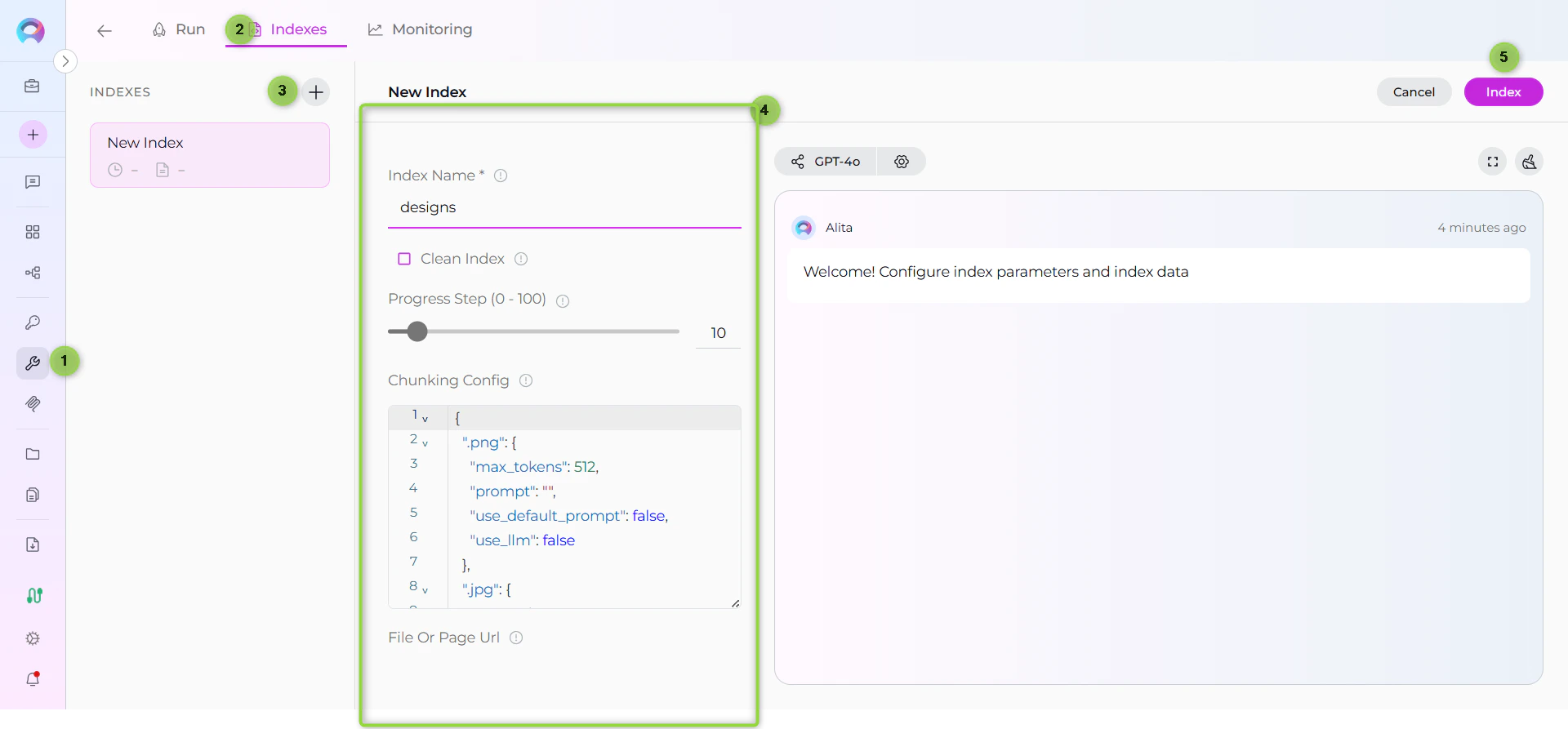 For quick testing and validation, you can also use the **Test Settings** panel on the right side of the toolkit detail page. Select a model, choose the **Index Data** tool from the dropdown, configure parameters, and click **Run Tool**. However, the Indexes Tab Interface is the recommended approach for comprehensive index management.
### Step 5: Verify Index Creation
After indexing completes, verify the index was created successfully:
1. **Check Index Status**: Visual indicators show completion status
2. **Review Index Details**: Click on the created index to see metadata and document count
3. **Test Search**: Use the **Run** tab to test search functionality with sample queries
***
## Search and Chat with Indexed Data
Once your Figma data is indexed, you can use it in multiple ways:
### Using the Indexes Interface
**Direct Search via Indexes Tab:**
1. **Access Indexes Tab**: Navigate to your Figma toolkit → **Indexes** tab
2. **Select Index**: Click on your created index from the sidebar
3. **Open Run Tab**: Click the **Run** tab in the center panel
4. **Choose Search Tool**: Select from available search tools:
* **Search Index**: Basic semantic search
* **Stepback Search Index**: Advanced search with question breakdown
* **Stepback Summary Index**: Summarized insights from search results
5. **Enter Query**: Type your natural language question
6. **View Results**: See responses with citations to specific Figma files and components
### Using Toolkit in Conversations and Agents
Your Figma toolkit can be used in two main contexts:
1. **In Conversations**: Add the toolkit as a participant to ask questions and search your indexed Figma data
2. **In Agents**: Include the toolkit when creating AI agents to give them access to your design data
**How to use:**
* **Start a New Conversation or Create an Agent**
* **Add Toolkit as Participant**: Select your Figma toolkit from the available toolkits
* **Ask Natural Language Questions**: The toolkit will automatically search your indexed data and provide relevant answers with citations
### Real-Life Example Workflow
Let's walk through a complete example of indexing and using a design team's Figma project:
**Step 1: Setup Figma Toolkit for Design Project**
**Step 2: Use in Conversations**
**Add toolkit to a conversation and start asking questions:**
* Navigate to **Conversations** → **+ New Conversation**
* In the participants section click + to add Toolkit
* Select your Figma toolkit from the available toolkits list
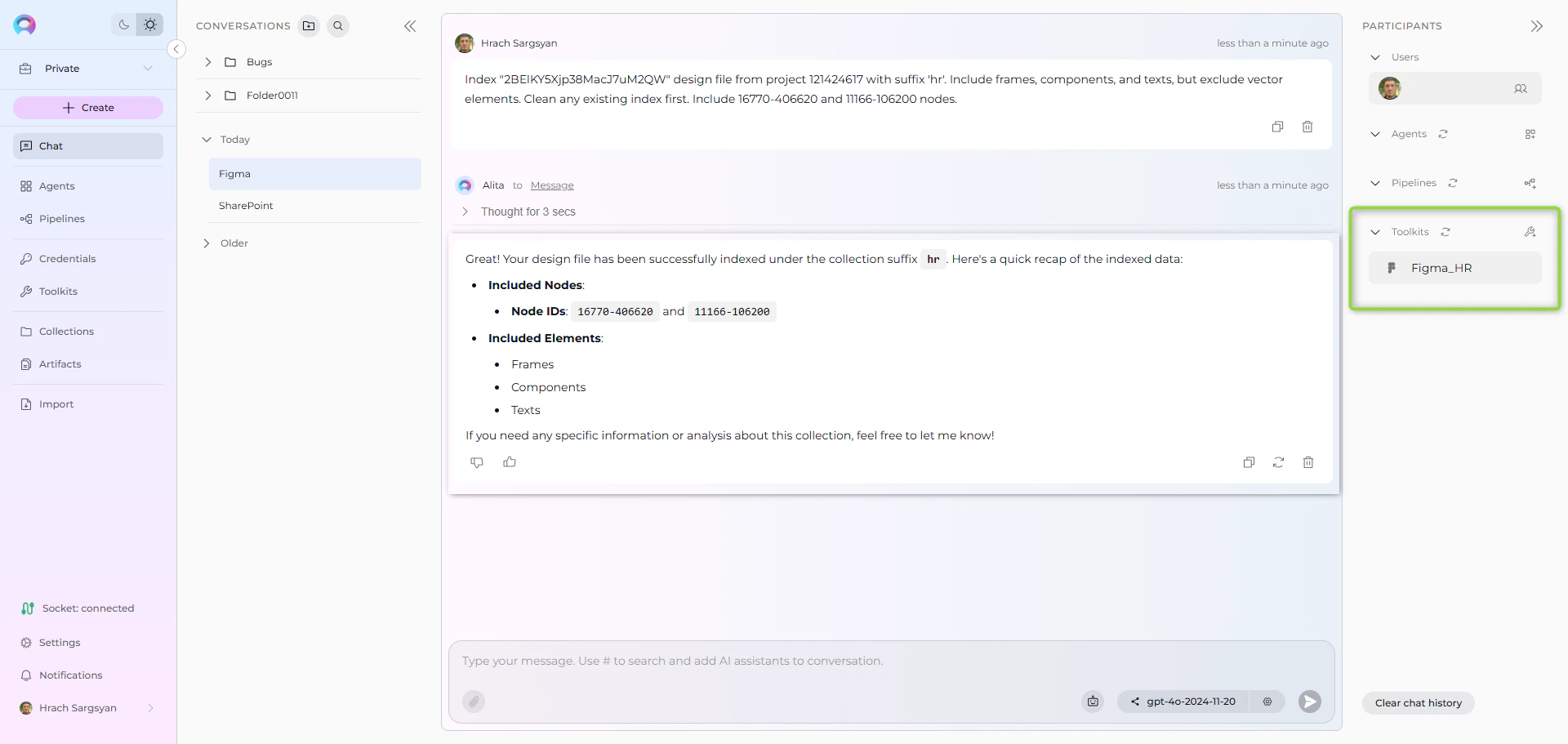
**Step 3: Index the Design Project**
* **User Request in Chat:**
> "Index "2BElKY5Xjp38MacJ7uM2QW" design file from project 121424617 with suffix 'hr'. Include frames, components, and texts, but exclude vector elements. Clean any existing index first. Include 16770-406620 and 11166-106200 nodes."
For quick testing and validation, you can also use the **Test Settings** panel on the right side of the toolkit detail page. Select a model, choose the **Index Data** tool from the dropdown, configure parameters, and click **Run Tool**. However, the Indexes Tab Interface is the recommended approach for comprehensive index management.
### Step 5: Verify Index Creation
After indexing completes, verify the index was created successfully:
1. **Check Index Status**: Visual indicators show completion status
2. **Review Index Details**: Click on the created index to see metadata and document count
3. **Test Search**: Use the **Run** tab to test search functionality with sample queries
***
## Search and Chat with Indexed Data
Once your Figma data is indexed, you can use it in multiple ways:
### Using the Indexes Interface
**Direct Search via Indexes Tab:**
1. **Access Indexes Tab**: Navigate to your Figma toolkit → **Indexes** tab
2. **Select Index**: Click on your created index from the sidebar
3. **Open Run Tab**: Click the **Run** tab in the center panel
4. **Choose Search Tool**: Select from available search tools:
* **Search Index**: Basic semantic search
* **Stepback Search Index**: Advanced search with question breakdown
* **Stepback Summary Index**: Summarized insights from search results
5. **Enter Query**: Type your natural language question
6. **View Results**: See responses with citations to specific Figma files and components
### Using Toolkit in Conversations and Agents
Your Figma toolkit can be used in two main contexts:
1. **In Conversations**: Add the toolkit as a participant to ask questions and search your indexed Figma data
2. **In Agents**: Include the toolkit when creating AI agents to give them access to your design data
**How to use:**
* **Start a New Conversation or Create an Agent**
* **Add Toolkit as Participant**: Select your Figma toolkit from the available toolkits
* **Ask Natural Language Questions**: The toolkit will automatically search your indexed data and provide relevant answers with citations
### Real-Life Example Workflow
Let's walk through a complete example of indexing and using a design team's Figma project:
**Step 1: Setup Figma Toolkit for Design Project**
**Step 2: Use in Conversations**
**Add toolkit to a conversation and start asking questions:**
* Navigate to **Conversations** → **+ New Conversation**
* In the participants section click + to add Toolkit
* Select your Figma toolkit from the available toolkits list
**Step 3: Index the Design Project**
* **User Request in Chat:**
> "Index "2BElKY5Xjp38MacJ7uM2QW" design file from project 121424617 with suffix 'hr'. Include frames, components, and texts, but exclude vector elements. Clean any existing index first. Include 16770-406620 and 11166-106200 nodes."
 **Step 4: Verify Index Creation**
* **User Request in Chat:**
> "List my collections"
* **Figma Toolkit Response:**
**Step 4: Verify Index Creation**
* **User Request in Chat:**
> "List my collections"
* **Figma Toolkit Response:**
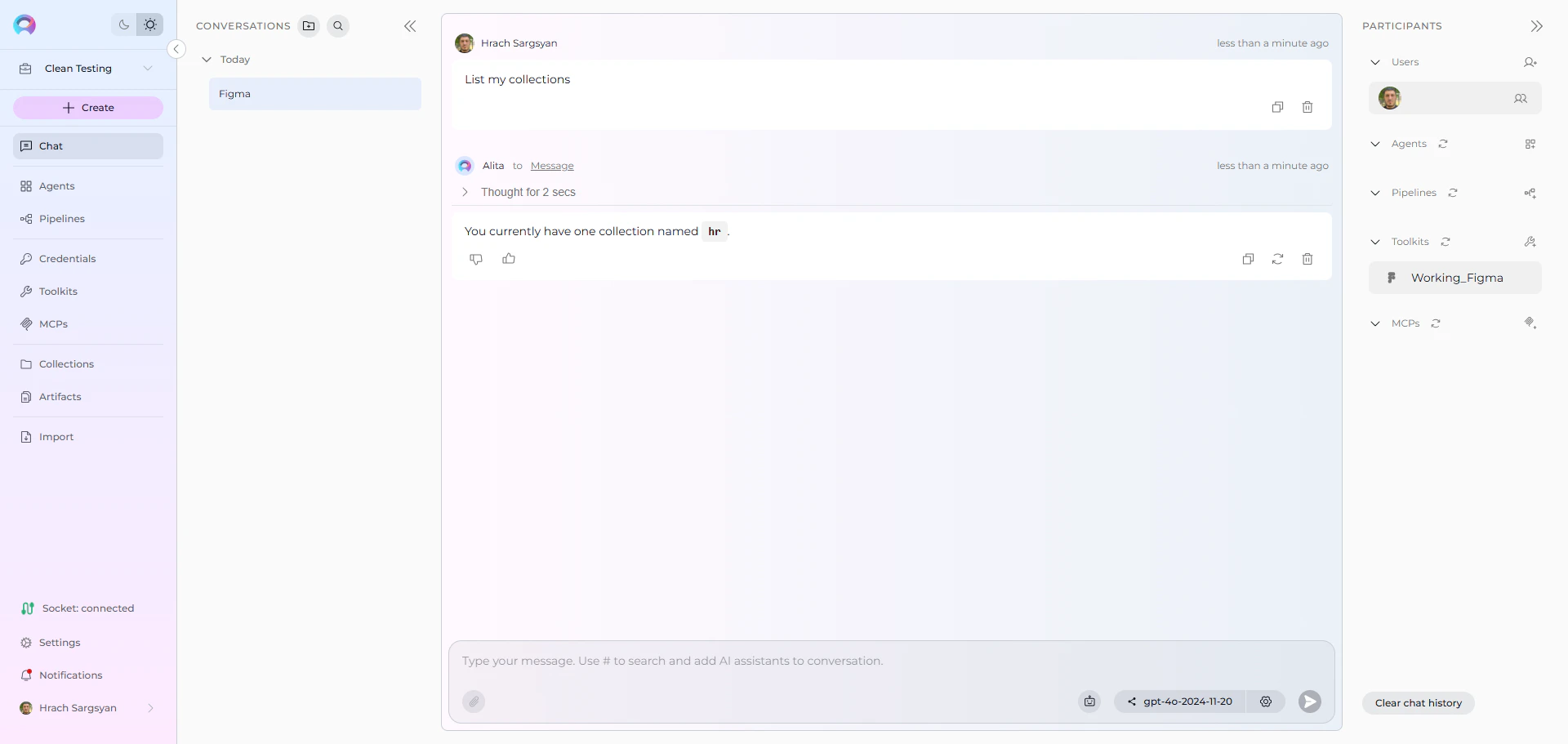 This confirms the indexing completed successfully and your design collection is available for searching.
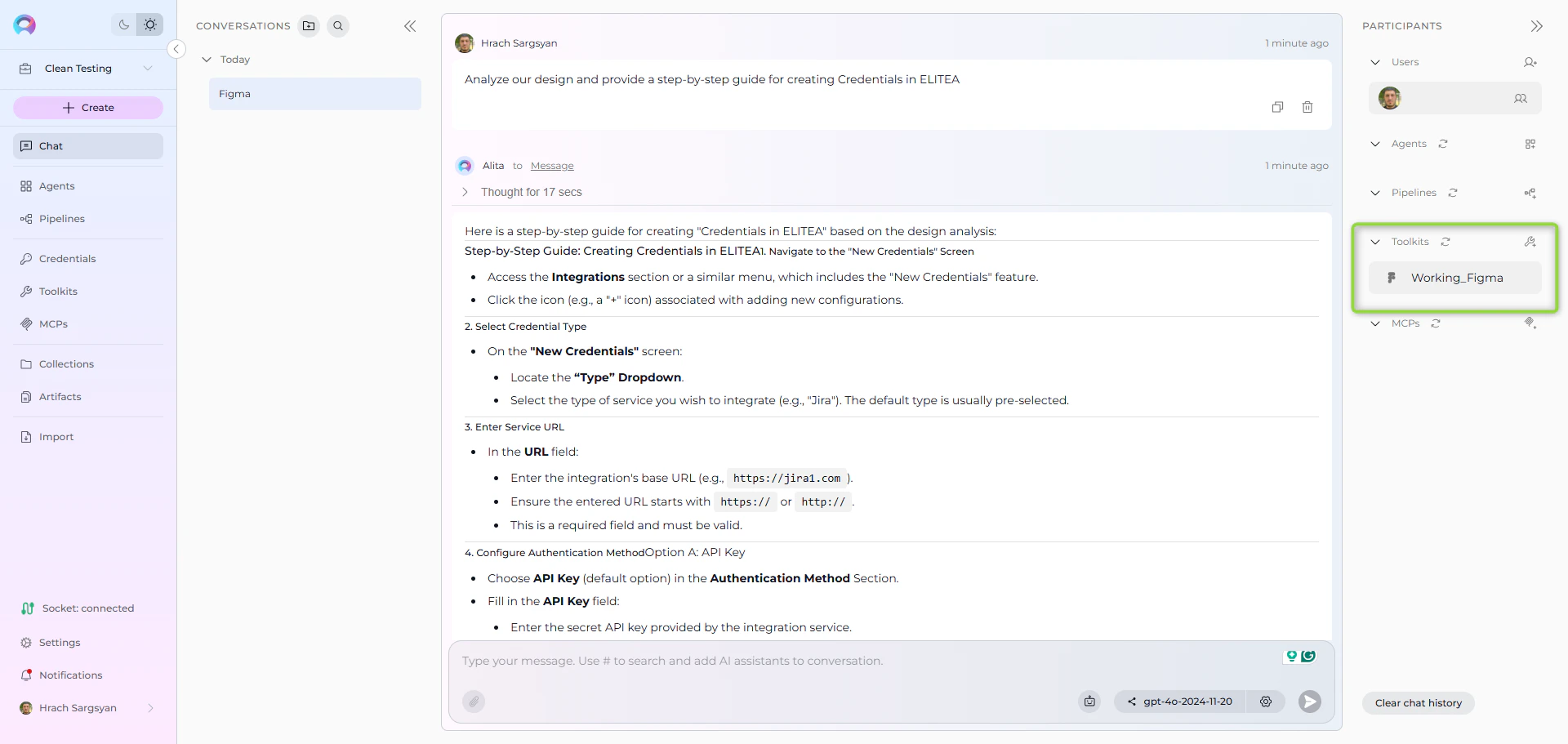
**Step 5: Start the conversation and begin asking questions about your indexed content**
* **User Request:** "Analyze our design system and provide a step-by-step guide for creating Credentials in ELITEA."
* **Figma Toolkit:** "Based on your indexed design files, here's a comprehensive guide for creating ELITEA credentials and analyzing your design system:
**ELITEA Credential Creation Steps:**
1. **Navigate to Credentials**: Go to ELITEA → Credentials → + Create → Select Figma
2. **Enter Token Information**: Paste your Figma Personal Access Token (starts with 'figd\_')
3. **Credential Configuration**: Set name, description, and save the credential for toolkit usage
4. **Assign to Toolkit**: Link the credential to your Figma toolkit in toolkit settings
**Design System Analysis:**
1. **Component Library**: Your design system contains 45 reusable components with consistent naming conventions
2. **Design Tokens**: Color palette follows brand guidelines with primary (#0066CC) and secondary (#00CC66) colors
3. **Typography**: Standardized font scales and spacing using 8px grid system
*Sources: Design\_System\_Guide.fig (Component: TokenLibrary), Team\_Standards.fig (Frame: CredentialSetup)*"
This confirms the indexing completed successfully and your design collection is available for searching.
**Step 5: Start the conversation and begin asking questions about your indexed content**
* **User Request:** "Analyze our design system and provide a step-by-step guide for creating Credentials in ELITEA."
* **Figma Toolkit:** "Based on your indexed design files, here's a comprehensive guide for creating ELITEA credentials and analyzing your design system:
**ELITEA Credential Creation Steps:**
1. **Navigate to Credentials**: Go to ELITEA → Credentials → + Create → Select Figma
2. **Enter Token Information**: Paste your Figma Personal Access Token (starts with 'figd\_')
3. **Credential Configuration**: Set name, description, and save the credential for toolkit usage
4. **Assign to Toolkit**: Link the credential to your Figma toolkit in toolkit settings
**Design System Analysis:**
1. **Component Library**: Your design system contains 45 reusable components with consistent naming conventions
2. **Design Tokens**: Color palette follows brand guidelines with primary (#0066CC) and secondary (#00CC66) colors
3. **Typography**: Standardized font scales and spacing using 8px grid system
*Sources: Design\_System\_Guide.fig (Component: TokenLibrary), Team\_Standards.fig (Frame: CredentialSetup)*"
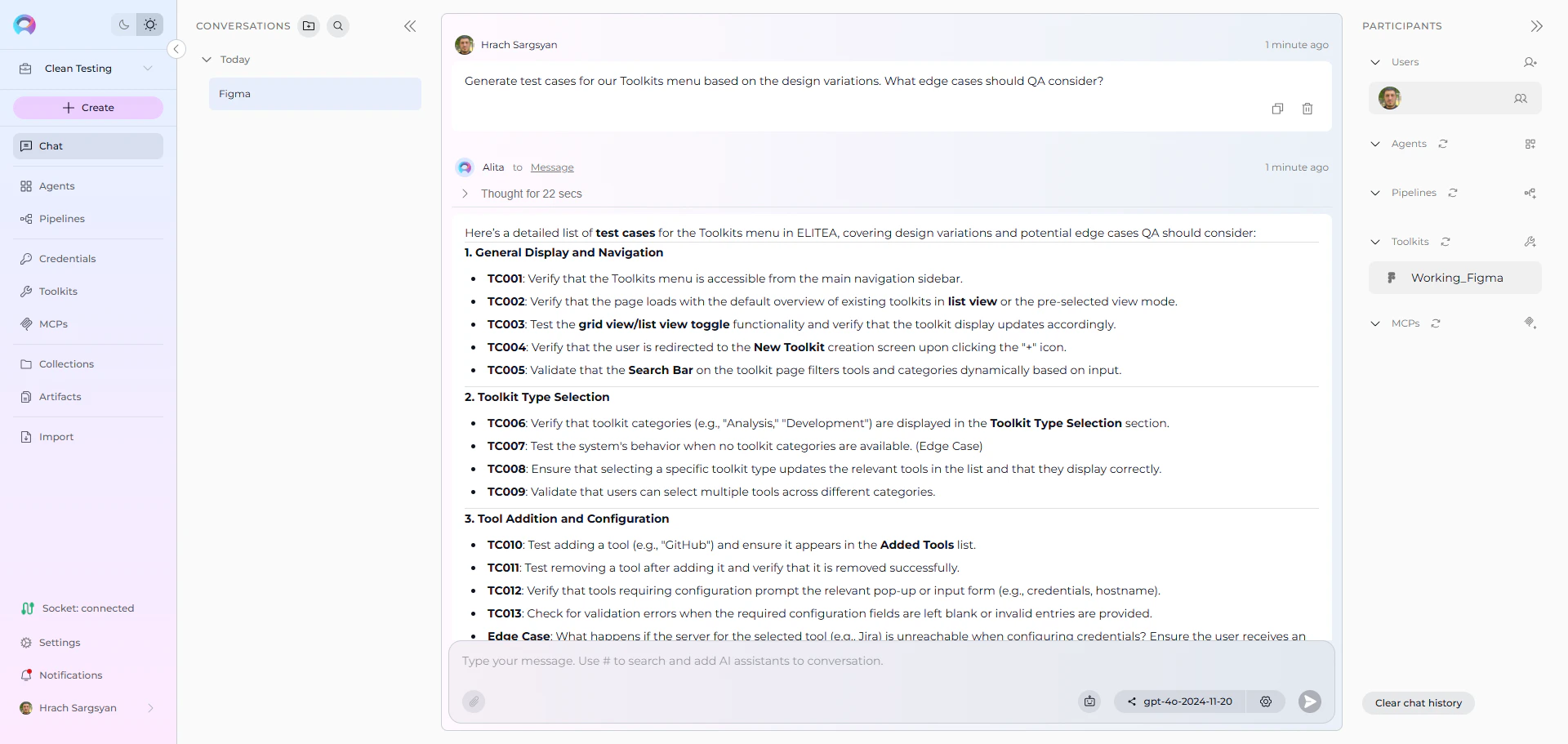
 * **User Request:** "Generate test cases for our Toolkits menu based on the design variations. What edge cases should QA consider?"
* **Figma Toolkit:** "Based on your indexed design files, here's a detailed list of test cases for the Toolkits menu in ELITEA, covering design variations and potential edge cases QA should consider:
**1. General Display and Navigation**
* TC001: Verify that the Toolkits menu is accessible from the main navigation sidebar
* TC002: Verify that the page loads with the default overview of existing toolkits in list view or the pre-selected view mode
**2. Toolkit Type Selection**
* TC006: Verify that toolkit categories (e.g., 'Analysis,' 'Development') are displayed in the Toolkit Type Selection section
* TC007: Test the system's behavior when no toolkit categories are available (Edge Case)
**3. Tool Addition and Configuration**
* TC010: Test adding a tool (e.g., 'GitHub') and ensure it appears in the Added Tools list
* TC011: Test removing a tool after adding it and verify that it is removed successfully
*Sources: Toolkits\_Menu\_Design.fig (Pages: MainView, CreationFlow), ELITEA\_Navigation.fig (Frame: SidebarMenu)*"
* **User Request:** "Generate test cases for our Toolkits menu based on the design variations. What edge cases should QA consider?"
* **Figma Toolkit:** "Based on your indexed design files, here's a detailed list of test cases for the Toolkits menu in ELITEA, covering design variations and potential edge cases QA should consider:
**1. General Display and Navigation**
* TC001: Verify that the Toolkits menu is accessible from the main navigation sidebar
* TC002: Verify that the page loads with the default overview of existing toolkits in list view or the pre-selected view mode
**2. Toolkit Type Selection**
* TC006: Verify that toolkit categories (e.g., 'Analysis,' 'Development') are displayed in the Toolkit Type Selection section
* TC007: Test the system's behavior when no toolkit categories are available (Edge Case)
**3. Tool Addition and Configuration**
* TC010: Test adding a tool (e.g., 'GitHub') and ensure it appears in the Added Tools list
* TC011: Test removing a tool after adding it and verify that it is removed successfully
*Sources: Toolkits\_Menu\_Design.fig (Pages: MainView, CreationFlow), ELITEA\_Navigation.fig (Frame: SidebarMenu)*"
 ## Troubleshooting & Tips
### Common Errors and Solutions
**"Indexes tab not visible" or "Tab disabled":**
* Verify PgVector and Embedding Model are configured in Settings → AI Configuration
* Ensure the **Index Data** tool is enabled in your Figma toolkit configuration
* Check that your toolkit supports indexing (Figma is supported)
* Refresh the browser page and retry
**"+ Create New Index button not working":**
* Verify all project-level prerequisites are met (PgVector and Embedding Model)
* Check that you have proper permissions for the toolkit
* Ensure the toolkit is properly saved with credentials
**"Authentication failed" or "Unauthorized access":**
* Verify your Figma credential has the correct Personal Access Token (starts with `figd_`)
* Ensure your token has not expired in your Figma account settings
* Check that your Figma account has access to the projects and files you want to index
* Verify the token was copied correctly without extra spaces or characters
**"No files found" or "Project not accessible":**
* Verify the Project ID is correct and accessible to your Figma account
* Ensure your account has permission to view the specific project and its files
* Check that the project exists and has not been deleted or archived
* Confirm your token's associated account is a member of the team that owns the project
**"File keys not found" or "Invalid file keys":**
* Check that the file keys are copied correctly from Figma URLs (case-sensitive)
* Ensure the files exist and are accessible to your account
* Verify file sharing settings allow API access if using publicly shared files
* Try indexing with Project ID instead of specific file keys for broader access
**"Vector database connection failed" or "PgVector errors":**
* Ensure PgVector is properly configured in Settings → AI Configuration
* Verify the vector database is running and accessible
* Check connection credentials and database permissions
* Restart the vector database service if connection issues persist
**"No design elements indexed" or "Empty results":**
* Check that Node Types filters are not excluding all content
* Verify the Figma files contain the specified node types (FRAME, COMPONENT, etc.)
* Try indexing without node type filters first, then add restrictions
* Ensure the design files have proper structure and named elements
### Performance and Scope Considerations
**For Large Design Projects:**
* Use specific file filters: `File Keys Include` for targeted indexing
* Filter by node types: include only `["FRAME", "COMPONENT"]` for key design elements
* Set reasonable progress steps: start with 25 for large projects
* Consider indexing by project phase: current designs vs. archived files
### Search Result Quality
**If search returns few/no results:**
* Lower the cut-off score from 0.5 to 0.35 or 0.3
* Increase search\_top from 10 to 20 or 30
* Try rephrasing your query with design-specific terms (component names, screen types)
* Verify the indexed content contains relevant design information for your query
**For better search quality:**
* Include both frames and components for comprehensive coverage
* Use natural language queries rather than exact file names
* Leverage stepback search for complex design questions that require reasoning
* Create separate indexes for different design types (mobile vs. web, current vs. archived)
### Content-Specific Indexing Tips
**For Design Systems:**
* Focus on components: include `["COMPONENT", "COMPONENT_SET"]` node types
* Index component libraries and design tokens for comprehensive coverage
* Include both current and deprecated components for historical context
**For Product Design:**
* Include frames and screens: `["FRAME"]` for screen-level designs
* Index across multiple product areas for cross-feature insights
* Consider including prototyping and interaction states
**For UI/UX Research:**
* Include wireframes and user flow designs
* Index research artifacts and design explorations
* Focus on user-centered design elements and patterns
***
## References
For additional information and detailed setup instructions, see:
* [Indexing Overview](./indexing-overview) - General indexing concepts and features
* [Create a Credential](../../getting-started/create-credential) - Step-by-step credential creation guide
* [How to Use Credentials](../credentials-toolkits/how-to-use-credentials) - Credential management and Figma setup
* [Toolkits Menu](../../menus/toolkits) - Toolkit configuration and management
* [Figma Toolkit Integration Guide](../../integrations/toolkits/figma_toolkit) - Complete Figma toolkit reference
* [AI Configuration](../../menus/settings/ai-configuration) - Vector storage and embedding model setup
* [Chat Menu](../../menus/chat) - Creating conversations and adding toolkit participants
## Troubleshooting & Tips
### Common Errors and Solutions
**"Indexes tab not visible" or "Tab disabled":**
* Verify PgVector and Embedding Model are configured in Settings → AI Configuration
* Ensure the **Index Data** tool is enabled in your Figma toolkit configuration
* Check that your toolkit supports indexing (Figma is supported)
* Refresh the browser page and retry
**"+ Create New Index button not working":**
* Verify all project-level prerequisites are met (PgVector and Embedding Model)
* Check that you have proper permissions for the toolkit
* Ensure the toolkit is properly saved with credentials
**"Authentication failed" or "Unauthorized access":**
* Verify your Figma credential has the correct Personal Access Token (starts with `figd_`)
* Ensure your token has not expired in your Figma account settings
* Check that your Figma account has access to the projects and files you want to index
* Verify the token was copied correctly without extra spaces or characters
**"No files found" or "Project not accessible":**
* Verify the Project ID is correct and accessible to your Figma account
* Ensure your account has permission to view the specific project and its files
* Check that the project exists and has not been deleted or archived
* Confirm your token's associated account is a member of the team that owns the project
**"File keys not found" or "Invalid file keys":**
* Check that the file keys are copied correctly from Figma URLs (case-sensitive)
* Ensure the files exist and are accessible to your account
* Verify file sharing settings allow API access if using publicly shared files
* Try indexing with Project ID instead of specific file keys for broader access
**"Vector database connection failed" or "PgVector errors":**
* Ensure PgVector is properly configured in Settings → AI Configuration
* Verify the vector database is running and accessible
* Check connection credentials and database permissions
* Restart the vector database service if connection issues persist
**"No design elements indexed" or "Empty results":**
* Check that Node Types filters are not excluding all content
* Verify the Figma files contain the specified node types (FRAME, COMPONENT, etc.)
* Try indexing without node type filters first, then add restrictions
* Ensure the design files have proper structure and named elements
### Performance and Scope Considerations
**For Large Design Projects:**
* Use specific file filters: `File Keys Include` for targeted indexing
* Filter by node types: include only `["FRAME", "COMPONENT"]` for key design elements
* Set reasonable progress steps: start with 25 for large projects
* Consider indexing by project phase: current designs vs. archived files
### Search Result Quality
**If search returns few/no results:**
* Lower the cut-off score from 0.5 to 0.35 or 0.3
* Increase search\_top from 10 to 20 or 30
* Try rephrasing your query with design-specific terms (component names, screen types)
* Verify the indexed content contains relevant design information for your query
**For better search quality:**
* Include both frames and components for comprehensive coverage
* Use natural language queries rather than exact file names
* Leverage stepback search for complex design questions that require reasoning
* Create separate indexes for different design types (mobile vs. web, current vs. archived)
### Content-Specific Indexing Tips
**For Design Systems:**
* Focus on components: include `["COMPONENT", "COMPONENT_SET"]` node types
* Index component libraries and design tokens for comprehensive coverage
* Include both current and deprecated components for historical context
**For Product Design:**
* Include frames and screens: `["FRAME"]` for screen-level designs
* Index across multiple product areas for cross-feature insights
* Consider including prototyping and interaction states
**For UI/UX Research:**
* Include wireframes and user flow designs
* Index research artifacts and design explorations
* Focus on user-centered design elements and patterns
***
## References
For additional information and detailed setup instructions, see:
* [Indexing Overview](./indexing-overview) - General indexing concepts and features
* [Create a Credential](../../getting-started/create-credential) - Step-by-step credential creation guide
* [How to Use Credentials](../credentials-toolkits/how-to-use-credentials) - Credential management and Figma setup
* [Toolkits Menu](../../menus/toolkits) - Toolkit configuration and management
* [Figma Toolkit Integration Guide](../../integrations/toolkits/figma_toolkit) - Complete Figma toolkit reference
* [AI Configuration](../../menus/settings/ai-configuration) - Vector storage and embedding model setup
* [Chat Menu](../../menus/chat) - Creating conversations and adding toolkit participants