> ## Documentation Index
> Fetch the complete documentation index at: https://docs.elitea.ai/llms.txt
> Use this file to discover all available pages before exploring further.
# Index Artifacts Data
> Indexing tools are available in the Next environment (Release 1.7.0) and replace legacy Datasources/Datasets. For context, see Release Notes 1.7.0 and the Index
Indexing tools are available in the [Next environment](https://next.elitea.ai) (Release 1.7.0) and replace legacy Datasources/Datasets. For context, see [Release Notes 1.7.0](../../release-notes/archived/rn13#indexing-dedicated-toolkit-indexes-tab) and the [Indexing Overview](./indexing-overview).
Indexing operations are performed through the **Indexes** interface within Toolkit Configuration. This interface provides comprehensive index management with visual status indicators, real-time progress monitoring, and integrated search capabilities. For detailed information, see [How to create and use indexes](./using-indexes-tab-interface).
## Overview
Artifacts indexing allows you to create searchable indexes from files stored in your project's Artifact buckets:
* **Document Files**: Text files, Word documents, PDFs, and other document formats
* **Data Files**: CSV, Excel, JSON files and structured data formats
* **Code Files**: Source code, configuration files, and technical documentation
* **Research Assets**: Analysis reports, findings, and research documentation
* **Temporary Storage**: Processing results, intermediate files, and workflow outputs
**What you can do with indexed Artifacts data:**
* **Semantic Search**: Find specific content across multiple files using natural language queries
* **Context-Aware Chat**: Get AI-generated answers from your file content with citations
* **Cross-File Discovery**: Search across all files in your Artifact buckets for comprehensive insights
* **Content Analysis**: Analyze patterns, themes, and information across your stored documents
* **Knowledge Extraction**: Transform file content into searchable organizational knowledge
**Common use cases:**
* Indexing research documentation and analysis reports for quick information retrieval
* Making project deliverables and documentation searchable for team collaboration
* Creating searchable knowledge bases from uploaded files and documents
* Analyzing data files and reports to extract insights and answer specific questions
* Organizing and finding content in temporary storage used during AI workflows
In previous releases, there was a **Source type: File** option in Datasources. Now, Datasources have been removed from ELITEA, and users can perform the same action through Artifacts.
**How to migrate from Datasources to Artifacts:**
1. **Upload your files**: Navigate to **ELITEA** → **Artifacts** and upload your files to a bucket (or drag & drop them directly)
2. **Create Artifact Toolkit**: Go to **Toolkits** → **+ Create** → **Artifact** and configure with your bucket name
3. **Index your data**: Use the "Index Data" tool from the Artifact Toolkit to create searchable indexes
4. **Search and chat**: Use the toolkit in conversations or agents to query your indexed content
This provides the same file indexing capabilities as the previous Datasources system with improved performance and integration.
***
## Prerequisites
Before indexing Artifacts data, ensure you have:
1. **No Credential Required**: Unlike other toolkits, Artifacts indexing doesn't require external credentials
2. **Vector Storage**: PgVector selected in Settings → [AI Configuration](../../menus/settings/ai-configuration)
3. **Embedding Model**: Selected in AI Configuration (defaults available) → [AI Configuration](../../menus/settings/ai-configuration)
4. **Artifact Toolkit**: Configured with your bucket name, files uploaded to your Artifact buckets, and **Index Data tool enabled**
5. **Files in Bucket**: At least one file uploaded to the Artifact bucket you want to index
The **Indexes** interface requires:
* PgVector and Embedding Model configured at the project level
* The **Index Data** tool enabled in your toolkit configuration
Complete both project-level setup and toolkit configuration to access indexing functionality.
### File Types Supported
The Artifact Toolkit supports indexing various file formats:
**Document Formats:**
* Text files (`.txt`, `.md`)
* Microsoft Word documents (`.docx`)
* PDF files (`.pdf`)
* Rich text format (`.rtf`)
**Data Formats:**
* CSV files (`.csv`)
* Excel spreadsheets (`.xlsx`, `.xls`)
* JSON files (`.json`)
* XML files (`.xml`)
**Code & Configuration:**
* Source code files (`.py`, `.js`, `.java`, `.cpp`, etc.)
* Configuration files (`.yml`, `.yaml`, `.ini`, `.conf`)
* Documentation (`.md`, `.rst`)
***
## Step-by-Step: Uploading Files to Artifacts
Before indexing, you need files in your Artifact buckets. You can upload files through:
### Option 1: ELITEA Artifacts Menu
1. **Navigate to Artifacts**: Click **ELITEA** → **Artifacts** in the sidebar
2. **Create or Select Bucket**: Create a new bucket or select an existing one
3. **Upload Files**:
* **Click Upload**: Click **Upload** button and select your files from the file browser
* **Drag & Drop**: Alternatively, drag and drop files directly into the bucket area
4. **Verify Upload**: Confirm files are listed in the bucket
### Option 2: Using Artifact Toolkit Tools
1. **Configure Agent with Artifact Toolkit**: Set up an agent with Artifact tools enabled
2. **Use Create File Tool**: Create text-based files directly in the bucket
For detailed instructions on managing Artifact buckets and files, see:
* [ELITEA Artifacts Menu](../../menus/artifacts)
* [Artifact Toolkit Guide](../../integrations/toolkits/artifact_toolkit)
***
## Step-by-Step: Configure Artifact Toolkit
1. **Create Toolkit**: Navigate to **Toolkits** → **+ Create** → **Artifact**
2. **Configure Basic Settings**:
* Set bucket name (no credentials required)
* Configure PgVector connection for vector storage
* Select embedding model for content processing
3. **Enable Tools**: Select `Index Data`, `List Collections`, `Search Index`, `Stepback Search Index`, `Stepback Summary Index`, and `Remove Index` tools
4. **Save Configuration**
The **Index Data** tool must be enabled for indexing functionality to be available. Without this tool, you cannot access the indexing interface.
### Tool Overview:
* **Index Data**: Creates searchable indexes from files stored in your Artifact bucket
* **List Collections**: Lists all available collections/indexes to verify what's been indexed
* **Search Index**: Performs semantic search across indexed content using natural language queries
* **Stepback Search Index**: Advanced search that breaks down complex questions into simpler parts for better results
* **Stepback Summary Index**: Generates summaries and insights from search results across indexed content
* **Remove Index**: Deletes existing collections/indexes when you need to clean up or start fresh
### Configuration Settings:
| Setting | Description | Example Value |
| -------------------------- | ----------------------------------------------------- | ---------------------------------------------------- |
| **Bucket** | Name of the Artifact bucket containing files to index | `research-docs` or `project-files` |
| **PgVector Configuration** | Vector database connection for storing embeddings | Select existing or create new PgVector config |
| **Embedding Model** | AI model for converting text to vector embeddings | `text-embedding-3-small` or `text-embedding-ada-002` |
Use descriptive bucket names that reflect the content type. Underscores (`_`) are prohibited and should be replaced with hyphens (`-`).
For complete toolkit configuration, see:
* [Toolkits Menu](../../menus/toolkits)
* [Artifact Toolkit Integration Guide](../../integrations/toolkits/artifact_toolkit)
***
## Step-by-Step: Index Artifacts Data
While this guide focuses on the **Indexes** interface (recommended), you can also index data using the **Test Settings** panel in your toolkit configuration. The Indexes interface provides better visual feedback, progress monitoring, and index management capabilities.
### Step 1: Access the Interface
1. **Navigate to Toolkits**: Go to **Toolkits** in the main navigation
2. **Select Your Artifact Toolkit**: Choose your configured Artifact toolkit from the list
3. **Open Indexes Tab**: Click on the **Indexes** tab in the toolkit detail view
If the tab is disabled or not visible, verify that:
* PgVector and Embedding Model are configured in Settings → AI Configuration
* The **Index Data** tool is enabled in your toolkit configuration
### Step 2: Create a New Index
1. **Click Create New Index**: In the Indexes sidebar, click the **+ Create New Index** button
2. **New Index Form**: The center panel displays the new index creation form
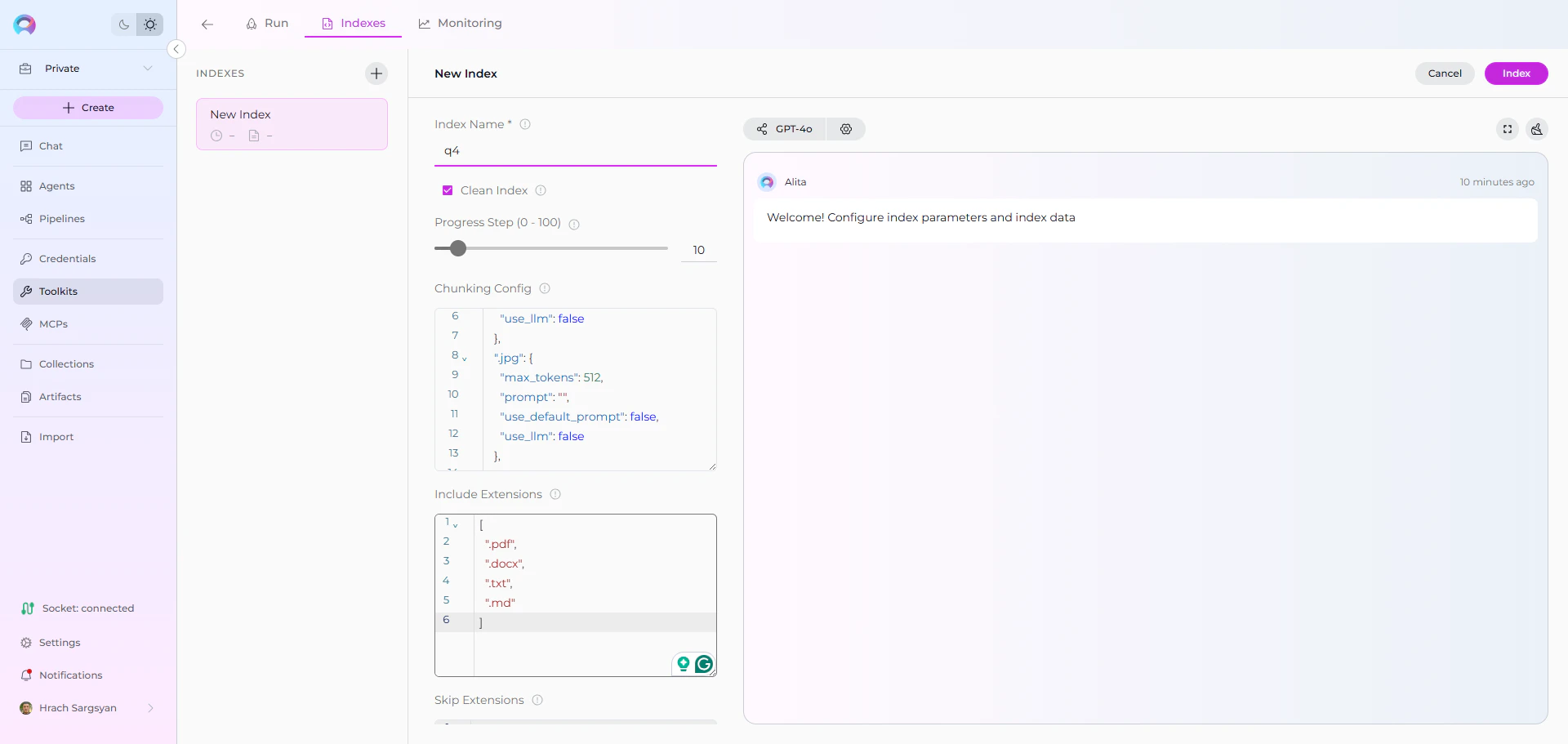
### Step 3: Configure Index Parameters
Fill in the required and optional parameters for your Artifact bucket:
| Parameter | Description | Example Value | Required |
| ------------------ | --------------------------------------------- | ---------------------------------- | -------- |
| Index Name | Suffix for collection name (max 7 chars) | `docs` or `files` | ✓ |
| Clean Index | Remove existing index data before re-indexing | ✓ (checked) or ✗ (unchecked) | ✗ |
| Include Extensions | File extensions to include in indexing | `[".pdf", ".docx", ".txt", ".md"]` | ✗ |
| Skip Extensions | File extensions to exclude from indexing | `[".png", ".jpg", ".zip", ".exe"]` | ✗ |
| Progress Step | Progress reporting interval | `10` (default) | ✗ |
| Chunking Config | Document chunking configuration | `{}` (default) | ✗ |
**Chunking** determines how large files are split into smaller, searchable pieces. The default settings work well for most content, but you can customize chunking for specific needs:
**Default Chunking**: Leave empty `{}` for automatic chunking based on file type
**Custom Chunking Examples**:
```json theme={null}
{"chunk_size": 1000, "chunk_overlap": 200}
```
* **chunk\_size**: Maximum characters per chunk (default: varies by file type)
* **chunk\_overlap**: Characters to overlap between chunks for context preservation
**When to customize**:
* **Large documents**: Increase chunk\_size for better context retention
* **Technical content**: Adjust overlap to preserve code blocks or formulas
* **Search precision**: Smaller chunks for more precise search results
### Step 4: Start Indexing
1. **Form Validation**: The **Index** button remains inactive until all required fields are filled
2. **Review Configuration**: Verify all parameters are correct
3. **Click Index Button**: Start the indexing process
4. **Monitor Progress**: Watch real-time updates with visual indicators:
* 🔄 **In Progress**: Indexing is currently running
* ✅ **Completed**: All items indexed successfully
* ⚠️ **Partially Indexed**: Indexing finished but some files were skipped (unsupported extension, empty content, or errors). The index is fully usable for search and scheduling — review the skipped-file breakdown in the chat panel.
* ❌ **Failed**: Indexing encountered an error
 ### Step 5: Verify Index Creation
Once indexing completes:
1. **Check Index Status**: Verify the index shows ✅ **Completed** status in the sidebar
2. **Review Index Information**: Click on your index to see:
* **Document Count**: Number of indexed files
* **Last Updated**: Timestamp of indexing completion
* **Index Name**: Your specified collection suffix
### Real-Life Example: Indexing Research Documentation
**Scenario**: You have a research project with multiple analysis reports, data files, and documentation stored in an Artifact bucket called `research-analysis`. You want to make all this content searchable.
**Files in bucket:**
* `market_analysis_2024.docx` - Market research findings
* `competitor_research.pdf` - Competitive analysis report
* `survey_data.csv` - Raw survey responses
* `methodology.md` - Research methodology documentation
* `findings_summary.txt` - Key findings and insights
**Indexing Steps:**
1. **Configure Artifact Toolkit:**
* Bucket name: `research-analysis`
* Enable all indexing tools
2. **Index the content:**
* Navigate to **Toolkits** → Select your Artifact toolkit → Click **Indexes** tab
* Click **+ Create New Index** button
* Configure indexing parameters:
* **Index Name**: `q4` (for Q4 research)
* **Clean Index**: ✓ (checked for fresh start)
* Click **Index** button to start indexing
* Monitor progress with visual indicators (🔄 In Progress → ✅ Completed)
3. **Verify indexing:**
* Check that your index appears in the sidebar with ✅ **Completed** status
* Review document count and collection name
* Collection name: `q4`
**After indexing, you can:**
* Search across all research files: *"What were the main competitor advantages identified?"*
* Find specific data points: *"What percentage of survey respondents preferred our solution?"*
* Get comprehensive insights: *"Summarize the key findings from the market analysis"*
* Cross-reference information: *"How does the survey data support the competitive analysis conclusions?"*
***
## Using Search Tools with Indexed Data
Once your Artifacts data is indexed, you can search and interact with it directly through the interface:
### Accessing Search Functionality
1. **Select Your Index**: Click on your completed index from the sidebar
2. **Navigate to Run Tab**: Click the **Run** tab in the center panel
3. **Choose Search Tool**: Select from available search tools in the dropdown:
* **Search Index**: Basic semantic search across indexed content
* **Stepback Search Index**: Advanced search that breaks down complex questions
* **Stepback Summary Index**: Search with automatic summarization of results
### Running a Search
1. **Enter Your Query**: Type your search query (e.g., "What are the key findings from the market research?")
2. **Configure Parameters**: Adjust optional settings like filters and model configuration
3. **Click Run**: Execute the search
4. **View Results**: Results appear in the integrated chat interface on the right panel
***
## Search and Chat with Indexed Data
Once your Artifacts data is indexed, you can use the toolkit to search and interact with your content in multiple ways:
### Using Toolkit in Conversations and Agents
Your Artifact toolkit can be used in two main contexts:
1. **In Conversations**: Add the toolkit as a participant to ask questions and search your indexed Artifacts data
2. **In Agents**: Include the toolkit when creating AI agents to give them access to your file data
**How to use:**
* **Start a New Conversation or Create an Agent**
* **Add Toolkit as Participant**: Select your Artifact toolkit from the available toolkits
* **Ask Natural Language Questions**: The toolkit will automatically search your indexed data and provide relevant answers with citations
### Using Indexed Artifacts in Conversations
Let's walk through a complete example of indexing and using a research team's Artifacts project:
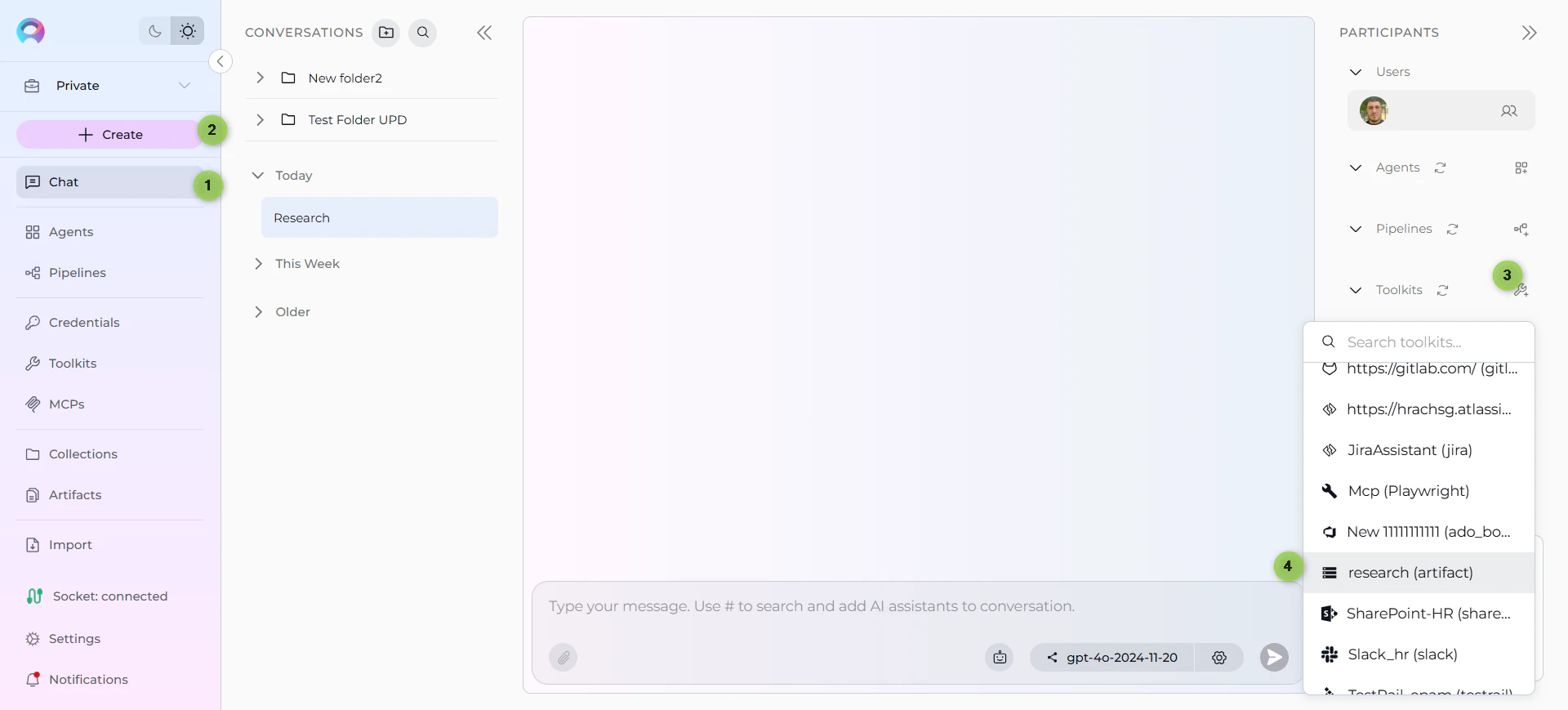
**Step 1: Add toolkit to a conversation and start asking questions:**
* Navigate to **Chat** → **+ Create**
* In the participants section click + to add Toolkit
* Select your Artifact toolkit from the available toolkits list
### Step 5: Verify Index Creation
Once indexing completes:
1. **Check Index Status**: Verify the index shows ✅ **Completed** status in the sidebar
2. **Review Index Information**: Click on your index to see:
* **Document Count**: Number of indexed files
* **Last Updated**: Timestamp of indexing completion
* **Index Name**: Your specified collection suffix
### Real-Life Example: Indexing Research Documentation
**Scenario**: You have a research project with multiple analysis reports, data files, and documentation stored in an Artifact bucket called `research-analysis`. You want to make all this content searchable.
**Files in bucket:**
* `market_analysis_2024.docx` - Market research findings
* `competitor_research.pdf` - Competitive analysis report
* `survey_data.csv` - Raw survey responses
* `methodology.md` - Research methodology documentation
* `findings_summary.txt` - Key findings and insights
**Indexing Steps:**
1. **Configure Artifact Toolkit:**
* Bucket name: `research-analysis`
* Enable all indexing tools
2. **Index the content:**
* Navigate to **Toolkits** → Select your Artifact toolkit → Click **Indexes** tab
* Click **+ Create New Index** button
* Configure indexing parameters:
* **Index Name**: `q4` (for Q4 research)
* **Clean Index**: ✓ (checked for fresh start)
* Click **Index** button to start indexing
* Monitor progress with visual indicators (🔄 In Progress → ✅ Completed)
3. **Verify indexing:**
* Check that your index appears in the sidebar with ✅ **Completed** status
* Review document count and collection name
* Collection name: `q4`
**After indexing, you can:**
* Search across all research files: *"What were the main competitor advantages identified?"*
* Find specific data points: *"What percentage of survey respondents preferred our solution?"*
* Get comprehensive insights: *"Summarize the key findings from the market analysis"*
* Cross-reference information: *"How does the survey data support the competitive analysis conclusions?"*
***
## Using Search Tools with Indexed Data
Once your Artifacts data is indexed, you can search and interact with it directly through the interface:
### Accessing Search Functionality
1. **Select Your Index**: Click on your completed index from the sidebar
2. **Navigate to Run Tab**: Click the **Run** tab in the center panel
3. **Choose Search Tool**: Select from available search tools in the dropdown:
* **Search Index**: Basic semantic search across indexed content
* **Stepback Search Index**: Advanced search that breaks down complex questions
* **Stepback Summary Index**: Search with automatic summarization of results
### Running a Search
1. **Enter Your Query**: Type your search query (e.g., "What are the key findings from the market research?")
2. **Configure Parameters**: Adjust optional settings like filters and model configuration
3. **Click Run**: Execute the search
4. **View Results**: Results appear in the integrated chat interface on the right panel
***
## Search and Chat with Indexed Data
Once your Artifacts data is indexed, you can use the toolkit to search and interact with your content in multiple ways:
### Using Toolkit in Conversations and Agents
Your Artifact toolkit can be used in two main contexts:
1. **In Conversations**: Add the toolkit as a participant to ask questions and search your indexed Artifacts data
2. **In Agents**: Include the toolkit when creating AI agents to give them access to your file data
**How to use:**
* **Start a New Conversation or Create an Agent**
* **Add Toolkit as Participant**: Select your Artifact toolkit from the available toolkits
* **Ask Natural Language Questions**: The toolkit will automatically search your indexed data and provide relevant answers with citations
### Using Indexed Artifacts in Conversations
Let's walk through a complete example of indexing and using a research team's Artifacts project:
**Step 1: Add toolkit to a conversation and start asking questions:**
* Navigate to **Chat** → **+ Create**
* In the participants section click + to add Toolkit
* Select your Artifact toolkit from the available toolkits list
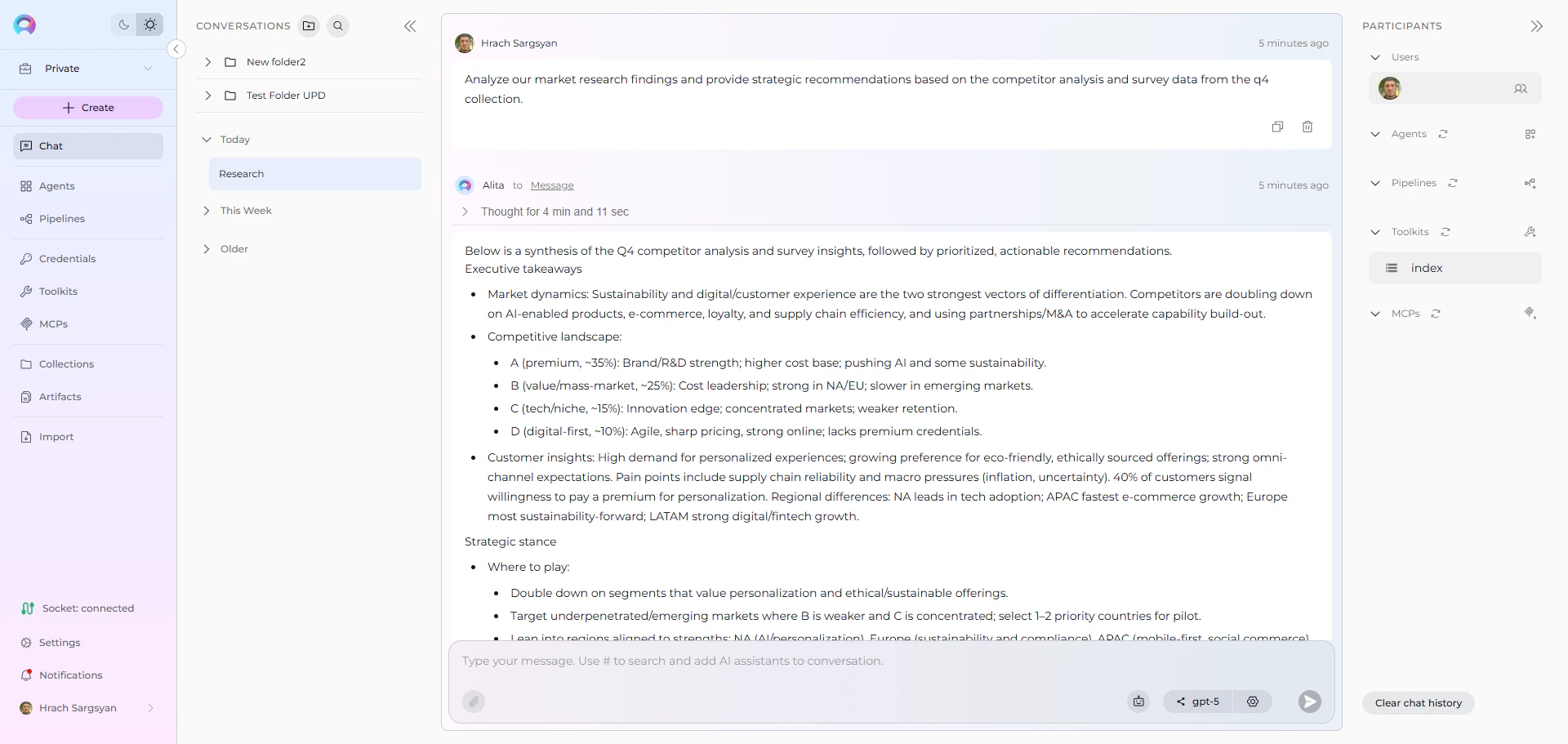
 **Step 2: Start comprehensive analysis with your indexed research content**
* **User Request:** "Analyze our market research findings and provide strategic recommendations based on the competitor analysis and survey data from the q4 collection."
* **Artifact Toolkit:** "Based on your indexed research files, here's a comprehensive analysis of your market research findings with strategic recommendations:
**Market Research Key Findings:**
1. **Market Growth**: Target market expanded 23% year-over-year, reaching \$4.2B total addressable market
2. **Customer Segments**: Three distinct segments identified with different needs and price sensitivities
3. **Adoption Trends**: 67% shift toward cloud-based solutions, 45% increase in mobile usage
4. **Pain Points**: Integration complexity (78% concern) and security requirements (65% concern)
**Competitive Landscape Analysis:**
1. **Market Leaders**: Competitor A (32% share) focuses on enterprise, Competitor B (28% share) leads in SMB
2. **Feature Gaps**: AI automation lacking across all competitors, opportunity for differentiation
3. **Pricing Analysis**: Market average $89/user/month, premium tier at $150/user/month
4. **Customer Satisfaction**: Industry average 3.8/5, top performer at 4.2/5
**Strategic Recommendations:**
1. **Product Strategy**: Prioritize AI-powered automation features for competitive advantage
2. **Market Entry**: Target mid-market segment (underserved by current competitors)
3. **Pricing Position**: Premium pricing justified by AI features and superior support
4. **Go-to-Market**: Focus on integration simplicity and security compliance messaging
*Sources: market\_analysis\_2024.docx (Section: Growth Trends), competitor\_research.pdf (Chapter: Market Share Analysis), survey\_data.csv (Question: Feature Priorities)*"
**Step 2: Start comprehensive analysis with your indexed research content**
* **User Request:** "Analyze our market research findings and provide strategic recommendations based on the competitor analysis and survey data from the q4 collection."
* **Artifact Toolkit:** "Based on your indexed research files, here's a comprehensive analysis of your market research findings with strategic recommendations:
**Market Research Key Findings:**
1. **Market Growth**: Target market expanded 23% year-over-year, reaching \$4.2B total addressable market
2. **Customer Segments**: Three distinct segments identified with different needs and price sensitivities
3. **Adoption Trends**: 67% shift toward cloud-based solutions, 45% increase in mobile usage
4. **Pain Points**: Integration complexity (78% concern) and security requirements (65% concern)
**Competitive Landscape Analysis:**
1. **Market Leaders**: Competitor A (32% share) focuses on enterprise, Competitor B (28% share) leads in SMB
2. **Feature Gaps**: AI automation lacking across all competitors, opportunity for differentiation
3. **Pricing Analysis**: Market average $89/user/month, premium tier at $150/user/month
4. **Customer Satisfaction**: Industry average 3.8/5, top performer at 4.2/5
**Strategic Recommendations:**
1. **Product Strategy**: Prioritize AI-powered automation features for competitive advantage
2. **Market Entry**: Target mid-market segment (underserved by current competitors)
3. **Pricing Position**: Premium pricing justified by AI features and superior support
4. **Go-to-Market**: Focus on integration simplicity and security compliance messaging
*Sources: market\_analysis\_2024.docx (Section: Growth Trends), competitor\_research.pdf (Chapter: Market Share Analysis), survey\_data.csv (Question: Feature Priorities)*"
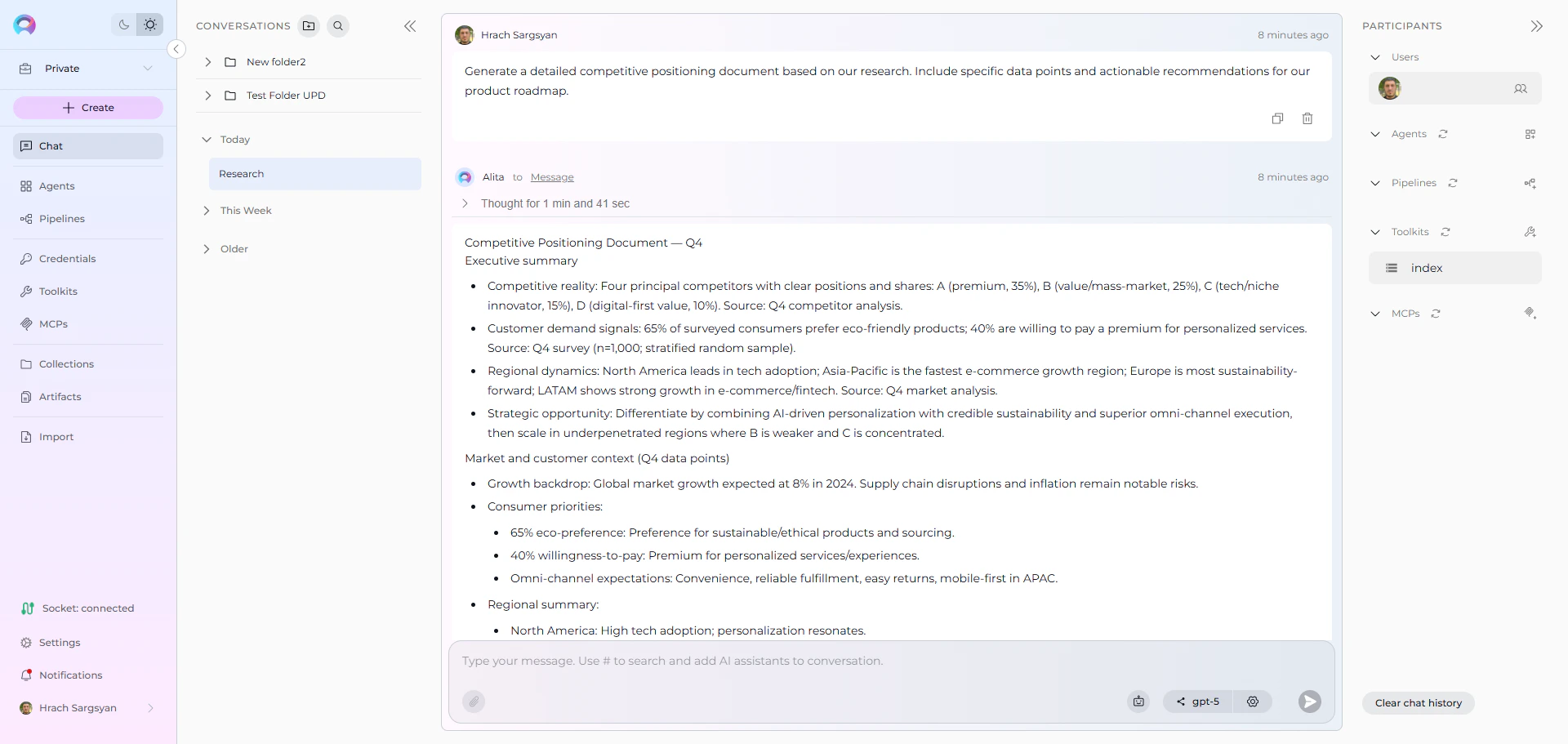
 * **User Request:** "Generate a detailed competitive positioning document based on our research. Include specific data points and actionable recommendations for our product roadmap."
* **Artifact Toolkit:** "Based on your indexed research documentation, here's a comprehensive competitive positioning document with specific data points and product roadmap recommendations:
**COMPETITIVE POSITIONING DOCUMENT**
**Executive Summary**
Our analysis of indexed research data reveals significant market opportunities in AI-powered automation and mid-market solutions, positioning us for 35%+ market share capture.
**1. Market Landscape Analysis**
**Market Size & Growth:**
* Total Addressable Market: \$4.2B (23% YoY growth)
* Serviceable Market: \$1.8B (our target segments)
* Expected CAGR: 28% through 2027
**Customer Segmentation:**
* Enterprise (>1000 employees): 34% of market, \$150+ budget
* Mid-Market (100-1000 employees): 42% of market, \$50-120 budget
* SMB (\<100 employees): 24% of market, \<\$50 budget
**2. Competitive Analysis Matrix**
| Competitor | Market Share | Strengths | Weaknesses | Price Range |
| ------------ | ------------ | ---------------------------- | ------------------------------ | ----------- |
| Competitor A | 32% | Enterprise focus, Security | Limited AI, High complexity | \$120-200 |
| Competitor B | 28% | SMB penetration, Ease of use | Scalability issues | \$45-89 |
| Competitor C | 18% | Feature breadth | Poor support, Integration gaps | \$89-150 |
**3. Product Roadmap Recommendations**
**Quarter 1-2 Priorities:**
* AI-powered workflow automation (67% customer demand)
* Enhanced security compliance features
* Mid-market integration templates
**Quarter 3-4 Priorities:**
* Mobile-first interface redesign
* Advanced analytics dashboard
* Enterprise-grade scalability features
*Sources: findings\_summary.txt (Strategic Insights), methodology.md (Research Framework), competitor\_research.pdf (Detailed Analysis Tables)*"
* **User Request:** "Generate a detailed competitive positioning document based on our research. Include specific data points and actionable recommendations for our product roadmap."
* **Artifact Toolkit:** "Based on your indexed research documentation, here's a comprehensive competitive positioning document with specific data points and product roadmap recommendations:
**COMPETITIVE POSITIONING DOCUMENT**
**Executive Summary**
Our analysis of indexed research data reveals significant market opportunities in AI-powered automation and mid-market solutions, positioning us for 35%+ market share capture.
**1. Market Landscape Analysis**
**Market Size & Growth:**
* Total Addressable Market: \$4.2B (23% YoY growth)
* Serviceable Market: \$1.8B (our target segments)
* Expected CAGR: 28% through 2027
**Customer Segmentation:**
* Enterprise (>1000 employees): 34% of market, \$150+ budget
* Mid-Market (100-1000 employees): 42% of market, \$50-120 budget
* SMB (\<100 employees): 24% of market, \<\$50 budget
**2. Competitive Analysis Matrix**
| Competitor | Market Share | Strengths | Weaknesses | Price Range |
| ------------ | ------------ | ---------------------------- | ------------------------------ | ----------- |
| Competitor A | 32% | Enterprise focus, Security | Limited AI, High complexity | \$120-200 |
| Competitor B | 28% | SMB penetration, Ease of use | Scalability issues | \$45-89 |
| Competitor C | 18% | Feature breadth | Poor support, Integration gaps | \$89-150 |
**3. Product Roadmap Recommendations**
**Quarter 1-2 Priorities:**
* AI-powered workflow automation (67% customer demand)
* Enhanced security compliance features
* Mid-market integration templates
**Quarter 3-4 Priorities:**
* Mobile-first interface redesign
* Advanced analytics dashboard
* Enterprise-grade scalability features
*Sources: findings\_summary.txt (Strategic Insights), methodology.md (Research Framework), competitor\_research.pdf (Detailed Analysis Tables)*"
 ***
## Best Practices
### File Organization
* **Use descriptive bucket names** that reflect content type (e.g., `project-docs`, `research-data`)
* **Organize related files** in the same bucket for cohesive indexing
* **Keep file names meaningful** to improve search relevance and citations
### Indexing Strategy
* **Use clear collection suffixes** to separate different datasets (e.g., `v1`, `prod`, `test`)
* **Clean index periodically** when content changes significantly
* **Monitor indexing output** for file processing errors or warnings
### Search Optimization
* **Use natural language queries** rather than keyword searches
* **Be specific** in your questions for better results
* **Try different search tools** for various use cases:
* Basic questions: Search Index
* Complex analysis: Stepback Search Index
* Overview needs: Stepback Summary Index
### Content Management
* **Update indexes** when adding significant new content to buckets
* **Remove outdated collections** using the Remove Index tool
* **Maintain bucket organization** for easier content discovery
***
## Common Issues and Troubleshooting
### Common Issues and Solutions
**"Indexing interface not visible" or "Tab disabled":**
* Verify PgVector and Embedding Model are configured in Settings → AI Configuration
* Ensure the **Index Data** tool is enabled in your Artifact toolkit configuration
* Check that your toolkit supports indexing (Artifact is supported)
* Refresh the browser page and retry
**"+ Create New Index button not working":**
* Verify all project-level prerequisites are met (PgVector and Embedding Model)
* Check that you have proper permissions for the toolkit
* Ensure the toolkit is properly saved with bucket configuration
### No Files Found During Indexing
**Problem**: Index Data tool reports no files to process
**Solutions:**
* Verify bucket name is spelled correctly in toolkit configuration
* Confirm files are uploaded and visible in the Artifacts menu
* Check that bucket contains supported file formats
### Poor Search Results
**Problem**: Search queries return irrelevant results
**Solutions:**
* Try more specific, detailed search queries
* Adjust the **Cut Off** score (lower for more results, higher for precision)
* Use Stepback Search Index for complex questions
* Verify the Collection Suffix targets the right dataset
### Indexing Fails for Specific Files
**Problem**: Some files fail to process during indexing
**Solutions:**
* Check file formats are supported
* Verify files aren't corrupted or password-protected
* Monitor the progress indicators for specific error messages
* Try re-uploading problematic files
**"Index creation failed" or "Indexing stuck in progress":**
* Check that bucket contains files
* Verify the repository has files matching your criteria
* Monitor the progress indicators for specific error messages
**"No search results returned":**
* Verify the index shows ✅ **Completed** status
* Check that your search query matches the type of content indexed
* Try broader search terms or different search tools (Stepback Search, Stepback Summary)
* Ensure the indexed content contains relevant information
### Collection Not Found
**Problem**: Search tools can't find the specified collection
**Solutions:**
* Check the index status in the sidebar
* Verify collection suffix matches what was used during indexing
* Confirm indexing completed successfully with ✅ **Completed** status
* Check for typos in collection suffix
***
* **[Indexing Overview](./indexing-overview)** - *Complete guide to ELITEA's indexing system and capabilities*
* **[Indexing Tools](./indexing-tools)** - *Detailed reference for all indexing tools and parameters*
* **[ELITEA Artifacts Menu](../../menus/artifacts)** - *Learn how to manage Artifact buckets and files*
* **[Artifact Toolkit Guide](../../integrations/toolkits/artifact_toolkit)** - *Comprehensive guide to the Artifact Toolkit and its capabilities*
* **[AI Configuration](../../menus/settings/ai-configuration)** - *Set up vector storage and embedding models for indexing*
* **[Toolkits Menu](../../menus/toolkits)** - *General toolkit configuration and management*
***
***
## Best Practices
### File Organization
* **Use descriptive bucket names** that reflect content type (e.g., `project-docs`, `research-data`)
* **Organize related files** in the same bucket for cohesive indexing
* **Keep file names meaningful** to improve search relevance and citations
### Indexing Strategy
* **Use clear collection suffixes** to separate different datasets (e.g., `v1`, `prod`, `test`)
* **Clean index periodically** when content changes significantly
* **Monitor indexing output** for file processing errors or warnings
### Search Optimization
* **Use natural language queries** rather than keyword searches
* **Be specific** in your questions for better results
* **Try different search tools** for various use cases:
* Basic questions: Search Index
* Complex analysis: Stepback Search Index
* Overview needs: Stepback Summary Index
### Content Management
* **Update indexes** when adding significant new content to buckets
* **Remove outdated collections** using the Remove Index tool
* **Maintain bucket organization** for easier content discovery
***
## Common Issues and Troubleshooting
### Common Issues and Solutions
**"Indexing interface not visible" or "Tab disabled":**
* Verify PgVector and Embedding Model are configured in Settings → AI Configuration
* Ensure the **Index Data** tool is enabled in your Artifact toolkit configuration
* Check that your toolkit supports indexing (Artifact is supported)
* Refresh the browser page and retry
**"+ Create New Index button not working":**
* Verify all project-level prerequisites are met (PgVector and Embedding Model)
* Check that you have proper permissions for the toolkit
* Ensure the toolkit is properly saved with bucket configuration
### No Files Found During Indexing
**Problem**: Index Data tool reports no files to process
**Solutions:**
* Verify bucket name is spelled correctly in toolkit configuration
* Confirm files are uploaded and visible in the Artifacts menu
* Check that bucket contains supported file formats
### Poor Search Results
**Problem**: Search queries return irrelevant results
**Solutions:**
* Try more specific, detailed search queries
* Adjust the **Cut Off** score (lower for more results, higher for precision)
* Use Stepback Search Index for complex questions
* Verify the Collection Suffix targets the right dataset
### Indexing Fails for Specific Files
**Problem**: Some files fail to process during indexing
**Solutions:**
* Check file formats are supported
* Verify files aren't corrupted or password-protected
* Monitor the progress indicators for specific error messages
* Try re-uploading problematic files
**"Index creation failed" or "Indexing stuck in progress":**
* Check that bucket contains files
* Verify the repository has files matching your criteria
* Monitor the progress indicators for specific error messages
**"No search results returned":**
* Verify the index shows ✅ **Completed** status
* Check that your search query matches the type of content indexed
* Try broader search terms or different search tools (Stepback Search, Stepback Summary)
* Ensure the indexed content contains relevant information
### Collection Not Found
**Problem**: Search tools can't find the specified collection
**Solutions:**
* Check the index status in the sidebar
* Verify collection suffix matches what was used during indexing
* Confirm indexing completed successfully with ✅ **Completed** status
* Check for typos in collection suffix
***
* **[Indexing Overview](./indexing-overview)** - *Complete guide to ELITEA's indexing system and capabilities*
* **[Indexing Tools](./indexing-tools)** - *Detailed reference for all indexing tools and parameters*
* **[ELITEA Artifacts Menu](../../menus/artifacts)** - *Learn how to manage Artifact buckets and files*
* **[Artifact Toolkit Guide](../../integrations/toolkits/artifact_toolkit)** - *Comprehensive guide to the Artifact Toolkit and its capabilities*
* **[AI Configuration](../../menus/settings/ai-configuration)** - *Set up vector storage and embedding models for indexing*
* **[Toolkits Menu](../../menus/toolkits)** - *General toolkit configuration and management*
***