> ## Documentation Index
> Fetch the complete documentation index at: https://docs.elitea.ai/llms.txt
> Use this file to discover all available pages before exploring further.
# Smart Tools Selection Internal Tool
> Reduce token usage in conversations and agents by loading toolkit schemas and tools on demand.
## Overview
**Key Features:**
* **Token Optimization:** Reduces token usage by up to 90% when using many toolkits
* **Meta-Tool Architecture:** Uses intelligent proxy tools (`get_tool_schema` and `invoke_tool`) to access all functionality
* **Dynamic Tool Loading:** Tools are loaded on-demand rather than pre-bound to the LLM
* **Transparent Operation:** Works seamlessly without changing user experience
* **Toolkit Organization:** Maintains toolkit structure for efficient tool discovery and invocation
Enable Smart Tools Selection when you have configured **5 or more toolkits** in an agent or conversation. The token savings become significant as toolkit count increases, with maximum benefit when using 20+ toolkits.
***
## Prerequisites
* **Permission Level**: User role with conversation or agent edit access
* **Toolkit Configuration**: At least one toolkit configured (benefit increases with more toolkits)
* **Use Case**: Recommended when using 5+ toolkits
***
## How It Works
**Traditional Approach vs Smart Tools Selection**
| Aspect | Traditional Approach | Smart Tools Selection (Lazy Loading) |
| ------------------------- | ------------------------------------------------------------ | ------------------------------------------------------------ |
| **Tool Binding** | All tools from all configured toolkits bound directly to LLM | Only 2 meta-tools bound: `get_tool_schema` and `invoke_tool` |
| **Schema Transmission** | Each tool's full schema sent in every request | Compressed toolkit index included in system prompt |
| **Tool Loading** | All tools pre-loaded upfront | Tools loaded on-demand when needed |
| **Example (50 toolkits)** | 50 toolkits × 10 tools avg = 500 tool definitions | 2 meta-tools + compressed index |
| **Estimated Token Usage** | \~150,000 tokens per request | \~2,600 tokens per request |
| **Token Savings** | Baseline | **\~97% reduction** |
**Meta-Tools**
Smart Tools Selection provides two meta-tools that enable access to all configured toolkits:
| Meta-Tool | Purpose | Functionality |
| ------------------------------------------- | ---------------- | ---------------------------------------------------------------------------------------------------------------------------------------------------------------------------------------------------- |
| **`get_tool_schema(toolkit, tool)`** | Schema Retrieval | Retrieves the parameter schema for a specific tool before invocation
• Returns tool description and required/optional parameters
• Enables the assistant to understand how to use any tool |
| **`invoke_tool(toolkit, tool, arguments)`** | Tool Execution | Executes any tool from any configured toolkit
• Accepts toolkit name, tool name, and JSON arguments
• Returns tool execution results |
When a user requests: *"Create a GitHub issue for the bug report"*
1. **Toolkit Discovery:** Assistant reviews the toolkit index and identifies the GitHub toolkit
2. **Schema Retrieval:** Assistant calls `get_tool_schema(toolkit="github", tool="create_issue")`
3. **Schema Response:** System returns parameter requirements (title, body, repository, etc.)
4. **Tool Invocation:** Assistant calls `invoke_tool(toolkit="github", tool="create_issue", arguments={"title": "Bug Report", "body": "...", "repository": "myrepo"})`
5. **Result:** Issue is created and confirmation is returned to the user
When Smart Tools Selection is enabled, a compressed toolkit index is included in the system prompt:
```
# Available Tools
You have 2 meta-tools to access all functionality:
- get_tool_schema(toolkit, tool) - Get parameter schema for a tool BEFORE calling it
- invoke_tool(toolkit, tool, arguments) - Execute a tool
IMPORTANT: Each toolkit name targets a DIFFERENT repository/instance.
Use the EXACT toolkit name to work with that specific instance.
SCHEMA EFFICIENCY: Toolkits of the same type share identical schemas.
Get schema once per tool, then reuse for other instances.
## github (45 tools)
Tools: create_issue, close_issue, list_issues, create_pr, merge_pr, ...
Instances:
- frontend_repo: GitHub toolkit for frontend repository
- backend_repo: GitHub toolkit for backend repository
## jira (28 tools)
Tools: create_ticket, update_ticket, search_tickets, ...
Instances:
- project_jira: Jira toolkit for main project
[... additional toolkits ...]
```
This compact format allows the assistant to access hundreds of tools while using minimal tokens.
***
## Enabling Smart Tools Selection in Conversations
Enable Smart Tools Selection for token-optimized conversations.
1. Navigate to your conversation.
2. Locate the chat input toolbar at the bottom of the screen.
3. Click the **Internal Tools** icon (value icon) next to the attachment button.
4. In the popup, find **Smart Tools Selection** in the list.
5. Click the toggle switch next to "Smart Tools Selection" to enable it.
6. Once enabled, a success toast notification appears: "Internal tools configuration updated" and the configuration is saved to the conversation metadata.
7. Click anywhere outside the popup to close it.
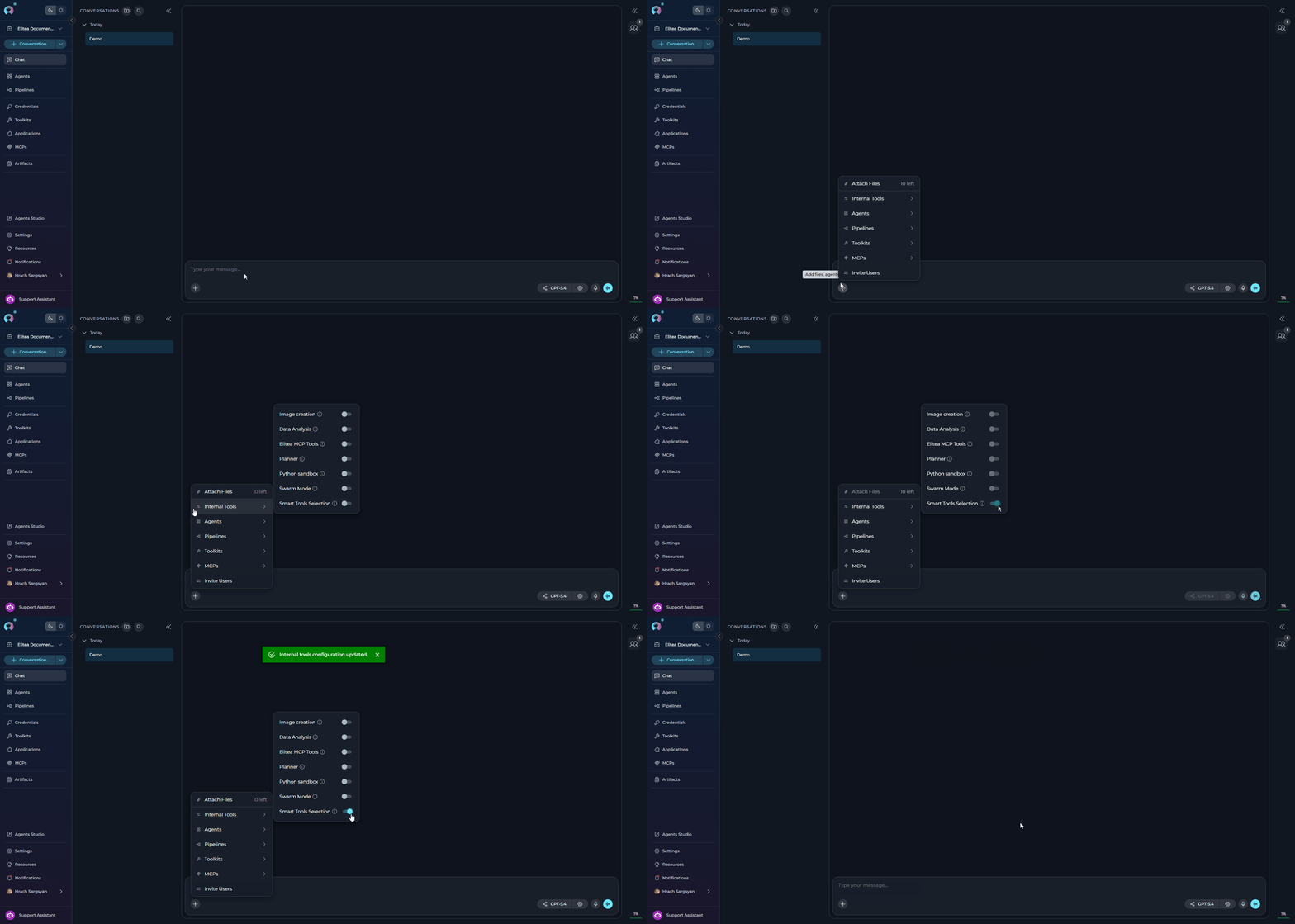 The Smart Tools Selection setting persists for the conversation. You can toggle it on/off at any time during the conversation.
***
## Enabling Smart Tools Selection in Agent Configuration
Configure Smart Tools Selection as part of an agent's default configuration.
1. Navigate to **Agents** in the main menu.
2. Select the agent you want to configure or create a new agent.
3. On the **Configuration** tab, scroll down to the **TOOLKITS** section.
4. Within the TOOLKITS section, locate the **INTERNAL TOOLS** subsection.
5. Find the **Smart Tools Selection** toggle. If it is not visible, click **Show all** to expand the full list of internal tools.
6. Click the **Smart Tools Selection** toggle to enable it.
7. Click **Save** at the top of the configuration page to persist the change.
8. New conversations created with this agent will have Smart Tools Selection enabled by default.
The Smart Tools Selection setting persists for the conversation. You can toggle it on/off at any time during the conversation.
***
## Enabling Smart Tools Selection in Agent Configuration
Configure Smart Tools Selection as part of an agent's default configuration.
1. Navigate to **Agents** in the main menu.
2. Select the agent you want to configure or create a new agent.
3. On the **Configuration** tab, scroll down to the **TOOLKITS** section.
4. Within the TOOLKITS section, locate the **INTERNAL TOOLS** subsection.
5. Find the **Smart Tools Selection** toggle. If it is not visible, click **Show all** to expand the full list of internal tools.
6. Click the **Smart Tools Selection** toggle to enable it.
7. Click **Save** at the top of the configuration page to persist the change.
8. New conversations created with this agent will have Smart Tools Selection enabled by default.
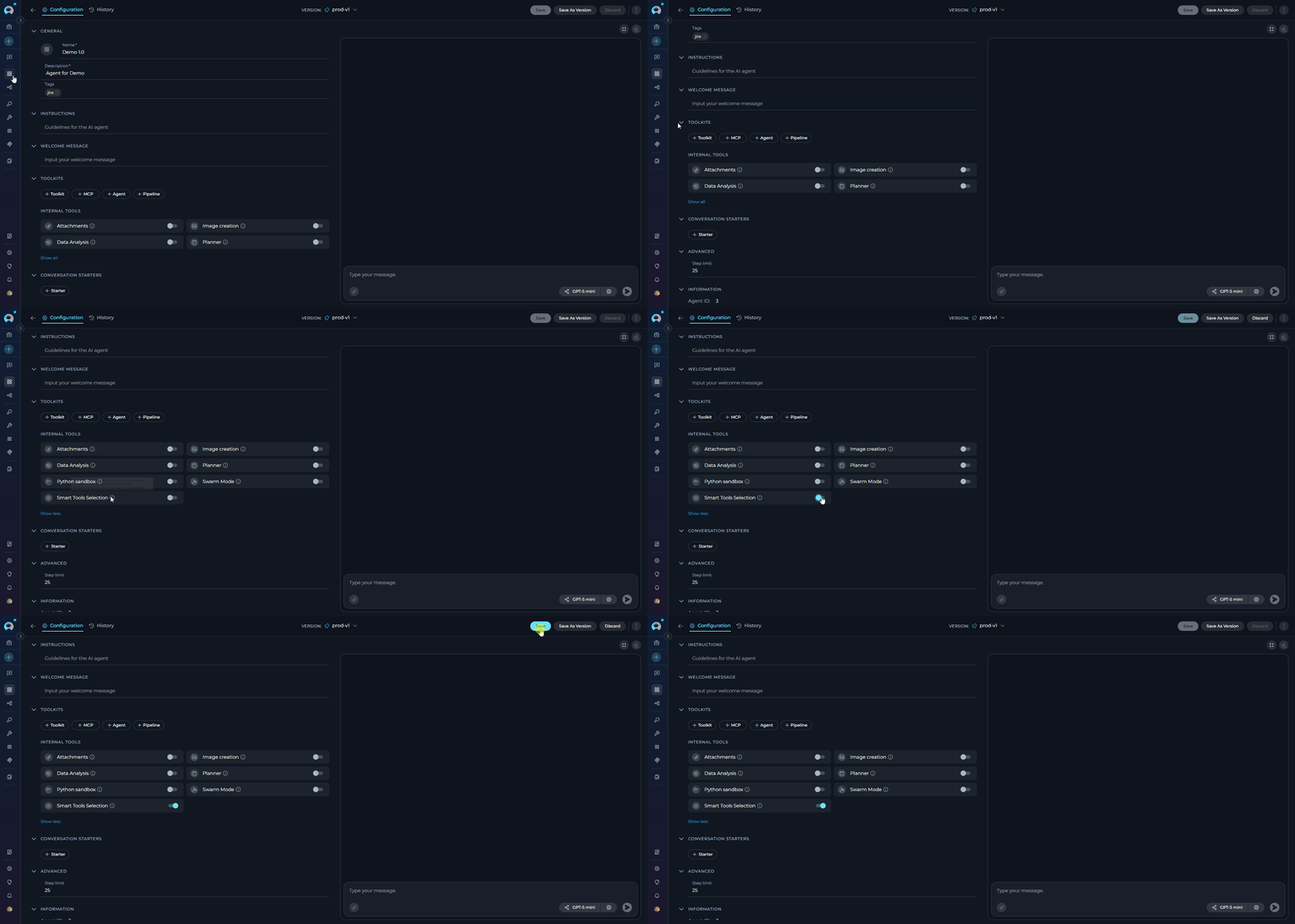 For agents configured with many toolkits (e.g., development agents with GitHub, Jira, Confluence, Slack, etc.), enabling Smart Tools Selection significantly reduces costs and improves response times.
***
## Using Smart Tools Selection
Once enabled, Smart Tools Selection works transparently in the background. The assistant automatically uses meta-tools to access toolkit functionality without any changes to how you interact with the conversation.
### What Happens Behind the Scenes
1. **Toolkit Index Generation:** The system generates a compressed index of all available toolkits and their tools
2. **Meta-Tool Binding:** Only `get_tool_schema` and `invoke_tool` are bound to the LLM instead of all individual tools
3. **On-Demand Loading:** When the assistant needs a tool, it:
* Checks the toolkit index to find the appropriate toolkit
* Calls `get_tool_schema` to understand the tool's parameters
* Calls `invoke_tool` to execute the tool with proper arguments
4. **Transparent Results:** Tool results are returned normally, maintaining the same user experience
***
## Example Scenarios
**Scenario:** A QA engineer uses an agent to manage test cases across multiple test management systems and coordinate with development teams.
**Configuration:**
* TestRail (test case management)
* Xray (Jira test management)
* GitHub (2 repositories for test automation)
* Slack (team communication)
* Artifact storage (test results)
* **Total: 6 toolkits, \~85 tools**
**User Request Example:**
> `Find all failed test cases from yesterday's regression suite in TestRail, check if there are existing bugs in Xray for these failures, and create GitHub issues for any new defects`
Smart Tools Selection allows the agent to seamlessly query TestRail, cross-reference with Xray, and create GitHub issues—all while keeping token usage minimal despite having access to multiple test management platforms.
**Scenario:** A digital agency manages projects for 5 different clients, each with their own GitHub repository and Jira project.
**Configuration:**
* 5 GitHub repositories (one per client)
* 5 Jira projects (one per client)
* 1 Confluence space (internal documentation)
* 1 Slack workspace (internal communication)
* **Total: 12 toolkits, \~160 tools**
**Without Smart Tools Selection:**
* All 160 tools bound = \~48,000 tokens
* Costly for per-client conversations
**With Smart Tools Selection:**
* 2 meta-tools + index
* \~4,000 tokens per request
* **92% token reduction**
**User Request Example:**
> `Check the status of Client A's payment feature PR, update Client B's sprint board with completed stories, and document the deployment process in our internal wiki`
The agent can work across multiple client repositories and projects efficiently, with the assistant only loading the specific tools needed for each client when required.
**Scenario:** A technical writer maintains documentation across multiple platforms and needs to keep content synchronized.
**Configuration:**
* 3 Confluence spaces (product docs, internal wiki, knowledge base)
* 2 GitHub repositories (docs-as-code projects)
* SharePoint (legacy documentation)
* Artifact storage (documentation assets)
* **Total: 7 toolkits, \~95 tools**
**User Request Example:**
> `Search all documentation sources for references to the old API endpoint, update them with the new endpoint, and create a migration guide in the product documentation space`
Smart Tools Selection enables efficient cross-platform documentation searches and updates without the overhead of binding nearly 100 documentation-related tools.
***
## Performance Considerations
**Many Configured Toolkits**
* Maximum benefit when agents have numerous toolkits configured. Token savings scale linearly with toolkit count—the more toolkits, the greater the savings.
**Cross-Platform Integration Agents**
* Ideal for agents that orchestrate work across multiple systems (e.g., GitHub + Jira + Confluence + Slack). Each additional platform increases the value of lazy loading.
**Multi-Repository or Multi-Project Agents**
* Agents managing multiple instances of the same service (e.g., 10 different GitHub repositories, multiple Jira projects) benefit from reduced token overhead while maintaining access to all instances.
**Single or Few Toolkits**
* For agents using only 1-3 toolkits with limited tools, traditional direct binding may be simpler and equally efficient.
**Latency-Critical Operations**
* Meta-tool invocations add 1-2 seconds per tool call. For time-sensitive single-toolkit operations, direct binding may be preferred.
**Highly Repetitive Tool Usage**
* When a conversation repeatedly uses the same 2-3 tools, direct binding keeps schemas in context without repeated lookups.
***
## Token Savings Calculator
Use the following guidelines to estimate token savings:
| Toolkit Count | Tools (avg) | Traditional Tokens | Smart Tools Tokens | Savings | % Saved |
| ------------- | ----------- | ------------------ | ------------------ | ------- | ------- |
| 5 toolkits | 50 tools | 15,000 | 2,200 | 12,800 | 85% |
| 10 toolkits | 100 tools | 30,000 | 2,800 | 27,200 | 91% |
| 20 toolkits | 200 tools | 60,000 | 3,500 | 56,500 | 94% |
| 50 toolkits | 500 tools | 150,000 | 5,000 | 145,000 | 97% |
*Estimates based on average of 300 tokens per tool definition and 100 tokens per toolkit in index*
***
## Best Practices
Smart Tools Selection provides measurable benefits starting at 5 configured toolkits, with increasing returns as toolkit count grows. Below 5 toolkits, evaluate whether the optimization is needed.
When configuring multiple instances of the same toolkit type (e.g., GitHub for different repos), use clear, semantic names that the assistant can understand: `github_frontend`, `github_backend`, `github_docs` rather than generic names.
Toolkits of the same type share identical schemas. The assistant calls `get_tool_schema` once to learn a tool's parameters, then reuses that knowledge across all instances by changing only the toolkit name in `invoke_tool` calls.
Use your LLM provider's token monitoring dashboard to verify actual savings. Smart Tools Selection typically shows 80-95% reduction in token usage for multi-toolkit agents. Compare usage before and after enabling.
For new multi-toolkit agents, test both configurations: run the agent with Smart Tools Selection disabled to establish a baseline, then enable it to measure performance and token savings in your specific use case.
Planning, Python Sandbox, Data Analysis, and other middleware tools work seamlessly with Smart Tools Selection. These tools are "always-bind" (bypass meta-tools) for immediate availability.
Smart Tools Selection optimizes token usage but doesn't replace thoughtful toolkit selection. Only configure toolkits that the agent actually needs—unused toolkits still add to the index size.
Meta-tool calls add minimal overhead (1-2 seconds per tool invocation). For latency-sensitive applications using few toolkits, evaluate whether the token savings justify the additional response time.
***
## Troubleshooting
**Possible causes:**
* Smart Tools Selection not properly enabled
* Meta-tools not accessible to the assistant
* Toolkit index not generated
**Solution:**
1. Verify Smart Tools Selection is enabled in the Internal Tools popup or agent configuration
2. Check conversation logs for meta-tool calls (`get_tool_schema`, `invoke_tool`)
3. Try disabling and re-enabling Smart Tools Selection
4. If issues persist, disable Smart Tools Selection and use traditional tool binding
**Possible causes:**
* Additional meta-tool calls add minor overhead
* Multiple schema lookups for complex workflows
**Solution:**
1. This is expected behavior - Smart Tools Selection trades minimal latency for significant token savings
2. For latency-critical single-toolkit use cases, consider disabling Smart Tools Selection
3. Latency overhead is typically 1-2 seconds per tool invocation
4. The assistant caches schema knowledge within a conversation, reducing repeat lookups
**Possible causes:**
* Incorrect toolkit name in invocation
* Tool not available in specified toolkit
* Toolkit index not properly synchronized
**Solution:**
1. The assistant receives detailed error messages with available toolkits and tools
2. Error responses include suggestions for correct toolkit/tool names
3. The assistant can self-correct by using the provided information
4. If errors persist, verify toolkit configuration in agent settings
**Possible causes:**
* Using single or few toolkits (limited benefit)
* Frequent schema lookups for different tools
* Very long conversation history
**Solution:**
1. Verify you have 5+ toolkits configured for meaningful savings
2. Review conversation to ensure meta-tools are being used
3. Consider disabling for single-toolkit use cases
4. Token savings are most significant in the system prompt, not conversation history
**Possible causes:**
* Tool schema not properly extracted
* Parameter validation issues
* Toolkit metadata incomplete
**Solution:**
1. Error messages include detailed parameter requirements and examples
2. The assistant receives schema information before invocation
3. Verify toolkit configuration includes proper tool metadata
4. If specific tools fail consistently, report to system administrators
**Possible causes:**
* No internal tools passed the availability filter for the current project
* Image Generation is the only tool configured, but its required provider toolkit is not set up
**Solution:**
1. The Internal Tools icon is hidden entirely when no tools are available for the project
2. Verify that at least one applicable toolkit or provider is configured in the project settings
3. Contact your project administrator to confirm the project has the necessary toolkit providers enabled
***
Smart Tools Selection works seamlessly with other internal tools. Middleware tools like **Planning**, **Python Sandbox**, **Data Analysis**, **Swarm Mode**, and **Image Generation** are always bound directly (not through meta-tools) for immediate availability and optimal performance.
***
* **[Agent Configuration](../../menus/agents)** - Setting up agents with internal tools
* **[Chat Functionality](./how-to-use-chat-functionality)** - General chat features and usage
* **[Python Sandbox](./python-sandbox-internal-tool)** - Python Sandbox internal tool
* **[Data Analysis](./data-analysis-internal-tool)** - Data Analysis internal tool
* **[Image Generation](./image-generation)** - Generate images in conversations
* **[Attachments in Conversations](./attach-files)** - Upload and attach files for AI analysis
* **[Conversation Management](../../menus/chat)** - Managing conversations and settings
* **[Toolkits Overview](../../menus/toolkits)** - Understanding and configuring toolkits
For agents configured with many toolkits (e.g., development agents with GitHub, Jira, Confluence, Slack, etc.), enabling Smart Tools Selection significantly reduces costs and improves response times.
***
## Using Smart Tools Selection
Once enabled, Smart Tools Selection works transparently in the background. The assistant automatically uses meta-tools to access toolkit functionality without any changes to how you interact with the conversation.
### What Happens Behind the Scenes
1. **Toolkit Index Generation:** The system generates a compressed index of all available toolkits and their tools
2. **Meta-Tool Binding:** Only `get_tool_schema` and `invoke_tool` are bound to the LLM instead of all individual tools
3. **On-Demand Loading:** When the assistant needs a tool, it:
* Checks the toolkit index to find the appropriate toolkit
* Calls `get_tool_schema` to understand the tool's parameters
* Calls `invoke_tool` to execute the tool with proper arguments
4. **Transparent Results:** Tool results are returned normally, maintaining the same user experience
***
## Example Scenarios
**Scenario:** A QA engineer uses an agent to manage test cases across multiple test management systems and coordinate with development teams.
**Configuration:**
* TestRail (test case management)
* Xray (Jira test management)
* GitHub (2 repositories for test automation)
* Slack (team communication)
* Artifact storage (test results)
* **Total: 6 toolkits, \~85 tools**
**User Request Example:**
> `Find all failed test cases from yesterday's regression suite in TestRail, check if there are existing bugs in Xray for these failures, and create GitHub issues for any new defects`
Smart Tools Selection allows the agent to seamlessly query TestRail, cross-reference with Xray, and create GitHub issues—all while keeping token usage minimal despite having access to multiple test management platforms.
**Scenario:** A digital agency manages projects for 5 different clients, each with their own GitHub repository and Jira project.
**Configuration:**
* 5 GitHub repositories (one per client)
* 5 Jira projects (one per client)
* 1 Confluence space (internal documentation)
* 1 Slack workspace (internal communication)
* **Total: 12 toolkits, \~160 tools**
**Without Smart Tools Selection:**
* All 160 tools bound = \~48,000 tokens
* Costly for per-client conversations
**With Smart Tools Selection:**
* 2 meta-tools + index
* \~4,000 tokens per request
* **92% token reduction**
**User Request Example:**
> `Check the status of Client A's payment feature PR, update Client B's sprint board with completed stories, and document the deployment process in our internal wiki`
The agent can work across multiple client repositories and projects efficiently, with the assistant only loading the specific tools needed for each client when required.
**Scenario:** A technical writer maintains documentation across multiple platforms and needs to keep content synchronized.
**Configuration:**
* 3 Confluence spaces (product docs, internal wiki, knowledge base)
* 2 GitHub repositories (docs-as-code projects)
* SharePoint (legacy documentation)
* Artifact storage (documentation assets)
* **Total: 7 toolkits, \~95 tools**
**User Request Example:**
> `Search all documentation sources for references to the old API endpoint, update them with the new endpoint, and create a migration guide in the product documentation space`
Smart Tools Selection enables efficient cross-platform documentation searches and updates without the overhead of binding nearly 100 documentation-related tools.
***
## Performance Considerations
**Many Configured Toolkits**
* Maximum benefit when agents have numerous toolkits configured. Token savings scale linearly with toolkit count—the more toolkits, the greater the savings.
**Cross-Platform Integration Agents**
* Ideal for agents that orchestrate work across multiple systems (e.g., GitHub + Jira + Confluence + Slack). Each additional platform increases the value of lazy loading.
**Multi-Repository or Multi-Project Agents**
* Agents managing multiple instances of the same service (e.g., 10 different GitHub repositories, multiple Jira projects) benefit from reduced token overhead while maintaining access to all instances.
**Single or Few Toolkits**
* For agents using only 1-3 toolkits with limited tools, traditional direct binding may be simpler and equally efficient.
**Latency-Critical Operations**
* Meta-tool invocations add 1-2 seconds per tool call. For time-sensitive single-toolkit operations, direct binding may be preferred.
**Highly Repetitive Tool Usage**
* When a conversation repeatedly uses the same 2-3 tools, direct binding keeps schemas in context without repeated lookups.
***
## Token Savings Calculator
Use the following guidelines to estimate token savings:
| Toolkit Count | Tools (avg) | Traditional Tokens | Smart Tools Tokens | Savings | % Saved |
| ------------- | ----------- | ------------------ | ------------------ | ------- | ------- |
| 5 toolkits | 50 tools | 15,000 | 2,200 | 12,800 | 85% |
| 10 toolkits | 100 tools | 30,000 | 2,800 | 27,200 | 91% |
| 20 toolkits | 200 tools | 60,000 | 3,500 | 56,500 | 94% |
| 50 toolkits | 500 tools | 150,000 | 5,000 | 145,000 | 97% |
*Estimates based on average of 300 tokens per tool definition and 100 tokens per toolkit in index*
***
## Best Practices
Smart Tools Selection provides measurable benefits starting at 5 configured toolkits, with increasing returns as toolkit count grows. Below 5 toolkits, evaluate whether the optimization is needed.
When configuring multiple instances of the same toolkit type (e.g., GitHub for different repos), use clear, semantic names that the assistant can understand: `github_frontend`, `github_backend`, `github_docs` rather than generic names.
Toolkits of the same type share identical schemas. The assistant calls `get_tool_schema` once to learn a tool's parameters, then reuses that knowledge across all instances by changing only the toolkit name in `invoke_tool` calls.
Use your LLM provider's token monitoring dashboard to verify actual savings. Smart Tools Selection typically shows 80-95% reduction in token usage for multi-toolkit agents. Compare usage before and after enabling.
For new multi-toolkit agents, test both configurations: run the agent with Smart Tools Selection disabled to establish a baseline, then enable it to measure performance and token savings in your specific use case.
Planning, Python Sandbox, Data Analysis, and other middleware tools work seamlessly with Smart Tools Selection. These tools are "always-bind" (bypass meta-tools) for immediate availability.
Smart Tools Selection optimizes token usage but doesn't replace thoughtful toolkit selection. Only configure toolkits that the agent actually needs—unused toolkits still add to the index size.
Meta-tool calls add minimal overhead (1-2 seconds per tool invocation). For latency-sensitive applications using few toolkits, evaluate whether the token savings justify the additional response time.
***
## Troubleshooting
**Possible causes:**
* Smart Tools Selection not properly enabled
* Meta-tools not accessible to the assistant
* Toolkit index not generated
**Solution:**
1. Verify Smart Tools Selection is enabled in the Internal Tools popup or agent configuration
2. Check conversation logs for meta-tool calls (`get_tool_schema`, `invoke_tool`)
3. Try disabling and re-enabling Smart Tools Selection
4. If issues persist, disable Smart Tools Selection and use traditional tool binding
**Possible causes:**
* Additional meta-tool calls add minor overhead
* Multiple schema lookups for complex workflows
**Solution:**
1. This is expected behavior - Smart Tools Selection trades minimal latency for significant token savings
2. For latency-critical single-toolkit use cases, consider disabling Smart Tools Selection
3. Latency overhead is typically 1-2 seconds per tool invocation
4. The assistant caches schema knowledge within a conversation, reducing repeat lookups
**Possible causes:**
* Incorrect toolkit name in invocation
* Tool not available in specified toolkit
* Toolkit index not properly synchronized
**Solution:**
1. The assistant receives detailed error messages with available toolkits and tools
2. Error responses include suggestions for correct toolkit/tool names
3. The assistant can self-correct by using the provided information
4. If errors persist, verify toolkit configuration in agent settings
**Possible causes:**
* Using single or few toolkits (limited benefit)
* Frequent schema lookups for different tools
* Very long conversation history
**Solution:**
1. Verify you have 5+ toolkits configured for meaningful savings
2. Review conversation to ensure meta-tools are being used
3. Consider disabling for single-toolkit use cases
4. Token savings are most significant in the system prompt, not conversation history
**Possible causes:**
* Tool schema not properly extracted
* Parameter validation issues
* Toolkit metadata incomplete
**Solution:**
1. Error messages include detailed parameter requirements and examples
2. The assistant receives schema information before invocation
3. Verify toolkit configuration includes proper tool metadata
4. If specific tools fail consistently, report to system administrators
**Possible causes:**
* No internal tools passed the availability filter for the current project
* Image Generation is the only tool configured, but its required provider toolkit is not set up
**Solution:**
1. The Internal Tools icon is hidden entirely when no tools are available for the project
2. Verify that at least one applicable toolkit or provider is configured in the project settings
3. Contact your project administrator to confirm the project has the necessary toolkit providers enabled
***
Smart Tools Selection works seamlessly with other internal tools. Middleware tools like **Planning**, **Python Sandbox**, **Data Analysis**, **Swarm Mode**, and **Image Generation** are always bound directly (not through meta-tools) for immediate availability and optimal performance.
***
* **[Agent Configuration](../../menus/agents)** - Setting up agents with internal tools
* **[Chat Functionality](./how-to-use-chat-functionality)** - General chat features and usage
* **[Python Sandbox](./python-sandbox-internal-tool)** - Python Sandbox internal tool
* **[Data Analysis](./data-analysis-internal-tool)** - Data Analysis internal tool
* **[Image Generation](./image-generation)** - Generate images in conversations
* **[Attachments in Conversations](./attach-files)** - Upload and attach files for AI analysis
* **[Conversation Management](../../menus/chat)** - Managing conversations and settings
* **[Toolkits Overview](../../menus/toolkits)** - Understanding and configuring toolkits