> ## Documentation Index
> Fetch the complete documentation index at: https://docs.elitea.ai/llms.txt
> Use this file to discover all available pages before exploring further.
# Planner Internal Tool
> Create, prioritize, and track tasks directly within conversations using the Planner internal tool.
## Overview
**Use cases:**
* Create action items from meeting discussions
* Track multi-step project tasks and workflows
* Set task priorities (High/Medium/Low) and due dates
* Monitor task progress (Pending/In Progress/Completed)
* Link tasks to conversation context for reference
* Manage reminders for follow-up actions
***
## Prerequisites
* **Permission Level**: User role with conversation edit access
* **Conversation**: An active conversation or agent configuration
* **Model**: An LLM model that supports tool invocation
The Planner tool must be explicitly enabled via toggle switch before it can be used. It is disabled by default in both conversations and agents.
***
## Enabling Planner in Conversations
Enable the Planner tool for ad-hoc task management in conversations.
1. Navigate to your conversation
2. Locate the chat input toolbar at the bottom of the screen
3. Find the **Internal Tools** icon (value icon) next to the attachment button
4. Click the Internal Tools icon to open the configuration popup
5. In the popup, find **Planner** in the list
6. Click the toggle switch next to "Planner" to enable it
7. Once enabled, a success toast notification will appear: "Internal tools configuration updated"
8. Click anywhere outside the popup to close it
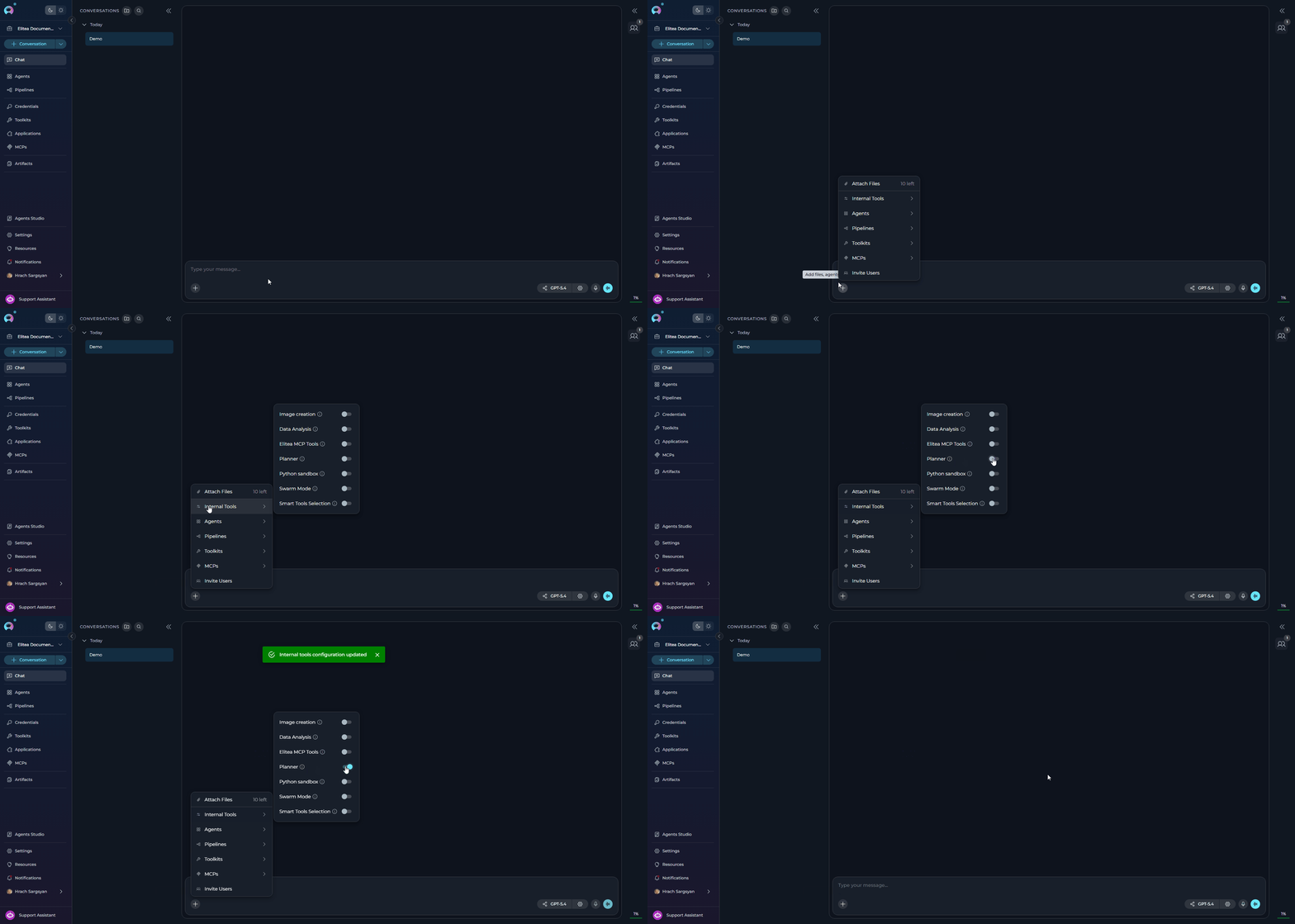 The internal tools configuration persists for the duration of your conversation session. You can toggle the Planner on/off at any time during the conversation.
***
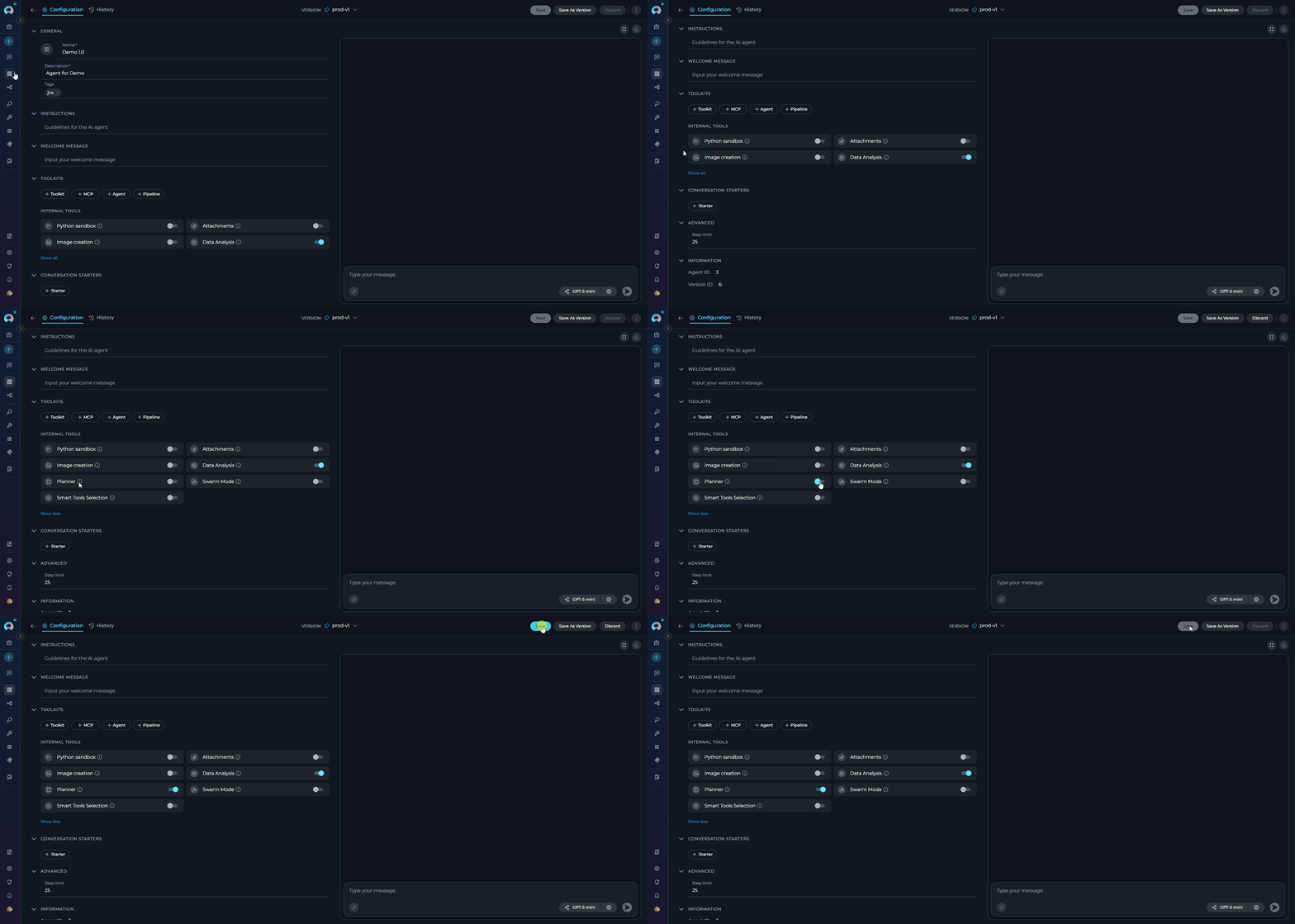
## Enabling Planner in Agent Configuration
Configure the Planner tool as part of an agent's default configuration.
1. Navigate to **Agents** in the main menu
2. Select the agent you want to configure or create a new agent
3. On the **Configuration** tab, scroll down to the **TOOLKITS** section
4. Within the TOOLKITS section, locate the **INTERNAL TOOLS** subsection
5. Find the **Planner** toggle. If it is not visible, click **Show all** to expand the full list of internal tools
6. Click the **Planner** toggle to enable it
7. Click **Save** at the top of the configuration page to persist the change
8. New conversations created with this agent will have Planner enabled by default
The internal tools configuration persists for the duration of your conversation session. You can toggle the Planner on/off at any time during the conversation.
***
## Enabling Planner in Agent Configuration
Configure the Planner tool as part of an agent's default configuration.
1. Navigate to **Agents** in the main menu
2. Select the agent you want to configure or create a new agent
3. On the **Configuration** tab, scroll down to the **TOOLKITS** section
4. Within the TOOLKITS section, locate the **INTERNAL TOOLS** subsection
5. Find the **Planner** toggle. If it is not visible, click **Show all** to expand the full list of internal tools
6. Click the **Planner** toggle to enable it
7. Click **Save** at the top of the configuration page to persist the change
8. New conversations created with this agent will have Planner enabled by default
 * **Agent Configuration**: Sets the default state for all new conversations with that agent
* **Conversation Configuration**: Overrides the agent's default for that specific conversation
* Changes to agent configuration do not affect existing conversations
***
## Using the Planner Tool
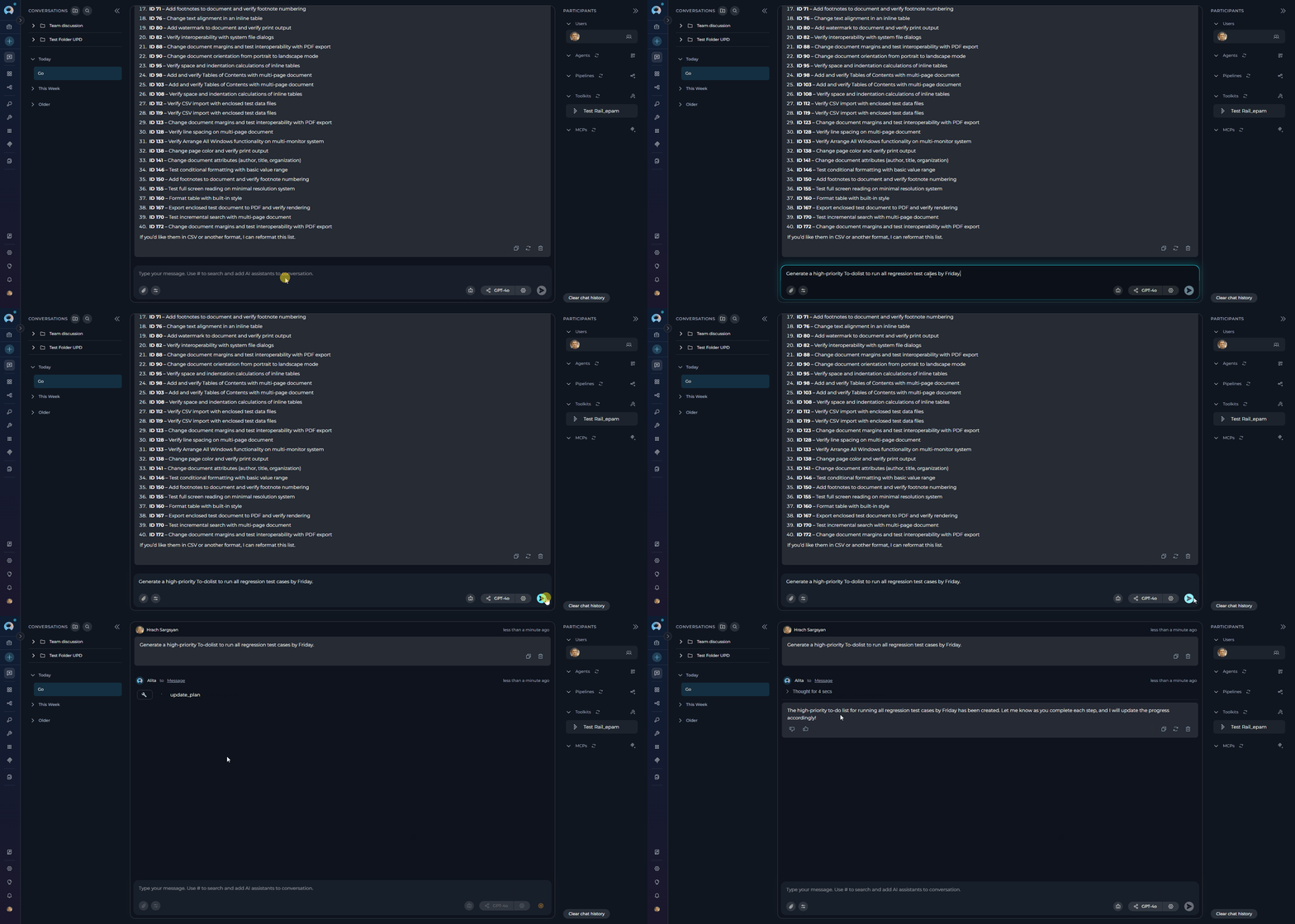
Once enabled, the Planner tool activates automatically when you express task-related intent in your conversation. It intelligently extracts task information from natural language, recognizing titles, priorities, due dates, and context.
The task creation and management workflows work identically whether you've enabled Planner in a conversation or configured it as part of an agent. The natural language interaction, task properties, and status management remain consistent across both usage modes.
### Creating Tasks
Simply describe what you want to accomplish in natural language. The AI automatically extracts:
* **Task Title**: The action or description from your message
* **Priority Level**: Keywords like "high", "medium", or "low"
* **Due Dates**: Time references such as "Friday", "next week", or "tomorrow"
* **Context**: Automatic link to the current conversation
**Example Task Creation:**
```
You: "Create a deployment plan: run tests, build artifacts, backup database,
deploy to staging, smoke test"
You: "Generate a high-priority todo list to run all regression test cases by Friday"
You: "Make a todo list for API documentation: document endpoints, add request
examples, include response schemas, update version history"
```
* **Agent Configuration**: Sets the default state for all new conversations with that agent
* **Conversation Configuration**: Overrides the agent's default for that specific conversation
* Changes to agent configuration do not affect existing conversations
***
## Using the Planner Tool
Once enabled, the Planner tool activates automatically when you express task-related intent in your conversation. It intelligently extracts task information from natural language, recognizing titles, priorities, due dates, and context.
The task creation and management workflows work identically whether you've enabled Planner in a conversation or configured it as part of an agent. The natural language interaction, task properties, and status management remain consistent across both usage modes.
### Creating Tasks
Simply describe what you want to accomplish in natural language. The AI automatically extracts:
* **Task Title**: The action or description from your message
* **Priority Level**: Keywords like "high", "medium", or "low"
* **Due Dates**: Time references such as "Friday", "next week", or "tomorrow"
* **Context**: Automatic link to the current conversation
**Example Task Creation:**
```
You: "Create a deployment plan: run tests, build artifacts, backup database,
deploy to staging, smoke test"
You: "Generate a high-priority todo list to run all regression test cases by Friday"
You: "Make a todo list for API documentation: document endpoints, add request
examples, include response schemas, update version history"
```
 ### Task Properties
Each task captures the following information:
| Property | Description | Options |
| ------------ | --------------------- | ------------------------------------- |
| **Title** | What needs to be done | Custom description |
| **Priority** | Importance level | High / Medium / Low |
| **Due Date** | Completion deadline | Specific date, relative date, or none |
| **Status** | Current state | Pending / In Progress / Completed |
| **Context** | Source conversation | Automatic link |
**Setting Priority and Due Dates:**
```
You: "Add high priority task to review contracts by Friday"
You: "Create medium priority task for updating user guide"
You: "Remind me next week to follow up with client"
```
**Priority Levels:**
* **High**: Urgent, time-sensitive tasks requiring immediate attention
* **Medium**: Important tasks with moderate urgency
* **Low**: Tasks that can be completed when time allows
**Due Date Formats:**
* **Specific**: "by Friday", "on December 20th"
* **Relative**: "tomorrow", "next week", "in 3 days"
* **No deadline**: Tasks marked "Not set"
### Managing Task Status
Update task progress through natural conversation. Tasks move through three states:
1. **Pending** → Task created but not started
2. **In Progress** → Currently being worked on
3. **Completed** → Finished and verified
**Example Status Updates:**
```
You: "Mark the client follow-up task as completed"
AI:
✓ Task updated:
• Title: Follow up with client about proposal
• Priority: High
• Due Date: Friday
• Status: Completed ✓
```
```
You: "Start working on the documentation task"
AI:
✓ Task updated to In Progress:
• Title: Update documentation
• Priority: Medium
• Status: In Progress
```
**Quick Status Queries:**
* "Show me my current tasks"
* "What's on my todo list?"
* "What tasks are pending?"
* "Show me high priority items"
### Multi-Step Plans
Create comprehensive execution plans for complex workflows with automatic progress tracking:
```
You: "Create a plan for our website deployment"
AI:
✓ Plan created:
📋 Website Deployment Process
Progress: 0/5 steps completed
☐ 1. Run all unit tests
☐ 2. Build production bundle
☐ 3. Upload to server
☐ 4. Run smoke tests
☐ 5. Update documentation
```
Update individual steps to track overall progress:
```
You: "Mark step 1 as complete"
AI:
✓ Step 1 completed (1/5 done)
📋 Website Deployment Process
Progress: 1/5 steps completed
☑ 1. Run all unit tests ✓
☐ 2. Build production bundle
☐ 3. Upload to server
☐ 4. Run smoke tests
☐ 5. Update documentation
```
### Task Scope and Storage
**Important Considerations:**
* Tasks are stored in conversation metadata and scoped to individual conversations
* Tasks persist throughout the conversation lifetime
* Deleting a conversation removes all associated tasks
* Clearing conversation history also deletes all planner tasks
* No cross-conversation synchronization or external storage
* Each task maintains a link to its source conversation for context
Task creation consumes tokens for structured output. Complex plans with many steps use more tokens—consider token limits for extensive task lists.
***
## Usage Scenarios
**Use Case**: Capture and track action items from meeting discussions
**Example:**
```
You: "From our standup today, add three tasks:
review Q4 budget (high priority, due Monday),
schedule follow-up with marketing (medium priority),
and update project timeline"
AI:
📋 Tasks Created:
Task 1:
• Title: Review Q4 budget
• Priority: High
• Due Date: Monday
• Status: Pending
Task 2:
• Title: Schedule follow-up with marketing
• Priority: Medium
• Due Date: Not set
• Status: Pending
Task 3:
• Title: Update project timeline
• Priority: Medium
• Due Date: Not set
• Status: Pending
All tasks linked to current conversation.
```
**Use Case**: Break down complex projects into manageable steps
**Example:**
```
You: "Create a plan for launching our mobile app"
AI:
📋 Mobile App Launch Plan
Progress: 0/5 steps completed
☐ 1. Complete beta testing
☐ 2. Fix critical bugs
☐ 3. Prepare app store listings
☐ 4. Submit for review
☐ 5. Plan marketing campaign
```
**Tracking Progress:**
```
You: "Mark steps 1 and 2 complete"
AI:
✓ Steps completed (2/5 done)
📋 Mobile App Launch Plan
Progress: 2/5 steps completed
☑ 1. Complete beta testing ✓
☑ 2. Fix critical bugs ✓
☐ 3. Prepare app store listings
☐ 4. Submit for review
☐ 5. Plan marketing campaign
```
**Use Case**: Set reminders for future actions
**Example:**
```
You: "Remind me to update the documentation after we finish this feature"
AI:
📋 Task Created:
• Title: Update documentation
• Priority: Medium
• Due Date: Not set
• Status: Pending
• Context: Linked to current conversation
I'll help you remember to update the documentation once the feature is complete.
```
**Use Case**: Organize sprint tasks and track velocity
**Example:**
```
You: "Create sprint tasks: implement user authentication (high, 5 days),
add payment gateway (high, 3 days), update API documentation (low, 2 days)"
AI:
📋 Sprint Tasks Created:
Task 1:
• Title: Implement user authentication
• Priority: High
• Due Date: 5 days
• Status: Pending
Task 2:
• Title: Add payment gateway
• Priority: High
• Due Date: 3 days
• Status: Pending
Task 3:
• Title: Update API documentation
• Priority: Low
• Due Date: 2 days
• Status: Pending
```
**Use Case**: Track code review process steps
**Example:**
```
You: "Create review plan for the authentication PR"
AI:
📋 Authentication PR Review
Progress: 0/4 steps completed
☐ 1. Check code style and linting
☐ 2. Review security implementations
☐ 3. Test authentication flows
☐ 4. Approve and merge
```
***
## Best Practices
**Task Creation**
**Instead of:** "Fix bug"
**Try:** "Fix login authentication timeout bug affecting mobile users"
**Why:** Specific descriptions provide better context and make tasks easier to understand later.
**High Priority:**
* Blocking issues preventing work
* Time-sensitive deadlines
* Critical bug fixes
**Medium Priority:**
* Important but not urgent
* Regular project work
* Scheduled improvements
**Low Priority:**
* Nice-to-have improvements
* Non-urgent maintenance
* Optional enhancements
**Examples:**
* "Add task to submit proposal by Friday 5 PM"
* "Create high priority task due tomorrow to review contracts"
* "Remind me next Monday to follow up with client"
**Task Management**
Keep task status current to track progress accurately:
* Mark tasks "In Progress" when you start working
* Update to "Completed" when finished
* Use status queries to review progress
**Instead of:**
* Single large task: "Deploy new version"
**Try:**
* Step-by-step plan with 5-8 manageable steps
* Each step has clear completion criteria
* Progress tracking shows overall status
**Daily Review:**
* "Show me today's high priority tasks"
* "What tasks are due this week?"
**Weekly Planning:**
* "Show all pending tasks"
* "List tasks by priority"
**Workflow Organization**
**Good use cases:**
* Deployment workflows
* Code review processes
* Feature development phases
* Testing procedures
**Each step should be:**
* Clearly defined
* Independently completable
* Verifiable when done
Keep related tasks in the same conversation for context:
* All tasks for one project
* Steps for one feature
* Action items from one meeting
Periodically ask to review and delete old completed tasks:
* "Delete all completed tasks older than 30 days"
* "Archive finished project tasks"
***
## Troubleshooting
**Possible causes:**
* Planner tool not enabled
* Command phrasing not recognized
* Model doesn't support tool invocation
**Solution:**
1. Verify Planner toggle is ON in Internal Tools configuration
2. Check that you're using clear task-related phrases
3. Try explicit commands: "Create a task to...", "Add to my todo..."
4. Ensure selected model supports tool invocation
5. Refresh the page and try again
**Possible causes:**
* Conversation not saved
* Browser session expired
* Network connection lost during task creation
**Solution:**
1. Ensure conversation is properly saved (check conversation title)
2. Verify network connection is stable
3. Refresh the conversation and check if tasks reappear
4. Create tasks again if lost
**Possible causes:**
* Insufficient permissions
* Agent configuration form validation errors
* Conflicting configuration
**Solution:**
1. Ensure you have edit permissions for the agent
2. Check for any error messages at the top of the form
3. Ensure all required agent fields are filled
4. Save the entire configuration form, not just the internal tools toggle
5. Try creating a new agent version if issues persist
**Possible causes:**
* Ambiguous task description
* Multiple tasks in one request
* Priority or due date not clearly specified
**Solution:**
1. Use clear, specific task descriptions
2. Create one task at a time for accuracy
3. Explicitly state priority: "high priority", "low priority"
4. Specify due dates clearly: "by Friday", "due next week"
5. Review and update task details after creation if needed
**Possible causes:**
* Toggle enabled but task commands not recognized
* Model context reset required
* Tool invocation blocked by settings
**Solution:**
1. Send a new message to refresh the conversation context
2. Try explicit task creation: "Planner: create a task to test"
3. Check model configuration supports tool use
4. Disable and re-enable the Planner toggle
5. Start a new conversation to reset state
**Possible causes:**
* Output formatting issues
* Model interpretation variance
* Unexpected response structure
**Solution:**
1. This is typically cosmetic; task data is still captured
2. Request task status to see proper formatting
3. If persistent, report to administrator
4. Try different phrasing for task creation
***
* **[Agent Configuration](../../menus/agents)** - Setting up agents with internal tools
* **[Chat Functionality](./how-to-use-chat-functionality)** - General chat features and usage
* **[Python Sandbox](./python-sandbox-internal-tool)** - Python Sandbox and internal tools overview
* **[Conversation Management](../../menus/chat)** - Managing conversations and settings
### Task Properties
Each task captures the following information:
| Property | Description | Options |
| ------------ | --------------------- | ------------------------------------- |
| **Title** | What needs to be done | Custom description |
| **Priority** | Importance level | High / Medium / Low |
| **Due Date** | Completion deadline | Specific date, relative date, or none |
| **Status** | Current state | Pending / In Progress / Completed |
| **Context** | Source conversation | Automatic link |
**Setting Priority and Due Dates:**
```
You: "Add high priority task to review contracts by Friday"
You: "Create medium priority task for updating user guide"
You: "Remind me next week to follow up with client"
```
**Priority Levels:**
* **High**: Urgent, time-sensitive tasks requiring immediate attention
* **Medium**: Important tasks with moderate urgency
* **Low**: Tasks that can be completed when time allows
**Due Date Formats:**
* **Specific**: "by Friday", "on December 20th"
* **Relative**: "tomorrow", "next week", "in 3 days"
* **No deadline**: Tasks marked "Not set"
### Managing Task Status
Update task progress through natural conversation. Tasks move through three states:
1. **Pending** → Task created but not started
2. **In Progress** → Currently being worked on
3. **Completed** → Finished and verified
**Example Status Updates:**
```
You: "Mark the client follow-up task as completed"
AI:
✓ Task updated:
• Title: Follow up with client about proposal
• Priority: High
• Due Date: Friday
• Status: Completed ✓
```
```
You: "Start working on the documentation task"
AI:
✓ Task updated to In Progress:
• Title: Update documentation
• Priority: Medium
• Status: In Progress
```
**Quick Status Queries:**
* "Show me my current tasks"
* "What's on my todo list?"
* "What tasks are pending?"
* "Show me high priority items"
### Multi-Step Plans
Create comprehensive execution plans for complex workflows with automatic progress tracking:
```
You: "Create a plan for our website deployment"
AI:
✓ Plan created:
📋 Website Deployment Process
Progress: 0/5 steps completed
☐ 1. Run all unit tests
☐ 2. Build production bundle
☐ 3. Upload to server
☐ 4. Run smoke tests
☐ 5. Update documentation
```
Update individual steps to track overall progress:
```
You: "Mark step 1 as complete"
AI:
✓ Step 1 completed (1/5 done)
📋 Website Deployment Process
Progress: 1/5 steps completed
☑ 1. Run all unit tests ✓
☐ 2. Build production bundle
☐ 3. Upload to server
☐ 4. Run smoke tests
☐ 5. Update documentation
```
### Task Scope and Storage
**Important Considerations:**
* Tasks are stored in conversation metadata and scoped to individual conversations
* Tasks persist throughout the conversation lifetime
* Deleting a conversation removes all associated tasks
* Clearing conversation history also deletes all planner tasks
* No cross-conversation synchronization or external storage
* Each task maintains a link to its source conversation for context
Task creation consumes tokens for structured output. Complex plans with many steps use more tokens—consider token limits for extensive task lists.
***
## Usage Scenarios
**Use Case**: Capture and track action items from meeting discussions
**Example:**
```
You: "From our standup today, add three tasks:
review Q4 budget (high priority, due Monday),
schedule follow-up with marketing (medium priority),
and update project timeline"
AI:
📋 Tasks Created:
Task 1:
• Title: Review Q4 budget
• Priority: High
• Due Date: Monday
• Status: Pending
Task 2:
• Title: Schedule follow-up with marketing
• Priority: Medium
• Due Date: Not set
• Status: Pending
Task 3:
• Title: Update project timeline
• Priority: Medium
• Due Date: Not set
• Status: Pending
All tasks linked to current conversation.
```
**Use Case**: Break down complex projects into manageable steps
**Example:**
```
You: "Create a plan for launching our mobile app"
AI:
📋 Mobile App Launch Plan
Progress: 0/5 steps completed
☐ 1. Complete beta testing
☐ 2. Fix critical bugs
☐ 3. Prepare app store listings
☐ 4. Submit for review
☐ 5. Plan marketing campaign
```
**Tracking Progress:**
```
You: "Mark steps 1 and 2 complete"
AI:
✓ Steps completed (2/5 done)
📋 Mobile App Launch Plan
Progress: 2/5 steps completed
☑ 1. Complete beta testing ✓
☑ 2. Fix critical bugs ✓
☐ 3. Prepare app store listings
☐ 4. Submit for review
☐ 5. Plan marketing campaign
```
**Use Case**: Set reminders for future actions
**Example:**
```
You: "Remind me to update the documentation after we finish this feature"
AI:
📋 Task Created:
• Title: Update documentation
• Priority: Medium
• Due Date: Not set
• Status: Pending
• Context: Linked to current conversation
I'll help you remember to update the documentation once the feature is complete.
```
**Use Case**: Organize sprint tasks and track velocity
**Example:**
```
You: "Create sprint tasks: implement user authentication (high, 5 days),
add payment gateway (high, 3 days), update API documentation (low, 2 days)"
AI:
📋 Sprint Tasks Created:
Task 1:
• Title: Implement user authentication
• Priority: High
• Due Date: 5 days
• Status: Pending
Task 2:
• Title: Add payment gateway
• Priority: High
• Due Date: 3 days
• Status: Pending
Task 3:
• Title: Update API documentation
• Priority: Low
• Due Date: 2 days
• Status: Pending
```
**Use Case**: Track code review process steps
**Example:**
```
You: "Create review plan for the authentication PR"
AI:
📋 Authentication PR Review
Progress: 0/4 steps completed
☐ 1. Check code style and linting
☐ 2. Review security implementations
☐ 3. Test authentication flows
☐ 4. Approve and merge
```
***
## Best Practices
**Task Creation**
**Instead of:** "Fix bug"
**Try:** "Fix login authentication timeout bug affecting mobile users"
**Why:** Specific descriptions provide better context and make tasks easier to understand later.
**High Priority:**
* Blocking issues preventing work
* Time-sensitive deadlines
* Critical bug fixes
**Medium Priority:**
* Important but not urgent
* Regular project work
* Scheduled improvements
**Low Priority:**
* Nice-to-have improvements
* Non-urgent maintenance
* Optional enhancements
**Examples:**
* "Add task to submit proposal by Friday 5 PM"
* "Create high priority task due tomorrow to review contracts"
* "Remind me next Monday to follow up with client"
**Task Management**
Keep task status current to track progress accurately:
* Mark tasks "In Progress" when you start working
* Update to "Completed" when finished
* Use status queries to review progress
**Instead of:**
* Single large task: "Deploy new version"
**Try:**
* Step-by-step plan with 5-8 manageable steps
* Each step has clear completion criteria
* Progress tracking shows overall status
**Daily Review:**
* "Show me today's high priority tasks"
* "What tasks are due this week?"
**Weekly Planning:**
* "Show all pending tasks"
* "List tasks by priority"
**Workflow Organization**
**Good use cases:**
* Deployment workflows
* Code review processes
* Feature development phases
* Testing procedures
**Each step should be:**
* Clearly defined
* Independently completable
* Verifiable when done
Keep related tasks in the same conversation for context:
* All tasks for one project
* Steps for one feature
* Action items from one meeting
Periodically ask to review and delete old completed tasks:
* "Delete all completed tasks older than 30 days"
* "Archive finished project tasks"
***
## Troubleshooting
**Possible causes:**
* Planner tool not enabled
* Command phrasing not recognized
* Model doesn't support tool invocation
**Solution:**
1. Verify Planner toggle is ON in Internal Tools configuration
2. Check that you're using clear task-related phrases
3. Try explicit commands: "Create a task to...", "Add to my todo..."
4. Ensure selected model supports tool invocation
5. Refresh the page and try again
**Possible causes:**
* Conversation not saved
* Browser session expired
* Network connection lost during task creation
**Solution:**
1. Ensure conversation is properly saved (check conversation title)
2. Verify network connection is stable
3. Refresh the conversation and check if tasks reappear
4. Create tasks again if lost
**Possible causes:**
* Insufficient permissions
* Agent configuration form validation errors
* Conflicting configuration
**Solution:**
1. Ensure you have edit permissions for the agent
2. Check for any error messages at the top of the form
3. Ensure all required agent fields are filled
4. Save the entire configuration form, not just the internal tools toggle
5. Try creating a new agent version if issues persist
**Possible causes:**
* Ambiguous task description
* Multiple tasks in one request
* Priority or due date not clearly specified
**Solution:**
1. Use clear, specific task descriptions
2. Create one task at a time for accuracy
3. Explicitly state priority: "high priority", "low priority"
4. Specify due dates clearly: "by Friday", "due next week"
5. Review and update task details after creation if needed
**Possible causes:**
* Toggle enabled but task commands not recognized
* Model context reset required
* Tool invocation blocked by settings
**Solution:**
1. Send a new message to refresh the conversation context
2. Try explicit task creation: "Planner: create a task to test"
3. Check model configuration supports tool use
4. Disable and re-enable the Planner toggle
5. Start a new conversation to reset state
**Possible causes:**
* Output formatting issues
* Model interpretation variance
* Unexpected response structure
**Solution:**
1. This is typically cosmetic; task data is still captured
2. Request task status to see proper formatting
3. If persistent, report to administrator
4. Try different phrasing for task creation
***
* **[Agent Configuration](../../menus/agents)** - Setting up agents with internal tools
* **[Chat Functionality](./how-to-use-chat-functionality)** - General chat features and usage
* **[Python Sandbox](./python-sandbox-internal-tool)** - Python Sandbox and internal tools overview
* **[Conversation Management](../../menus/chat)** - Managing conversations and settings