> ## Documentation Index
> Fetch the complete documentation index at: https://docs.elitea.ai/llms.txt
> Use this file to discover all available pages before exploring further.
# Generate Images in Chat
> Create, view, and manage AI-generated images in conversations and agents using image-capable models and tools.
## Overview
Generated images appear inline as thumbnails in the conversation and can be viewed full-size or downloaded. Images are automatically saved to a dedicated folder within the **`attachment`** Artifact bucket for easy access and management.
To use image generation, you need:
* An LLM model that supports image generation (e.g., GPT-5.2, GPT-5.1, DALL-E 3, DALL-E 2)
* The **Image creation** internal tool enabled in your conversation or agent
* An image generation model configured and selected in your project (see [AI Configuration → Image Generation](../../menus/settings/ai-configuration#image-generation))
* Proper project configuration by your administrator
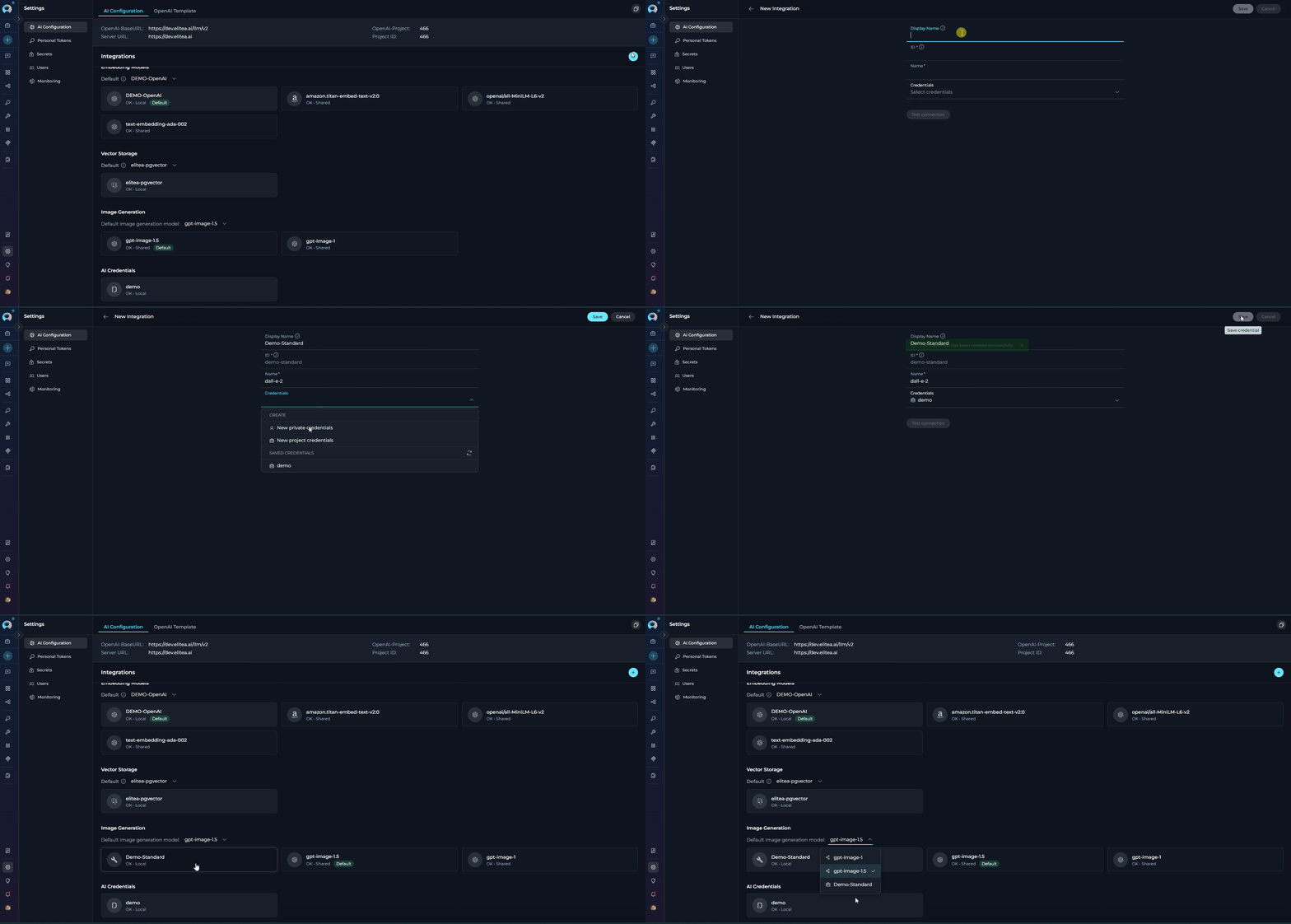 If the **Image creation** option is not available, contact your administrator to enable image generation for your project.
***
## Accessing Image Generation
Image generation is available in two primary locations within ELITEA:
### From Chat Conversations
Enable image generation for ad-hoc conversations.
1. Navigate to your conversation.
2. Locate the chat input toolbar at the bottom of the screen.
3. Click the **Internal Tools** icon (value icon) next to the attachment button.
4. In the popup, find **Image creation** in the list.
5. Toggle the **Image creation** switch to enable it.
6. A success notification appears: "Internal tools configuration updated".
7. Click anywhere outside the popup to close it.
8. Use the model selector to choose a model with image generation capabilities (e.g., GPT-5.2, GPT-5.1, DALL-E 3).
If the **Image creation** option is not available, contact your administrator to enable image generation for your project.
***
## Accessing Image Generation
Image generation is available in two primary locations within ELITEA:
### From Chat Conversations
Enable image generation for ad-hoc conversations.
1. Navigate to your conversation.
2. Locate the chat input toolbar at the bottom of the screen.
3. Click the **Internal Tools** icon (value icon) next to the attachment button.
4. In the popup, find **Image creation** in the list.
5. Toggle the **Image creation** switch to enable it.
6. A success notification appears: "Internal tools configuration updated".
7. Click anywhere outside the popup to close it.
8. Use the model selector to choose a model with image generation capabilities (e.g., GPT-5.2, GPT-5.1, DALL-E 3).
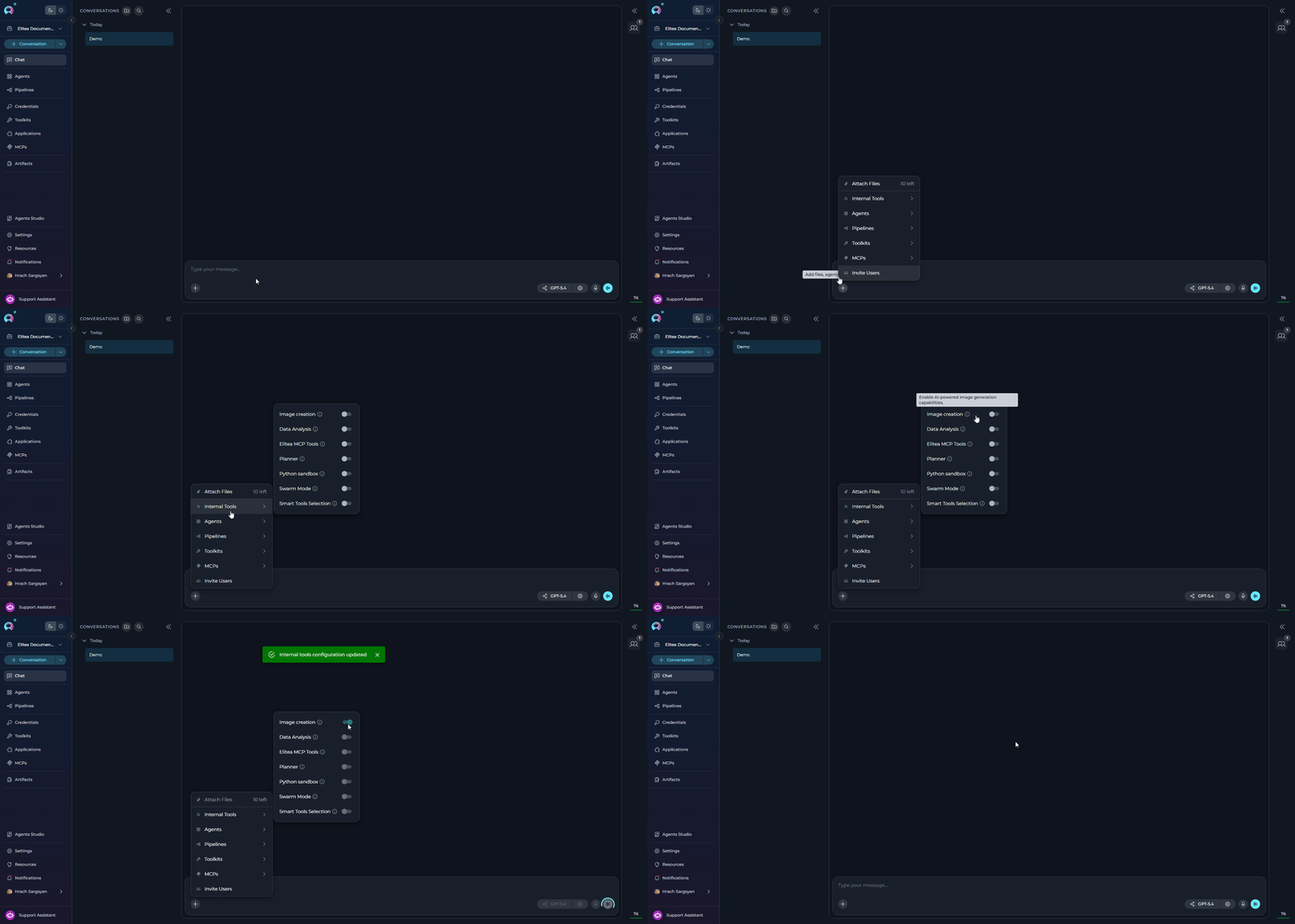 The **Image creation** option is only visible in the popup when an image generation provider toolkit is configured for your project. If no such toolkit is available, the option is silently omitted from the list — and if no internal tools are available at all, the Internal Tools icon will not appear in the chat toolbar. Contact your administrator if you cannot see the option.
***
### In Agent Configuration
Configure image generation as a persistent capability for an agent.
1. Navigate to **Agents** in the main menu.
2. Select the agent you want to configure or create a new agent.
3. On the **Configuration** tab, scroll down to the **TOOLKITS** section
4. Within the **TOOLKITS** section, locate the **INTERNAL TOOLS** subsection
5. Find the **Image creation** toggle. If it is not immediately visible, click **Show all** to expand the full list of internal tools.
6. Toggle the **Image creation** switch to enable it.
7. Use the model selector at the top of the configuration page to choose a model with image generation capabilities (e.g., GPT-5.2, GPT-5.1, DALL-E 3).
8. Click **Save** at the top of the configuration page to persist the change.
The **Image creation** option is only visible in the popup when an image generation provider toolkit is configured for your project. If no such toolkit is available, the option is silently omitted from the list — and if no internal tools are available at all, the Internal Tools icon will not appear in the chat toolbar. Contact your administrator if you cannot see the option.
***
### In Agent Configuration
Configure image generation as a persistent capability for an agent.
1. Navigate to **Agents** in the main menu.
2. Select the agent you want to configure or create a new agent.
3. On the **Configuration** tab, scroll down to the **TOOLKITS** section
4. Within the **TOOLKITS** section, locate the **INTERNAL TOOLS** subsection
5. Find the **Image creation** toggle. If it is not immediately visible, click **Show all** to expand the full list of internal tools.
6. Toggle the **Image creation** switch to enable it.
7. Use the model selector at the top of the configuration page to choose a model with image generation capabilities (e.g., GPT-5.2, GPT-5.1, DALL-E 3).
8. Click **Save** at the top of the configuration page to persist the change.
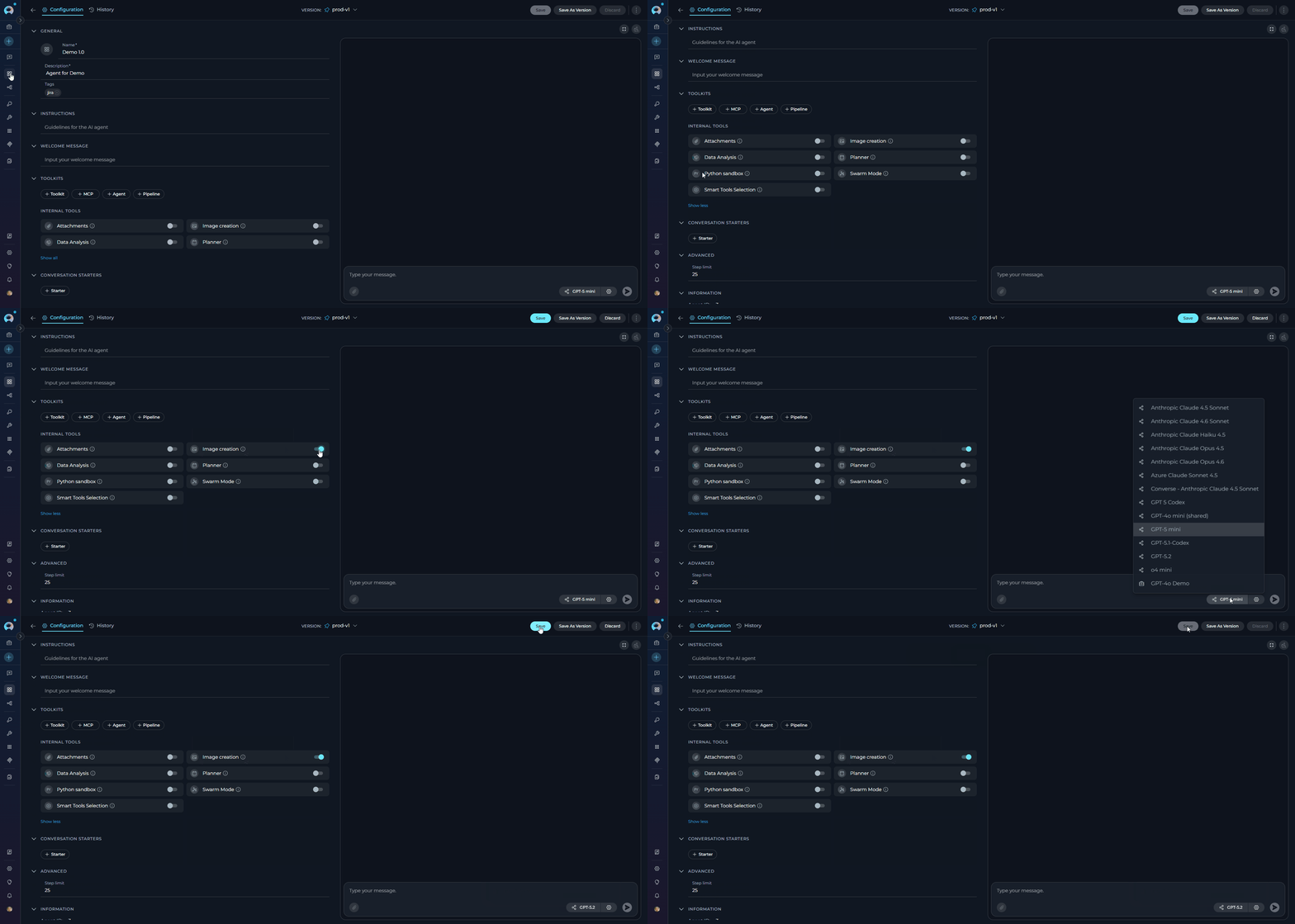 Enabling **Image creation** at the agent level means every new conversation that uses this agent has image generation available by default, without requiring users to enable it manually each time.
***
## How to Generate Images
Once enabled, generating images is as simple as asking the AI assistant:
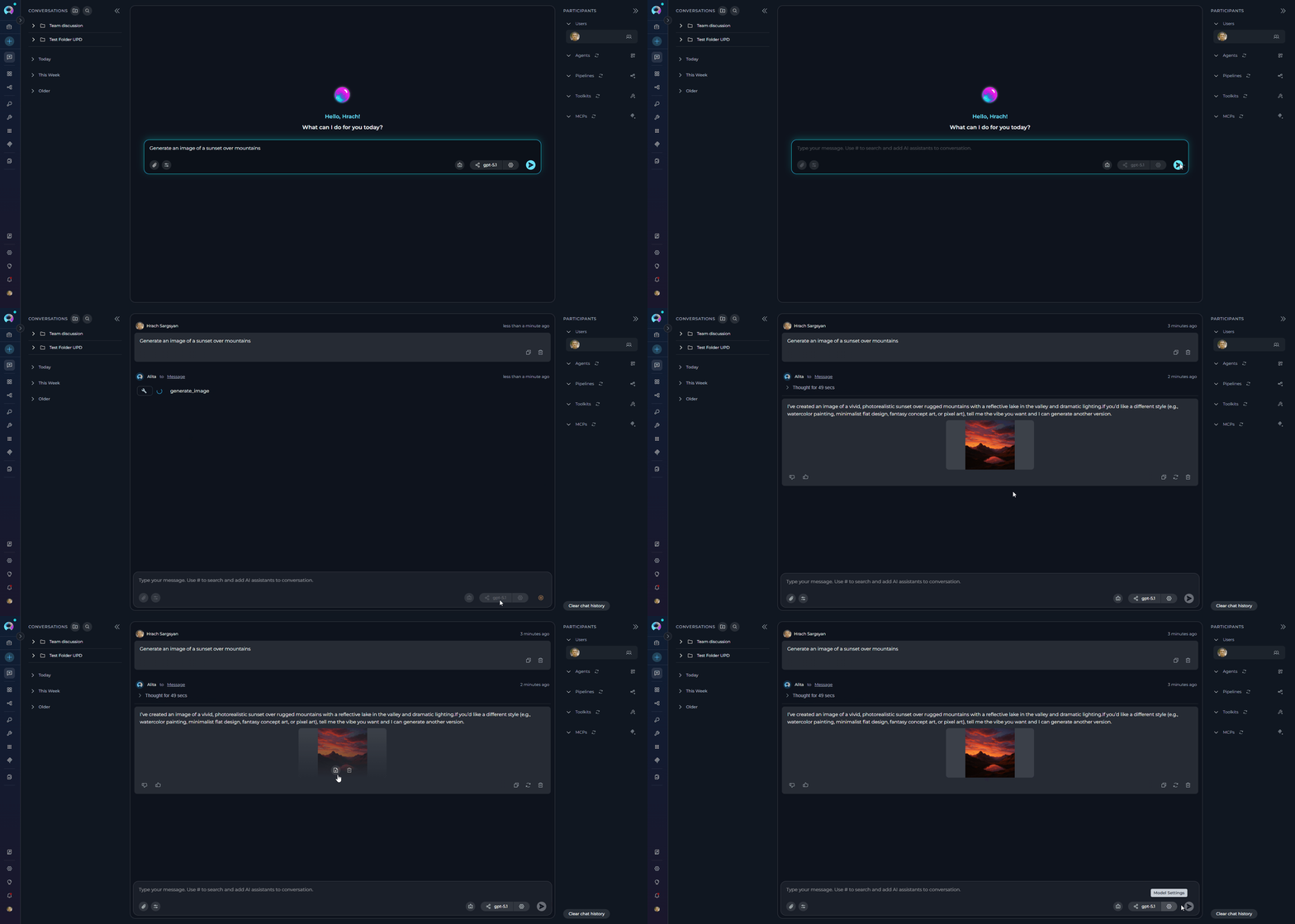
1. In the message input field, type a prompt describing the image you want to create
2. Example: "Generate an image of a sunset over mountains"
3. Press **Send** or hit Enter
4. The AI will automatically invoke the image generation tool
5. Generated image(s) will appear inline in the conversation
Enabling **Image creation** at the agent level means every new conversation that uses this agent has image generation available by default, without requiring users to enable it manually each time.
***
## How to Generate Images
Once enabled, generating images is as simple as asking the AI assistant:
1. In the message input field, type a prompt describing the image you want to create
2. Example: "Generate an image of a sunset over mountains"
3. Press **Send** or hit Enter
4. The AI will automatically invoke the image generation tool
5. Generated image(s) will appear inline in the conversation
 * **Image Count**: Maximum 10 images per generation request
* **Model Dependency**: Available features depend on the specific image generation model
* **Quality vs Speed**: Higher quality images take longer to generate
* **Size Constraints**: Maximum image size varies by model configuration
**Example Prompts:**
* "Generate an image of a sunset over mountains"
* "Create a diagram showing a microservices architecture"
* "Generate an illustration of a friendly robot assistant"
* "Make an image of a modern office workspace"
The AI will automatically invoke the image generation tool and return the generated image(s) inline in the conversation.
You can customize images by including details in your prompt:
**Number of Images:**
* "Generate 3 variations of a logo design"
* You can request up to 10 images per generation
**Image Quality:**
* "Generate a high-quality image of a product mockup"
* Options: auto (default), low, medium, high
* Quality setting depends on the underlying model capabilities
**Image Size:**
* "Create a 1024x1024 image of a landscape"
* Default: auto (model-dependent)
* Common sizes: 256x256, 512x512, 1024x1024, 1024x1792, etc.
* Available sizes depend on the specific image generation model
**Style:**
* "Generate an image in a watercolor style"
* Describe the artistic style you want
You can refine images through conversation:
1. **Initial Generation**: "Generate an image of a modern kitchen"
2. **Review**: View the generated thumbnail
3. **Refinement**: "Make it brighter and add more natural light"
4. **Iteration**: Continue refining until satisfied
***
## Viewing and Managing Generated Images
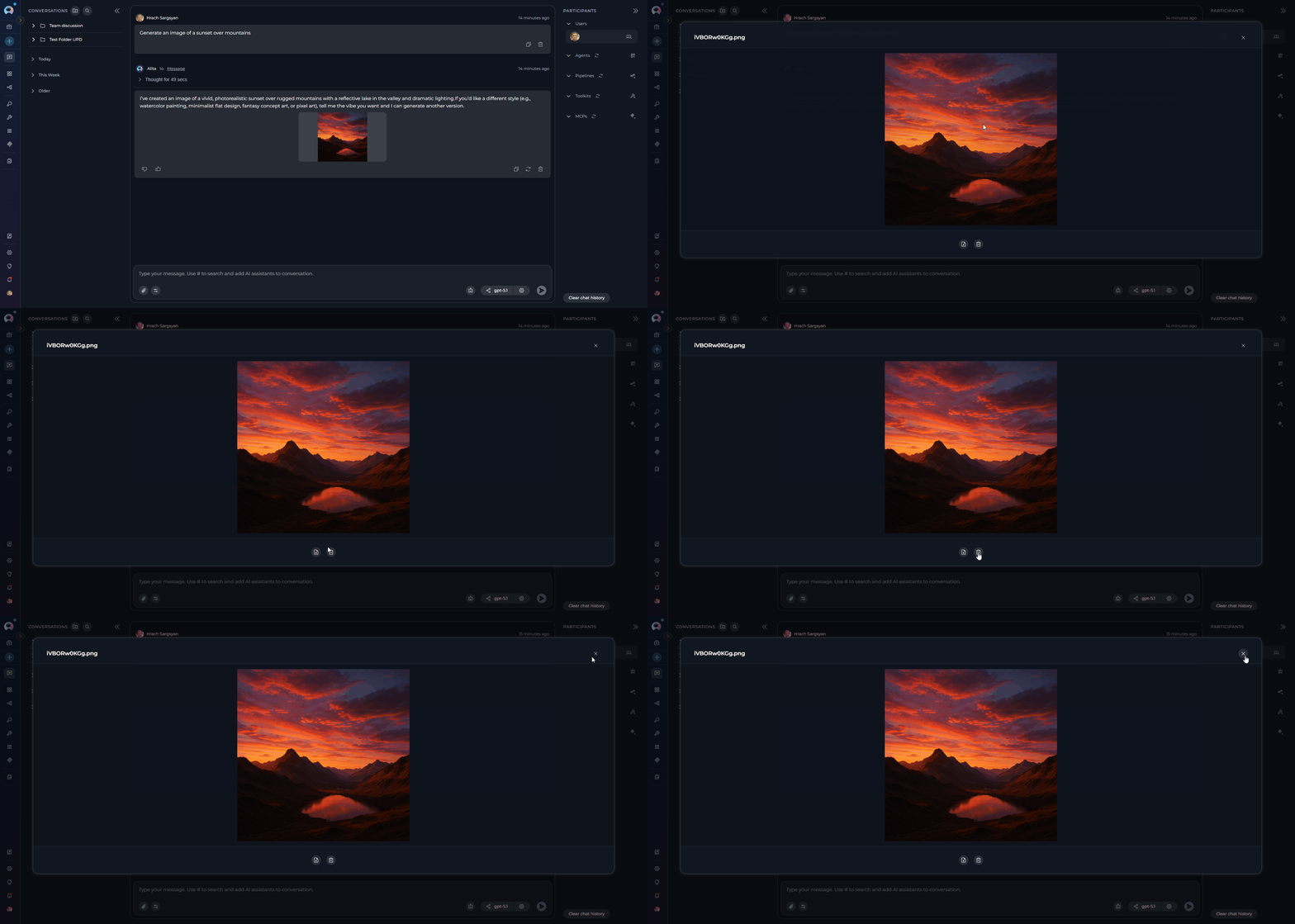
Generated images appear as thumbnails in the conversation. Hover over any image to access management options:
**Fullscreen View:**
* Click the thumbnail to open fullscreen modal
* Press Escape or click outside to close
* **Image Count**: Maximum 10 images per generation request
* **Model Dependency**: Available features depend on the specific image generation model
* **Quality vs Speed**: Higher quality images take longer to generate
* **Size Constraints**: Maximum image size varies by model configuration
**Example Prompts:**
* "Generate an image of a sunset over mountains"
* "Create a diagram showing a microservices architecture"
* "Generate an illustration of a friendly robot assistant"
* "Make an image of a modern office workspace"
The AI will automatically invoke the image generation tool and return the generated image(s) inline in the conversation.
You can customize images by including details in your prompt:
**Number of Images:**
* "Generate 3 variations of a logo design"
* You can request up to 10 images per generation
**Image Quality:**
* "Generate a high-quality image of a product mockup"
* Options: auto (default), low, medium, high
* Quality setting depends on the underlying model capabilities
**Image Size:**
* "Create a 1024x1024 image of a landscape"
* Default: auto (model-dependent)
* Common sizes: 256x256, 512x512, 1024x1024, 1024x1792, etc.
* Available sizes depend on the specific image generation model
**Style:**
* "Generate an image in a watercolor style"
* Describe the artistic style you want
You can refine images through conversation:
1. **Initial Generation**: "Generate an image of a modern kitchen"
2. **Review**: View the generated thumbnail
3. **Refinement**: "Make it brighter and add more natural light"
4. **Iteration**: Continue refining until satisfied
***
## Viewing and Managing Generated Images
Generated images appear as thumbnails in the conversation. Hover over any image to access management options:
**Fullscreen View:**
* Click the thumbnail to open fullscreen modal
* Press Escape or click outside to close
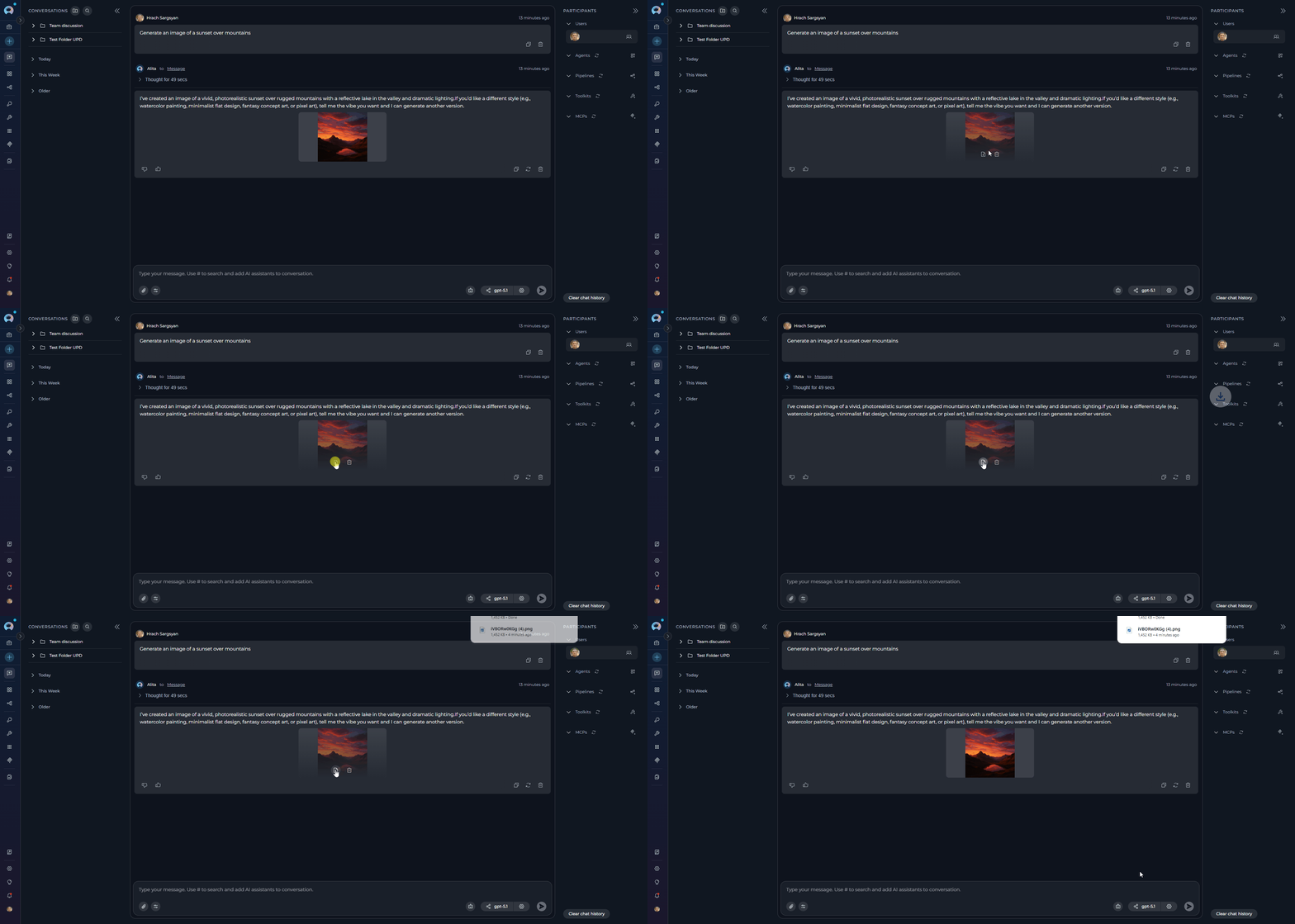
 **Download:**
* Click the **Download icon** to save the image locally
* Images are also accessible from **Artifacts → attachment** bucket, inside the folder
* You can download images from the Artifacts page at any time
**Download:**
* Click the **Download icon** to save the image locally
* Images are also accessible from **Artifacts → attachment** bucket, inside the folder
* You can download images from the Artifacts page at any time
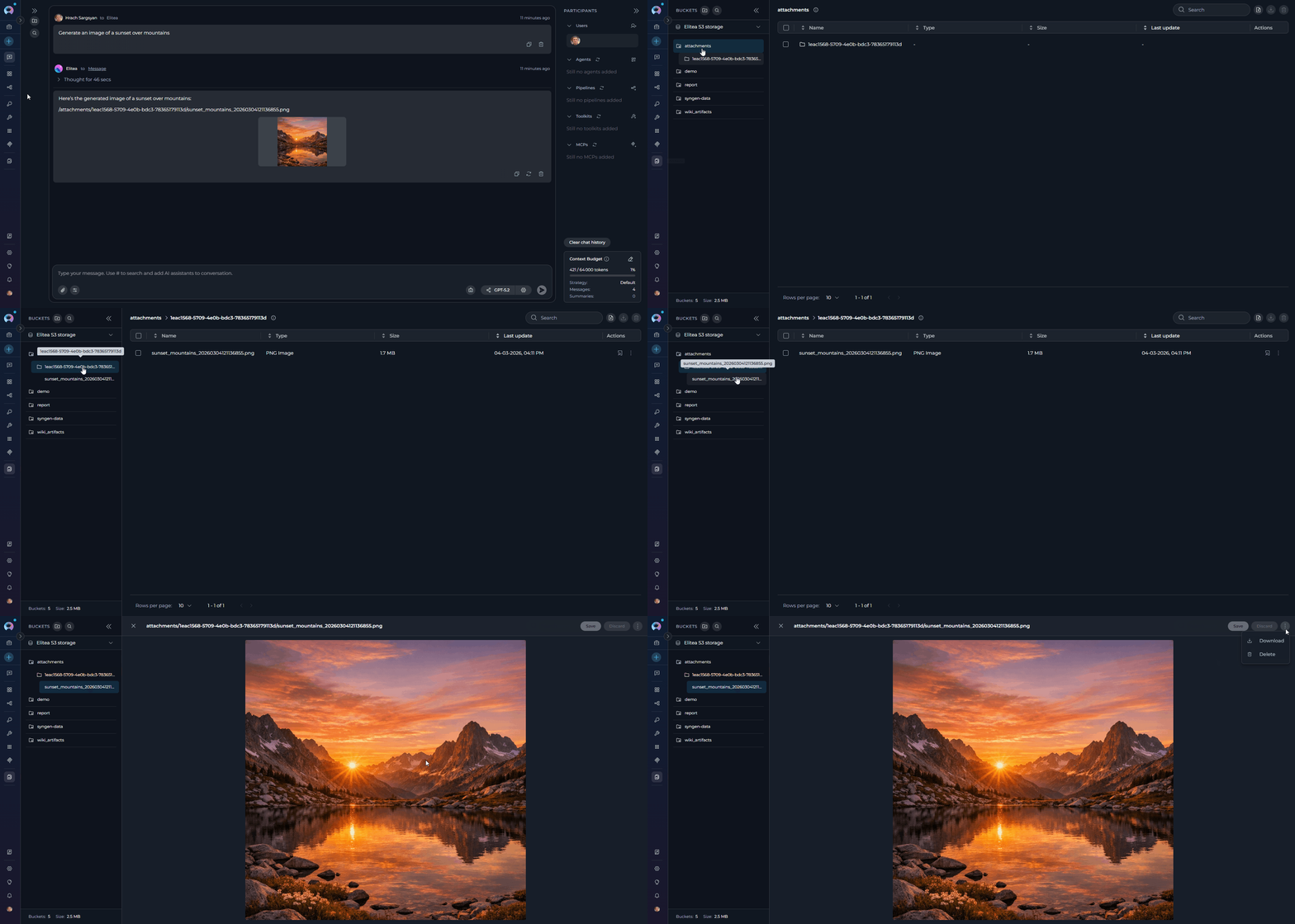
 **Access from Artifacts:**
* Navigate to **Artifacts** in the main menu
* Open the **`attachment`** bucket
* Navigate to the folder inside the bucket
* All generated images are stored here with timestamps
* Download, delete, or manage images from this centralized location
**Access from Artifacts:**
* Navigate to **Artifacts** in the main menu
* Open the **`attachment`** bucket
* Navigate to the folder inside the bucket
* All generated images are stored here with timestamps
* Download, delete, or manage images from this centralized location
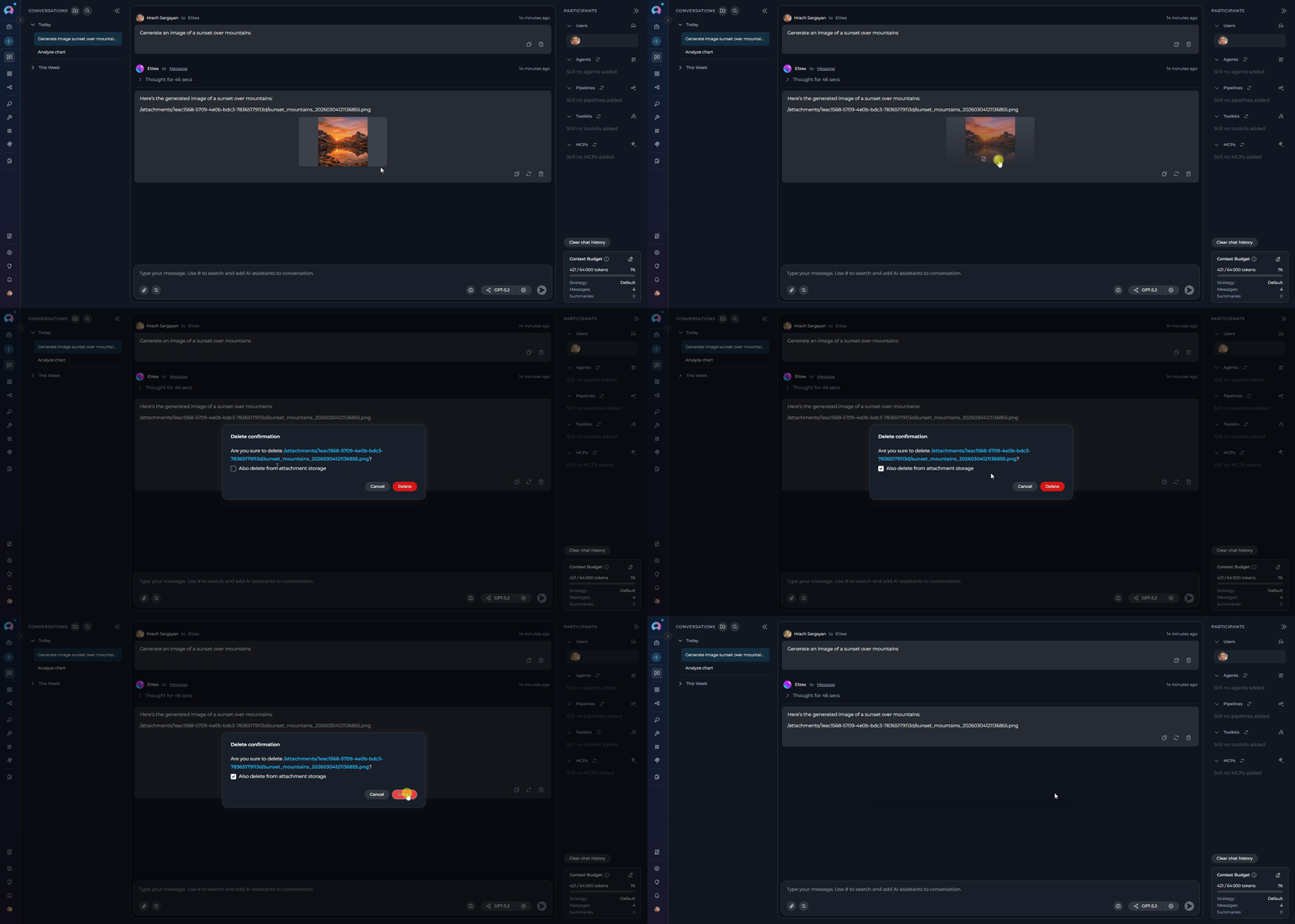
 **Delete:**
* Hover over the generated image thumbnail in the conversation to reveal the action buttons overlay
* Click the **Delete** icon (trash icon) that appears on hover
* A confirmation dialog opens showing the image filename
* The dialog includes an **"Also delete from attachment storage"** checkbox (unchecked by default)
* Leave it unchecked to remove the image only from the conversation view
* Check it to also delete the file from the **`attachment`** bucket in Artifacts
* Click **Delete** to confirm
**Delete:**
* Hover over the generated image thumbnail in the conversation to reveal the action buttons overlay
* Click the **Delete** icon (trash icon) that appears on hover
* A confirmation dialog opens showing the image filename
* The dialog includes an **"Also delete from attachment storage"** checkbox (unchecked by default)
* Leave it unchecked to remove the image only from the conversation view
* Check it to also delete the file from the **`attachment`** bucket in Artifacts
* Click **Delete** to confirm
 Generated images are automatically saved in the **Artifact Toolkit** in the **`attachment`** bucket, inside a dedicated images folder. This folder is created automatically the first time you generate an image if it doesn't already exist.
***
## Usage Scenarios
**Use Case**: Generate architecture diagrams, flowcharts, or system designs
**Example Prompts:**
* "Create a diagram showing a three-tier web application architecture with load balancer, web servers, and database"
* "Generate a flowchart for a user authentication process"
* "Make a network diagram showing VPN connection between offices"
**Best Practices:**
* Be specific about components and relationships
* Mention diagram type (flowchart, sequence diagram, architecture diagram)
* Specify colors or styles if needed
* Request multiple variations to choose the best one
**Use Case**: Create visual content for presentations, documentation, or creative projects
**Example Prompts:**
* "Generate an illustration of a team collaborating in a modern office"
* "Create a hero image for a SaaS landing page showing productivity features"
* "Make an icon set for a project management application"
**Best Practices:**
* Describe the mood and style (modern, minimalist, vibrant, professional)
* Specify color schemes when important
* Include context about the intended use
* Generate multiple options for comparison
**Use Case**: Quickly visualize UI/UX concepts or product designs
**Example Prompts:**
* "Generate a mockup of a mobile app dashboard for fitness tracking"
* "Create a landing page design for an AI-powered writing assistant"
* "Make a product card design for an e-commerce website"
**Best Practices:**
* Specify device type (mobile, tablet, desktop)
* Mention key UI elements to include
* Describe the color palette and brand style
* Request specific layout patterns if needed
**Use Case**: Create charts, graphs, or infographics from described data
**Example Prompts:**
* "Generate a bar chart comparing quarterly sales for 2024"
* "Create an infographic showing the software development lifecycle"
* "Make a pie chart showing market share distribution"
**Best Practices:**
* Clearly describe the data and labels
* Specify chart type (bar, line, pie, scatter)
* Mention color preferences for different data series
* Include title and axis labels in your description
**Use Case**: Generate visual aids for learning materials
**Example Prompts:**
* "Create an illustration explaining how photosynthesis works"
* "Generate a diagram showing the layers of the OSI network model"
* "Make an image demonstrating proper ergonomic sitting posture"
**Best Practices:**
* Focus on clarity and simplicity
* Request labels or annotations
* Use clear, step-by-step descriptions
* Consider your audience's technical level
**Use Case**: Create branded visuals for marketing campaigns
**Example Prompts:**
* "Generate a social media post image announcing a product launch"
* "Create a banner image for an email newsletter about new features"
* "Make a promotional image for a webinar on AI automation"
**Best Practices:**
* Specify dimensions for the target platform
* Include brand colors and style guidelines
* Mention text placement areas if needed
* Generate variations for A/B testing
***
## Best Practices
### Crafting Effective Prompts
**Instead of:** "Generate a logo"
**Try:** "Generate a modern, minimalist logo for a cloud storage company using blue and white colors, featuring a cloud icon"
**Why:** Specific prompts yield more accurate results that match your vision.
**Instead of:** "Make an office image"
**Try:** "Create an image of a modern open-plan office with collaborative workspaces for a tech startup presentation"
**Why:** Context helps the AI understand the intended use and style.
**Instead of:** "Generate a landscape"
**Try:** "Generate a serene mountain landscape at sunset with warm orange and purple tones in a photorealistic style"
**Why:** Style descriptions guide the aesthetic direction.
**Instead of:** Single generation and hoping for the best
**Try:** "Generate 3 different versions of a dashboard UI, each with a different color scheme"
**Why:** Multiple variations provide options to choose from.
### Managing Generated Content
* Download images promptly with descriptive filenames
* Use browser download management or dedicated folders
* Consider version numbers for iterative designs
* Keep related images together for project work
* Review initial generation critically
* Provide feedback for refinement ("make it brighter", "add more detail")
* Build on successful elements from previous generations
* Save intermediate versions you might want to reference
* Keep a record of effective prompts
* Note which models work best for specific types of images
* Document style preferences that yield consistent results
* Share successful prompt patterns with your team
### Performance Optimization
* Use faster models for quick iterations
* Switch to high-quality models for final outputs
* Consider model capabilities for specific image types
* Monitor generation times and adjust accordingly
* Generate multiple variations in one request when possible
* Avoid requesting too many images at once (max 10)
* Balance quantity with quality for better results
***
## Troubleshooting
**Possible Causes:**
* Image creation internal tool not enabled
* No image generation provider toolkit configured for the project — the **Image creation** option is filtered out of the popup entirely when this toolkit is absent
* If no internal tools are available at all, the Internal Tools icon is hidden from the chat toolbar
* Network connectivity issues
**Solutions:**
1. Enable the **Image creation** toggle in Internal Tools settings
2. If the **Image creation** option is not visible in the popup, your project has no image generation provider toolkit configured — ask your administrator to add an image generation integration
3. If the Internal Tools icon is missing from the chat toolbar entirely, contact your administrator to verify toolkit configuration
4. Refresh the page and try again
**Error Message:** "Image generation internal tool requested but no image generation model configured"
**Cause:** The internal tool is enabled, but the selected model lacks image generation capabilities.
**Solution:**
1. Select a different model with image generation support
2. Verify model configuration with your administrator
3. Check integration settings for the image generation endpoint
**Possible Causes:**
* Image data format error
* Browser compatibility issues
* Base64 encoding problems
* Network interruption during generation
**Solutions:**
1. Refresh the page and regenerate the image
2. Try a different browser (Chrome, Firefox, Edge)
3. Check browser console for errors
4. Ensure stable network connection
**Possible Causes:**
* Vague or ambiguous prompts
* Quality parameter set too low
* Model limitations
* Size constraints
**Solutions:**
1. **Refine your prompt**: Add more specific details and context
2. **Request higher quality**: Explicitly ask for "high-quality" images
3. **Try different models**: Some models excel at specific image types
4. **Specify larger sizes**: Request specific dimensions (e.g., 1024x1024)
**Possible Causes:**
* Browser blocking downloads
* Base64 conversion error
* Network timeout
* Insufficient browser storage
**Solutions:**
1. Check browser download permissions
2. Try right-clicking the image and "Save Image As"
3. Refresh and try download again
4. Clear browser cache and retry
**Possible Causes:**
* Complex prompts requiring more processing
* High-quality/large size settings
* Server load or API rate limits
* Network latency
**Solutions:**
1. Simplify your prompt for faster generation
2. Use "auto" quality setting initially
3. Generate one image at a time instead of multiple
4. Wait for current operations to complete
5. Try during off-peak hours if rate limited
***
## Related Documentation
* **[Artifact Toolkit](../../integrations/toolkits/artifact_toolkit)** - Managing files and images in Artifacts
* **[Agent Configuration](../../menus/agents)** - Setting up agents with internal tools
* **[Chat Functionality](./how-to-use-chat-functionality)** - General chat features and usage
* **[Canvas in Conversation](./how-to-canvas)** - Creating and editing content in chat
* **[Attach Images and Files](./attach-files)** - Working with file attachments
Generated images are automatically saved in the **Artifact Toolkit** in the **`attachment`** bucket, inside a dedicated images folder. This folder is created automatically the first time you generate an image if it doesn't already exist.
***
## Usage Scenarios
**Use Case**: Generate architecture diagrams, flowcharts, or system designs
**Example Prompts:**
* "Create a diagram showing a three-tier web application architecture with load balancer, web servers, and database"
* "Generate a flowchart for a user authentication process"
* "Make a network diagram showing VPN connection between offices"
**Best Practices:**
* Be specific about components and relationships
* Mention diagram type (flowchart, sequence diagram, architecture diagram)
* Specify colors or styles if needed
* Request multiple variations to choose the best one
**Use Case**: Create visual content for presentations, documentation, or creative projects
**Example Prompts:**
* "Generate an illustration of a team collaborating in a modern office"
* "Create a hero image for a SaaS landing page showing productivity features"
* "Make an icon set for a project management application"
**Best Practices:**
* Describe the mood and style (modern, minimalist, vibrant, professional)
* Specify color schemes when important
* Include context about the intended use
* Generate multiple options for comparison
**Use Case**: Quickly visualize UI/UX concepts or product designs
**Example Prompts:**
* "Generate a mockup of a mobile app dashboard for fitness tracking"
* "Create a landing page design for an AI-powered writing assistant"
* "Make a product card design for an e-commerce website"
**Best Practices:**
* Specify device type (mobile, tablet, desktop)
* Mention key UI elements to include
* Describe the color palette and brand style
* Request specific layout patterns if needed
**Use Case**: Create charts, graphs, or infographics from described data
**Example Prompts:**
* "Generate a bar chart comparing quarterly sales for 2024"
* "Create an infographic showing the software development lifecycle"
* "Make a pie chart showing market share distribution"
**Best Practices:**
* Clearly describe the data and labels
* Specify chart type (bar, line, pie, scatter)
* Mention color preferences for different data series
* Include title and axis labels in your description
**Use Case**: Generate visual aids for learning materials
**Example Prompts:**
* "Create an illustration explaining how photosynthesis works"
* "Generate a diagram showing the layers of the OSI network model"
* "Make an image demonstrating proper ergonomic sitting posture"
**Best Practices:**
* Focus on clarity and simplicity
* Request labels or annotations
* Use clear, step-by-step descriptions
* Consider your audience's technical level
**Use Case**: Create branded visuals for marketing campaigns
**Example Prompts:**
* "Generate a social media post image announcing a product launch"
* "Create a banner image for an email newsletter about new features"
* "Make a promotional image for a webinar on AI automation"
**Best Practices:**
* Specify dimensions for the target platform
* Include brand colors and style guidelines
* Mention text placement areas if needed
* Generate variations for A/B testing
***
## Best Practices
### Crafting Effective Prompts
**Instead of:** "Generate a logo"
**Try:** "Generate a modern, minimalist logo for a cloud storage company using blue and white colors, featuring a cloud icon"
**Why:** Specific prompts yield more accurate results that match your vision.
**Instead of:** "Make an office image"
**Try:** "Create an image of a modern open-plan office with collaborative workspaces for a tech startup presentation"
**Why:** Context helps the AI understand the intended use and style.
**Instead of:** "Generate a landscape"
**Try:** "Generate a serene mountain landscape at sunset with warm orange and purple tones in a photorealistic style"
**Why:** Style descriptions guide the aesthetic direction.
**Instead of:** Single generation and hoping for the best
**Try:** "Generate 3 different versions of a dashboard UI, each with a different color scheme"
**Why:** Multiple variations provide options to choose from.
### Managing Generated Content
* Download images promptly with descriptive filenames
* Use browser download management or dedicated folders
* Consider version numbers for iterative designs
* Keep related images together for project work
* Review initial generation critically
* Provide feedback for refinement ("make it brighter", "add more detail")
* Build on successful elements from previous generations
* Save intermediate versions you might want to reference
* Keep a record of effective prompts
* Note which models work best for specific types of images
* Document style preferences that yield consistent results
* Share successful prompt patterns with your team
### Performance Optimization
* Use faster models for quick iterations
* Switch to high-quality models for final outputs
* Consider model capabilities for specific image types
* Monitor generation times and adjust accordingly
* Generate multiple variations in one request when possible
* Avoid requesting too many images at once (max 10)
* Balance quantity with quality for better results
***
## Troubleshooting
**Possible Causes:**
* Image creation internal tool not enabled
* No image generation provider toolkit configured for the project — the **Image creation** option is filtered out of the popup entirely when this toolkit is absent
* If no internal tools are available at all, the Internal Tools icon is hidden from the chat toolbar
* Network connectivity issues
**Solutions:**
1. Enable the **Image creation** toggle in Internal Tools settings
2. If the **Image creation** option is not visible in the popup, your project has no image generation provider toolkit configured — ask your administrator to add an image generation integration
3. If the Internal Tools icon is missing from the chat toolbar entirely, contact your administrator to verify toolkit configuration
4. Refresh the page and try again
**Error Message:** "Image generation internal tool requested but no image generation model configured"
**Cause:** The internal tool is enabled, but the selected model lacks image generation capabilities.
**Solution:**
1. Select a different model with image generation support
2. Verify model configuration with your administrator
3. Check integration settings for the image generation endpoint
**Possible Causes:**
* Image data format error
* Browser compatibility issues
* Base64 encoding problems
* Network interruption during generation
**Solutions:**
1. Refresh the page and regenerate the image
2. Try a different browser (Chrome, Firefox, Edge)
3. Check browser console for errors
4. Ensure stable network connection
**Possible Causes:**
* Vague or ambiguous prompts
* Quality parameter set too low
* Model limitations
* Size constraints
**Solutions:**
1. **Refine your prompt**: Add more specific details and context
2. **Request higher quality**: Explicitly ask for "high-quality" images
3. **Try different models**: Some models excel at specific image types
4. **Specify larger sizes**: Request specific dimensions (e.g., 1024x1024)
**Possible Causes:**
* Browser blocking downloads
* Base64 conversion error
* Network timeout
* Insufficient browser storage
**Solutions:**
1. Check browser download permissions
2. Try right-clicking the image and "Save Image As"
3. Refresh and try download again
4. Clear browser cache and retry
**Possible Causes:**
* Complex prompts requiring more processing
* High-quality/large size settings
* Server load or API rate limits
* Network latency
**Solutions:**
1. Simplify your prompt for faster generation
2. Use "auto" quality setting initially
3. Generate one image at a time instead of multiple
4. Wait for current operations to complete
5. Try during off-peak hours if rate limited
***
## Related Documentation
* **[Artifact Toolkit](../../integrations/toolkits/artifact_toolkit)** - Managing files and images in Artifacts
* **[Agent Configuration](../../menus/agents)** - Setting up agents with internal tools
* **[Chat Functionality](./how-to-use-chat-functionality)** - General chat features and usage
* **[Canvas in Conversation](./how-to-canvas)** - Creating and editing content in chat
* **[Attach Images and Files](./attach-files)** - Working with file attachments