> ## Documentation Index
> Fetch the complete documentation index at: https://docs.elitea.ai/llms.txt
> Use this file to discover all available pages before exploring further.
# Use Chat in ELITEA
> Learn how conversations work in ELITEA, including participants, context, attachments, Canvas, and collaboration features.
## Introduction to Chat Functionality
A Conversation in ELITEA represents a dynamic dialogue involving multiple participants. These can include language models (LLMs), Agents, Pipelines, Toolkits, MCPs, and human Users like yourself. You interact using natural language, and the chat maintains context, allowing you to refer to previous messages within the same conversation. Conversations are isolated; context is not shared between different conversations.
All your conversations are securely stored on the ELITEA server, making them accessible from any device where you log in. You can find all your conversations listed under the Chat menu in the sidebar.
**Key Features**
Control visibility and collaboration by sharing conversations or keeping them private.
Integrate Models, Agents, Pipelines, Toolkits, MCPs, and other Users (in public conversations).
Edit and refine AI-generated code, tables, diagrams, and DOCX files with built-in tools.
Upload and attach images and files for AI analysis and processing.
Execute Python code, plan tasks, analyze data, create images, and more — no external integrations needed.
Engage with participants, copy responses, provide feedback, and regenerate outputs.
Save, pin, share, delete, clear, and organize conversations into folders.
Simulate and review conversation flows without engaging live models — ideal for demos.
## Getting Started
### Creating a New Conversation
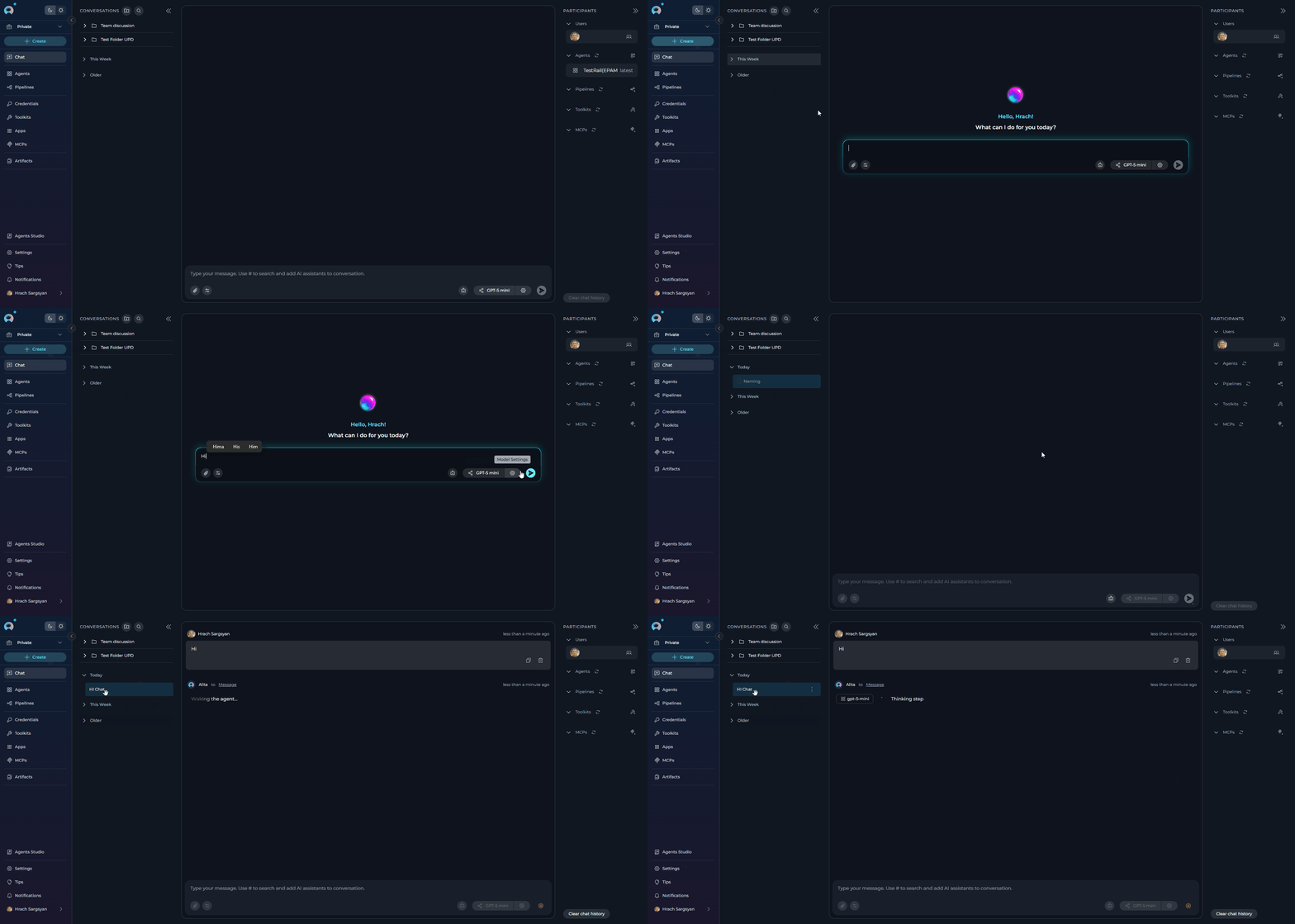
1. In the main sidebar on the left, locate the **Chat** section.
2. Click **+ Create** to start a new conversation.
3. The chat input field appears and is highlighted to focus your attention.
4. You'll see a welcome screen with the message "Hello, \[Your Name]! What can I do for you today?"
5. The message input box at the bottom shows the placeholder: "Type your message. Use # to search and add AI assistants to conversation."
6. **Choose your approach:**
* **Add a participant first**: Type `#` to search and select an Agent, Pipeline, Toolkit, or MCP from the dropdown list that appears. Selected participants will appear as chips above the input box.
* **Select a model**: Click the model selector dropdown to choose an LLM (e.g., GPT-4, Claude).
7. **Type your message**: Enter your initial message, question, or command (e.g., "Help me write a Python script", "What are the best practices for API design?", "Explain quantum computing").
8. **Send**: Click the **Send** icon (paper airplane icon) or press Enter.
9. The new conversation is created and appears in the **CONVERSATIONS** sidebar on the left.
10. The conversation name is automatically generated based on your message content. During name generation (1-2 seconds), you'll see a loader icon with "Naming" text next to the conversation item. You can manually rename it at any time after generation completes.
 ### Creating a New Folder
Organize your conversations by grouping them into folders.
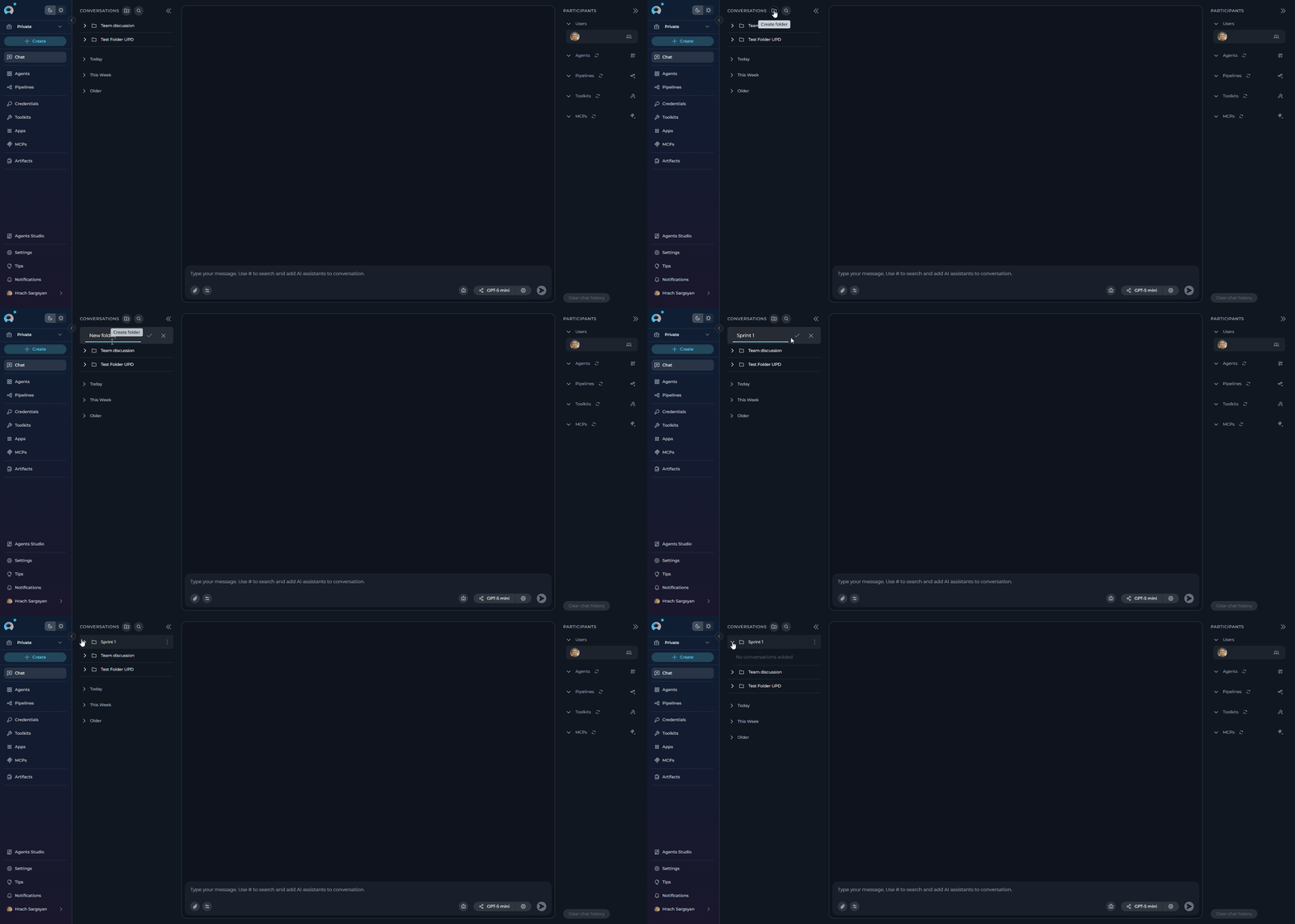
1. In the **Conversations** sidebar, locate the folder icon button next to "Conversations" at the top.
2. Click the **folder icon** (Create folder button).
3. A new folder entry will appear. Enter a descriptive **Name** for your folder.
4. Press Enter or click the checkmark to save.
The new folder will appear in your **CONVERSATIONS** sidebar.
### Creating a New Folder
Organize your conversations by grouping them into folders.
1. In the **Conversations** sidebar, locate the folder icon button next to "Conversations" at the top.
2. Click the **folder icon** (Create folder button).
3. A new folder entry will appear. Enter a descriptive **Name** for your folder.
4. Press Enter or click the checkmark to save.
The new folder will appear in your **CONVERSATIONS** sidebar.
 ## Managing Conversations
### Moving Conversations to Folders
To organize conversations into folders:
**Method 1: Drag and Drop**
1. In the **CONVERSATIONS** sidebar, click and hold on the conversation you wish to move.
2. Drag the conversation over the destination folder.
3. Release to drop the conversation into the folder.
**Method 2: Context Menu**
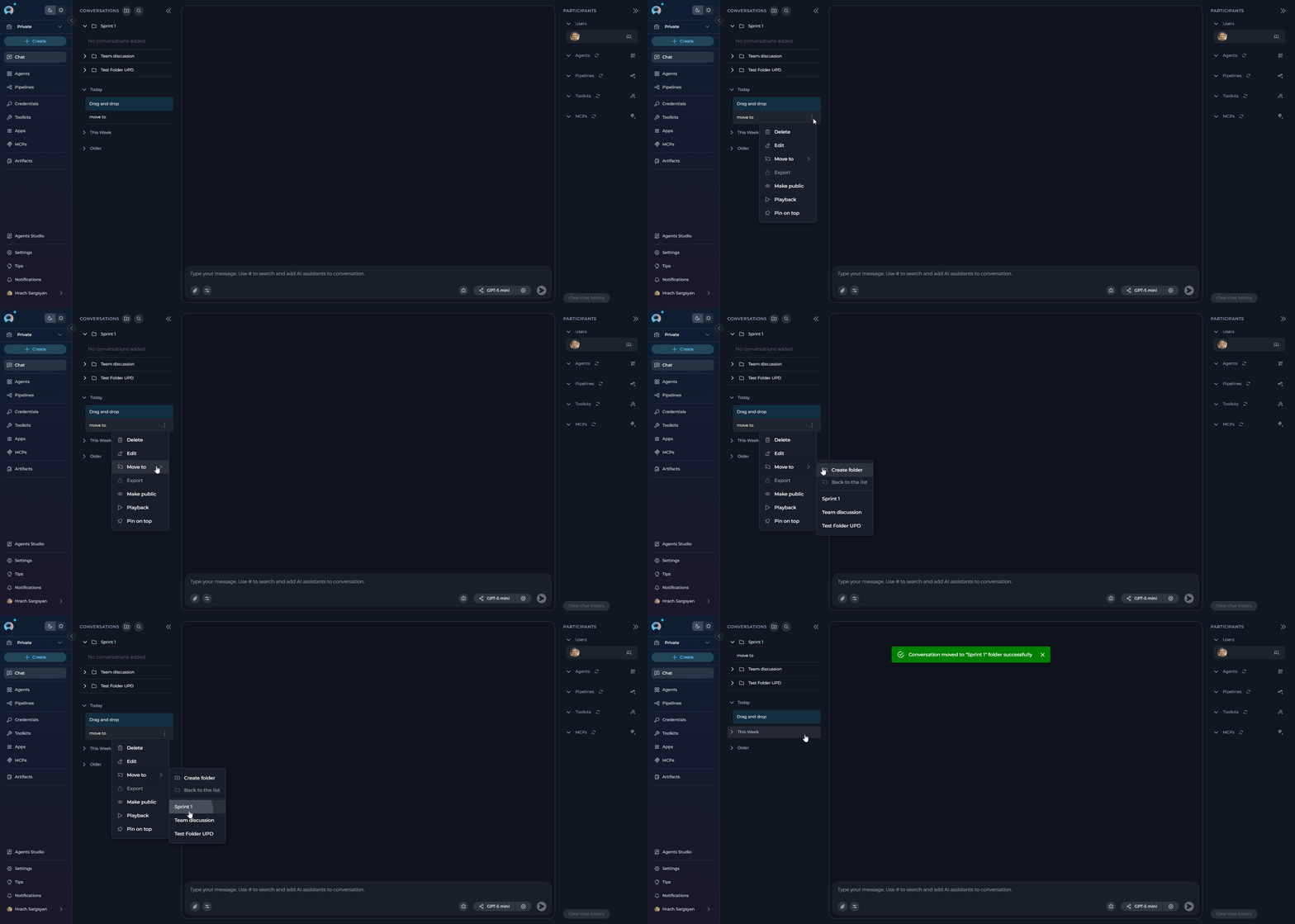
1. In the **CONVERSATIONS** sidebar, right-click on the conversation you wish to move.
2. Select **Move to** from the context menu.
3. Choose the desired destination folder from the list, OR
4. Select **Create folder** to create a new folder and move the conversation into it simultaneously.
5. To move a conversation back to the main list, select **Back to the list** from the Move to menu.
## Managing Conversations
### Moving Conversations to Folders
To organize conversations into folders:
**Method 1: Drag and Drop**
1. In the **CONVERSATIONS** sidebar, click and hold on the conversation you wish to move.
2. Drag the conversation over the destination folder.
3. Release to drop the conversation into the folder.
**Method 2: Context Menu**
1. In the **CONVERSATIONS** sidebar, right-click on the conversation you wish to move.
2. Select **Move to** from the context menu.
3. Choose the desired destination folder from the list, OR
4. Select **Create folder** to create a new folder and move the conversation into it simultaneously.
5. To move a conversation back to the main list, select **Back to the list** from the Move to menu.
 ### Conversation Actions (Sidebar)
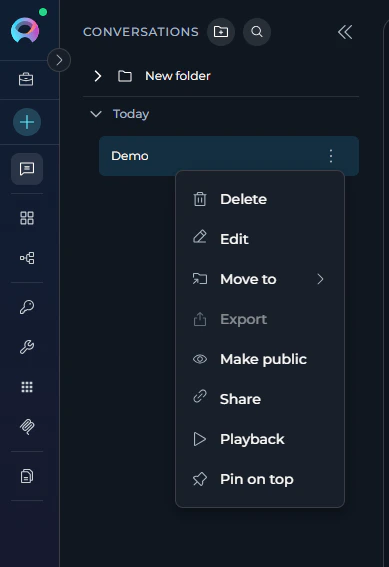
You can manage conversations directly from the **CONVERSATIONS** sidebar by right-clicking on a conversation or clicking the options menu (often **...**) associated with it. The following actions are available:
* **Edit**: Rename the conversation. Enter the new name and confirm.
* **Pin / Unpin**: Select **Pin** to keep the conversation at the top of the list for easy access. Select **Unpin** on a pinned conversation to remove it from the top.
* **Move To**: Move the conversation into a folder, as described above.
* **Make Public**: Convert a private conversation into a public one, visible to other project members.\
**Caution**: This action is irreversible; you cannot make a public conversation private again.
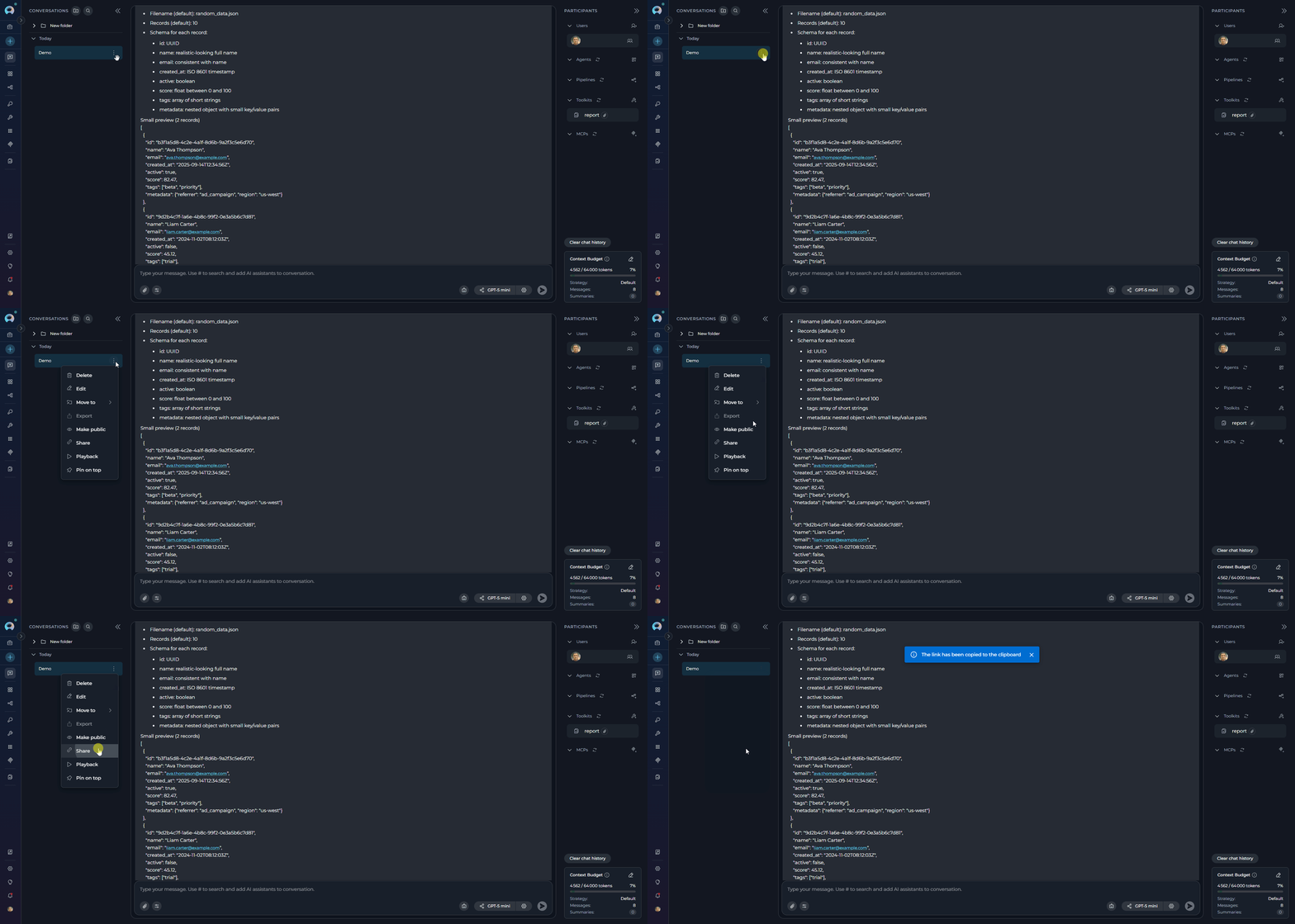
* **Share**: To share a conversation with team members, select **Share** from the conversation contextual menu. This action copies a direct link to the conversation to your clipboard. Team members can use this link to access and view the conversation. (`available for team project`)
* **Delete**: Permanently remove the conversation. You will be asked to confirm this action.
* **Playback**: Enter Playback mode for this conversation (See [Playback Mode](#playback-mode)).
### Conversation Actions (Sidebar)
You can manage conversations directly from the **CONVERSATIONS** sidebar by right-clicking on a conversation or clicking the options menu (often **...**) associated with it. The following actions are available:
* **Edit**: Rename the conversation. Enter the new name and confirm.
* **Pin / Unpin**: Select **Pin** to keep the conversation at the top of the list for easy access. Select **Unpin** on a pinned conversation to remove it from the top.
* **Move To**: Move the conversation into a folder, as described above.
* **Make Public**: Convert a private conversation into a public one, visible to other project members.\
**Caution**: This action is irreversible; you cannot make a public conversation private again.
* **Share**: To share a conversation with team members, select **Share** from the conversation contextual menu. This action copies a direct link to the conversation to your clipboard. Team members can use this link to access and view the conversation. (`available for team project`)
* **Delete**: Permanently remove the conversation. You will be asked to confirm this action.
* **Playback**: Enter Playback mode for this conversation (See [Playback Mode](#playback-mode)).
 ### Sharing Conversations
The conversation sharing feature allows you to share conversations with team members by providing them with a direct link. This is particularly useful for collaboration, code reviews, troubleshooting, and knowledge sharing within your team.
* **Team Projects Only**: Conversation sharing is only available for conversations in team projects. You cannot share conversations from personal projects.
* **Team Members**: Only team members who have access to the project can view shared conversations.
* **Access Level**: Recipients must have appropriate permissions within the project to access the shared content.
**How Conversation Sharing Works**
When you share a conversation, ELITEA generates a unique URL that includes the conversation ID, name, and a special parameter that identifies it as a shared conversation. Team members who receive this link can access and view the complete conversation history in their browser.
**How to Share a Conversation**
1. Navigate to the **CONVERSATIONS** sidebar in the **Chat** section.
2. Locate the conversation you want to share.
3. Hover over the conversation to reveal the contextual menu.
4. Select **Share** from the menu options.
5. The conversation link is automatically copied to your clipboard.
6. You will see a notification: "The link has been copied to the clipboard."
7. Paste the link in your communication channel (email, Slack, Teams, etc.) to share it with team members.
### Sharing Conversations
The conversation sharing feature allows you to share conversations with team members by providing them with a direct link. This is particularly useful for collaboration, code reviews, troubleshooting, and knowledge sharing within your team.
* **Team Projects Only**: Conversation sharing is only available for conversations in team projects. You cannot share conversations from personal projects.
* **Team Members**: Only team members who have access to the project can view shared conversations.
* **Access Level**: Recipients must have appropriate permissions within the project to access the shared content.
**How Conversation Sharing Works**
When you share a conversation, ELITEA generates a unique URL that includes the conversation ID, name, and a special parameter that identifies it as a shared conversation. Team members who receive this link can access and view the complete conversation history in their browser.
**How to Share a Conversation**
1. Navigate to the **CONVERSATIONS** sidebar in the **Chat** section.
2. Locate the conversation you want to share.
3. Hover over the conversation to reveal the contextual menu.
4. Select **Share** from the menu options.
5. The conversation link is automatically copied to your clipboard.
6. You will see a notification: "The link has been copied to the clipboard."
7. Paste the link in your communication channel (email, Slack, Teams, etc.) to share it with team members.
 **Use Cases for Sharing Conversations**
* **Collaboration**: Share conversations to involve team members in ongoing discussions or problem-solving sessions
* **Code Reviews**: Share conversations containing code generation or refactoring for peer review
* **Troubleshooting**: Share error discussions with technical support or senior team members
* **Knowledge Transfer**: Share valuable conversations as learning resources for team members
* **Documentation**: Share conversations that demonstrate best practices or solutions to common problems
* **Demos and Presentations**: Share conversations to demonstrate ELITEA capabilities or AI-assisted workflows
The **Share** action is different from **Make Public**. Sharing creates a link for easy access while maintaining existing permissions, whereas making a conversation public changes its visibility settings permanently and cannot be reversed.
**Accessing Shared Conversations**
When a team member clicks on a shared conversation link:
1. The link opens in their browser
2. ELITEA automatically navigates to the specified conversation
3. The conversation opens with the complete history visible
4. The recipient can read the entire conversation thread
5. Depending on their permissions, they may be able to interact with or continue the conversation
If a user doesn't have access or permissions to the shared conversation (i.e., the conversation is not public and the user is not added as a participant), clicking the shared link will navigate them to the chat interface, but they will not be able to view the conversation content. This is the expected behavior to maintain conversation privacy and security.
## Managing Folders
### Folder Actions (Sidebar)
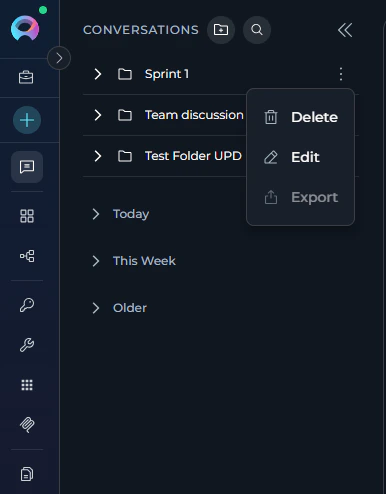
Folders can be managed directly from the **CONVERSATIONS** sidebar. Right-click on a folder or click its associated options menu (**...**) to access the following actions:
* **Edit Folder**: Rename the folder. Enter the new name and click the checkmark (✔) or **Save** button.
* **Delete Folder**: Remove the folder.\
**Important**: Deleting a folder does not delete the conversations inside it. Conversations within a deleted folder are automatically moved back to the main conversation list (root level). You will be asked to confirm deletion.
**Use Cases for Sharing Conversations**
* **Collaboration**: Share conversations to involve team members in ongoing discussions or problem-solving sessions
* **Code Reviews**: Share conversations containing code generation or refactoring for peer review
* **Troubleshooting**: Share error discussions with technical support or senior team members
* **Knowledge Transfer**: Share valuable conversations as learning resources for team members
* **Documentation**: Share conversations that demonstrate best practices or solutions to common problems
* **Demos and Presentations**: Share conversations to demonstrate ELITEA capabilities or AI-assisted workflows
The **Share** action is different from **Make Public**. Sharing creates a link for easy access while maintaining existing permissions, whereas making a conversation public changes its visibility settings permanently and cannot be reversed.
**Accessing Shared Conversations**
When a team member clicks on a shared conversation link:
1. The link opens in their browser
2. ELITEA automatically navigates to the specified conversation
3. The conversation opens with the complete history visible
4. The recipient can read the entire conversation thread
5. Depending on their permissions, they may be able to interact with or continue the conversation
If a user doesn't have access or permissions to the shared conversation (i.e., the conversation is not public and the user is not added as a participant), clicking the shared link will navigate them to the chat interface, but they will not be able to view the conversation content. This is the expected behavior to maintain conversation privacy and security.
## Managing Folders
### Folder Actions (Sidebar)
Folders can be managed directly from the **CONVERSATIONS** sidebar. Right-click on a folder or click its associated options menu (**...**) to access the following actions:
* **Edit Folder**: Rename the folder. Enter the new name and click the checkmark (✔) or **Save** button.
* **Delete Folder**: Remove the folder.\
**Important**: Deleting a folder does not delete the conversations inside it. Conversations within a deleted folder are automatically moved back to the main conversation list (root level). You will be asked to confirm deletion.
 ## Understanding Conversation/Folder Visibility
ELITEA has two project types — **Private** and **Team**. Visibility and access rules for conversations and folders depend on which type you're working in.
Conversations and folders in a private project are personal to you only.
| Aspect | Details |
| ------------------- | ----------------------------------------------------------------------- |
| **Visibility** | Only you (the creator) can see and access all conversations and folders |
| **AI Participants** | Add Agents, Pipelines, Toolkits, and MCPs as AI assistants |
| **Users** | Cannot add other users as participants |
Team projects support shared collaboration with configurable visibility per conversation and folder.
| Aspect | Details |
| ------------------------ | -------------------------------------------------------------------------------------------- |
| **Folders** | All folders in the project are visible to all team members |
| **Conversations** | Only visible to you if you are a member (participant) of that conversation |
| **Moving Conversations** | Members can use **Move To** or **Back to the list** to organize conversations across folders |
| **Folder Permissions** | You cannot delete folders created by other users |
| **Public Conversations** | Conversations can be marked as public — visible and interactable by all project members |
| **Public Folders** | Public folders and their contents are visible to all project members |
Making a conversation or folder **public is irreversible** — it cannot be converted back to private.
**Example: Collaboration in a Team Project**
**Scenario**: The QA, PM, and BA team collaborate on a new file upload feature using a shared team project conversation.
**Steps:**
* **BA adds requirements:**
```
@BA: "The new feature should allow users to upload files up to 10MB. The system must validate file types and provide error messages for unsupported formats."
```
* **PM sets the timeline:**
```
@PM: "Development completes by May 15th. QA starts testing May 16th. Release target: May 20th."
```
* **QA plans testing:**
```
@QA: "I'll create test cases for uploads, file types, size limits, and error handling. @BA, does the system support drag-and-drop uploads?"
```
* **BA clarifies:**
```
@BA: "Yes, drag-and-drop should be supported. Also add a progress bar during uploads."
```
* **PM tracks progress:**
```
@PM: "QA, please share test results by May 18th for pre-release review."
```
The PM creates a **"Feature: File Upload"** folder and moves the conversation there so all team members can find it easily.
**Tips for Effective Collaboration in Team Projects**
* Use `@` mentions to notify specific teammates in a conversation.
* Group related conversations into folders for better navigation.
* Define roles, responsibilities, and deadlines directly in the chat.
* Regularly post progress updates and flag blockers in the conversation.
## Working with Participants
Participants are the core components you interact with within a conversation.
### What are Participants?
Participants are the "tools" or "entities" you add to your chat:
Large Language Models (e.g., GPT-4, Claude) for generating text and answering questions.
Pre-configured automated workflows or specialized bots designed for specific tasks.
Multi-step automated processes that orchestrate multiple agents and tools.
Collections of tools and integrations (e.g., GitHub, Jira, Confluence) that extend chat capabilities.
Model Context Protocol servers for external tool capabilities (e.g., Playwright, Figma).
In public conversations, other project members who join or interact become participants.
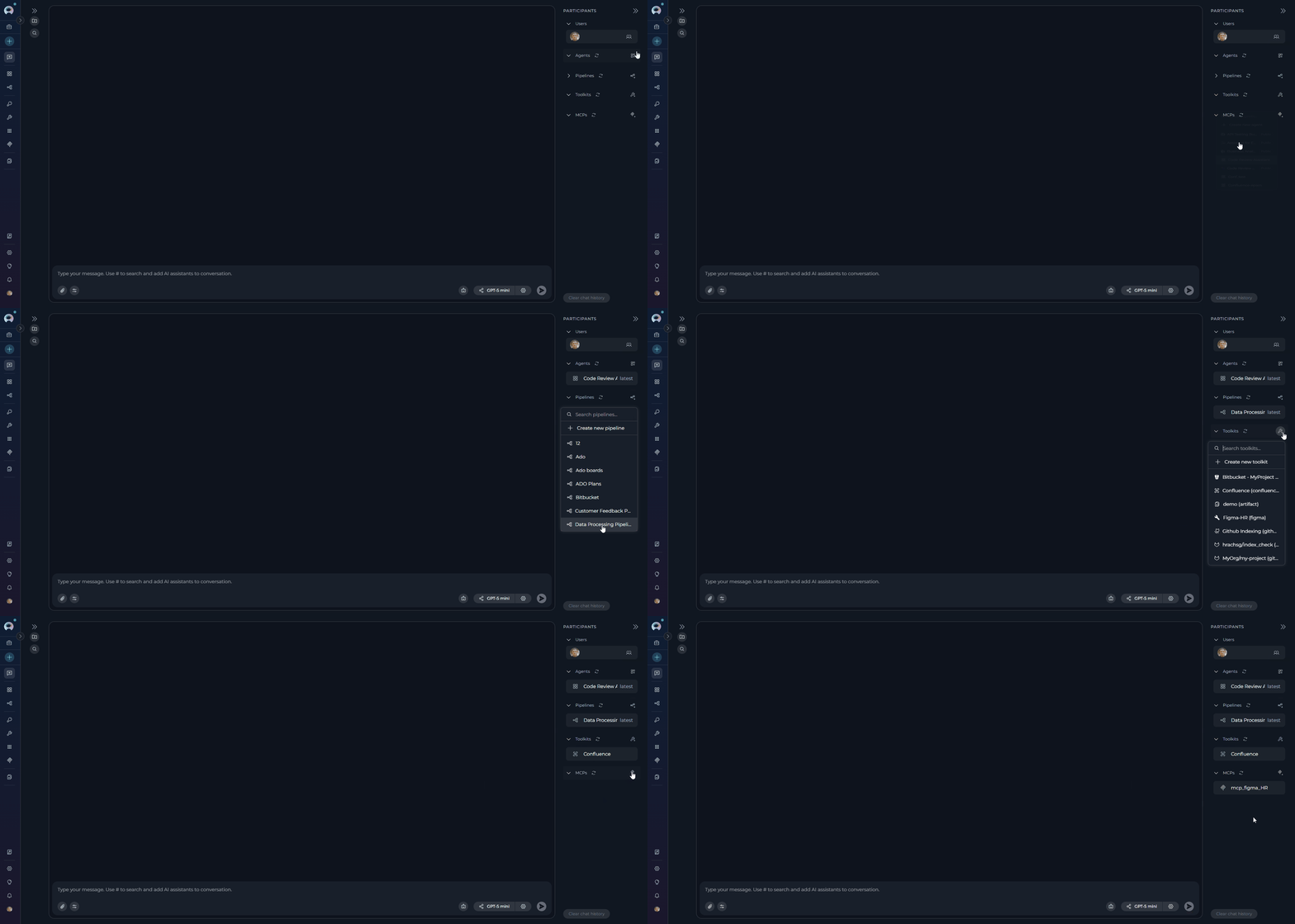
### Adding Participants to a Conversation
1. In the **Participants** section on the right side of the screen, you'll see collapsible sections for:
* **Users** (if in a team project)
* **agents**
* **pipelines**
* **toolkits**
* **MCPs**
2. Click the **+** icon next to any section title to add participants of that type.
3. Once participants are added, type your message and click **Send**.
## Understanding Conversation/Folder Visibility
ELITEA has two project types — **Private** and **Team**. Visibility and access rules for conversations and folders depend on which type you're working in.
Conversations and folders in a private project are personal to you only.
| Aspect | Details |
| ------------------- | ----------------------------------------------------------------------- |
| **Visibility** | Only you (the creator) can see and access all conversations and folders |
| **AI Participants** | Add Agents, Pipelines, Toolkits, and MCPs as AI assistants |
| **Users** | Cannot add other users as participants |
Team projects support shared collaboration with configurable visibility per conversation and folder.
| Aspect | Details |
| ------------------------ | -------------------------------------------------------------------------------------------- |
| **Folders** | All folders in the project are visible to all team members |
| **Conversations** | Only visible to you if you are a member (participant) of that conversation |
| **Moving Conversations** | Members can use **Move To** or **Back to the list** to organize conversations across folders |
| **Folder Permissions** | You cannot delete folders created by other users |
| **Public Conversations** | Conversations can be marked as public — visible and interactable by all project members |
| **Public Folders** | Public folders and their contents are visible to all project members |
Making a conversation or folder **public is irreversible** — it cannot be converted back to private.
**Example: Collaboration in a Team Project**
**Scenario**: The QA, PM, and BA team collaborate on a new file upload feature using a shared team project conversation.
**Steps:**
* **BA adds requirements:**
```
@BA: "The new feature should allow users to upload files up to 10MB. The system must validate file types and provide error messages for unsupported formats."
```
* **PM sets the timeline:**
```
@PM: "Development completes by May 15th. QA starts testing May 16th. Release target: May 20th."
```
* **QA plans testing:**
```
@QA: "I'll create test cases for uploads, file types, size limits, and error handling. @BA, does the system support drag-and-drop uploads?"
```
* **BA clarifies:**
```
@BA: "Yes, drag-and-drop should be supported. Also add a progress bar during uploads."
```
* **PM tracks progress:**
```
@PM: "QA, please share test results by May 18th for pre-release review."
```
The PM creates a **"Feature: File Upload"** folder and moves the conversation there so all team members can find it easily.
**Tips for Effective Collaboration in Team Projects**
* Use `@` mentions to notify specific teammates in a conversation.
* Group related conversations into folders for better navigation.
* Define roles, responsibilities, and deadlines directly in the chat.
* Regularly post progress updates and flag blockers in the conversation.
## Working with Participants
Participants are the core components you interact with within a conversation.
### What are Participants?
Participants are the "tools" or "entities" you add to your chat:
Large Language Models (e.g., GPT-4, Claude) for generating text and answering questions.
Pre-configured automated workflows or specialized bots designed for specific tasks.
Multi-step automated processes that orchestrate multiple agents and tools.
Collections of tools and integrations (e.g., GitHub, Jira, Confluence) that extend chat capabilities.
Model Context Protocol servers for external tool capabilities (e.g., Playwright, Figma).
In public conversations, other project members who join or interact become participants.
### Adding Participants to a Conversation
1. In the **Participants** section on the right side of the screen, you'll see collapsible sections for:
* **Users** (if in a team project)
* **agents**
* **pipelines**
* **toolkits**
* **MCPs**
2. Click the **+** icon next to any section title to add participants of that type.
3. Once participants are added, type your message and click **Send**.
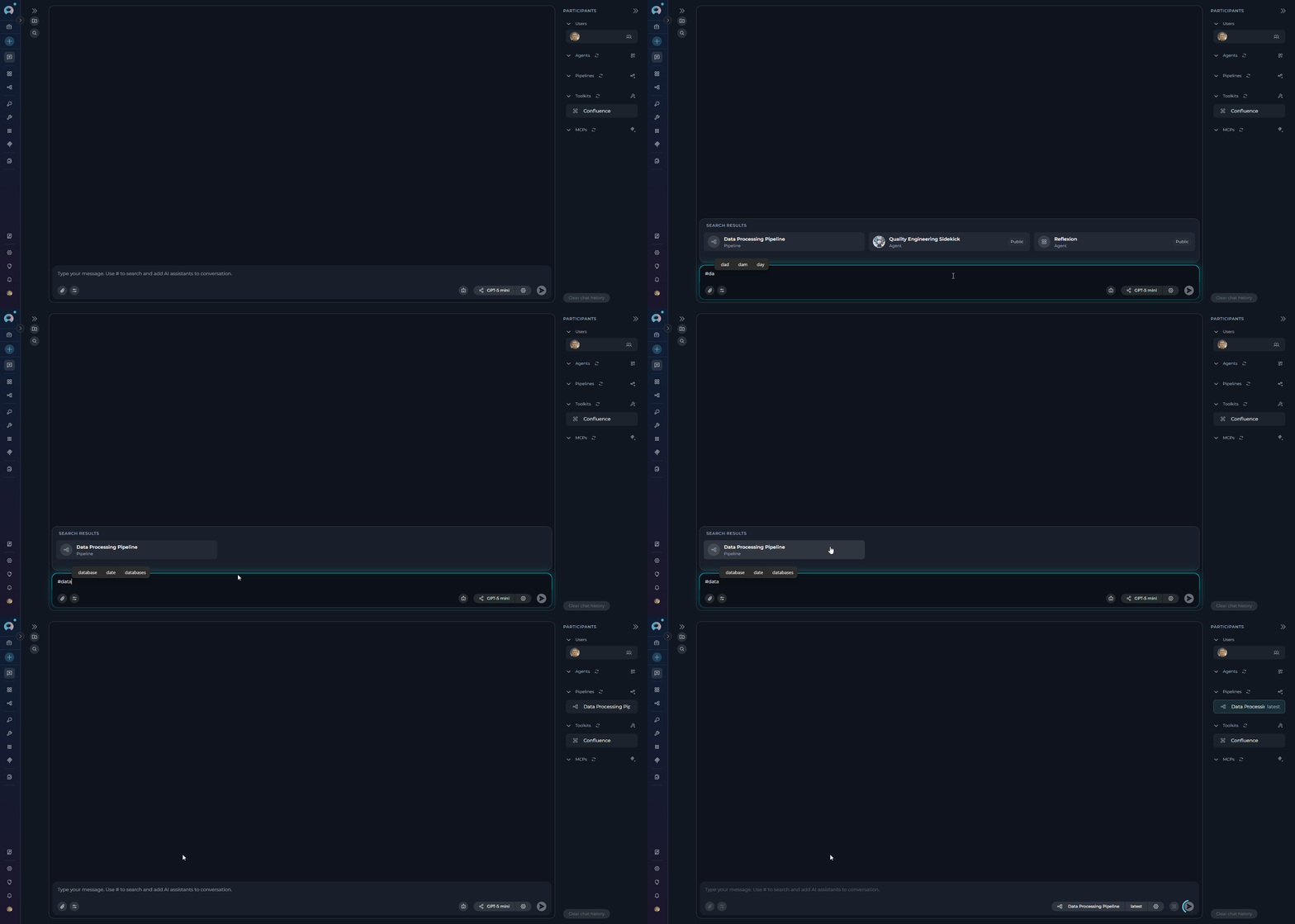
 1. In the chat input box, type `#` to open a dropdown of frequently used participants.
2. Continue typing to filter by name (e.g., `#Jira` shows all Jira-related participants).
3. Select a participant from the list (e.g., `#Data Analysis Agent`, `#Jira Toolkit`).
4. The selected participant appears as a chip above the input box.
5. Type your message and click **Send**.
1. In the chat input box, type `#` to open a dropdown of frequently used participants.
2. Continue typing to filter by name (e.g., `#Jira` shows all Jira-related participants).
3. Select a participant from the list (e.g., `#Data Analysis Agent`, `#Jira Toolkit`).
4. The selected participant appears as a chip above the input box.
5. Type your message and click **Send**.
 Direct the AI to use a specific tool from an already-added toolkit or MCP by typing `/` in the chat input. This is a two-phase selection:
**Phase 1 — Select a Toolkit:**
1. Type `/` to open the **Mention toolkit** dropdown.
2. The dropdown lists all toolkits and MCPs already added as participants.
3. Continue typing to filter by name (e.g., `/Jira`).
4. Click a toolkit name, or type the full name and press `/` again to confirm.
5. The input updates to `/{ToolkitName}/` and the dropdown switches to available tools.
**Phase 2 — Select a Tool:**
6. The dropdown shows **"{ToolkitName} available tools"** with all exposed tools.
7. Continue typing after the second `/` to filter tools (e.g., `/Jira/create`).
8. Each tool shows its name and a short description.
9. Click the desired tool to confirm.
10. The mention is committed as `/{ToolkitName}/{ToolName}` with a cyan highlight.
Direct the AI to use a specific tool from an already-added toolkit or MCP by typing `/` in the chat input. This is a two-phase selection:
**Phase 1 — Select a Toolkit:**
1. Type `/` to open the **Mention toolkit** dropdown.
2. The dropdown lists all toolkits and MCPs already added as participants.
3. Continue typing to filter by name (e.g., `/Jira`).
4. Click a toolkit name, or type the full name and press `/` again to confirm.
5. The input updates to `/{ToolkitName}/` and the dropdown switches to available tools.
**Phase 2 — Select a Tool:**
6. The dropdown shows **"{ToolkitName} available tools"** with all exposed tools.
7. Continue typing after the second `/` to filter tools (e.g., `/Jira/create`).
8. Each tool shows its name and a short description.
9. Click the desired tool to confirm.
10. The mention is committed as `/{ToolkitName}/{ToolName}` with a cyan highlight.
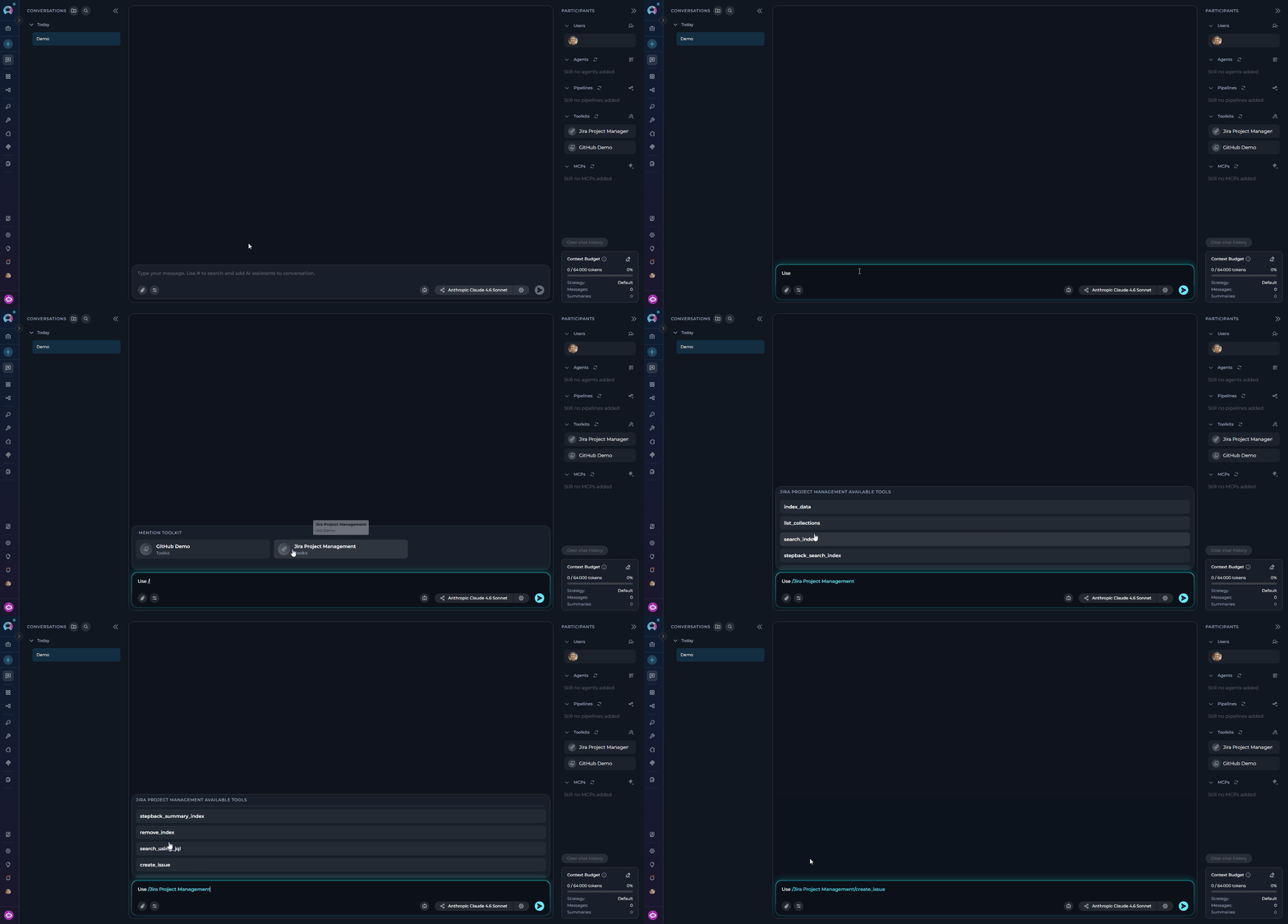 The `/` mention works with both **Toolkits** and **MCP** participants already added to the conversation. If a toolkit or MCP does not appear, add it first via the **PARTICIPANTS** panel or by typing `#`. Misconfigured toolkits and MCPs are excluded until the issue is resolved.
You can include multiple mentions in a single message:
```
Please use /Jira/createIssue to create a new issue and then /GitHub/createPR to create a pull request.
```
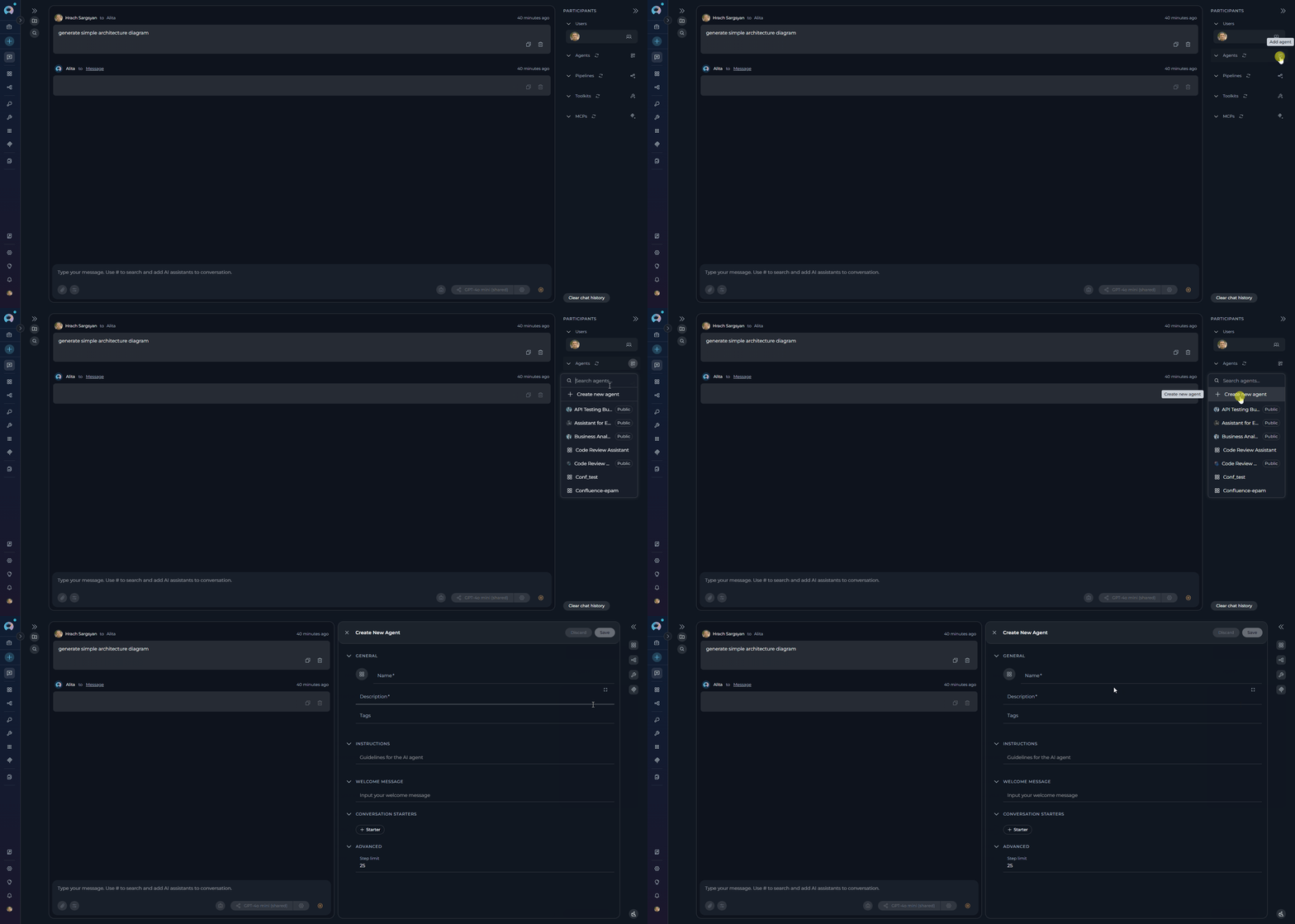
**Creating New Participants from Chat:**
You can also create new participants directly from the chat interface using the Canvas feature:
* **Agents**: Click **Create new agent** to open the Agent Canvas and configure a new AI agent. See [How to Create and Edit Agents from Canvas](./how-to-create-and-edit-agents-from-canvas).
* **Pipelines**: Click **Create new pipeline** to open the Pipeline Canvas and design a multi-step workflow. See [How to Create and Edit Pipelines from Canvas](./how-to-create-and-edit-pipelines-from-canvas).
* **Toolkits**: Click **+Add toolkit** then **+ Create new Toolkit** to configure integrations like GitHub, Jira, etc. See [How to Create and Edit Toolkits from Canvas](./how-to-create-and-edit-toolkits-from-canvas).
* **MCPs**: Click **Create new MCP** to connect Model Context Protocol servers. See [How to Create and Edit MCPs from Canvas](./how-to-create-and-edit-mcps-from-canvas).
The `/` mention works with both **Toolkits** and **MCP** participants already added to the conversation. If a toolkit or MCP does not appear, add it first via the **PARTICIPANTS** panel or by typing `#`. Misconfigured toolkits and MCPs are excluded until the issue is resolved.
You can include multiple mentions in a single message:
```
Please use /Jira/createIssue to create a new issue and then /GitHub/createPR to create a pull request.
```
**Creating New Participants from Chat:**
You can also create new participants directly from the chat interface using the Canvas feature:
* **Agents**: Click **Create new agent** to open the Agent Canvas and configure a new AI agent. See [How to Create and Edit Agents from Canvas](./how-to-create-and-edit-agents-from-canvas).
* **Pipelines**: Click **Create new pipeline** to open the Pipeline Canvas and design a multi-step workflow. See [How to Create and Edit Pipelines from Canvas](./how-to-create-and-edit-pipelines-from-canvas).
* **Toolkits**: Click **+Add toolkit** then **+ Create new Toolkit** to configure integrations like GitHub, Jira, etc. See [How to Create and Edit Toolkits from Canvas](./how-to-create-and-edit-toolkits-from-canvas).
* **MCPs**: Click **Create new MCP** to connect Model Context Protocol servers. See [How to Create and Edit MCPs from Canvas](./how-to-create-and-edit-mcps-from-canvas).
 ### Adding Users to a Conversation
Users (team members) can only be added to in team projects. They cannot be added to private conversations.
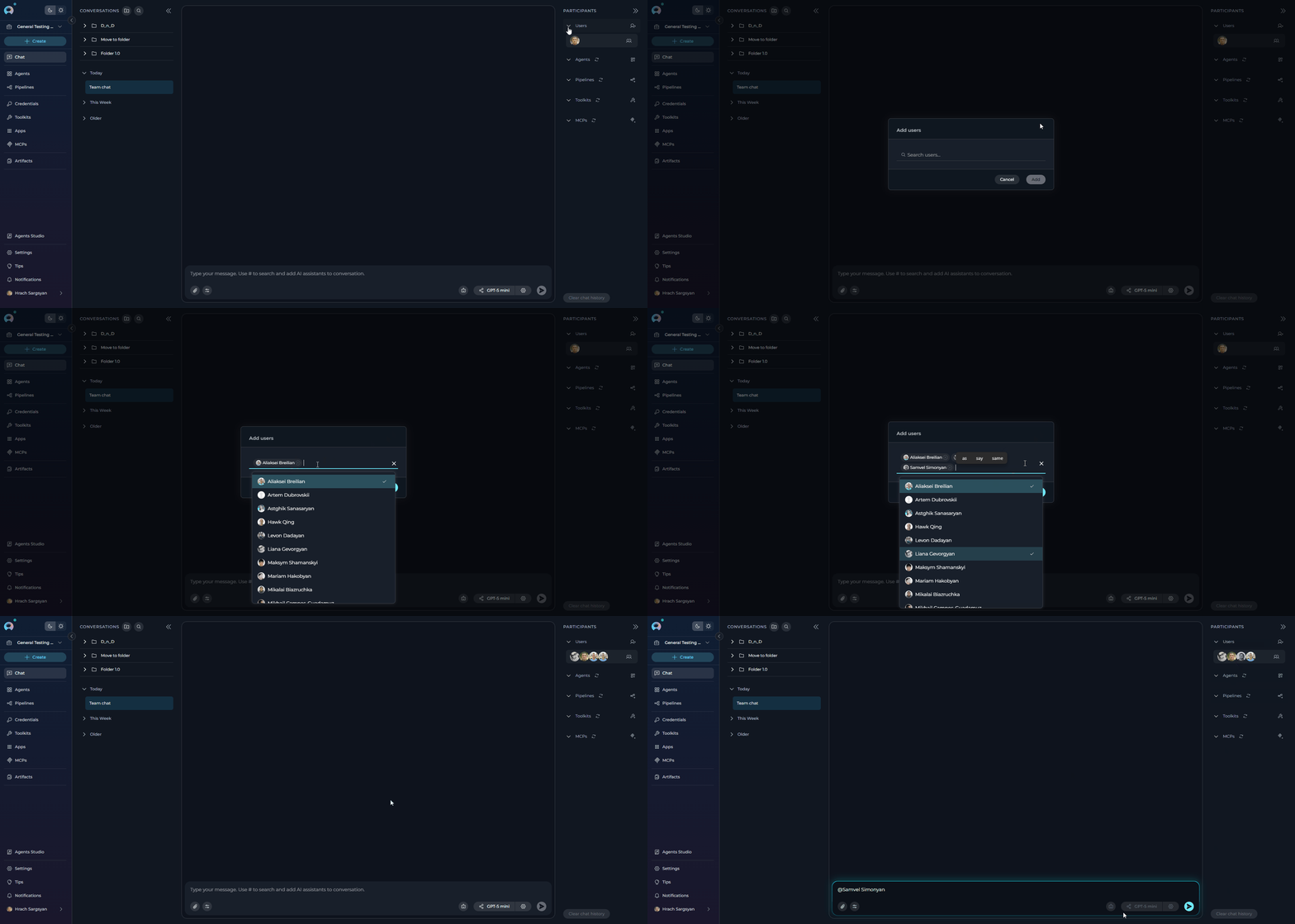
**To Add Users:**
1. Ensure your conversation is in team Project.
2. In the **Participants** section on the right side, locate the **Users** section.
3. Click the **+** icon next to **Users**.
4. A list of available team members will appear.
5. Select the user(s) you want to add to the conversation.
6. The selected users will appear in the **Users** section of the **Participants** panel.
**Important Notes:**
* Added users will receive notifications about being added to the conversation.
* Users can also join a public conversation implicitly by interacting with it.
* Once a conversation is public, it cannot be converted back to private.
For detailed information on adding teammates, see [Adding Teammates to Conversation](./add-teammates-to-conversation).
### Adding Users to a Conversation
Users (team members) can only be added to in team projects. They cannot be added to private conversations.
**To Add Users:**
1. Ensure your conversation is in team Project.
2. In the **Participants** section on the right side, locate the **Users** section.
3. Click the **+** icon next to **Users**.
4. A list of available team members will appear.
5. Select the user(s) you want to add to the conversation.
6. The selected users will appear in the **Users** section of the **Participants** panel.
**Important Notes:**
* Added users will receive notifications about being added to the conversation.
* Users can also join a public conversation implicitly by interacting with it.
* Once a conversation is public, it cannot be converted back to private.
For detailed information on adding teammates, see [Adding Teammates to Conversation](./add-teammates-to-conversation).
 ### Using Participants in a Conversation
Once added, participants are ready to process your messages:
1. **Check Participants**: Ensure the desired participant is listed in the **Participants** section.
2. **Select Active Participant(s)**:
* **Click**: Click the participant's name/icon in the **Participants** list to make it active for your next message.
3. **Mention Users** (Team Projects only): You can mention other team members using `@` followed by their name (e.g., `@John Doe`). This notifies them and brings their attention to specific parts of the conversation.
4. **Send Message/Command**: Type your message or a simple command (like "Go", "Execute", "Run it") and press **Send**. The active participant(s) will process your input.
### Example Usage
* **To ask a general question using a specific model**:
1. Select a model from the model selector dropdown (e.g., `GPT-4o`).
2. Type: `"Explain the concept of recursion in programming."` -> **Send**.
* **To use a specific agent**:
1. In the **Participants** panel, click the **+** icon next to "agents".
2. Select `Data Analysis Agent` from the dropdown.
3. Click on the agent in the **Participants** list to activate it, or type `#Data Analysis Agent` in the input box.
4. Type your request: `"Analyze the latest sales data."` -> **Send**.
* **To use a toolkit**:
1. Add the desired toolkit (e.g., `Artifact Toolkit`) from the **toolkits** section.
2. Type: `"Store this data in artifacts."` -> **Send**.
* **To mention a team member** (Team Projects only):
1. In your message, type `@` followed by the team member's name (e.g., `@John Doe`).
2. Type: `"@John Doe, can you review this analysis?"` -> **Send**.
### Selecting and Configuring Models
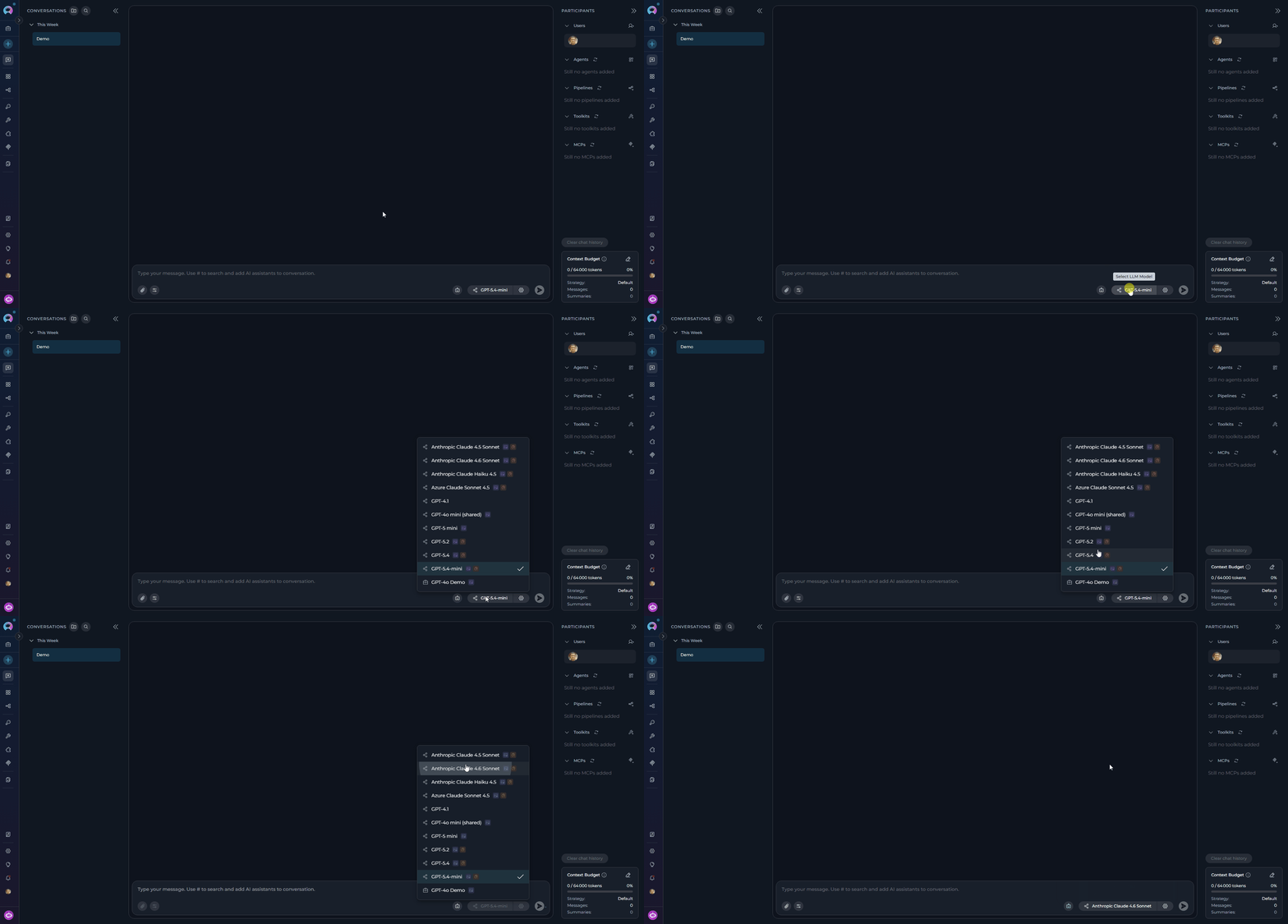
**Selecting a Model:**
1. Click the **model selector dropdown** at the bottom of the chat.
2. Select a desired LLM model from the available options (e.g., GPT-4o, GPT-5.1, Claude).
3. The selected model name is displayed on the button. Models that support **image analysis** or **reasoning** show small capability icons next to their name in the dropdown.
### Using Participants in a Conversation
Once added, participants are ready to process your messages:
1. **Check Participants**: Ensure the desired participant is listed in the **Participants** section.
2. **Select Active Participant(s)**:
* **Click**: Click the participant's name/icon in the **Participants** list to make it active for your next message.
3. **Mention Users** (Team Projects only): You can mention other team members using `@` followed by their name (e.g., `@John Doe`). This notifies them and brings their attention to specific parts of the conversation.
4. **Send Message/Command**: Type your message or a simple command (like "Go", "Execute", "Run it") and press **Send**. The active participant(s) will process your input.
### Example Usage
* **To ask a general question using a specific model**:
1. Select a model from the model selector dropdown (e.g., `GPT-4o`).
2. Type: `"Explain the concept of recursion in programming."` -> **Send**.
* **To use a specific agent**:
1. In the **Participants** panel, click the **+** icon next to "agents".
2. Select `Data Analysis Agent` from the dropdown.
3. Click on the agent in the **Participants** list to activate it, or type `#Data Analysis Agent` in the input box.
4. Type your request: `"Analyze the latest sales data."` -> **Send**.
* **To use a toolkit**:
1. Add the desired toolkit (e.g., `Artifact Toolkit`) from the **toolkits** section.
2. Type: `"Store this data in artifacts."` -> **Send**.
* **To mention a team member** (Team Projects only):
1. In your message, type `@` followed by the team member's name (e.g., `@John Doe`).
2. Type: `"@John Doe, can you review this analysis?"` -> **Send**.
### Selecting and Configuring Models
**Selecting a Model:**
1. Click the **model selector dropdown** at the bottom of the chat.
2. Select a desired LLM model from the available options (e.g., GPT-4o, GPT-5.1, Claude).
3. The selected model name is displayed on the button. Models that support **image analysis** or **reasoning** show small capability icons next to their name in the dropdown.
 **Model Settings:**
Click the **Settings** (⚙️) icon next to the model selector to fine-tune response generation. Settings vary by model type:
| Parameter | Description |
| ------------- | ----------------------------------------------------------- |
| **Reasoning** | Controls the depth of logical thinking and problem-solving. |
| Level | Behavior |
| ---------- | --------------------------------------------------------------------------------------- |
| **Low** | Fast, surface-level reasoning with concise answers and minimal steps |
| **Medium** | Balanced reasoning with clear explanations and moderate multi-step thinking *(default)* |
| **High** | Deep, thorough reasoning with detailed step-by-step analysis (may be slower) |
**Model Settings:**
Click the **Settings** (⚙️) icon next to the model selector to fine-tune response generation. Settings vary by model type:
| Parameter | Description |
| ------------- | ----------------------------------------------------------- |
| **Reasoning** | Controls the depth of logical thinking and problem-solving. |
| Level | Behavior |
| ---------- | --------------------------------------------------------------------------------------- |
| **Low** | Fast, surface-level reasoning with concise answers and minimal steps |
| **Medium** | Balanced reasoning with clear explanations and moderate multi-step thinking *(default)* |
| **High** | Deep, thorough reasoning with detailed step-by-step analysis (may be slower) |
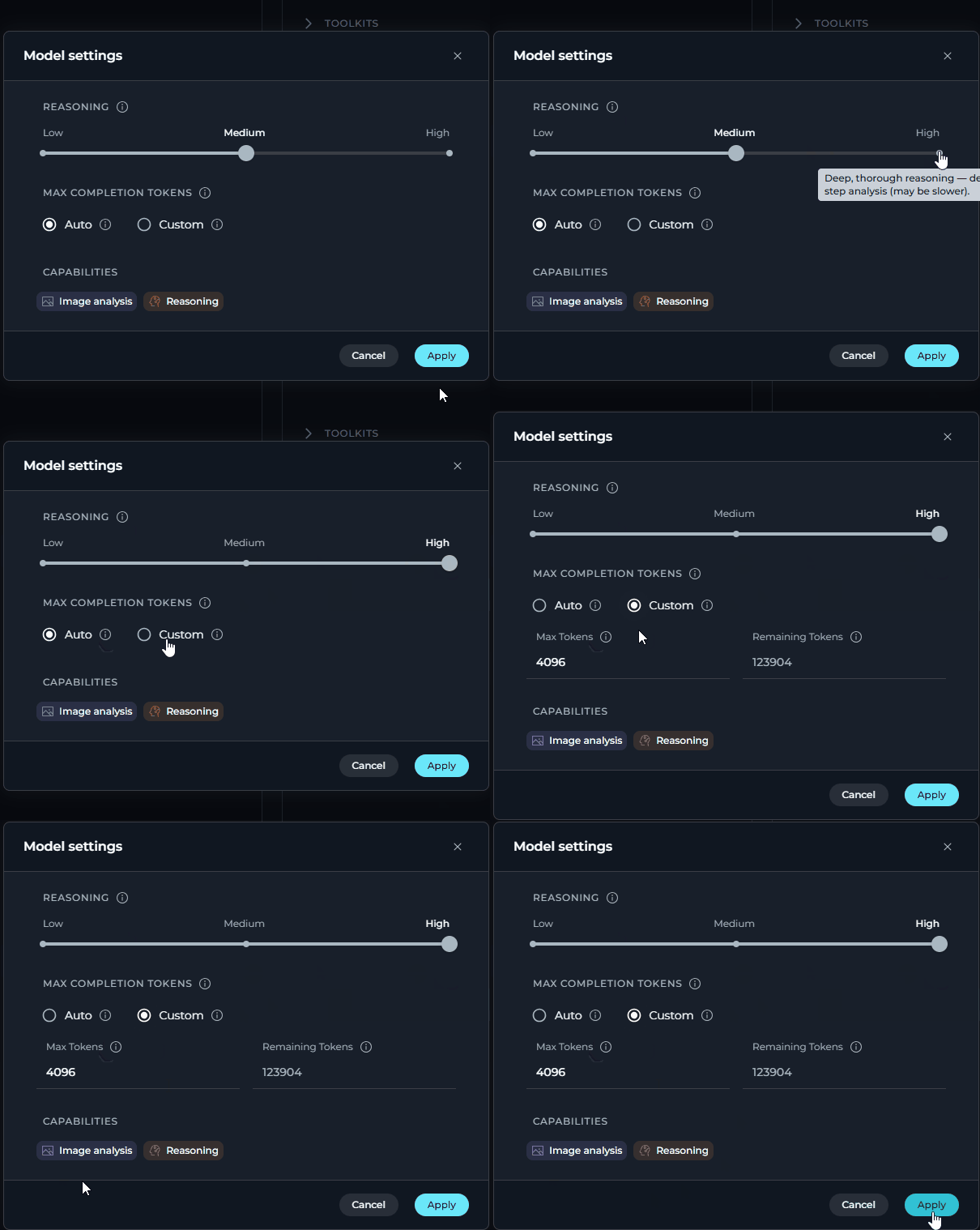 | Parameter | Description |
| -------------- | -------------------------------------------------------------------------------------------------------------------------------------------- |
| **Creativity** | Controls response randomness. Lower values produce focused, deterministic outputs; higher values produce more varied and creative responses. |
| Level | Behavior |
| ----- | ------------------------------------------------- |
| **1** | Highly focused and deterministic outputs |
| **2** | Mostly focused with slight variation |
| **3** | Balanced between focus and creativity *(default)* |
| **4** | More varied and creative responses |
| **5** | Maximum creativity and diversity |
| Parameter | Description |
| -------------- | -------------------------------------------------------------------------------------------------------------------------------------------- |
| **Creativity** | Controls response randomness. Lower values produce focused, deterministic outputs; higher values produce more varied and creative responses. |
| Level | Behavior |
| ----- | ------------------------------------------------- |
| **1** | Highly focused and deterministic outputs |
| **2** | Mostly focused with slight variation |
| **3** | Balanced between focus and creativity *(default)* |
| **4** | More varied and creative responses |
| **5** | Maximum creativity and diversity |
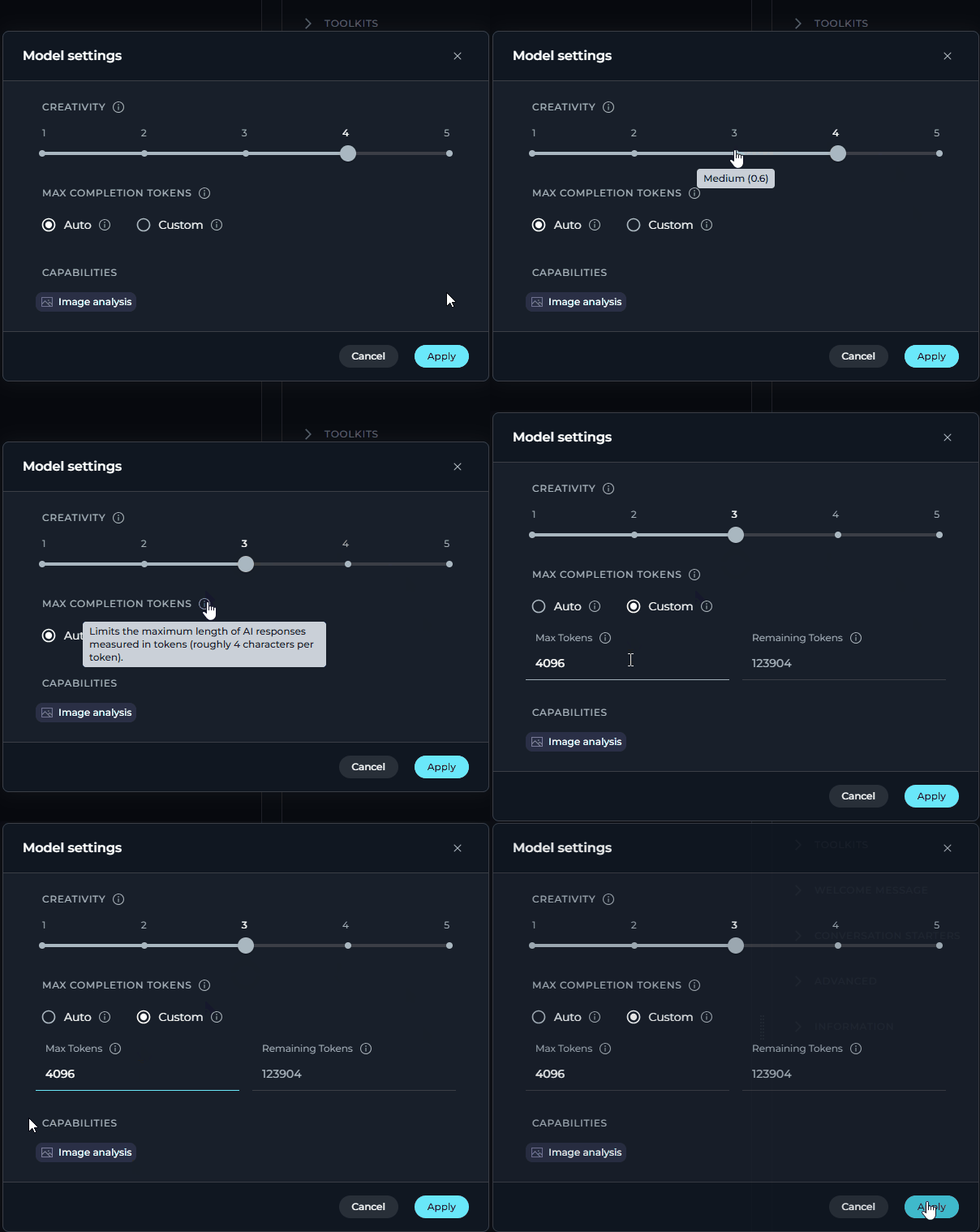 **Capabilities** *(shown when supported by the selected model)*
| Badge | Meaning |
| ------------------------------------------------------------------------------------------------------------------------------------------------------------------------------------------------------------------------------------------------------------------------------------------------------------------------------------------------------------------------------------------------------------------------------------------------------------------------------------------------------------------------------------------------------------------------------------------------------------------------------------------------------------------------------------------------------------------------------------------------------------------------------------------------------------------------------------------------------------------------------------------------------------------------------------------------------------------------------------------------------------------------------------------------------------------------------------------------------------------------------------------------------------------------------------------------------------------------------------------------------------------------------------------------------------------------------------------------------------------------------------------------------------------------------------------------------------------------------------------------------------------------------------------------------------------------------------------------------------------------------------------------------------------------------------------------------------------------------------------------------------------------------------------ | -------------------------------------------------- |
|
**Capabilities** *(shown when supported by the selected model)*
| Badge | Meaning |
| ------------------------------------------------------------------------------------------------------------------------------------------------------------------------------------------------------------------------------------------------------------------------------------------------------------------------------------------------------------------------------------------------------------------------------------------------------------------------------------------------------------------------------------------------------------------------------------------------------------------------------------------------------------------------------------------------------------------------------------------------------------------------------------------------------------------------------------------------------------------------------------------------------------------------------------------------------------------------------------------------------------------------------------------------------------------------------------------------------------------------------------------------------------------------------------------------------------------------------------------------------------------------------------------------------------------------------------------------------------------------------------------------------------------------------------------------------------------------------------------------------------------------------------------------------------------------------------------------------------------------------------------------------------------------------------------------------------------------------------------------------------------------------------------ | -------------------------------------------------- |
|  | The model accepts image inputs alongside text |
|
| The model accepts image inputs alongside text |
|  | The model uses extended chain-of-thought reasoning |
Capability badges appear automatically at the bottom of the settings panel based on the selected model. If neither capability is supported, the Capabilities row is hidden.
**Max Completion Tokens** *(All Models)*
| Option | Description |
| ---------- | ---------------------------------------------------------------------------------------------------------------- |
| **Auto** | System sets the token limit to 4096 tokens *(default)* |
| **Custom** | Manually enter a specific token limit. An error is shown if the value exceeds the model's maximum output tokens. |
**Steps Limit** *(Conversations only)*
Controls the maximum number of execution steps (tool calls) the AI can take before the loop is forcefully stopped. This prevents runaway agent executions that could consume excessive resources.
| Parameter | Value |
| ----------- | -------- |
| **Default** | 25 steps |
| **Range** | 0 – 999 |
* Each time the AI invokes a tool or performs an internal reasoning step, the counter increments by one. When the limit is reached, the execution loop ends and the AI returns whatever results it has collected so far.
* The Steps Limit field is shown in the model settings panel only in **Conversations** (chat). It is not available on the Agents or Pipelines pages, where step limits are configured at the agent/pipeline level.
- Set a **lower value** (e.g. 5–10) for simple question-answering tasks where you want fast, predictable responses.
- Set a **higher value** (e.g. 50–100) for complex, multi-step research or automation tasks that require chaining many tool calls.
- If a conversation ends abruptly with incomplete results, check whether the steps limit was reached and increase it accordingly.
When the steps limit is exceeded, the AI stops executing further tool calls and returns partial results. No error is displayed to the user by default — the response simply stops at the last completed step.
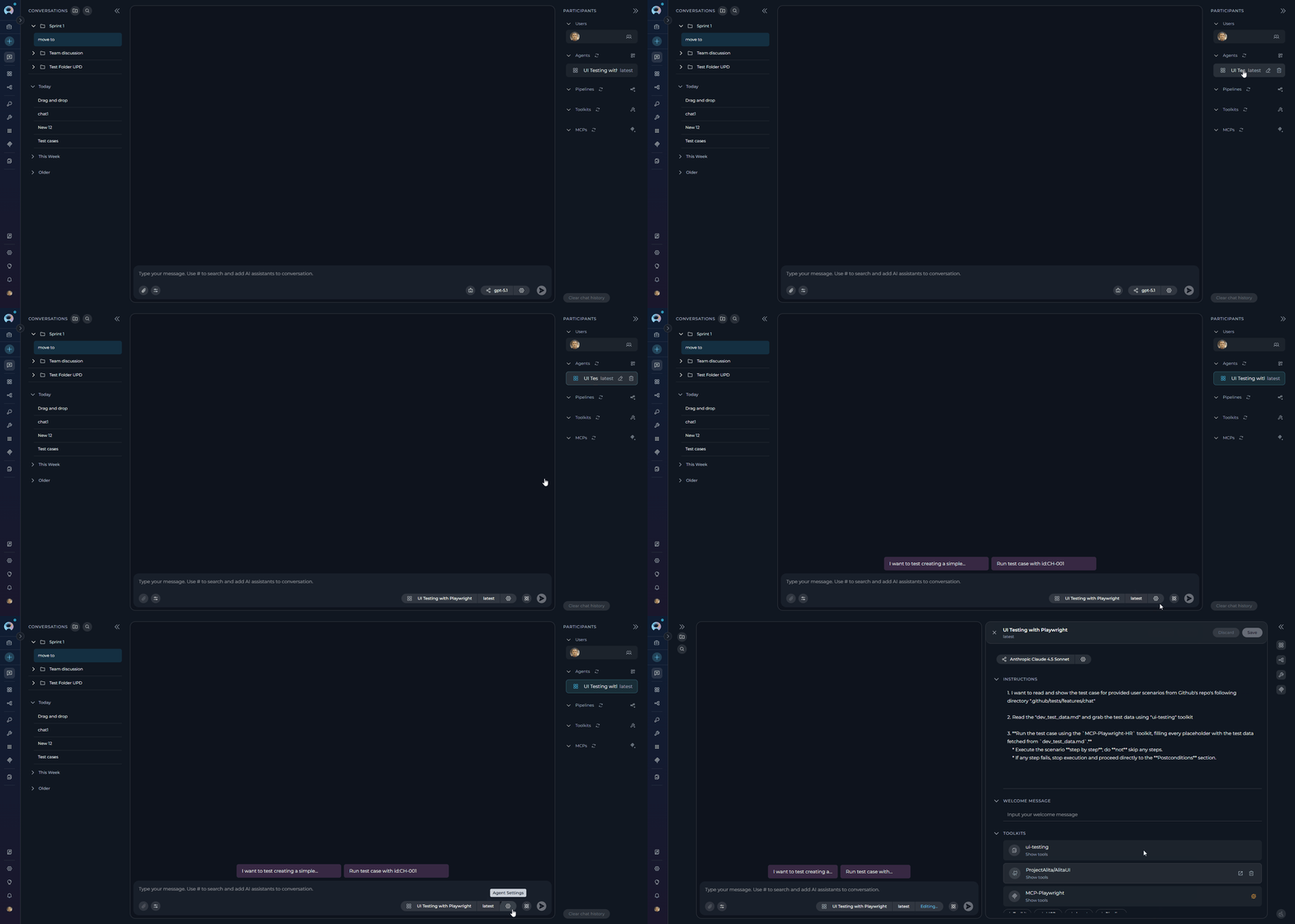
### Configuring Participants
You can configure and edit participants (Agents, Pipelines, Toolkits, and MCPs) directly within the conversation using the Canvas editor.
**Accessing Participant Settings:**
1. **Option 1**: Click the participant in the **Participants** list, then click the **⚙️** (settings) icon.
2. **Option 2**: Hover over the participant element in the **Participants** list and click the **Edit** icon that appears.
3. The appropriate **Canvas** editor will open based on the participant type.
**What You Can Configure:**
* Edit the agent's **prompt** and instructions
* Modify **variables** used by the agent
* Configure **model settings** (Temperature, Top P, Top K, Maximum Length)
* Select the agent **version** (default is "latest")
* Adjust **toolkits** and integrations
[→ Agent Canvas Guide](./how-to-create-and-edit-agents-from-canvas)
* Edit the pipeline **workflow** and step sequences
* Modify **variables** and parameters
* Configure **agents** used in the pipeline
* Adjust **toolkits** and integrations
* Select the pipeline **version** (default is "latest")
[→ Pipeline Canvas Guide](./how-to-create-and-edit-pipelines-from-canvas)
* Configure **integration settings** and credentials
* Adjust **tool parameters** and options
* Enable or disable specific tools within the toolkit
* Modify **connection settings** for external services
[→ Toolkit Canvas Guide](./how-to-create-and-edit-toolkits-from-canvas)
* Configure **server connection** settings
* Adjust **tool availability** and permissions
* Modify **environment variables** and parameters
* Set **timeout** and performance options
MCP servers must be running before they can be used in conversations. Ensure your MCP server is started and accessible before adding it as a participant.
[→ MCP Canvas Guide](./how-to-create-and-edit-mcps-from-canvas)
**Applying Changes:**
1. Make your edits in the Canvas editor.
2. Click the **Save** button to apply your modifications.
3. The updated configuration will be used for subsequent messages in the conversation.
| The model uses extended chain-of-thought reasoning |
Capability badges appear automatically at the bottom of the settings panel based on the selected model. If neither capability is supported, the Capabilities row is hidden.
**Max Completion Tokens** *(All Models)*
| Option | Description |
| ---------- | ---------------------------------------------------------------------------------------------------------------- |
| **Auto** | System sets the token limit to 4096 tokens *(default)* |
| **Custom** | Manually enter a specific token limit. An error is shown if the value exceeds the model's maximum output tokens. |
**Steps Limit** *(Conversations only)*
Controls the maximum number of execution steps (tool calls) the AI can take before the loop is forcefully stopped. This prevents runaway agent executions that could consume excessive resources.
| Parameter | Value |
| ----------- | -------- |
| **Default** | 25 steps |
| **Range** | 0 – 999 |
* Each time the AI invokes a tool or performs an internal reasoning step, the counter increments by one. When the limit is reached, the execution loop ends and the AI returns whatever results it has collected so far.
* The Steps Limit field is shown in the model settings panel only in **Conversations** (chat). It is not available on the Agents or Pipelines pages, where step limits are configured at the agent/pipeline level.
- Set a **lower value** (e.g. 5–10) for simple question-answering tasks where you want fast, predictable responses.
- Set a **higher value** (e.g. 50–100) for complex, multi-step research or automation tasks that require chaining many tool calls.
- If a conversation ends abruptly with incomplete results, check whether the steps limit was reached and increase it accordingly.
When the steps limit is exceeded, the AI stops executing further tool calls and returns partial results. No error is displayed to the user by default — the response simply stops at the last completed step.
### Configuring Participants
You can configure and edit participants (Agents, Pipelines, Toolkits, and MCPs) directly within the conversation using the Canvas editor.
**Accessing Participant Settings:**
1. **Option 1**: Click the participant in the **Participants** list, then click the **⚙️** (settings) icon.
2. **Option 2**: Hover over the participant element in the **Participants** list and click the **Edit** icon that appears.
3. The appropriate **Canvas** editor will open based on the participant type.
**What You Can Configure:**
* Edit the agent's **prompt** and instructions
* Modify **variables** used by the agent
* Configure **model settings** (Temperature, Top P, Top K, Maximum Length)
* Select the agent **version** (default is "latest")
* Adjust **toolkits** and integrations
[→ Agent Canvas Guide](./how-to-create-and-edit-agents-from-canvas)
* Edit the pipeline **workflow** and step sequences
* Modify **variables** and parameters
* Configure **agents** used in the pipeline
* Adjust **toolkits** and integrations
* Select the pipeline **version** (default is "latest")
[→ Pipeline Canvas Guide](./how-to-create-and-edit-pipelines-from-canvas)
* Configure **integration settings** and credentials
* Adjust **tool parameters** and options
* Enable or disable specific tools within the toolkit
* Modify **connection settings** for external services
[→ Toolkit Canvas Guide](./how-to-create-and-edit-toolkits-from-canvas)
* Configure **server connection** settings
* Adjust **tool availability** and permissions
* Modify **environment variables** and parameters
* Set **timeout** and performance options
MCP servers must be running before they can be used in conversations. Ensure your MCP server is started and accessible before adding it as a participant.
[→ MCP Canvas Guide](./how-to-create-and-edit-mcps-from-canvas)
**Applying Changes:**
1. Make your edits in the Canvas editor.
2. Click the **Save** button to apply your modifications.
3. The updated configuration will be used for subsequent messages in the conversation.
 ### Displaying Configured Conversation Starters
When you add a participant (like an Agent, Pipeline, Toolkit, or MCP) that has a pre-configured "conversation starter" message or instruction set, this message will automatically appear in the chat. This helps guide you on how to interact with the participant effectively.
## Interacting with Conversation Outputs
### Like/Dislike and Commenting
1. Below each generated response, you'll see **Thumbs Up (👍)** and **Thumbs Down (👎)** icons.
2. Click **Thumbs Up** to indicate satisfaction.
3. Click **Thumbs Down** to indicate dissatisfaction.
4. After clicking **Thumbs Down**, a **Leave comment** field appears. Click it, type your specific feedback or reason for disliking, and press **Send** (or **Enter**). This feedback is valuable for improving models and prompts.
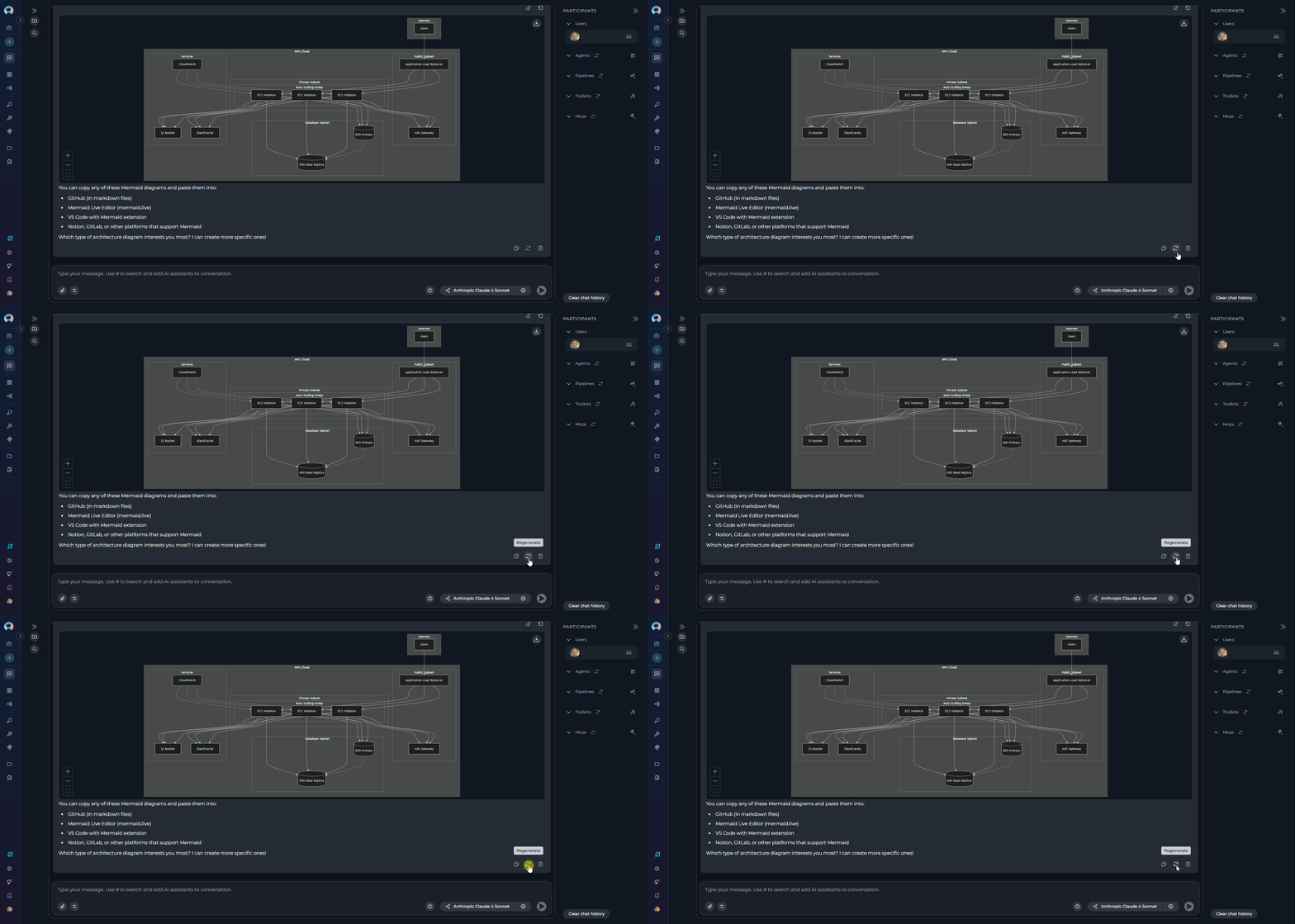
### Regenerating the Last Output
1. If you're not satisfied with the very last response generated by a participant, you can ask it to try again.
2. Ensure a response has been generated.
3. Click the **Regenerate** icon 🔄 usually located near the last message or the input box.
4. The system will use the same input/prompt that generated the last response and attempt to create a new, potentially improved, output.
### Displaying Configured Conversation Starters
When you add a participant (like an Agent, Pipeline, Toolkit, or MCP) that has a pre-configured "conversation starter" message or instruction set, this message will automatically appear in the chat. This helps guide you on how to interact with the participant effectively.
## Interacting with Conversation Outputs
### Like/Dislike and Commenting
1. Below each generated response, you'll see **Thumbs Up (👍)** and **Thumbs Down (👎)** icons.
2. Click **Thumbs Up** to indicate satisfaction.
3. Click **Thumbs Down** to indicate dissatisfaction.
4. After clicking **Thumbs Down**, a **Leave comment** field appears. Click it, type your specific feedback or reason for disliking, and press **Send** (or **Enter**). This feedback is valuable for improving models and prompts.
### Regenerating the Last Output
1. If you're not satisfied with the very last response generated by a participant, you can ask it to try again.
2. Ensure a response has been generated.
3. Click the **Regenerate** icon 🔄 usually located near the last message or the input box.
4. The system will use the same input/prompt that generated the last response and attempt to create a new, potentially improved, output.
 ## Using Canvas for Content Editing
Canvas is your all-in-one workspace for editing, refining, and collaborating on AI-generated content in ELITEA. Instead of copying results into other tools, you can work directly with code, tables, and diagrams—right where the conversation happens.
**What is Canvas?**
Canvas is a built-in editor that appears automatically when ELITEA generates code, tables, or Mermaid diagrams in a chat. It allows you to edit, refine, and export AI-generated content without leaving the conversation.
**Canvas Features:**
Edit code with syntax highlighting, find/replace, and code folding. Export as `.py`, `.js`, `.java`, and more.
Modify tables with spreadsheet-like functionality. Add/remove rows and columns, sort, filter, and export to XLSX or Markdown.
Edit Mermaid diagrams with live preview and syntax highlighting. Export as PNG, JPG, or SVG.
Edit `.docx` files from Artifacts in a full WYSIWYG interface — formatting toolbar, ruler, zoom control, save directly to the Artifact bucket.
The pencil icon (✏️) does **not** appear for DOCX files in chat. Open DOCX files via the **View/Edit file icon** in Artifacts or chat attachments instead.
**How to Use Canvas:**
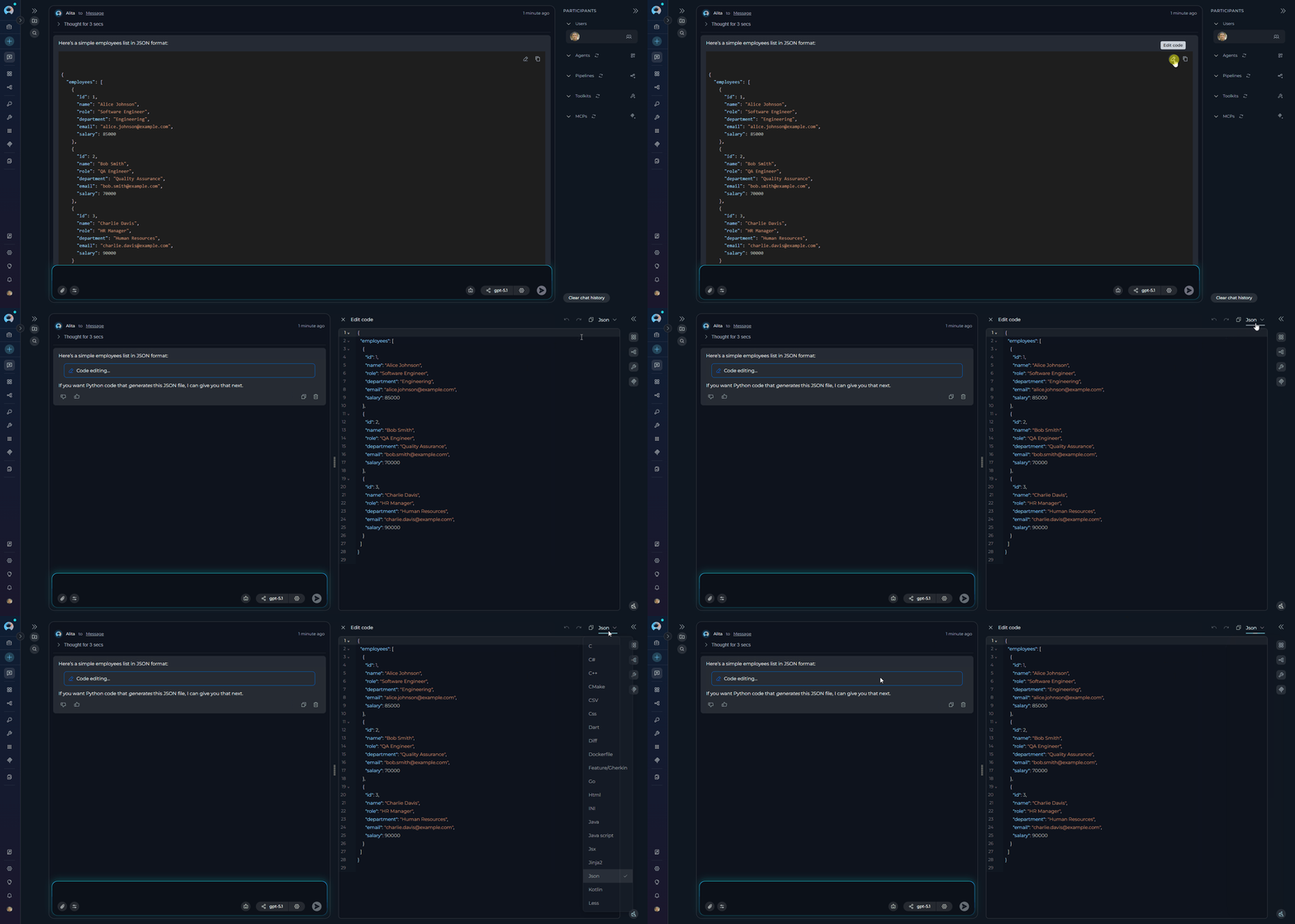
1. Ask ELITEA to generate code, a table, or a Mermaid diagram.
2. When ELITEA generates the content, look for the pencil icon (✏️) in the top-right corner of the content block.
3. Click the icon to open the Canvas editor in a modal window.
4. Make your edits using the available tools:
* **Copy**: Copy content to clipboard
* **Undo/Redo**: Revert or reapply actions
* **Save**: Save your changes
* **Export**: Download in various formats
5. Click **Save** to preserve your changes in the conversation or **Export** to download files.
For detailed information, real-world examples, and best practices, see [Canvas in Conversation](./how-to-canvas).
## Using Canvas for Content Editing
Canvas is your all-in-one workspace for editing, refining, and collaborating on AI-generated content in ELITEA. Instead of copying results into other tools, you can work directly with code, tables, and diagrams—right where the conversation happens.
**What is Canvas?**
Canvas is a built-in editor that appears automatically when ELITEA generates code, tables, or Mermaid diagrams in a chat. It allows you to edit, refine, and export AI-generated content without leaving the conversation.
**Canvas Features:**
Edit code with syntax highlighting, find/replace, and code folding. Export as `.py`, `.js`, `.java`, and more.
Modify tables with spreadsheet-like functionality. Add/remove rows and columns, sort, filter, and export to XLSX or Markdown.
Edit Mermaid diagrams with live preview and syntax highlighting. Export as PNG, JPG, or SVG.
Edit `.docx` files from Artifacts in a full WYSIWYG interface — formatting toolbar, ruler, zoom control, save directly to the Artifact bucket.
The pencil icon (✏️) does **not** appear for DOCX files in chat. Open DOCX files via the **View/Edit file icon** in Artifacts or chat attachments instead.
**How to Use Canvas:**
1. Ask ELITEA to generate code, a table, or a Mermaid diagram.
2. When ELITEA generates the content, look for the pencil icon (✏️) in the top-right corner of the content block.
3. Click the icon to open the Canvas editor in a modal window.
4. Make your edits using the available tools:
* **Copy**: Copy content to clipboard
* **Undo/Redo**: Revert or reapply actions
* **Save**: Save your changes
* **Export**: Download in various formats
5. Click **Save** to preserve your changes in the conversation or **Export** to download files.
For detailed information, real-world examples, and best practices, see [Canvas in Conversation](./how-to-canvas).
 ## Attaching Files and Images
ELITEA Chat supports attaching files and images to your conversations, enabling AI-powered analysis of visual content and documents.
**How It Works:**
The attachment functionality is integrated with the **Artifact Toolkit**. When you enable attachments for an Agent, Pipeline, or a specific chat, files are automatically uploaded and stored in the Artifact bucket associated with that toolkit. Files are subject to the retention policy of the bucket (default: 30 days).
| Feature | Details |
| ------------------------ | --------------------------------------------------------------------------------------------------- |
| **Upload Methods** | Click the paperclip icon, drag and drop files, or paste from clipboard (Ctrl+V / Cmd+V) |
| **Supported Formats** | JPEG, JPG, PNG, GIF (first frame only), WebP images |
| **File Limits** | Maximum 10 images per message. Size limits vary by model (Anthropic: 5 MB, OpenAI: 20 MB per image) |
| **Artifact Integration** | Files are stored in Artifact buckets with configurable retention policies |
| **Management** | Download or delete attachments directly from chat |
**To Enable Attachments:**
**From Chat:**
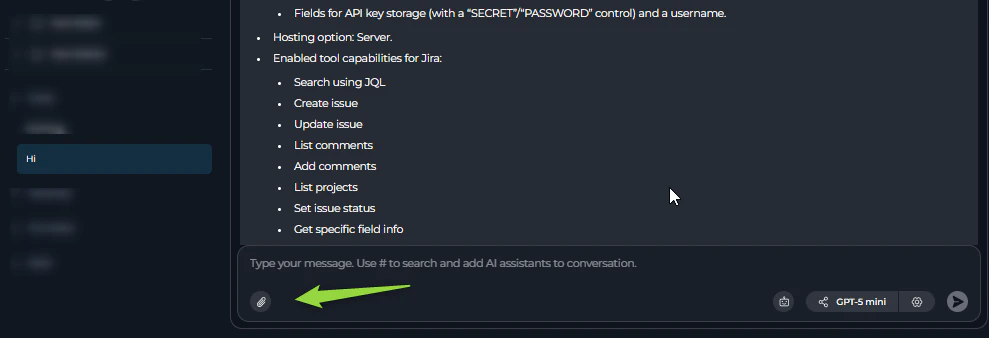
1. Click the paperclip icon in the message input area.
2. If not configured, the **Attachment settings** popup will appear.
3. Select an existing Artifact Toolkit or create a new one.
4. Once configured, you can attach files by clicking the paperclip, dragging files, or pasting.
**Using Attachments:**
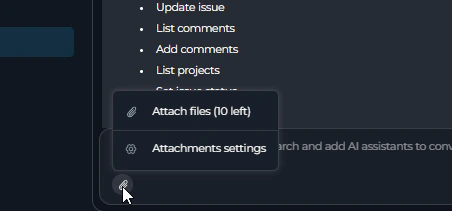
1. After enabling, click the paperclip icon to see "Attach files" and "Attachment settings" options.
2. Attach images using click, drag-and-drop, or paste methods.
3. Type a text prompt to accompany your images (required).
4. Click **Send** to submit the message with attachments.
For complete setup instructions, advanced configuration, and troubleshooting, see [Attachments in Conversation](./attach-files).
## Attaching Files and Images
ELITEA Chat supports attaching files and images to your conversations, enabling AI-powered analysis of visual content and documents.
**How It Works:**
The attachment functionality is integrated with the **Artifact Toolkit**. When you enable attachments for an Agent, Pipeline, or a specific chat, files are automatically uploaded and stored in the Artifact bucket associated with that toolkit. Files are subject to the retention policy of the bucket (default: 30 days).
| Feature | Details |
| ------------------------ | --------------------------------------------------------------------------------------------------- |
| **Upload Methods** | Click the paperclip icon, drag and drop files, or paste from clipboard (Ctrl+V / Cmd+V) |
| **Supported Formats** | JPEG, JPG, PNG, GIF (first frame only), WebP images |
| **File Limits** | Maximum 10 images per message. Size limits vary by model (Anthropic: 5 MB, OpenAI: 20 MB per image) |
| **Artifact Integration** | Files are stored in Artifact buckets with configurable retention policies |
| **Management** | Download or delete attachments directly from chat |
**To Enable Attachments:**
**From Chat:**
1. Click the paperclip icon in the message input area.
2. If not configured, the **Attachment settings** popup will appear.
3. Select an existing Artifact Toolkit or create a new one.
4. Once configured, you can attach files by clicking the paperclip, dragging files, or pasting.
**Using Attachments:**
1. After enabling, click the paperclip icon to see "Attach files" and "Attachment settings" options.
2. Attach images using click, drag-and-drop, or paste methods.
3. Type a text prompt to accompany your images (required).
4. Click **Send** to submit the message with attachments.
For complete setup instructions, advanced configuration, and troubleshooting, see [Attachments in Conversation](./attach-files).
 ## Using Internal Tools
Internal tools provide built-in capabilities that enhance your conversations without requiring external integrations. These tools can be enabled directly from the chat interface or configured as part of an agent's default setup.
### Available Internal Tools
Execute Python code securely in conversations using Pyodide (Python compiled to WebAssembly). Useful for calculations, data processing, testing algorithms, and generating visualizations.
| Capability | Description |
| -------------------- | ----------------------------------------------------------- |
| **Secure Execution** | Run Python code in a secure sandbox environment |
| **Package Support** | Install and use packages like numpy, pandas, and matplotlib |
| **Persistent State** | Code execution maintains state within the same conversation |
| **Visualizations** | Generate data visualizations and reports inline |
**Use Cases**: Execute code snippets, perform calculations, test algorithms, process data.
[→ Python Sandbox Guide](./python-sandbox-internal-tool)
Create, manage, and track tasks and action items directly within conversations. Set priorities, due dates, and monitor task progress without switching to external tools.
| Capability | Description |
| ------------------------- | -------------------------------------------------------------- |
| **Task Decomposition** | Break down complex requests into smaller, actionable tasks |
| **Workflow Organization** | Create structured plans with clear steps and dependencies |
| **Progress Tracking** | Monitor completion with priority levels (High / Medium / Low) |
| **Task Status** | Track tasks through Pending, In Progress, and Completed states |
**Use Cases**: Project planning, feature development breakdown, complex problem-solving.
[→ Planner Guide](./planner-internal-tool)
Perform Pandas-based data analysis on uploaded files (CSV, Excel, etc.) using natural language queries. Automatically processes data and generates charts with downloadable results.
| Capability | Description |
| ----------------------- | -------------------------------------------------------------- |
| **Natural Language** | Use plain English to request data analysis operations |
| **File-Based Analysis** | Works with files uploaded directly to conversations |
| **Auto Processing** | Intelligent file format detection and data analysis |
| **Chart Generation** | Automatic creation of visualizations with downloadable results |
**Use Cases**: Data exploration, statistical analysis, trend identification, report generation.
[→ Data Analysis Guide](./data-analysis-internal-tool)
Generate AI-powered images from text prompts directly within conversations. Requires an image generation model configured in your project.
| Capability | Description |
| ------------------ | --------------------------------------------------------- |
| **Text-to-Image** | Describe what you want and the AI generates the image |
| **Inline Results** | Generated images appear directly in the chat conversation |
**Use Cases**: Mockups, illustrations, visual assets for presentations and documentation.
Optimizes token usage when working with many toolkits by dynamically loading tool schemas on demand instead of binding all tools upfront.
| Capability | Description |
| --------------------- | ------------------------------------------------------------------- |
| **On-Demand Loading** | Tool schemas are loaded only when needed, reducing context overhead |
| **Recommended For** | Conversations using 5 or more toolkits |
**Use Cases**: Large-scale automation tasks involving many different integrations.
[→ Smart Tools Selection Guide](./smart-tools-selection-internal-tool)
Enables multi-agent collaboration by allowing all child agents to share the full conversation history and hand off control to each other.
| Capability | Description |
| ------------------ | ---------------------------------------------------------- |
| **Shared Context** | All child agents see the full conversation history |
| **Agent Handoff** | Agents transfer control to the most appropriate specialist |
**Use Cases**: Complex workflows requiring multiple specialized agents working as a team.
[→ Swarm Mode Guide](./swarm-mode-internal-tool)
### Enabling Internal Tools in Conversations
1. Navigate to your conversation
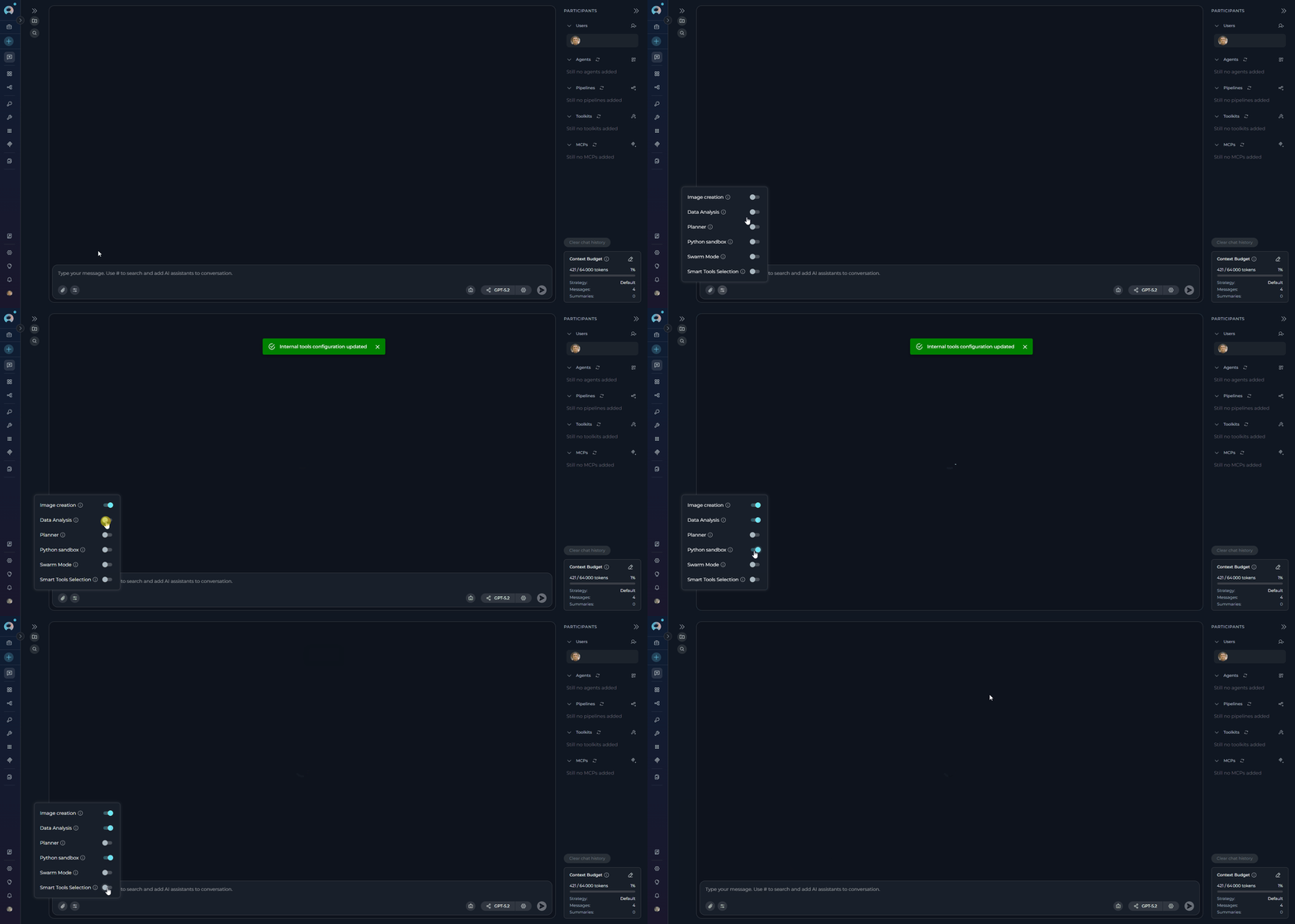
2. Locate the **Internal Tools** icon (value icon) in the chat input toolbar at the bottom of the screen, next to the attachment button
3. Click the Internal Tools icon to open the configuration popup
4. Find the tool you want to enable in the list
5. Click the toggle switch next to the tool name to enable it
6. A success notification will appear: "Internal tools configuration updated"
7. Click anywhere outside the popup to close it
## Using Internal Tools
Internal tools provide built-in capabilities that enhance your conversations without requiring external integrations. These tools can be enabled directly from the chat interface or configured as part of an agent's default setup.
### Available Internal Tools
Execute Python code securely in conversations using Pyodide (Python compiled to WebAssembly). Useful for calculations, data processing, testing algorithms, and generating visualizations.
| Capability | Description |
| -------------------- | ----------------------------------------------------------- |
| **Secure Execution** | Run Python code in a secure sandbox environment |
| **Package Support** | Install and use packages like numpy, pandas, and matplotlib |
| **Persistent State** | Code execution maintains state within the same conversation |
| **Visualizations** | Generate data visualizations and reports inline |
**Use Cases**: Execute code snippets, perform calculations, test algorithms, process data.
[→ Python Sandbox Guide](./python-sandbox-internal-tool)
Create, manage, and track tasks and action items directly within conversations. Set priorities, due dates, and monitor task progress without switching to external tools.
| Capability | Description |
| ------------------------- | -------------------------------------------------------------- |
| **Task Decomposition** | Break down complex requests into smaller, actionable tasks |
| **Workflow Organization** | Create structured plans with clear steps and dependencies |
| **Progress Tracking** | Monitor completion with priority levels (High / Medium / Low) |
| **Task Status** | Track tasks through Pending, In Progress, and Completed states |
**Use Cases**: Project planning, feature development breakdown, complex problem-solving.
[→ Planner Guide](./planner-internal-tool)
Perform Pandas-based data analysis on uploaded files (CSV, Excel, etc.) using natural language queries. Automatically processes data and generates charts with downloadable results.
| Capability | Description |
| ----------------------- | -------------------------------------------------------------- |
| **Natural Language** | Use plain English to request data analysis operations |
| **File-Based Analysis** | Works with files uploaded directly to conversations |
| **Auto Processing** | Intelligent file format detection and data analysis |
| **Chart Generation** | Automatic creation of visualizations with downloadable results |
**Use Cases**: Data exploration, statistical analysis, trend identification, report generation.
[→ Data Analysis Guide](./data-analysis-internal-tool)
Generate AI-powered images from text prompts directly within conversations. Requires an image generation model configured in your project.
| Capability | Description |
| ------------------ | --------------------------------------------------------- |
| **Text-to-Image** | Describe what you want and the AI generates the image |
| **Inline Results** | Generated images appear directly in the chat conversation |
**Use Cases**: Mockups, illustrations, visual assets for presentations and documentation.
Optimizes token usage when working with many toolkits by dynamically loading tool schemas on demand instead of binding all tools upfront.
| Capability | Description |
| --------------------- | ------------------------------------------------------------------- |
| **On-Demand Loading** | Tool schemas are loaded only when needed, reducing context overhead |
| **Recommended For** | Conversations using 5 or more toolkits |
**Use Cases**: Large-scale automation tasks involving many different integrations.
[→ Smart Tools Selection Guide](./smart-tools-selection-internal-tool)
Enables multi-agent collaboration by allowing all child agents to share the full conversation history and hand off control to each other.
| Capability | Description |
| ------------------ | ---------------------------------------------------------- |
| **Shared Context** | All child agents see the full conversation history |
| **Agent Handoff** | Agents transfer control to the most appropriate specialist |
**Use Cases**: Complex workflows requiring multiple specialized agents working as a team.
[→ Swarm Mode Guide](./swarm-mode-internal-tool)
### Enabling Internal Tools in Conversations
1. Navigate to your conversation
2. Locate the **Internal Tools** icon (value icon) in the chat input toolbar at the bottom of the screen, next to the attachment button
3. Click the Internal Tools icon to open the configuration popup
4. Find the tool you want to enable in the list
5. Click the toggle switch next to the tool name to enable it
6. A success notification will appear: "Internal tools configuration updated"
7. Click anywhere outside the popup to close it
 Once enabled, the AI assistant can automatically use these tools during conversations when appropriate.
### Enabling Internal Tools in Agents
You can also enable internal tools as part of an agent's default configuration in the **TOOLKITS** section. This makes the tools available in all new conversations using that agent.
1. Navigate to **Agents** in the main menu and select the agent
2. Click the **Configuration** tab
3. Scroll to the **TOOLKITS** section
4. Find the internal tool switches (**Python sandbox**, **Planner**, **Data Analysis**) and toggle them ON as needed
5. Click **Save** at the top of the configuration page
6. The enabled internal tools will be available in all new conversations using this agent
### Using Internal Tools
Once enabled, the AI assistant can use the internal tools during conversations:
* **Python Sandbox**: The assistant can execute Python code, install packages, perform calculations, and generate visualizations
* **Planner**: The assistant can break down complex tasks, create structured plans with priorities and due dates, and track task progress
* **Data Analysis**: The assistant can perform comprehensive data analysis on uploaded files using natural language commands
For detailed usage examples, troubleshooting, and best practices, see:
* [Python Sandbox Guide](./python-sandbox-internal-tool)
* [Planner Internal Tool Guide](./planner-internal-tool)
* [Data Analysis Internal Tool Guide](./data-analysis-internal-tool)
* [Smart Tools Selection Guide](./smart-tools-selection-internal-tool)
* [Swarm Mode Guide](./swarm-mode-internal-tool)
## Sensitive Action Authorization
When an agent or pipeline attempts to call a **sensitive tool** (such as deleting a repository, running a shell command, or dropping a database table), the conversation automatically pauses and displays an authorization card before anything is executed.
The Sensitive Action Authorization Guardrail is configured at the **server/infrastructure level** by your ELITEA administrator. It applies automatically to all conversations once active — individual users cannot enable or disable it.
**Authorization Dialog Elements:**
| Element | Description |
| ------------------ | -------------------------------------------------------------------------------------------------------------------------------------------------------------- |
| **Header** | ⚠️ Sensitive Action Authorization Required — amber-highlighted panel |
| **Action label** | The specific action the agent plans to run (e.g., `github.delete_repo`) |
| **Parameters** | The exact arguments the tool will be called with. Security-sensitive fields (`password`, `token`, `api_key`, `secret`, etc.) are automatically masked as `***` |
| **Policy message** | Your organization's custom message explaining why the action requires approval |
**Actions:**
* **Authorize** — Approves the tool call. Execution resumes and the tool runs as planned.
* **Block** — Rejects the tool call. The tool is skipped entirely; the agent receives a cancellation message and continues or stops based on its logic.
If an agent calls the same sensitive tool multiple times in one execution cycle, only the **first call** raises the interrupt. Subsequent calls to the same tool in the same batch are auto-approved — avoiding repeated dialogs for the same action.
Once enabled, the AI assistant can automatically use these tools during conversations when appropriate.
### Enabling Internal Tools in Agents
You can also enable internal tools as part of an agent's default configuration in the **TOOLKITS** section. This makes the tools available in all new conversations using that agent.
1. Navigate to **Agents** in the main menu and select the agent
2. Click the **Configuration** tab
3. Scroll to the **TOOLKITS** section
4. Find the internal tool switches (**Python sandbox**, **Planner**, **Data Analysis**) and toggle them ON as needed
5. Click **Save** at the top of the configuration page
6. The enabled internal tools will be available in all new conversations using this agent
### Using Internal Tools
Once enabled, the AI assistant can use the internal tools during conversations:
* **Python Sandbox**: The assistant can execute Python code, install packages, perform calculations, and generate visualizations
* **Planner**: The assistant can break down complex tasks, create structured plans with priorities and due dates, and track task progress
* **Data Analysis**: The assistant can perform comprehensive data analysis on uploaded files using natural language commands
For detailed usage examples, troubleshooting, and best practices, see:
* [Python Sandbox Guide](./python-sandbox-internal-tool)
* [Planner Internal Tool Guide](./planner-internal-tool)
* [Data Analysis Internal Tool Guide](./data-analysis-internal-tool)
* [Smart Tools Selection Guide](./smart-tools-selection-internal-tool)
* [Swarm Mode Guide](./swarm-mode-internal-tool)
## Sensitive Action Authorization
When an agent or pipeline attempts to call a **sensitive tool** (such as deleting a repository, running a shell command, or dropping a database table), the conversation automatically pauses and displays an authorization card before anything is executed.
The Sensitive Action Authorization Guardrail is configured at the **server/infrastructure level** by your ELITEA administrator. It applies automatically to all conversations once active — individual users cannot enable or disable it.
**Authorization Dialog Elements:**
| Element | Description |
| ------------------ | -------------------------------------------------------------------------------------------------------------------------------------------------------------- |
| **Header** | ⚠️ Sensitive Action Authorization Required — amber-highlighted panel |
| **Action label** | The specific action the agent plans to run (e.g., `github.delete_repo`) |
| **Parameters** | The exact arguments the tool will be called with. Security-sensitive fields (`password`, `token`, `api_key`, `secret`, etc.) are automatically masked as `***` |
| **Policy message** | Your organization's custom message explaining why the action requires approval |
**Actions:**
* **Authorize** — Approves the tool call. Execution resumes and the tool runs as planned.
* **Block** — Rejects the tool call. The tool is skipped entirely; the agent receives a cancellation message and continues or stops based on its logic.
If an agent calls the same sensitive tool multiple times in one execution cycle, only the **first call** raises the interrupt. Subsequent calls to the same tool in the same batch are auto-approved — avoiding repeated dialogs for the same action.
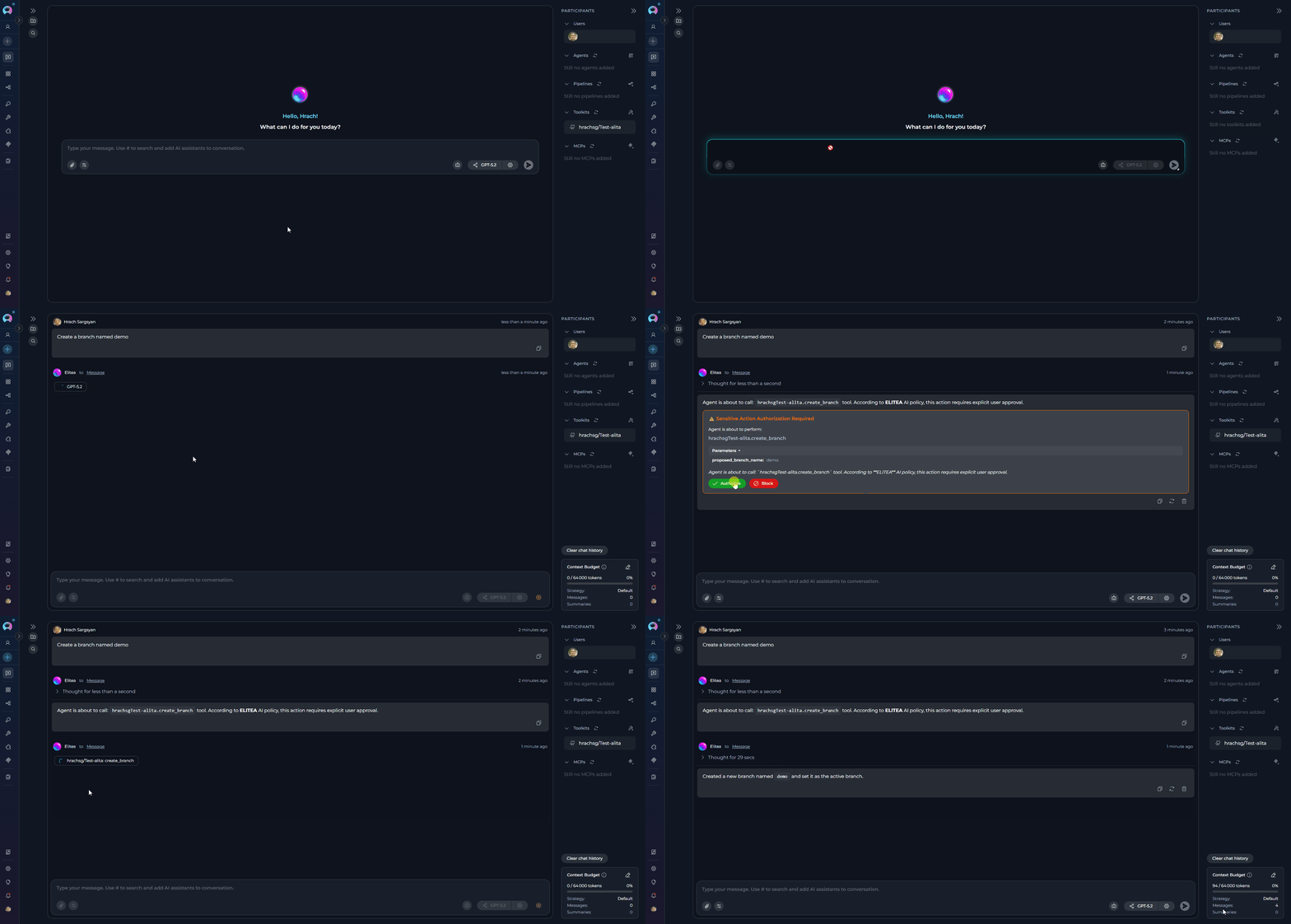 For full details including configuration, pipeline behavior, and troubleshooting, see [Sensitive Action Authorization Guardrail](./sensitive-action-authorization-guardrail).
## Voice Capabilities
ELITEA Chat includes voice input and voice output capabilities that let you speak your messages and have AI responses read back to you.
Dictate messages into the chat input field. Transcribed text is inserted at the cursor position in real time.
Have AI responses read aloud. Pause and resume playback from a mini-player pill in the input area.
Hands-free voice conversation loop. ELITEA records, sends, speaks the response, and listens again — automatically.
### Voice Input
**Voice Input** lets you dictate messages directly into the chat input field using a microphone. The transcribed text is inserted at the cursor position, so you can combine typed and spoken content in the same message.
**How to use Voice Input:**
1. Click the **microphone** icon in the message input toolbar to start recording.
2. Speak your message. A live transcript appears in the input field as you talk — interim results update in real time.
3. Click the **Stop** (■) button to finish recording. The final transcript is committed and focus returns to the input field.
For full details including configuration, pipeline behavior, and troubleshooting, see [Sensitive Action Authorization Guardrail](./sensitive-action-authorization-guardrail).
## Voice Capabilities
ELITEA Chat includes voice input and voice output capabilities that let you speak your messages and have AI responses read back to you.
Dictate messages into the chat input field. Transcribed text is inserted at the cursor position in real time.
Have AI responses read aloud. Pause and resume playback from a mini-player pill in the input area.
Hands-free voice conversation loop. ELITEA records, sends, speaks the response, and listens again — automatically.
### Voice Input
**Voice Input** lets you dictate messages directly into the chat input field using a microphone. The transcribed text is inserted at the cursor position, so you can combine typed and spoken content in the same message.
**How to use Voice Input:**
1. Click the **microphone** icon in the message input toolbar to start recording.
2. Speak your message. A live transcript appears in the input field as you talk — interim results update in real time.
3. Click the **Stop** (■) button to finish recording. The final transcript is committed and focus returns to the input field.
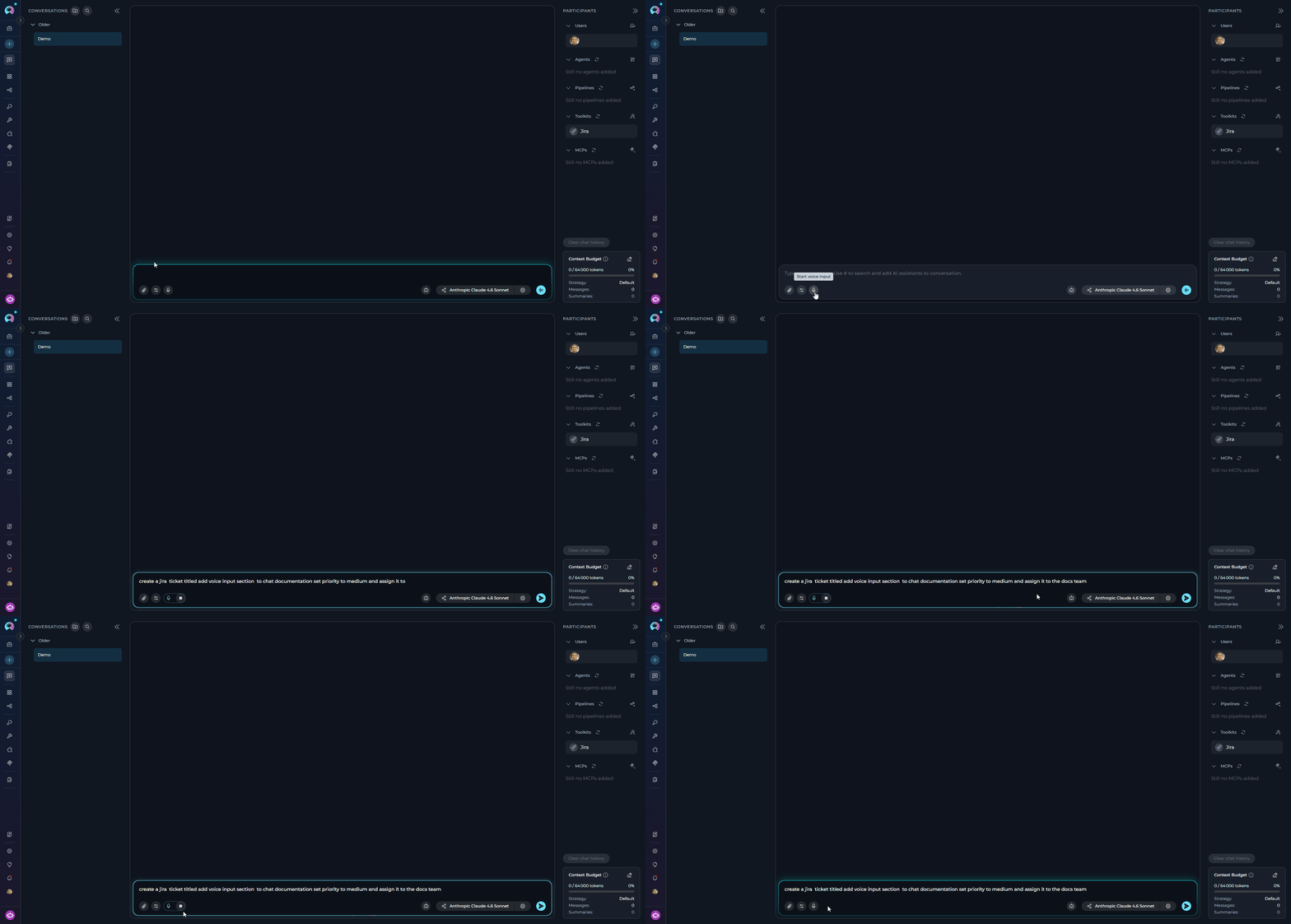 When a server-side ASR (automatic speech recognition) model is configured in **Settings → AI Configuration → Speech Recognition (ASR)**, Voice Input uses that model via streaming. If no server ASR model is available, Voice Input falls back to the browser's built-in Web Speech API. If neither is available, the microphone icon is hidden.
### Text-to-Speech
**Text-to-Speech** reads AI responses aloud. A **Read out** button (megaphone icon) appears in the action bar below each AI message when the message contains speakable text.
**How to use Text-to-Speech:**
1. Click the **Read out** (megaphone) button below an AI message to start playback.
2. The text is highlighted as it is read aloud.
3. A playback pill appears in the input area with **Pause** and **Resume** controls.
4. Click **Pause** to stop playback mid-sentence; click **Resume** to continue from where it left off.
When a server-side ASR (automatic speech recognition) model is configured in **Settings → AI Configuration → Speech Recognition (ASR)**, Voice Input uses that model via streaming. If no server ASR model is available, Voice Input falls back to the browser's built-in Web Speech API. If neither is available, the microphone icon is hidden.
### Text-to-Speech
**Text-to-Speech** reads AI responses aloud. A **Read out** button (megaphone icon) appears in the action bar below each AI message when the message contains speakable text.
**How to use Text-to-Speech:**
1. Click the **Read out** (megaphone) button below an AI message to start playback.
2. The text is highlighted as it is read aloud.
3. A playback pill appears in the input area with **Pause** and **Resume** controls.
4. Click **Pause** to stop playback mid-sentence; click **Resume** to continue from where it left off.
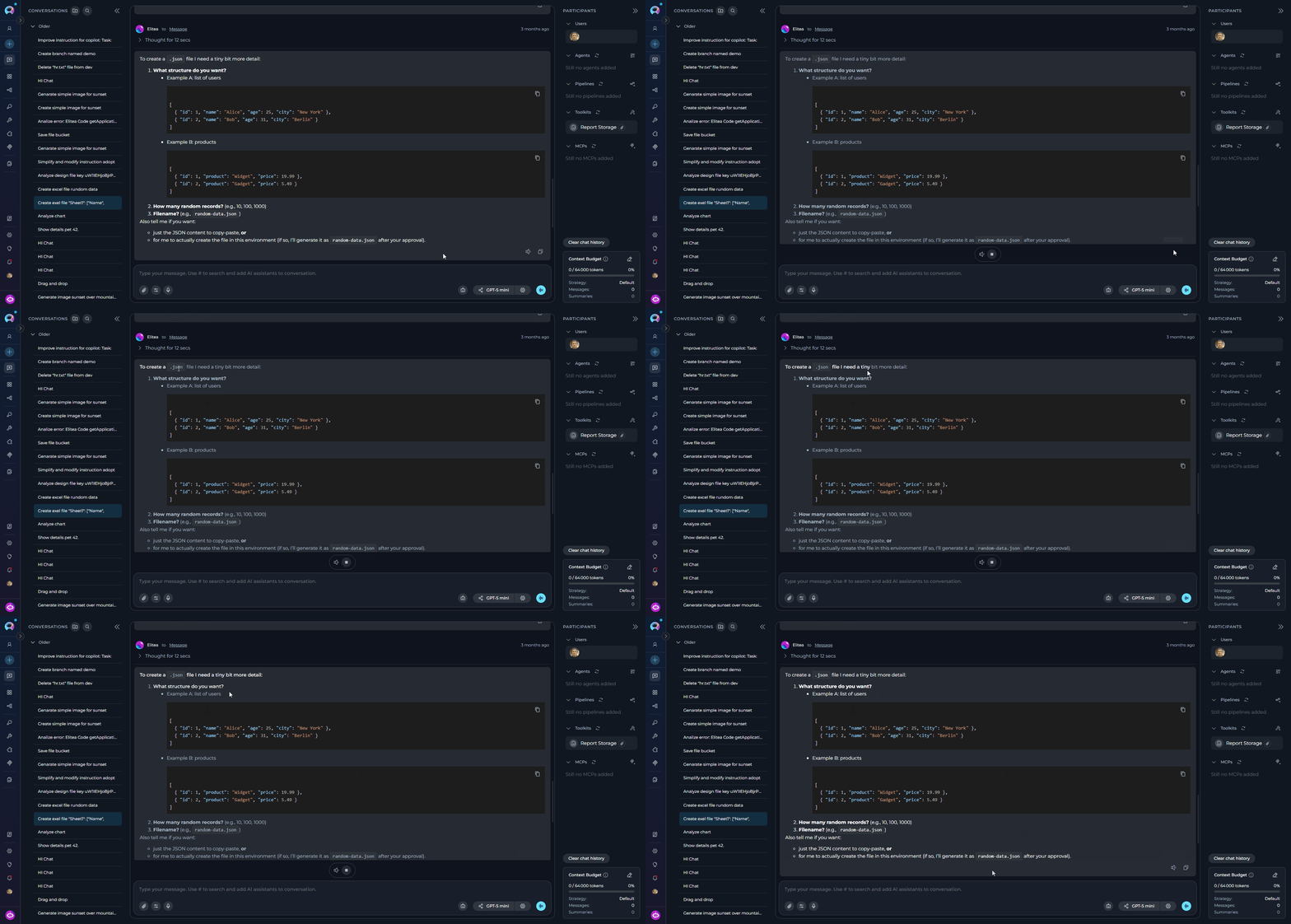 When a TTS model is configured in **Settings → AI Configuration → Text to Speech (TTS)**, ELITEA uses that model for audio generation via Web Audio API. If no TTS model is configured, playback uses the browser's built-in SpeechSynthesis API as a fallback.
### Speaking Mode
Speaking Mode is only available **after the conversation has been created** — meaning at least one message must have been sent first. The voicewave icon does not appear in a brand-new, unsent conversation. Send your first message to initialize the conversation, then use Speaking Mode for subsequent turns.
**Speaking Mode** is a continuous, hands-free voice conversation loop. Once activated, ELITEA automatically records your speech, sends your message after a pause, plays back the AI's response, and then starts listening again — without any manual interaction between turns.
**How to activate Speaking Mode:**
1. Leave the message input field empty.
2. Click the **voicewave** icon (shown in place of the Send button when the input is empty) to enter Speaking Mode.
3. A voicewave pill with an **Exit** (✕) button replaces the send button, indicating Speaking Mode is active.
4. Speak your message. After **3 seconds of silence**, your message is automatically sent.
5. The AI response streams in and is read aloud via Text-to-Speech.
6. Once the response finishes playing, recording starts again automatically for the next turn.
7. Click the **✕** button in the voicewave pill to exit Speaking Mode at any time.
When a TTS model is configured in **Settings → AI Configuration → Text to Speech (TTS)**, ELITEA uses that model for audio generation via Web Audio API. If no TTS model is configured, playback uses the browser's built-in SpeechSynthesis API as a fallback.
### Speaking Mode
Speaking Mode is only available **after the conversation has been created** — meaning at least one message must have been sent first. The voicewave icon does not appear in a brand-new, unsent conversation. Send your first message to initialize the conversation, then use Speaking Mode for subsequent turns.
**Speaking Mode** is a continuous, hands-free voice conversation loop. Once activated, ELITEA automatically records your speech, sends your message after a pause, plays back the AI's response, and then starts listening again — without any manual interaction between turns.
**How to activate Speaking Mode:**
1. Leave the message input field empty.
2. Click the **voicewave** icon (shown in place of the Send button when the input is empty) to enter Speaking Mode.
3. A voicewave pill with an **Exit** (✕) button replaces the send button, indicating Speaking Mode is active.
4. Speak your message. After **3 seconds of silence**, your message is automatically sent.
5. The AI response streams in and is read aloud via Text-to-Speech.
6. Once the response finishes playing, recording starts again automatically for the next turn.
7. Click the **✕** button in the voicewave pill to exit Speaking Mode at any time.
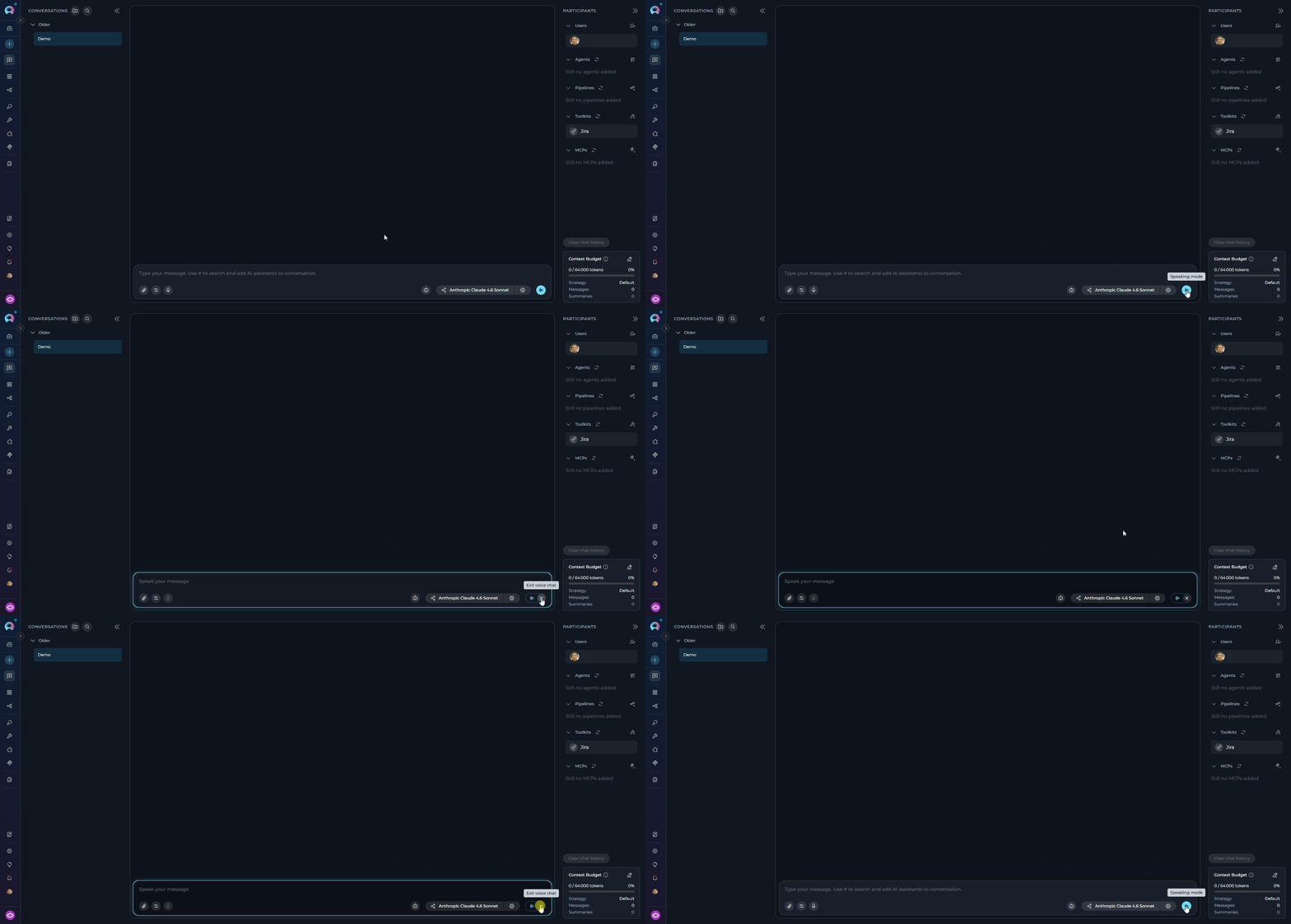 Speaking Mode requires a voice recognition source (server ASR model or browser Web Speech API) for input and uses Text-to-Speech for output. If you start manual voice input while Speaking Mode is active, Speaking Mode is automatically deactivated.
## Playback Mode
Playback mode allows you to step through an existing conversation turn by turn, exactly as it happened, without actually sending requests to the Models, Toolkits, etc.
* **Purpose**: Excellent for demonstrating a workflow, reviewing a complex interaction, or debugging without incurring processing costs or waiting for live responses.
* **Activation**: Access this via the conversation's context menu in the sidebar (**Right-click conversation -> Playback**).
* **Controls**: During playback, you typically have controls to move forward to the next message, go back to the previous message, or stop the playback simulation.
### Example: Using Playback Mode for a Demo
**Scenario**:\
A Product Manager is preparing a demo for stakeholders to showcase how the team collaborated on a new feature. They use Playback Mode to simulate the conversation and highlight key decisions and actions.
**Steps to Use Playback Mode**:
**Access the Conversation**:\
The Product Manager navigates to the conversation in the **CONVERSATIONS** sidebar where the team discussed the feature.
**Activate Playback Mode**:\
The Product Manager right-clicks on the conversation and selects **Playback** from the context menu.
**Simulate the Conversation**:
* The playback starts with the BA's initial message outlining the feature requirements.\
Example:
```
@BA: "The new feature should allow users to upload files up to 10MB in size. The system must validate file types and provide error messages for unsupported formats."
```
* The PM uses the **Next** control to move to the next message, where they set the timeline for development and testing.\
Example:
```
@PM: "The development team will complete the implementation by May 15th. QA can start testing on May 16th, and we aim to release the feature by May 20th."
```
* The QA's message about testing strategies is reviewed next.\
Example:
```
@QA: "I will create test cases for file uploads, including valid and invalid file types, file size limits, and error handling."
```
**Highlight Key Decisions**:
* The Product Manager pauses playback to explain the rationale behind certain decisions, such as the timeline or testing strategy.
* They resume playback to show the BA's clarification about drag-and-drop uploads.\
Example:
```
@BA: "Yes, drag-and-drop uploads should be supported. Additionally, the system should display a progress bar during uploads."
```
**Conclude the Demo**:
* The Product Manager stops playback after showcasing the final message tracking progress.\
Example:
```
@PM: "QA, please share the test results by May 18th so we can review them before the release."
```
**Benefits of Playback Mode for Demos**
* **Polished Presentations**: Playback Mode ensures a smooth and professional demo without interruptions or delays.
* **Clarity**: Stakeholders can see the exact flow of discussions and decisions.
* **Engagement**: The step-by-step simulation keeps the audience engaged and focused on key points.
By using Playback Mode, teams can effectively demonstrate their collaboration and decision-making processes to stakeholders, ensuring transparency and alignment.
Speaking Mode requires a voice recognition source (server ASR model or browser Web Speech API) for input and uses Text-to-Speech for output. If you start manual voice input while Speaking Mode is active, Speaking Mode is automatically deactivated.
## Playback Mode
Playback mode allows you to step through an existing conversation turn by turn, exactly as it happened, without actually sending requests to the Models, Toolkits, etc.
* **Purpose**: Excellent for demonstrating a workflow, reviewing a complex interaction, or debugging without incurring processing costs or waiting for live responses.
* **Activation**: Access this via the conversation's context menu in the sidebar (**Right-click conversation -> Playback**).
* **Controls**: During playback, you typically have controls to move forward to the next message, go back to the previous message, or stop the playback simulation.
### Example: Using Playback Mode for a Demo
**Scenario**:\
A Product Manager is preparing a demo for stakeholders to showcase how the team collaborated on a new feature. They use Playback Mode to simulate the conversation and highlight key decisions and actions.
**Steps to Use Playback Mode**:
**Access the Conversation**:\
The Product Manager navigates to the conversation in the **CONVERSATIONS** sidebar where the team discussed the feature.
**Activate Playback Mode**:\
The Product Manager right-clicks on the conversation and selects **Playback** from the context menu.
**Simulate the Conversation**:
* The playback starts with the BA's initial message outlining the feature requirements.\
Example:
```
@BA: "The new feature should allow users to upload files up to 10MB in size. The system must validate file types and provide error messages for unsupported formats."
```
* The PM uses the **Next** control to move to the next message, where they set the timeline for development and testing.\
Example:
```
@PM: "The development team will complete the implementation by May 15th. QA can start testing on May 16th, and we aim to release the feature by May 20th."
```
* The QA's message about testing strategies is reviewed next.\
Example:
```
@QA: "I will create test cases for file uploads, including valid and invalid file types, file size limits, and error handling."
```
**Highlight Key Decisions**:
* The Product Manager pauses playback to explain the rationale behind certain decisions, such as the timeline or testing strategy.
* They resume playback to show the BA's clarification about drag-and-drop uploads.\
Example:
```
@BA: "Yes, drag-and-drop uploads should be supported. Additionally, the system should display a progress bar during uploads."
```
**Conclude the Demo**:
* The Product Manager stops playback after showcasing the final message tracking progress.\
Example:
```
@PM: "QA, please share the test results by May 18th so we can review them before the release."
```
**Benefits of Playback Mode for Demos**
* **Polished Presentations**: Playback Mode ensures a smooth and professional demo without interruptions or delays.
* **Clarity**: Stakeholders can see the exact flow of discussions and decisions.
* **Engagement**: The step-by-step simulation keeps the audience engaged and focused on key points.
By using Playback Mode, teams can effectively demonstrate their collaboration and decision-making processes to stakeholders, ensuring transparency and alignment.