> ## Documentation Index
> Fetch the complete documentation index at: https://docs.elitea.ai/llms.txt
> Use this file to discover all available pages before exploring further.
# Data Analysis Internal Tool
> Analyze uploaded tabular files in conversations and agents with the Data Analysis internal tool using natural language.
Starting with release 2.0.0 B2, the legacy **Pandas** toolkit has been deprecated and replaced by the **Data Analysis** internal tool. Existing Pandas toolkits are disabled and no longer functional.
**Action Required:** Users must migrate to the Data Analysis internal tool available in chat conversations and agents. See the [Pandas Toolkit Migration Guide](../../migration/v2.0.1/pandas-toolkit-migration) for step-by-step migration instructions.
The **Data Analysis** internal tool provides powerful Pandas-based data analysis capabilities directly within ELITEA conversations. This tool enables seamless data processing and analysis without requiring separate toolkit configuration, making it easy to work with uploaded files using natural language queries.
**Key Features:**
* **Direct Integration:** Available as an internal tool in chat conversations and agent configurations
* **Natural Language Processing:** Use plain English to request data analysis operations
* **File-Based Analysis:** Works with files uploaded directly to conversations (CSV, Excel, and other tabular formats)
* **Automated Processing:** Intelligent file format detection and data analysis
* **Chart Generation:** Automatic creation of visualizations with downloadable results
***
## Prerequisites
* **Permission Level**: User role with conversation edit access
* **Conversation**: An active conversation or agent configuration
The Data Analysis internal tool must be explicitly enabled via the Internal Tools popup before it can be used in a conversation. It is hidden from the regular toolkit menu and exposed only through the internal tools configuration.
***
## Enabling Data Analysis in Conversations
Enable the Data Analysis tool for ad-hoc data analysis in conversations.
1. Navigate to your conversation.
2. Locate the chat input toolbar at the bottom of the screen.
3. Click the **Internal Tools** icon (value icon) next to the attachment button.
4. In the popup, find **Data Analysis** in the list.
5. Click the toggle switch next to "Data Analysis" to enable it.
6. Once enabled, a success toast notification appears: "Internal tools configuration updated" and the configuration is saved to the conversation metadata.
7. Click anywhere outside the popup to close it.
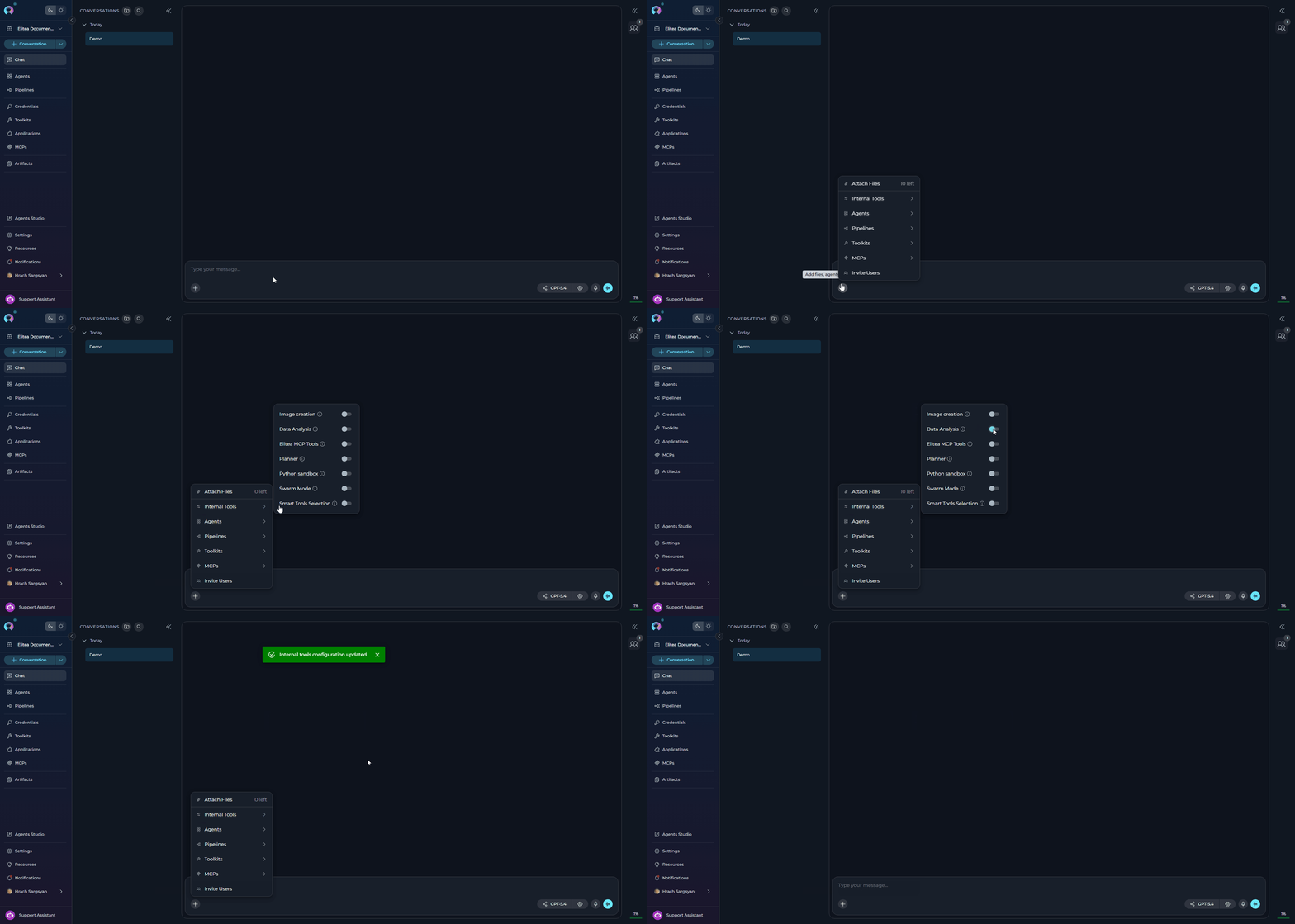 The internal tools configuration persists for the duration of your conversation session. You can toggle Data Analysis on/off at any time during the conversation.
***
## Enabling Data Analysis in Agent Configuration
You can configure Data Analysis as part of an agent's default configuration.
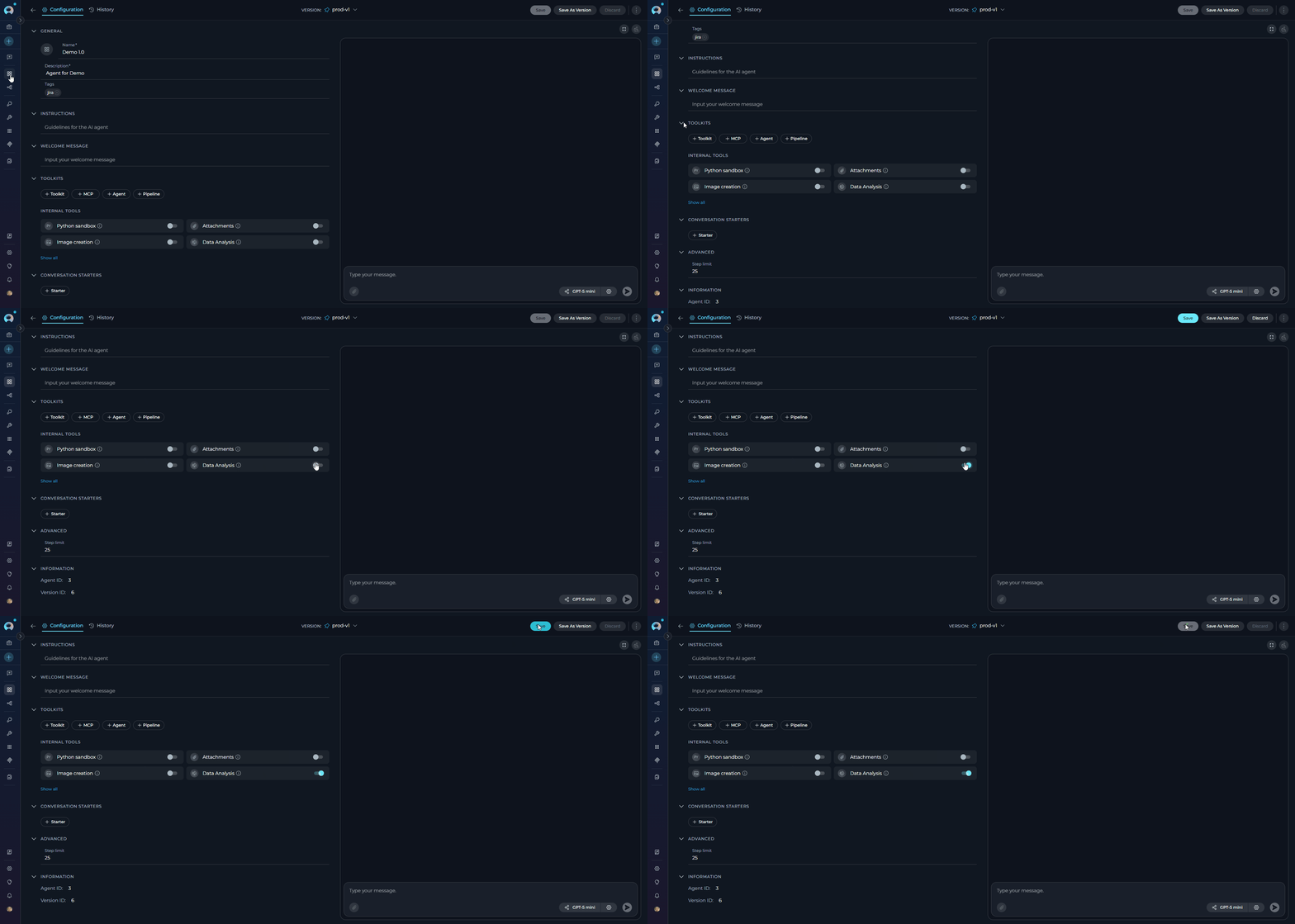
1. Navigate to **Agents** in the main menu.
2. Select the agent you want to configure or create a new agent.
3. On the **Configuration** tab, scroll down to the **TOOLKITS** section.
4. Within the TOOLKITS section, locate the **INTERNAL TOOLS** subsection.
5. Find the **Data Analysis** toggle. If it is not visible, click **Show all** to expand the full list of internal tools.
6. Click the **Data Analysis** toggle to enable it.
7. Click **Save** at the top of the configuration page to persist the change.
8. New conversations created with this agent will have Data Analysis enabled by default.
* **Agent Configuration**: Sets the default state for all new conversations with that agent
* **Conversation Configuration**: Overrides the agent's default for that specific conversation
* Changes to agent configuration do not affect existing conversations
The internal tools configuration persists for the duration of your conversation session. You can toggle Data Analysis on/off at any time during the conversation.
***
## Enabling Data Analysis in Agent Configuration
You can configure Data Analysis as part of an agent's default configuration.
1. Navigate to **Agents** in the main menu.
2. Select the agent you want to configure or create a new agent.
3. On the **Configuration** tab, scroll down to the **TOOLKITS** section.
4. Within the TOOLKITS section, locate the **INTERNAL TOOLS** subsection.
5. Find the **Data Analysis** toggle. If it is not visible, click **Show all** to expand the full list of internal tools.
6. Click the **Data Analysis** toggle to enable it.
7. Click **Save** at the top of the configuration page to persist the change.
8. New conversations created with this agent will have Data Analysis enabled by default.
* **Agent Configuration**: Sets the default state for all new conversations with that agent
* **Conversation Configuration**: Overrides the agent's default for that specific conversation
* Changes to agent configuration do not affect existing conversations
 ***
## Using the Data Analysis Internal Tool
Once enabled, the Data Analysis internal tool allows you to perform comprehensive data analysis directly in conversations using natural language commands. Simply upload your data files and request analysis operations in plain English.
**How It Works**
1. **Upload Data:** Upload CSV, Excel, or other data files to your conversation
2. **Request Analysis:** Ask the assistant to perform analysis using natural language
3. **Get Results:** Receive summaries, transformations, charts, and downloadable files
**Available Operations**
* **Data Summaries:** Descriptive statistics, data profiling, and overview reports
* **Data Filtering:** Row and column filtering based on conditions
* **Transformations:** Data cleaning, column operations, and restructuring
* **Aggregation:** Grouping, totals, averages, and statistical calculations
* **Visualization:** Automatic chart generation (bar charts, line graphs, histograms, etc.)
* **Export:** Save transformed data as downloadable files
- Always upload your data file to the conversation before requesting analysis
- For very large datasets (>100MB) or complex custom operations, consider using the Python Sandbox instead
***
## Example Workflows
These examples show typical workflows using the Data Analysis tool.
Example 1 — Natural language data summary
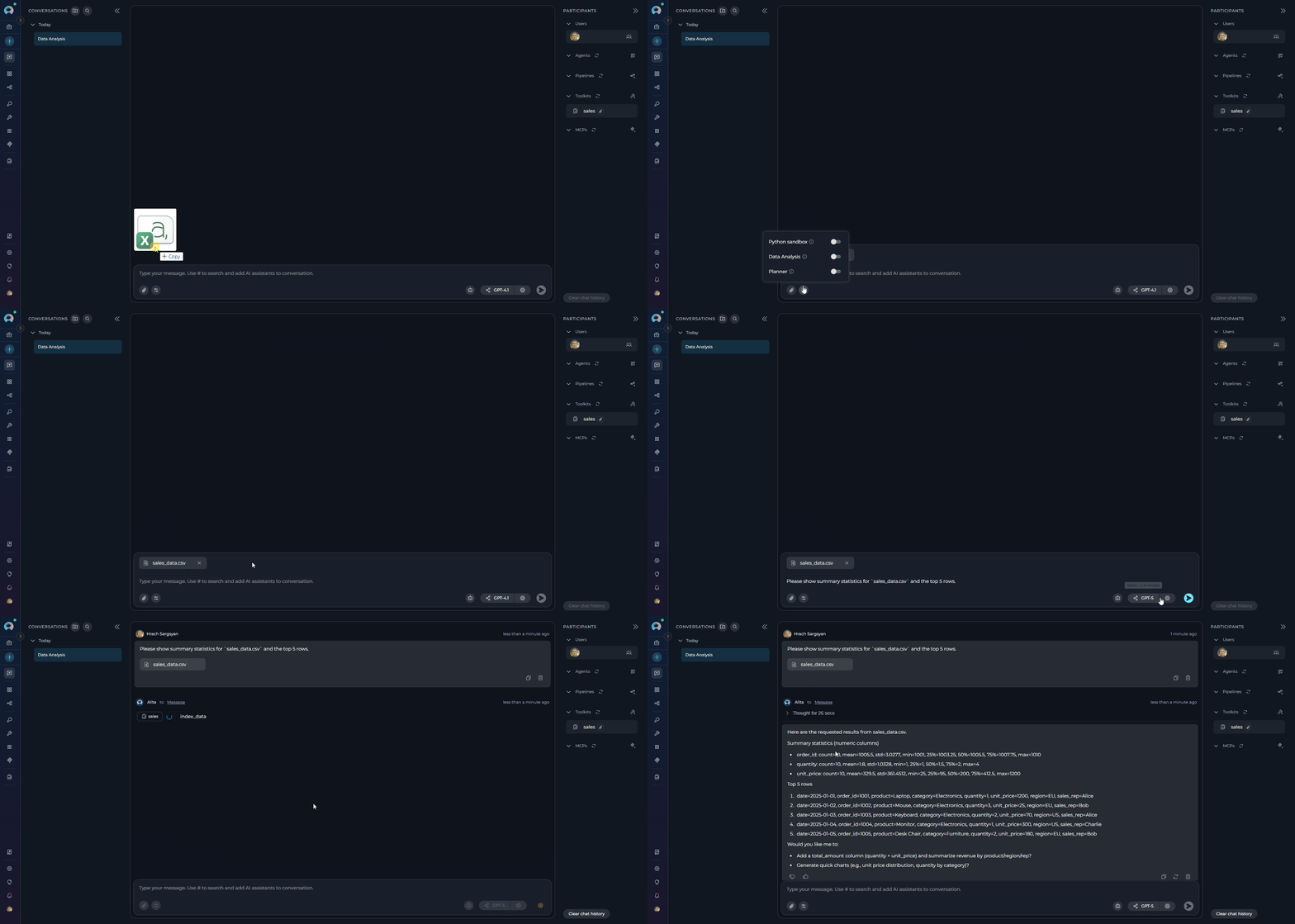
1. Open the conversation and click the Internal Tools icon (value icon) next to the attachment button.
2. Verify `Data Analysis` is visible in the popup and enable it.
3. Upload a small sample file (CSV) and ask the assistant to return a summary.
4. Ask the assistant:
```
Please show summary statistics for `sales_data.csv` and the top 5 rows.
```
What happens: the assistant indexes the uploaded data first, then performs the requested analysis on the indexed data.
***
## Using the Data Analysis Internal Tool
Once enabled, the Data Analysis internal tool allows you to perform comprehensive data analysis directly in conversations using natural language commands. Simply upload your data files and request analysis operations in plain English.
**How It Works**
1. **Upload Data:** Upload CSV, Excel, or other data files to your conversation
2. **Request Analysis:** Ask the assistant to perform analysis using natural language
3. **Get Results:** Receive summaries, transformations, charts, and downloadable files
**Available Operations**
* **Data Summaries:** Descriptive statistics, data profiling, and overview reports
* **Data Filtering:** Row and column filtering based on conditions
* **Transformations:** Data cleaning, column operations, and restructuring
* **Aggregation:** Grouping, totals, averages, and statistical calculations
* **Visualization:** Automatic chart generation (bar charts, line graphs, histograms, etc.)
* **Export:** Save transformed data as downloadable files
- Always upload your data file to the conversation before requesting analysis
- For very large datasets (>100MB) or complex custom operations, consider using the Python Sandbox instead
***
## Example Workflows
These examples show typical workflows using the Data Analysis tool.
Example 1 — Natural language data summary
1. Open the conversation and click the Internal Tools icon (value icon) next to the attachment button.
2. Verify `Data Analysis` is visible in the popup and enable it.
3. Upload a small sample file (CSV) and ask the assistant to return a summary.
4. Ask the assistant:
```
Please show summary statistics for `sales_data.csv` and the top 5 rows.
```
What happens: the assistant indexes the uploaded data first, then performs the requested analysis on the indexed data.
 Example 2 — Summarize bug reports and highlight hotspots
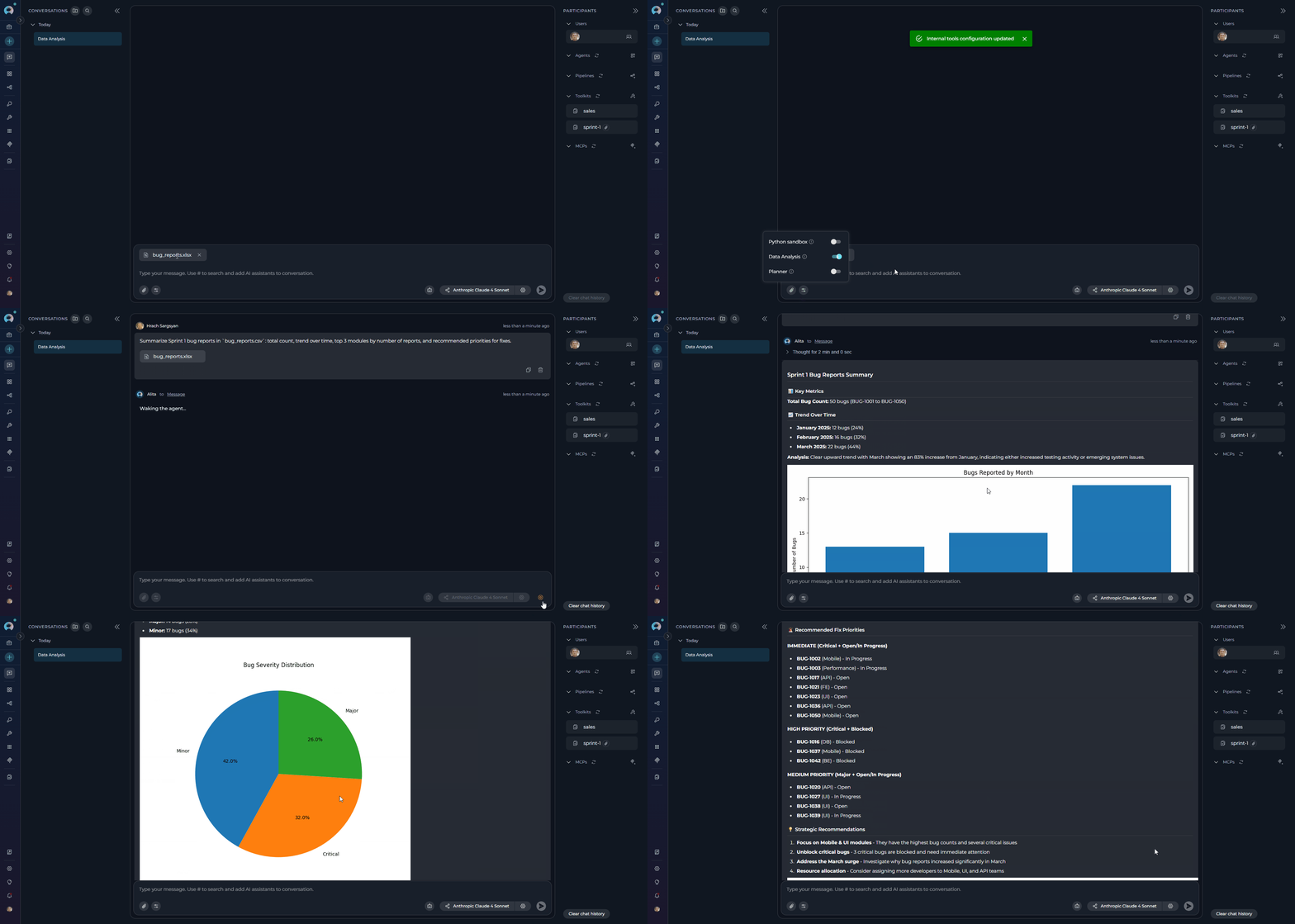
1. Ensure `Data Analysis` is enabled and upload `bug_reports.xlsx`.
2. Ask the assistant:
```
Summarize Sprint 1 bug reports in `bug_reports.csv`: total count, trend over time, top 3 modules by number of reports, and recommended priorities for fixes.
```
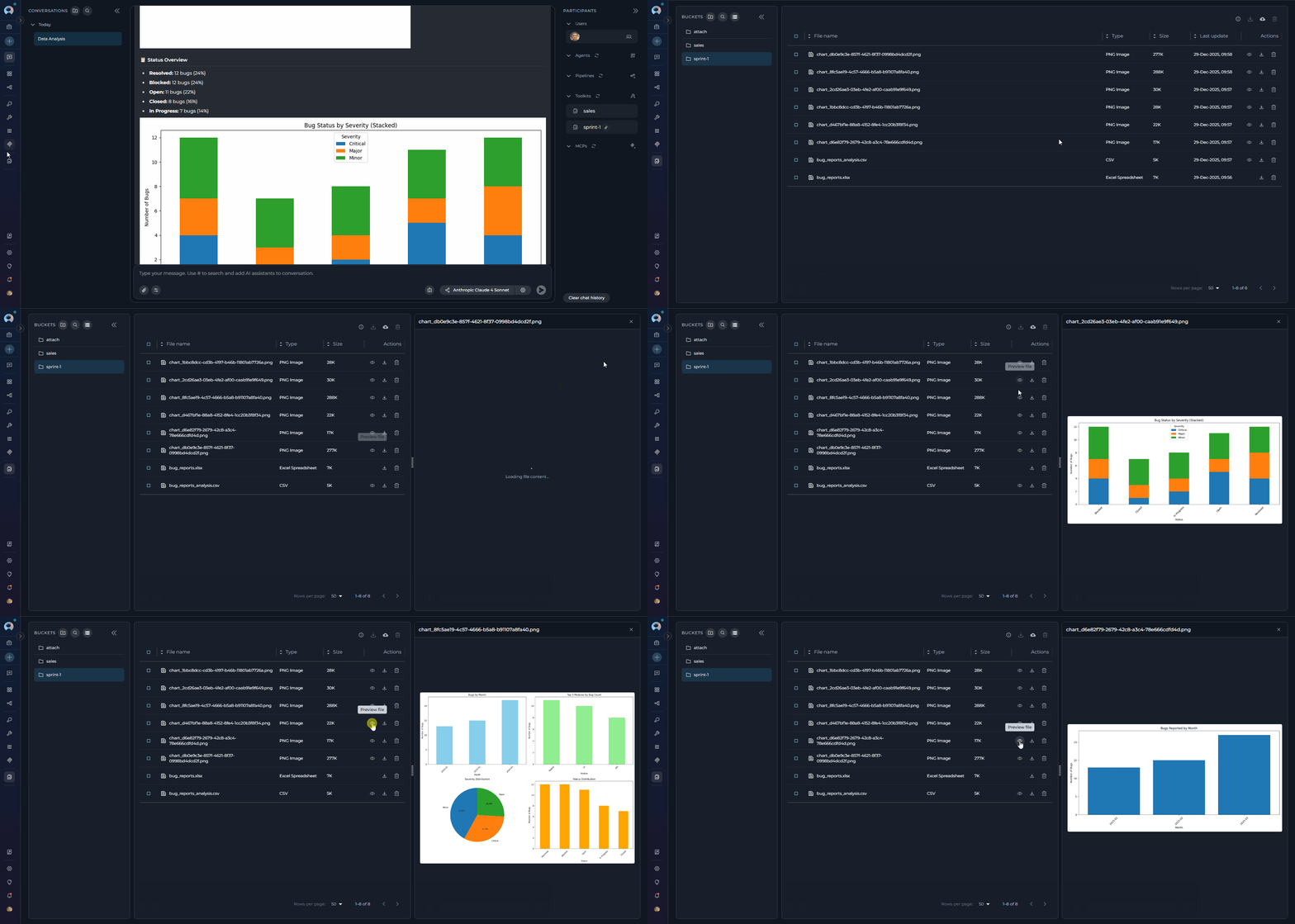
What happens: the assistant indexes the uploaded data first, then performs the requested analysis. If a chart is helpful (for example a histogram of sales or a time series), the assistant will generate one or more charts and save each chart as an image file in the conversation.
Example 2 — Summarize bug reports and highlight hotspots
1. Ensure `Data Analysis` is enabled and upload `bug_reports.xlsx`.
2. Ask the assistant:
```
Summarize Sprint 1 bug reports in `bug_reports.csv`: total count, trend over time, top 3 modules by number of reports, and recommended priorities for fixes.
```
What happens: the assistant indexes the uploaded data first, then performs the requested analysis. If a chart is helpful (for example a histogram of sales or a time series), the assistant will generate one or more charts and save each chart as an image file in the conversation.
 **Generated files**
 ***
## Best Practices
Upload moderately sized files for interactive analysis. Very large datasets may cause timeouts or higher latency. Consider using Python Sandbox for datasets larger than 100MB.
Use widely supported formats like CSV, Excel for best compatibility. These formats work reliably across different systems.
When you need a specific output (for example: a downloadable CSV of filtered rows, an aggregated table, or a PNG chart), state it clearly in your request: "Save filtered rows as CSV" or "Generate a time-series chart and export as PNG".
Charts and exported files are saved to your conversation. The assistant will provide links to view or download these files. Charts are saved as PNG files with auto-generated UUID filenames.
Break complex analyses into smaller steps (load → inspect → filter → aggregate → visualize). This reduces errors and makes results easier to validate.
Refer to column names exactly as they appear in your dataset and provide example values when helpful (for dates, currencies, or categories).
If you expect to re-run the same workflow, ask the assistant to "save transformed data" and include the intended filename. This makes it easy to re-open or share results later.
For advanced custom logic, very large datasets, or specialized operations, enable the Python sandbox and provide code snippets directly.
Requests that ask for extensive detailed outputs may be truncated. Prefer summaries or downloadable files for large results.
Avoid uploading highly sensitive data if you are unsure about retention policies. When in doubt, remove or anonymize personal information before uploading.
For CSV files with special characters, ensure UTF-8 encoding. UTF-8 files work most reliably.
Provide clear, specific analysis requests. Instead of "analyze this data", try "Calculate monthly sales totals and create a bar chart showing top 5 products by revenue".
## Troubleshooting
**Possible causes:**
* Data Analysis tool not enabled in conversation
* Conversation configuration issue
**Solution:**
1. Enable Data Analysis in the Internal Tools popup for the conversation
2. Refresh the conversation and re-enable the tool if needed
**Possible causes:**
* Unsupported file format uploaded
* Corrupted or malformed data file
* File encoding issues
* Large file causing read timeouts
**Solution:**
1. Ensure file is in a supported format (CSV, Excel, Parquet, or other common tabular formats)
2. Check file integrity and try re-uploading a clean version
3. Convert file to UTF-8 encoding if needed
4. For large files, consider using Python Sandbox instead
**Possible causes:**
* Insufficient user permissions
* Internal Tools popup not accessible
* Internal Tools icon hidden because no tools pass the availability filter
* UI configuration issue
**Solution:**
1. Confirm you have conversation edit access permissions
2. Check that the Internal Tools icon (value icon) is visible next to the attachment button — the icon is hidden entirely when no internal tools are available for the project
3. Verify Data Analysis appears in the popup list after clicking the icon
4. Refresh the page and try accessing the popup again
5. If the icon is missing, contact your project administrator to confirm internal tools are enabled for the project
**Possible causes:**
* Very large datasets causing processing delays
* Complex analysis requests
* Network connectivity issues
**Solution:**
1. Reduce dataset size or use smaller sample files for testing
2. Break complex requests into smaller iterative steps
3. Prefer aggregated summaries over detailed outputs
4. Check network connection and retry the request
5. For very large data, consider enabling Python Sandbox instead
**Possible causes:**
* Chart generation failed due to data issues
* File saving permissions issue
* Invalid filenames
**Solution:**
1. Verify data is suitable for the requested chart type
2. Check that file saving is working
3. Use valid filenames without special characters
4. Try simpler chart types first
5. Request download links explicitly in your prompt
**Possible causes:**
* Ambiguous or overly complex queries
* Column names with special characters
* Data type mismatches
**Solution:**
1. Use clear, specific analysis requests with exact column names
2. Break complex queries into simpler steps
3. Provide example values for date formats, categories, etc.
4. Try rephrasing the query if it fails
5. Check for error messages and adjust accordingly
**Possible causes:**
* Loading very large datasets
* Complex operations on big datasets
* Multiple concurrent requests
* Insufficient system resources
**Solution:**
1. Use smaller sample datasets for initial testing
2. Consider using Python Sandbox for memory-intensive operations
3. Close other conversations to free up resources
4. Optimize queries to use less memory
5. Monitor system resource usage
***
* **[Pandas Toolkit Migration Guide](../../migration/v2.0.1/pandas-toolkit-migration)** - Complete migration guide from legacy Pandas toolkit
* **[Agent Configuration](../../menus/agents)** - Setting up agents with internal tools
* **[Chat Functionality](./how-to-use-chat-functionality)** - General chat features and usage
* **[Python Sandbox](./python-sandbox-internal-tool)** - Python Sandbox and internal tools overview
* **[Conversation Management](../../menus/chat)** - Managing conversations and settings
***
## Best Practices
Upload moderately sized files for interactive analysis. Very large datasets may cause timeouts or higher latency. Consider using Python Sandbox for datasets larger than 100MB.
Use widely supported formats like CSV, Excel for best compatibility. These formats work reliably across different systems.
When you need a specific output (for example: a downloadable CSV of filtered rows, an aggregated table, or a PNG chart), state it clearly in your request: "Save filtered rows as CSV" or "Generate a time-series chart and export as PNG".
Charts and exported files are saved to your conversation. The assistant will provide links to view or download these files. Charts are saved as PNG files with auto-generated UUID filenames.
Break complex analyses into smaller steps (load → inspect → filter → aggregate → visualize). This reduces errors and makes results easier to validate.
Refer to column names exactly as they appear in your dataset and provide example values when helpful (for dates, currencies, or categories).
If you expect to re-run the same workflow, ask the assistant to "save transformed data" and include the intended filename. This makes it easy to re-open or share results later.
For advanced custom logic, very large datasets, or specialized operations, enable the Python sandbox and provide code snippets directly.
Requests that ask for extensive detailed outputs may be truncated. Prefer summaries or downloadable files for large results.
Avoid uploading highly sensitive data if you are unsure about retention policies. When in doubt, remove or anonymize personal information before uploading.
For CSV files with special characters, ensure UTF-8 encoding. UTF-8 files work most reliably.
Provide clear, specific analysis requests. Instead of "analyze this data", try "Calculate monthly sales totals and create a bar chart showing top 5 products by revenue".
## Troubleshooting
**Possible causes:**
* Data Analysis tool not enabled in conversation
* Conversation configuration issue
**Solution:**
1. Enable Data Analysis in the Internal Tools popup for the conversation
2. Refresh the conversation and re-enable the tool if needed
**Possible causes:**
* Unsupported file format uploaded
* Corrupted or malformed data file
* File encoding issues
* Large file causing read timeouts
**Solution:**
1. Ensure file is in a supported format (CSV, Excel, Parquet, or other common tabular formats)
2. Check file integrity and try re-uploading a clean version
3. Convert file to UTF-8 encoding if needed
4. For large files, consider using Python Sandbox instead
**Possible causes:**
* Insufficient user permissions
* Internal Tools popup not accessible
* Internal Tools icon hidden because no tools pass the availability filter
* UI configuration issue
**Solution:**
1. Confirm you have conversation edit access permissions
2. Check that the Internal Tools icon (value icon) is visible next to the attachment button — the icon is hidden entirely when no internal tools are available for the project
3. Verify Data Analysis appears in the popup list after clicking the icon
4. Refresh the page and try accessing the popup again
5. If the icon is missing, contact your project administrator to confirm internal tools are enabled for the project
**Possible causes:**
* Very large datasets causing processing delays
* Complex analysis requests
* Network connectivity issues
**Solution:**
1. Reduce dataset size or use smaller sample files for testing
2. Break complex requests into smaller iterative steps
3. Prefer aggregated summaries over detailed outputs
4. Check network connection and retry the request
5. For very large data, consider enabling Python Sandbox instead
**Possible causes:**
* Chart generation failed due to data issues
* File saving permissions issue
* Invalid filenames
**Solution:**
1. Verify data is suitable for the requested chart type
2. Check that file saving is working
3. Use valid filenames without special characters
4. Try simpler chart types first
5. Request download links explicitly in your prompt
**Possible causes:**
* Ambiguous or overly complex queries
* Column names with special characters
* Data type mismatches
**Solution:**
1. Use clear, specific analysis requests with exact column names
2. Break complex queries into simpler steps
3. Provide example values for date formats, categories, etc.
4. Try rephrasing the query if it fails
5. Check for error messages and adjust accordingly
**Possible causes:**
* Loading very large datasets
* Complex operations on big datasets
* Multiple concurrent requests
* Insufficient system resources
**Solution:**
1. Use smaller sample datasets for initial testing
2. Consider using Python Sandbox for memory-intensive operations
3. Close other conversations to free up resources
4. Optimize queries to use less memory
5. Monitor system resource usage
***
* **[Pandas Toolkit Migration Guide](../../migration/v2.0.1/pandas-toolkit-migration)** - Complete migration guide from legacy Pandas toolkit
* **[Agent Configuration](../../menus/agents)** - Setting up agents with internal tools
* **[Chat Functionality](./how-to-use-chat-functionality)** - General chat features and usage
* **[Python Sandbox](./python-sandbox-internal-tool)** - Python Sandbox and internal tools overview
* **[Conversation Management](../../menus/chat)** - Managing conversations and settings