> ## Documentation Index
> Fetch the complete documentation index at: https://docs.elitea.ai/llms.txt
> Use this file to discover all available pages before exploring further.
# Attach Files in Conversations
> Upload files and images to conversations for analysis, search, and multimodal chat workflows.
## Overview
**Key Capabilities:**
* **Image Analysis**: Upload images for visual analysis, OCR, content extraction, and AI-powered interpretation
* **Document Processing**: Attach documents for content indexing, semantic search, and information retrieval
* **Data Files**: Upload CSV, JSON, and other data formats for analysis and processing
* **Multiple Upload Methods**: Click to browse, drag-and-drop, or paste from clipboard
* **Centralized Storage**: All attachments stored in Artifact buckets with configurable retention policies
***
## How Attachments Work
The attachment functionality is integrated with the **Artifact Toolkit**.
* **Storage:** Every file you attach is automatically uploaded and stored in an Artifact bucket. The backend always uses the default `attachments` bucket — no manual Artifact Toolkit configuration is required.
* **Access:** This allows the AI agent to access the file for analysis and also provides a centralized location for you to manage these files via the **Artifacts** section of the platform.
* **Retention:** Files are subject to the retention policy of the bucket they are stored in. By default, new buckets have a retention period of 30 days, after which files are automatically deleted. Retention period can be changed manually.
For detailed information about bucket management and retention policies, see the [Artifacts Documentation](../../menus/artifacts).
***
## Prerequisites
Before using attachments, ensure you have:
* **Permission Level**: Editor or Admin role within the project (required for Agent configuration)
* **Active Conversation**: An existing conversation or agent
Any user with conversation access can attach files once attachments are enabled. Editor or Admin permissions are only required for enabling attachments on Agents.
***
## Enabling Attachments
Attachments must be explicitly enabled before use.
### Enable Attachments for Agents
Configure attachment capabilities at the Agent level to enable file uploads in all conversations using that agent.
1. Navigate to **Agents** from the main menu
2. Select the agent to configure
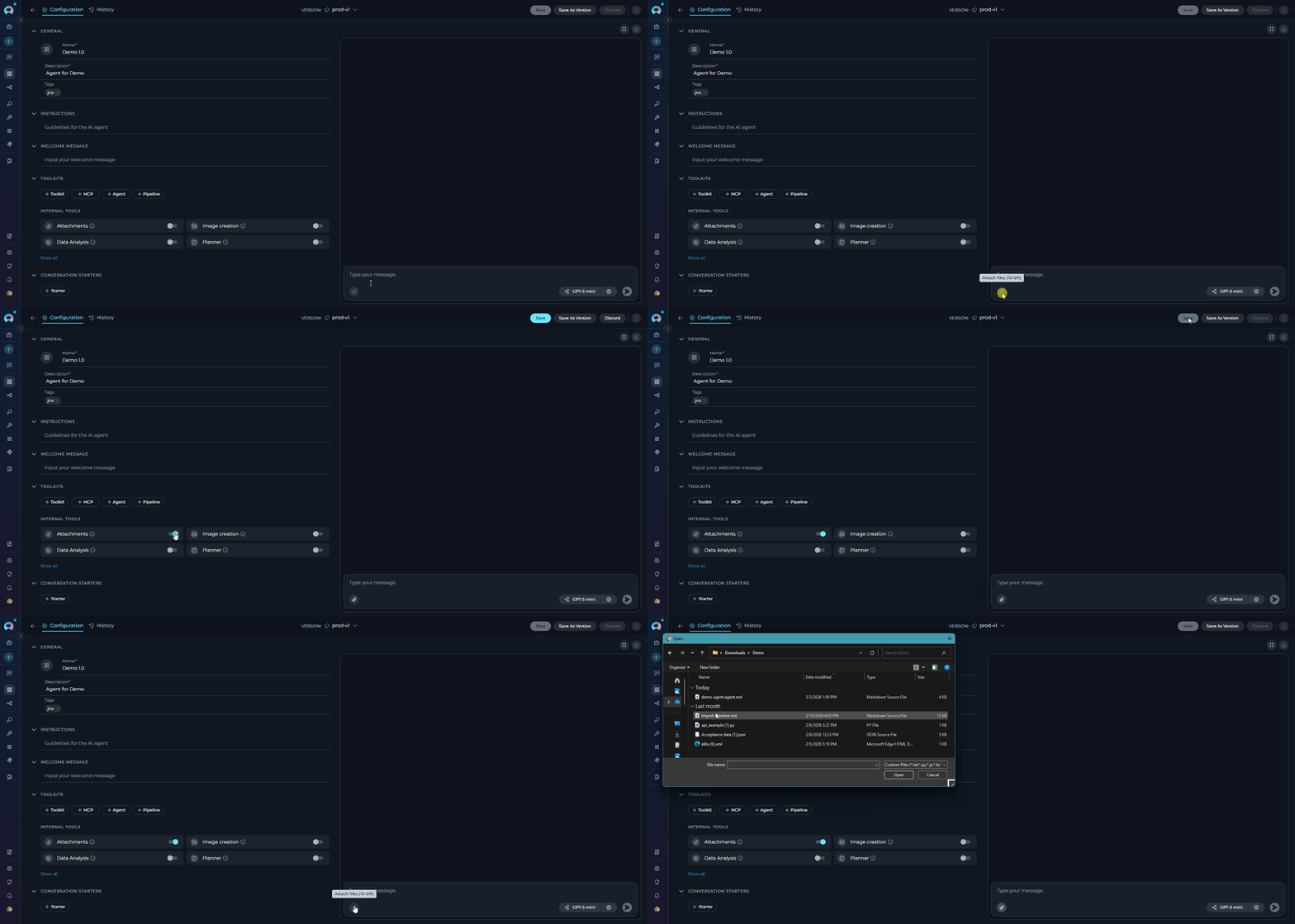
3. On the **Configuration** tab, locate the **Allow attachments** toggle in the INTERNAL TOOLS section (disabled by default)
4. Click the toggle to enable attachments
5. Save the agent
**Result:** The `Attachments` internal tool is added to the agent. The backend automatically provisions storage using the default `attachments` bucket — no additional toolkit configuration is required. When using this agent in a conversation, **Attach Files** becomes available in the **`+`** menu of the message input area.
 ### Attach Files in a Conversation
Upload files directly within an active chat session without configuring the agent.
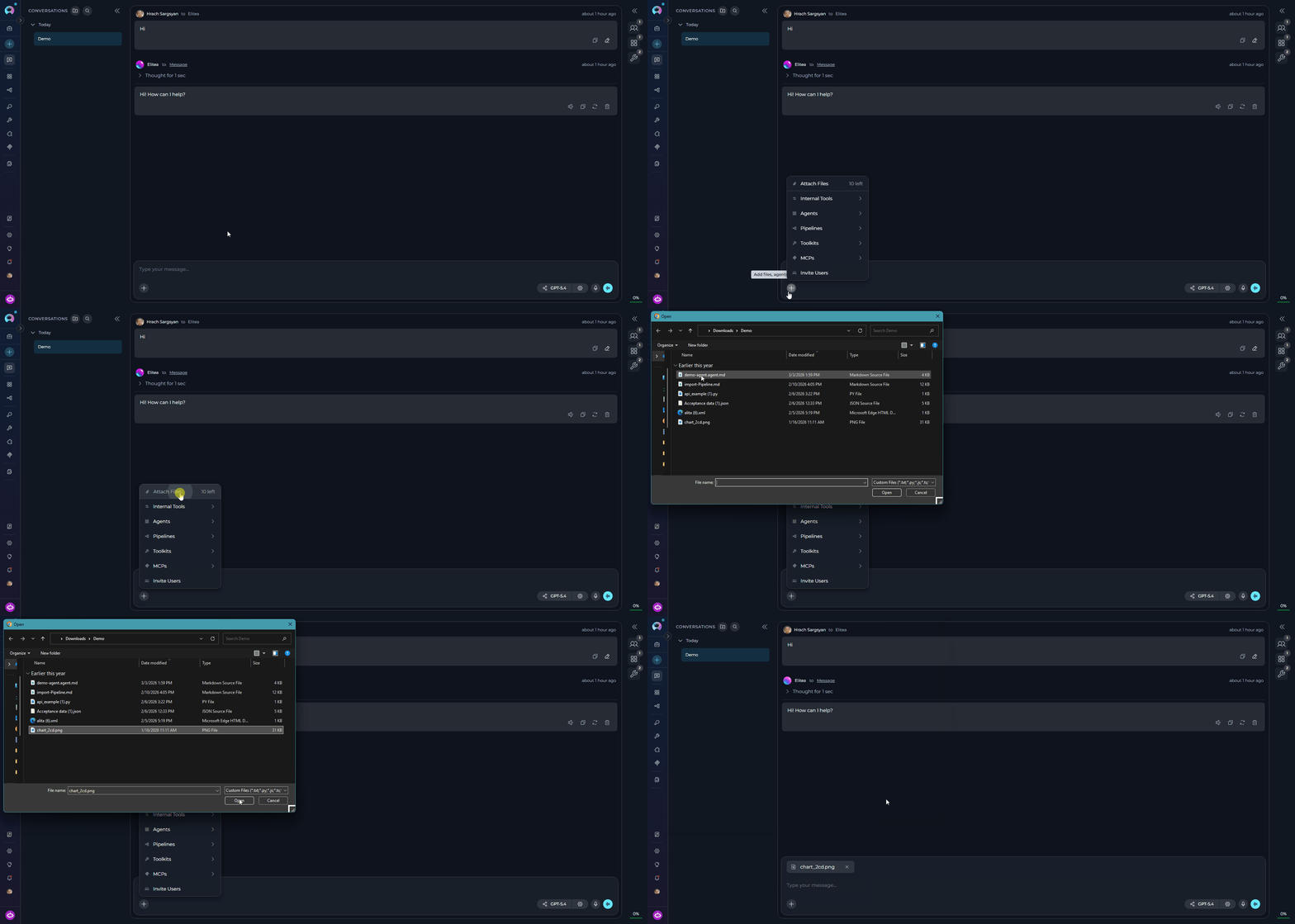
1. Open a new or existing conversation
2. Click the **`+`** button in the message input toolbar
3. Click **Attach Files** at the top of the menu
4. The file browser opens — select and confirm your files
**Result:** Attachments are immediately available. No additional setup is required.
### Attach Files in a Conversation
Upload files directly within an active chat session without configuring the agent.
1. Open a new or existing conversation
2. Click the **`+`** button in the message input toolbar
3. Click **Attach Files** at the top of the menu
4. The file browser opens — select and confirm your files
**Result:** Attachments are immediately available. No additional setup is required.
 **Upload options**
1. Select files from your file explorer
2. Drag files directly into the message input area
3. Release to attach files
1. Copy an image to your clipboard (Ctrl+C or Cmd+C)
2. Click inside the message input area
3. Paste the image (Ctrl+V or Cmd+V) to attach
If you upload a file with the same name as an existing attachment, it is automatically renamed by appending a timestamp and file size (e.g., `image_20251106_143022_1.50KB.png`). No error is shown and both files are preserved.
### Using Agents with Attachments in Conversations
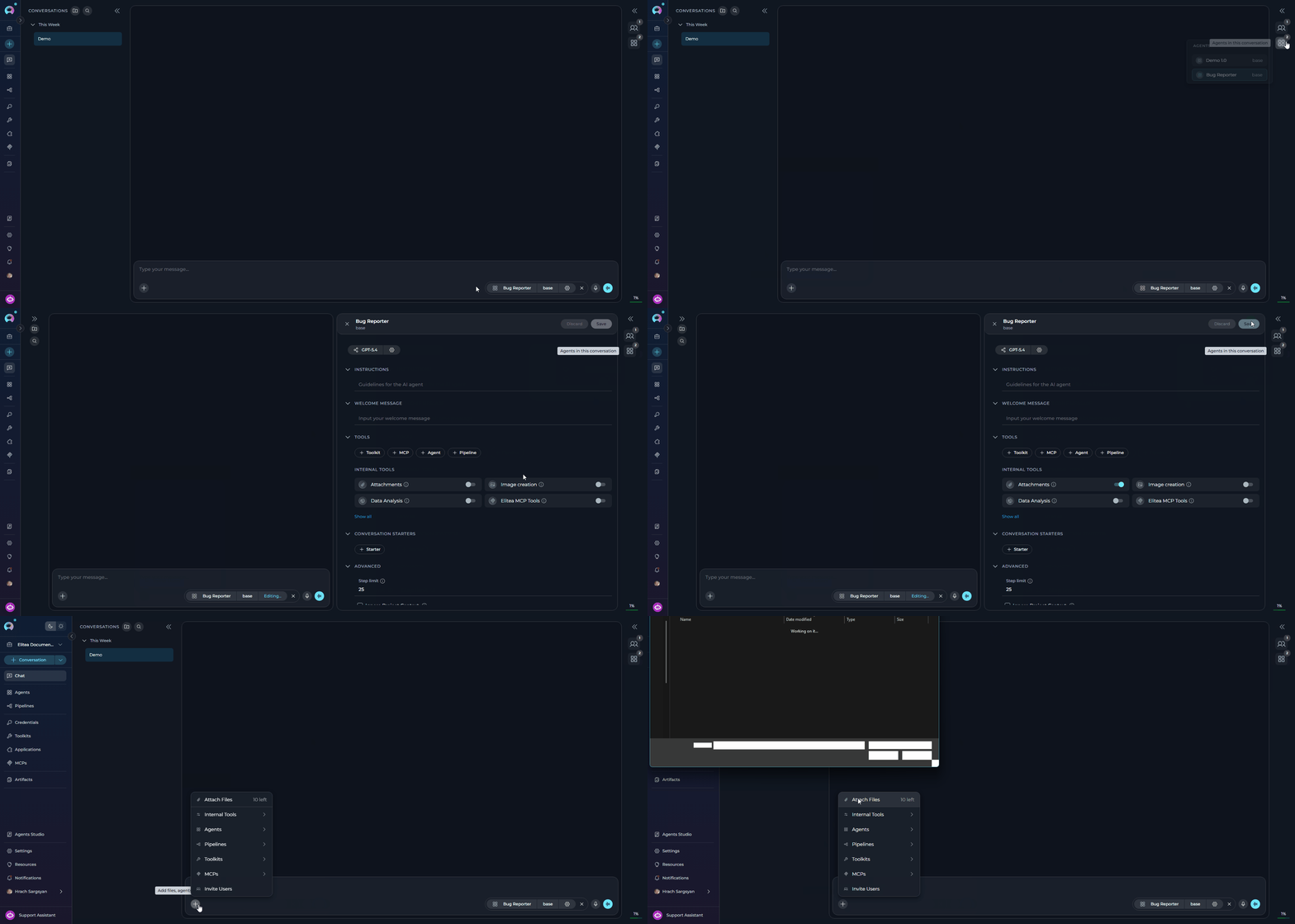
The availability of **Attach Files** in the **`+`** menu is determined by the currently active participant.
* If the active agent or pipeline has **Allow attachments** enabled, **Attach Files** is active in the `+` menu
* If you switch to an agent or pipeline without attachments enabled, **Attach Files** is disabled and shows the tooltip: *"Attachments aren't available for the selected agent or pipeline."*
* In direct LLM or dummy conversations (no agent selected), **Attach Files** is always active
**Upload options**
1. Select files from your file explorer
2. Drag files directly into the message input area
3. Release to attach files
1. Copy an image to your clipboard (Ctrl+C or Cmd+C)
2. Click inside the message input area
3. Paste the image (Ctrl+V or Cmd+V) to attach
If you upload a file with the same name as an existing attachment, it is automatically renamed by appending a timestamp and file size (e.g., `image_20251106_143022_1.50KB.png`). No error is shown and both files are preserved.
### Using Agents with Attachments in Conversations
The availability of **Attach Files** in the **`+`** menu is determined by the currently active participant.
* If the active agent or pipeline has **Allow attachments** enabled, **Attach Files** is active in the `+` menu
* If you switch to an agent or pipeline without attachments enabled, **Attach Files** is disabled and shows the tooltip: *"Attachments aren't available for the selected agent or pipeline."*
* In direct LLM or dummy conversations (no agent selected), **Attach Files** is always active
 ***
## Using Attachments in Conversations
When attachments are available — either because you are in a direct LLM chat or using an agent/pipeline with **Allow attachments** enabled — the **`+`** button in the message input toolbar gives access to **Attach Files**.
**Send Message with Attachments**
1. After attaching files, thumbnails appear above the message input area
2. **Type a text prompt** describing what you want the AI to do (required)
3. Click the **Send** button
***
## Using Attachments in Conversations
When attachments are available — either because you are in a direct LLM chat or using an agent/pipeline with **Allow attachments** enabled — the **`+`** button in the message input toolbar gives access to **Attach Files**.
**Send Message with Attachments**
1. After attaching files, thumbnails appear above the message input area
2. **Type a text prompt** describing what you want the AI to do (required)
3. Click the **Send** button
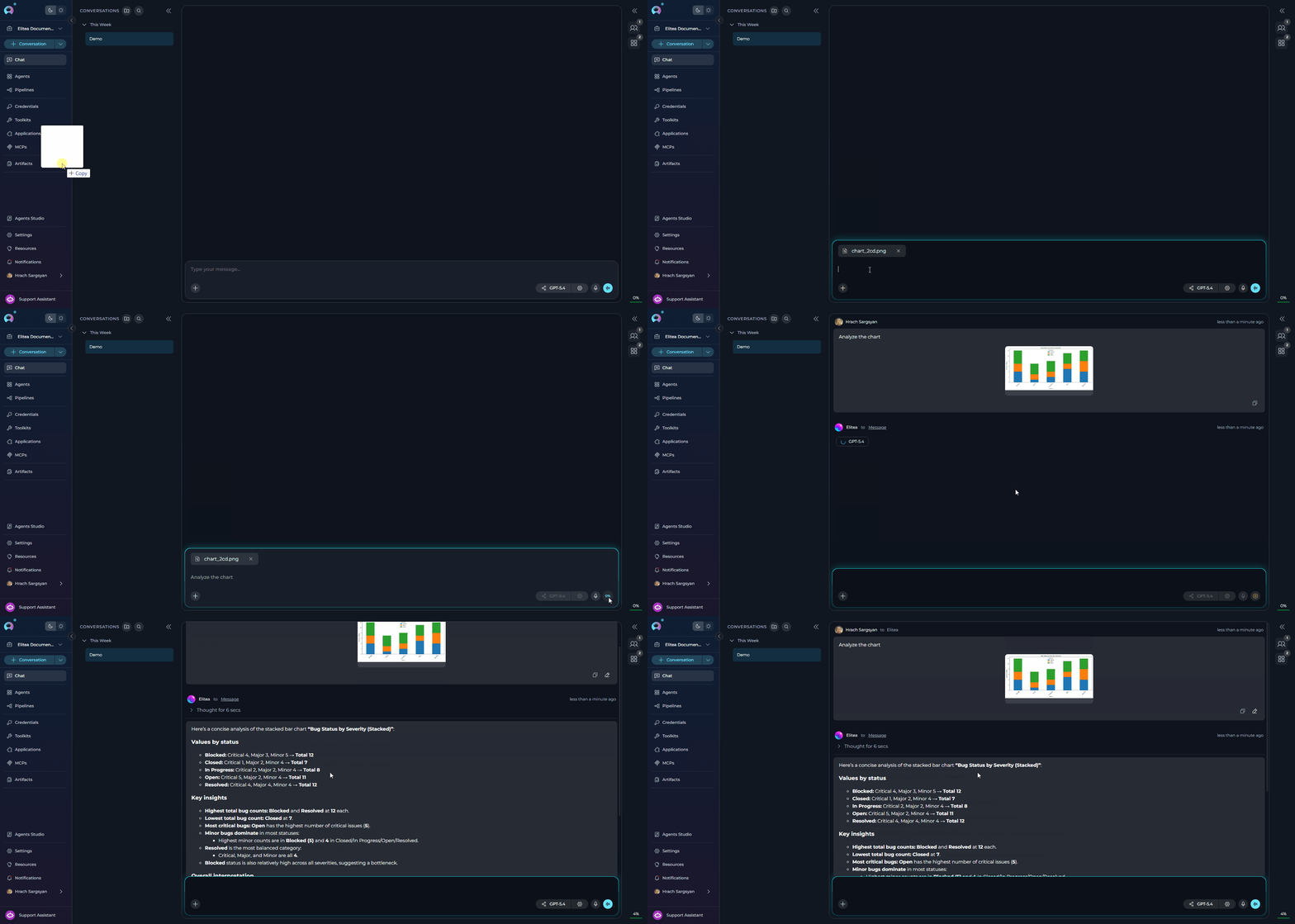 The Send button remains disabled until you enter text. A text prompt provides context for the AI to understand how to process your attachments. When sent, each file is automatically uploaded to the default `attachments` Artifact bucket and can be viewed and managed from the **Artifacts** section in the main navigation.
### Manage Attachments in Chat
**View Attachments**
* Sent attachments display as clickable thumbnails in the chat history
* Click any thumbnail to view the full-size image or preview the file
**Download or Delete Attachments**
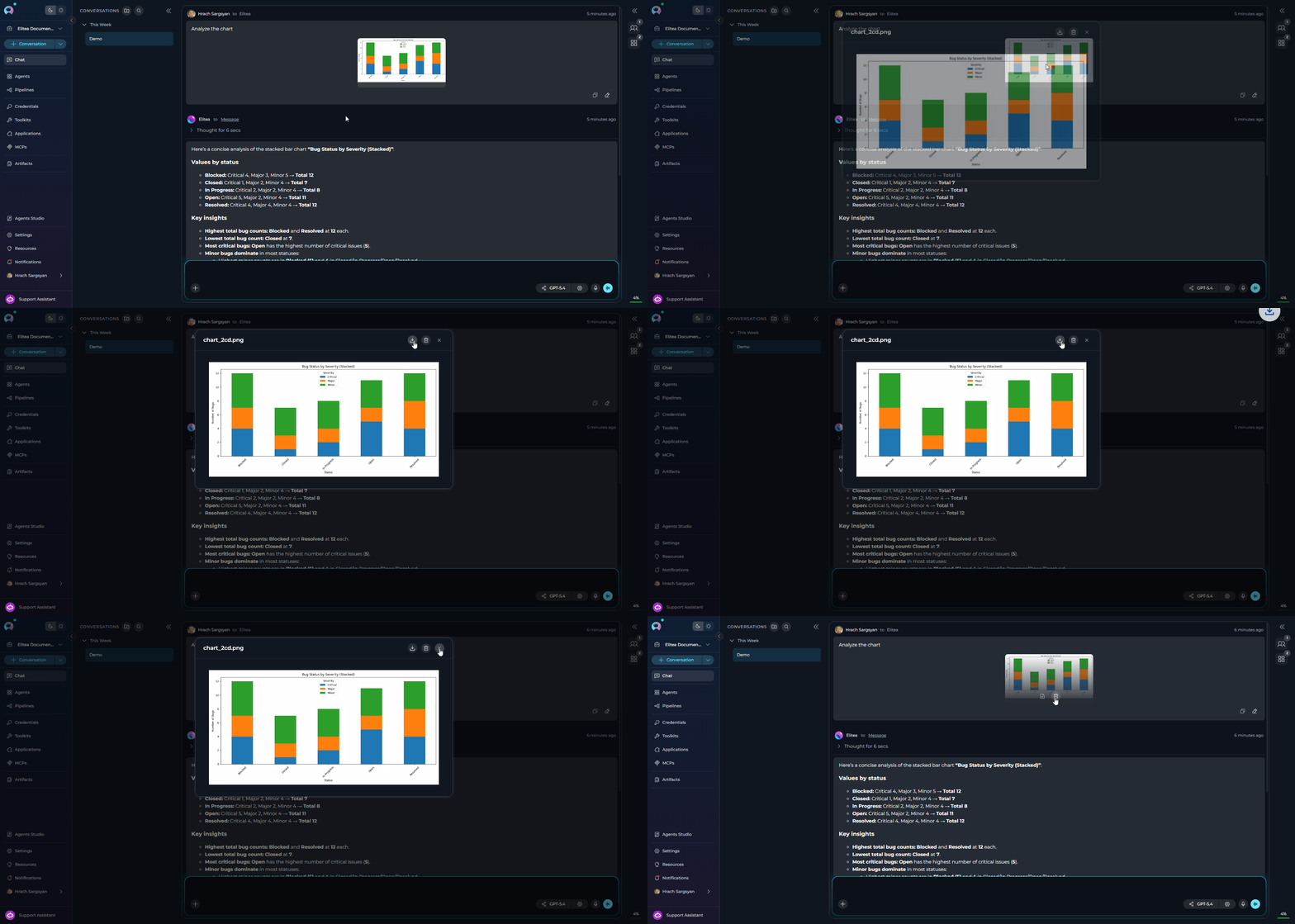
1. Hover over any attachment thumbnail in the chat
2. Two icons appear:
* **Download icon**: Save the file to your local system
* **Delete icon** (trash can): Remove the attachment
The Send button remains disabled until you enter text. A text prompt provides context for the AI to understand how to process your attachments. When sent, each file is automatically uploaded to the default `attachments` Artifact bucket and can be viewed and managed from the **Artifacts** section in the main navigation.
### Manage Attachments in Chat
**View Attachments**
* Sent attachments display as clickable thumbnails in the chat history
* Click any thumbnail to view the full-size image or preview the file
**Download or Delete Attachments**
1. Hover over any attachment thumbnail in the chat
2. Two icons appear:
* **Download icon**: Save the file to your local system
* **Delete icon** (trash can): Remove the attachment
 ### Delete Attachments
When clicking the delete (trash can) icon, a confirmation dialog provides two deletion options:
**Option 1: Delete from Chat Only** (default)
* Removes the thumbnail from the conversation
* Original file remains in the Artifact bucket
* File remains accessible via the Artifacts menu
**Option 2: Delete from Chat and Storage**
* Check the box: **"Also delete from attachment storage"**
* Removes the thumbnail from the conversation
* **Permanently deletes** the file from the Artifact bucket
* File cannot be recovered
### Delete Attachments
When clicking the delete (trash can) icon, a confirmation dialog provides two deletion options:
**Option 1: Delete from Chat Only** (default)
* Removes the thumbnail from the conversation
* Original file remains in the Artifact bucket
* File remains accessible via the Artifacts menu
**Option 2: Delete from Chat and Storage**
* Check the box: **"Also delete from attachment storage"**
* Removes the thumbnail from the conversation
* **Permanently deletes** the file from the Artifact bucket
* File cannot be recovered
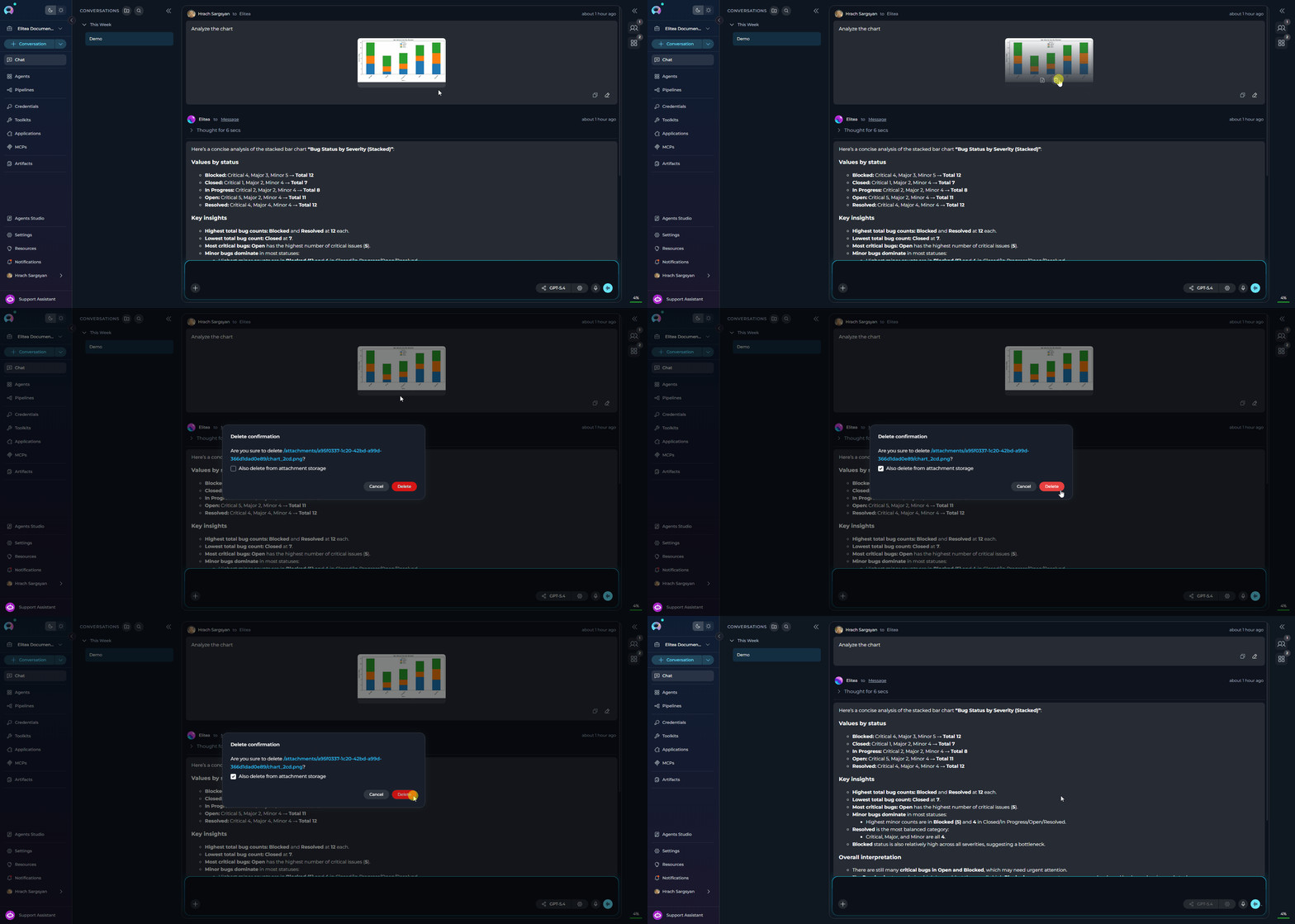 When "Also delete from attachment storage" is checked, the file is permanently deleted from storage and cannot be recovered. Use this option carefully.
***
## Working with Non-Image Files
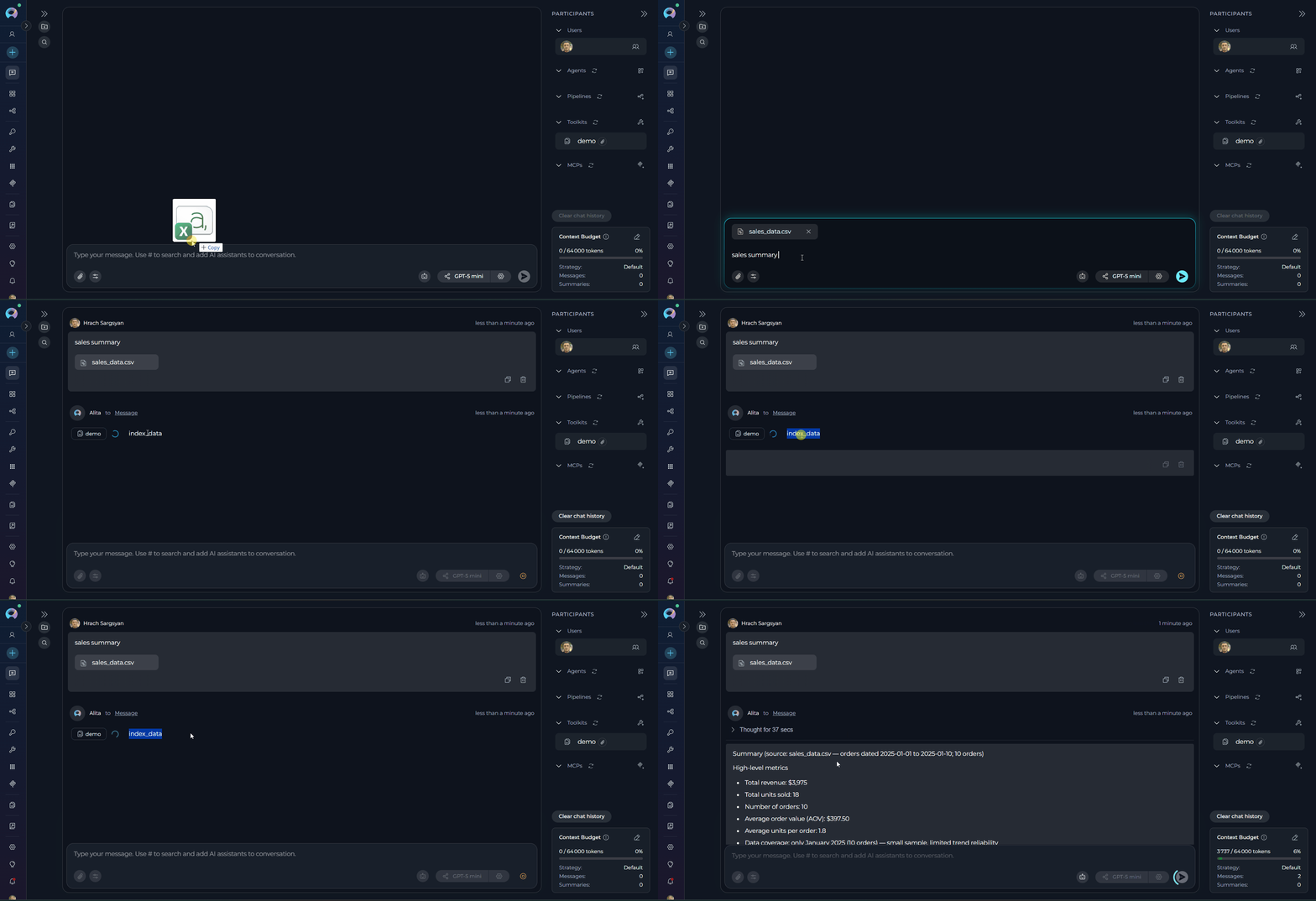
Non-image file attachments follow a different processing workflow than images. While images are analyzed directly by the LLM's vision capabilities, other file types are indexed for semantic search and retrieval.
**Processing Workflow:**
1. **Upload**: File is uploaded to the default `attachments` bucket
2. **Indexing**: File content is automatically extracted and indexed into a vector database
3. **Retrieval**: When you query, relevant content is retrieved through semantic search
When "Also delete from attachment storage" is checked, the file is permanently deleted from storage and cannot be recovered. Use this option carefully.
***
## Working with Non-Image Files
Non-image file attachments follow a different processing workflow than images. While images are analyzed directly by the LLM's vision capabilities, other file types are indexed for semantic search and retrieval.
**Processing Workflow:**
1. **Upload**: File is uploaded to the default `attachments` bucket
2. **Indexing**: File content is automatically extracted and indexed into a vector database
3. **Retrieval**: When you query, relevant content is retrieved through semantic search
 **Key Differences from Images:**
| Feature | Images | Non-Image Files |
| ----------- | ------------------------- | ------------------------- |
| Processing | Sent directly to LLM | Indexed in vector DB |
| Analysis | Real-time vision analysis | Semantic search retrieval |
| Query type | Visual analysis | Content-based search |
| Token usage | Per image | Per retrieved chunk |
Since content is retrieved through semantic search, specific queries that describe the information you're looking for will yield better results than general summarization requests.
**Shared Collection Behavior**
All non-image attachments are indexed into the same storage collection in the default `attachments` bucket.
**Implications:**
* Search results may include content from previously attached files (if using the same toolkit)
* Queries might retrieve information from multiple uploaded files
* Results may include content you didn't intend to search
**Recommendations:**
1. **Be specific in queries** to avoid retrieving irrelevant content from other files
2. **Include context** in queries to help narrow down relevant content
3. **Reference filenames** when querying if you need content from a specific file
**Usage Tips**
Instead of asking "What does the file say?", ask "What are the recommended security practices mentioned in the uploaded security guidelines?"
Reference the file type or subject: "In the uploaded project plan, what are the Q2 milestones?"
Ask for particular information: "Find all mentions of API rate limits in the uploaded documentation"
If you know specific terms appear in your files, include them in queries to improve retrieval accuracy
***
## Supported File Types and Limits
**Image Formats**
Raster images are sent directly to the LLM for visual analysis. Supported formats include:
| Extension | Notes |
| ---------------- | ---------------------------------------- |
| `.jpg` / `.jpeg` | Standard compressed image format |
| `.png` | Lossless compression with transparency |
| `.gif` | First frame only for animated GIFs |
| `.bmp` | Uncompressed raster format |
| `.webp` | Modern compressed format |
| `.tiff` / `.tif` | High-quality raster format |
| `.ico` | Windows icon format |
| `.apng` | Animated PNG format |
| `.avif` | Next-gen compressed format |
| `.svg` | Processed as a document (see note below) |
Raster images are sent directly to the LLM's vision capabilities for analysis. Animated GIFs are processed using only the first frame.
**SVG files** are processed as documents, not as images — they are indexed and retrieved via the document pipeline rather than sent inline to the LLM's vision input. SVG files are also exempt from the per-image 5 MB size limit and do not count toward the image attachment count.
**Documents & Data Files**
Documents and data files are indexed into a vector database for semantic search and retrieval. Supported types include:
| Extension | Category |
| ---------------- | ------------ |
| `.pdf` | Document |
| `.doc` / `.docx` | Document |
| `.ppt` / `.pptx` | Presentation |
| `.xls` / `.xlsx` | Spreadsheet |
| `.txt` | Text |
| `.md` | Text |
| `.csv` | Data |
| `.json` | Data |
| `.yaml` / `.yml` | Data |
| `.xml` | Data |
**Programming & Code Files**
Source code files are indexed and their content is made available for AI analysis. Supported languages include:
| Extension | Language |
| -------------------- | ---------- |
| `.py` | Python |
| `.js` | JavaScript |
| `.ts` | TypeScript |
| `.java` | Java |
| `.cpp` / `.c` / `.h` | C / C++ |
| `.cs` | C# |
| `.go` | Go |
| `.rb` | Ruby |
| `.php` | PHP |
| `.swift` | Swift |
| `.kt` | Kotlin |
| `.rs` | Rust |
| `.html` | HTML |
| `.css` | CSS |
| `.sql` | SQL |
| `.sh` | Shell |
You can attach source code files directly to a conversation. The AI reads and analyzes the full code content — enabling code review, bug detection, refactoring suggestions, explanations, and more — without requiring any copy-paste.
Supported types are configured dynamically per ELITEA deployment — unsupported files are rejected with an error listing allowed extensions. Unlike images, non-image files are indexed into a vector database and retrieved via semantic search rather than sent directly to the LLM.
**File Size and Quantity Limits**
| Limit | Default Value | Notes |
| ------------------------------------- | ------------- | ------------------------------------------------------- |
| Maximum attachments per message | 10 files | Applies to all file types including SVG |
| Maximum total size per message | 150 MB | Combined size of all attachments |
| Maximum individual file size | 150 MB | Applies to any single file |
| Maximum image attachments per message | 10 images | SVG files are exempt and do not count toward this limit |
| Maximum individual image size | 5 MB | SVG files are not subject to this limit |
All limits are configurable per ELITEA deployment — the values above are defaults. Raster images exceeding 5 MB are rejected client-side before sending. SVG files are exempt from the image size limit and the image count limit.
***
## FAQ
All attachments are stored in the default `attachments` bucket. You can view and manage these files from the **Artifacts** menu in the main navigation.
By default, new Artifact buckets have a 30-day retention period. Files older than the retention period are automatically deleted. You can view and modify retention periods from the **Artifacts** page.
Yes. In conversations, all attachments are saved to the default `attachments` bucket. All agents participating in that conversation can access the chat history, including attachments. Which agents can process attachments depends on their individual configuration — only agents with **Allow attachments** enabled can actively use attached files.
No. Deletion is permanent. If you delete a file from the Artifacts bucket or use the "Also delete from attachment storage" option in chat, it cannot be recovered.
The system requires a text prompt to provide context about how the AI should interpret or process the attachment(s). The Send button activates only after you enter text.
Token consumption varies by LLM provider:
* **Claude (Anthropic)**: Fixed number of tokens per image (consult model documentation)
* **GPT (OpenAI)**: Varies based on image size and resolution
Check your LLM provider's documentation for specific token costs.
Duplicate filenames are handled automatically. The system renames the new file by appending a timestamp and file size (e.g., `image_20251106_143022_1.50KB.png`). Both files are preserved in the bucket with distinct names — no error is shown and no data is overwritten.
Yes. Pipelines support the **Allow attachments** toggle in their INTERNAL TOOLS section. When enabled, the toggle adds `attachments` to the pipeline's internal tools and also adds an `input_attachments` state variable to the pipeline YAML. Once enabled, the paperclip icon becomes active when using that pipeline in a conversation.
***
## Troubleshooting
**Error:** Image is rejected when attaching
**Cause:** The image exceeds the 5 MB per-image size limit (SVG files are exempt).
**Solution:**
1. Compress or resize the image below 5 MB
2. For SVG files, the size limit does not apply
3. Re-attach the file
**Symptom:** Clicking `+` shows **Attach Files** with the tooltip *"Attachments aren't available for the selected agent or pipeline."*
**Cause:** The active agent or pipeline does not have **Allow attachments** enabled.
**Solution:**
1. Enable **Allow attachments** on the agent via its **Configuration** tab (see Enabling Attachments above)
2. Verify you have the required permissions to edit the agent configuration
3. Contact a project administrator if permissions are insufficient
**Symptom:** Attached file appears with a different name than the original (e.g., `image_20251106_143022_1.50KB.png`)
**Cause:** A file with the same name was already attached. The system automatically renames duplicates with a timestamp and file size suffix to avoid overwriting existing files.
**Solution:** This is expected behavior. Both files are preserved. Use unique filenames if you need to distinguish uploads easily.
**Symptom:** Thumbnail appears in chat, but file is missing from Artifacts menu
**Possible Causes:**
* File was deleted directly from the Artifacts page
* Retention period expired and file was auto-deleted
**Solution:** Files deleted from Artifacts cannot be recovered. Re-upload if needed.
**Error:** Deletion fails when "Also delete from attachment storage" is checked
**Possible Causes:**
* File was already deleted from the bucket via the Artifacts page
**Solution:**
1. Uncheck "Also delete from attachment storage"
2. Delete from chat only
**Error:** Cannot attach more files to a message
**Cause:** Attempting to attach more than the maximum number of files per message (default: 10)
**Solution:**
1. Remove some attachments to stay within the limit
2. Send multiple messages if needed
3. Combine related content into fewer files when possible
**Error:** Toast warning — `Maximum N image attachments allowed`
**Cause:** The number of non-SVG images attached would exceed the image attachment limit (default: 10). SVG files do not count toward this limit because they are processed as documents.
**Solution:**
1. Remove some image attachments
2. Send images across multiple messages
**Error:** Message fails to send due to total attachment size
**Cause:** Combined size of all attachments exceeds 150 MB
**Solution:**
1. Reduce number of attachments
2. Compress images or files
3. Send multiple messages with fewer attachments each
***
For more information about related features and configurations:
* **[Data Analysis Internal Tool](./data-analysis-internal-tool)** - Analyze CSV and data files with Pandas capabilities
* **[Artifacts Menu](../../menus/artifacts)** - Manage buckets, retention policies, and file storage
* **[Agent Configuration](../../menus/agents)** - Configure agents with attachment support
* **[Chat Functionality](./how-to-use-chat-functionality)** - General chat features and usage
* **[Python Sandbox](./python-sandbox-internal-tool)** - Execute custom Python code with file access
**Key Differences from Images:**
| Feature | Images | Non-Image Files |
| ----------- | ------------------------- | ------------------------- |
| Processing | Sent directly to LLM | Indexed in vector DB |
| Analysis | Real-time vision analysis | Semantic search retrieval |
| Query type | Visual analysis | Content-based search |
| Token usage | Per image | Per retrieved chunk |
Since content is retrieved through semantic search, specific queries that describe the information you're looking for will yield better results than general summarization requests.
**Shared Collection Behavior**
All non-image attachments are indexed into the same storage collection in the default `attachments` bucket.
**Implications:**
* Search results may include content from previously attached files (if using the same toolkit)
* Queries might retrieve information from multiple uploaded files
* Results may include content you didn't intend to search
**Recommendations:**
1. **Be specific in queries** to avoid retrieving irrelevant content from other files
2. **Include context** in queries to help narrow down relevant content
3. **Reference filenames** when querying if you need content from a specific file
**Usage Tips**
Instead of asking "What does the file say?", ask "What are the recommended security practices mentioned in the uploaded security guidelines?"
Reference the file type or subject: "In the uploaded project plan, what are the Q2 milestones?"
Ask for particular information: "Find all mentions of API rate limits in the uploaded documentation"
If you know specific terms appear in your files, include them in queries to improve retrieval accuracy
***
## Supported File Types and Limits
**Image Formats**
Raster images are sent directly to the LLM for visual analysis. Supported formats include:
| Extension | Notes |
| ---------------- | ---------------------------------------- |
| `.jpg` / `.jpeg` | Standard compressed image format |
| `.png` | Lossless compression with transparency |
| `.gif` | First frame only for animated GIFs |
| `.bmp` | Uncompressed raster format |
| `.webp` | Modern compressed format |
| `.tiff` / `.tif` | High-quality raster format |
| `.ico` | Windows icon format |
| `.apng` | Animated PNG format |
| `.avif` | Next-gen compressed format |
| `.svg` | Processed as a document (see note below) |
Raster images are sent directly to the LLM's vision capabilities for analysis. Animated GIFs are processed using only the first frame.
**SVG files** are processed as documents, not as images — they are indexed and retrieved via the document pipeline rather than sent inline to the LLM's vision input. SVG files are also exempt from the per-image 5 MB size limit and do not count toward the image attachment count.
**Documents & Data Files**
Documents and data files are indexed into a vector database for semantic search and retrieval. Supported types include:
| Extension | Category |
| ---------------- | ------------ |
| `.pdf` | Document |
| `.doc` / `.docx` | Document |
| `.ppt` / `.pptx` | Presentation |
| `.xls` / `.xlsx` | Spreadsheet |
| `.txt` | Text |
| `.md` | Text |
| `.csv` | Data |
| `.json` | Data |
| `.yaml` / `.yml` | Data |
| `.xml` | Data |
**Programming & Code Files**
Source code files are indexed and their content is made available for AI analysis. Supported languages include:
| Extension | Language |
| -------------------- | ---------- |
| `.py` | Python |
| `.js` | JavaScript |
| `.ts` | TypeScript |
| `.java` | Java |
| `.cpp` / `.c` / `.h` | C / C++ |
| `.cs` | C# |
| `.go` | Go |
| `.rb` | Ruby |
| `.php` | PHP |
| `.swift` | Swift |
| `.kt` | Kotlin |
| `.rs` | Rust |
| `.html` | HTML |
| `.css` | CSS |
| `.sql` | SQL |
| `.sh` | Shell |
You can attach source code files directly to a conversation. The AI reads and analyzes the full code content — enabling code review, bug detection, refactoring suggestions, explanations, and more — without requiring any copy-paste.
Supported types are configured dynamically per ELITEA deployment — unsupported files are rejected with an error listing allowed extensions. Unlike images, non-image files are indexed into a vector database and retrieved via semantic search rather than sent directly to the LLM.
**File Size and Quantity Limits**
| Limit | Default Value | Notes |
| ------------------------------------- | ------------- | ------------------------------------------------------- |
| Maximum attachments per message | 10 files | Applies to all file types including SVG |
| Maximum total size per message | 150 MB | Combined size of all attachments |
| Maximum individual file size | 150 MB | Applies to any single file |
| Maximum image attachments per message | 10 images | SVG files are exempt and do not count toward this limit |
| Maximum individual image size | 5 MB | SVG files are not subject to this limit |
All limits are configurable per ELITEA deployment — the values above are defaults. Raster images exceeding 5 MB are rejected client-side before sending. SVG files are exempt from the image size limit and the image count limit.
***
## FAQ
All attachments are stored in the default `attachments` bucket. You can view and manage these files from the **Artifacts** menu in the main navigation.
By default, new Artifact buckets have a 30-day retention period. Files older than the retention period are automatically deleted. You can view and modify retention periods from the **Artifacts** page.
Yes. In conversations, all attachments are saved to the default `attachments` bucket. All agents participating in that conversation can access the chat history, including attachments. Which agents can process attachments depends on their individual configuration — only agents with **Allow attachments** enabled can actively use attached files.
No. Deletion is permanent. If you delete a file from the Artifacts bucket or use the "Also delete from attachment storage" option in chat, it cannot be recovered.
The system requires a text prompt to provide context about how the AI should interpret or process the attachment(s). The Send button activates only after you enter text.
Token consumption varies by LLM provider:
* **Claude (Anthropic)**: Fixed number of tokens per image (consult model documentation)
* **GPT (OpenAI)**: Varies based on image size and resolution
Check your LLM provider's documentation for specific token costs.
Duplicate filenames are handled automatically. The system renames the new file by appending a timestamp and file size (e.g., `image_20251106_143022_1.50KB.png`). Both files are preserved in the bucket with distinct names — no error is shown and no data is overwritten.
Yes. Pipelines support the **Allow attachments** toggle in their INTERNAL TOOLS section. When enabled, the toggle adds `attachments` to the pipeline's internal tools and also adds an `input_attachments` state variable to the pipeline YAML. Once enabled, the paperclip icon becomes active when using that pipeline in a conversation.
***
## Troubleshooting
**Error:** Image is rejected when attaching
**Cause:** The image exceeds the 5 MB per-image size limit (SVG files are exempt).
**Solution:**
1. Compress or resize the image below 5 MB
2. For SVG files, the size limit does not apply
3. Re-attach the file
**Symptom:** Clicking `+` shows **Attach Files** with the tooltip *"Attachments aren't available for the selected agent or pipeline."*
**Cause:** The active agent or pipeline does not have **Allow attachments** enabled.
**Solution:**
1. Enable **Allow attachments** on the agent via its **Configuration** tab (see Enabling Attachments above)
2. Verify you have the required permissions to edit the agent configuration
3. Contact a project administrator if permissions are insufficient
**Symptom:** Attached file appears with a different name than the original (e.g., `image_20251106_143022_1.50KB.png`)
**Cause:** A file with the same name was already attached. The system automatically renames duplicates with a timestamp and file size suffix to avoid overwriting existing files.
**Solution:** This is expected behavior. Both files are preserved. Use unique filenames if you need to distinguish uploads easily.
**Symptom:** Thumbnail appears in chat, but file is missing from Artifacts menu
**Possible Causes:**
* File was deleted directly from the Artifacts page
* Retention period expired and file was auto-deleted
**Solution:** Files deleted from Artifacts cannot be recovered. Re-upload if needed.
**Error:** Deletion fails when "Also delete from attachment storage" is checked
**Possible Causes:**
* File was already deleted from the bucket via the Artifacts page
**Solution:**
1. Uncheck "Also delete from attachment storage"
2. Delete from chat only
**Error:** Cannot attach more files to a message
**Cause:** Attempting to attach more than the maximum number of files per message (default: 10)
**Solution:**
1. Remove some attachments to stay within the limit
2. Send multiple messages if needed
3. Combine related content into fewer files when possible
**Error:** Toast warning — `Maximum N image attachments allowed`
**Cause:** The number of non-SVG images attached would exceed the image attachment limit (default: 10). SVG files do not count toward this limit because they are processed as documents.
**Solution:**
1. Remove some image attachments
2. Send images across multiple messages
**Error:** Message fails to send due to total attachment size
**Cause:** Combined size of all attachments exceeds 150 MB
**Solution:**
1. Reduce number of attachments
2. Compress images or files
3. Send multiple messages with fewer attachments each
***
For more information about related features and configurations:
* **[Data Analysis Internal Tool](./data-analysis-internal-tool)** - Analyze CSV and data files with Pandas capabilities
* **[Artifacts Menu](../../menus/artifacts)** - Manage buckets, retention policies, and file storage
* **[Agent Configuration](../../menus/agents)** - Configure agents with attachment support
* **[Chat Functionality](./how-to-use-chat-functionality)** - General chat features and usage
* **[Python Sandbox](./python-sandbox-internal-tool)** - Execute custom Python code with file access