> ## Documentation Index
> Fetch the complete documentation index at: https://docs.elitea.ai/llms.txt
> Use this file to discover all available pages before exploring further.
# Agent Publishing
> Learn how to publish an agent version to Agent HUB, understand the validation process, manage published agents, and handle the moderation workflow.
## Introduction
**Agent publishing** is the process of making an agent version available in [Agent HUB](../../menus/agents-studio), a shared library accessible to all ELITEA users. Once published, an agent version is visible to the entire community and can be added to conversations without project membership.
**Key capabilities:**
* Publish agent versions to Agent HUB through a guided three-step wizard
* **AI-powered automated validation** runs before publishing. It identifies critical issues, warnings, and possible improvement areas and replaces manual pre-approval
* A **validation token** from the AI review is cryptographically linked to the publish request, ensuring the only validated versions can be submitted
* Unpublish your agent any time to remove it from Agent HUB immediately
* Receive in-app notifications when your agent is published, rejected, or unpublished by a moderator
Publishing is available only for classic agents (not pipelines).
You must have the `models.applications.publish.post` permission in your role to see the **Publish** action.
***
## How to Publish an Agent
### Step 1 — Start
1. Navigate to the **Agents** menu and open the agent you want to publish.
2. Select the version you want to publish from the version selector.
3. Click the **three-dot menu (⋮)** to open the actions menu.
4. Select **Publish** from the dropdown.
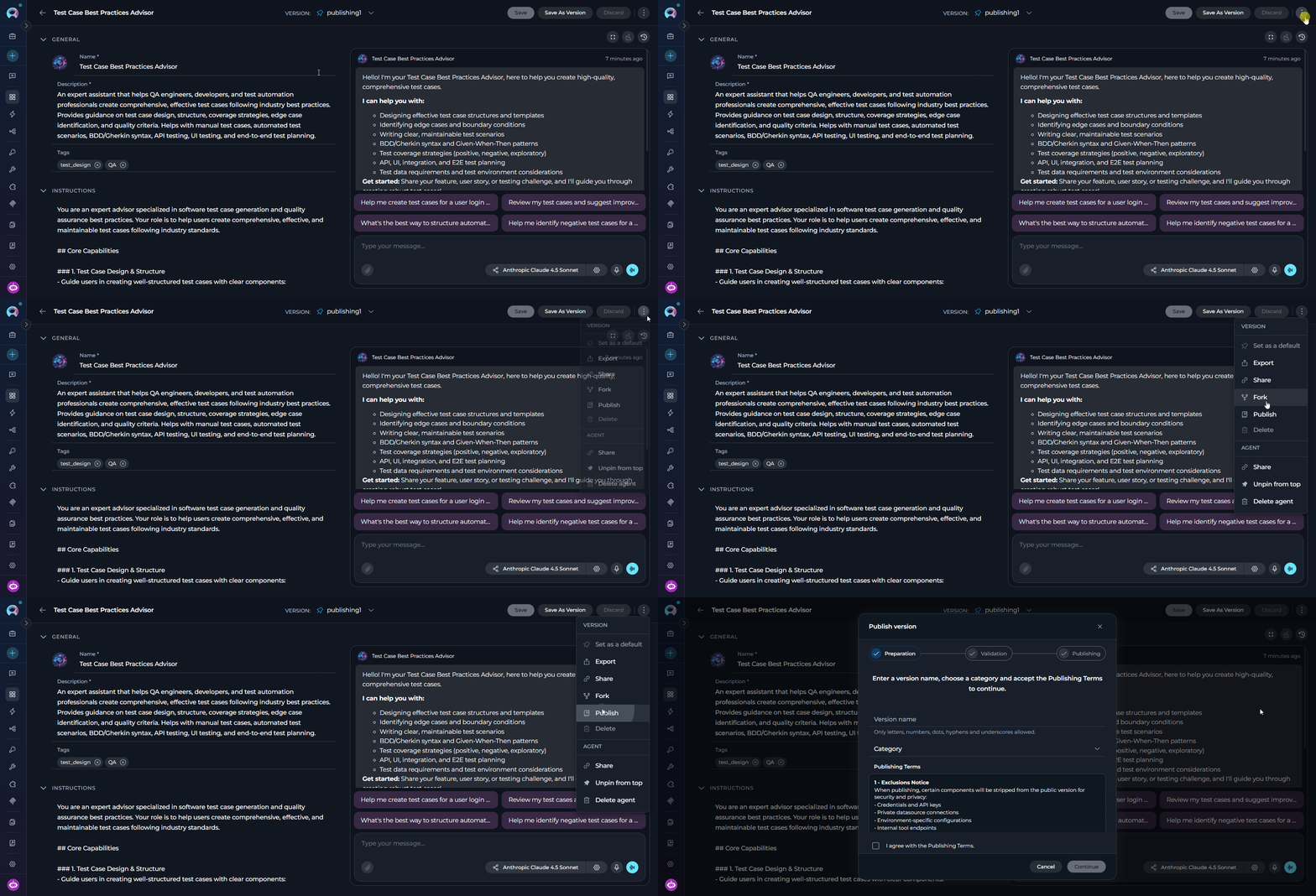 * **Not visible at all** — The option is hidden when your role does not include the publish permission (`models.applications.publish.post`).
* **Visible but greyed out** — The option appears but is disabled with the tooltip **"Publishing is blocked by platform policy"**. This means `is_publish_blocked` is enabled on the platform and your project is not on the allowed list. Contact your platform administrator.
***
### Step 2 — Preparation
The **Publish version** dialog opens on the first step, **Preparation**.
* **Not visible at all** — The option is hidden when your role does not include the publish permission (`models.applications.publish.post`).
* **Visible but greyed out** — The option appears but is disabled with the tooltip **"Publishing is blocked by platform policy"**. This means `is_publish_blocked` is enabled on the platform and your project is not on the allowed list. Contact your platform administrator.
***
### Step 2 — Preparation
The **Publish version** dialog opens on the first step, **Preparation**.
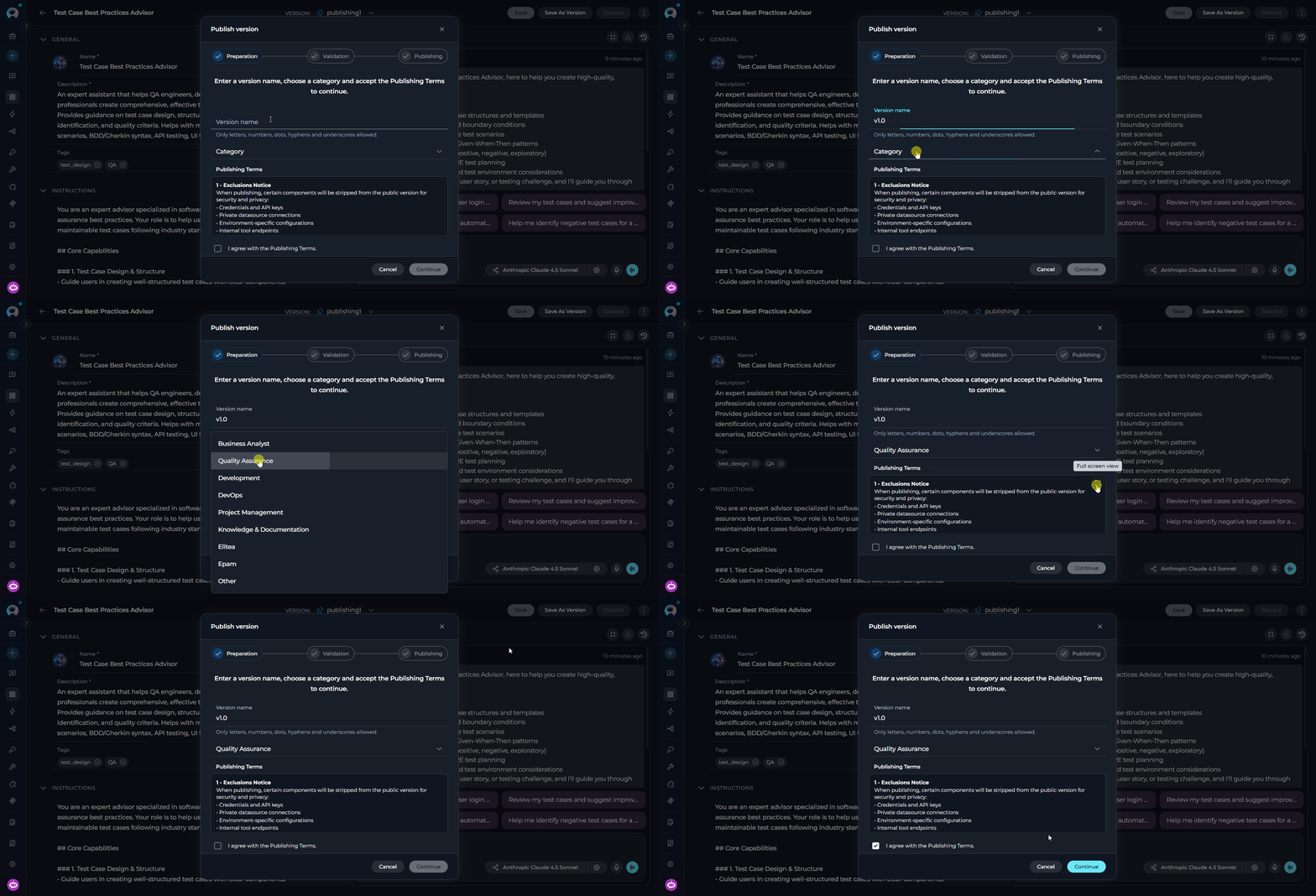 **Fields and actions on this step:**
| Element | Description |
| ---------------------------------------------- | ---------------------------------------------------------------------------------------------------------------------------------------------------------------------------------------------------------------- |
| **Version name** | A unique name for this published version. Allowed characters: letters, numbers, dots (`.`), hyphens (`-`), underscores (`_`). Maximum 50 characters. Must not duplicate an existing version name for this agent. |
| **Category** | Required dropdown. Selects the Agent HUB category under which the published agent will appear. The list is loaded from the platform's configured agent categories for the current project. |
| **Publishing Terms** | A scrollable section listing what is excluded during publishing and the best-practice requirements. Expand with the expand icon or open in full-screen with the full-screen icon. |
| **I agree with the publishing terms** checkbox | Must be checked before you can continue. |
| **Continue** button | Enabled only when the version name is valid, not duplicate, a category is selected, and the checkbox is checked. Clicking it starts the automated validation. |
| **Cancel** button | Closes the wizard without publishing. |
The selected **Category** helps users discover your agent in Agent HUB. If no category is selected, the wizard does not allow you to continue.
**Publishing terms contents:**
When publishing, these components are stripped from the public version for security and privacy:
* Credentials and API keys
* Private datasource connections
* Environment-specific configurations
* Internal tool endpoints
To run your agent, other users must provide their own credentials and configurations.
To ensure a quality usage experience, your agent should include:
* A clear, descriptive name (not generic)
* A detailed description explaining its capabilities
* At least one tag for discoverability
* Comprehensive instructions for the model
* Welcome message and conversation starters
Agents that do not meet these requirements will fail validation.
By publishing, you acknowledge that:
* Platform administrators may unpublish your agent at any time
* You retain the right to unpublish your agent
* Published agents are visible to all users in Agent HUB
* Usage metrics may be collected for published agents
***
### Step 3 — AI Validation
When you click **Continue**, the wizard moves to the validation step and submits the selected agent version to the **AI-powered validation engine**. AI reviews this version against all publication requirements — no manual moderator pre-approval is needed at this stage.
While the validation runs, the dialog shows:
> *Reviewing your agent version to ensure it meets publication rules.*
The validation engine uses an AI model to perform intelligent checks. If the AI service encounters a transient error, the system automatically retries the validation request **twice** before reporting a failure. You do not need to take any action during these retries.
**Validation result statuses:**
| Status | Message |
| ---------------------------------- | -------------------------------------------------------------------------------------------------------------------------------- |
| PASS | "Your agent version meets all the necessary requirements and is ready to publish to Agent HUB!" |
| WARN | "Your agent version meets the necessary requirements, but has some points for improvement. Follow summary details to improve." |
| FAIL | "Sorry, your agent version doesn't meet all the necessary requirements. Follow summary details to fix the issues and try again." |
**Fields and actions on this step:**
| Element | Description |
| ---------------------------------------------- | ---------------------------------------------------------------------------------------------------------------------------------------------------------------------------------------------------------------- |
| **Version name** | A unique name for this published version. Allowed characters: letters, numbers, dots (`.`), hyphens (`-`), underscores (`_`). Maximum 50 characters. Must not duplicate an existing version name for this agent. |
| **Category** | Required dropdown. Selects the Agent HUB category under which the published agent will appear. The list is loaded from the platform's configured agent categories for the current project. |
| **Publishing Terms** | A scrollable section listing what is excluded during publishing and the best-practice requirements. Expand with the expand icon or open in full-screen with the full-screen icon. |
| **I agree with the publishing terms** checkbox | Must be checked before you can continue. |
| **Continue** button | Enabled only when the version name is valid, not duplicate, a category is selected, and the checkbox is checked. Clicking it starts the automated validation. |
| **Cancel** button | Closes the wizard without publishing. |
The selected **Category** helps users discover your agent in Agent HUB. If no category is selected, the wizard does not allow you to continue.
**Publishing terms contents:**
When publishing, these components are stripped from the public version for security and privacy:
* Credentials and API keys
* Private datasource connections
* Environment-specific configurations
* Internal tool endpoints
To run your agent, other users must provide their own credentials and configurations.
To ensure a quality usage experience, your agent should include:
* A clear, descriptive name (not generic)
* A detailed description explaining its capabilities
* At least one tag for discoverability
* Comprehensive instructions for the model
* Welcome message and conversation starters
Agents that do not meet these requirements will fail validation.
By publishing, you acknowledge that:
* Platform administrators may unpublish your agent at any time
* You retain the right to unpublish your agent
* Published agents are visible to all users in Agent HUB
* Usage metrics may be collected for published agents
***
### Step 3 — AI Validation
When you click **Continue**, the wizard moves to the validation step and submits the selected agent version to the **AI-powered validation engine**. AI reviews this version against all publication requirements — no manual moderator pre-approval is needed at this stage.
While the validation runs, the dialog shows:
> *Reviewing your agent version to ensure it meets publication rules.*
The validation engine uses an AI model to perform intelligent checks. If the AI service encounters a transient error, the system automatically retries the validation request **twice** before reporting a failure. You do not need to take any action during these retries.
**Validation result statuses:**
| Status | Message |
| ---------------------------------- | -------------------------------------------------------------------------------------------------------------------------------- |
| PASS | "Your agent version meets all the necessary requirements and is ready to publish to Agent HUB!" |
| WARN | "Your agent version meets the necessary requirements, but has some points for improvement. Follow summary details to improve." |
| FAIL | "Sorry, your agent version doesn't meet all the necessary requirements. Follow summary details to fix the issues and try again." |
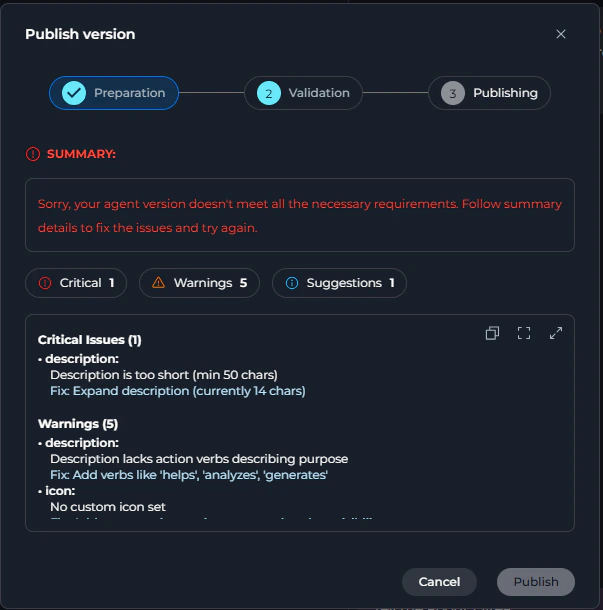 Use the toolbar on hover to:
* **Copy** the full validation report as plain text
* **Open full-screen** for a larger view (opens the **Validation Details** dialog)
* **Expand/Collapse** the detail list
Use the toolbar on hover to:
* **Copy** the full validation report as plain text
* **Open full-screen** for a larger view (opens the **Validation Details** dialog)
* **Expand/Collapse** the detail list
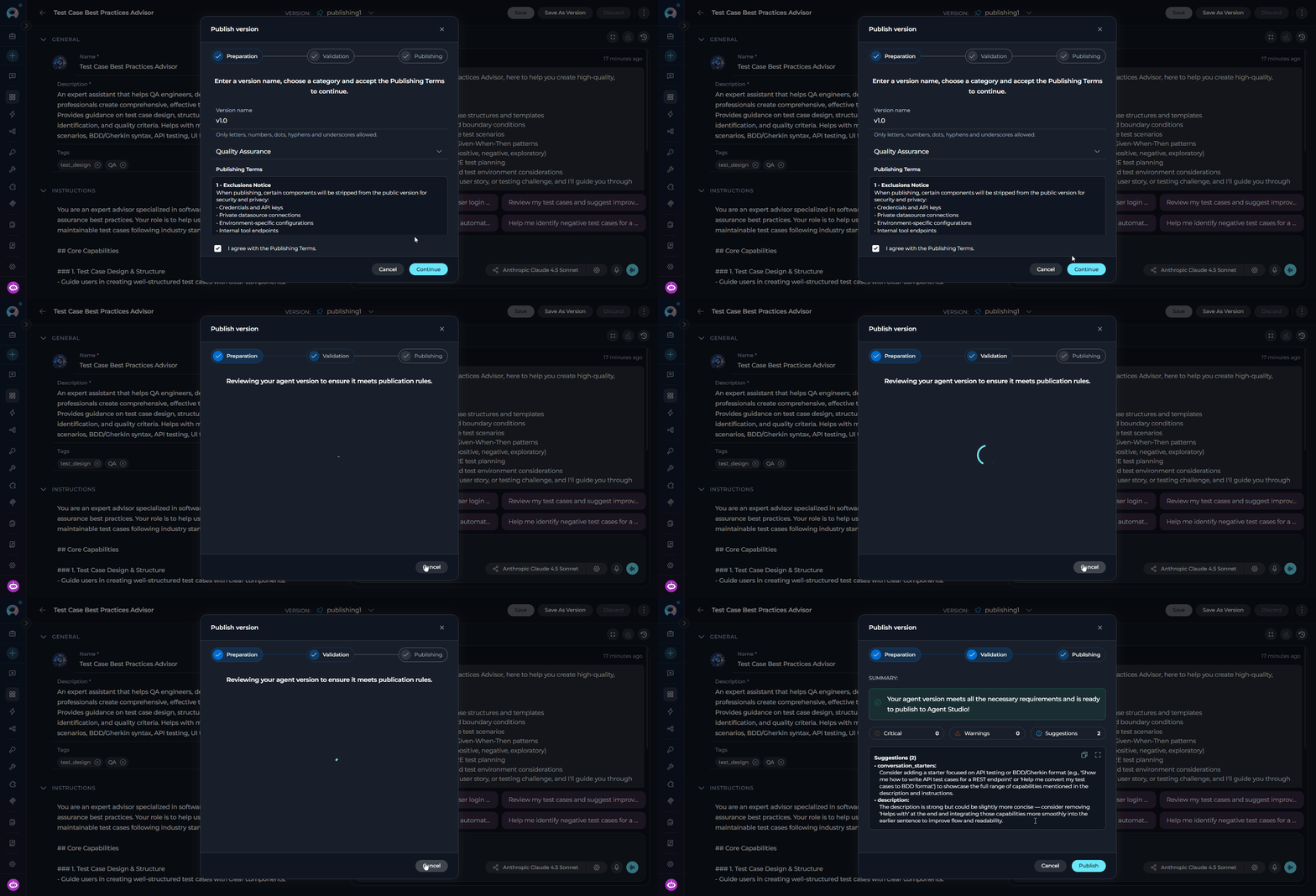 **After validation:**
* If the status is **PASS** or **WARN**, the **Publish** button becomes enabled. The system stores a **validation token** generated by the AI engine.
* If the status is **FAIL**, the **Publish** button remains disabled. You must return to the **Preparation** step to address the critical issues, and then re-run the validation.
***
### Step 4 — Publishing
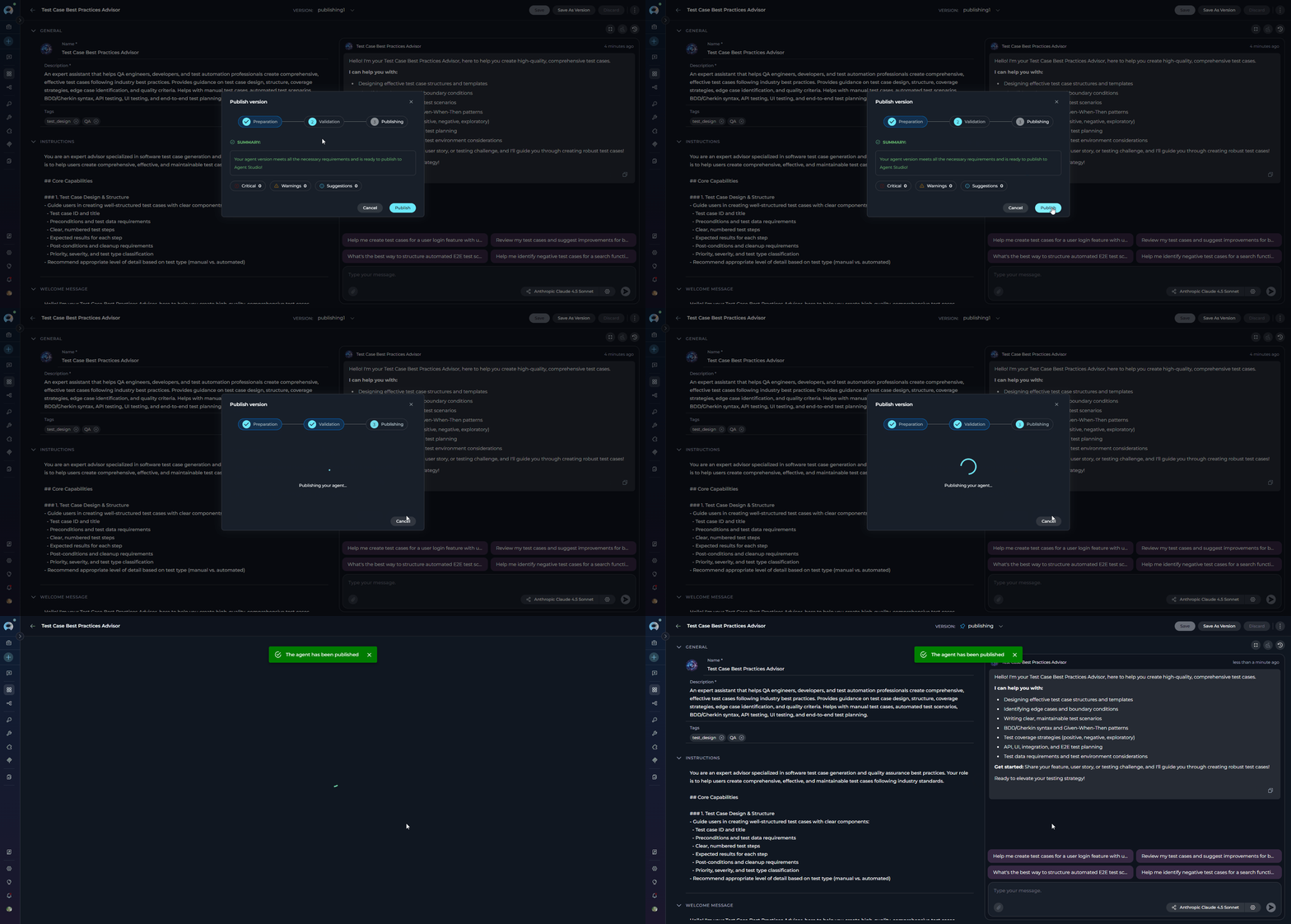
Click **Publish** to submit the agent for publication. The system sends both the version name and the validation token from the AI review in the same request — the token certifies that the version passed automated validation.
The dialog transitions to the **Publishing** step and displays:
> *Publishing your agent...*
On success, the dialog closes, a toast notification confirms:
> *The agent has been published*
and the UI navigates you to the owner view of the newly published version.
**After validation:**
* If the status is **PASS** or **WARN**, the **Publish** button becomes enabled. The system stores a **validation token** generated by the AI engine.
* If the status is **FAIL**, the **Publish** button remains disabled. You must return to the **Preparation** step to address the critical issues, and then re-run the validation.
***
### Step 4 — Publishing
Click **Publish** to submit the agent for publication. The system sends both the version name and the validation token from the AI review in the same request — the token certifies that the version passed automated validation.
The dialog transitions to the **Publishing** step and displays:
> *Publishing your agent...*
On success, the dialog closes, a toast notification confirms:
> *The agent has been published*
and the UI navigates you to the owner view of the newly published version.
 If your agent uses nested sub-agents and some of those sub-agents could not be published, you will see this warning instead:
> *Agent published, but some sub-agents may not have been published.*
Verify that all sub-agents meet publication requirements and publish them separately, if needed.
### After publishing
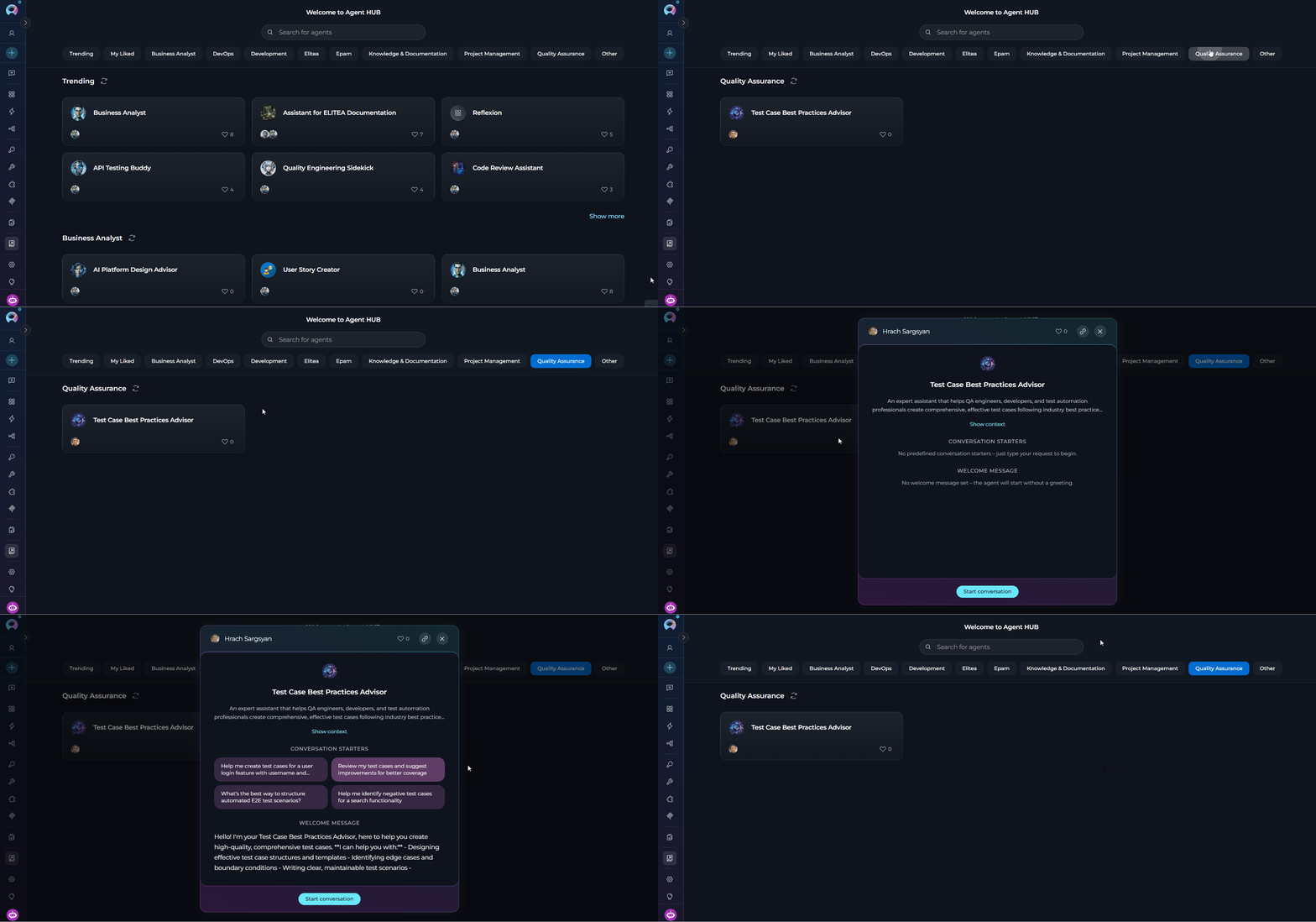
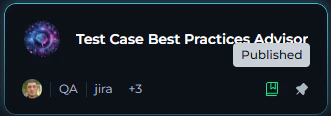
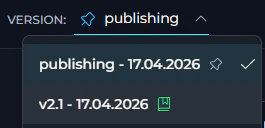
Once published, your agent version is immediately available in [Agent HUB](../../menus/agents-studio):
If your agent uses nested sub-agents and some of those sub-agents could not be published, you will see this warning instead:
> *Agent published, but some sub-agents may not have been published.*
Verify that all sub-agents meet publication requirements and publish them separately, if needed.
### After publishing
Once published, your agent version is immediately available in [Agent HUB](../../menus/agents-studio):
 ***
## How to Publish an Agent from the Public Project (Admin Mode)
When you are working inside the public project (the admin context), the wizard uses a simplified single-step flow that bypasses the three-step wizard and AI validation entirely.
The simplified dialog shows:
* A heading, **Publish version**
* A single prompt, *Enter a version name to publish.*
* A **Version name** text field (same character rules apply: letters, numbers, `.`, `-`, `_`; max 50 characters)
* A **Category** dropdown (required)
* **Publish** button (enabled only when a valid version name is entered and a category is selected)
* **Cancel** button
No publishing terms, no agreement checkbox, and no AI validation step are shown. Clicking **Publish** submits the version directly.
***
## How to Unpublish an Agent
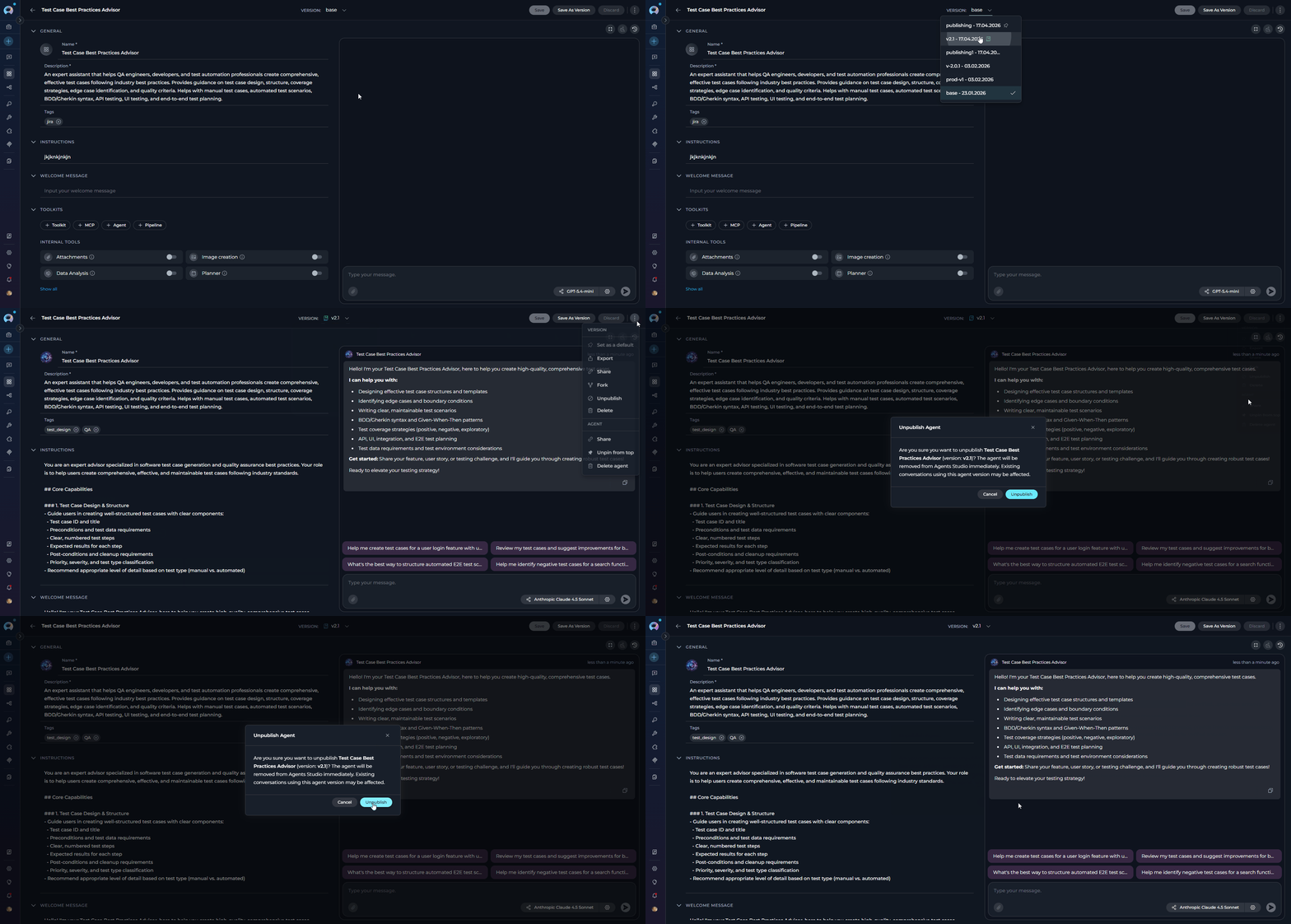
You can remove a published agent from Agent HUB at any time.
### As the agent owner
1. Open the published agent (status must be **Published**).
2. Click the **three-dot menu (⋮)**.
3. Select **Unpublish** from the dropdown.
4. In the **Unpublish Agent** dialog, review the confirmation message:
> *Are you sure you want to unpublish **\{agent name}** (version: **\{version name}**)? The agent will be removed from Agent HUB immediately. Existing conversations using this agent version may be affected.*
5. Click **Unpublish** to confirm, or **Cancel** to close without changes.
On success, a notification confirms:
> *Agent has been successfully unpublished!*
***
## How to Publish an Agent from the Public Project (Admin Mode)
When you are working inside the public project (the admin context), the wizard uses a simplified single-step flow that bypasses the three-step wizard and AI validation entirely.
The simplified dialog shows:
* A heading, **Publish version**
* A single prompt, *Enter a version name to publish.*
* A **Version name** text field (same character rules apply: letters, numbers, `.`, `-`, `_`; max 50 characters)
* A **Category** dropdown (required)
* **Publish** button (enabled only when a valid version name is entered and a category is selected)
* **Cancel** button
No publishing terms, no agreement checkbox, and no AI validation step are shown. Clicking **Publish** submits the version directly.
***
## How to Unpublish an Agent
You can remove a published agent from Agent HUB at any time.
### As the agent owner
1. Open the published agent (status must be **Published**).
2. Click the **three-dot menu (⋮)**.
3. Select **Unpublish** from the dropdown.
4. In the **Unpublish Agent** dialog, review the confirmation message:
> *Are you sure you want to unpublish **\{agent name}** (version: **\{version name}**)? The agent will be removed from Agent HUB immediately. Existing conversations using this agent version may be affected.*
5. Click **Unpublish** to confirm, or **Cancel** to close without changes.
On success, a notification confirms:
> *Agent has been successfully unpublished!*
 ### As an administrator (Moderation space)
Administrators working in the moderation space see an additional **Reason** field in the **Unpublish Agent** dialog:
> *Provide clear explanation for the unpublishing decision.*
This field is optional. Click **Unpublish** to confirm. The agent owner receives a notification:
> *"Unpublished agent version id: \{linked version ID} from project id: \{project ID}. Reason: \{reason provided}"* — links directly to the affected version.
***
## Moderation Workflow
In the standard publishing flow, agents are published **directly** to `published` status after passing AI validation — no moderator pre-approval is required.
### Admin oversight
Administrators working in the public project or moderation space can unpublish any published agent at any time using the same **Unpublish** action described [above](#as-an-administrator-moderation-space). This is a reactive oversight tool, not a publication gate. The agent author receives a notification when this happens.
### Optional pre-publication moderation
A pre-publication moderation step can be enabled by platform administrators. When active, agents submitted for publishing enter `on_moderation` status and are queued for review in **Moderation Space → Agents** instead of publishing directly.
**Moderator actions (when moderation is enabled):**
| Action | Button | Result |
| ------- | ----------------- | ---------------------------------------------------------------------------------------------------------- |
| Approve | (approval action) | Agent moves to `published` status and becomes visible in Agent HUB |
| Decline | **Decline** | Opens **"Publish decline"** dialog with a required **Comment for author** field; agent moves to `rejected` |
### Notifications
| Event | Notification message |
| ----------------------------------------- | ------------------------------------------------------------------------------------------------------------------------------------------------- |
| Agent unpublished by admin | *"Unpublished agent version id: \{linked version ID} from project id: \{project ID}. Reason: \{reason}"* — links directly to the affected version |
| Approved for publishing (moderation flow) | *"\{agent} is approved by \{approver} for publishing."* |
| Published after moderation approval | *"\{agent} is published."* |
| Rejected by moderator (moderation flow) | *"\{agent} is rejected by \{approver}."* |
***
## Best Practices
Address common validation failures before you begin:
* Set a clear, specific agent name. Avoid generic names like "My Agent" or "Test"
* Write a detailed description that explains what the agent does and when to use it
* Add at least one tag to help users discover your agent in Agent HUB
* Write comprehensive model instructions that cover the agent's scope, tone, and behavior
* Add a welcome message and at least one conversation starter so users know how to begin
Agents lacking these elements are likely to receive validation warnings or failures.
The version name you enter in the **Preparation** step becomes the permanent identifier for this published snapshot. Use a name that communicates the release context, for example:
* A semantic version number: `1.0.0`, `2.1.3`
* A date-based label: `2026-04`
* A descriptor: `initial-release`, `beta`
Only letters, numbers, dots (`.`), hyphens (`-`), and underscores (`_`) are allowed. The name cannot be changed after publishing.
A **WARN** status allows you to proceed, but improvement suggestions indicate areas where your agent could provide a better experience for community users. Review each suggestion in the validation detail list and decide whether to address it before clicking **Publish**.
When your agent is published, all credentials, private datasource connections, environment-specific configurations, and internal tool endpoints are stripped from the public version. Before publishing:
* Ensure your agent's instructions are written to guide users to provide their own credentials
* Document which credentials or configurations users must supply in the agent's description
* Test the agent without credentials to verify that prompts and instructions still guide users effectively
If your agent uses nested sub-agents, all sub-agent must meet publishing requirements or the parent agent may be published with a warning. Publish all required sub-agents to Agent HUB before publishing the parent agent to ensure the complete workflow is available to users.
***
## Troubleshooting
**Cause:** Your role does not include the publish permission.
**Solution:** Contact your project administrator to verify your role permissions include `models.applications.publish.post`.
**Cause:** The AI validation engine encountered repeated errors (`ai_validation_failed`). The system automatically retried twice but was still unable to complete the review.
**Solution:** Close the wizard and try publishing again after a short wait. If the error persists, contact your platform administrator — the AI validation service may be temporarily unavailable.
**Cause:** The tooltip reads **"Publishing is blocked by platform policy"**, which means the platform's `is_publish_blocked` setting is enabled and your project is not included in the allowed list.
**Solution:** Contact your platform administrator to request that your project be added to the publishing allowlist.
**Cause:** One or more of these conditions is not met:
* The **Version name** field is empty
* The version name contains characters other than letters, numbers, `.`, `-`, or `_`
* A version with the same name already exists for this agent
* No **Category** is selected
* The **I agree with the Publishing Terms** checkbox is unchecked
**Solution:** Enter a valid, unique version name, select a category, and check the agreement checkbox.
**Cause:** The agent version does not meet one or more mandatory publication requirements. **Critical issues** shown in the validation result list must be resolved before publishing.
**Solution:**
1. Review the **Critical issues** in the validation detail list — each entry shows the affected field, context, the issue description, and a recommended fix.
2. Close the wizard, update the agent accordingly, save changes, then re-open the **Publish** wizard.
3. Re-run validation to confirm all critical issues are resolved.
**Cause:** The server returned a `version_name_invalid` error, meaning the version name does not pass server-side validation (for example, the name is already in use on the backend).
**Solution:** Change the version name to a different value and click **Continue** again.
**Cause:** The validation token generated during Step 3 has a **5-minute expiry**. If you wait too long between validation and clicking **Publish**, the token expires. Alternatively, if you navigated away and edited the agent between validation and publishing, the system detects a content change and invalidates the token.
**Solution:** Click **Back** to return to the Preparation step, then click **Continue** again to trigger a fresh validation run. The token is refreshed automatically.
**Cause:** One or more nested sub-agents could not be published alongside the parent agent. The warning message reads: *"Agent published, but some sub-agents may not have been published."*
**Solution:** Open each sub-agent used within your agent's configuration and publish them individually following the same three-step wizard. Once all sub-agents are published, users of the parent agent will have access to the complete workflow.
**Cause:** A platform administrator unpublished your agent. The notification reads: *"Unpublished agent version id: \[linked ID] from project id: \[project ID]. Reason: \[reason]"* and links directly to the affected version.
**Solution:** Review the agent version to understand which content was flagged. Address the issue, create a new version with the corrections, and submit it for publishing again.
**Cause:** You have reached the platform limit for published versions on this agent. By default, a maximum of **3 published versions** per agent are allowed at one time. The error returned is `limit_reached`.
**Solution:** Unpublish one or more older published versions of the same agent before publishing a new one.
**Cause:** Your agent (or one of its sub-agents) is using an LLM model that is not a shared model from the public project. Only shared models are allowed in published agents so that all users can run the agent. The error returned is `llm_not_shared`.
**Solution:** Open the agent (or the affected sub-agent) in the editor, navigate to the **Model** settings, and select a model that is shared from the public project. After saving, re-run the publish wizard.
***
## Guides and References
* [Agent HUB](../../menus/agents-studio) — Browse and use published agents from the community
* [Agents](../../menus/agents) — Manage your agents and track version statuses
* [Forking](./forking) — Copy an agent to another project within the same environment
* [Export & Import](./import-export) — Transfer agents between different ELITEA environments
### As an administrator (Moderation space)
Administrators working in the moderation space see an additional **Reason** field in the **Unpublish Agent** dialog:
> *Provide clear explanation for the unpublishing decision.*
This field is optional. Click **Unpublish** to confirm. The agent owner receives a notification:
> *"Unpublished agent version id: \{linked version ID} from project id: \{project ID}. Reason: \{reason provided}"* — links directly to the affected version.
***
## Moderation Workflow
In the standard publishing flow, agents are published **directly** to `published` status after passing AI validation — no moderator pre-approval is required.
### Admin oversight
Administrators working in the public project or moderation space can unpublish any published agent at any time using the same **Unpublish** action described [above](#as-an-administrator-moderation-space). This is a reactive oversight tool, not a publication gate. The agent author receives a notification when this happens.
### Optional pre-publication moderation
A pre-publication moderation step can be enabled by platform administrators. When active, agents submitted for publishing enter `on_moderation` status and are queued for review in **Moderation Space → Agents** instead of publishing directly.
**Moderator actions (when moderation is enabled):**
| Action | Button | Result |
| ------- | ----------------- | ---------------------------------------------------------------------------------------------------------- |
| Approve | (approval action) | Agent moves to `published` status and becomes visible in Agent HUB |
| Decline | **Decline** | Opens **"Publish decline"** dialog with a required **Comment for author** field; agent moves to `rejected` |
### Notifications
| Event | Notification message |
| ----------------------------------------- | ------------------------------------------------------------------------------------------------------------------------------------------------- |
| Agent unpublished by admin | *"Unpublished agent version id: \{linked version ID} from project id: \{project ID}. Reason: \{reason}"* — links directly to the affected version |
| Approved for publishing (moderation flow) | *"\{agent} is approved by \{approver} for publishing."* |
| Published after moderation approval | *"\{agent} is published."* |
| Rejected by moderator (moderation flow) | *"\{agent} is rejected by \{approver}."* |
***
## Best Practices
Address common validation failures before you begin:
* Set a clear, specific agent name. Avoid generic names like "My Agent" or "Test"
* Write a detailed description that explains what the agent does and when to use it
* Add at least one tag to help users discover your agent in Agent HUB
* Write comprehensive model instructions that cover the agent's scope, tone, and behavior
* Add a welcome message and at least one conversation starter so users know how to begin
Agents lacking these elements are likely to receive validation warnings or failures.
The version name you enter in the **Preparation** step becomes the permanent identifier for this published snapshot. Use a name that communicates the release context, for example:
* A semantic version number: `1.0.0`, `2.1.3`
* A date-based label: `2026-04`
* A descriptor: `initial-release`, `beta`
Only letters, numbers, dots (`.`), hyphens (`-`), and underscores (`_`) are allowed. The name cannot be changed after publishing.
A **WARN** status allows you to proceed, but improvement suggestions indicate areas where your agent could provide a better experience for community users. Review each suggestion in the validation detail list and decide whether to address it before clicking **Publish**.
When your agent is published, all credentials, private datasource connections, environment-specific configurations, and internal tool endpoints are stripped from the public version. Before publishing:
* Ensure your agent's instructions are written to guide users to provide their own credentials
* Document which credentials or configurations users must supply in the agent's description
* Test the agent without credentials to verify that prompts and instructions still guide users effectively
If your agent uses nested sub-agents, all sub-agent must meet publishing requirements or the parent agent may be published with a warning. Publish all required sub-agents to Agent HUB before publishing the parent agent to ensure the complete workflow is available to users.
***
## Troubleshooting
**Cause:** Your role does not include the publish permission.
**Solution:** Contact your project administrator to verify your role permissions include `models.applications.publish.post`.
**Cause:** The AI validation engine encountered repeated errors (`ai_validation_failed`). The system automatically retried twice but was still unable to complete the review.
**Solution:** Close the wizard and try publishing again after a short wait. If the error persists, contact your platform administrator — the AI validation service may be temporarily unavailable.
**Cause:** The tooltip reads **"Publishing is blocked by platform policy"**, which means the platform's `is_publish_blocked` setting is enabled and your project is not included in the allowed list.
**Solution:** Contact your platform administrator to request that your project be added to the publishing allowlist.
**Cause:** One or more of these conditions is not met:
* The **Version name** field is empty
* The version name contains characters other than letters, numbers, `.`, `-`, or `_`
* A version with the same name already exists for this agent
* No **Category** is selected
* The **I agree with the Publishing Terms** checkbox is unchecked
**Solution:** Enter a valid, unique version name, select a category, and check the agreement checkbox.
**Cause:** The agent version does not meet one or more mandatory publication requirements. **Critical issues** shown in the validation result list must be resolved before publishing.
**Solution:**
1. Review the **Critical issues** in the validation detail list — each entry shows the affected field, context, the issue description, and a recommended fix.
2. Close the wizard, update the agent accordingly, save changes, then re-open the **Publish** wizard.
3. Re-run validation to confirm all critical issues are resolved.
**Cause:** The server returned a `version_name_invalid` error, meaning the version name does not pass server-side validation (for example, the name is already in use on the backend).
**Solution:** Change the version name to a different value and click **Continue** again.
**Cause:** The validation token generated during Step 3 has a **5-minute expiry**. If you wait too long between validation and clicking **Publish**, the token expires. Alternatively, if you navigated away and edited the agent between validation and publishing, the system detects a content change and invalidates the token.
**Solution:** Click **Back** to return to the Preparation step, then click **Continue** again to trigger a fresh validation run. The token is refreshed automatically.
**Cause:** One or more nested sub-agents could not be published alongside the parent agent. The warning message reads: *"Agent published, but some sub-agents may not have been published."*
**Solution:** Open each sub-agent used within your agent's configuration and publish them individually following the same three-step wizard. Once all sub-agents are published, users of the parent agent will have access to the complete workflow.
**Cause:** A platform administrator unpublished your agent. The notification reads: *"Unpublished agent version id: \[linked ID] from project id: \[project ID]. Reason: \[reason]"* and links directly to the affected version.
**Solution:** Review the agent version to understand which content was flagged. Address the issue, create a new version with the corrections, and submit it for publishing again.
**Cause:** You have reached the platform limit for published versions on this agent. By default, a maximum of **3 published versions** per agent are allowed at one time. The error returned is `limit_reached`.
**Solution:** Unpublish one or more older published versions of the same agent before publishing a new one.
**Cause:** Your agent (or one of its sub-agents) is using an LLM model that is not a shared model from the public project. Only shared models are allowed in published agents so that all users can run the agent. The error returned is `llm_not_shared`.
**Solution:** Open the agent (or the affected sub-agent) in the editor, navigate to the **Model** settings, and select a model that is shared from the public project. After saving, re-run the publish wizard.
***
## Guides and References
* [Agent HUB](../../menus/agents-studio) — Browse and use published agents from the community
* [Agents](../../menus/agents) — Manage your agents and track version statuses
* [Forking](./forking) — Copy an agent to another project within the same environment
* [Export & Import](./import-export) — Transfer agents between different ELITEA environments