> ## Documentation Index
> Fetch the complete documentation index at: https://docs.elitea.ai/llms.txt
> Use this file to discover all available pages before exploring further.
# What is a Canvas?
Canvas is your all-in-one workspace for editing, refining, and collaborating on AI-generated content in ELITEA. Instead of copying results into other tools, you can work directly with code, tables, and diagrams—right where the conversation happens.
Canvas supports real-time collaborative editing where multiple users can work on the same content simultaneously:
* **Multi-user Editing**: Multiple team members can edit the same canvas content at the same time
* **User Indicators**: See who else is currently editing the content with user avatars and names
* **Live Updates**: Changes made by other users appear in real-time
* **Edit Conflicts**: The system manages edit conflicts automatically to ensure data integrity
## Available Editors
Edit code with syntax highlighting, find/replace, and code folding. Export as `.py`, `.js`, `.java`, and more.
Modify tables with spreadsheet-like functionality. Add/remove rows and columns, sort, filter, and export to XLSX or Markdown.
Edit Mermaid diagrams with live preview and syntax highlighting. Export as PNG, JPG, or SVG.
Edit `.docx` files from Artifacts in a full WYSIWYG interface — formatting toolbar, ruler, zoom control, save directly to the Artifact bucket.
The pencil icon (✏️) does **not** appear for DOCX files in chat. Open DOCX files via the **View/Edit file icon** in Artifacts or chat attachments instead.
## How to Use Canvas
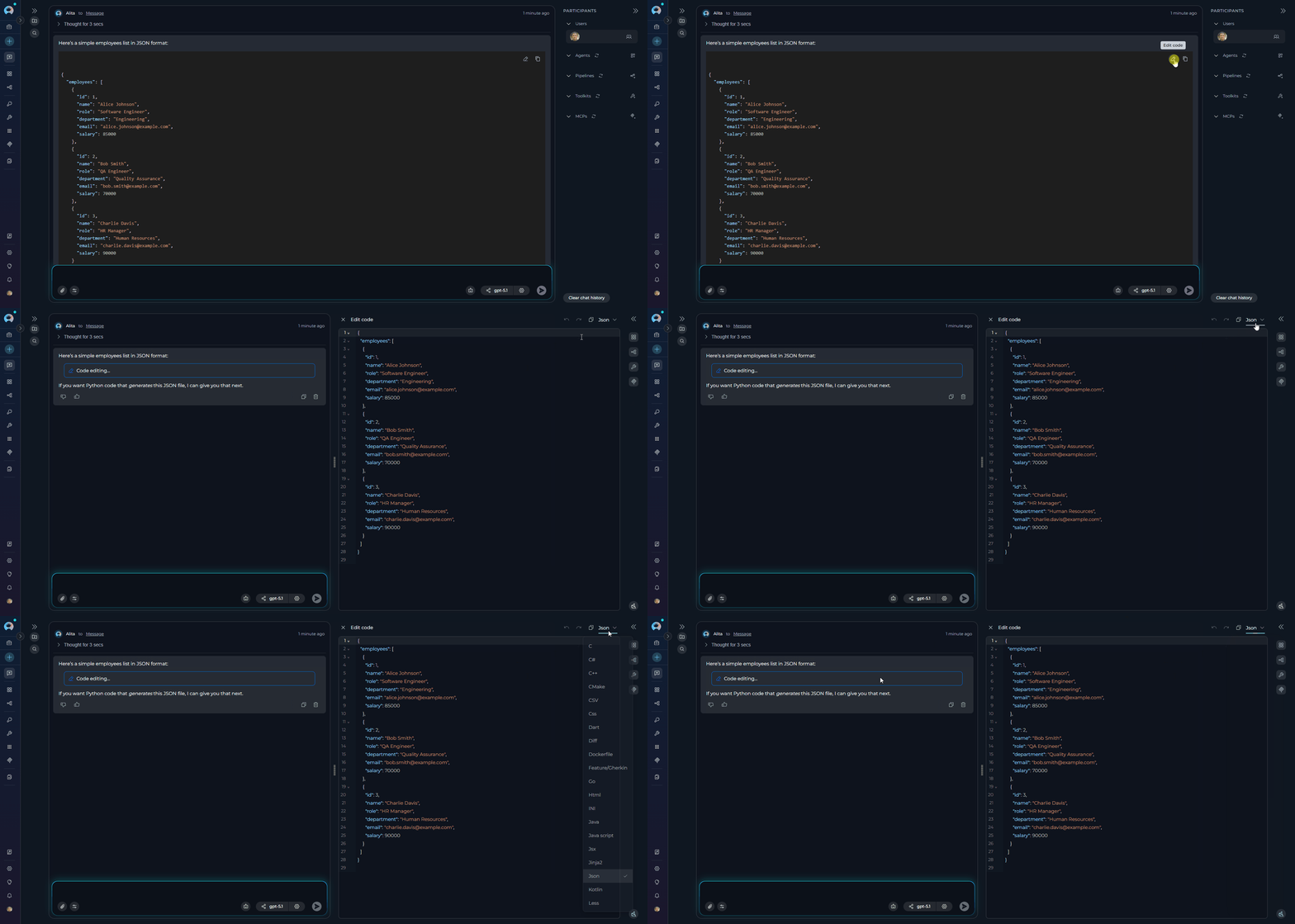
1. Ask ELITEA to generate code, a table, or a Mermaid diagram.
2. When ELITEA generates the content, look for the pencil icon (✏️) in the top-right corner of the content block.
3. Click the icon to open the Canvas editor in a modal window.
4. Make your edits using the available tools:
* **Copy**: Copy content to clipboard
* **Undo/Redo**: Revert or reapply actions
* **Save**: Save your changes
* **Export**: Download in various formats
5. Click **Save** to preserve your changes in the conversation or **Export** to download files.
 See also:
* [Use Canvas in Conversations](../../how-tos/chat-conversations/how-to-canvas)
* [Edit Files in Canvas](../../how-tos/chat-conversations/file-editing-canvas)
* [Agents from Canvas](../../how-tos/chat-conversations/how-to-create-and-edit-agents-from-canvas)
* [Pipelines from Canvas](../../how-tos/chat-conversations/how-to-create-and-edit-pipelines-from-canvas)
* [Toolkits from Canvas](../../how-tos/chat-conversations/how-to-create-and-edit-toolkits-from-canvas)
* [MCPs from Canvas](../../how-tos/chat-conversations/how-to-create-and-edit-mcps-from-canvas)
See also:
* [Use Canvas in Conversations](../../how-tos/chat-conversations/how-to-canvas)
* [Edit Files in Canvas](../../how-tos/chat-conversations/file-editing-canvas)
* [Agents from Canvas](../../how-tos/chat-conversations/how-to-create-and-edit-agents-from-canvas)
* [Pipelines from Canvas](../../how-tos/chat-conversations/how-to-create-and-edit-pipelines-from-canvas)
* [Toolkits from Canvas](../../how-tos/chat-conversations/how-to-create-and-edit-toolkits-from-canvas)
* [MCPs from Canvas](../../how-tos/chat-conversations/how-to-create-and-edit-mcps-from-canvas)