> ## Documentation Index
> Fetch the complete documentation index at: https://docs.elitea.ai/llms.txt
> Use this file to discover all available pages before exploring further.
# Permission Management
> To configure or modify the admin settings for a specific project:
This page contains outdated information and is no longer maintained. Please refer to the [Users & Roles Settings](../menus/settings/users) for up-to-date content.
## How to access Admin menu:
1. Navigate to `{base_URL}/~/administration/~/configuration/roles/`.
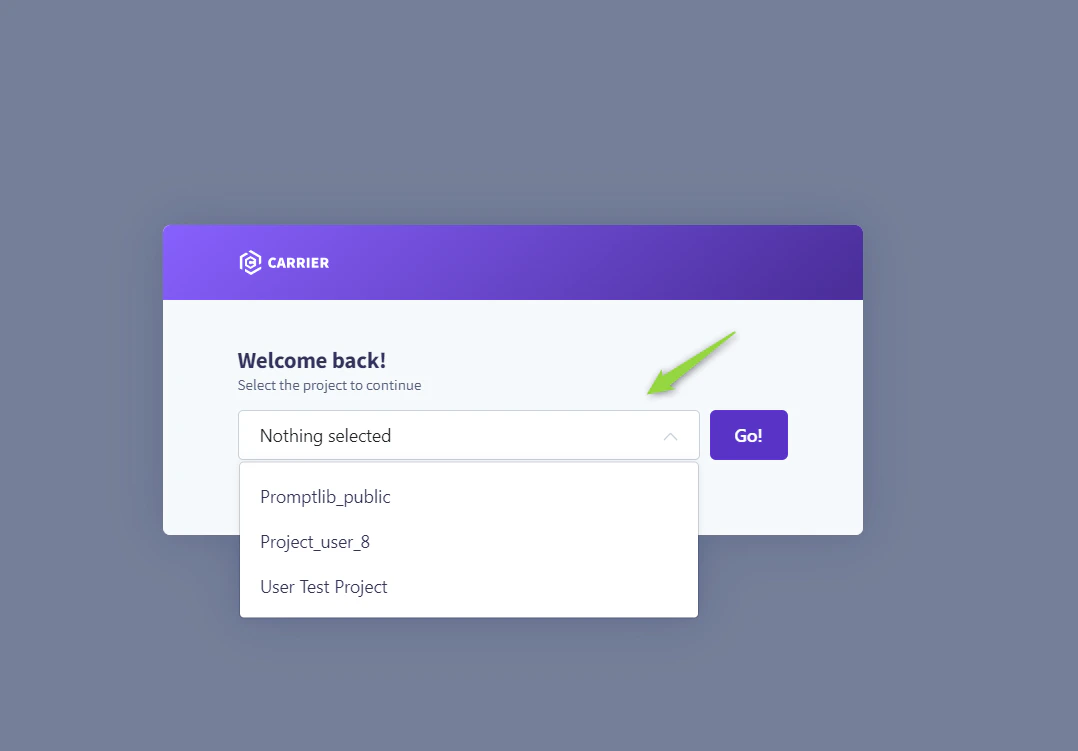
2. Select the project from the dropdown list for which you want to set up or adjust the admin settings.
 ## Roles Menu
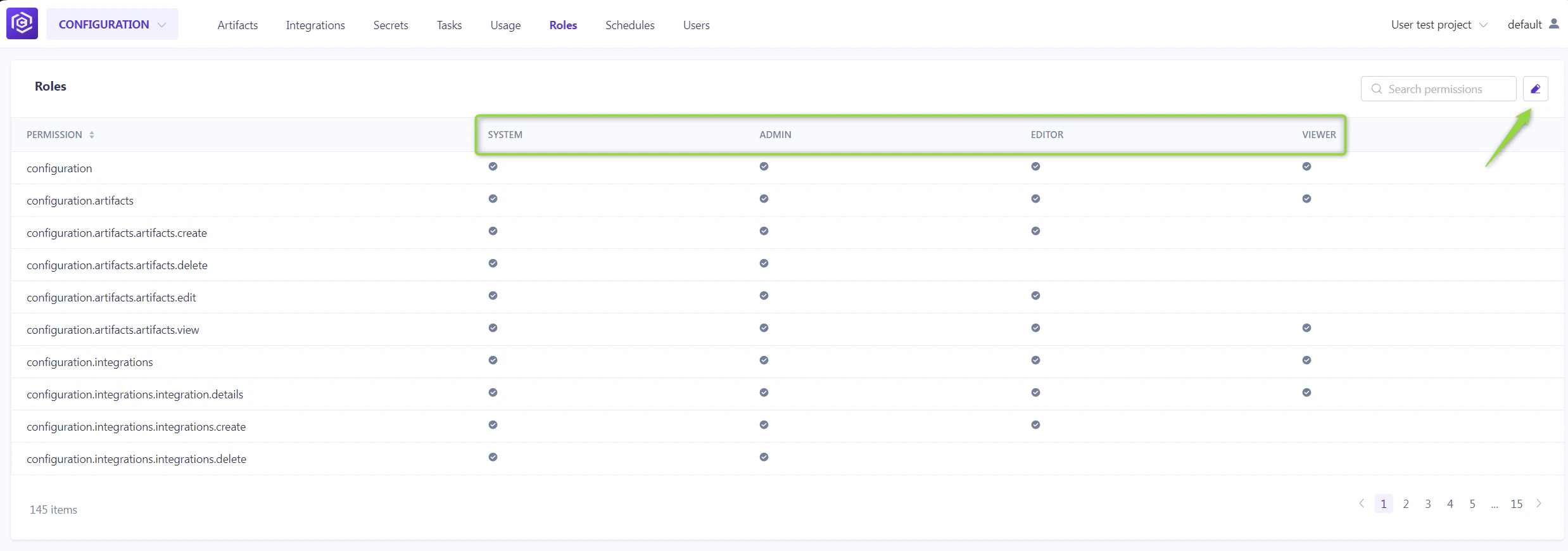
The **Roles** menu allows for the detailed configuration of permissions across default and custom roles, tailoring access to the project's needs.
**Default Roles**:
* **System**: Grants comprehensive permissions, including additional administrative capabilities.
* **Admin**: Allows full project access and user management.
* **Editor**: Provides editing rights within the project without administrative privileges.
* **Viewer**: Limits access to viewing permissions, excluding any create, read, update, delete (CRUD) actions.
## Roles Menu
The **Roles** menu allows for the detailed configuration of permissions across default and custom roles, tailoring access to the project's needs.
**Default Roles**:
* **System**: Grants comprehensive permissions, including additional administrative capabilities.
* **Admin**: Allows full project access and user management.
* **Editor**: Provides editing rights within the project without administrative privileges.
* **Viewer**: Limits access to viewing permissions, excluding any create, read, update, delete (CRUD) actions.
 **Customizing Roles**:
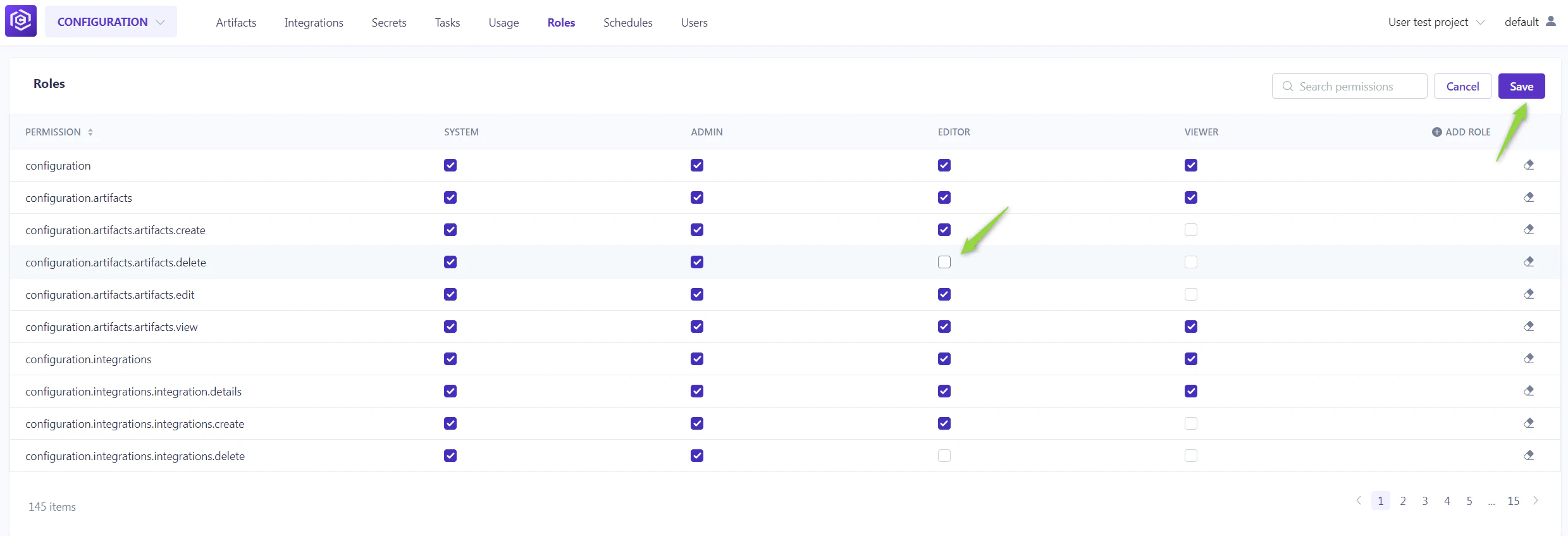
To adjust permissions for any role:
1. Click the **Edit roles** icon.
2. Toggle the checkboxes for each permission as needed.
3. Click the **Save** to apply changes.
**Customizing Roles**:
To adjust permissions for any role:
1. Click the **Edit roles** icon.
2. Toggle the checkboxes for each permission as needed.
3. Click the **Save** to apply changes.
 **Creating a New Role**:
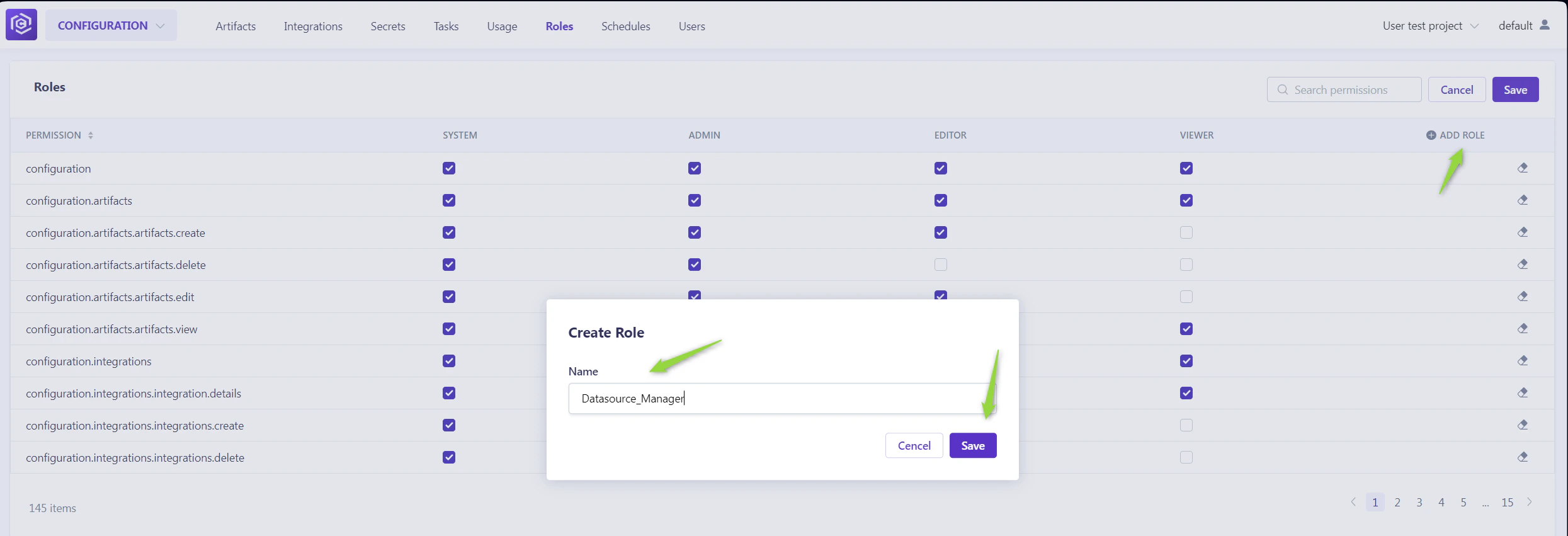
1. Click **Edit roles**.
2. Then **Add role**. After naming the new role, select the desired permissions.
3. This custom role will now be available for assignment in the **ELITEA HUB→Settings→Projects** menu.
**Creating a New Role**:
1. Click **Edit roles**.
2. Then **Add role**. After naming the new role, select the desired permissions.
3. This custom role will now be available for assignment in the **ELITEA HUB→Settings→Projects** menu.
 By understanding and utilizing the **Roles** menu, administrators can ensure that project participants have the appropriate access levels, fostering a secure and efficient collaborative environment.